NAS / Synology / QNAP / TrueNAS Odoo Integration v.18
The tool to automatically synchronize Odoo attachments with NAS Solutions in both ways. Synology, QNAP, TrueNAS and any other WebDav-supporting NAS solutions
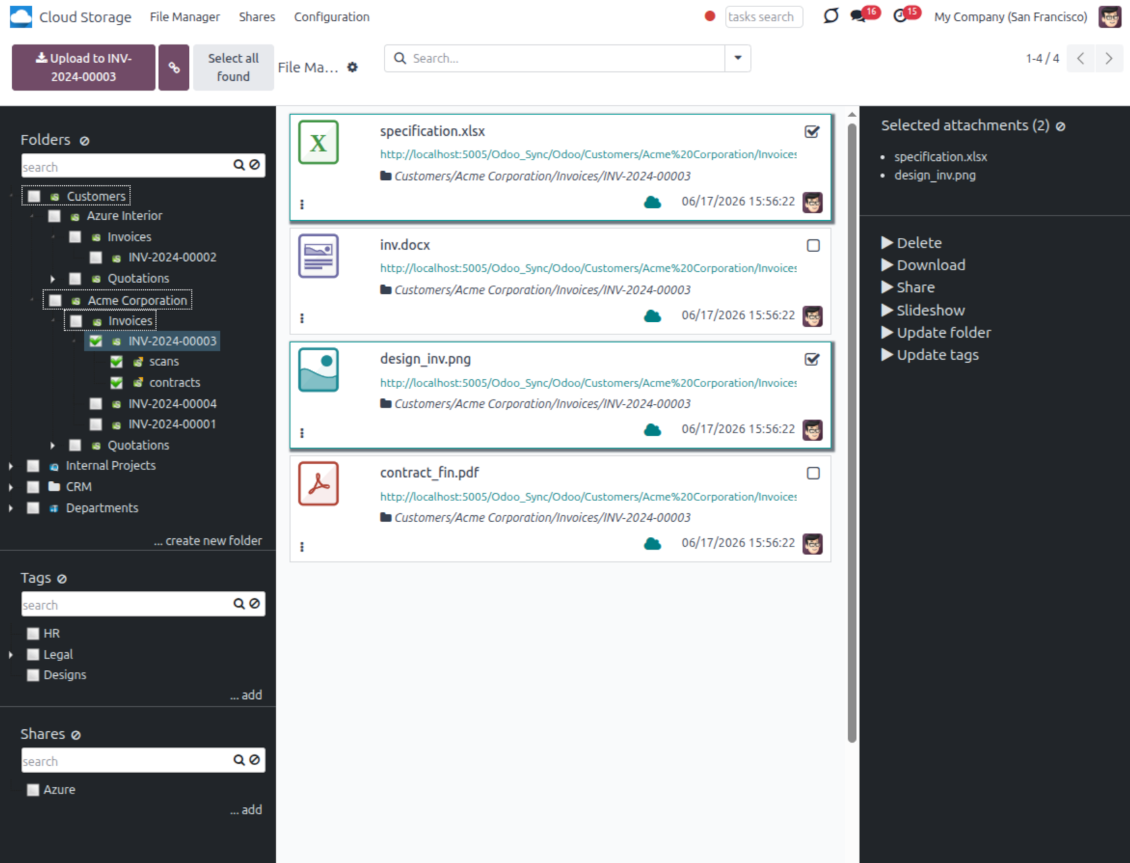
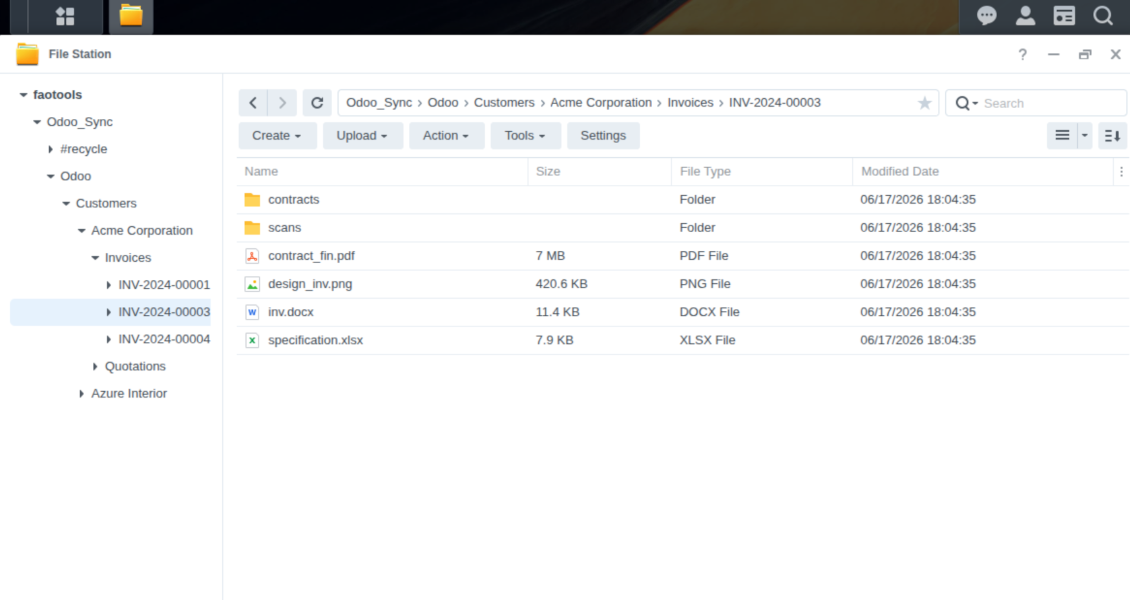
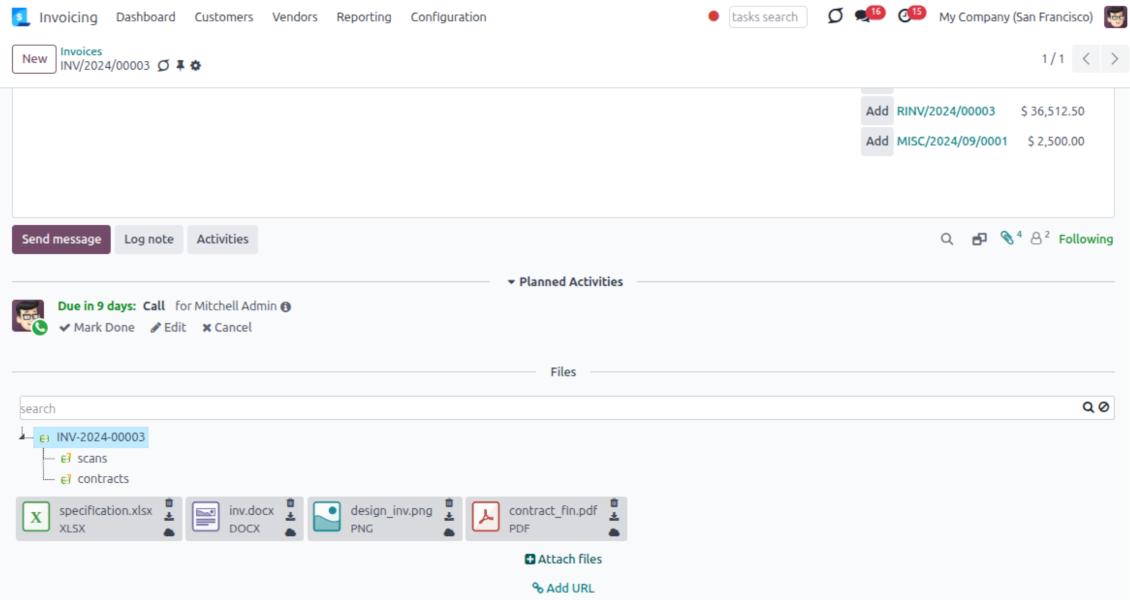
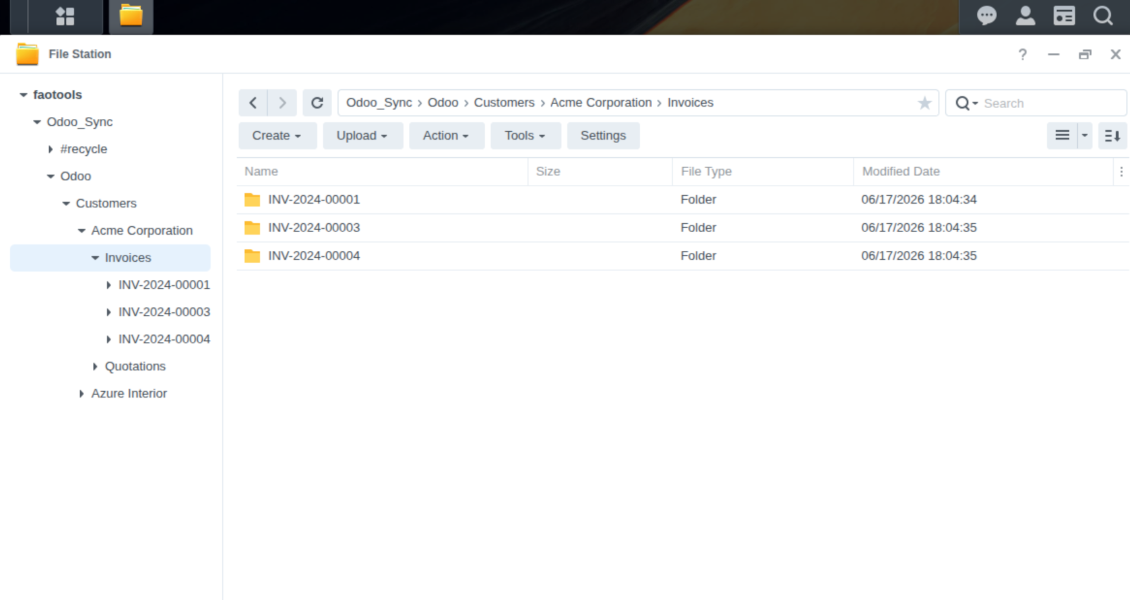
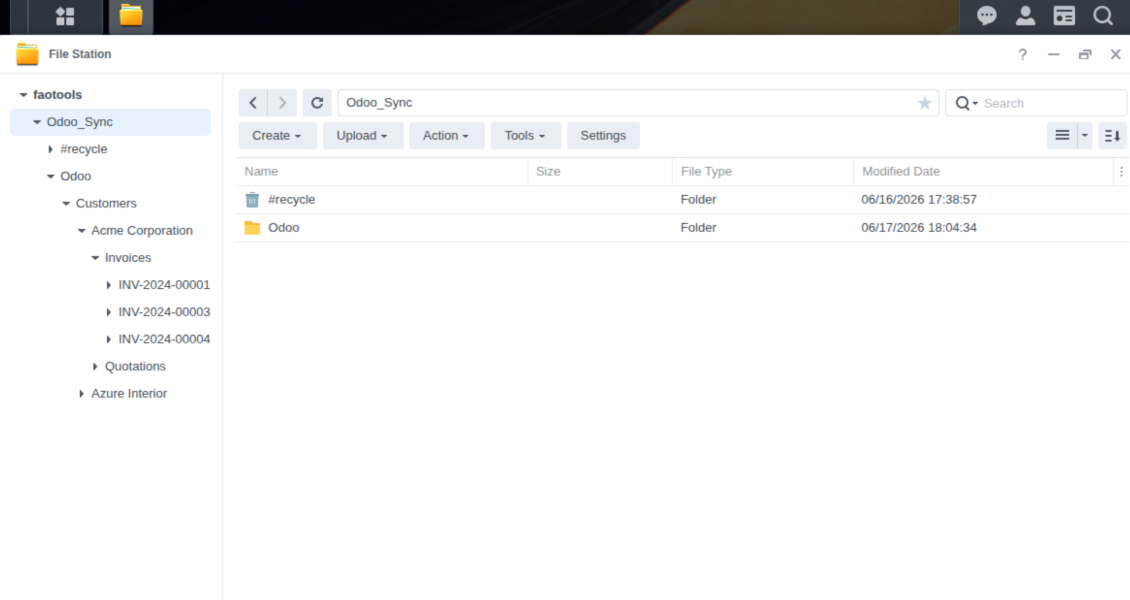
This is the tool to integrate NAS storage with Odoo folders and files through WebDAV. The app automatically stores Odoo attachments and directories in Synology, QNAP, TrueNAS (with WebDAV app), or any compatible NAS/WebDAV server and provides instant access to them via web links.
Automatic folders' structure
Decide which Odoo document types should have their own folders trees and synchronize those to NAS
Automatic regular sync
Rely on auto-synchronization between Odoo and Synology/QNAP/TrueNAS/other NAS based on scheduled jobs. No manual interaction is required
Bilateral sync
Odoo sends attachments to Synology/QNAP/TrueNAS/other NAS and retrieves files from there. Binary content is kept in clouds, while Odoo provides direct access to synced items
Cloud synchronization history
Control NAS Webdav sync logs right in Odoo. Export and share those in case of any issues. Be notified of any client disconnections
File manager interface
Manage synced folders and attachments from a single Odoo view. Comfortably navigate by directories. Search and download files one by one or in batch. Upload and move attachments to folders
Attachment box
Organize files of any Odoo object in a set of subfolders. Instantly access folders and files in the attachment box and in NAS solutions.
How synchronization works
Automatic two-sided sync
-
Configure sync for one or multiple Synology/QNAP/TrueNAS/other NAS instances
-
Integration is based on scheduled jobs and is fully automatized. The app regularly checks changes in systems and runs sync operations
-
Synchronization is bilateral. Updates in Odoo are reflected in Synology/QNAP/TrueNAS/other NAS (direct sync); changes in NAS solutions modify Odoo folders and attachments (backward sync)
-
Cloud connection with Synology/QNAP/TrueNAS/other NAS might be reset. In this way, the app assumes getting back all items back to Odoo (reverse sync)
-
Odoo folders and attachments might be re-attached to a new cloud client from Synology/QNAP/TrueNAS/other NAS. Hence, items will be first taken back to Odoo (reverse sync) and then will be put into the new cloud storage (direct sync)
Queue-based synchronization
-
Once in 15 minutes, the app examines updates in Odoo and Synology/QNAP/TrueNAS/other NAS to prepare a synchronization queue
-
Folders' checks follow the First-In-First-Out (FIFO) principle. So, directories that have not been examined for the longest will be processed first
-
Once in 15 minutes, the sync queue is run by the special scheduled job. Firstly, the most important (blocking) tasks would be done
-
Control planned jobs and their fulfillment in the special Odoo logs interface (Cloud Storage > Configuration > Sync Logs). Subscribe for particular cloud clients notifications
-
If the app faces sync failures, it will re-try operations afterward. Sync queue processing would not be stopped if there are items not blocked by such failures
Odoo attachments for NAS solutions: direct sync
-
Direct sync prepares the folders' hierarchy and uploads Odoo attachments for Synology/QNAP/TrueNAS/other NAS
-
Direct sync checks whether attachments are added or deleted for synced directories. If so, they would be created or removed in Synology/QNAP/TrueNAS/other NAS. In particular, it means that any file added to a folder-related Odoo object (e.g. Quotation), would be automatically moved to a linked cloud client
-
Direct sync makes all synced Odoo attachments change their type to a link (URL), while binary content is removed with one of the next Odoo cleaners. So, no actual files would be stored on your Odoo server
-
Direct sync checks whether a new folder is added. Disregarding whether it is done manually or automatically, the app would generate a peer directory in Synology/QNAP/TrueNAS/other NAS
-
Direct sync checks whether there are any updates in folders. If so, such changes are reflected in Synology/QNAP/TrueNAS/other NAS
WebDAV files and folders for Odoo: backward sync
-
Backward sync checks whether any files or subfolders are added to Synology/QNAP/TrueNAS/other NAS folders. If so, the app would create URL attachments/subdirectories inside linked Odoo directories (and hence Odoo objects if any)
-
Backward sync checks whether there are any updates in folders or attachments. Such updates would be then reflected in Odoo
-
Backward sync checks whether any files are deleted/moved in a Synology/QNAP/TrueNAS/other NAS document folder. If so, a linked Odoo attachment would be also unlinked or moved
-
If you deleted a Synology/QNAP/TrueNAS/other NAS folder related to a folder rule / Odoo object, their child files would be deleted as well. Thus, Odoo would remove related attachments. The folders, however, will be recovered with a direct sync
-
In case of conflicts, direct sync changes are in general considered more important than backward updates.
Resetting or changing Synology/QNAP/TrueNAS/other NAS: reverse sync
-
In case you decided to reset the connection with Synology/QNAP/TrueNAS/other NAS, files would be moved back to Odoo
-
In case you decided to change the cloud client of a folder rule or a folder, files would be first taken back to Odoo, and then direct sync for a new client would be done
-
Reverse sync operations are prioritized to direct and backward sync operations
-
Not all items can be correctly reversed to Odoo due to cloud client peculiarities. For example, there are documents that may exist only in cloud storage environments. The app would try to convert such documents, but in some cases, it would require manual interactions.
Conseils de configuration et d'installation pour NAS / Synology / QNAP / TrueNAS Odoo Integration Odoo v.18
NAS preconfiguration notes
NAS systems usually expose files through a local network. If your Odoo server is hosted outside that network, the WebDAV endpoint should be reachable from Odoo through a secure channel. Recommended options are a reverse proxy with a valid HTTPS certificate, a VPN or secure tunnel such as WireGuard, Tailscale, or Cloudflare Tunnel, or a vendor relay such as Synology QuickConnect or QNAP myQNAPcloud. Plain port forwarding is possible but should be treated as the least preferred option.
Use a dedicated NAS user with the minimum required rights to one shared folder: read, create, update, move, and delete. Avoid administrator accounts. Publicly exposed endpoints should always use HTTPS and a valid TLS certificate. The connector has a "Verify SSL" option for trusted self-signed certificates, but it should normally remain enabled.
Configuration and log in
- Turn on the option 'NAS Sync' (Cloud Storage > Configuration > Configuration). The optional add-on NAS Odoo Integration is required
- Prepare your NAS WebDAV endpoint:
- Synology: install and enable WebDAV Server in DSM and choose HTTPS where possible
- QNAP: enable WebDAV for the target shared folder and use HTTPS where possible
- TrueNAS CORE: enable the WebDAV service; TrueNAS SCALE: install and configure the WebDAV app, since native WebDAV was removed in modern SCALE releases
- Generic WebDAV: make sure PROPFIND, MKCOL, PUT, GET, MOVE, and DELETE are available
- If Odoo is hosted outside the local NAS network, make the WebDAV endpoint reachable securely. Prefer a reverse proxy with a valid TLS certificate, a VPN/secure tunnel such as WireGuard, Tailscale, or Cloudflare Tunnel, or a vendor relay such as Synology QuickConnect or QNAP myQNAPcloud. Avoid exposing an administrator interface to the Internet
- Create a dedicated NAS user with full rights only inside the target shared folder: read, create, write, move, and delete. Do not use an administrator account
- Go to Odoo Cloud Storage > Configuration > Cloud Clients and press 'Create'
- As a reference, introduce any name which would be clear to all users
- As a Cloud client, choose 'Synology NAS', 'QNAP NAS', 'TrueNAS', or 'WebDAV NAS'
- As a Root folder name, enter a title that will be used as the parent NAS directory for all synced folders. For example, 'Odoo' or 'OdooERP'
- Enter the full WebDAV URL, login, and password. Optionally define a base path if Odoo should create the root folder inside an existing share or directory
- Keep 'Verify SSL' enabled for public HTTPS endpoints. Disable it only for a trusted private endpoint with a self-signed certificate
- Optionally define a browser base URL if NAS files should be opened through a vendor file station URL instead of the raw WebDAV URL
- Press 'Confirm'. Odoo checks the WebDAV connection and creates or finds the root directory. NAS - Odoo synchronization is ready to be done
- Apply the newly created cloud client to folder rules and/or manual folders which should be synced to that NAS storage
- Await the sync scheduled job to be started. For testing purposes only: trigger integration manually from Cloud Storage > Configuration > Configuration > the button 'Launch sync'.
Enter QNAP credentials

Enter Synology credentials

Enter TrueNAS credentials

Questions fréquentes sur NAS / Synology / QNAP / TrueNAS Odoo Integration Odoo v.18
Où sont stockés les fichiers synchronisés ? Sont-ils dupliqués dans Odoo et dans les clouds ?
L'application suppose que le contenu binaire des pièces jointes est conservé dans le Cloud Client plutôt que sur le serveur Odoo. Ces pièces jointes deviennent de type URL dans Odoo, et vous pouvez y accéder à tout moment depuis la zone des pièces jointes ou depuis le Cloud Client.
Après la configuration, aucune action manuelle n'est requise : la synchronisation est entièrement automatique. Choisissez quels types de documents Odoo synchroniser et configurez un modèle lié pour chacun (clients, commandes de vente ou d'achat, tâches, projets, etc.).
Puis-je avoir plusieurs dossiers pour le même type de document ? Par exemple, des projets internes et des projets clients ?
Oui, c'est possible. Pour cela, préparez une règle pour chacune, puis appliquez des filtres : par exemple selon le type de projet.
Rendez les filtres mutuellement exclusifs pour qu'un document soit clairement attribué. Par exemple : « client mais pas fournisseur », « fournisseur mais pas client ». Sinon, le dossier d'un document passerait d'un modèle à un autre.
Est-il possible de rendre la synchronisation en temps réel ?
Non. Nous avons de solides raisons d'éviter une synchro en temps réel :
Performances. Si la synchro est en temps réel, chaque envoi de fichier affiche un écran de chargement.
Conflits. Si 2 utilisateurs modifient un élément en même temps, la situation peut devenir insoluble. Avec des tâches régulières, on peut corriger ensuite ; en temps réel, il faudrait une file d'attente, encore plus déroutante.
Fonctionnalités. Notamment le renommage et la restructuration. La synchro inverse s'appuie strictement sur la logique des répertoires et, à chaque synchro, 100 % des éléments sont contrôlés. Après chaque mise à jour, ce seraient des milliers de requêtes par seconde. Sinon, les changements seraient perdus.
Puis-je modifier le nom par défaut des dossiers dans les clouds ?
Vous pouvez donner votre nom aux répertoires des modèles (commandes de vente, opportunités, fournisseurs, etc.) pour tout type de document.
Pour les dossiers d'objets (SO-001, John Smith, etc.), l'outil s'appuie sur la méthode Odoo qui construit le nom d'affichage. Vous pouvez le changer en définissant une expression de nom. La syntaxe est celle des modèles d'e-mail Odoo.
Puis-je modifier la fréquence des tâches de synchronisation ?
Non, à partir de la version 15, ne modifiez pas les tâches planifiées. Elles sont optimisées pour s'exécuter toutes les 15 minutes afin d'assurer la connexion la plus stable et rapide.
Les délais d'attente du serveur Odoo doivent être d'au moins 15 minutes (900 secondes).
Pour interrompre la synchro un moment, faites-le sur le formulaire du client cloud concerné.
Puis-je synchroniser les pièces jointes vers plusieurs clients cloud
Oui, à partir de la version 15 vous pouvez configurer plusieurs connexions. Ainsi, certains dossiers se synchronisent vers un client cloud et d'autres vers un autre.
Notez qu'il n'est en aucun cas possible de synchroniser le même dossier vers plusieurs stockages cloud en même temps.
Nous utilisons un éditeur spécial dans nos clouds (p. ex. OnlyOffice, Office 365, etc.). Les fichiers s'ouvriraient-ils dans cet éditeur ?
Oui, selon la configuration de votre client cloud.
Ai-je besoin uniquement de l'application Cloud Storage Solution ?
À partir de la version 15, l'application peut servir seule pour structurer les pièces jointes en dossiers et offrir une interface de gestionnaire de fichiers.
Si votre objectif est une connexion avec l'un de ses clients cloud, il faut installer au moins une application optionnelle liée au client.
Que se passe-t-il lorsque je modifié une règle de dossier ?
Quand une règle de dossier change, la liste des dossiers change aussi. Si un dossier ne correspond plus aux conditions, il est retiré. Si les fichiers étaient synchronisés, la synchro inverse les ramène dans Odoo et les supprimé du Cloud Client.
Si l'objet d'un document ne correspond pas à une règle de dossier, son dossier n'est pas créé. S'il y correspond plus tard, le dossier lié sera généré.
Puis-je garder seulement la synchronisation directe, ou désactiver la synchronisation depuis le cloud ?
Oui. Sur le client cloud, ouvrez la page Paramètres et activez Désactiver la synchronisation depuis le cloud.
La synchronisation reste à sens unique. Les modifications faites dans Odoo sont toujours envoyées vers le stockage cloud. Les fichiers et dossiers créés, renommés ou supprimés dans le stockage cloud ne sont pas reflétés dans Odoo, et les dossiers supprimés là-bas ne sont pas restaurés.
Désactivez de nouveau l'option pour appliquer ces modifications accumulées, y compris les suppressions, à la prochaine synchronisation.
Ce réglage est disponible à partir de la version 18. Détacher, réinitialiser ou désactiver le client lance encore la synchronisation inverse, sauf si vous la désactivez aussi.
Les textes de l'application et du site web dans des langues autres que l'anglais sont assistés par l'IA et alignés sur les traductions officielles d'Odoo. Si vous remarquez une erreur, envoyer un ticket de traduction et nous le corrigerons.
Bases de démonstration Odoo (aperçus)
Pour cette application, nous pouvons fournir une base de données de démonstration personnalisée gratuite.
Vous n'avez pas besoin d'un numéro de téléphone ou d'une carte de crédit pour nous contacter. Vous ne devez passer qu'une courte inscription par e-mail, qui ne prend pas plus de 30 secondes.
Sur demande, nous préparons une base d'aperçu individuelle où vous pouvez effectuer tous vos tests et vérifier vos hypothèses pendant environ deux semaines.
Signalement de bogues
Si vous rencontrez des bugs ou des comportements incohérents, n'hésitez pas à nous contacter. Nous garantissons de fournir des correctifs dans les 60 jours suivant l'achat et sommes extrêmement intéressés par l'amélioration de nos outils même après cette période.
Vous n'avez pas besoin d'un numéro de téléphone ou d'une carte de crédit pour nous contacter. Vous ne devez passer qu'une courte inscription par e-mail, qui ne prend pas plus de 30 secondes.
Veuillez inclure autant de détails que possible dans votre demande : captures d'écran, journaux du serveur Odoo, description complète de la procedure de reproduction du probleme, etc. Il faut generalement quelques jours ouvrables pour preparer un plan d'action concernant un probleme (si un bogue est confirmé) ou vous fournir des recommandations sur la marche a suivre (dans le cas contraire).
Demandes de fonctionnalités publiques et idées de modules (développement gratuit)
Nous sommes fortement motivés pour améliorer nos outils et serions reconnaissants pour tout retour. Si vos exigences sont d'utilité publique et peuvent être mises en œuvre efficacement, l'équipe les inclura dans notre liste de tâches.
Une telle liste de tâches est traitée régulièrement et n'implique pas de frais supplémentaires. Bien que nous ne puissions pas promettre de délais ni de conception finale, cela pourrait être un bon moyen d'obtenir les fonctionnalités souhaitées sans investissements ni risques.
Vous n'avez pas besoin d'un numéro de téléphone ou d'une carte de crédit pour nous contacter. Vous ne devez passer qu'une courte inscription par e-mail, qui ne prend pas plus de 30 secondes.


The tool to build a deep and structured knowledge base for internal and external use. Knowledge System. KMS. Wiki-like revisions.
398€
The tool to set up KPI targets and control their fulfillment by periods. KPI dashboards. Dashboard designer. KPI charts

The tool for time-based service management from booking appointments to sales and reviews
398€
The tool to manage your Odoo from your favorite AI chats through MCP. Claude. Any MCP-supporting AI.

L'outil pour classer les pièces jointes Odoo en dossiers et synchroniser avec Google Drive, OneDrive/SharePoint, Nextcloud/ownCloud, Dropbox, Amazon S3, Box et NAS. Gestionnaire de fichiers. DMS
398€
The tool to automatically synchronize Odoo attachments with OneDrive files in both ways
487€
The tool to automatically synchronize Odoo attachments with Google Drive files in both ways
487€
The tool to automatically synchronize Odoo attachments with ownCloud/Nextcloud files in both ways
487€