OneDrive / SharePoint Odoo Integration v.10
The tool to automatically synchronize Odoo attachments with OneDrive files in both ways
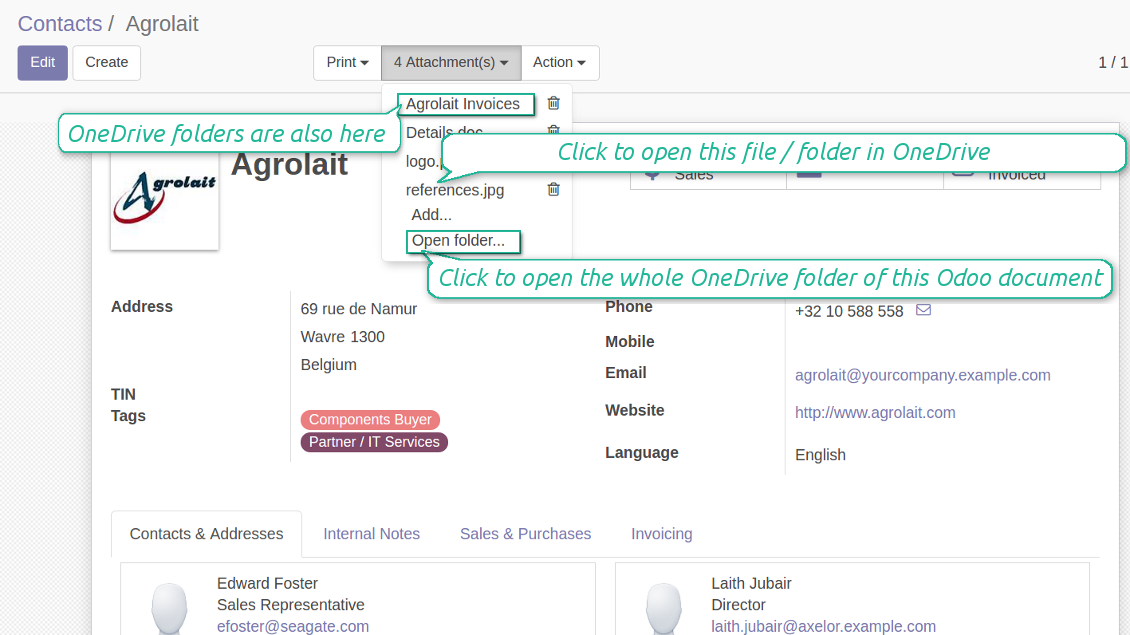
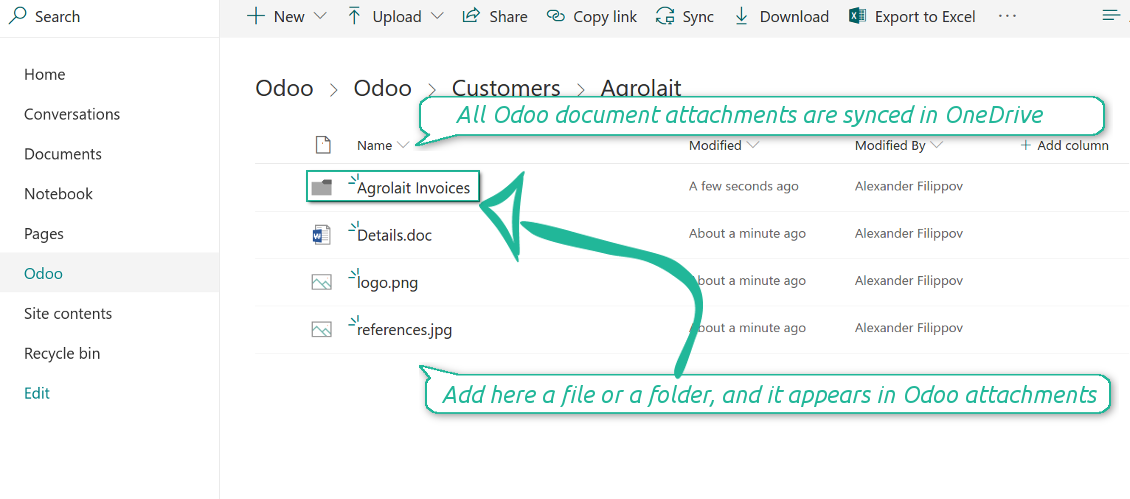
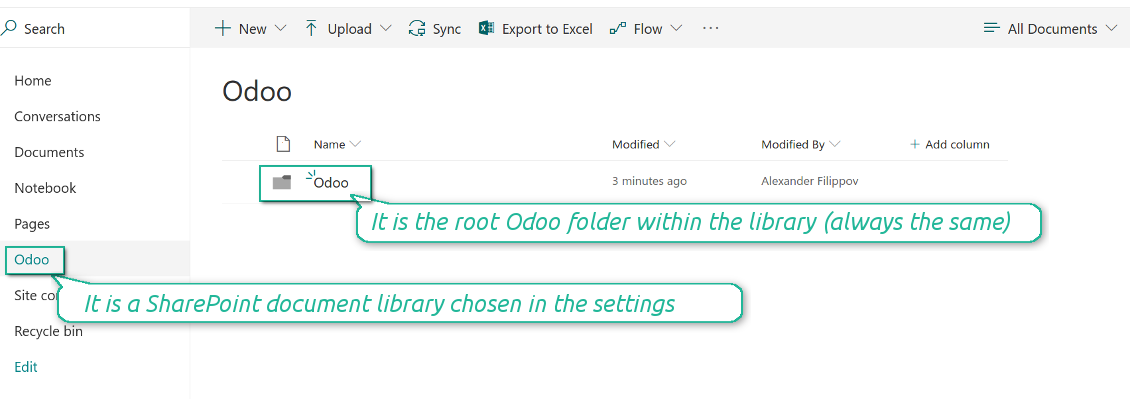
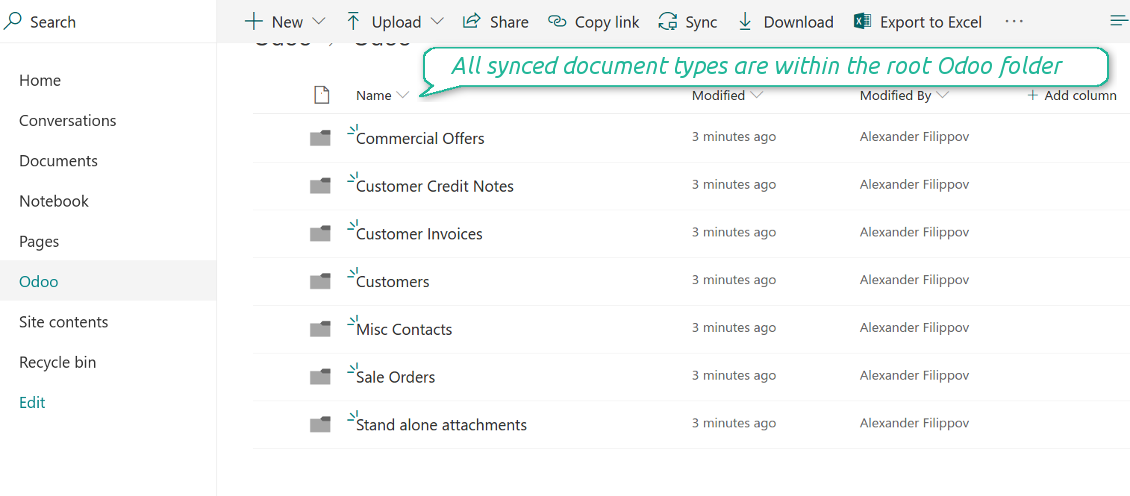
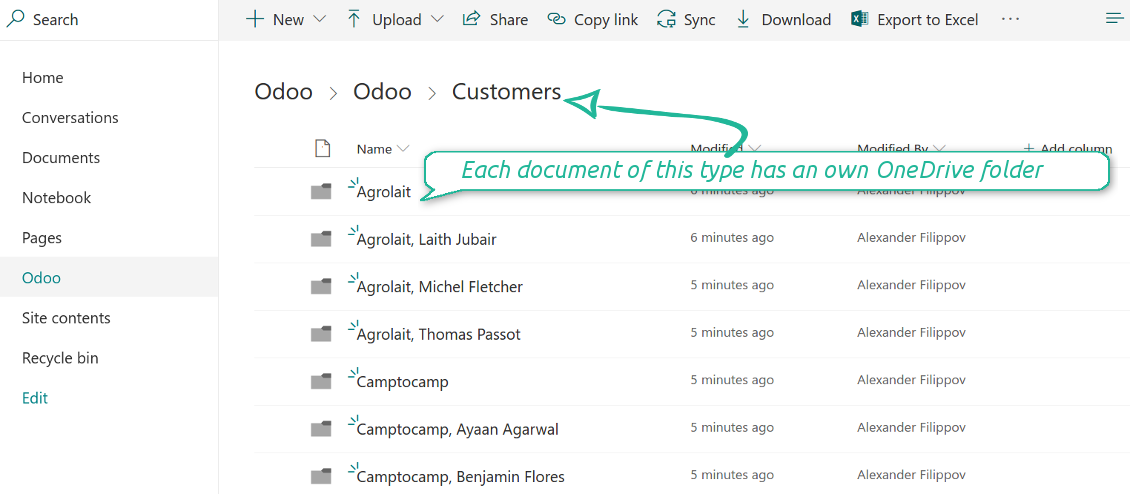

Synchronization is bilateral. All Odoo attachments are put in OneDrive regularly. OneDrive files create attachments in Odoo in case they are placed in a correct folder. Look at the sections From Odoo to OneDrive and From OneDrive to Odoo
Integration is automatic in both ways. Based on scheduled jobs, Odoo send attachments to OneDrive and retrieve files from there
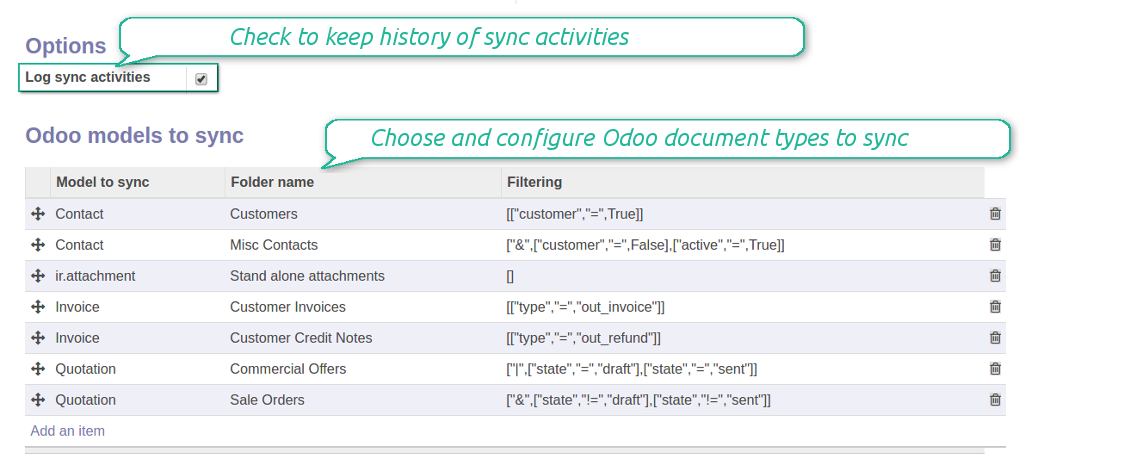
Any Odoo document might be synced: customers, opportunities, sale or purchase orders, tasks or issues, employees or users, etc. You decide by your own which records should be in OneDrive, and which should be left in Odoo
Synchronization works for SharePoint sites, OneDrive for business, and personal OneDrive. In the first case the files are kept in preselected documents library, in the latter two - in a user' documents library
All synced files are easily accessible though clicking on an attachment. Odoo automatically redirects you to a file previewer. Among others it might be Word or Excel editors (if Office365 is set up). Besides, you might open a whole document folder by clicking on 'Open folder' on the attachment widget
All sync activities might be logged. Control over files and folders creations, moves, name changes and removals. Just turn on the option 'Log sync activities' and access history through the button 'Sync logs'
The tool is compatible with Odoo reporting and mailing apps. If such an app faces a synced file, it retrieves a real content from OneDrive. In particular, the reports 'always reload' feature and messages & mass mailing attachments work properly
Integration is based on a single user endpoint. It means that you should login in OneDrive only once. Afterwards for integrations Odoo would use that credentials disregarding an actual Odoo user. Make sure, however, that real Odoo users have an access to OneDrive to open URLs linked to their attachments
- Prepare and keep updated folders' structure in OneDrive
- Upload new attachments to a correct folder
Odoo creates a convenient directory structure in OneDrive: Odoo / Document type name / Document name / Files, where:
- Odoo is a central directory for Odoo Sync in your Drive.
- Document type is a synced Odoo model, for example, 'Sale orders', 'Opportunities', 'Customers'
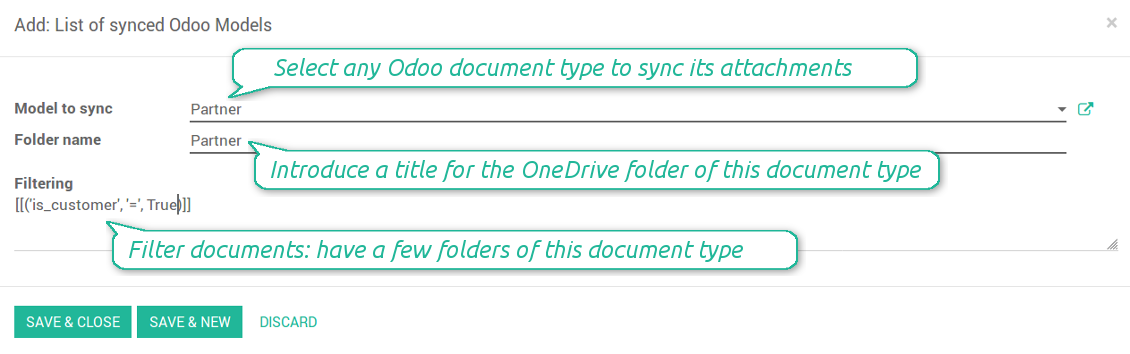
- You select document types by yourself. It might be any document type
- Moreover, you might have a few folders for a single document type. Use Odoo domains to have not global 'Partners, but 'Customers' and 'Suppliers', not just 'Sale orders' but 'Commercial offers', 'To deliver', and 'Done orders'
- With each sync Odoo would try to update document types' folders. Add a new document type at any moment. It will appear in OneDrive with a next sync
- You are welcome to introduce or change document types folder names at any moment in Odoo. Take into account: renaming in OneDrive will be recovered to Odoo names
- If you remove a model from integration, it will not be deleted from OneDrive to keep already synced files safe. However, new documents of this type would not be synced
- In case you removed a directory in OneDrive / SharePoint, but it is still configured in Odoo, with a next sync a folder structure is going to be recovered (not files, surely).
- Document is an exact object to sync. For instance, 'Agrolait' or 'SO019'
- Documents are synced in case they relate to a synced document type and satisfy its filters. For example, you are not obliged to sync all partners, you may integrate only 'Customers' and 'Vendors' or only 'Companies', not 'Contacts'
- Odoo would generate a folder in OneDrive for each suitable document even for documents without attachments. It is needed for a backward sync to easily add new files
- OneDrive folder name equals a real document name. It relies upon Odoo name_get method. Thus, Odoo 'Michael Fletcher' (a contact of 'Agrolait') would be OneDrive 'Agrolait, Michael Fletcher'
- If an exact document changes its document type (e.g. a quotation is now confirmed), Odoo will automatically relocate its related folder to a proper parent directory (in the example: from 'Commercial offers' to 'To deliver')
- In case a document relates to a few types (for instance, you have 'Vendors' and 'Customers', while Agrolait is both), this document folder would be put into the most prioritized document type. A document type priority is higher as closer to the top in Odoo interfaces it is
- If an Odoo document is removed, the next sync will remove a corresponding OneDrive directory
- In case you remove a directory in OneDrive / SharePoint, but it still exists in Odoo, OneDrive folder structure would be recovered (while files would be unlinked in both Odoo and OneDrive)
- Folders renaming in OneDrive will be replaced with Odoo names, Odoo document names are more important
- Files are real files taken from Odoo attachments
The resulted path would be, for example, 'Odoo / Quotations / SO019 / commercial offer.png'.
The only exclusion of the rule are stand alone attachments which do not relate to any Odoo documents (their document type is 'ir.attachment'). Such attachments' path is 'Odoo / Stand Alone Attachments / image.png'.
The very first sync might take quite a long, since a lot of folders should be created. Afterwards, it would be much faster. However, it is not recommended to make sync too frequent: once an hour seems quite good for large files.
FilesWith each direct sync, Odoo tries to find not yet synced attachments. If such attachments suit any document type to sync, a file will be uploaded to OneDrive to a proper folder. In Odoo such attachments will become of 'url' type. It means that a file is not any more kept in Odoo server space, but now it is in OneDrive. Until sync is done, Odoo attachment remains binary and stores an actual file. Such approach helps Odoo to work faster.
Clicking on such attachment leads you to a file previewer / editor in OneDrive. Depending on your OneDrive / SharePoint configurations it might be Word, Excel, PDF previewer, etc. Anyway changes to file contents in OneDrive are available in Odoo at the same moment.
If you unlinked an attachment from Odoo, it would be deleted in OneDrive as well.
Take into account that file names should be managed in OneDrive: each backward sync would recover OneDrive names, Odoo is here less important.
- If a new file is added to a proper document folder (e.g. to 'Odoo / Customers / Agrolait'), the same attachment will be added to Odoo document (in the example - to 'Agrolait')
- In document folders you can put not only files but also child folders. In that case a link for this folder (not its content) is kept in attachments
- In case you rename a file in OneDrive, it will be renamed in Odoo as well
- Files' removal from OneDrive leads to related Odoo attachments' removal
- If you move a file to another document folder, in Odoo a related attachment would be re-attached to this new document. Take into account: if you move a file for a not document folder, in Odoo attachment will be deleted as it has been removed from OneDrive
- If you deleted a document type or document folder, their child files are deleted as well. Thus, Odoo would remove related attachments. The folders, however, will be recovered with a next direct sync. Folders' move to another directory is also considered as a removal. Avoid such situations by following the simple rule: folders are managed mostly by Odoo, files - mostly by OneDrive.
SharePoint sites
- Go to your Azure Portal and prepare a new application:
The app must be registered inside a directory (tenant). Microsoft no longer allows creating a new app outside one.
- If you already have a company Microsoft 365 / Azure directory, switch the portal (top right) to it and continue.
- If you only have a personal account (@outlook.com, @hotmail.com, @live.com) and see "these applications are associated with the account ... but are not contained within any directory", you do not have a directory yet. Sign up for a free Azure account with the same Microsoft account: https://azure.microsoft.com/free/ - Try Azure for free. This creates a Default Directory for you at no cost.
- Microsoft asks for a card for identity verification only; a temporary ~1 USD hold is placed and reversed. You are not charged for the directory or for the app registration.
- The directory (Microsoft Entra ID Free) and any app registered in it keep working independently of the 30-day / $200 Azure trial credit. That credit is for paid Azure resources you are not using here. No payment is required for our app.
- If the whole directory sits completely unused for a very long time (Microsoft's own threshold is around 200 days of no activity at all), Microsoft may email a warning and eventually retire it. Since Odoo calls this app every time it syncs, an active connection keeps the directory active - this only matters if you stop syncing entirely for months.
- Once you are in a real directory (not "Microsoft Services"), open App registrations there.
- Grant the app full permissions for Office365 SharePoint online
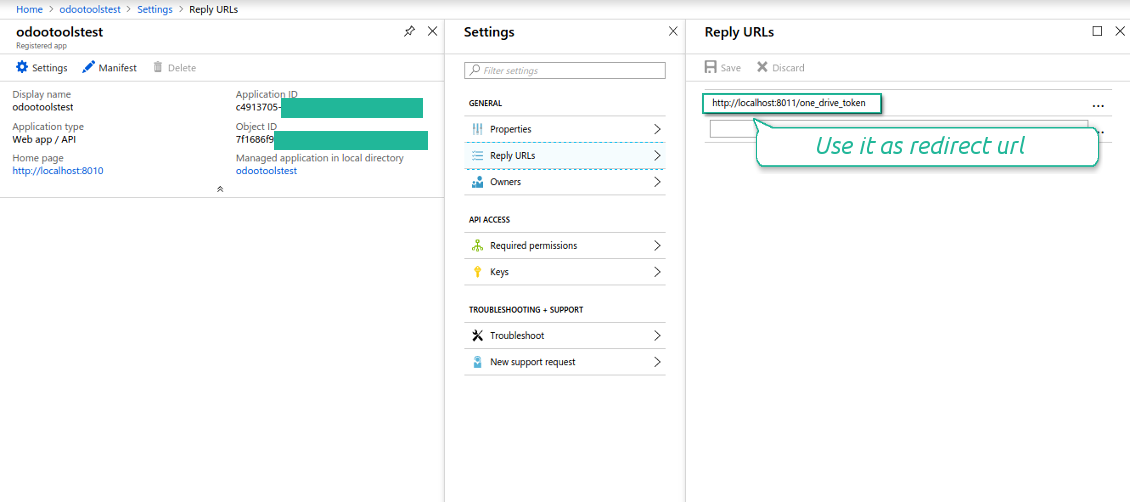
- Assign the reply url as [YOURODOOSITENAME]/one_drive_token (e.g. https://odootools.com/one_drive_token)
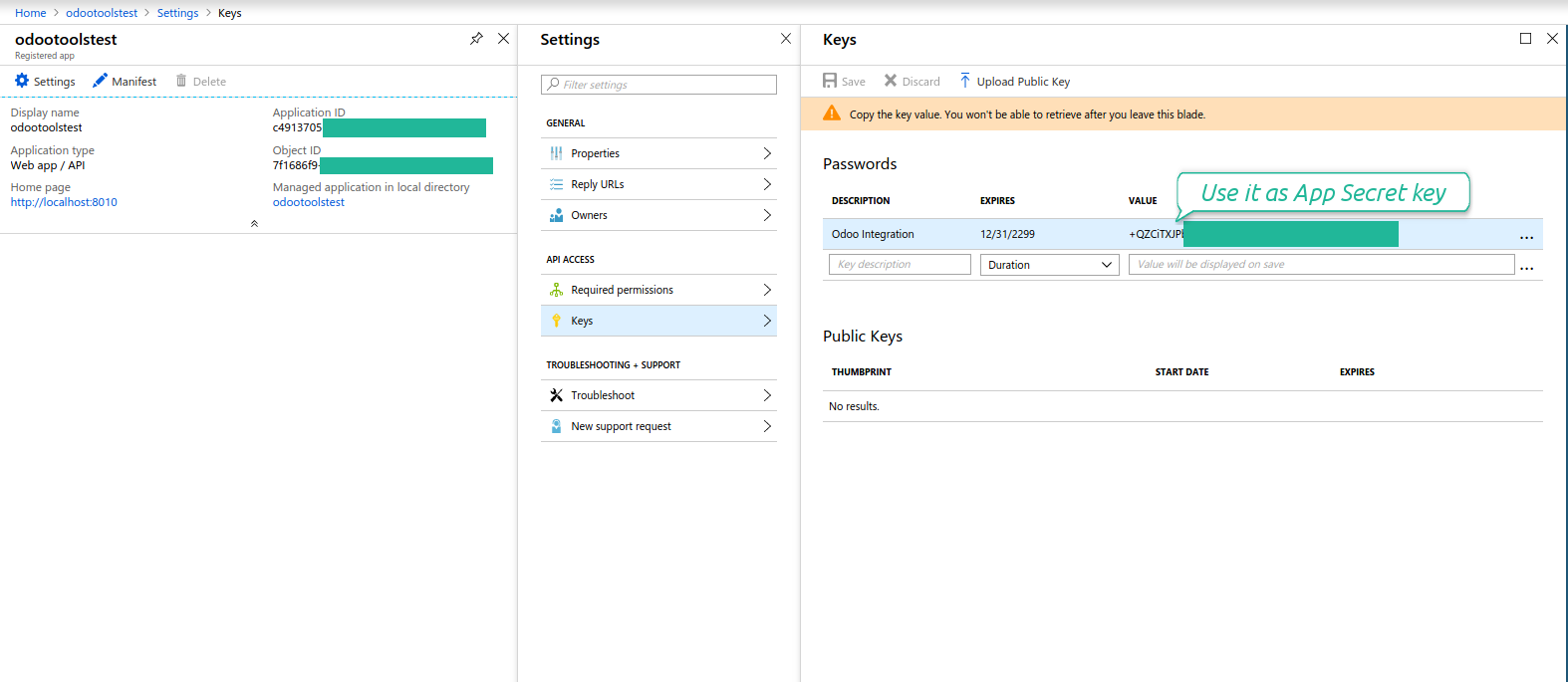
- Generate a new key. Keep it safely somewhere for the future use
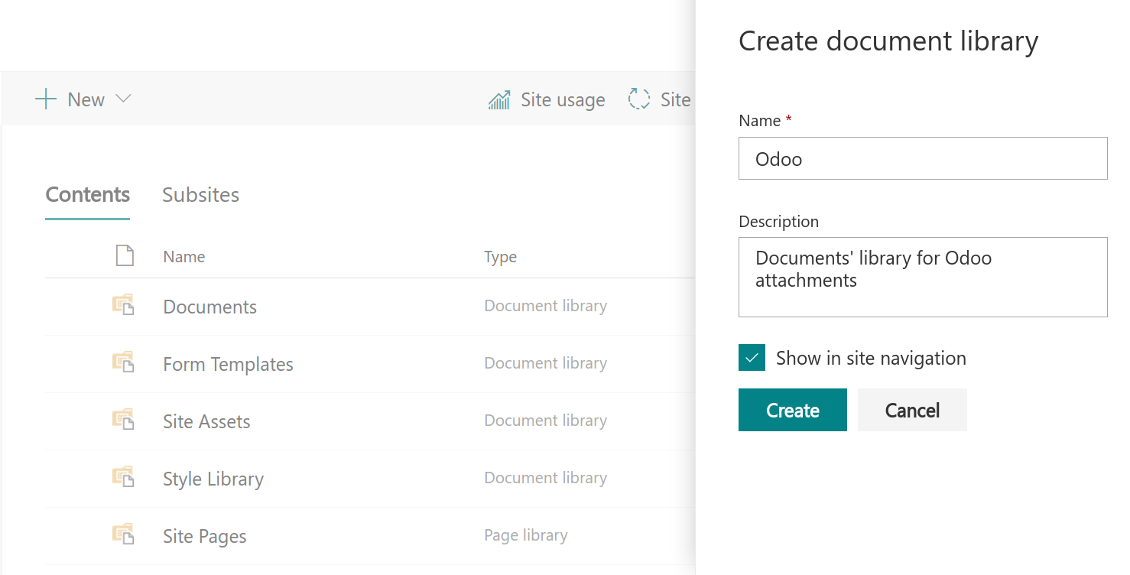
- Go to your SharePoint site and prepare a new documents' library (drive). You might use one of the existing ones, e.g. 'Documents'. Odoo folder would be put there afterwards, and it would be impossible to move it for another library
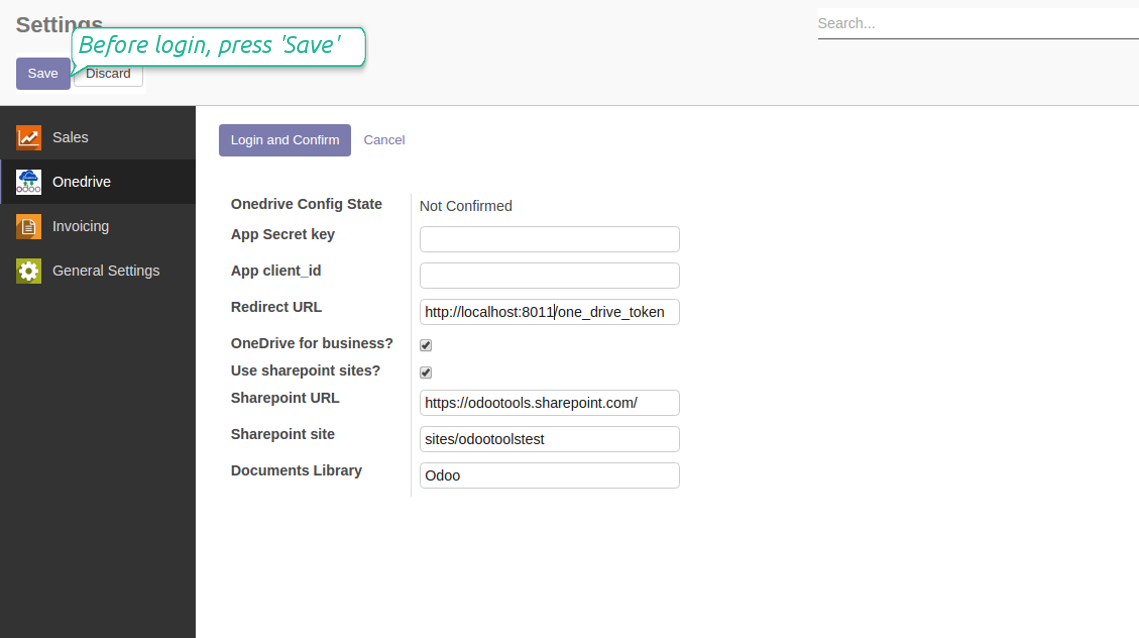
- Go to Odoo general settings > Onedrive.
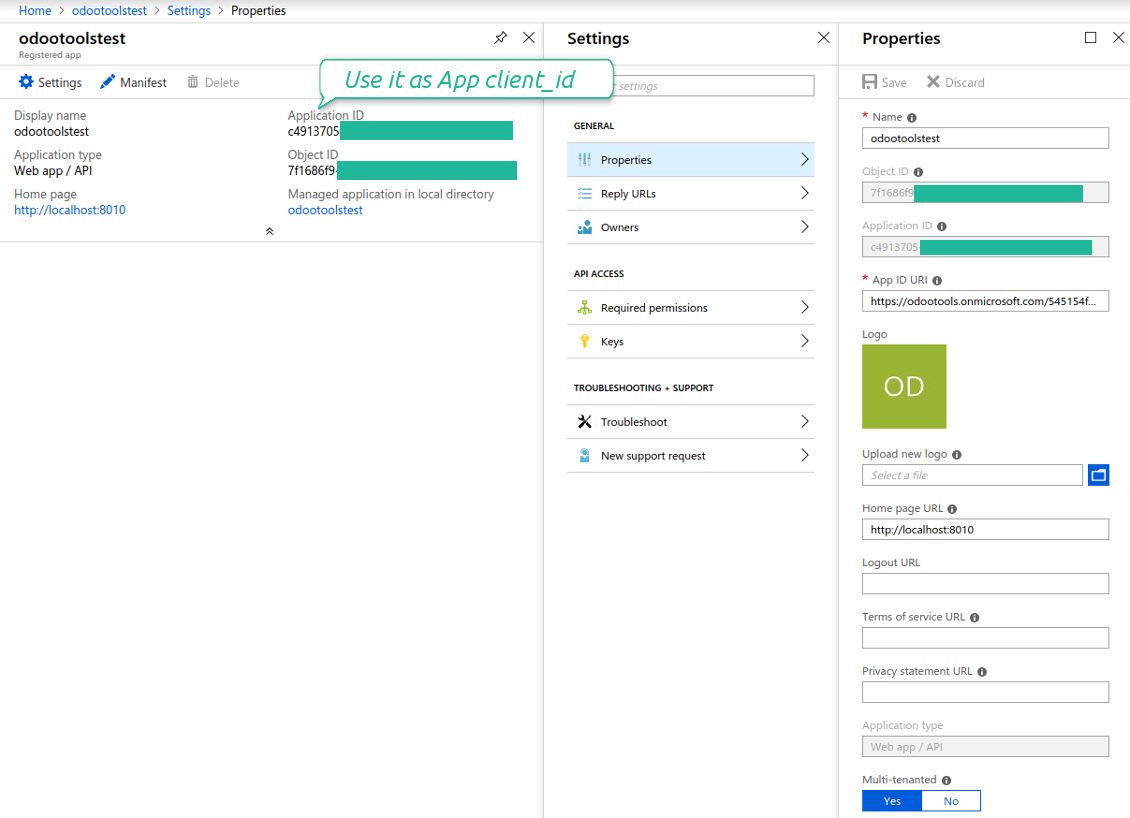
- Copy 'Application ID' to 'App client_id'
- Put a previously generated key to the field 'App secret key'
- Enter the 'Redirect URL' as you entered 'Reply url' in Azure Portal
- Check the boxes 'OneDrive for business' and 'Use sharepoint sites'
- The SharePoint URL should be of the type https://[URL]/. The last '/' is required, sitename should not be included into. For example, https://odootools.sharepoint.com/
- SharePoint site should be either my_site_name (in that case it is considered as sites/my_site_name) or sites/my_site_name (instead of 'sites' it might be 'teams' and so on). There should be no '/' at the beginning or at the end. For example, sites/odootools
- As Documents Library use one created in SharePoint
- Press 'Save'
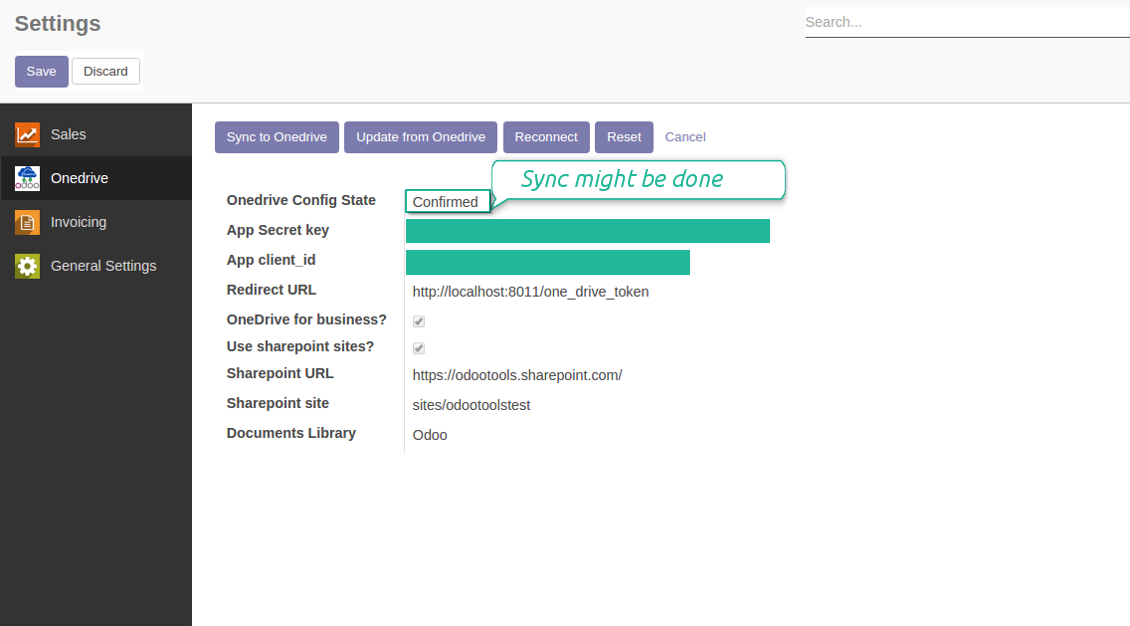
- Press 'Login and Confirm'. Odoo redirects you to Microsoft login page. Check in and grant permissions asked. If Microsoft shows an account already signed in and says it does not exist in tenant 'Microsoft Services' (or any other unrelated tenant), do not click that row. Click 'Use another account' and sign in with the Microsoft account that owns the app's directory.
- After login, Microsoft redirects you back to Odoo. OneDrive - Odoo synchronization is ready to be done.
Create application in your Azure Portal
App's permissions
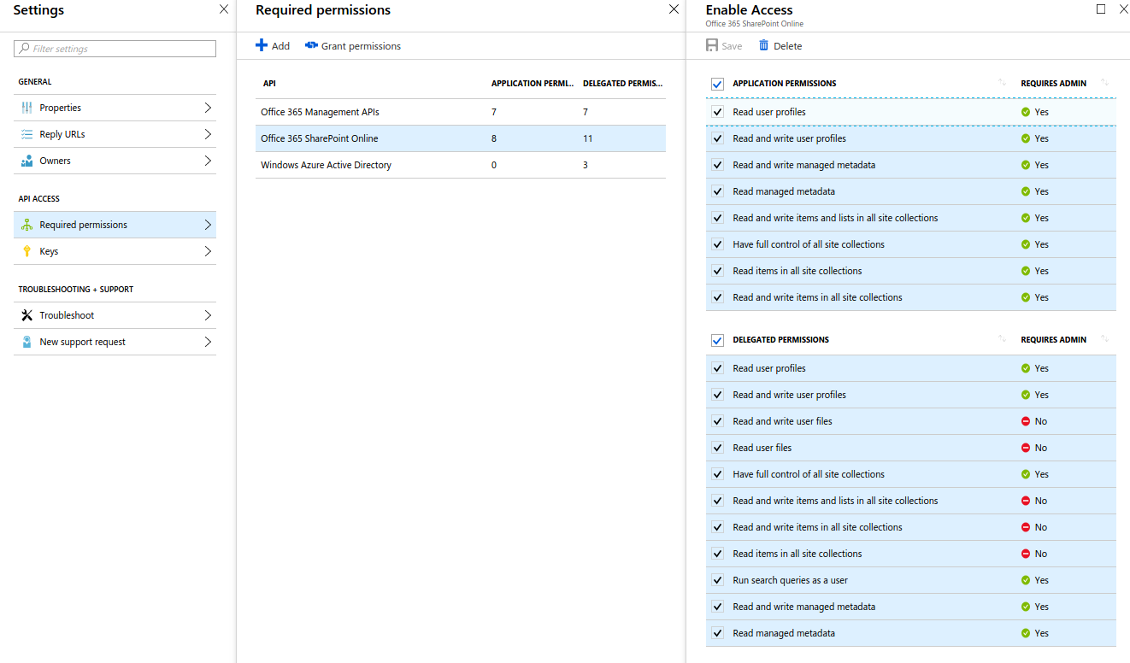
App's permissions
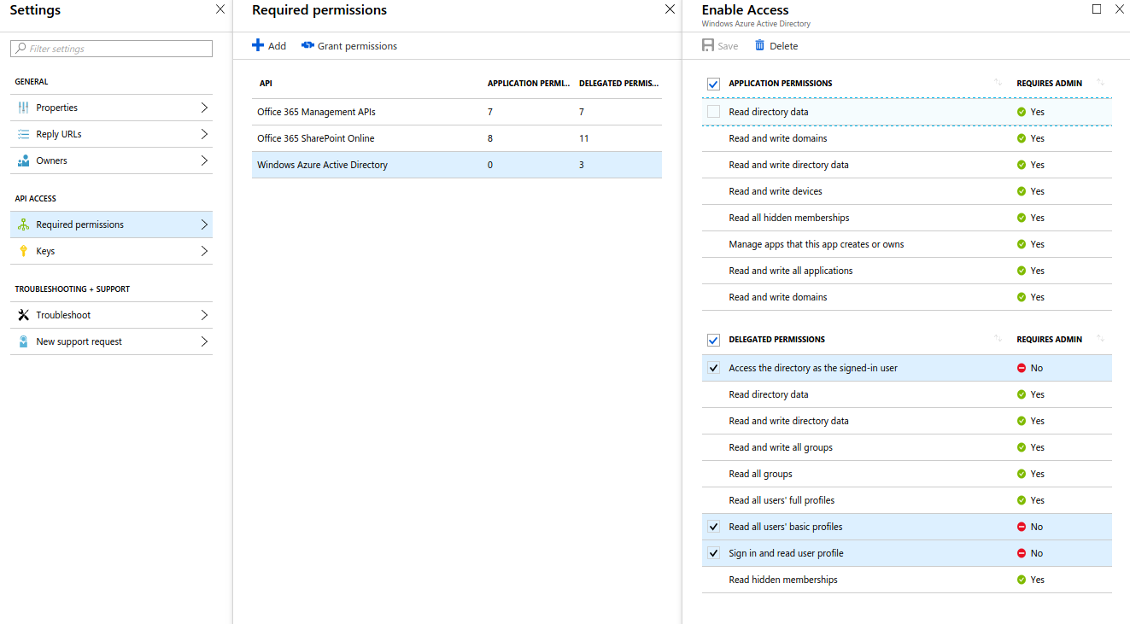
Redirect url should be https://[yourodoosite]/one_drive_token
Generate a secret key
Create a new SharePoint Documents Library
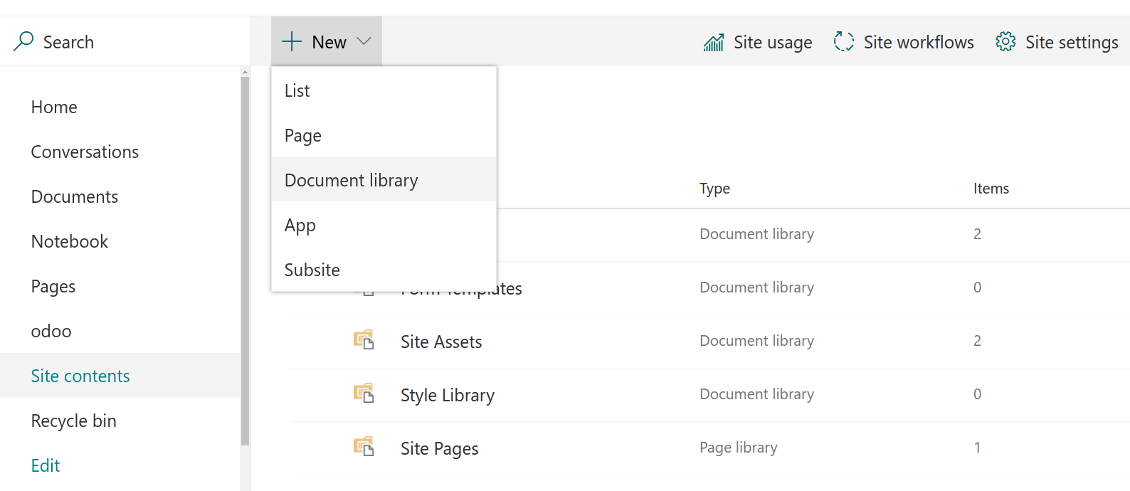
Create a new SharePoint Documents Library
Enter configuration keys in Odoo
Odoo attachments are ready for sync with Onedrive files. Press 'Sync to Onedrive' for the files upload
Personal OneDrive and OneDrive for business
- Go to https://portal.azure.com/#blade/Microsoft_AAD_RegisteredApps/ApplicationsListBlade
The app must be registered inside a directory (tenant). Microsoft no longer allows creating a new app outside one.
- If you already have a company Microsoft 365 / Azure directory, switch the portal (top right) to it and continue.
- If you only have a personal account (@outlook.com, @hotmail.com, @live.com) and see "these applications are associated with the account ... but are not contained within any directory", you do not have a directory yet. Sign up for a free Azure account with the same Microsoft account: https://azure.microsoft.com/free/ - Try Azure for free. This creates a Default Directory for you at no cost.
- Microsoft asks for a card for identity verification only; a temporary ~1 USD hold is placed and reversed. You are not charged for the directory or for the app registration.
- The directory (Microsoft Entra ID Free) and any app registered in it keep working independently of the 30-day / $200 Azure trial credit. That credit is for paid Azure resources you are not using here. No payment is required for our app.
- If the whole directory sits completely unused for a very long time (Microsoft's own threshold is around 200 days of no activity at all), Microsoft may email a warning and eventually retire it. Since Odoo calls this app every time it syncs, an active connection keeps the directory active - this only matters if you stop syncing entirely for months.
- Once you are in a real directory (not "Microsoft Services"), open App registrations there.
- Click 'New registration'
- Introduce a new name for the application and assign the redirect URI as [YOURODOOSITENAME]/one_drive_token (e.g. https://odootools.com/one_drive_token)
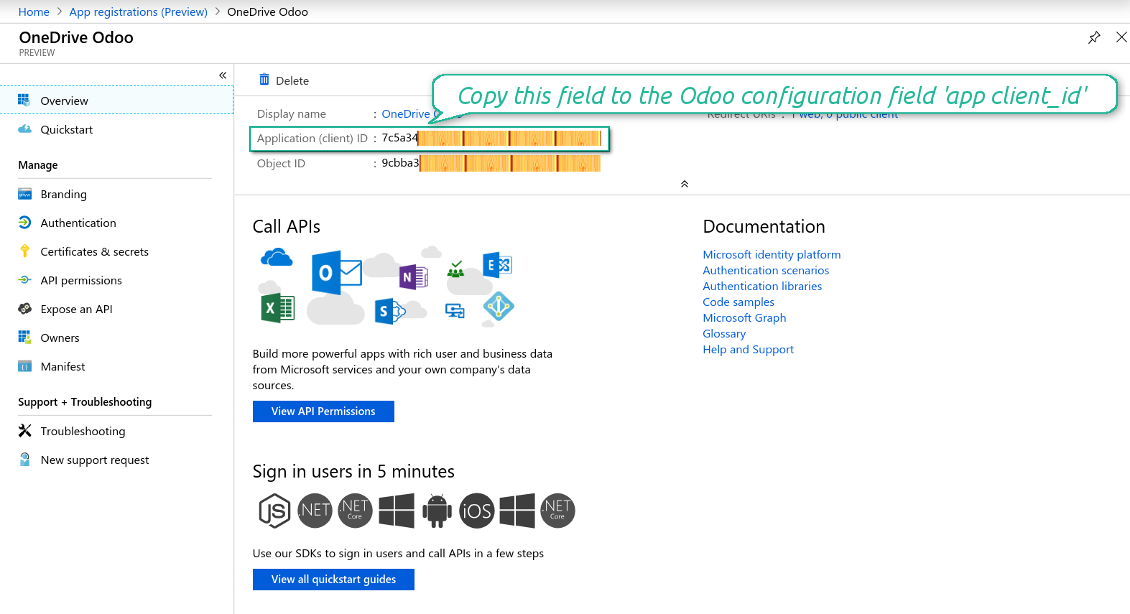
- Copy the Application Client ID to the Odoo field 'App client_id'
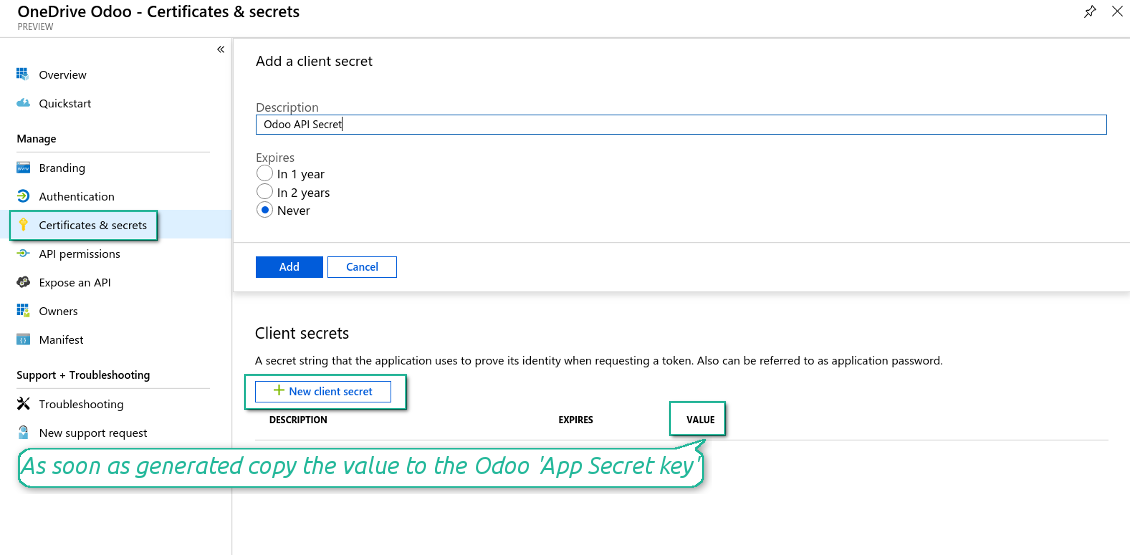
- Go to Certificates & secrets > Click 'New Client Secret'. Copy the secret value to the Odoo field 'App Secret Key'
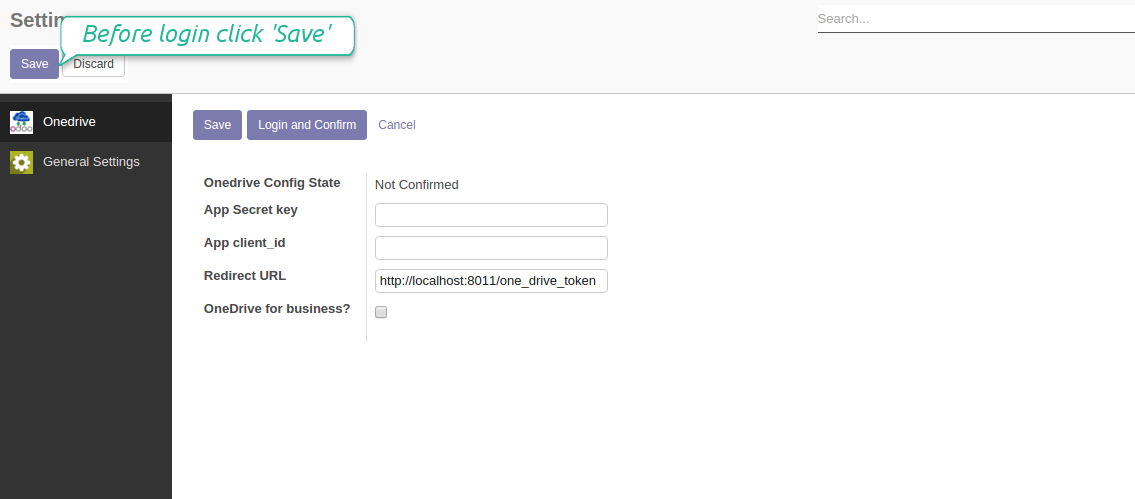
- Press Save on the Odoo configuration Page
- Press 'Login and Confirm'. Odoo redirects you to Microsoft login page. Check in and grant permissions asked. If Microsoft shows an account already signed in and says it does not exist in tenant 'Microsoft Services' (or any other unrelated tenant), do not click that row. Click 'Use another account' and sign in with the Microsoft account that owns the app's directory
- After login, Microsoft redirects you back to Odoo. OneDrive - Odoo synchronization is ready to be done.
Create OneDrive application
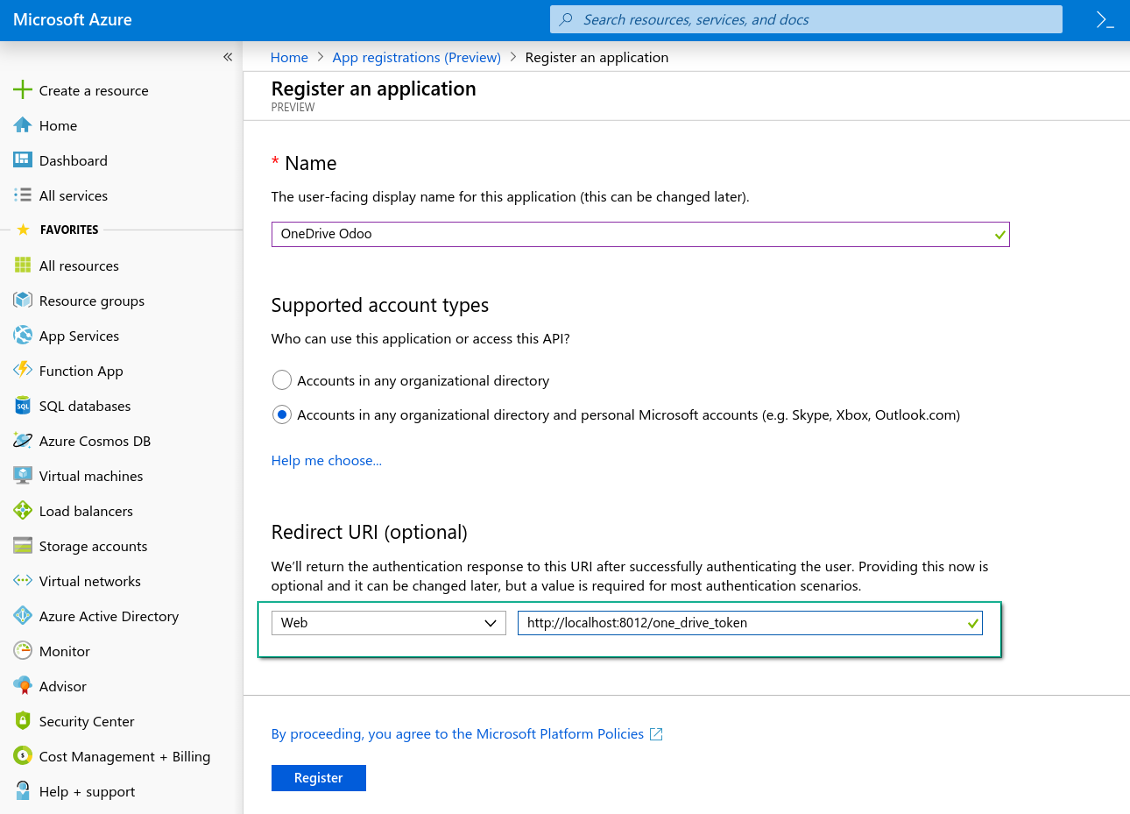
New OneDrive Web platform and redirect url
Generate new secret for your application
Enter configuration keys in Odoo
Migration from the versions prior to the version 1.3.0
- Push the button 'Backward sync' (to make sure recent OneDrive changes are synced)
- Push the button 'Reconnect' and log in Microsoft
- Push the button 'Migrate from the version under 3.0'
- Check / update synced models
- Push the button 'Sync' to apply changes
Reconnection
- You use this tool with version prior to 1.2.0. In that case you should also install the library 'microsoftgraph'. Look above
- You have not used the sync tool for more than 6 months
- Press the button 'Reconnect'
- Press the button 'Login and confirm'
Câu hỏi thường gặp về OneDrive / SharePoint Odoo Integration Odoo v.10
Tôi thấy lỗi khi nhấn liên kết ảnh đám mây đã đồng bộ
Lỗi "This item might have been deleted, expired, or you might not have permission to access it. Contact the owner of this item for more information." cho biết bạn chưa đăng nhập dịch vụ photos.onedrive.com.
Tôi có thể đổi tần suất công việc đồng bộ không?
Có, bạn có thể. Để làm việc này:
Bật chế độ gỡ lỗi
Vào cài đặt kỹ thuật > Tự động hóa > Công việc đã lên lịch
Tìm các công việc 'Synchronize attachments with cloud' và 'Update attachments from cloud'.
Đừng đặt chúng quá thường xuyên. Nên để công việc kết thúc trước khi công việc mới bắt đầu. Cấu hình tùy thuộc vào số mục bạn cần đồng bộ. Thường thì tần suất từ 15 phút đến 4 giờ.
Hãy chắc rằng bạn đã đặt giới hạn thời gian đủ lớn trong tệp cấu hình Odoo. Các tham số LIMIT_TIME_CPU và LIMIT_TIME_REAL phải bằng hoặc lớn hơn thời gian cron dự kiến. Từ phiên bản 13 hãy tính cả tham số LIMIT_TIME_REAL_CRON.
Lưu ý quan trọng cho khách hàng Odoo.sh: thời gian tối đa của công việc cron có thể chỉ là 15 phút.
Tôi có thể cấu hình cấu trúc thư mục đồng bộ khác với cấu trúc mà đồng bộ giả định không?
Không, tính năng này chỉ có từ phiên bản 15. Trước phiên bản đó, phân hệ làm việc với cấu trúc thư mục định sẵn:
Odoo - thư mục gốc cho đồng bộ
Models - thư mục cho mỗi loại chứng từ Odoo. Ví dụ, 'Projects', 'Partners'. Phân theo domain có thể có thư mục cụ thể hơn: chẳng hạn 'Customer 1 Projects', 'Projects of the Customer 2', 'Internal Projects', v.v.
Objects - thư mục cho từng chứng từ, vd. 'Project 1' hoặc 'Customer 1'
Tệp và thư mục liên quan đến chứng từ Odoo này sẽ được đồng bộ.
Kết quả là bạn có thể có chẳng hạn:
Odoo / Projects / Project 1 / tệp và thư mục liên quan đến project 1
Odoo / Customer 1 Projects / Project 1; Odoo / Customer 2 Projects / Project 3, ...
Odoo / Customers / Customer 1 / tệp và thư mục liên quan đến customer 1
Cấu trúc này luôn phẳng, nghĩa là chỉ có những cấp phân cấp đó. Do đó đúng là các loại chứng từ khác nhau không thể nằm trong cùng một cấu trúc. Trong thư mục 'Customer 1' chúng ta không thể giữ các tệp liên quan đồng thời đến đơn bán, hóa đơn và dự án. Mỗi loại chứng từ đó có thư mục riêng (hoặc vài thư mục riêng). Nếu không sẽ không thể đồng bộ ngược vì không còn tiêu chí để dựa vào.
Tôi có nên thiết lập quyền truy cập người dùng cụ thể trong Odoo không?
Không, công cụ dựa trên một điểm cuối người dùng duy nhất. Mọi tiến trình đồng bộ chạy dưới một quản trị cloud (ứng dụng). Quyền truy cập thư mục / tệp đã tạo không được tự động hóa. Bạn phải quản trị quyền đó trong giải pháp lưu trữ đám mây.
Trường đã đồng bộ lưu ở đâu? Có bị nhân đôi sang Odoo và clouds không?
Ứng dụng giả định nội dùng nhị phân của tệp đính kèm được lưu trong Cloud Client thay vì trên máy chủ Odoo. Những tệp đính kèm đó trong Odoo trở thành kiểu URL và bạn có thể mở chúng bất cứ lúc nào từ hộp đính kèm hoặc từ Cloud Client.
Sau khi thiết lập, không cần thao tác thủ công vì đồng bộ hoàn toàn tự động. Hãy chọn loại chứng từ Odoo cần đồng bộ và thiết lập model liên quan cho từng loại (Khách hàng, đơn bán hoặc đơn mua, Nhiệm vụ, Dự án, v.v.).
Tôi có thể có vài thư mục cho cùng một loại chứng từ không? Ví dụ dự án nội bộ và dự án khách hàng?
Có. Hãy chuẩn bị một quy tắc cho từng loại, rồi áp bộ lọc: ví dụ theo kiểu dự án.
Hãy làm bộ lọc loại trừ lẫn nhau để một chứng từ được gán chắc chắn. Ví dụ 'khách hàng nhưng không phải nhà cung cấp', 'nhà cung cấp nhưng không phải khách hàng'. Nếu không, thư mục của một chứng từ sẽ nhảy từ model này sang model khác.
Tôi có chỉ cần ứng dụng Cloud Storage Solution không?
Không, công cụ chỉ là lõi kỹ thuật. Bạn còn cần connector cho cloud client.
Có sao không nếu tôi có nhiều đối tượng cần đồng bộ, ví dụ 10000?
Có, dù khi nhiều thư mục/tệp đính kèm cần đồng bộ thì quá trình có thể chậm. Đồng thời khách hàng đã báo môi trường với >10k đối tác và ~5k biến thể sản phẩm cần đồng bộ, và tiến trình vẫn chấp nhận được.
Vài điểm cần nhấn mạnh:
- Đồng bộ được thiết kế để mọi mục đều được đồng bộ và không mất, dù có thể không nhanh. Điều này được bảo đảm bằng hàng đợi FIFO và mỗi job được commit.
- Số đối tượng có thể giới hạn theo logic. Cấu hình model cho phép hạn chế đồng bộ mục lỗi thời (vd. không cần đồng bộ đối tác đã lưu trữ hoặc đơn cách đây 2 năm).
Có thể đồng bộ theo thời gian thực không?
Không. Chúng tôi có lý do vững chắc để tránh đồng bộ thời gian thực:
Vấn đề hiệu năng. Nếu đồng bộ theo thời gian thực, mỗi lần tải tệp lên sẽ hiện màn hình chờ.
Vấn đề xung đột. Nếu 2 người dùng cùng lúc sửa một mục, có thể dẫn đến tình huống không giải quyết được. Với tác vụ định kỳ ta sửa sau được; còn thời gian thực phải lưu thành hàng đợi, càng khiến người dùng bối rối.
Vấn đề chức năng. Đặc biệt là đổi tên và tổ chức lại mục. Ở chiều đồng bộ ngược, công cụ dựa chặt vào logic thư mục và mỗi lần đồng bộ kiểm tra 100% mục. Nếu làm sau mỗi lần cập nhật, sẽ có hàng nghìn yêu cầu mỗi giây. Nếu không: thay đổi sẽ bị mất.
Tôi có thể đồng bộ tệp đính kèm với vài máy khách đám mây
Không, tính năng này chỉ có từ phiên bản 15.
Chúng tôi dùng trình soạn thảo đặc biệt trên đám mây (ví dụ OnlyOffice, Office 365…). Tệp có mở trong trình đó không?
Có, tùy cấu hình cloud client của bạn.
Chính sách cập nhật của các công cụ của bạn là gì?
Theo chính sách hiện tại của Odoo Apps Store:
- Mọi mô-đun mua cho phiên bản 12.0 trở về trước cho phép truy cập mọi phiên bản đến 12.0.
- Từ phiên bản 13.0, mỗi phiên bản mô-đun phải mua riêng.
- Bất kể phiên bản, mua công cụ cho quyền mọi cập nhật và sửa lỗi trong một phiên bản chính.
Lưu ý rằng nhóm faOtools không kiểm soát các chính sách đó. Mọi câu hỏi xin liên hệ trực tiếp đại diện Odoo Apps Store.
Làm sao cài ứng dụng của bạn trên Odoo.sh?
Cách thẳng nhất là dùng quy trình có sẵn của cửa hàng Odoo:
1. Mở trang phân hệ và bấm nút Deploy on odoo.sh
2. Sau đó bạn sẽ được chuyển tới trang GitHub. Đăng nhập tài khoản, rồi bấm 'Create a new repo' hoặc dùng repo có sẵn. Hãy đảm bảo kho là riêng tư. Không được phép công bố ứng dụng theo giấy phép OPL-1. Nếu cần, tạo repo mới cho dự án Odoo.sh
3. Rồi vào odoo.sh và bấm nút Deploy. Trong cửa sổ pop-up, gửi quyết định và bấm 'Continue.' Thao tác này sẽ kích hoạt cài đặt.
Các bước này sẽ cài ứng dụng cho nhánh production của dự án. Nếu muốn triển khai ứng dụng cho nhánh khác hoặc cập nhật phân hệ, hãy làm các bước sau:
1. Tải mã nguồn ứng dụng từ cửa hàng Odoo
2. Commit phân hệ vào kho GitHub cần thiết. Đảm bảo không thư mục/tệp ứng dụng nào bị bỏ qua (tức không nằm trong .gitignore của repo). Kho được odoo.sh tạo tự động và mặc định có thể gồm mục quan trọng (vd. /lib). Hãy tải lên mọi thư mục, thư mục con và tệp của phân hệ, không ngoại lệ
3. Triển khai nhánh đích của dự án odoo.sh hoặc, nếu thiết lập của bạn giả định vậy, đợi đến khi được xây tự động.
Tôi nên cài ứng dụng của bạn trên máy chủ riêng thế nào?
2. Khởi động lại máy chủ Odoo;
3. Bật chế độ nhà phát triển (cài đặt kỹ thuật);
4. Cập nhật danh sách ứng dụng (menu ứng dụng);
5. Tìm ứng dụng và bấm 'Activate'/'Install';
6. Làm theo hướng dẫn trên trang ứng dụng nếu có.
Tôi thấy ứng dụng có tiện ích thêm. Có thể mua sau không?
Có, chắc chắn. Đồng thời Odoo tự thêm mọi phụ thuộc vào giỏ, nên bạn nên loại các công cụ đã mua để tránh trả hai lần.
Tôi triển khai ứng dụng trên Odoo.sh và thấy cảnh báo/lỗi trong kiểm thử
Cảnh báo đỏ/cam không ảnh hưởng đến tính năng của ứng dụng. Đáng tiếc, đôi khi phân hệ của chúng tôi không qua được các kiểm thử tự động chuẩn vì chúng giả định hành vi xung đột với mục tiêu ứng dụng. Ví dụ chúng tôi đổi cách tính giá, trong khi kiểm thử phân hệ Odoo chuẩn so giá cuối với thuật toán chuẩn.
Trước hết, hãy kiểm tra tính năng của cơ sở dữ liệu đã triển khai. Mọi thứ có chạy đúng không?
Nếu vẫn cho rằng cảnh báo ảnh hưởng tính năng thật, hãy liên hệ chúng tôi và gửi nhật ký cài đặt đầy đủ cùng danh sách đầy đủ phân hệ đã triển khai (gồm lõi và bên thứ ba).
Tôi có thể mua ứng dụng trực tiếp từ công ty bạn không?
Không, chúng tôi chỉ phân phối công cụ qua cửa hàng ứng dụng Odoo chính thức.
Tôi muốn được giảm giá
Rất tiếc, chúng tôi không có phương tiện kỹ thuật để cung cấp giá riêng.
Tôi có thể cài ứng dụng trên cơ sở dữ liệu Odoo Online (SaaS) không?
Không, ứng dụng bên thứ ba không dùng được trên Odoo Online. Rất tiếc Odoo SaaS chặn khả năng đó.
Công cụ của bạn phụ thuộc ứng dụng khác. Tôi có cần mua chúng không?
Có, công cụ cần tất cả phân hệ ghi trong phụ thuộc để chạy đúng. Giá trên trang ứng dụng đã gồm mọi phụ thuộc cần thiết.
Giá mô-đun bằng đô la Mỹ là bao nhiêu? Sao lại đổi?
Giá phân hệ của chúng tôi tính bằng euro. Cửa hàng Odoo đổi sang các tiền tệ khác theo tỷ giá nội bộ. Vì vậy giá bằng đô la Mỹ có thể đổi khi tỷ giá được cập nhật.
Lời ứng dụng và trang web ở ngôn ngữ khác tiếng Anh được hỗ trợ bởi AI và khớp với bản dịch Odoo chính thức. Nếu bạn thấy sai, gửi phiếu hỗ trợ về đúng bản dịch và chúng tôi sẽ sửa.
Báo lỗi
Nếu gặp lỗi hoặc hành vi không nhất quán, hãy liên hệ. Chúng tôi cam kết sửa trong 60 ngày kể từ khi mua và vẫn muốn cải thiện công cụ sau giai đoạn đó.
Bạn không cần số điện thoại hay thẻ tín dụng để liên hệ. Chỉ cần đăng ký email ngắn, không quá 30 giây.
Hãy nêu càng nhiều chi tiết càng tốt trong yêu cầu: ảnh chụp màn hình, nhật ký máy chủ Odoo, mô tả đầy đủ cách tái hiện sự cố, v.v. Thường mất vài ngày làm việc để chuẩn bị kế hoạch xử lý (nếu xác nhận lỗi) hoặc hướng dẫn việc cần làm (nếu không).
Yêu cầu tính năng công khai và ý tưởng module (phát triển miễn phí)
Chúng tôi rất muốn cải thiện công cụ và biết ơn mọi phản hồi. Nếu yêu cầu của bạn hữu ích cho mọi người và có thể triển khai hiệu quả, nhóm sẽ đưa vào danh sách việc cần làm.
Danh sách việc cần làm như vậy được xử lý đều đặn và không phát sinh phí thêm. Dù chúng tôi không hứa hạn chót và thiết kế cuối, đây có thể là cách tốt để có tính năng mong muốn mà không đầu tư và rủi ro.
Bạn không cần số điện thoại hay thẻ tín dụng để liên hệ. Chỉ cần đăng ký email ngắn, không quá 30 giây.

Công cụ để lưu mật khẩu an toàn trong Odoo cho dùng chung. Kho dùng chung

Công cụ xây dựng cơ sở tri thức sâu và có cấu trúc cho nội bộ và bên ngoài. Knowledge System. KMS. Bản sửa kiểu wiki.
398€
Công cụ đặt mục tiêu KPI và kiểm soát hoàn thành theo kỳ. Bảng điều khiển KPI. Trình thiết kế bảng. Biểu đồ KPI

Công cụ quản lý dịch vụ theo thời gian, từ đặt lịch đến bán hàng và đánh giá
398€
Công cụ quản lý Odoo từ các chat AI yêu thích qua MCP. Claude. Mọi AI hỗ trợ MCP.

Công cụ sắp xếp linh hoạt tệp đính kèm Odoo vào thư mục và đồng bộ thư mục với máy khách đám mây: Google Drive, OneDrive/SharePoint, Nextcloud/ownCloud, Dropbox, Amazon S3, Box và NAS. DMS. Trình quản lý tệp. Hệ thống quản lý tài liệu
398€
Công cụ đồng bộ hai chiều tự động tệp đính kèm Odoo với tệp Google Drive
487€
Công cụ đồng bộ hai chiều tự động tệp đính kèm Odoo với tệp ownCloud/Nextcloud
487€
Công cụ đồng bộ hai chiều tự động tệp đính kèm Odoo với giải pháp NAS. Synology, QNAP, TrueNAS và mọi NAS khác hỗ trợ WebDav
487€