OneDrive / SharePoint Odoo Integration v.10
The tool to automatically synchronize Odoo attachments with OneDrive files in both ways
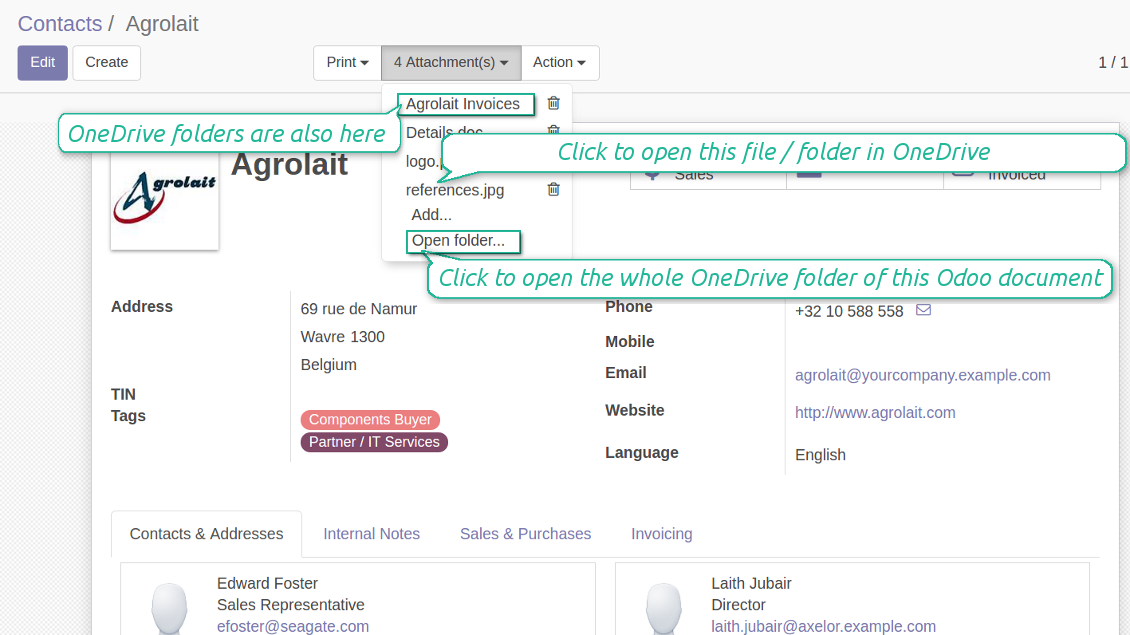
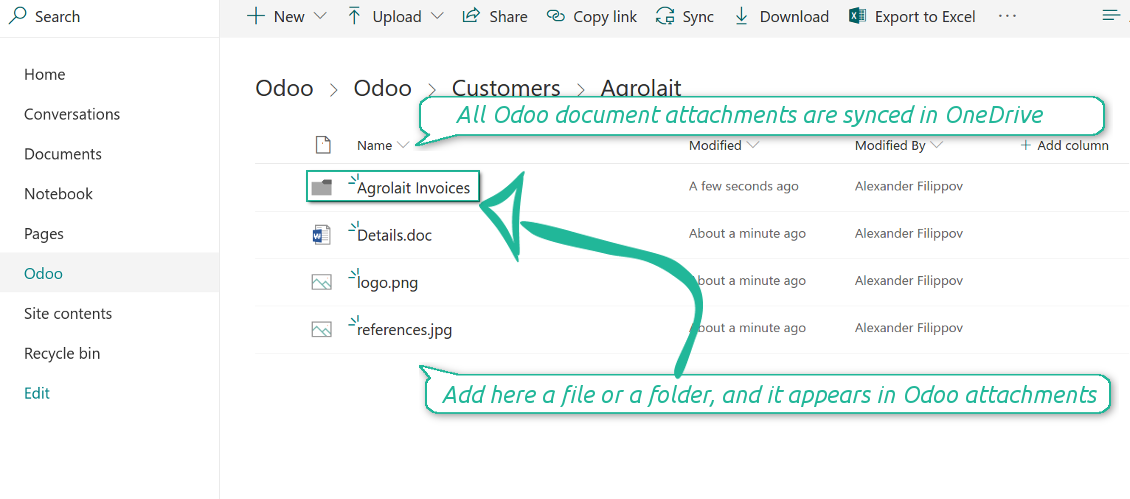
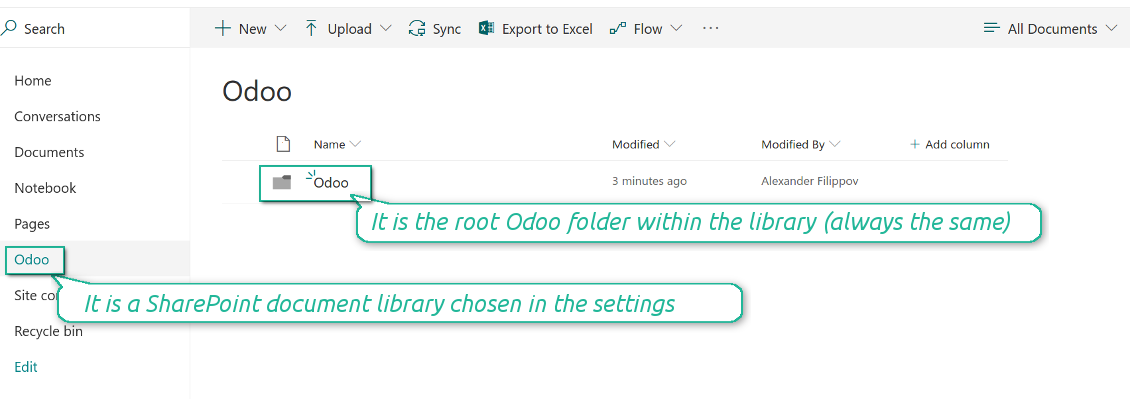
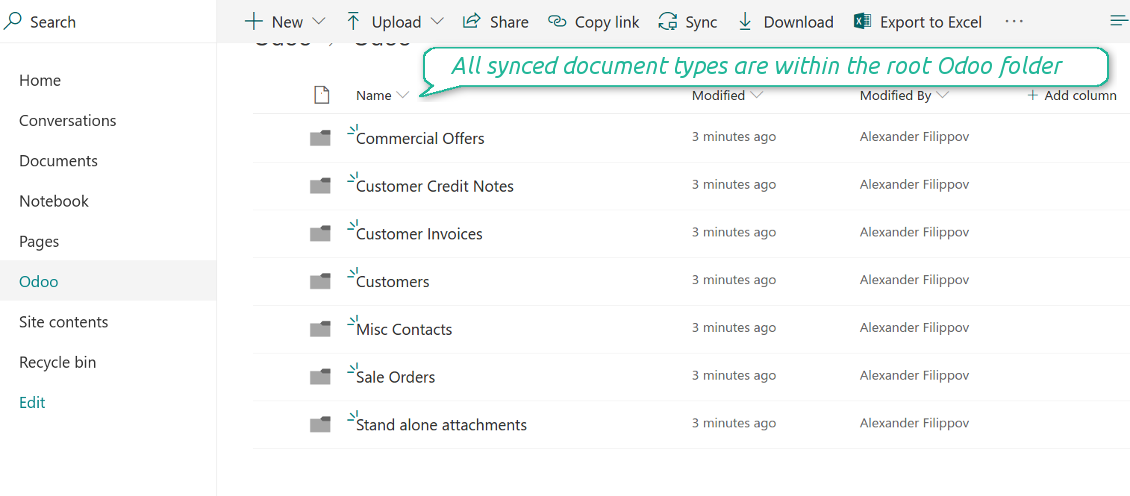
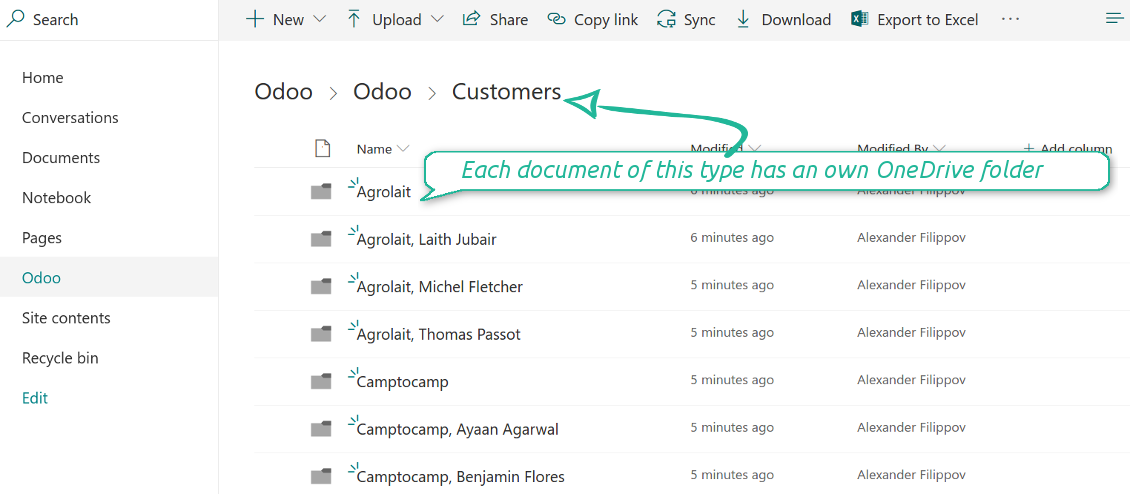

Synchronization is bilateral. All Odoo attachments are put in OneDrive regularly. OneDrive files create attachments in Odoo in case they are placed in a correct folder. Look at the sections From Odoo to OneDrive and From OneDrive to Odoo
Integration is automatic in both ways. Based on scheduled jobs, Odoo send attachments to OneDrive and retrieve files from there
Any Odoo document might be synced: customers, opportunities, sale or purchase orders, tasks or issues, employees or users, etc. You decide by your own which records should be in OneDrive, and which should be left in Odoo
Synchronization works for SharePoint sites, OneDrive for business, and personal OneDrive. In the first case the files are kept in preselected documents library, in the latter two - in a user' documents library
All synced files are easily accessible though clicking on an attachment. Odoo automatically redirects you to a file previewer. Among others it might be Word or Excel editors (if Office365 is set up). Besides, you might open a whole document folder by clicking on 'Open folder' on the attachment widget
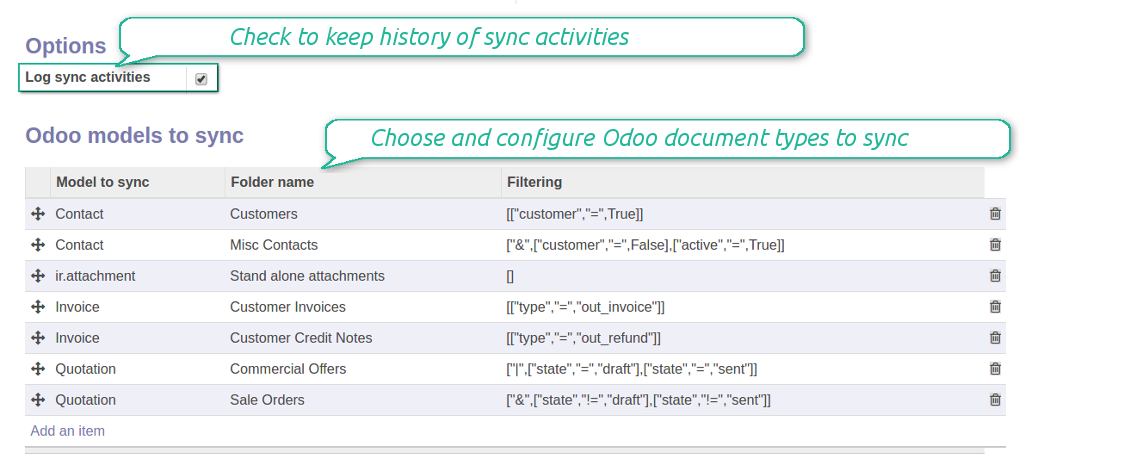
All sync activities might be logged. Control over files and folders creations, moves, name changes and removals. Just turn on the option 'Log sync activities' and access history through the button 'Sync logs'
The tool is compatible with Odoo reporting and mailing apps. If such an app faces a synced file, it retrieves a real content from OneDrive. In particular, the reports 'always reload' feature and messages & mass mailing attachments work properly
Integration is based on a single user endpoint. It means that you should login in OneDrive only once. Afterwards for integrations Odoo would use that credentials disregarding an actual Odoo user. Make sure, however, that real Odoo users have an access to OneDrive to open URLs linked to their attachments
- Prepare and keep updated folders' structure in OneDrive
- Upload new attachments to a correct folder
Odoo creates a convenient directory structure in OneDrive: Odoo / Document type name / Document name / Files, where:
- Odoo is a central directory for Odoo Sync in your Drive.
- Document type is a synced Odoo model, for example, 'Sale orders', 'Opportunities', 'Customers'
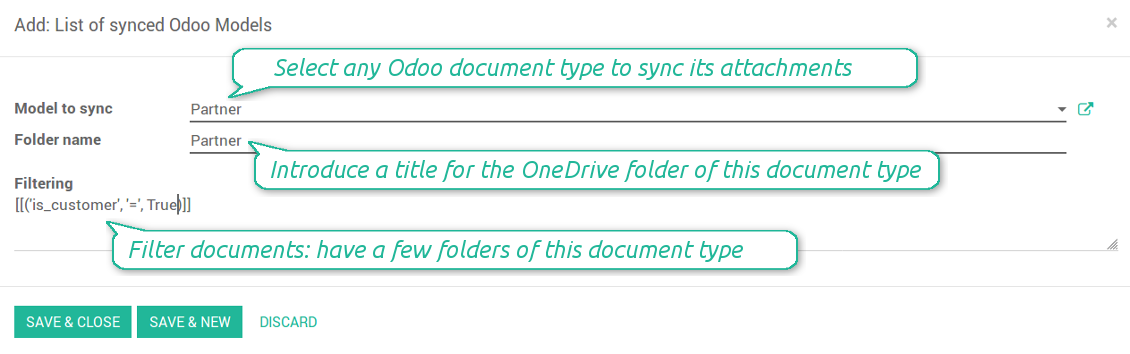
- You select document types by yourself. It might be any document type
- Moreover, you might have a few folders for a single document type. Use Odoo domains to have not global 'Partners, but 'Customers' and 'Suppliers', not just 'Sale orders' but 'Commercial offers', 'To deliver', and 'Done orders'
- With each sync Odoo would try to update document types' folders. Add a new document type at any moment. It will appear in OneDrive with a next sync
- You are welcome to introduce or change document types folder names at any moment in Odoo. Take into account: renaming in OneDrive will be recovered to Odoo names
- If you remove a model from integration, it will not be deleted from OneDrive to keep already synced files safe. However, new documents of this type would not be synced
- In case you removed a directory in OneDrive / SharePoint, but it is still configured in Odoo, with a next sync a folder structure is going to be recovered (not files, surely).
- Document is an exact object to sync. For instance, 'Agrolait' or 'SO019'
- Documents are synced in case they relate to a synced document type and satisfy its filters. For example, you are not obliged to sync all partners, you may integrate only 'Customers' and 'Vendors' or only 'Companies', not 'Contacts'
- Odoo would generate a folder in OneDrive for each suitable document even for documents without attachments. It is needed for a backward sync to easily add new files
- OneDrive folder name equals a real document name. It relies upon Odoo name_get method. Thus, Odoo 'Michael Fletcher' (a contact of 'Agrolait') would be OneDrive 'Agrolait, Michael Fletcher'
- If an exact document changes its document type (e.g. a quotation is now confirmed), Odoo will automatically relocate its related folder to a proper parent directory (in the example: from 'Commercial offers' to 'To deliver')
- In case a document relates to a few types (for instance, you have 'Vendors' and 'Customers', while Agrolait is both), this document folder would be put into the most prioritized document type. A document type priority is higher as closer to the top in Odoo interfaces it is
- If an Odoo document is removed, the next sync will remove a corresponding OneDrive directory
- In case you remove a directory in OneDrive / SharePoint, but it still exists in Odoo, OneDrive folder structure would be recovered (while files would be unlinked in both Odoo and OneDrive)
- Folders renaming in OneDrive will be replaced with Odoo names, Odoo document names are more important
- Files are real files taken from Odoo attachments
The resulted path would be, for example, 'Odoo / Quotations / SO019 / commercial offer.png'.
The only exclusion of the rule are stand alone attachments which do not relate to any Odoo documents (their document type is 'ir.attachment'). Such attachments' path is 'Odoo / Stand Alone Attachments / image.png'.
The very first sync might take quite a long, since a lot of folders should be created. Afterwards, it would be much faster. However, it is not recommended to make sync too frequent: once an hour seems quite good for large files.
FilesWith each direct sync, Odoo tries to find not yet synced attachments. If such attachments suit any document type to sync, a file will be uploaded to OneDrive to a proper folder. In Odoo such attachments will become of 'url' type. It means that a file is not any more kept in Odoo server space, but now it is in OneDrive. Until sync is done, Odoo attachment remains binary and stores an actual file. Such approach helps Odoo to work faster.
Clicking on such attachment leads you to a file previewer / editor in OneDrive. Depending on your OneDrive / SharePoint configurations it might be Word, Excel, PDF previewer, etc. Anyway changes to file contents in OneDrive are available in Odoo at the same moment.
If you unlinked an attachment from Odoo, it would be deleted in OneDrive as well.
Take into account that file names should be managed in OneDrive: each backward sync would recover OneDrive names, Odoo is here less important.
- If a new file is added to a proper document folder (e.g. to 'Odoo / Customers / Agrolait'), the same attachment will be added to Odoo document (in the example - to 'Agrolait')
- In document folders you can put not only files but also child folders. In that case a link for this folder (not its content) is kept in attachments
- In case you rename a file in OneDrive, it will be renamed in Odoo as well
- Files' removal from OneDrive leads to related Odoo attachments' removal
- If you move a file to another document folder, in Odoo a related attachment would be re-attached to this new document. Take into account: if you move a file for a not document folder, in Odoo attachment will be deleted as it has been removed from OneDrive
- If you deleted a document type or document folder, their child files are deleted as well. Thus, Odoo would remove related attachments. The folders, however, will be recovered with a next direct sync. Folders' move to another directory is also considered as a removal. Avoid such situations by following the simple rule: folders are managed mostly by Odoo, files - mostly by OneDrive.
SharePoint sites
- Go to your Azure Portal and prepare a new application:
The app must be registered inside a directory (tenant). Microsoft no longer allows creating a new app outside one.
- If you already have a company Microsoft 365 / Azure directory, switch the portal (top right) to it and continue.
- If you only have a personal account (@outlook.com, @hotmail.com, @live.com) and see "these applications are associated with the account ... but are not contained within any directory", you do not have a directory yet. Sign up for a free Azure account with the same Microsoft account: https://azure.microsoft.com/free/ - Try Azure for free. This creates a Default Directory for you at no cost.
- Microsoft asks for a card for identity verification only; a temporary ~1 USD hold is placed and reversed. You are not charged for the directory or for the app registration.
- The directory (Microsoft Entra ID Free) and any app registered in it keep working independently of the 30-day / $200 Azure trial credit. That credit is for paid Azure resources you are not using here. No payment is required for our app.
- If the whole directory sits completely unused for a very long time (Microsoft's own threshold is around 200 days of no activity at all), Microsoft may email a warning and eventually retire it. Since Odoo calls this app every time it syncs, an active connection keeps the directory active - this only matters if you stop syncing entirely for months.
- Once you are in a real directory (not "Microsoft Services"), open App registrations there.
- Grant the app full permissions for Office365 SharePoint online
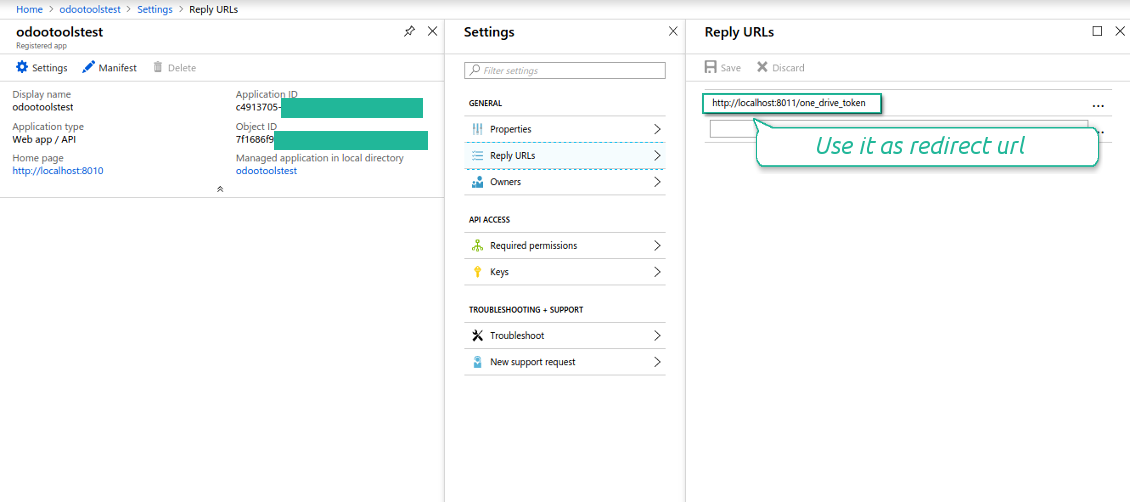
- Assign the reply url as [YOURODOOSITENAME]/one_drive_token (e.g. https://odootools.com/one_drive_token)
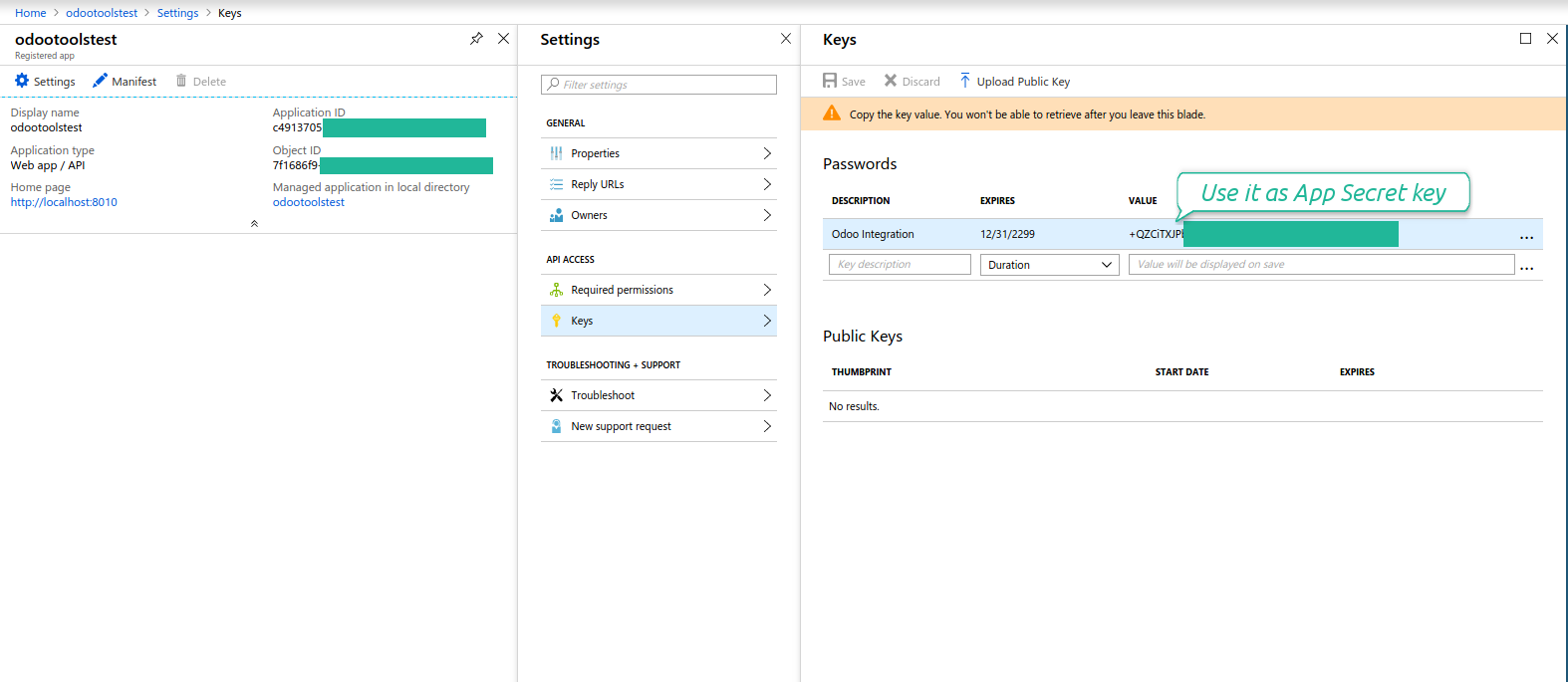
- Generate a new key. Keep it safely somewhere for the future use
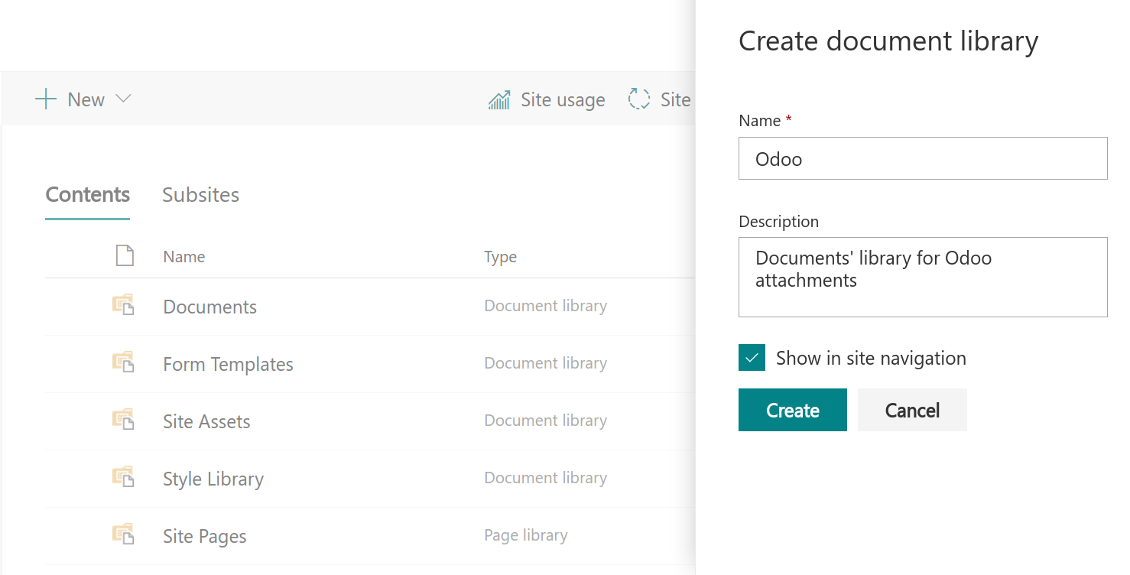
- Go to your SharePoint site and prepare a new documents' library (drive). You might use one of the existing ones, e.g. 'Documents'. Odoo folder would be put there afterwards, and it would be impossible to move it for another library
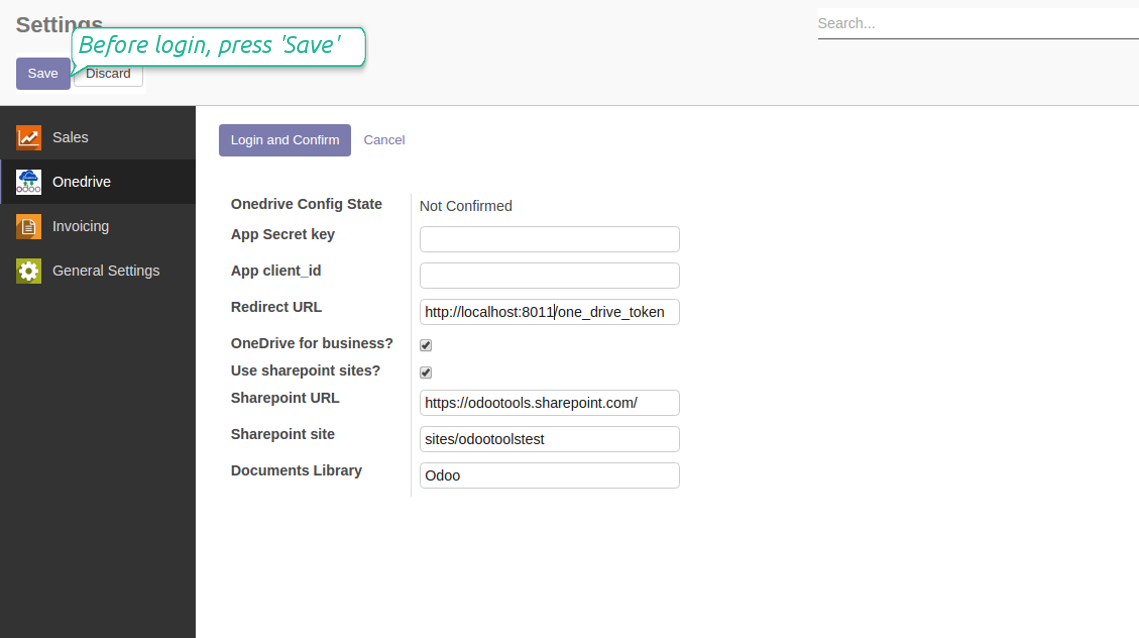
- Go to Odoo general settings > Onedrive.
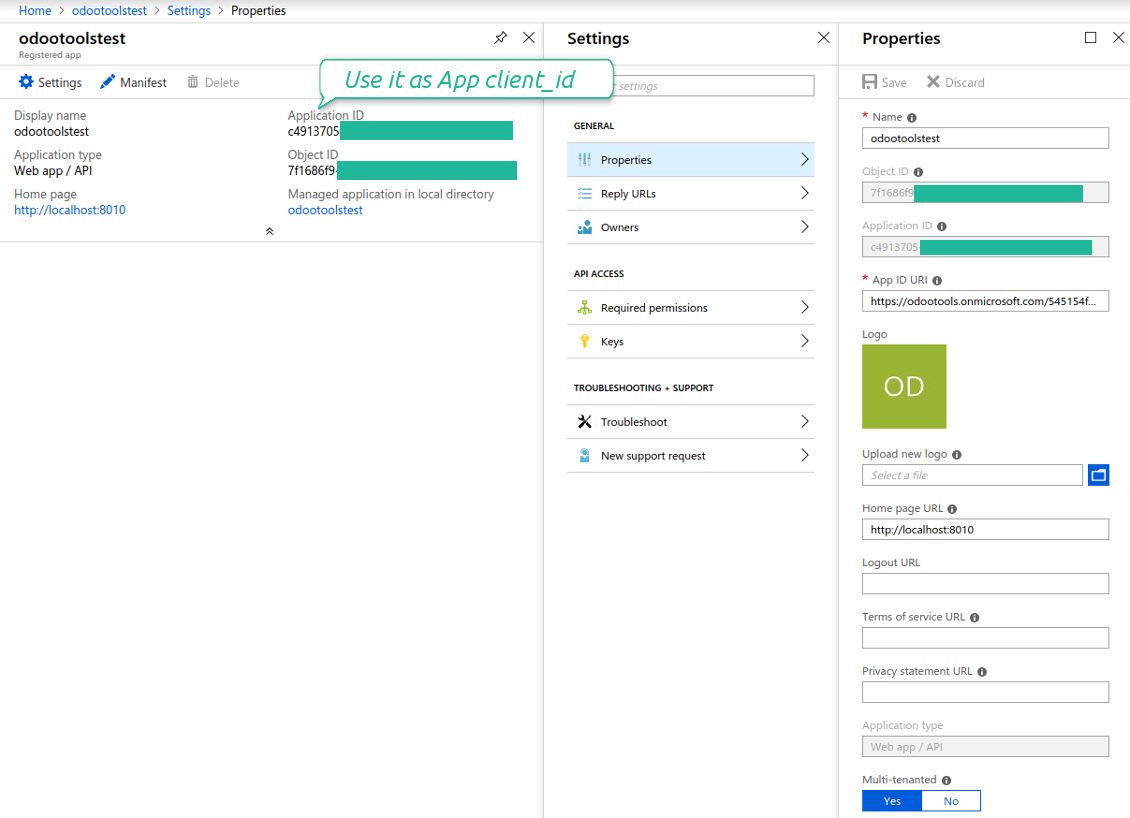
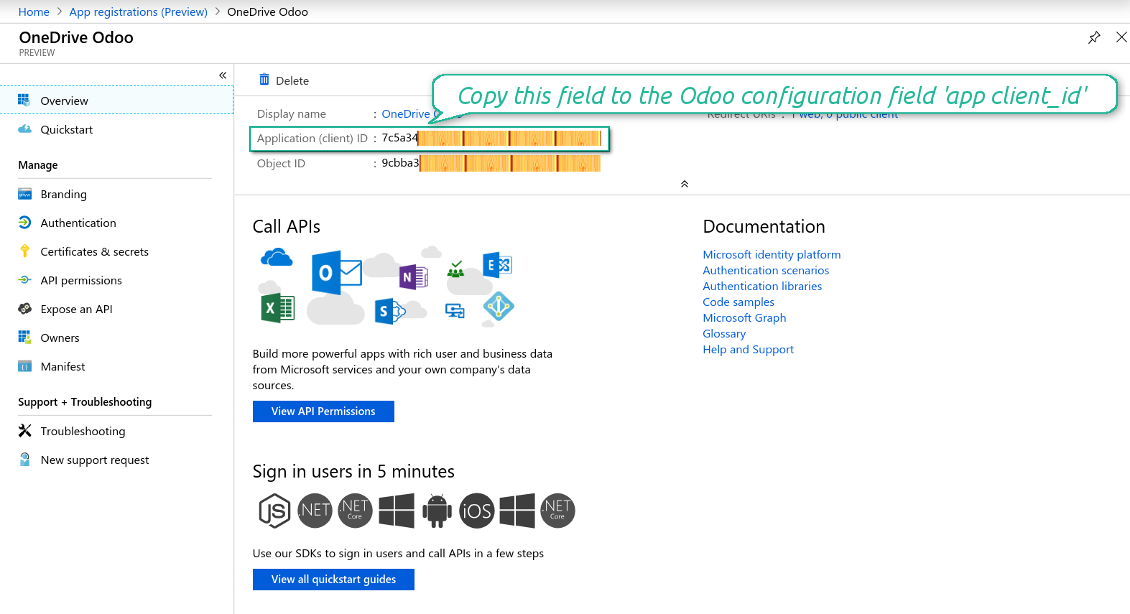
- Copy 'Application ID' to 'App client_id'
- Put a previously generated key to the field 'App secret key'
- Enter the 'Redirect URL' as you entered 'Reply url' in Azure Portal
- Check the boxes 'OneDrive for business' and 'Use sharepoint sites'
- The SharePoint URL should be of the type https://[URL]/. The last '/' is required, sitename should not be included into. For example, https://odootools.sharepoint.com/
- SharePoint site should be either my_site_name (in that case it is considered as sites/my_site_name) or sites/my_site_name (instead of 'sites' it might be 'teams' and so on). There should be no '/' at the beginning or at the end. For example, sites/odootools
- As Documents Library use one created in SharePoint
- Press 'Save'
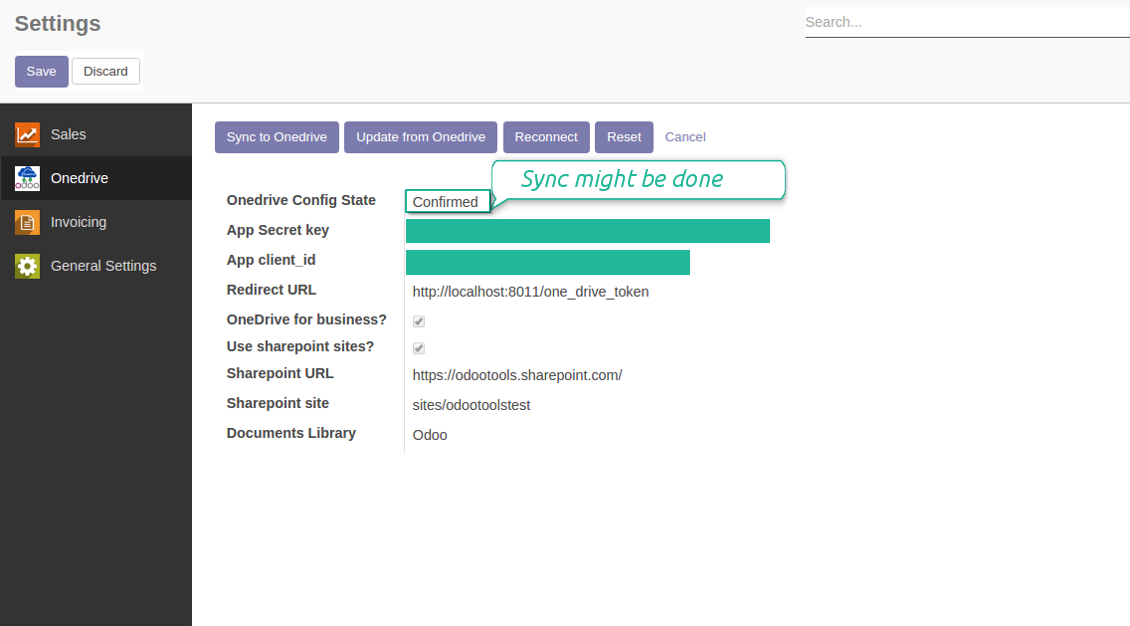
- Press 'Login and Confirm'. Odoo redirects you to Microsoft login page. Check in and grant permissions asked. If Microsoft shows an account already signed in and says it does not exist in tenant 'Microsoft Services' (or any other unrelated tenant), do not click that row. Click 'Use another account' and sign in with the Microsoft account that owns the app's directory.
- After login, Microsoft redirects you back to Odoo. OneDrive - Odoo synchronization is ready to be done.
Create application in your Azure Portal
App's permissions
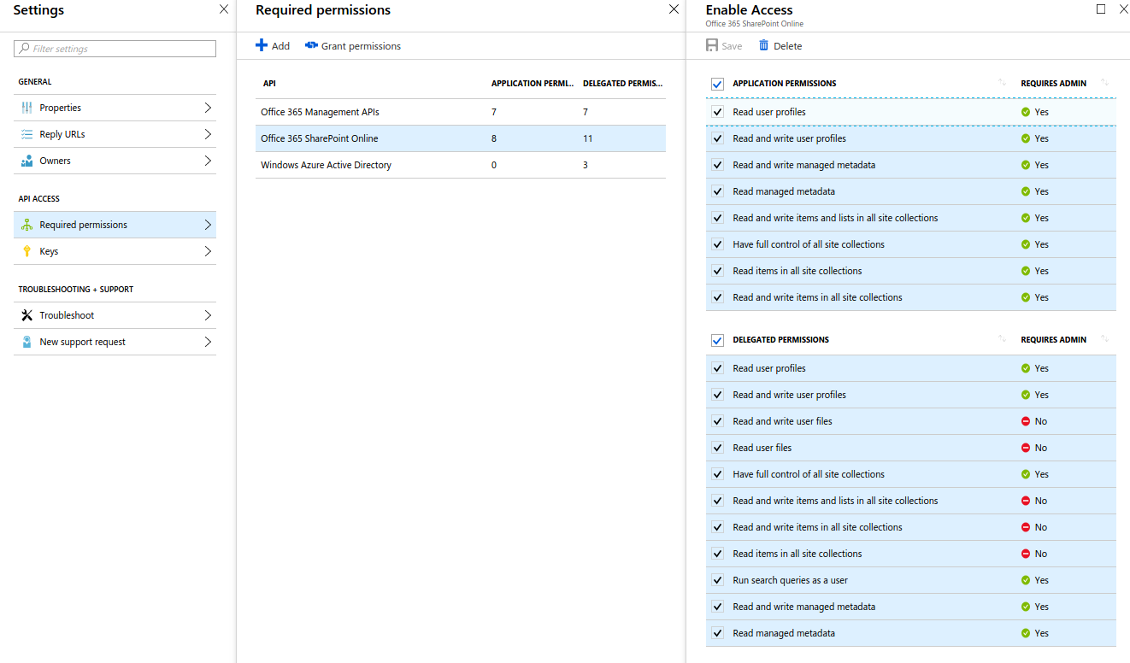
App's permissions
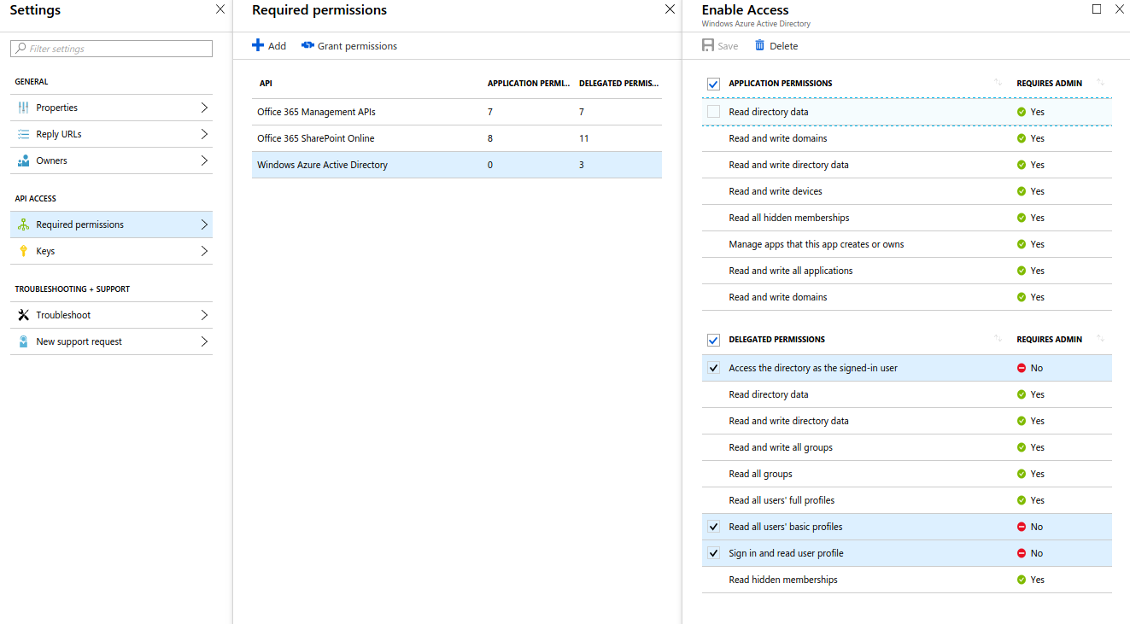
Redirect url should be https://[yourodoosite]/one_drive_token
Generate a secret key
Create a new SharePoint Documents Library
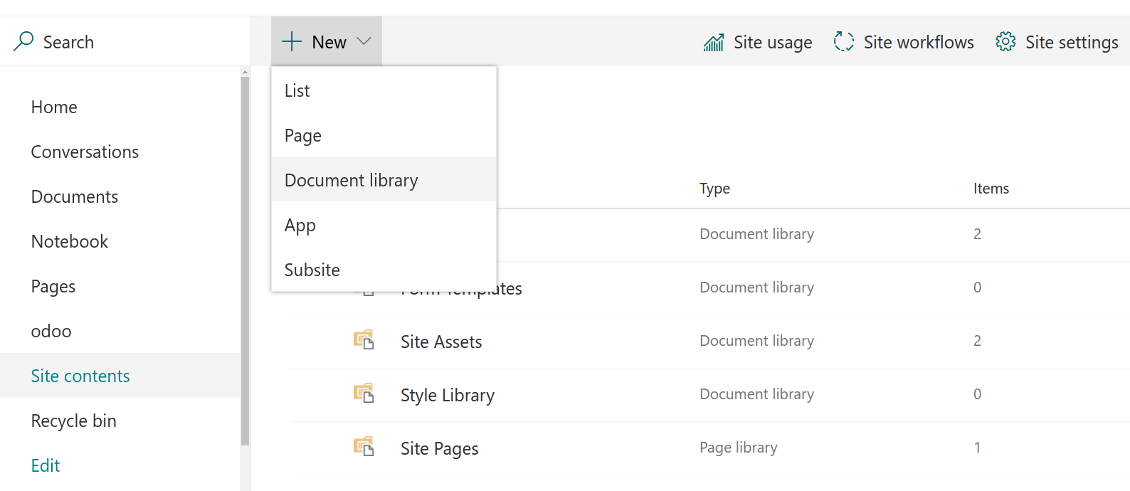
Create a new SharePoint Documents Library
Enter configuration keys in Odoo
Odoo attachments are ready for sync with Onedrive files. Press 'Sync to Onedrive' for the files upload
Personal OneDrive and OneDrive for business
- Go to https://portal.azure.com/#blade/Microsoft_AAD_RegisteredApps/ApplicationsListBlade
The app must be registered inside a directory (tenant). Microsoft no longer allows creating a new app outside one.
- If you already have a company Microsoft 365 / Azure directory, switch the portal (top right) to it and continue.
- If you only have a personal account (@outlook.com, @hotmail.com, @live.com) and see "these applications are associated with the account ... but are not contained within any directory", you do not have a directory yet. Sign up for a free Azure account with the same Microsoft account: https://azure.microsoft.com/free/ - Try Azure for free. This creates a Default Directory for you at no cost.
- Microsoft asks for a card for identity verification only; a temporary ~1 USD hold is placed and reversed. You are not charged for the directory or for the app registration.
- The directory (Microsoft Entra ID Free) and any app registered in it keep working independently of the 30-day / $200 Azure trial credit. That credit is for paid Azure resources you are not using here. No payment is required for our app.
- If the whole directory sits completely unused for a very long time (Microsoft's own threshold is around 200 days of no activity at all), Microsoft may email a warning and eventually retire it. Since Odoo calls this app every time it syncs, an active connection keeps the directory active - this only matters if you stop syncing entirely for months.
- Once you are in a real directory (not "Microsoft Services"), open App registrations there.
- Click 'New registration'
- Introduce a new name for the application and assign the redirect URI as [YOURODOOSITENAME]/one_drive_token (e.g. https://odootools.com/one_drive_token)
- Copy the Application Client ID to the Odoo field 'App client_id'
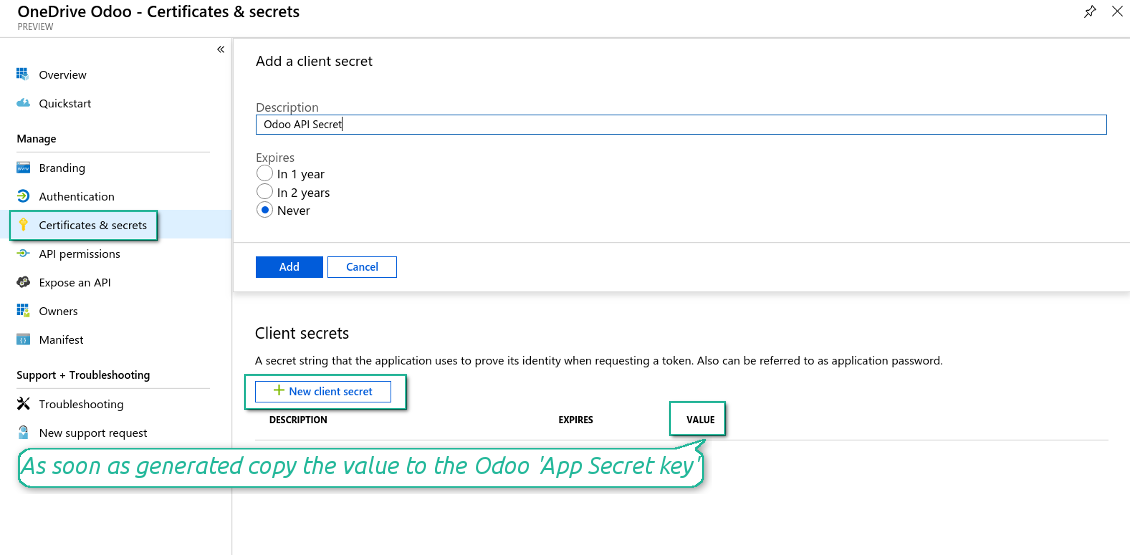
- Go to Certificates & secrets > Click 'New Client Secret'. Copy the secret value to the Odoo field 'App Secret Key'
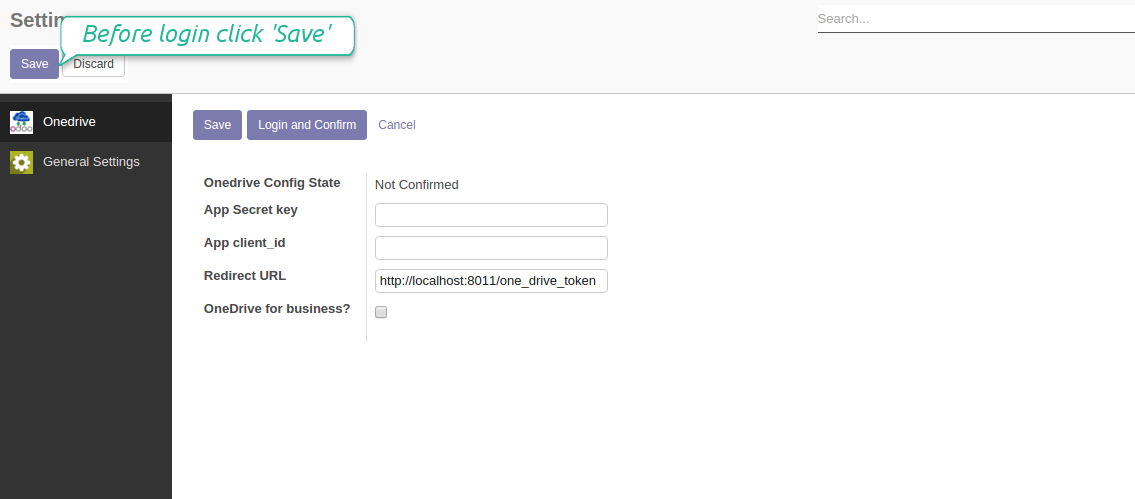
- Press Save on the Odoo configuration Page
- Press 'Login and Confirm'. Odoo redirects you to Microsoft login page. Check in and grant permissions asked. If Microsoft shows an account already signed in and says it does not exist in tenant 'Microsoft Services' (or any other unrelated tenant), do not click that row. Click 'Use another account' and sign in with the Microsoft account that owns the app's directory
- After login, Microsoft redirects you back to Odoo. OneDrive - Odoo synchronization is ready to be done.
Create OneDrive application
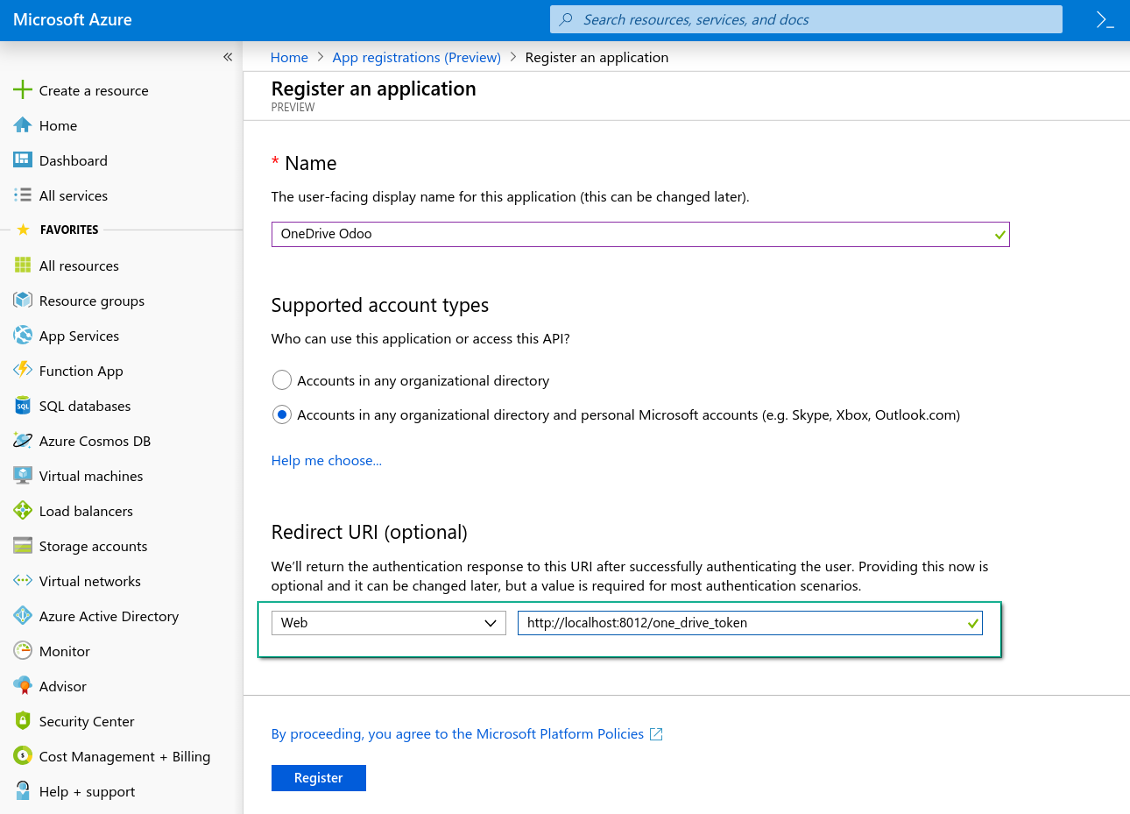
New OneDrive Web platform and redirect url
Generate new secret for your application
Enter configuration keys in Odoo
Migration from the versions prior to the version 1.3.0
- Push the button 'Backward sync' (to make sure recent OneDrive changes are synced)
- Push the button 'Reconnect' and log in Microsoft
- Push the button 'Migrate from the version under 3.0'
- Check / update synced models
- Push the button 'Sync' to apply changes
Reconnection
- You use this tool with version prior to 1.2.0. In that case you should also install the library 'microsoftgraph'. Look above
- You have not used the sync tool for more than 6 months
- Press the button 'Reconnect'
- Press the button 'Login and confirm'
Gyakran ismételt kérdések: OneDrive / SharePoint Odoo Integration Odoo v.10
Hibát látok, ha a szinkronizált kép felhőhivatkozására kattintok
A «This item might have been deleted, expired, or you might not have permission to access it. Contact the owner of this item for more information.» hiba azt jelzi, hogy nincs bejelentkezve a photos.onedrive.com szolgáltatásba.
Megváltoztathatom a szinkronizálási feladatok gyakoriságát?
Igen, lehet. Ehhez:
Kapcsolja be a hibakereső módot
Lépjen a műszaki beállítások > Automatizálás > Ütemezett műveletek menübe
Keresse meg a «Synchronize attachments with cloud» és «Update attachments from cloud» feladatokat.
Ne legyenek túl sűrűek. A feladatnak lehetőleg be kell fejeződnie, mielőtt a következő elindul. A beállítás a szinkronizálandó elemek számától függ. A gyakoriság általában 15 perc és 4 óra között van.
Állítson be elég időkorlátot az Odoo konfigurációs fájlban is. A LIMIT_TIME_CPU és a LIMIT_TIME_REAL legyen legalább a tervezett cron idő. A 13-as verziótól a LIMIT_TIME_REAL_CRON paramétert is vegye figyelembe.
Fontos megjegyzés Odoo.sh-ügyfeleknek: a cron feladat maximális ideje 15 perc lehet.
Beállíthatok a szinkronizálás által feltételezettől eltérő könyvtárszerkezetet?
Nem, ez a funkció csak a 15-ös verziótól érhető el. Előtte a modul előre megadott mappaszerkezettel dolgozik:
Odoo - a szinkron gyökérmappája
Modellek - mappa minden Odoo-dokumentumtípushoz. Például «Projects», «Partners». Tartomány szerint lehetnek szűkebb mappák: «Customer 1 Projects», «Projects of the Customer 2», «Internal Projects» stb.
Objektumok - mappa minden dokumentumhoz, pl. «Project 1» vagy «Customer 1»
Az adott Odoo-dokumentumhoz tartozó, szinkronizálandó fájlok és mappák.
Így például ez lehet:
Odoo / Projects / Project 1 / az 1. projekt fájljai és mappái
Odoo / Customer 1 Projects / Project 1; Odoo / Customer 2 Projects / Project 3, ...
Odoo / Customers / Customer 1 / az 1. ügyfél fájljai és mappái
A szerkezet mindig lapos: csak ezek a szintek. Különböző dokumentumtípusok nem lehetnek ugyanabban az ágban. A «Customer 1» mappában nem tarthatók együtt rendelések, számlák és projektek. Minden típusnak saját mappája (vagy mappái) van. Különben a visszafelé szinkronnak nem lenne szempontja.
Be kell állítanom speciális felhasználói hozzáféréseket az Odoo-ban?
Nem, az eszköz egyetlen felhasználói végpontra támaszkodik. Minden szinkronfolyamat egy felhőadminisztrátor (alkalmazás) alatt fut. A létrehozott mappák / fájlok jogai nem automatizáltak. Ezeket a felhőtárhelyen kell kezelni.
Hol tárolódnak a szinkronizált fájlok? Duplikálódnak az Odoo-ban és a felhőkben?
Az alkalmazás azt feltételezi, hogy a mellékletek bináris tartalma a Cloud Clientban van, nem az Odoo-kiszolgálón. Az ilyen mellékletek az Odoo-ban URL típusúak lesznek, és bármikor elérhetők a mellékletmezőből vagy a Cloud Clientból.
A beállítás után nincs szükség kézi lépésekre: a szinkronizálás teljesen automatikus. Döntse el, mely Odoo-dokumentumtípusokat kell szinkronizálni, és állítson be hozzájuk kapcsolódó modellt (ügyfelek, értékesítési vagy beszerzési rendelések, feladatok, projektek stb.).
Lehet több mappám ugyanahhoz a dokumentumtípushoz? Például belső projektek és ügyfélprojektek?
Igen, lehet. Készítsen szabályt mindegyikhez, majd alkalmazzon szűrőket: például a projekt típusa szerint.
Tegye a szűrőket egymást kizáróvá, hogy a dokumentum egyértelműen hozzárendelhető legyen. Például: «ügyfél, de nem szállító», «szállító, de nem ügyfél». Különben a dokumentum mappája modellről modellre ugrana.
Elég csak a Cloud Storage Solution alkalmazás?
Nem, az eszköz csak technikai mag. A felhőklient csatlakozójára is szükség van.
Rendben van, ha sok objektumot kell szinkronizálni, például 10000-et?
Igen, bár sok mappa/melléklet esetén a folyamat lassú lehet. Ügyfeleink azonban >10 ezer partneres és ~5 ezer termékváltozatos környezeteket jelentettek, és a folyamatok elfogadhatók voltak.
Néhány pont:
- A szinkron úgy van felépítve, hogy minden elem szinkronizálódik és nem vész el, még ha nem is gyors. FIFO-sorok és minden feladat commitja ezt garantálják.
- Az objektumok száma logikusan korlátozható. A modellek beállítása kizárhatja az elavult tételeket (pl. archivált partnerek vagy 2 éves rendelések).
Lehet valós idejű a szinkronizálás?
Nem. Erős okaink vannak a valós idejű szinkron kerülésére:
Teljesítmény. Valós idejű szinkronnál minden fájlfeltöltés betöltőképernyőt ad.
Ütközések. Ha 2 felhasználó egyszerre módosít egy elemet, a helyzet megoldhatatlan lehet. Rendszeres feladatoknál utólag javítható; valós időben sorra lenne szükség, ami még félrevezetőbb.
Működés. Különösen az átnevezés és az átszervezés. A visszafelé szinkron szigorúan a könyvtárlogikára támaszkodik, és minden futáskor az elemek 100%-át ellenőrzi. Minden frissítés után ez másodpercenként több ezer kérés lenne. Különben a változások elvesznének.
Szinkronizálhatom a mellékleteket több felhőklientre
Nem, ez a funkció csak a 15-ös verziótól érhető el.
Speciális szerkesztőt használunk a felhőinkben (pl. OnlyOffice, Office 365). Megnyílnának a fájlok abban a szerkesztőben?
Igen, a felhőklient beállításától függően.
Mik az eszkozeik frissítési szabalyai?
Az Odoo Apps Store aktuális szabalyai szerint:
- A 12.0-s vagy korábbi verzióhoz vásárolt modul hozzáférést ad minden 12.0-ig tarto verzióhoz.
- A 13.0-s verzitol minden modulverziot külön kell megvasarolni.
- A verzioszamtol függetlenül a vásárlás jogot ad az adott foverzion belüli összes frissitesre es hibajavitasra.
A faOtools csapat nem irányítja ezeket a szabályokat. Kerdesekkel közvetlenül az Odoo Apps Store kepviseloit keresse.
Hogyan telepitem az alkalmazást Odoo.sh-re?
A legkozvetlenebb megkozelites az Odoo-aruhaz beépített munkafolyamata:
1. Nyissa meg a modul oldalat, es kattintson a Deploy on odoo.sh gombra
2. A GitHub oldalra kerül. Jelentkezzen be, majd kattintson a Create a new repo gombra, vagy használjon egy meglévőt. A tarhaznak privatnak kell lennie. OPL-1 licencu alkalmazások nem tehetok közzé. Szükség esetén hozzon létre uj repot az Odoo.sh-projekthez
3. Ezutan az odoo.sh-en kattintson a Deploy gombra, erősítse meg, majd kattintson a Continue gombra. Elindul a telepítés.
Ezek a lépések a production agra telepitik az alkalmazást. Mas agakhoz vagy frissiteshez:
1. Töltse le a forraskodot az Odoo-aruhazbol
2. Commitolja a modult a GitHub-tarhazba. Egyik alkalmazasmappa/-fájl sem kerulhet a .gitignore-ba. Az odoo.sh által létrehozott tarhazak fontos utvonalakat (pl. /lib) hagyhatnak figyelmen kívül. Töltse fel az összes modulkonyvtarat es fájlt
3. Deployolja az odoo.sh-projekt celagat, vagy várja meg az automatikus buildet, ha a beállítások igy szolnak.
Hogyan telepitem az alkalmazást a saját szerveremre?
2. Indítsa újra az Odoo-kiszolgálót;
3. Kapcsolja be a fejlesztői uzemmodot (technikai beállítások);
4. Frissítse az alkalmazaslistat (Alkalmazások menü);
5. Keresse meg az alkalmazást, es kattintson az Activate/Install gombra;
6. Kövesse az alkalmazasoldal utmutatasait, ha vannak.
Az alkalmazásnak extra kiegeszitoi vannak. Megvehetem őket később?
Igen. Az Odoo automatikusan a kosarba teszi a fuggosegeket: zárja ki a mar megvasarolt eszközöket, hogy ne fizessen kétszer.
Telepitettem az alkalmazást Odoo.sh-re, es figyelmeztetést/hibát latok a tesztekben
A piros/narancs figyelmeztetés nem befolyásolja az alkalmazás funkcióit. Néha a moduljaink nem mennek at a standard automatikus teszteken, mert azok az alkalmazás celjaival ellentetes viselkedést várnak. Például megvaltoztatjuk az arszamitast, miközben az Odoo-tesztek a végső árat a standard algoritmussal hasonlitjak össze.
Először ellenőrizze a telepített adatbázis funkciot. Minden működik?
Ha mégis ugy gondolja, hogy a figyelmeztetés valós funkciókat érint, írjon nekünk, es küldje el a teljes telepítési naplókat es a telepített modulok teljes listajat (mag es harmadik fel).
Megvehetem az alkalmazást közvetlenül onoktol?
Nem, az eszközöket csak a hivatalos Odoo alkalmazasboltban forgalmazzuk.
Kedvezmenyt szeretnék
Sajnos nincs technikai lehetosegunk egyedi árakat adni.
Telepithetem az alkalmazást az Odoo Online (SaaS) adatbazisomra?
Nem, harmadik feles alkalmazások nem használhatók az Odoo Online-on. Az Odoo SaaS ezt blokkolja.
Az eszköz mas alkalmazasoktol függ. Meg kell vennem őket?
Igen, az eszkoznek szüksége van minden függőségként jelölt modulra. Az alkalmazasoldal ara mar tartalmazza ezeket a fuggosegeket.
Mennyi a modul ara amerikai dollarban? Miért változott?
Moduljaink ara euroban van megadva. Az Odoo-aruhaz a belső arfolyama szerint vált mas penznemekre. Ezért az amerikai dollar ar valtozhat, amikor az arfolyam frissül.
Az alkalmazás és a webhely angolon kívüli nyelveken mesterséges intelligenciával készülnek és az hivatalos Odoo-fordításokhoz igazodnak. Ha hibát talál, küldjön fordításhelyességi jegyet és kijavítjuk.
Hibajelentés
Ha hibát vagy következetlen viselkedést lát, írjon nekünk. A vásárlástól 60 napon belül javítást vállalunk, és utána is fejlesztjük az eszközöket.
Nem kell telefonszám vagy bankkártya a kapcsolatfelvételhez. Elég egy rövid e-mailes regisztráció, ami 30 másodpercnél nem tart tovább.
Adjon meg minél több részletet: képernyőképek, Odoo-kiszolgálónaplók és a hiba reprodukálásának teljes leírása. Általában néhány munkanap kell a munkatervhez (ha a hiba megerősített) vagy az iránymutatáshoz (egyébként).
Nyilvános funkcióigények és modulötletek (ingyenes fejlesztés)
Erősen motiváltak vagyunk az eszközeink fejlesztésére, és hálásak minden visszajelzésért. Ha az igények közhasznúak és hatékonyan megvalósíthatók, a csapat felveszi őket a teendők listájára.
Az ilyen teendőlista rendszeresen feldolgozásra kerül, extra díj nélkül. Bár határidőt és végleges dizájnt nem ígérhetünk, jó módja lehet a kívánt funkciók befektetés és kockázat nélküli megszerzésének.
Nem kell telefonszám vagy bankkártya a kapcsolatfelvételhez. Elég egy rövid e-mailes regisztráció, ami 30 másodpercnél nem tart tovább.

Eszköz jelszavak biztonságos, megosztott tárolására Odooban. Megosztott trezorok

Eszköz mély és strukturált tudásbázis építéséhez belső és külső használatra. Knowledge System. KMS. Wiki-szerű revíziók.
398€
Eszköz KPI-célok beállításához és teljesítésük időszakos ellenőrzéséhez. KPI-irányítópultok. Dashboard-tervező. KPI-diagramok

Eszköz időalapú szolgáltatáskezeléshez a foglalástól az értékesítésig és az értékelésekig
398€
Eszköz az Odoo kezeléséhez a kedvenc AI-csevegőkből MCP-n keresztül. Claude. Bármely MCP-t támogató AI.

Eszköz Odoo mellékletek mappákba rendezéséhez és könyvtárak szinkronizálásához felhőklientekkel: Google Drive, OneDrive/SharePoint, Nextcloud/ownCloud, Dropbox, Amazon S3, Box és NAS. DMS. Fájlkezelő. Dokumentumkezelő rendszer
398€
Eszköz Odoo-mellékletek automatikus kétirányú szinkronizálásához Google Drive-fájlokkal
487€
Eszköz Odoo-mellékletek automatikus kétirányú szinkronizálásához ownCloud/Nextcloud-fájlokkal
487€
Eszköz az Odoo-mellékletek automatikus kétirányú szinkronizálásához NAS-megoldásokkal. Synology, QNAP, TrueNAS és bármely más WebDav-támogató NAS-megoldás
487€