Google Drive Odoo Integration v.14
The tool to automatically synchronize Odoo attachments with Google Drive files in both ways
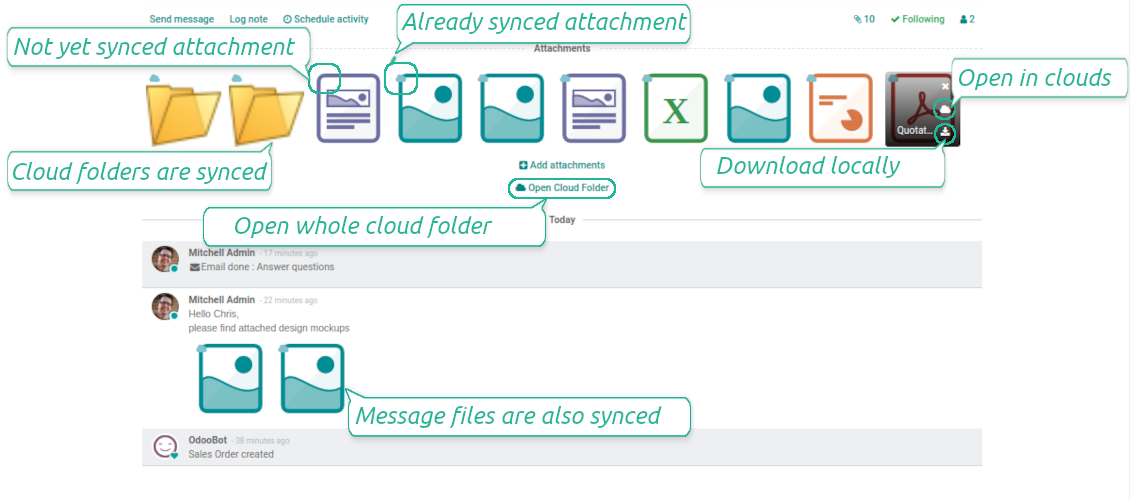
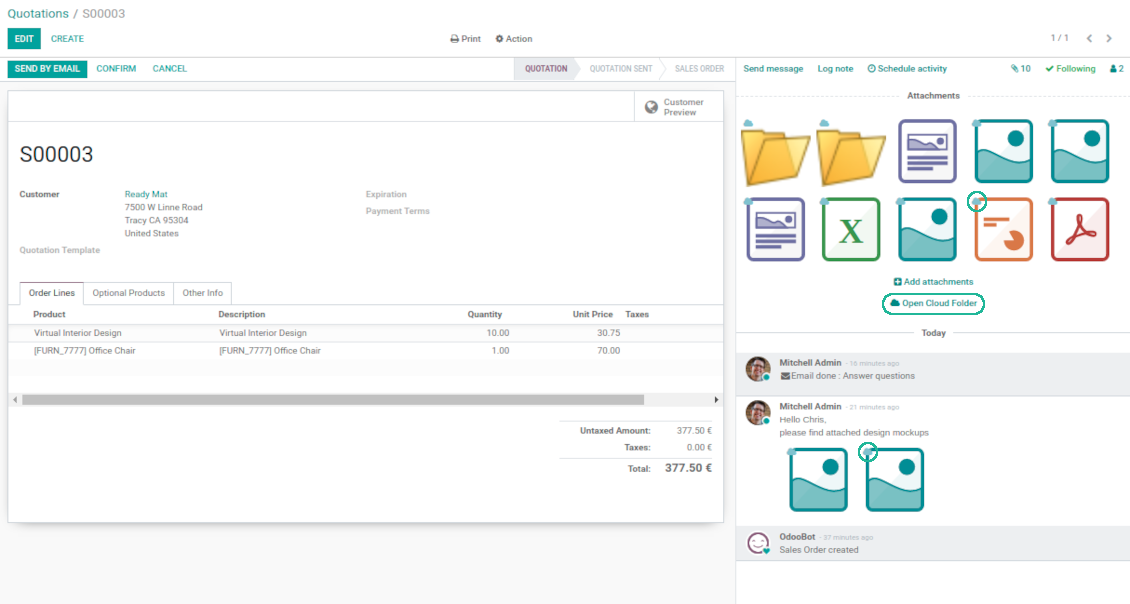
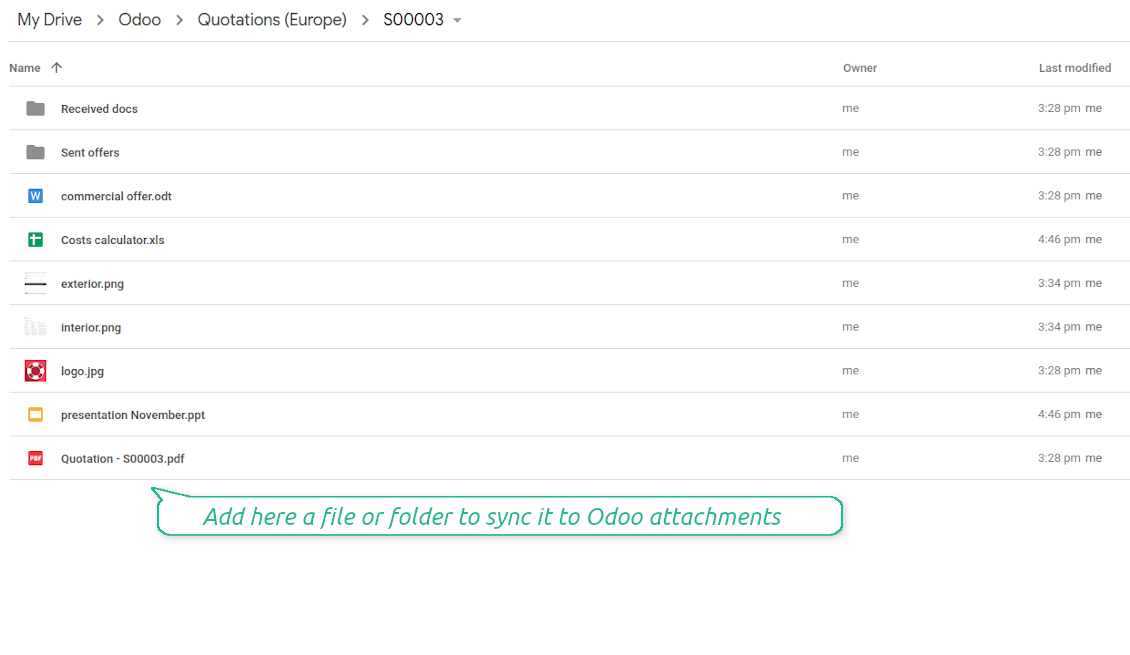
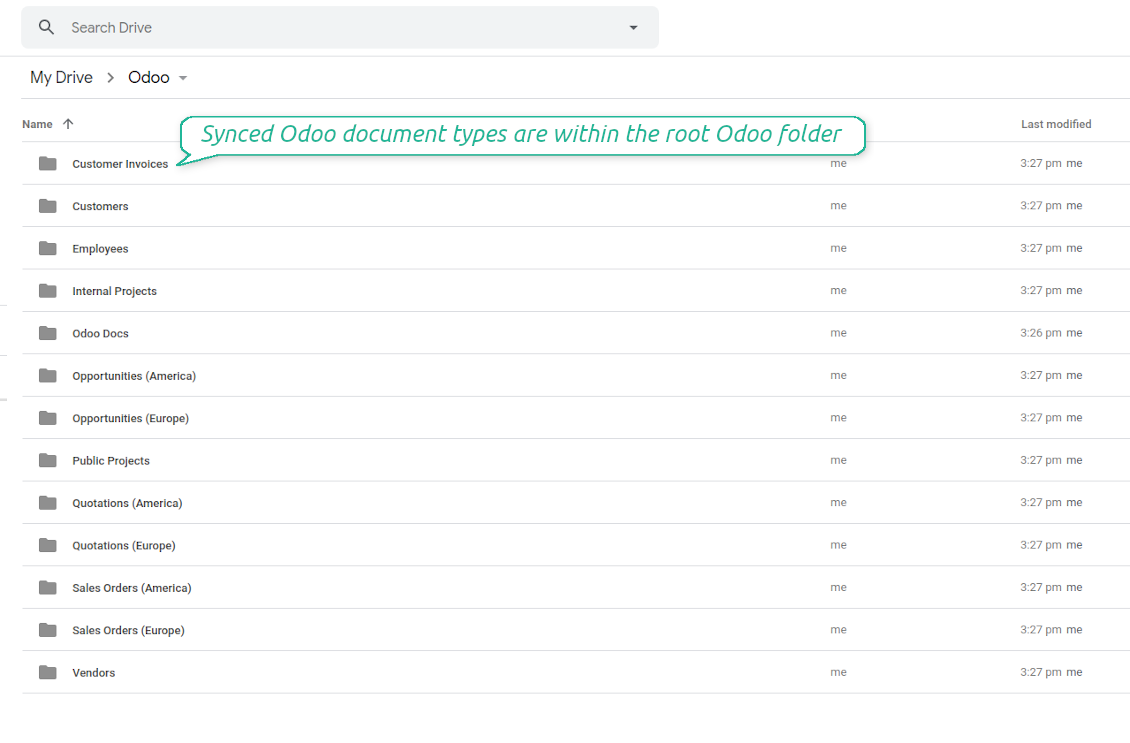
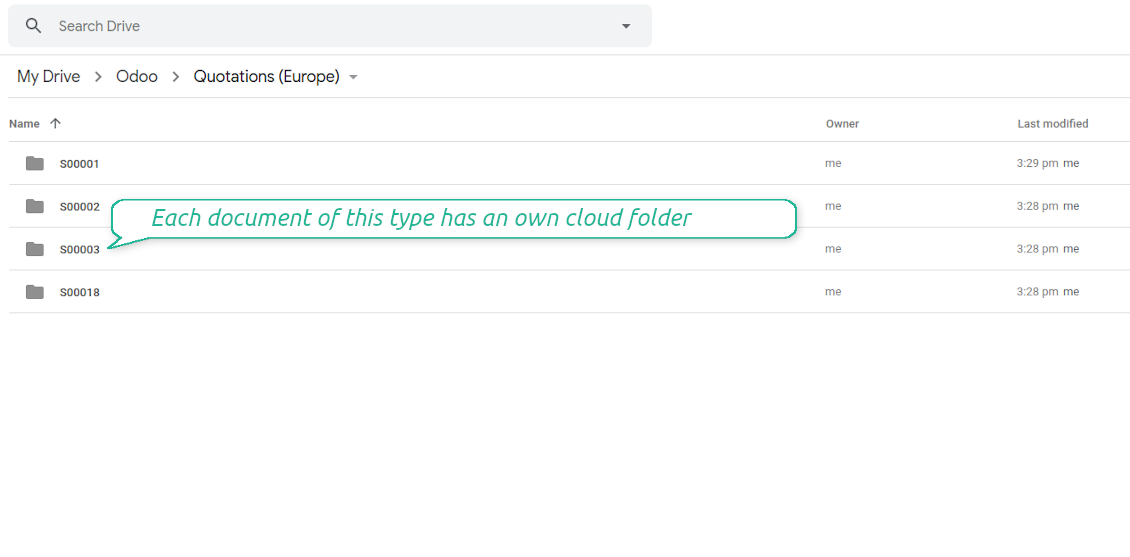
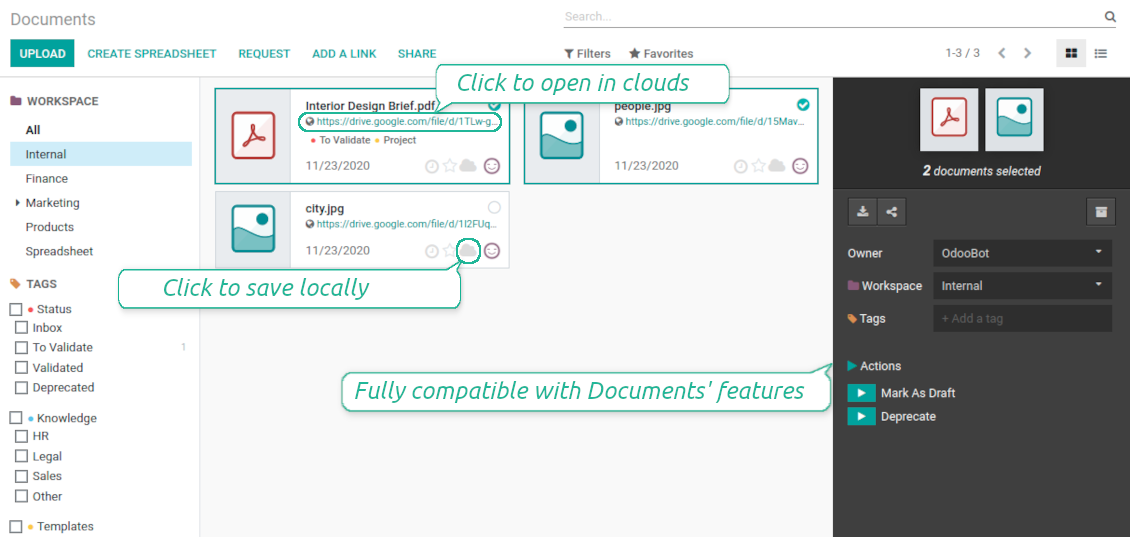

This is the tool to integrate Google Drive features into your Odoo business work flow. The app automatically stores Odoo attachments in Google Drive, and it provides an instant access to them via web links. In such a way users work with files comfortably in the cloud storage, while the results are fully available in Odoo.
- the technical core which provides basic mechanics of auto synchronization. This is a required module for integration. Sen hinta on 398€.
- the connector itself which introduces links between Odoo and Google Drive. Sen hinta on 89€.
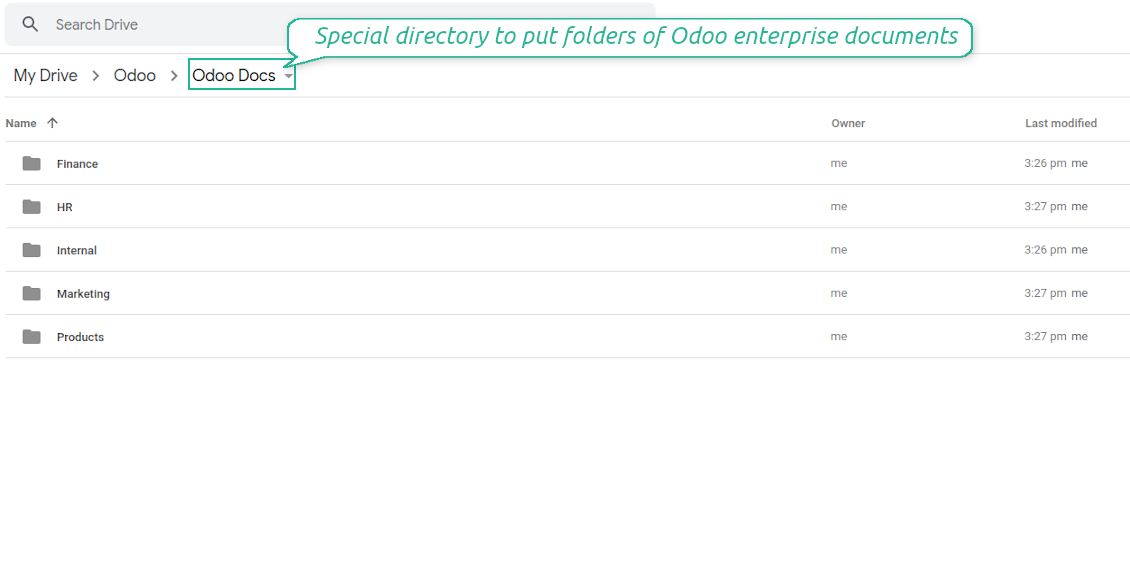
- an optional add-on to sync Odoo documents (introduced by the enterprise app 'Documents') with clouds. The features assumed by this add-on are marked by the icon . Sen hinta on 44€.
Automatic regular sync
Synchronization between Odoo and Google Drive is based on scheduled jobs. No manual interaction is required
Bilateral Google Drive sync
Odoo sends attachments to Google Drive and retrieves files from there. Binary content is kept in clouds, while Odoo provides direct access to synced items
Any Odoo document types for sync
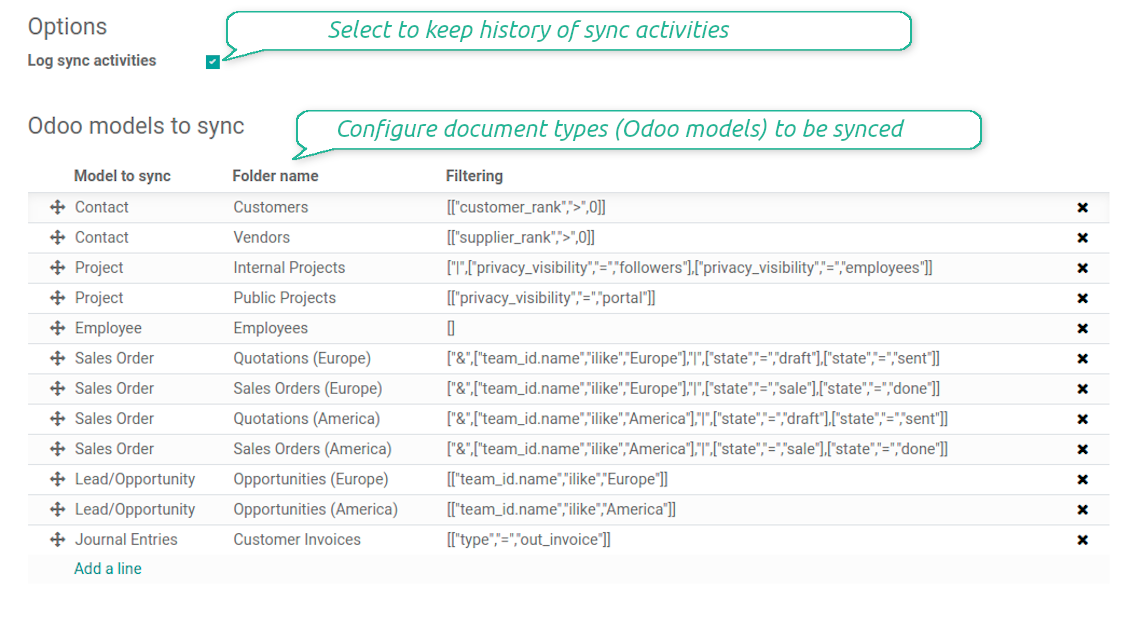
Decide which Odoo document types should be synced. Customers, opportunities, sale or purchase orders, tasks or issues, employees or users, etc. Custom models are also supported
Instant access for Google Drive
The tool redefines Odoo attachments boxes to make work comfortable: download files locally without login, open files and folders in Google Drive (if possible, items would be opened in Google Drive editors and previewers), use standard Odoo previewers
Compatible with Odoo Enterprise documents
Reflect Odoo Enterprise Documents' structure and items in Google Drive. All features (including sharing, downloading, and signing) would anyway work
Google team and individual drives
Sync works both for individual and team drives (Google Suite business and enterprise tariffs). In the latter case the root folder Odoo is placed within a chosen team drive, in the former case - within a current user drive
Google Drive sync history
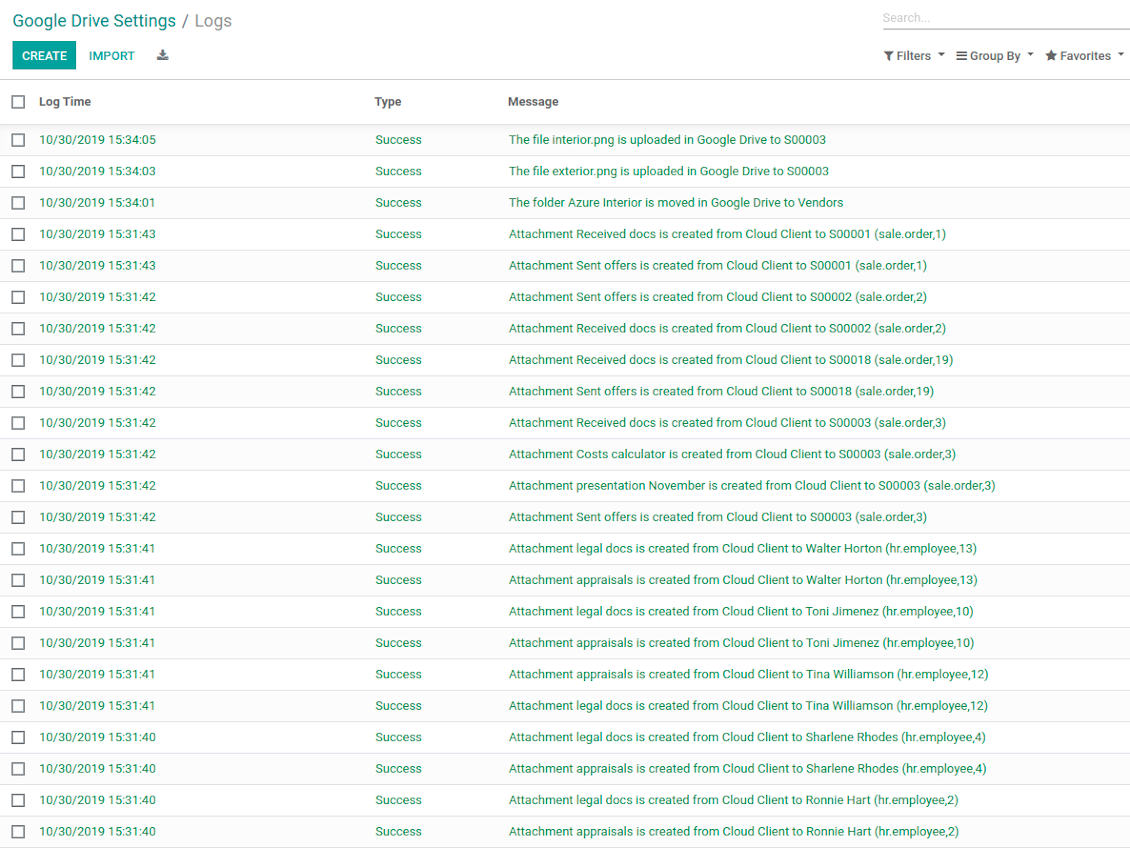
Sync activities might be logged. Control over files and folders creations, moves, name changes and removals. Just turn on the option 'Log sync activities', and you would be able to observe the history through the button 'Sync logs'
Default folders
The tool let generate default directories' structure for this document type during the very first sync of a related object. For example, for all employees you may have pre-defined folders 'Scans', 'Scans/Official', 'Photos', etc.
Tricky setup, but works perfectly now
Really solid module. We managed to get a very flexible folder structure (sorted by clients) and synced all our sales orders, invoices and tasks by projects to Google Drive.
Initial setup was a bit of a pain and kinda tricky to configure everything at first, but now it's running smoothly and works perfectly. The faotools team helped a lot. Def worth it if u need to keep your docs organized in Odoo and Google Drive.
Recommended!
Excellent !!!
Great App and great Service from faOtools.
Best module for integration with google drive
The module performs its function correctly and faOtools responds quickly to any problem and, in case of detecting any bug, quickly apply the changes. Its support is 10 stars.
Sync any documents you like
Configuring models to sync
-
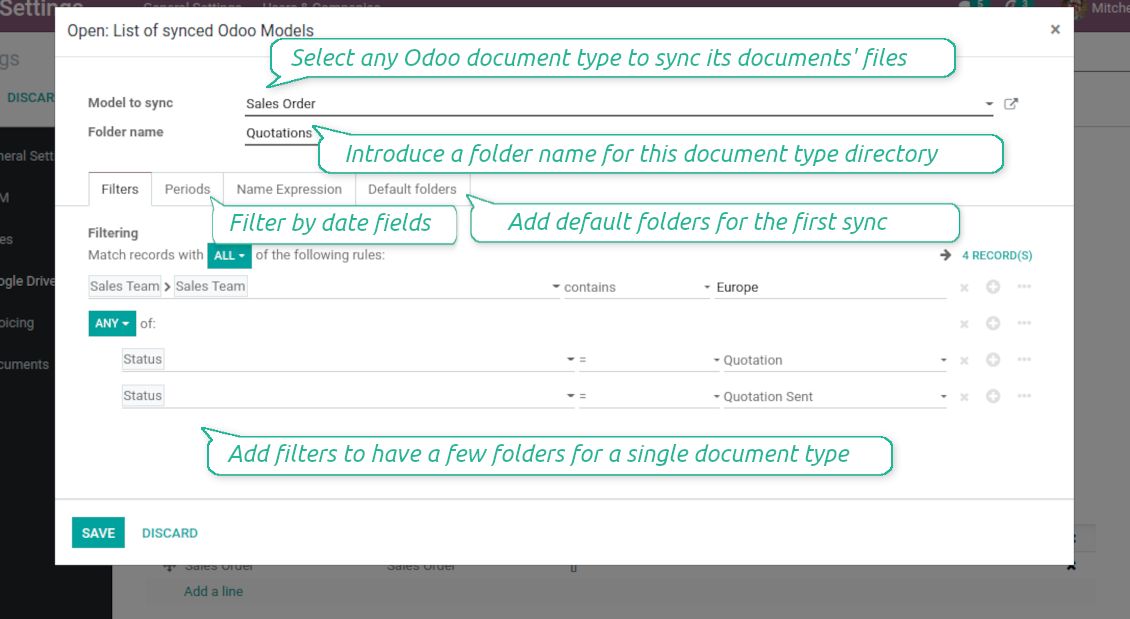
To sync a specific document type, you should add it as a model to sync. Any Odoo model might be chosen
-
The app let split models into a few folders based on selected filters. Use any document storable field to distinguish a directory. Have a separate folder for individuals and companies, for European and American opportunities, for quotations and confirmed orders, for each project, etc.
-
Limit also documents by relative periods through using date fields of linked documents. For example, leads registered in the last 3 months or invoices updated the last week
-
Define name expressions to specify titles of documents' Google Drive folders. For instance, to include project name to a task directory
-
Prepare hierarchy of default folders to be created when a document directory is synced to Google Drive for the first time
Typical use cases
-
Projects: have an own Google Drive folder for each customer project
-
Customers: add all partner files in a single directory available both from Odoo and from Google Drive. Modify those using default cloud editors and access them when working in Odoo
-
Employees: gather all files by this employee in a single cloud folder: photos, document scans, contracts. Access and upload those from Odoo and Google Drive alternatively
-
Opportunities: carefully store all specifications, requirements, any files which would let you make a good offer
-
Orders: keep all printings and contracts in Google Drive with instant availability from Odoo
-
Picking operations: save warehouse docs to Google Drive.
How synchronization works
Direct Sync
-
Direct synchronization is based on the scheduled job 'Synchronize attachments with cloud'
-
Direct sync make all synced Odoo attachments change their type to a link (URL), while binary content is removed with a next Odoo cleaner. So, no actual files would be stored on your Odoo server
-
Direct sync checks whether attachments are added or deleted for synced documents. If so, they would be created or removed in Google Drive
-
Direct sync checks whether a new document type (e.g. sale orders) is added / renamed / replaced in the to-sync-models configurations. If so, this should be reflected in Google Drive
-
Direct sync checks whether a new document (e.g. quotation SO-001) related to a synced document type is generated / updated / unlinked. If so, the connector would make the same changes in Google Drive
-
The final goal of direct Google Drive integration is to have the structure 'Odoo / Document Types / Documents / Files. For example, 'Odoo / Quotations / SO019 / commercial offer.pdf'
Backward Sync
-
Backward synchronization is based on the scheduled job 'Synchronize attachments from cloud'
-
Backward sync checks whether any items are added to a Google Drive document folder. If so, the app would create URL attachments for that items in a linked Odoo object
-
Backward sync checks whether any items are deleted / moved in a cloud document folder. If so, a linked Odoo attachment would be also unlinked or moved
-
Backward sync checks whether any item is renamed in Google Drive. If so, a chained Odoo attachment should be also renamed
-
In Google folders you can put not only files but also child folders. In that case a link for this folder (not its content) would be kept in Odoo attachments
-
If you deleted a folder related to this document type or this document, their child files would be deleted as well. Thus, Odoo would remove related attachments. The folders, however, will be recovered with a next direct sync
Misc notes
-
The connector works on a queue (first in - first out) principle: it tries to firstly reflect the oldest changes
-
Each sync, especially the very first one, might take quite a long. It is not recommended to make sync too frequent: once an hour seems reasonable frequency
-
File names and content should be managed in Google Drive: each backward sync would recover Google Drive names, Odoo is here less important
-
Take into account that files or folders deleted in Google Drive are really deleted only when you clean trash. Otherwise, such files still exist and would be reflected in Odoo
-
Try to avoid the following symbols in folders' and files' names: *, ?, ", ', :, <, >, /, +, %, !, @, \, /,. Direct sync will replace such symbols with '-'. It is done to avoid conflicts with file systems.
Odoo Enterprise Documents
-
The special add-on 'Cloud Sync for Enterprise documents' is introduced to synchronize Google Drive with the Odoo app 'Documents' (the latter is distributed under the Odoo Enterprise license)
-
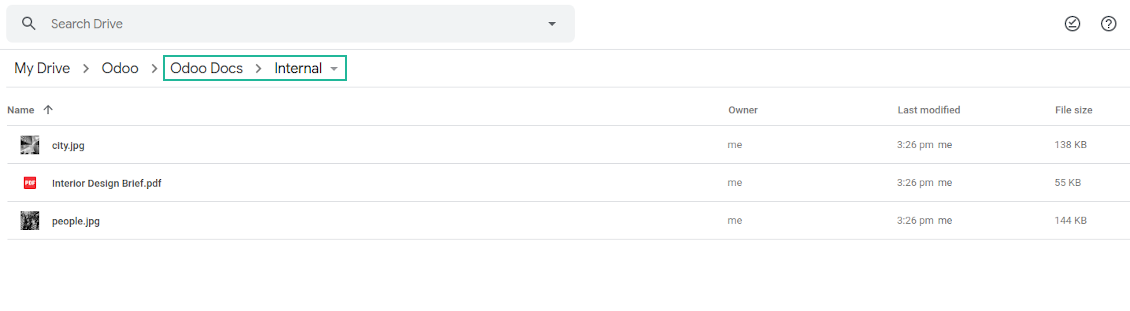
Based on that add-on the Odoo documents' hierarchy would be reflected within the folder 'Odoo / Odoo Docs'
-
Each Odoo folder would have a linked Google Drive folder. Take into account that folders created in the cloud storage will be synced as Odoo attachments. The key principle is: folders are managed by Odoo, files are managed by the cloud client
-
All files are synced with the same logic as usual attachments. Files created in Odoo will be added to the cloud storage and will be replaced with links in Odoo. Files created in cloud storage will generate URL attachments within a paired documents directory
-
Standard Google Drive sync and integration with Enterprise Documents are done within the same jobs. Avoid the scenarios when a single file is synced as a simple Odoo attachment and as an Odoo document simultaneously
-
Odoo spread sheet files are not synced by the connector: so, they are still manageable in Odoo
-
Please do not name synced models as 'Odoo Docs'. This is the reserved name for Odoo Enterprise Documents.
Määritys- ja asennusvinkkejä: Google Drive Odoo Integration Odoo v.14
Login and Google Drive Credentials
- Go to the Google Cloud Console via the URL https://console.cloud.google.com
- Select or create a project
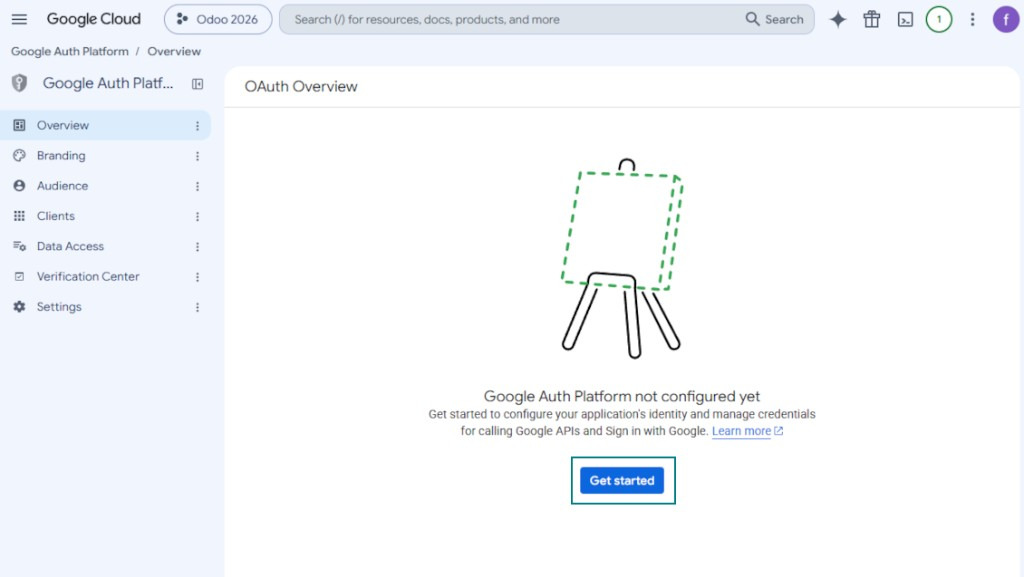
- After the project is selected, the console opens the Google Auth Platform. Press 'Get Started'
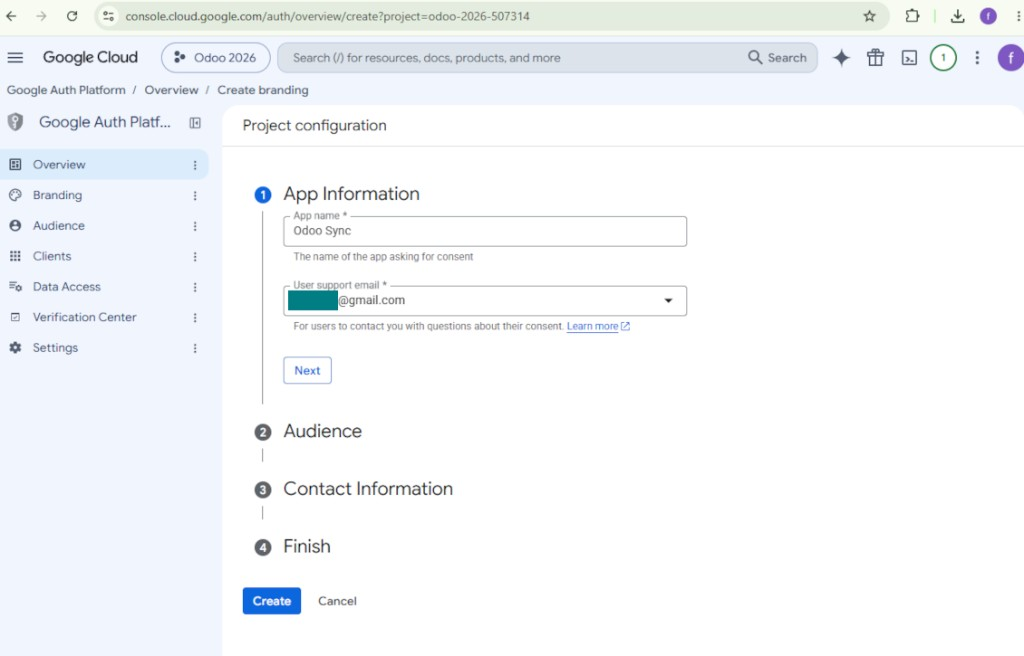
- Add app information
- As an app name select any suitable
- As a user support email select your email address
- Press 'Next'
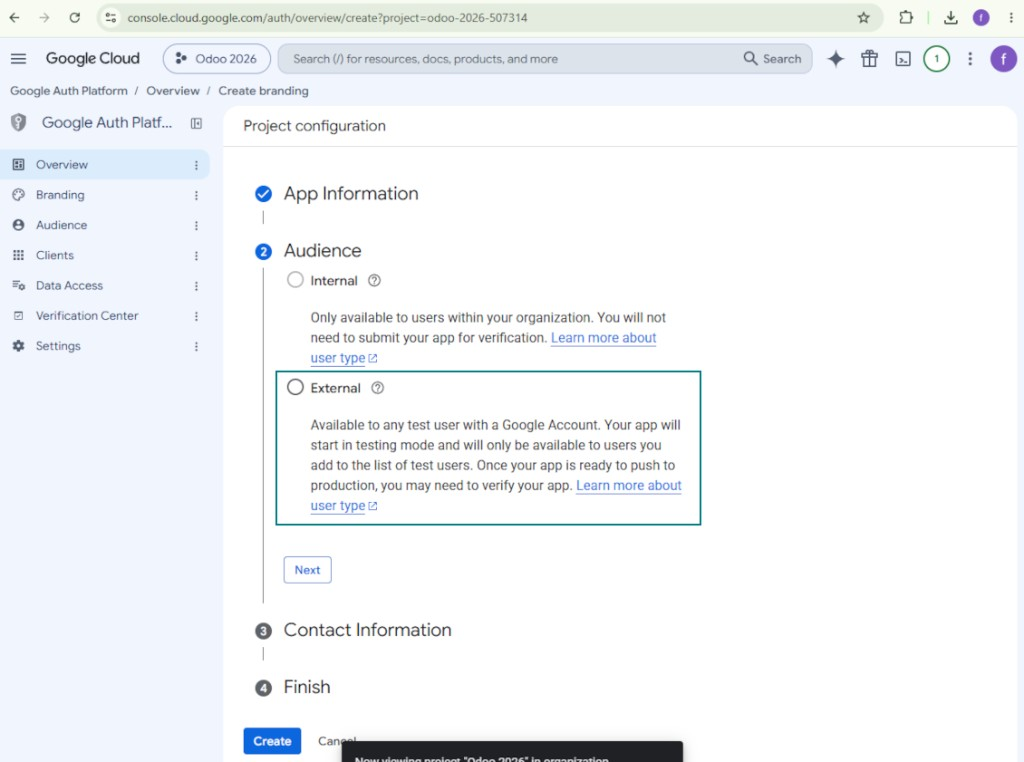
- As the audience select 'External' and press 'Next'. Note: you are anyway going to use this app only for your own Odoo connection
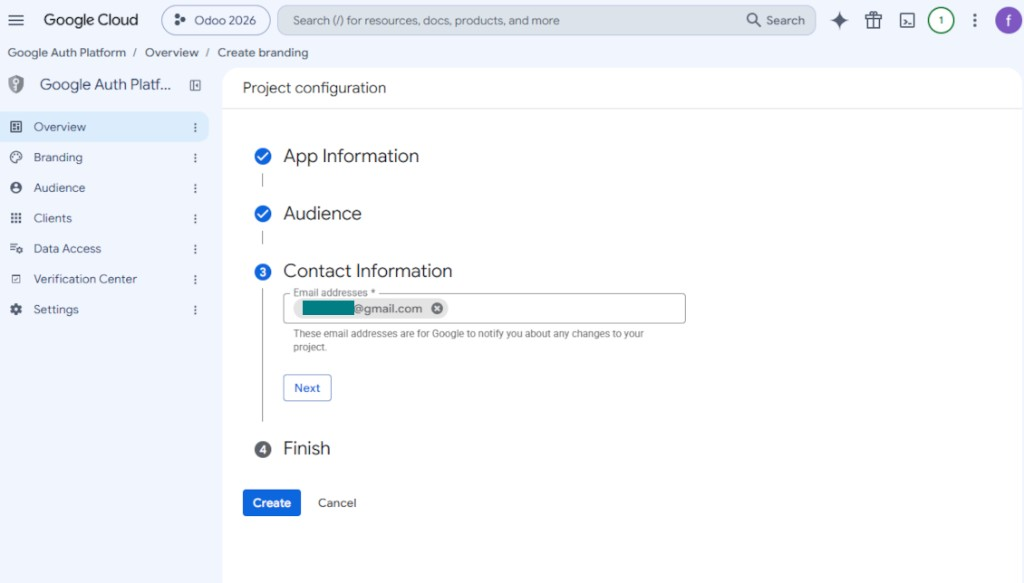
- As the contact information enter your Google or Google Workspace email address and press 'Next'
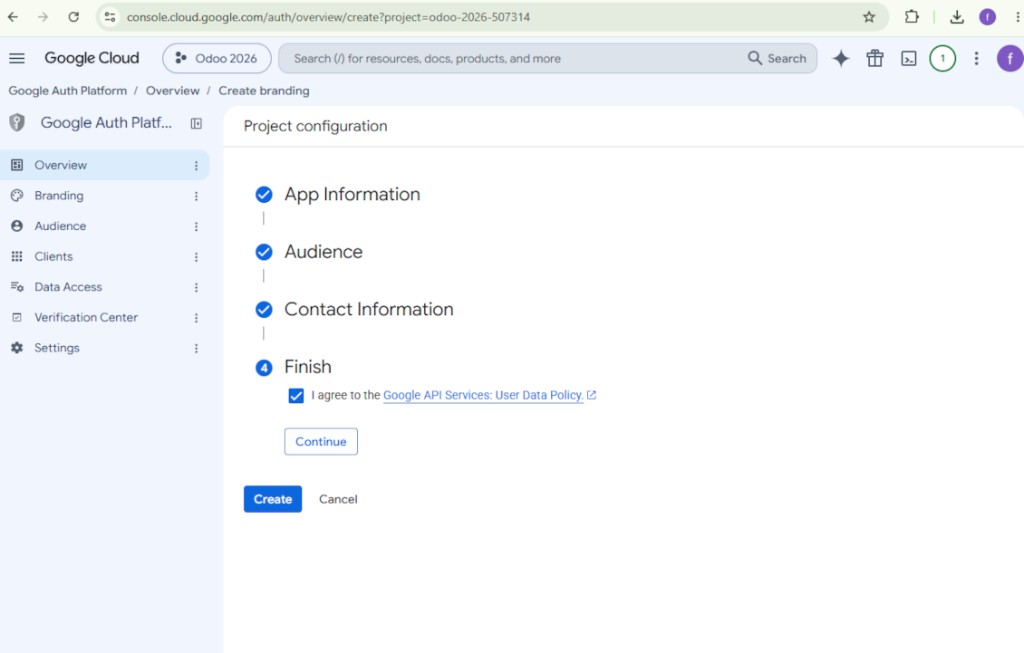
- Agree with the Google API Services User Data Policy, press 'Continue', and then press 'Create'
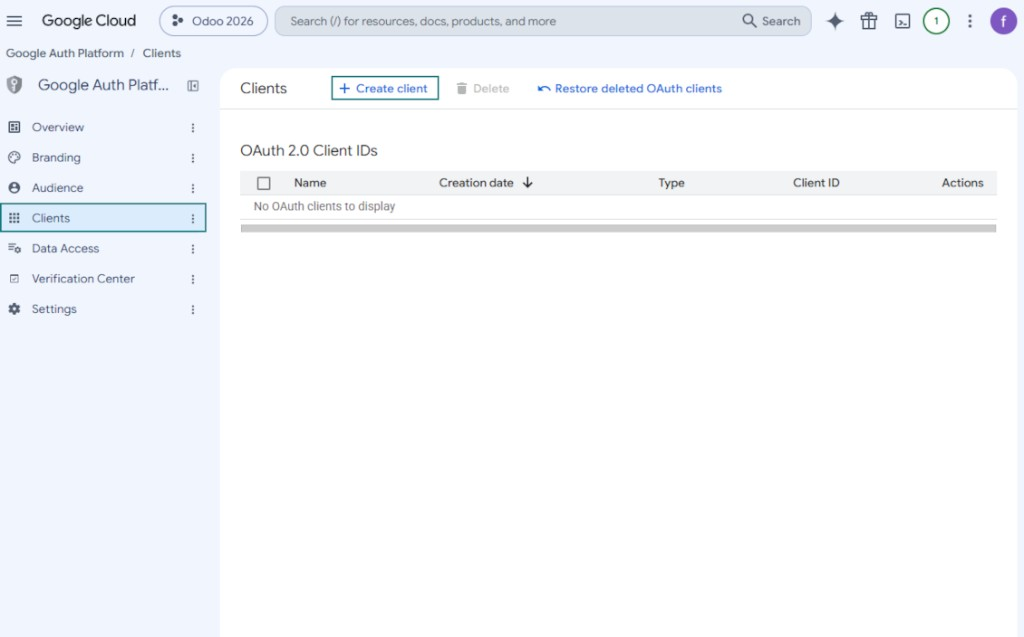
- Go to 'Clients' and press 'Create client'
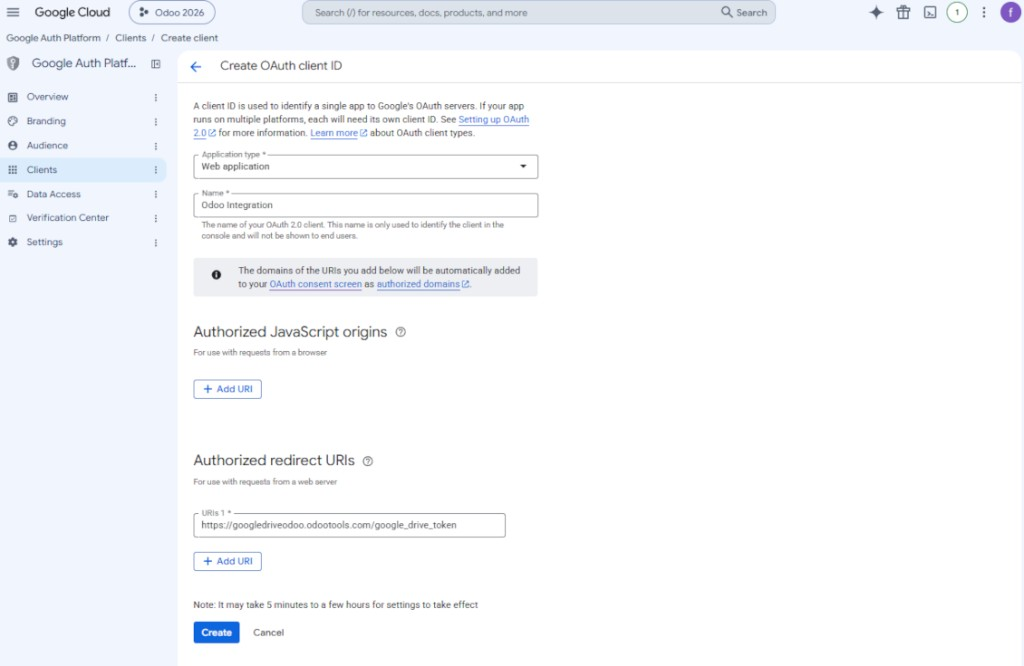
- As the application type select 'Web application'
- As a name select any suitable
- As the authorized redirect URI, add the link in a format [YOURODOOSITENAME]/google_drive_token (e.g. https://odootools.com/google_drive_token).
- Press 'Create'
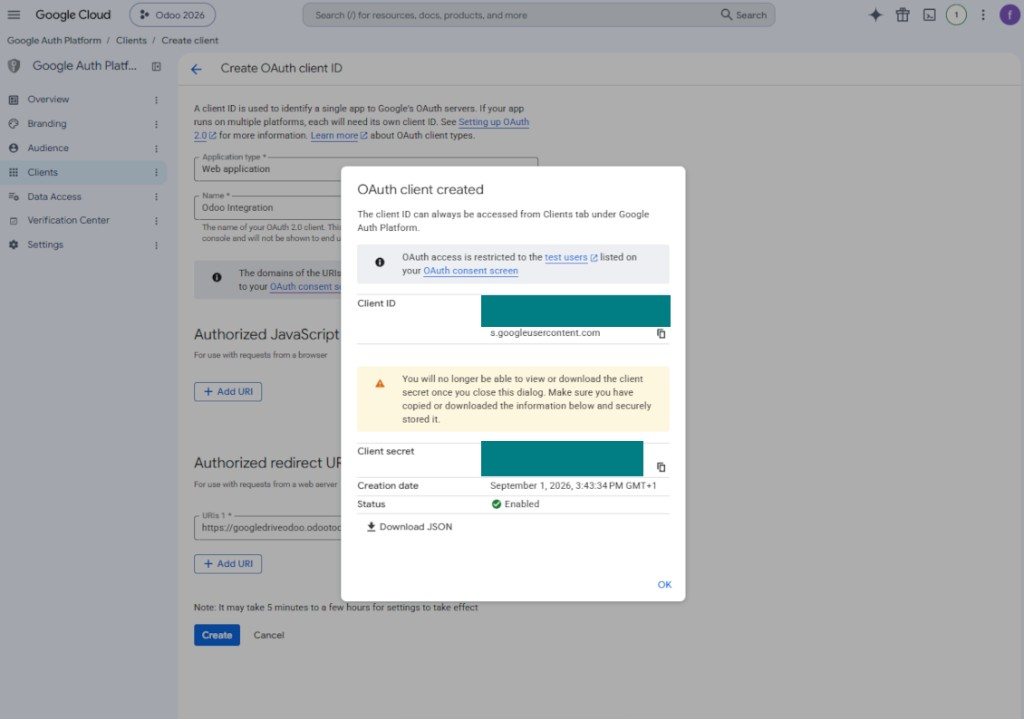
- Copy and safely store 'Client ID' and 'Client secret'. The client secret is shown only once
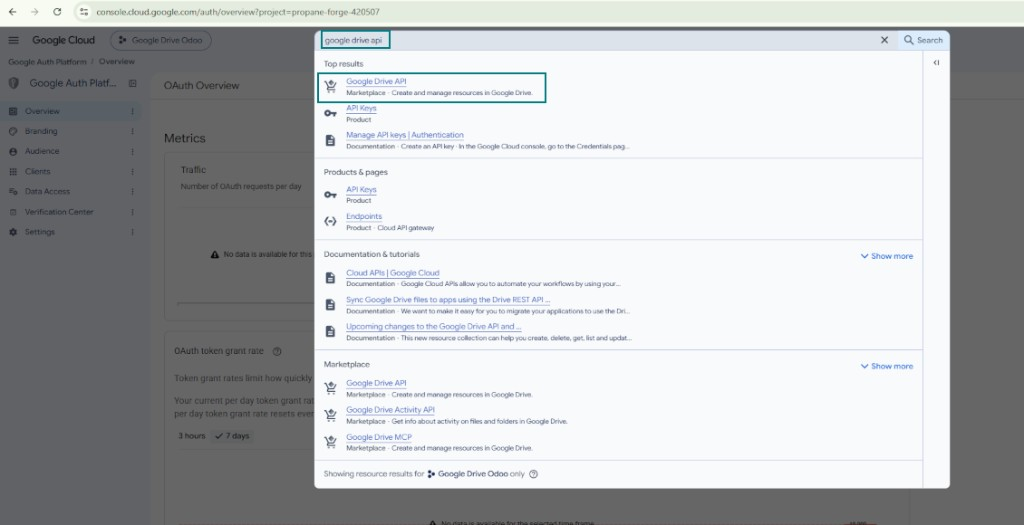
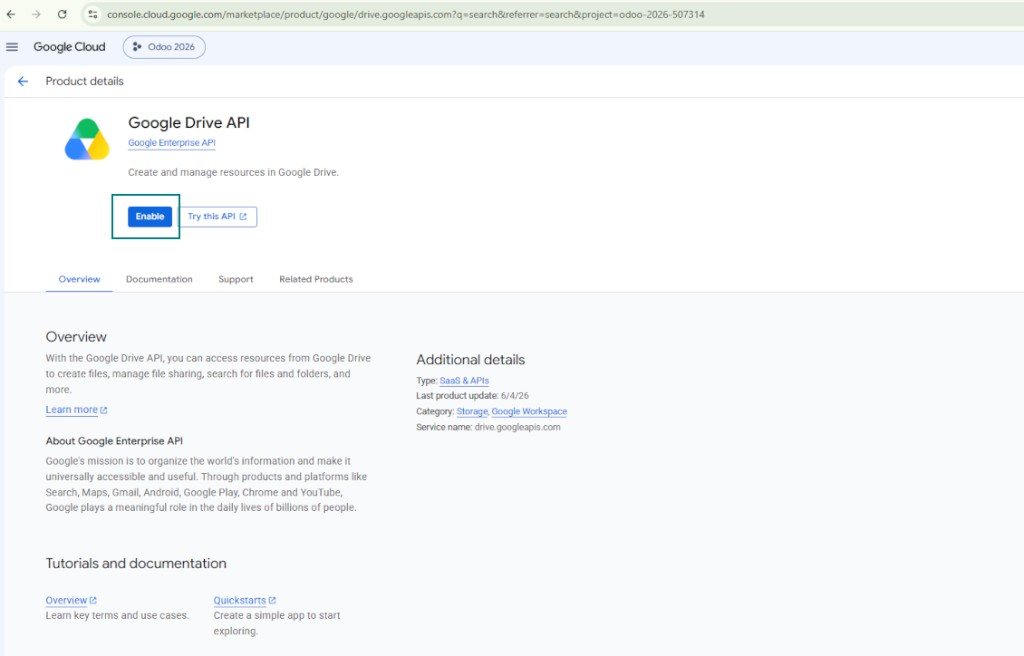
- Enable the Google Drive API for this project: type 'Google Drive API' in the top search box, open the found product, and press 'Enable'
- Go to 'Audience' and add your email address as a test user
- Publish the app. Otherwise, the app stays in the testing state and its token expires every 7 days
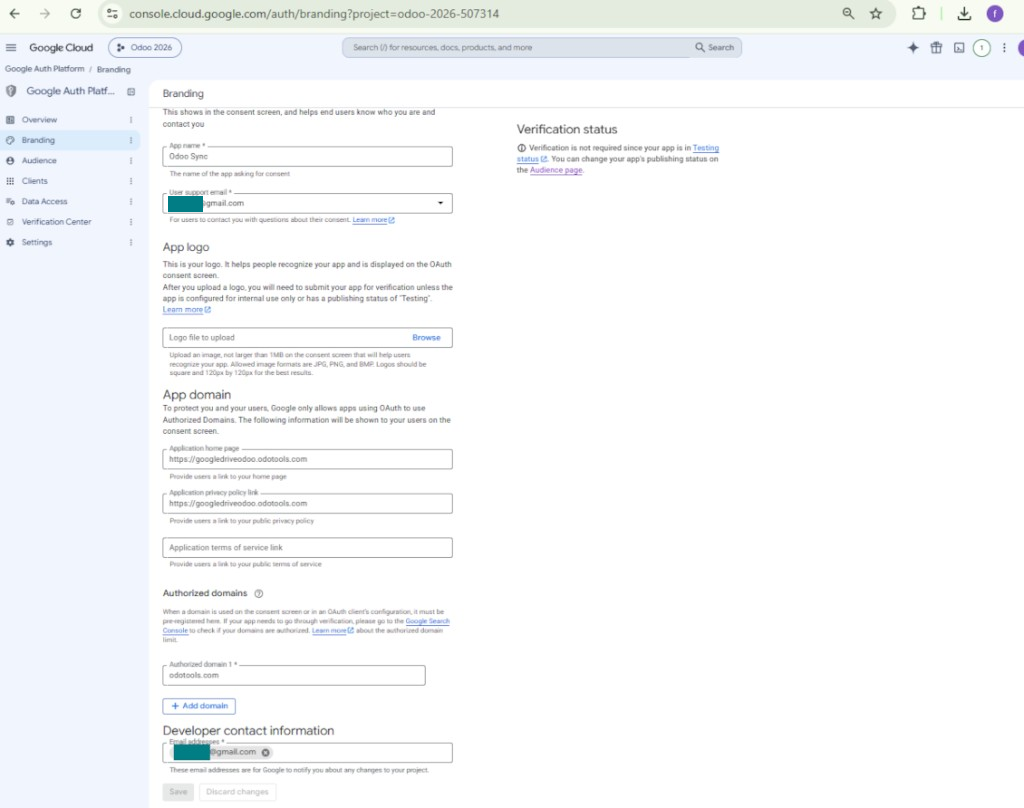
- Open 'Branding' and fill in the application home page and the application privacy policy link (for example, the links to your Odoo website). Add the domains of those links as the authorized domains
- Open 'Audience' and press 'Publish app'
- Do not upload an app logo. This would invoke a long and complex Google verification process that is of no actual need to you
- Go to the Odoo Google Drive Settings
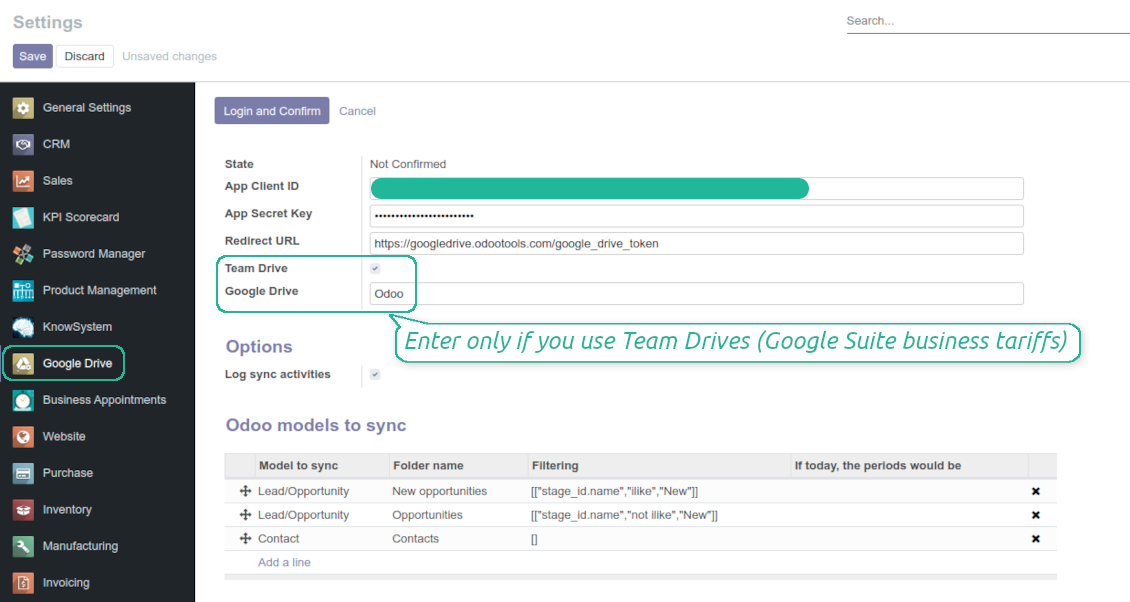
- Copy 'Client ID' from step 8 into the field 'App Client ID'
- Copy 'Client secret' from step 8 into the field 'App Secret Key'
- Insert the redirect URL you entered in step 8
- If you use team drives, check the related box. Make sure you really use team drives. In you Google Drive you should find the item 'Team Drives' in the left sidebar. This feature is available only for business and enterprise tariffs
- If the option 'Team Drive' is enabled, introduce its name. It should be absolutely the same as you see it in your Google Drive. Make sure that your user has full rights for this team drive
- Press 'Save'
- Press 'Login and Confirm'. Odoo redirects you to Google login page. Check in, agree with all conditions, and grant permissions asked
- After login, Google redirects you back to Odoo. Google Drive - Odoo synchronization is ready to be done.
Open the Google Auth Platform
Add app information
Select the external audience
Add contact information
Agree with the policies and create the app
Create an OAuth client
Configure the web application client
Copy the client ID and client secret
Find the Google Drive API
Enable the Google Drive API
Fill in branding to publish the app
Add test users and publish the app
Enter Google app credentials to Odoo
Odoo server configuration and cron job configuration
To make sure the synchronization works correctly apply proper timeouts to the Odoo configuration file: LIMIT_TIME_CPU, LIMIT_TIME_REAL, LIMIT_TIME_REAL_CRON should be more than 900 seconds.
For Odoo.sh this should not be done, since timeouts are predefined and are not configurable.
Then, timeout should be entered to your Odoo. To that goal find the section 'Settings' on the app configuration page and copy the number there.
Afterwards, it is needed to make the cron jobs suit the applied timeouts. In the debug mode go to the Settings > Technical > Automation > Scheduled Jobs:
- Set up the job 'Synchronize attachments with cloud' as (a) frequency - 2*timeout; (b) the next execution as the next hour +timeout. For example, for 900seconds timeout: frequency - as 30minutes; the next execution - at 08:15
- Set up the job 'Synchronize attachments from cloud' as (a) frequency - 2*timeout; (b) the next execution as the next hour + timeout*2. For example, for 900seconds timeout: frequency - as 30minutes; the next execution- at 08:30.
Usein kysytyt kysymykset aiheesta Google Drive Odoo Integration Odoo v.14
Jaetaanko luodut Google Drive -kansiot automaattisesti Odoo-käyttäjien kesken?
Sovellus ei hallitse käyttöoikeuksia Google Drive -puolella. Se on tehtävä siellä manuaalisesti. Odoo luo kohdekansiot Google Driveen; oletuksena niitä ei jaeta, mutta voit muuttaa minkä tahansa kansion oikeuksia. Esimerkiksi täydet oikeudet hakemistoon «Odoo» tai kansioon «Odoo > Sale Orders» tai «Odoo > Sale Orders > SO-001».
Sovellus toimii yhden käyttäjän päätepisteen periaatteella. Kaikki synkronoinnit tehdään saman Google Drive -käyttäjän alla (määrittämäsi Google API -sovelluksen mukaan).
Poistin tiedoston Google Drivesta, mutta se on yhä Odoossa
Poistaaksesi tiedoston kokonaan tyhjennä myös Google Driven roskakori.
Muista myös, että tiedosto voi olla vielä Odoossa, koska paluysynkronointi ei ole vielä käsitellyt liitettä. Tämä on ajoitettu prosessi ja vie aikaa.
Laskuttaako Google API-pyyntöjen perusteella?
Moduuli käyttää vain ilmaista API:a, joten Google ei veloita.
Voinko muuttaa synkronointitöiden taajuutta?
Kyllä. Tee näin:
Ota debug-tila käyttöön
Siirry teknisiin asetuksiin > Automaatio > Ajoitetut toiminnot
Etsi työt «Synchronize attachments with cloud» ja «Update attachments from cloud».
Älä tee niistä liian tiheitä. Työn tulisi ehtiä valmiiksi ennen seuraavan alkua. Asetus riippuu synkronoitavien kohteiden määrästä. Taajuus on yleensä 15 minuutista 4 tuntiin.
Aseta myös riittävät aikarajat Odoon asetustiedostoon. LIMIT_TIME_CPU ja LIMIT_TIME_REAL on oltava vähintään suunnitellun cron-ajan pituisia. Versiosta 13 alkaen huomioi myös LIMIT_TIME_REAL_CRON.
Tärkeä huomio Odoo.sh-asiakkaille: cron-työn enimmäisaika voi olla vain 15 minuuttia.
Voinko määrittää synkronoiduille hakemistoille eri rakenteen kuin synkronointi olettaa?
Ei, tämä ominaisuus on vasta versiosta 15. Sitä ennen moduuli käyttää ennalta määritettyä kansiorakennetta:
Odoo - synkronoinnin juurikansio
Mallit - kansio kullekin Odoo-asiakirjatyypille. Esimerkiksi «Projects», «Partners». Toimialueen mukaan voi olla tarkempia kansioita: «Customer 1 Projects», «Projects of the Customer 2», «Internal Projects» jne.
Kohteet - kansio kullekin asiakirjalle, esim. «Project 1» tai «Customer 1»
Tähän Odoo-asiakirjaan liittyvät synkronoitavat tiedostot ja kansiot.
Tuloksena voi olla esimerkiksi:
Odoo / Projects / Project 1 / projektin 1 tiedostot ja kansiot
Odoo / Customer 1 Projects / Project 1; Odoo / Customer 2 Projects / Project 3, ...
Odoo / Customers / Customer 1 / asiakkaan 1 tiedostot ja kansiot
Rakenne on aina litteä: vain nämä tasot. Eri asiakirjatyyppejä ei voi pitää samassa haarassa. Kansiossa «Customer 1» ei voi olla sekä tilauksia, laskuja että projekteja. Jokaisella tyypillä on oma kansio (tai useita). Muuten paluysynkronoinnille ei ole kriteeriä.
Pitääkö Odoossa määritellä käyttäjäkohtaiset käyttöoikeudet?
Ei, työkalu käyttää yhtä käyttäjän päätepistettä. Kaikki synkronoinnit tehdään yhden pilviylläpitäjän (sovellus) alla. Luotujen kansioiden / tiedostojen oikeuksia ei automatisoida. Hallitse niitä pilvitallennusratkaisussasi.
Mihin synkronoidut tiedostot tallennetaan? Kopioidaanko ne sekä Odooseen että pilviin?
Sovellus olettaa, että liitteiden binaarisisältö pidetään Cloud Clientissä Odoo-palvelimen sijaan. Siksi tällaisista liitteistä tulee Odoossa URL-tyyppisiä, ja niihin pääsee milloin tahansa joko liitekentästä tai Cloud Clientistä.
Määrityksen jälkeen manuaalisia toimia ei tarvita, koska synkronointi on täysin automaattinen. Päätä vain, mitkä Odoo-asiakirjatyypit synkronoidaan, ja aseta kullekin liittyvä malli (asiakkaat, myynti- tai ostotilaukset, tehtävät, projektit jne.).
Voinko pitää useita kansioita samalle asiakirjatyypille? Esimerkiksi sisäiset projektit ja asiakasprojektit?
Kyllä. Tee sitä varten sääntö kullekin ja aseta suodattimet: esimerkiksi projektin tyypin mukaan.
Tee suodattimista toisensa poissulkevia, jotta asiakirja voidaan sijoittaa varmasti. Esimerkiksi: «asiakas mutta ei toimittaja», «toimittaja mutta ei asiakas». Muuten asiakirjan kansio hyppää mallista toiseen.
Tarvitsenko vain Cloud Storage Solution -sovelluksen?
Ei, työkalu on vain tekninen ydin. Tarvitset myös pilviasiakkaasi liittimen.
Onko ok, jos synkronoitavia kohteita on paljon, esimerkiksi 10000?
Kyllä, vaikka monien kansioiden/liitteiden kanssa prosessi voi olla hidas. Asiakkaat ovat silti raportoineet ympäristöistä, joissa on >10k kumppania ja ~5k tuotevarianttia, ja prosessit olivat hyväksyttäviä.
Muutama kohta:
- Synkronointi on rakennettu niin, ettei mikään kohde katoa, vaikka se ei olisi nopea. FIFO-jonot ja kunkin työn commit takaavat sen.
- Kohteiden määrää voi rajata loogisesti. Mallien asetukset antavat jättää vanhentuneet pois (esim. arkistoidut kumppanit tai 2 vuoden takaiset tilaukset).
Voiko synkronoinnin tehdä reaaliaikaiseksi?
Ei. Meillä on vahvat syyt välttää reaaliaikaista synkronointia:
Suorituskyky. Reaaliaikaisessa synkassa jokainen tiedoston lataus näyttää latausruudun.
Ristiriidat. Jos 2 käyttäjää muuttaa kohdetta yhtä aikaa, tilanne voi jäädä ratkaisematta. Säännöllisissä töissä voimme korjata myöhemmin; reaaliajassa tarvittaisiin jono, mikä sekoittaisi entisestään.
Toiminnallisuus. Erityisesti nimeäminen ja uudelleenjärjestely. Paluysynk nojaa tiukasti hakemistologiikkaan ja jokaisessa synkassa tarkistetaan 100 % kohteista. Jokaisen päivityksen jälkeen se olisi tuhansia pyyntöjä sekunnissa. Muuten muutokset katoaisivat.
Voinko muuttaa kansioiden oletusnimiä pilvissä?
Voit antaa mallien hakemistoille (myyntitilaukset, mahdollisuudet, toimittajat jne.) oman nimen mille tahansa asiakirjatyypille.
Kohdekansioissa (SO-001, John Smith jne.) työkalu käyttää Odoon näyttönimen muodostusta. Voit muuttaa sen nimilausekkeella. Syntaksi on sama kuin Odoon sähköpostimalleissa.
Voinko synkronoida liitteet useisiin pilviasiakkaisiin
Ei, tämä ominaisuus on käytettävissä vasta versiosta 15.
Käytämme pilvissä erityistä editoria (esim. OnlyOffice, Office 365 jne.). Avautuisivatko tiedostot siinä editorissa?
Kyllä, pilviasiakkaasi asetuksista riippuen.
Mitkä ovat tyokalujenne paivityskaytannot?
Odoo Apps Storen nykyisten kaytantojen mukaan:
- Versiolle 12.0 tai aiemmalle ostettu moduuli antaa pääsy kaikkiin versioihin 12.0 asti.
- Versiosta 13.0 alkaen jokainen moduuliversio ostetaan erikseen.
- Versiosta riippumatta osto antaa oikeuden kaikkiin paivityksiin ja korjauksiin paaversiossa.
faOtools-tiimi ei hallitse näitä kaytantoja. Kysymykset osoitetaan suoraan Odoo Apps Storen edustajille.
Miten asennan sovelluksen Odoo.sh-palveluun?
Suorin tapa on Odoo-kaupan sisaanrakennettu työnkulku:
1. Avaa moduulin sivu ja napsauta Deploy on odoo.sh
2. Sinut ohjataan GitHubiin. Kirjaudu sisään ja napsauta Create a new repo tai käytä olemassa olevaa. Repositorion on oltava yksityinen. OPL-1-lisenssin sovelluksia ei saa julkaista. Luo tarvittaessa uusi repo Odoo.sh-projektia varten
3. Siirry sitten odoo.sh:iin, napsauta Deploy, vahvista ja napsauta Continue. Asennus kaynnistyy.
Nämä vaiheet asentavat sovelluksen production-haaraan. Muille haaroille tai paivitykseen:
1. Lataa lahdekoodi Odoo-kaupasta
2. Commitoi moduuli GitHub-repositorioon. Mikään sovelluskansio/-tiedosto ei saa olla .gitignore-tiedostossa. odoo.sh:n luomat repositoriot voivat oletuksena ohittaa tarkeita polkuja (esim. /lib). Lataa kaikki moduulin hakemistot ja tiedostot
3. Deployaa odoo.sh-projektin kohdehaara tai odota automaattista koontia, jos asetukset niin maarittavat.
Miten asennan sovelluksen omalle palvelimelleni?
2. Käynnistä Odoo-palvelin uudelleen;
3. Ota kehittajatila kayttoon (tekniset asetukset);
4. Päivitä sovellusluettelo (Sovellukset-valikko);
5. Etsi sovellus ja paina Activate/Install;
6. Noudata sovellussivun ohjeita, jos niitä on.
Sovelluksella on lisaosia. Voinko ostaa ne myöhemmin?
Kyllä. Odoo lisää kaikki riippuvuudet ostoskoriin automaattisesti: jätä pois jo ostetut työkalut, jottet maksa kahdesti.
Asensin sovelluksen Odoo.sh-palveluun ja näin varoituksen/virheen testeissa
Punainen/oranssi varoitus ei vaikuta sovelluksen ominaisuuksiin. Joskus moduulimme eivät lapaise vakioautomaattitesteja, koska ne olettavat kayttaytymisen, joka on ristiriidassa sovelluksen tavoitteiden kanssa. Muutamme esimerkiksi hinnanlaskentaa, kun Odoo-testit vertaavat loppuhintaa vakioalgoritmiin.
Tarkista ensin kayttoon otetun tietokannan ominaisuudet. Toimiiko kaikki?
Jos oletat silti, että varoitus vaikuttaa todellisiin ominaisuuksiin, ota yhteyttä ja lähetä täydet asennuslokit sekä täydellinen luettelo kayttoon otetuista moduuleista (ydin ja kolmannet osapuolet).
Voinko ostaa sovelluksen suoraan teilta?
Ei, jaamme työkalut vain virallisen Odoo-sovelluskaupan kautta.
Haluan alennuksen
Valitettavasti meillä ei ole teknisia keinoja tarjota yksilöllisiä hintoja.
Voinko asentaa sovelluksen Odoo Online (SaaS) -tietokantaani?
Ei, kolmannen osapuolen sovelluksia ei voi käyttää Odoo Online -palvelussa. Odoo SaaS estää sen.
Tyokalulla on riippuvuuksia. Pitääko ne ostaa?
Kyllä, työkalu tarvitsee kaikki riippuvuuksissa merkittyt moduulit. Sovellussivun hinta sisältää jo nämä riippuvuudet.
Mikä on moduulin hinta Yhdysvaltain dollareina? Miksi se muuttui?
Moduuliemme hinta on euroissa. Odoo-kauppa muuntaa hinnat muihin valuuttoihin sisaisen kurssinsa mukaan. Siksi Yhdysvaltain dollarin hinta voi muuttua, kun kurssi paivittyy.
Sovellus- ja sivustotekstit muilla kielillä kuin englanniksi on tehty tekoälyn tuella ja linjattu virallisiin Odoo-käännöksiin. Jos huomaat virheen, lähetä käännösten oikeellisuutta koskeva tiketti niin korjaamme sen.
Virheiden ilmoittaminen
Jos kohtaat virheitä tai epäjohdonmukaista toimintaa, ota yhteyttä. Korjaamme 60 päivän kuluessa ostosta ja kehitämme työkaluja sen jälkeenkin.
Yhteydenottoon ei tarvita puhelinnumeroa eikä luottokorttia. Riittää lyhyt sähköpostirekisteröinti, joka kestää alle 30 sekuntia.
Liitä pyyntöön mahdollisimman paljon tietoja: kuvakaappaukset, Odoo-palvelinlokit ja täysi kuvaus ongelman toistamisesta. Työsuunnitelma (jos virhe vahvistetaan) tai ohjeet (muuten) valmistuvat yleensä muutamassa arkipäivässä.
Julkiset ominaisuuspyynnöt ja moduliehdotukset (ilmainen kehitys)
Olemme vahvasti motivoituneita kehittämään työkalujamme ja kiitollisia kaikesta palautteesta. Jos vaatimuksesi palvelevat yleisesti ja ne voidaan toteuttaa tehokkaasti, tiimi lisää ne tehtävälistaan.
Tällainen tehtävälista käsitellään säännöllisesti eikä siihen sisälly lisämaksuja. Emme voi luvata määräaikoja ja lopullista suunnittelua, mutta se voi olla hyvä tapa saada toivottuja ominaisuuksia ilman investointeja ja riskejä.
Yhteydenottoon ei tarvita puhelinnumeroa eikä luottokorttia. Riittää lyhyt sähköpostirekisteröinti, joka kestää alle 30 sekuntia.

Työkalu salasanojen turvalliseen säilytykseen Odoossa jaettuun käyttöön. Jaetut holvit

Työkalu syvän ja jäsennellyn tietopankin rakentamiseen sisäiseen ja ulkoiseen käyttöön. Knowledge System. KMS. Wiki-tyyliset versiot.
398€
Työkalu KPI-tavoitteiden asettamiseen ja täyttymisen seurantaan jaksoittain. KPI-koontinäytöt. Koontinäytön suunnittelija. KPI-kaaviot

Työkalu aikaperusteiseen palvelunhallintaan varauksista myyntiin ja arvosteluihin
398€
Työkalu Odoon hallintaan suosikki-AI-chateista MCP:n kautta. Claude. Mikä tahansa MCP-tekoäly.

Työkalu, jolla Odoo-liitteet järjestetään kansioihin ja hakemistot synkronoidaan pilviasiakkaisiin: Google Drive, OneDrive/SharePoint, Nextcloud/ownCloud, Dropbox, Amazon S3, Box ja NAS. DMS. Tiedostonhallinta. Asiakirjahallinta
398€
Työkalu: automaattisesti synkronoi Odoo liitteet kanssa OneDrive tiedostot ssa molemmat ways
487€
Työkalu: automaattisesti synkronoi Odoo liitteet kanssa ownCloud/Nextcloud tiedostot ssa molemmat ways
487€
Työkalu: automaattisesti synkronoi Odoo liitteet kanssa NAS Solutions ssa molemmat ways. Synology, QNAP, TrueNAS ja mikä tahansa muut WebDav-supporting NAS solutions
487€