Google Drive Odoo Integration v.14
The tool to automatically synchronize Odoo attachments with Google Drive files in both ways
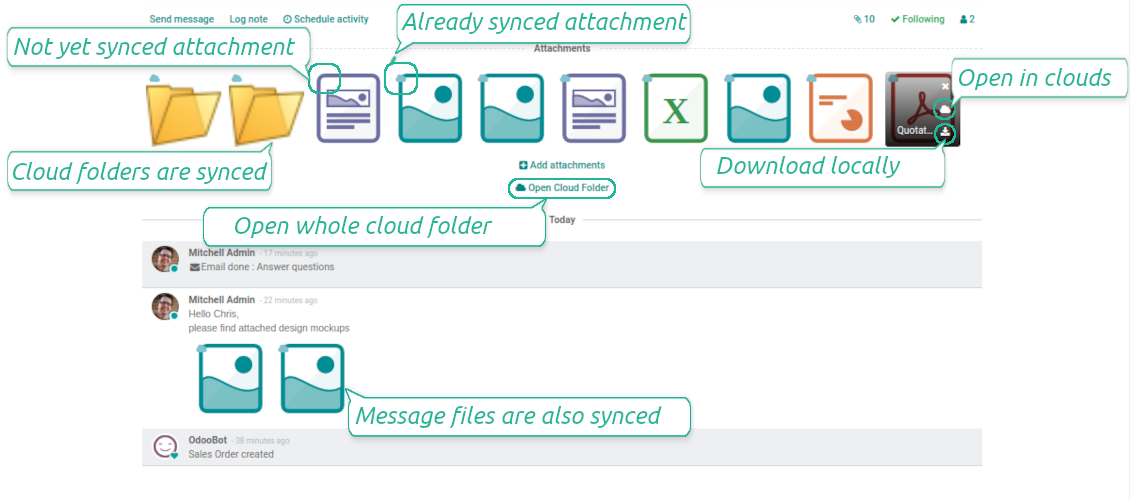
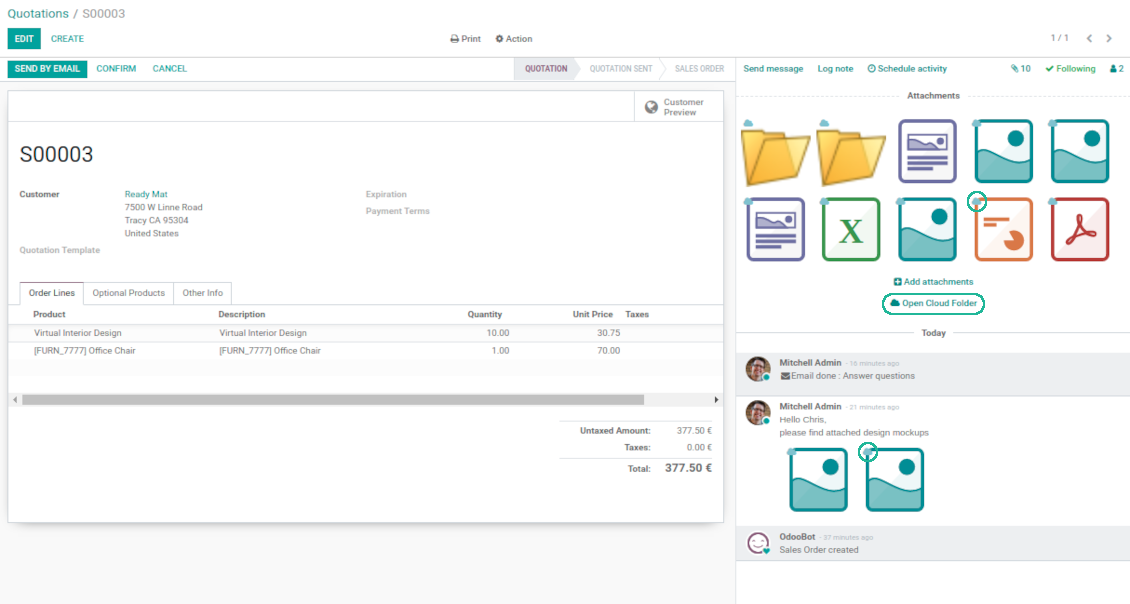
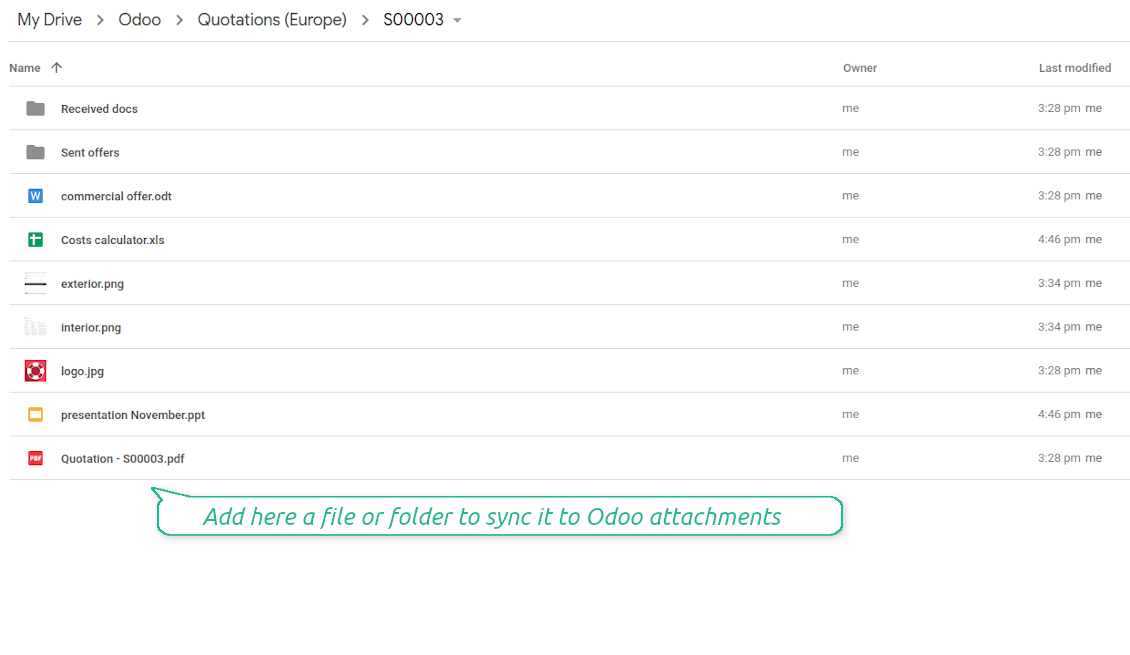
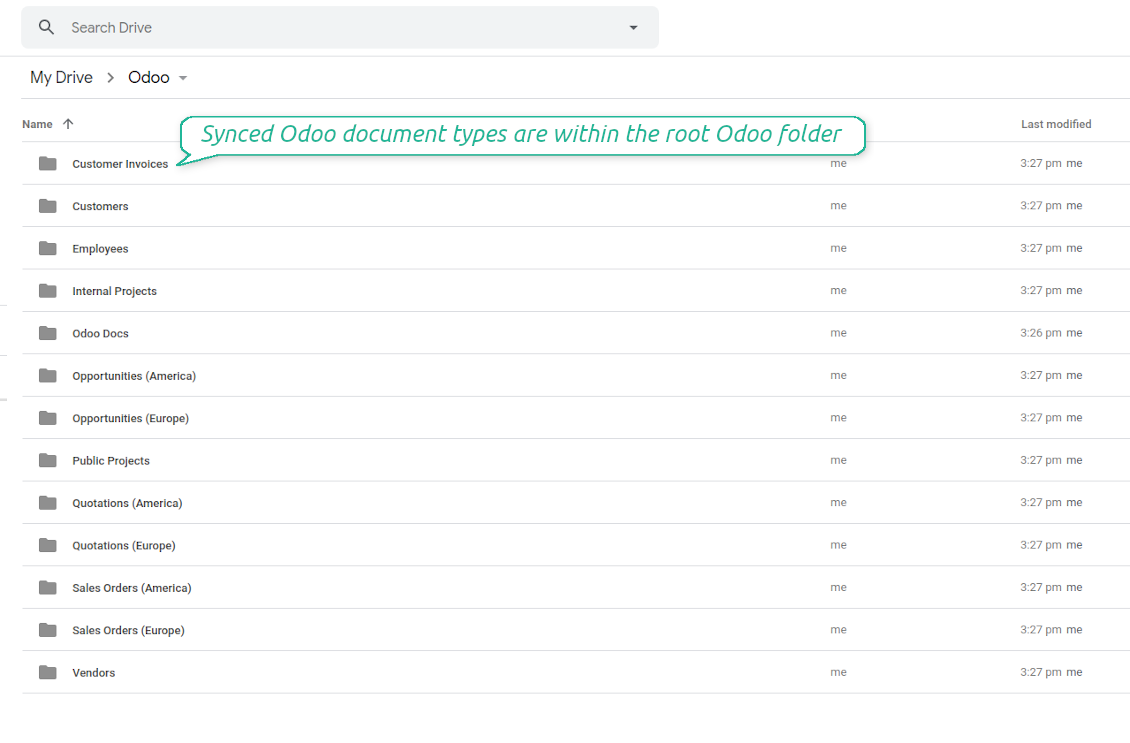
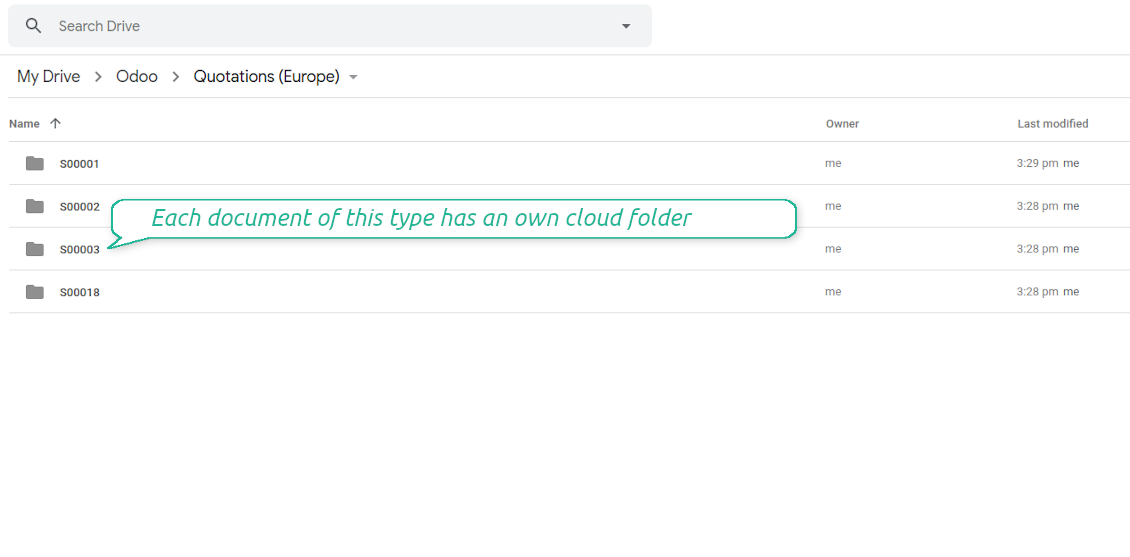
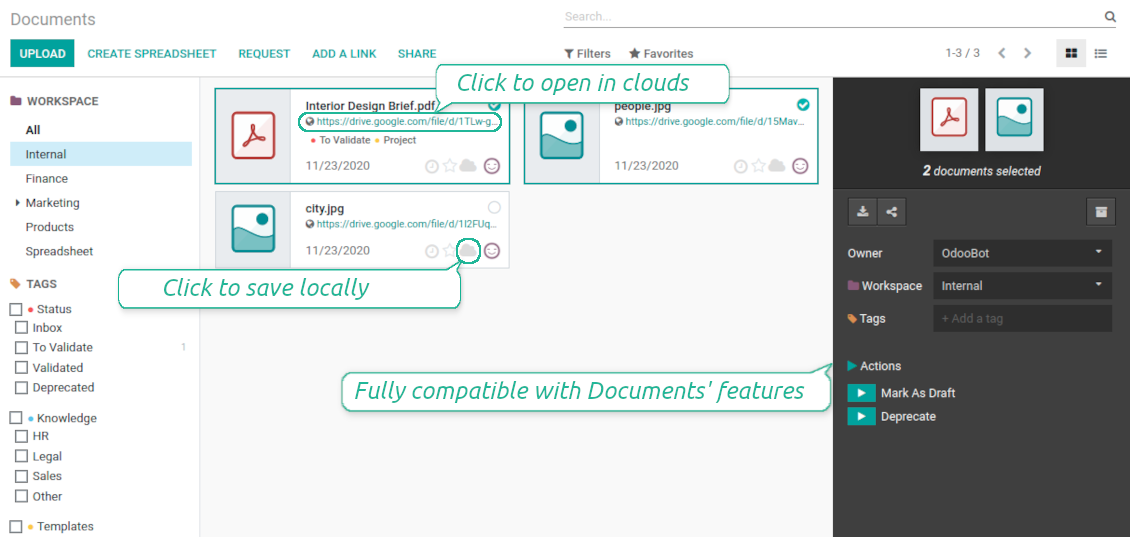

This is the tool to integrate Google Drive features into your Odoo business work flow. The app automatically stores Odoo attachments in Google Drive, and it provides an instant access to them via web links. In such a way users work with files comfortably in the cloud storage, while the results are fully available in Odoo.
- the technical core which provides basic mechanics of auto synchronization. This is a required module for integration. 价格为 398€.
- the connector itself which introduces links between Odoo and Google Drive. 价格为 89€.
- an optional add-on to sync Odoo documents (introduced by the enterprise app 'Documents') with clouds. The features assumed by this add-on are marked by the icon . 价格为 44€.
Automatic regular sync
Synchronization between Odoo and Google Drive is based on scheduled jobs. No manual interaction is required
Bilateral Google Drive sync
Odoo sends attachments to Google Drive and retrieves files from there. Binary content is kept in clouds, while Odoo provides direct access to synced items
Any Odoo document types for sync
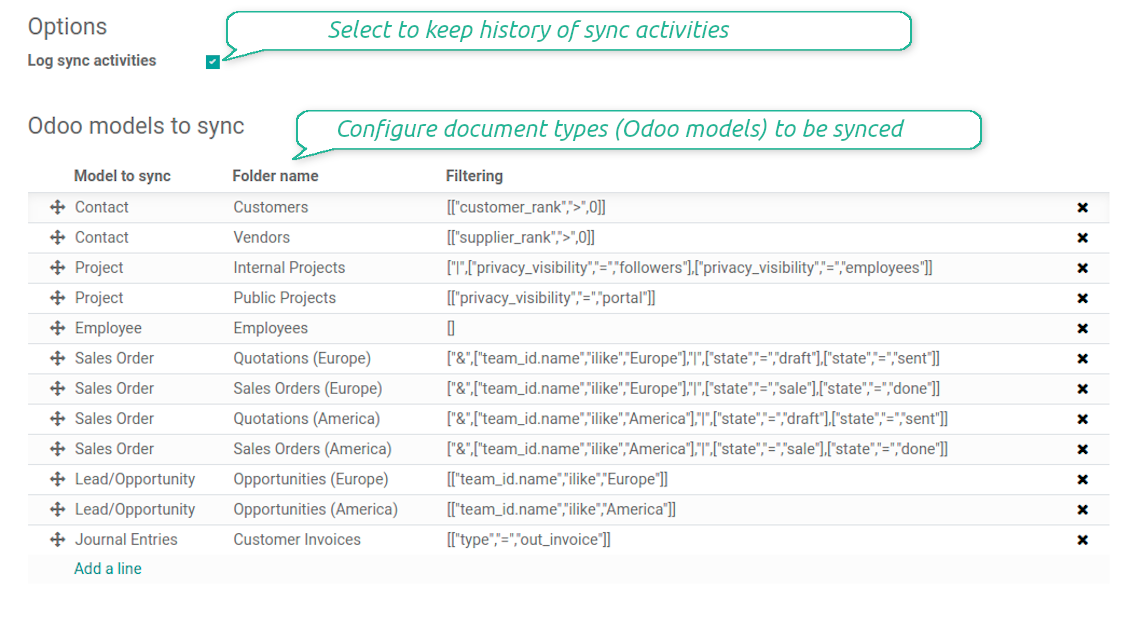
Decide which Odoo document types should be synced. Customers, opportunities, sale or purchase orders, tasks or issues, employees or users, etc. Custom models are also supported
Instant access for Google Drive
The tool redefines Odoo attachments boxes to make work comfortable: download files locally without login, open files and folders in Google Drive (if possible, items would be opened in Google Drive editors and previewers), use standard Odoo previewers
Compatible with Odoo Enterprise documents
Reflect Odoo Enterprise Documents' structure and items in Google Drive. All features (including sharing, downloading, and signing) would anyway work
Google team and individual drives
Sync works both for individual and team drives (Google Suite business and enterprise tariffs). In the latter case the root folder Odoo is placed within a chosen team drive, in the former case - within a current user drive
Google Drive sync history
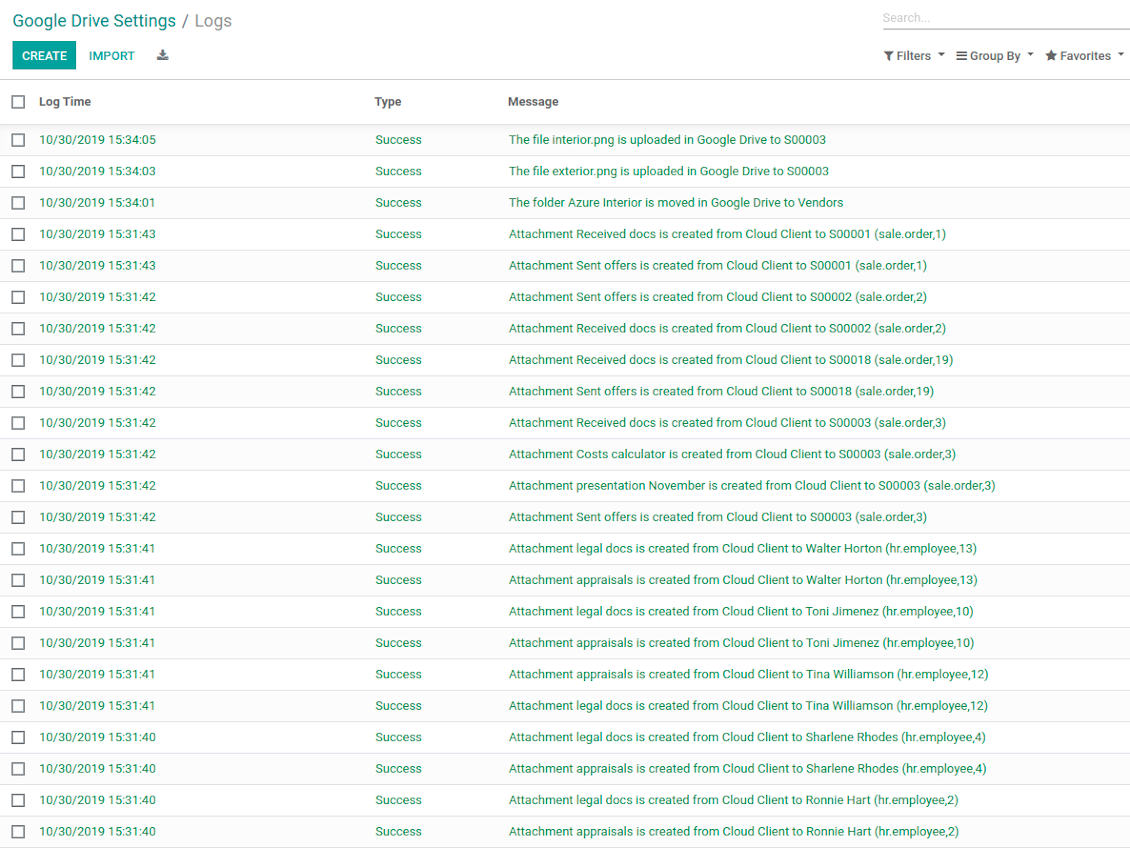
Sync activities might be logged. Control over files and folders creations, moves, name changes and removals. Just turn on the option 'Log sync activities', and you would be able to observe the history through the button 'Sync logs'
Default folders
The tool let generate default directories' structure for this document type during the very first sync of a related object. For example, for all employees you may have pre-defined folders 'Scans', 'Scans/Official', 'Photos', etc.
Tricky setup, but works perfectly now
Really solid module. We managed to get a very flexible folder structure (sorted by clients) and synced all our sales orders, invoices and tasks by projects to Google Drive.
Initial setup was a bit of a pain and kinda tricky to configure everything at first, but now it's running smoothly and works perfectly. The faotools team helped a lot. Def worth it if u need to keep your docs organized in Odoo and Google Drive.
Recommended!
Excellent !!!
Great App and great Service from faOtools.
Best module for integration with google drive
The module performs its function correctly and faOtools responds quickly to any problem and, in case of detecting any bug, quickly apply the changes. Its support is 10 stars.
Sync any documents you like
Configuring models to sync
-
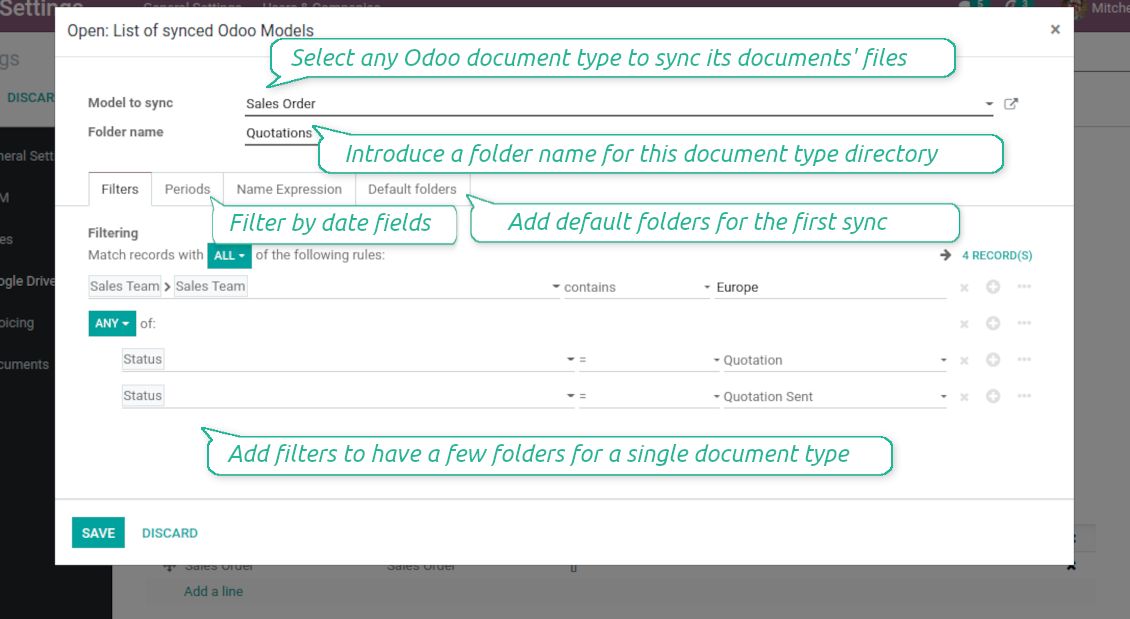
To sync a specific document type, you should add it as a model to sync. Any Odoo model might be chosen
-
The app let split models into a few folders based on selected filters. Use any document storable field to distinguish a directory. Have a separate folder for individuals and companies, for European and American opportunities, for quotations and confirmed orders, for each project, etc.
-
Limit also documents by relative periods through using date fields of linked documents. For example, leads registered in the last 3 months or invoices updated the last week
-
Define name expressions to specify titles of documents' Google Drive folders. For instance, to include project name to a task directory
-
Prepare hierarchy of default folders to be created when a document directory is synced to Google Drive for the first time
Typical use cases
-
Projects: have an own Google Drive folder for each customer project
-
Customers: add all partner files in a single directory available both from Odoo and from Google Drive. Modify those using default cloud editors and access them when working in Odoo
-
Employees: gather all files by this employee in a single cloud folder: photos, document scans, contracts. Access and upload those from Odoo and Google Drive alternatively
-
Opportunities: carefully store all specifications, requirements, any files which would let you make a good offer
-
Orders: keep all printings and contracts in Google Drive with instant availability from Odoo
-
Picking operations: save warehouse docs to Google Drive.
How synchronization works
Direct Sync
-
Direct synchronization is based on the scheduled job 'Synchronize attachments with cloud'
-
Direct sync make all synced Odoo attachments change their type to a link (URL), while binary content is removed with a next Odoo cleaner. So, no actual files would be stored on your Odoo server
-
Direct sync checks whether attachments are added or deleted for synced documents. If so, they would be created or removed in Google Drive
-
Direct sync checks whether a new document type (e.g. sale orders) is added / renamed / replaced in the to-sync-models configurations. If so, this should be reflected in Google Drive
-
Direct sync checks whether a new document (e.g. quotation SO-001) related to a synced document type is generated / updated / unlinked. If so, the connector would make the same changes in Google Drive
-
The final goal of direct Google Drive integration is to have the structure 'Odoo / Document Types / Documents / Files. For example, 'Odoo / Quotations / SO019 / commercial offer.pdf'
Backward Sync
-
Backward synchronization is based on the scheduled job 'Synchronize attachments from cloud'
-
Backward sync checks whether any items are added to a Google Drive document folder. If so, the app would create URL attachments for that items in a linked Odoo object
-
Backward sync checks whether any items are deleted / moved in a cloud document folder. If so, a linked Odoo attachment would be also unlinked or moved
-
Backward sync checks whether any item is renamed in Google Drive. If so, a chained Odoo attachment should be also renamed
-
In Google folders you can put not only files but also child folders. In that case a link for this folder (not its content) would be kept in Odoo attachments
-
If you deleted a folder related to this document type or this document, their child files would be deleted as well. Thus, Odoo would remove related attachments. The folders, however, will be recovered with a next direct sync
Misc notes
-
The connector works on a queue (first in - first out) principle: it tries to firstly reflect the oldest changes
-
Each sync, especially the very first one, might take quite a long. It is not recommended to make sync too frequent: once an hour seems reasonable frequency
-
File names and content should be managed in Google Drive: each backward sync would recover Google Drive names, Odoo is here less important
-
Take into account that files or folders deleted in Google Drive are really deleted only when you clean trash. Otherwise, such files still exist and would be reflected in Odoo
-
Try to avoid the following symbols in folders' and files' names: *, ?, ", ', :, <, >, /, +, %, !, @, \, /,. Direct sync will replace such symbols with '-'. It is done to avoid conflicts with file systems.
Odoo Enterprise Documents
-
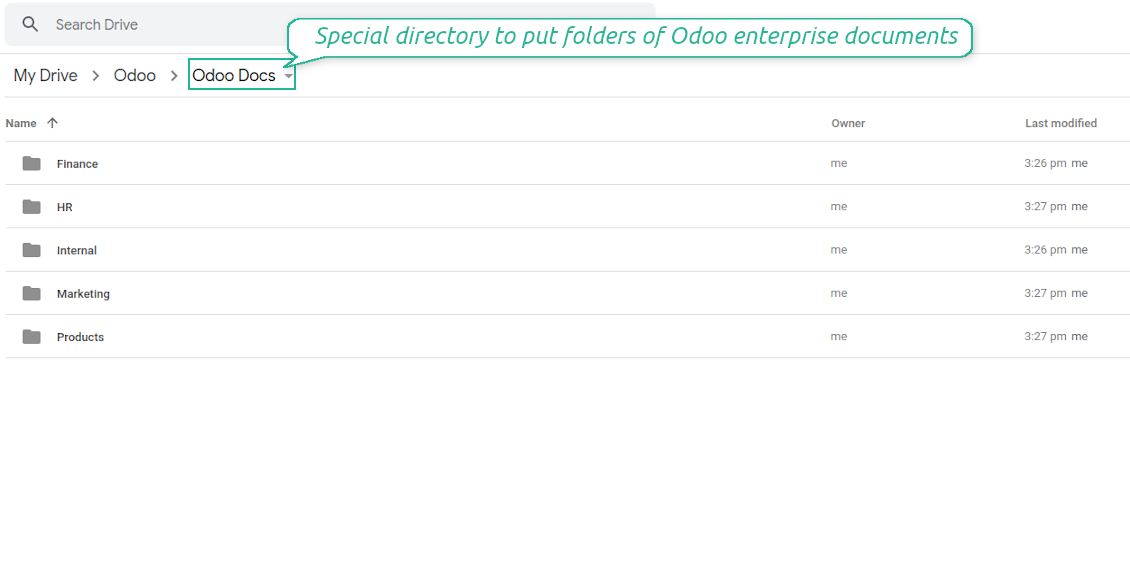
The special add-on 'Cloud Sync for Enterprise documents' is introduced to synchronize Google Drive with the Odoo app 'Documents' (the latter is distributed under the Odoo Enterprise license)
-
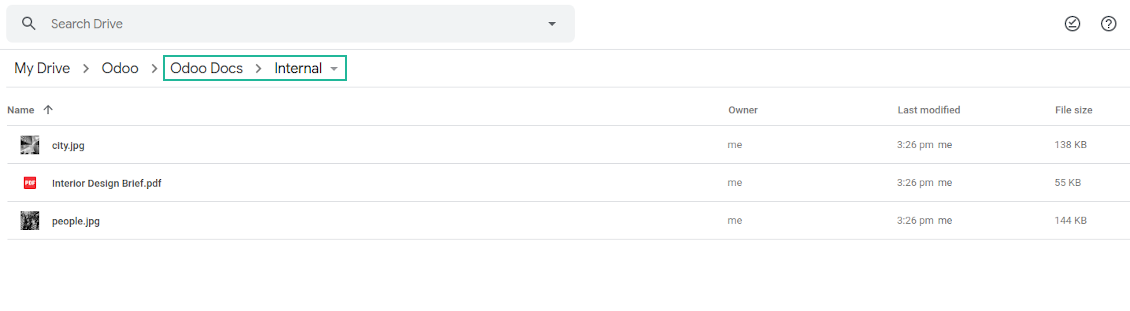
Based on that add-on the Odoo documents' hierarchy would be reflected within the folder 'Odoo / Odoo Docs'
-
Each Odoo folder would have a linked Google Drive folder. Take into account that folders created in the cloud storage will be synced as Odoo attachments. The key principle is: folders are managed by Odoo, files are managed by the cloud client
-
All files are synced with the same logic as usual attachments. Files created in Odoo will be added to the cloud storage and will be replaced with links in Odoo. Files created in cloud storage will generate URL attachments within a paired documents directory
-
Standard Google Drive sync and integration with Enterprise Documents are done within the same jobs. Avoid the scenarios when a single file is synced as a simple Odoo attachment and as an Odoo document simultaneously
-
Odoo spread sheet files are not synced by the connector: so, they are still manageable in Odoo
-
Please do not name synced models as 'Odoo Docs'. This is the reserved name for Odoo Enterprise Documents.
配置与安装提示: Google Drive Odoo Integration Odoo v.14
Login and Google Drive Credentials
- Go to the Google Cloud Console via the URL https://console.cloud.google.com
- Select or create a project
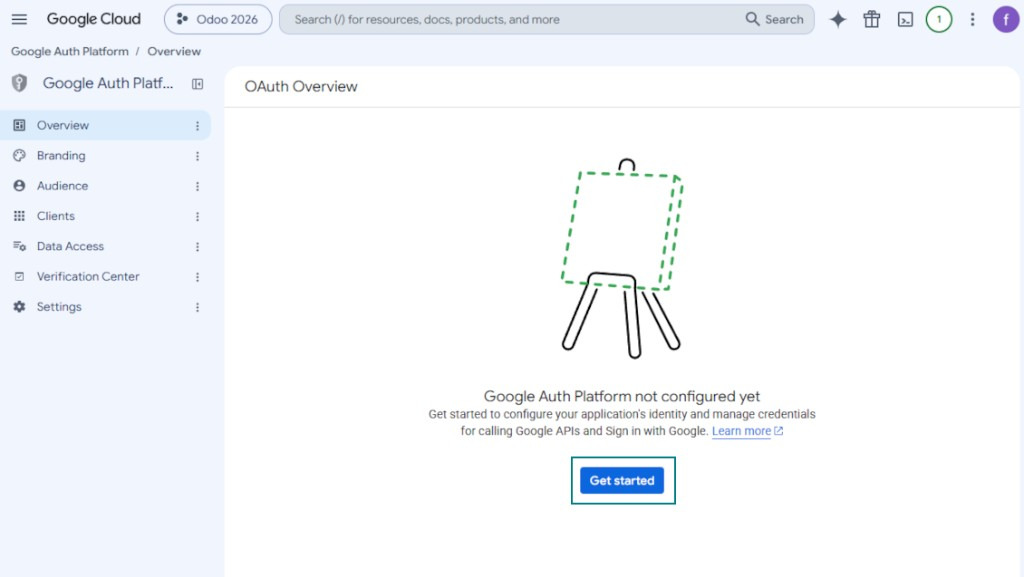
- After the project is selected, the console opens the Google Auth Platform. Press 'Get Started'
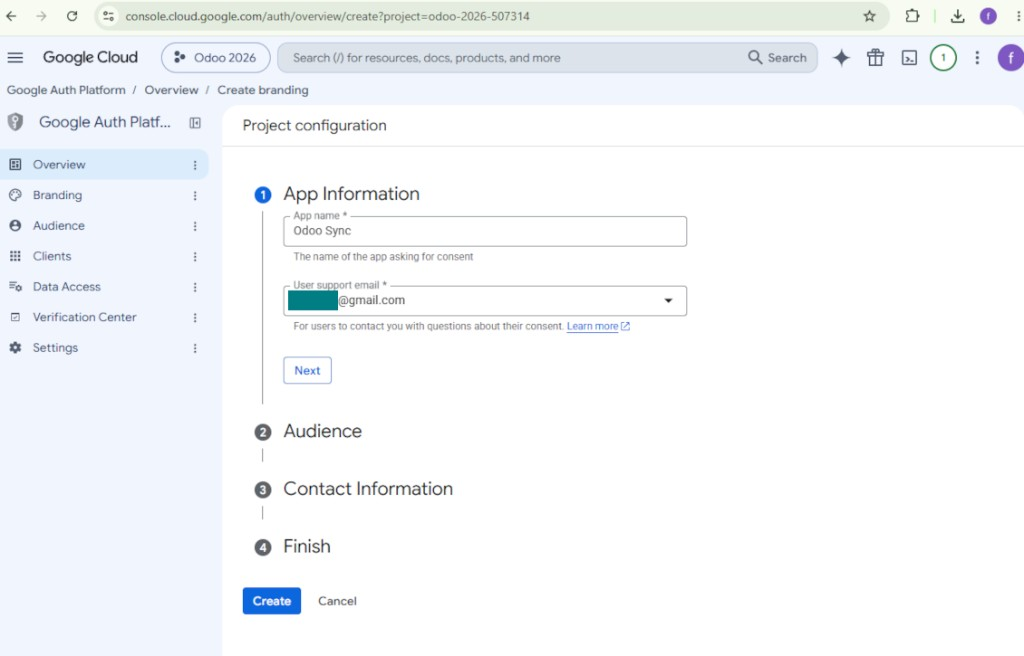
- Add app information
- As an app name select any suitable
- As a user support email select your email address
- Press 'Next'
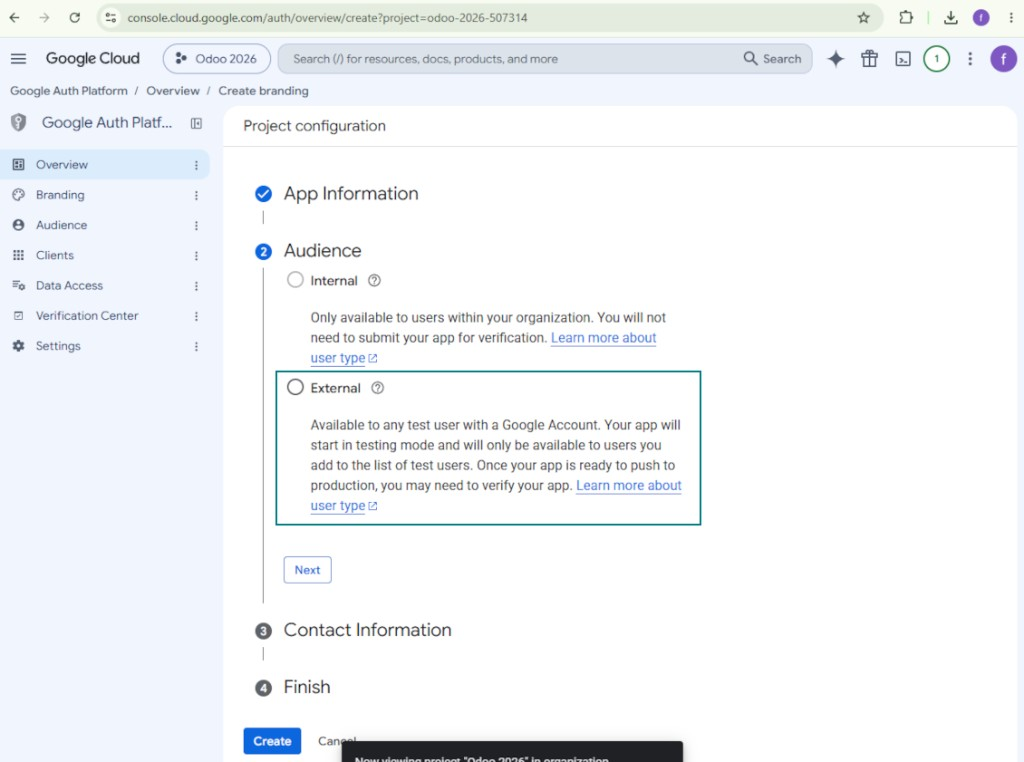
- As the audience select 'External' and press 'Next'. Note: you are anyway going to use this app only for your own Odoo connection
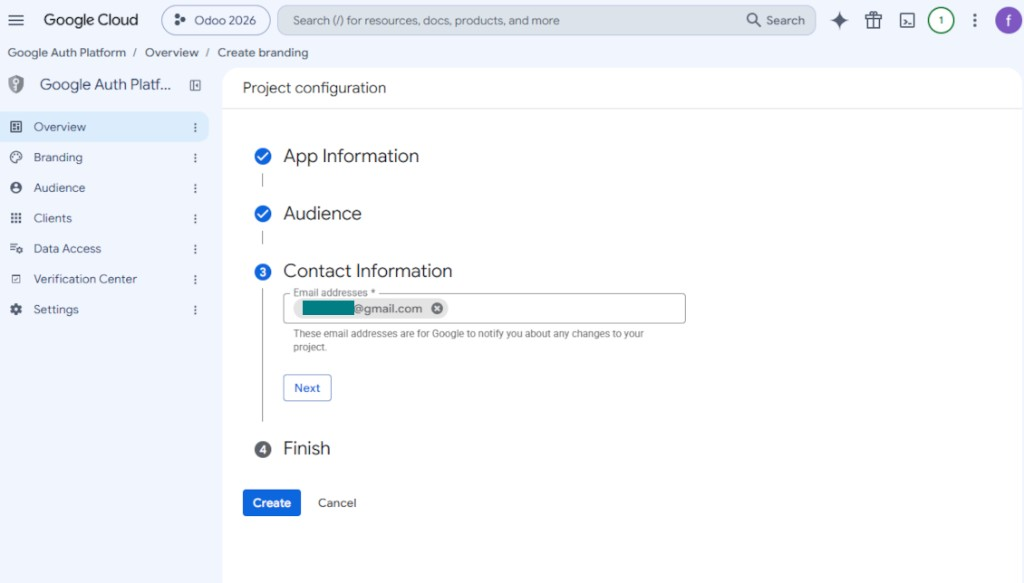
- As the contact information enter your Google or Google Workspace email address and press 'Next'
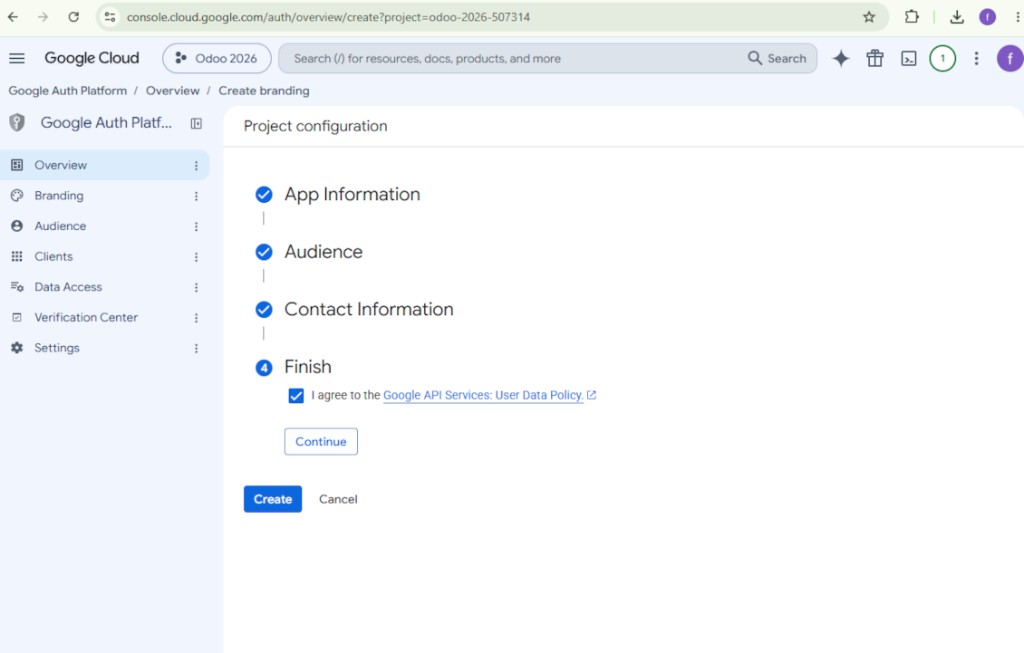
- Agree with the Google API Services User Data Policy, press 'Continue', and then press 'Create'
- Go to 'Clients' and press 'Create client'
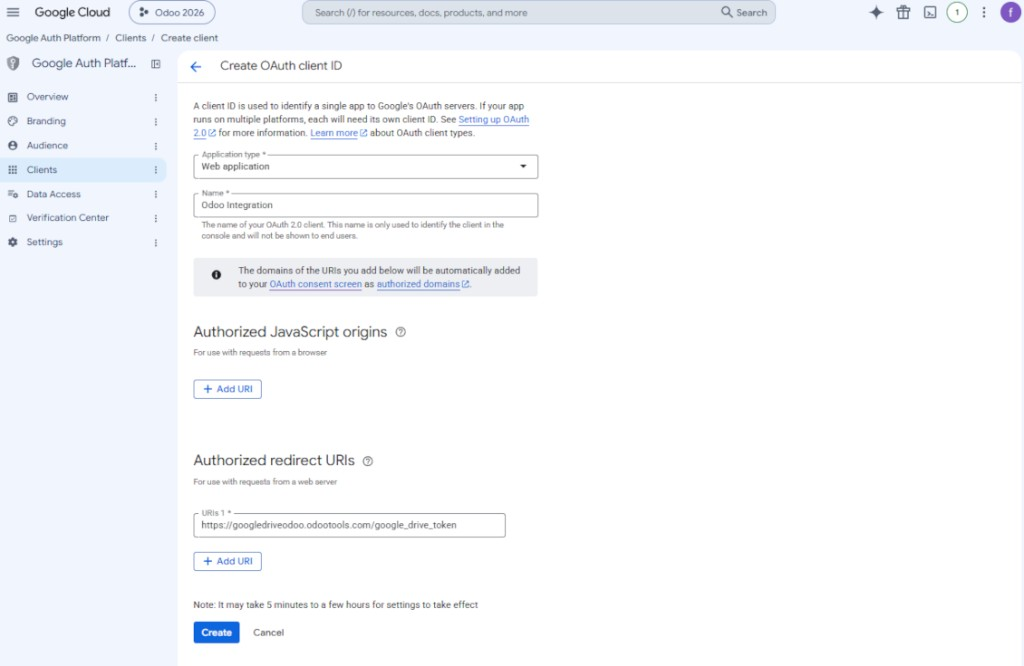
- As the application type select 'Web application'
- As a name select any suitable
- As the authorized redirect URI, add the link in a format [YOURODOOSITENAME]/google_drive_token (e.g. https://odootools.com/google_drive_token).
- Press 'Create'
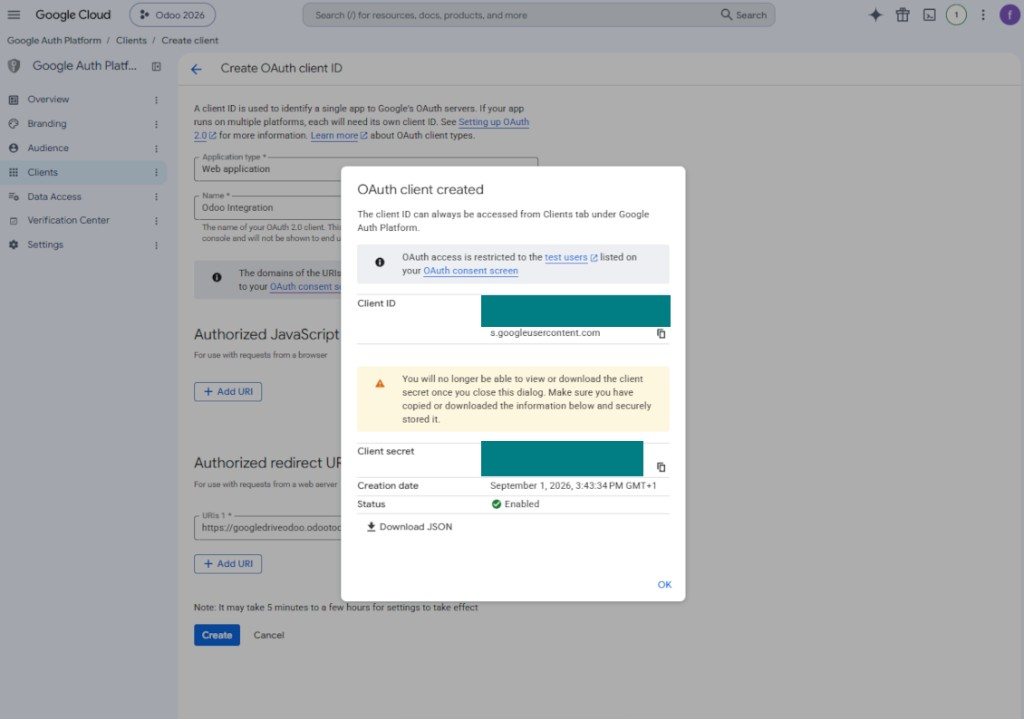
- Copy and safely store 'Client ID' and 'Client secret'. The client secret is shown only once
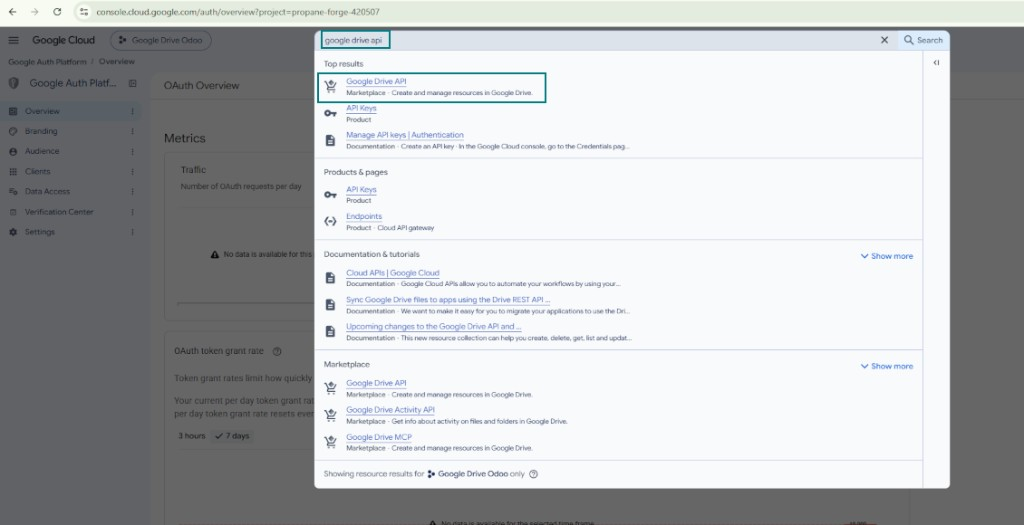
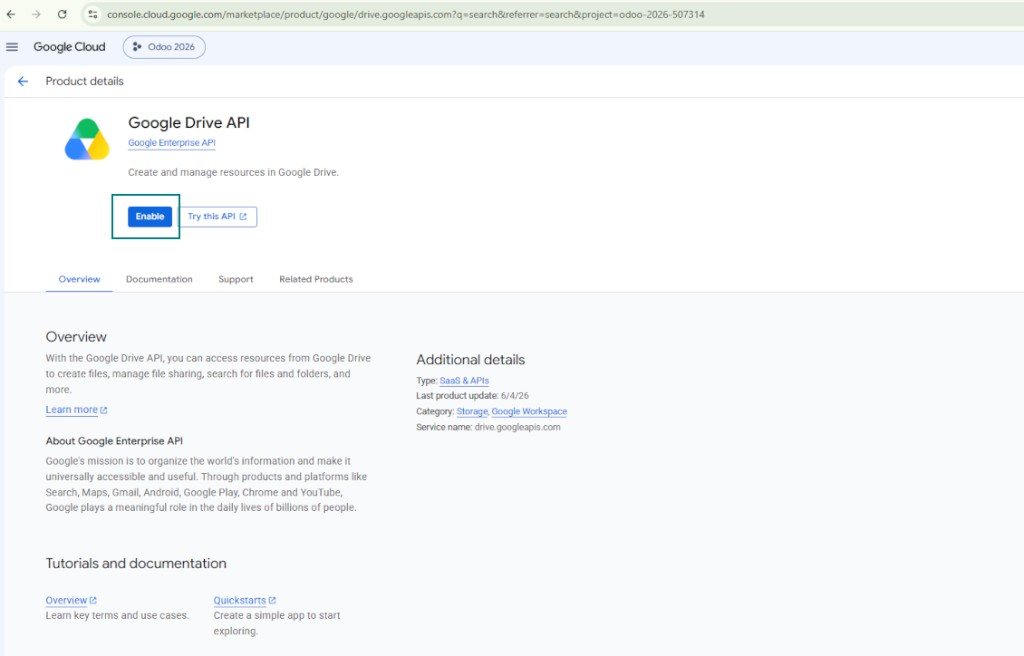
- Enable the Google Drive API for this project: type 'Google Drive API' in the top search box, open the found product, and press 'Enable'
- Go to 'Audience' and add your email address as a test user
- Publish the app. Otherwise, the app stays in the testing state and its token expires every 7 days
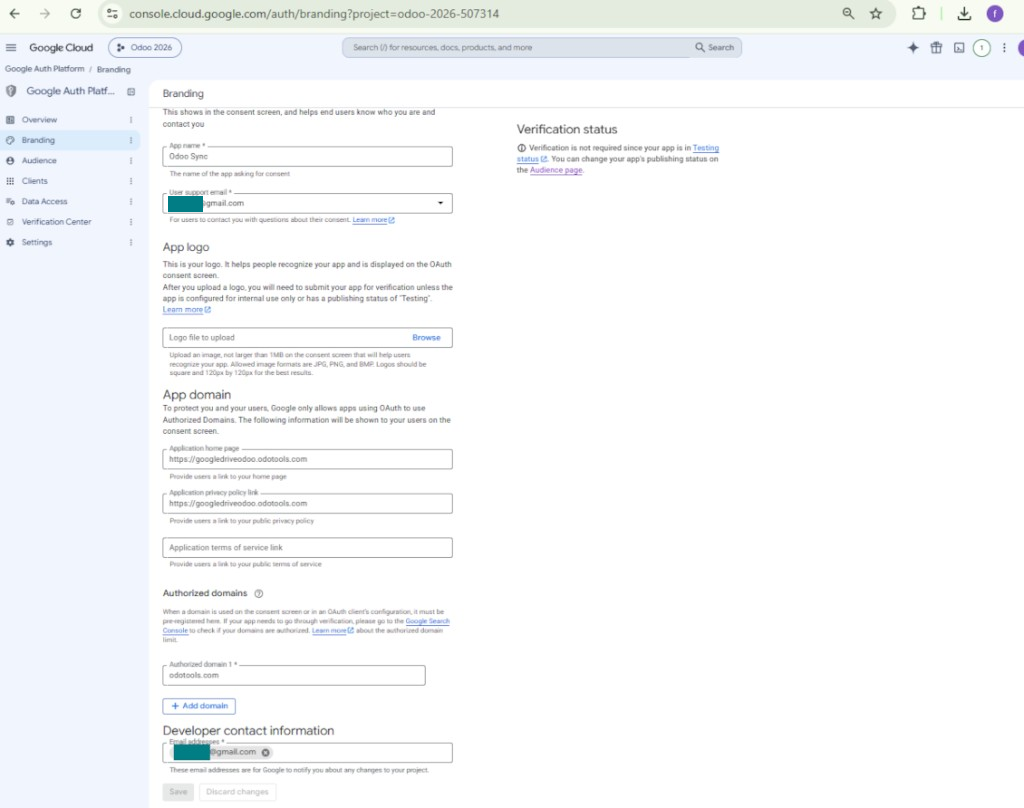
- Open 'Branding' and fill in the application home page and the application privacy policy link (for example, the links to your Odoo website). Add the domains of those links as the authorized domains
- Open 'Audience' and press 'Publish app'
- Do not upload an app logo. This would invoke a long and complex Google verification process that is of no actual need to you
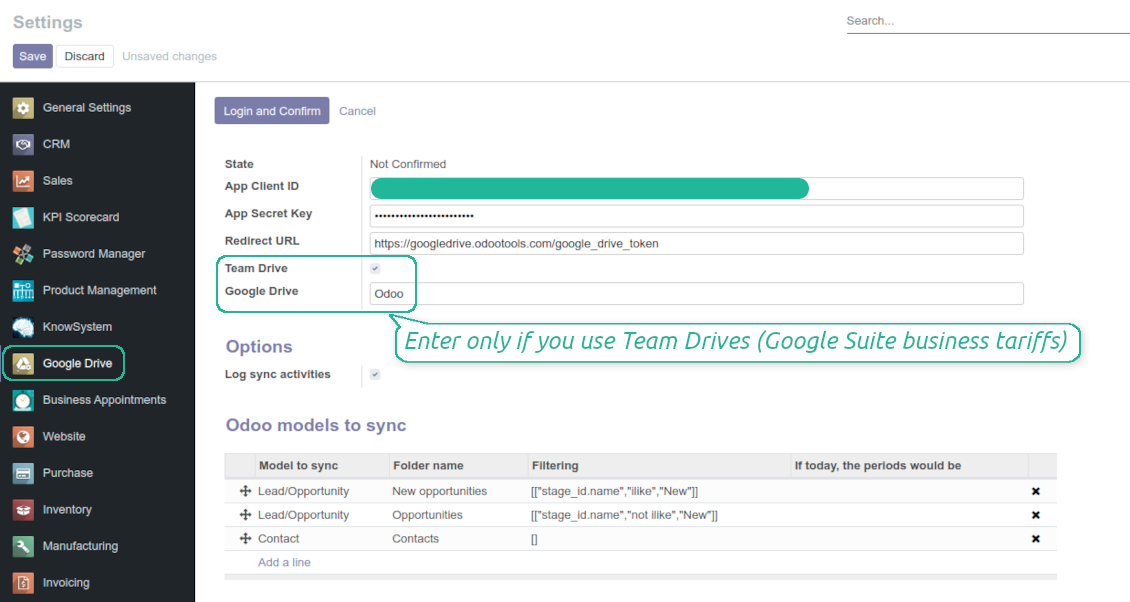
- Go to the Odoo Google Drive Settings
- Copy 'Client ID' from step 8 into the field 'App Client ID'
- Copy 'Client secret' from step 8 into the field 'App Secret Key'
- Insert the redirect URL you entered in step 8
- If you use team drives, check the related box. Make sure you really use team drives. In you Google Drive you should find the item 'Team Drives' in the left sidebar. This feature is available only for business and enterprise tariffs
- If the option 'Team Drive' is enabled, introduce its name. It should be absolutely the same as you see it in your Google Drive. Make sure that your user has full rights for this team drive
- Press 'Save'
- Press 'Login and Confirm'. Odoo redirects you to Google login page. Check in, agree with all conditions, and grant permissions asked
- After login, Google redirects you back to Odoo. Google Drive - Odoo synchronization is ready to be done.
Open the Google Auth Platform
Add app information
Select the external audience
Add contact information
Agree with the policies and create the app
Create an OAuth client
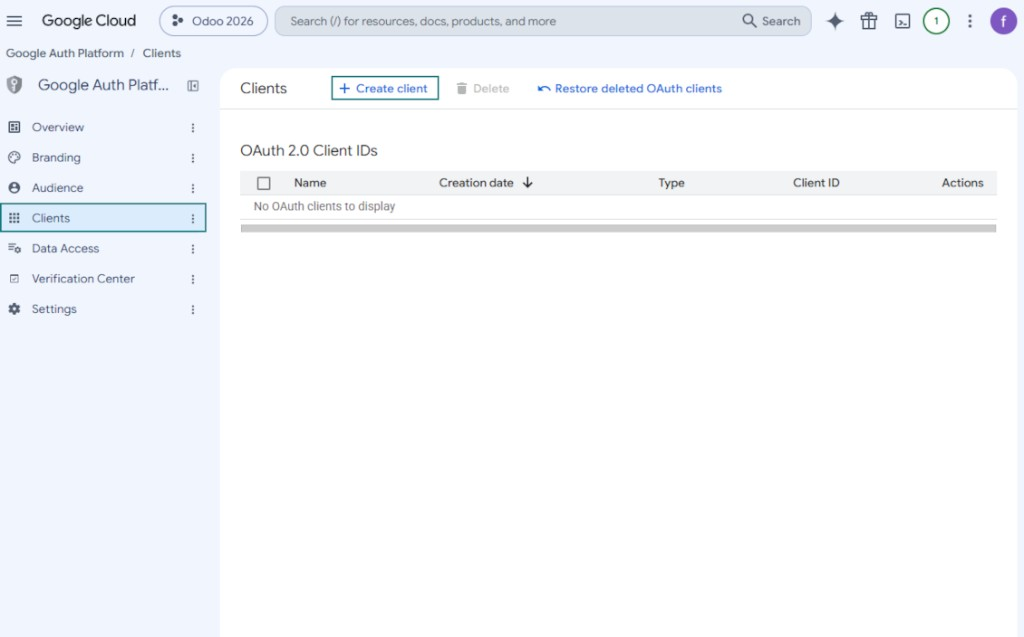
Configure the web application client
Copy the client ID and client secret
Find the Google Drive API
Enable the Google Drive API
Fill in branding to publish the app
Add test users and publish the app
Enter Google app credentials to Odoo
Odoo server configuration and cron job configuration
To make sure the synchronization works correctly apply proper timeouts to the Odoo configuration file: LIMIT_TIME_CPU, LIMIT_TIME_REAL, LIMIT_TIME_REAL_CRON should be more than 900 seconds.
For Odoo.sh this should not be done, since timeouts are predefined and are not configurable.
Then, timeout should be entered to your Odoo. To that goal find the section 'Settings' on the app configuration page and copy the number there.
Afterwards, it is needed to make the cron jobs suit the applied timeouts. In the debug mode go to the Settings > Technical > Automation > Scheduled Jobs:
- Set up the job 'Synchronize attachments with cloud' as (a) frequency - 2*timeout; (b) the next execution as the next hour +timeout. For example, for 900seconds timeout: frequency - as 30minutes; the next execution - at 08:15
- Set up the job 'Synchronize attachments from cloud' as (a) frequency - 2*timeout; (b) the next execution as the next hour + timeout*2. For example, for 900seconds timeout: frequency - as 30minutes; the next execution- at 08:30.
相关常见问题 Google Drive Odoo Integration Odoo v.14
生成的 Google Drive 文件夹会在 Odoo 用户之间自动共享吗?
应用本身不管理 Google Drive 一侧的访问权限,需在那边手动设置。Odoo 会在 Google Drive 创建目标文件夹,默认不共享,您可以更改任一文件夹的权限。例如为 'Odoo' 目录,或为特定的 'Odoo > Sale Orders' 或 'Odoo > Sale Orders > SO-001' 授予完整权限。
应用按单一用户端点原则工作。因此所有同步操作都在同一 Google Drive 用户下进行(取决于您配置的 Google API 应用)。
我在 Google Drive 中删除了文件,但它仍在 Odoo 中
要彻底删除文件,还需要清空 Google Drive 中的回收站。
另外请注意,文件可能仍在 Odoo 中,因为反向同步尚未处理该附件。这是定时进程,需要一些时间。
Google 会根据 API 请求向我收费吗?
本模块仅使用免费 API,因此 Google 不会向您收费。
我可以更改同步作业的频率吗?
可以。请按以下步骤操作:
打开调试模式
转到技术设置 > 自动化 > 计划的作业
找到作业 'Synchronize attachments with cloud' 和 'Update attachments from cloud'。
不要把它们设得过于频繁。最好等当前作业完成后再启动下一个。配置应取决于需要同步的项目数量。通常频率设为 15 分钟到 4 小时。
还要确保在 Odoo 配置文件中设置了足够的时间限制。LIMIT_TIME_CPU 和 LIMIT_TIME_REAL 参数应大于或等于计划的 cron 作业时间。从版本 13 起还要考虑参数 LIMIT_TIME_REAL_CRON。
给 Odoo.sh 客户的重要说明:cron 作业的最长时间可能只有 15 分钟。
我能否配置与同步所假定不同的已同步目录结构?
不可以。此功能仅从版本 15 起提供。在此之前,模块使用预定义的文件夹结构:
Odoo - 同步的核心文件夹
Models - 每种 Odoo 单据类型的文件夹。例如 'Projects'、'Partners'。按 domain 区分还可能有更具体的文件夹:如 'Customer 1 Projects'、'Projects of the Customer 2'、'Internal Projects' 等。
Objects - 每个单据的文件夹,例如 'Project 1' 或 'Customer 1'
与此 Odoo 单据相关、将被同步的文件和文件夹。
因此您可能会得到例如:
Odoo / Projects / Project 1 / 与 project 1 相关的文件和文件夹
Odoo / Customer 1 Projects / Project 1; Odoo / Customer 2 Projects / Project 3, ...
Odoo / Customers / Customer 1 / 与 customer 1 相关的文件和文件夹
该结构始终是扁平的,即只有这些层级。因此,不同单据类型不能放在同一结构中是正确的。在文件夹 'Customer 1' 内,不能同时保存与销售订单、发票和项目相关的文件。每种单据类型都有自己的(或几个自己的)文件夹。否则将无法做反向同步,因为没有可依据的标准。
我应该在 Odoo 中设置特定用户的访问权限吗?
不可以。本工具依赖单一用户端点。所有同步都在一个云管理员(应用)下完成。已创建文件夹/文件的访问权限不会自动设置。您应在云存储方案中管理这些权限。
同步字段存储在哪里?会复制到 Odoo 和云端吗?
本应用假定附件的二进制内容保存在 Cloud Client 中,而不是 Odoo 服务器上。因此,Odoo 中的此类附件变为 URL 类型,您可随时从附件框或 Cloud Client 访问它们。
设置完成后无需手动操作,同步完全自动。只需决定要同步哪些 Odoo 单据类型,并为每一种设置关联模型(客户、销售或采购订单、任务、项目等)。
同一单据类型可以有多个文件夹吗?例如内部项目和客户项目?
可以。请为每一种准备规则,然后应用筛选:例如按项目类型。
尽量让筛选互斥,以便单据能被明确归类。例如“是客户但不是供应商”、“是供应商但不是客户”。否则某个单据文件夹会在模型之间跳动。
我是否只需要Cloud Storage Solution应用?
不可以。本工具只是技术核心。您还需要适用于所用 cloud client 的连接器。
如果要同步的对象很多,例如 10000 个,可以吗?
可以,不过当需要同步的文件夹/附件很多时,过程可能较慢。同时,客户曾报告同步 >1 万合作伙伴和约 5 千产品变体的环境,过程仍可接受。
需要强调的几点:
- 同步的设计保证任何项目都会被同步且不会丢失,尽管可能不快。先进先出队列以及每个作业的提交可保证这一点。
- 对象数量可以按逻辑限制。模型配置可限制过时项目的同步(例如同步已归档合作伙伴或两年前的订单没有意义)。
可以将同步做成实时的吗?
不可以。我们有充分理由避免实时同步:
性能问题。若同步是实时的,每次上传文件都会出现加载屏幕。
冲突问题。若 2 位用户同时更改一项,可能出现无法解决的情况。定期作业可以事后修复;实时同步则必须存成队列,对用户更加费解。
功能问题。尤其是重命名和调整结构。反向同步严格依赖目录逻辑,每次同步都会检查 100% 的项目。若每次更新都做,将是每秒数千次请求。若不做:更改会丢失。
我可以更改云中默认文件夹的名称吗?
可为任何单据类型给模型目录(销售订单、商机、供应商等)指定自己的名称。
对象文件夹(SO-001、John Smith 等)依赖 Odoo 为该单据类型构造显示名称的方法。不过可通过定义名称表达式来更改。使用的正是 Odoo 电子邮件模板的语法。
我可以将附件同步到几个云客户端吗
不能,该功能仅从版本 15 起可用。
我们在云中使用专用编辑器(例如 OnlyOffice、Office 365 等)。文件会在该编辑器中打开吗?
可以,取决于您的 cloud client 配置。
您的工具的更新政策是什么?
根据当前 Odoo Apps Store 政策:
- 为 12.0 及更早版本购买的每个模块,均可使用直至 12.0 的所有版本。
- 从 13.0 起,每个模块版本需单独购买。
- 无论版本如何,购买工具即获得该主版本内的 全部更新和缺陷修复权利。
请注意,faOtools 团队不控制这些政策。如有疑问,请直接联系 Odoo Apps Store 代表。
如何在 Odoo.sh 上安装您的应用?
最直接的做法是使用 Odoo 商店的内置流程:
1. 打开模块页面并点击 Deploy on odoo.sh 按钮
2. 之后会跳转到 GitHub 页面。登录帐户,然后点击 'Create a new repo' 或使用现有仓库。请确保仓库为私有。不得以 OPL-1 许可公开发布应用。如有需要,为 Odoo.sh 项目新建 repo
3. 然后转到 odoo.sh 并点击 Deploy 按钮。在弹出窗口中提交决定并点击 'Continue.' 这将触发安装过程。
这些步骤会将应用安装到项目的生产分支。若要部署到其他分支或更新模块,请执行以下操作:
1. 从 Odoo 商店上传应用的源代码
2. 将模块提交到所需的 GitHub 仓库。确保没有任何应用文件夹/文件被忽略(即未列入 repo 的 .gitignore)。仓库由 odoo.sh 自动创建,默认可能包含关键项(例如 /lib)。应上传模块的全部目录、子目录和文件,不得遗漏
3. 部署 odoo.sh 项目的目标分支,或在设置如此假定时 等待其自动构建。
应如何在自己的服务器上安装您的应用?
2. 重新启动 Odoo 服务器;
3. 打开开发者模式(技术设置);
4. 更新应用列表(应用菜单);
5. 找到应用并点击“Activate”/“Install”;
6. 如应用页面有指南,请按指南操作。
我注意到您的应用有额外附加模块。可以之后再购买吗?
可以。同时 Odoo 会自动把所有依赖加入购物车,因此应排除已购买的工具以免重复付款。
我在 Odoo.sh 上部署了您的应用,测试中出现警告/错误
红/橙色警告不影响应用功能。遗憾的是,标准自动测试有时假定与本应用目标冲突的行为,因此我们的模块会未通过。例如我们改了价格计算,而标准 Odoo 模块测试把最终价格与标准算法比较。
请先检查已部署数据库的功能。是否都正常?
若仍认为该警告影响真实功能,请联系我们并转发完整安装日志以及已部署模块的完整清单(含核心与第三方)。
我可以直接向贵公司购买应用吗?
不,我们只通过 官方 Odoo 应用商店.
希望获得折扣
很遗憾,我们没有技术手段 提供单独报价。
我可以在 Odoo Online (SaaS) 数据库上安装该应用吗?
不能,第三方应用无法在 Odoo Online 上使用。遗憾的是 Odoo SaaS 会阻止这种可能。
您的工具依赖其他应用。我需要购买那些应用吗?
是的,工具需要依赖中列出的全部模块才能正常工作。应用页上的价格已包含所有必要依赖。
该模块的美元价格是多少?为什么变了?
我们的模块价格以欧元标价。Odoo 商店按内部汇率换成其他货币。因此美元价格可能随汇率更新而变化。
非英语的应用和网站措辞由 AI 辅助 并与官方 Odoo 翻译对齐。若发现错误, 发送翻译正确性工单 我们会修好。
缺陷反馈
如遇缺陷或不一致行为,请随时联系我们。我们保证在购买后 60 天内提供修复,并在此期限后仍积极改进工具。
联系我们无需电话号码或信用卡。只需完成不超过 30 秒的简短电子邮件注册。
请在请求中尽可能提供详细信息:截图、Odoo 服务器日志、完整的问题复现说明等。通常需要几个工作日来准备问题的工作计划(若确认是缺陷)或提供应采取的指引(否则)。
公开功能请求与模块构想(免费开发)
我们非常希望改进工具,并感谢任何反馈。若您的需求具有普遍价值且能高效实现,团队会将其列入待办清单。
此类待办清单会定期处理,不产生额外费用。虽然我们无法承诺截止日期和最终设计,但这可能是在无投入、无风险的情况下获得所需功能的好办法。
联系我们无需电话号码或信用卡。只需完成不超过 30 秒的简短电子邮件注册。





通过 MCP 从常用 AI 聊天管理 Odoo 的工具。Claude。任何支持 MCP 的 AI。

用于将 Odoo 附件灵活归入文件夹并将目录与云客户端同步的工具:Google Drive、OneDrive/SharePoint、Nextcloud/ownCloud、Dropbox、Amazon S3、Box 和 NAS。DMS。文件管理器。文档管理系统
398€


用于将 Odoo 附件与 NAS 方案自动双向同步的工具。Synology、QNAP、TrueNAS 以及任何支持 WebDav 的 NAS
487€