KnowSystem: Knowledge Base System v.13
The tool to build deep and structured knowledge base for internal and external use. Knowledge System. KMS
- a core of knowledge management. It might be used stand-alone as a complete internal knowledge base system. Prețul este 398€.
- an optional module, which let you publish articles to website, share them with portal users, and use website builder to update articles. The features assumed by this add-on are marked by the icon . Prețul este 40€.
- an optional extension to KnowSystem: Website and Portal to design website documentation pages based on knowledge base articles. The features assumed by this add-on are marked by the icon . Read the full description on the related page. Prețul este 60€.
- an optional module, which let you add and show custom fields for articles (backend). The features assumed by this add-on are marked by the icon . Prețul este 48€.
- an optional free module, which shows custom fields on website and portal pages (frontend). The features assumed by this add-on are also marked by the icon .
- an optional module, which let you translate articles, sections and tags for installed in Odoo languages. The features assumed by this add-on are marked by the icon . Prețul este 10€.
Innovative single-view interface
From the same interface editors may create and update any knowledge-related documents, change articles in batch, set up security. Without a need for excess navigation.
Interface solutions
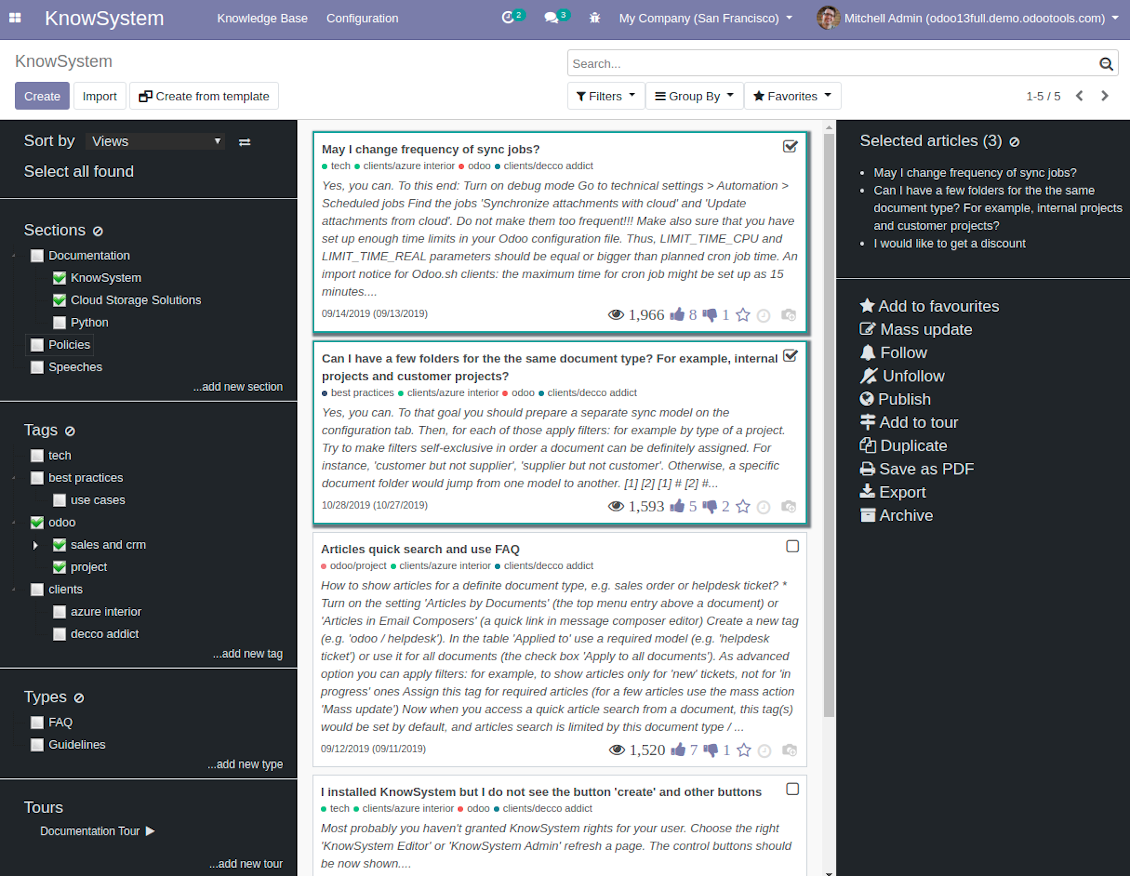
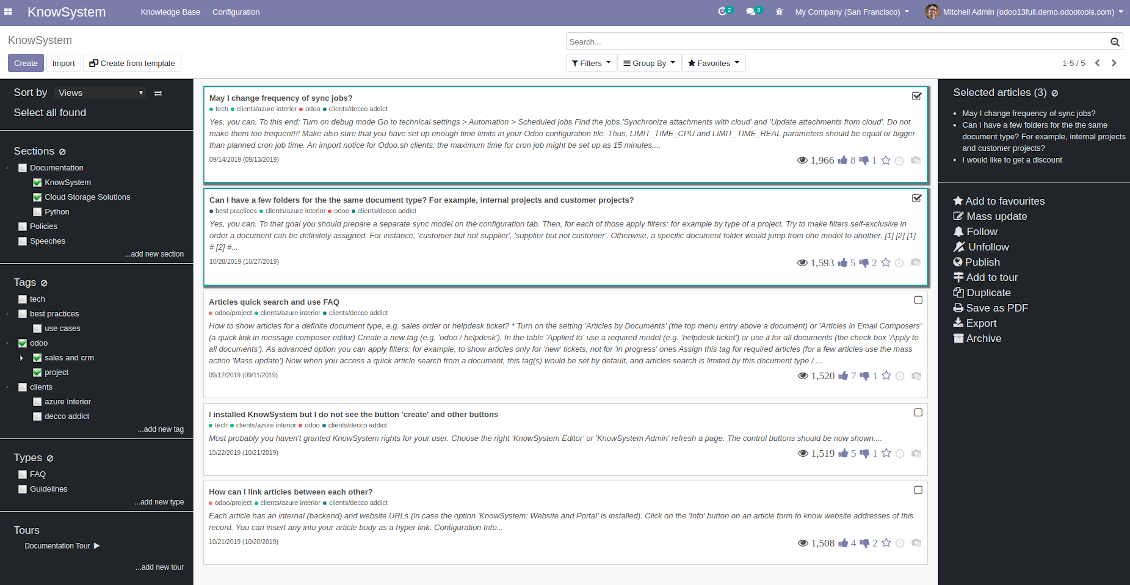
The KnowSystem interface consists of 3 key parts: the left navigation panel, the list of articles, and the right navigation panel (it is shown only if some articles are selected).
On the left navigation panel you may:
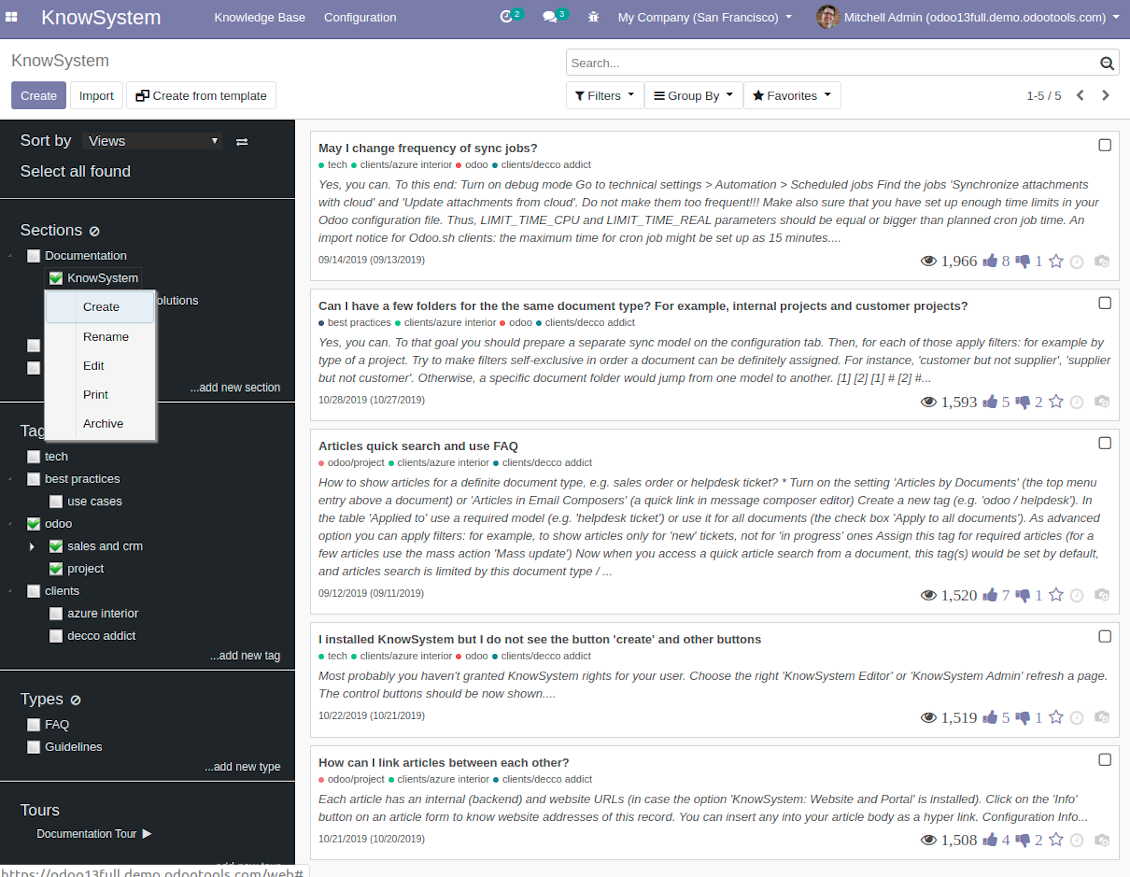
- Manage hierarchy of sections: prepare new (right mouse click - 'create'), update existing (right mouse click - edit), re-order any (drag and drop an item), archive sections. Select a few ones to filter articles. You may also print all articles related to this section as a single PDF file.
- In the same way manage hierarchy of tags and article types.
- Sort articles by number of views, a score of likes and dislikes, create or update dates, a section, an author.
- Select all articles which are found according to chosen tags / sections and according to introduced searches / filters.
- Launch a learning tour.
From the list of articles you see articles' name, indexed content (words without HTML style), dates of creation and last update, a number of views, likes, dislikes, author avatar. Here you may also add an article to favourite by pressing the 'star' icon.
Click on article body to open it in a full size (form view). Do not worry: chosen tags and sections as well as selected articles will be kept when you get back! Click on the top right check box to add an article for selection.
On the right navigation panel you observe selected articles and may proceed a mass action. Click on article name to remove it form selection.
On the top of the interface users also would find a standard Odoo omnibox. Type here to search by a title, content, an author, tags or a section.
Available mass actions
KnowSystem let users update an unlimited number of articles simultaneously:
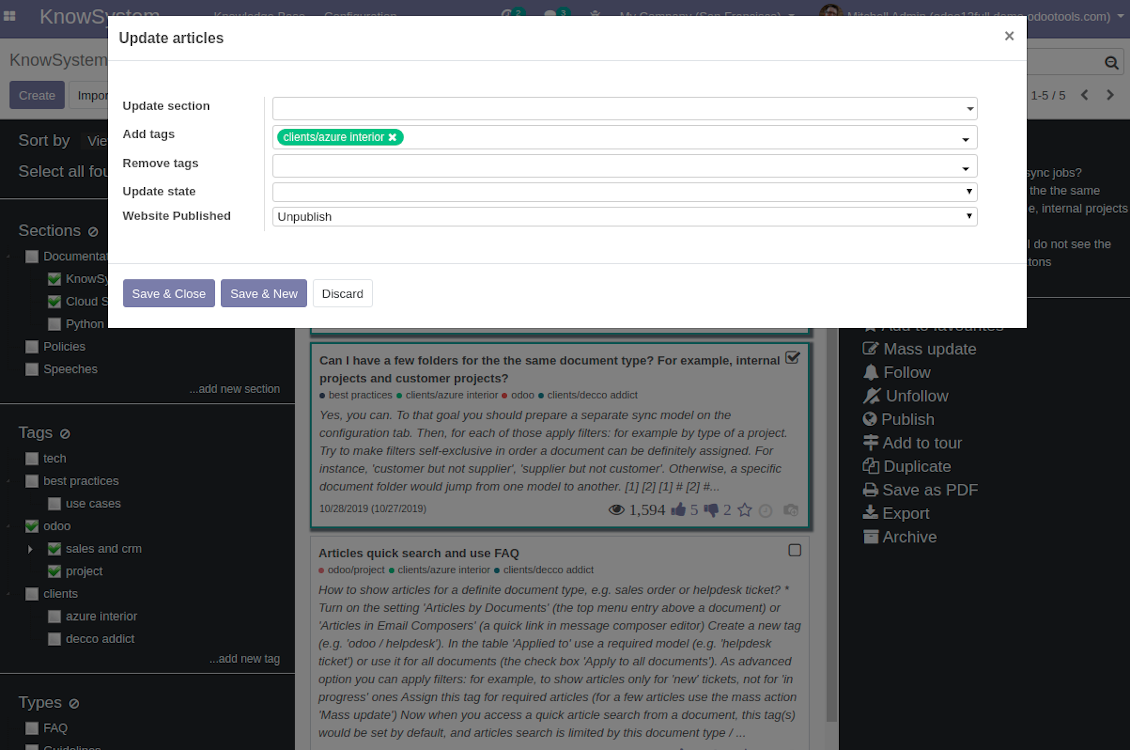
- Assign new section
- Change or remove tags
- Print multiple articles as a single PDF
- Follow / unfollow discussions
- Publish / unpublish articles
- Export articles to an Excel table
- Archive or restore records
- Add articles to learning tours
- Mark knowledge items as favourite
- Duplicate articles.
Capturi Ecran
KnowSystem Interface
Single entry for knowledge management actions
Knowledge Base overview
Article info and statistics
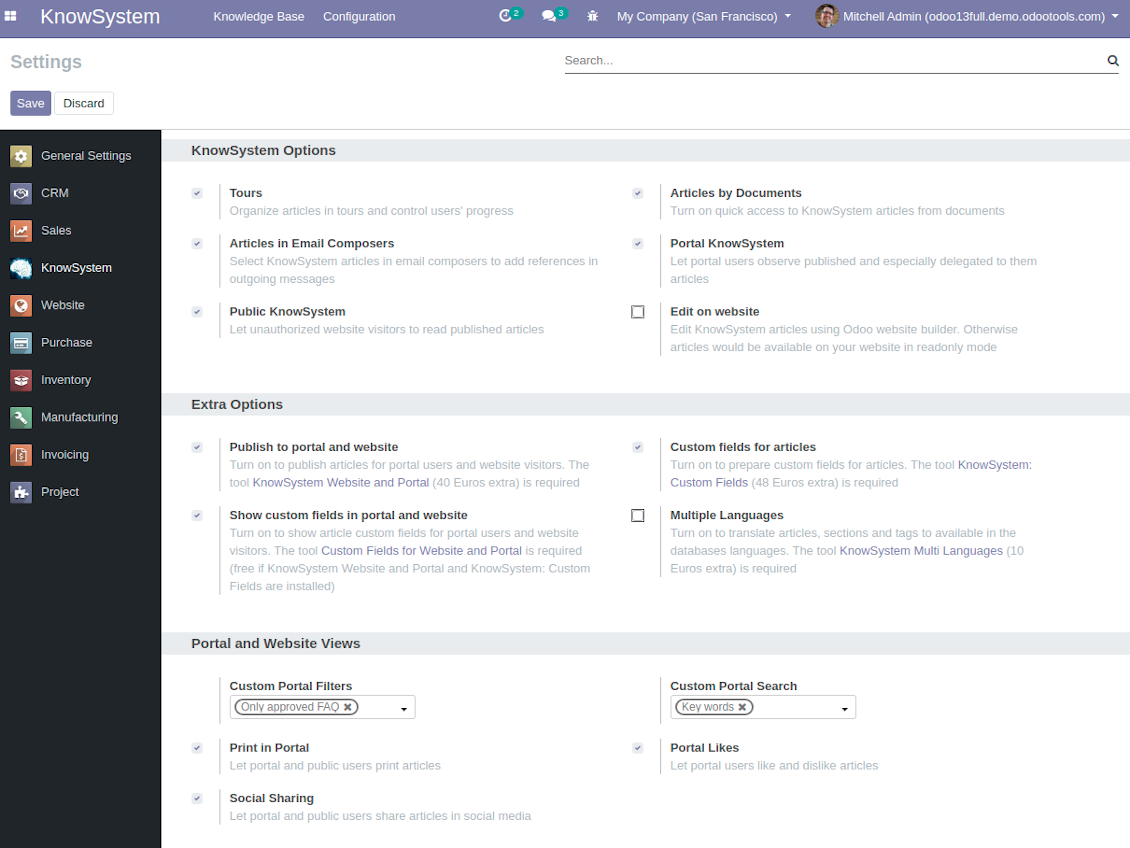
KnowSystem configuration
Mass actions for selected articles
Fast, comfortable, and professional knowledge recording
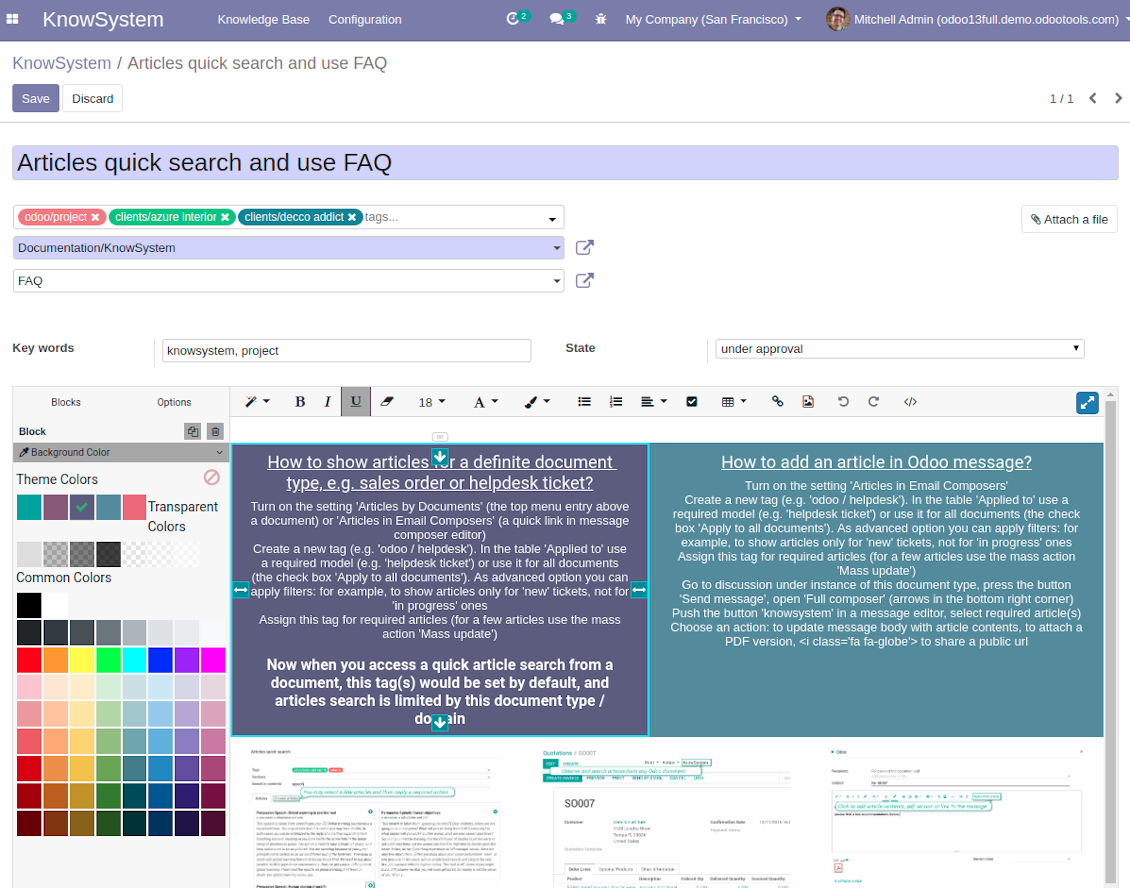
By using templates with pre-defined styles you may also speed knowledge generation up and standardize articles' appearance.
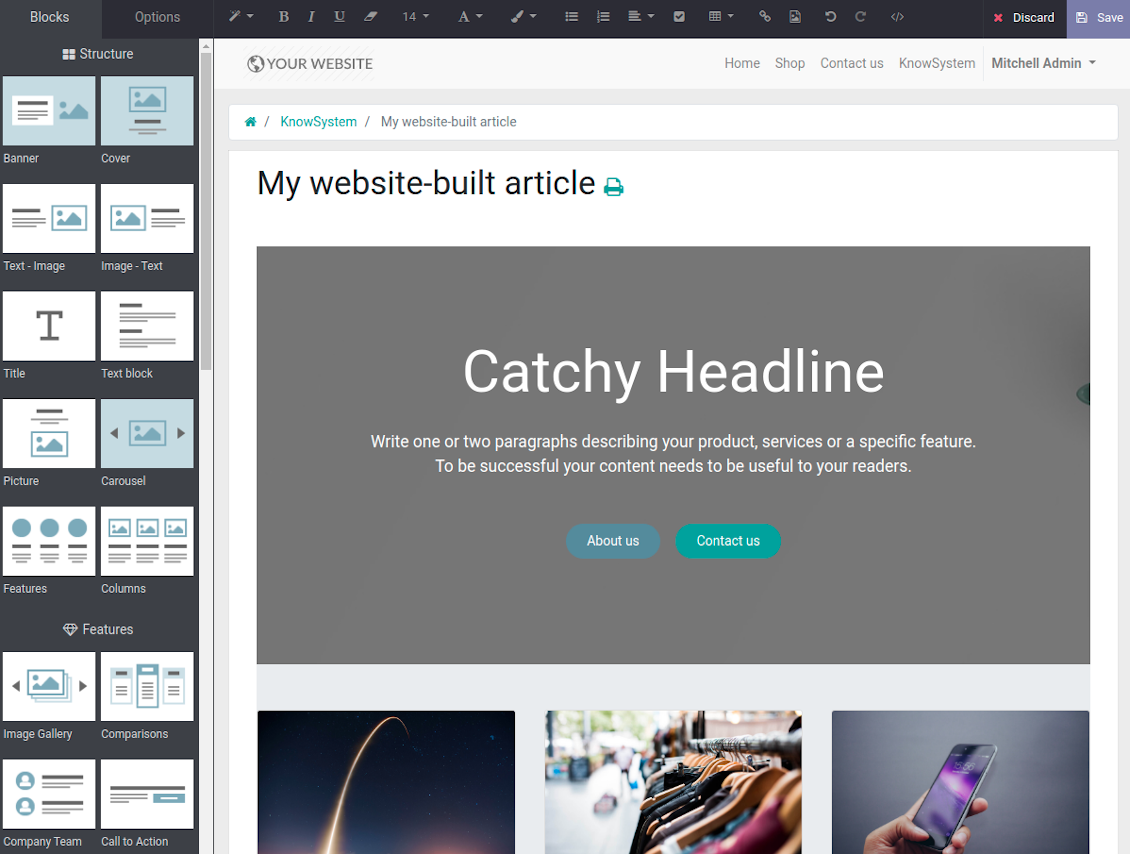
How to use the website builder for editing articles
KnowSystem provides you with a backend articles' builder, which is comfortable and safe to use. Odoo website builder is richer in features to prepare complex HTML structures. To edit articles through the website:
- Install the optional add-on 'KnowSystem Website and Portal' (the option 'Publish to portal and website')
- Turn on the setting 'Edit on website'
- Push the button 'Edit on website' on this article form
Be cautious: if you are going to print this article or add its contents to emails, website building blocks are not suitable. Their advanced styles contradict printing and composer layouts and would not be correctly shown. In such a case use the safer backend builder.
How to use article templates
To prepare a new article template for repeated usage:
- If you already have an article to be used as template: push the button 'Actions > Make template', edit and save a new template.
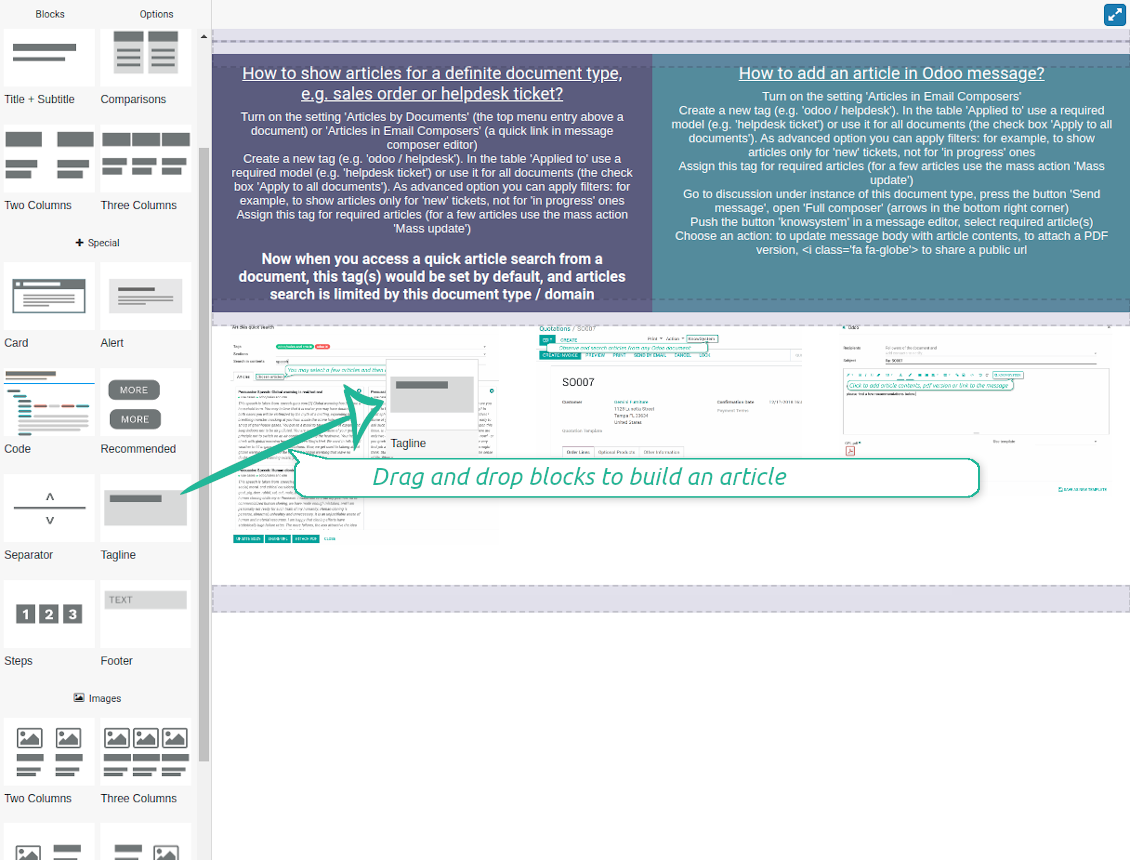
- If you wanted to prepare a brand new template, go to KnowSystem > Configuration > Templates and prepare a new one using building blocks.
To use a template to write a new article:
- Push the button 'Create from template' from KnowSystem kanban or form views
- Select a required article template
- Push 'Create' and introduce changes to a new article.
Capturi Ecran
Comfortable article customization
Building blocks for knowledge base articles
Article read mode
Use website builder to edit articles (bad for backend usage)
Get benefit from your knowledge
How document types and articles are linked for a quick access
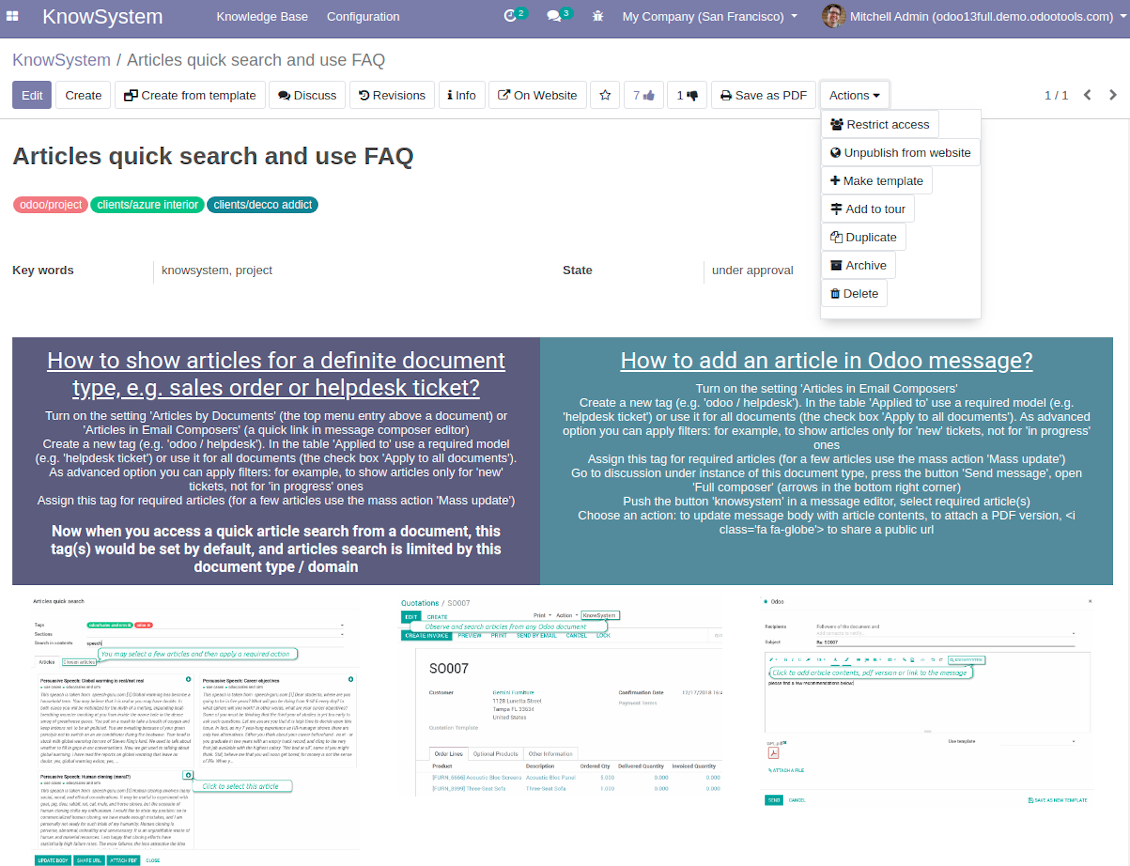
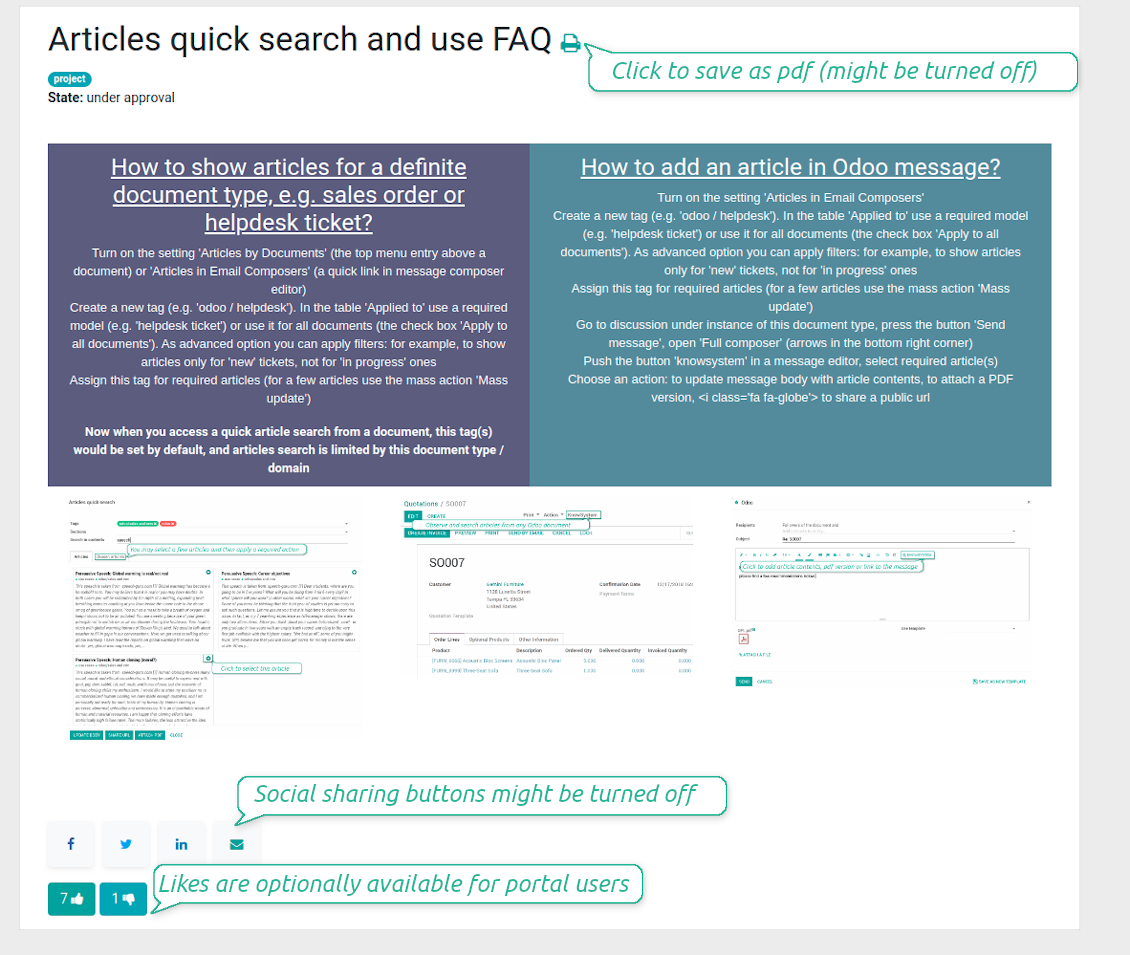
Experience is not general, usually it relates to specific issues. Knowledge used for customer communication differs from suppliers' negotiations. Frequently asked questions for draft and confirmed sale orders vary. KnowSystem let you structure your articles to apply them in a correct place and at right time. To that end:
- Turn on the setting 'Articles by Documents' (the option shows the top menu entry above any Odoo document) or 'Articles in Email Composers' (the option adds a quick link in a message composer editor for citing)
- Create a new tag (e.g. 'odoo / helpdesk'). In the table 'Applied to' use a required model (e.g. 'helpdesk ticket') or use it for all documents (the check box 'Apply to all documents').
- As advanced option you may apply additional filters: for example, to show articles only for 'new' tickets, not for 'in progress' ones. Use dynamic filters' constructor for that goal
- Assign this tag for required articles. For a few articles use the mass action 'Mass update'
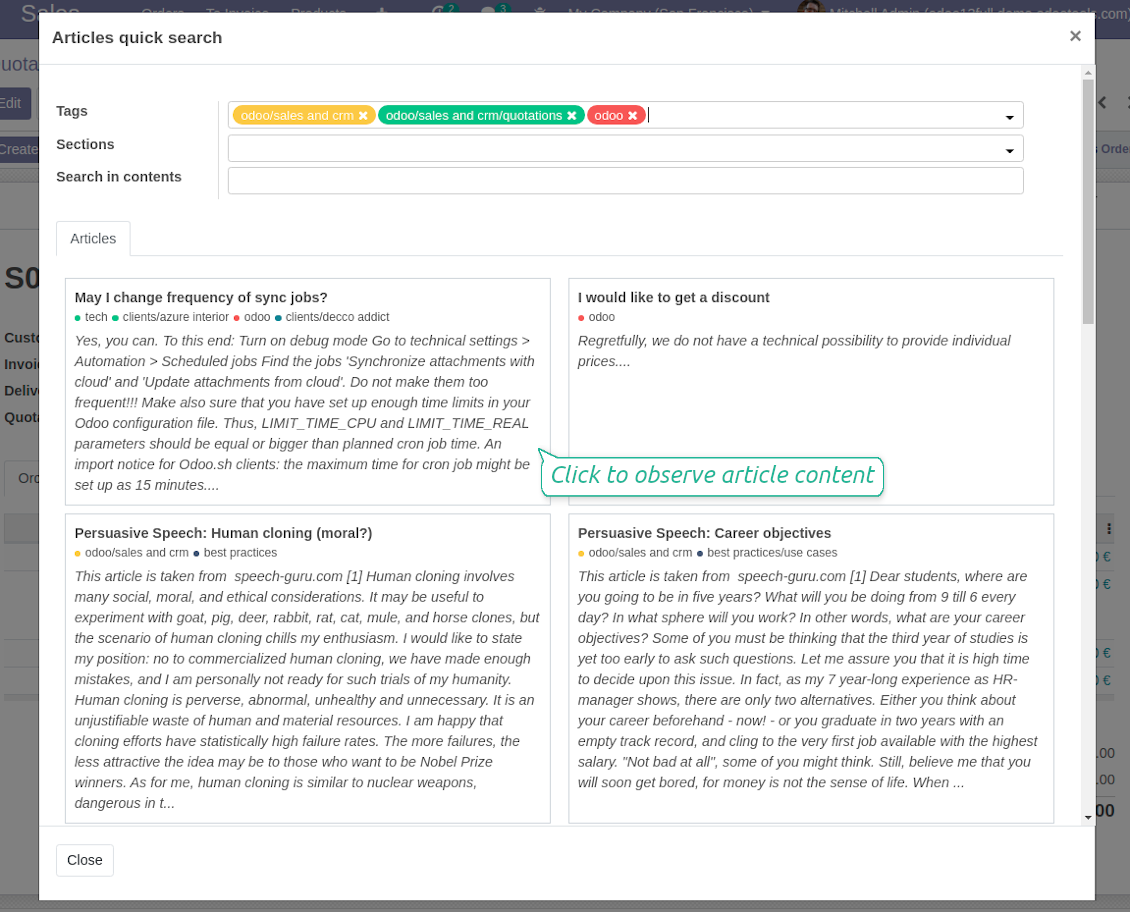
- Now when you access a quick article search from a document or from an email composer, Odoo will calculate KnowSystem tags for this document. That's why by default users would see only articles suitable for a current document. Simultaneously, they might always change tags to use other knowledge base data.
How to overview articles which might be useful for this document
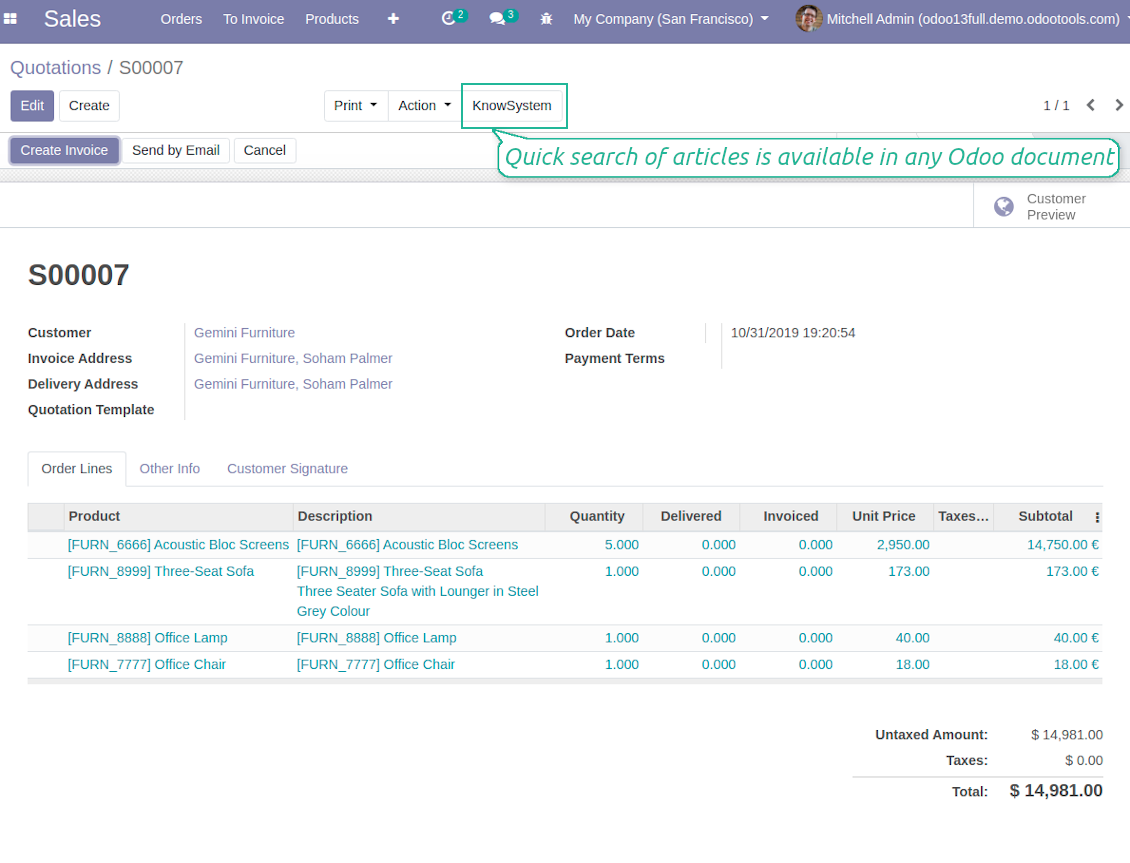
As soon as you turned on the option 'Articles by Documents', on the top of each Odoo object form view there would be a quick link 'KnowSystem'.
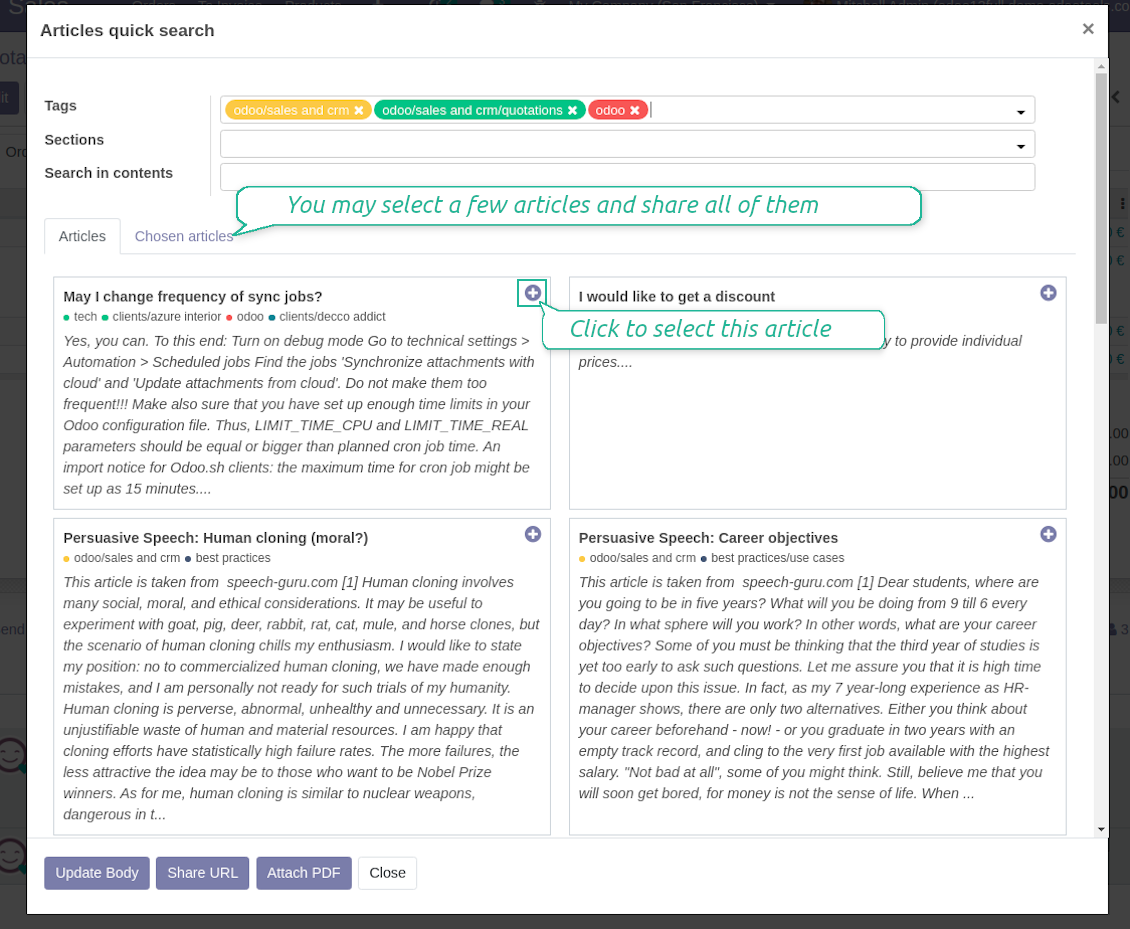
Click on that entry, and Odoo would open the wizard with articles. By default KnowSystem tags suitable for this document would be selected (if any). You may change those tags, or additionally filter by sections or content search. As a result list of topical articles is shown for you.
How to use company knowledge for communication
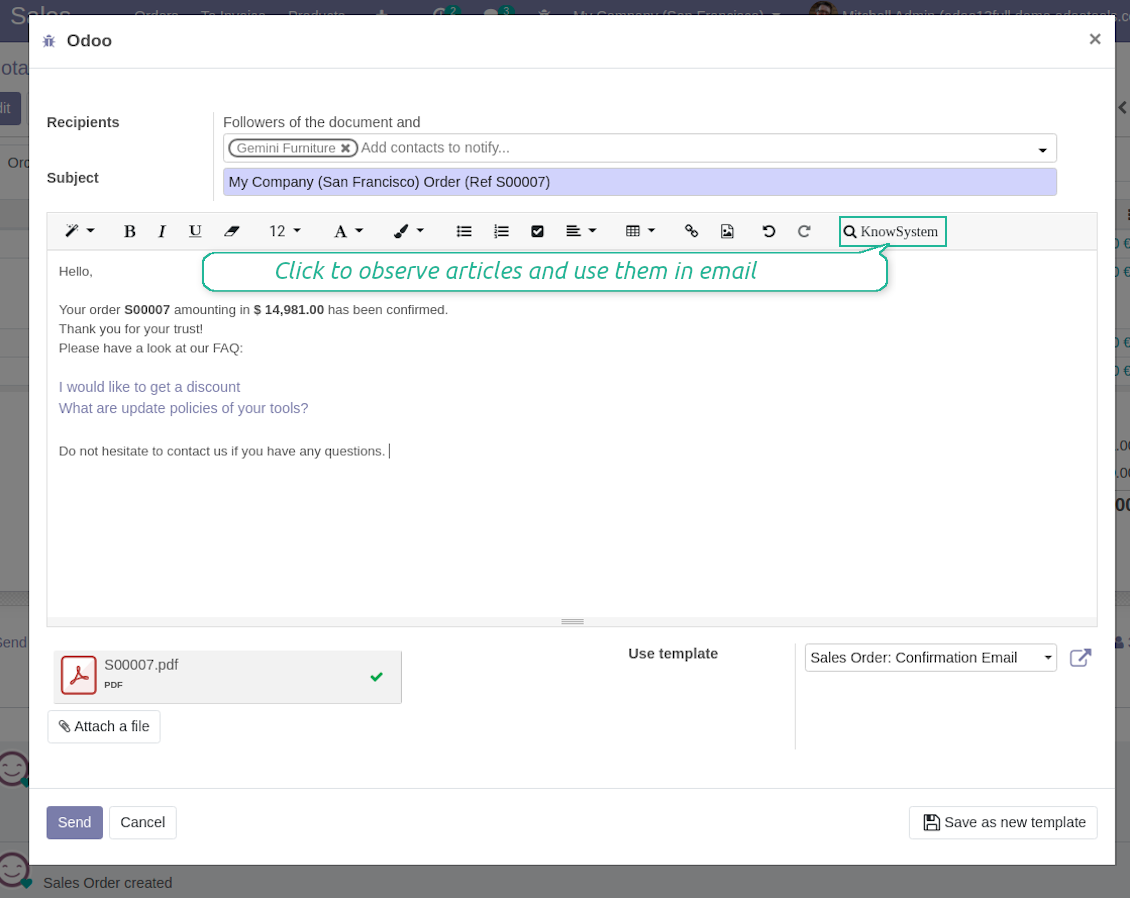
Turn on the option 'Articles in Email Composers' to let users reference or cite Knowledge records in Odoo messages. As a result the special quick entry 'KnowSystem' would be added to each Odoo email composer.
Clicking on that entry would open a wizard with a set of suitable to this document articles. You may change search by tags, add extra filtering by sections or content.
Afterwards, select required articles among found ones; choose an action. You may:
- Update message body with article contents (would be added to the end of a current message)
- Attach a PDF version of an article(s)
- Share a public link
Capturi Ecran
Apply knowledge in emails
Share articles content, link, or printing in messages
Quick access for knowledge system from any Odoo document
Quick knowledge search
Individual partner knowledge base portal
How to share knowledge base with specific partners
An article is available for a portal user in two cases: A. it is website published; B. his/her company is indicated as allowed partner in one of article tags.
In the first case such an article is available for all portal users and even for public website visitors who have not logged in.
In the latter case you grant a restricted access for an article only for chosen companies. To that end:
- Turn on the setting 'Portal KnowSystem'
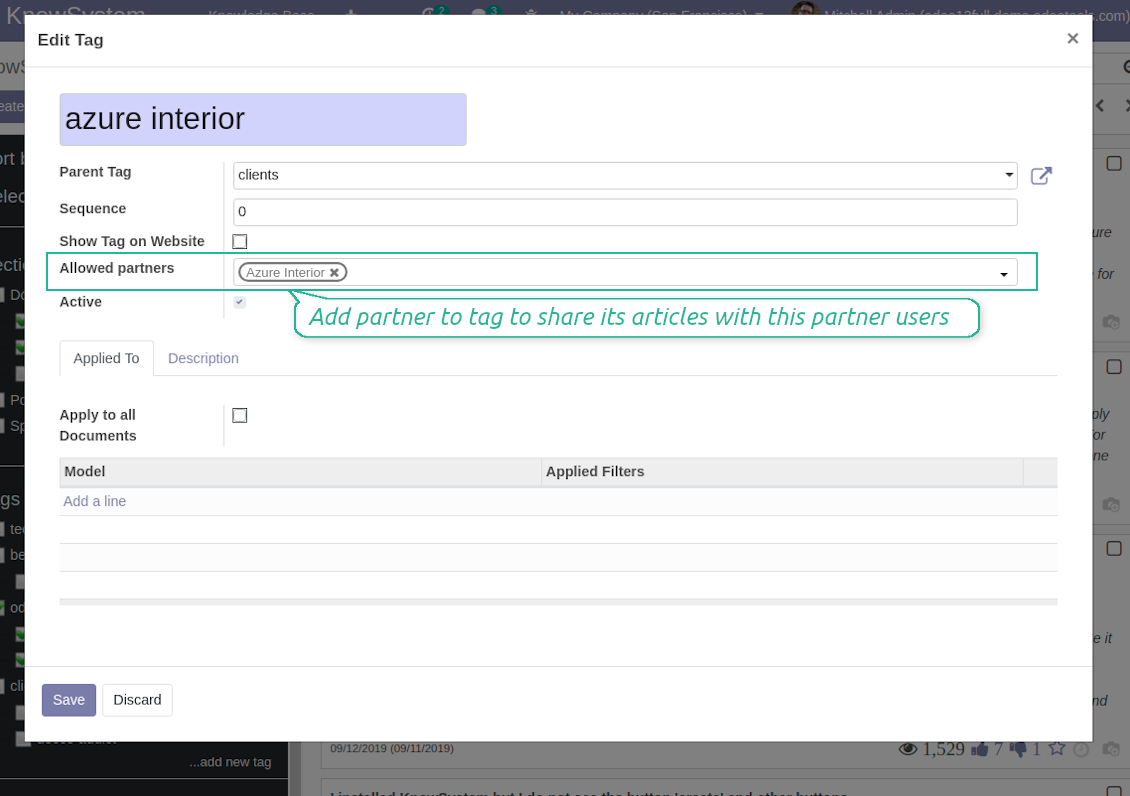
- Create a tag for this partner, for example 'clients / Azure Interior'. On the tag form indicate this company in the field 'Allowed partners'
- Assign the tag for all articles you want to share with this partner. For a few articles use the mass action 'Mass update'
- Now portal users related to this partner may access shared articles right from their partner portal.
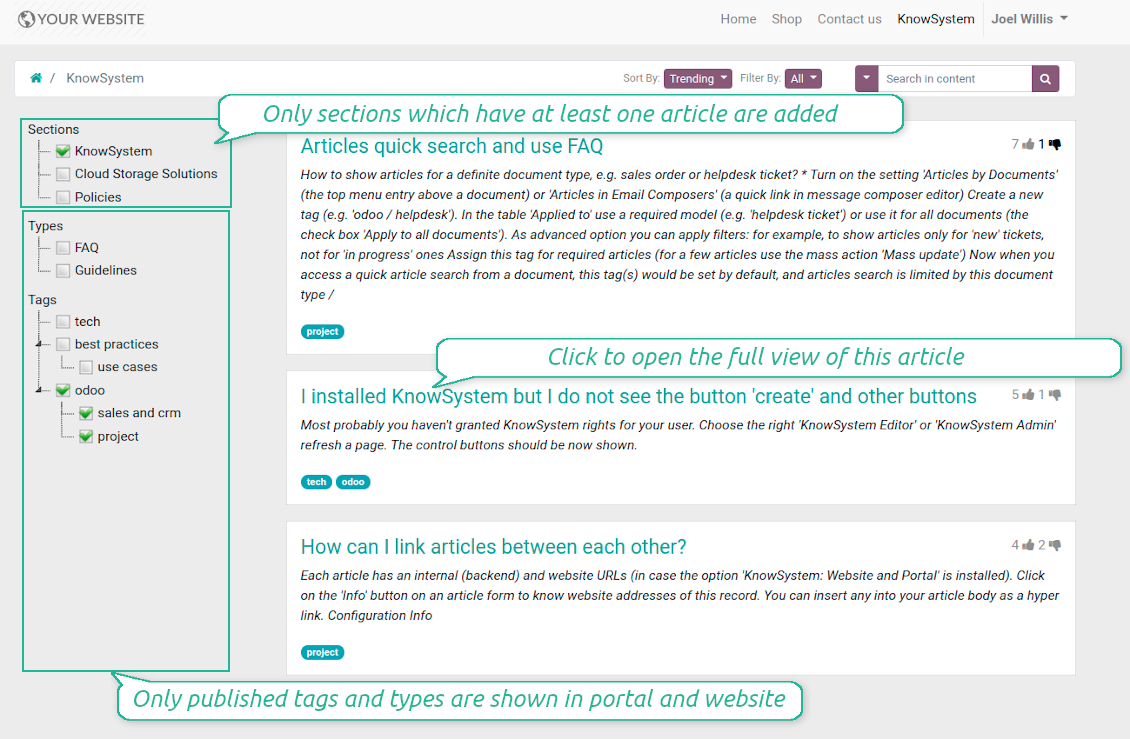
How to add sections, tags or article types to portal / website
Take into account that:
- Section is available in portal / website only if it has one available article inside;
- Tags and article types are added to hierarchy only if they are published.
Capturi Ecran
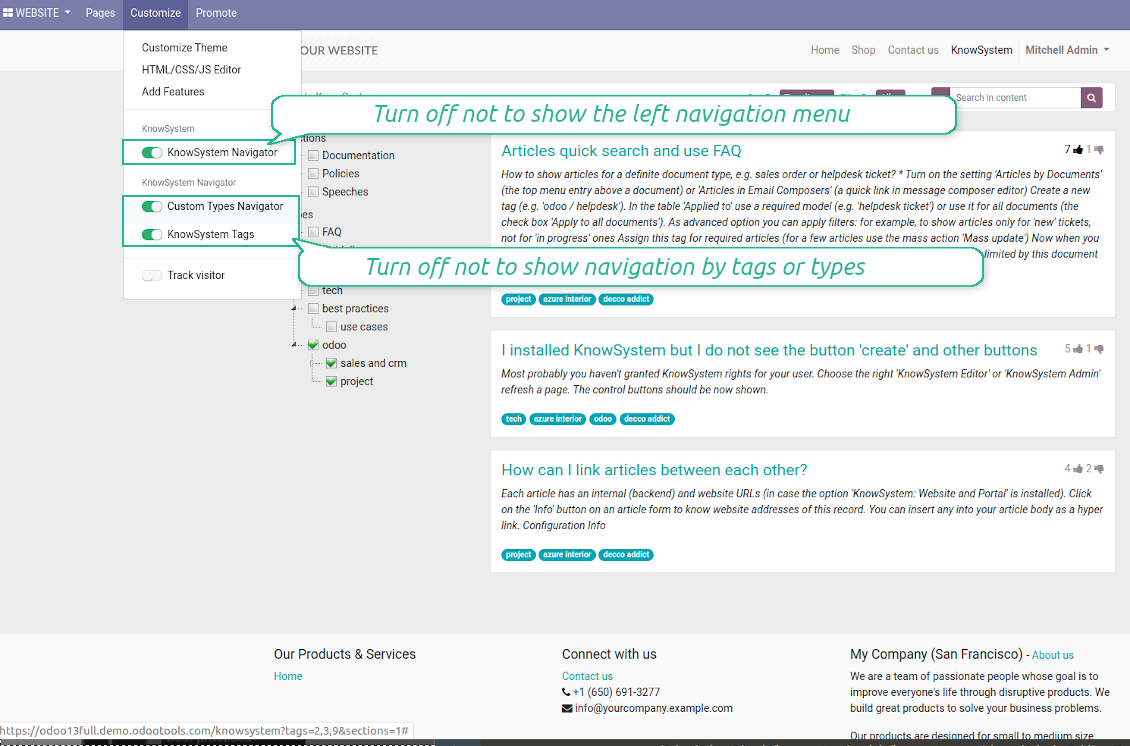
Knowledge base for portal and public use
Configurable public knowledge base
KnowSystem articles in portal and website
Best knowledge base system for Odoo!
Excellent app and exceptional after-sales support.
Really well thought-out product and one of the best features is the contextual help by means of the tags. Really a game changer for us.
Keep up the great work FaOtools!
Outstanding app! Tremendous value for money, an absolute must have!
One of the features sorely lacking from Odoo has been a robust Wiki/documentation system. Using third party platforms is a massive headache: yet another system to maintain, users get distracted switching back-and-forth, and errors get made. Then you have to worry about training, additional logins, etc.
KnowSystem feels like a native/core app, is very well-polished, and extremely fast. It's accessible from any screen, and the search results are instant (none of the latency inherent with most apps).The interface is elegant yet powerful, with robust access control, rich editing features, and version control. It's simple to revert to previous entries, view audit trails, etc. It's very intuitive for anyone familiar with Odoo; onboarding takes just a few minutes. The user guides are excellent.
This is invaluable for any organisation with a lot of documented information, SOPs, ISO compliance, or similar. If you're using eLearning, it's great for creating a help system / reminders. For example, noting key takeaways or specific instructions. The user can be in MRP, Sales, or any other function, and instantly lookup a guide. Since it overlays whichever screen you're in, it doesn't interrupt the workflow.
This dramatically increases efficiency, minimises questions, and helps keep everyone on the same page.
Oh, and customer service is excellent, faOtools stands behind their product. Thank you!
KnowSystem is excellent - OdooTools offer great support, are very helpful and responsive
Our company needed the ability to add a Knowledge Base to our Odoo portal website for our customers to access article content on a membership-only basis. KnowSystem provided this and much more, along with ability to add search by section, set permissions to allow only certain partners access to articles by tag etc. OdooTools have been very helpful and implemented several features we suggested including automatic redirect upon login, customisable filters and a social sharing capability on articles. Overall a great app by a great company, something that massively adds to Odoo's capabilities and is something that everyone could benefit from using.
Very functional application and responsive support
Our company produces medical laser equipment and we use KnowSystem to streamline the knowledge base of our company. Convenient search system and classification of content, as well as access rules for groups and even for individual users.
Great app and professional team
The app is great the the team is very professional in both response timing and problem solving.
Highly recommended.
Marco from ALO.zone.
Excellent system
Excellent system.
A great tool from some very nice developers!
KnowSystem is a great tool and a game changer for us. Finally a place to put all our company know-how. I highly recommend it. And also important to us: We got great support from FaOtools too. A rare thing in this busy world. thx!
Excellent app and support.
Great app and a very helpfull support. Openess to improve their products is outstanding.
WIKI-like revision system
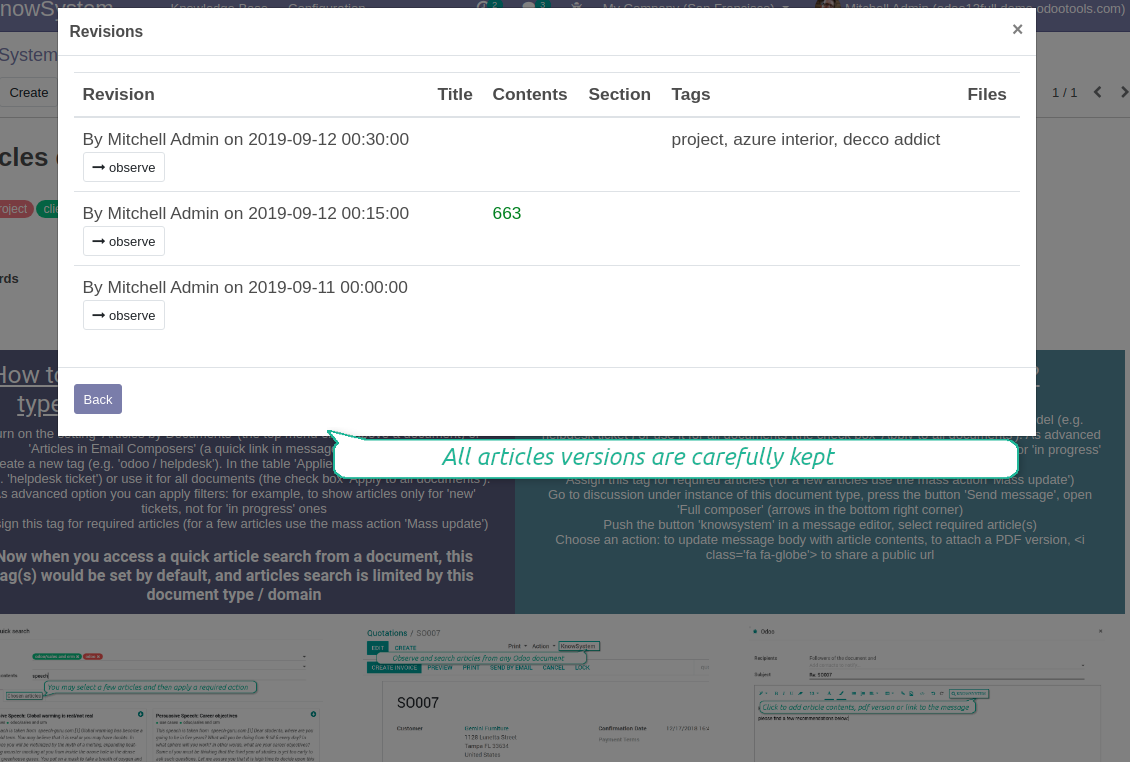
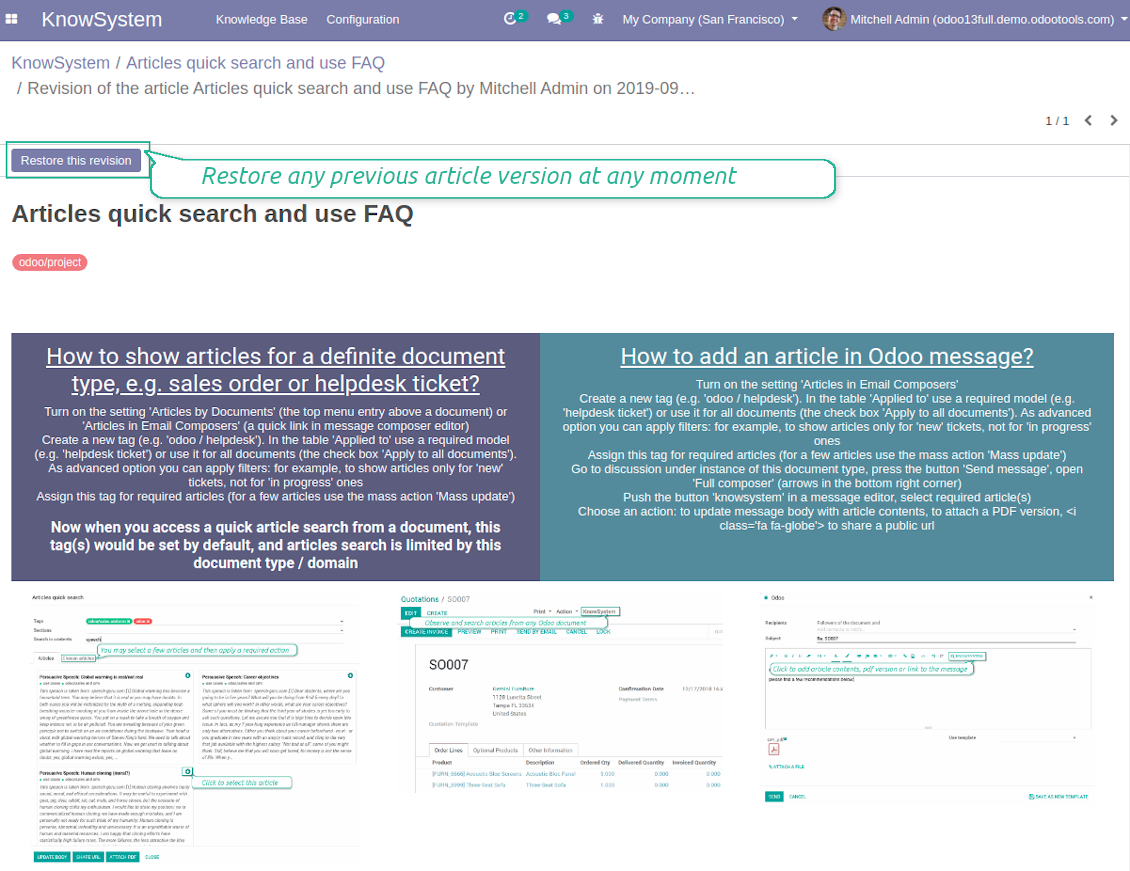
How to recover a previous article version
- Go to an article form view and push the button 'revisions'
- Find a required one and push the button 'Observe' to check whether this version is a correct one
- Push the button 'Restore this revision'. The article would be recovered to that version.
- The recovery operation itself is recorded. So, if it is a mistake you can revert changes by recovering the last-to-last revison.
Capturi Ecran
Wiki-style revisions history
To restore is easier than to break
Public knowledge system
How to make an article available for all website visitors
- Turn on the setting 'Public KnowSystem'
- Publish required articles through the mass action 'Publish' or by pushing the button 'Actions > Publish on website' on an article form
- Now any website visitor can read those articles
Team work for knowledge creation
Custom fields to structure knowledge
How custom knowledge attributes work
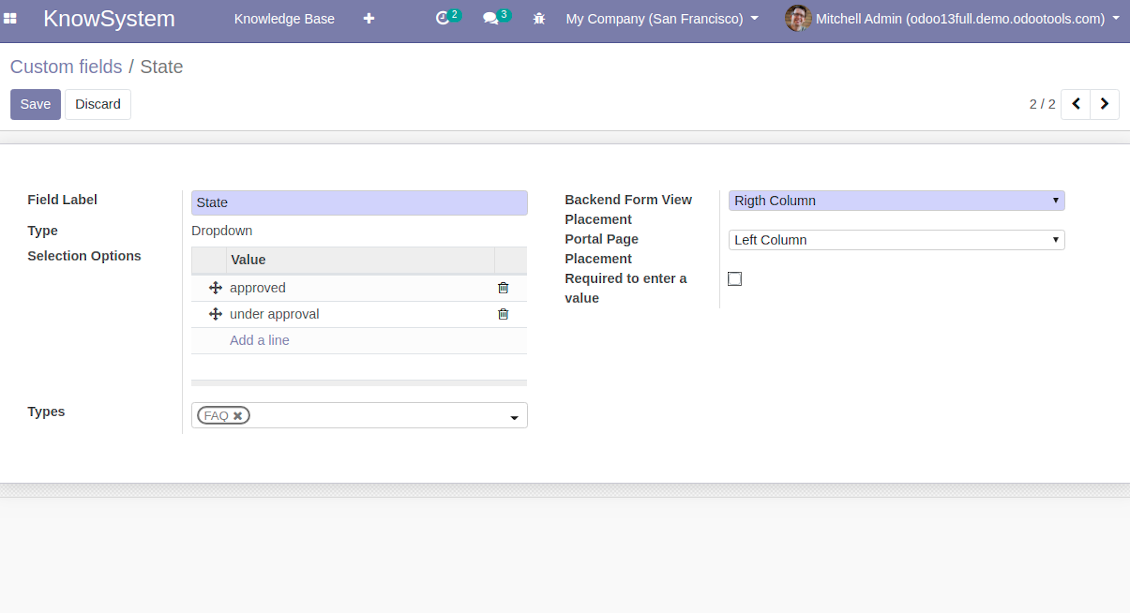
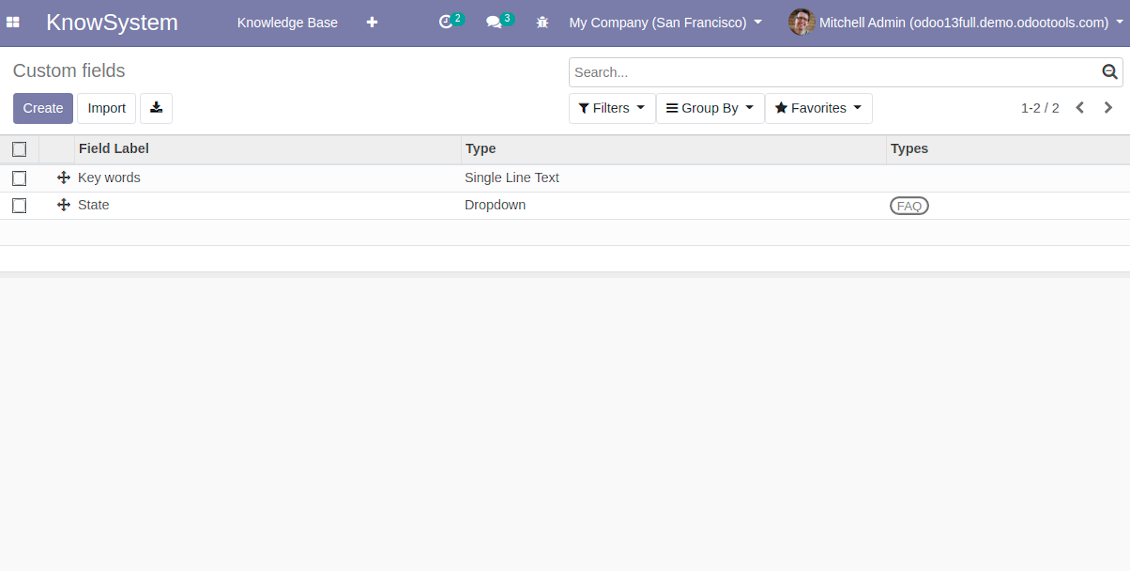
In order to show a new property for KnowSystem articles, just create a custom field. Nothing else is required! You are welcome to prepare fields of various types: single line text (char), simple text without formatting (text), rich text (HTML-formatted text), integer or float numbers, drop-down choice with your own options (selection), checkbox (boolean), date or date and time, binary (a file to upload), reference to another Odoo document (e.g. for a sale order, contact; many2one).
The tool also introduces complementary articles' typology. Thus set of attributes for 'user guidelines' and 'technical specifications' might be different.
Then, choose an interface location for a new field from a closed list to structure properties on an article page. Decide whether a field should be required to enter, or should be visible only for definite knowledge types.
Capturi Ecran
KnowSystem articles custom fields
KnowSystem articles custom properties
Knowledge is secured and might be safely shared
How to manage user accesses to articles
Security for internal and portal users differs.
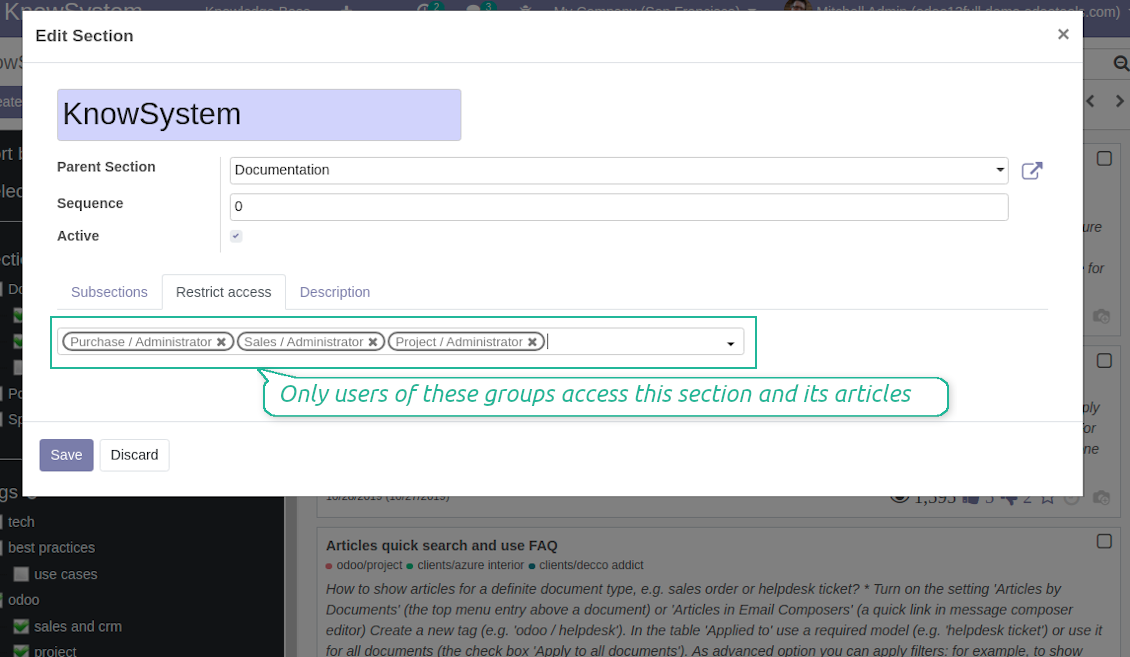
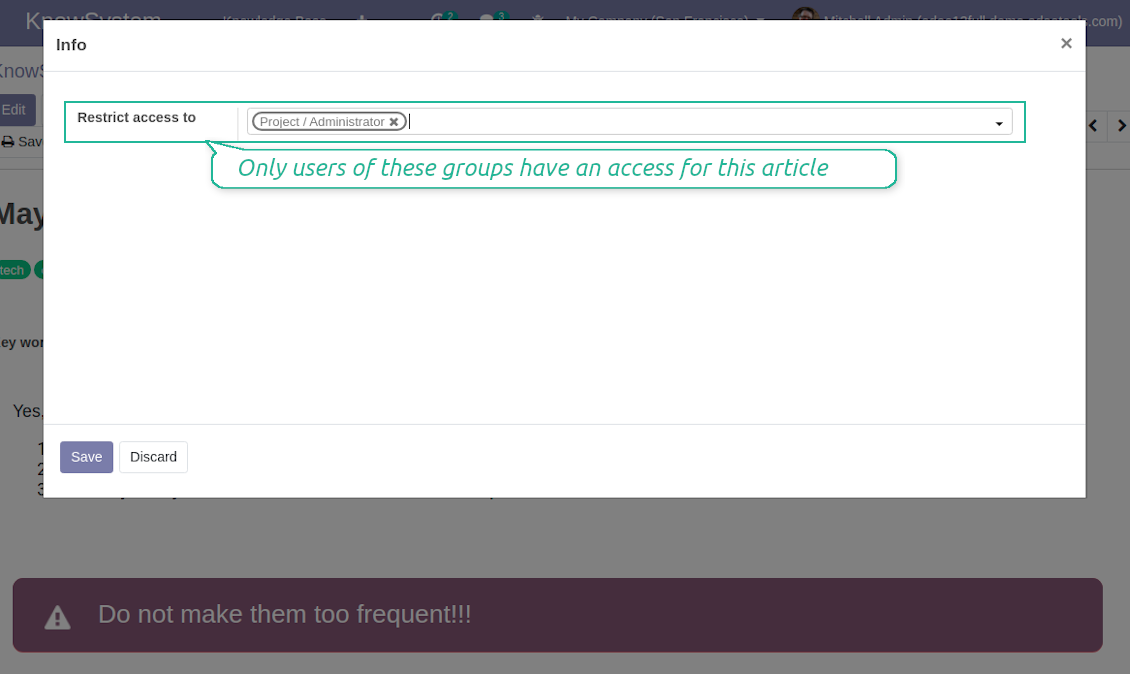
For the company employees: KnowSystem considers user groups which are defined per articles, sections and tours. Look at the tab 'Restrict to' on forms of those objects. If that field is not defined, a document is considered 'global': each internal user may read it.
For portal / public users: KnowSystem takes into account tags and whether an article is website published. A knowledge tag has a field 'Allowed partners', which may grant an access to portal users for articles with this tag. Website published pages are available for everybody.
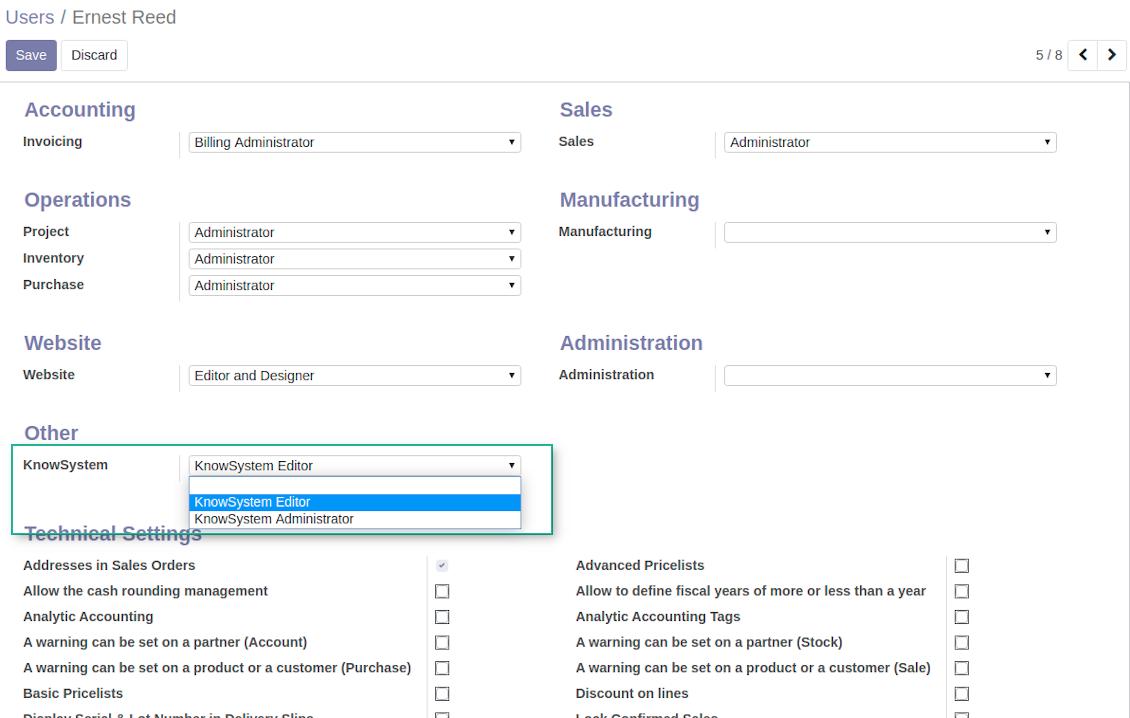
Rights to administrate KnowSystem belongs to 2 user roles: KnowSystem Editor and KnowSystem Administrator. If you want a user to create and edit articles, a user should belong to one of those groups.
|
|
Odoo user |
KnowSystem Editor |
KnowSystem Admin |
Portal user |
Public user |
| Articles | read related to his/her user groups and sections | read, create, edit, archive related to his/her user groups and sections | read, create, edit, delete any | read published articles and articles related to partner-related tags | read published articles |
| Sections | read related to his/her user groups | read, create, edit, archive related to his/her user groups and sections | read, create, edit, delete any | read all sections of available articles | read all sections of published articles |
| Tags | read any | read, create, edit, archive any | read, create, edit, delete any | read published ones | read published ones |
| Article Types | read any | read any | read, create, edit, delete any | read published ones | read published ones |
| Tours | read related to his/her user groups | read, create, edit, delete related to his/her user groups | read, create, edit, delete any | no access | no access |
| Misc | may like / dislike, add to favourites, print, take part in discussions | may configure options | may like / dislike an article |
|
Take also into account two peculiarities:
- Odoo user always may access an article of which he is an author disregarding further restrictions;
- Rights for section is defined not only according to this section but also according to all its parents. For example, if user can't access 'sales', he/she would not be able to access 'sales / crm' disregarding whether 'crm' is available for his/her user group.
Capturi Ecran
KnowSystem security levels
Manage access to this section and its articles
Manage portal access using tags
Manage access to this article
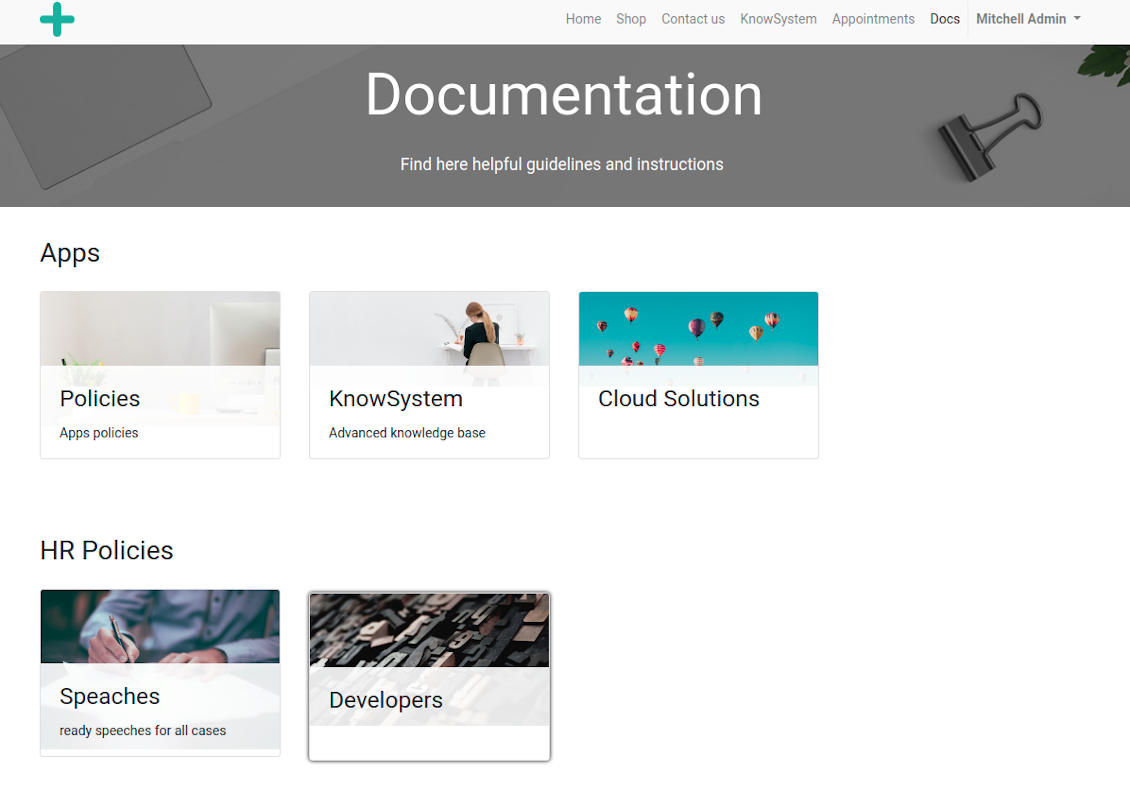
Website documentation builder
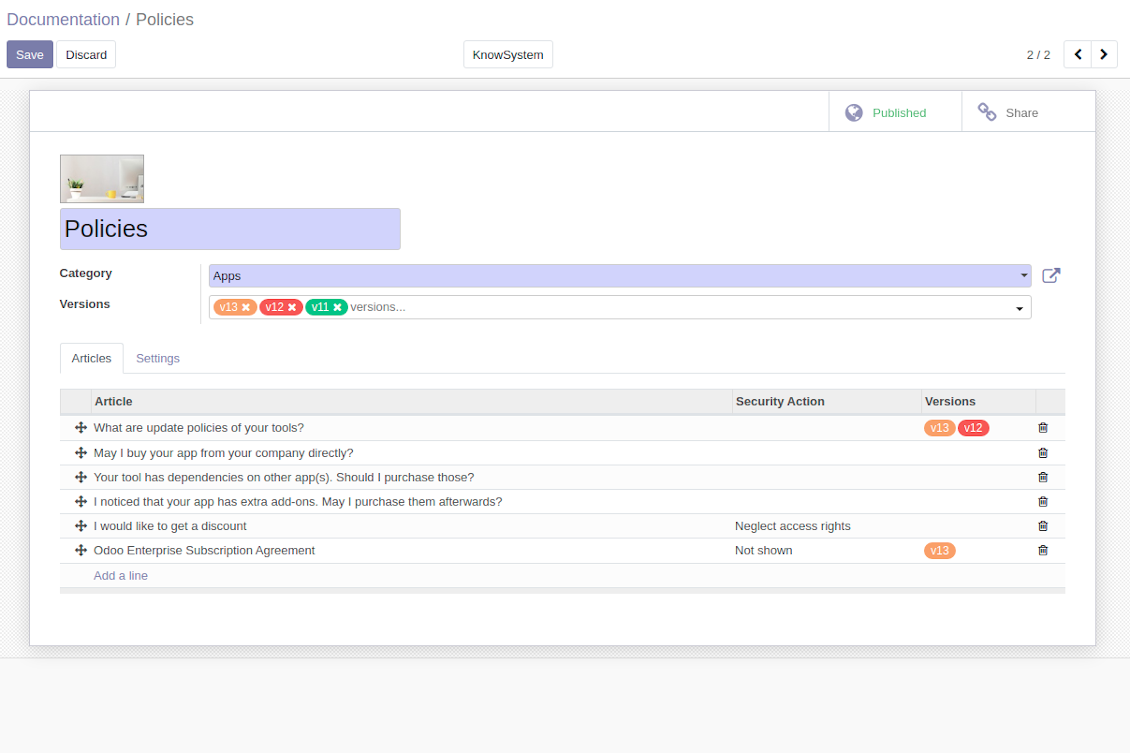
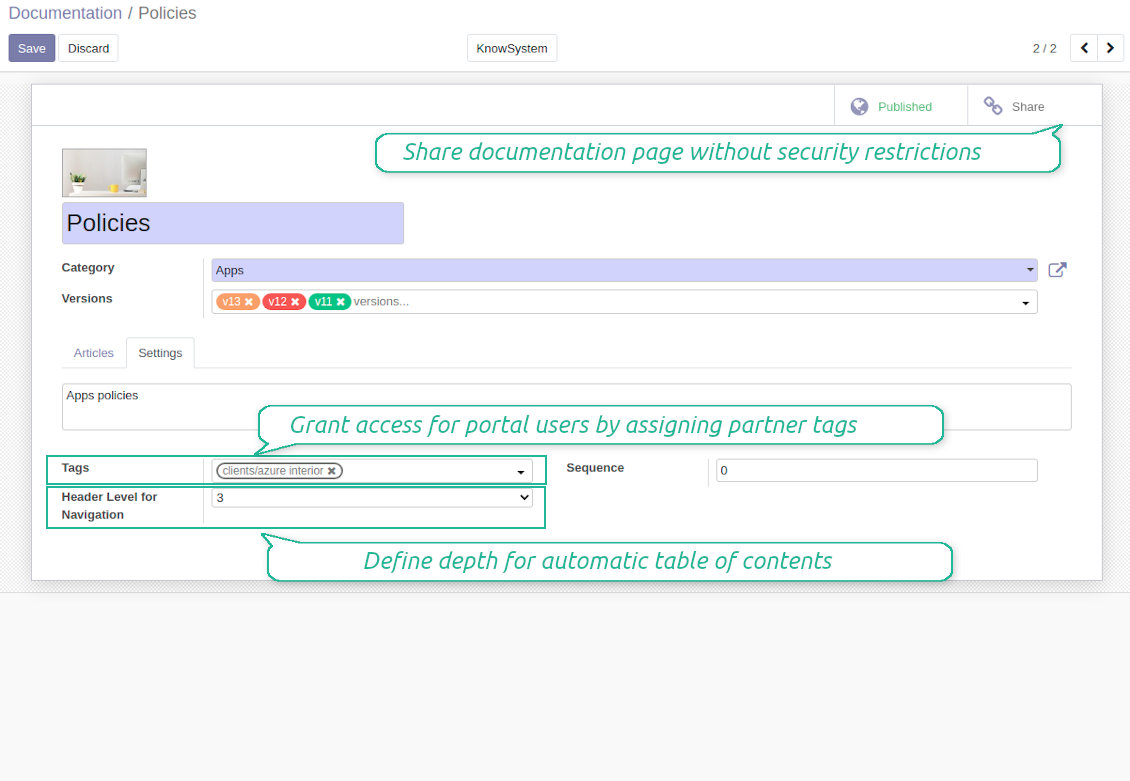
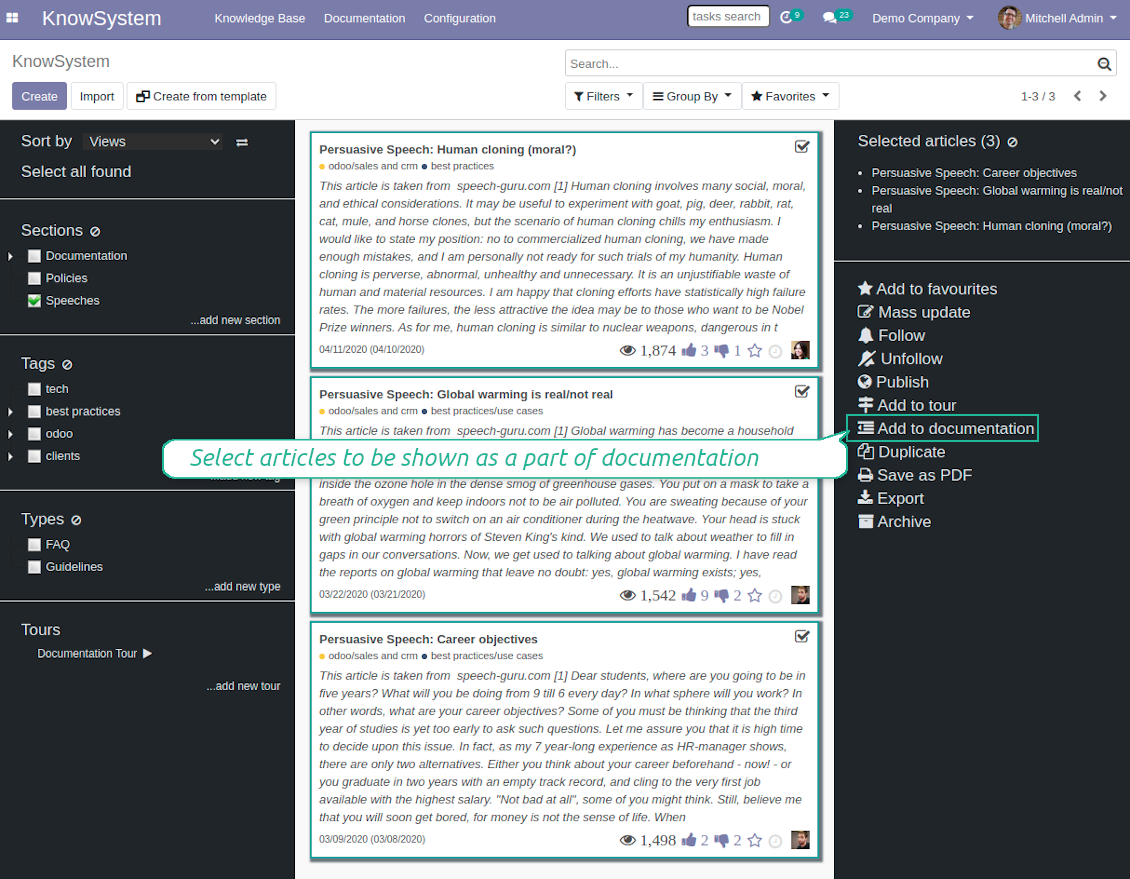
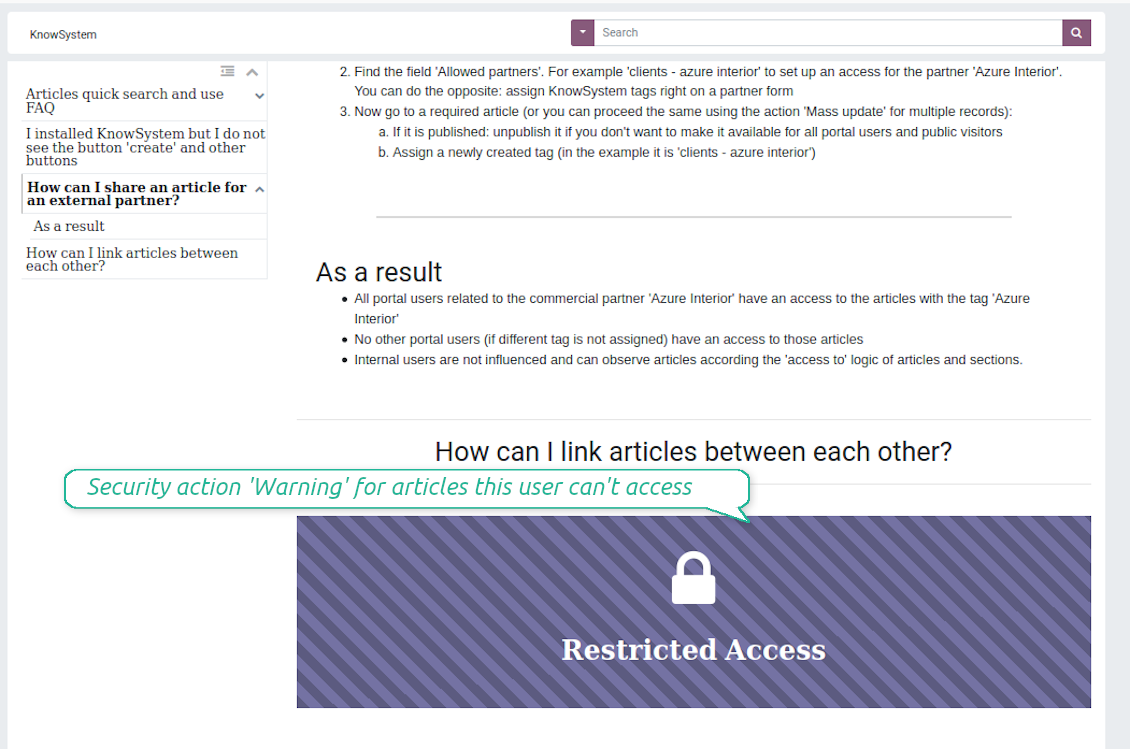
Capturi Ecran
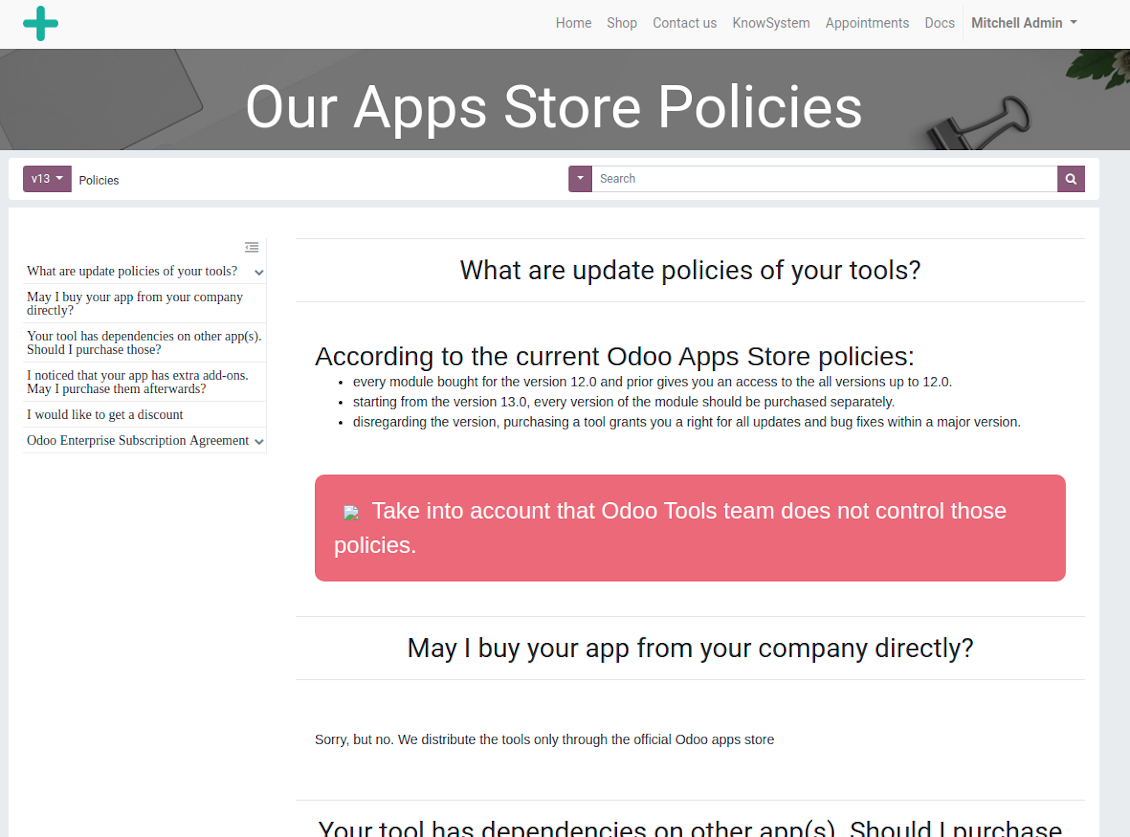
Documentation by categories and sections
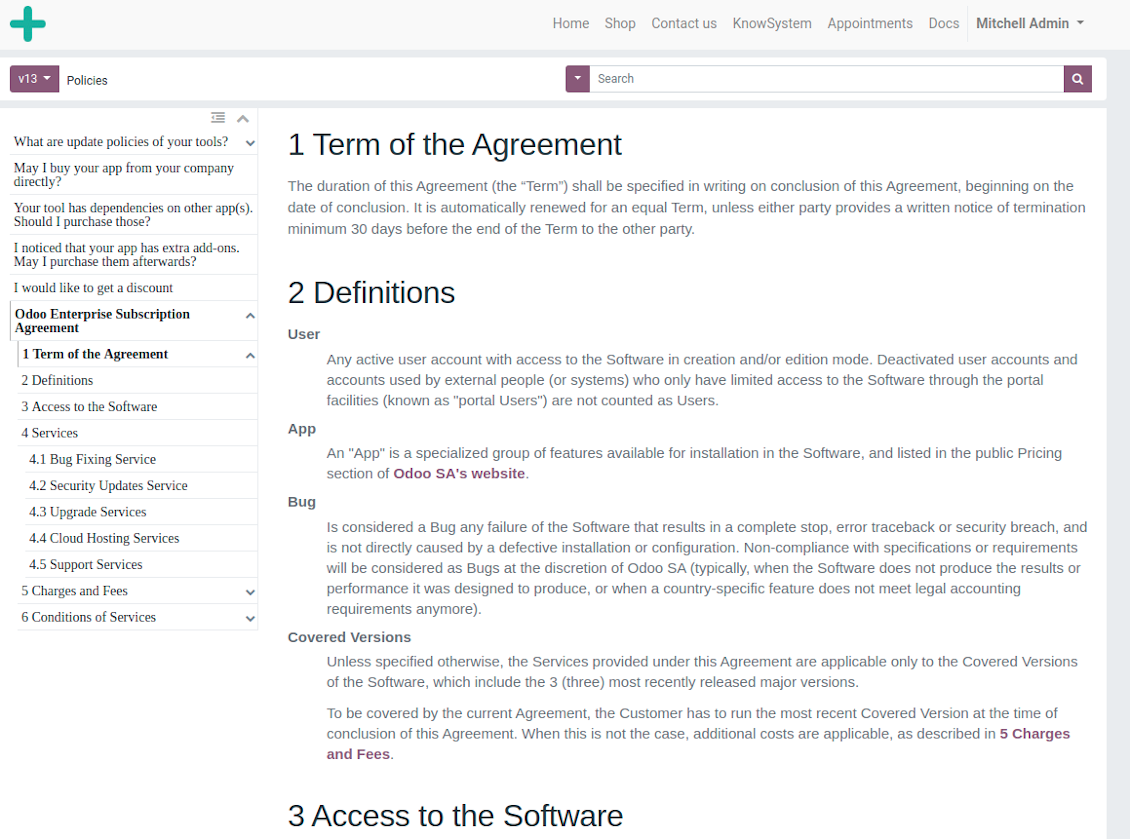
Documentation page
Automatic table of contents by documentation
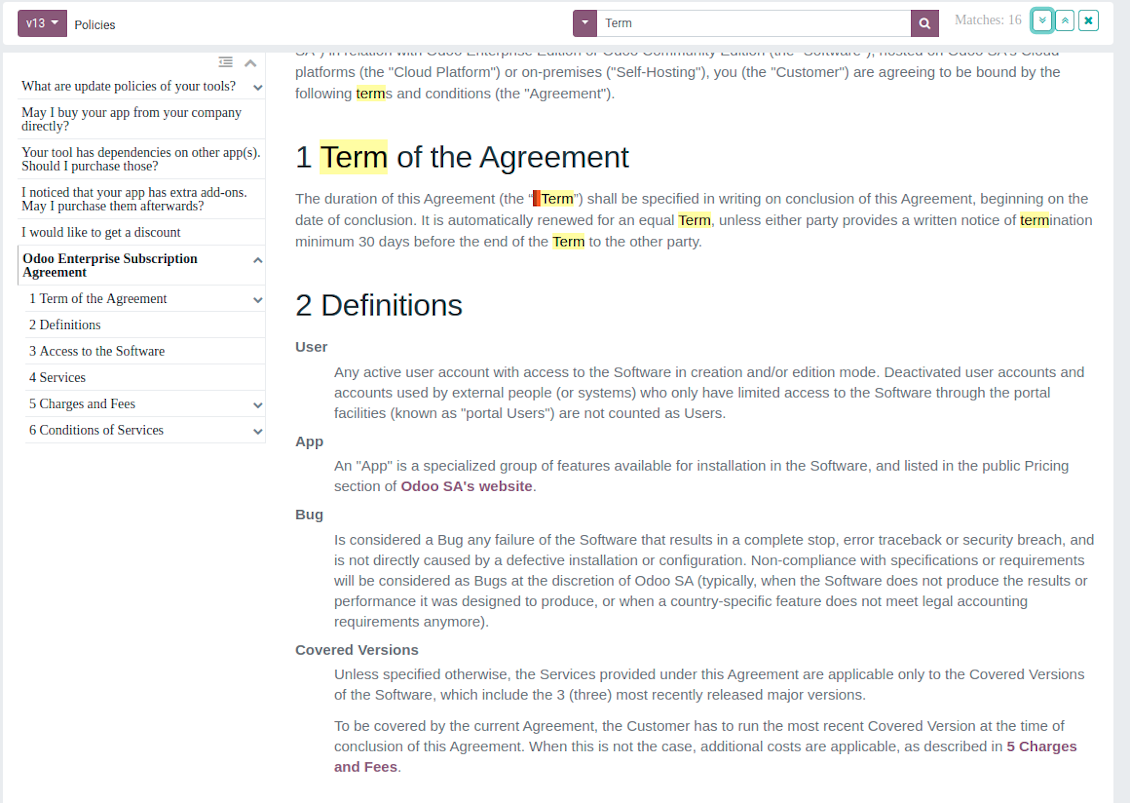
Inline search by documentation
Compose articles for documentation
Documentation settings
Add KnowSystem articles to documentation
Security: optionally show warning if no access possible
Create learning tours
How to configure a learning tour
- Turn on the option 'Tours'
- Go to KnowSystem interface and select articles to be included into a tour
- Press the mass action button 'Add to tour' and select or create a tour. Press save
- Re-order articles in a consistent order
- Define groups of users who should go through a tour on the tab 'Restrict access'
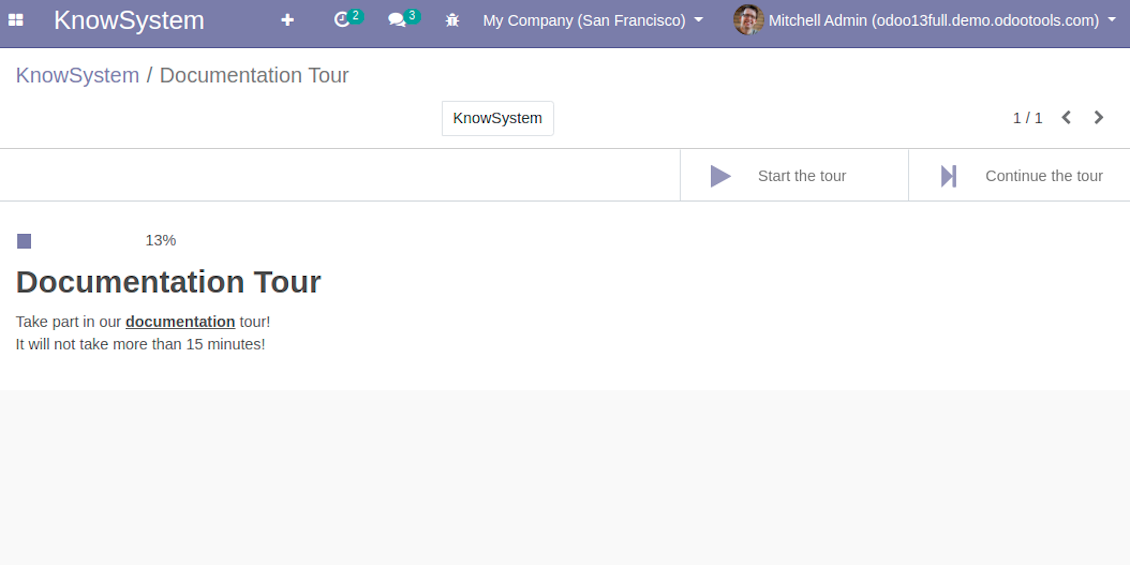
- Now users can see and launch tours right from the KnowSystem interface (the right navigation panel)
Capturi Ecran
KnowSystem tour welcome page
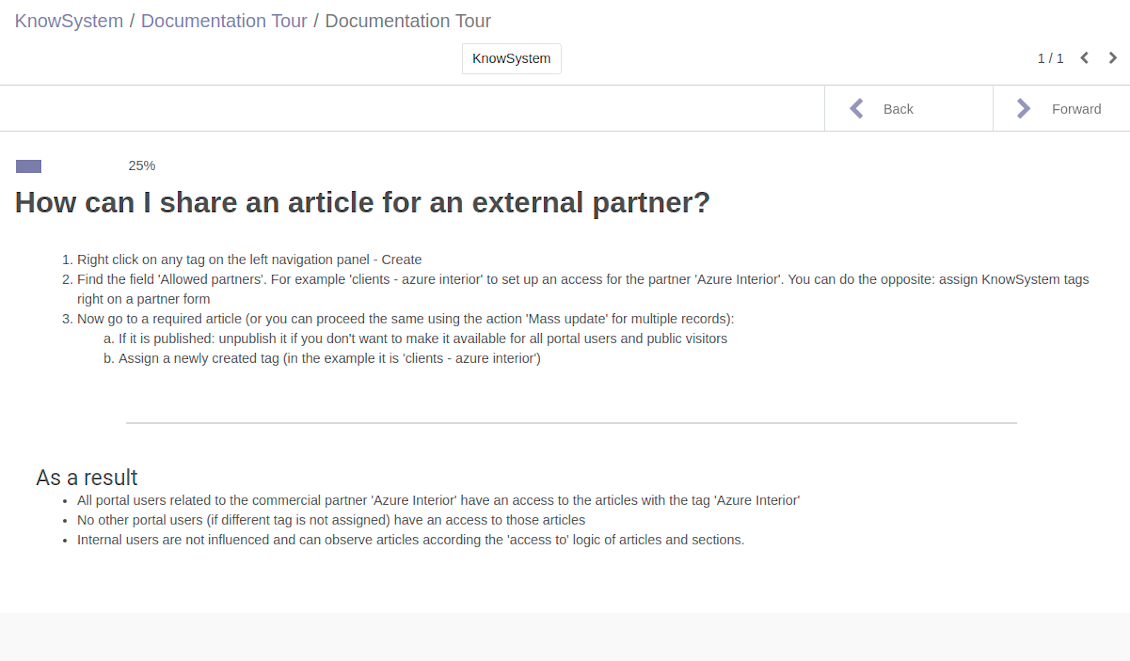
Article in a learning tour
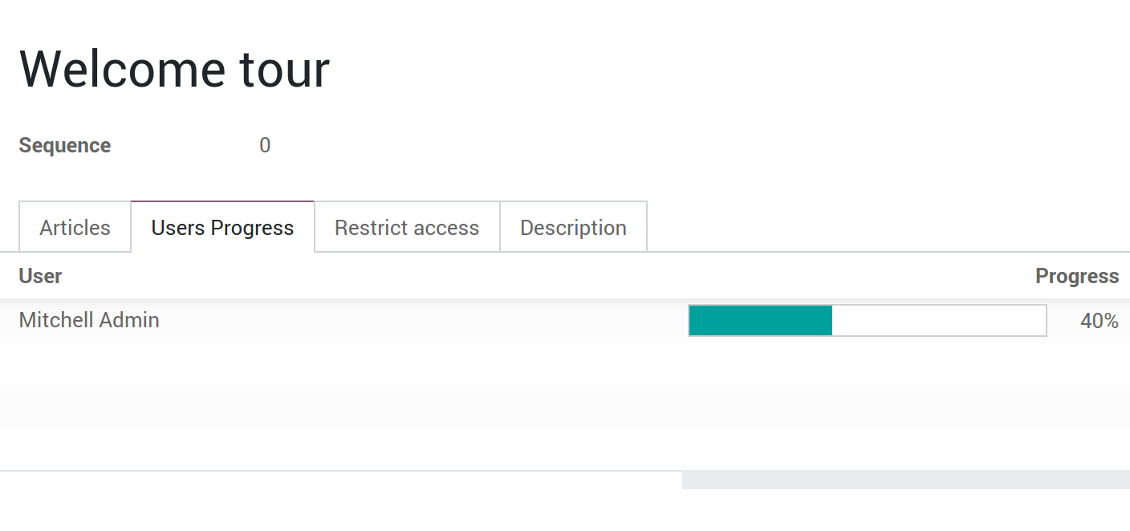
Control tour progress by users
Multilingual knowledge base
How to make an article available for a few languages
- Install the optional add-on 'KnowSystem: Multi Languages'
- Change your user language for a needed one
- Update this article
- Now it is available in both source and a current language
Make sure you really require a few languages. In that case you almost double the work of KnowSystem editors. All articles should be kept updated in all Odoo languages.
Knowledge base for any industry and business
Typical use cases
- Helpdesk: once faced a challenge, its solution might be recorded in KnowSystem for repeated usage by co-workers and for self-service by clients
- Sales & CRM: salesperson helper to find information about products, offers, frequently asked customer questions
- Project management: to keep and easily retrieve knowledge of existing solutions, tools, hints, and experiments
- HR: to prepare instructions, guidelines, learning tours and trainings, and any codified knowledge of routine in your company
- Marketing: to organize online library of product use cases, expert knowledge and well structured documentation
- Legal issues: systematize your policies, contract and approval managements, keep the full classifier of trademarks, licenses
- Informational technologies: share easy-reached manuals and configuration guidelines
Întrebări frecvente despre KnowSystem: Knowledge Base System Odoo v.13
Nu văd nicio diferență între textele reviziilor.
Reviziile înregistrează nu doar modificările de text, ci și actualizările de stil (tehnic, când schimbați codul sursă HTML al unui articol). Unele pot să nu fie clare la prima vedere (de ex. o dimensiune de font schimbată a unui singur cuvânt). Altele pot fi drastice. Totuși, orice set de acțiuni Editare > Schimbați ceva într-un articol > Salvare duce la o revizie nouă.
Pot adăuga un video YouTube/ Vimeo / Dailymotion / Youku într-un articol?
Da, puteți încorpora orice video din acele servicii în articole atât din interfața de administrare Odoo, cât și din constructorul de site. Adăugați orice bloc cu imagine > apăsați pe imagine > selectați ‘Video’ > introduceți URL-ul materialului.
Rețineți: astfel de video-uri sunt incluse ca iframe, iar unele browsere pot bloca redarea până când utilizatorul o permite explicit.
Cum fac o secțiune vizibilă pe site?
În KnowSystem, o secțiune devine vizibilă pe un site dacă este publicată și conține cel puțin un articol. Chiar cu subsecțiuni, nu va fi vizibilă dacă în secțiunea însăși nu există niciun articol. Astfel se evită secțiunile goale și portalul KnowSystem rămâne ușor de parcurs. Ca secțiunea să apară pe site, adăugați un articol introductiv sau general care descrie sau listează pe scurt articolele din subsecțiuni.
Cum partajez un articol pentru un partener extern?
Clic dreapta pe orice etichetă din panoul de navigare din stânga - Creare
Găsiți câmpul „Allowed partners”. De exemplu 'clients - azure interior' pentru accesul partenerului 'Azure Interior'. Puteți și invers: atribui etichete KnowSystem chiar pe formularul partenerului
Apoi mergeți la articolul necesar (sau procedați la fel cu acțiunea „Mass update” pentru mai multe înregistrări):
Dacă este publicat: anulați publicarea dacă nu doriți să fie disponibil tuturor utilizatorilor portal și vizitatorilor publici
Atribuiți eticheta nou creată (în exemplu este 'clients - azure interior')
Acum:
Toți utilizatorii portal asociați partenerului comercial 'Azure Interior' au acces la articolele cu eticheta 'Azure Interior'
Niciun alt utilizator portal (dacă nu este atribuită o altă etichetă) nu are acces la acele articole
Utilizatorii interni nu sunt influențați și observă articolele conform logicii „access to” a articolelor și secțiunilor.
Putem adăuga butonul de selectare a limbii pentru corpul articolului?
Butonul 'translate' nu este adăugat intenționat în corpul articolului de complementul opțional 'KnowSystem: Multi Languages'. Motivul: codul HTML este foarte greu de tradus în fereastra pop-up simplă presupusă de buton. Ar fi foarte puțin text de tradus și multe părți HTML (pe care translatorul le-ar putea și strica).
De aceea, pentru a redacta un articol într-o anumită limbă, autentificați-vă ca utilizator al acelei limbi. Poate fi un alt utilizator sau puteți schimba temporar preferințele utilizatorului curent. Apoi orice actualizare a corpului articolului se face în acea limbă.
De asemenea, puteți folosi butonul 'Copy from another translation' de sub corpul articolului, ca să preluați oricând conținutul din altă limbă (util dacă articolul a fost actualizat semnificativ într-o limbă).
Cum încorporez o altă pagină de site într-un articol
În acest scop puteți folosi iframe-uri. Comutați articolul în editorul de cod HTML brut și inserați, de exemplu, <iframe src="https://faotools.com/" style="width:100%;min-height:600px;"> </iframe>.
Am instalat KnowSystem, dar nu văd butonul „create” și alte butoane
Cel mai probabil nu ați acordat drepturi KnowSystem utilizatorului. Alegeți dreptul „KnowSystem Editor” sau „KnowSystem Admin” și reîmprospătați pagina. Butoanele de control ar trebui să apară.
Pot afișa un tur de învățare anume doar utilizatorilor aleși?
Da, aplicând un grup de utilizatori (de ex. 'Sales Manager') care trebuie să parcurgă acest tur. Dacă utilizatorul aparține grupului, va vedea turul. Dacă nu, turul nu apare. Funcționează la fel ca drepturile de securitate pentru articolele și secțiunile KnowSystem.
Țineți cont că dacă un tur nu are grupuri atribuite, este „global” și vizibil pentru toată lumea.
Cum schimb subsolul și antetul când tipăresc articole?
Antetul și subsolul PDF-urilor de articole se iau din machetele companiei. Consultați Settings > General Settings > secțiunea Business Documents. Acolo definiți șablonul de companie pentru toate tipurile de documente, inclusiv facturi, comenzi de vânzare etc., și pentru articole. Această abordare Odoo tratează subsolul și antetul ca stil general al companiei, nu ca atribut al unor tipăriri anume.
Cum legez articolele între ele?
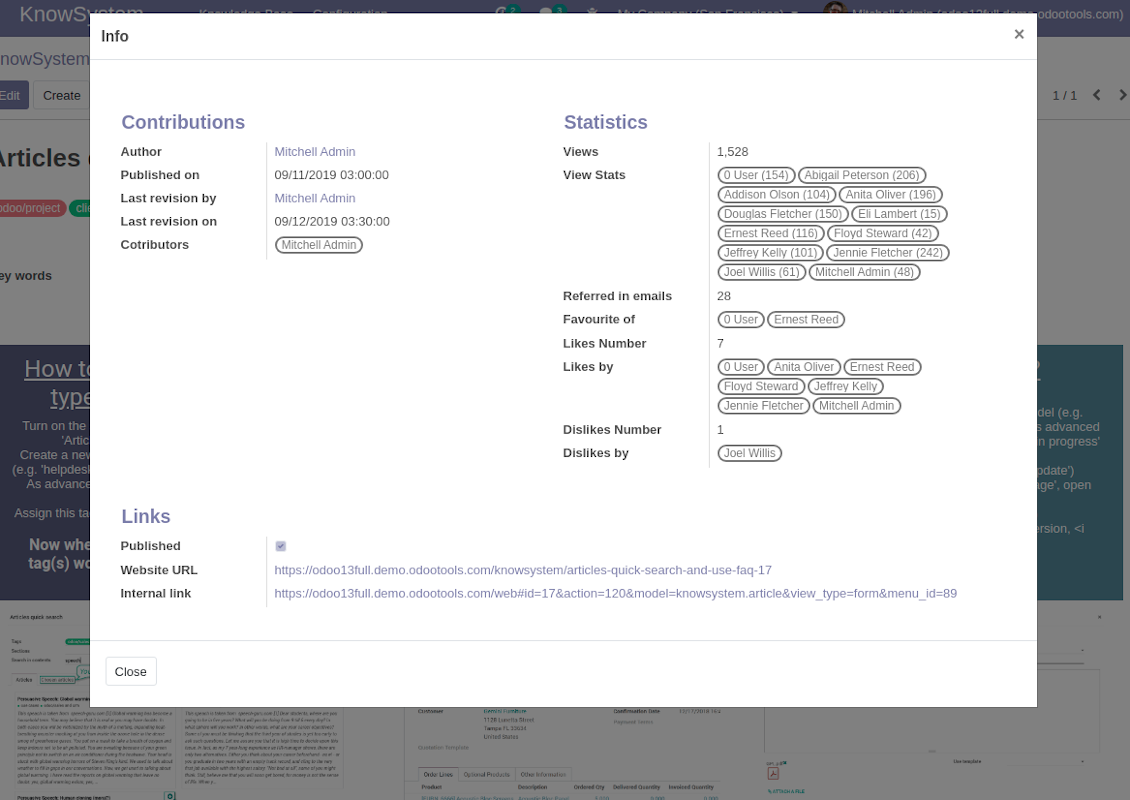
Fiecare articol are URL-uri interne (backend) și de site (dacă este instalată opțiunea 'KnowSystem: Website and Portal'). Faceți clic pe butonul 'Info' din formularul articolului pentru adresele de site ale acestei înregistrări. Puteți insera oricare în corpul articolului ca hiperlegătură.
Pot schimba codul sursă HTML al unui articol?
Da: activați debug assets (pe ecranul de prezentare a setărilor) și reveniți la articolul curent. În modul de editare veți vedea pictograma specială '</>'. Faceți clic pentru a vedea și edita HTML-ul și stilurile.
Care sunt politicile de actualizare ale instrumentelor dvs.?
Conform politicilor actuale Odoo Apps Store:
- Fiecare modul cumpărat pentru versiunea 12.0 și anterioară dă acces la toate versiunile până la 12.0.
- Începând cu versiunea 13.0, fiecare versiune de modul se cumpără separat.
- Indiferent de versiune, cumpărarea dă dreptul la toate actualizările și corecturile dintr-o versiune majoră.
Rețineți că echipa faOtools nu controlează aceste politici. Pentru întrebări contactați direct reprezentanții Odoo Apps Store.
Cum instalez aplicația dumneavoastră pe Odoo.sh?
Cea mai directă abordare este să folosiți fluxul încorporat al magazinului Odoo:
1. Deschideți pagina modulului și faceți clic pe butonul Deploy on odoo.sh
2. După aceea veți fi redirecționat la pagina GitHub. Conectați-vă la cont, apoi faceți clic pe 'Create a new repo' sau folosiți unul existent. Asigurați-vă că depozitul este privat. Nu este permisă publicarea aplicațiilor sub licența OPL-1. Dacă e necesar, creați un repo nou pentru proiectul Odoo.sh
3. Apoi mergeți la odoo.sh și faceți clic pe butonul Deploy. În fereastra pop-up trimiteți decizia și faceți clic pe 'Continue.' Această acțiune pornește instalarea.
Acești pași vor instala aplicația pe ramură de producție a proiectului. Dacă doriți să implementați aplicațiile pe alte ramuri sau să actualizați modulul, urmați acțiunile de mai jos:
1. Încărcați codul sursă al aplicației din magazinul Odoo
2. Faceți commit modulului în depozitul GitHub necesar. Asigurați-vă că niciun folder/fișier al aplicației nu este ignorat (adică nu este în .gitignore al repo-ului). Depozitele sunt create automat de odoo.sh și pot include implicit elemente esențiale (de ex. /lib). Încărcați toate directoarele, subdirectoarele și fișierele modulului, fără excepții
3. Implementați ramură țintă a proiectului odoo.sh sau, dacă setările presupun asta, așteptați până este construită automat.
Cum instalez aplicația dumneavoastră pe propriul server?
2. Reporniți serverul Odoo;
3. Activați modul dezvoltator (setări tehnice);
4. Actualizați lista de aplicații (meniul aplicațiilor);
5. Găsiți aplicația și apăsați „Activate”/„Install”;
6. Urmați ghidurile de pe pagina aplicației, dacă există.
Am observat că aplicația are extensii extra. Le pot cumpăra ulterior?
Da, desigur. Totodată Odoo adaugă automat toate dependențele în coș, deci trebuie să excludeți instrumentele deja cumpărate ca să evitați plată dublă.
Am implementat aplicația pe Odoo.sh și văd avertisment/eroare în teste
Un avertisment roșu/portocaliu nu influențează funcțiile aplicației. Din păcate, modulele noastre nu trec uneori testele automate standard, deoarece acestea presupun un comportament în conflict cu obiectivele aplicației. De exemplu, schimbăm calculul prețului, iar testele modulului Odoo standard compară prețul final cu un algoritm standard.
În primul rând, verificați funcțiile bazei implementate. Totul funcționează corect?
Dacă tot credeți că avertismentul afectează funcții reale, contactați-ne și trimiteți jurnalele complete de instalare și lista completă a modulelor implementate (inclusiv nucleu și terțe părți).
Pot cumpăra aplicația direct de la compania dvs.?
Nu, distribuim instrumentele doar prin magazinul oficial de aplicații Odoo.
Aș dori să primesc o reducere
Din păcate, nu avem mijloace tehnice pentru a oferi prețuri individuale.
Pot instala aplicația pe baza mea Odoo Online (SaaS)?
Nu, aplicațiile terțe nu pot fi folosite pe Odoo Online. Din păcate Odoo SaaS blochează această posibilitate.
Instrumentul dvs. are dependențe de alte aplicații. Trebuie să le cumpăr?
Da, instrumentul necesită toate modulele marcate în dependențe pentru a funcționa corect. Prețul de pe pagina aplicației include deja toate dependențele necesare.
Care este prețul modulului în dolari SUA? De ce s-a schimbat?
Prețul modulelor noastre este în euro. Magazinul Odoo convertește prețurile în alte monede după cursul intern. Astfel, prețul în dolari SUA se poate schimba când se actualizează cursul.
Textele aplicației și ale site-ului în alte limbi decât engleza sunt asistate de IA și aliniate cu traducerile oficiale Odoo. Dacă observați o greșeală, trimiteți un tichet de corectitudine a traducerilor și o vom corectă.
Raportarea erorilor
Dacă întâmpinați erori sau comportament inconsecvent, nu ezitați să ne contactați. Garantăm corecturi în 60 de zile de la cumpărare și suntem interesați să îmbunătățim instrumentele și după această perioadă.
Nu aveți nevoie de număr de telefon sau card de credit pentru a ne contacta. Este suficientă o înscriere scurtă prin e-mail, care nu durează mai mult de 30 de secunde.
Includeți cât mai multe detalii în cerere: capturi de ecran, jurnalele serverului Odoo, o descriere completă a reproducerii problemei și așa mai departe. De obicei, durează câteva zile lucrătoare pentru a pregăti un plan de lucru (dacă un defect este confirmat) sau pentru a vă oferi indicații despre ce trebuie făcut (în caz contrar).
Cereri publice de funcții și idei de module (dezvoltare gratuită)
Suntem puternic motivați să ne îmbunătățim instrumentele și am fi recunoscători pentru orice feedback. Dacă cerințele dvs. sunt de interes public și pot fi implementate eficient, echipa le va include în lista noastră de sarcini.
O astfel de listă de sarcini este prelucrată regulat și nu presupune taxe suplimentare. Deși nu putem promite termene și un design final, poate fi o cale bună de a obține funcțiile dorite fără investiții și riscuri.
Nu aveți nevoie de număr de telefon sau card de credit pentru a ne contacta. Este suficientă o înscriere scurtă prin e-mail, care nu durează mai mult de 30 de secunde.

Instrumentul pentru a structura flexibil atașamentele Odoo în foldere și a sincroniza directoarele cu clienți cloud: Google Drive, OneDrive/SharePoint, Nextcloud/ownCloud, Dropbox, Amazon S3, Box și NAS. DMS. Manager de fișiere. Sistem de gestiune a documentelor
398€
Instrumentul pentru sincronizarea automată bidirecțională a atașamentelor Odoo cu fișierele OneDrive
487€
Instrumentul pentru sincronizarea automată bidirecțională a atașamentelor Odoo cu fișierele Google Drive
487€
Instrumentul pentru păstrarea în siguranță a parolelor în Odoo pentru utilizare partajată. Seifuri partajate

Instrumentul pentru a seta ținte KPI și a controla îndeplinirea lor pe perioade. Tablouri de bord KPI. Designer de tablouri. Grafice KPI

Instrumentul pentru gestiunea serviciilor pe bază de timp, de la rezervarea programărilor până la vânzări și recenzii
398€
Instrumentul pentru a gestiona Odoo din chat-urile AI preferate prin MCP. Claude. Orice AI care suportă MCP.

Instrumentul pentru traducerea adreselor URL ale paginilor de site Odoo
38€
Instrumentul pentru combinarea evenimentelor Odoo diferite în câteva supercalendare configurabile