KnowSystem: Knowledge Base System v.13
The tool to build deep and structured knowledge base for internal and external use. Knowledge System. KMS
- a core of knowledge management. It might be used stand-alone as a complete internal knowledge base system. Selle hind on 398€.
- an optional module, which let you publish articles to website, share them with portal users, and use website builder to update articles. The features assumed by this add-on are marked by the icon . Selle hind on 40€.
- an optional extension to KnowSystem: Website and Portal to design website documentation pages based on knowledge base articles. The features assumed by this add-on are marked by the icon . Read the full description on the related page. Selle hind on 60€.
- an optional module, which let you add and show custom fields for articles (backend). The features assumed by this add-on are marked by the icon . Selle hind on 48€.
- an optional free module, which shows custom fields on website and portal pages (frontend). The features assumed by this add-on are also marked by the icon .
- an optional module, which let you translate articles, sections and tags for installed in Odoo languages. The features assumed by this add-on are marked by the icon . Selle hind on 10€.
Innovative single-view interface
From the same interface editors may create and update any knowledge-related documents, change articles in batch, set up security. Without a need for excess navigation.
Interface solutions
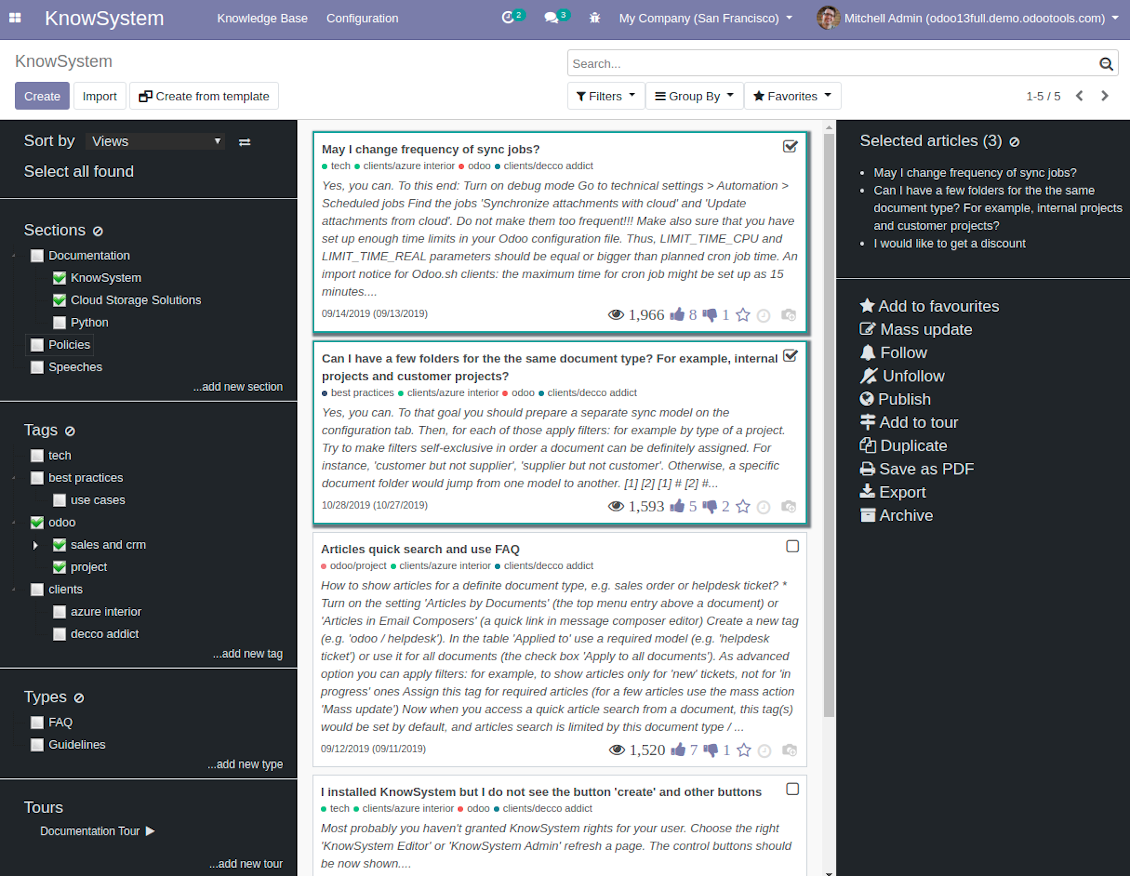
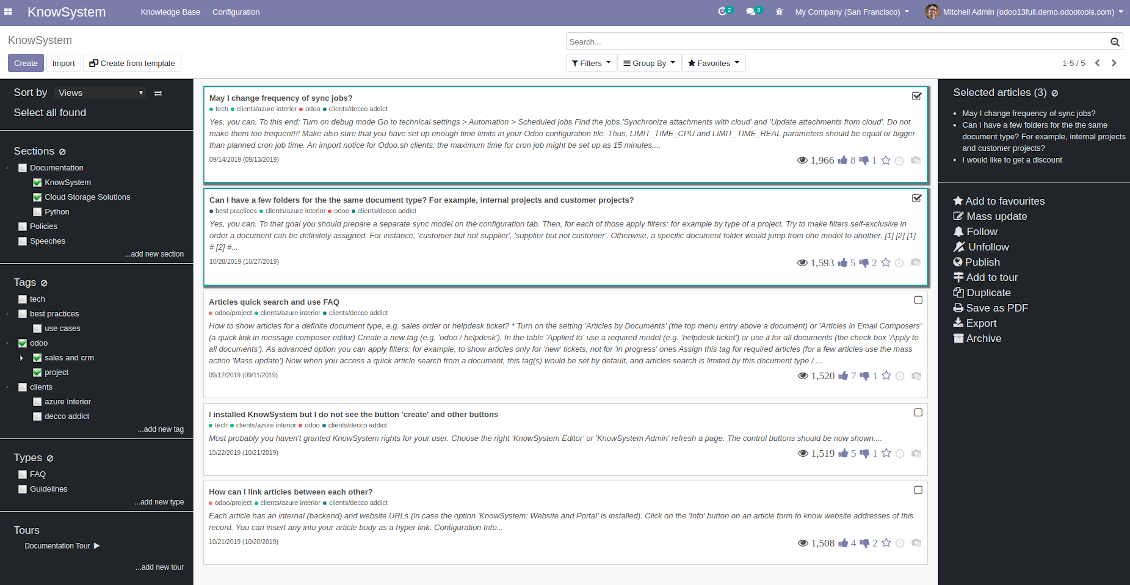
The KnowSystem interface consists of 3 key parts: the left navigation panel, the list of articles, and the right navigation panel (it is shown only if some articles are selected).
On the left navigation panel you may:
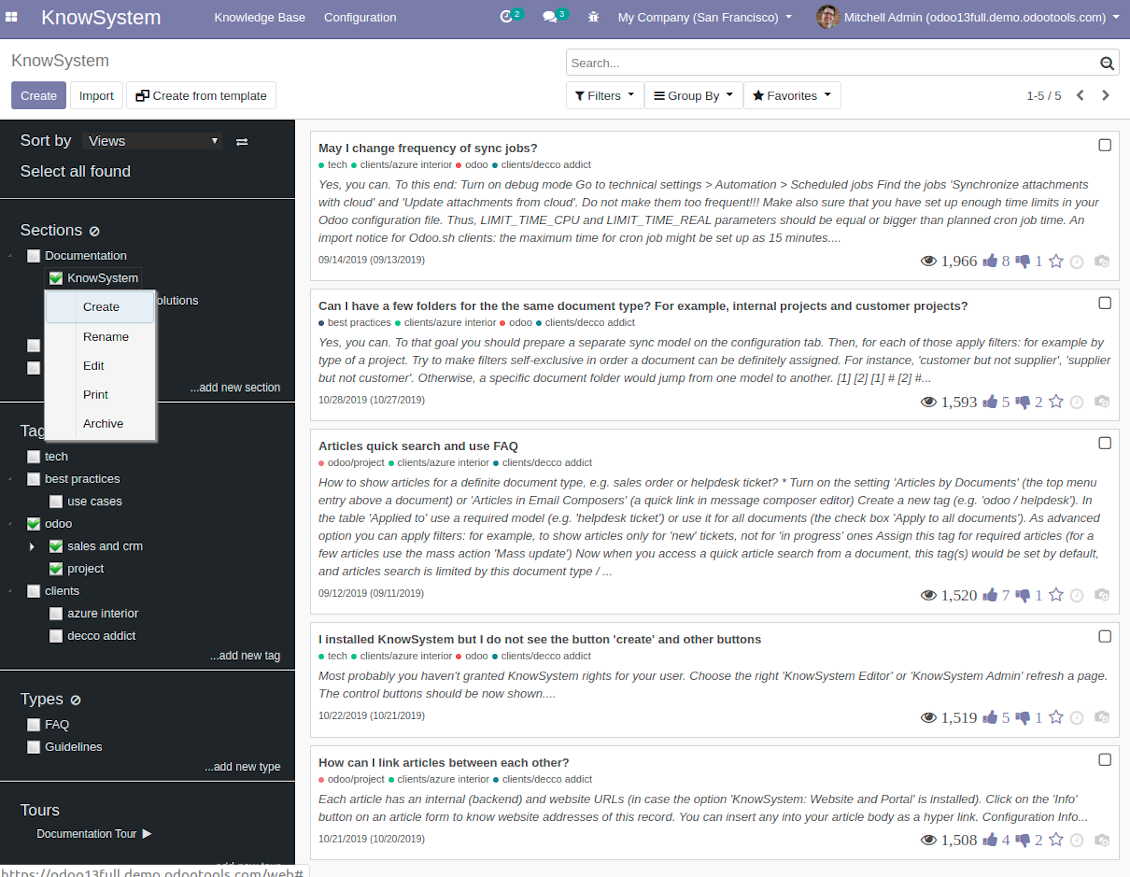
- Manage hierarchy of sections: prepare new (right mouse click - 'create'), update existing (right mouse click - edit), re-order any (drag and drop an item), archive sections. Select a few ones to filter articles. You may also print all articles related to this section as a single PDF file.
- In the same way manage hierarchy of tags and article types.
- Sort articles by number of views, a score of likes and dislikes, create or update dates, a section, an author.
- Select all articles which are found according to chosen tags / sections and according to introduced searches / filters.
- Launch a learning tour.
From the list of articles you see articles' name, indexed content (words without HTML style), dates of creation and last update, a number of views, likes, dislikes, author avatar. Here you may also add an article to favourite by pressing the 'star' icon.
Click on article body to open it in a full size (form view). Do not worry: chosen tags and sections as well as selected articles will be kept when you get back! Click on the top right check box to add an article for selection.
On the right navigation panel you observe selected articles and may proceed a mass action. Click on article name to remove it form selection.
On the top of the interface users also would find a standard Odoo omnibox. Type here to search by a title, content, an author, tags or a section.
Available mass actions
KnowSystem let users update an unlimited number of articles simultaneously:
- Assign new section
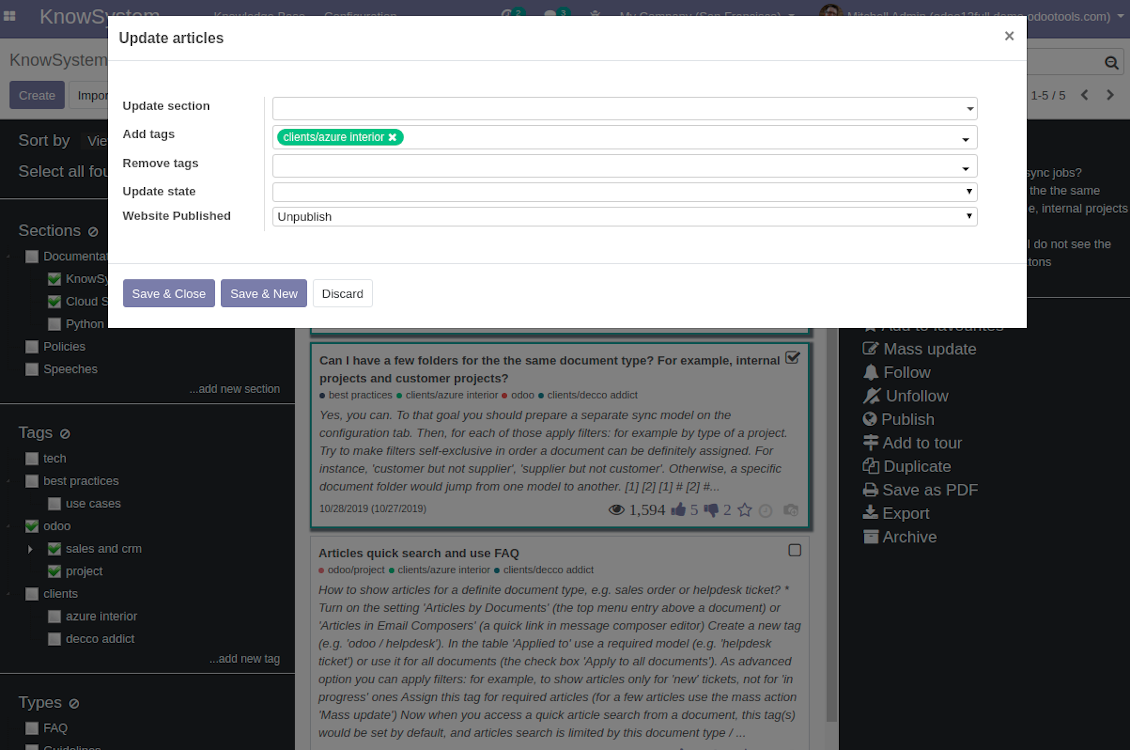
- Change or remove tags
- Print multiple articles as a single PDF
- Follow / unfollow discussions
- Publish / unpublish articles
- Export articles to an Excel table
- Archive or restore records
- Add articles to learning tours
- Mark knowledge items as favourite
- Duplicate articles.
Ekraanipildid
KnowSystem Interface
Single entry for knowledge management actions
Knowledge Base overview
Article info and statistics
KnowSystem configuration
Mass actions for selected articles
Fast, comfortable, and professional knowledge recording
By using templates with pre-defined styles you may also speed knowledge generation up and standardize articles' appearance.
How to use the website builder for editing articles
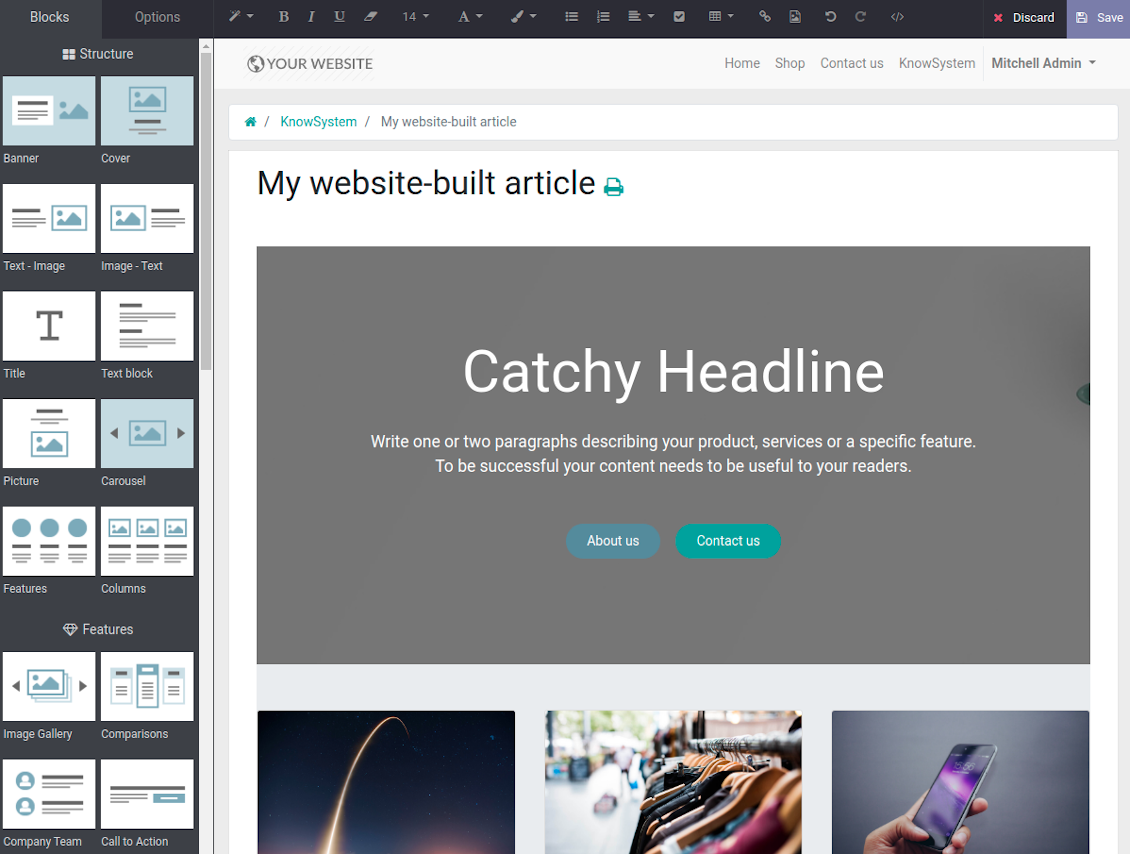
KnowSystem provides you with a backend articles' builder, which is comfortable and safe to use. Odoo website builder is richer in features to prepare complex HTML structures. To edit articles through the website:
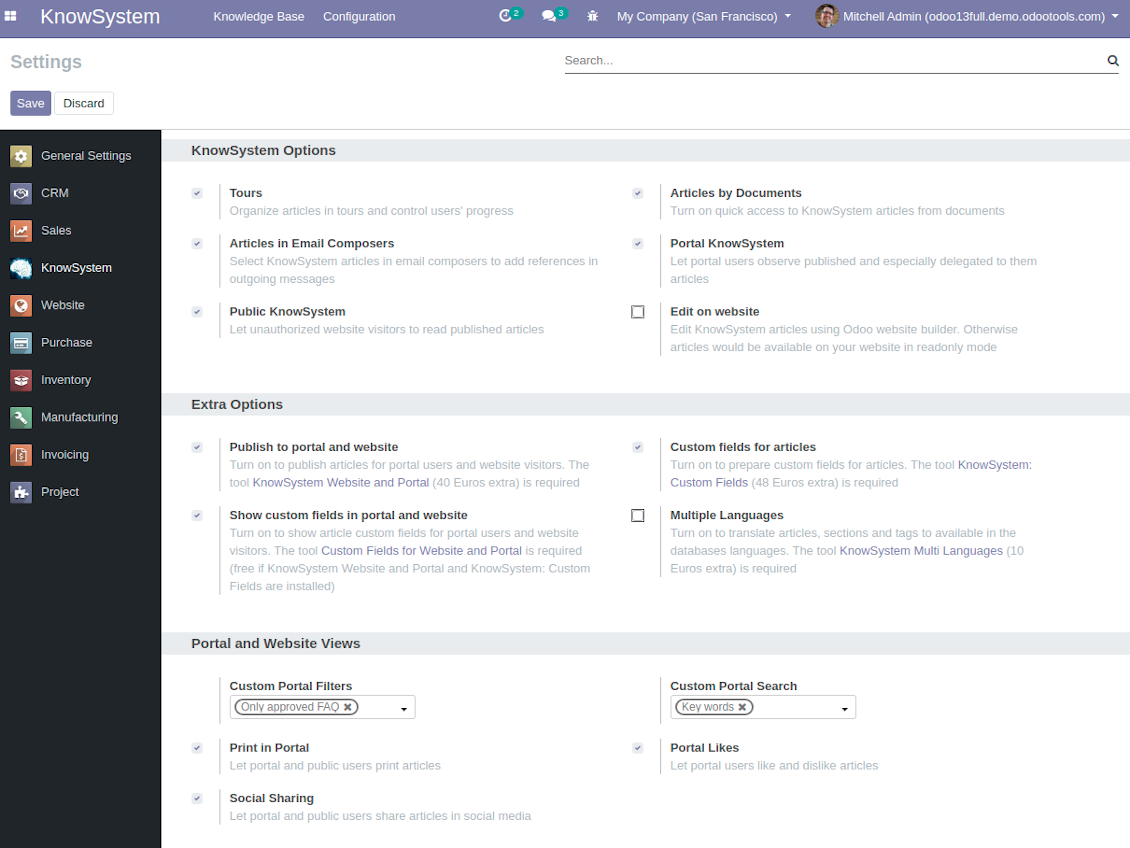
- Install the optional add-on 'KnowSystem Website and Portal' (the option 'Publish to portal and website')
- Turn on the setting 'Edit on website'
- Push the button 'Edit on website' on this article form
Be cautious: if you are going to print this article or add its contents to emails, website building blocks are not suitable. Their advanced styles contradict printing and composer layouts and would not be correctly shown. In such a case use the safer backend builder.
How to use article templates
To prepare a new article template for repeated usage:
- If you already have an article to be used as template: push the button 'Actions > Make template', edit and save a new template.
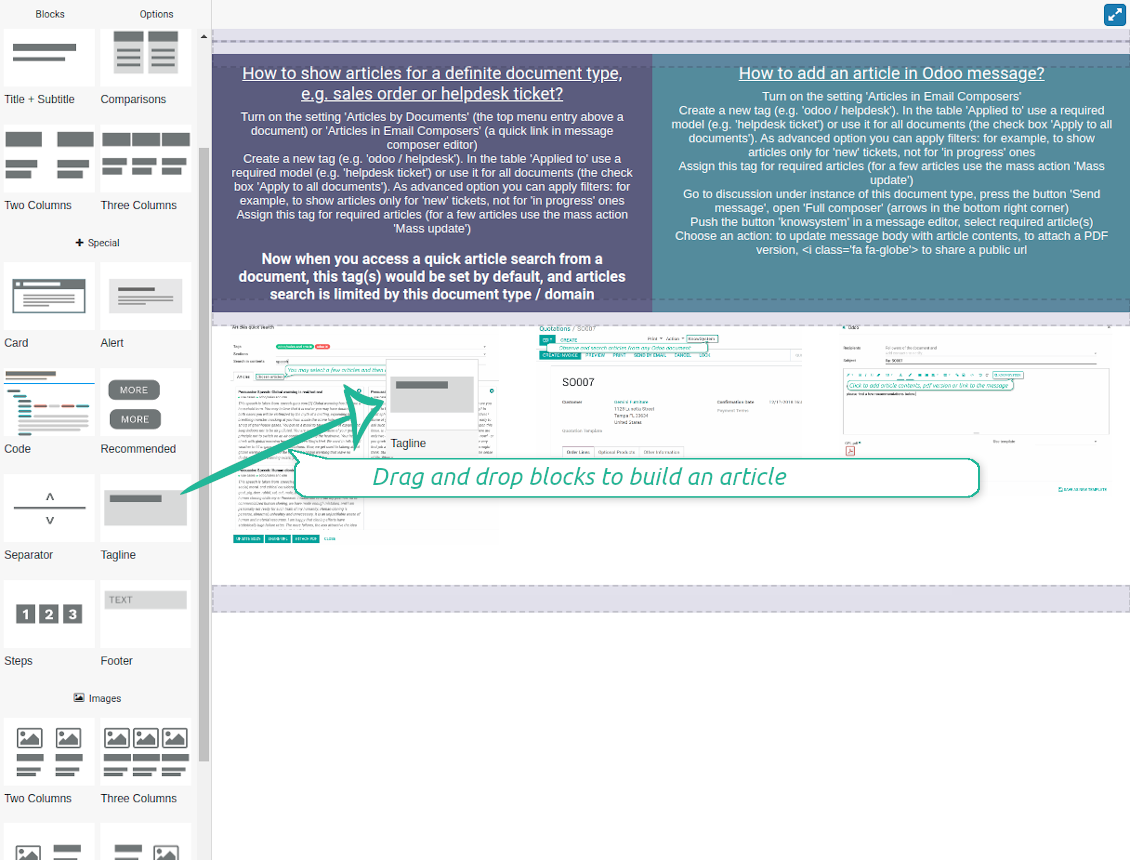
- If you wanted to prepare a brand new template, go to KnowSystem > Configuration > Templates and prepare a new one using building blocks.
To use a template to write a new article:
- Push the button 'Create from template' from KnowSystem kanban or form views
- Select a required article template
- Push 'Create' and introduce changes to a new article.
Ekraanipildid
Comfortable article customization
Building blocks for knowledge base articles
Article read mode
Use website builder to edit articles (bad for backend usage)
Get benefit from your knowledge
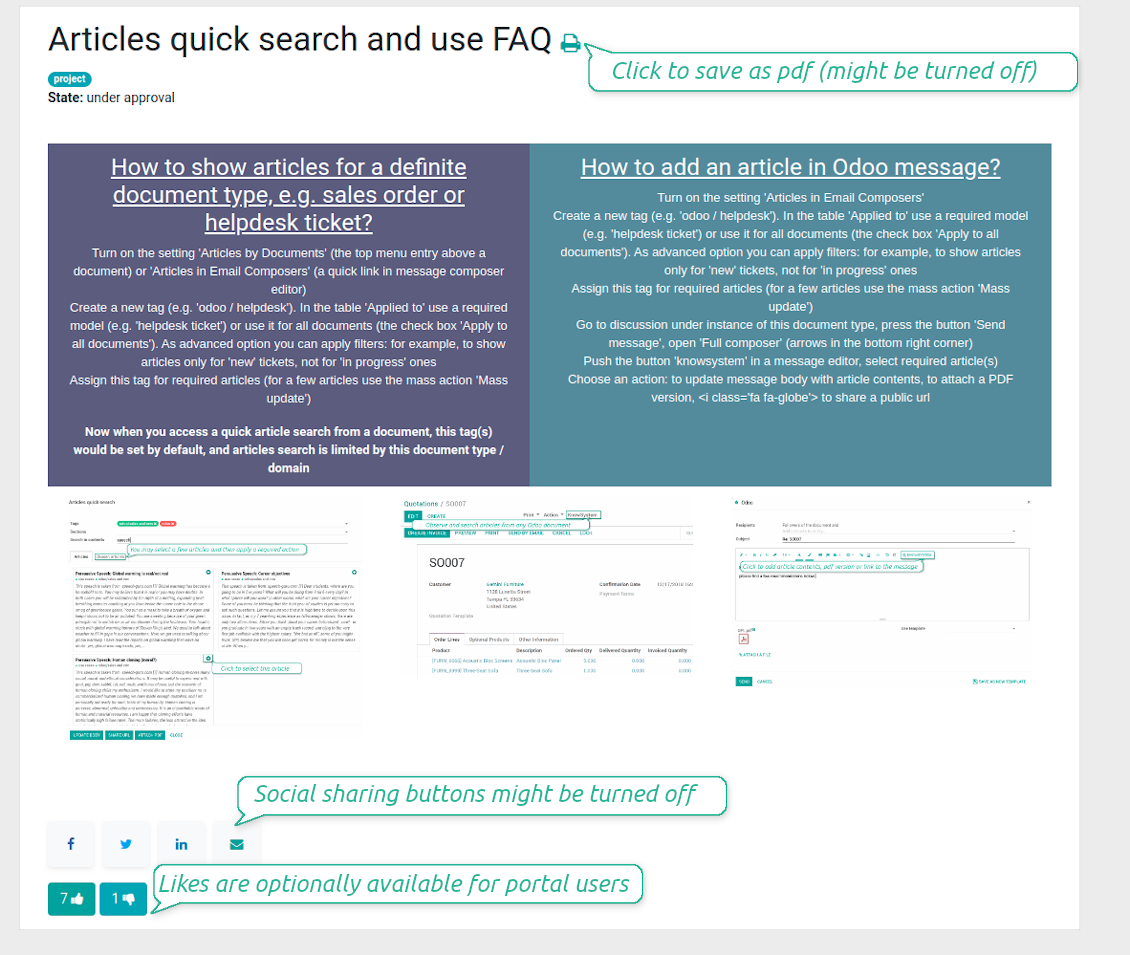
How document types and articles are linked for a quick access
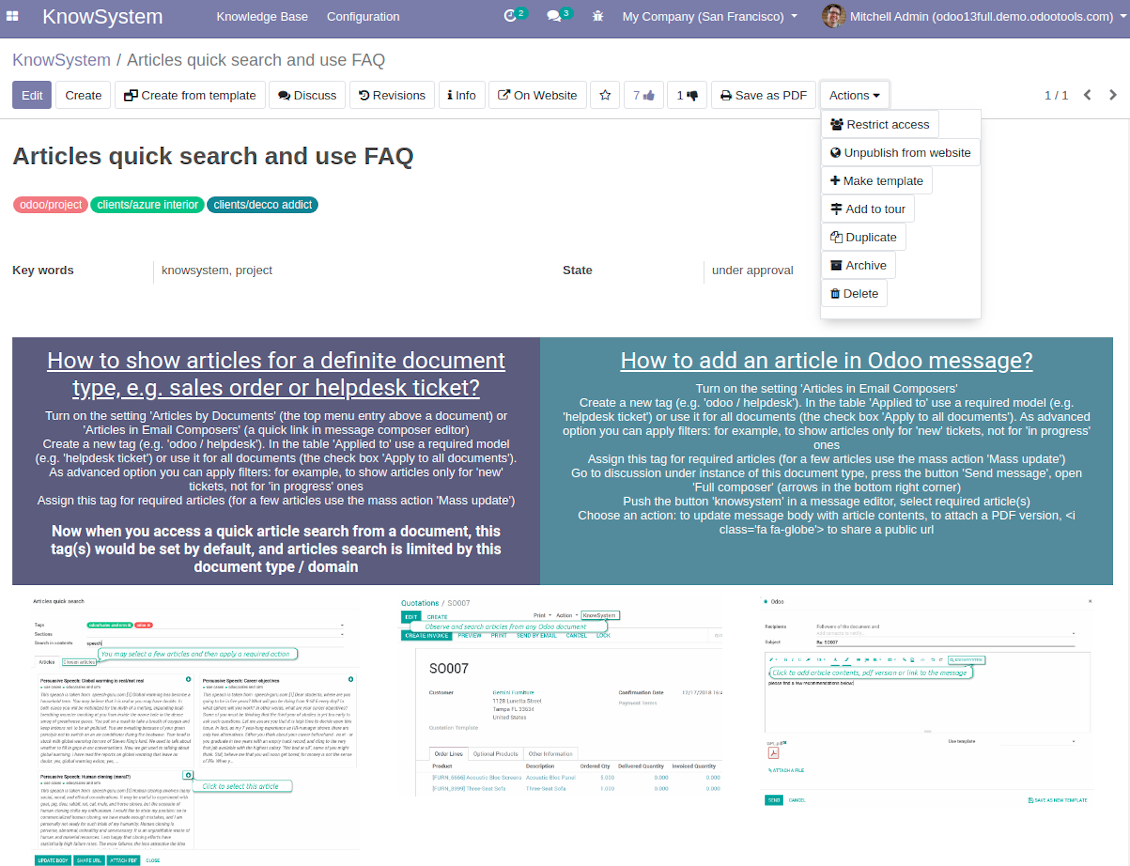
Experience is not general, usually it relates to specific issues. Knowledge used for customer communication differs from suppliers' negotiations. Frequently asked questions for draft and confirmed sale orders vary. KnowSystem let you structure your articles to apply them in a correct place and at right time. To that end:
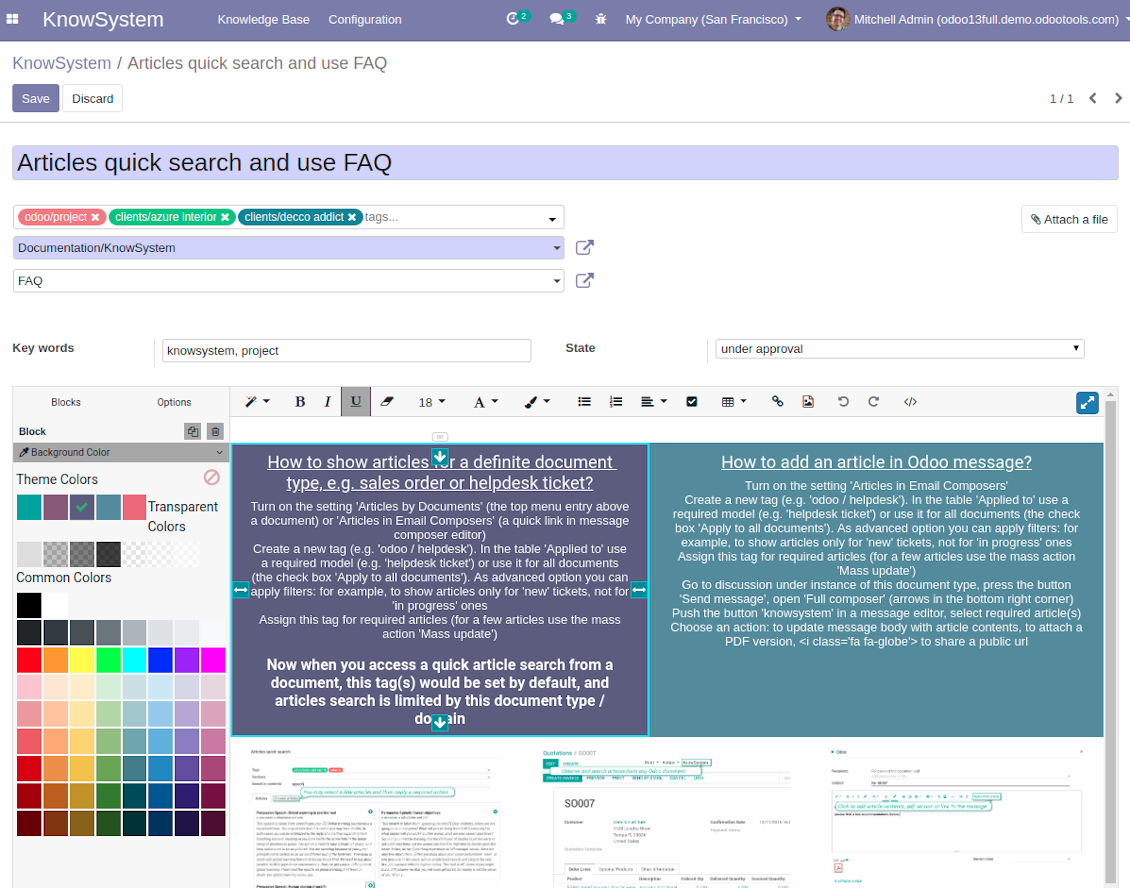
- Turn on the setting 'Articles by Documents' (the option shows the top menu entry above any Odoo document) or 'Articles in Email Composers' (the option adds a quick link in a message composer editor for citing)
- Create a new tag (e.g. 'odoo / helpdesk'). In the table 'Applied to' use a required model (e.g. 'helpdesk ticket') or use it for all documents (the check box 'Apply to all documents').
- As advanced option you may apply additional filters: for example, to show articles only for 'new' tickets, not for 'in progress' ones. Use dynamic filters' constructor for that goal
- Assign this tag for required articles. For a few articles use the mass action 'Mass update'
- Now when you access a quick article search from a document or from an email composer, Odoo will calculate KnowSystem tags for this document. That's why by default users would see only articles suitable for a current document. Simultaneously, they might always change tags to use other knowledge base data.
How to overview articles which might be useful for this document
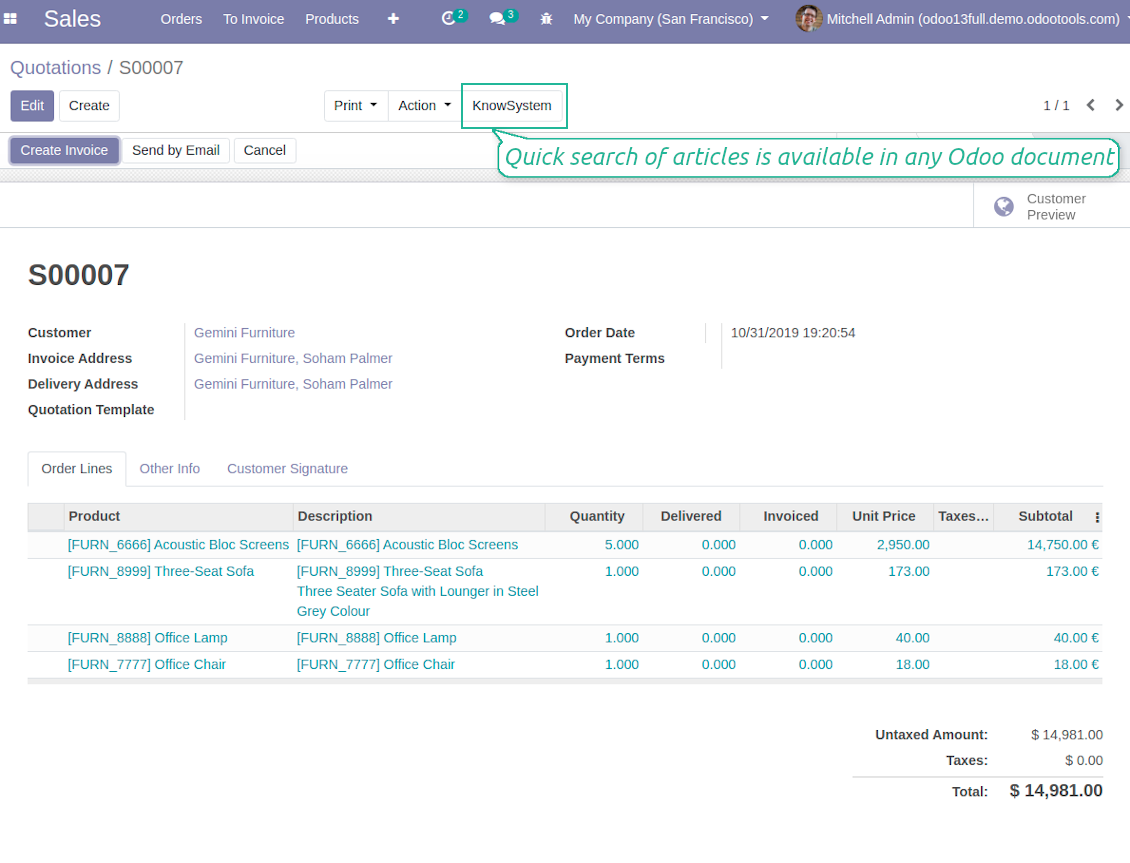
As soon as you turned on the option 'Articles by Documents', on the top of each Odoo object form view there would be a quick link 'KnowSystem'.
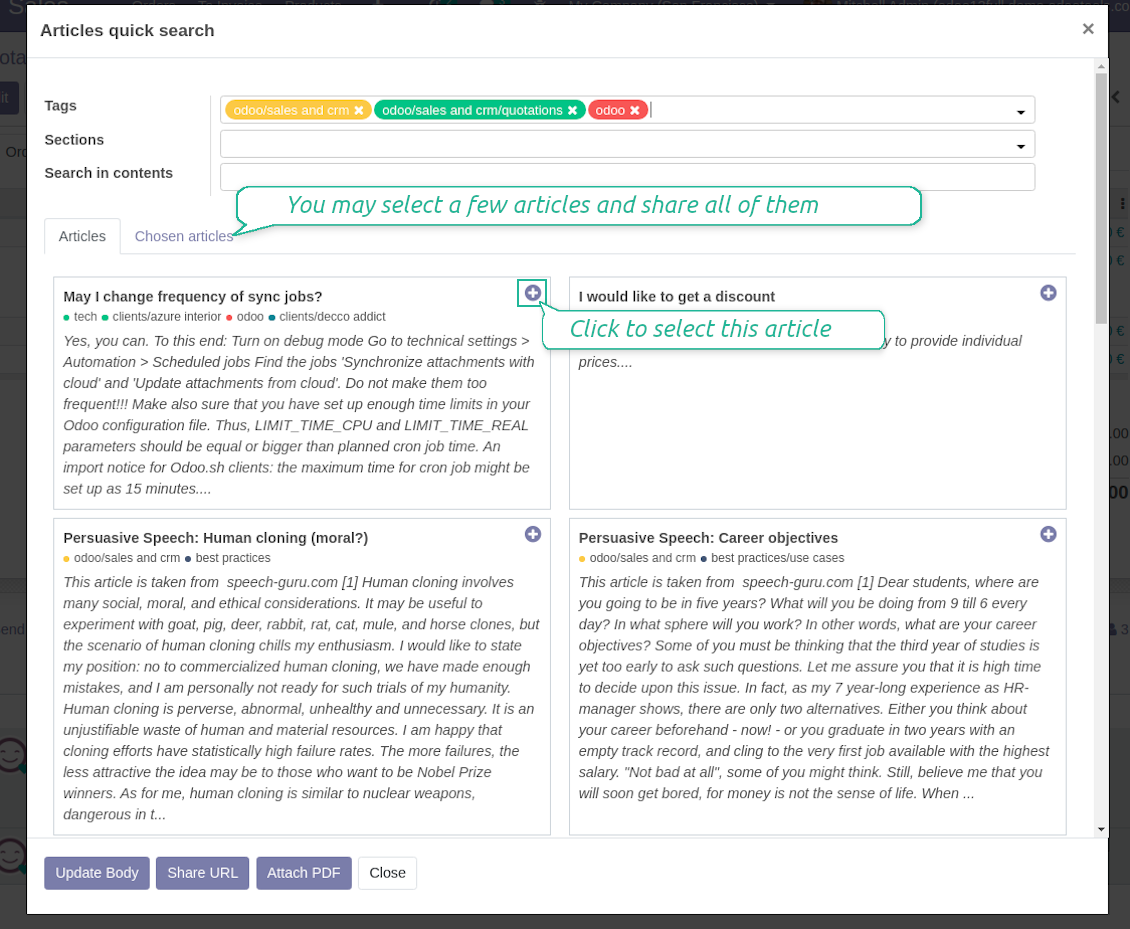
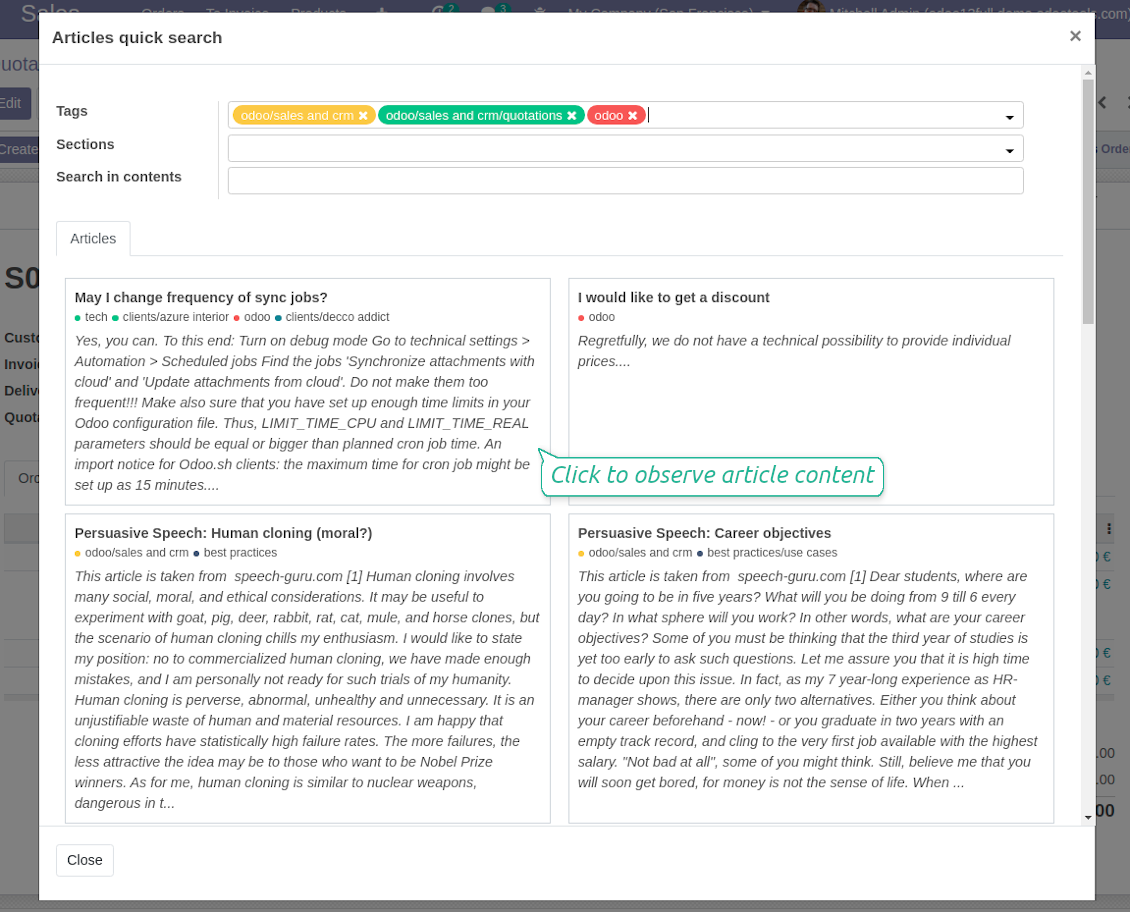
Click on that entry, and Odoo would open the wizard with articles. By default KnowSystem tags suitable for this document would be selected (if any). You may change those tags, or additionally filter by sections or content search. As a result list of topical articles is shown for you.
How to use company knowledge for communication
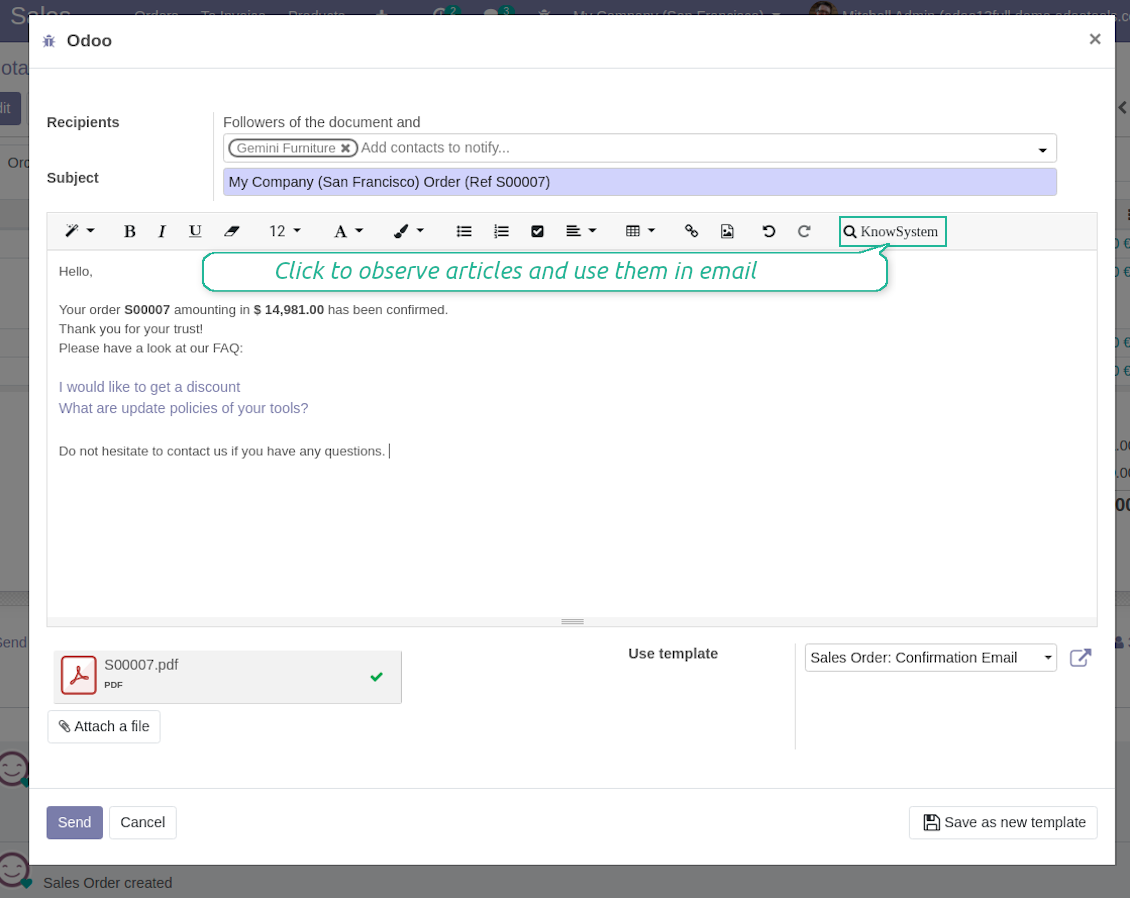
Turn on the option 'Articles in Email Composers' to let users reference or cite Knowledge records in Odoo messages. As a result the special quick entry 'KnowSystem' would be added to each Odoo email composer.
Clicking on that entry would open a wizard with a set of suitable to this document articles. You may change search by tags, add extra filtering by sections or content.
Afterwards, select required articles among found ones; choose an action. You may:
- Update message body with article contents (would be added to the end of a current message)
- Attach a PDF version of an article(s)
- Share a public link
Ekraanipildid
Apply knowledge in emails
Share articles content, link, or printing in messages
Quick access for knowledge system from any Odoo document
Quick knowledge search
Individual partner knowledge base portal
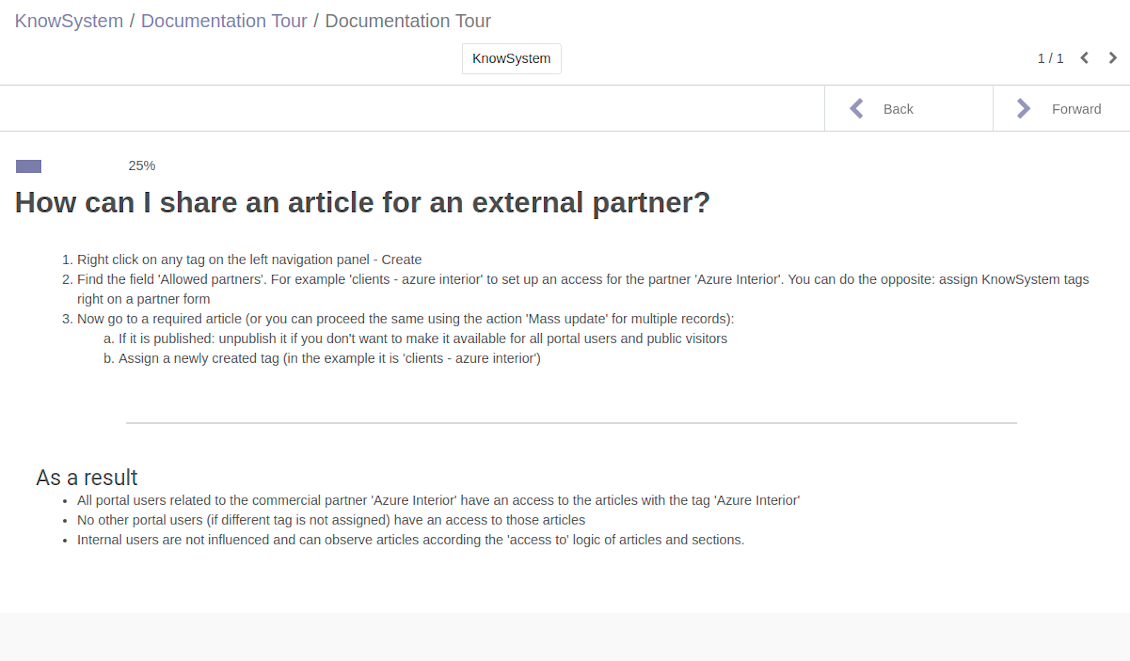
How to share knowledge base with specific partners
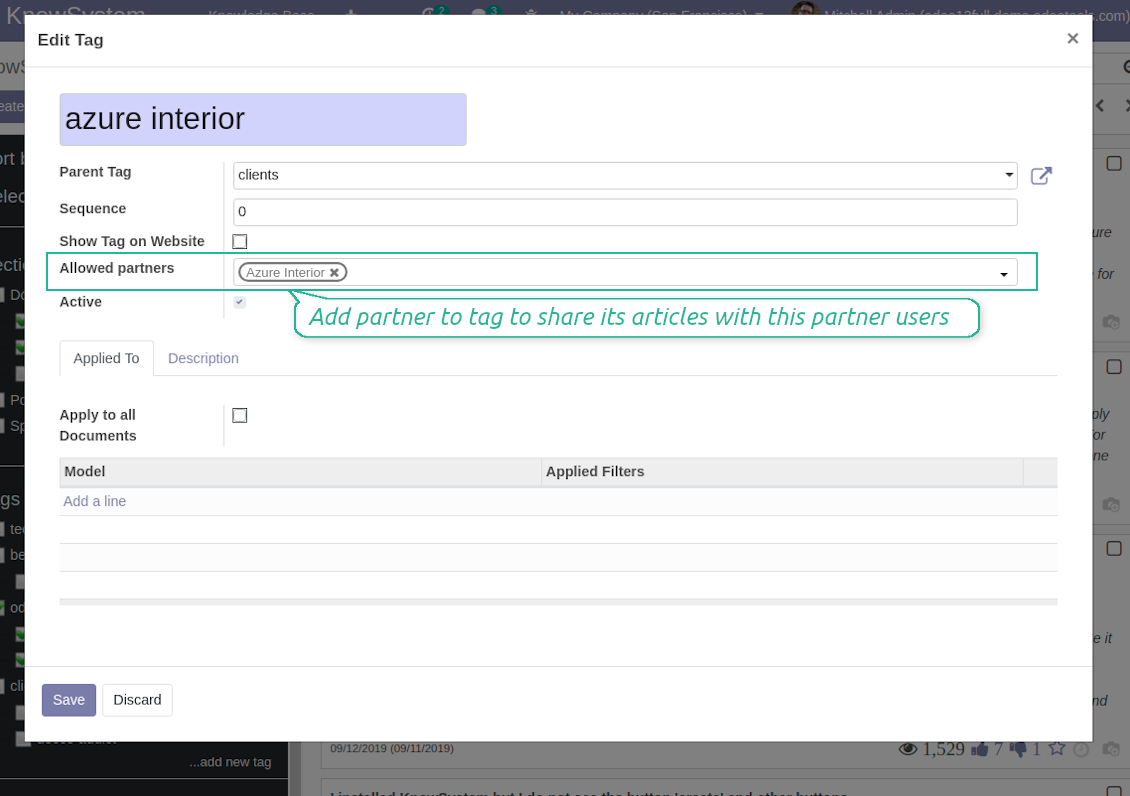
An article is available for a portal user in two cases: A. it is website published; B. his/her company is indicated as allowed partner in one of article tags.
In the first case such an article is available for all portal users and even for public website visitors who have not logged in.
In the latter case you grant a restricted access for an article only for chosen companies. To that end:
- Turn on the setting 'Portal KnowSystem'
- Create a tag for this partner, for example 'clients / Azure Interior'. On the tag form indicate this company in the field 'Allowed partners'
- Assign the tag for all articles you want to share with this partner. For a few articles use the mass action 'Mass update'
- Now portal users related to this partner may access shared articles right from their partner portal.
How to add sections, tags or article types to portal / website
Take into account that:
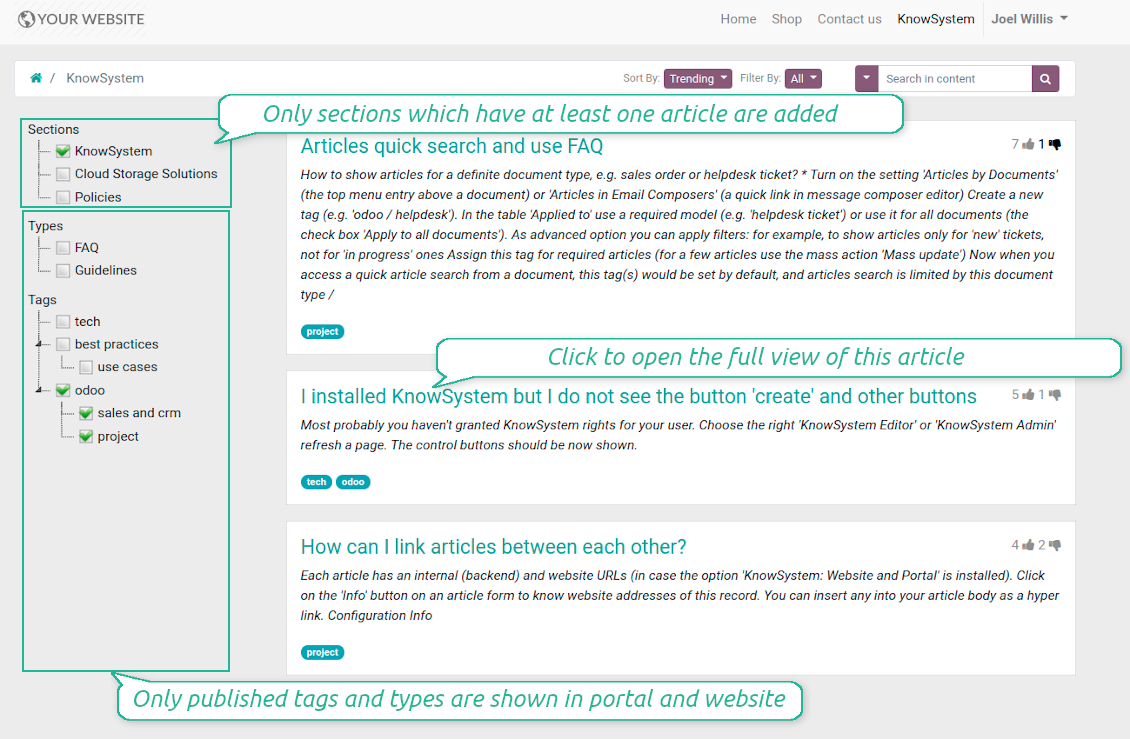
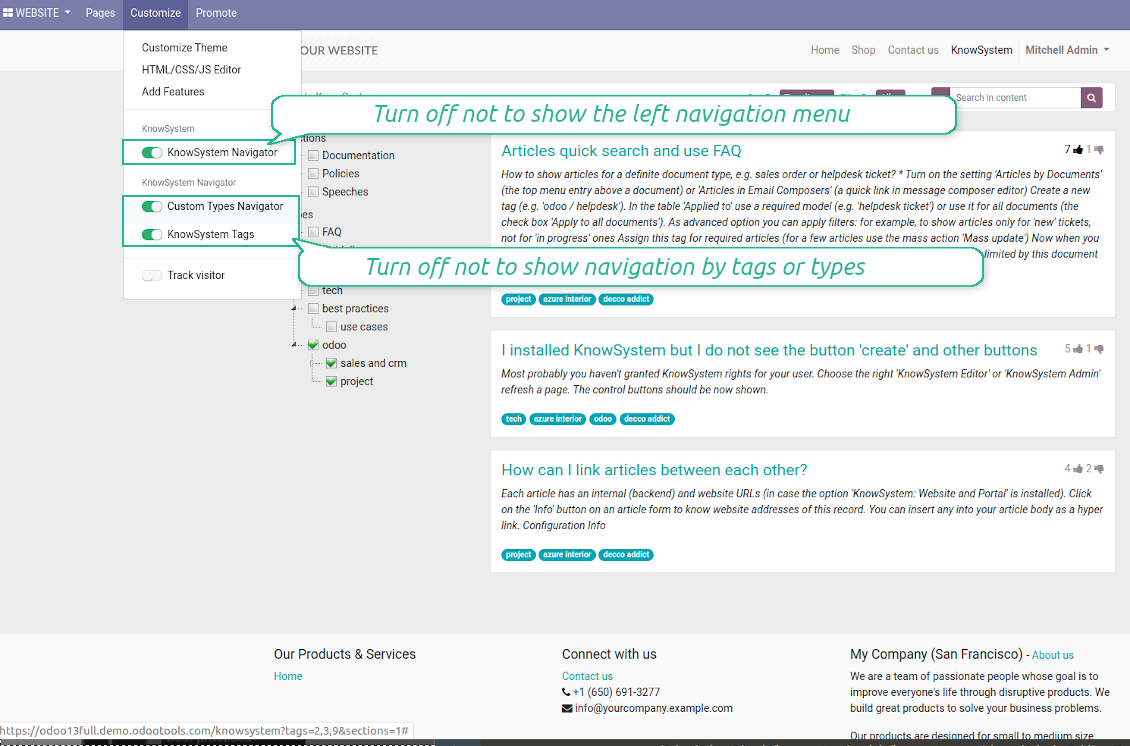
- Section is available in portal / website only if it has one available article inside;
- Tags and article types are added to hierarchy only if they are published.
Ekraanipildid
Knowledge base for portal and public use
Configurable public knowledge base
KnowSystem articles in portal and website
Best knowledge base system for Odoo!
Excellent app and exceptional after-sales support.
Really well thought-out product and one of the best features is the contextual help by means of the tags. Really a game changer for us.
Keep up the great work FaOtools!
Outstanding app! Tremendous value for money, an absolute must have!
One of the features sorely lacking from Odoo has been a robust Wiki/documentation system. Using third party platforms is a massive headache: yet another system to maintain, users get distracted switching back-and-forth, and errors get made. Then you have to worry about training, additional logins, etc.
KnowSystem feels like a native/core app, is very well-polished, and extremely fast. It's accessible from any screen, and the search results are instant (none of the latency inherent with most apps).The interface is elegant yet powerful, with robust access control, rich editing features, and version control. It's simple to revert to previous entries, view audit trails, etc. It's very intuitive for anyone familiar with Odoo; onboarding takes just a few minutes. The user guides are excellent.
This is invaluable for any organisation with a lot of documented information, SOPs, ISO compliance, or similar. If you're using eLearning, it's great for creating a help system / reminders. For example, noting key takeaways or specific instructions. The user can be in MRP, Sales, or any other function, and instantly lookup a guide. Since it overlays whichever screen you're in, it doesn't interrupt the workflow.
This dramatically increases efficiency, minimises questions, and helps keep everyone on the same page.
Oh, and customer service is excellent, faOtools stands behind their product. Thank you!
KnowSystem is excellent - OdooTools offer great support, are very helpful and responsive
Our company needed the ability to add a Knowledge Base to our Odoo portal website for our customers to access article content on a membership-only basis. KnowSystem provided this and much more, along with ability to add search by section, set permissions to allow only certain partners access to articles by tag etc. OdooTools have been very helpful and implemented several features we suggested including automatic redirect upon login, customisable filters and a social sharing capability on articles. Overall a great app by a great company, something that massively adds to Odoo's capabilities and is something that everyone could benefit from using.
Very functional application and responsive support
Our company produces medical laser equipment and we use KnowSystem to streamline the knowledge base of our company. Convenient search system and classification of content, as well as access rules for groups and even for individual users.
Great app and professional team
The app is great the the team is very professional in both response timing and problem solving.
Highly recommended.
Marco from ALO.zone.
Excellent system
Excellent system.
A great tool from some very nice developers!
KnowSystem is a great tool and a game changer for us. Finally a place to put all our company know-how. I highly recommend it. And also important to us: We got great support from FaOtools too. A rare thing in this busy world. thx!
Excellent app and support.
Great app and a very helpfull support. Openess to improve their products is outstanding.
WIKI-like revision system
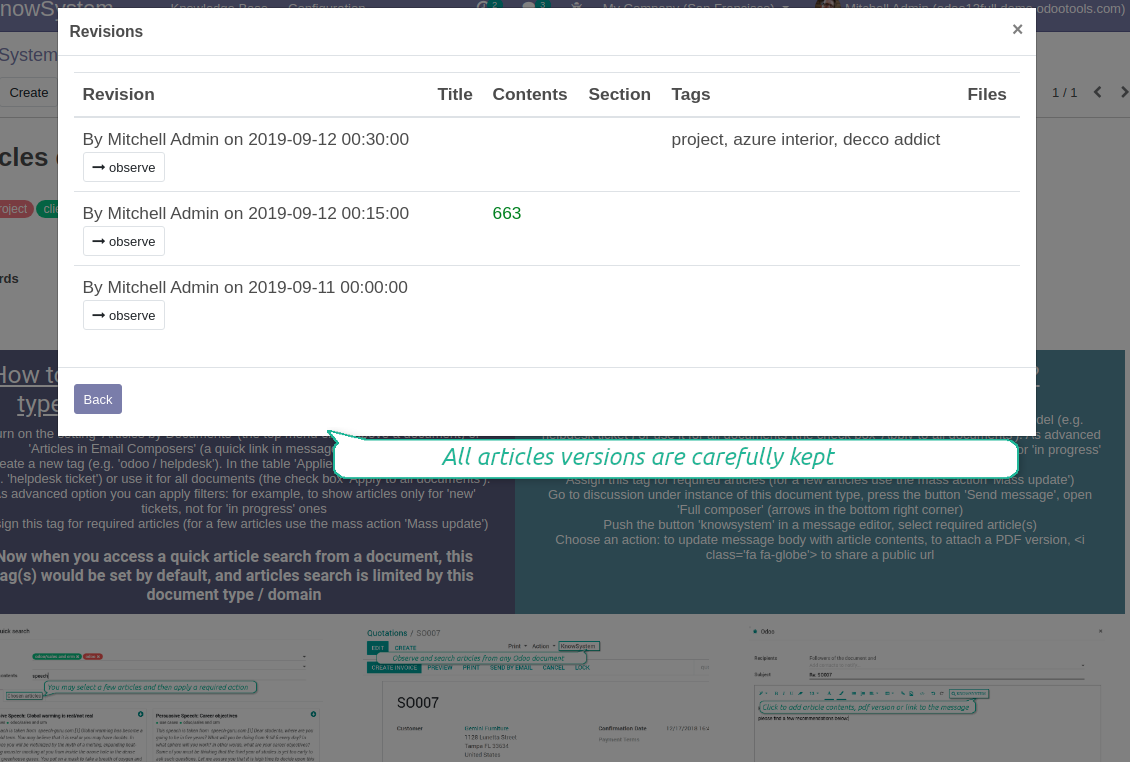
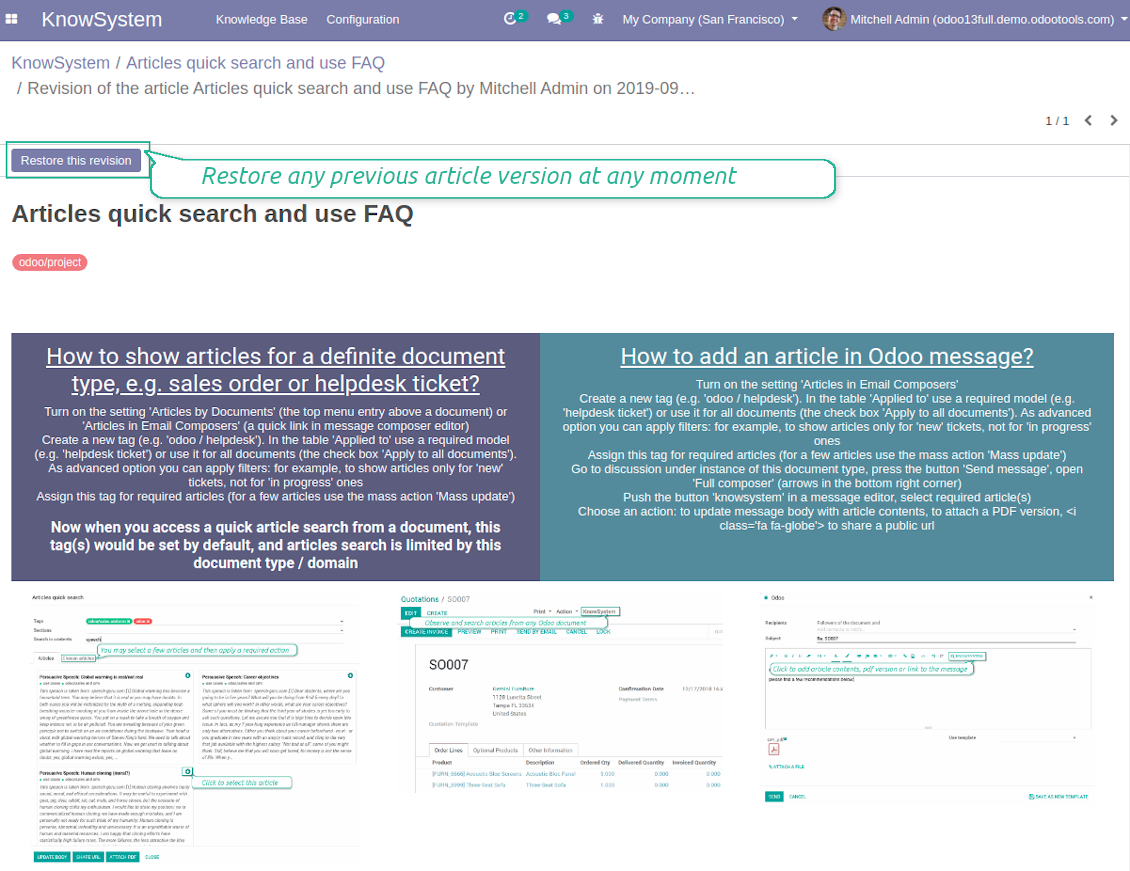
How to recover a previous article version
- Go to an article form view and push the button 'revisions'
- Find a required one and push the button 'Observe' to check whether this version is a correct one
- Push the button 'Restore this revision'. The article would be recovered to that version.
- The recovery operation itself is recorded. So, if it is a mistake you can revert changes by recovering the last-to-last revison.
Ekraanipildid
Wiki-style revisions history
To restore is easier than to break
Public knowledge system
How to make an article available for all website visitors
- Turn on the setting 'Public KnowSystem'
- Publish required articles through the mass action 'Publish' or by pushing the button 'Actions > Publish on website' on an article form
- Now any website visitor can read those articles
Team work for knowledge creation
Custom fields to structure knowledge
How custom knowledge attributes work
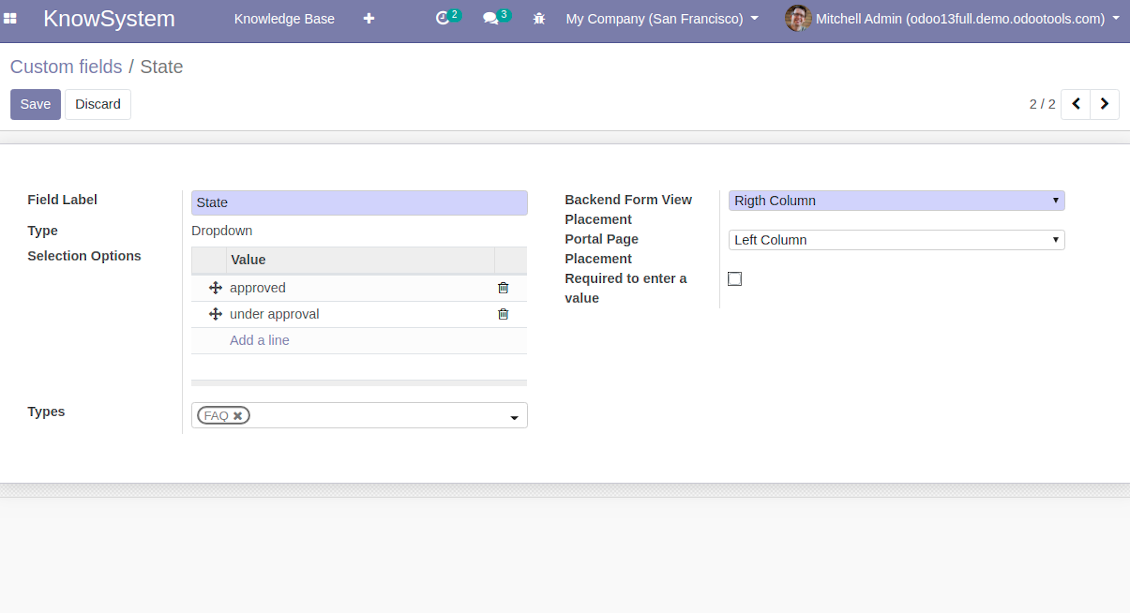
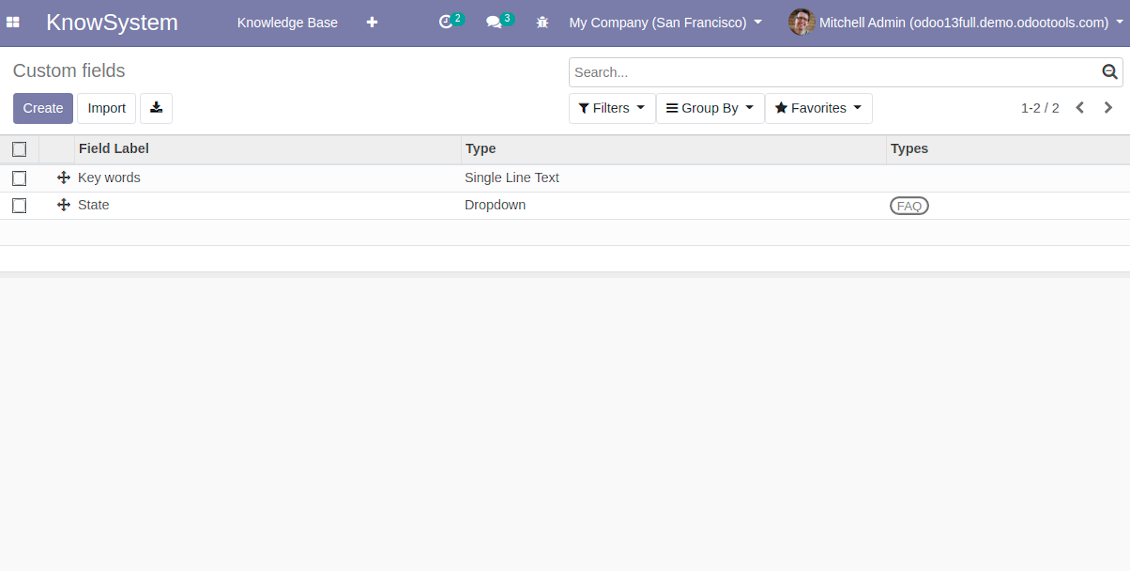
In order to show a new property for KnowSystem articles, just create a custom field. Nothing else is required! You are welcome to prepare fields of various types: single line text (char), simple text without formatting (text), rich text (HTML-formatted text), integer or float numbers, drop-down choice with your own options (selection), checkbox (boolean), date or date and time, binary (a file to upload), reference to another Odoo document (e.g. for a sale order, contact; many2one).
The tool also introduces complementary articles' typology. Thus set of attributes for 'user guidelines' and 'technical specifications' might be different.
Then, choose an interface location for a new field from a closed list to structure properties on an article page. Decide whether a field should be required to enter, or should be visible only for definite knowledge types.
Ekraanipildid
KnowSystem articles custom fields
KnowSystem articles custom properties
Knowledge is secured and might be safely shared
How to manage user accesses to articles
Security for internal and portal users differs.
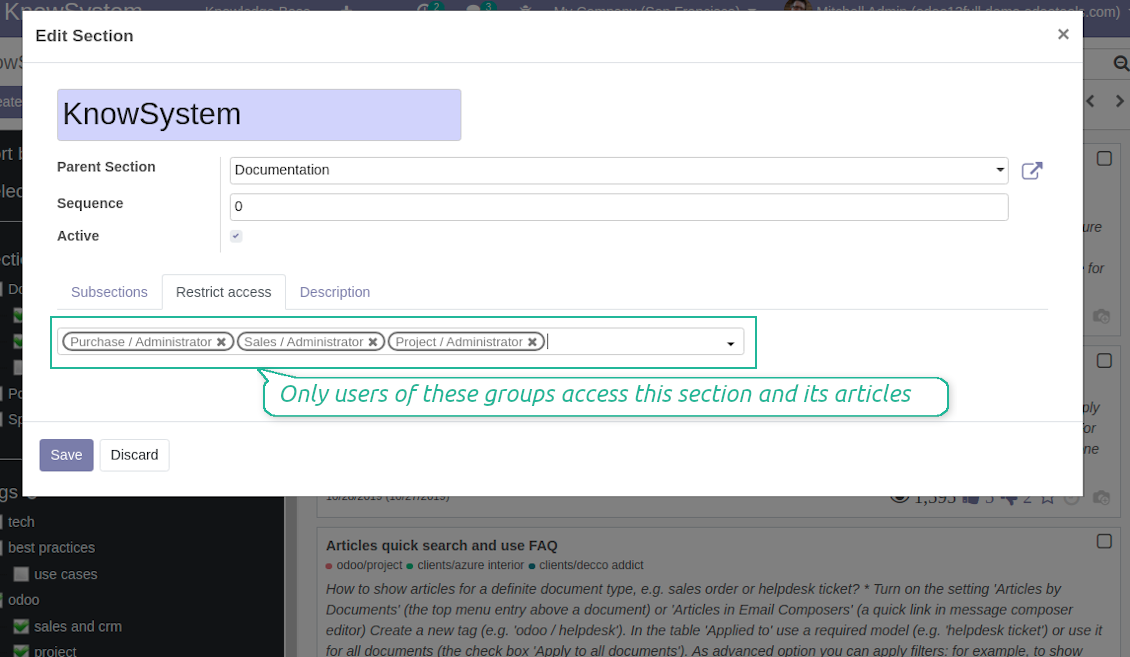
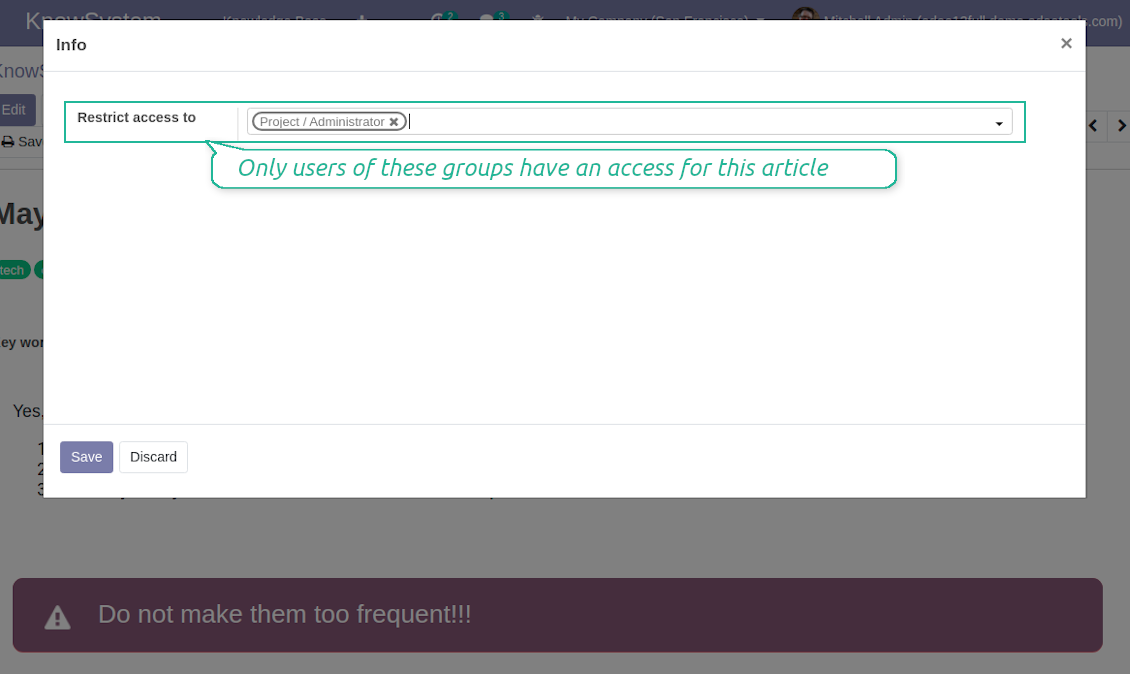
For the company employees: KnowSystem considers user groups which are defined per articles, sections and tours. Look at the tab 'Restrict to' on forms of those objects. If that field is not defined, a document is considered 'global': each internal user may read it.
For portal / public users: KnowSystem takes into account tags and whether an article is website published. A knowledge tag has a field 'Allowed partners', which may grant an access to portal users for articles with this tag. Website published pages are available for everybody.
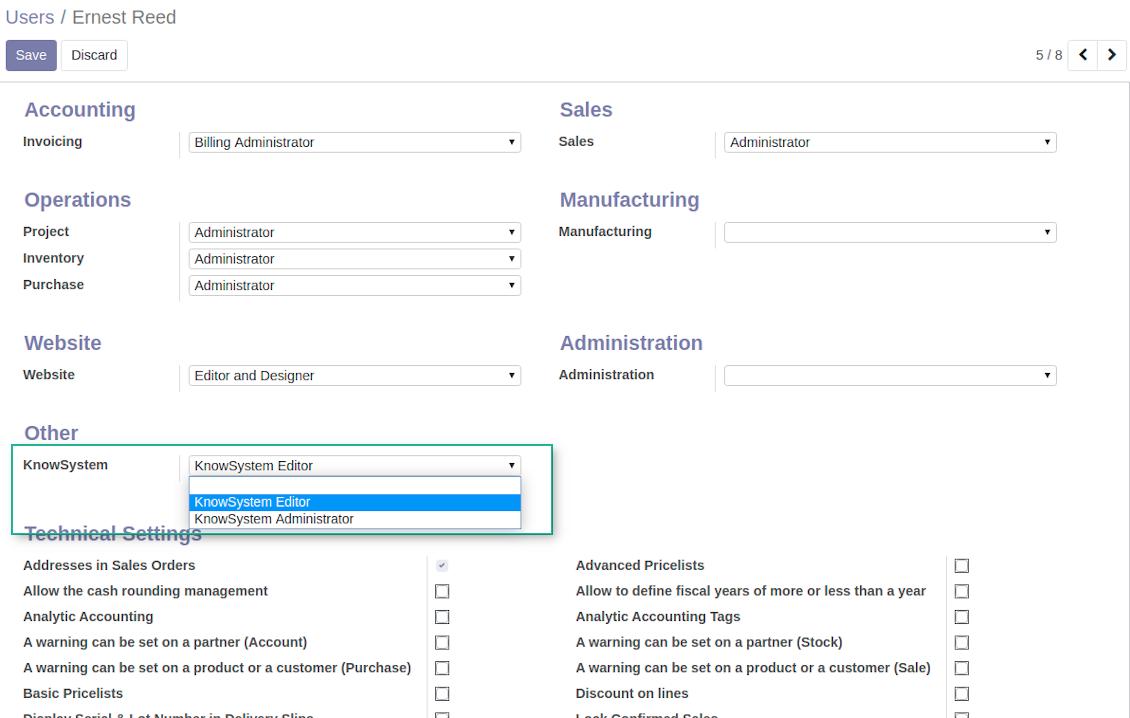
Rights to administrate KnowSystem belongs to 2 user roles: KnowSystem Editor and KnowSystem Administrator. If you want a user to create and edit articles, a user should belong to one of those groups.
|
|
Odoo user |
KnowSystem Editor |
KnowSystem Admin |
Portal user |
Public user |
| Articles | read related to his/her user groups and sections | read, create, edit, archive related to his/her user groups and sections | read, create, edit, delete any | read published articles and articles related to partner-related tags | read published articles |
| Sections | read related to his/her user groups | read, create, edit, archive related to his/her user groups and sections | read, create, edit, delete any | read all sections of available articles | read all sections of published articles |
| Tags | read any | read, create, edit, archive any | read, create, edit, delete any | read published ones | read published ones |
| Article Types | read any | read any | read, create, edit, delete any | read published ones | read published ones |
| Tours | read related to his/her user groups | read, create, edit, delete related to his/her user groups | read, create, edit, delete any | no access | no access |
| Misc | may like / dislike, add to favourites, print, take part in discussions | may configure options | may like / dislike an article |
|
Take also into account two peculiarities:
- Odoo user always may access an article of which he is an author disregarding further restrictions;
- Rights for section is defined not only according to this section but also according to all its parents. For example, if user can't access 'sales', he/she would not be able to access 'sales / crm' disregarding whether 'crm' is available for his/her user group.
Ekraanipildid
KnowSystem security levels
Manage access to this section and its articles
Manage portal access using tags
Manage access to this article
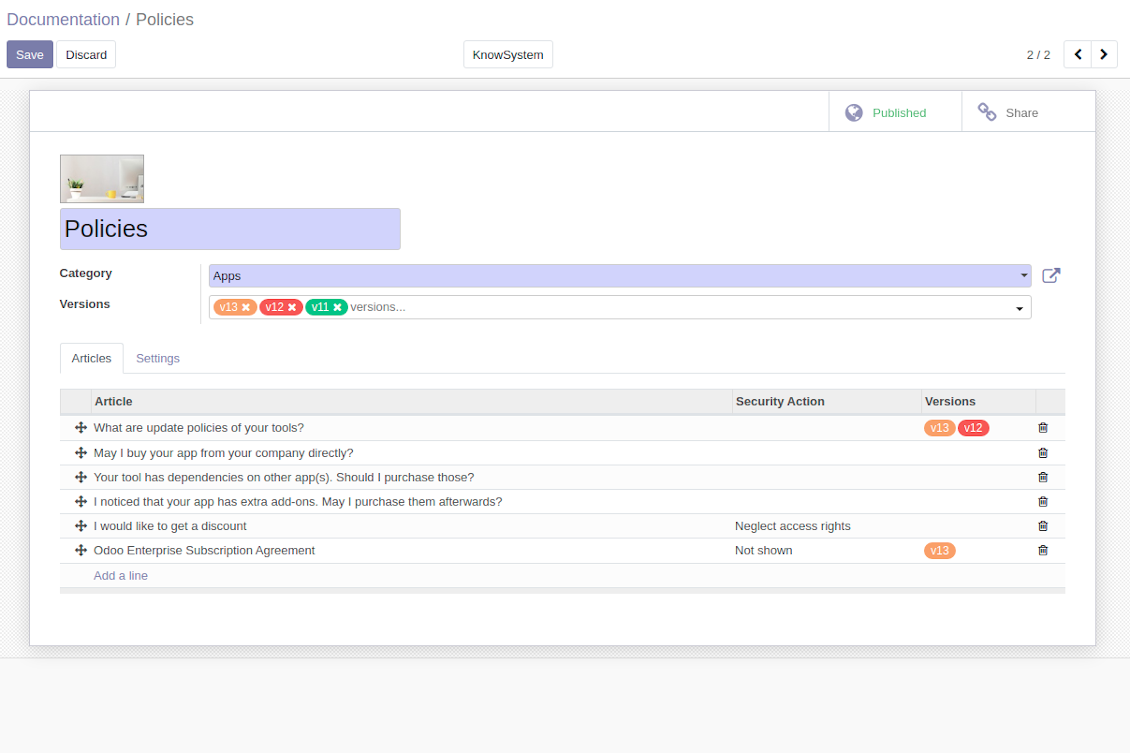
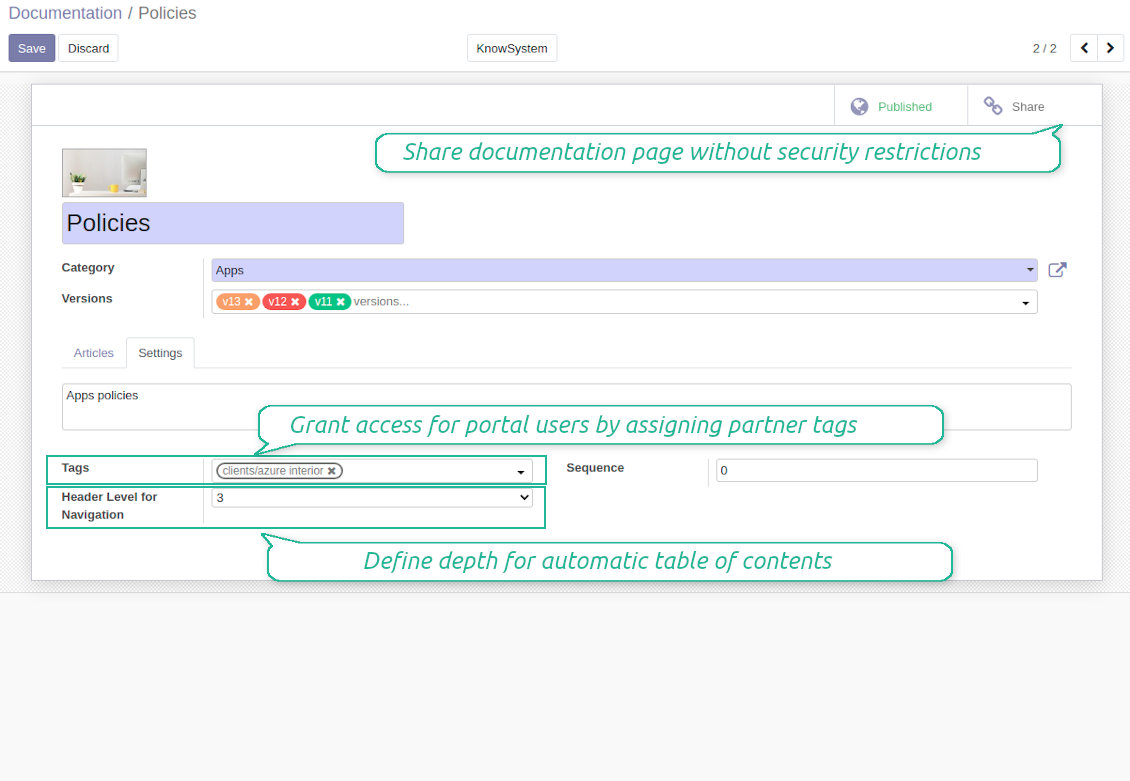
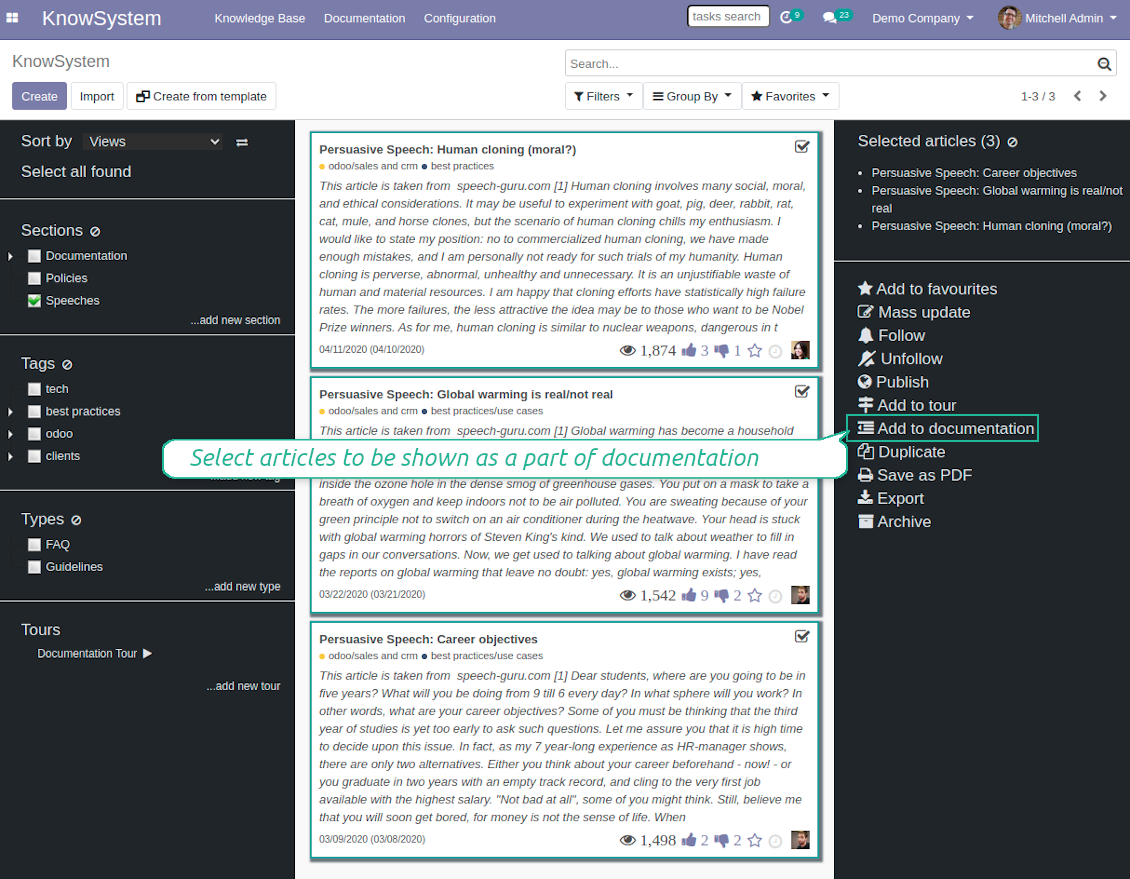
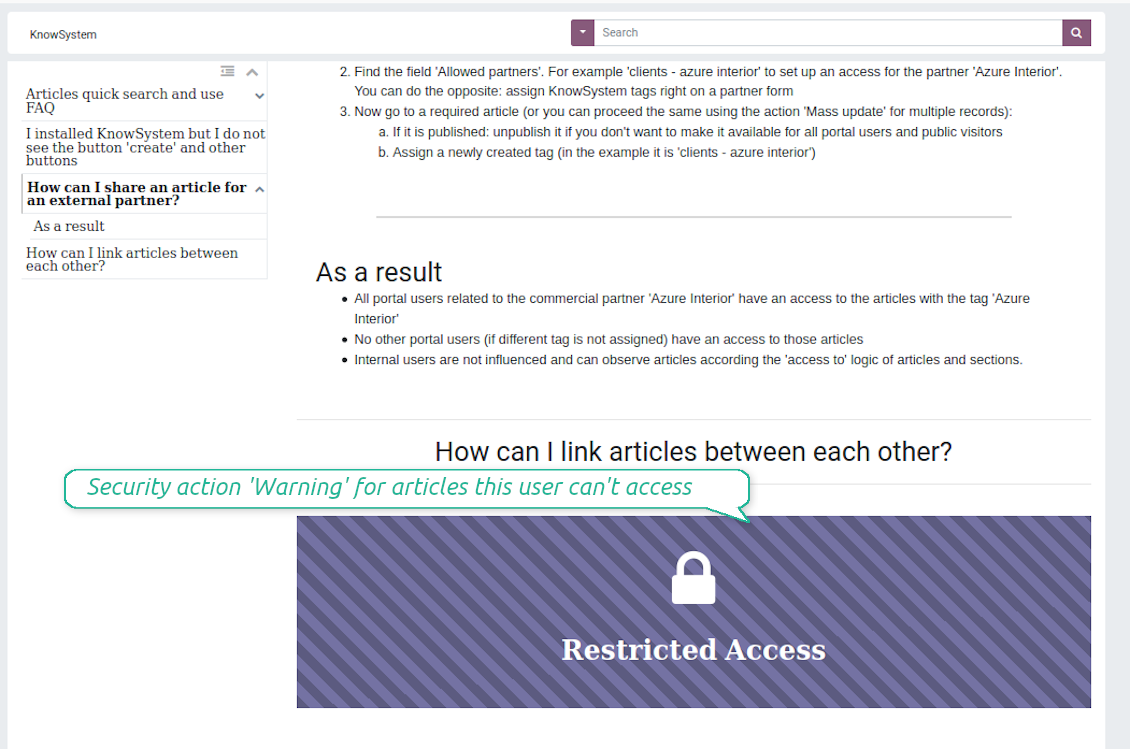
Website documentation builder
Ekraanipildid
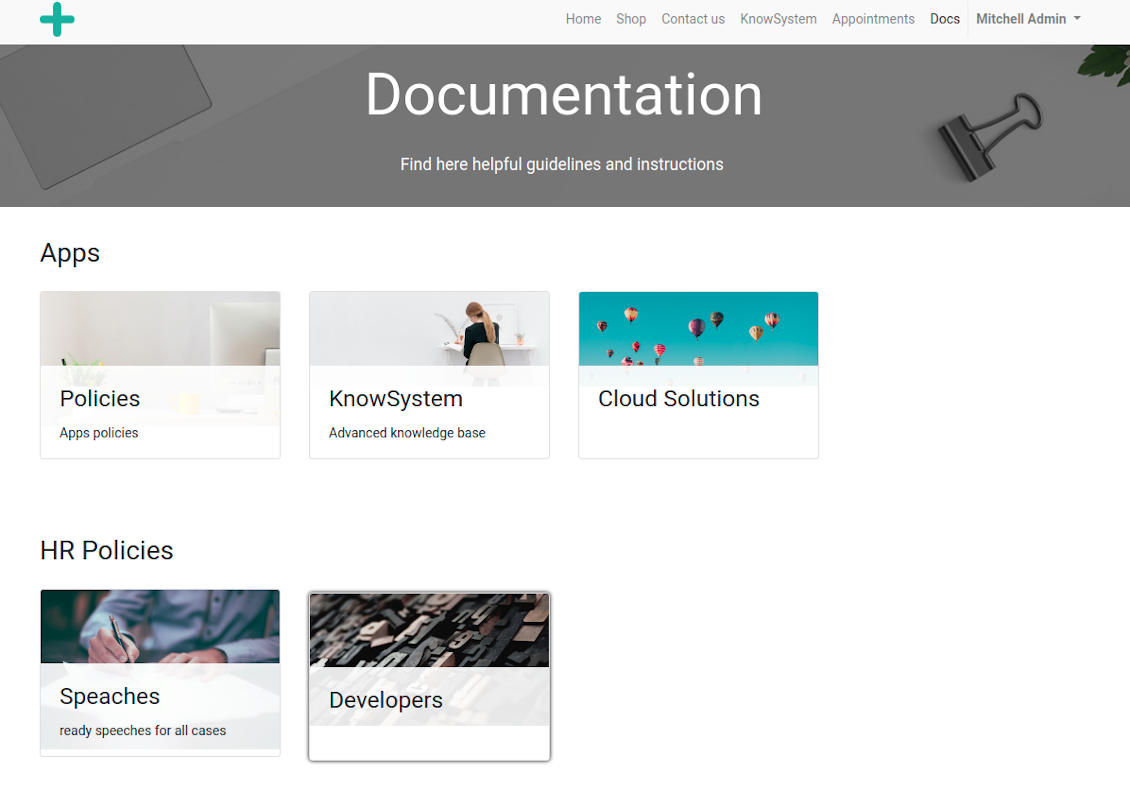
Documentation by categories and sections
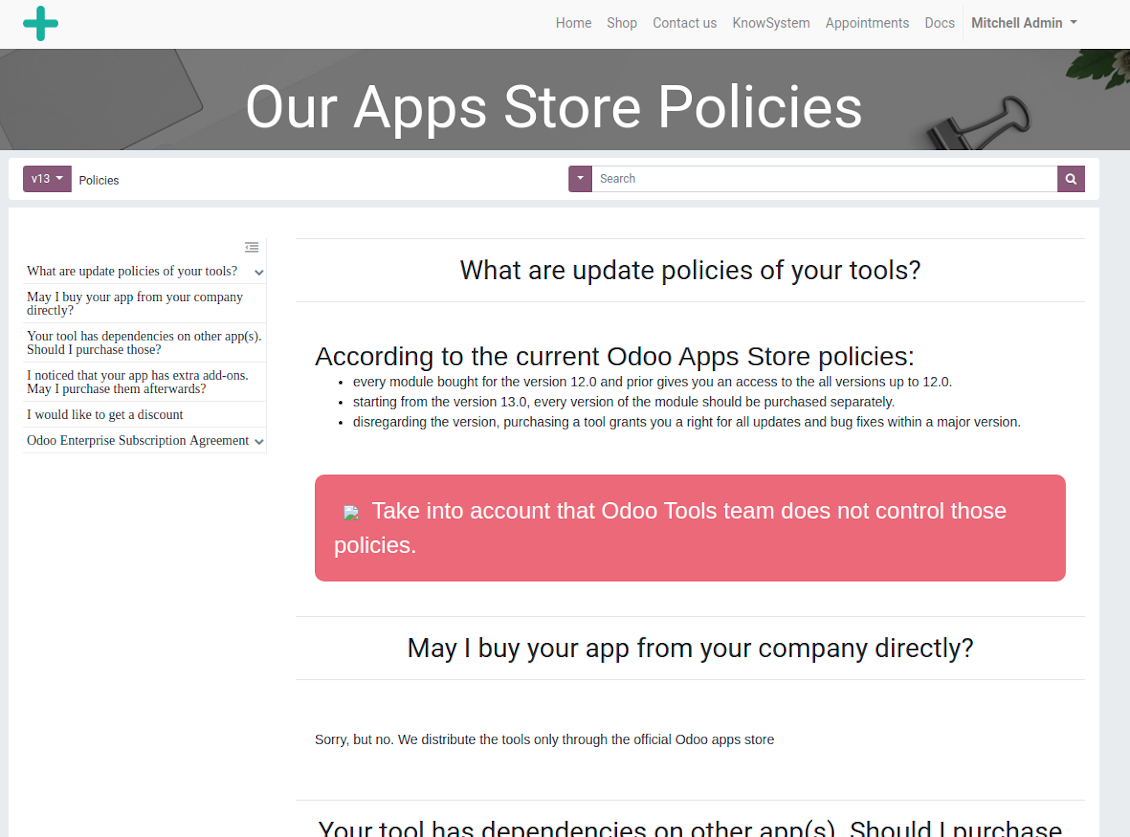
Documentation page
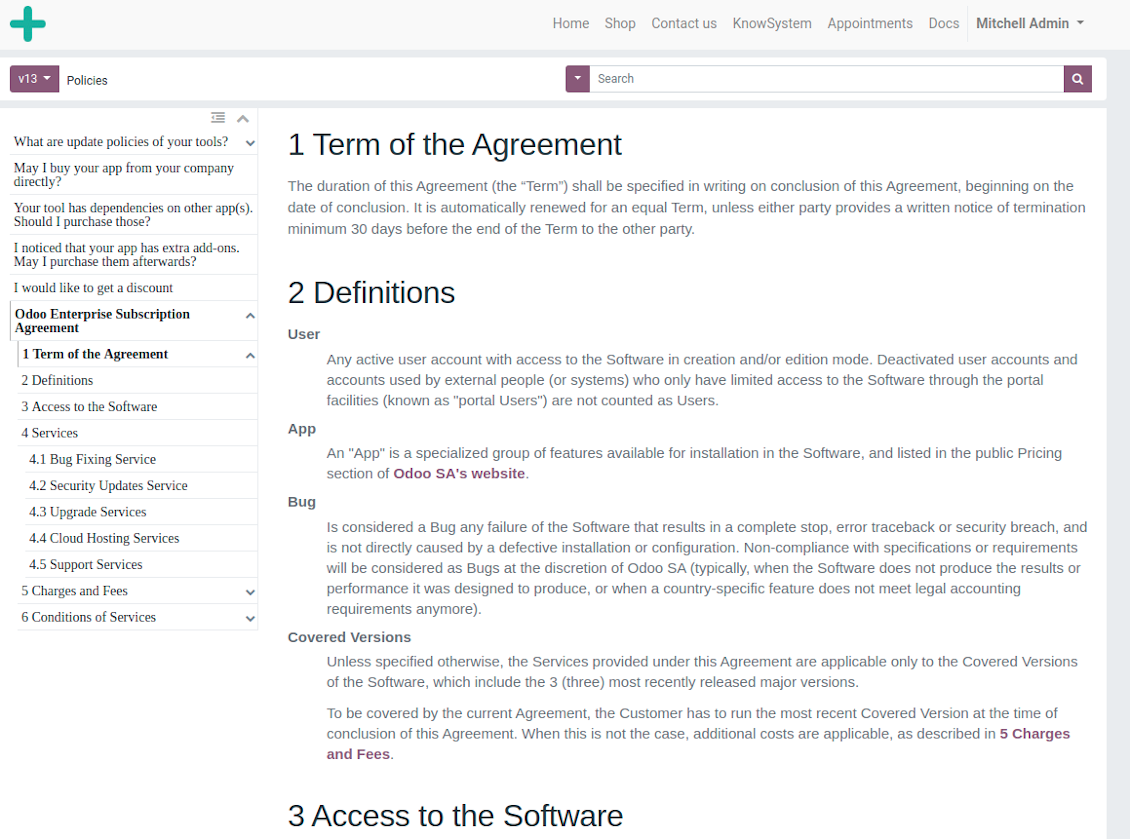
Automatic table of contents by documentation
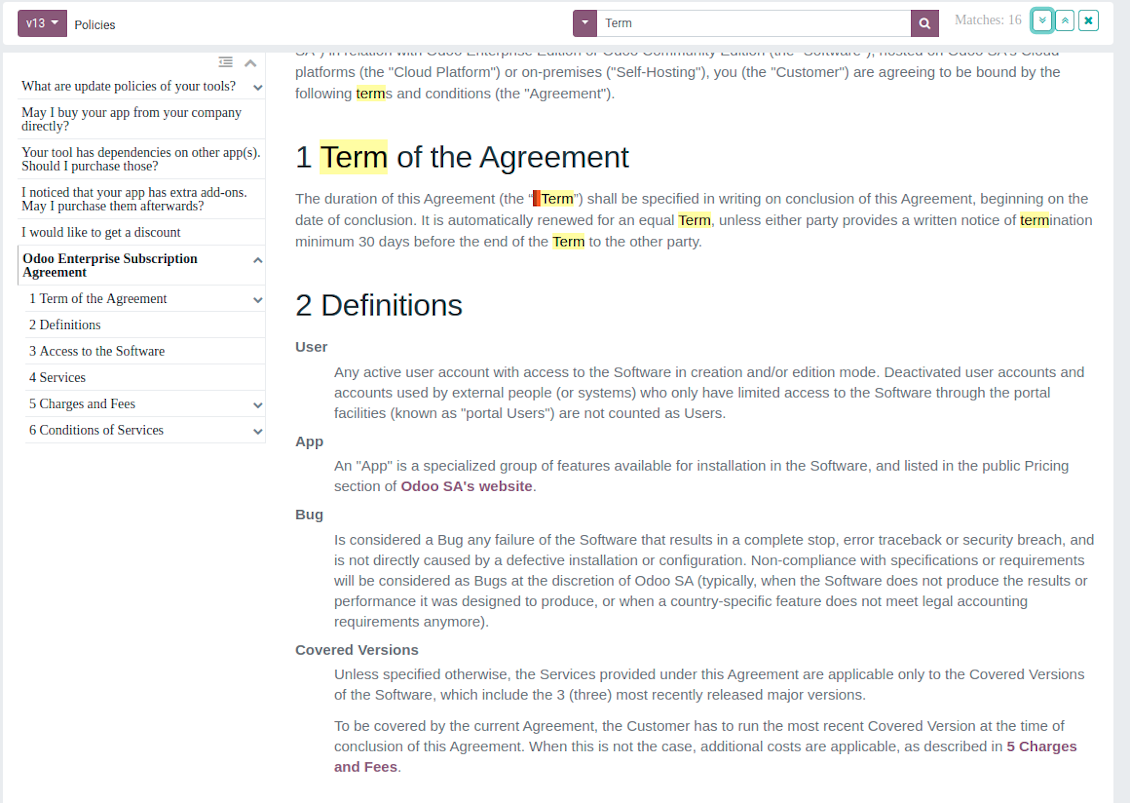
Inline search by documentation
Compose articles for documentation
Documentation settings
Add KnowSystem articles to documentation
Security: optionally show warning if no access possible
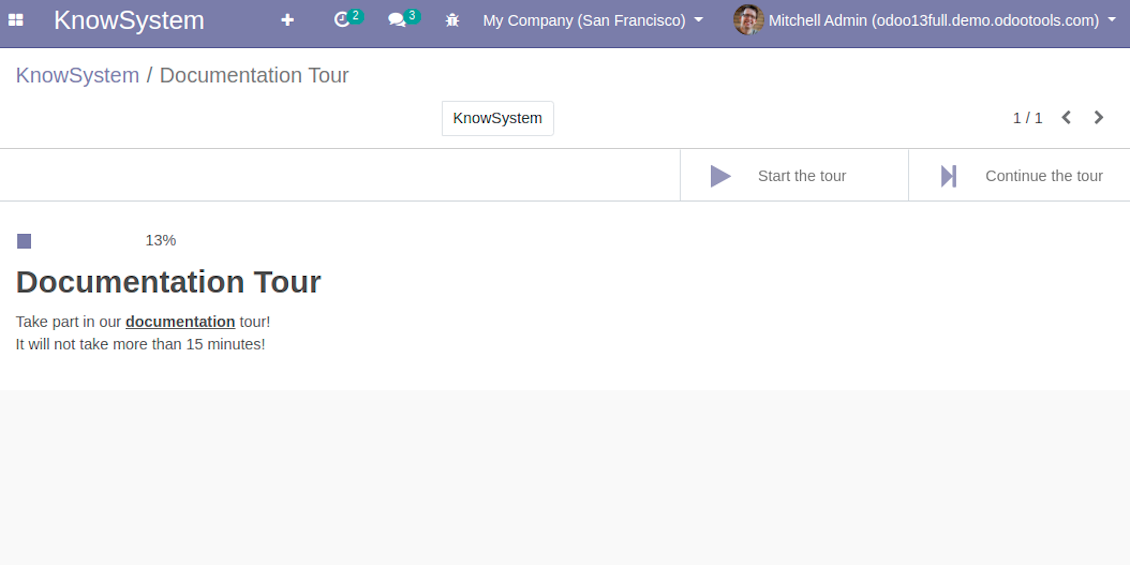
Create learning tours
How to configure a learning tour
- Turn on the option 'Tours'
- Go to KnowSystem interface and select articles to be included into a tour
- Press the mass action button 'Add to tour' and select or create a tour. Press save
- Re-order articles in a consistent order
- Define groups of users who should go through a tour on the tab 'Restrict access'
- Now users can see and launch tours right from the KnowSystem interface (the right navigation panel)
Ekraanipildid
KnowSystem tour welcome page
Article in a learning tour
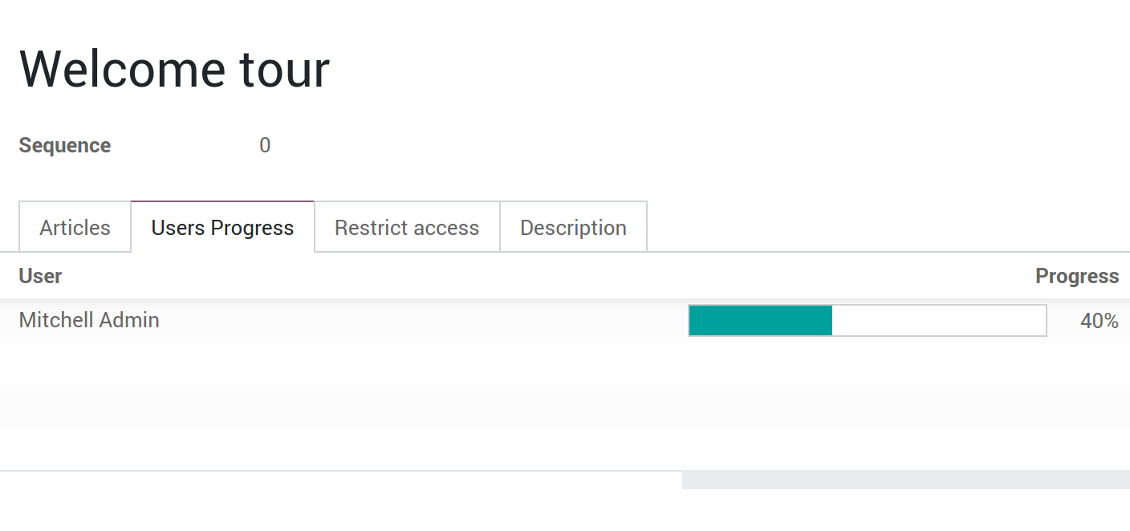
Control tour progress by users
Multilingual knowledge base
How to make an article available for a few languages
- Install the optional add-on 'KnowSystem: Multi Languages'
- Change your user language for a needed one
- Update this article
- Now it is available in both source and a current language
Make sure you really require a few languages. In that case you almost double the work of KnowSystem editors. All articles should be kept updated in all Odoo languages.
Knowledge base for any industry and business
Typical use cases
- Helpdesk: once faced a challenge, its solution might be recorded in KnowSystem for repeated usage by co-workers and for self-service by clients
- Sales & CRM: salesperson helper to find information about products, offers, frequently asked customer questions
- Project management: to keep and easily retrieve knowledge of existing solutions, tools, hints, and experiments
- HR: to prepare instructions, guidelines, learning tours and trainings, and any codified knowledge of routine in your company
- Marketing: to organize online library of product use cases, expert knowledge and well structured documentation
- Legal issues: systematize your policies, contract and approval managements, keep the full classifier of trademarks, licenses
- Informational technologies: share easy-reached manuals and configuration guidelines
Korduma kippuvad küsimused KnowSystem: Knowledge Base System Odoo v.13
Ma ei näe redaktsioonide tekstide vahel mingit erinevust.
Redaktsioonid salvestavad mitte ainult tekstimuudatusi, vaid ka stiilimuudatusi (tehniliselt siis, kui muudate artikli HTML lähtekoodi). Mõned ei pruugi esmapilgul selged olla (nt ühe sõna fondisuuruse muutus). Teised võivad olla drastilised. Siiski iga toimingute jada Redigeeri > Muuda artiklis midagi > Salvesta loob uue redaktsiooni.
Kas saan artiklisse lisada YouTube/ Vimeo / Dailymotion / Youku video?
Jah, nende teenuste videoid saab artiklitesse manustada nii Odoo haldusliidesest kui ka veebiehitajast. Lisage mis tahes plokk pildiga > vajutage pildil > valige ‘Video’ > sisestage vajaliku meedia URL.
Arvestage: sellised videod lisatakse iframe'idena ja mõni brauser võib taasesituse blokeerida, kuni kasutaja selle selgelt lubab.
Kuidas muuta jaotis veebilehel nähtavaks?
KnowSystemis on jaotis veebisaidil nähtav, kui see on avaldatud ja sisaldab vähemalt üht artiklit. Isegi alajaotistega ei ole see nähtav, kui jaotises endas pole ühtki artiklit. Nii välditakse tühje jaotisi ja KnowSystemi portaal püsib selge. Et jaotis saidil ilmuks, lisage sissejuhatav või üldine artikkel, mis lühidalt kirjeldab või loetleb alajaotiste artikleid.
Kuidas jagada artiklit välise partneriga?
Paremklõpsake vasakul navigeerimispaneelil mis tahes silti - Loo
Leidke väli „Allowed partners“. Näiteks 'clients - azure interior', et anda juurdepääs partnerile 'Azure Interior'. Võite ka vastupidi: määrata KnowSystemi sildid otse partneri vormil
Nüüd avage vajalik artikkel (või tehke sama toiminguga „Mass update“ mitme kirje jaoks):
Kui see on avaldatud: tühistage avaldamine, kui te ei soovi, et see oleks kõigile portaali kasutajatele ja avalikele külastajatele saadaval
Määrake äsja loodud silt (näites on see 'clients - azure interior')
Nüüd:
Kõigil portaali kasutajatel, kes on seotud äripartneriga 'Azure Interior', on juurdepääs siltiga 'Azure Interior' artiklitele
Ühelgi teisel portaali kasutajal (kui teist silti pole määratud) pole neile artiklitele juurdepääsu
Sisekasutajaid see ei mõjuta; nad näevad artikleid artiklite ja jaotiste „access to“ loogika järgi.
Kas saame artikli sisule keelevaliku nupu lisada?
Nuppu 'translate' ei lisa valikuline lisamoodul 'KnowSystem: Multi Languages' artikli sisusse meelega. Põhjus: HTML-koodi on nupu eeldatud lihtsas hüpikaknas väga raske tõlkida. Tõlgitavat teksti oleks vähe ja HTML-osi palju (tõlkija võib need ka rikkuda).
Seepärast tuleb artiklit kindlas keeles kirjutada, logides sisse selle keele kasutajana. See võib olla teine kasutaja või saate ajutiselt muuta praeguse kasutaja eelistusi. Seejärel tehakse artikli sisu muudatused selles keeles.
Samuti saate artikli sisu all kasutada nuppu 'Copy from another translation', et igal hetkel tuua sisu teisest keelest (kasulik, kui artiklit on ühes keeles oluliselt uuendatud).
Kuidas manustada teise veebilehe leht artiklisse
Selleks võite kasutada iframe’e. Lülitage artikkel toore HTML-koodi redaktorisse ja lisage näiteks <iframe src="https://faotools.com/" style="width:100%;min-height:600px;"> </iframe>.
Installisin KnowSystemi, aga ma ei näe nuppu „create“ ega teisi nuppe
Tõenäoliselt pole te oma kasutajale KnowSystemi õigusi andnud. Valige õigus „KnowSystem Editor“ või „KnowSystem Admin“ ja värskendage lehte. Juhtnupud peaksid nüüd olema nähtavad.
Kas ma saan konkreetset õppetuuri näidata ainult valitud kasutajatele?
Jah, rakendades kasutajarühma (nt 'Sales Manager'), kes peaks selle tuuri nägema. Kui kasutaja kuulub rühma, näeb ta tuuri. Kui mitte, tuuri ei näidata. See töötab samamoodi nagu KnowSystemi artiklite ja jaotiste turvaõigused.
Arvestage, et kui tuurile pole rühmi määratud, on see „globaalne“ ja nähtav kõigile.
Kuidas muuta jalust ja päist artiklite printimisel?
Artiklite PDF-ide päis ja jalus võetakse ettevõtte küljendustest. Vaadake Settings > General Settings > jaotist Business Documents. Seal määrate ettevõtte malli kõigile dokumenditüüpidele, sh arvetele, müügitellimustele jne, ja ka artiklitele. Selline Odoo lähenemine peab jalust ja päist ettevõtte üldiseks stiiliks, mitte konkreetsete trükiste atribuudiks.
Kuidas artikleid omavahel linkida?
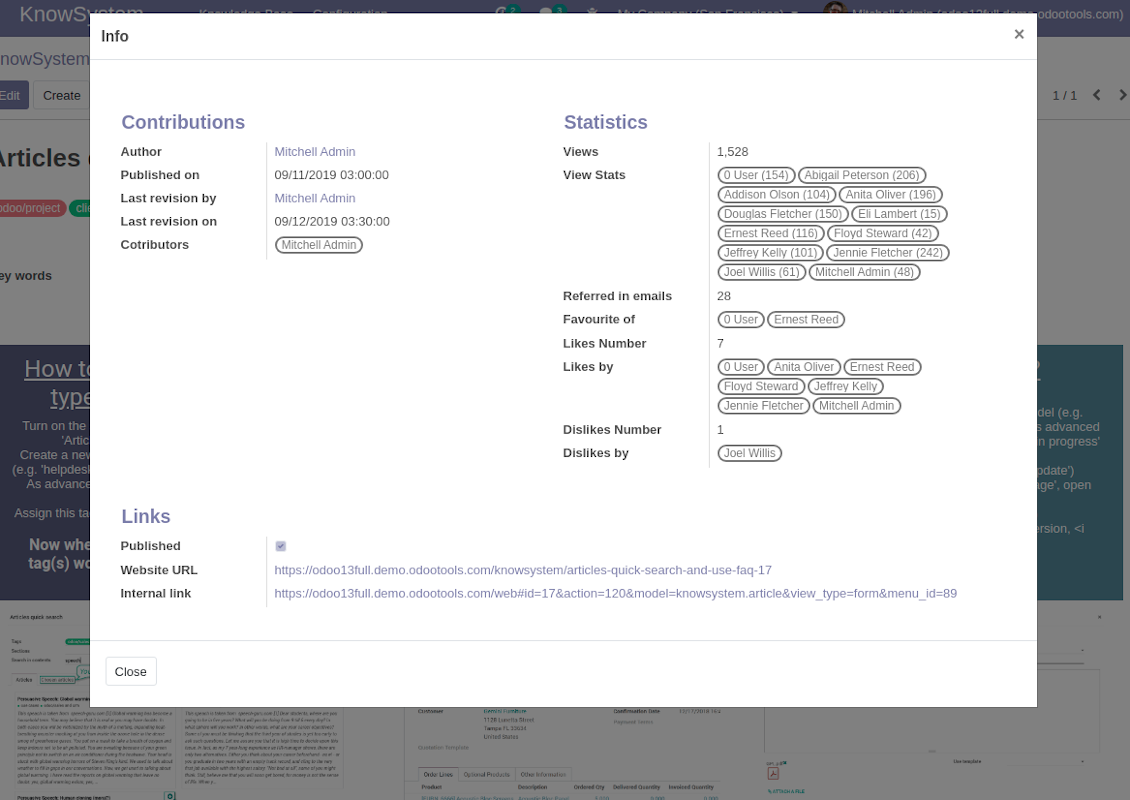
Igal artiklil on sisemised (backend) ja veebisaidi URLs (kui suvand 'KnowSystem: Website and Portal' on paigaldatud). Klõpsake artiklivormil nuppu 'Info', et teada selle kirje veebiaadresse. Igaühe saate artikli sisusse hüperlingina lisada.
Kas ma saan artikli HTML lähtekoodi muuta?
Jah: lülitage sisse debug assets (seadete ülevaatekuval) ja naaske praeguse artikli juurde. Redigeerimisrežiimis näete ikooni '</>'. Klõpsake seda, et vaadata ja muuta HTML-i ja stiile.
Millised on teie tööriistade uuenduspoliitikad?
Kehtivate Odoo Apps Store reeglite kohaselt:
- Iga versioonile 12.0 või varasemale ostetud moodul annab juurdepääsu kõigile versioonidele kuni 12.0.
- Alates versioonist 13.0 tuleb iga mooduliversioon osta eraldi.
- Versioonist sõltumata annab ost õiguse kõigile uuendustele ja veaparandustele peamise versiooni piires.
Pange tähele, et faOtools meeskond neid reegleid ei juhi. Küsimustega pöörduge otse Odoo Apps Store esindajate poole.
Kuidas teie rakendust Odoo.sh-i installida?
Kõige lihtsam lähenemine on kasutada Odoo poe sisseehitatud töövoogu:
1. Avage mooduli leht ja klõpsake nuppu Deploy on odoo.sh
2. Seejärel suunatakse teid GitHubi lehele. Logige kontole sisse, seejärel klõpsake 'Create a new repo' või kasutage olemasolevat. Veenduge, et hoidla on privaatne. Rakendusi ei tohi OPL-1 litsentsi all avaldada. Vajadusel looge Odoo.sh projekti jaoks uus repo
3. Seejärel minge odoo.sh-i ja klõpsake nuppu Deploy. Hüpikaknas esitage otsus ja klõpsake 'Continue.' See käivitab paigalduse.
Need sammud paigaldavad rakenduse projekti tootmisharusse. Kui soovite rakendusi teistesse harudesse juurutada või moodulit uuendada, tehke järgmist:
1. Laadige rakenduse lähtekood Odoo poest üles
2. Tehke moodulile commit vajalikku GitHubi hoidlasse. Veenduge, et ühtegi rakenduse kausta/faili ei ignoreerita (st need ei ole repo .gitignore-s). Hoidlad loob odoo.sh automaatselt ja need võivad vaikimisi sisaldada olulisi kirjeid (nt /lib). Laadige üles kõik mooduli kataloogid, alamkataloogid ja failid eranditeta
3. Juurutage odoo.sh projekti sihtharu või, kui seaded seda eeldavad, oodake, kuni see automaatselt ehitatakse.
Kuidas teie rakendust oma serverisse installida?
2. Taaskäivita Odoo server;
3. Lülita sisse arendajarežiim (tehnilised seaded);
4. Värskenda rakenduste loendit (rakenduste menüü);
5. Leia rakendus ja vajuta „Activate“/„Install“;
6. Järgi rakenduse lehe juhiseid, kui need on olemas.
Märkasin, et teie rakendusel on lisasid. Kas võin need hiljem osta?
Jah, muidugi. Samal ajal lisab Odoo kõik sõltuvused automaatselt ostukorvi, seega peate varem ostetud tööriistad välja jätma, et vältida topeltmakset.
Paigaldasin teie rakenduse Odoo.sh-i ja näen testides hoiatust/viga
Punane/oranž hoiatus ei mõjuta rakenduse funktsioone. Kahjuks ei läbi meie moodulid mõnikord standardseid automaatteste, sest need eeldavad käitumist, mis on vastuolus rakenduse eesmärkidega. Näiteks muudame hinnaarvutust, samas kui standardse Odoo mooduli testid võrdlevad lõpphinda standardalgoritmiga.
Kõigepealt kontrollige juurutatud andmebaasi funktsioone. Kas kõik töötab õigesti?
Kui arvate endiselt, et hoiatus mõjutab tegelikke funktsioone, võtke meiega ühendust ja saatke täielikud paigalduslogid ning kõigi juurutatud moodulite loend (sh tuum ja kolmanda osapoole).
Kas ma saan rakenduse otse teie ettevõttelt osta?
Ei, jagame tööriistu ainult ametliku Odoo rakendustepoe.
Soovin allahindlust
Kahjuks pole meil tehnilisi vahendeid individuaalhindade pakkumiseks.
Kas ma saan rakenduse paigaldada oma Odoo Online (SaaS) andmebaasi?
Ei, kolmanda osapoole rakendusi ei saa Odoo Online’is kasutada. Kahjuks Odoo SaaS blokeerib selle.
Teie tööriist sõltub teistest rakendustest. Kas pean need ostma?
Jah, tööriist vajab kõiki sõltuvustes märgitud mooduleid, et töötada õigesti. Rakenduse lehel märgitud hind sisaldab juba kõiki vajalikke sõltuvusi.
Mis on mooduli hind USA dollarites? Miks see muutus?
Meie moodulite hind on eurodes. Odoo pood teisendab hinnad teistesse valuutadesse oma sisemise kursi järgi. Seega võib USA dollarites hind muutuda, kui kurss uueneb.
Rakenduse ja veebilehe sõnastus muudes keeltes kui inglise on tehisintellekti abil ja kooskõlas ametlike Odoo tõlgetega. Kui märkate viga, saatke pilet tõlgete õigsuse kohta ja parandame selle.
Vigadest teatamine
Kui kohtate vigu või ebajärjekindlat käitumist, võtke julgelt ühendust. Tagame parandused 60 päeva jooksul ostust ja oleme huvitatud tööriistade täiustamisest ka pärast seda perioodi.
Meiega ühenduse võtmiseks pole telefoninumbrit ega krediitkaarti vaja. Piisab lühikesest e-posti registreerimisest, mis ei kesta üle 30 sekundi.
Lisage taotlusse võimalikult palju üksikasju: kuvatõmmised, Odoo serveri logid, täielik kirjeldus probleemi taasesitamiseks jne. Tavaliselt kulub mõni tööpäev, et koostada tööplaan (kui viga kinnitatakse) või anda juhised, mida teha (muul juhul).
Avalikud funktsioonisoovid ja mooduliideed (tasuta arendus)
Oleme tugevalt motiveeritud oma tööriistu parandama ja oleme tänulikud iga tagasiside eest. Kui teie nõuded on üldkasulikud ja neid saab tõhusalt ellu viia, lisab meeskond need meie ülesannete loendisse.
Sellist ülesannete loendit töödeldakse regulaarselt ja lisatasusid ei kaasne. Kuigi me ei saa lubada tähtaegu ega lõplikku kujundust, võib see olla hea viis soovitud funktsioonide saamiseks ilma investeeringute ja riskideta.
Meiega ühenduse võtmiseks pole telefoninumbrit ega krediitkaarti vaja. Piisab lühikesest e-posti registreerimisest, mis ei kesta üle 30 sekundi.

Tööriist Odoo manuste paindlikuks kaustadesse paigutamiseks ja kataloogide sünkroonimiseks pilveklientidega: Google Drive, OneDrive/SharePoint, Nextcloud/ownCloud, Dropbox, Amazon S3, Box ja NAS. DMS. Failihaldur. Dokumendihaldussüsteem
398€
Tööriist Odoo manuste automaatseks kahesuunaliseks sünkroonimiseks OneDrive failidega
487€
Tööriist Odoo manuste automaatseks kahesuunaliseks sünkroonimiseks Google Drive failidega
487€
Tööriist paroolide turvaliseks hoidmiseks Odoo-s ühiskasutuseks. Jagatud seifid

Tööriist KPI eesmärkide seadmiseks ja täitmise kontrolliks perioodide kaupa. KPI töölaud. Töölaua kujundaja. KPI diagrammid

Tööriist ajapõhiseks teenusehalduseks alates kohtumiste broneerimisest kuni müügi ja arvustusteni
398€
Tööriist Odoo haldamiseks lemmik AI vestlustest MCP kaudu. Claude. Iga MCP-d toetav AI.


Tööriist erinevate Odoo sündmuste ühendamiseks mõnesse seadistatavasse superkalendrisse