KnowSystem: Knowledge Base System v.13
The tool to build deep and structured knowledge base for internal and external use. Knowledge System. KMS
- a core of knowledge management. It might be used stand-alone as a complete internal knowledge base system. Il suo prezzo è 398€.
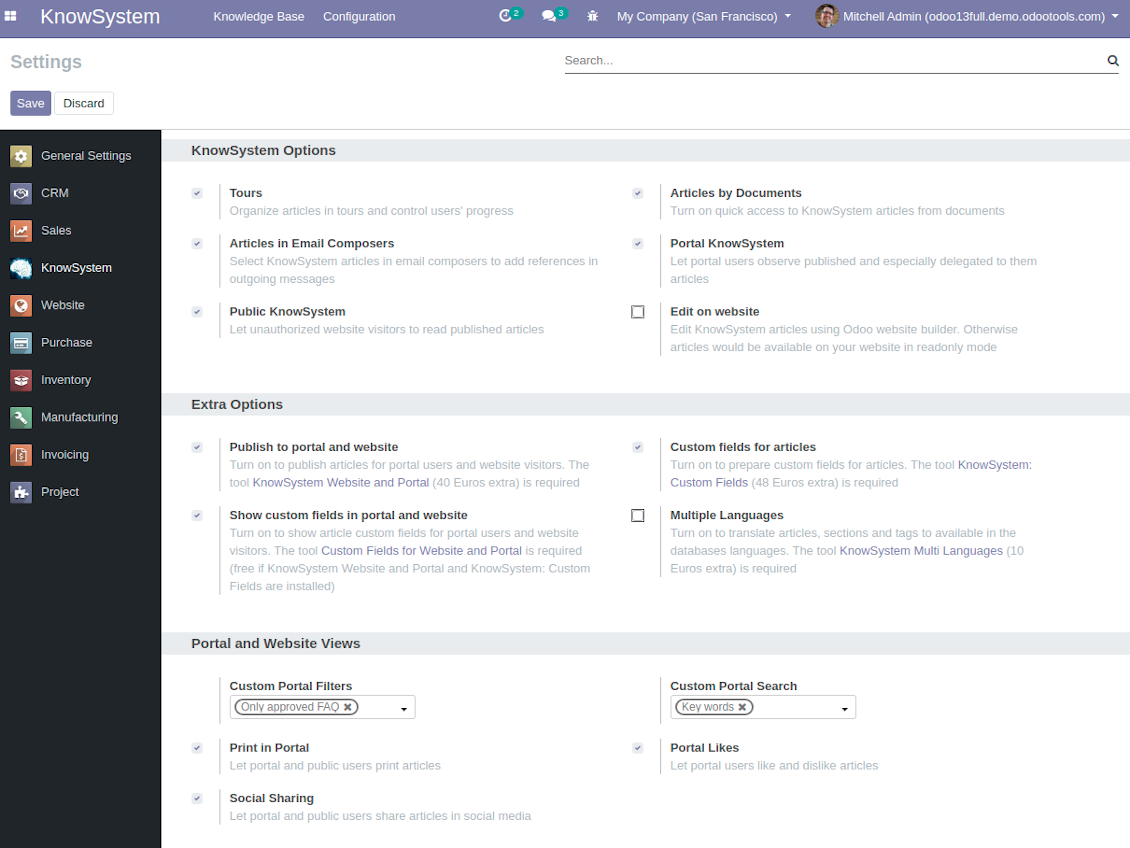
- an optional module, which let you publish articles to website, share them with portal users, and use website builder to update articles. The features assumed by this add-on are marked by the icon . Il suo prezzo è 40€.
- an optional extension to KnowSystem: Website and Portal to design website documentation pages based on knowledge base articles. The features assumed by this add-on are marked by the icon . Read the full description on the related page. Il suo prezzo è 60€.
- an optional module, which let you add and show custom fields for articles (backend). The features assumed by this add-on are marked by the icon . Il suo prezzo è 48€.
- an optional free module, which shows custom fields on website and portal pages (frontend). The features assumed by this add-on are also marked by the icon .
- an optional module, which let you translate articles, sections and tags for installed in Odoo languages. The features assumed by this add-on are marked by the icon . Il suo prezzo è 10€.
Innovative single-view interface
From the same interface editors may create and update any knowledge-related documents, change articles in batch, set up security. Without a need for excess navigation.
Interface solutions
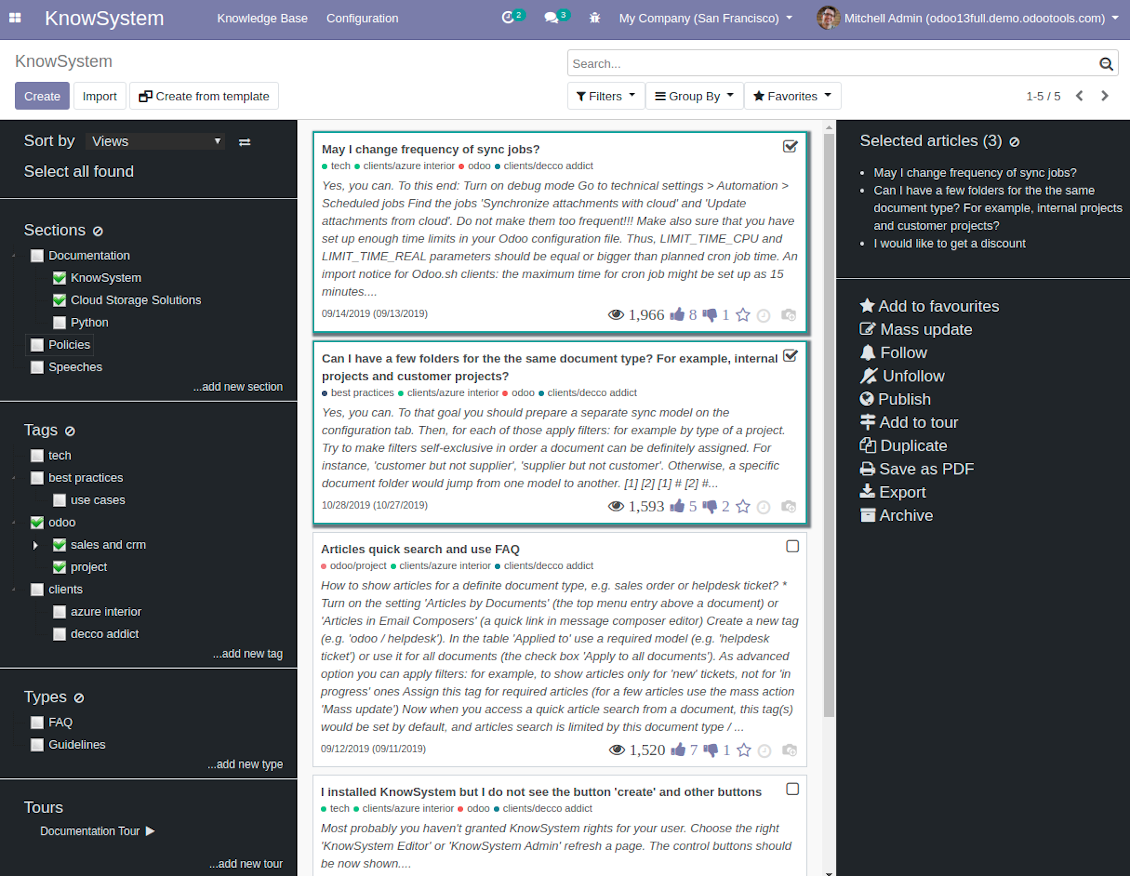
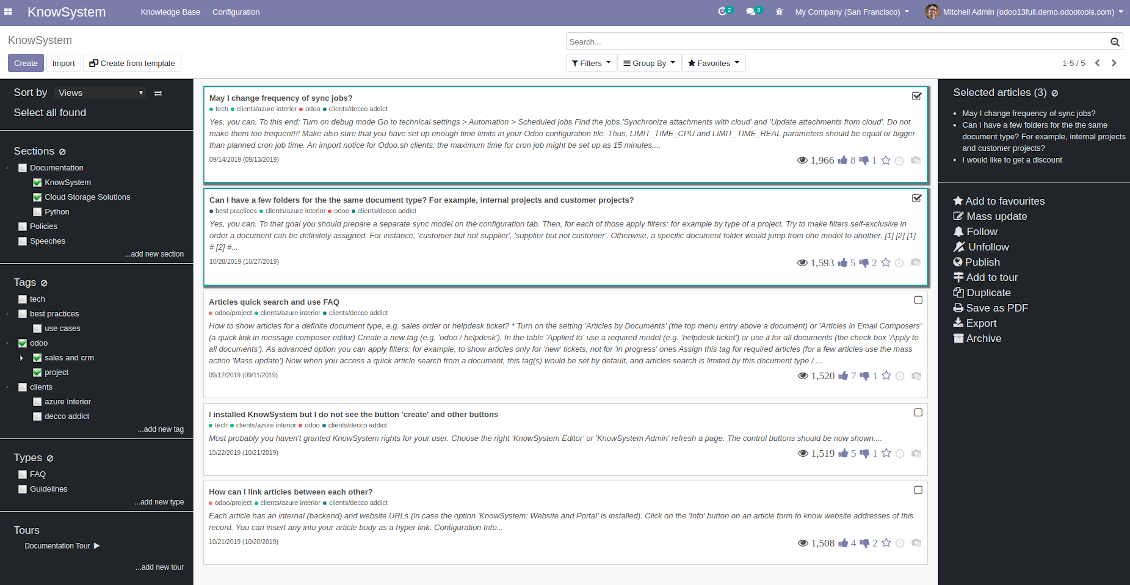
The KnowSystem interface consists of 3 key parts: the left navigation panel, the list of articles, and the right navigation panel (it is shown only if some articles are selected).
On the left navigation panel you may:
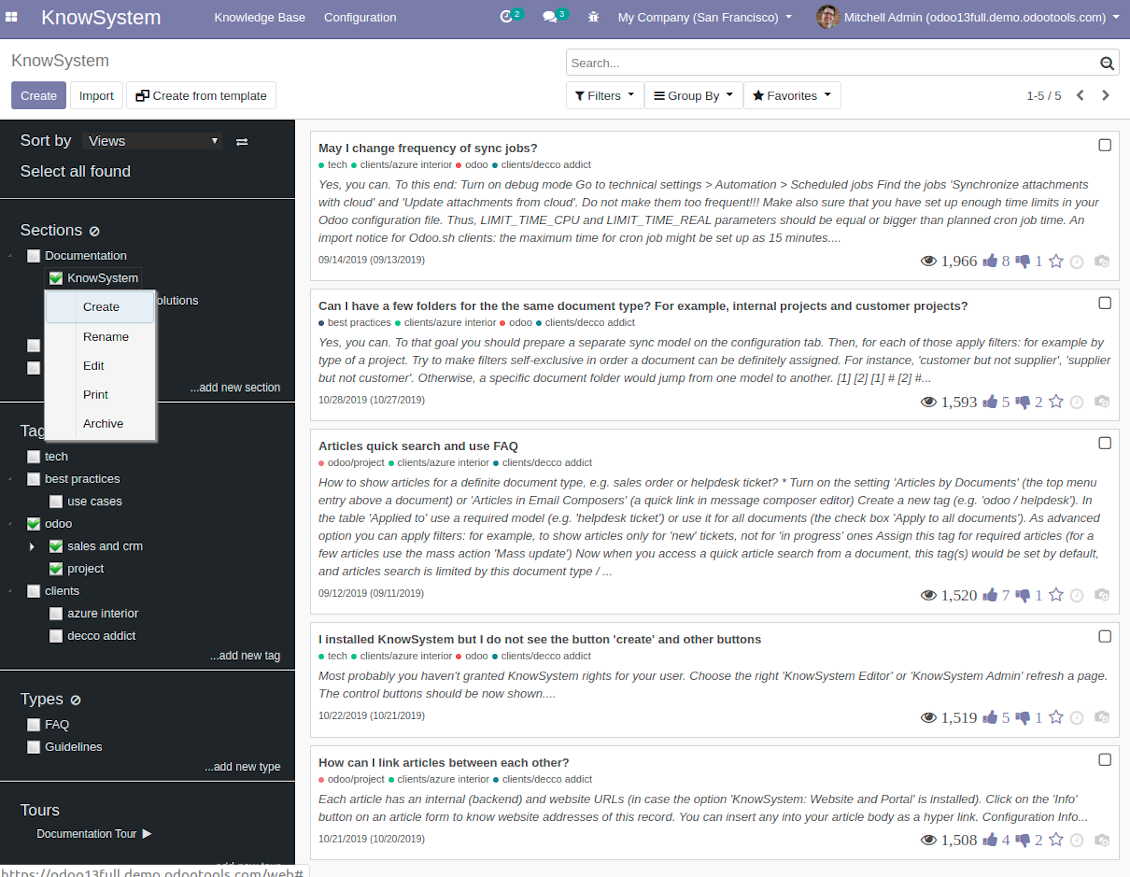
- Manage hierarchy of sections: prepare new (right mouse click - 'create'), update existing (right mouse click - edit), re-order any (drag and drop an item), archive sections. Select a few ones to filter articles. You may also print all articles related to this section as a single PDF file.
- In the same way manage hierarchy of tags and article types.
- Sort articles by number of views, a score of likes and dislikes, create or update dates, a section, an author.
- Select all articles which are found according to chosen tags / sections and according to introduced searches / filters.
- Launch a learning tour.
From the list of articles you see articles' name, indexed content (words without HTML style), dates of creation and last update, a number of views, likes, dislikes, author avatar. Here you may also add an article to favourite by pressing the 'star' icon.
Click on article body to open it in a full size (form view). Do not worry: chosen tags and sections as well as selected articles will be kept when you get back! Click on the top right check box to add an article for selection.
On the right navigation panel you observe selected articles and may proceed a mass action. Click on article name to remove it form selection.
On the top of the interface users also would find a standard Odoo omnibox. Type here to search by a title, content, an author, tags or a section.
Available mass actions
KnowSystem let users update an unlimited number of articles simultaneously:
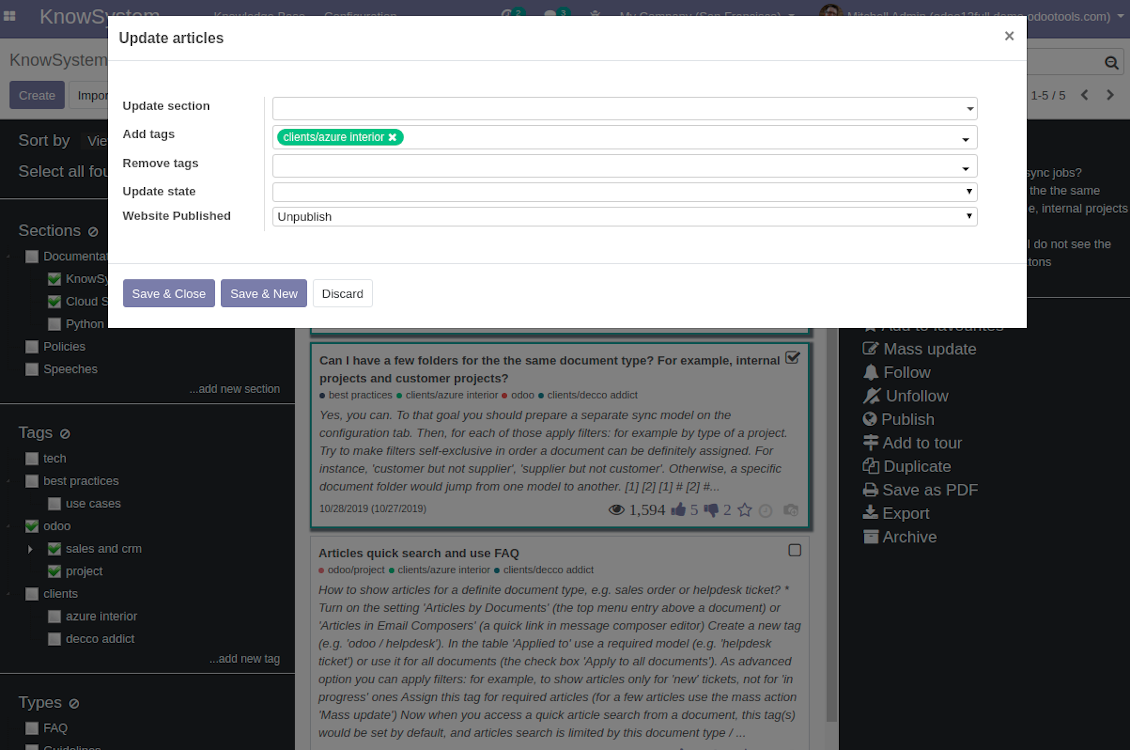
- Assign new section
- Change or remove tags
- Print multiple articles as a single PDF
- Follow / unfollow discussions
- Publish / unpublish articles
- Export articles to an Excel table
- Archive or restore records
- Add articles to learning tours
- Mark knowledge items as favourite
- Duplicate articles.
Schermate
KnowSystem Interface
Single entry for knowledge management actions
Knowledge Base overview
Article info and statistics
KnowSystem configuration
Mass actions for selected articles
Fast, comfortable, and professional knowledge recording
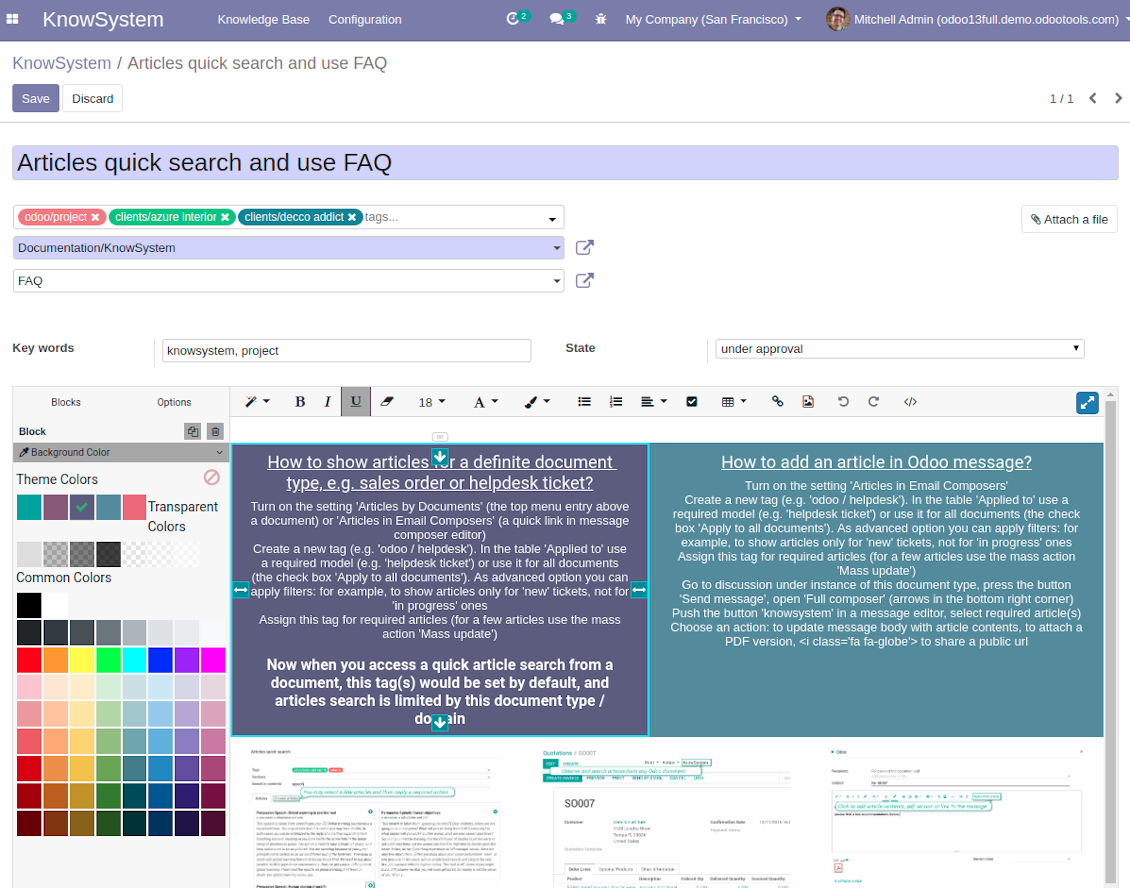
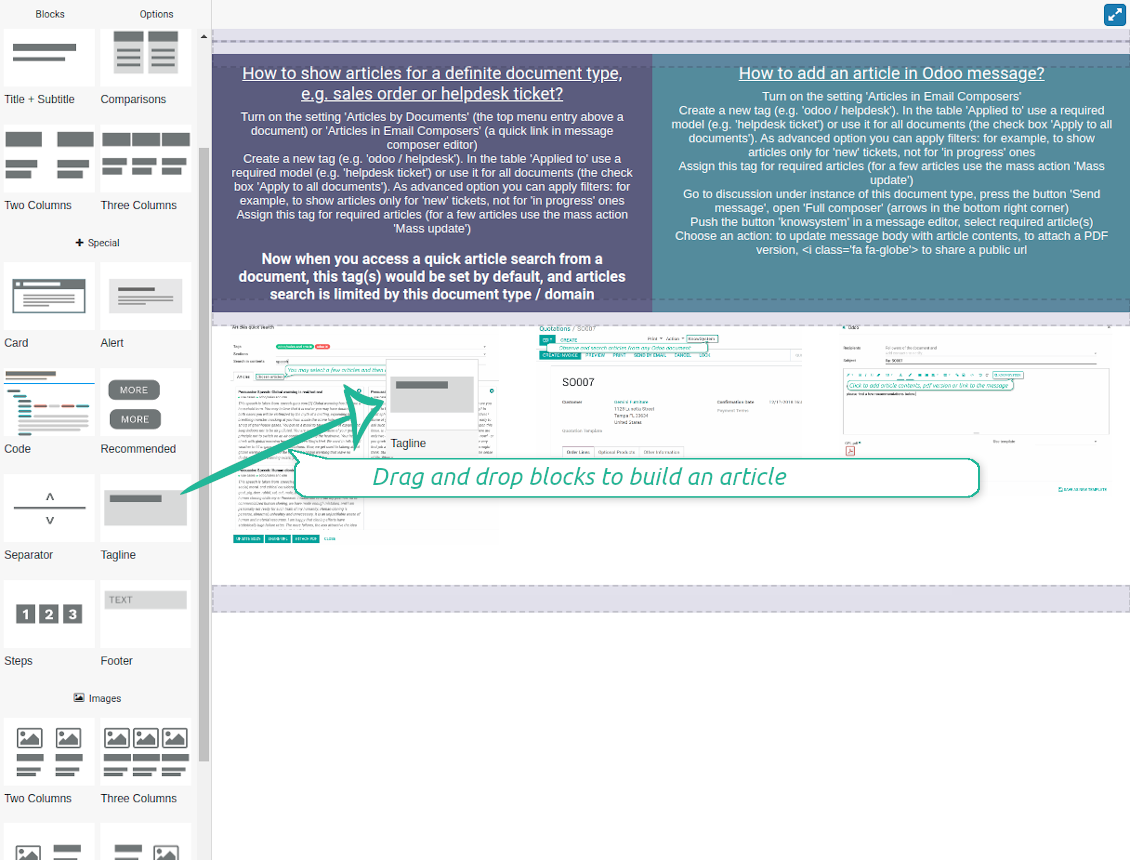
By using templates with pre-defined styles you may also speed knowledge generation up and standardize articles' appearance.
How to use the website builder for editing articles
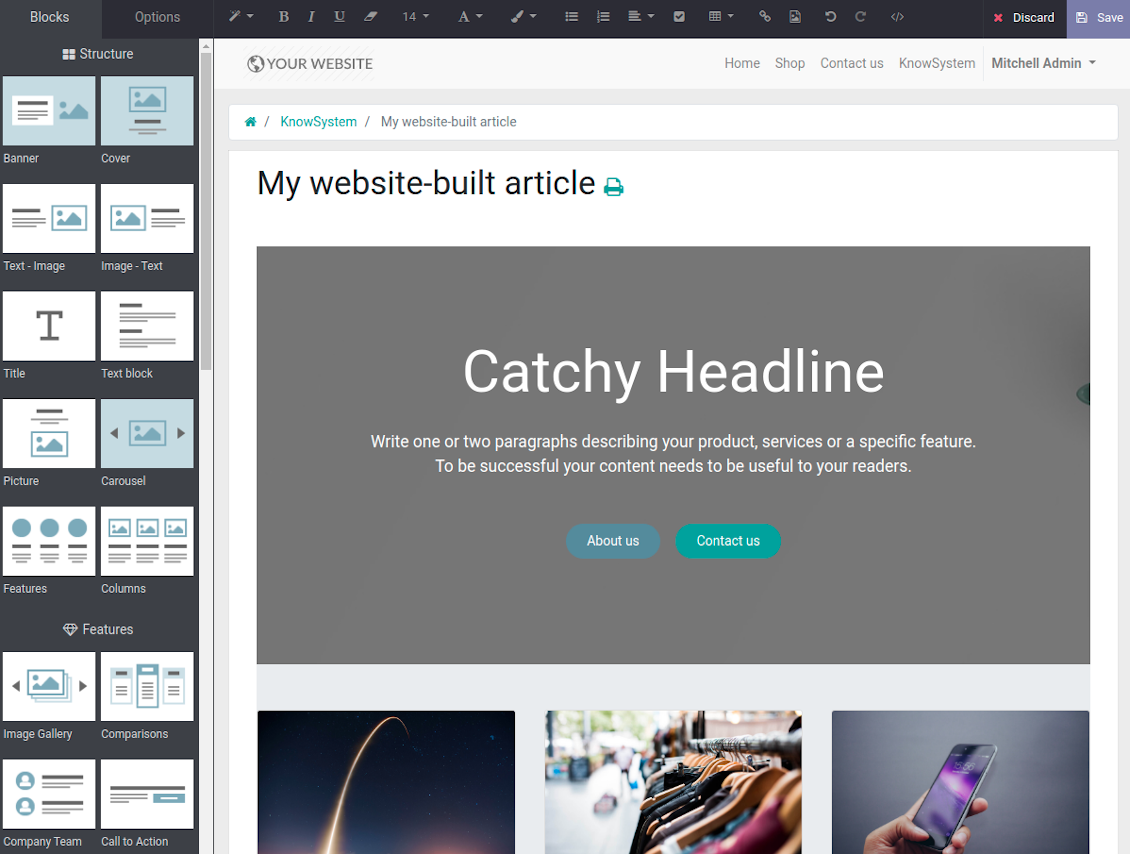
KnowSystem provides you with a backend articles' builder, which is comfortable and safe to use. Odoo website builder is richer in features to prepare complex HTML structures. To edit articles through the website:
- Install the optional add-on 'KnowSystem Website and Portal' (the option 'Publish to portal and website')
- Turn on the setting 'Edit on website'
- Push the button 'Edit on website' on this article form
Be cautious: if you are going to print this article or add its contents to emails, website building blocks are not suitable. Their advanced styles contradict printing and composer layouts and would not be correctly shown. In such a case use the safer backend builder.
How to use article templates
To prepare a new article template for repeated usage:
- If you already have an article to be used as template: push the button 'Actions > Make template', edit and save a new template.
- If you wanted to prepare a brand new template, go to KnowSystem > Configuration > Templates and prepare a new one using building blocks.
To use a template to write a new article:
- Push the button 'Create from template' from KnowSystem kanban or form views
- Select a required article template
- Push 'Create' and introduce changes to a new article.
Schermate
Comfortable article customization
Building blocks for knowledge base articles
Article read mode
Use website builder to edit articles (bad for backend usage)
Get benefit from your knowledge
How document types and articles are linked for a quick access
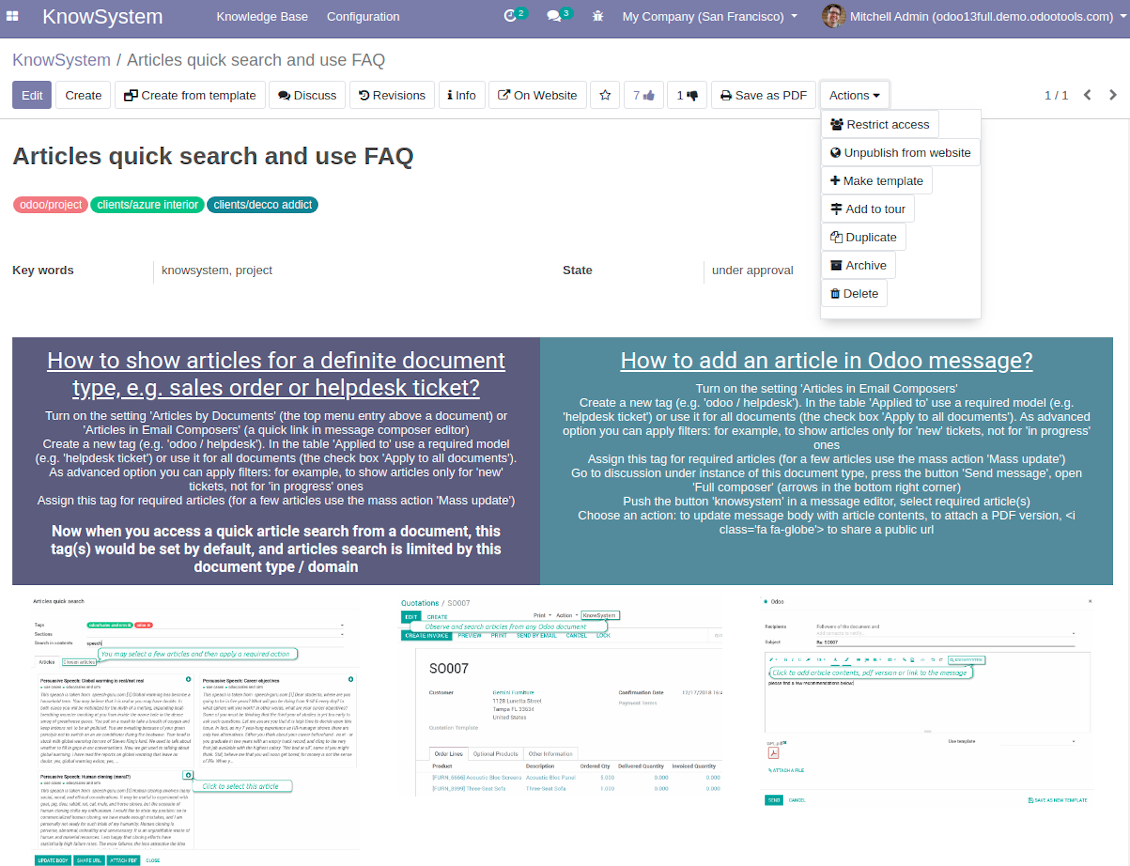
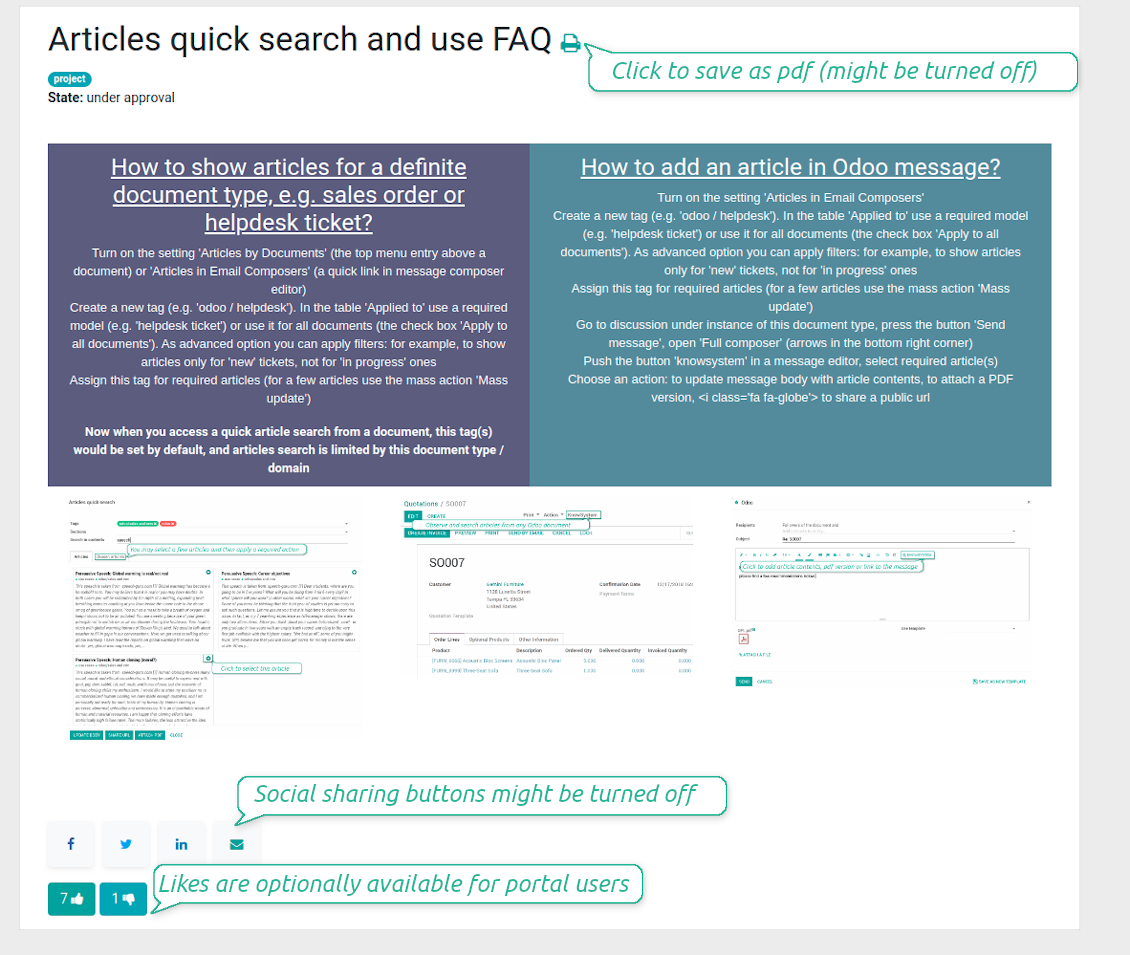
Experience is not general, usually it relates to specific issues. Knowledge used for customer communication differs from suppliers' negotiations. Frequently asked questions for draft and confirmed sale orders vary. KnowSystem let you structure your articles to apply them in a correct place and at right time. To that end:
- Turn on the setting 'Articles by Documents' (the option shows the top menu entry above any Odoo document) or 'Articles in Email Composers' (the option adds a quick link in a message composer editor for citing)
- Create a new tag (e.g. 'odoo / helpdesk'). In the table 'Applied to' use a required model (e.g. 'helpdesk ticket') or use it for all documents (the check box 'Apply to all documents').
- As advanced option you may apply additional filters: for example, to show articles only for 'new' tickets, not for 'in progress' ones. Use dynamic filters' constructor for that goal
- Assign this tag for required articles. For a few articles use the mass action 'Mass update'
- Now when you access a quick article search from a document or from an email composer, Odoo will calculate KnowSystem tags for this document. That's why by default users would see only articles suitable for a current document. Simultaneously, they might always change tags to use other knowledge base data.
How to overview articles which might be useful for this document
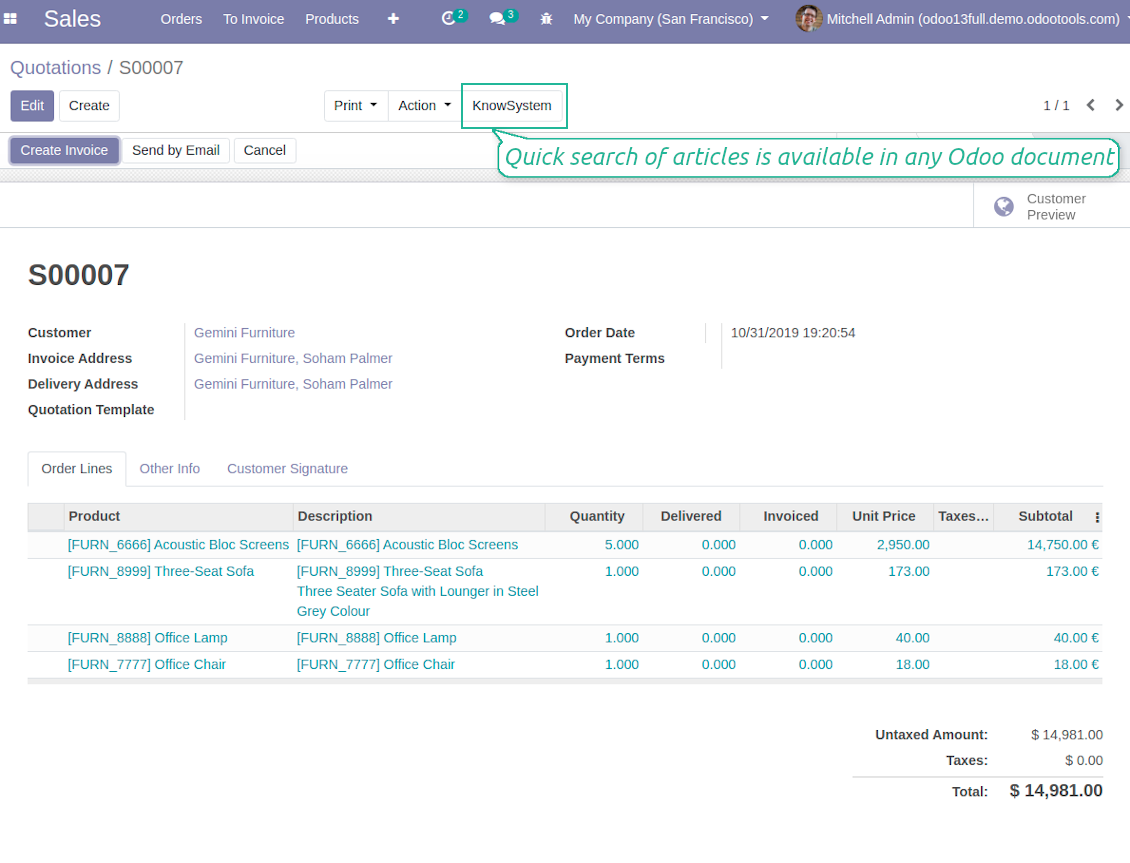
As soon as you turned on the option 'Articles by Documents', on the top of each Odoo object form view there would be a quick link 'KnowSystem'.
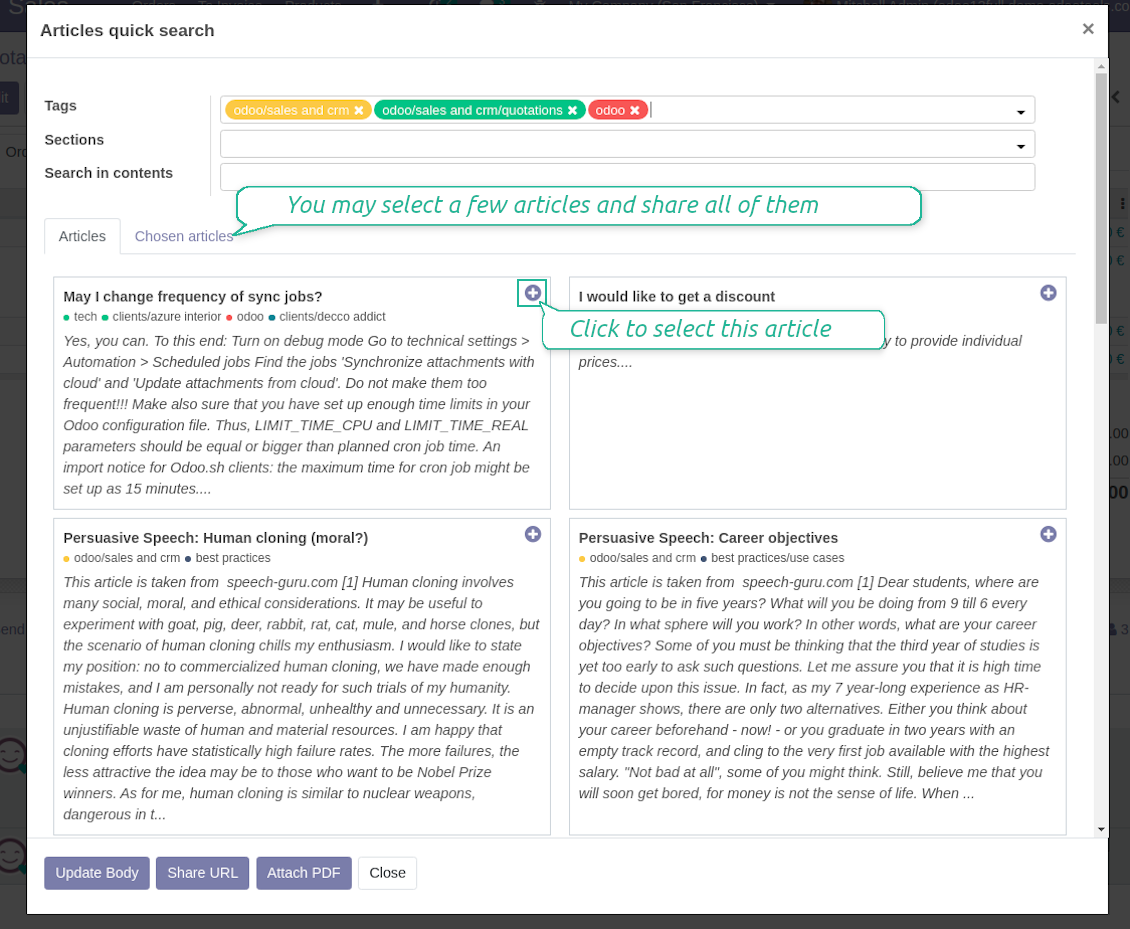
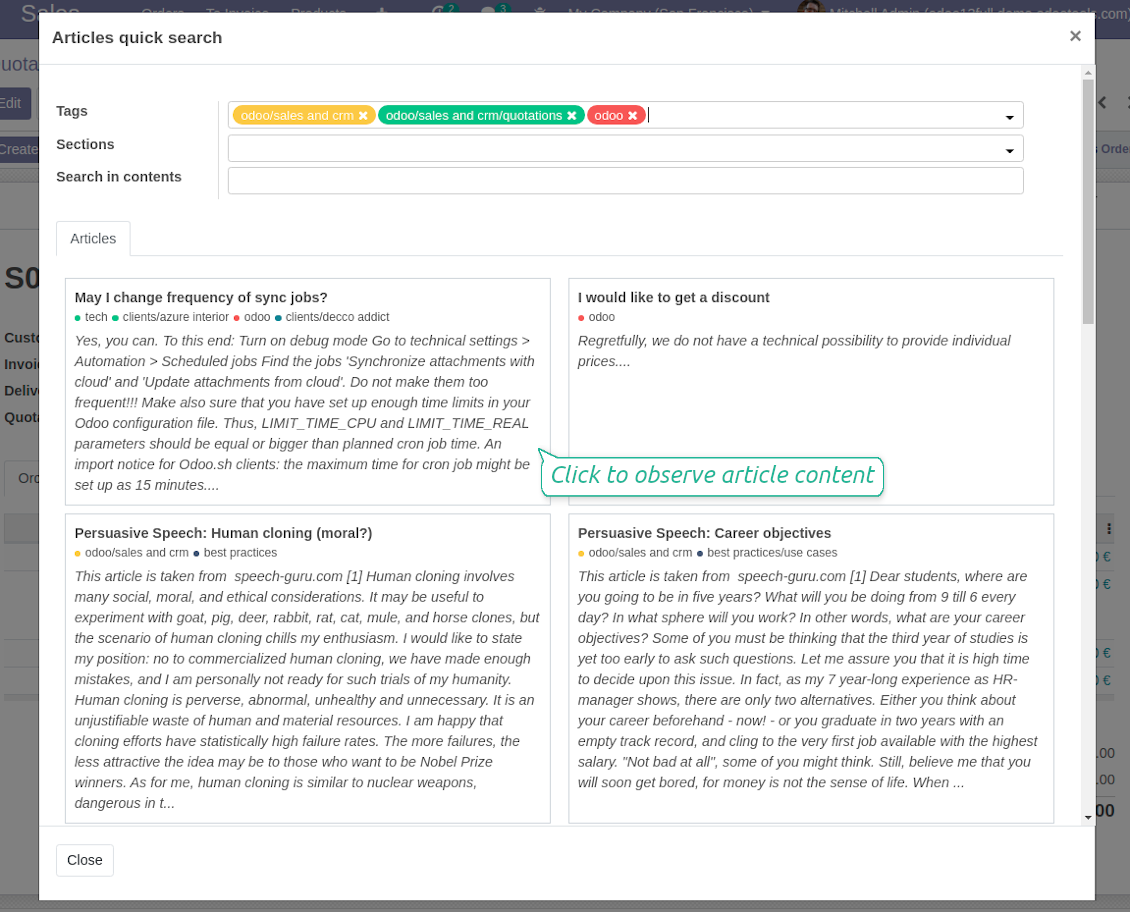
Click on that entry, and Odoo would open the wizard with articles. By default KnowSystem tags suitable for this document would be selected (if any). You may change those tags, or additionally filter by sections or content search. As a result list of topical articles is shown for you.
How to use company knowledge for communication
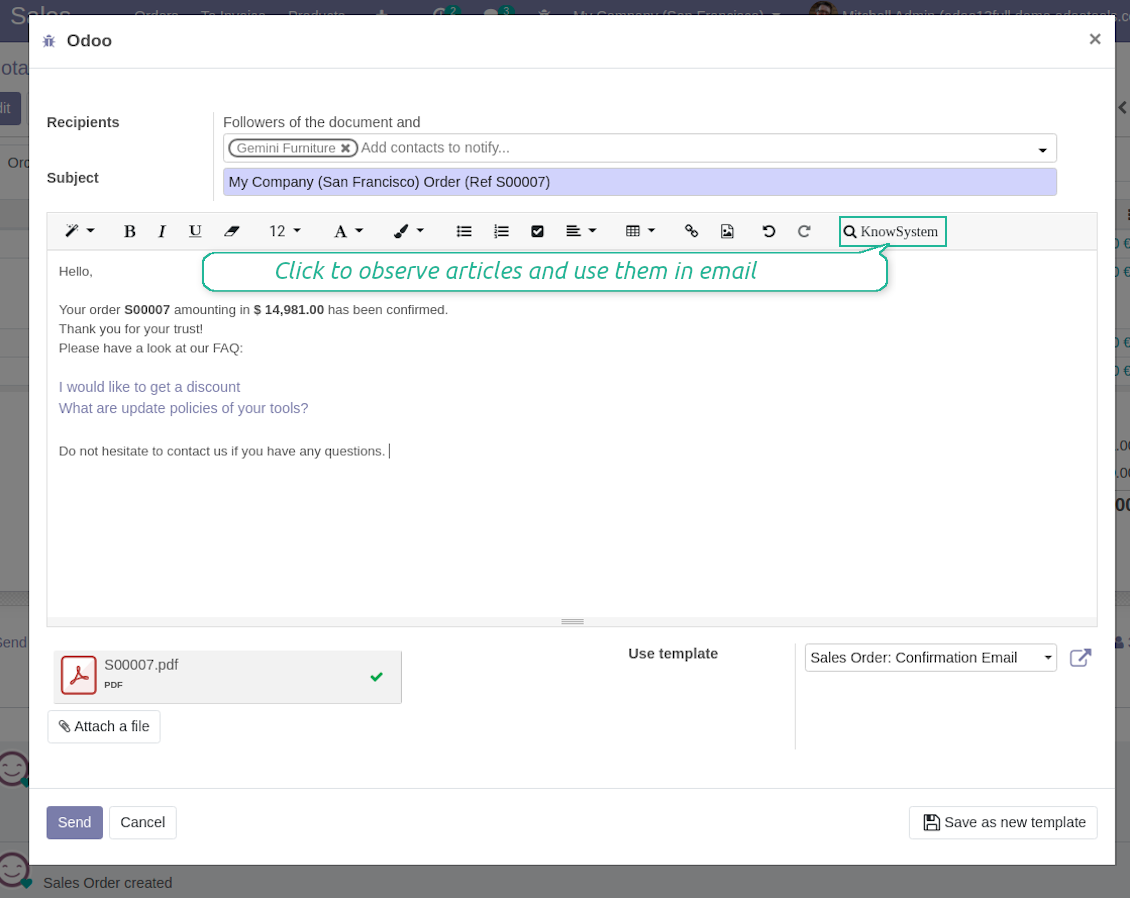
Turn on the option 'Articles in Email Composers' to let users reference or cite Knowledge records in Odoo messages. As a result the special quick entry 'KnowSystem' would be added to each Odoo email composer.
Clicking on that entry would open a wizard with a set of suitable to this document articles. You may change search by tags, add extra filtering by sections or content.
Afterwards, select required articles among found ones; choose an action. You may:
- Update message body with article contents (would be added to the end of a current message)
- Attach a PDF version of an article(s)
- Share a public link
Schermate
Apply knowledge in emails
Share articles content, link, or printing in messages
Quick access for knowledge system from any Odoo document
Quick knowledge search
Individual partner knowledge base portal
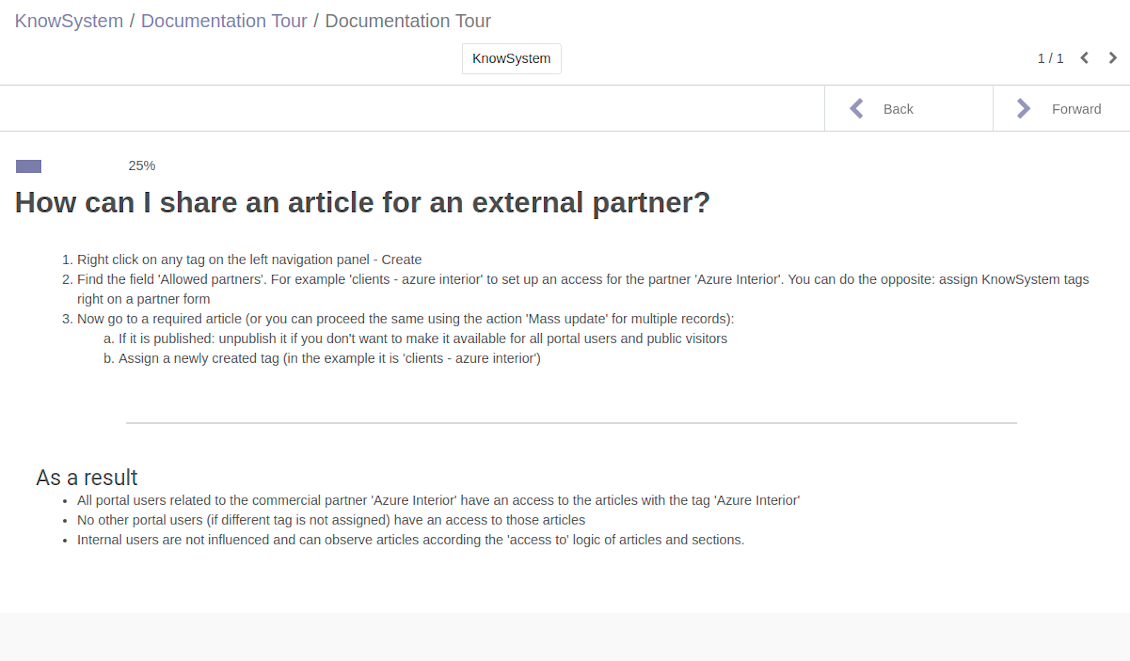
How to share knowledge base with specific partners
An article is available for a portal user in two cases: A. it is website published; B. his/her company is indicated as allowed partner in one of article tags.
In the first case such an article is available for all portal users and even for public website visitors who have not logged in.
In the latter case you grant a restricted access for an article only for chosen companies. To that end:
- Turn on the setting 'Portal KnowSystem'
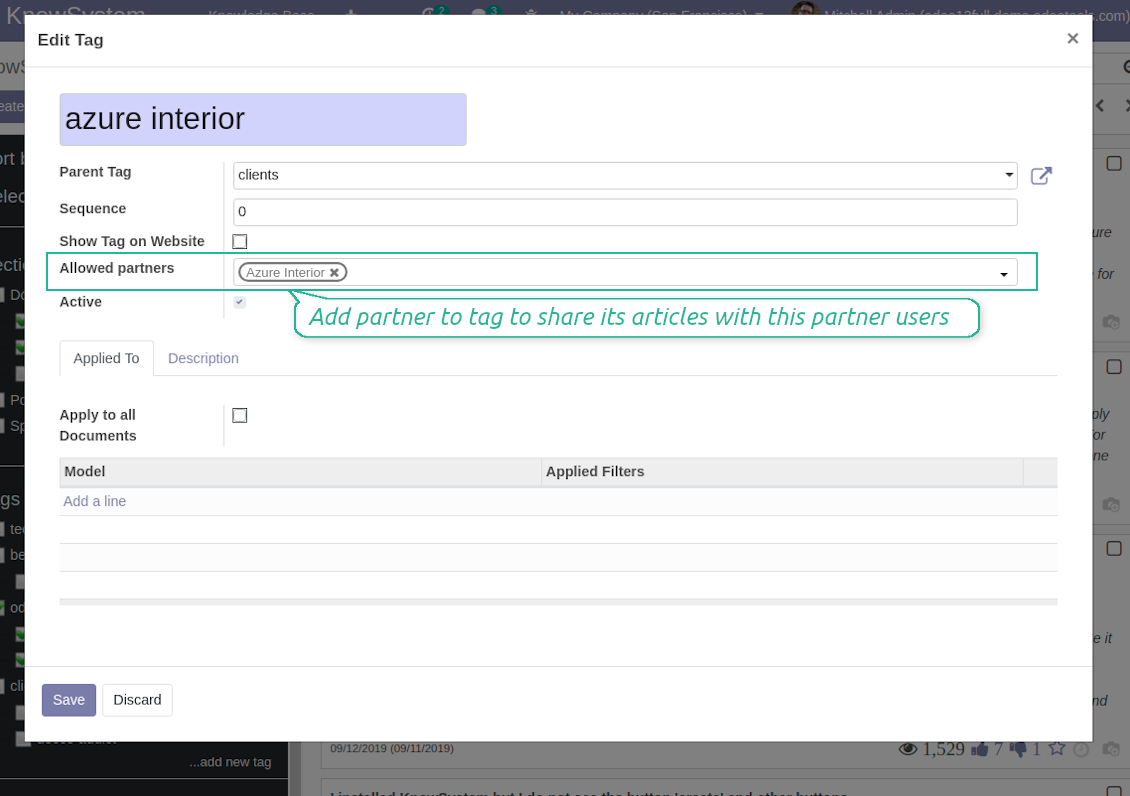
- Create a tag for this partner, for example 'clients / Azure Interior'. On the tag form indicate this company in the field 'Allowed partners'
- Assign the tag for all articles you want to share with this partner. For a few articles use the mass action 'Mass update'
- Now portal users related to this partner may access shared articles right from their partner portal.
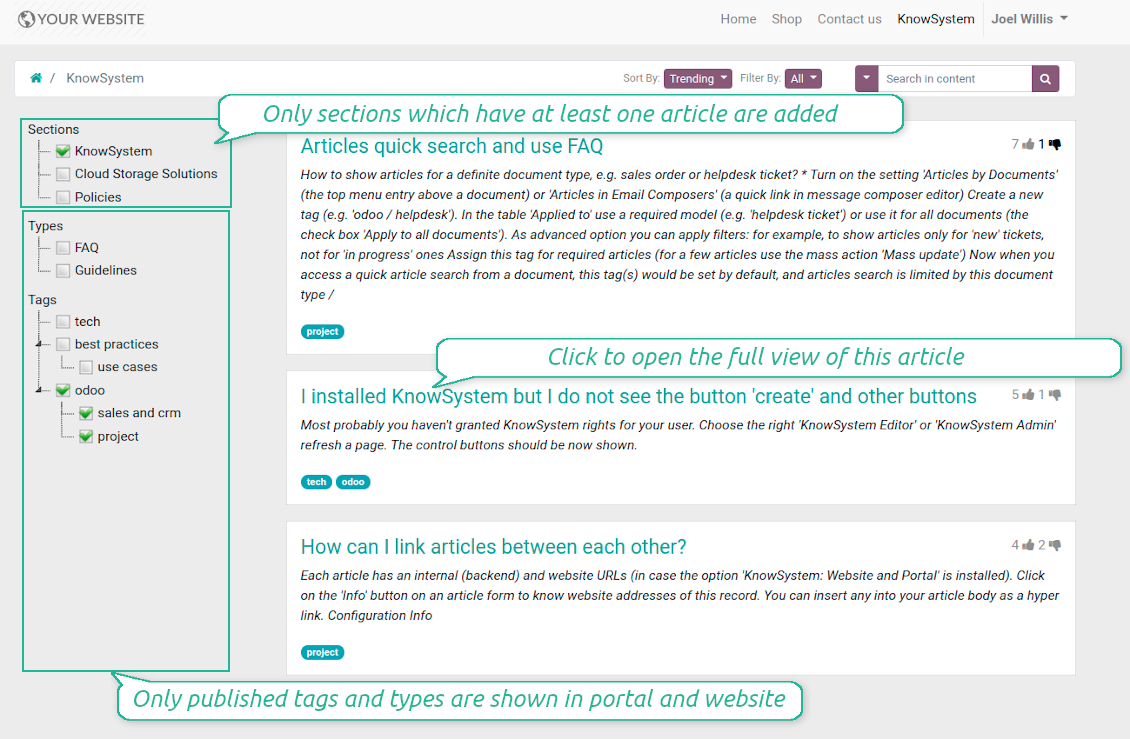
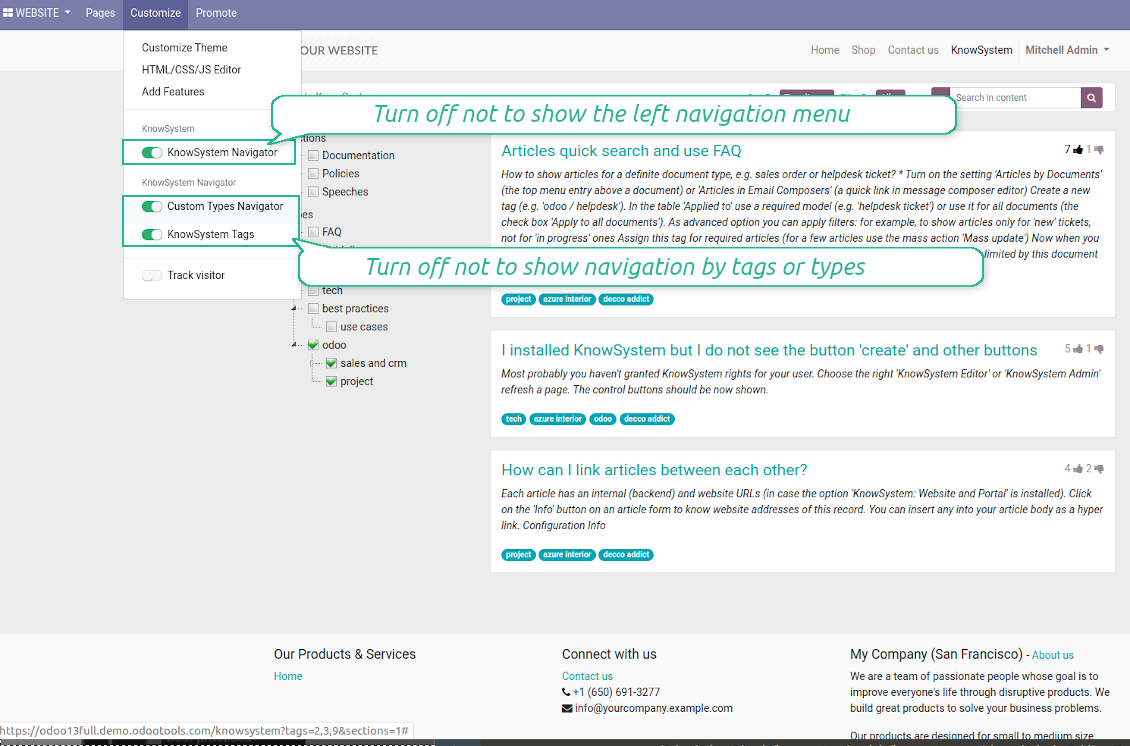
How to add sections, tags or article types to portal / website
Take into account that:
- Section is available in portal / website only if it has one available article inside;
- Tags and article types are added to hierarchy only if they are published.
Schermate
Knowledge base for portal and public use
Configurable public knowledge base
KnowSystem articles in portal and website
Best knowledge base system for Odoo!
Excellent app and exceptional after-sales support.
Really well thought-out product and one of the best features is the contextual help by means of the tags. Really a game changer for us.
Keep up the great work FaOtools!
Outstanding app! Tremendous value for money, an absolute must have!
One of the features sorely lacking from Odoo has been a robust Wiki/documentation system. Using third party platforms is a massive headache: yet another system to maintain, users get distracted switching back-and-forth, and errors get made. Then you have to worry about training, additional logins, etc.
KnowSystem feels like a native/core app, is very well-polished, and extremely fast. It's accessible from any screen, and the search results are instant (none of the latency inherent with most apps).The interface is elegant yet powerful, with robust access control, rich editing features, and version control. It's simple to revert to previous entries, view audit trails, etc. It's very intuitive for anyone familiar with Odoo; onboarding takes just a few minutes. The user guides are excellent.
This is invaluable for any organisation with a lot of documented information, SOPs, ISO compliance, or similar. If you're using eLearning, it's great for creating a help system / reminders. For example, noting key takeaways or specific instructions. The user can be in MRP, Sales, or any other function, and instantly lookup a guide. Since it overlays whichever screen you're in, it doesn't interrupt the workflow.
This dramatically increases efficiency, minimises questions, and helps keep everyone on the same page.
Oh, and customer service is excellent, faOtools stands behind their product. Thank you!
KnowSystem is excellent - OdooTools offer great support, are very helpful and responsive
Our company needed the ability to add a Knowledge Base to our Odoo portal website for our customers to access article content on a membership-only basis. KnowSystem provided this and much more, along with ability to add search by section, set permissions to allow only certain partners access to articles by tag etc. OdooTools have been very helpful and implemented several features we suggested including automatic redirect upon login, customisable filters and a social sharing capability on articles. Overall a great app by a great company, something that massively adds to Odoo's capabilities and is something that everyone could benefit from using.
Very functional application and responsive support
Our company produces medical laser equipment and we use KnowSystem to streamline the knowledge base of our company. Convenient search system and classification of content, as well as access rules for groups and even for individual users.
Great app and professional team
The app is great the the team is very professional in both response timing and problem solving.
Highly recommended.
Marco from ALO.zone.
Excellent system
Excellent system.
A great tool from some very nice developers!
KnowSystem is a great tool and a game changer for us. Finally a place to put all our company know-how. I highly recommend it. And also important to us: We got great support from FaOtools too. A rare thing in this busy world. thx!
Excellent app and support.
Great app and a very helpfull support. Openess to improve their products is outstanding.
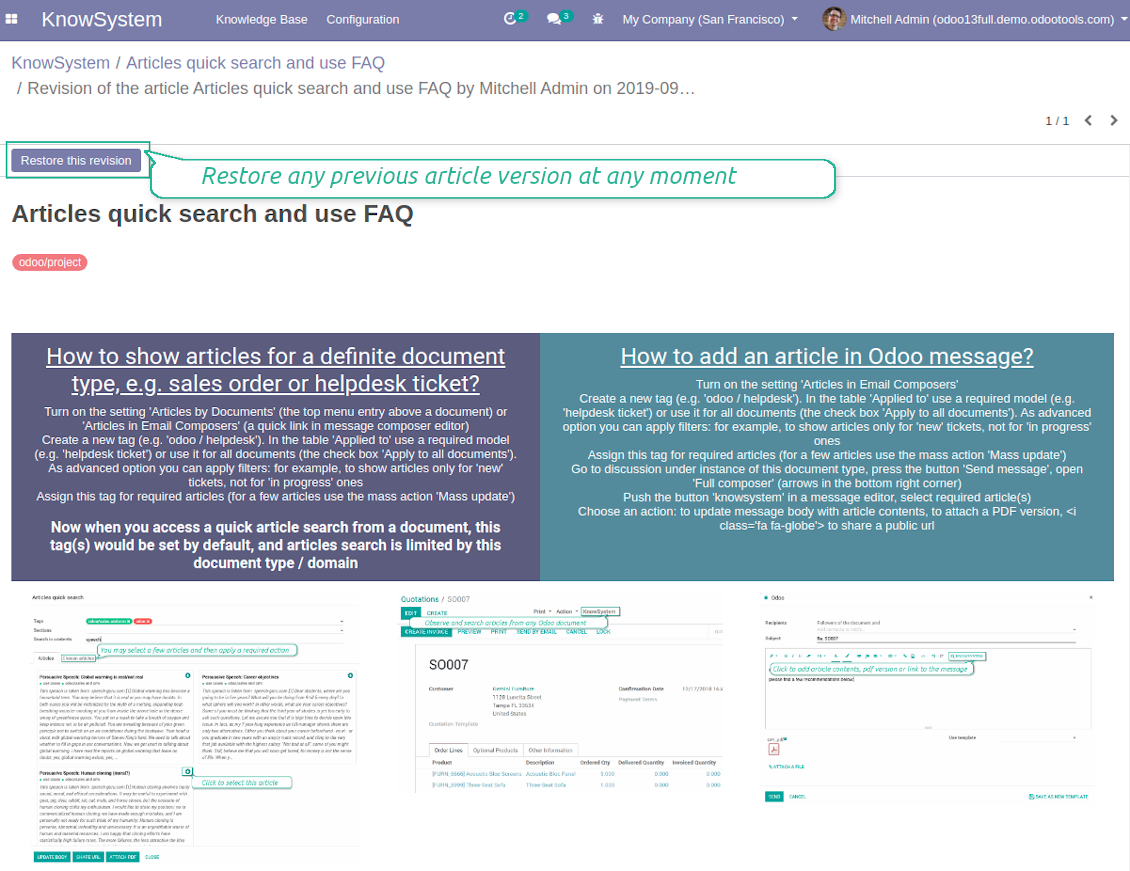
WIKI-like revision system
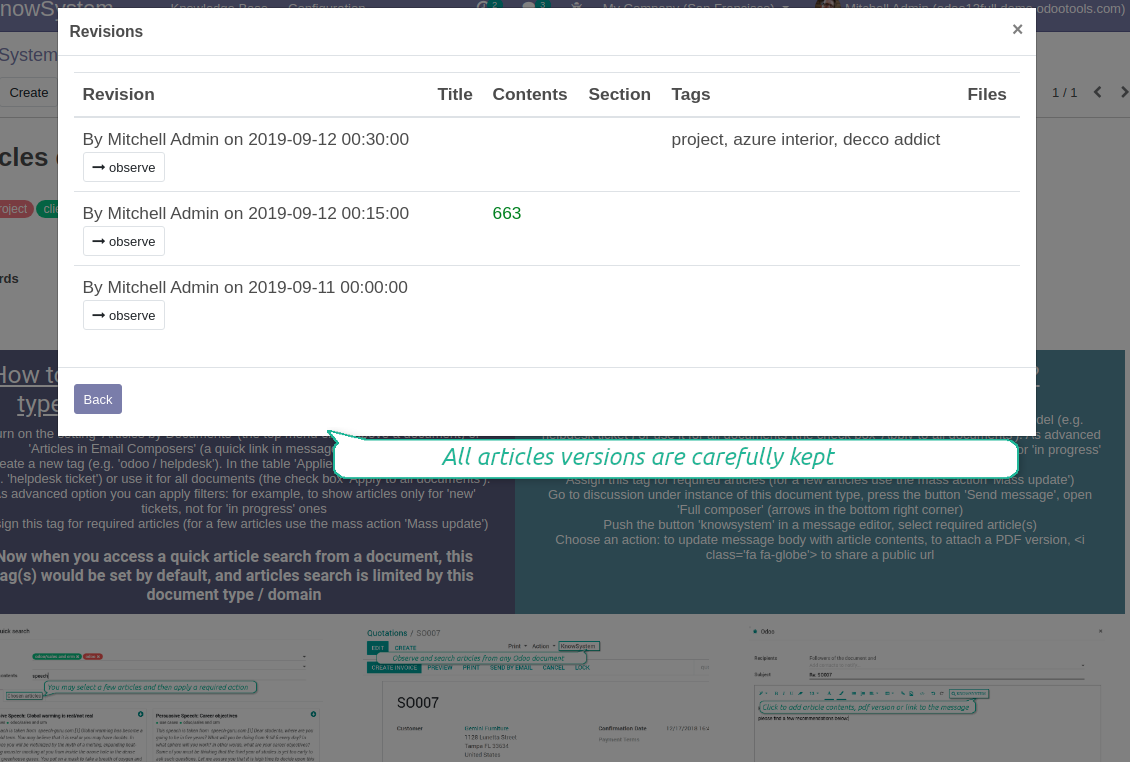
How to recover a previous article version
- Go to an article form view and push the button 'revisions'
- Find a required one and push the button 'Observe' to check whether this version is a correct one
- Push the button 'Restore this revision'. The article would be recovered to that version.
- The recovery operation itself is recorded. So, if it is a mistake you can revert changes by recovering the last-to-last revison.
Schermate
Wiki-style revisions history
To restore is easier than to break
Public knowledge system
How to make an article available for all website visitors
- Turn on the setting 'Public KnowSystem'
- Publish required articles through the mass action 'Publish' or by pushing the button 'Actions > Publish on website' on an article form
- Now any website visitor can read those articles
Team work for knowledge creation
Custom fields to structure knowledge
How custom knowledge attributes work
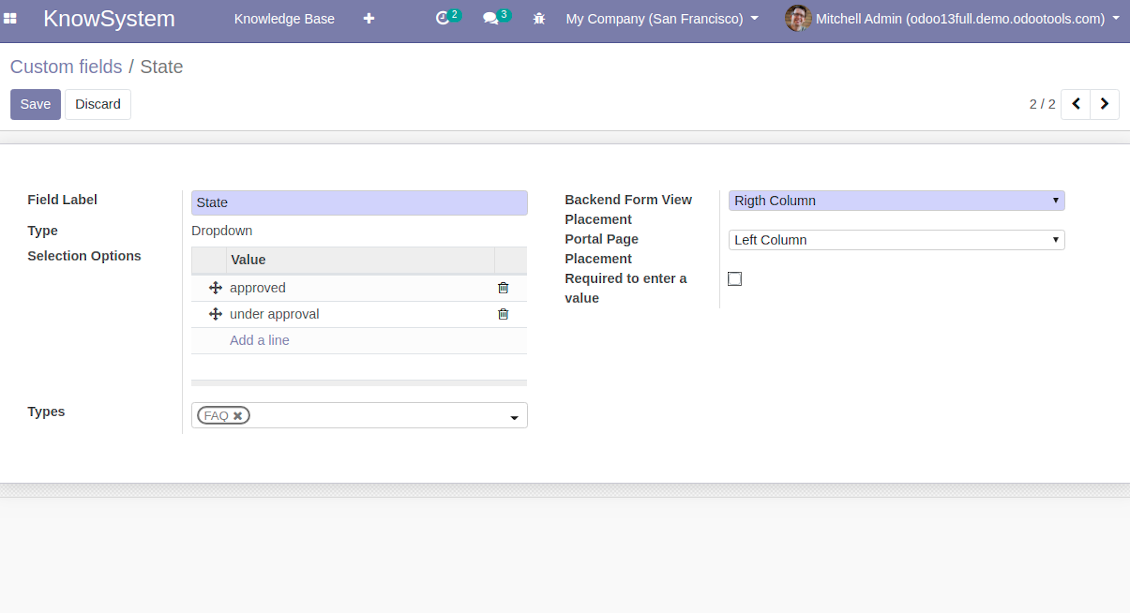
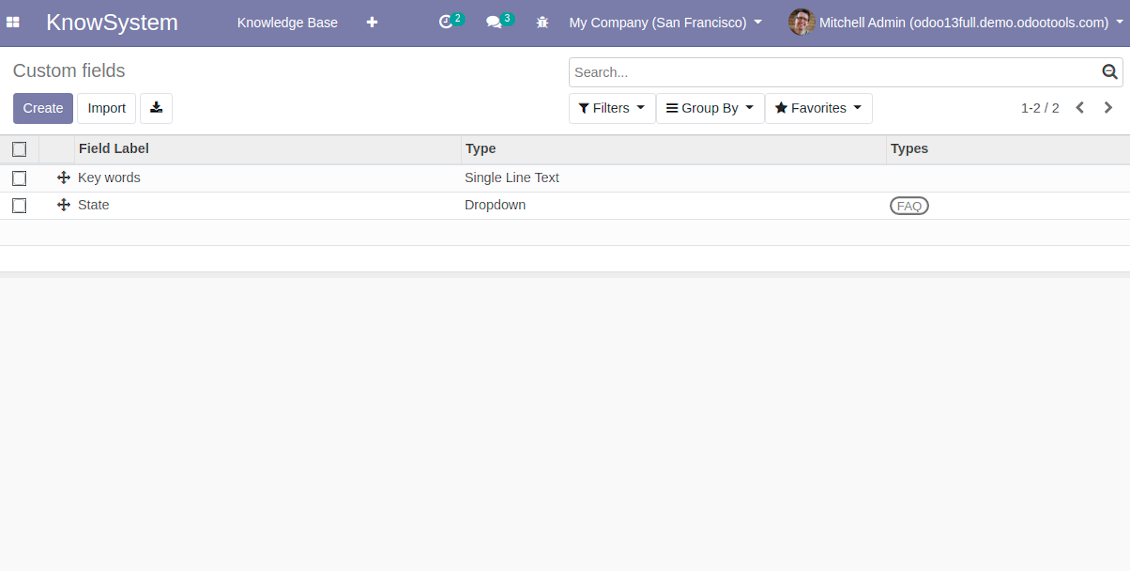
In order to show a new property for KnowSystem articles, just create a custom field. Nothing else is required! You are welcome to prepare fields of various types: single line text (char), simple text without formatting (text), rich text (HTML-formatted text), integer or float numbers, drop-down choice with your own options (selection), checkbox (boolean), date or date and time, binary (a file to upload), reference to another Odoo document (e.g. for a sale order, contact; many2one).
The tool also introduces complementary articles' typology. Thus set of attributes for 'user guidelines' and 'technical specifications' might be different.
Then, choose an interface location for a new field from a closed list to structure properties on an article page. Decide whether a field should be required to enter, or should be visible only for definite knowledge types.
Schermate
KnowSystem articles custom fields
KnowSystem articles custom properties
Knowledge is secured and might be safely shared
How to manage user accesses to articles
Security for internal and portal users differs.
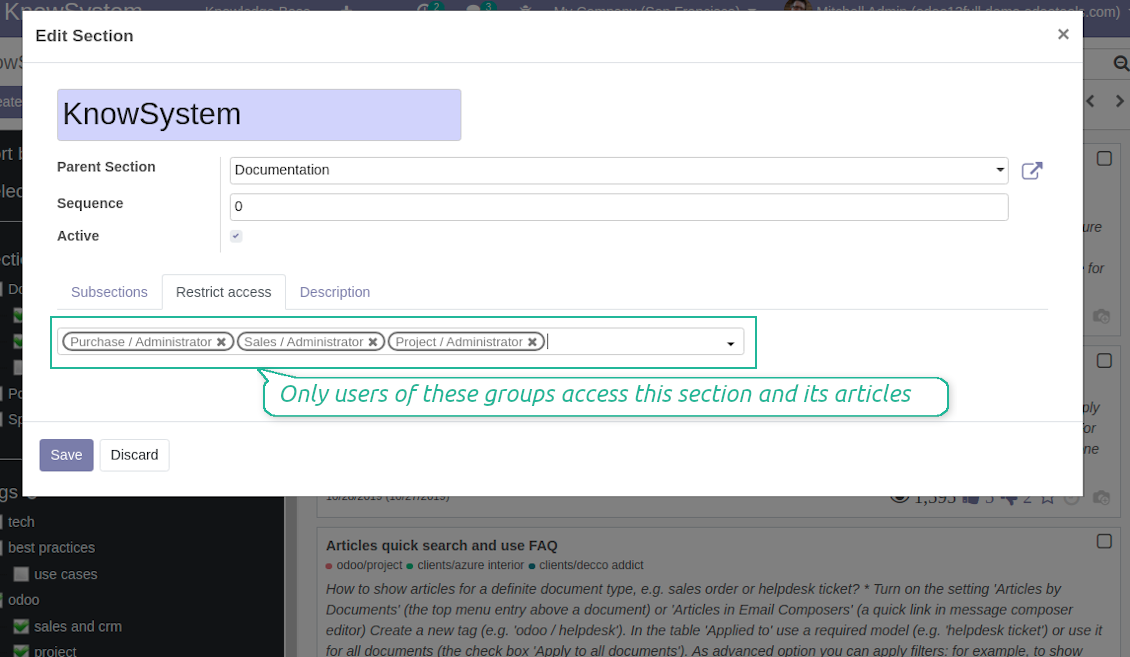
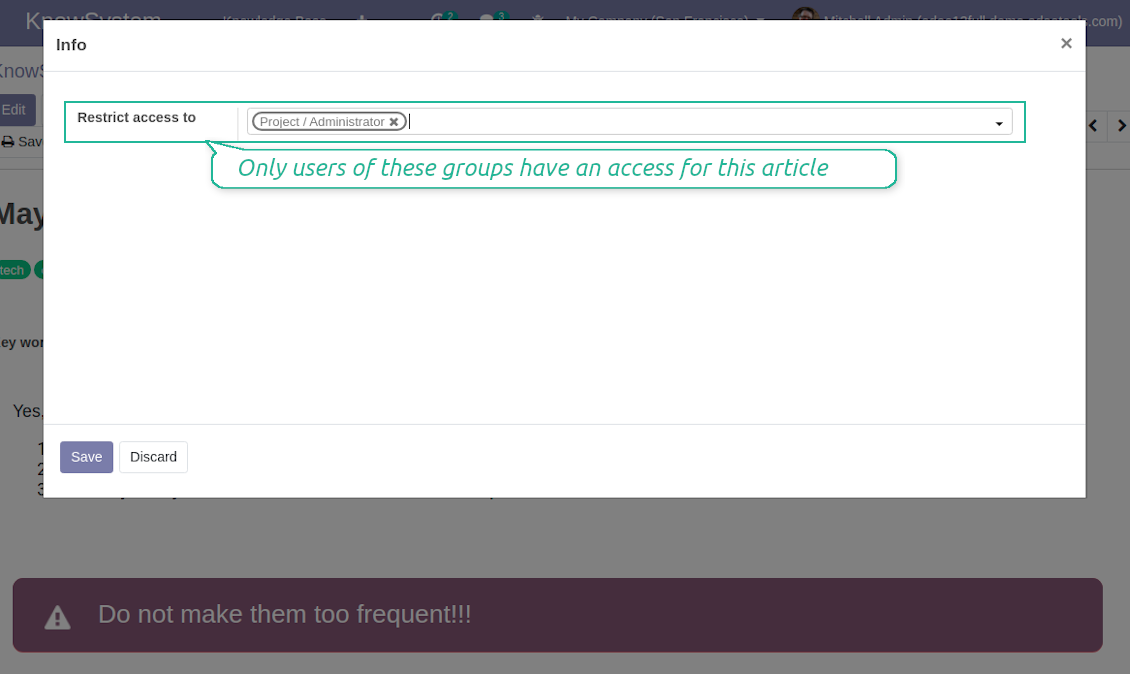
For the company employees: KnowSystem considers user groups which are defined per articles, sections and tours. Look at the tab 'Restrict to' on forms of those objects. If that field is not defined, a document is considered 'global': each internal user may read it.
For portal / public users: KnowSystem takes into account tags and whether an article is website published. A knowledge tag has a field 'Allowed partners', which may grant an access to portal users for articles with this tag. Website published pages are available for everybody.
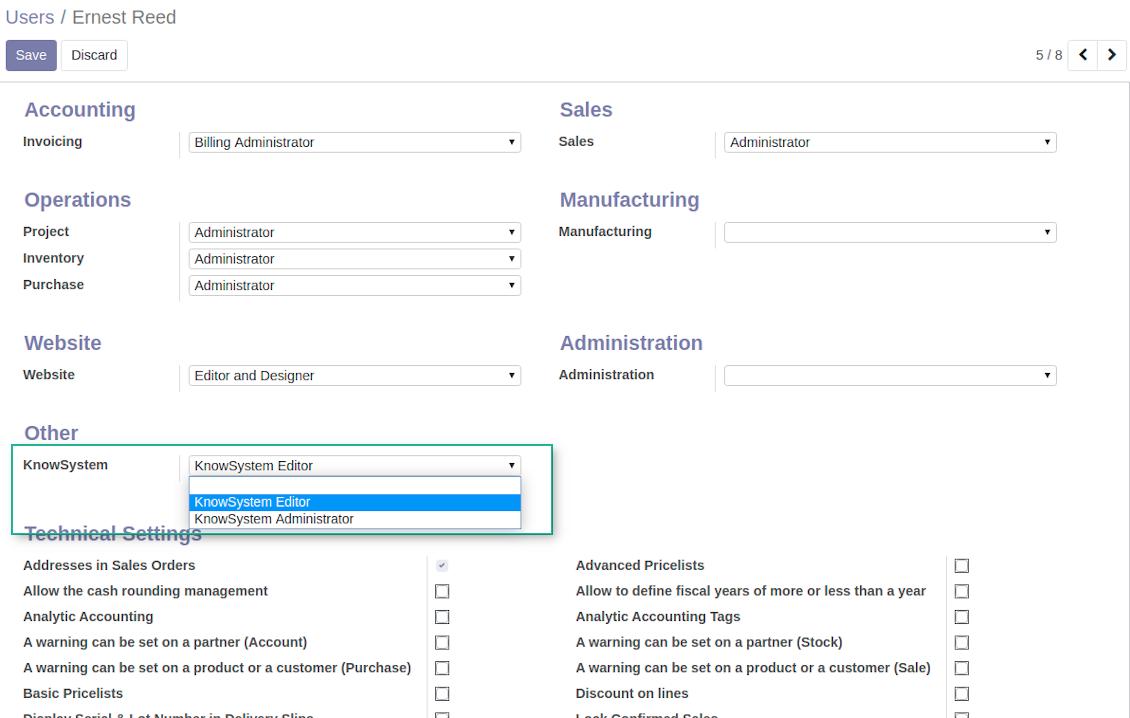
Rights to administrate KnowSystem belongs to 2 user roles: KnowSystem Editor and KnowSystem Administrator. If you want a user to create and edit articles, a user should belong to one of those groups.
|
|
Odoo user |
KnowSystem Editor |
KnowSystem Admin |
Portal user |
Public user |
| Articles | read related to his/her user groups and sections | read, create, edit, archive related to his/her user groups and sections | read, create, edit, delete any | read published articles and articles related to partner-related tags | read published articles |
| Sections | read related to his/her user groups | read, create, edit, archive related to his/her user groups and sections | read, create, edit, delete any | read all sections of available articles | read all sections of published articles |
| Tags | read any | read, create, edit, archive any | read, create, edit, delete any | read published ones | read published ones |
| Article Types | read any | read any | read, create, edit, delete any | read published ones | read published ones |
| Tours | read related to his/her user groups | read, create, edit, delete related to his/her user groups | read, create, edit, delete any | no access | no access |
| Misc | may like / dislike, add to favourites, print, take part in discussions | may configure options | may like / dislike an article |
|
Take also into account two peculiarities:
- Odoo user always may access an article of which he is an author disregarding further restrictions;
- Rights for section is defined not only according to this section but also according to all its parents. For example, if user can't access 'sales', he/she would not be able to access 'sales / crm' disregarding whether 'crm' is available for his/her user group.
Schermate
KnowSystem security levels
Manage access to this section and its articles
Manage portal access using tags
Manage access to this article
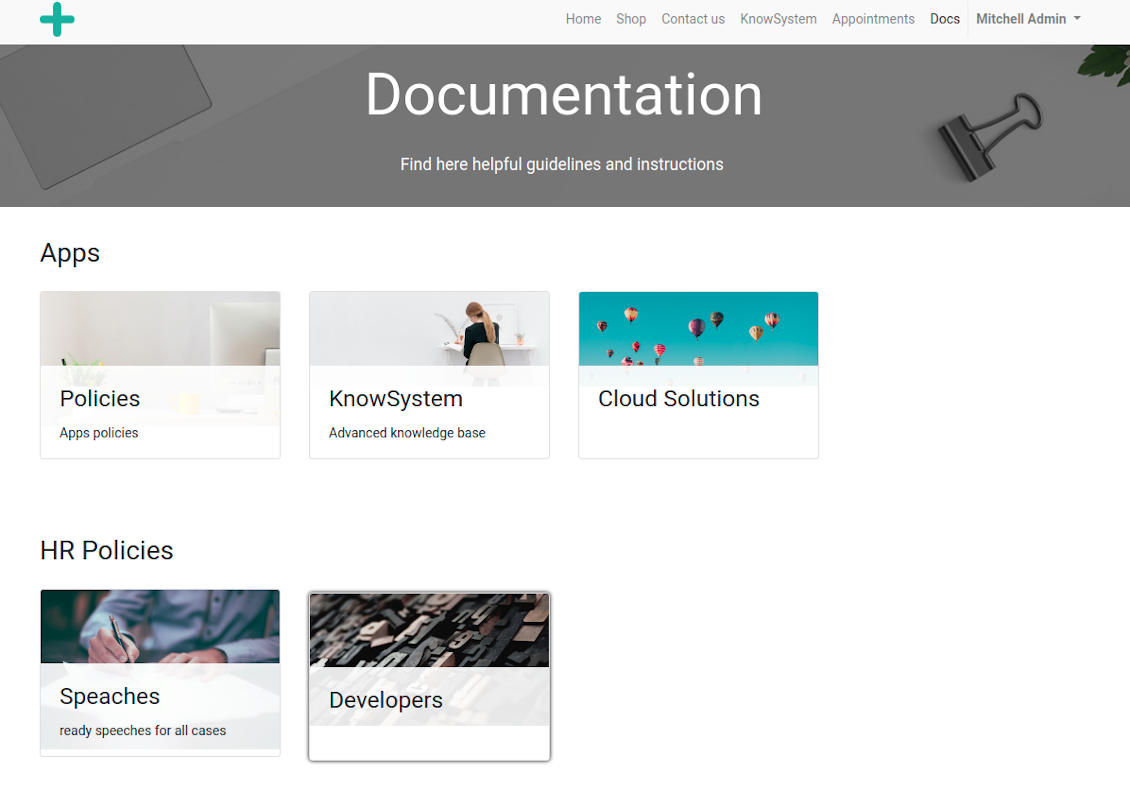
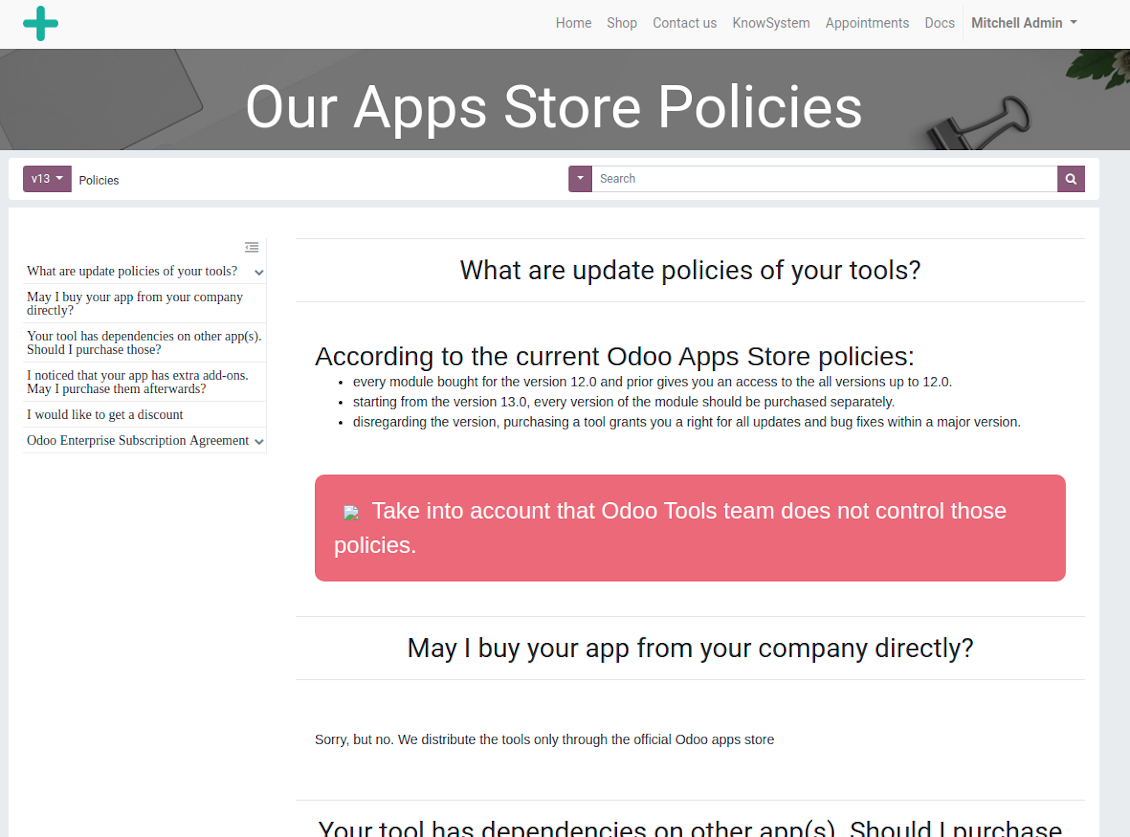
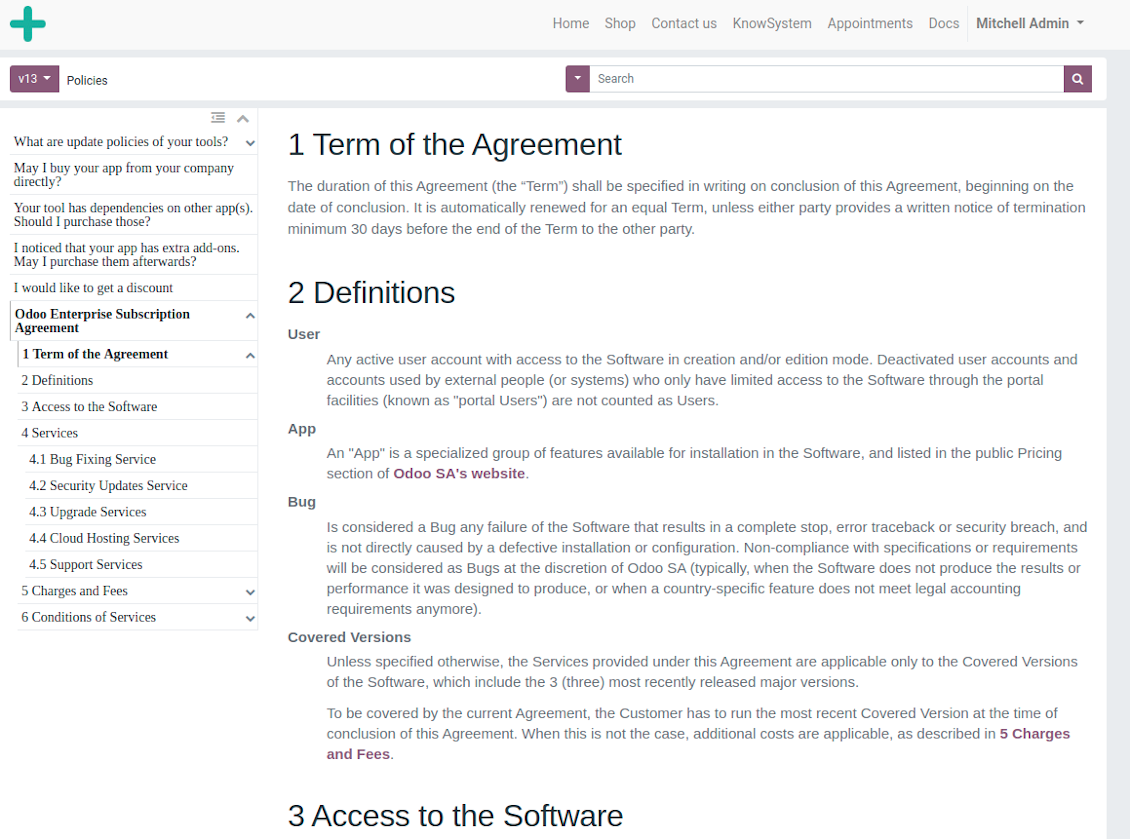
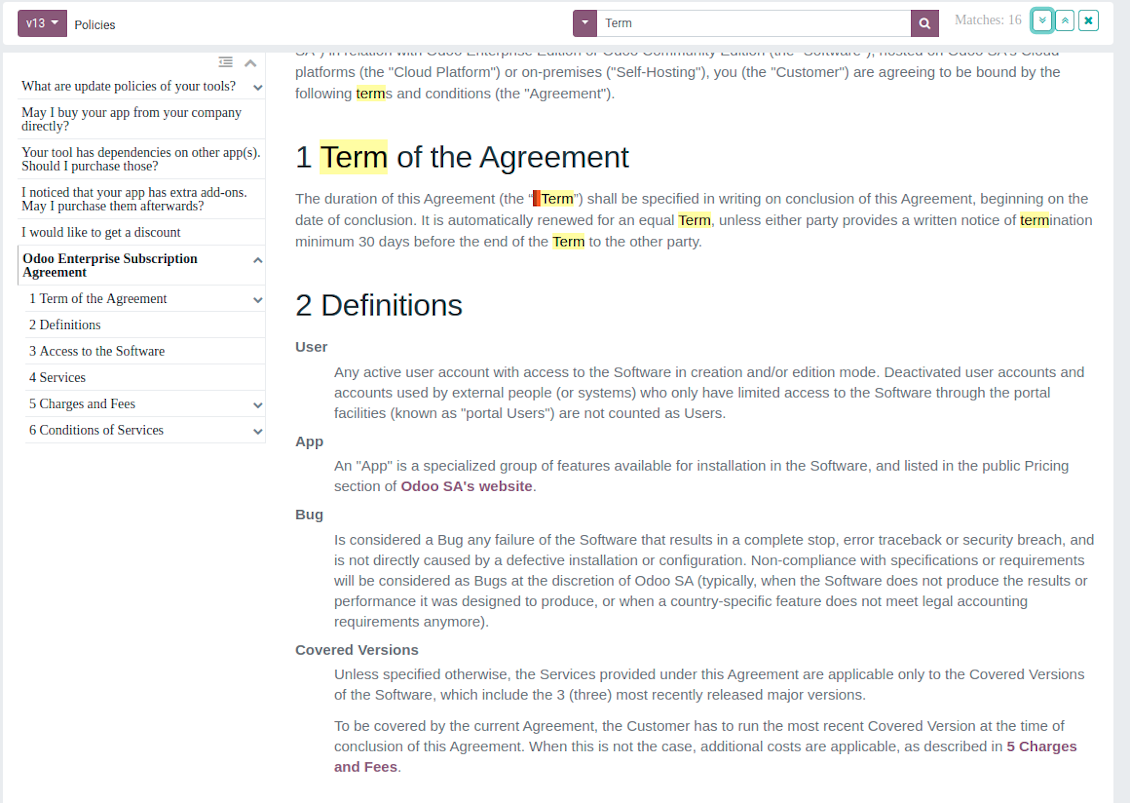
Website documentation builder
Schermate
Documentation by categories and sections
Documentation page
Automatic table of contents by documentation
Inline search by documentation
Compose articles for documentation
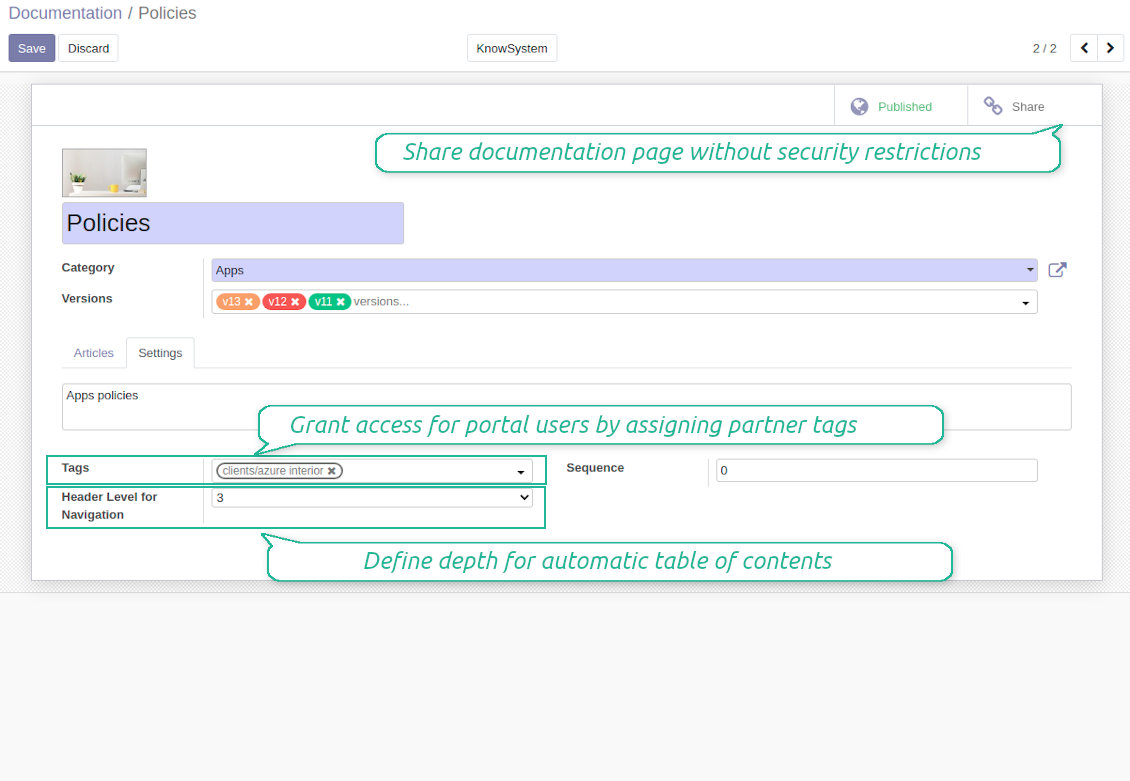
Documentation settings
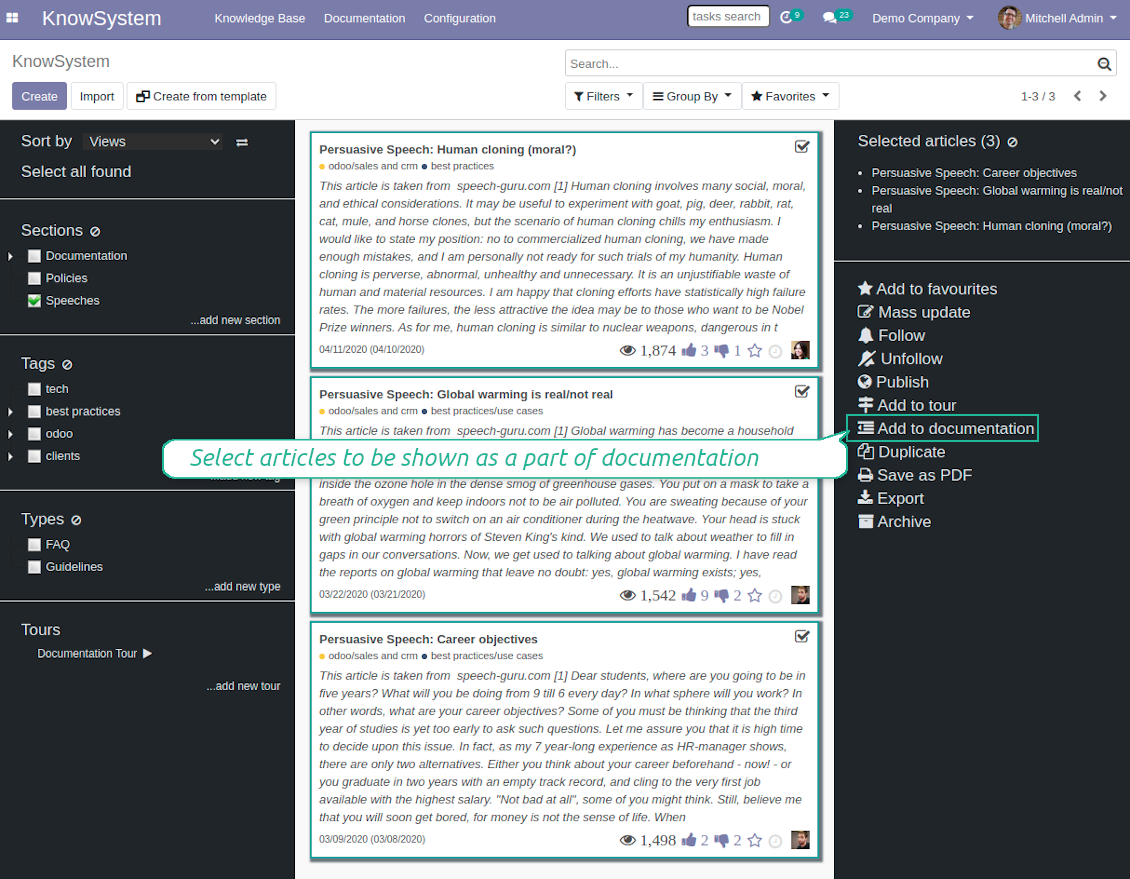
Add KnowSystem articles to documentation
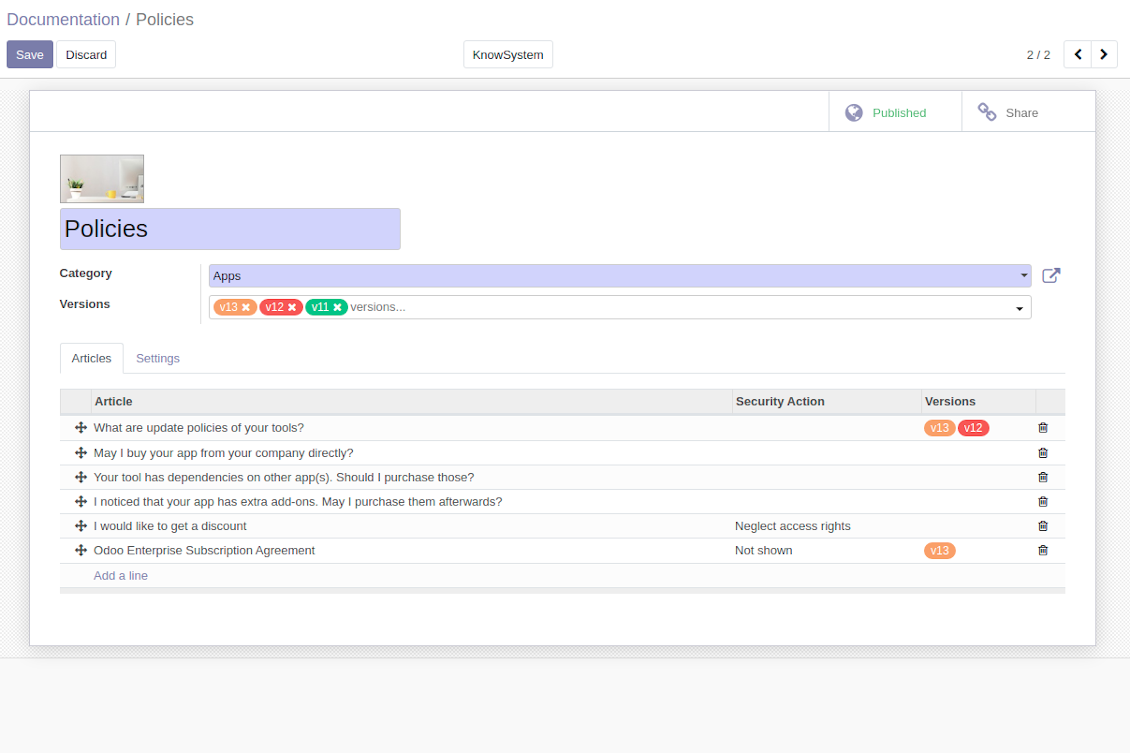
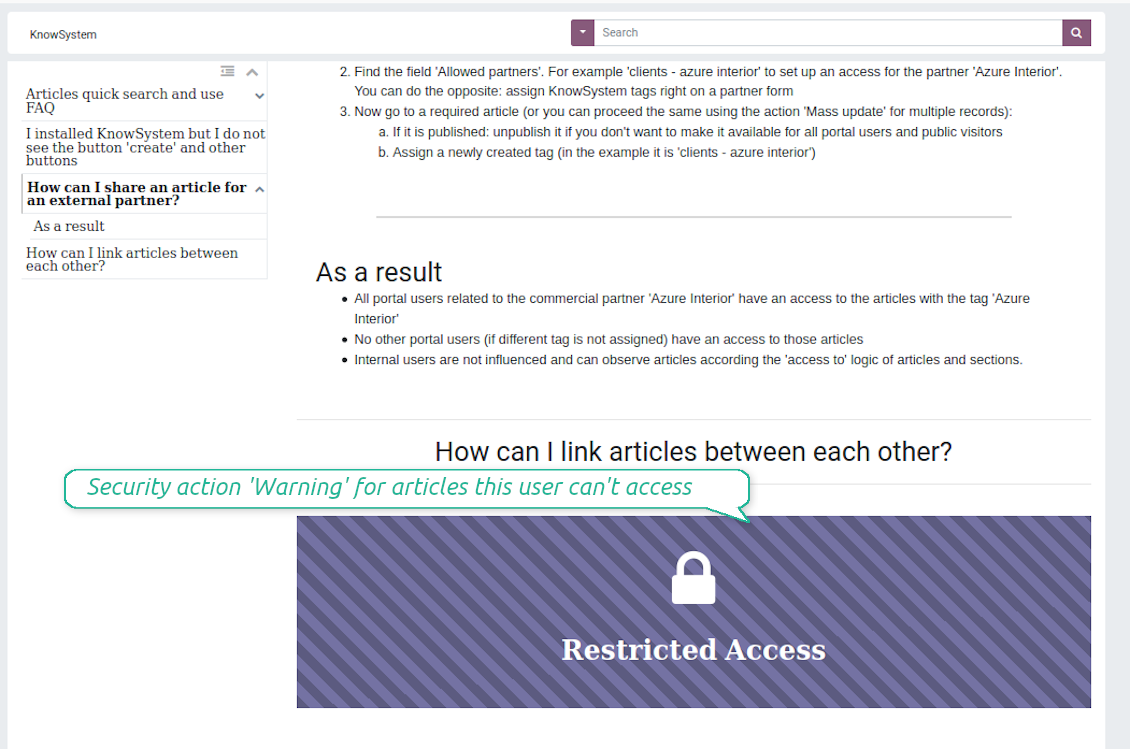
Security: optionally show warning if no access possible
Create learning tours
How to configure a learning tour
- Turn on the option 'Tours'
- Go to KnowSystem interface and select articles to be included into a tour
- Press the mass action button 'Add to tour' and select or create a tour. Press save
- Re-order articles in a consistent order
- Define groups of users who should go through a tour on the tab 'Restrict access'
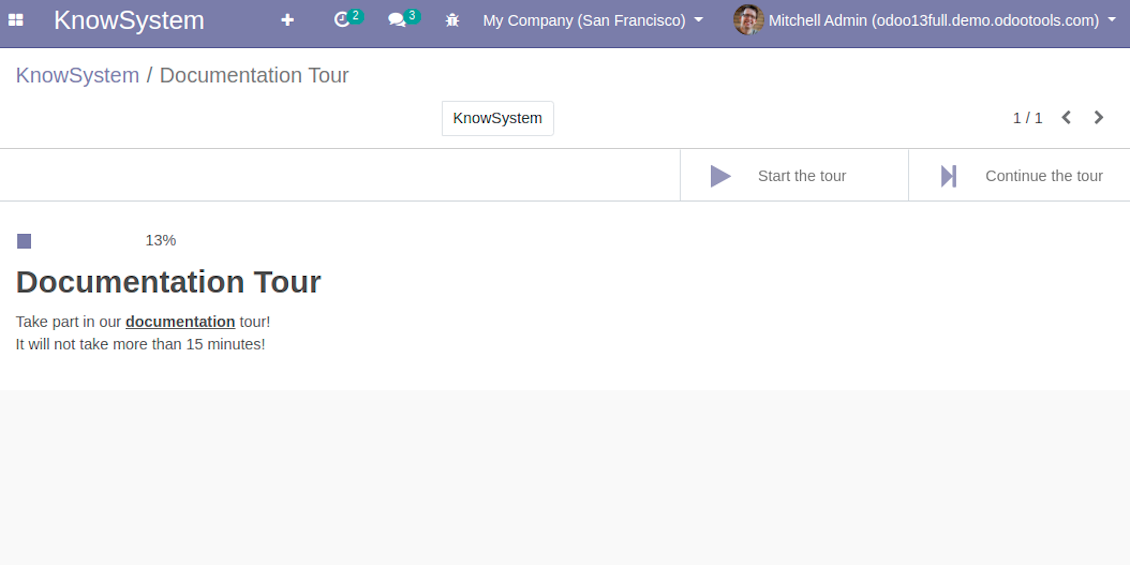
- Now users can see and launch tours right from the KnowSystem interface (the right navigation panel)
Schermate
KnowSystem tour welcome page
Article in a learning tour
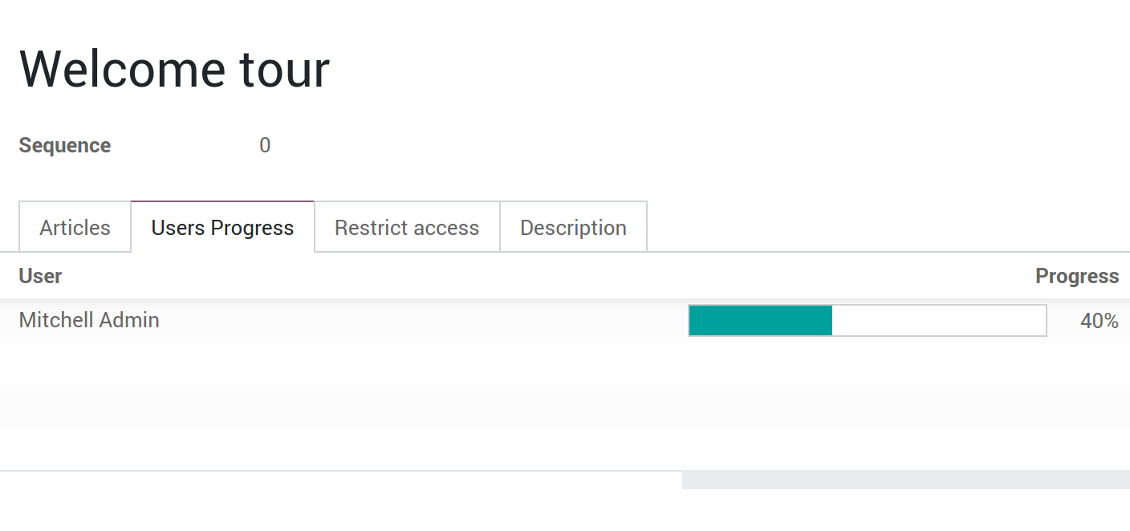
Control tour progress by users
Multilingual knowledge base
How to make an article available for a few languages
- Install the optional add-on 'KnowSystem: Multi Languages'
- Change your user language for a needed one
- Update this article
- Now it is available in both source and a current language
Make sure you really require a few languages. In that case you almost double the work of KnowSystem editors. All articles should be kept updated in all Odoo languages.
Knowledge base for any industry and business
Typical use cases
- Helpdesk: once faced a challenge, its solution might be recorded in KnowSystem for repeated usage by co-workers and for self-service by clients
- Sales & CRM: salesperson helper to find information about products, offers, frequently asked customer questions
- Project management: to keep and easily retrieve knowledge of existing solutions, tools, hints, and experiments
- HR: to prepare instructions, guidelines, learning tours and trainings, and any codified knowledge of routine in your company
- Marketing: to organize online library of product use cases, expert knowledge and well structured documentation
- Legal issues: systematize your policies, contract and approval managements, keep the full classifier of trademarks, licenses
- Informational technologies: share easy-reached manuals and configuration guidelines
Domande frequenti su KnowSystem: Knowledge Base System Odoo v.13
Non vedo alcuna differenza tra i testi delle revisioni.
Le revisioni registrano non solo le modifiche al testo, ma anche qualsiasi aggiornamento degli stili (tecnicamente, quando cambi il codice sorgente HTML di un articolo). Alcune non sono chiare a prima vista (ad es. la dimensione del carattere di una singola parola). Altre possono essere drastiche. Tuttavia, qualsiasi sequenza Edit > modifica qualsiasi cosa in un articolo > Save genera una nuova revisione.
Posso aggiungere un video YouTube/ Vimeo / Dailymotion / Youku in un articolo?
Sì, puoi incorporare video di quei servizi negli articoli sia dal backend Odoo sia dal website builder. Aggiungi un blocco con un'immagine > premi sull'immagine > seleziona ‘Video’ > inserisci l'URL del media.
Tieni presente: tali video sono inclusi come iframe e alcuni browser potrebbero bloccare la riproduzione finché l'utente non lo consente esplicitamente.
Come rendere visibile una sezione sul sito web?
In KnowSystem una sezione diventa visibile su un sito web se è pubblicata e contiene almeno un articolo. Anche con sottosezioni non sarà visibile se nella sezione stessa non c'è un solo articolo. Così si evitano sezioni vuote e il portale KnowSystem resta chiaro e facile da navigare. Per mostrare la sezione sul sito, aggiungi un articolo introduttivo o generale che descriva o elenchi brevemente gli articoli delle sottosezioni.
Come posso condividere un articolo con un partner esterno?
Clic destro su qualsiasi etichetta nel pannello di navigazione a sinistra - Create
Trova il campo 'Allowed partners'. Ad esempio 'clients - azure interior' per impostare l'accesso del partner 'Azure Interior'. Puoi fare il contrario: assegnare le etichette KnowSystem nel modulo del partner
Ora apri l'articolo richiesto (oppure procedi allo stesso modo con l'azione 'Mass update' per più record):
Se è pubblicato: togli la pubblicazione se non vuoi renderlo disponibile a tutti gli utenti del portale e ai visitatori pubblici
Assegna l'etichetta appena creata (nell'esempio è 'clients - azure interior')
Ora:
Tutti gli utenti del portale collegati al partner commerciale 'Azure Interior' hanno accesso agli articoli con l'etichetta 'Azure Interior'
Nessun altro utente del portale (se non è assegnata un'altra etichetta) ha accesso a quegli articoli
Gli utenti interni non sono influenzati e vedono gli articoli secondo la logica 'access to' di articoli e sezioni.
Possiamo aggiungere il pulsante di selezione lingua per il corpo dell'articolo?
Il pulsante 'translate' non viene aggiunto di proposito al corpo dell'articolo dal modulo opzionale 'KnowSystem: Multi Languages'. L'HTML è molto difficile da tradurre nel semplice popup previsto dal pulsante. Ci sarebbe pochissimo testo da tradurre e molte parti HTML (che il traduttore potrebbe anche rompere).
Perciò, per redigere un articolo in una certa lingua, accedi con un utente di quella lingua. Può essere un altro utente, oppure puoi cambiare temporaneamente le preferenze dell'utente corrente. Dopodiché ogni aggiornamento del corpo dell'articolo sarà in quella lingua.
Puoi anche usare il pulsante 'Copy from another translation' sotto il corpo dell'articolo, che consente in qualsiasi momento di prendere il contenuto da un'altra lingua (utile se l'articolo è stato aggiornato in modo significativo in una delle lingue).
Come incorporare un'altra pagina web in un articolo
A tal fine puoi usare gli iframe. Passa l'articolo all'editor del codice HTML grezzo e inserisci, ad esempio, <iframe src="https://faotools.com/" style="width:100%;min-height:600px;"> </iframe>.
Ho installato KnowSystem, ma non vedo il pulsante 'create' e gli altri pulsanti
Molto probabilmente non hai assegnato i diritti KnowSystem al tuo utente. Scegli il ruolo 'KnowSystem Editor' o 'KnowSystem Admin' e aggiorna la pagina. I pulsanti di controllo dovrebbero comparire.
Posso mostrare un tour di apprendimento specifico solo agli utenti scelti?
Sì, applicando un gruppo utenti (ad es. 'Sales Manager') che deve seguire questo tour. Se l'utente appartiene a questo gruppo, vedrà il tour. Altrimenti il tour non viene mostrato. Funziona come i diritti di sicurezza degli articoli e delle sezioni KnowSystem.
Tieni presente che se un tour non ha gruppi assegnati, è 'global' e visibile a tutti.
Come modifico piè di pagina e intestazione quando stampo gli articoli?
Intestazione e piè di pagina dei PDF degli articoli arrivano dai layout dell'azienda. Vai su Settings > General Settings > la sezione Business Documents. Qui definisci il modello aziendale usato per tutti i tipi di documento, incluse fatture, ordini di vendita ecc., e anche per gli articoli. Questo approccio Odoo considera piè e intestazione uno stile generale dell'azienda, non un attributo di stampe specifiche.
Come posso collegare gli articoli tra loro?
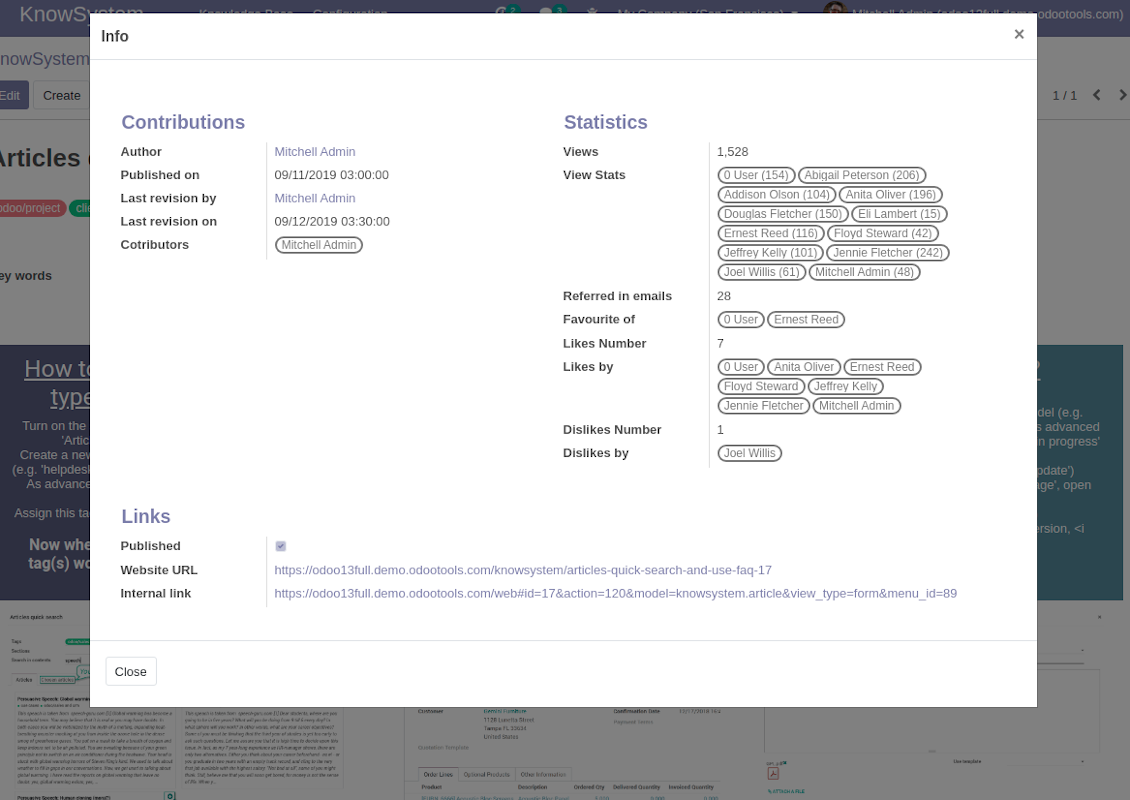
Ogni articolo ha URL interne (backend) e del sito web (se è installata l'opzione 'KnowSystem: Website and Portal'). Fai clic sul pulsante 'Info' nel modulo dell'articolo per conoscere gli indirizzi web di questo record. Puoi inserirne uno qualsiasi nel corpo dell'articolo come collegamento ipertestuale.
Posso modificare il codice sorgente HTML di un articolo?
Sì: attiva i debug assets (nella schermata di riepilogo delle impostazioni) e torna all'articolo corrente. In modalità modifica vedrai l'icona '</>'. Fai clic per osservare e modificare HTML e stili.
Quali sono le politiche di aggiornamento dei vostri strumenti?
Secondo le politiche attuali dell'Odoo Apps Store:
- Ogni modulo acquistato per la versione 12.0 o precedente da accesso a tutte le versioni fino alla 12.0.
- Dalla versione 13.0 ogni versione del modulo va acquistata separatamente.
- Indipendentemente dalla versione, l'acquisto da diritto a tutti gli aggiornamenti e le correzioni entro una major version.
Il team faOtools non controlla queste politiche. Per qualsiasi domanda, contattate direttamente i rappresentanti dell'Odoo Apps Store.
Come installo l'app su Odoo.sh?
L'approccio piu diretto e il flusso integrato dello store Odoo:
1. Apri la pagina del modulo e fai clic su Deploy on odoo.sh
2. Verrai reindirizzato a GitHub. Accedi e fai clic su Create a new repo o usa uno esistente. Il repository deve essere privato. Non e consentito pubblicare le app con licenza OPL-1. Se serve, crea un nuovo repo per il progetto Odoo.sh
3. Poi, in odoo.sh, fai clic su Deploy, conferma e fai clic su Continue. Parte l'installazione.
Questi passaggi installano l'app sul branch di produzione. Per altri branch o per aggiornare:
1. Scarica il codice sorgente dallo store Odoo
2. Esegui il commit del modulo nel repository GitHub. Nessuna cartella/file dell'app deve essere in .gitignore. I repo creati da odoo.sh a volte ignorano percorsi importanti (es. /lib). Carica tutte le directory e i file del modulo
3. Esegui il deploy del branch di destinazione del progetto odoo.sh oppure attendi la build automatica se previsto.
Come installo l'app sul mio server?
2. Riavvia il server Odoo;
3. Attiva la modalità sviluppatore (impostazioni tecniche);
4. Aggiorna l'elenco delle app (menu Applicazioni);
5. Trova l'app e premi Activate/Install;
6. Segui le linee guida nella pagina dell'app, se ci sono.
L'app ha componenti extra. Posso acquistarli dopo?
Si. Odoo aggiunge automaticamente le dipendenze al carrello: escludi gli strumenti gia acquistati per non pagare due volte.
Ho distribuito l'app su Odoo.sh e vedo un avviso/errore nei test
Un avviso rosso/arancione non influisce sulle funzioni dell'app. A volte i nostri moduli non superano i test automatici standard perché questi assumono un comportamento in conflitto con gli obiettivi dell'app. Ad esempio cambiamo il calcolo del prezzo, mentre i test Odoo confrontano il prezzo finale con l'algoritmo standard.
Controllate prima le funzioni del database distribuito. Funziona tutto?
Se pensate ancora che l'avviso influisca sulle funzioni reali, contattateci e inviate i log di installazione completi e l'elenco completo dei moduli distribuiti (core e di terze parti).
Posso acquistare l'app direttamente da voi?
No, distribuiamo gli strumenti solo tramite lo store ufficiale delle app Odoo.
Vorrei uno sconto
Purtroppo non abbiamo i mezzi tecnici per prezzi individuali.
Posso installare l'app sul database Odoo Online (SaaS)?
No, le app di terze parti non si possono usare su Odoo Online. Odoo SaaS blocca questa possibilità.
Lo strumento dipende da altre app. Devo acquistarle?
Si, lo strumento richiede tutti i moduli indicati nelle dipendenze. Il prezzo sulla pagina dell'app le include gia.
Qual e il prezzo del modulo in dollari USA? Perché e cambiato?
Il prezzo dei nostri moduli e in euro. Lo store Odoo converte le valute secondo il proprio tasso interno. Quindi il prezzo in dollari USA puo cambiare quando il tasso viene aggiornato.
I testi dell'app e del sito web in lingue diverse dall'inglese sono realizzati con l'assistenza dell'IA e allineati alle traduzioni ufficiali di Odoo. Se noti un errore, invia un ticket di traduzione e lo correggeremo.
Segnalazione degli errori
Se riscontri bug o comportamenti incoerenti, non esitare a contattarci. Garantiamo di fornire soluzioni entro 60 giorni dall'acquisto e siamo fortemente interessati a migliorare i nostri strumenti anche dopo questo periodo.
Non hai bisogno di un numero di telefono o di una carta di credito per contattarci. Dovresti solo effettuare una breve registrazione via e-mail, che non richiede più di 30 secondi.
Includi nella richiesta il maggior numero possibile di dettagli: schermate, registri del server Odoo, una descrizione completa di come riprodurre il problema e così via. In genere sono necessari alcuni giorni lavorativi per preparare un piano operativo relativo a un problema (se viene confermato un bug) o fornire indicazioni su cosa fare (in caso contrario).
Richieste di funzionalità pubbliche e idee per moduli (sviluppo gratuito)
Siamo fortemente motivati a migliorare i nostri strumenti e saremmo grati per qualsiasi feedback. Se le tue esigenze sono di uso pubblico e possono essere implementate in modo efficiente, il team le includerà nella nostra lista di cose da fare.
Tale elenco di cose da fare viene elaborato regolarmente e non prevede costi aggiuntivi. Sebbene non possiamo garantire scadenze e progettazione finale, potrebbe essere un buon modo per ottenere le funzionalità desiderate senza investimenti e rischi.
Non hai bisogno di un numero di telefono o di una carta di credito per contattarci. Dovresti solo effettuare una breve registrazione via e-mail, che non richiede più di 30 secondi.

Lo strumento per strutturare gli allegati Odoo in cartelle e sincronizzare con Google Drive, OneDrive/SharePoint, Nextcloud/ownCloud, Dropbox, Amazon S3, Box e NAS. Gestione file. DMS
398€
Lo strumento per sincronizzare gli allegati Odoo con OneDrive in entrambi i sensi
487€
Lo strumento per sincronizzare gli allegati Odoo con Google Drive in entrambi i sensi
487€
Lo strumento per conservare le password in Odoo in modo sicuro e condiviso. Vault

Lo strumento per impostare target KPI e controllarne il raggiungimento per periodo. Dashboard. Grafici

Lo strumento per servizi su appuntamento, dalla prenotazione a vendite e recensioni
398€
Lo strumento per gestire Odoo dalle chat IA tramite MCP. Claude. Qualsiasi IA con MCP.

Lo strumento per unire diversi eventi Odoo in pochi super calendari configurabili

Lo strumento per tradurre gli URL delle pagine del sito Odoo
38€