KnowSystem: Knowledge Base System v.13
The tool to build deep and structured knowledge base for internal and external use. Knowledge System. KMS
- a core of knowledge management. It might be used stand-alone as a complete internal knowledge base system. Dens pris er 398€.
- an optional module, which let you publish articles to website, share them with portal users, and use website builder to update articles. The features assumed by this add-on are marked by the icon . Dens pris er 40€.
- an optional extension to KnowSystem: Website and Portal to design website documentation pages based on knowledge base articles. The features assumed by this add-on are marked by the icon . Read the full description on the related page. Dens pris er 60€.
- an optional module, which let you add and show custom fields for articles (backend). The features assumed by this add-on are marked by the icon . Dens pris er 48€.
- an optional free module, which shows custom fields on website and portal pages (frontend). The features assumed by this add-on are also marked by the icon .
- an optional module, which let you translate articles, sections and tags for installed in Odoo languages. The features assumed by this add-on are marked by the icon . Dens pris er 10€.
Innovative single-view interface
From the same interface editors may create and update any knowledge-related documents, change articles in batch, set up security. Without a need for excess navigation.
Interface solutions
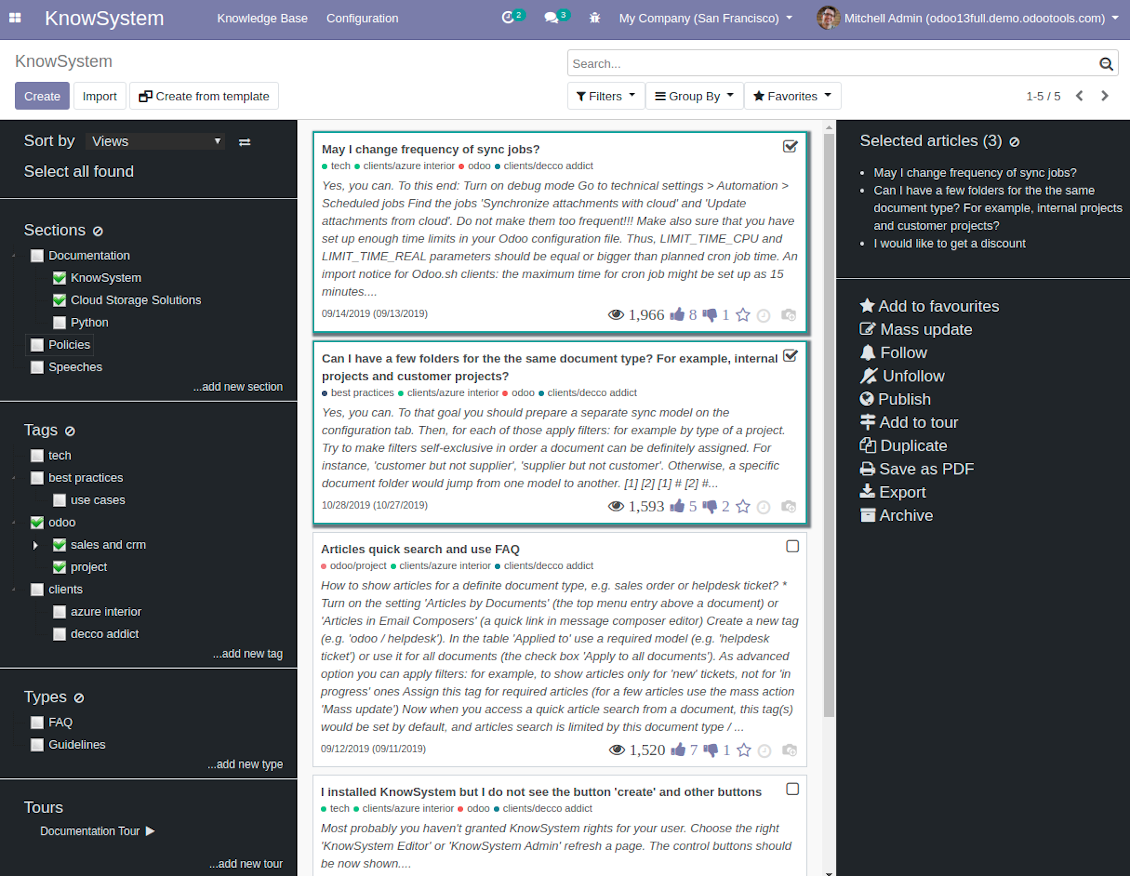
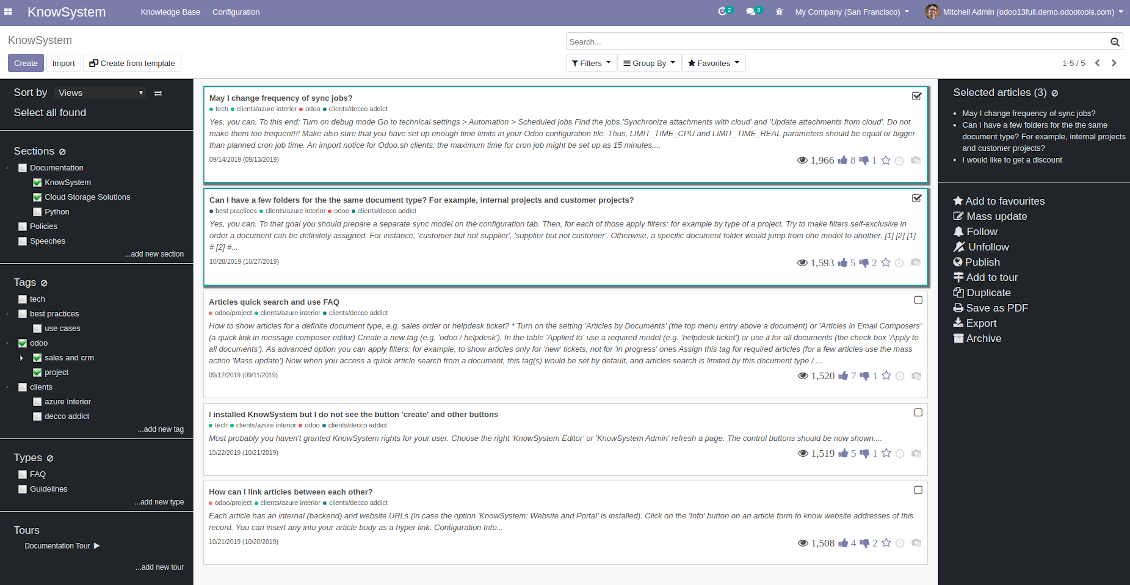
The KnowSystem interface consists of 3 key parts: the left navigation panel, the list of articles, and the right navigation panel (it is shown only if some articles are selected).
On the left navigation panel you may:
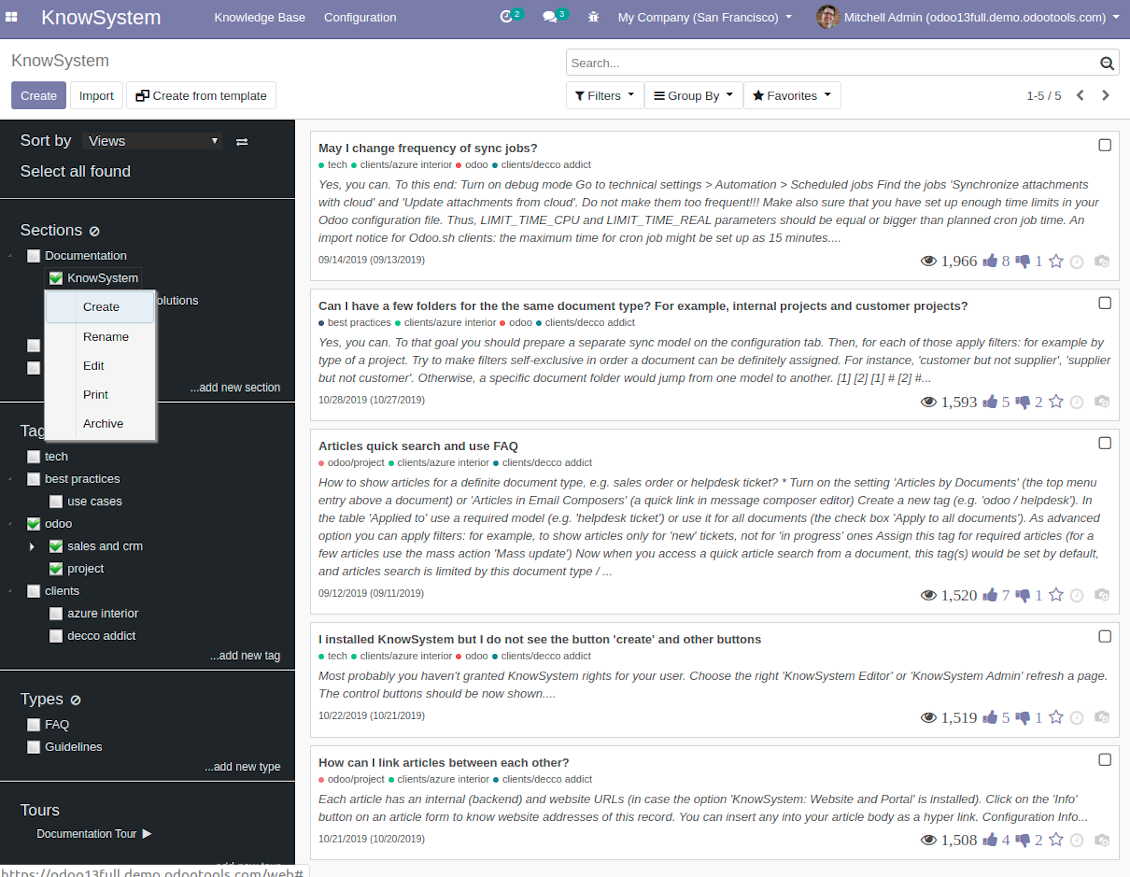
- Manage hierarchy of sections: prepare new (right mouse click - 'create'), update existing (right mouse click - edit), re-order any (drag and drop an item), archive sections. Select a few ones to filter articles. You may also print all articles related to this section as a single PDF file.
- In the same way manage hierarchy of tags and article types.
- Sort articles by number of views, a score of likes and dislikes, create or update dates, a section, an author.
- Select all articles which are found according to chosen tags / sections and according to introduced searches / filters.
- Launch a learning tour.
From the list of articles you see articles' name, indexed content (words without HTML style), dates of creation and last update, a number of views, likes, dislikes, author avatar. Here you may also add an article to favourite by pressing the 'star' icon.
Click on article body to open it in a full size (form view). Do not worry: chosen tags and sections as well as selected articles will be kept when you get back! Click on the top right check box to add an article for selection.
On the right navigation panel you observe selected articles and may proceed a mass action. Click on article name to remove it form selection.
On the top of the interface users also would find a standard Odoo omnibox. Type here to search by a title, content, an author, tags or a section.
Available mass actions
KnowSystem let users update an unlimited number of articles simultaneously:
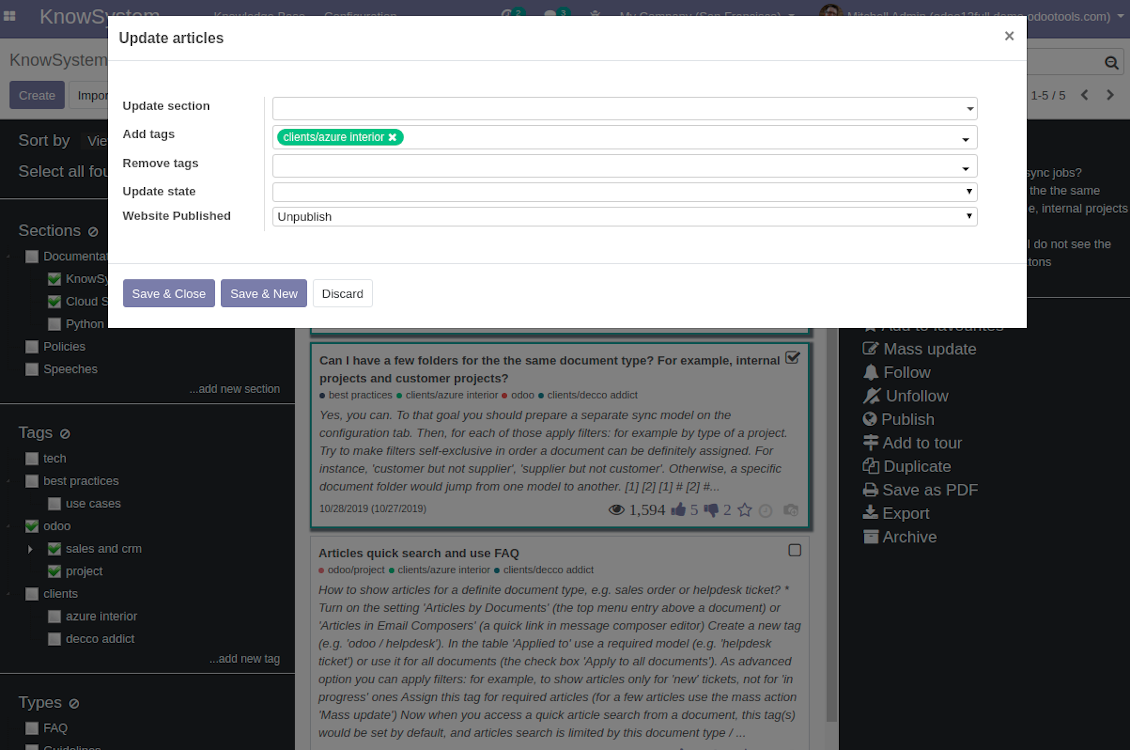
- Assign new section
- Change or remove tags
- Print multiple articles as a single PDF
- Follow / unfollow discussions
- Publish / unpublish articles
- Export articles to an Excel table
- Archive or restore records
- Add articles to learning tours
- Mark knowledge items as favourite
- Duplicate articles.
Skærmbilleder
KnowSystem Interface
Single entry for knowledge management actions
Knowledge Base overview
Article info and statistics
KnowSystem configuration
Mass actions for selected articles
Fast, comfortable, and professional knowledge recording
By using templates with pre-defined styles you may also speed knowledge generation up and standardize articles' appearance.
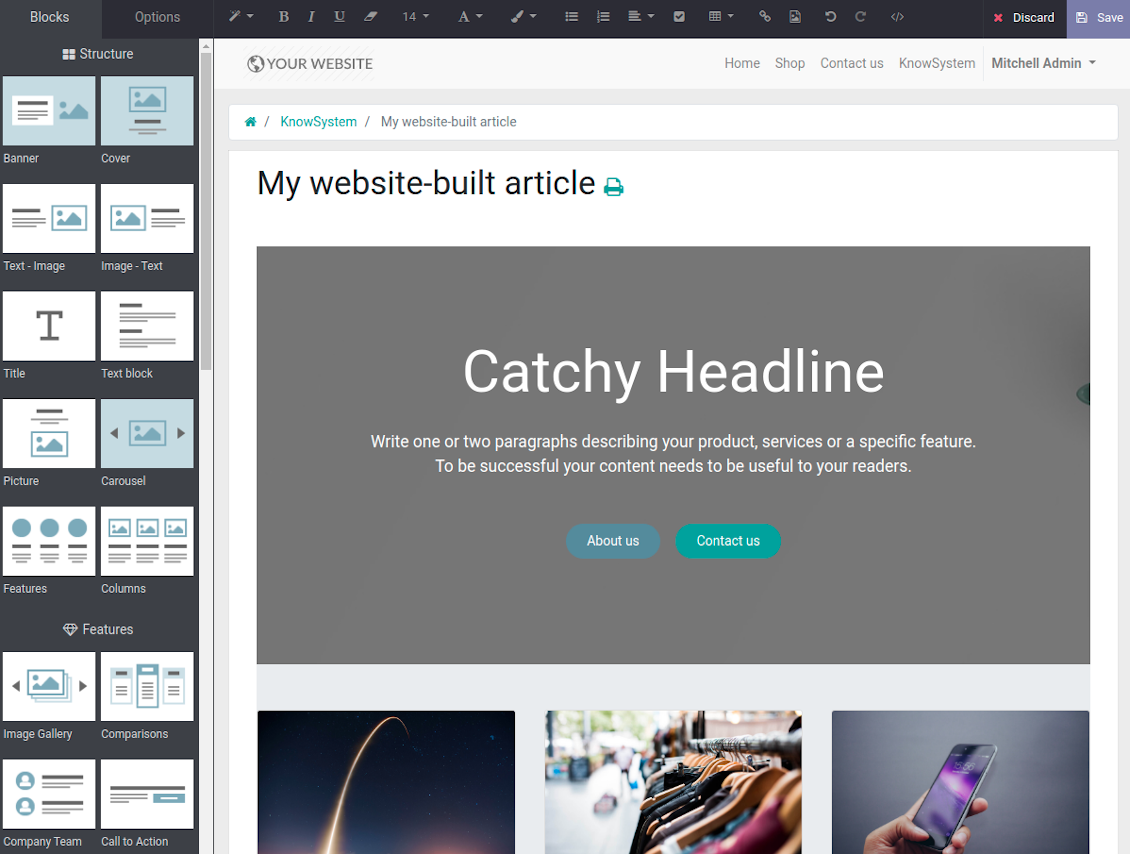
How to use the website builder for editing articles
KnowSystem provides you with a backend articles' builder, which is comfortable and safe to use. Odoo website builder is richer in features to prepare complex HTML structures. To edit articles through the website:
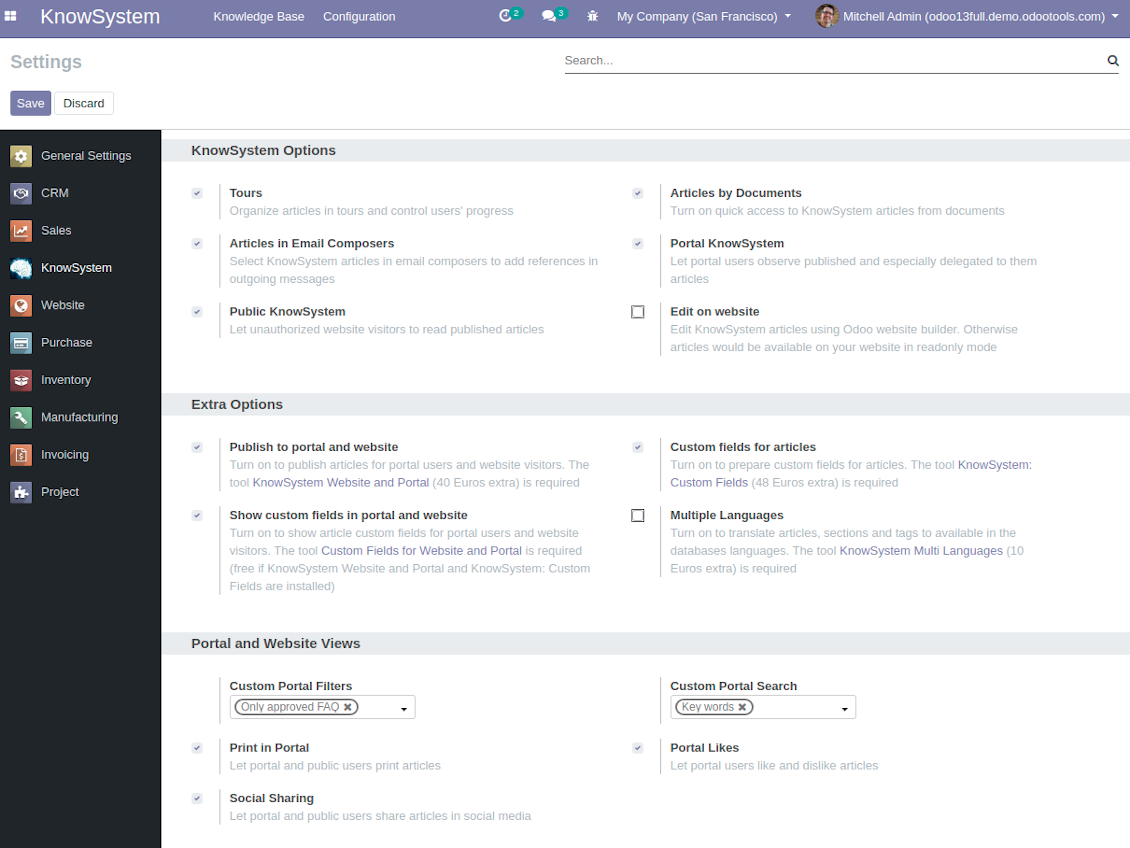
- Install the optional add-on 'KnowSystem Website and Portal' (the option 'Publish to portal and website')
- Turn on the setting 'Edit on website'
- Push the button 'Edit on website' on this article form
Be cautious: if you are going to print this article or add its contents to emails, website building blocks are not suitable. Their advanced styles contradict printing and composer layouts and would not be correctly shown. In such a case use the safer backend builder.
How to use article templates
To prepare a new article template for repeated usage:
- If you already have an article to be used as template: push the button 'Actions > Make template', edit and save a new template.
- If you wanted to prepare a brand new template, go to KnowSystem > Configuration > Templates and prepare a new one using building blocks.
To use a template to write a new article:
- Push the button 'Create from template' from KnowSystem kanban or form views
- Select a required article template
- Push 'Create' and introduce changes to a new article.
Skærmbilleder
Comfortable article customization
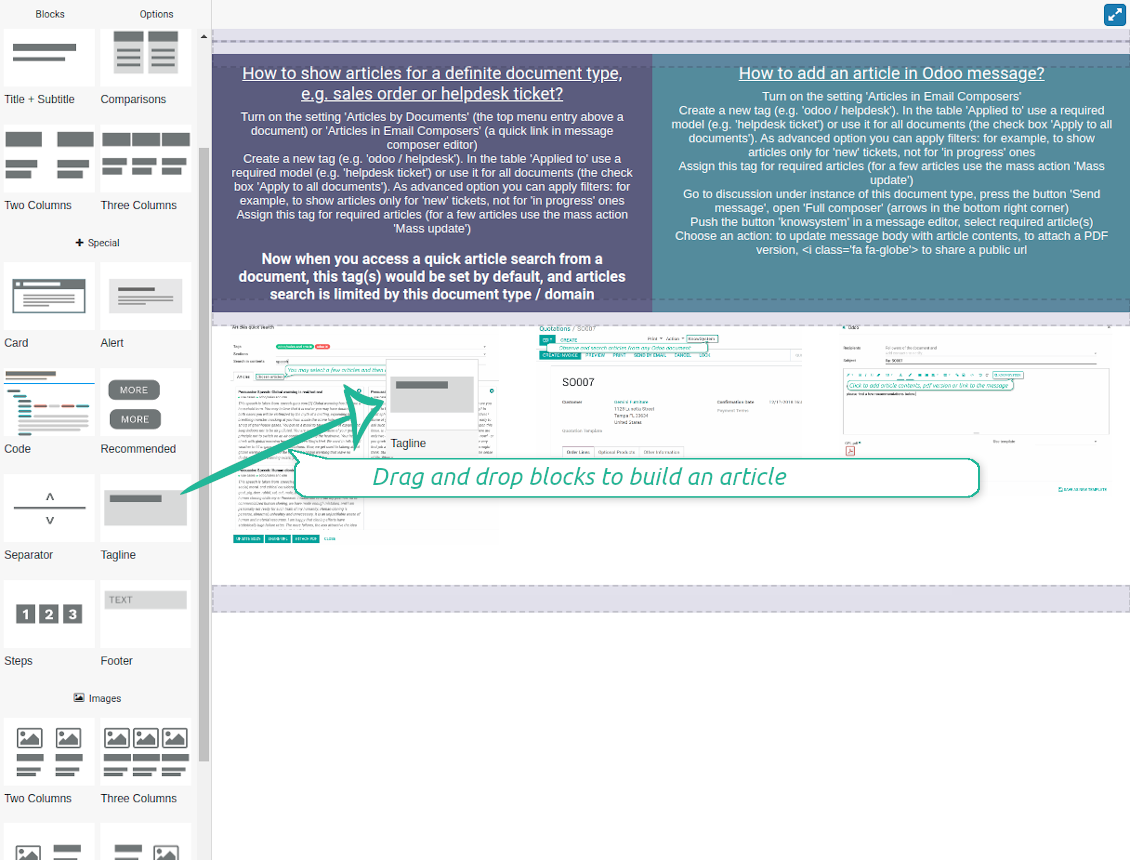
Building blocks for knowledge base articles
Article read mode
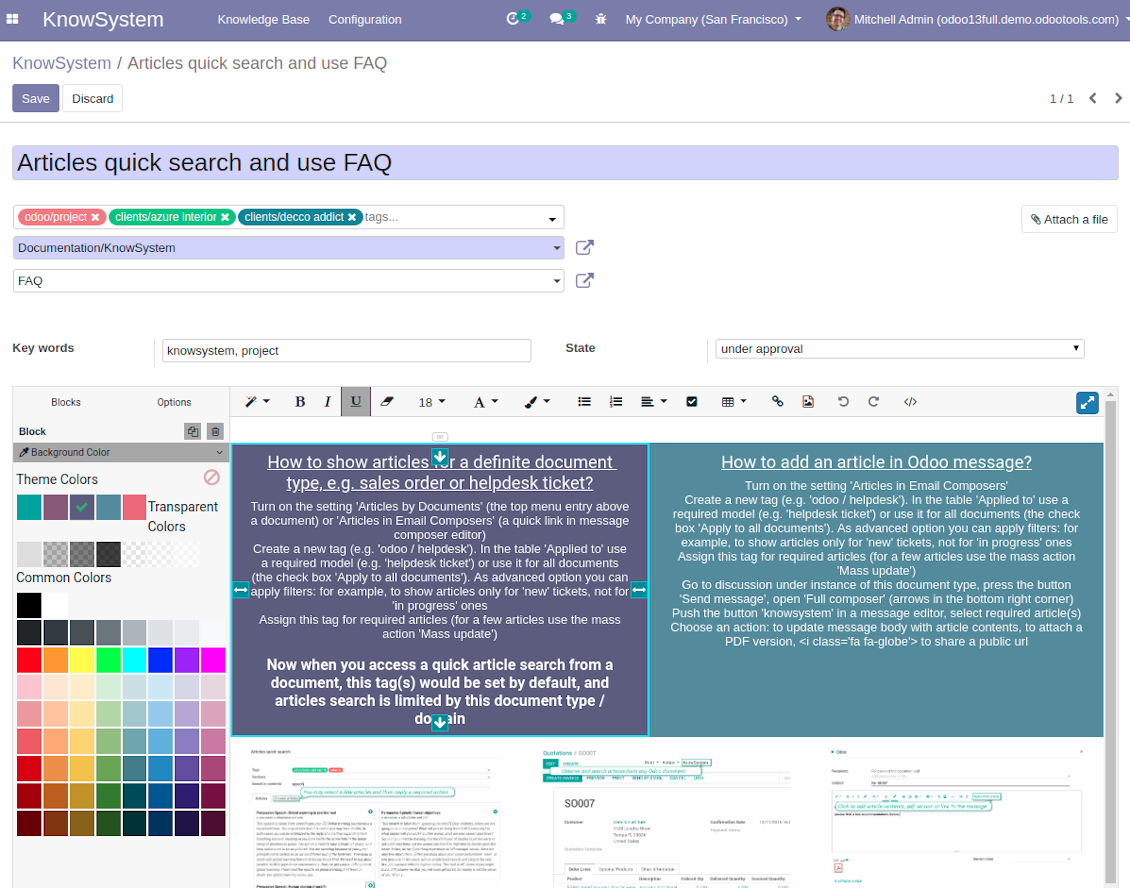
Use website builder to edit articles (bad for backend usage)
Get benefit from your knowledge
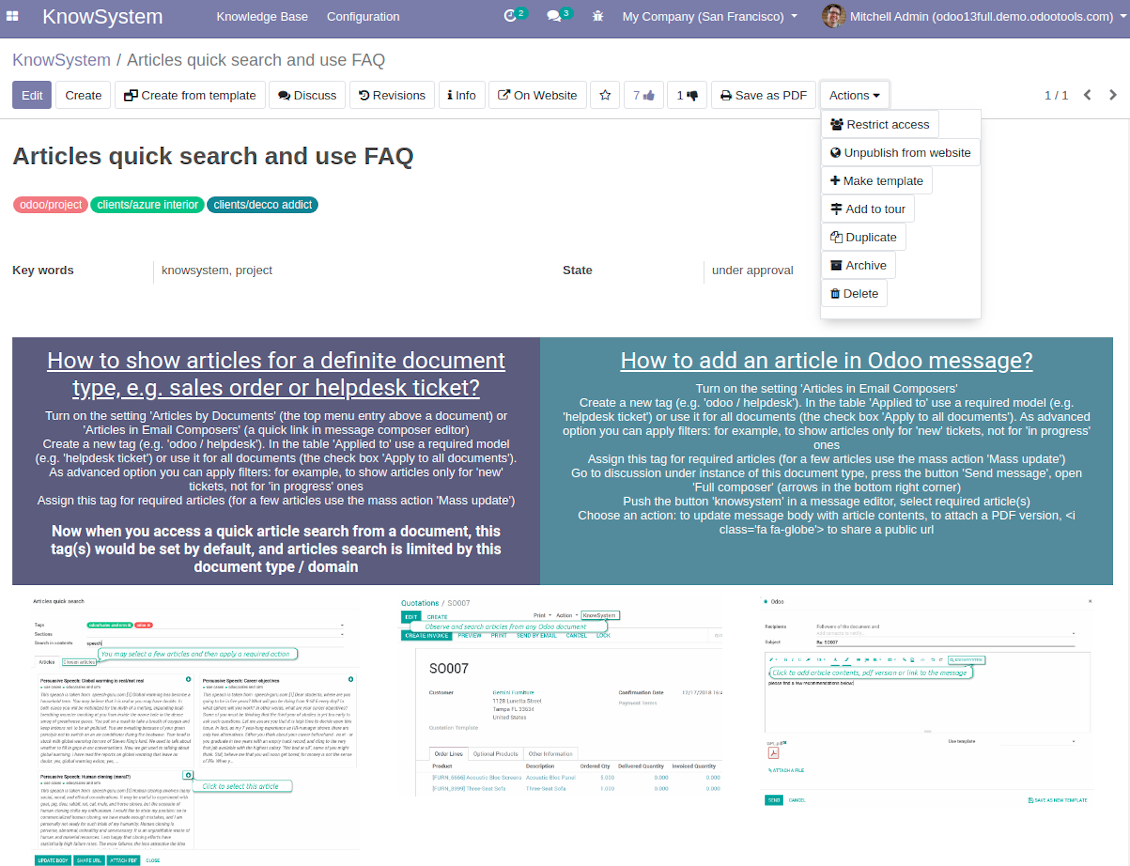
How document types and articles are linked for a quick access
Experience is not general, usually it relates to specific issues. Knowledge used for customer communication differs from suppliers' negotiations. Frequently asked questions for draft and confirmed sale orders vary. KnowSystem let you structure your articles to apply them in a correct place and at right time. To that end:
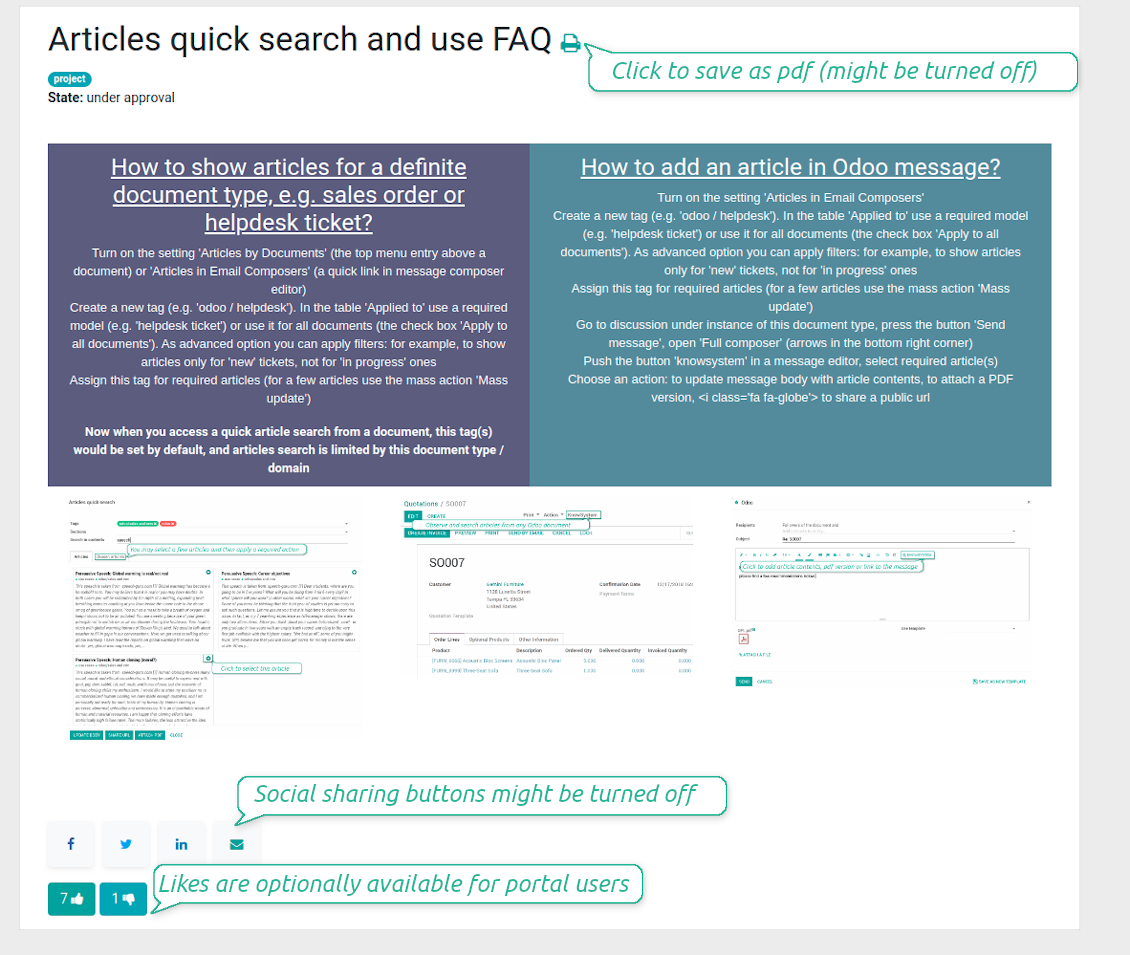
- Turn on the setting 'Articles by Documents' (the option shows the top menu entry above any Odoo document) or 'Articles in Email Composers' (the option adds a quick link in a message composer editor for citing)
- Create a new tag (e.g. 'odoo / helpdesk'). In the table 'Applied to' use a required model (e.g. 'helpdesk ticket') or use it for all documents (the check box 'Apply to all documents').
- As advanced option you may apply additional filters: for example, to show articles only for 'new' tickets, not for 'in progress' ones. Use dynamic filters' constructor for that goal
- Assign this tag for required articles. For a few articles use the mass action 'Mass update'
- Now when you access a quick article search from a document or from an email composer, Odoo will calculate KnowSystem tags for this document. That's why by default users would see only articles suitable for a current document. Simultaneously, they might always change tags to use other knowledge base data.
How to overview articles which might be useful for this document
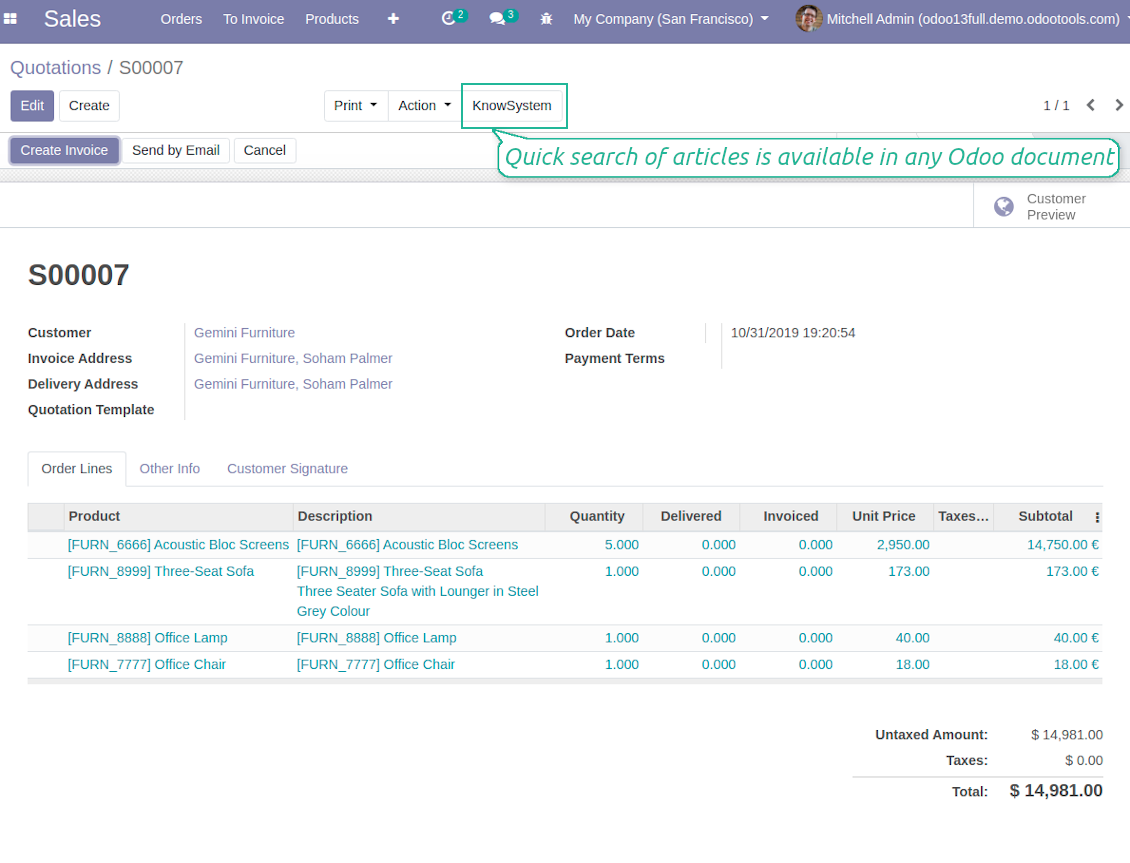
As soon as you turned on the option 'Articles by Documents', on the top of each Odoo object form view there would be a quick link 'KnowSystem'.
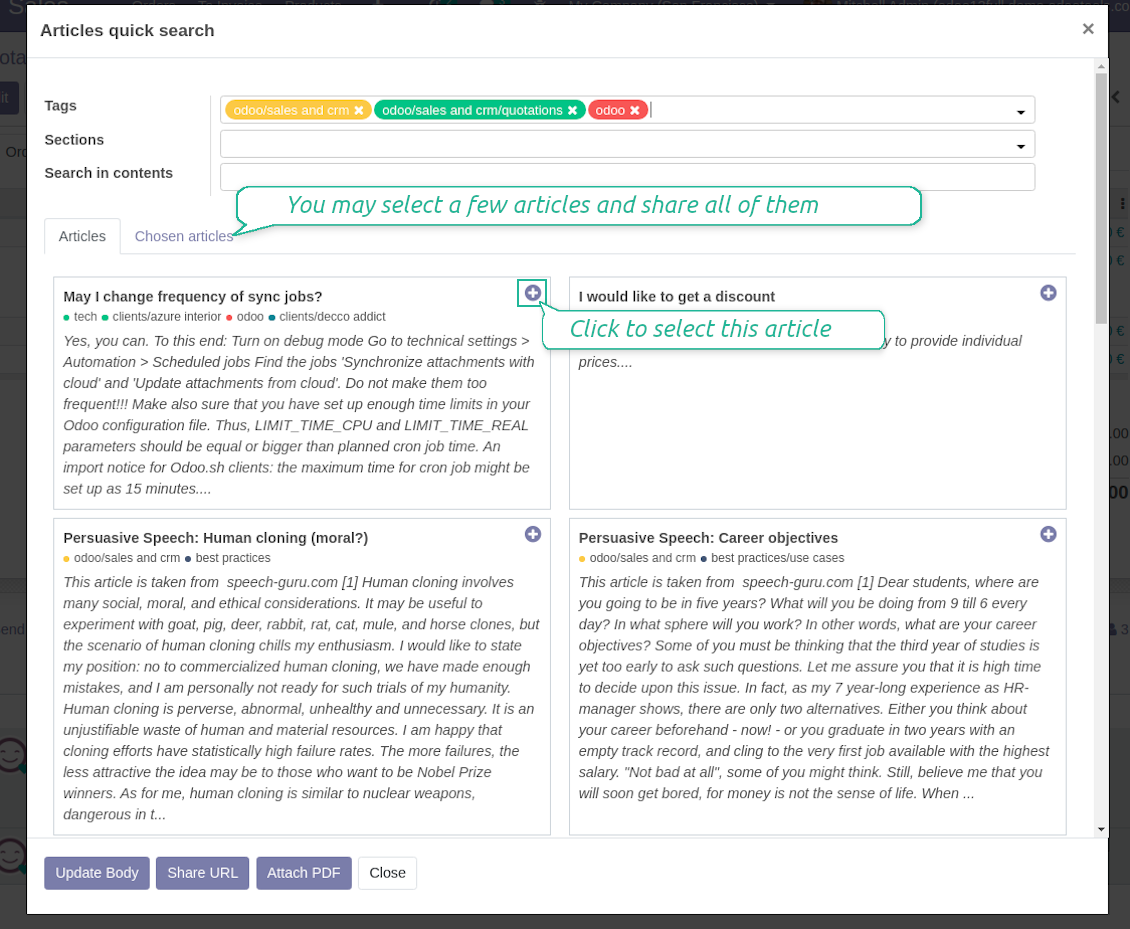
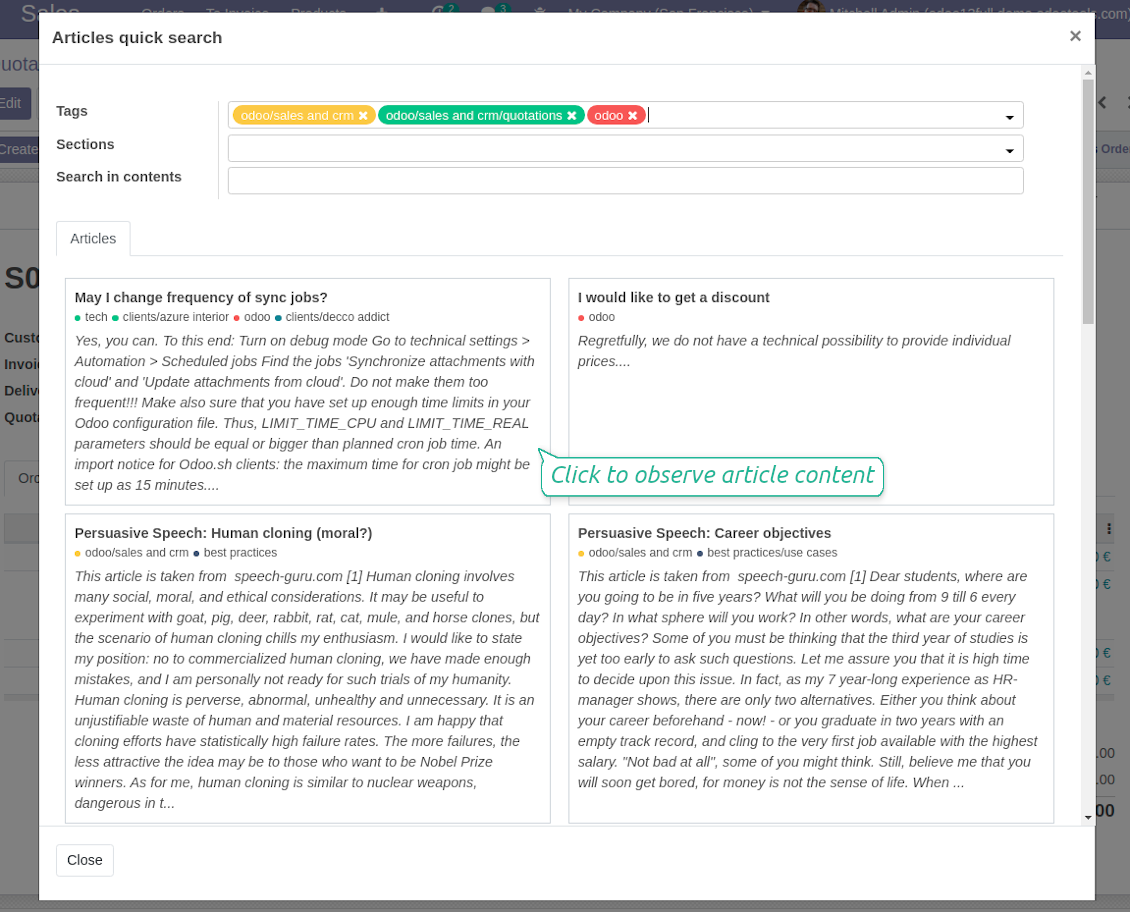
Click on that entry, and Odoo would open the wizard with articles. By default KnowSystem tags suitable for this document would be selected (if any). You may change those tags, or additionally filter by sections or content search. As a result list of topical articles is shown for you.
How to use company knowledge for communication
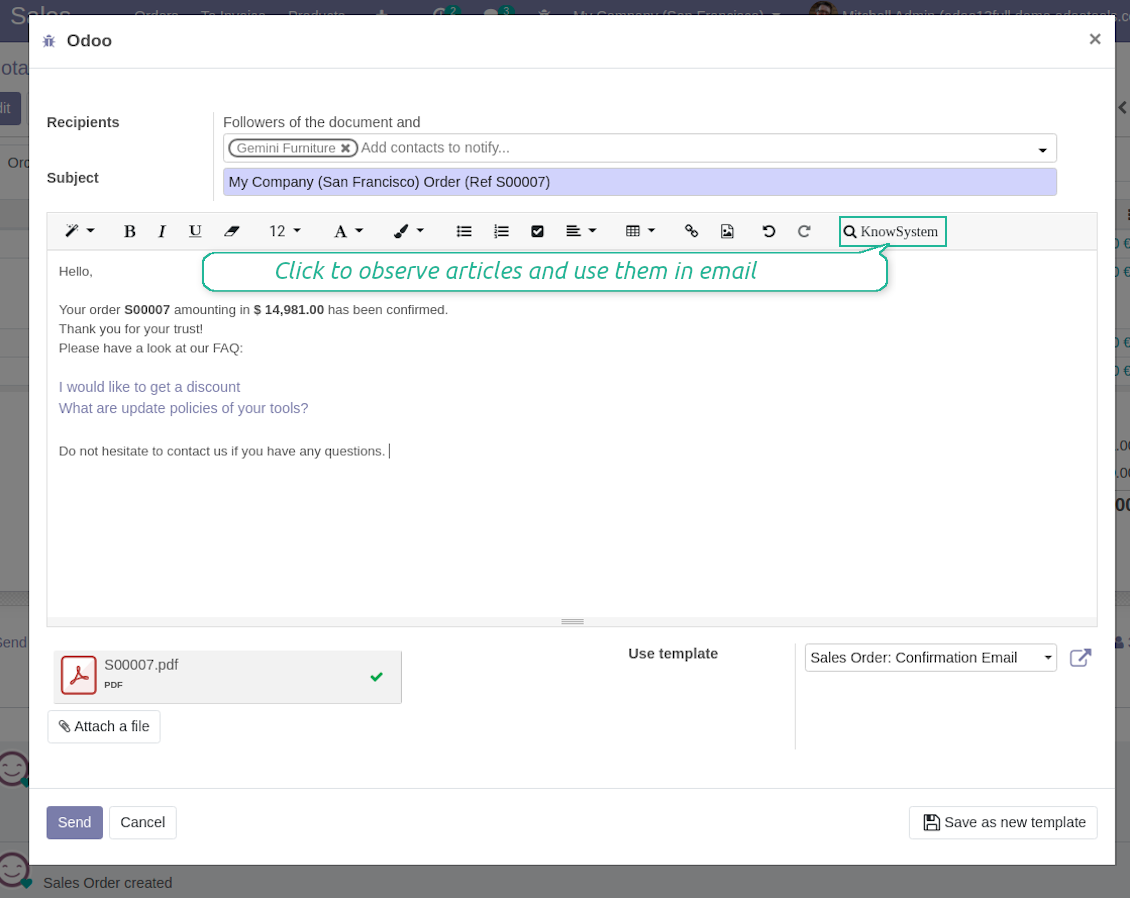
Turn on the option 'Articles in Email Composers' to let users reference or cite Knowledge records in Odoo messages. As a result the special quick entry 'KnowSystem' would be added to each Odoo email composer.
Clicking on that entry would open a wizard with a set of suitable to this document articles. You may change search by tags, add extra filtering by sections or content.
Afterwards, select required articles among found ones; choose an action. You may:
- Update message body with article contents (would be added to the end of a current message)
- Attach a PDF version of an article(s)
- Share a public link
Skærmbilleder
Apply knowledge in emails
Share articles content, link, or printing in messages
Quick access for knowledge system from any Odoo document
Quick knowledge search
Individual partner knowledge base portal
How to share knowledge base with specific partners
An article is available for a portal user in two cases: A. it is website published; B. his/her company is indicated as allowed partner in one of article tags.
In the first case such an article is available for all portal users and even for public website visitors who have not logged in.
In the latter case you grant a restricted access for an article only for chosen companies. To that end:
- Turn on the setting 'Portal KnowSystem'
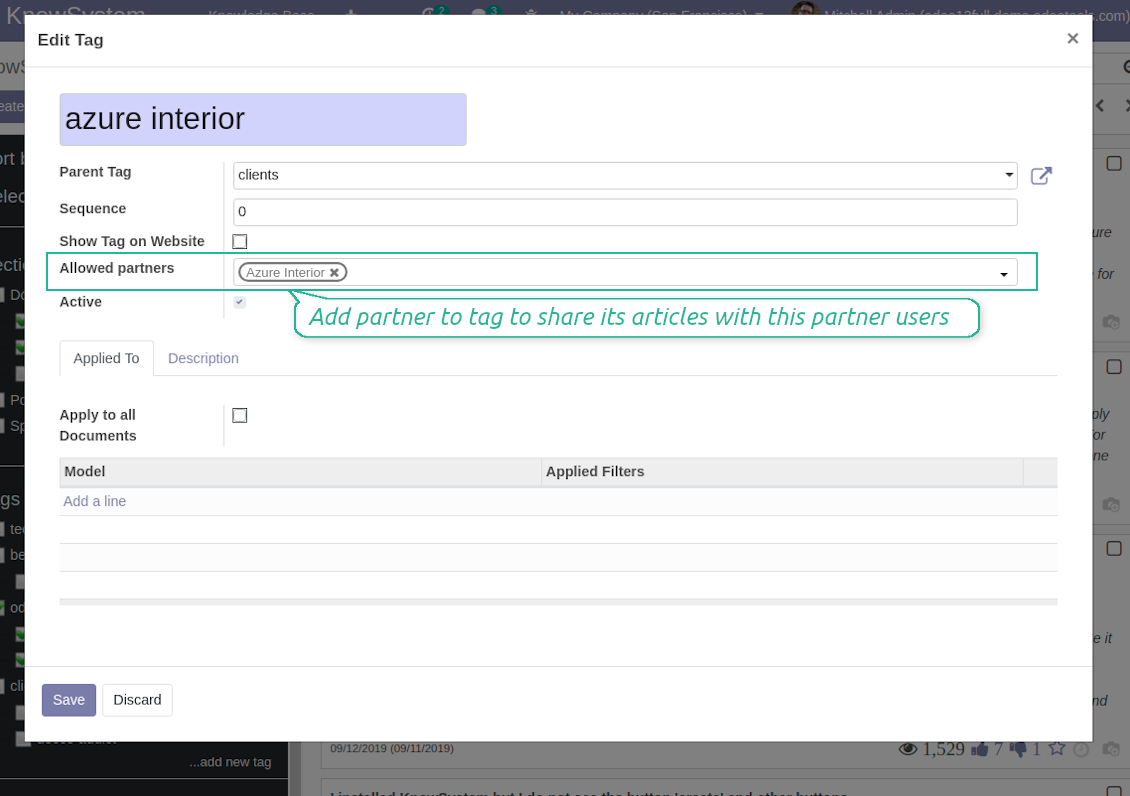
- Create a tag for this partner, for example 'clients / Azure Interior'. On the tag form indicate this company in the field 'Allowed partners'
- Assign the tag for all articles you want to share with this partner. For a few articles use the mass action 'Mass update'
- Now portal users related to this partner may access shared articles right from their partner portal.
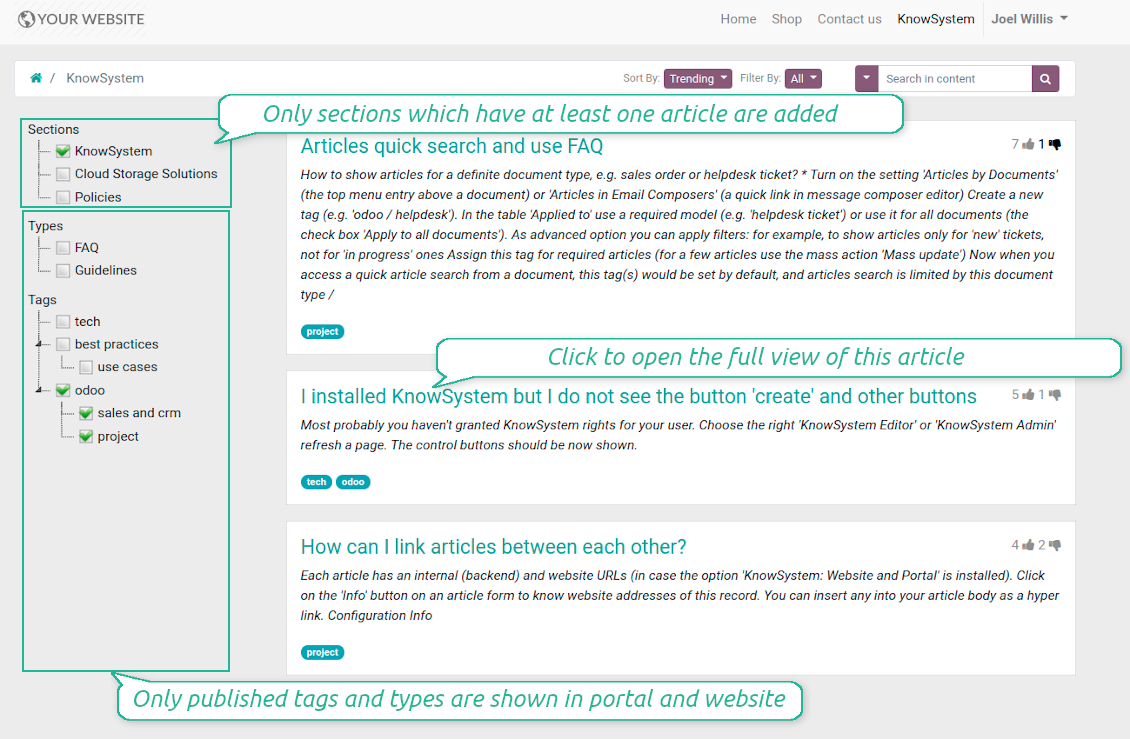
How to add sections, tags or article types to portal / website
Take into account that:
- Section is available in portal / website only if it has one available article inside;
- Tags and article types are added to hierarchy only if they are published.
Skærmbilleder
Knowledge base for portal and public use
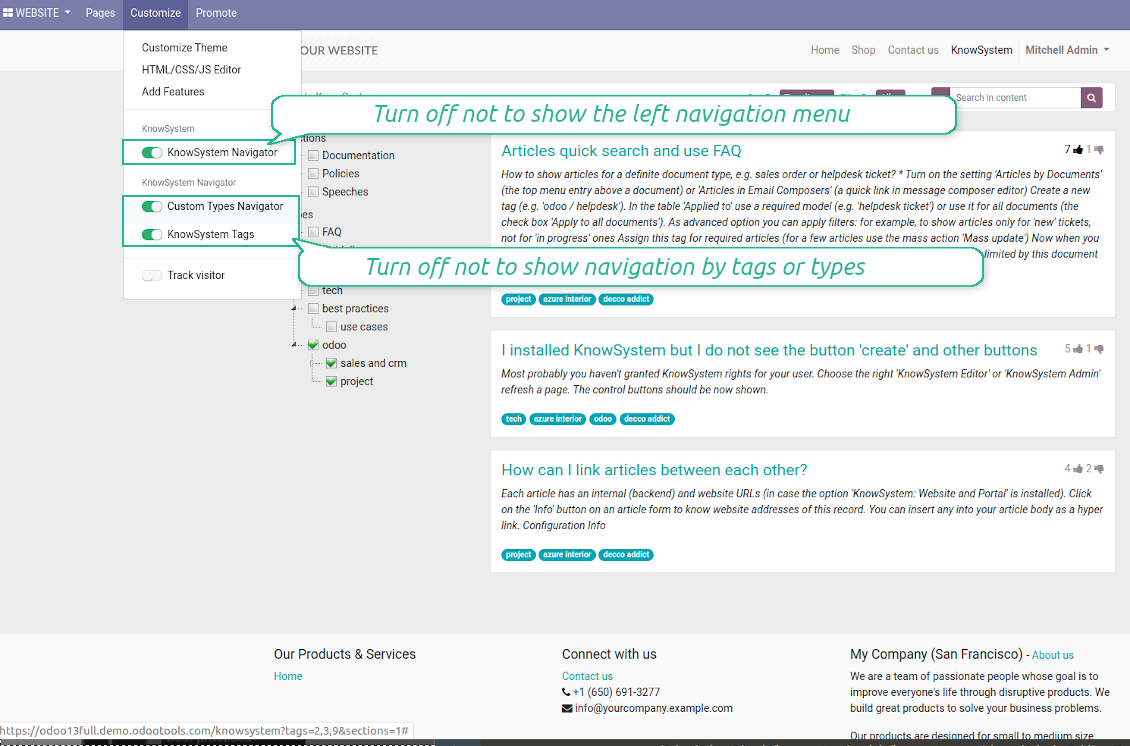
Configurable public knowledge base
KnowSystem articles in portal and website
Best knowledge base system for Odoo!
Excellent app and exceptional after-sales support.
Really well thought-out product and one of the best features is the contextual help by means of the tags. Really a game changer for us.
Keep up the great work FaOtools!
Outstanding app! Tremendous value for money, an absolute must have!
One of the features sorely lacking from Odoo has been a robust Wiki/documentation system. Using third party platforms is a massive headache: yet another system to maintain, users get distracted switching back-and-forth, and errors get made. Then you have to worry about training, additional logins, etc.
KnowSystem feels like a native/core app, is very well-polished, and extremely fast. It's accessible from any screen, and the search results are instant (none of the latency inherent with most apps).The interface is elegant yet powerful, with robust access control, rich editing features, and version control. It's simple to revert to previous entries, view audit trails, etc. It's very intuitive for anyone familiar with Odoo; onboarding takes just a few minutes. The user guides are excellent.
This is invaluable for any organisation with a lot of documented information, SOPs, ISO compliance, or similar. If you're using eLearning, it's great for creating a help system / reminders. For example, noting key takeaways or specific instructions. The user can be in MRP, Sales, or any other function, and instantly lookup a guide. Since it overlays whichever screen you're in, it doesn't interrupt the workflow.
This dramatically increases efficiency, minimises questions, and helps keep everyone on the same page.
Oh, and customer service is excellent, faOtools stands behind their product. Thank you!
KnowSystem is excellent - OdooTools offer great support, are very helpful and responsive
Our company needed the ability to add a Knowledge Base to our Odoo portal website for our customers to access article content on a membership-only basis. KnowSystem provided this and much more, along with ability to add search by section, set permissions to allow only certain partners access to articles by tag etc. OdooTools have been very helpful and implemented several features we suggested including automatic redirect upon login, customisable filters and a social sharing capability on articles. Overall a great app by a great company, something that massively adds to Odoo's capabilities and is something that everyone could benefit from using.
Very functional application and responsive support
Our company produces medical laser equipment and we use KnowSystem to streamline the knowledge base of our company. Convenient search system and classification of content, as well as access rules for groups and even for individual users.
Great app and professional team
The app is great the the team is very professional in both response timing and problem solving.
Highly recommended.
Marco from ALO.zone.
Excellent system
Excellent system.
A great tool from some very nice developers!
KnowSystem is a great tool and a game changer for us. Finally a place to put all our company know-how. I highly recommend it. And also important to us: We got great support from FaOtools too. A rare thing in this busy world. thx!
Excellent app and support.
Great app and a very helpfull support. Openess to improve their products is outstanding.
WIKI-like revision system
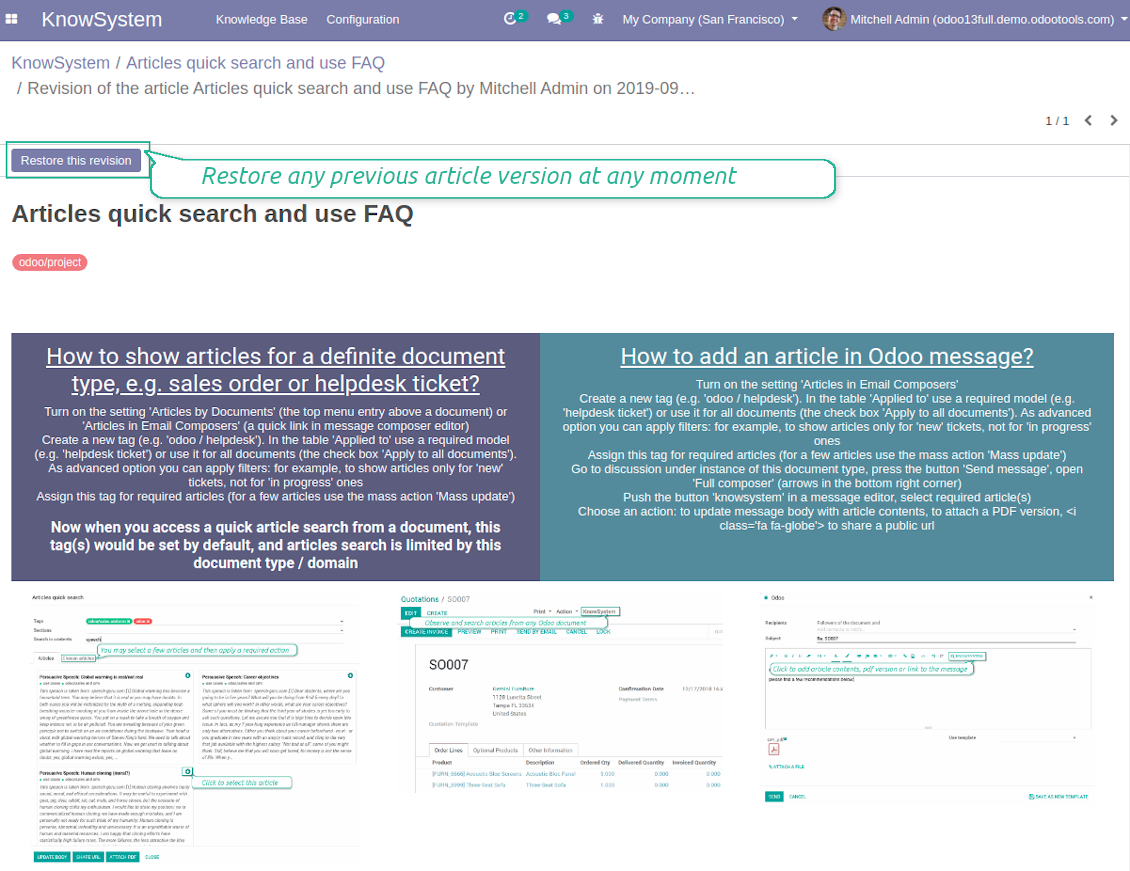
How to recover a previous article version
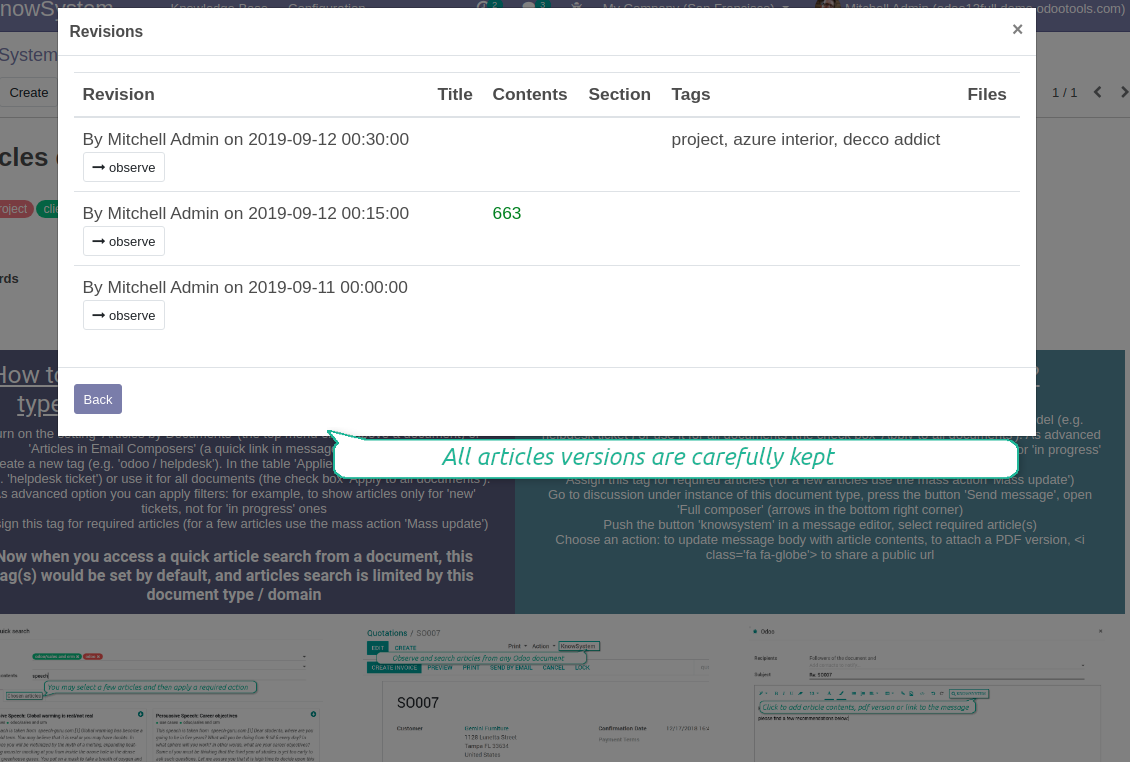
- Go to an article form view and push the button 'revisions'
- Find a required one and push the button 'Observe' to check whether this version is a correct one
- Push the button 'Restore this revision'. The article would be recovered to that version.
- The recovery operation itself is recorded. So, if it is a mistake you can revert changes by recovering the last-to-last revison.
Skærmbilleder
Wiki-style revisions history
To restore is easier than to break
Public knowledge system
How to make an article available for all website visitors
- Turn on the setting 'Public KnowSystem'
- Publish required articles through the mass action 'Publish' or by pushing the button 'Actions > Publish on website' on an article form
- Now any website visitor can read those articles
Team work for knowledge creation
Custom fields to structure knowledge
How custom knowledge attributes work
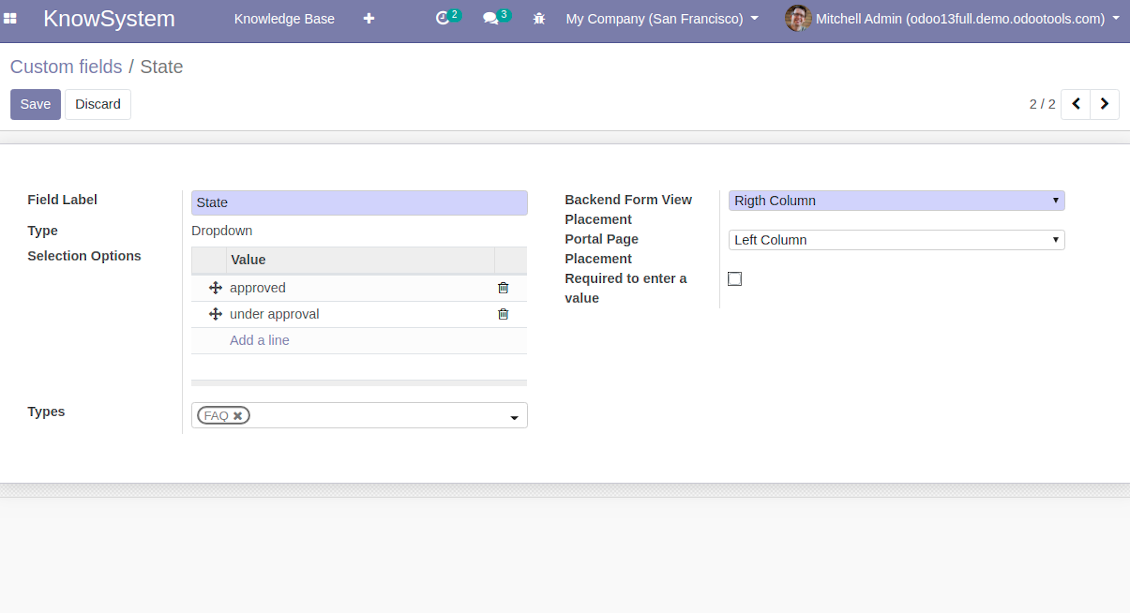
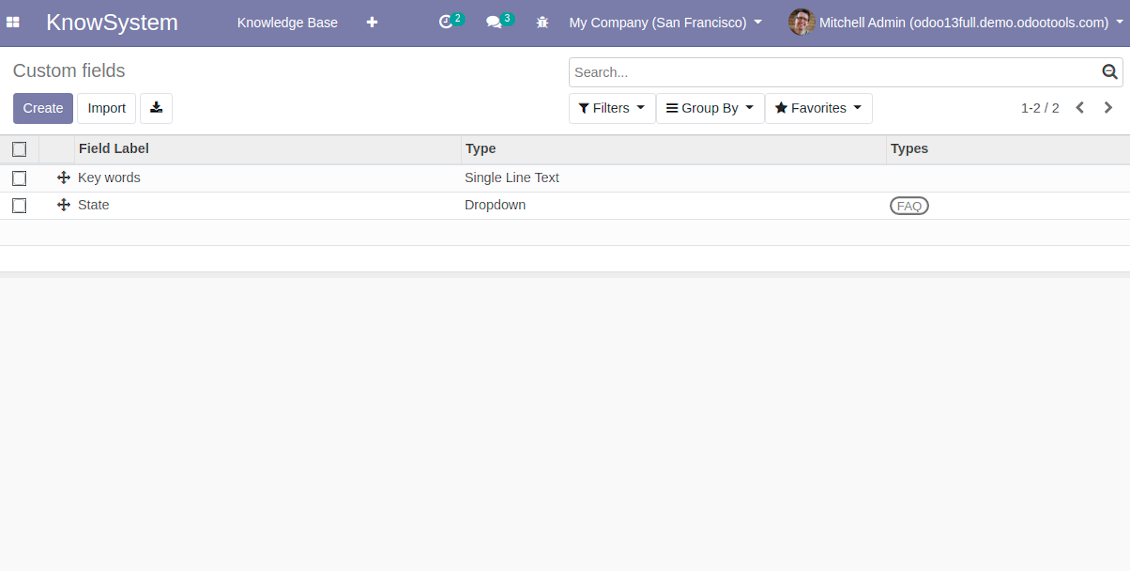
In order to show a new property for KnowSystem articles, just create a custom field. Nothing else is required! You are welcome to prepare fields of various types: single line text (char), simple text without formatting (text), rich text (HTML-formatted text), integer or float numbers, drop-down choice with your own options (selection), checkbox (boolean), date or date and time, binary (a file to upload), reference to another Odoo document (e.g. for a sale order, contact; many2one).
The tool also introduces complementary articles' typology. Thus set of attributes for 'user guidelines' and 'technical specifications' might be different.
Then, choose an interface location for a new field from a closed list to structure properties on an article page. Decide whether a field should be required to enter, or should be visible only for definite knowledge types.
Skærmbilleder
KnowSystem articles custom fields
KnowSystem articles custom properties
Knowledge is secured and might be safely shared
How to manage user accesses to articles
Security for internal and portal users differs.
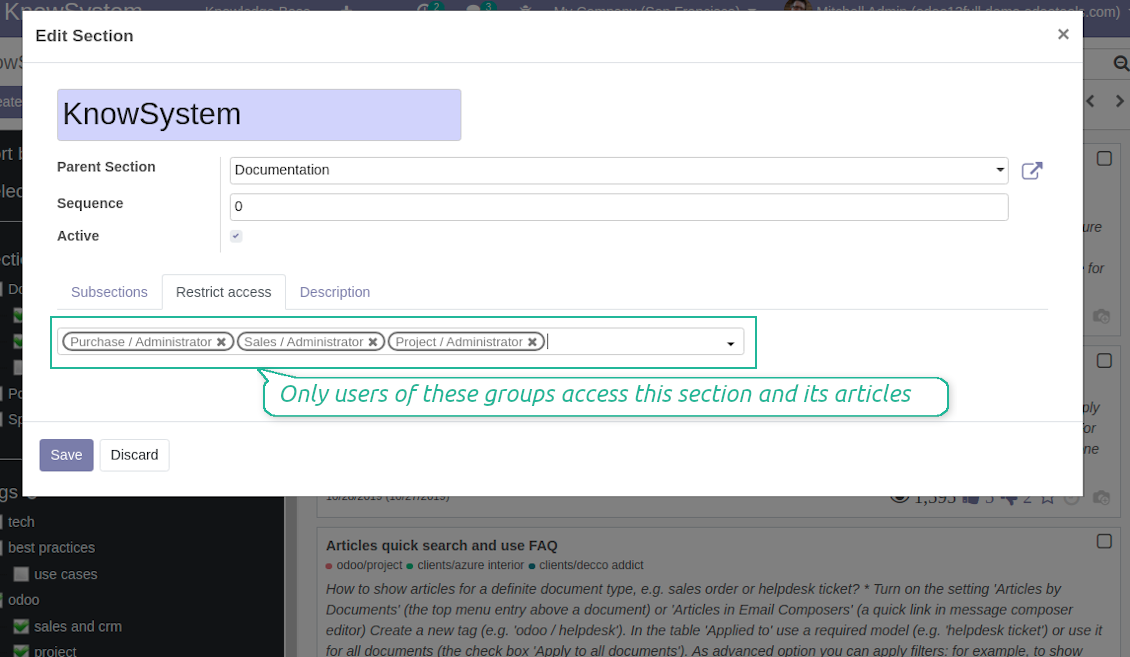
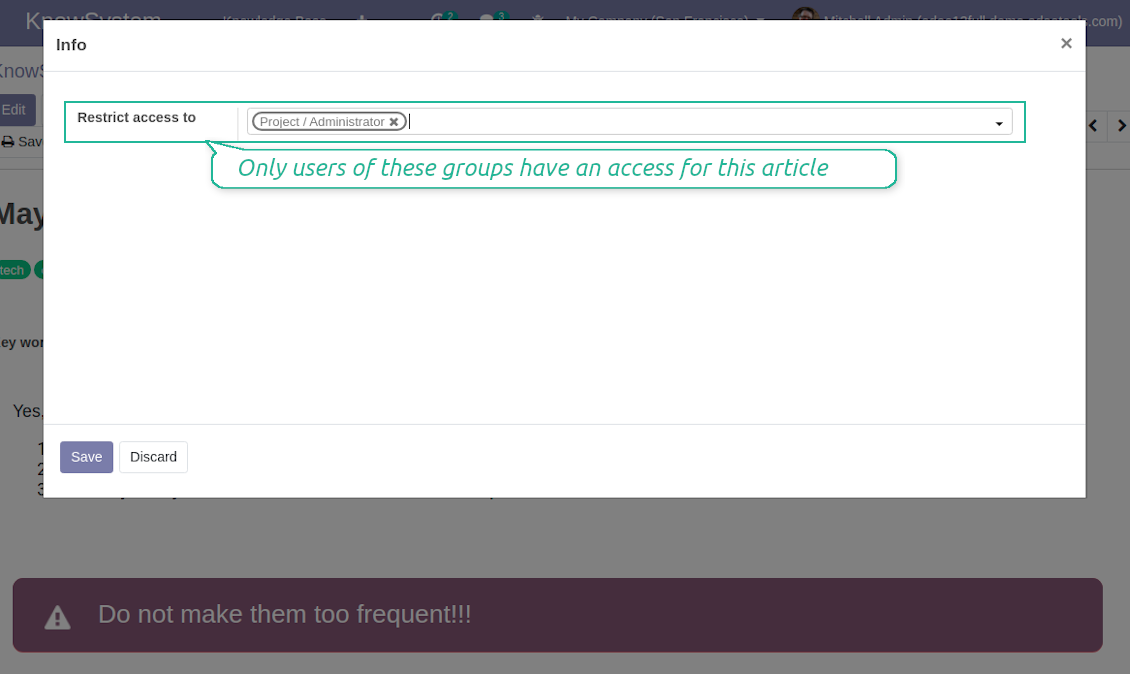
For the company employees: KnowSystem considers user groups which are defined per articles, sections and tours. Look at the tab 'Restrict to' on forms of those objects. If that field is not defined, a document is considered 'global': each internal user may read it.
For portal / public users: KnowSystem takes into account tags and whether an article is website published. A knowledge tag has a field 'Allowed partners', which may grant an access to portal users for articles with this tag. Website published pages are available for everybody.
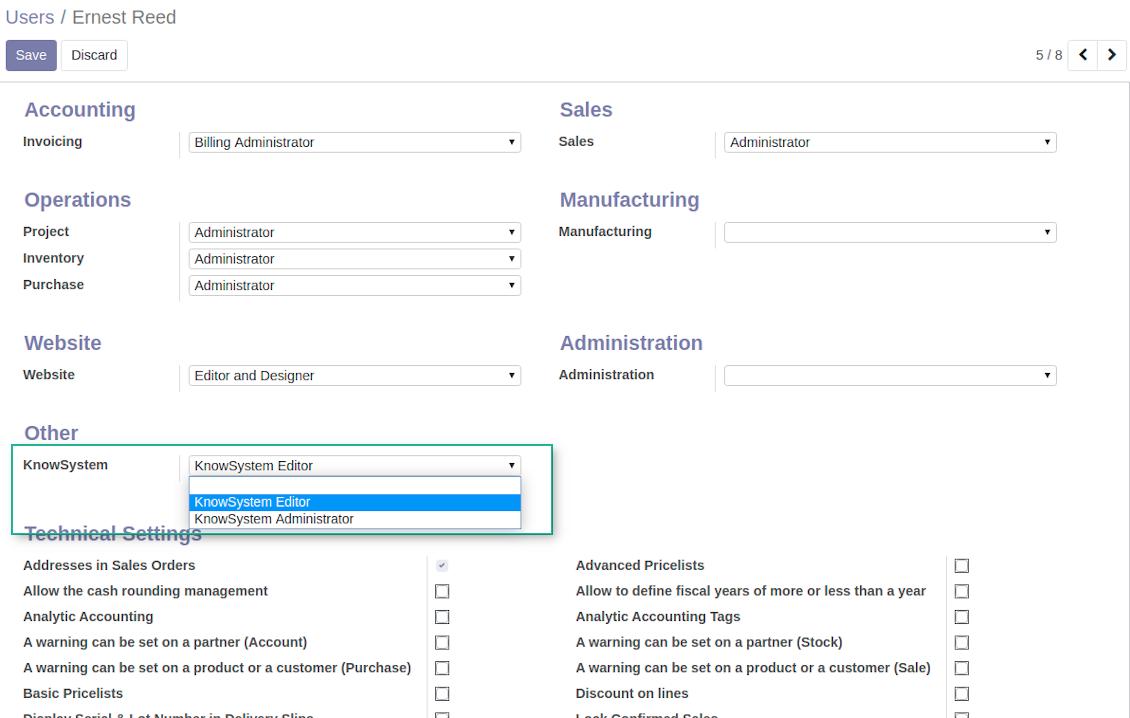
Rights to administrate KnowSystem belongs to 2 user roles: KnowSystem Editor and KnowSystem Administrator. If you want a user to create and edit articles, a user should belong to one of those groups.
|
|
Odoo user |
KnowSystem Editor |
KnowSystem Admin |
Portal user |
Public user |
| Articles | read related to his/her user groups and sections | read, create, edit, archive related to his/her user groups and sections | read, create, edit, delete any | read published articles and articles related to partner-related tags | read published articles |
| Sections | read related to his/her user groups | read, create, edit, archive related to his/her user groups and sections | read, create, edit, delete any | read all sections of available articles | read all sections of published articles |
| Tags | read any | read, create, edit, archive any | read, create, edit, delete any | read published ones | read published ones |
| Article Types | read any | read any | read, create, edit, delete any | read published ones | read published ones |
| Tours | read related to his/her user groups | read, create, edit, delete related to his/her user groups | read, create, edit, delete any | no access | no access |
| Misc | may like / dislike, add to favourites, print, take part in discussions | may configure options | may like / dislike an article |
|
Take also into account two peculiarities:
- Odoo user always may access an article of which he is an author disregarding further restrictions;
- Rights for section is defined not only according to this section but also according to all its parents. For example, if user can't access 'sales', he/she would not be able to access 'sales / crm' disregarding whether 'crm' is available for his/her user group.
Skærmbilleder
KnowSystem security levels
Manage access to this section and its articles
Manage portal access using tags
Manage access to this article
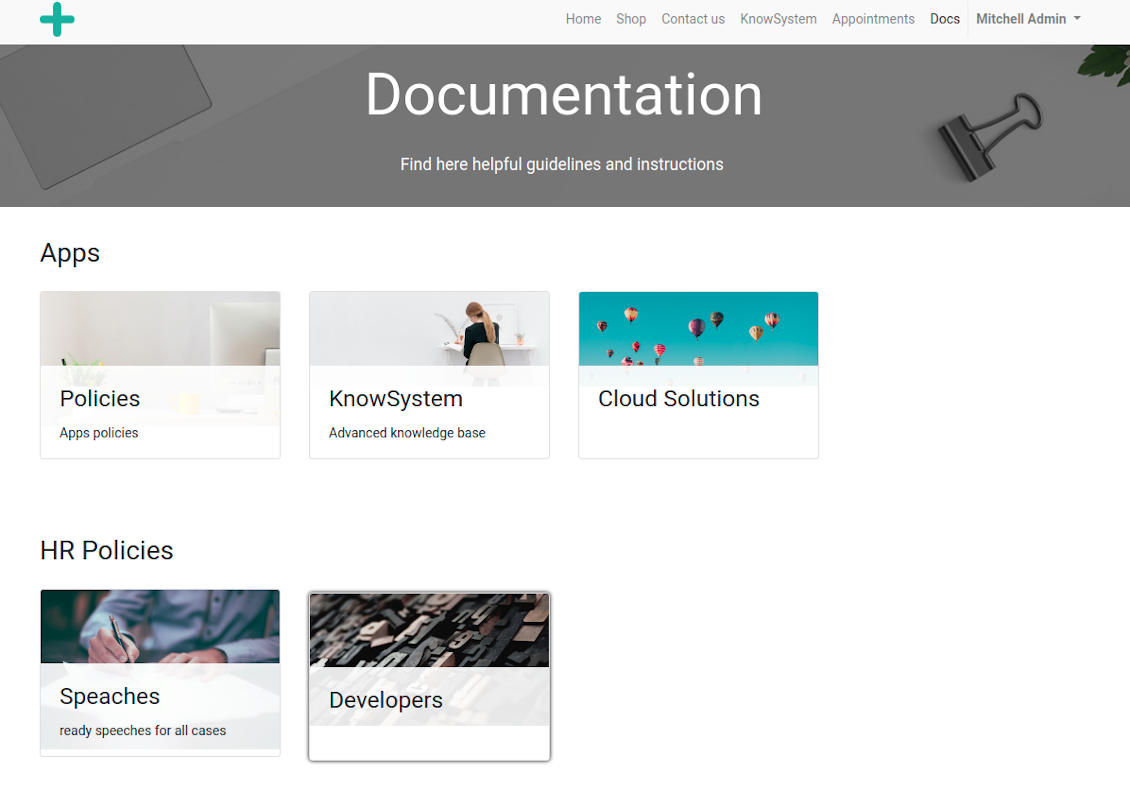
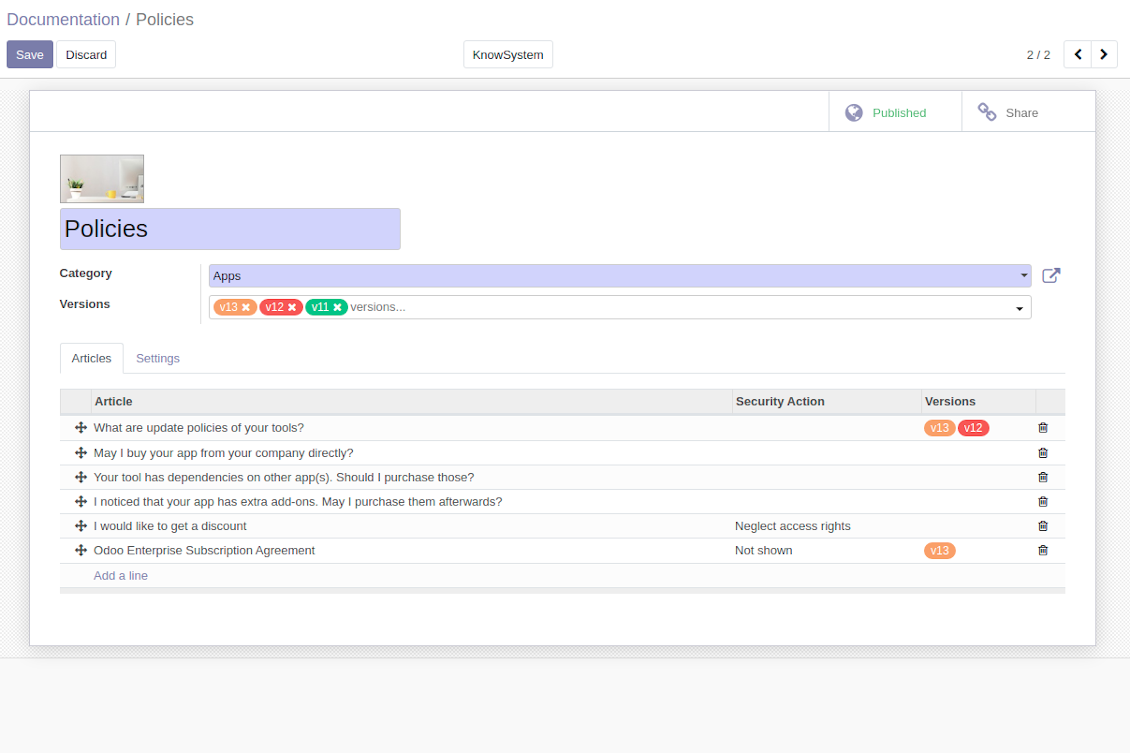
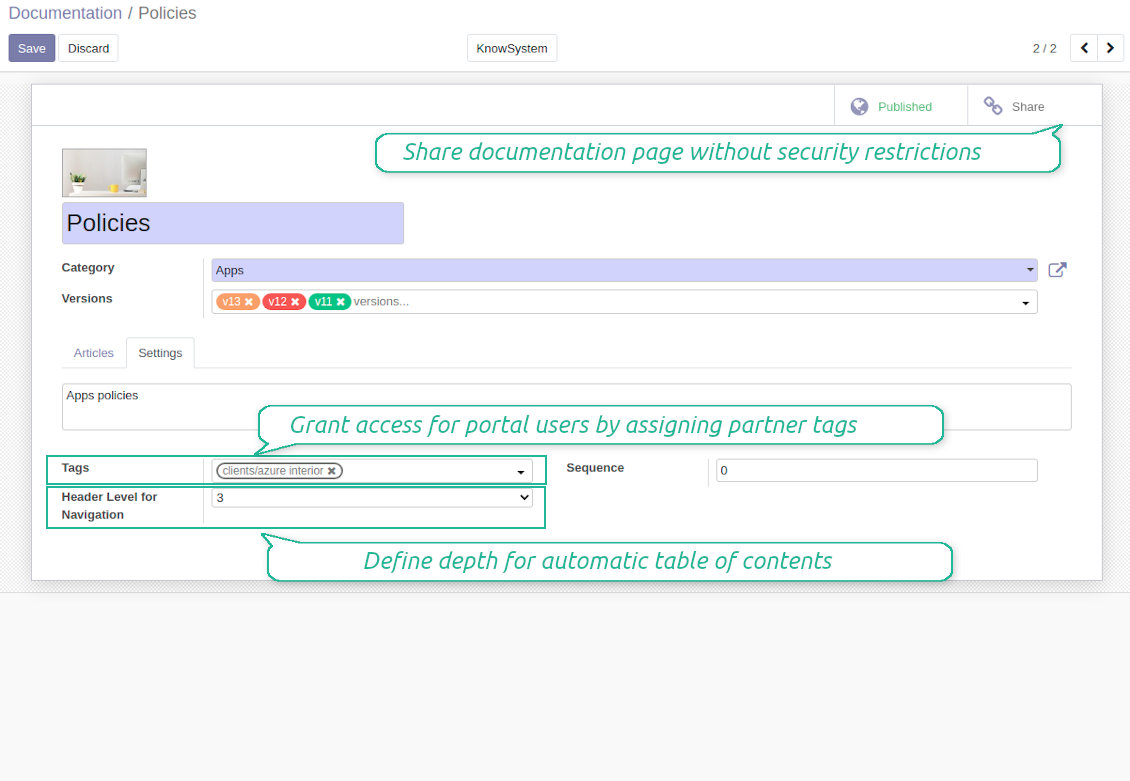
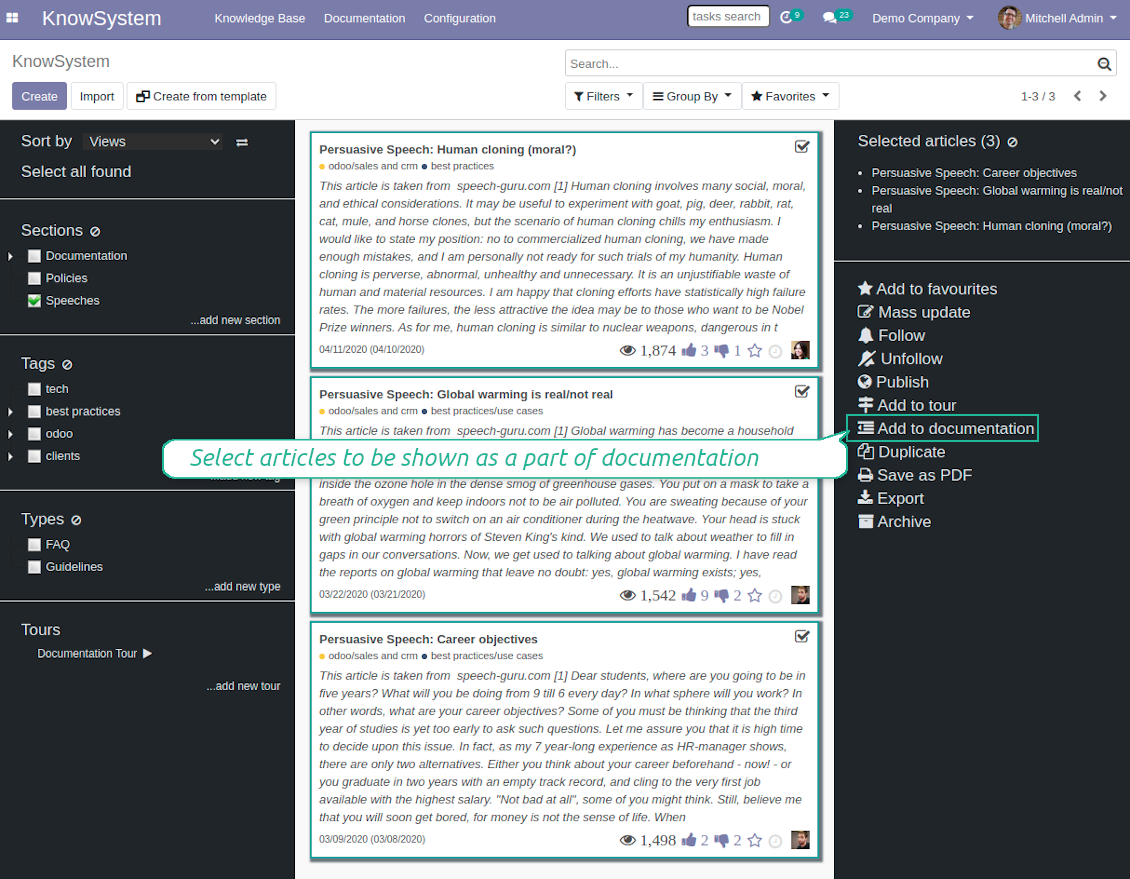
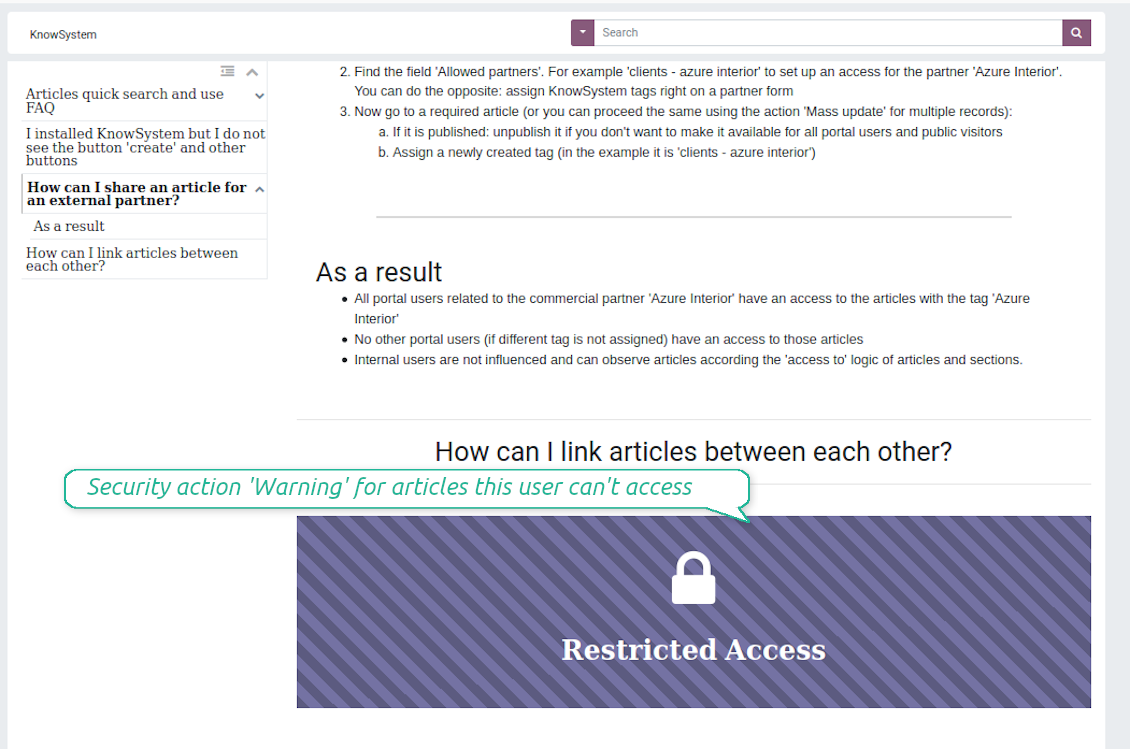
Website documentation builder
Skærmbilleder
Documentation by categories and sections
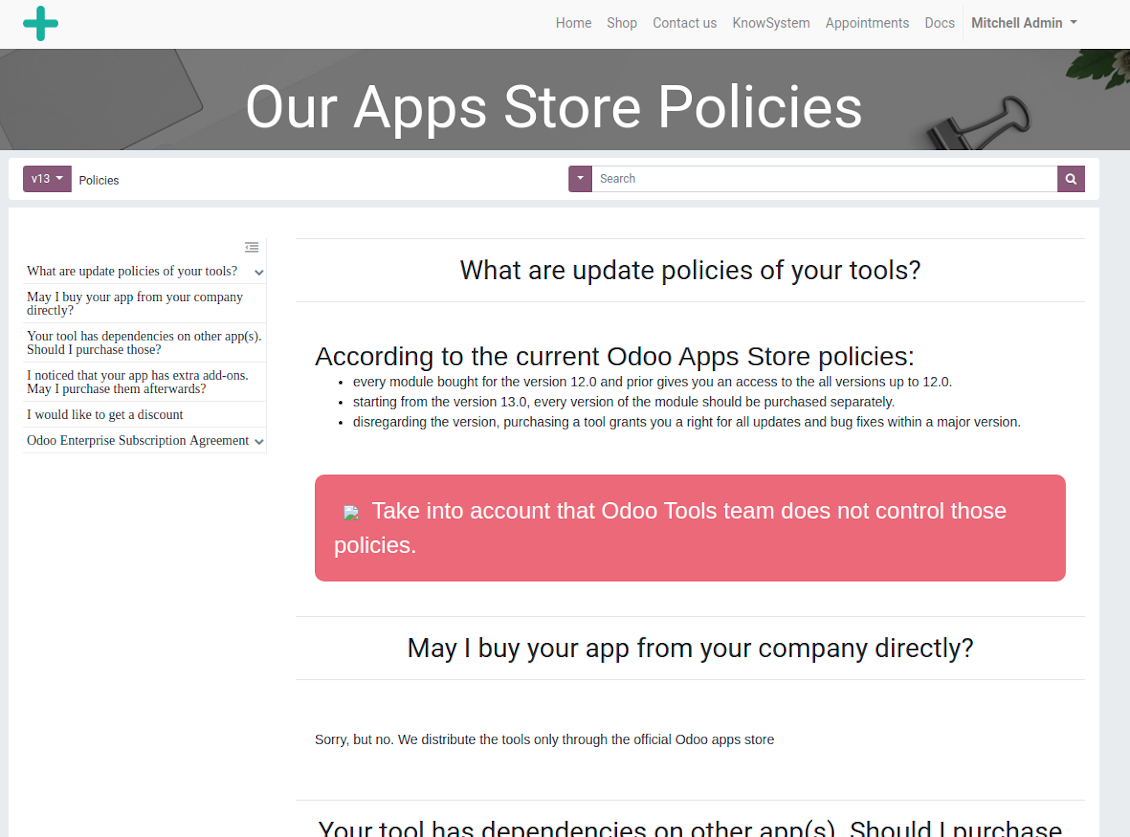
Documentation page
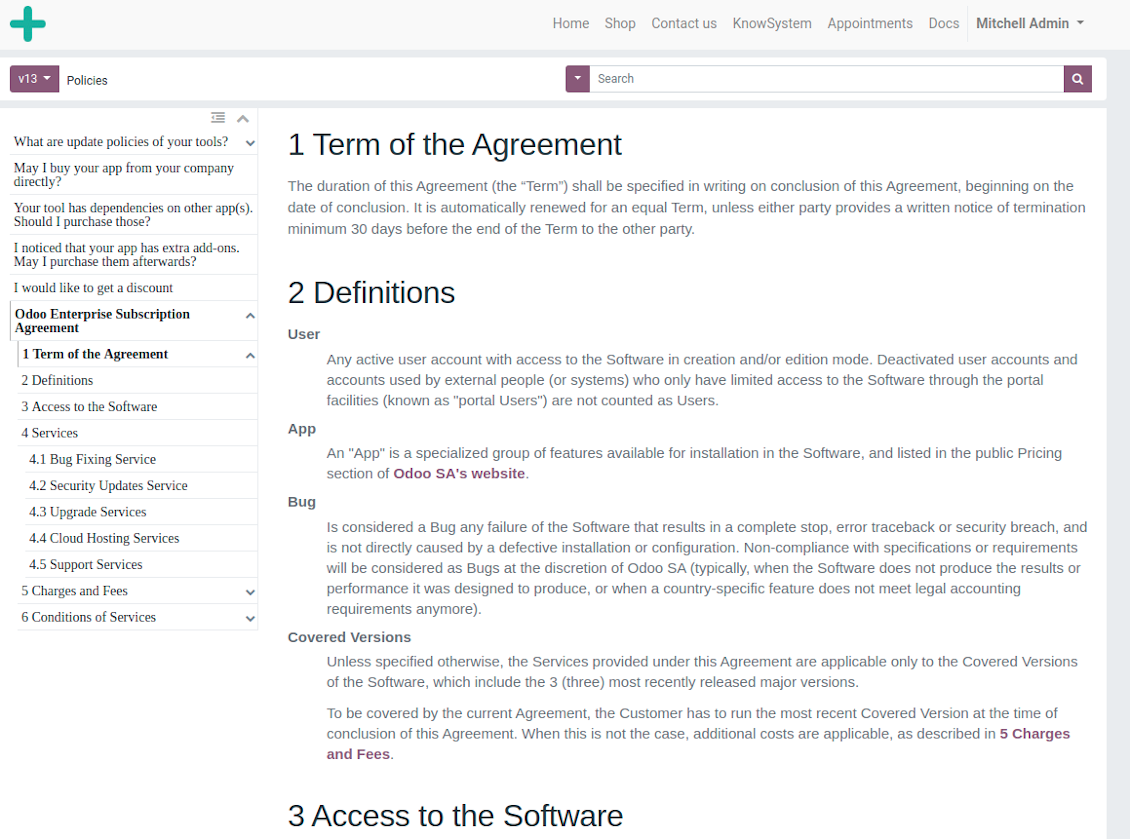
Automatic table of contents by documentation
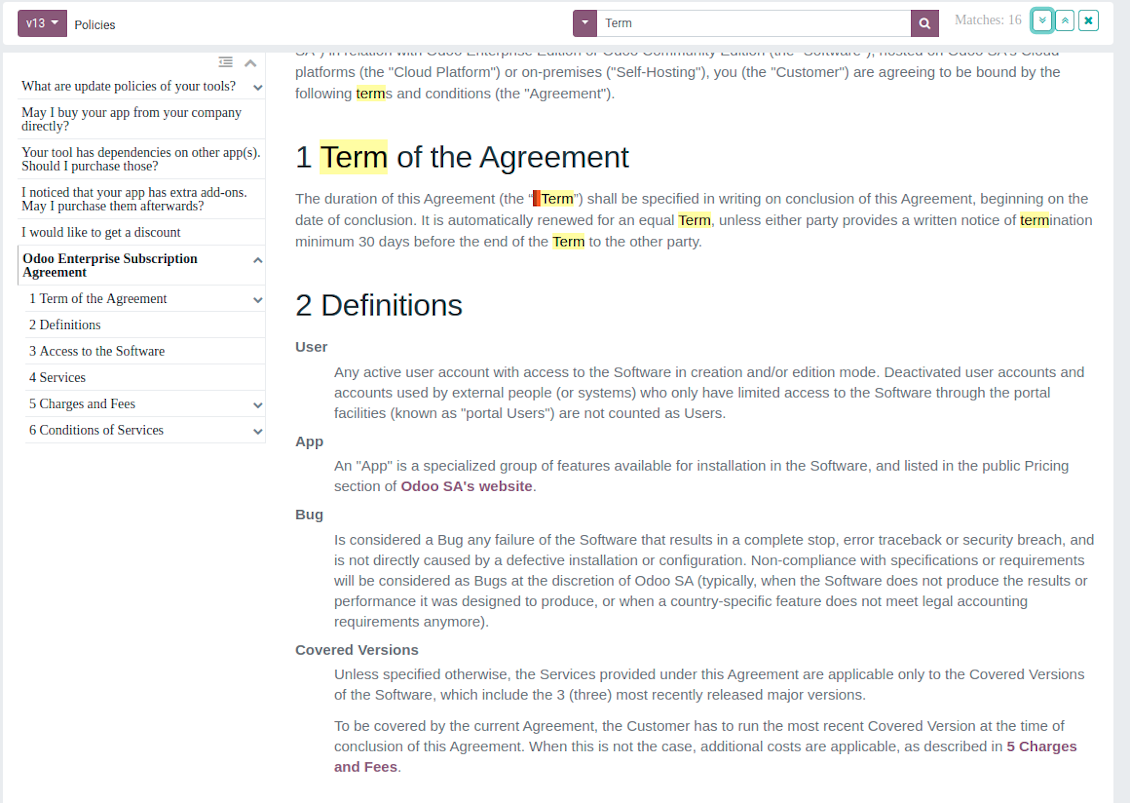
Inline search by documentation
Compose articles for documentation
Documentation settings
Add KnowSystem articles to documentation
Security: optionally show warning if no access possible
Create learning tours
How to configure a learning tour
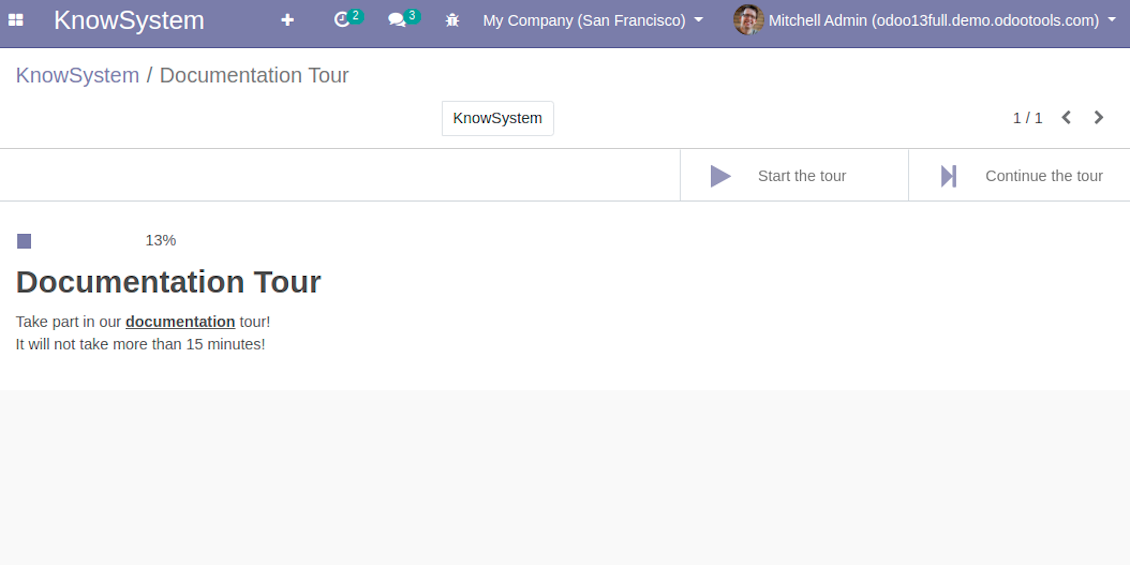
- Turn on the option 'Tours'
- Go to KnowSystem interface and select articles to be included into a tour
- Press the mass action button 'Add to tour' and select or create a tour. Press save
- Re-order articles in a consistent order
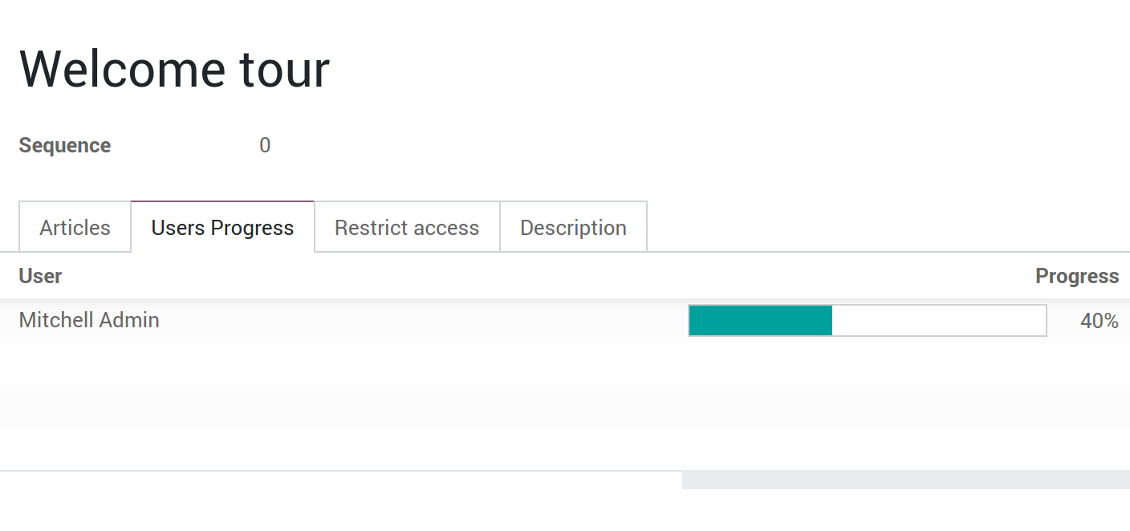
- Define groups of users who should go through a tour on the tab 'Restrict access'
- Now users can see and launch tours right from the KnowSystem interface (the right navigation panel)
Skærmbilleder
KnowSystem tour welcome page
Article in a learning tour
Control tour progress by users
Multilingual knowledge base
How to make an article available for a few languages
- Install the optional add-on 'KnowSystem: Multi Languages'
- Change your user language for a needed one
- Update this article
- Now it is available in both source and a current language
Make sure you really require a few languages. In that case you almost double the work of KnowSystem editors. All articles should be kept updated in all Odoo languages.
Knowledge base for any industry and business
Typical use cases
- Helpdesk: once faced a challenge, its solution might be recorded in KnowSystem for repeated usage by co-workers and for self-service by clients
- Sales & CRM: salesperson helper to find information about products, offers, frequently asked customer questions
- Project management: to keep and easily retrieve knowledge of existing solutions, tools, hints, and experiments
- HR: to prepare instructions, guidelines, learning tours and trainings, and any codified knowledge of routine in your company
- Marketing: to organize online library of product use cases, expert knowledge and well structured documentation
- Legal issues: systematize your policies, contract and approval managements, keep the full classifier of trademarks, licenses
- Informational technologies: share easy-reached manuals and configuration guidelines
Ofte stillede spørgsmål om KnowSystem: Knowledge Base System Odoo v.13
Jeg kan ikke se nogen forskel mellem revisionernes tekster.
Revisioner registrerer ikke kun tekstændringer, men også alle stilopdateringer (teknisk når du ændrer HTML-kildekoden til en artikel). Nogle er uklare ved første øjekast (f.eks. ændret skriftstørrelse på et enkelt ord). Andre kan være drastiske. Enhver kæde Edit > ændr noget i en artikel > Save giver dog en ny revision.
Kan jeg tilføje en YouTube-/ Vimeo- / Dailymotion- / Youku-video i en artikel?
Ja, du kan indlejre video fra de tjenester i artikler både fra Odoo-backend og websitebyggeren. Tilføj en byggeklods med et billede > tryk på billedet > vælg ‘Video’ > indtast URL'en til mediet.
Bemærk: sådanne videoer inkluderes som iframes, og nogle browsere kan blokere afspilning, indtil brugeren udtrykkeligt tillader det.
Hvordan gør jeg et afsnit synligt på websitet?
I KnowSystem bliver et afsnit synligt på et website, hvis det er offentliggjort og indeholder mindst én artikel. Selv med underafsnit er det usynligt, hvis der ikke er en eneste artikel i selve afsnittet. Så undgår man tomme afsnit, og KnowSystem-portalen bliver overskuelig. Vil du vise afsnittet på websitet, kan du tilføje én indledende eller generel artikel, der kort beskriver eller lister artiklerne i underafsnittene.
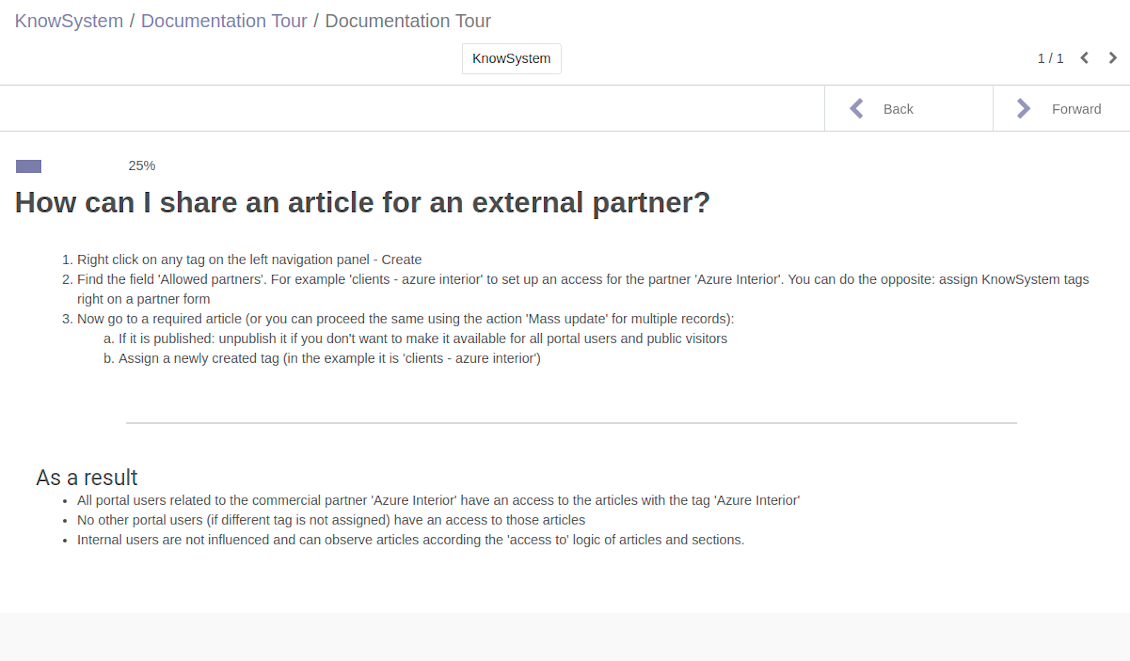
Hvordan deler jeg en artikel med en ekstern partner?
Højreklik på et vilkårligt mærke i venstre navigationspanel - Create
Find feltet 'Allowed partners'. For eksempel 'clients - azure interior' for at give partneren 'Azure Interior' adgang. Du kan gøre det omvendte: tildele KnowSystem-mærker direkte på partnerformularen
Gå nu til den ønskede artikel (eller gør det samme med handlingen 'Mass update' for flere poster):
Hvis den er offentliggjort: fjern offentliggørelsen, hvis du ikke vil gøre den tilgængelig for alle portalbrugere og offentlige besøgende
Tildel det nyoprettede mærke (i eksemplet er det 'clients - azure interior')
Nu:
Alle portalbrugere knyttet til den kommercielle partner 'Azure Interior' har adgang til artiklerne med mærket 'Azure Interior'
Ingen andre portalbrugere (hvis et andet mærke ikke er tildelt) har adgang til de artikler
Interne brugere påvirkes ikke og ser artikler efter 'access to'-logikken for artikler og afsnit.
Kan vi tilføje sprogvalgsknappen til artiklens brødtekst?
Knappen 'translate' tilføjes bevidst ikke til artiklens brødtekst af det valgfrie tillæg 'KnowSystem: Multi Languages'. HTML er meget svært at oversætte i den simple popup, knappen forudsætter. Der ville være meget lidt tekst at oversætte og mange HTML-dele (som oversætteren også kan ødelægge).
Derfor skal du, for at lave en artikel på et bestemt sprog, logge ind som en bruger med det sprog. Det kan være en anden bruger, eller du kan midlertidigt ændre den aktuelle brugers indstillinger. Derefter sker alle opdateringer af artiklens brødtekst på det brugersprog.
Du kan også bruge knappen 'Copy from another translation' under artiklens brødtekst og når som helst hente indholdet fra et andet sprog (nyttigt, hvis artiklen er opdateret væsentligt på ét af sprogene).
Hvordan indlejrer jeg en anden webside i en artikel
Til det kan du bruge iframes. Skift artiklen til den rå HTML-kodeditor, og indsæt f.eks. <iframe src="https://faotools.com/" style="width:100%;min-height:600px;"> </iframe>.
Jeg har installeret KnowSystem, men jeg kan ikke se knappen 'create' og de andre knapper
Du har sandsynligvis ikke givet din bruger KnowSystem-rettigheder. Vælg den rigtige rolle 'KnowSystem Editor' eller 'KnowSystem Admin' og opdater siden. Kontrolknapperne bør nu vises.
Kan jeg vise en bestemt læringstur kun for udvalgte brugere?
Ja, ved at tildele en brugergruppe (f.eks. 'Sales Manager'), som skal gennemføre denne tur. Hvis brugeren tilhører gruppen, vises turen. Ellers vises den ikke. Det fungerer på samme måde som sikkerhedsrettigheder for KnowSystem-artikler og -afsnit.
Bemærk: hvis en tur ikke har tildelte grupper, er den 'global' og synlig for alle.
Hvordan ændrer jeg sidefod og sidehoved, når jeg udskriver artikler?
Sidehoved og sidefod til artikel-PDF'er tages fra virksomhedens layouts. Se Settings > General Settings > afsnittet Business Documents. Her definerer du virksomhedsskabelonen, der bruges til alle dokumenttyper, herunder fakturaer, salgsordrer osv., og også til artikler. Denne Odoo-tilgang ser sidefod og sidehoved som en generel virksomhedsstil, ikke som et attribut for bestemte udskrifter.
Hvordan linker jeg artikler til hinanden?
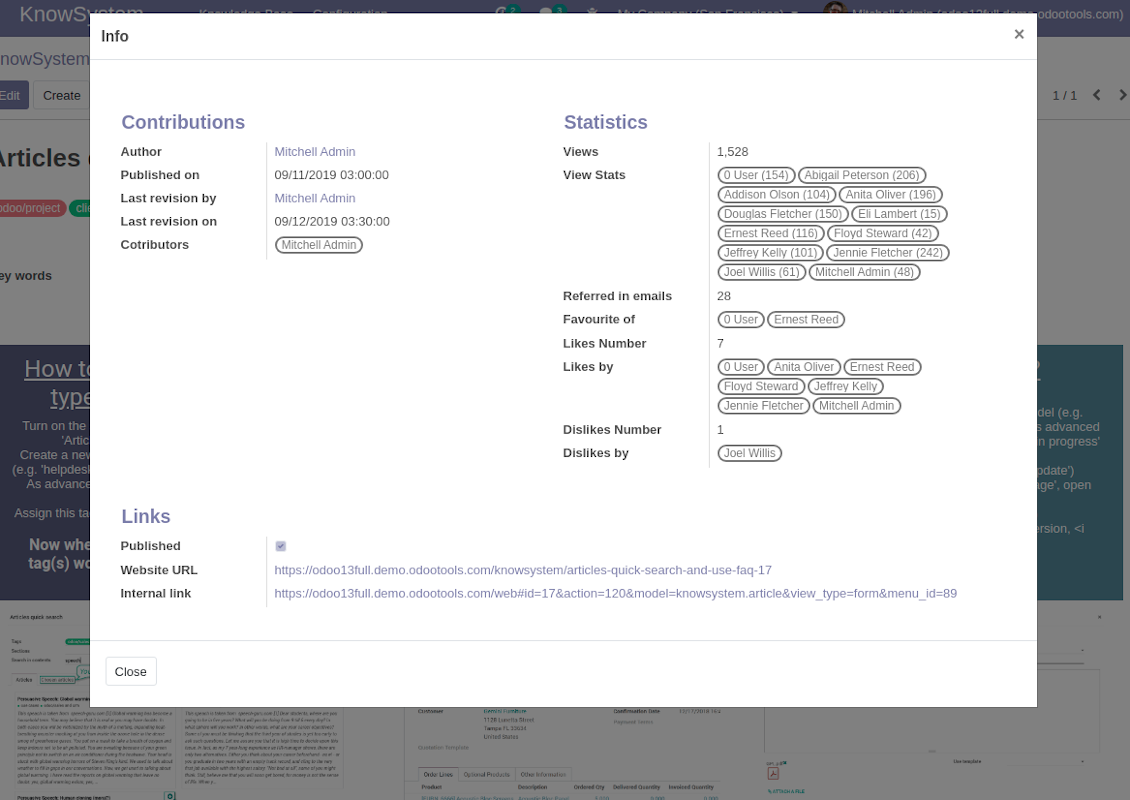
Hver artikel har interne (backend) og website-URL'er (hvis indstillingen 'KnowSystem: Website and Portal' er installeret). Klik på knappen 'Info' på artikelformularen for at se webadresserne for denne post. Du kan indsætte en hvilken som helst i artiklens brødtekst som et hyperlink.
Kan jeg ændre HTML-kildekoden til en artikel?
Ja: slå debug assets til (på indstillingsoversigten) og vend tilbage til den aktuelle artikel. I redigeringstilstand vises ikonet '</>'. Klik på det for at se og redigere HTML og stile.
Hvad er opdateringspolitikken for jeres vaerktojer?
Ifolge de gaeldende regler for Odoo Apps Store:
- Hvert modul kobt til version 12.0 eller tidligere giver adgang til alle versioner op til 12.0.
- Fra version 13.0 skal hver modulversion kobes separat.
- Uanset version giver kobet ret til alle opdateringer og fejlrettelser inden for en hovedversion.
faOtools-teamet styrer ikke disse regler. Ved sporgsmaal, kontakt Odoo Apps Store-representanterne direkte.
Hvordan installerer jeg jeres app pa Odoo.sh?
Den mest direkte tilgang er Odoo-butikkens indbyggede arbejdsgang:
1. Abn modulets side, og klik pa Deploy on odoo.sh
2. Du bliver omdirigeret til GitHub. Log ind, og klik pa Create a new repo, eller brug et eksisterende. Repot skal vaere privat. Apps under OPL-1 ma ikke offentliggores. Opret om nodvendigt et nyt repo til Odoo.sh-projektet
3. Ga derefter til odoo.sh, klik pa Deploy, bekraeft, og klik pa Continue. Installationen starter.
Disse trin installerer appen pa production-grenen. Til andre grene eller opdatering:
1. Download kildekoden fra Odoo-butikken
2. Commit modulet til GitHub-repot. Ingen app-mapper/filer ma sta i .gitignore. Repoer oprettet af odoo.sh kan ignorere vigtige stier (f.eks. /lib). Upload alle modulmapper og -filer
3. Deploy malgrenen i odoo.sh-projektet, eller vent pa det automatiske build, hvis indstillingerne angiver det.
Hvordan installerer jeg jeres app pa min egen server?
2. Genstart Odoo-serveren;
3. Sla udviklertilstand til (tekniske indstillinger);
4. Opdater applisten (Apps-menuen);
5. Find appen, og klik pa Activate/Install;
6. Folg retningslinjerne pa appsiden, hvis de findes.
Jeres app har ekstra tilfojelser. Kan jeg kobe dem senere?
Ja. Odoo laegger automatisk alle afhaengigheder i indkobskurven: udelad allerede kobte vaerktojer, sa du ikke betaler to gange.
Jeg deployede jeres app pa Odoo.sh og ser advarsel/fejl i testene
En rod/orange advarsel pavirker ikke appens funktioner. Nogle gange består vores moduler ikke de standard automatiske tests, fordi de forventer en adfaerd, der er i konflikt med appens mal. Vi aendrer f.eks. prisberegningen, mens Odoo-testene sammenligner slutprisen med standardalgoritmen.
Tjek forst funktionerne i den deployede database. Virker alt?
Hvis du stadig mener, at advarslen pavirker reelle funktioner, kontakt os, og send de fulde installationslogfiler og den fulde liste over deployede moduler (kerne og tredjepart).
Kan jeg kobe jeres app direkte hos jer?
Nej, vi distribuerer kun vaerktojerne via den officielle Odoo-appbutik.
Jeg vil gerne have rabat
Desvaerre har vi ikke tekniske midler til individuelle priser.
Kan jeg installere appen pa min Odoo Online (SaaS)-database?
Nej, tredjepartsapps kan ikke bruges pa Odoo Online. Odoo SaaS blokerer den mulighed.
Jeres vaerktoj afhaenger af andre apps. Skal jeg kobe dem?
Ja, vaerktojet kraver alle moduler markeret som afhaengigheder. Prisen pa appsiden inkluderer allerede disse afhaengigheder.
Hvad koster modulet i amerikanske dollar? Hvorfor aendrede den sig?
Prisen pa vores moduler er sat i euro. Odoo-butikken omregner til andre valutaer efter den interne valutakurs. Derfor kan prisen i amerikanske dollar aendre sig, nar kursen opdateres.
App- og webstedstekster på andre sprog end engelsk er AI-assisterede og afstemt med officielle Odoo-oversættelser. Hvis du opdager en fejl, send en sag om oversættelseskorrekthed så retter vi det.
Fejlrapportering
Hvis du støder på fejl eller inkonsistent adfærd, så kontakt os. Vi garanterer rettelser inden 60 dage efter køb og forbedrer værktøjerne også bagefter.
Du behøver hverken telefonnummer eller kreditkort for at kontakte os. Det er nok med en kort e-mailtilmelding, der tager under 30 sekunder.
Medtag så mange detaljer som muligt: skærmbilleder, Odoo-serverlogs og en fuld beskrivelse af, hvordan problemet genskabes. Det tager som regel nogle hverdage at lave en arbejdsplan (hvis fejlen bekræftes) eller retningslinjer (ellers).
Offentlige funktionsønsker og modulidéer (gratis udvikling)
Vi er stærkt motiverede til at forbedre vores værktøjer og taknemmelige for al feedback. Hvis kravene er til offentlig nytte og kan implementeres effektivt, tager teamet dem med på opgavelisten.
En sådan opgaveliste behandles regelmæssigt og indebærer ingen ekstra gebyrer. Selvom vi ikke kan love frister og endeligt design, kan det være en god måde at få ønskede funktioner uden investeringer og risici.
Du behøver hverken telefonnummer eller kreditkort for at kontakte os. Det er nok med en kort e-mailtilmelding, der tager under 30 sekunder.

Værktøjet til at strukturere Odoo-vedhæftninger i mapper og synkronisere kataloger med skyklienter: Google Drive, OneDrive/SharePoint, Nextcloud/ownCloud, Dropbox, Amazon S3, Box og NAS. DMS. Filhåndtering. Dokumenthåndteringssystem
398€
Værktøjet til automatisk at synkronisere Odoo-vedhæftede filer med OneDrive-filer begge veje
487€
Værktøjet til automatisk at synkronisere Odoo-vedhæftninger med Google Drive-filer begge veje
487€
Værktøjet til sikkert at opbevare adgangskoder i Odoo til fælles brug. Delte bokse

Værktøjet til at sætte KPI-mål og styre deres opfyldelse efter perioder. KPI-dashboards. Dashboard-designer. KPI-diagrammer

Værktøjet til tidsbaseret ydelsesstyring fra booking af aftaler til salg og anmeldelser
398€
Værktøjet til at styre Odoo fra dine foretrukne AI-chats via MCP. Claude. Enhver AI med MCP-understøttelse.

Værktøjet til at kombinere forskellige Odoo-begivenheder i nogle få konfigurerbare superkalendere

Værktøjet til at oversætte URL-adresser på Odoo-hjemmesidesider
38€