KnowSystem: Knowledge Base System v.13
The tool to build deep and structured knowledge base for internal and external use. Knowledge System. KMS
- a core of knowledge management. It might be used stand-alone as a complete internal knowledge base system. Sen hinta on 398€.
- an optional module, which let you publish articles to website, share them with portal users, and use website builder to update articles. The features assumed by this add-on are marked by the icon . Sen hinta on 40€.
- an optional extension to KnowSystem: Website and Portal to design website documentation pages based on knowledge base articles. The features assumed by this add-on are marked by the icon . Read the full description on the related page. Sen hinta on 60€.
- an optional module, which let you add and show custom fields for articles (backend). The features assumed by this add-on are marked by the icon . Sen hinta on 48€.
- an optional free module, which shows custom fields on website and portal pages (frontend). The features assumed by this add-on are also marked by the icon .
- an optional module, which let you translate articles, sections and tags for installed in Odoo languages. The features assumed by this add-on are marked by the icon . Sen hinta on 10€.
Innovative single-view interface
From the same interface editors may create and update any knowledge-related documents, change articles in batch, set up security. Without a need for excess navigation.
Interface solutions
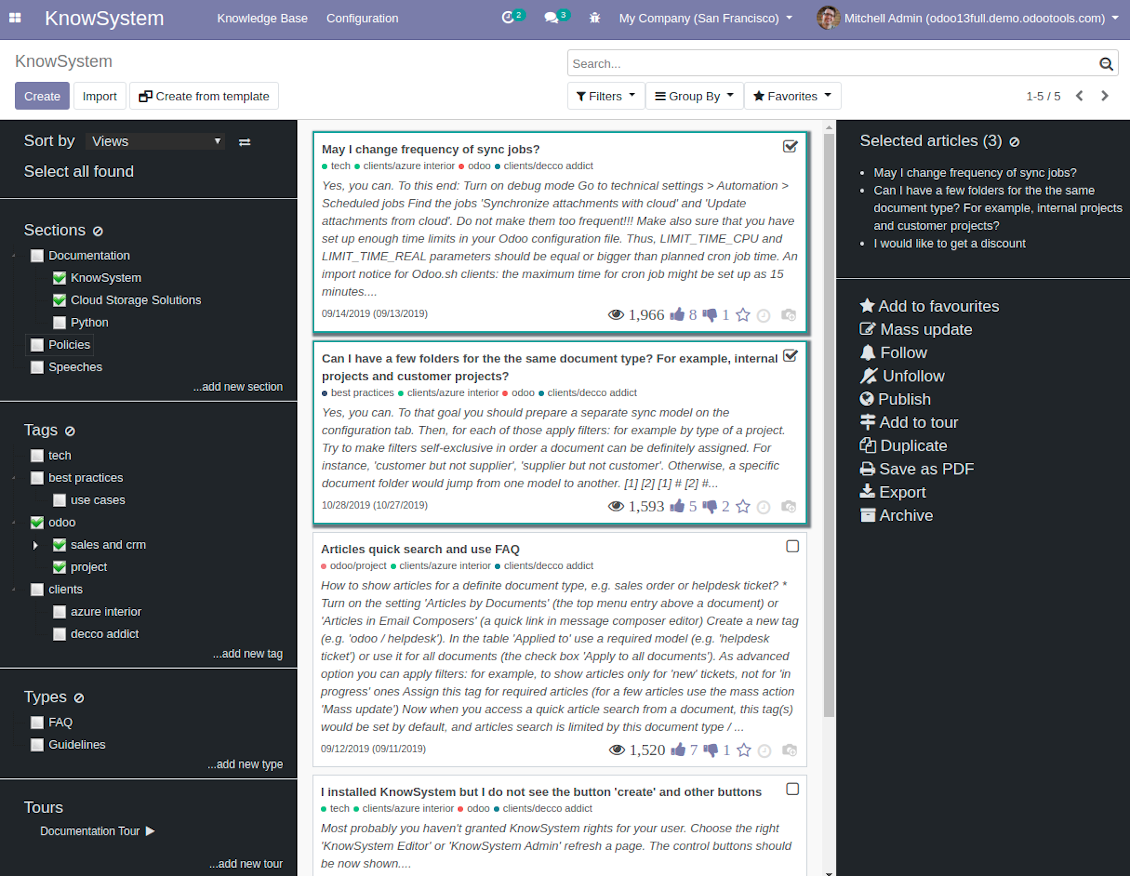
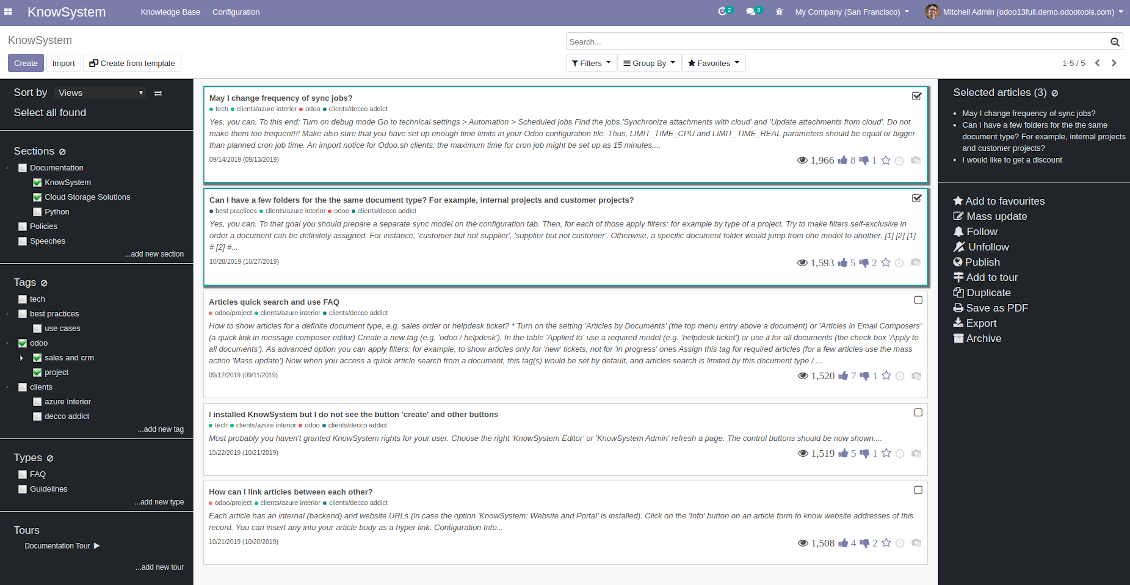
The KnowSystem interface consists of 3 key parts: the left navigation panel, the list of articles, and the right navigation panel (it is shown only if some articles are selected).
On the left navigation panel you may:
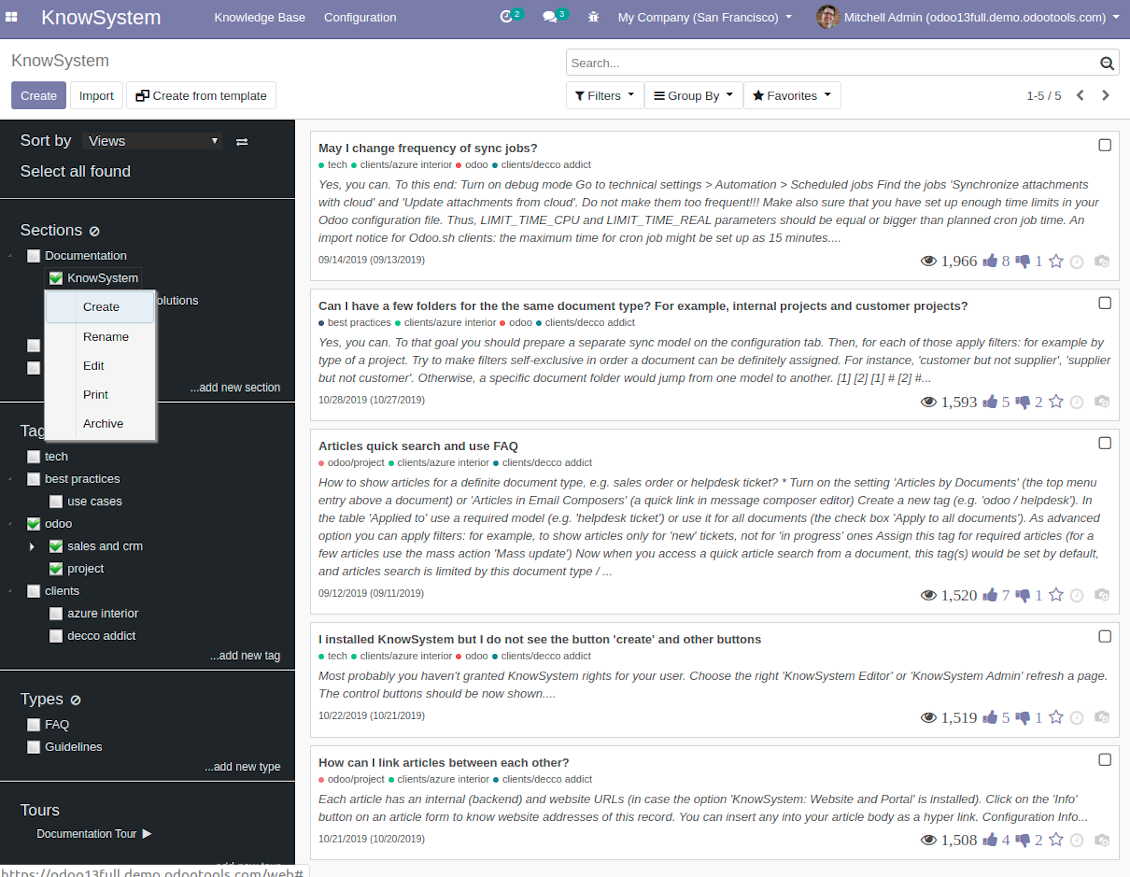
- Manage hierarchy of sections: prepare new (right mouse click - 'create'), update existing (right mouse click - edit), re-order any (drag and drop an item), archive sections. Select a few ones to filter articles. You may also print all articles related to this section as a single PDF file.
- In the same way manage hierarchy of tags and article types.
- Sort articles by number of views, a score of likes and dislikes, create or update dates, a section, an author.
- Select all articles which are found according to chosen tags / sections and according to introduced searches / filters.
- Launch a learning tour.
From the list of articles you see articles' name, indexed content (words without HTML style), dates of creation and last update, a number of views, likes, dislikes, author avatar. Here you may also add an article to favourite by pressing the 'star' icon.
Click on article body to open it in a full size (form view). Do not worry: chosen tags and sections as well as selected articles will be kept when you get back! Click on the top right check box to add an article for selection.
On the right navigation panel you observe selected articles and may proceed a mass action. Click on article name to remove it form selection.
On the top of the interface users also would find a standard Odoo omnibox. Type here to search by a title, content, an author, tags or a section.
Available mass actions
KnowSystem let users update an unlimited number of articles simultaneously:
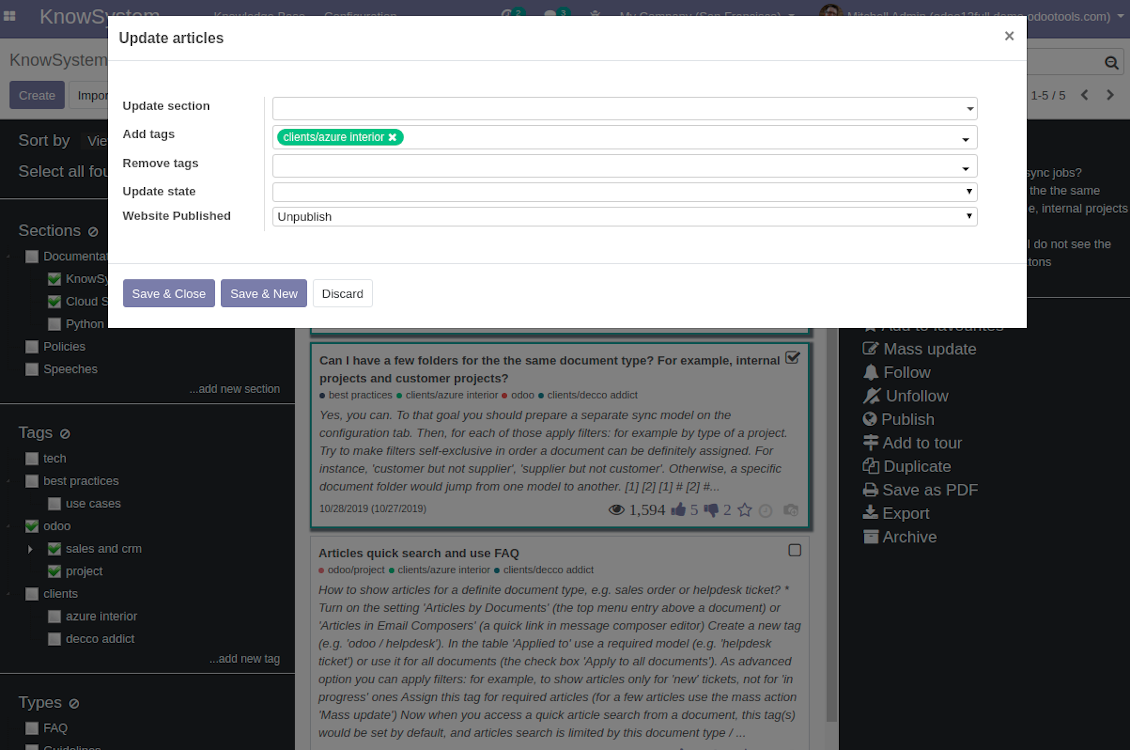
- Assign new section
- Change or remove tags
- Print multiple articles as a single PDF
- Follow / unfollow discussions
- Publish / unpublish articles
- Export articles to an Excel table
- Archive or restore records
- Add articles to learning tours
- Mark knowledge items as favourite
- Duplicate articles.
Ruutukuvat
KnowSystem Interface
Single entry for knowledge management actions
Knowledge Base overview
Article info and statistics
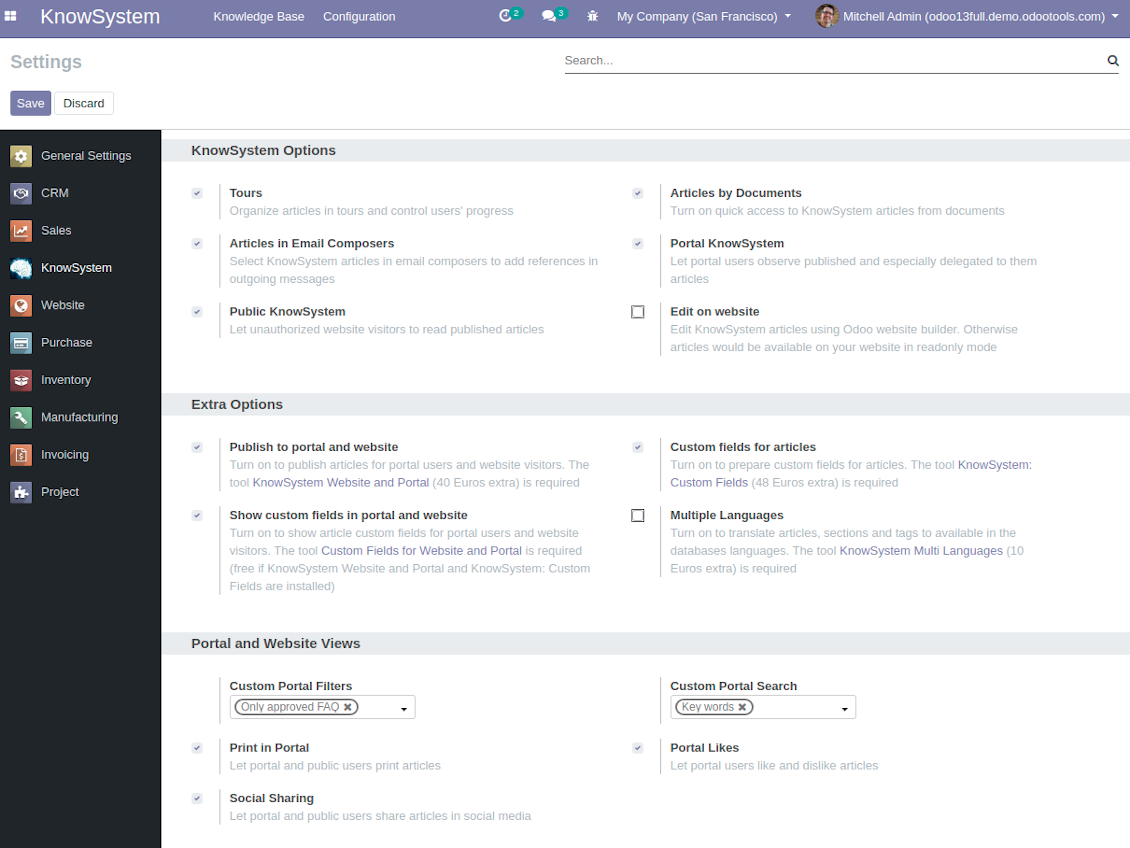
KnowSystem configuration
Mass actions for selected articles
Fast, comfortable, and professional knowledge recording
By using templates with pre-defined styles you may also speed knowledge generation up and standardize articles' appearance.
How to use the website builder for editing articles
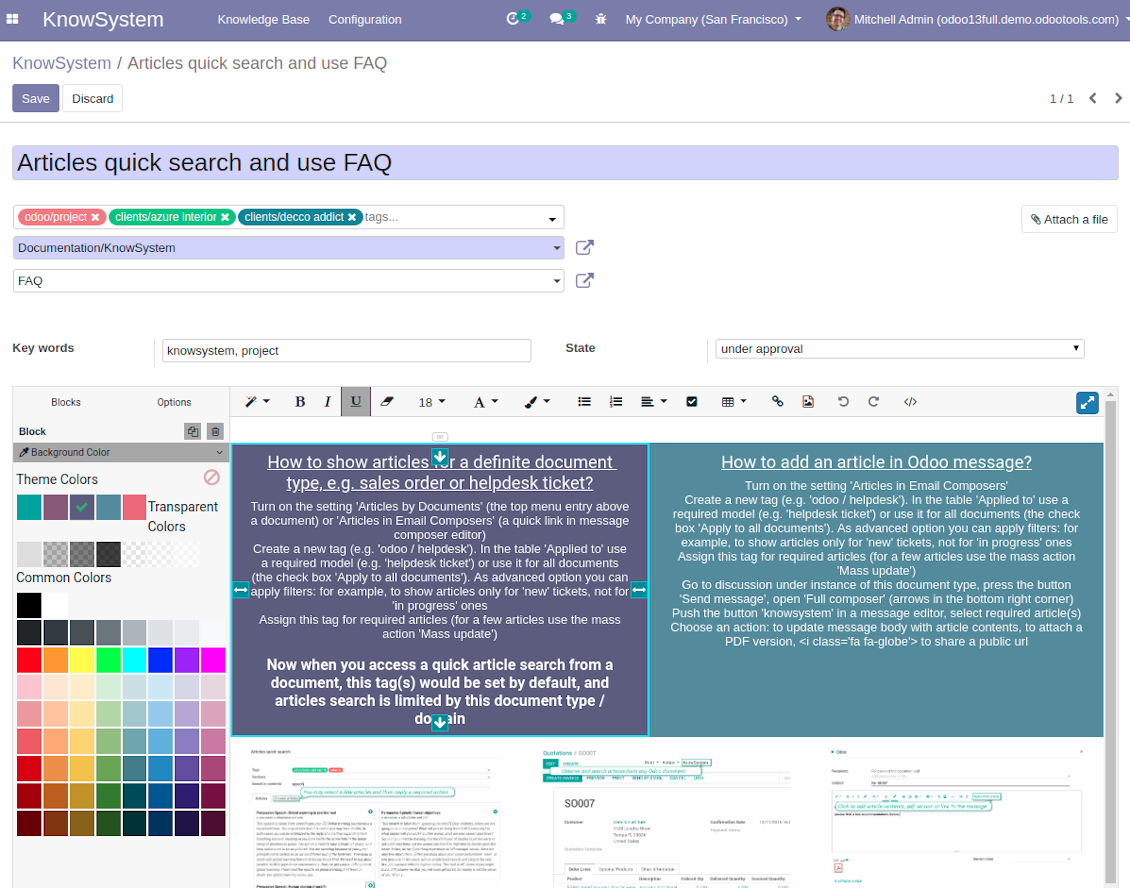
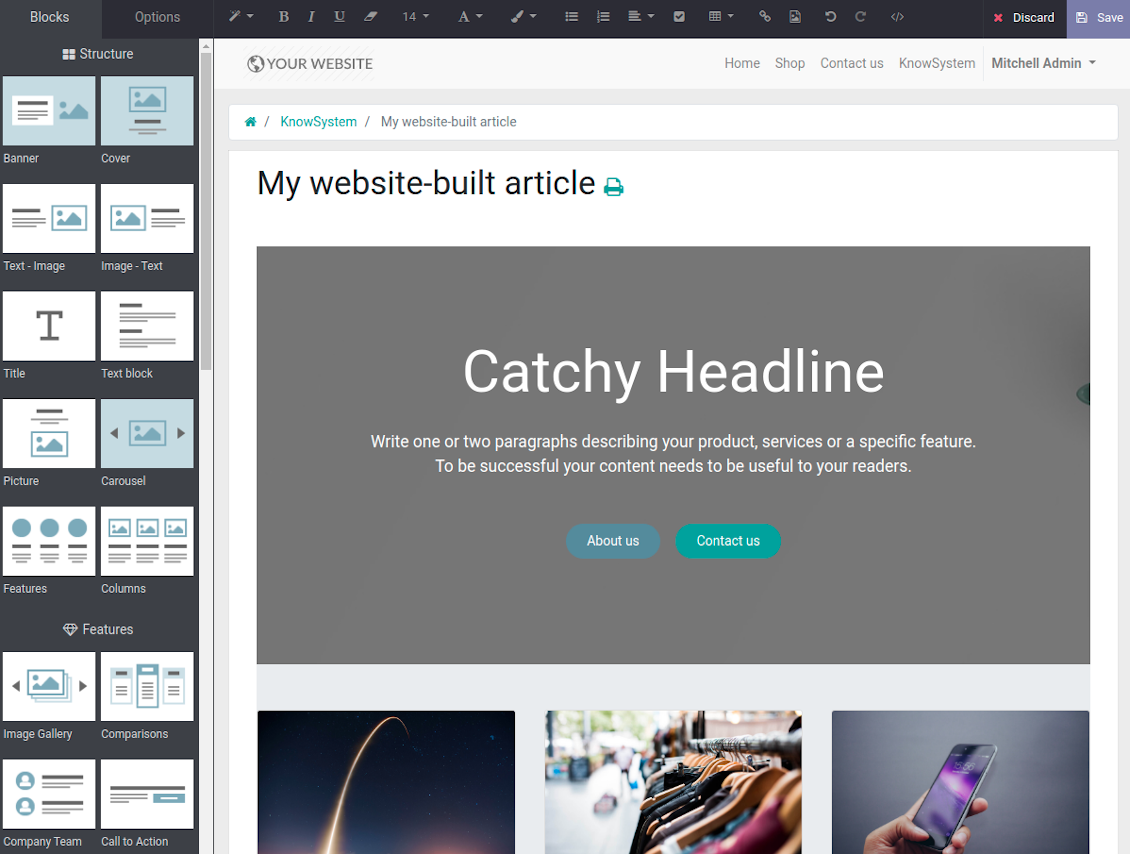
KnowSystem provides you with a backend articles' builder, which is comfortable and safe to use. Odoo website builder is richer in features to prepare complex HTML structures. To edit articles through the website:
- Install the optional add-on 'KnowSystem Website and Portal' (the option 'Publish to portal and website')
- Turn on the setting 'Edit on website'
- Push the button 'Edit on website' on this article form
Be cautious: if you are going to print this article or add its contents to emails, website building blocks are not suitable. Their advanced styles contradict printing and composer layouts and would not be correctly shown. In such a case use the safer backend builder.
How to use article templates
To prepare a new article template for repeated usage:
- If you already have an article to be used as template: push the button 'Actions > Make template', edit and save a new template.
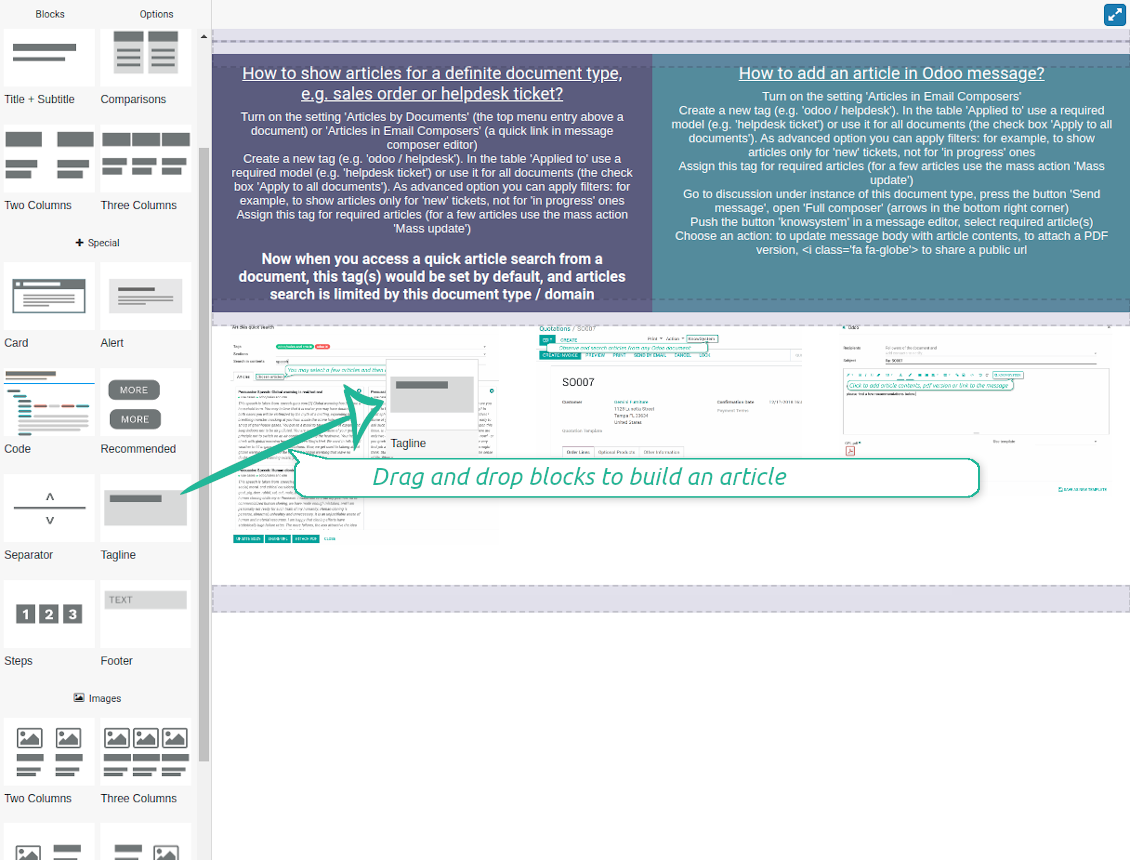
- If you wanted to prepare a brand new template, go to KnowSystem > Configuration > Templates and prepare a new one using building blocks.
To use a template to write a new article:
- Push the button 'Create from template' from KnowSystem kanban or form views
- Select a required article template
- Push 'Create' and introduce changes to a new article.
Ruutukuvat
Comfortable article customization
Building blocks for knowledge base articles
Article read mode
Use website builder to edit articles (bad for backend usage)
Get benefit from your knowledge
How document types and articles are linked for a quick access
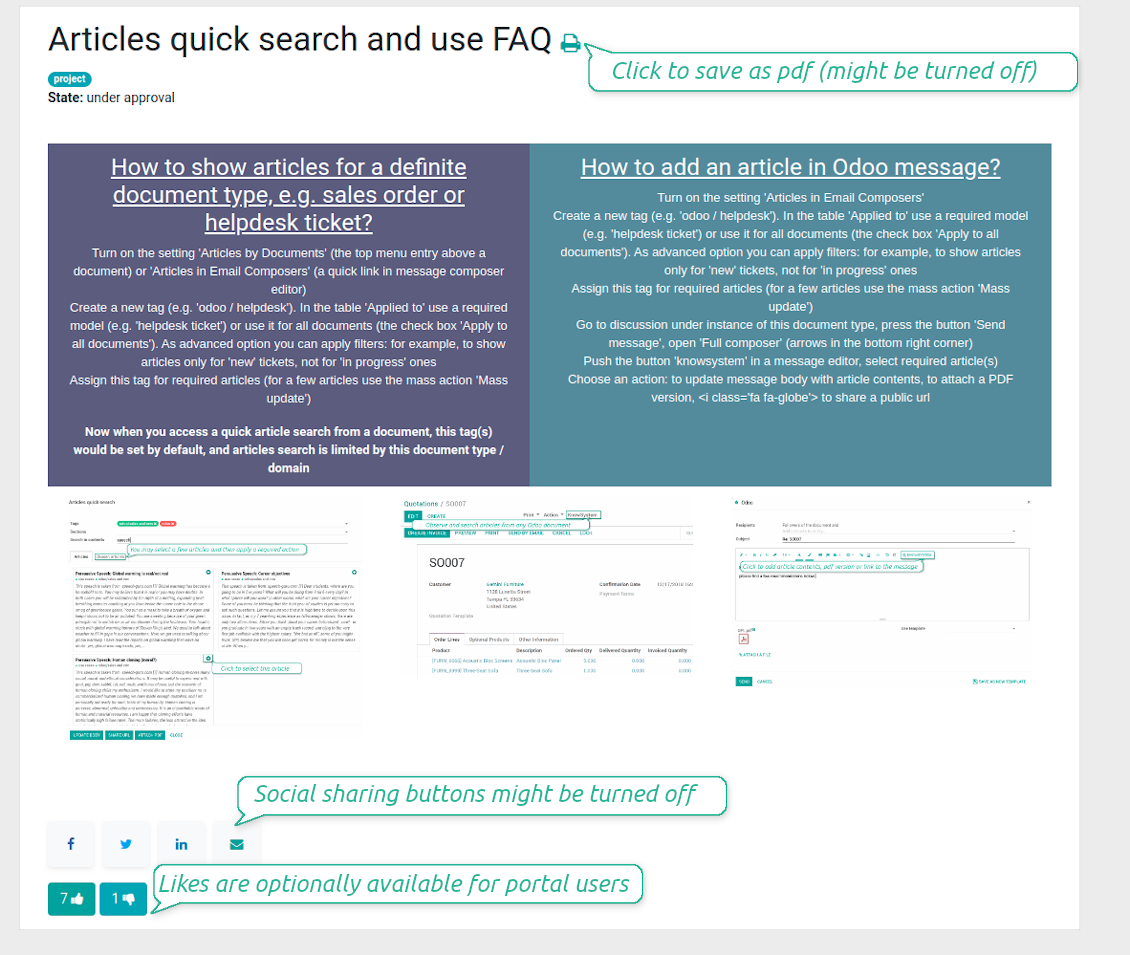
Experience is not general, usually it relates to specific issues. Knowledge used for customer communication differs from suppliers' negotiations. Frequently asked questions for draft and confirmed sale orders vary. KnowSystem let you structure your articles to apply them in a correct place and at right time. To that end:
- Turn on the setting 'Articles by Documents' (the option shows the top menu entry above any Odoo document) or 'Articles in Email Composers' (the option adds a quick link in a message composer editor for citing)
- Create a new tag (e.g. 'odoo / helpdesk'). In the table 'Applied to' use a required model (e.g. 'helpdesk ticket') or use it for all documents (the check box 'Apply to all documents').
- As advanced option you may apply additional filters: for example, to show articles only for 'new' tickets, not for 'in progress' ones. Use dynamic filters' constructor for that goal
- Assign this tag for required articles. For a few articles use the mass action 'Mass update'
- Now when you access a quick article search from a document or from an email composer, Odoo will calculate KnowSystem tags for this document. That's why by default users would see only articles suitable for a current document. Simultaneously, they might always change tags to use other knowledge base data.
How to overview articles which might be useful for this document
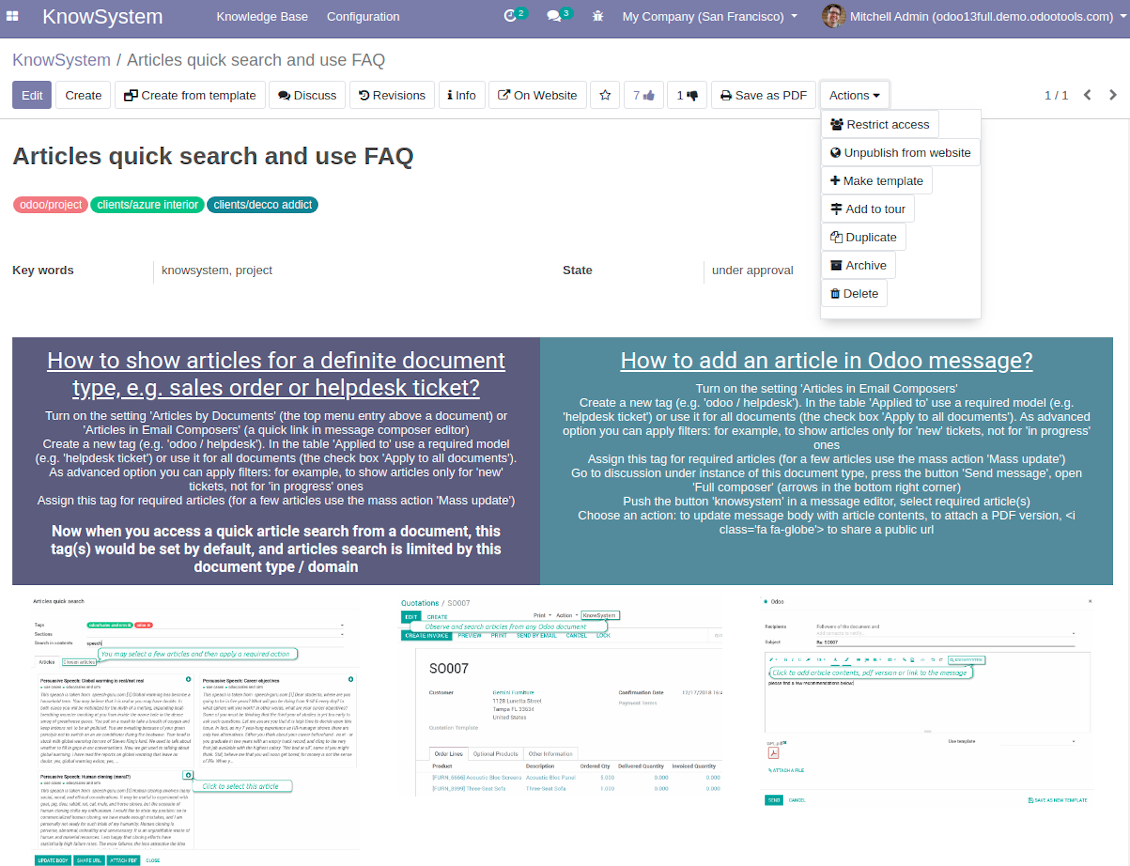
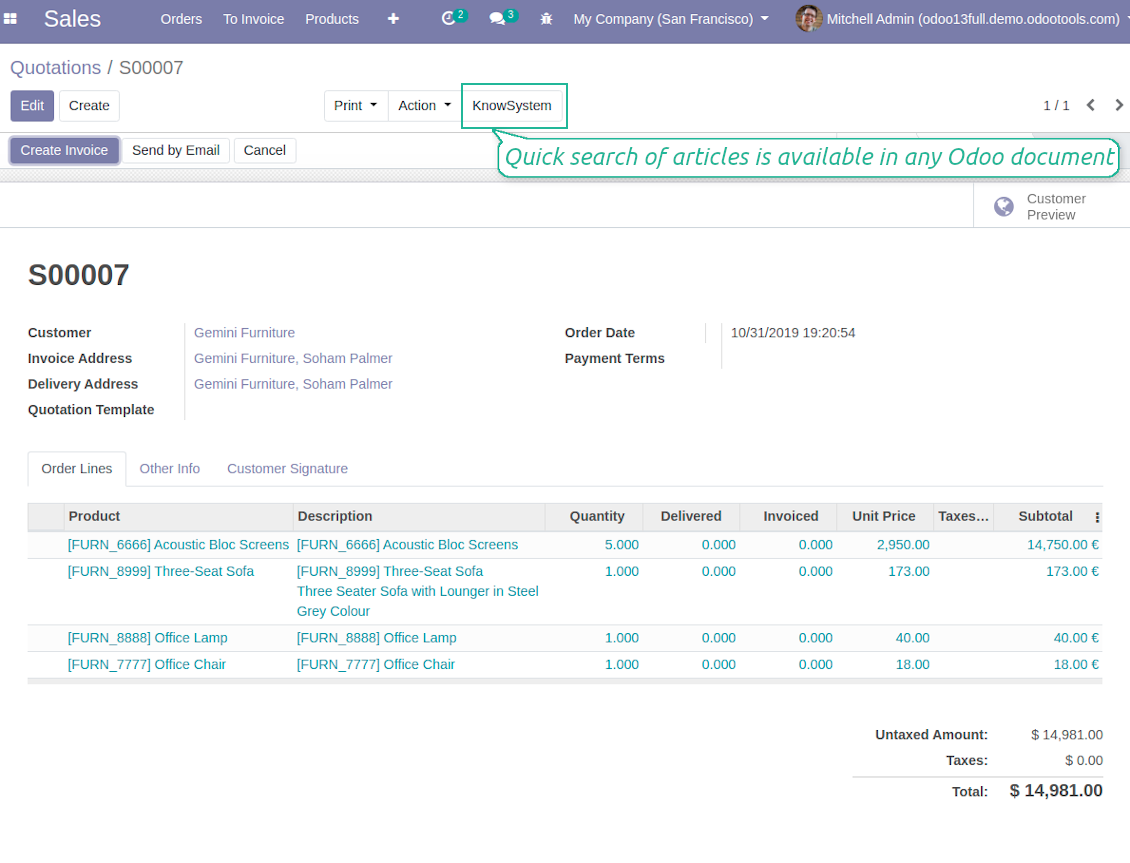
As soon as you turned on the option 'Articles by Documents', on the top of each Odoo object form view there would be a quick link 'KnowSystem'.
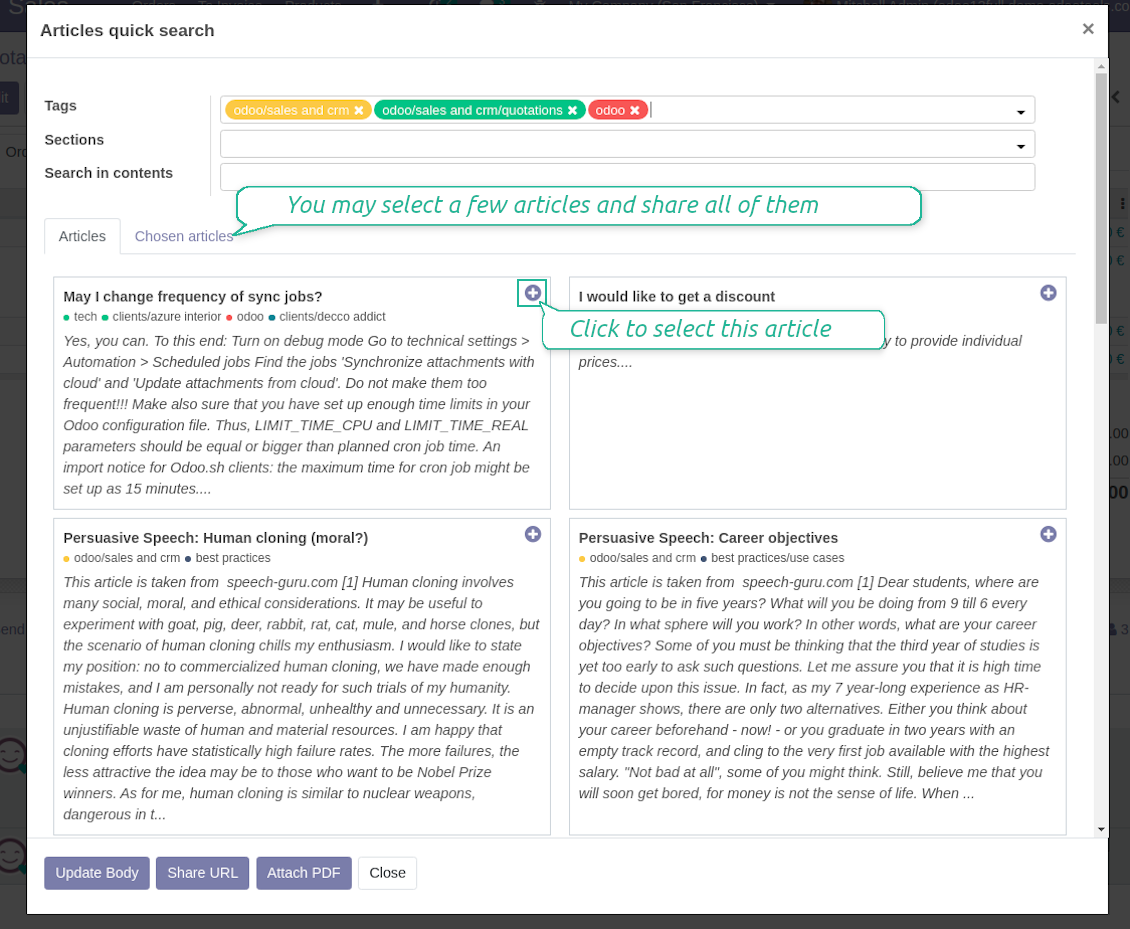
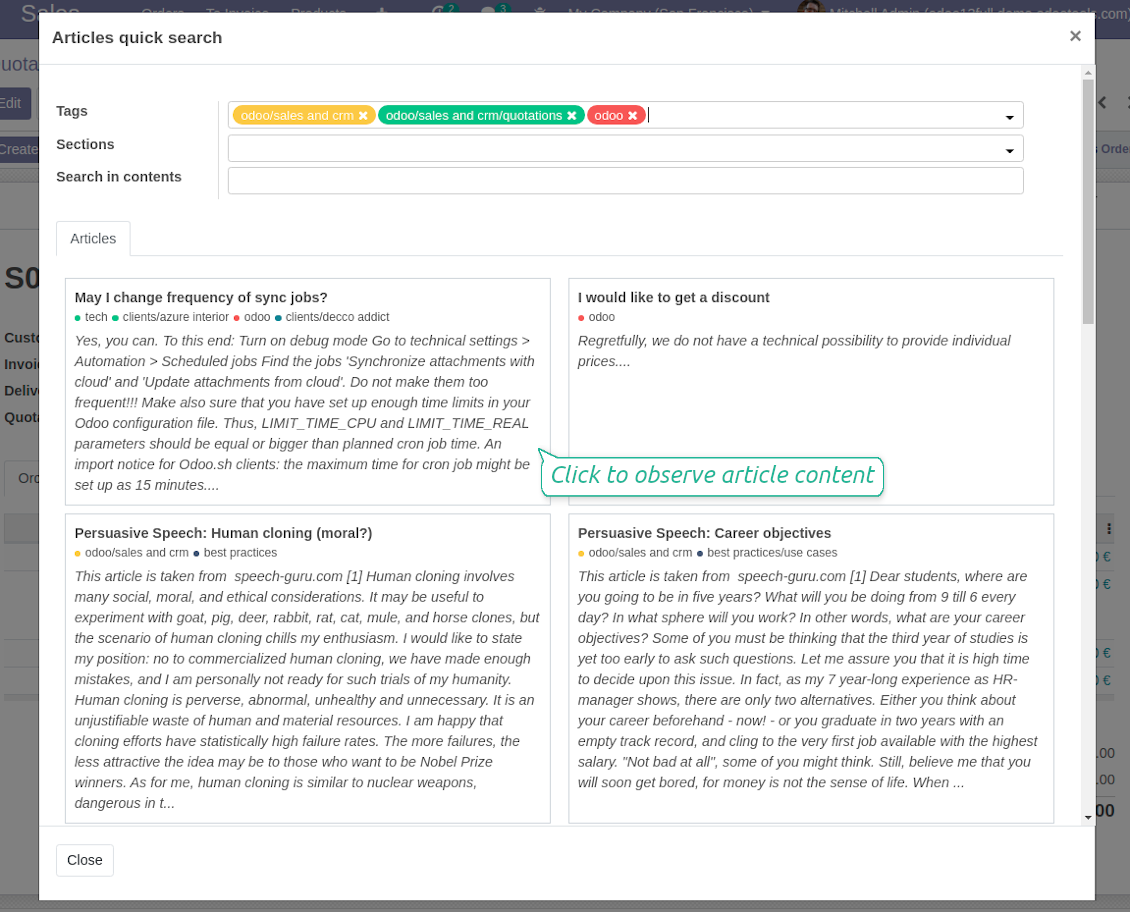
Click on that entry, and Odoo would open the wizard with articles. By default KnowSystem tags suitable for this document would be selected (if any). You may change those tags, or additionally filter by sections or content search. As a result list of topical articles is shown for you.
How to use company knowledge for communication
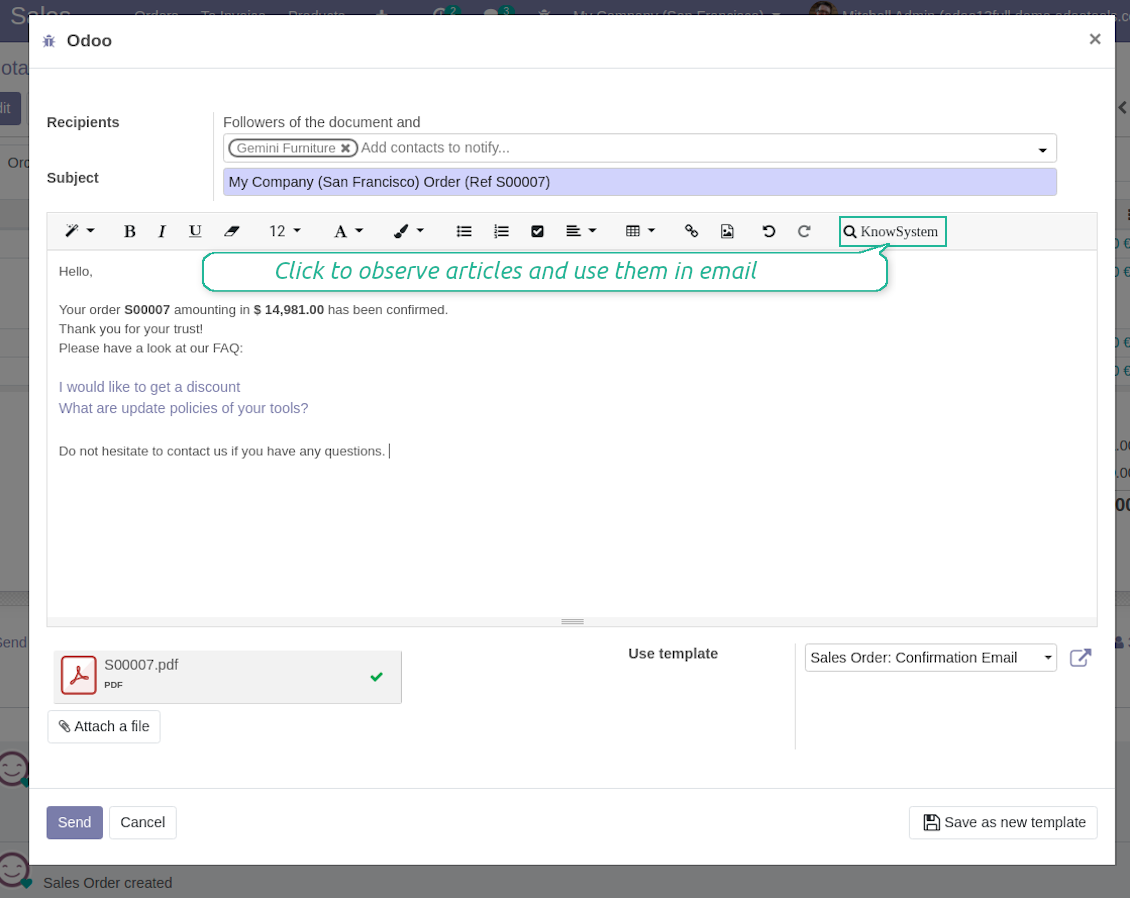
Turn on the option 'Articles in Email Composers' to let users reference or cite Knowledge records in Odoo messages. As a result the special quick entry 'KnowSystem' would be added to each Odoo email composer.
Clicking on that entry would open a wizard with a set of suitable to this document articles. You may change search by tags, add extra filtering by sections or content.
Afterwards, select required articles among found ones; choose an action. You may:
- Update message body with article contents (would be added to the end of a current message)
- Attach a PDF version of an article(s)
- Share a public link
Ruutukuvat
Apply knowledge in emails
Share articles content, link, or printing in messages
Quick access for knowledge system from any Odoo document
Quick knowledge search
Individual partner knowledge base portal
How to share knowledge base with specific partners
An article is available for a portal user in two cases: A. it is website published; B. his/her company is indicated as allowed partner in one of article tags.
In the first case such an article is available for all portal users and even for public website visitors who have not logged in.
In the latter case you grant a restricted access for an article only for chosen companies. To that end:
- Turn on the setting 'Portal KnowSystem'
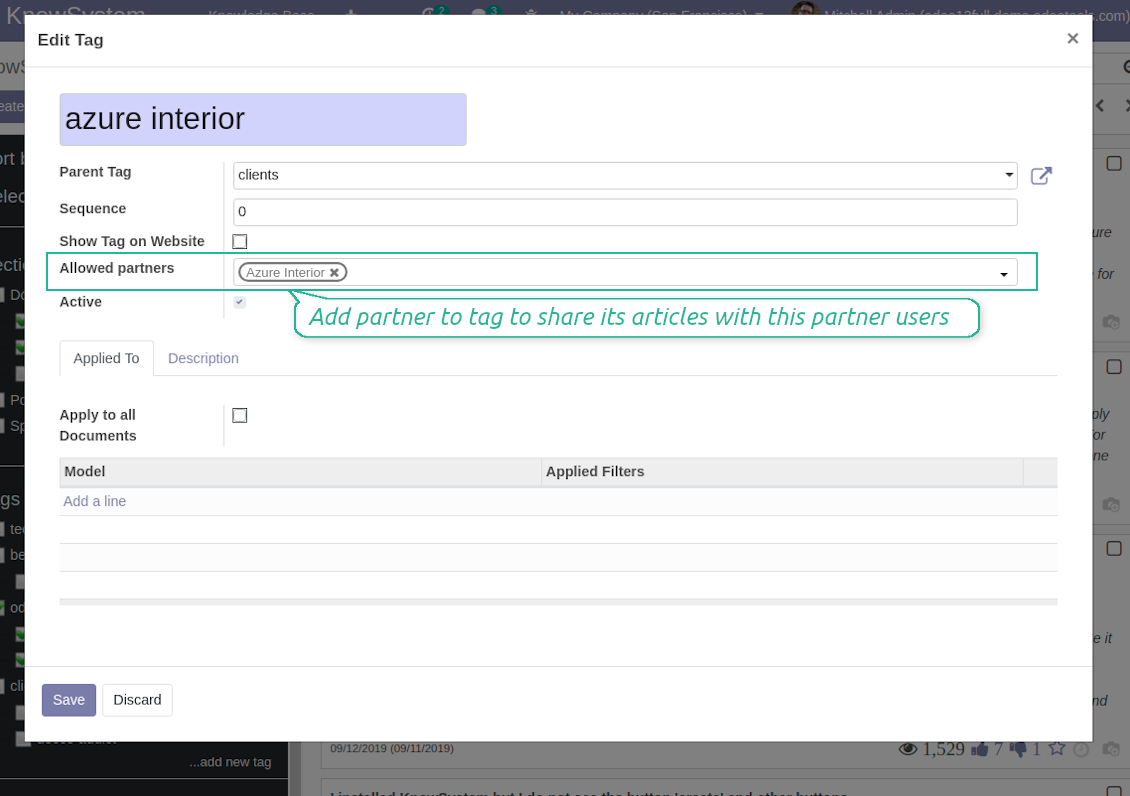
- Create a tag for this partner, for example 'clients / Azure Interior'. On the tag form indicate this company in the field 'Allowed partners'
- Assign the tag for all articles you want to share with this partner. For a few articles use the mass action 'Mass update'
- Now portal users related to this partner may access shared articles right from their partner portal.
How to add sections, tags or article types to portal / website
Take into account that:
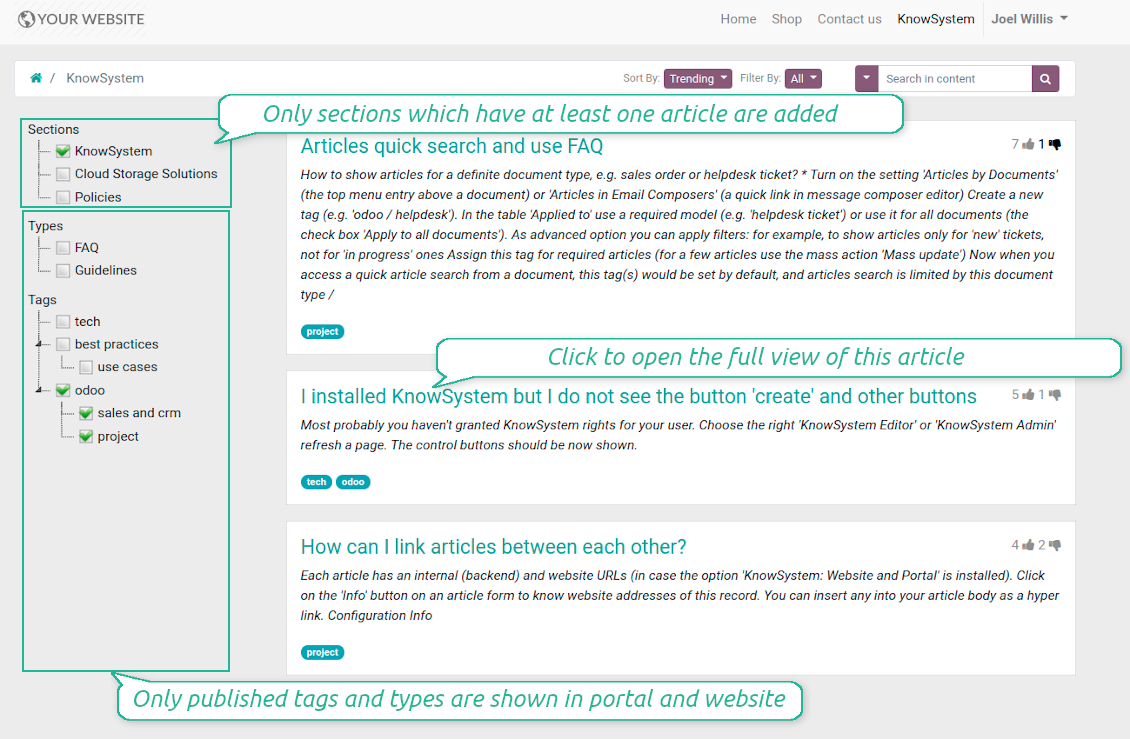
- Section is available in portal / website only if it has one available article inside;
- Tags and article types are added to hierarchy only if they are published.
Ruutukuvat
Knowledge base for portal and public use
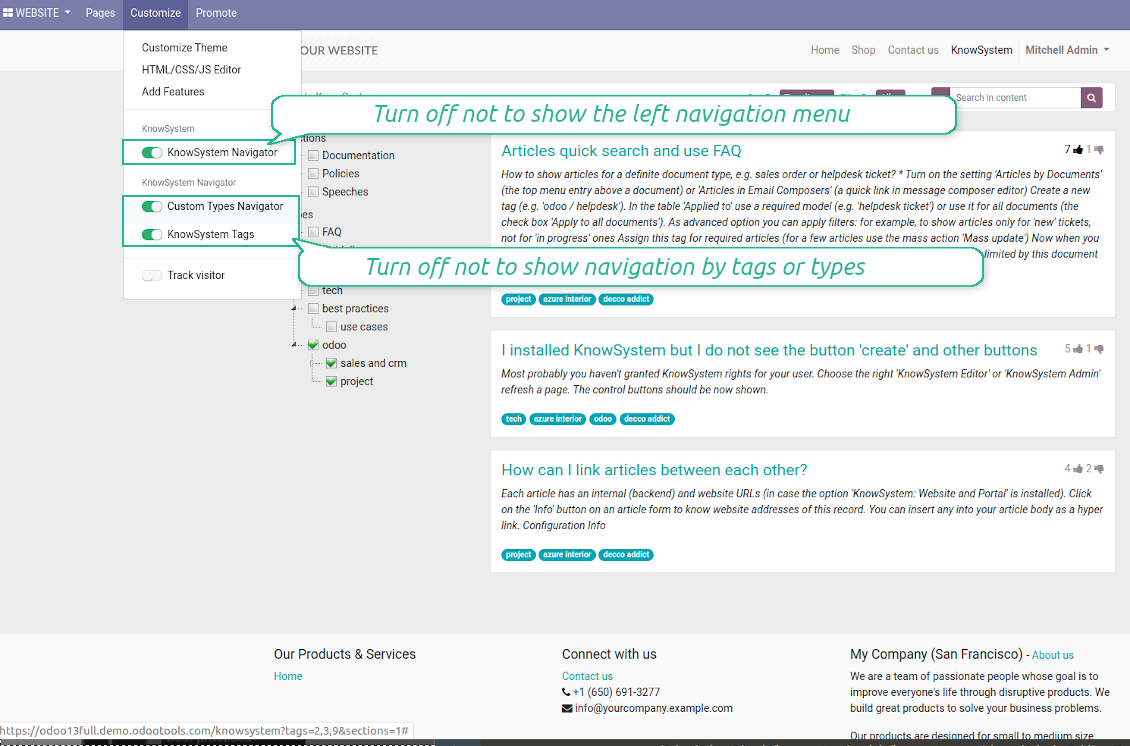
Configurable public knowledge base
KnowSystem articles in portal and website
Best knowledge base system for Odoo!
Excellent app and exceptional after-sales support.
Really well thought-out product and one of the best features is the contextual help by means of the tags. Really a game changer for us.
Keep up the great work FaOtools!
Outstanding app! Tremendous value for money, an absolute must have!
One of the features sorely lacking from Odoo has been a robust Wiki/documentation system. Using third party platforms is a massive headache: yet another system to maintain, users get distracted switching back-and-forth, and errors get made. Then you have to worry about training, additional logins, etc.
KnowSystem feels like a native/core app, is very well-polished, and extremely fast. It's accessible from any screen, and the search results are instant (none of the latency inherent with most apps).The interface is elegant yet powerful, with robust access control, rich editing features, and version control. It's simple to revert to previous entries, view audit trails, etc. It's very intuitive for anyone familiar with Odoo; onboarding takes just a few minutes. The user guides are excellent.
This is invaluable for any organisation with a lot of documented information, SOPs, ISO compliance, or similar. If you're using eLearning, it's great for creating a help system / reminders. For example, noting key takeaways or specific instructions. The user can be in MRP, Sales, or any other function, and instantly lookup a guide. Since it overlays whichever screen you're in, it doesn't interrupt the workflow.
This dramatically increases efficiency, minimises questions, and helps keep everyone on the same page.
Oh, and customer service is excellent, faOtools stands behind their product. Thank you!
KnowSystem is excellent - OdooTools offer great support, are very helpful and responsive
Our company needed the ability to add a Knowledge Base to our Odoo portal website for our customers to access article content on a membership-only basis. KnowSystem provided this and much more, along with ability to add search by section, set permissions to allow only certain partners access to articles by tag etc. OdooTools have been very helpful and implemented several features we suggested including automatic redirect upon login, customisable filters and a social sharing capability on articles. Overall a great app by a great company, something that massively adds to Odoo's capabilities and is something that everyone could benefit from using.
Very functional application and responsive support
Our company produces medical laser equipment and we use KnowSystem to streamline the knowledge base of our company. Convenient search system and classification of content, as well as access rules for groups and even for individual users.
Great app and professional team
The app is great the the team is very professional in both response timing and problem solving.
Highly recommended.
Marco from ALO.zone.
Excellent system
Excellent system.
A great tool from some very nice developers!
KnowSystem is a great tool and a game changer for us. Finally a place to put all our company know-how. I highly recommend it. And also important to us: We got great support from FaOtools too. A rare thing in this busy world. thx!
Excellent app and support.
Great app and a very helpfull support. Openess to improve their products is outstanding.
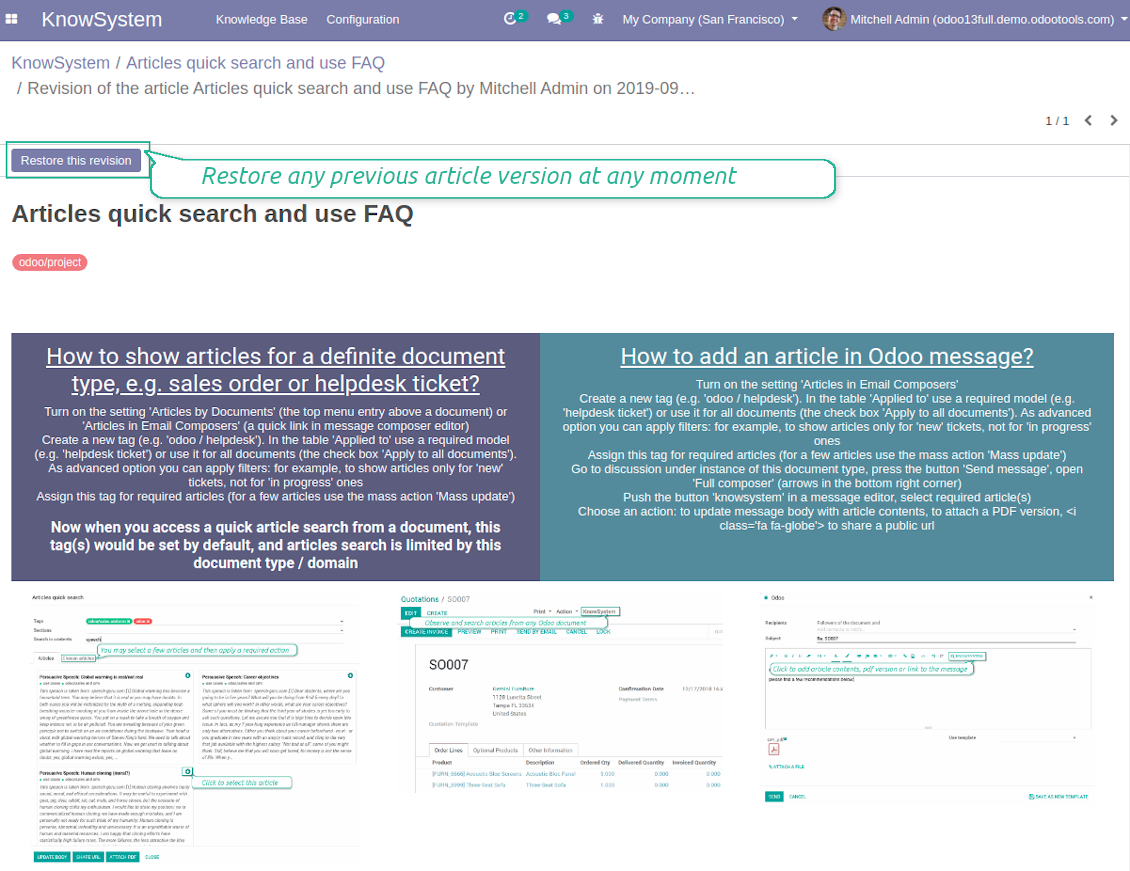
WIKI-like revision system
How to recover a previous article version
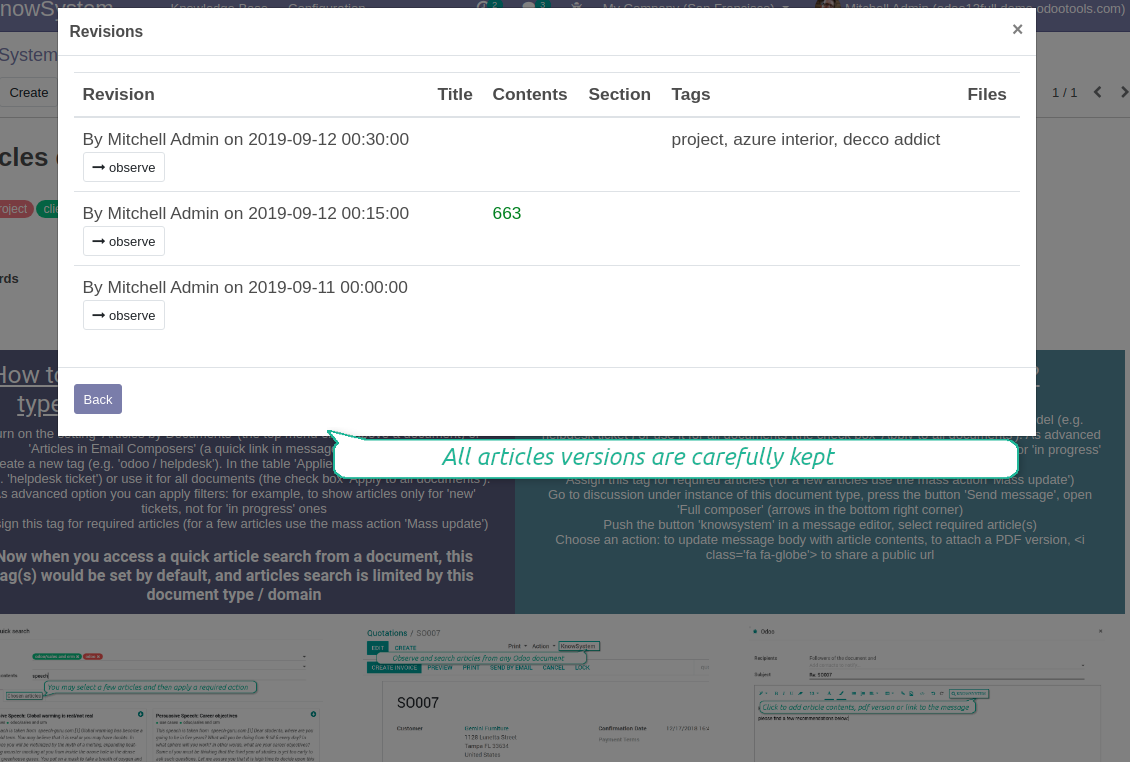
- Go to an article form view and push the button 'revisions'
- Find a required one and push the button 'Observe' to check whether this version is a correct one
- Push the button 'Restore this revision'. The article would be recovered to that version.
- The recovery operation itself is recorded. So, if it is a mistake you can revert changes by recovering the last-to-last revison.
Ruutukuvat
Wiki-style revisions history
To restore is easier than to break
Public knowledge system
How to make an article available for all website visitors
- Turn on the setting 'Public KnowSystem'
- Publish required articles through the mass action 'Publish' or by pushing the button 'Actions > Publish on website' on an article form
- Now any website visitor can read those articles
Team work for knowledge creation
Custom fields to structure knowledge
How custom knowledge attributes work
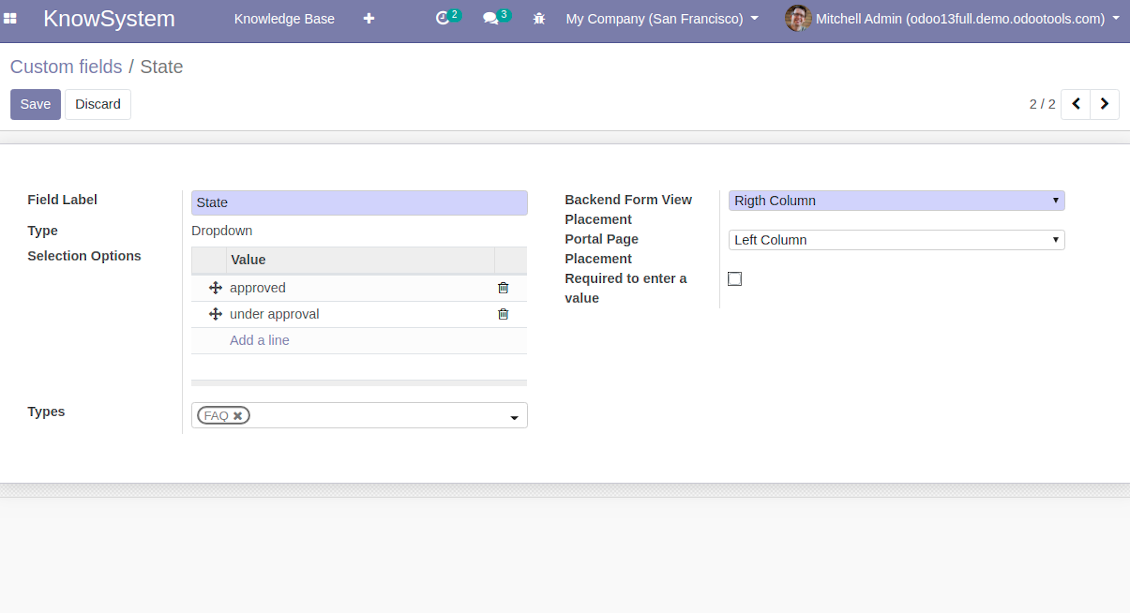
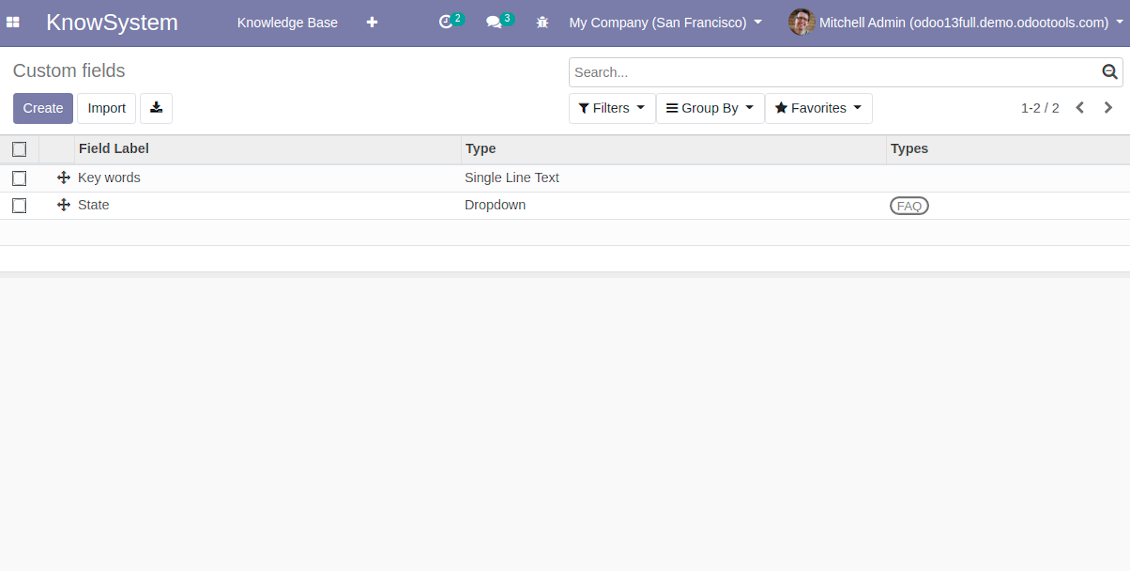
In order to show a new property for KnowSystem articles, just create a custom field. Nothing else is required! You are welcome to prepare fields of various types: single line text (char), simple text without formatting (text), rich text (HTML-formatted text), integer or float numbers, drop-down choice with your own options (selection), checkbox (boolean), date or date and time, binary (a file to upload), reference to another Odoo document (e.g. for a sale order, contact; many2one).
The tool also introduces complementary articles' typology. Thus set of attributes for 'user guidelines' and 'technical specifications' might be different.
Then, choose an interface location for a new field from a closed list to structure properties on an article page. Decide whether a field should be required to enter, or should be visible only for definite knowledge types.
Ruutukuvat
KnowSystem articles custom fields
KnowSystem articles custom properties
Knowledge is secured and might be safely shared
How to manage user accesses to articles
Security for internal and portal users differs.
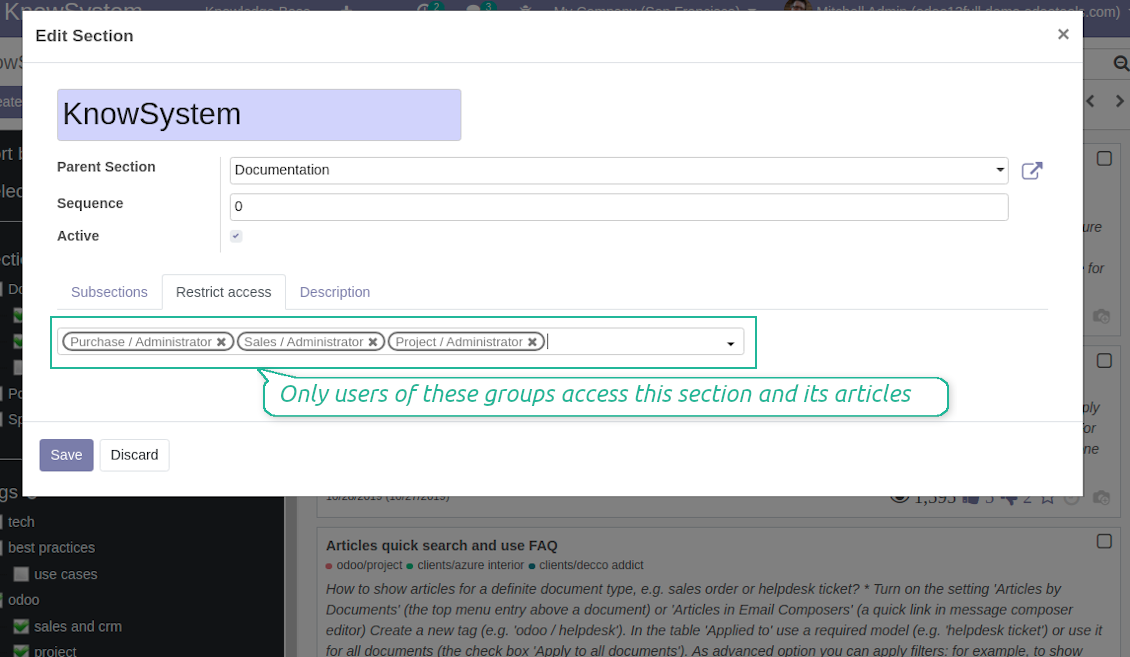
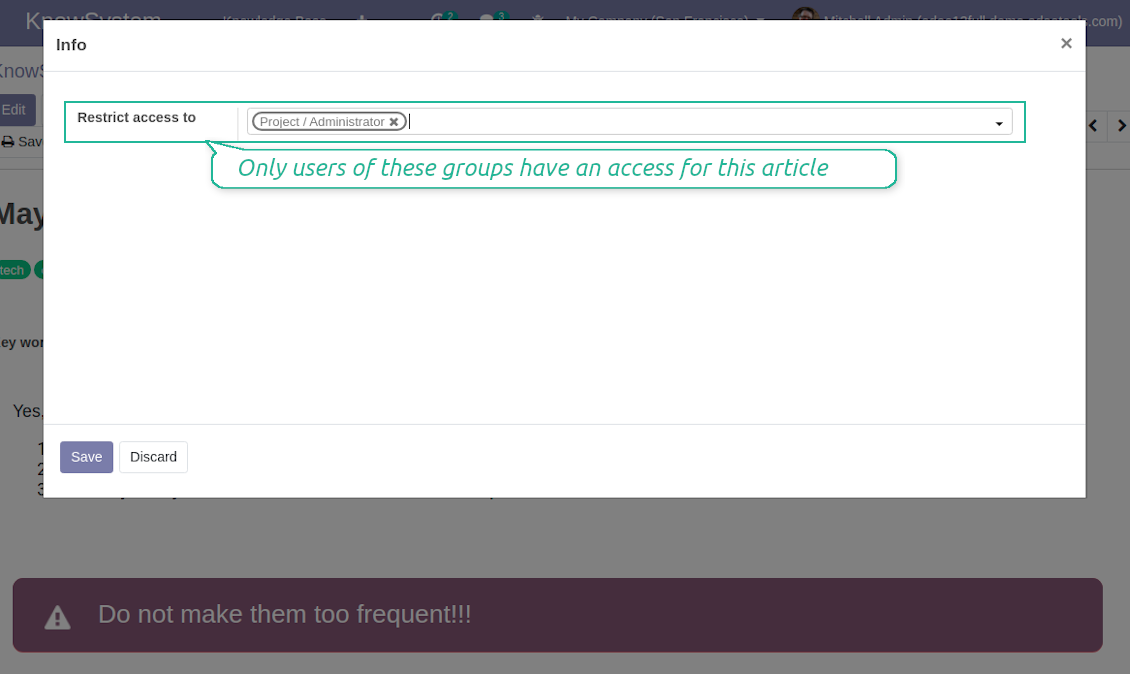
For the company employees: KnowSystem considers user groups which are defined per articles, sections and tours. Look at the tab 'Restrict to' on forms of those objects. If that field is not defined, a document is considered 'global': each internal user may read it.
For portal / public users: KnowSystem takes into account tags and whether an article is website published. A knowledge tag has a field 'Allowed partners', which may grant an access to portal users for articles with this tag. Website published pages are available for everybody.
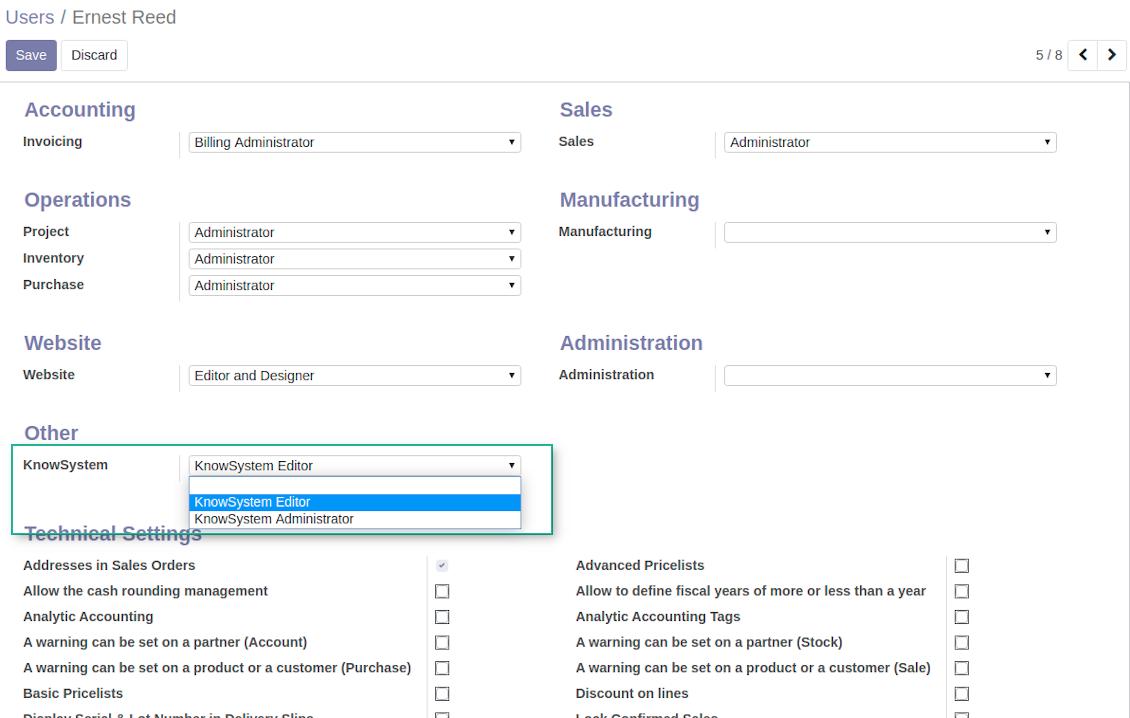
Rights to administrate KnowSystem belongs to 2 user roles: KnowSystem Editor and KnowSystem Administrator. If you want a user to create and edit articles, a user should belong to one of those groups.
|
|
Odoo user |
KnowSystem Editor |
KnowSystem Admin |
Portal user |
Public user |
| Articles | read related to his/her user groups and sections | read, create, edit, archive related to his/her user groups and sections | read, create, edit, delete any | read published articles and articles related to partner-related tags | read published articles |
| Sections | read related to his/her user groups | read, create, edit, archive related to his/her user groups and sections | read, create, edit, delete any | read all sections of available articles | read all sections of published articles |
| Tags | read any | read, create, edit, archive any | read, create, edit, delete any | read published ones | read published ones |
| Article Types | read any | read any | read, create, edit, delete any | read published ones | read published ones |
| Tours | read related to his/her user groups | read, create, edit, delete related to his/her user groups | read, create, edit, delete any | no access | no access |
| Misc | may like / dislike, add to favourites, print, take part in discussions | may configure options | may like / dislike an article |
|
Take also into account two peculiarities:
- Odoo user always may access an article of which he is an author disregarding further restrictions;
- Rights for section is defined not only according to this section but also according to all its parents. For example, if user can't access 'sales', he/she would not be able to access 'sales / crm' disregarding whether 'crm' is available for his/her user group.
Ruutukuvat
KnowSystem security levels
Manage access to this section and its articles
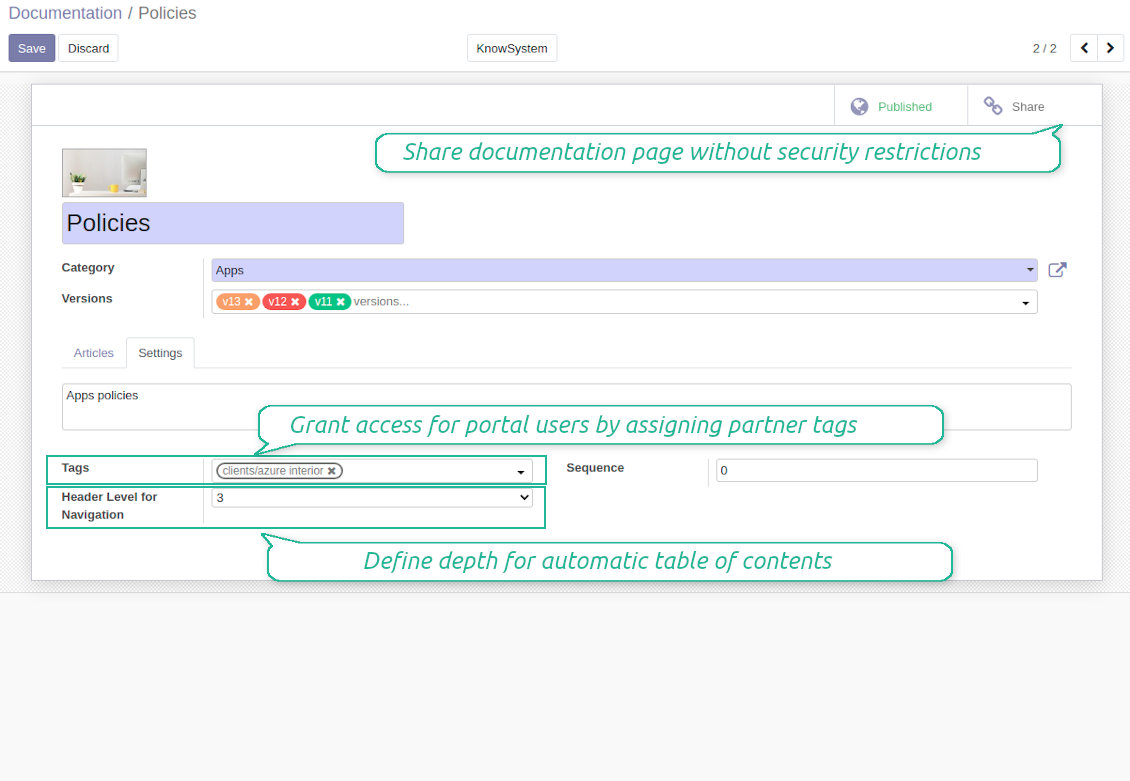
Manage portal access using tags
Manage access to this article
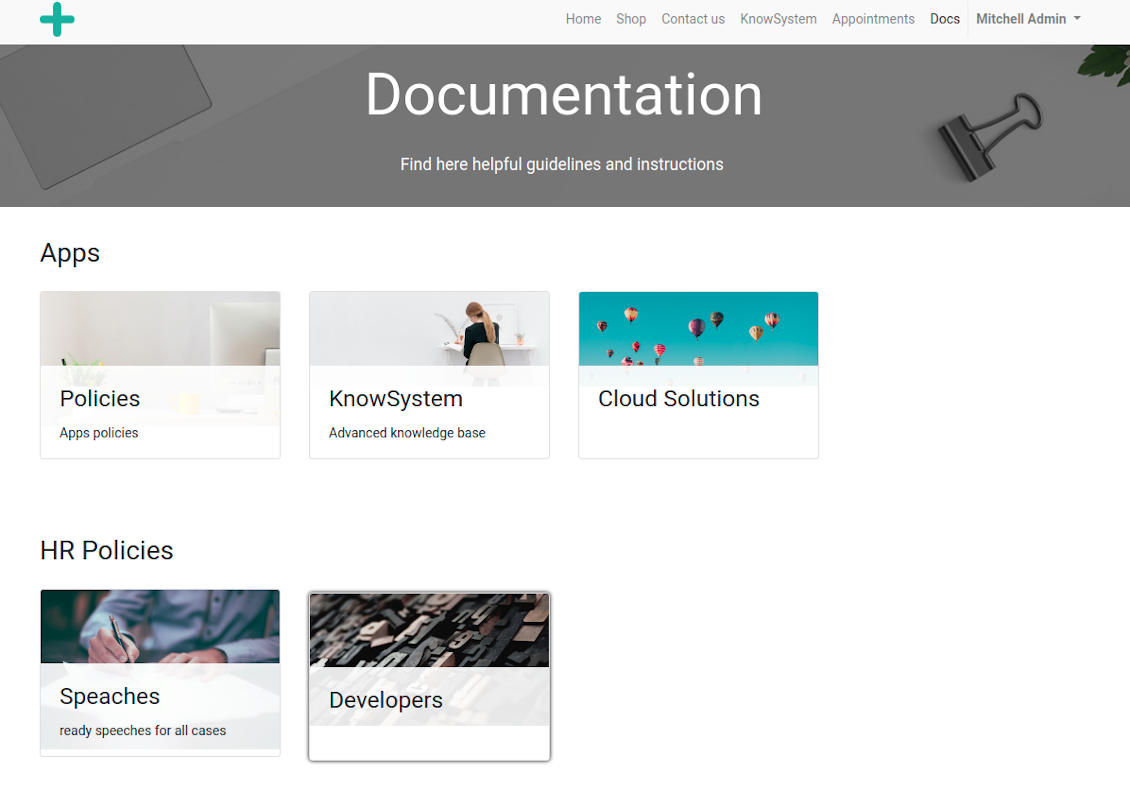
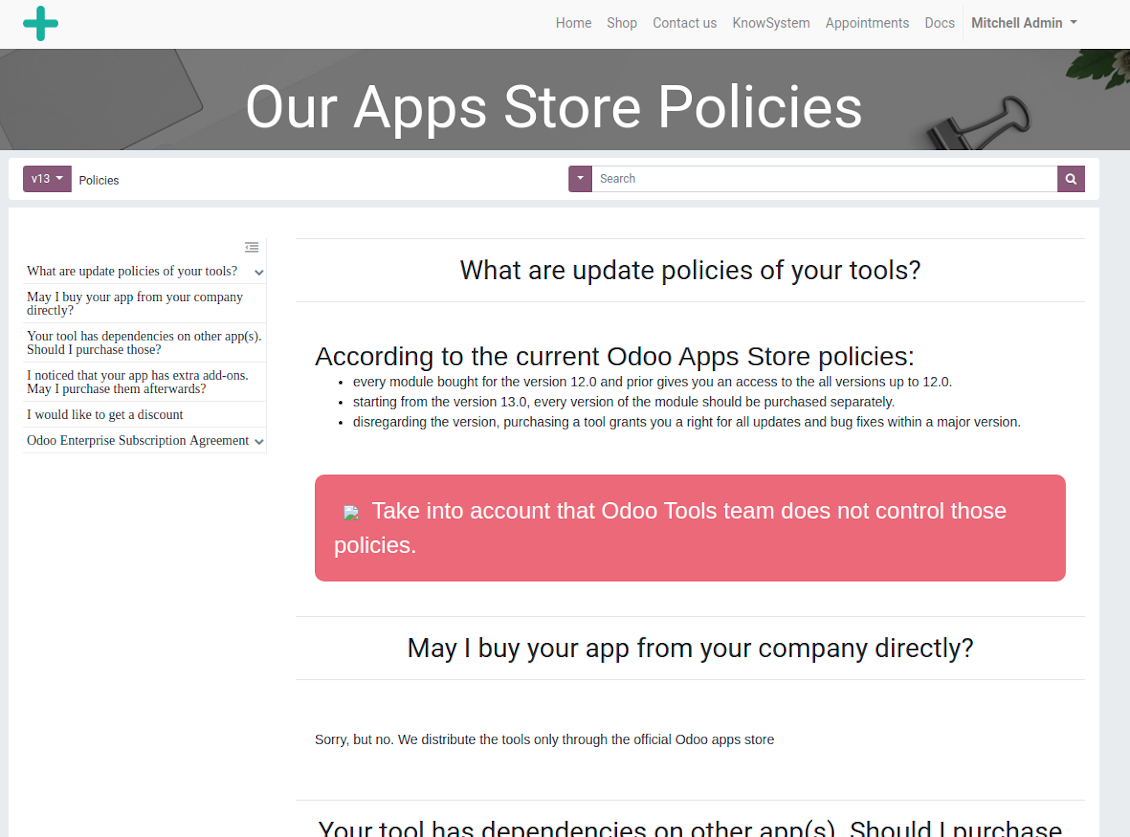
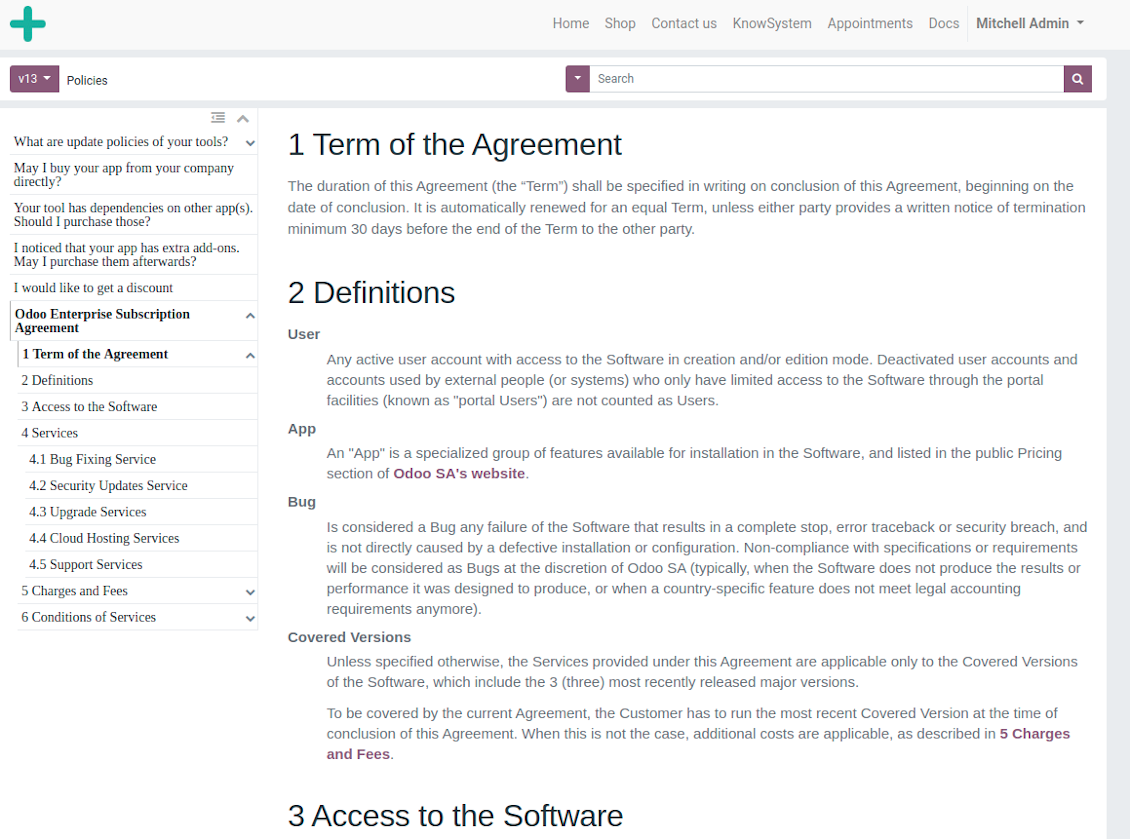
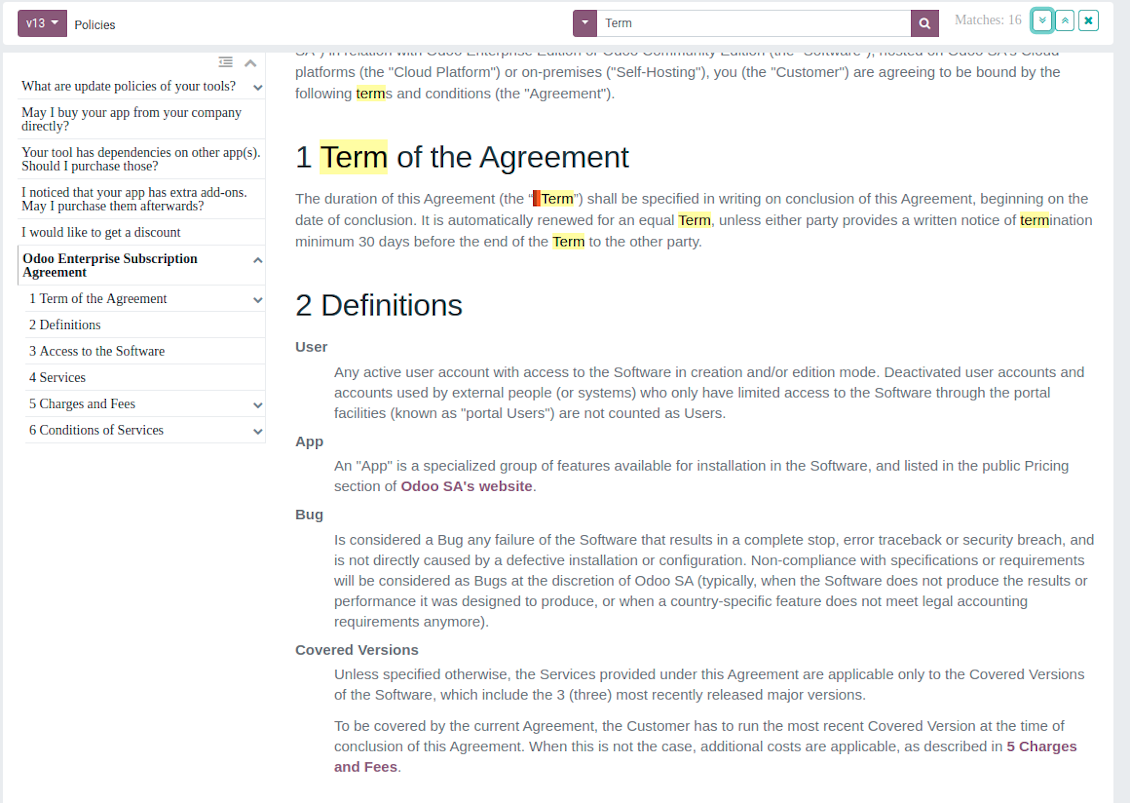
Website documentation builder
Ruutukuvat
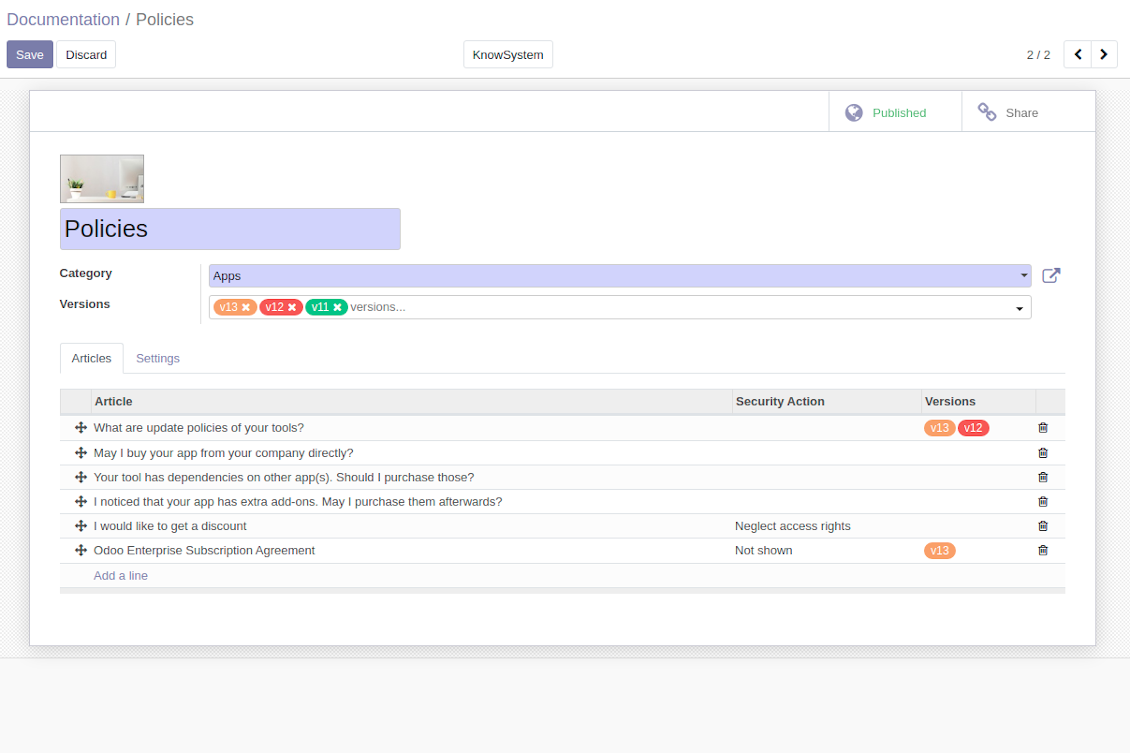
Documentation by categories and sections
Documentation page
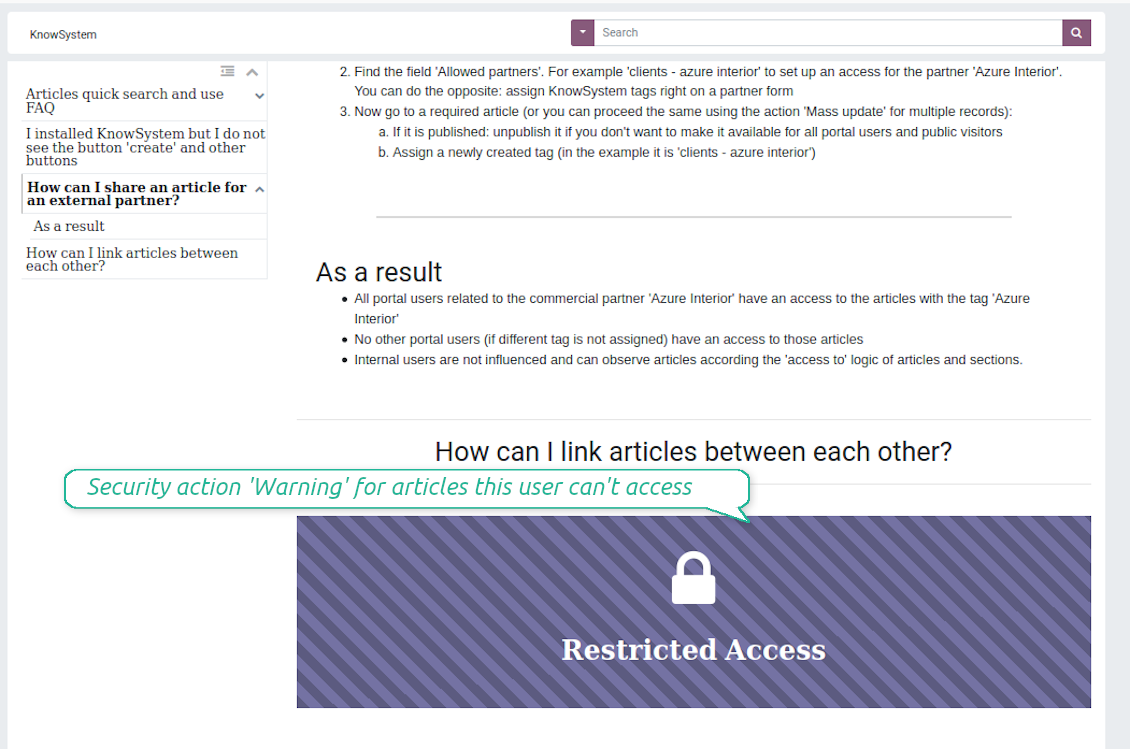
Automatic table of contents by documentation
Inline search by documentation
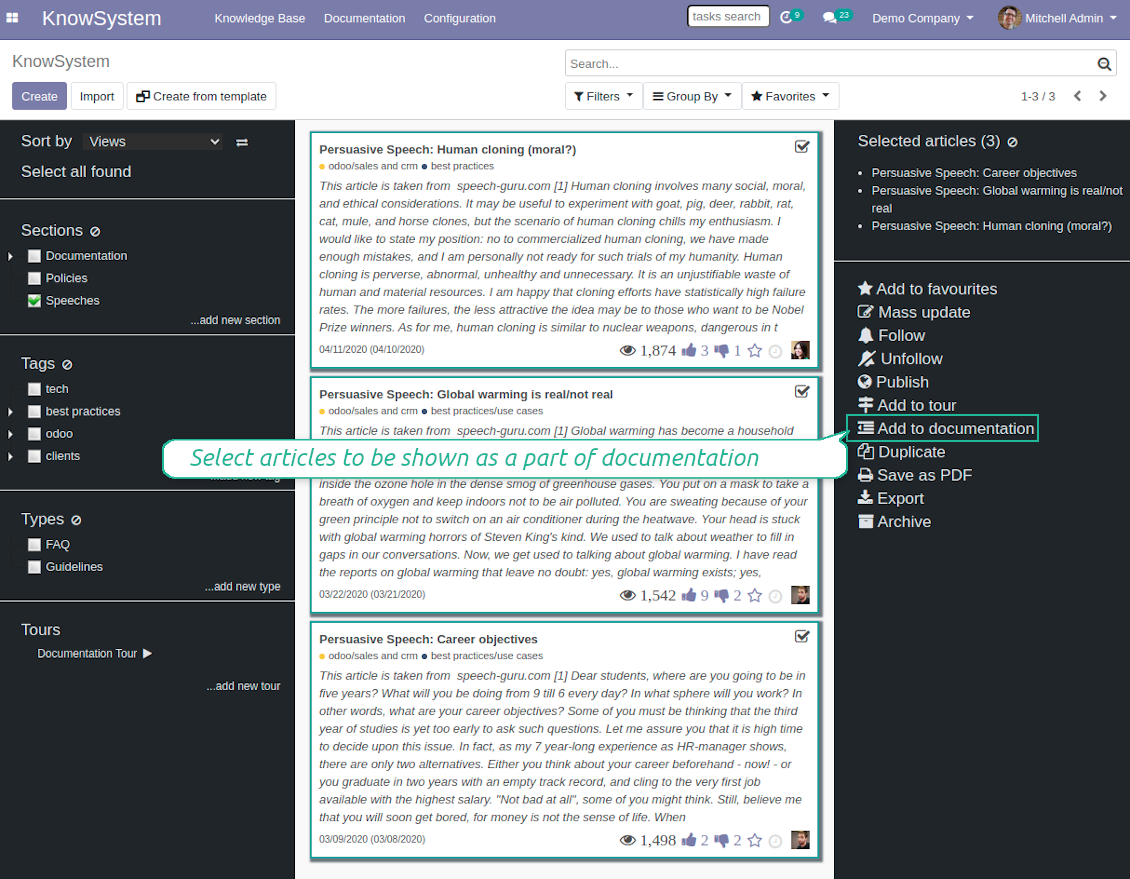
Compose articles for documentation
Documentation settings
Add KnowSystem articles to documentation
Security: optionally show warning if no access possible
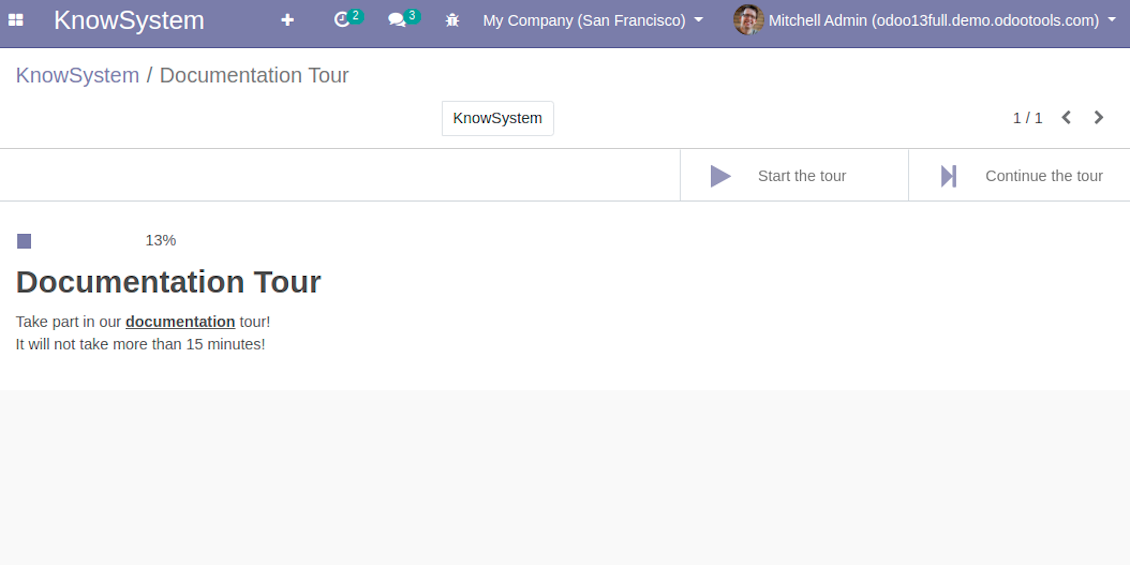
Create learning tours
How to configure a learning tour
- Turn on the option 'Tours'
- Go to KnowSystem interface and select articles to be included into a tour
- Press the mass action button 'Add to tour' and select or create a tour. Press save
- Re-order articles in a consistent order
- Define groups of users who should go through a tour on the tab 'Restrict access'
- Now users can see and launch tours right from the KnowSystem interface (the right navigation panel)
Ruutukuvat
KnowSystem tour welcome page
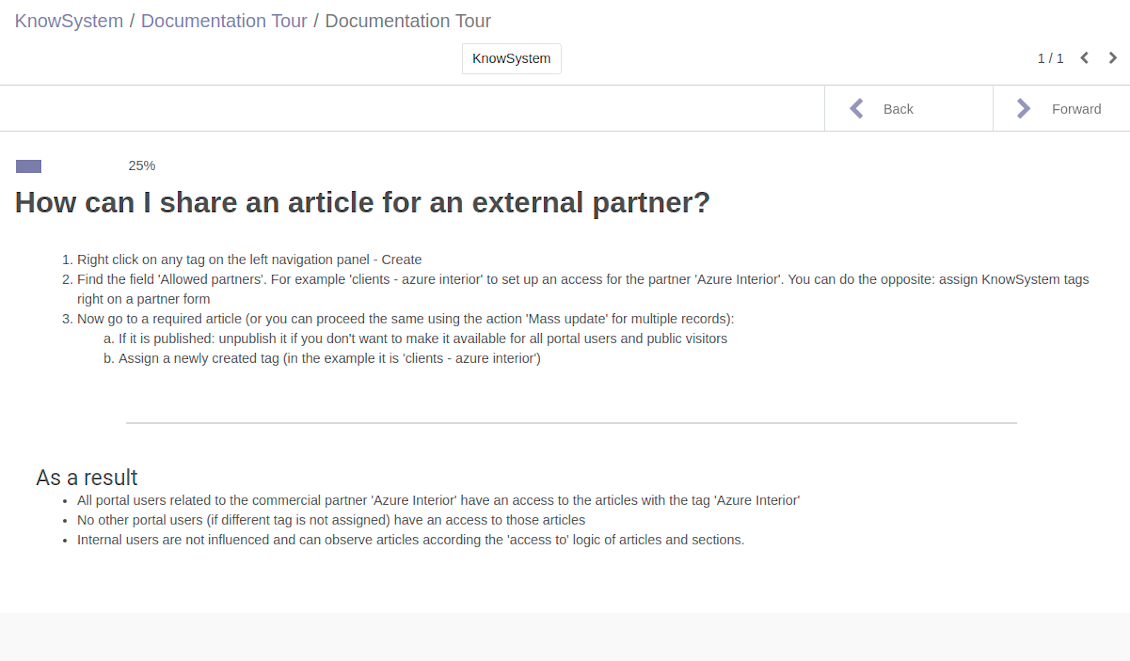
Article in a learning tour
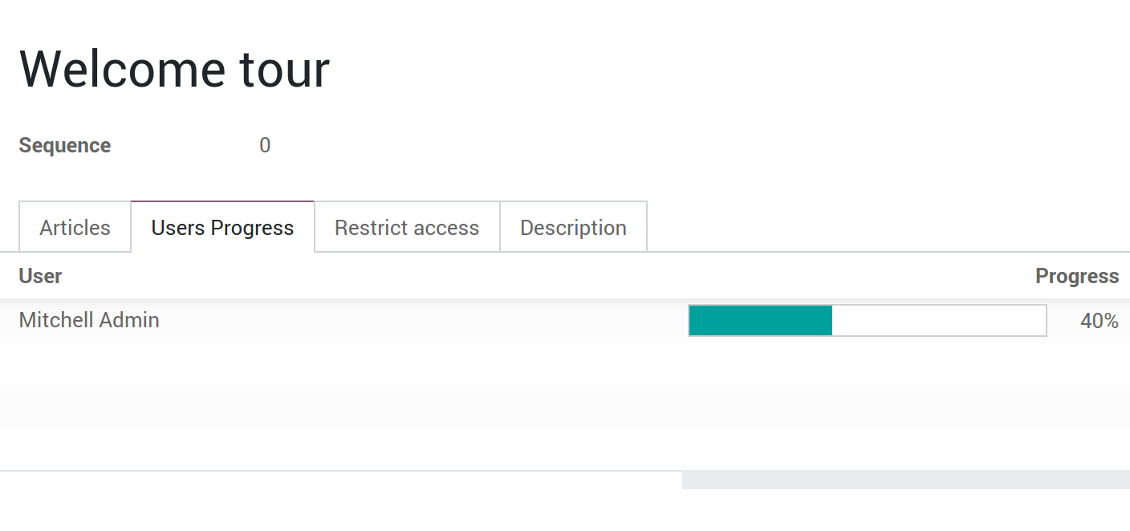
Control tour progress by users
Multilingual knowledge base
How to make an article available for a few languages
- Install the optional add-on 'KnowSystem: Multi Languages'
- Change your user language for a needed one
- Update this article
- Now it is available in both source and a current language
Make sure you really require a few languages. In that case you almost double the work of KnowSystem editors. All articles should be kept updated in all Odoo languages.
Knowledge base for any industry and business
Typical use cases
- Helpdesk: once faced a challenge, its solution might be recorded in KnowSystem for repeated usage by co-workers and for self-service by clients
- Sales & CRM: salesperson helper to find information about products, offers, frequently asked customer questions
- Project management: to keep and easily retrieve knowledge of existing solutions, tools, hints, and experiments
- HR: to prepare instructions, guidelines, learning tours and trainings, and any codified knowledge of routine in your company
- Marketing: to organize online library of product use cases, expert knowledge and well structured documentation
- Legal issues: systematize your policies, contract and approval managements, keep the full classifier of trademarks, licenses
- Informational technologies: share easy-reached manuals and configuration guidelines
Usein kysytyt kysymykset aiheesta KnowSystem: Knowledge Base System Odoo v.13
En näe eroa versioiden teksteissä.
Versiot tallentavat paitsi tekstimuutokset myös kaikki tyylipäivitykset (teknisesti kun muutat artikkelin HTML-lähdekoodia). Osa ei näy ensi silmäyksellä (esim. yhden sanan fonttikoko). Toiset voivat olla rajuja. Silti mikä tahansa ketju Edit > muuta jotain artikkelissa > Save luo uuden version.
Voinko lisätä artikkeliin YouTube-/ Vimeo- / Dailymotion- / Youku-videon?
Kyllä, näiden palveluiden videon voi upottaa artikkeleihin sekä Odoo-backendistä että sivuston rakentimesta. Lisää kuvaa sisältävä rakennuslohko > paina kuvaa > valitse ‘Video’ > anna median URL.
Huomaa: tällaiset videot sisällytetään iframeina, ja jotkin selaimet voivat estää toiston, kunnes käyttäjä sen nimenomaan sallii.
Miten saan osion näkymään verkkosivulla?
KnowSystemissä osio näkyy verkkosivulla, jos se on julkaistu ja sisältää vähintään yhden artikkelin. Vaikka sillä olisi alioksia, se ei näy, jos osiossa itsessään ei ole yhtään artikkelia. Näin vältetään tyhjät osiot ja KnowSystem-portaali pysyy selkeänä. Jos haluat osion näkyvän sivustolla, lisää yksi johdanto- tai yleisartikkeli, joka kuvaa tai luettelee lyhyesti aliosten artikkelit.
Miten jaan artikkelin ulkoiselle kumppanille?
Napsauta hiiren kakkospainikkeella mitä tahansa tunnistetta vasemmassa siirtymispaneelissa - Create
Etsi kenttä 'Allowed partners'. Esimerkiksi 'clients - azure interior' antaa pääsyn partnerille 'Azure Interior'. Voit tehdä päinvastoin: määritä KnowSystem-tunnisteet suoraan partnerilomakkeella
Siirry sitten haluttuun artikkeliin (tai tee sama toiminnolla 'Mass update' useille tietueille):
Jos se on julkaistu: peru julkaisu, ellet halua sen olevan kaikkien portaalin käyttäjien ja julkisten kävijöiden saatavilla
Määritä juuri luotu tunniste (esimerkissä se on 'clients - azure interior')
Nyt:
Kaikilla kaupalliseen partneriin 'Azure Interior' liittyvillä portaalin käyttäjillä on pääsy artikkeleihin, joissa on tunniste 'Azure Interior'
Muilla portaalin käyttäjillä (jos eri tunnistetta ei ole määritetty) ei ole pääsyä näihin artikkeleihin
Sisäisiin käyttäjiin tämä ei vaikuta; he näkevät artikkelit artikkeleiden ja osioiden 'access to' -logiikan mukaan.
Voimmeko lisätä kielenvalintapainikkeen artikkelin runkoon?
Painiketta 'translate' ei lisätä tarkoituksella artikkelin runkoon valinnaisella lisäosalla 'KnowSystem: Multi Languages'. HTML:ää on hyvin vaikea kääntää painikkeen olettamassa yksinkertaisessa ponnahdusikkunassa. Käännettävää tekstiä olisi hyvin vähän ja HTML-osia paljon (jotka kääntäjä voi myös rikkoa).
Siksi tietynkielisen artikkelin tekemiseksi kirjaudu sisään kyseisen kielen käyttäjänä. Se voi olla eri käyttäjä, tai voit tilapäisesti vaihtaa nykyisen käyttäjän asetuksia. Sen jälkeen artikkelin rungon päivitykset tehdään kyseisellä käyttäjäkielellä.
Voit myös käyttää painiketta 'Copy from another translation' artikkelin rungon alla ja hakea sisällön toisesta kielestä milloin tahansa (hyödyllistä, jos artikkelia on päivitetty merkittävästi yhdellä kielellä).
Miten upotan toisen verkkosivun artikkeliin
Sitä varten voit käyttää iframeja. Vaihda artikkeli raakaan HTML-koodieditoriin ja lisää esimerkiksi <iframe src="https://faotools.com/" style="width:100%;min-height:600px;"> </iframe>.
Asensin KnowSystemin, mutta en näe 'create'-painiketta enkä muita painikkeita
Todennäköisesti et ole myöntänyt käyttäjällesi KnowSystem-oikeuksia. Valitse oikeus 'KnowSystem Editor' tai 'KnowSystem Admin' ja päivitä sivu. Hallintapainikkeiden pitäisi nyt näkyä.
Voinko näyttää tietyn oppimiskierroksen vain valituille käyttäjille?
Kyllä, määrittämällä käyttäjäryhmän (esim. 'Sales Manager'), jonka tulee nähdä tämä kiertue. Jos käyttäjä kuuluu ryhmään, hän näkee kiertueen. Muuten kiertuetta ei näytetä. Se toimii samalla tavalla kuin KnowSystem-artikkelien ja -osioiden käyttöoikeudet.
Huomaa, että jos kiertueella ei ole määritettyjä ryhmiä, se on 'global' ja näkyy kaikille.
Miten muutan alatunnisteen ja ylätunnisteen tulostaessani artikkeleita?
Artikkelien PDF-ylä- ja alatunnisteet otetaan yrityksen asetteluista. Katso Settings > General Settings > kohta Business Documents. Siellä määrität yrityksen mallin, jota käytetään kaikille asiakirjatyypeille, mukaan lukien laskut, myyntitilaukset jne., sekä artikkeleille. Tämä Odoo-lähestymistapa pitää alatunnistetta ja ylätunnistetta yrityksen yleisenä tyylinä, ei yksittäisten tulosteiden ominaisuutena.
Miten linkitän artikkelit toisiinsa?
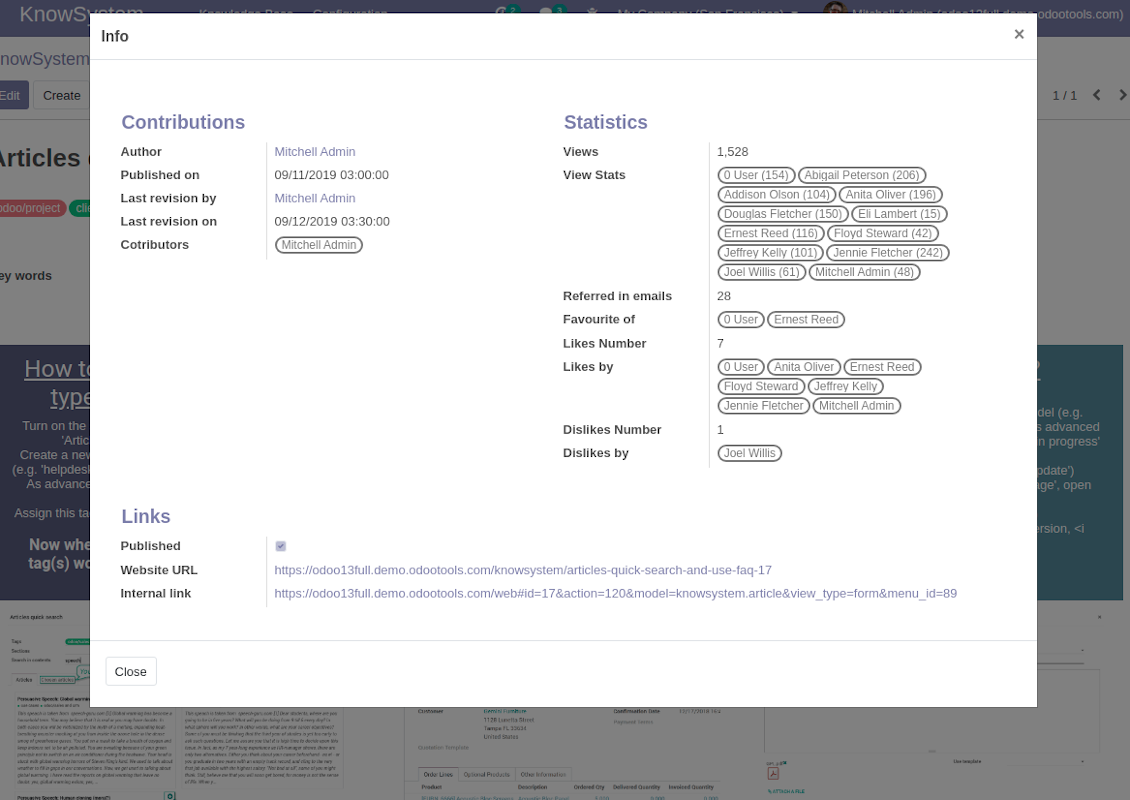
Jokaisella artikkelilla on sisäiset (backend) ja verkkosivun URL-osoitteet (jos lisäosa 'KnowSystem: Website and Portal' on asennettu). Napsauta artikkelilomakkeen 'Info'-painiketta nähdäksesi tämän tietueen verkko-osoitteet. Voit lisätä minkä tahansa niistä artikkelin runkoon hyperlinkiksi.
Voinko muuttaa artikkelin HTML-lähdekoodia?
Kyllä: kytke debug-resurssit päälle (asetusten yleisnäkymässä) ja palaa nykyiseen artikkeliin. Muokkaustilassa näet erikoiskuvakkeen '</>'. Napsauta sitä tarkastellaksesi ja muokataksesi HTML:ää ja tyylejä.
Mitkä ovat tyokalujenne paivityskaytannot?
Odoo Apps Storen nykyisten kaytantojen mukaan:
- Versiolle 12.0 tai aiemmalle ostettu moduuli antaa pääsy kaikkiin versioihin 12.0 asti.
- Versiosta 13.0 alkaen jokainen moduuliversio ostetaan erikseen.
- Versiosta riippumatta osto antaa oikeuden kaikkiin paivityksiin ja korjauksiin paaversiossa.
faOtools-tiimi ei hallitse näitä kaytantoja. Kysymykset osoitetaan suoraan Odoo Apps Storen edustajille.
Miten asennan sovelluksen Odoo.sh-palveluun?
Suorin tapa on Odoo-kaupan sisaanrakennettu työnkulku:
1. Avaa moduulin sivu ja napsauta Deploy on odoo.sh
2. Sinut ohjataan GitHubiin. Kirjaudu sisään ja napsauta Create a new repo tai käytä olemassa olevaa. Repositorion on oltava yksityinen. OPL-1-lisenssin sovelluksia ei saa julkaista. Luo tarvittaessa uusi repo Odoo.sh-projektia varten
3. Siirry sitten odoo.sh:iin, napsauta Deploy, vahvista ja napsauta Continue. Asennus kaynnistyy.
Nämä vaiheet asentavat sovelluksen production-haaraan. Muille haaroille tai paivitykseen:
1. Lataa lahdekoodi Odoo-kaupasta
2. Commitoi moduuli GitHub-repositorioon. Mikään sovelluskansio/-tiedosto ei saa olla .gitignore-tiedostossa. odoo.sh:n luomat repositoriot voivat oletuksena ohittaa tarkeita polkuja (esim. /lib). Lataa kaikki moduulin hakemistot ja tiedostot
3. Deployaa odoo.sh-projektin kohdehaara tai odota automaattista koontia, jos asetukset niin maarittavat.
Miten asennan sovelluksen omalle palvelimelleni?
2. Käynnistä Odoo-palvelin uudelleen;
3. Ota kehittajatila kayttoon (tekniset asetukset);
4. Päivitä sovellusluettelo (Sovellukset-valikko);
5. Etsi sovellus ja paina Activate/Install;
6. Noudata sovellussivun ohjeita, jos niitä on.
Sovelluksella on lisaosia. Voinko ostaa ne myöhemmin?
Kyllä. Odoo lisää kaikki riippuvuudet ostoskoriin automaattisesti: jätä pois jo ostetut työkalut, jottet maksa kahdesti.
Asensin sovelluksen Odoo.sh-palveluun ja näin varoituksen/virheen testeissa
Punainen/oranssi varoitus ei vaikuta sovelluksen ominaisuuksiin. Joskus moduulimme eivät lapaise vakioautomaattitesteja, koska ne olettavat kayttaytymisen, joka on ristiriidassa sovelluksen tavoitteiden kanssa. Muutamme esimerkiksi hinnanlaskentaa, kun Odoo-testit vertaavat loppuhintaa vakioalgoritmiin.
Tarkista ensin kayttoon otetun tietokannan ominaisuudet. Toimiiko kaikki?
Jos oletat silti, että varoitus vaikuttaa todellisiin ominaisuuksiin, ota yhteyttä ja lähetä täydet asennuslokit sekä täydellinen luettelo kayttoon otetuista moduuleista (ydin ja kolmannet osapuolet).
Voinko ostaa sovelluksen suoraan teilta?
Ei, jaamme työkalut vain virallisen Odoo-sovelluskaupan kautta.
Haluan alennuksen
Valitettavasti meillä ei ole teknisia keinoja tarjota yksilöllisiä hintoja.
Voinko asentaa sovelluksen Odoo Online (SaaS) -tietokantaani?
Ei, kolmannen osapuolen sovelluksia ei voi käyttää Odoo Online -palvelussa. Odoo SaaS estää sen.
Tyokalulla on riippuvuuksia. Pitääko ne ostaa?
Kyllä, työkalu tarvitsee kaikki riippuvuuksissa merkittyt moduulit. Sovellussivun hinta sisältää jo nämä riippuvuudet.
Mikä on moduulin hinta Yhdysvaltain dollareina? Miksi se muuttui?
Moduuliemme hinta on euroissa. Odoo-kauppa muuntaa hinnat muihin valuuttoihin sisaisen kurssinsa mukaan. Siksi Yhdysvaltain dollarin hinta voi muuttua, kun kurssi paivittyy.
Sovellus- ja sivustotekstit muilla kielillä kuin englanniksi on tehty tekoälyn tuella ja linjattu virallisiin Odoo-käännöksiin. Jos huomaat virheen, lähetä käännösten oikeellisuutta koskeva tiketti niin korjaamme sen.
Virheiden ilmoittaminen
Jos kohtaat virheitä tai epäjohdonmukaista toimintaa, ota yhteyttä. Korjaamme 60 päivän kuluessa ostosta ja kehitämme työkaluja sen jälkeenkin.
Yhteydenottoon ei tarvita puhelinnumeroa eikä luottokorttia. Riittää lyhyt sähköpostirekisteröinti, joka kestää alle 30 sekuntia.
Liitä pyyntöön mahdollisimman paljon tietoja: kuvakaappaukset, Odoo-palvelinlokit ja täysi kuvaus ongelman toistamisesta. Työsuunnitelma (jos virhe vahvistetaan) tai ohjeet (muuten) valmistuvat yleensä muutamassa arkipäivässä.
Julkiset ominaisuuspyynnöt ja moduliehdotukset (ilmainen kehitys)
Olemme vahvasti motivoituneita kehittämään työkalujamme ja kiitollisia kaikesta palautteesta. Jos vaatimuksesi palvelevat yleisesti ja ne voidaan toteuttaa tehokkaasti, tiimi lisää ne tehtävälistaan.
Tällainen tehtävälista käsitellään säännöllisesti eikä siihen sisälly lisämaksuja. Emme voi luvata määräaikoja ja lopullista suunnittelua, mutta se voi olla hyvä tapa saada toivottuja ominaisuuksia ilman investointeja ja riskejä.
Yhteydenottoon ei tarvita puhelinnumeroa eikä luottokorttia. Riittää lyhyt sähköpostirekisteröinti, joka kestää alle 30 sekuntia.

Työkalu, jolla Odoo-liitteet järjestetään kansioihin ja hakemistot synkronoidaan pilviasiakkaisiin: Google Drive, OneDrive/SharePoint, Nextcloud/ownCloud, Dropbox, Amazon S3, Box ja NAS. DMS. Tiedostonhallinta. Asiakirjahallinta
398€
Työkalu: automaattisesti synkronoi Odoo liitteet kanssa OneDrive tiedostot ssa molemmat ways
487€
Työkalu: automaattisesti synkronoi Odoo liitteet kanssa Google Drive tiedostot ssa molemmat ways
487€
Työkalu salasanojen turvalliseen säilytykseen Odoossa jaettuun käyttöön. Jaetut holvit

Työkalu KPI-tavoitteiden asettamiseen ja täyttymisen seurantaan jaksoittain. KPI-koontinäytöt. Koontinäytön suunnittelija. KPI-kaaviot

Työkalu aikaperusteiseen palvelunhallintaan varauksista myyntiin ja arvosteluihin
398€
Työkalu Odoon hallintaan suosikki-AI-chateista MCP:n kautta. Claude. Mikä tahansa MCP-tekoäly.

Työkalu erilaisten Odoo-tapahtumien yhdistämiseen muutamaan määritettävään superkalenteriin

Työkalu: translate URL osoitteet Odoo verkkosivusto pages
38€