Google Drive Odoo Integration v.12
The tool to automatically synchronize Odoo attachments with Google Drive files in both ways
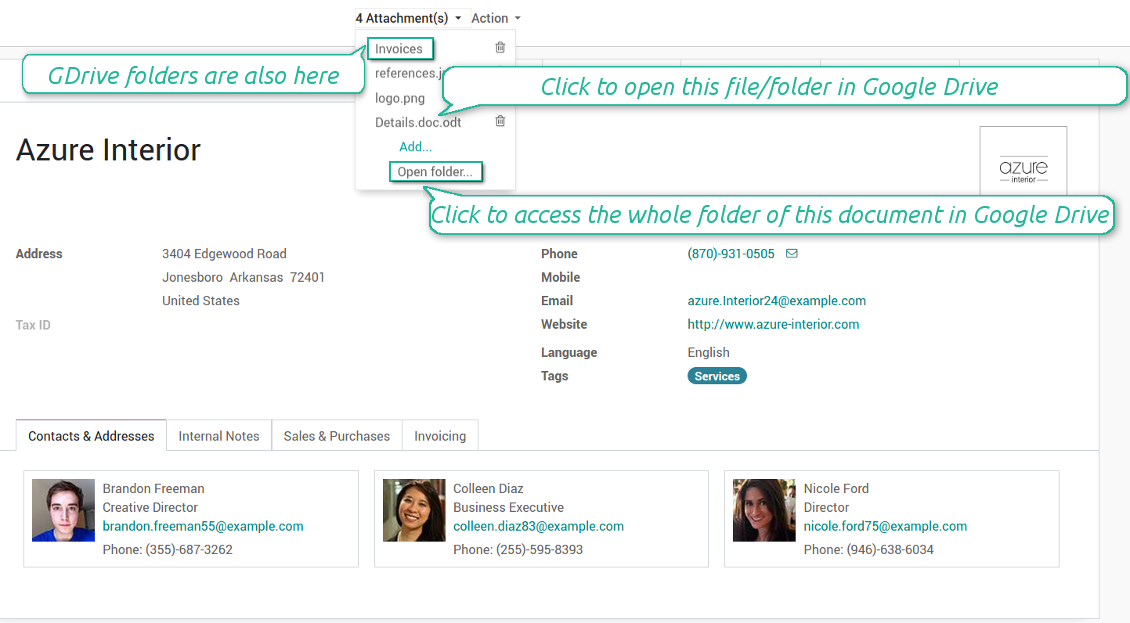

Google Drive doesn't have such disadvantages. This is the tool to integrate their features into your Odoo business work flow. The app automatically stores all Odoo attachments in Google Drive, and it provides an instant access to them via web links. In such a way users work with files comfortably in the cloud storage, while the results are fully available in Odoo.
Automatic integration
Bilateral sync
How files and folders are synced from Odoo to Google Drive
- Prepare and keep updated folders' structure in Google Drive
- Upload new attachments to a correct folder
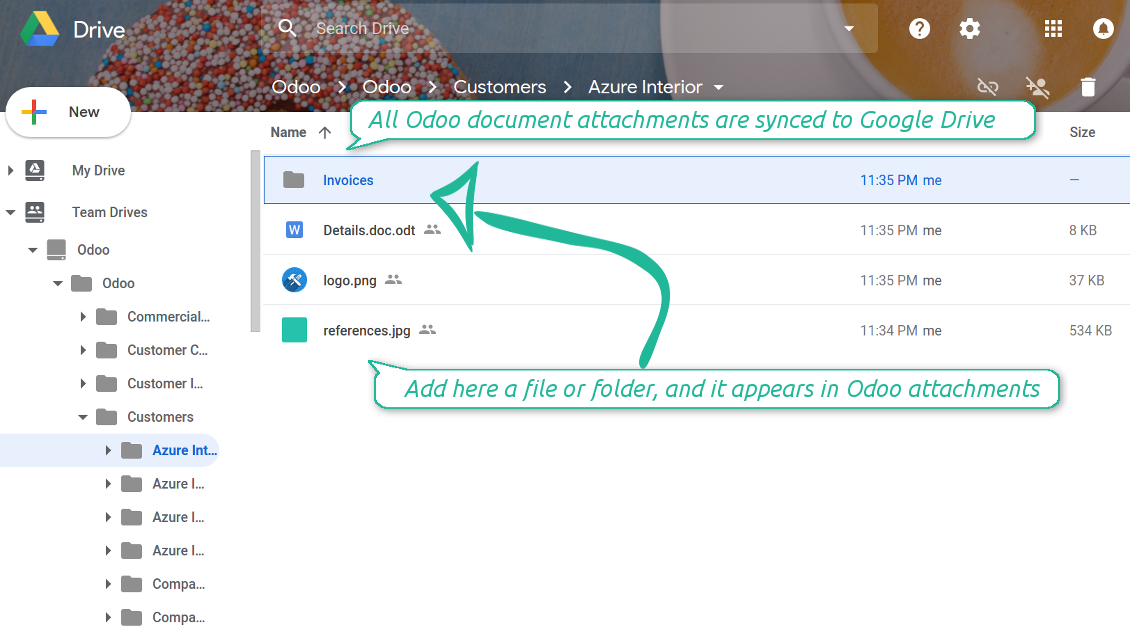
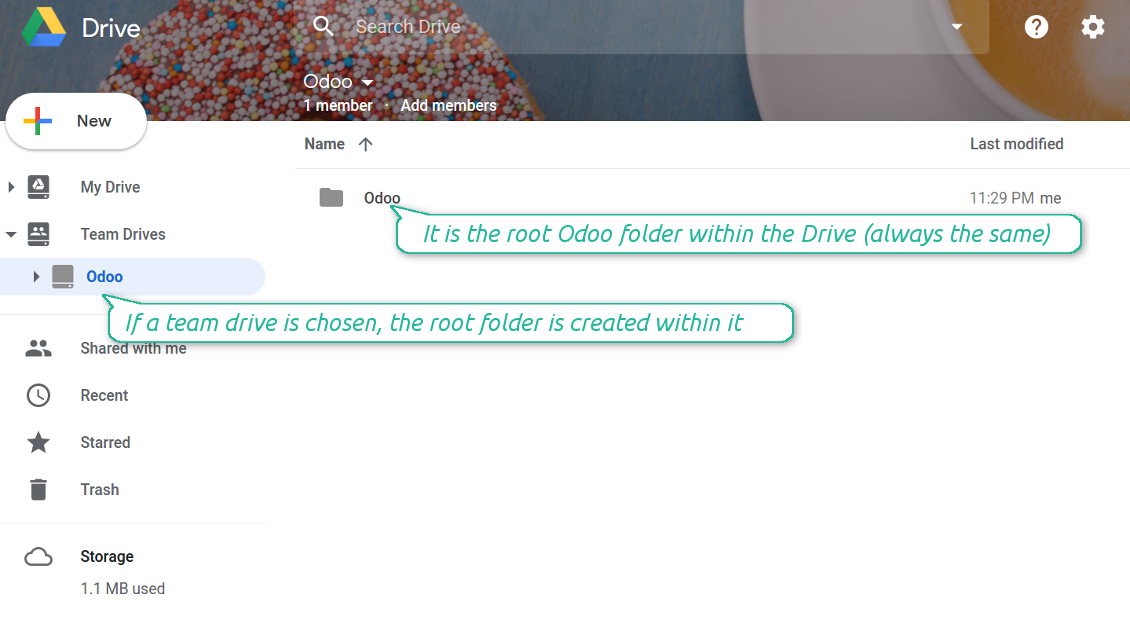
Odoo creates a convenient directory structure in Google Drive: Odoo / Document type name / Document name / Files, where:
- Odoo is a central directory for Odoo Sync in your Drive.
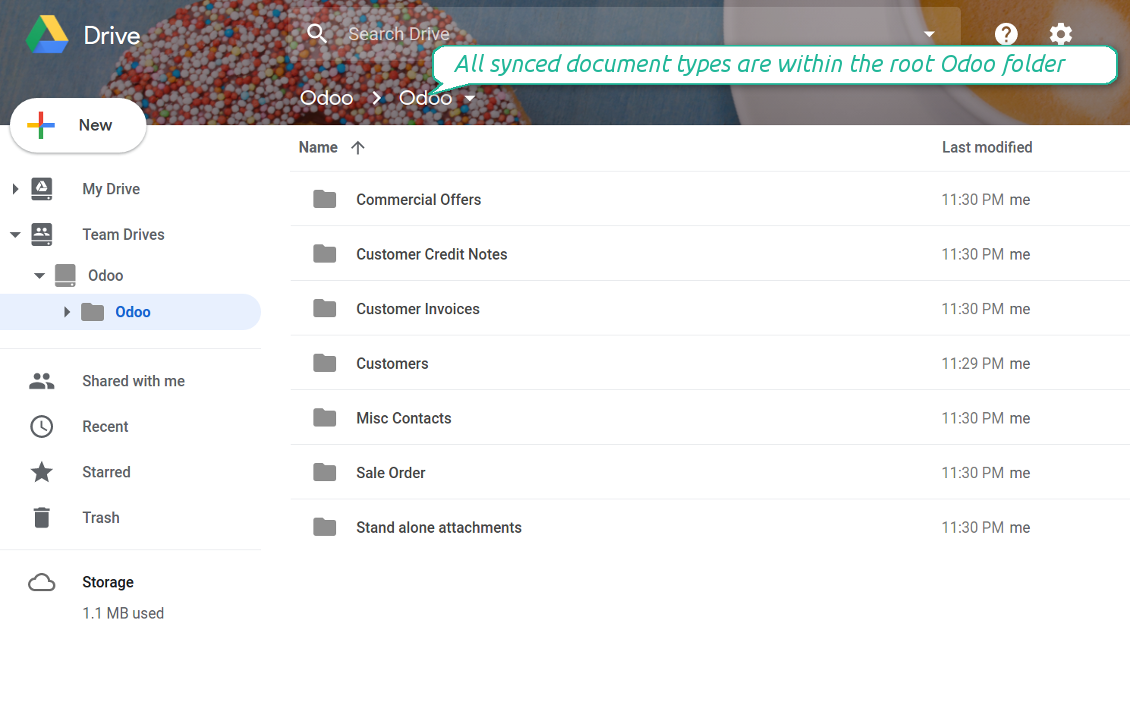
- Document type is a synced Odoo model, for example, 'Sale orders', 'Opportunities', 'Customers'
- You select document types by yourself. It might be any document type
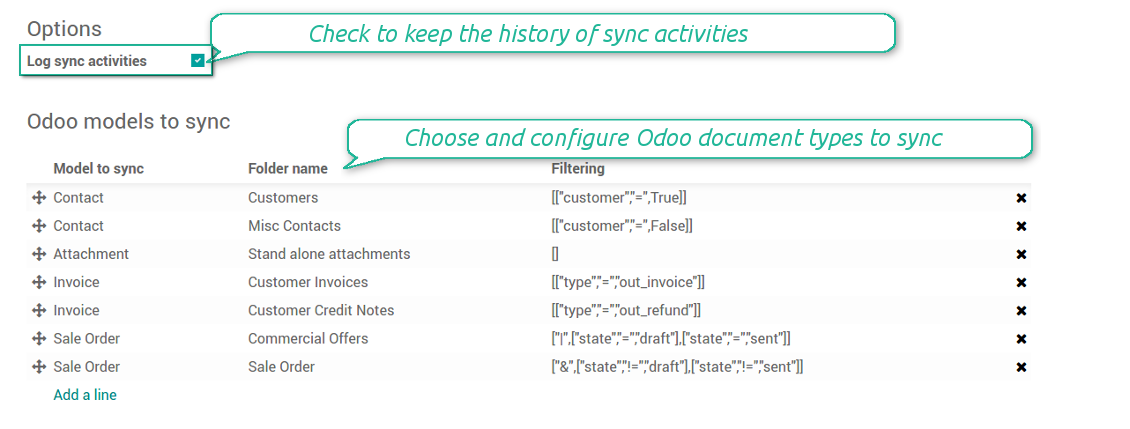
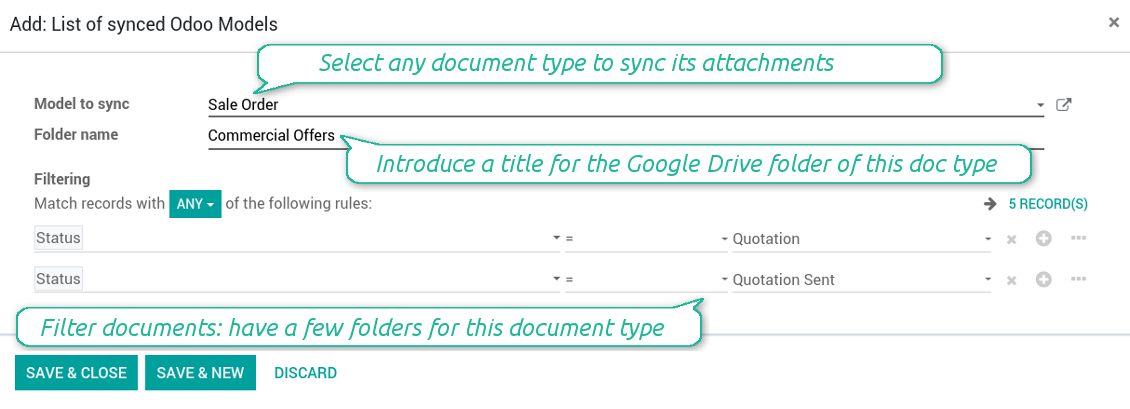
- Moreover, you might have a few folders for a single document type. Use Odoo domains to have not global 'Partners, but 'Customers' and 'Suppliers', not just 'Sale orders' but 'Commercial offers', 'To deliver', and 'Done orders'
- With each sync Odoo would try to update document types' folders. Add a new document type at any moment. It will appear in Google Drive with a next sync
- You are welcome to introduce or change document types folder names at any moment in Odoo. Take into account: renaming in Google Drive will be recovered to Odoo names
- If you remove a model from integration, it will not be deleted from Google Drive to keep already synced files safe. However, new documents of this type would not be synced
- In case you removed a directory in Google Drive, but it is still configured in Odoo, with a next sync a folder structure is going to be recovered (not files, surely).
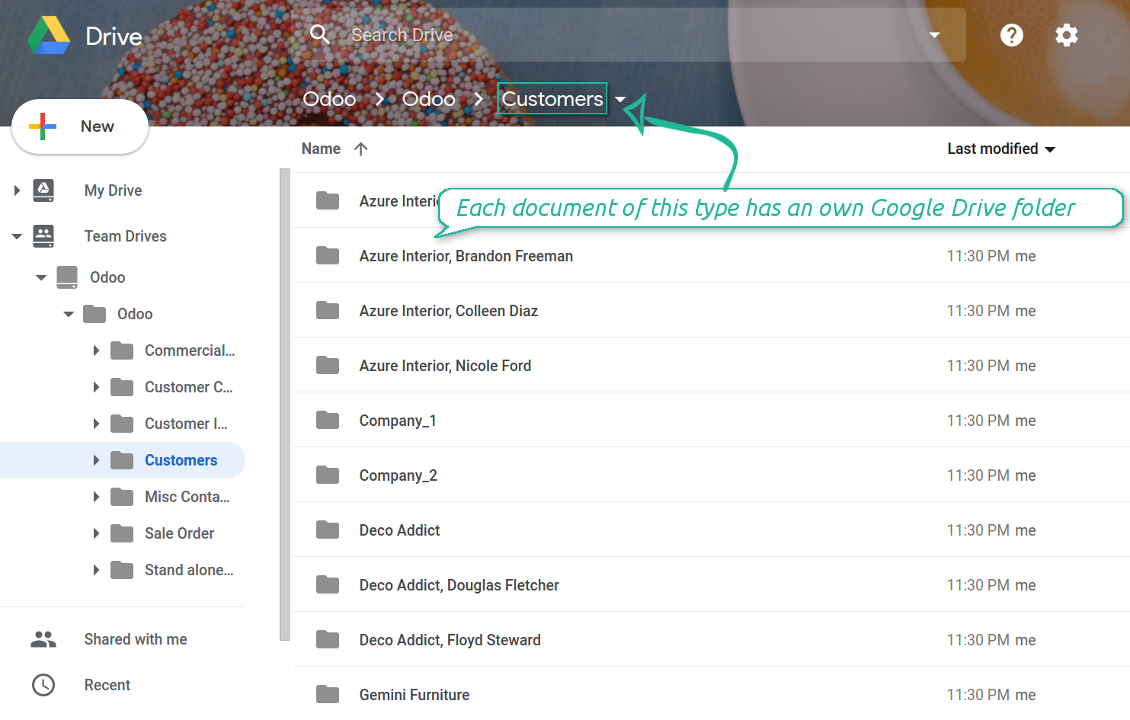
- Document is an exact object to sync. For instance, 'Agrolait' or 'SO019'
- Documents are synced in case they relate to a synced document type and satisfy its filters. For example, you are not obliged to sync all partners, you may integrate only 'Customers' and 'Vendors' or only 'Companies', not 'Contacts'
- Odoo would generate a folder in Google Drive for each suitable document even for documents without attachments. It is needed for a backward sync to easily add new files
- Google Drive folder name equals a real document name. It relies upon Odoo name_get method. Thus, Odoo 'Michael Fletcher' (a contact of 'Agrolait') would be Google Drive 'Agrolait, Michael Fletcher'
- If an exact document changes its document type (e.g. a quotation is now confirmed), Odoo will automatically relocate its related folder to a proper parent directory (in the example: from 'Commercial offers' to 'To deliver')
- In case a document relates to a few types (for instance, you have 'Vendors' and 'Customers', while Agrolait is both), this document folder would be put into the most prioritized document type. A document type priority is higher as closer to the top in Odoo interfaces it is
- If an Odoo document is removed, the next sync will remove a corresponding Google Drive directory
- In case you remove a directory in Google Drive, but it still exists in Odoo, Google Drive folder structure would be recovered (while files would be unlinked in both Odoo and Google Drive)
- Folders renaming in Google Drive will be replaced with Odoo names, Odoo document names are more important
- Files are real files taken from Odoo attachments
The resulted path would be, for example, 'Odoo / Quotations / SO019 / commercial offer.png'.
The only exclusion of the rule are stand alone attachments which do not relate to any Odoo documents (their document type is 'ir.attachment'). Such attachments' path is 'Odoo / Stand Alone Attachments / image.png'.
The very first sync might take quite a long, since a lot of folders should be created. Afterwards, it would be much faster. However, it is not recommended to make sync too frequent: once an hour seems quite good for large files.
FilesWith each direct sync, Odoo tries to find not yet synced attachments. If such attachments suit any document type to sync, a file will be uploaded to Google Drive to a proper folder. In Odoo such attachments will become of 'url' type. It means that a file is not any more kept in Odoo server space, but now it is in Google Drive. Until sync is done, Odoo attachment remains binary and stores an actual file. Such approach helps Odoo to work faster.
Clicking on such attachment leads you to a file previewer / editor in Google Drive. Depending on your Google Drive configurations it might be Google Documents, Google Spreadsheets, PDF previewer, etc. Anyway changes to file contents in Google Drive are available in Odoo at the same moment.
If you unlinked an attachment from Odoo, it would be deleted in Google Drive as well.
Take into account that file names should be managed in Google Drive: each backward sync would recover Google Drive names, Odoo is here less important.
How items are retrieved from Google Drive to Odoo
- If a new file is added to a proper document folder (e.g. to 'Odoo / Customers / Agrolait'), the same attachment will be added to Odoo document (in the example - to 'Agrolait')
- In document folders you can put not only files but also child folders. In that case a link for this folder (not its content) is kept in attachments
- In case you rename a file in Google Drive, it will be renamed in Odoo as well
- Files' removal from Google Drive leads to related Odoo attachments' removal
- If you move a file to another document folder, in Odoo a related attachment would be re-attached to this new document. Take into account: if you move a file for a not document folder, in Odoo attachment will be deleted as it has been removed from Google Drive
- If you deleted a document type or a document folder, their child files are deleted as well. Thus, Odoo would remove related attachments. The folders, however, will be recovered with a next direct sync. Folders' move to another directory is also considered as a removal. Avoid such situations by following the simple rule: folders are managed mostly by Odoo, files - mostly by Google Drive.
Backward Google Drive sync might take quite much time, since each folder should be checked (the more folders, the more time the backward sync requires). It is recommended to make frequency oftener than once an hour or two hours.
Capturi Ecran
All document types are in the root directory 'Odoo'
Document types' folders
All document of this type has an own folder
Sync any documents you like
The tool let you split any business model into a few directories. Have a separate folder for individuals and companies, for European and American opportunities, for each project, etc.
Moreover, it is possible to guarantee that only topical documents are synced by using relative periods: leads registered in the last 3 months, invoices updated the last week, and so on.
Typical use cases
- Projects: automatically forward all project-related documents to Google Drive to share those with a customer as a cloud link.
- Customers: add all partner files in a single directory available both from Odoo and from Google Drive. Modify those using default cloud editors and access them when working in Odoo.
- Employees: gather all files by this employee in a single cloud folder: photos, document scans, contracts. Access and upload those from Odoo and Google Drive alternatively.
- Opportunities: carefully store all specifications, requirements and any file which would let you make a good offer.
- Orders: keep all printings and contracts in Google Drive with simple availability from Odoo.
Capturi Ecran
Choose document types to be synced
Document type might have a few folders based on filters
Easy accessible files
Capturi Ecran
Fast access to Google Drive files and folders
Synced files are simply found in Google Drive. Add unlimited number of files or folders here
Individual and team drives
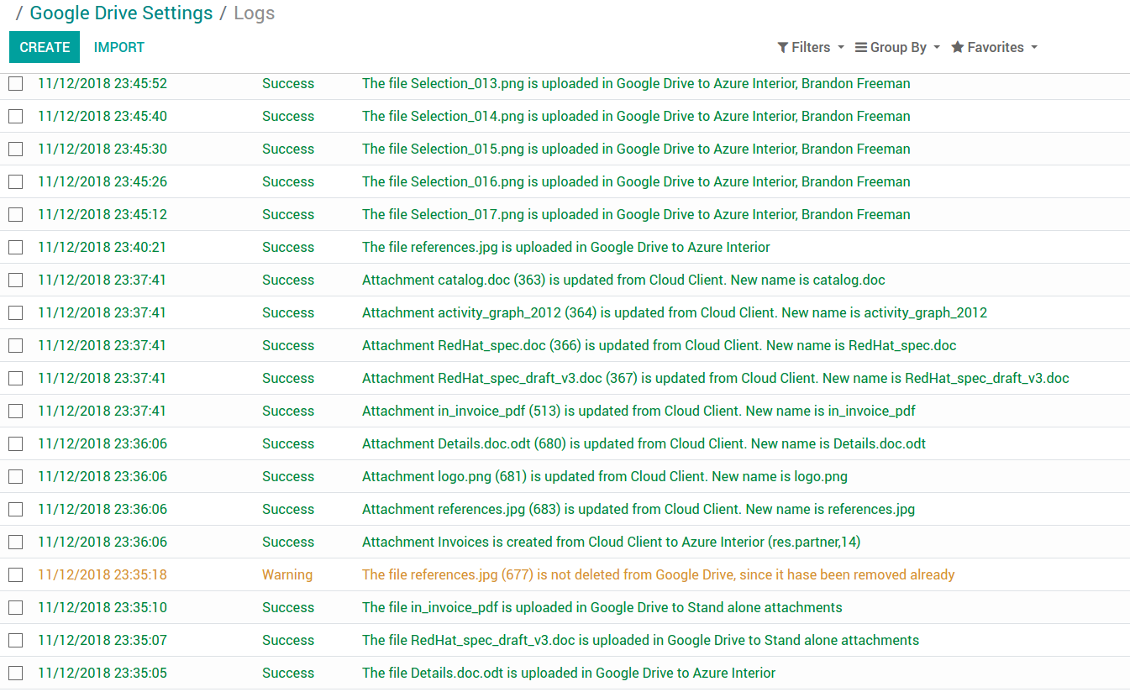
Sync logs in Odoo
Capturi Ecran
Logged synchronisation activities
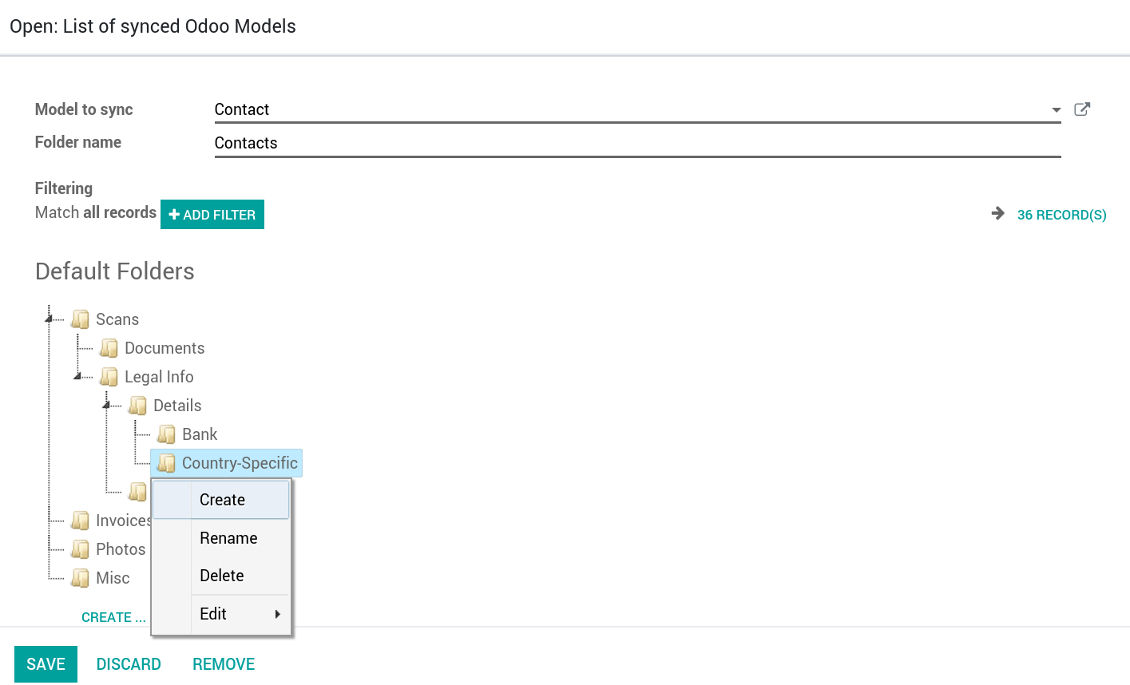
Default folders for documents
Capturi Ecran
Default folders for this document types to be created while firstly synced
Applicable to all Odoo apps
A few important peculiarities to take into account
- Take into account that files or folders deleted in Google Drive are really deleted only when you clean trash. Otherwise, such files still exist and would be reflected in Odoo
- Try to avoid the following symbols in folders' and files' names: *, ?, ", ', :, <, >, |, +, %, !, @, \, /,. Direct sync will replace such symbols with '-'. It is done to avoid conflicts with file systems.
Compatible with Odoo Enterprise Documents
How Odoo Enterprise Documents are synced
This tool is not in conflict with the 'documents' module provided by the Enterprise license. Attachments related to Enterprise folders would be synced as any other files: according to a document they relate to. In the most cases it means they would be linked to stand-alone attachments.
It is not always comfortable, and you might be interested in reflecting directories' structure introduced by the module 'Documents'. To this end the extension Cloud Sync for Enterprise Documents (its standard price is 44 Euros) is developed. This tool has the following features:
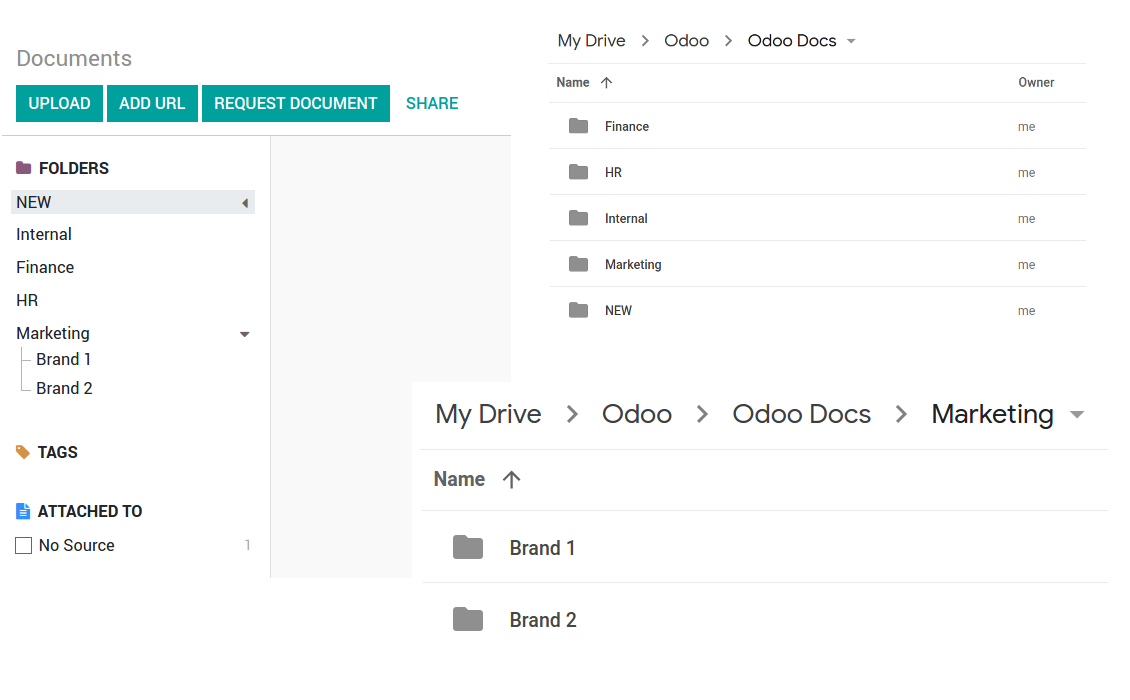
- The documents hierarchy is reflected within the folder 'Odoo / Odoo Docs'
- Each Odoo folder has a linked cloud folder. Take into account that folders created in the cloud storage will be synced as Odoo attachments. The key principle is: folders are managed by Odoo, files are managed by the cloud client
- All files are synced with the same logic as usual attachments. Files created in Odoo will be added to the cloud storage and will be replaced with links in Odoo. Files created in cloud storage will generate attachments within a paired directory
- Please do not name synced models as 'Odoo Docs'. This is the reserved name for Odoo Enterprise Documents
Capturi Ecran
Odoo Enterprise documents sync
Tricky setup, but works perfectly now
Really solid module. We managed to get a very flexible folder structure (sorted by clients) and synced all our sales orders, invoices and tasks by projects to Google Drive.
Initial setup was a bit of a pain and kinda tricky to configure everything at first, but now it's running smoothly and works perfectly. The faotools team helped a lot. Def worth it if u need to keep your docs organized in Odoo and Google Drive.
Recommended!
Excellent !!!
Great App and great Service from faOtools.
Best module for integration with google drive
The module performs its function correctly and faOtools responds quickly to any problem and, in case of detecting any bug, quickly apply the changes. Its support is 10 stars.
Sfaturi de configurare și instalare pentru Google Drive Odoo Integration Odoo v.12
Login and Google Drive Credentials
- Go to the Google Cloud Console via the URL https://console.cloud.google.com
- Select or create a project
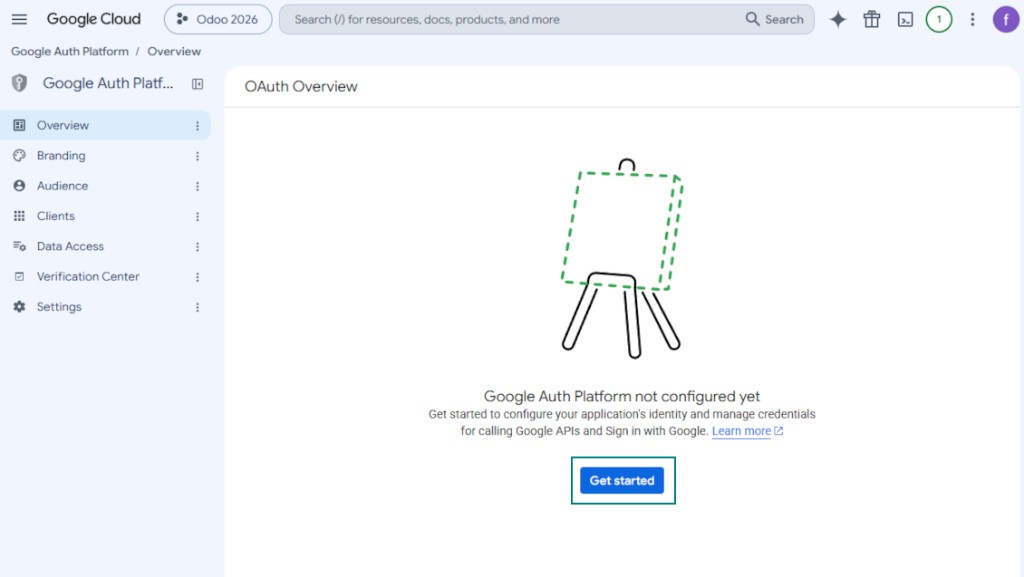
- After the project is selected, the console opens the Google Auth Platform. Press 'Get Started'
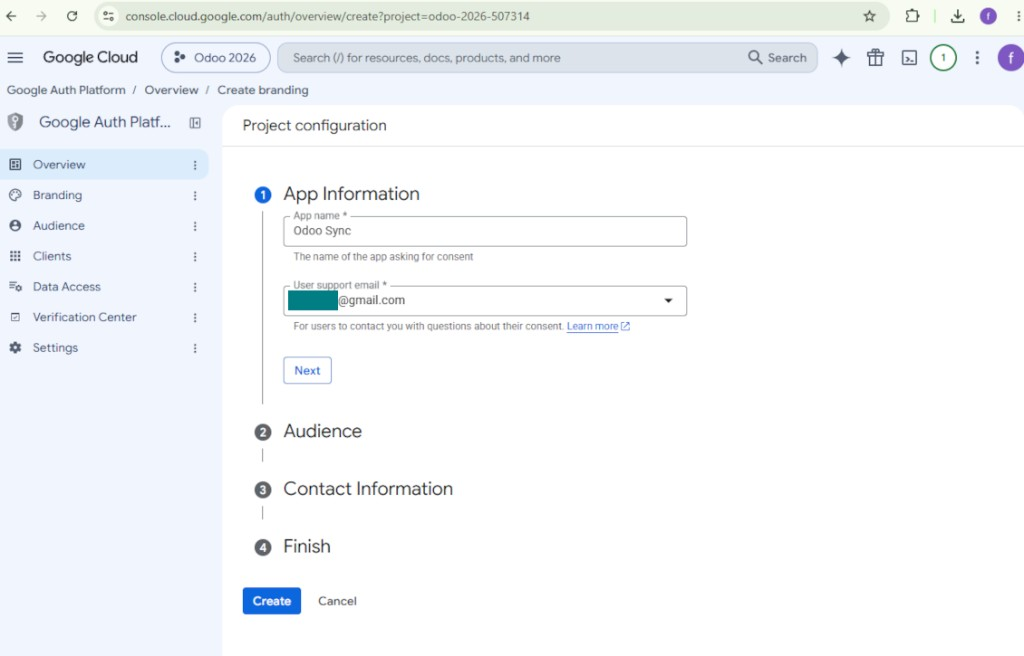
- Add app information
- As an app name select any suitable
- As a user support email select your email address
- Press 'Next'
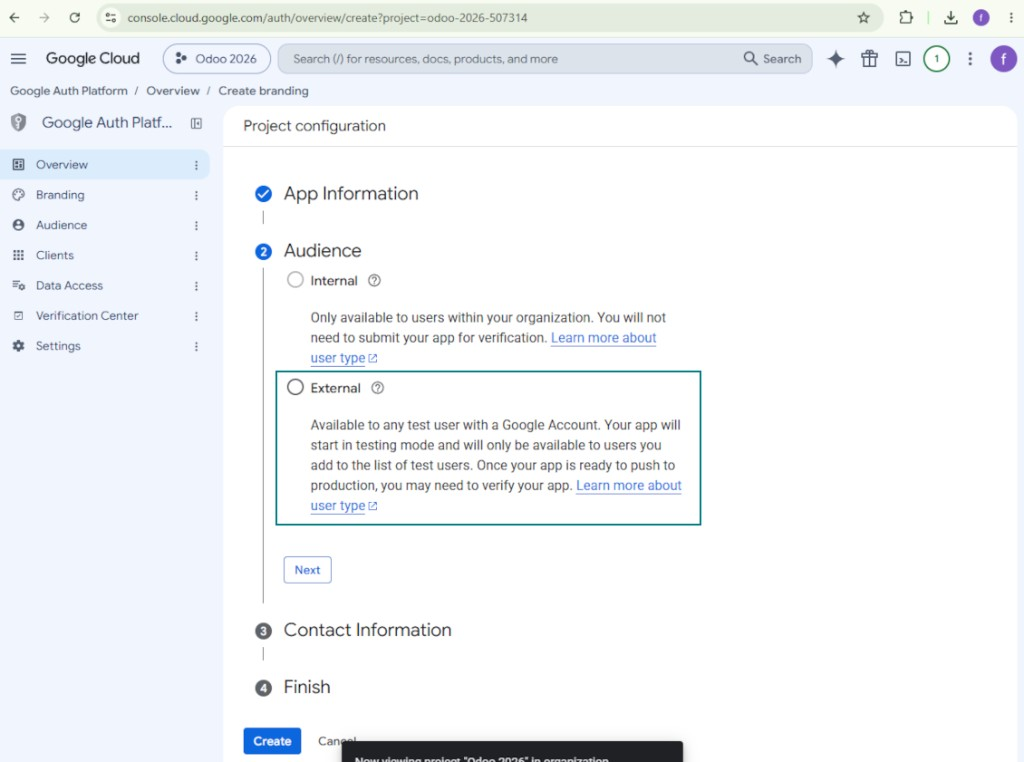
- As the audience select 'External' and press 'Next'. Note: you are anyway going to use this app only for your own Odoo connection
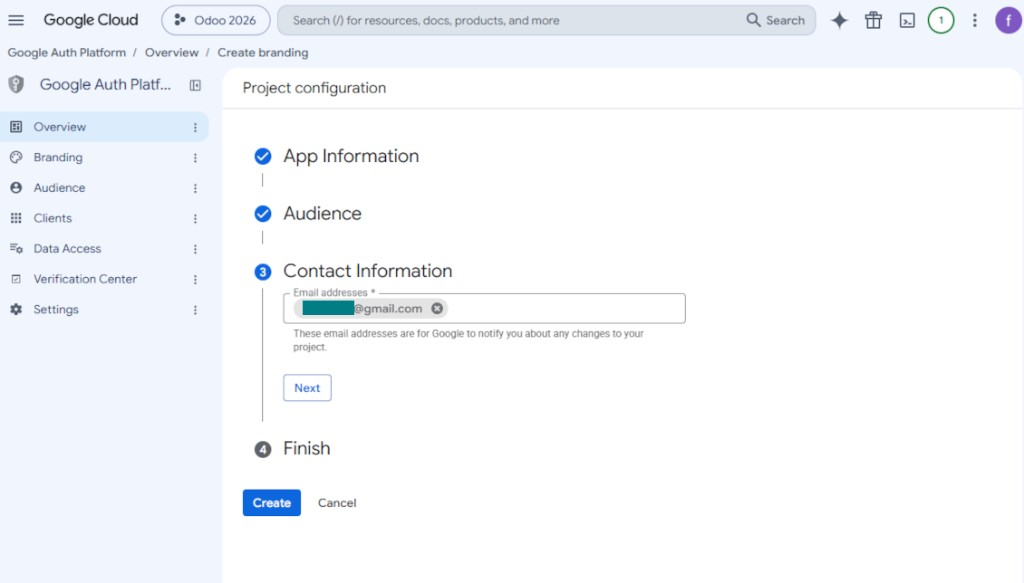
- As the contact information enter your Google or Google Workspace email address and press 'Next'
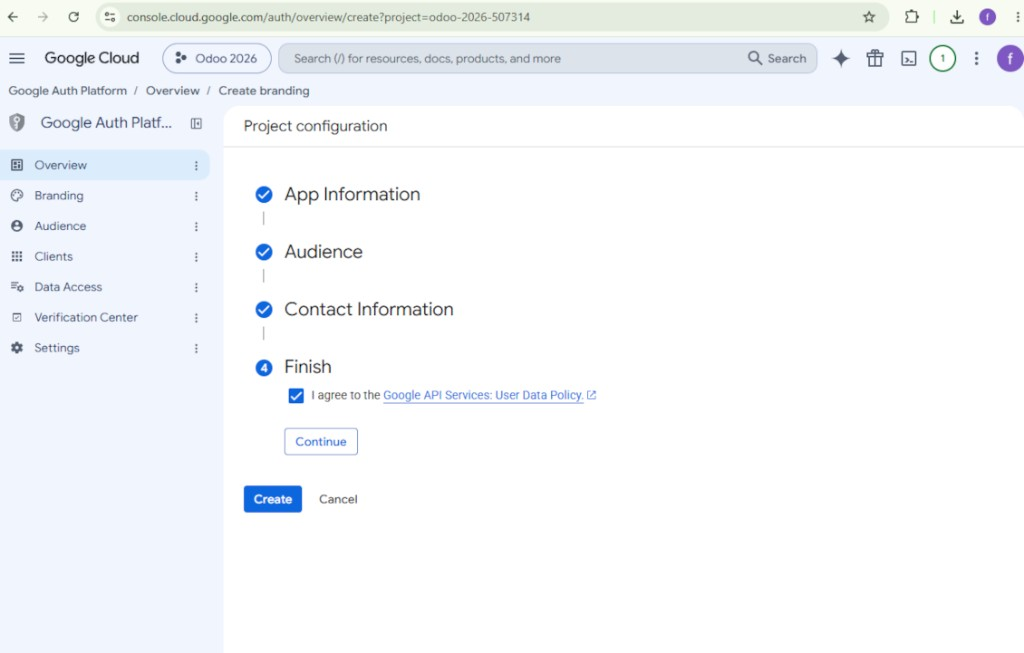
- Agree with the Google API Services User Data Policy, press 'Continue', and then press 'Create'
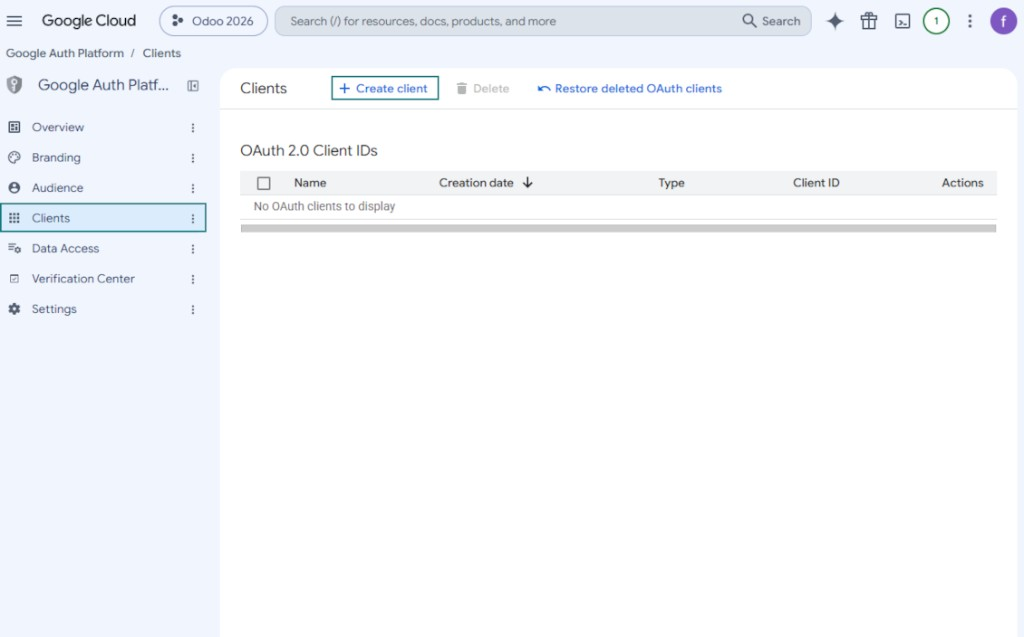
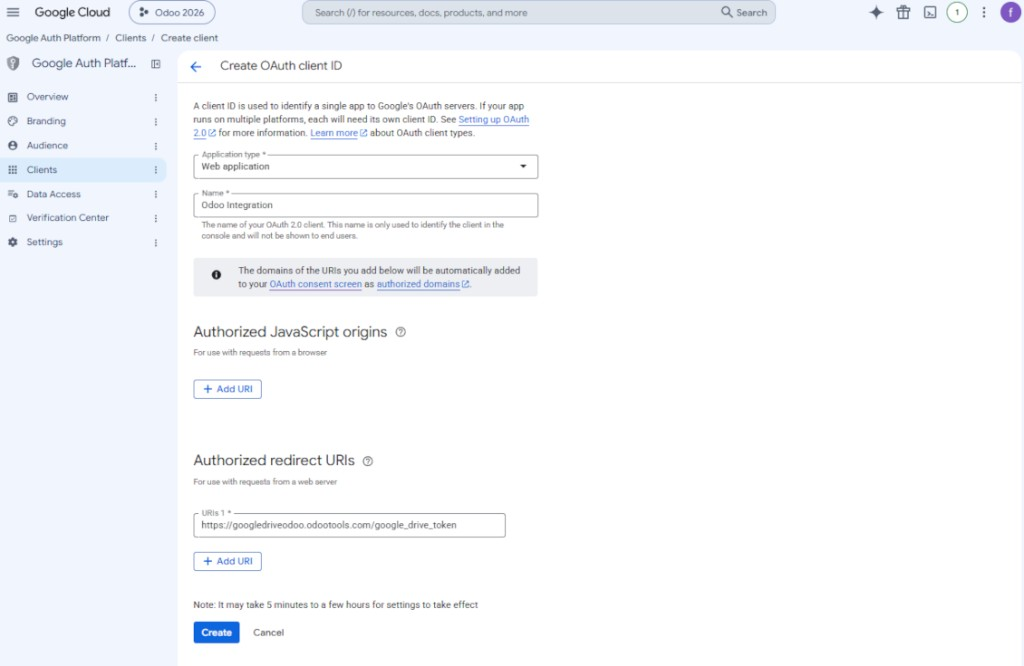
- Go to 'Clients' and press 'Create client'
- As the application type select 'Web application'
- As a name select any suitable
- As the authorized redirect URI, add the link in a format [YOURODOOSITENAME]/google_drive_token (e.g. https://odootools.com/google_drive_token).
- Press 'Create'
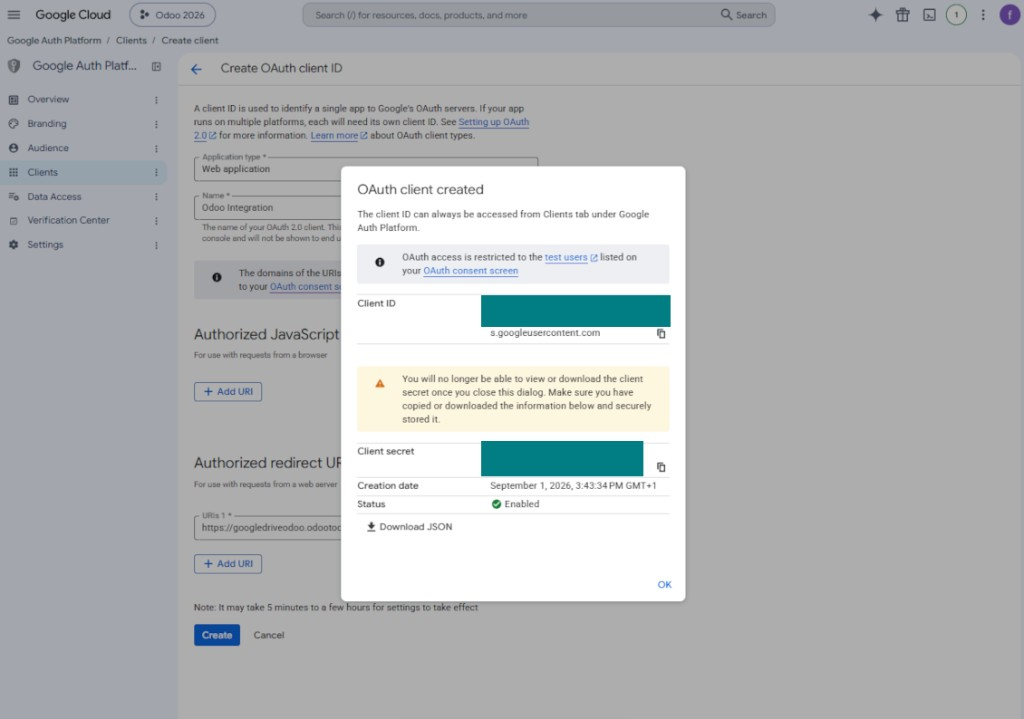
- Copy and safely store 'Client ID' and 'Client secret'. The client secret is shown only once
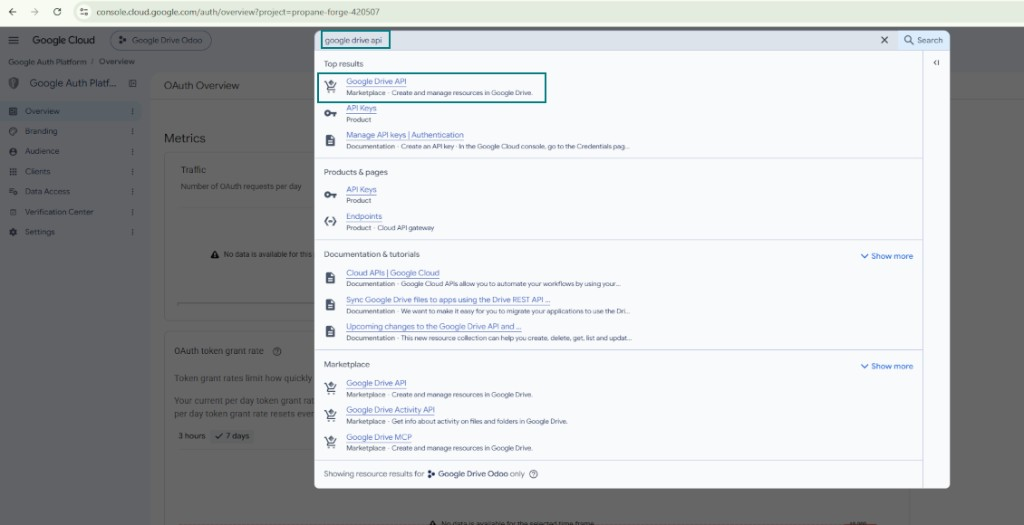
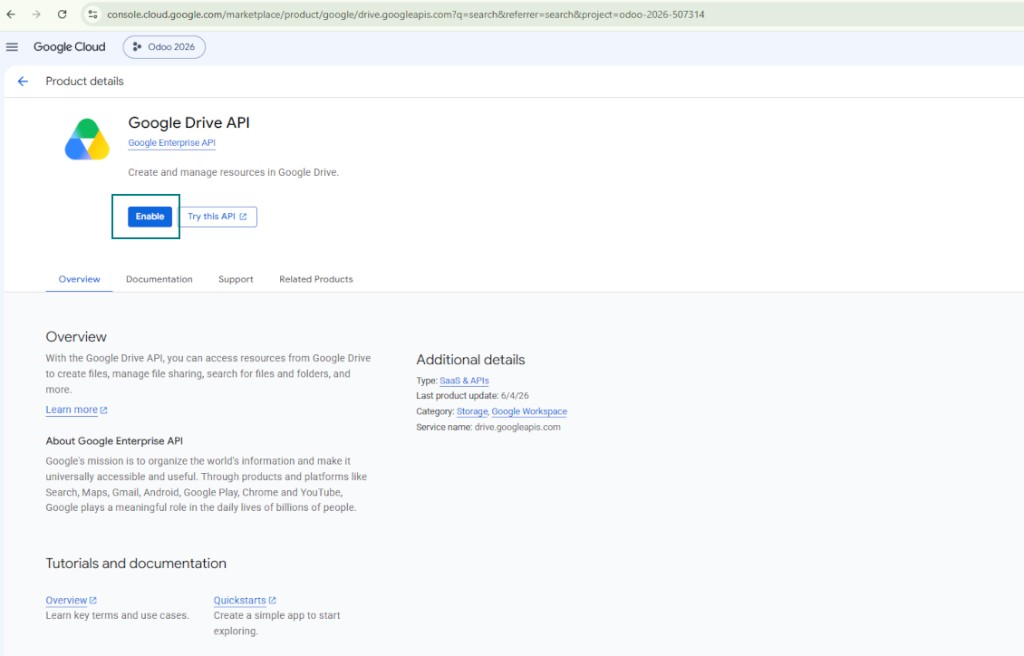
- Enable the Google Drive API for this project: type 'Google Drive API' in the top search box, open the found product, and press 'Enable'
- Go to 'Audience' and add your email address as a test user
- Publish the app. Otherwise, the app stays in the testing state and its token expires every 7 days
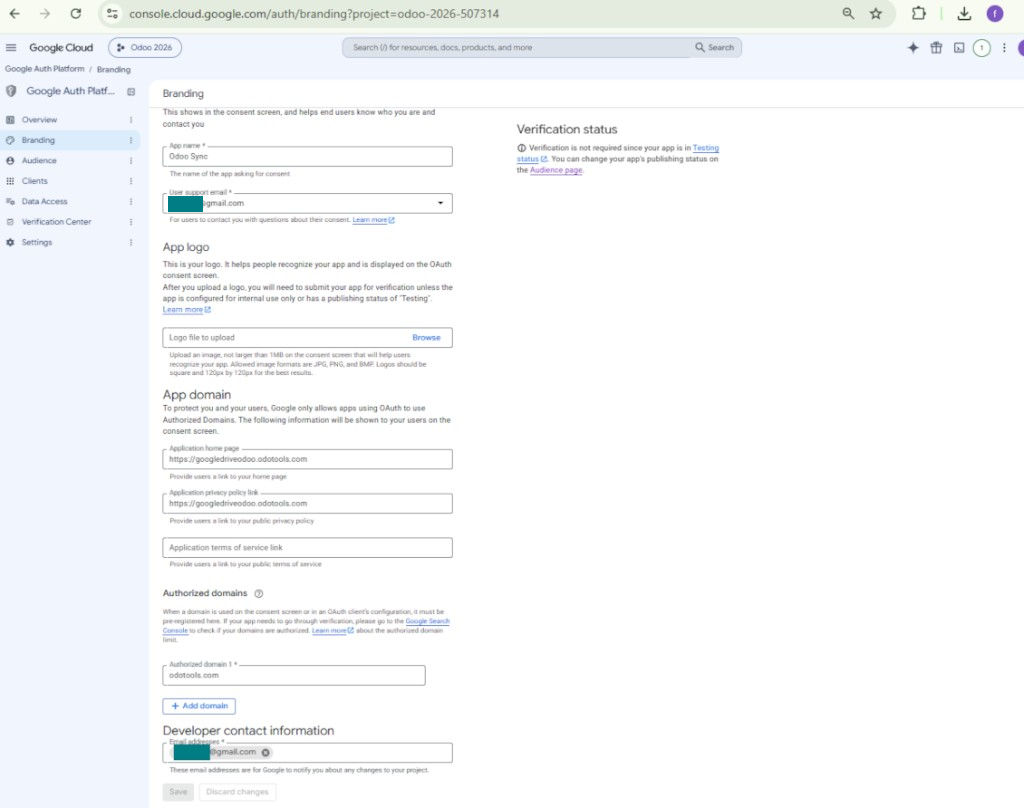
- Open 'Branding' and fill in the application home page and the application privacy policy link (for example, the links to your Odoo website). Add the domains of those links as the authorized domains
- Open 'Audience' and press 'Publish app'
- Do not upload an app logo. This would invoke a long and complex Google verification process that is of no actual need to you
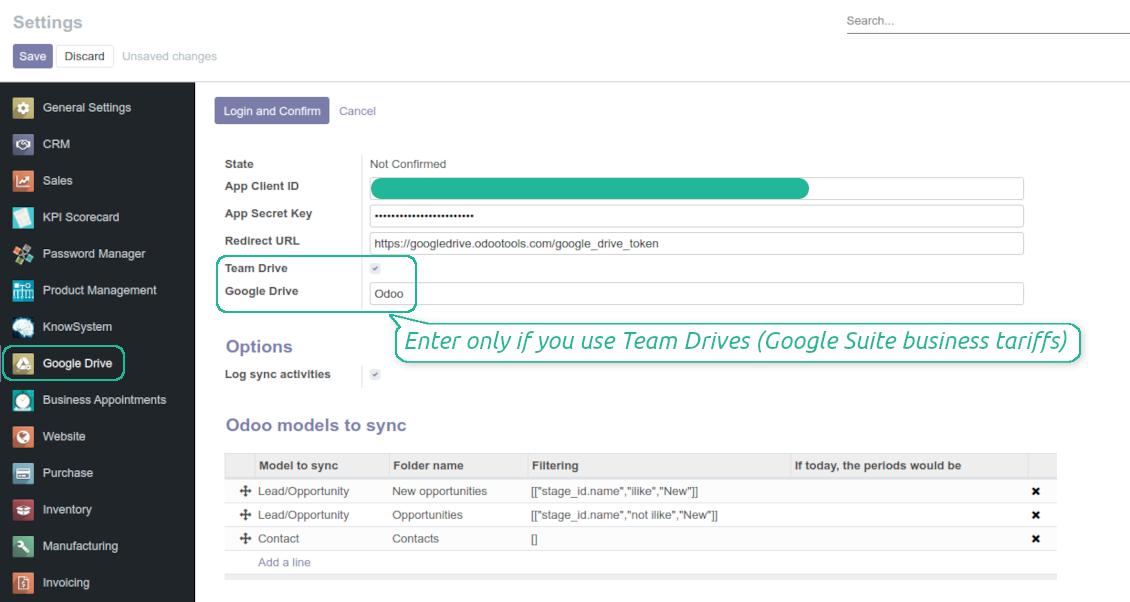
- Go to the Odoo Google Drive Settings
- Copy 'Client ID' from step 8 into the field 'App Client ID'
- Copy 'Client secret' from step 8 into the field 'App Secret Key'
- Insert the redirect URL you entered in step 8
- If you use team drives, check the related box. Make sure you really use team drives. In you Google Drive you should find the item 'Team Drives' in the left sidebar. This feature is available only for business and enterprise tariffs
- If the option 'Team Drive' is enabled, introduce its name. It should be absolutely the same as you see it in your Google Drive. Make sure that your user has full rights for this team drive
- Press 'Save'
- Press 'Login and Confirm'. Odoo redirects you to Google login page. Check in, agree with all conditions, and grant permissions asked
- After login, Google redirects you back to Odoo. Google Drive - Odoo synchronization is ready to be done.
Open the Google Auth Platform
Add app information
Select the external audience
Add contact information
Agree with the policies and create the app
Create an OAuth client
Configure the web application client
Copy the client ID and client secret
Find the Google Drive API
Enable the Google Drive API
Fill in branding to publish the app
Add test users and publish the app
Enter Google app credentials to Odoo
Odoo server configuration and cron job configuration
To make sure the synchronization works correctly apply proper timeouts to the Odoo configuration file: LIMIT_TIME_CPU, LIMIT_TIME_REAL should be more than 900 seconds.
For Odoo.sh this should not be done, since timeouts are predefined and are not configurable.
Then, timeout should be entered to your Odoo. To that goal find the section 'Settings' on the app configuration page and copy the number there.
Afterwards, it is needed to make the cron jobs suit the applied timeouts. In the debug mode go to the Settings > Technical > Automation > Scheduled Jobs:
- Set up the job 'Synchronize attachments with cloud' as (a) frequency - 2*timeout; (b) the next execution as the next hour +timeout. For example, for 900seconds timeout: frequency - as 30minutes; the next execution - at 08:15
- Set up the job 'Synchronize attachments from cloud' as (a) frequency - 2*timeout; (b) the next execution as the next hour + timeout*2. For example, for 900seconds timeout: frequency - as 30minutes; the next execution- at 08:30.
Întrebări frecvente despre Google Drive Odoo Integration Odoo v.12
Folderele Google Drive generate sunt partajate automat între utilizatorii Odoo?
Aplicația nu reglementează drepturile de acces pe partea Google Drive. Acest lucru se face acolo manual. Odoo creează folderele țintă în Google Drive, care implicit nu sunt partajate, iar permisiunile le puteți schimba pentru oricare folder. De exemplu, drepturi complete pentru directorul 'Odoo' sau pentru un anume 'Odoo > Sale Orders' sau 'Odoo > Sale Orders > SO-001'.
Aplicația funcționează pe principiul unui singur punct final de utilizator. Toate operațiile de sincronizare se fac sub același utilizator Google Drive (conform aplicației Google API configurate).
Am șters un fișier din Google Drive, dar este încă în Odoo
Pentru a șterge complet un fișier, goliți și coșul din Google Drive.
De asemenea, fișierul poate fi încă în Odoo, deoarece sincronizarea inversă nu a procesat încă atașamentul. Este un proces programat, e nevoie de timp.
Voi fi taxat de Google în funcție de cererea API?
Modulul folosește doar API gratuit, deci Google nu vă va taxa.
Pot schimba frecvența lucrărilor de sincronizare?
Da, puteți. În acest scop:
Activați modul de depanare
Accesați setările tehnice > Automatizare > Lucrări planificate
Găsiți lucrările 'Synchronize attachments with cloud' și 'Update attachments from cloud'.
Nu le faceți prea frecvente. Este de preferat ca lucrarea să se termine înainte de a începe următoarea. Configurarea depinde de câte elemente aveți de sincronizat. De obicei, frecvența este între 15 minute și 4 ore.
Asigurați-vă și că ați setat limite de timp suficiente în fișierul de configurare Odoo. Parametrii LIMIT_TIME_CPU și LIMIT_TIME_REAL trebuie să fie egali sau mai mari decât timpul planificat al lucrării cron. De la versiunea 13 luați în considerare și parametrul LIMIT_TIME_REAL_CRON.
Notă importantă pentru clienții Odoo.sh: timpul maxim al unei lucrări cron poate fi de numai 15 minute.
Pot configura o structură diferită a directoarelor sincronizate față de cea presupusă de sincronizare?
Nu, această funcție este disponibilă doar de la versiunea 15. Înainte de acea versiune, modulul lucrează cu o structură de foldere predefinită:
Odoo - folderul principal pentru sincronizare
Models - foldere pentru fiecare tip de document Odoo. De exemplu, 'Projects', 'Partners'. Distinse prin domain pot există foldere mai specifice: de ex., 'Customer 1 Projects', 'Projects of the Customer 2', 'Internal Projects' etc.
Objects - foldere pentru fiecare document, de ex. 'Project 1' sau 'Customer 1'
Fișiere și foldere legate de acest document Odoo care vor fi sincronizate.
Ca rezultat, puteți avea de exemplu:
Odoo / Projects / Project 1 / fișiere și foldere legate de project 1
Odoo / Customer 1 Projects / Project 1; Odoo / Customer 2 Projects / Project 3, ...
Odoo / Customers / Customer 1 / fișiere și foldere legate de customer 1
Această structură este întotdeauna plată, adică există doar acele niveluri de ierarhie. Așadar, este corect că tipurile diferite de documente nu pot fi ținute în aceeași structură. În folderul 'Customer 1' nu putem păstra fișiere legate atât de comenzile de vânzare, facturi, cât și de proiecte. Fiecare dintre aceste tipuri de document are folderul (sau folderele) propriu. Altfel nu am putea face sincronizarea inversă, deoarece nu ar există un criteriu pe care să ne bazăm.
Trebuie să configurez accesuri specifice ale utilizatorilor în Odoo?
Nu, instrumentul se bazează pe un singur punct final de utilizator. Toate procesele de sincronizare se fac sub un singur administrator cloud (aplicație). Drepturile de acces pentru dosarele / fișierele create nu sunt automatizate. Trebuie să le administrați în soluția de stocare cloud.
Unde sunt stocate câmpurile sincronizate? Sunt duplicate în Odoo și în clouds?
Aplicația presupune că conținutul binar al atașamentelor este păstrat în Cloud Client, nu pe serverul Odoo. Astfel, aceste atașamente din Odoo devin de tip URL și le puteți accesa oricând din caseta de atașamente sau din Cloud Client.
După configurare nu sunt necesare acțiuni manuale, sincronizarea fiind complet automată. Decideți ce tipuri de documente Odoo trebuie sincronizate și configurați un model asociat pentru fiecare (clienți, comenzi de vânzare sau achiziție, sarcini, proiecte etc.).
Pot avea câteva foldere pentru același tip de document? De exemplu, proiecte interne și proiecte clienți?
Da, puteți. În acest scop pregătiți o regulă pentru fiecare, apoi aplicați filtre: de exemplu după tipul proiectului.
Încercați să faceți filtrele mutual exclusive, astfel încât un document să poată fi atribuit cu certitudine. De exemplu, „client, dar nu furnizor”, „furnizor, dar nu client”. Altfel, dosarul unui document specific ar sări de la un model la altul.
Am nevoie doar de aplicația Cloud Storage Solution?
Nu, instrumentul este doar un nucleu tehnic. Aveți nevoie și de conectorul pentru cloud client.
Este în regulă dacă am multe obiecte de sincronizat, de exemplu 10000?
Da, deși în cazul multor dosare/atașamente de sincronizat procesul poate fi lent. Totodată, clienții au raportat medii cu >10k parteneri și ~5k variante de produs de sincronizat, iar procesele au fost acceptabile.
Câteva puncte de subliniat:
- Sincronizarea este construită astfel încât orice element să fie sincronizat și să nu se piardă, deși poate să nu fie rapidă. Este garantat de cozi FIFO și de fiecare lucrare confirmată.
- Numărul de obiecte poate fi limitat logic. Configurația modelelor vă permite să restricționați sincronizarea elementelor obsolete (de ex., nu are sens să sincronizați parteneri arhivați sau comenzi de acum 2 ani).
Este posibilă sincronizarea în timp real?
Nu. Avem motive temeinice să evităm sincronizarea în timp real:
Probleme de performanță. Dacă sincronizarea este în timp real, fiecare încărcare de fișier va afișa ecranul de încărcare.
Probleme de conflict. Dacă 2 utilizatori modifică simultan un element, pot apărea situații nerezolvate. La lucrări periodice le putem repara ulterior; în timp real ar trebui salvate ca o coadă, și mai derutantă pentru utilizatori.
Probleme de funcționalitate. În special redenumirea și restructurarea elementelor. În sincronizarea inversă instrumentul se bazează strict pe logica directoarelor, iar la fiecare sincronizare se verifică 100% din elemente. Dacă s-ar face după fiecare actualizare, ar fi mii de cereri pe secundă. Dacă nu: modificările s-ar pierde.
Pot sincroniza atașamentele cu câțiva clienți cloud
Nu, această funcție este disponibilă doar de la versiunea 15.
Folosim un editor special în cloud-urile noastre (de ex. OnlyOffice, Office 365 etc.). Fișierele s-ar deschide în acel editor?
Da, în funcție de configurația cloud client.
Care sunt politicile de actualizare ale instrumentelor dvs.?
Conform politicilor actuale Odoo Apps Store:
- Fiecare modul cumpărat pentru versiunea 12.0 și anterioară dă acces la toate versiunile până la 12.0.
- Începând cu versiunea 13.0, fiecare versiune de modul se cumpără separat.
- Indiferent de versiune, cumpărarea dă dreptul la toate actualizările și corecturile dintr-o versiune majoră.
Rețineți că echipa faOtools nu controlează aceste politici. Pentru întrebări contactați direct reprezentanții Odoo Apps Store.
Cum instalez aplicația dumneavoastră pe Odoo.sh?
Cea mai directă abordare este să folosiți fluxul încorporat al magazinului Odoo:
1. Deschideți pagina modulului și faceți clic pe butonul Deploy on odoo.sh
2. După aceea veți fi redirecționat la pagina GitHub. Conectați-vă la cont, apoi faceți clic pe 'Create a new repo' sau folosiți unul existent. Asigurați-vă că depozitul este privat. Nu este permisă publicarea aplicațiilor sub licența OPL-1. Dacă e necesar, creați un repo nou pentru proiectul Odoo.sh
3. Apoi mergeți la odoo.sh și faceți clic pe butonul Deploy. În fereastra pop-up trimiteți decizia și faceți clic pe 'Continue.' Această acțiune pornește instalarea.
Acești pași vor instala aplicația pe ramură de producție a proiectului. Dacă doriți să implementați aplicațiile pe alte ramuri sau să actualizați modulul, urmați acțiunile de mai jos:
1. Încărcați codul sursă al aplicației din magazinul Odoo
2. Faceți commit modulului în depozitul GitHub necesar. Asigurați-vă că niciun folder/fișier al aplicației nu este ignorat (adică nu este în .gitignore al repo-ului). Depozitele sunt create automat de odoo.sh și pot include implicit elemente esențiale (de ex. /lib). Încărcați toate directoarele, subdirectoarele și fișierele modulului, fără excepții
3. Implementați ramură țintă a proiectului odoo.sh sau, dacă setările presupun asta, așteptați până este construită automat.
Cum instalez aplicația dumneavoastră pe propriul server?
2. Reporniți serverul Odoo;
3. Activați modul dezvoltator (setări tehnice);
4. Actualizați lista de aplicații (meniul aplicațiilor);
5. Găsiți aplicația și apăsați „Activate”/„Install”;
6. Urmați ghidurile de pe pagina aplicației, dacă există.
Am observat că aplicația are extensii extra. Le pot cumpăra ulterior?
Da, desigur. Totodată Odoo adaugă automat toate dependențele în coș, deci trebuie să excludeți instrumentele deja cumpărate ca să evitați plată dublă.
Am implementat aplicația pe Odoo.sh și văd avertisment/eroare în teste
Un avertisment roșu/portocaliu nu influențează funcțiile aplicației. Din păcate, modulele noastre nu trec uneori testele automate standard, deoarece acestea presupun un comportament în conflict cu obiectivele aplicației. De exemplu, schimbăm calculul prețului, iar testele modulului Odoo standard compară prețul final cu un algoritm standard.
În primul rând, verificați funcțiile bazei implementate. Totul funcționează corect?
Dacă tot credeți că avertismentul afectează funcții reale, contactați-ne și trimiteți jurnalele complete de instalare și lista completă a modulelor implementate (inclusiv nucleu și terțe părți).
Pot cumpăra aplicația direct de la compania dvs.?
Nu, distribuim instrumentele doar prin magazinul oficial de aplicații Odoo.
Aș dori să primesc o reducere
Din păcate, nu avem mijloace tehnice pentru a oferi prețuri individuale.
Pot instala aplicația pe baza mea Odoo Online (SaaS)?
Nu, aplicațiile terțe nu pot fi folosite pe Odoo Online. Din păcate Odoo SaaS blochează această posibilitate.
Instrumentul dvs. are dependențe de alte aplicații. Trebuie să le cumpăr?
Da, instrumentul necesită toate modulele marcate în dependențe pentru a funcționa corect. Prețul de pe pagina aplicației include deja toate dependențele necesare.
Care este prețul modulului în dolari SUA? De ce s-a schimbat?
Prețul modulelor noastre este în euro. Magazinul Odoo convertește prețurile în alte monede după cursul intern. Astfel, prețul în dolari SUA se poate schimba când se actualizează cursul.
Textele aplicației și ale site-ului în alte limbi decât engleza sunt asistate de IA și aliniate cu traducerile oficiale Odoo. Dacă observați o greșeală, trimiteți un tichet de corectitudine a traducerilor și o vom corectă.
Raportarea erorilor
Dacă întâmpinați erori sau comportament inconsecvent, nu ezitați să ne contactați. Garantăm corecturi în 60 de zile de la cumpărare și suntem interesați să îmbunătățim instrumentele și după această perioadă.
Nu aveți nevoie de număr de telefon sau card de credit pentru a ne contacta. Este suficientă o înscriere scurtă prin e-mail, care nu durează mai mult de 30 de secunde.
Includeți cât mai multe detalii în cerere: capturi de ecran, jurnalele serverului Odoo, o descriere completă a reproducerii problemei și așa mai departe. De obicei, durează câteva zile lucrătoare pentru a pregăti un plan de lucru (dacă un defect este confirmat) sau pentru a vă oferi indicații despre ce trebuie făcut (în caz contrar).
Cereri publice de funcții și idei de module (dezvoltare gratuită)
Suntem puternic motivați să ne îmbunătățim instrumentele și am fi recunoscători pentru orice feedback. Dacă cerințele dvs. sunt de interes public și pot fi implementate eficient, echipa le va include în lista noastră de sarcini.
O astfel de listă de sarcini este prelucrată regulat și nu presupune taxe suplimentare. Deși nu putem promite termene și un design final, poate fi o cale bună de a obține funcțiile dorite fără investiții și riscuri.
Nu aveți nevoie de număr de telefon sau card de credit pentru a ne contacta. Este suficientă o înscriere scurtă prin e-mail, care nu durează mai mult de 30 de secunde.

Instrumentul pentru păstrarea în siguranță a parolelor în Odoo pentru utilizare partajată. Seifuri partajate

Instrumentul pentru a construi o bază de cunoștințe profundă și structurată pentru uz intern și extern. Knowledge System. KMS. Revizii de tip wiki.
398€
Instrumentul pentru a seta ținte KPI și a controla îndeplinirea lor pe perioade. Tablouri de bord KPI. Designer de tablouri. Grafice KPI

Instrumentul pentru gestiunea serviciilor pe bază de timp, de la rezervarea programărilor până la vânzări și recenzii
398€
Instrumentul pentru a gestiona Odoo din chat-urile AI preferate prin MCP. Claude. Orice AI care suportă MCP.

Instrumentul pentru a structura flexibil atașamentele Odoo în foldere și a sincroniza directoarele cu clienți cloud: Google Drive, OneDrive/SharePoint, Nextcloud/ownCloud, Dropbox, Amazon S3, Box și NAS. DMS. Manager de fișiere. Sistem de gestiune a documentelor
398€
Instrumentul pentru sincronizarea automată bidirecțională a atașamentelor Odoo cu fișierele OneDrive
487€
Instrumentul pentru sincronizarea automată bidirecțională a atașamentelor Odoo cu fișierele ownCloud/Nextcloud
487€
Instrumentul pentru sincronizarea automată bidirecțională a atașamentelor Odoo cu soluții NAS. Synology, QNAP, TrueNAS și orice alt NAS care suportă WebDav
487€