Google Drive Odoo Integration v.12
The tool to automatically synchronize Odoo attachments with Google Drive files in both ways
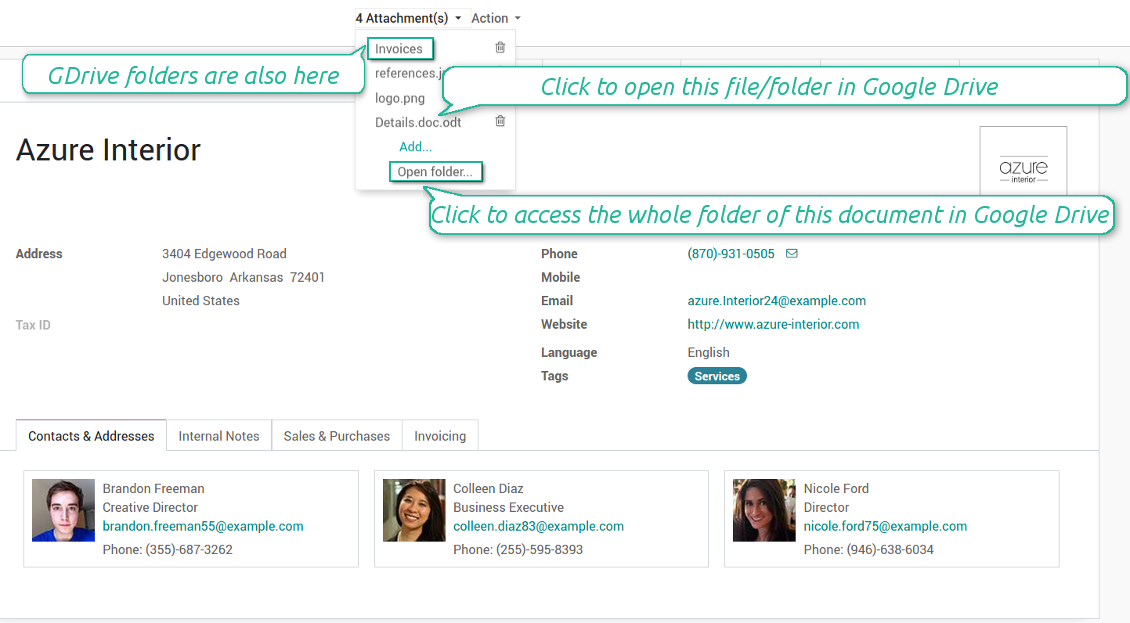

Google Drive doesn't have such disadvantages. This is the tool to integrate their features into your Odoo business work flow. The app automatically stores all Odoo attachments in Google Drive, and it provides an instant access to them via web links. In such a way users work with files comfortably in the cloud storage, while the results are fully available in Odoo.
Automatic integration
Bilateral sync
How files and folders are synced from Odoo to Google Drive
- Prepare and keep updated folders' structure in Google Drive
- Upload new attachments to a correct folder
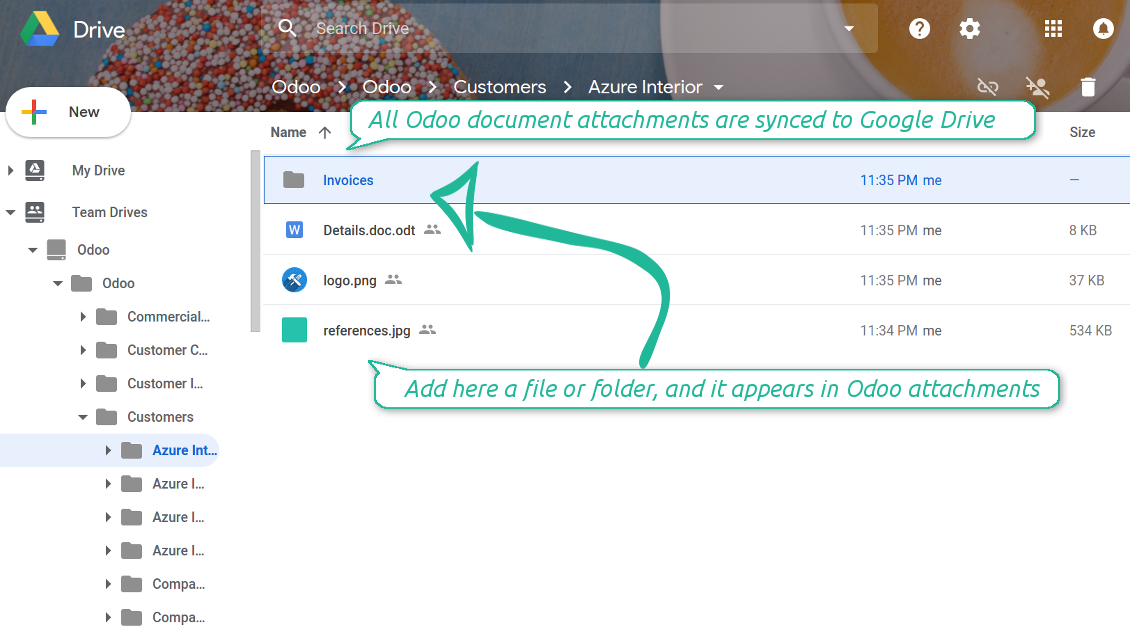
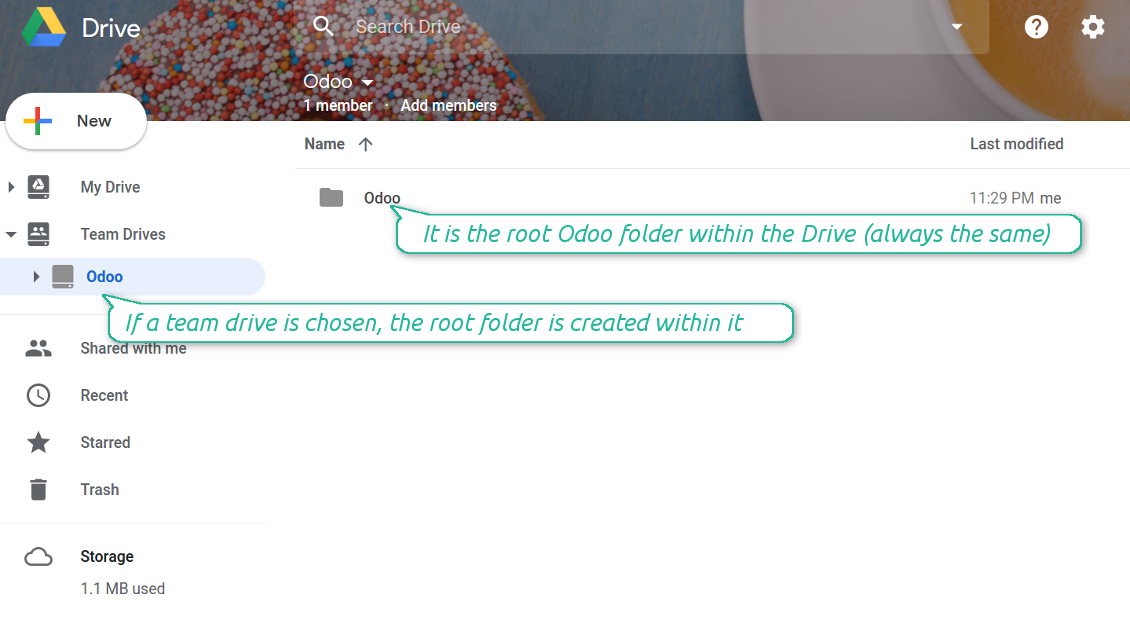
Odoo creates a convenient directory structure in Google Drive: Odoo / Document type name / Document name / Files, where:
- Odoo is a central directory for Odoo Sync in your Drive.
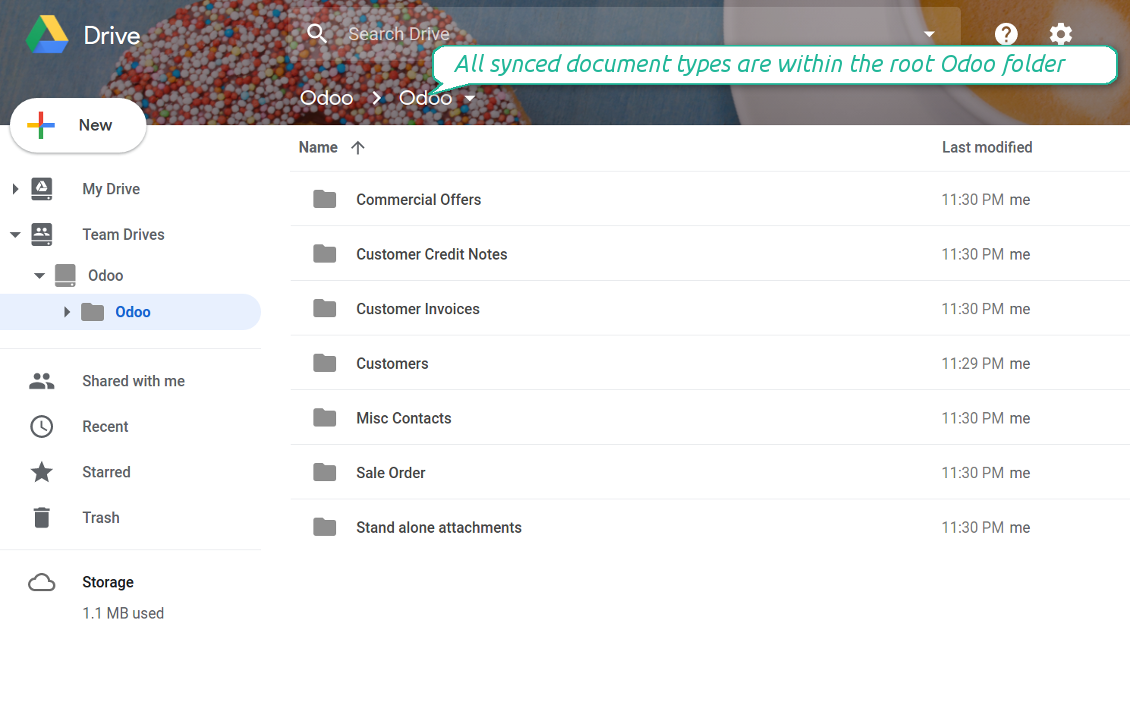
- Document type is a synced Odoo model, for example, 'Sale orders', 'Opportunities', 'Customers'
- You select document types by yourself. It might be any document type
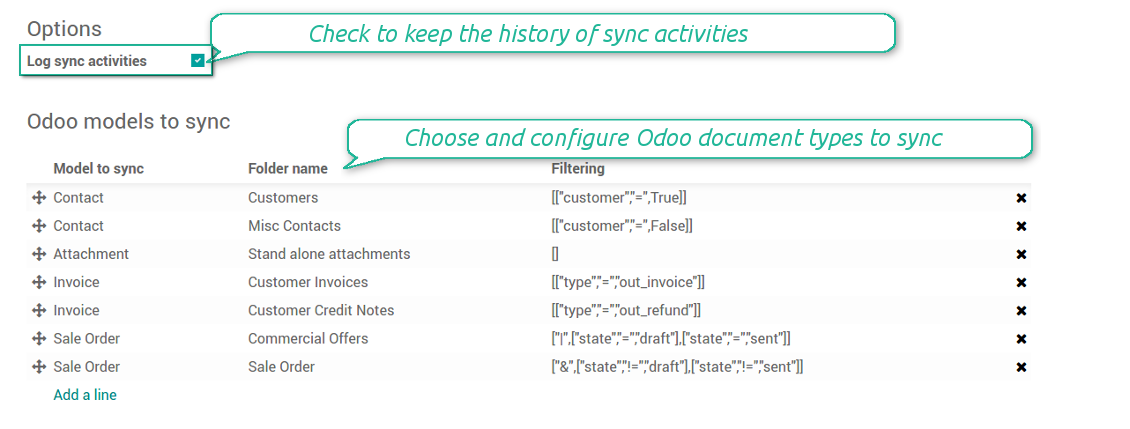
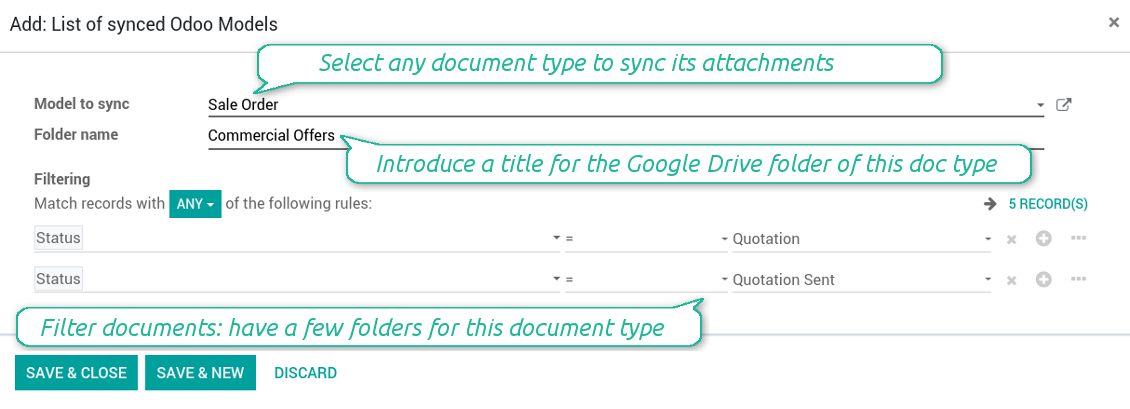
- Moreover, you might have a few folders for a single document type. Use Odoo domains to have not global 'Partners, but 'Customers' and 'Suppliers', not just 'Sale orders' but 'Commercial offers', 'To deliver', and 'Done orders'
- With each sync Odoo would try to update document types' folders. Add a new document type at any moment. It will appear in Google Drive with a next sync
- You are welcome to introduce or change document types folder names at any moment in Odoo. Take into account: renaming in Google Drive will be recovered to Odoo names
- If you remove a model from integration, it will not be deleted from Google Drive to keep already synced files safe. However, new documents of this type would not be synced
- In case you removed a directory in Google Drive, but it is still configured in Odoo, with a next sync a folder structure is going to be recovered (not files, surely).
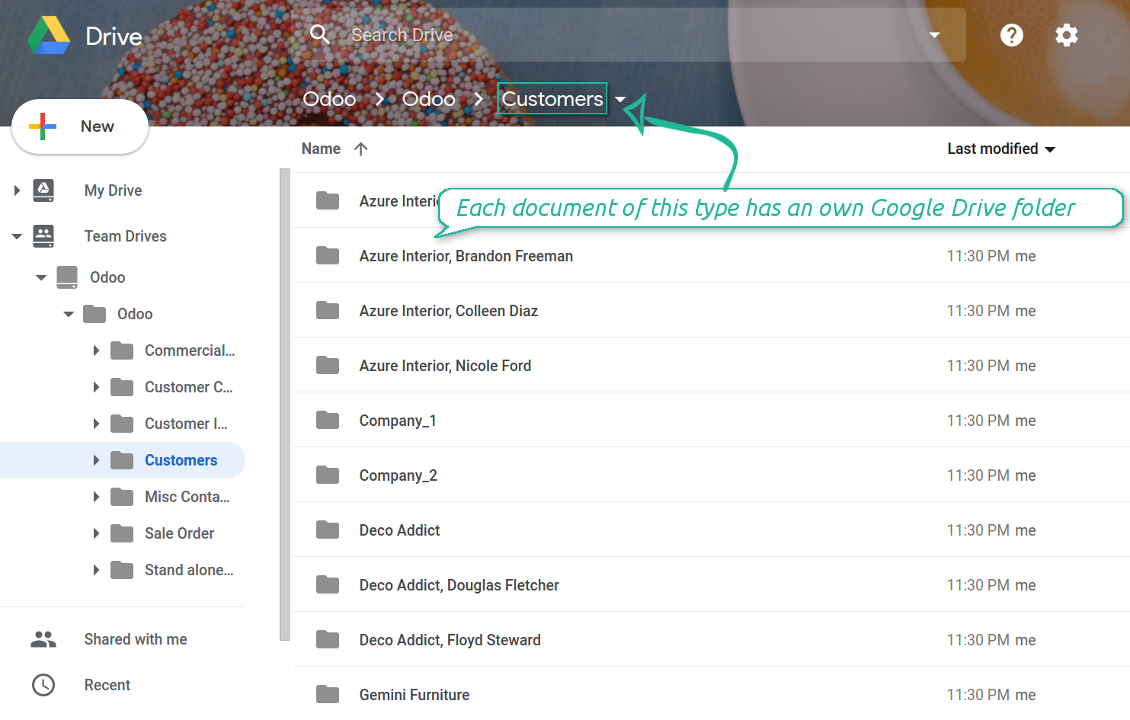
- Document is an exact object to sync. For instance, 'Agrolait' or 'SO019'
- Documents are synced in case they relate to a synced document type and satisfy its filters. For example, you are not obliged to sync all partners, you may integrate only 'Customers' and 'Vendors' or only 'Companies', not 'Contacts'
- Odoo would generate a folder in Google Drive for each suitable document even for documents without attachments. It is needed for a backward sync to easily add new files
- Google Drive folder name equals a real document name. It relies upon Odoo name_get method. Thus, Odoo 'Michael Fletcher' (a contact of 'Agrolait') would be Google Drive 'Agrolait, Michael Fletcher'
- If an exact document changes its document type (e.g. a quotation is now confirmed), Odoo will automatically relocate its related folder to a proper parent directory (in the example: from 'Commercial offers' to 'To deliver')
- In case a document relates to a few types (for instance, you have 'Vendors' and 'Customers', while Agrolait is both), this document folder would be put into the most prioritized document type. A document type priority is higher as closer to the top in Odoo interfaces it is
- If an Odoo document is removed, the next sync will remove a corresponding Google Drive directory
- In case you remove a directory in Google Drive, but it still exists in Odoo, Google Drive folder structure would be recovered (while files would be unlinked in both Odoo and Google Drive)
- Folders renaming in Google Drive will be replaced with Odoo names, Odoo document names are more important
- Files are real files taken from Odoo attachments
The resulted path would be, for example, 'Odoo / Quotations / SO019 / commercial offer.png'.
The only exclusion of the rule are stand alone attachments which do not relate to any Odoo documents (their document type is 'ir.attachment'). Such attachments' path is 'Odoo / Stand Alone Attachments / image.png'.
The very first sync might take quite a long, since a lot of folders should be created. Afterwards, it would be much faster. However, it is not recommended to make sync too frequent: once an hour seems quite good for large files.
FilesWith each direct sync, Odoo tries to find not yet synced attachments. If such attachments suit any document type to sync, a file will be uploaded to Google Drive to a proper folder. In Odoo such attachments will become of 'url' type. It means that a file is not any more kept in Odoo server space, but now it is in Google Drive. Until sync is done, Odoo attachment remains binary and stores an actual file. Such approach helps Odoo to work faster.
Clicking on such attachment leads you to a file previewer / editor in Google Drive. Depending on your Google Drive configurations it might be Google Documents, Google Spreadsheets, PDF previewer, etc. Anyway changes to file contents in Google Drive are available in Odoo at the same moment.
If you unlinked an attachment from Odoo, it would be deleted in Google Drive as well.
Take into account that file names should be managed in Google Drive: each backward sync would recover Google Drive names, Odoo is here less important.
How items are retrieved from Google Drive to Odoo
- If a new file is added to a proper document folder (e.g. to 'Odoo / Customers / Agrolait'), the same attachment will be added to Odoo document (in the example - to 'Agrolait')
- In document folders you can put not only files but also child folders. In that case a link for this folder (not its content) is kept in attachments
- In case you rename a file in Google Drive, it will be renamed in Odoo as well
- Files' removal from Google Drive leads to related Odoo attachments' removal
- If you move a file to another document folder, in Odoo a related attachment would be re-attached to this new document. Take into account: if you move a file for a not document folder, in Odoo attachment will be deleted as it has been removed from Google Drive
- If you deleted a document type or a document folder, their child files are deleted as well. Thus, Odoo would remove related attachments. The folders, however, will be recovered with a next direct sync. Folders' move to another directory is also considered as a removal. Avoid such situations by following the simple rule: folders are managed mostly by Odoo, files - mostly by Google Drive.
Backward Google Drive sync might take quite much time, since each folder should be checked (the more folders, the more time the backward sync requires). It is recommended to make frequency oftener than once an hour or two hours.
Екранни снимки
All document types are in the root directory 'Odoo'
Document types' folders
All document of this type has an own folder
Sync any documents you like
The tool let you split any business model into a few directories. Have a separate folder for individuals and companies, for European and American opportunities, for each project, etc.
Moreover, it is possible to guarantee that only topical documents are synced by using relative periods: leads registered in the last 3 months, invoices updated the last week, and so on.
Typical use cases
- Projects: automatically forward all project-related documents to Google Drive to share those with a customer as a cloud link.
- Customers: add all partner files in a single directory available both from Odoo and from Google Drive. Modify those using default cloud editors and access them when working in Odoo.
- Employees: gather all files by this employee in a single cloud folder: photos, document scans, contracts. Access and upload those from Odoo and Google Drive alternatively.
- Opportunities: carefully store all specifications, requirements and any file which would let you make a good offer.
- Orders: keep all printings and contracts in Google Drive with simple availability from Odoo.
Екранни снимки
Choose document types to be synced
Document type might have a few folders based on filters
Easy accessible files
Екранни снимки
Fast access to Google Drive files and folders
Synced files are simply found in Google Drive. Add unlimited number of files or folders here
Individual and team drives
Sync logs in Odoo
Екранни снимки
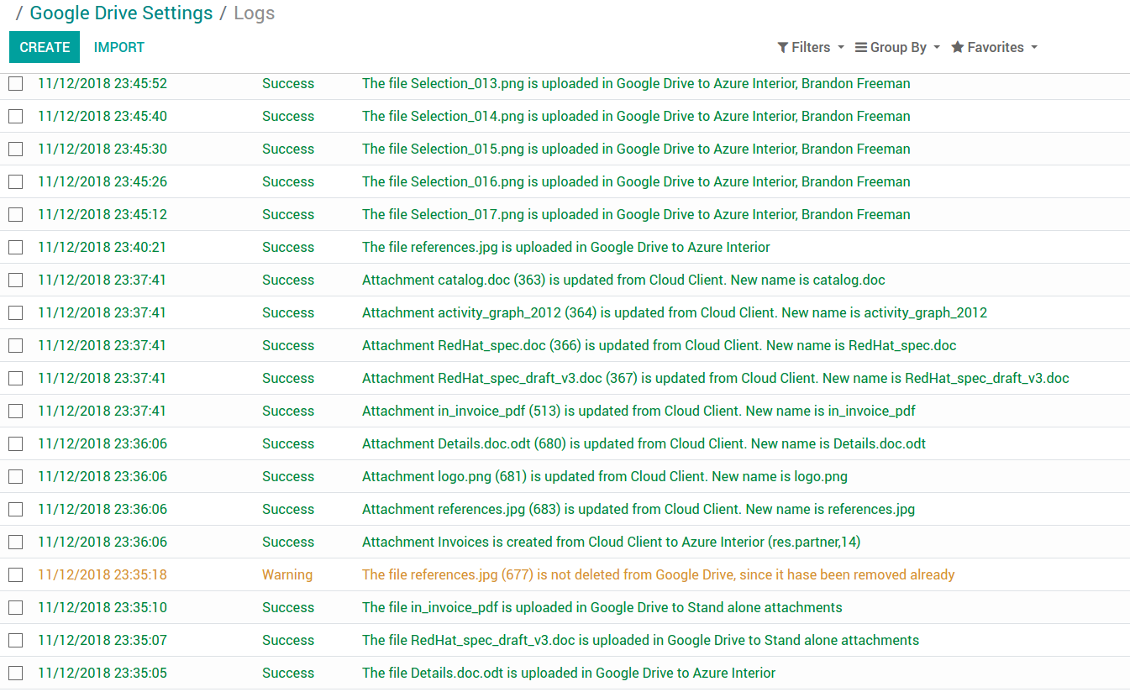
Logged synchronisation activities
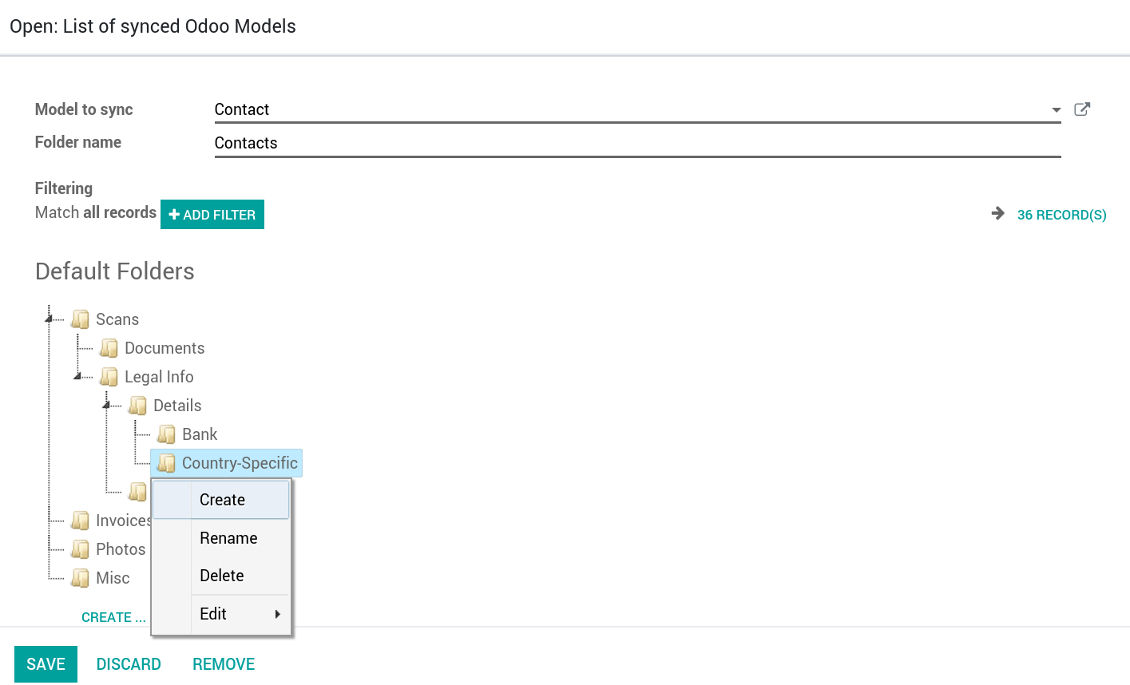
Default folders for documents
Екранни снимки
Default folders for this document types to be created while firstly synced
Applicable to all Odoo apps
A few important peculiarities to take into account
- Take into account that files or folders deleted in Google Drive are really deleted only when you clean trash. Otherwise, such files still exist and would be reflected in Odoo
- Try to avoid the following symbols in folders' and files' names: *, ?, ", ', :, <, >, |, +, %, !, @, \, /,. Direct sync will replace such symbols with '-'. It is done to avoid conflicts with file systems.
Compatible with Odoo Enterprise Documents
How Odoo Enterprise Documents are synced
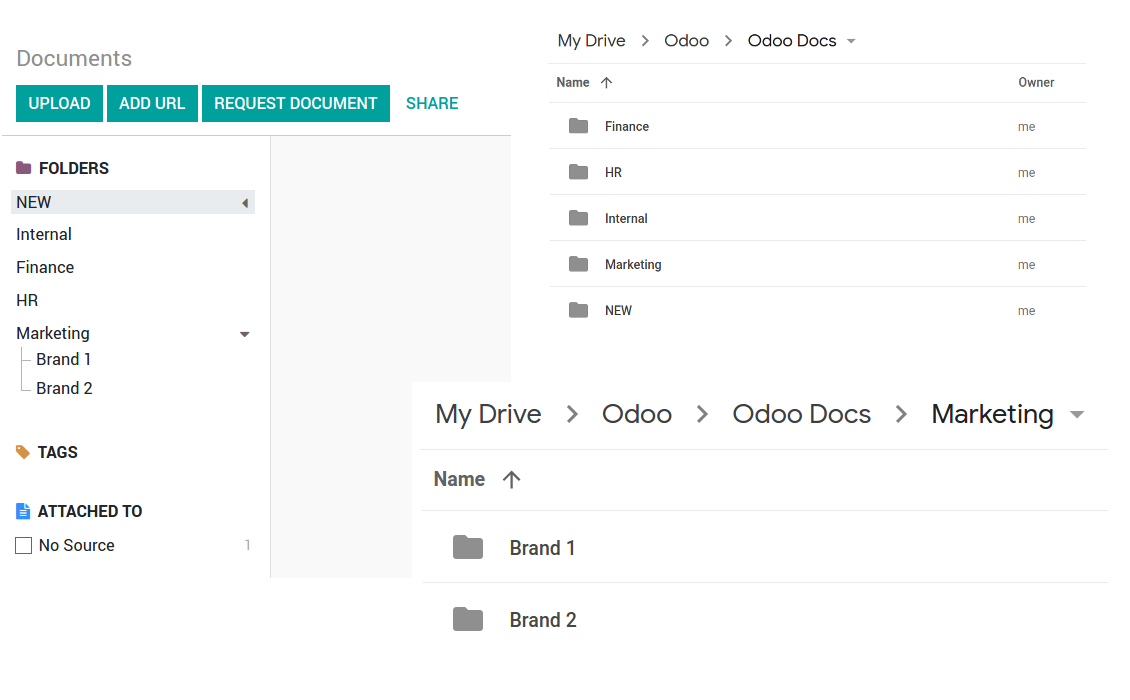
This tool is not in conflict with the 'documents' module provided by the Enterprise license. Attachments related to Enterprise folders would be synced as any other files: according to a document they relate to. In the most cases it means they would be linked to stand-alone attachments.
It is not always comfortable, and you might be interested in reflecting directories' structure introduced by the module 'Documents'. To this end the extension Cloud Sync for Enterprise Documents (its standard price is 44 Euros) is developed. This tool has the following features:
- The documents hierarchy is reflected within the folder 'Odoo / Odoo Docs'
- Each Odoo folder has a linked cloud folder. Take into account that folders created in the cloud storage will be synced as Odoo attachments. The key principle is: folders are managed by Odoo, files are managed by the cloud client
- All files are synced with the same logic as usual attachments. Files created in Odoo will be added to the cloud storage and will be replaced with links in Odoo. Files created in cloud storage will generate attachments within a paired directory
- Please do not name synced models as 'Odoo Docs'. This is the reserved name for Odoo Enterprise Documents
Екранни снимки
Odoo Enterprise documents sync
Tricky setup, but works perfectly now
Really solid module. We managed to get a very flexible folder structure (sorted by clients) and synced all our sales orders, invoices and tasks by projects to Google Drive.
Initial setup was a bit of a pain and kinda tricky to configure everything at first, but now it's running smoothly and works perfectly. The faotools team helped a lot. Def worth it if u need to keep your docs organized in Odoo and Google Drive.
Recommended!
Excellent !!!
Great App and great Service from faOtools.
Best module for integration with google drive
The module performs its function correctly and faOtools responds quickly to any problem and, in case of detecting any bug, quickly apply the changes. Its support is 10 stars.
Съвети за конфигурация и инсталация за Google Drive Odoo Integration Odoo v.12
Login and Google Drive Credentials
- Go to the Google Cloud Console via the URL https://console.cloud.google.com
- Select or create a project
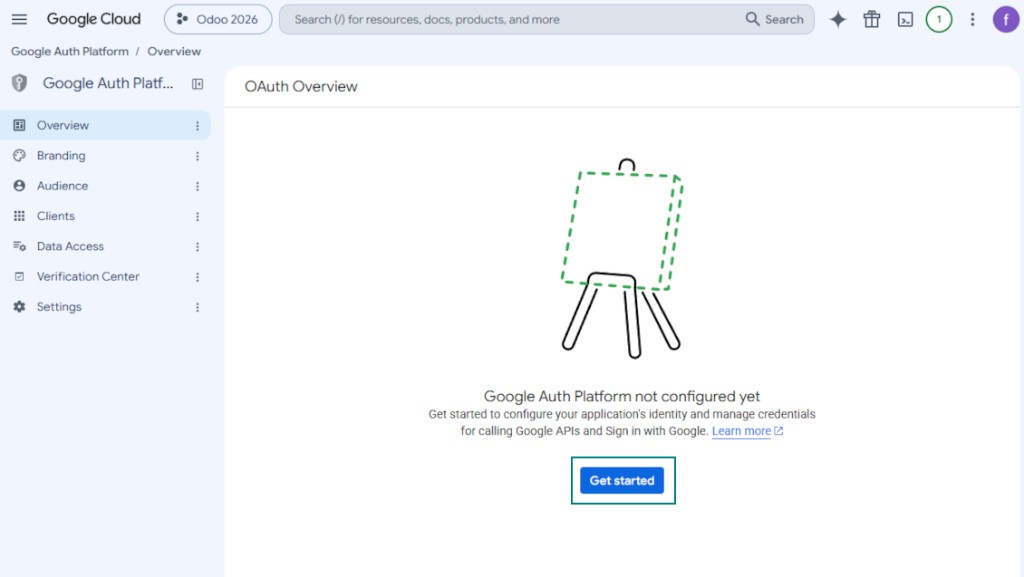
- After the project is selected, the console opens the Google Auth Platform. Press 'Get Started'
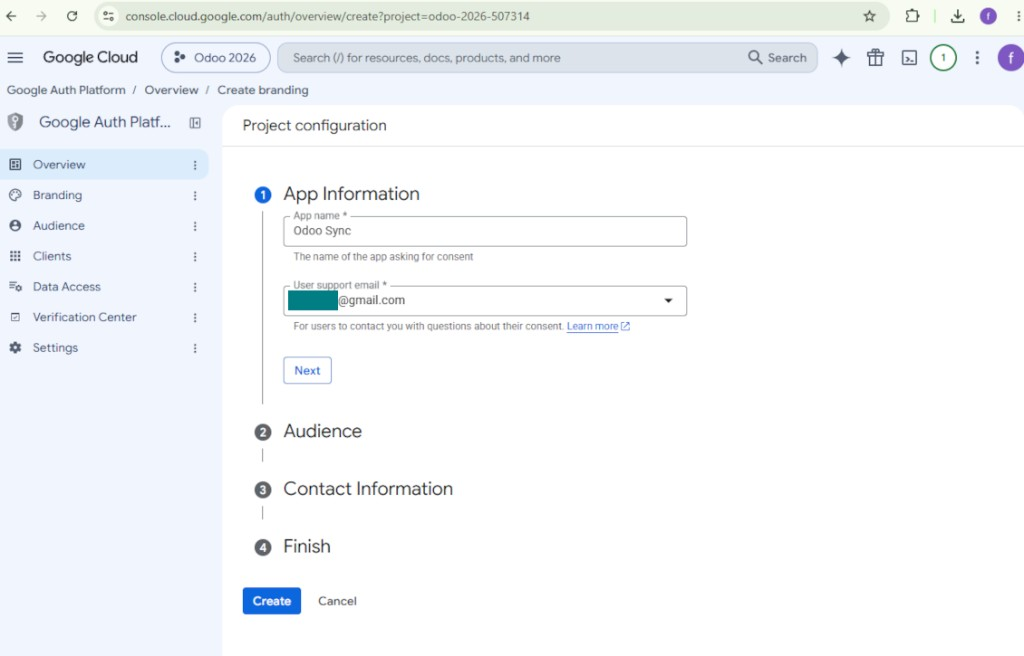
- Add app information
- As an app name select any suitable
- As a user support email select your email address
- Press 'Next'
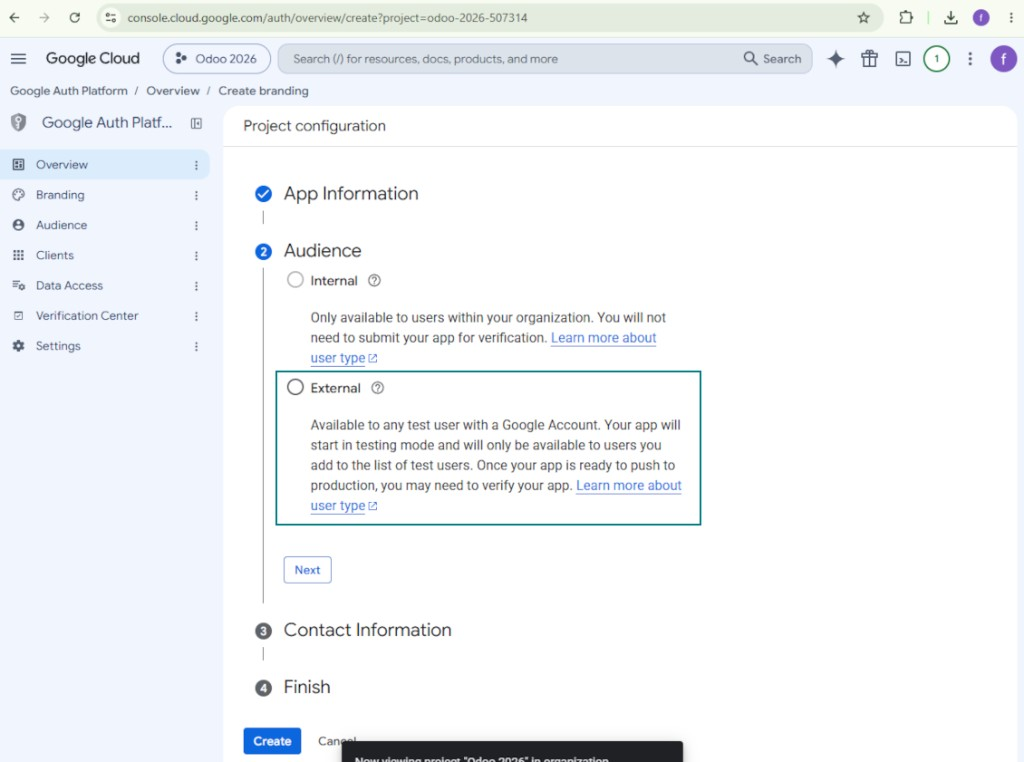
- As the audience select 'External' and press 'Next'. Note: you are anyway going to use this app only for your own Odoo connection
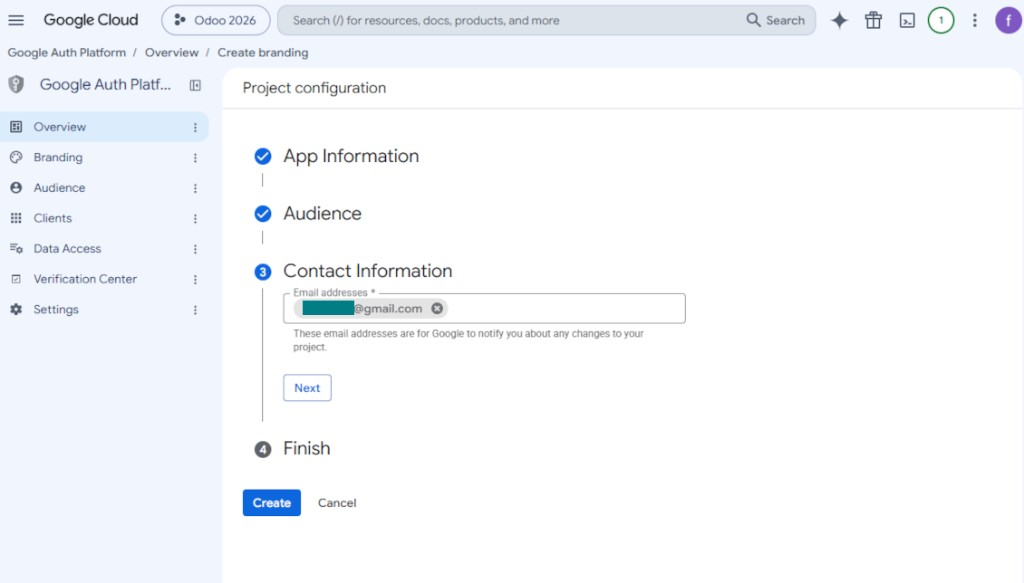
- As the contact information enter your Google or Google Workspace email address and press 'Next'
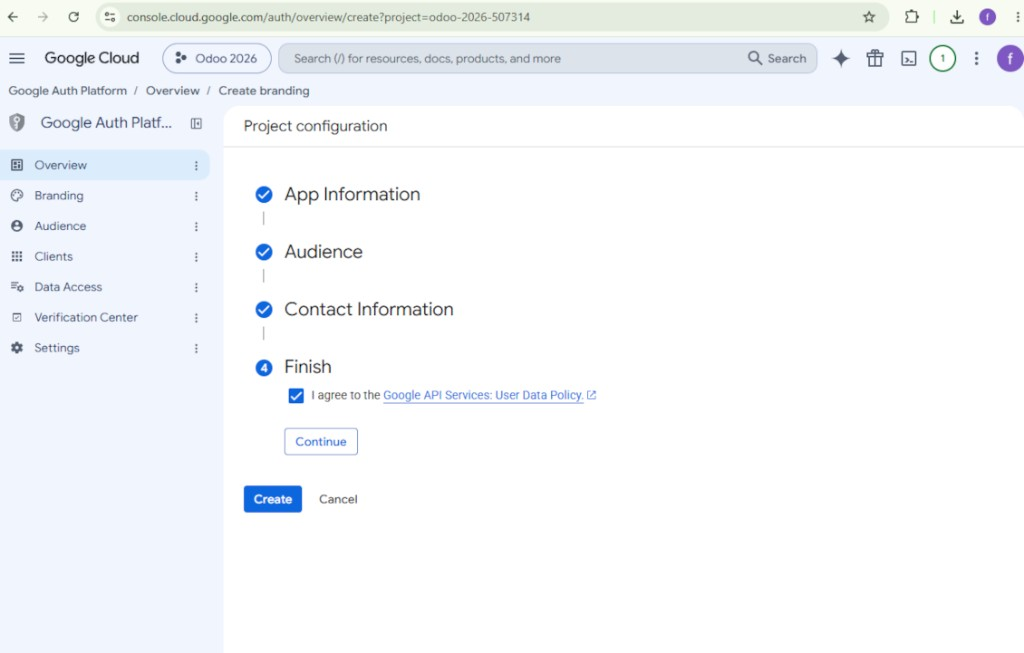
- Agree with the Google API Services User Data Policy, press 'Continue', and then press 'Create'
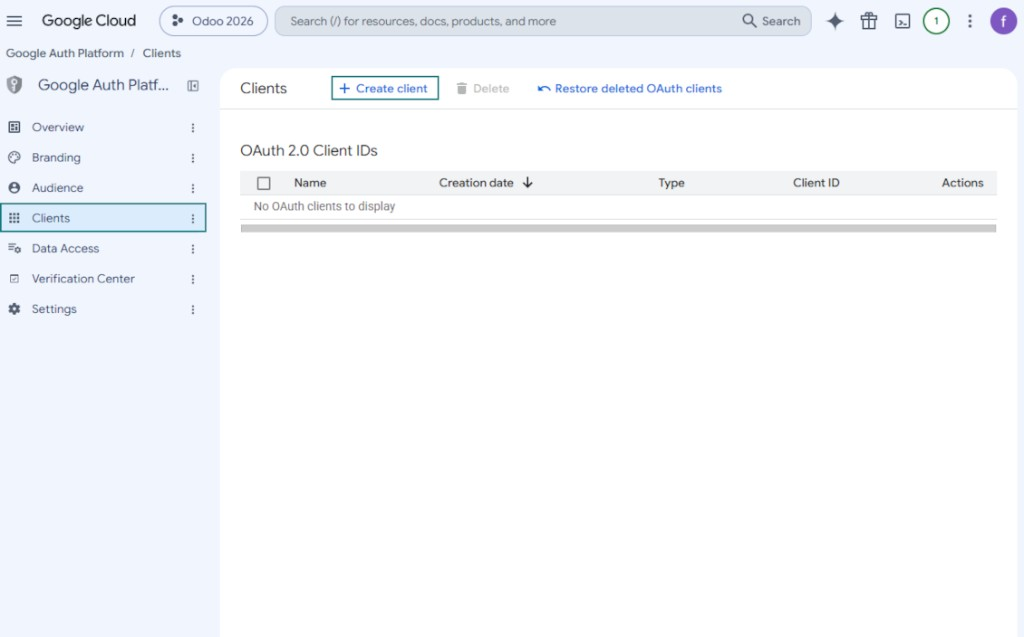
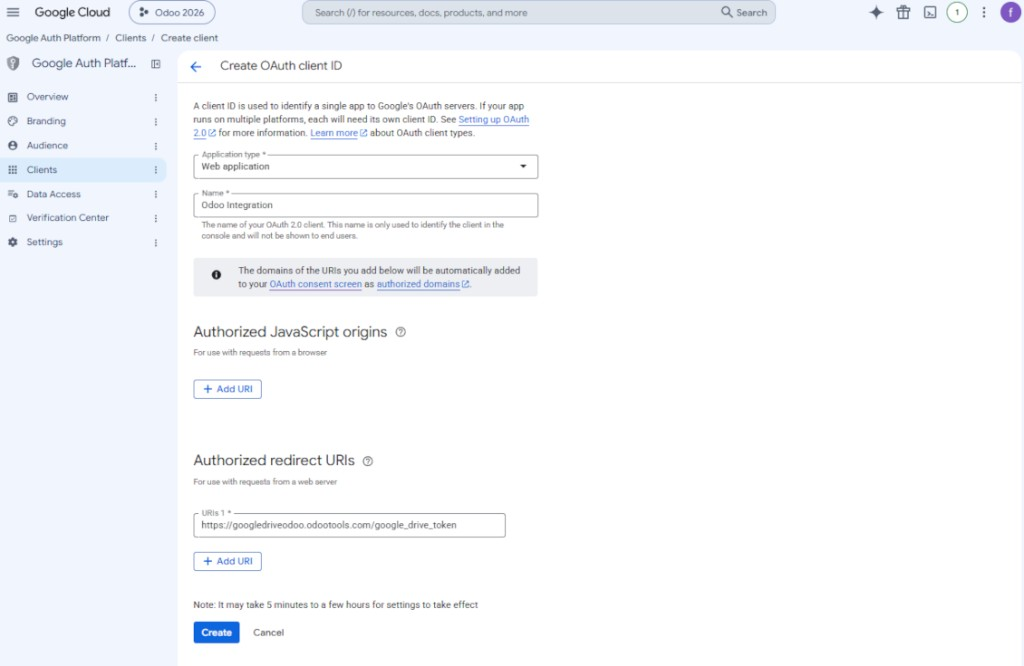
- Go to 'Clients' and press 'Create client'
- As the application type select 'Web application'
- As a name select any suitable
- As the authorized redirect URI, add the link in a format [YOURODOOSITENAME]/google_drive_token (e.g. https://odootools.com/google_drive_token).
- Press 'Create'
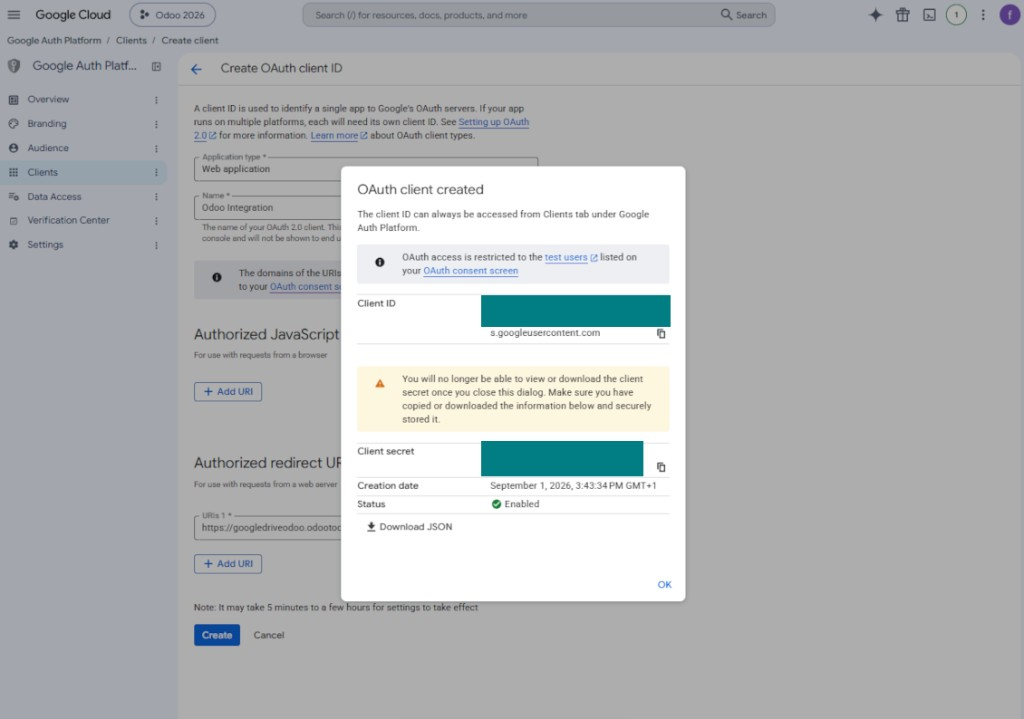
- Copy and safely store 'Client ID' and 'Client secret'. The client secret is shown only once
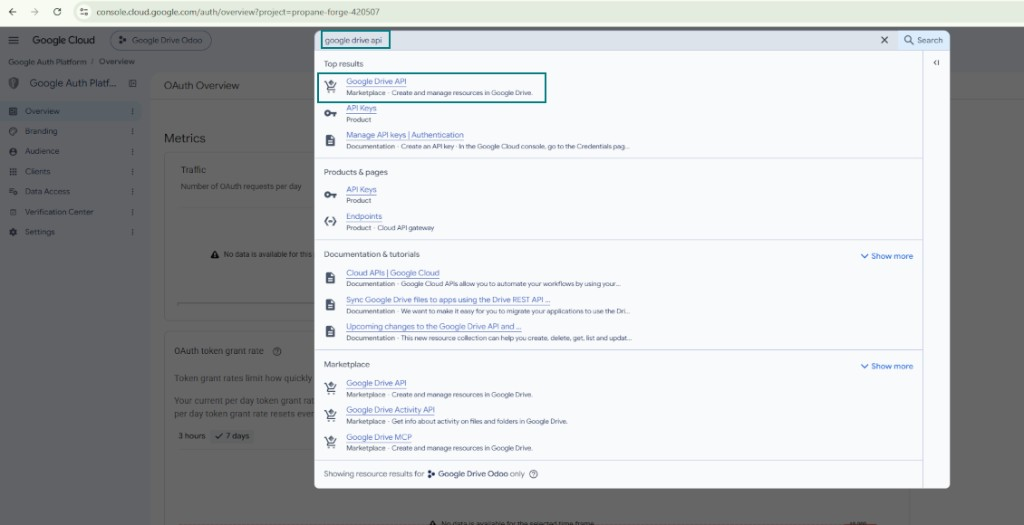
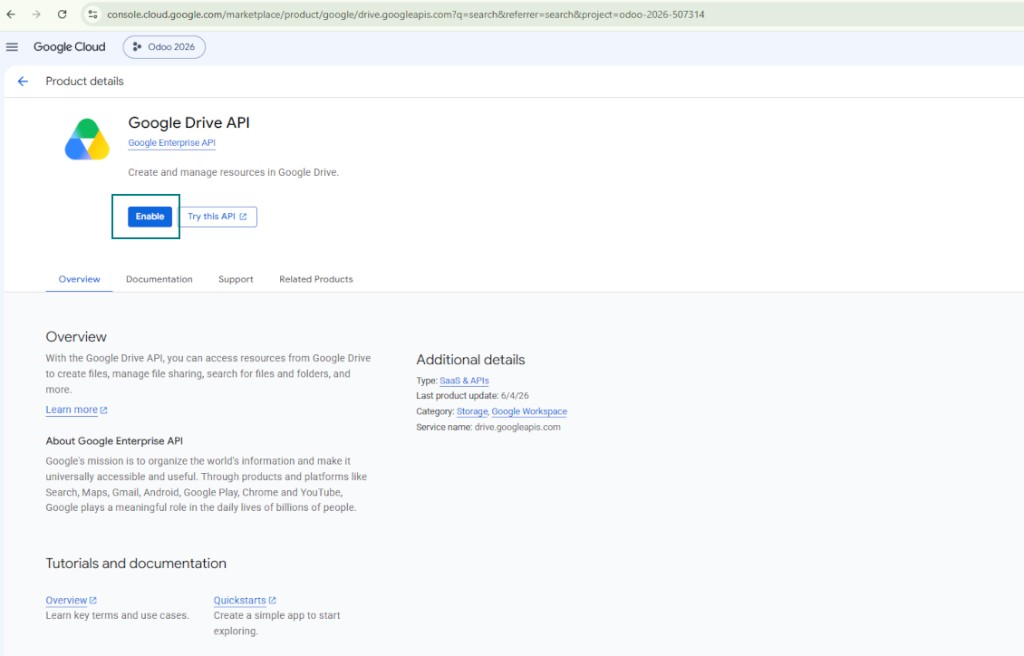
- Enable the Google Drive API for this project: type 'Google Drive API' in the top search box, open the found product, and press 'Enable'
- Go to 'Audience' and add your email address as a test user
- Publish the app. Otherwise, the app stays in the testing state and its token expires every 7 days
- Open 'Branding' and fill in the application home page and the application privacy policy link (for example, the links to your Odoo website). Add the domains of those links as the authorized domains
- Open 'Audience' and press 'Publish app'
- Do not upload an app logo. This would invoke a long and complex Google verification process that is of no actual need to you
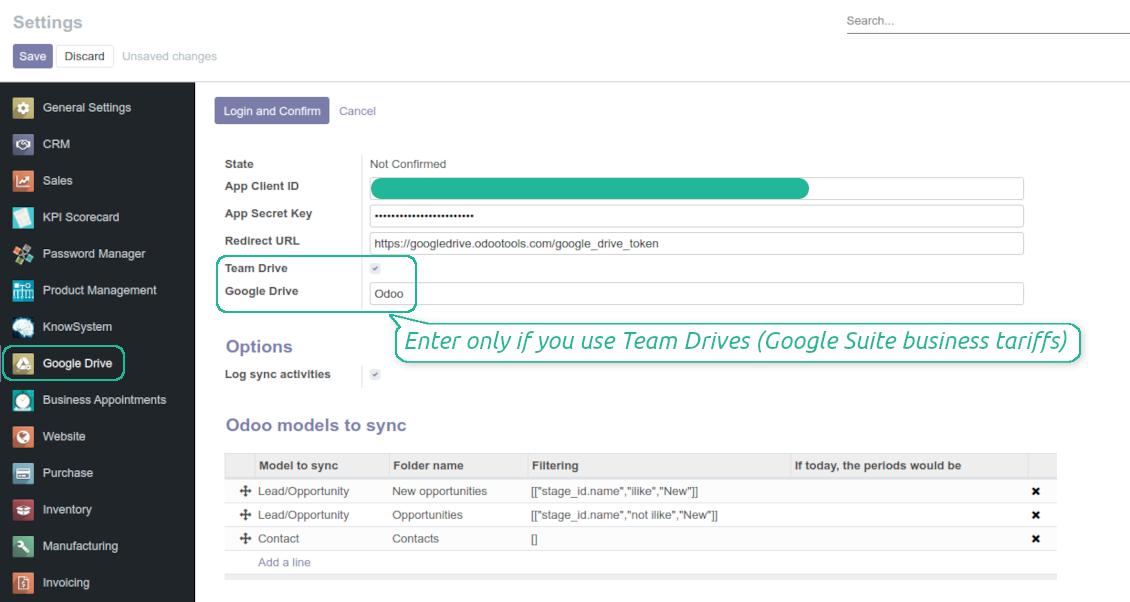
- Go to the Odoo Google Drive Settings
- Copy 'Client ID' from step 8 into the field 'App Client ID'
- Copy 'Client secret' from step 8 into the field 'App Secret Key'
- Insert the redirect URL you entered in step 8
- If you use team drives, check the related box. Make sure you really use team drives. In you Google Drive you should find the item 'Team Drives' in the left sidebar. This feature is available only for business and enterprise tariffs
- If the option 'Team Drive' is enabled, introduce its name. It should be absolutely the same as you see it in your Google Drive. Make sure that your user has full rights for this team drive
- Press 'Save'
- Press 'Login and Confirm'. Odoo redirects you to Google login page. Check in, agree with all conditions, and grant permissions asked
- After login, Google redirects you back to Odoo. Google Drive - Odoo synchronization is ready to be done.
Open the Google Auth Platform
Add app information
Select the external audience
Add contact information
Agree with the policies and create the app
Create an OAuth client
Configure the web application client
Copy the client ID and client secret
Find the Google Drive API
Enable the Google Drive API
Fill in branding to publish the app
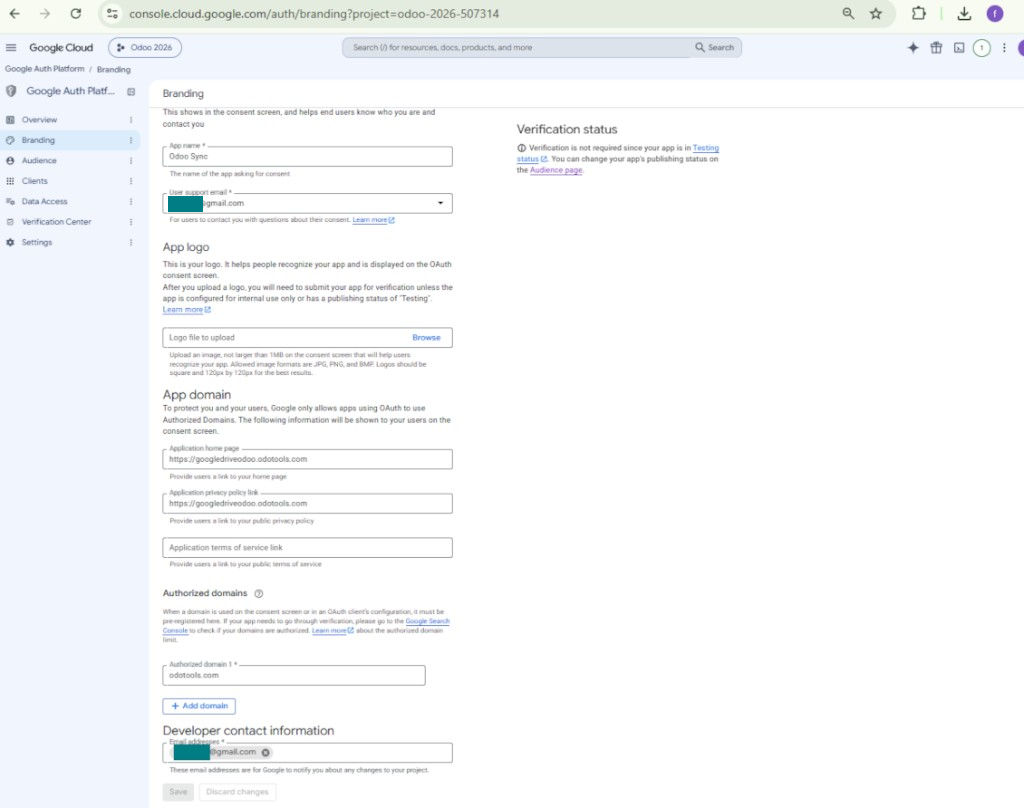
Add test users and publish the app
Enter Google app credentials to Odoo
Odoo server configuration and cron job configuration
To make sure the synchronization works correctly apply proper timeouts to the Odoo configuration file: LIMIT_TIME_CPU, LIMIT_TIME_REAL should be more than 900 seconds.
For Odoo.sh this should not be done, since timeouts are predefined and are not configurable.
Then, timeout should be entered to your Odoo. To that goal find the section 'Settings' on the app configuration page and copy the number there.
Afterwards, it is needed to make the cron jobs suit the applied timeouts. In the debug mode go to the Settings > Technical > Automation > Scheduled Jobs:
- Set up the job 'Synchronize attachments with cloud' as (a) frequency - 2*timeout; (b) the next execution as the next hour +timeout. For example, for 900seconds timeout: frequency - as 30minutes; the next execution - at 08:15
- Set up the job 'Synchronize attachments from cloud' as (a) frequency - 2*timeout; (b) the next execution as the next hour + timeout*2. For example, for 900seconds timeout: frequency - as 30minutes; the next execution- at 08:30.
Често задавани въпроси за Google Drive Odoo Integration Odoo v.12
Споделят ли се създадените Google Drive папки автоматично между потребителите на Odoo?
Самото приложение не регулира правата за достъп от страна на Google Drive. Това се прави там ръчно. Odoo създава целеви папки в Google Drive, които по подразбиране не се споделят, а разрешенията можете да променяте за която и да е папка. Например пълни права за каталога 'Odoo' или за конкретен 'Odoo > Sale Orders' или 'Odoo > Sale Orders > SO-001'.
Приложението работи на принципа на една потребителска крайна точка. Всички синхронизации се извършват от името на същия потребител на Google Drive (според конфигурираното приложение Google API).
Изтрих файл в Google Drive, но той все още е в Odoo
За да изтриете файл напълно, изчистете и кошчето в Google Drive.
Също така файлът може още да е в Odoo, защото обратната синхронизация още не е обработила прикачения файл. Това е планиран процес и трябва време.
Ще бъда ли таксуван от Google въз основа на заявката към API?
Модулът използва само безплатен API, затова Google няма да ви таксува.
Мога ли да променя честотата на задачите за синхронизация?
Да, можете. За тази цел:
Включете режима за отстраняване на грешки
Отидете в техническите настройки > Автоматизация > Планирани задачи
Намерете задачите 'Synchronize attachments with cloud' и 'Update attachments from cloud'.
Не ги правете прекалено чести. Желателно е задачата да приключи преди да започне следващата. Настройката зависи от това колко елемента имате за синхронизация. Обикновено честотата е между 15 минути и 4 часа.
Уверете се също, че в конфигурационния файл на Odoo сте задали достатъчни времеви ограничения. Параметрите LIMIT_TIME_CPU и LIMIT_TIME_REAL трябва да са равни или по-големи от планираното време на cron задачата. От версия 13 вземете предвид и параметъра LIMIT_TIME_REAL_CRON.
Важно съобщение за клиенти на Odoo.sh: максималното време на cron задача може да е само 15 минути.
Мога ли да конфигурирам различна структура на синхронизираните директории от предполаганата от синхронизацията?
Не, тази функция е налична едва от версия 15. Преди тази версия модулът работи с предварително зададена структура от папки:
Odoo - основна папка за синхронизация
Models - папки за всеки тип документ на Odoo. Например 'Projects', 'Partners'. По домейн може да има по-конкретни папки: напр. 'Customer 1 Projects', 'Projects of the Customer 2', 'Internal Projects' и т.н.
Objects - папки за всеки документ, напр. 'Project 1' или 'Customer 1'
Файлове и папки, свързани с този документ на Odoo, които ще се синхронизират.
В резултат може да имате например:
Odoo / Projects / Project 1 / файлове и папки, свързани с project 1
Odoo / Customer 1 Projects / Project 1; Odoo / Customer 2 Projects / Project 3, ...
Odoo / Customers / Customer 1 / файлове и папки, свързани с customer 1
Тази структура е винаги плоска, тоест има само тези нива на йерархия. Затова е вярно, че различни типове документи не могат да са в една и съща структура. В папката 'Customer 1' не можем да държим файлове, свързани едновременно с поръчки за продажба, фактури и проекти. Всеки от тези типове документи има собствена папка (или няколко собствени). Иначе няма да можем да направим обратна синхронизация, защото няма да има критерий, на който да се опрем.
Трябва ли да настроя достъпи на конкретни потребители в Odoo?
Не, инструментът разчита на една потребителска крайна точка. Всички процеси на синхронизация се изпълняват под един cloud администратор (приложение). Правата за достъп до създадените папки / файлове не са автоматизирани. Трябва да ги администрирате в решението си за облачно хранилище.
Къде се съхраняват синхронизираните полета? Дублират ли се в Odoo и clouds?
Приложението приема, че двоичното съдържание на прикачените файлове се съхранява в Cloud Client вместо на сървъра на Odoo. Такива прикачени файлове в Odoo стават от тип URL и можете по всяко време да ги отворите от полето за прикачени файлове или от Cloud Client.
След настройката не са нужни ръчни действия, защото синхронизацията е напълно автоматична. Решете кои типове документи на Odoo да се синхронизират и задайте свързан модел за всеки от тях (клиенти, поръчки за продажба или покупка, задачи, проекти и т.н.).
Мога ли да имам няколко папки за същия тип документ? Например вътрешни проекти и клиентски проекти?
Да, можете. За целта подгответе правило за всеки и след това приложете филтри: например по тип на проекта.
Опитайте филтрите да са взаимно изключващи се, за да може документът да се присвои еднозначно. Например „клиент, но не доставчик“, „доставчик, но не клиент“. Иначе папката на конкретен документ ще скача от един модел към друг.
Нуждая ли се само от приложението Cloud Storage Solution?
Не, инструментът е само техническо ядро. Нужен ви е и конекторът за вашия cloud client.
Нормално ли е, ако имам много обекти за синхронизация, например 10000?
Да, макар че при много папки/прикачени файлове за синхронизация процесът може да е бавен. Същевременно клиенти съобщиха за среди с >10k партньори и ~5k продуктови варианти за синхронизация и процесите бяха приемливи.
Няколко точки за подчертаване:
- Синхронизацията е така построена, че всеки елемент ще се синхронизира и няма да се загуби, макар да не е бърза. Гарантира се от опашки FIFO и от всеки commit-нат job.
- Броят на обектите може да се ограничи логически. Конфигурацията на моделите позволява да ограничите синхронизацията на остарели елементи (напр. няма смисъл да се синхронизират архивирани партньори или поръчки от преди 2 години).
Възможна ли е синхронизация в реално време?
Не. Имаме сериозни причини да избягваме синхронизация в реално време:
Проблеми с производителността. Ако синхронизацията е в реално време, всяко качване на файл ще показва екран на зареждане.
Проблеми с конфликти. Ако 2 потребители променят едновременно елемент, може да възникнат неразрешими ситуации. При регулярни задачи можем да го оправим после, а при реално време трябва да го пазим като опашка, което е още по-объркващо за потребителите.
Проблеми с функционалността. Особено преименуване и преструктуриране на елементи. При обратната синхронизация инструментът стриктно разчита на логиката на директориите и при всяка синхронизация се проверяват 100% от елементите. Ако това става след всяка промяна, ще има хиляди заявки в секунда. Ако не: промените ще се загубят.
Мога ли да синхронизирам прикачени файлове с няколко cloud клиента
Не, тази функция е налична едва от версия 15.
В нашите облаци използваме специален редактор (напр. OnlyOffice, Office 365 и др.). Ще се отварят ли файловете в този редактор?
Да, в зависимост от конфигурацията на cloud client.
Какви са политиките за обновяване на вашите инструменти?
Според действащите правила на Odoo Apps Store:
- Всеки модул, купен за версия 12.0 и по-стара, дава достъп до всички версии до 12.0.
- От версия 13.0 всяка версия на модула се купува отделно.
- Независимо от версията покупката дава право на всички обновления и поправки в рамките на основната версия.
Имайте предвид, че екипът на faOtools не контролира тези правила. За въпроси се обръщайте директно към представителите на Odoo Apps Store.
Как да инсталирам вашето приложение в Odoo.sh?
Най-прекият подход е да използвате вградения работен поток на магазина Odoo:
1. Отворете страницата на модула и щракнете бутона Deploy on odoo.sh
2. След това ще бъдете пренасочени към страницата на GitHub. Влезте в профила си, след което щракнете 'Create a new repo' или използвайте съществуващо. Уверете се, че хранилището е частно. Не е позволено публикуването на приложения под лиценз OPL-1. Ако е нужно, създайте ново repo за проекта Odoo.sh
3. След това отидете в odoo.sh и щракнете бутона Deploy. В изскачащия прозорец потвърдете решението и щракнете 'Continue.' Това стартира инсталацията.
Тези стъпки ще инсталират приложението в продукционния клон на проекта. Ако искате да разположите приложенията в други клонове или да обновите модула, направете следното:
1. Качете изходния код на приложението от магазина Odoo
2. Направете commit на модула в необходимото GitHub хранилище. Уверете се, че никой папки/файлове на приложението не се игнорират (т.е. не са в .gitignore на repo). Хранилищата се създават автоматично от odoo.sh и по подразбиране може да включват важни елементи (напр. /lib). Качете всички директории, поддиректории и файлове на модула без изключения
3. Разположете целевия клон на проекта odoo.sh или, ако настройките предполагат това, изчакайте да се изгради автоматично.
Как да инсталирам вашето приложение на собствен сървър?
2. Рестартирайте сървъра на Odoo;
3. Включете режим за разработчици (технически настройки);
4. Обновете списъка с приложения (менюто с приложения);
5. Намерете приложението и натиснете „Activate“/„Install“;
6. Следвайте указанията на страницата на приложението, ако има такива.
Забелязах, че приложението ви има допълнителни добавки. Мога ли да ги купя по-късно?
Да, разбира се. Едновременно Odoo автоматично добавя всички зависимости в количката, затова трябва да изключите вече купените инструменти, за да избегнете двойно плащане.
Инсталирах приложението ви в Odoo.sh и в тестовете виждам предупреждение/грешка
Червено/оранжево предупреждение не влияе на функциите на приложението. За съжаление понякога модулите ни не минават стандартните автоматични тестове, защото те очакват поведение в конфликт с целите на приложението. Например променяме изчислението на цената, а тестовете на стандартния модул Odoo сравняват крайната цена със стандартен алгоритъм.
Първо проверете функциите на разгънатата база. Всичко работи ли коректно?
Ако все пак смятате, че предупреждението влияе на реални функции, свържете се с нас и изпратете пълните регистрационни файлове от инсталацията и пълния списък на разгънатите модули (включително ядро и трети страни).
Мога ли да купя приложението директно от вашата фирма?
Не, разпространяваме инструментите само чрез официалния магазин за приложения Odoo.
Бих искал да получа отстъпка
За съжаление нямаме техническа възможност да предложим индивидуални цени.
Мога ли да инсталирам приложението в моята база Odoo Online (SaaS)?
Не, приложения на трети страни не могат да се ползват в Odoo Online. За съжаление Odoo SaaS блокира тази възможност.
Вашият инструмент зависи от други приложения. Трябва ли да ги купя?
Да, инструментът изисква всички модули, посочени в зависимостите, за да работи правилно. Цената на страницата на приложението вече включва всички необходими зависимости.
Каква е цената на модула в щатски долари? Защо се промени?
Цената на нашите модули е в евро. Магазинът Odoo превалутира цените по вътрешния си курс. Затова цената в щатски долари може да се промени при обновяване на курса.
Текстовете на приложението и уебсайта на езици, различни от английски, са с помощта на ИИ и са съгласувани с официалните преводи на Odoo. Ако забележите грешка, изпратете тикет за коректност на преводите и ще го поправим.
Докладване на грешки
Ако срещнете грешки или непоследователно поведение, свържете се с нас. Гарантираме поправки до 60 дни от покупката и сме силно заинтересовани да подобряваме инструментите и след този срок.
За да се свържете с нас не са нужни телефонен номер или кредитна карта. Достатъчна е кратка регистрация по имейл, която не отнема повече от 30 секунди.
Включете възможно най-много подробности в заявката: екранни снимки, дневници на Odoo сървъра, пълно описание как да възпроизведете проблема и т.н. Обикновено са нужни няколко работни дни, за да се подготви работен план (ако грешката е потвърдена) или насоки какво да се направи (в противен случай).
Публични заявки за функции и идеи за модули (безплатна разработка)
Силно сме мотивирани да подобряваме инструментите си и ще сме благодарни за всяка обратна връзка. Ако изискванията ви са от обществена полза и могат да се реализират ефективно, екипът ще ги включи в нашия списък със задачи.
Такъв списък със задачи се обработва редовно и не предполага допълнителни такси. Макар да не можем да обещаем срокове и окончателен дизайн, това може да е добър начин да получите желаните функции без инвестиции и рискове.
За да се свържете с нас не са нужни телефонен номер или кредитна карта. Достатъчна е кратка регистрация по имейл, която не отнема повече от 30 секунди.

Инструментът за безопасно съхранение на пароли в Odoo за споделена употреба. Споделени трезори

Инструмент за изграждане на дълбока и структурирана база знания за вътрешна и външна употреба. Knowledge System. KMS. Ревизии като в уики.
398€
Инструмент за задаване на KPI цели и контрол на изпълнението по периоди. KPI табла. Дизайнер на табла. KPI графики

Инструментът за управление на услуги по време – от резервация на срещи до продажби и отзиви
398€
Инструмент за управление на Odoo от любимите ви AI чатове чрез MCP. Claude. Всеки AI с MCP.

Инструмент за гъвкаво подреждане на прикачените файлове на Odoo в папки и синхронизация на директории с облачни клиенти: Google Drive, OneDrive/SharePoint, Nextcloud/ownCloud, Dropbox, Amazon S3, Box и NAS. DMS. Файлов мениджър. Система за управление на документи
398€
Инструмент за автоматична двупосочна синхронизация на прикачените файлове в Odoo с файлове в OneDrive
487€
Инструмент за автоматична двупосочна синхронизация на прикачените файлове в Odoo с файлове в ownCloud/Nextcloud
487€
Инструмент за автоматична двупосочна синхронизация на прикачените файлове в Odoo с NAS решения. Synology, QNAP, TrueNAS и всеки друг NAS с WebDav
487€