Google Drive Odoo Integration v.12
The tool to automatically synchronize Odoo attachments with Google Drive files in both ways
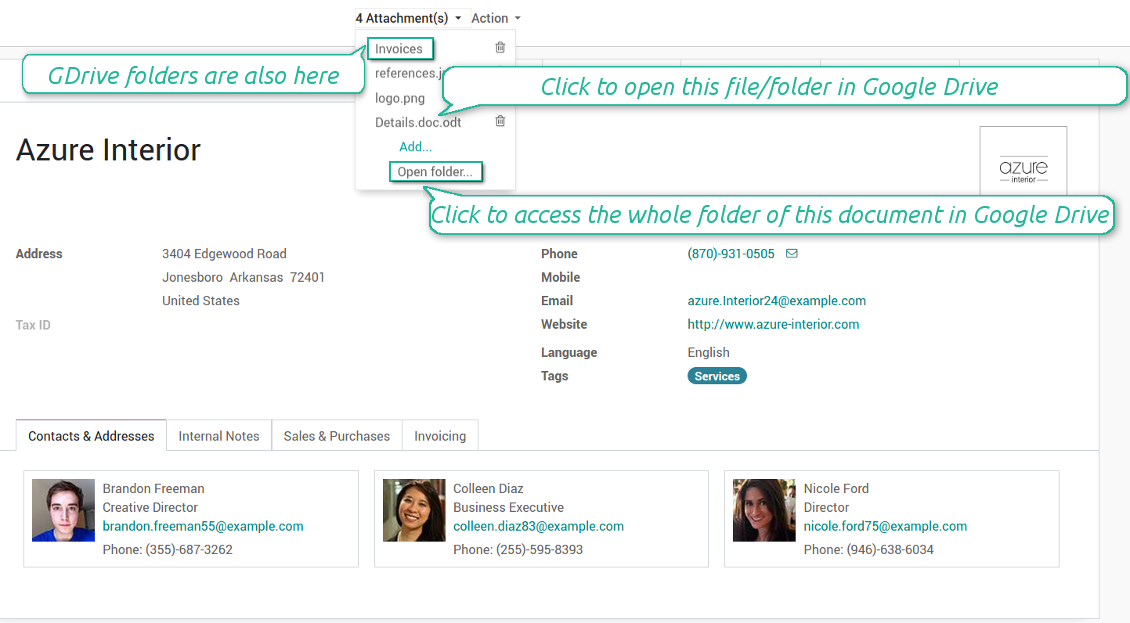

Google Drive doesn't have such disadvantages. This is the tool to integrate their features into your Odoo business work flow. The app automatically stores all Odoo attachments in Google Drive, and it provides an instant access to them via web links. In such a way users work with files comfortably in the cloud storage, while the results are fully available in Odoo.
Automatic integration
Bilateral sync
How files and folders are synced from Odoo to Google Drive
- Prepare and keep updated folders' structure in Google Drive
- Upload new attachments to a correct folder
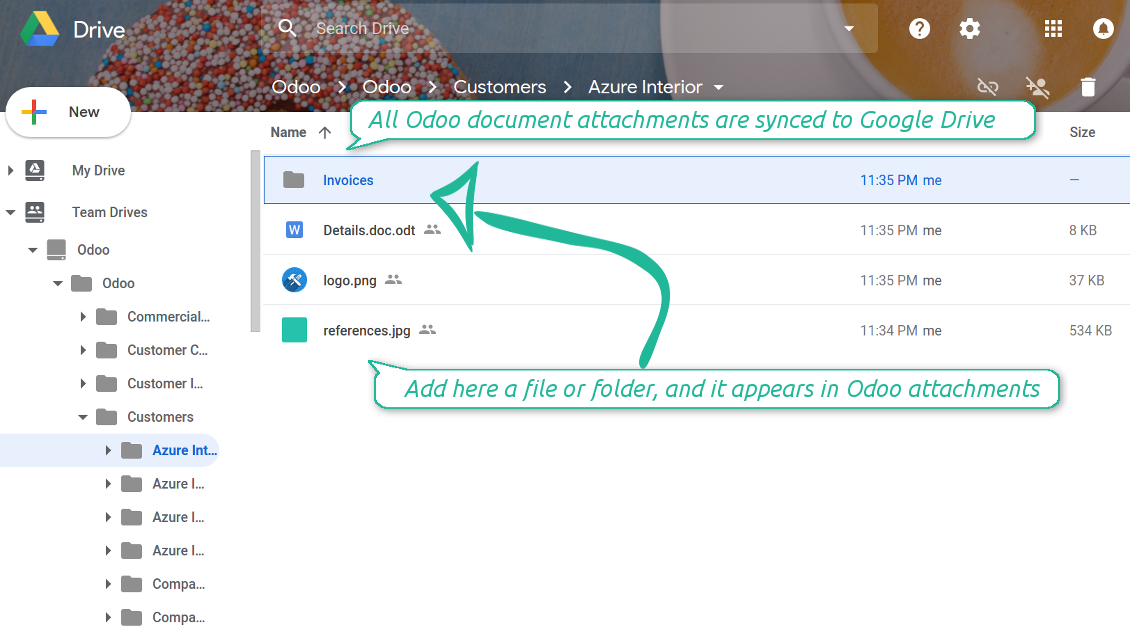
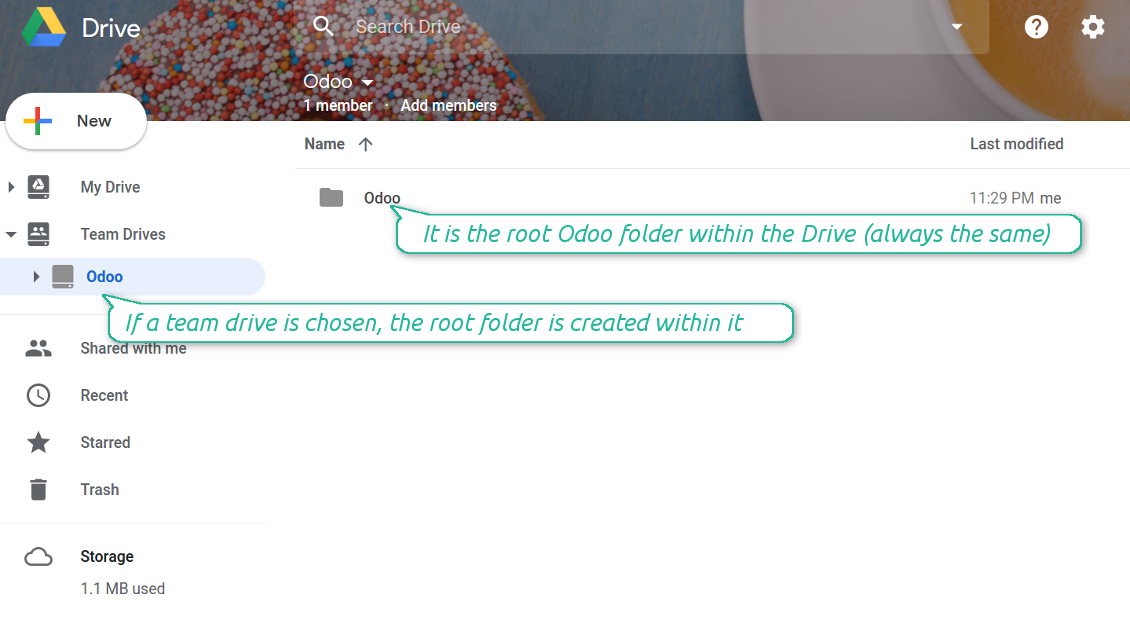
Odoo creates a convenient directory structure in Google Drive: Odoo / Document type name / Document name / Files, where:
- Odoo is a central directory for Odoo Sync in your Drive.
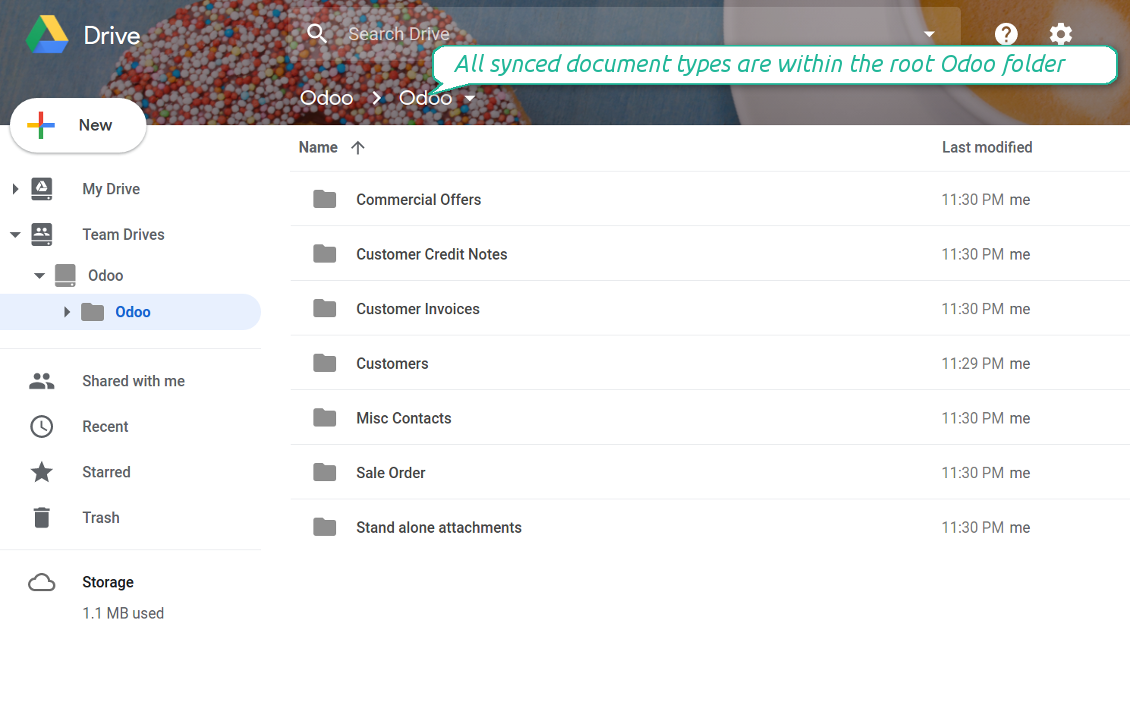
- Document type is a synced Odoo model, for example, 'Sale orders', 'Opportunities', 'Customers'
- You select document types by yourself. It might be any document type
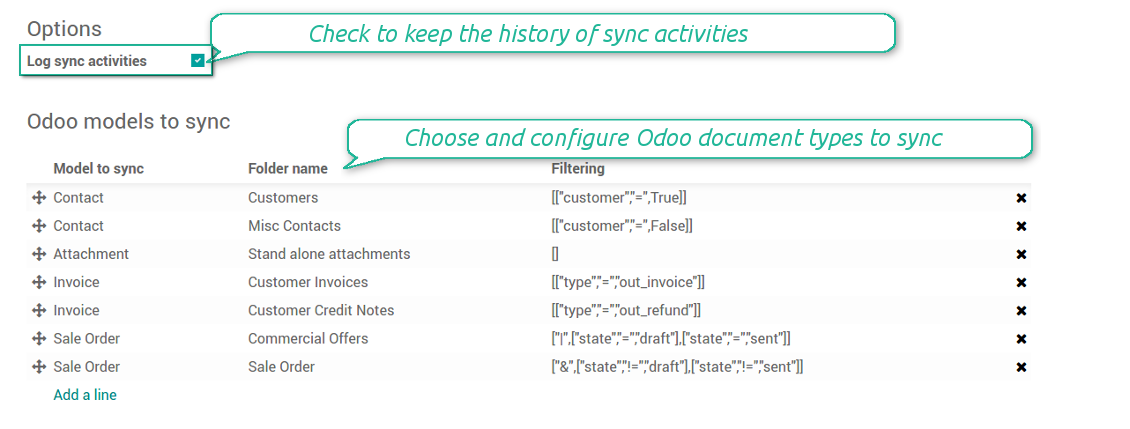
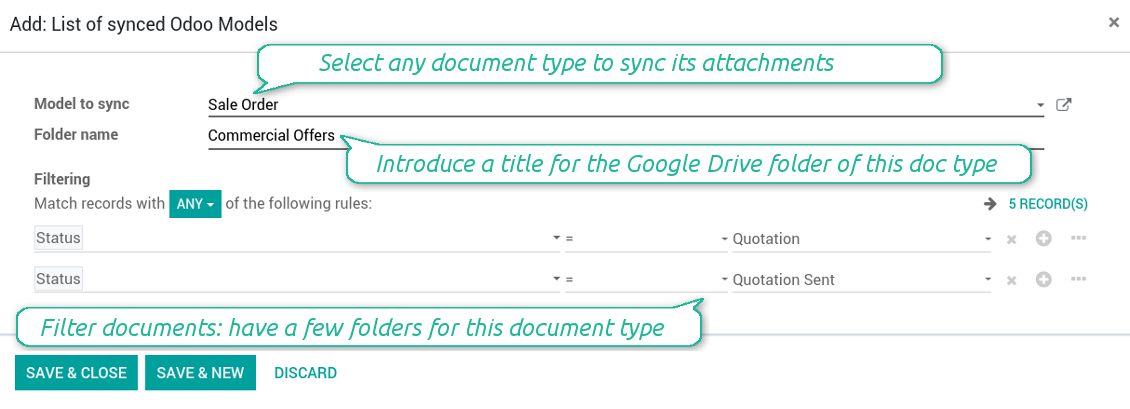
- Moreover, you might have a few folders for a single document type. Use Odoo domains to have not global 'Partners, but 'Customers' and 'Suppliers', not just 'Sale orders' but 'Commercial offers', 'To deliver', and 'Done orders'
- With each sync Odoo would try to update document types' folders. Add a new document type at any moment. It will appear in Google Drive with a next sync
- You are welcome to introduce or change document types folder names at any moment in Odoo. Take into account: renaming in Google Drive will be recovered to Odoo names
- If you remove a model from integration, it will not be deleted from Google Drive to keep already synced files safe. However, new documents of this type would not be synced
- In case you removed a directory in Google Drive, but it is still configured in Odoo, with a next sync a folder structure is going to be recovered (not files, surely).
- Document is an exact object to sync. For instance, 'Agrolait' or 'SO019'
- Documents are synced in case they relate to a synced document type and satisfy its filters. For example, you are not obliged to sync all partners, you may integrate only 'Customers' and 'Vendors' or only 'Companies', not 'Contacts'
- Odoo would generate a folder in Google Drive for each suitable document even for documents without attachments. It is needed for a backward sync to easily add new files
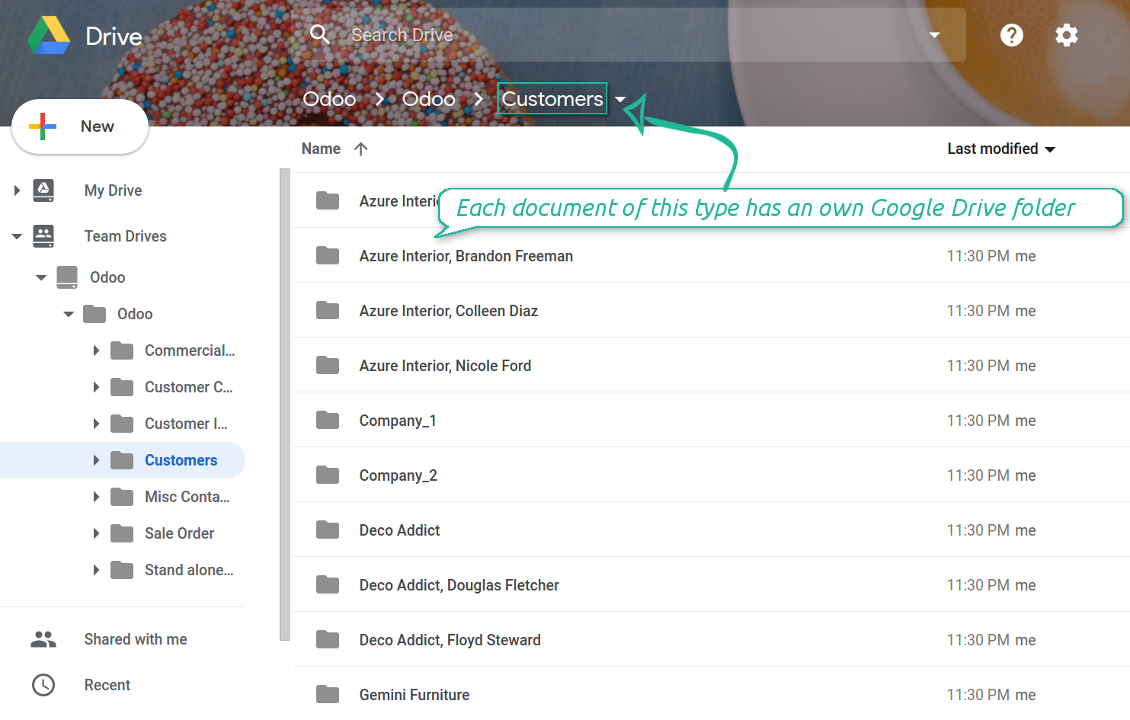
- Google Drive folder name equals a real document name. It relies upon Odoo name_get method. Thus, Odoo 'Michael Fletcher' (a contact of 'Agrolait') would be Google Drive 'Agrolait, Michael Fletcher'
- If an exact document changes its document type (e.g. a quotation is now confirmed), Odoo will automatically relocate its related folder to a proper parent directory (in the example: from 'Commercial offers' to 'To deliver')
- In case a document relates to a few types (for instance, you have 'Vendors' and 'Customers', while Agrolait is both), this document folder would be put into the most prioritized document type. A document type priority is higher as closer to the top in Odoo interfaces it is
- If an Odoo document is removed, the next sync will remove a corresponding Google Drive directory
- In case you remove a directory in Google Drive, but it still exists in Odoo, Google Drive folder structure would be recovered (while files would be unlinked in both Odoo and Google Drive)
- Folders renaming in Google Drive will be replaced with Odoo names, Odoo document names are more important
- Files are real files taken from Odoo attachments
The resulted path would be, for example, 'Odoo / Quotations / SO019 / commercial offer.png'.
The only exclusion of the rule are stand alone attachments which do not relate to any Odoo documents (their document type is 'ir.attachment'). Such attachments' path is 'Odoo / Stand Alone Attachments / image.png'.
The very first sync might take quite a long, since a lot of folders should be created. Afterwards, it would be much faster. However, it is not recommended to make sync too frequent: once an hour seems quite good for large files.
FilesWith each direct sync, Odoo tries to find not yet synced attachments. If such attachments suit any document type to sync, a file will be uploaded to Google Drive to a proper folder. In Odoo such attachments will become of 'url' type. It means that a file is not any more kept in Odoo server space, but now it is in Google Drive. Until sync is done, Odoo attachment remains binary and stores an actual file. Such approach helps Odoo to work faster.
Clicking on such attachment leads you to a file previewer / editor in Google Drive. Depending on your Google Drive configurations it might be Google Documents, Google Spreadsheets, PDF previewer, etc. Anyway changes to file contents in Google Drive are available in Odoo at the same moment.
If you unlinked an attachment from Odoo, it would be deleted in Google Drive as well.
Take into account that file names should be managed in Google Drive: each backward sync would recover Google Drive names, Odoo is here less important.
How items are retrieved from Google Drive to Odoo
- If a new file is added to a proper document folder (e.g. to 'Odoo / Customers / Agrolait'), the same attachment will be added to Odoo document (in the example - to 'Agrolait')
- In document folders you can put not only files but also child folders. In that case a link for this folder (not its content) is kept in attachments
- In case you rename a file in Google Drive, it will be renamed in Odoo as well
- Files' removal from Google Drive leads to related Odoo attachments' removal
- If you move a file to another document folder, in Odoo a related attachment would be re-attached to this new document. Take into account: if you move a file for a not document folder, in Odoo attachment will be deleted as it has been removed from Google Drive
- If you deleted a document type or a document folder, their child files are deleted as well. Thus, Odoo would remove related attachments. The folders, however, will be recovered with a next direct sync. Folders' move to another directory is also considered as a removal. Avoid such situations by following the simple rule: folders are managed mostly by Odoo, files - mostly by Google Drive.
Backward Google Drive sync might take quite much time, since each folder should be checked (the more folders, the more time the backward sync requires). It is recommended to make frequency oftener than once an hour or two hours.
Skærmbilleder
All document types are in the root directory 'Odoo'
Document types' folders
All document of this type has an own folder
Sync any documents you like
The tool let you split any business model into a few directories. Have a separate folder for individuals and companies, for European and American opportunities, for each project, etc.
Moreover, it is possible to guarantee that only topical documents are synced by using relative periods: leads registered in the last 3 months, invoices updated the last week, and so on.
Typical use cases
- Projects: automatically forward all project-related documents to Google Drive to share those with a customer as a cloud link.
- Customers: add all partner files in a single directory available both from Odoo and from Google Drive. Modify those using default cloud editors and access them when working in Odoo.
- Employees: gather all files by this employee in a single cloud folder: photos, document scans, contracts. Access and upload those from Odoo and Google Drive alternatively.
- Opportunities: carefully store all specifications, requirements and any file which would let you make a good offer.
- Orders: keep all printings and contracts in Google Drive with simple availability from Odoo.
Skærmbilleder
Choose document types to be synced
Document type might have a few folders based on filters
Easy accessible files
Skærmbilleder
Fast access to Google Drive files and folders
Synced files are simply found in Google Drive. Add unlimited number of files or folders here
Individual and team drives
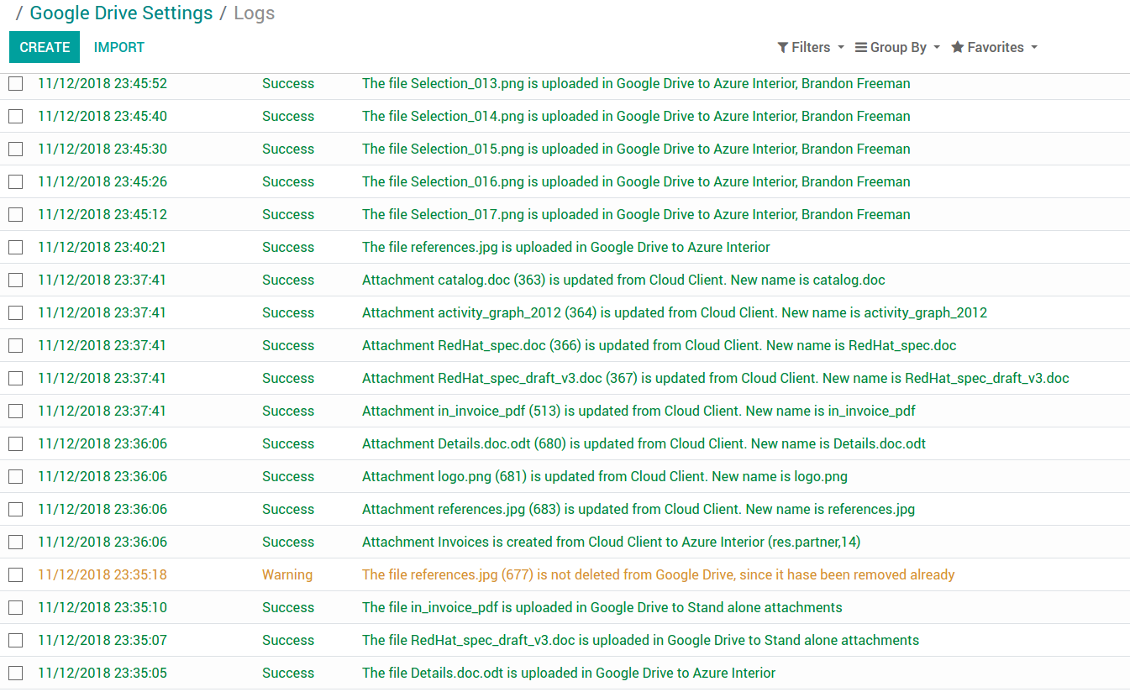
Sync logs in Odoo
Skærmbilleder
Logged synchronisation activities
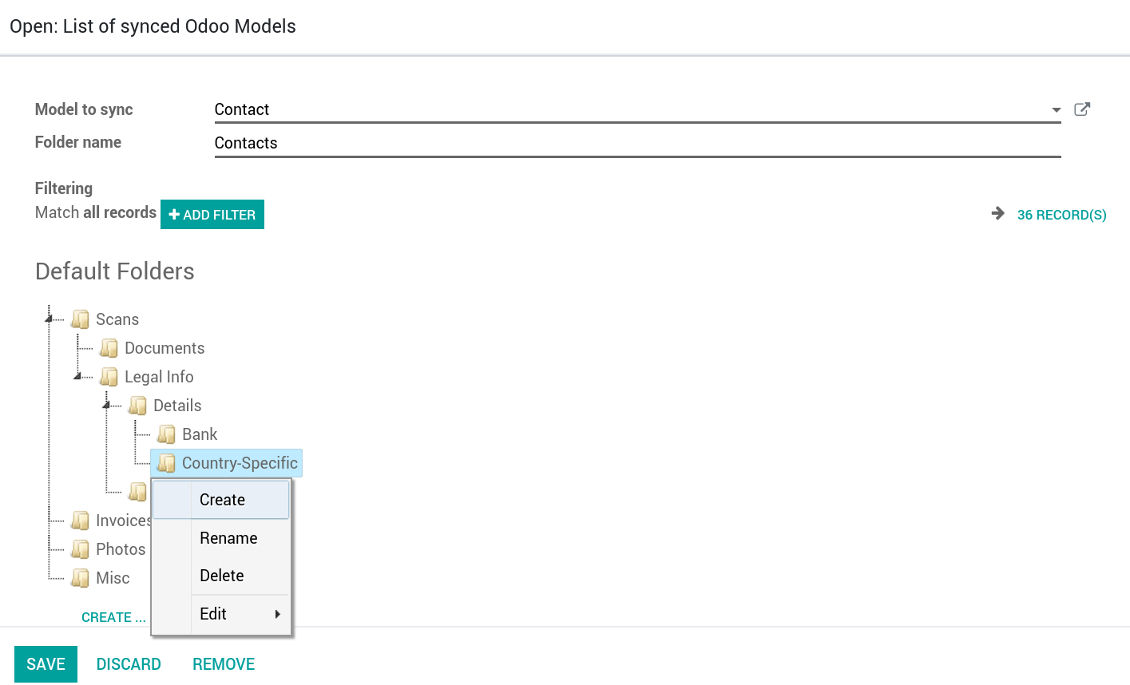
Default folders for documents
Skærmbilleder
Default folders for this document types to be created while firstly synced
Applicable to all Odoo apps
A few important peculiarities to take into account
- Take into account that files or folders deleted in Google Drive are really deleted only when you clean trash. Otherwise, such files still exist and would be reflected in Odoo
- Try to avoid the following symbols in folders' and files' names: *, ?, ", ', :, <, >, |, +, %, !, @, \, /,. Direct sync will replace such symbols with '-'. It is done to avoid conflicts with file systems.
Compatible with Odoo Enterprise Documents
How Odoo Enterprise Documents are synced
This tool is not in conflict with the 'documents' module provided by the Enterprise license. Attachments related to Enterprise folders would be synced as any other files: according to a document they relate to. In the most cases it means they would be linked to stand-alone attachments.
It is not always comfortable, and you might be interested in reflecting directories' structure introduced by the module 'Documents'. To this end the extension Cloud Sync for Enterprise Documents (its standard price is 44 Euros) is developed. This tool has the following features:
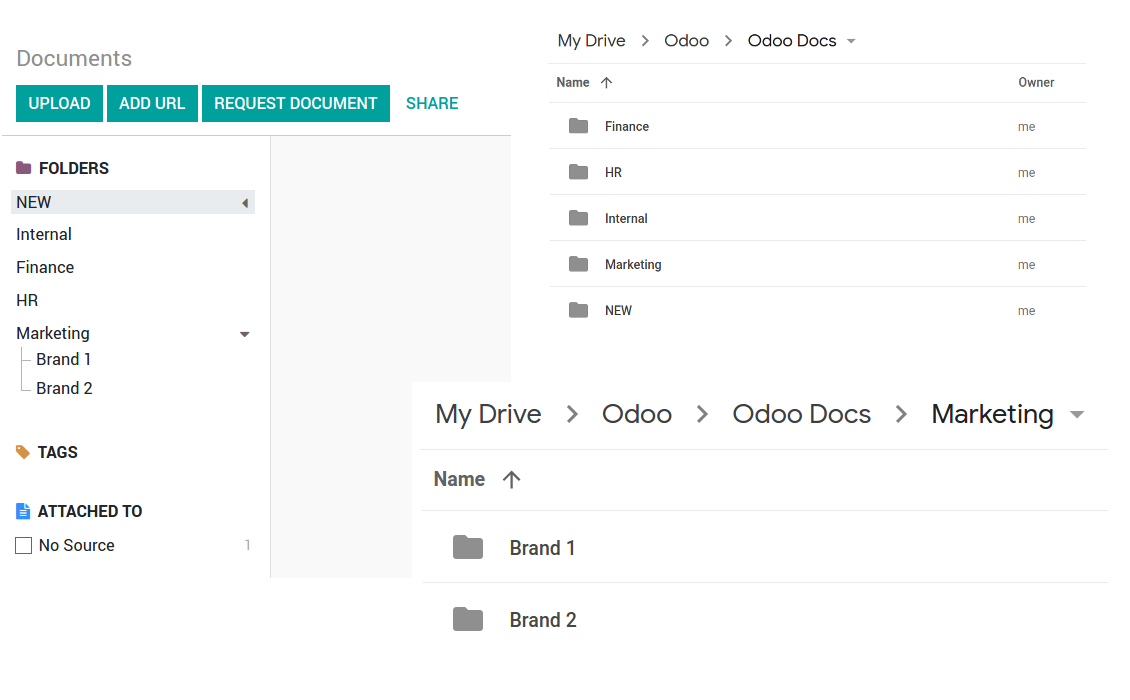
- The documents hierarchy is reflected within the folder 'Odoo / Odoo Docs'
- Each Odoo folder has a linked cloud folder. Take into account that folders created in the cloud storage will be synced as Odoo attachments. The key principle is: folders are managed by Odoo, files are managed by the cloud client
- All files are synced with the same logic as usual attachments. Files created in Odoo will be added to the cloud storage and will be replaced with links in Odoo. Files created in cloud storage will generate attachments within a paired directory
- Please do not name synced models as 'Odoo Docs'. This is the reserved name for Odoo Enterprise Documents
Skærmbilleder
Odoo Enterprise documents sync
Tricky setup, but works perfectly now
Really solid module. We managed to get a very flexible folder structure (sorted by clients) and synced all our sales orders, invoices and tasks by projects to Google Drive.
Initial setup was a bit of a pain and kinda tricky to configure everything at first, but now it's running smoothly and works perfectly. The faotools team helped a lot. Def worth it if u need to keep your docs organized in Odoo and Google Drive.
Recommended!
Excellent !!!
Great App and great Service from faOtools.
Best module for integration with google drive
The module performs its function correctly and faOtools responds quickly to any problem and, in case of detecting any bug, quickly apply the changes. Its support is 10 stars.
Konfigurations- og installationstips til Google Drive Odoo Integration Odoo v.12
Login and Google Drive Credentials
- Go to the Google Cloud Console via the URL https://console.cloud.google.com
- Select or create a project
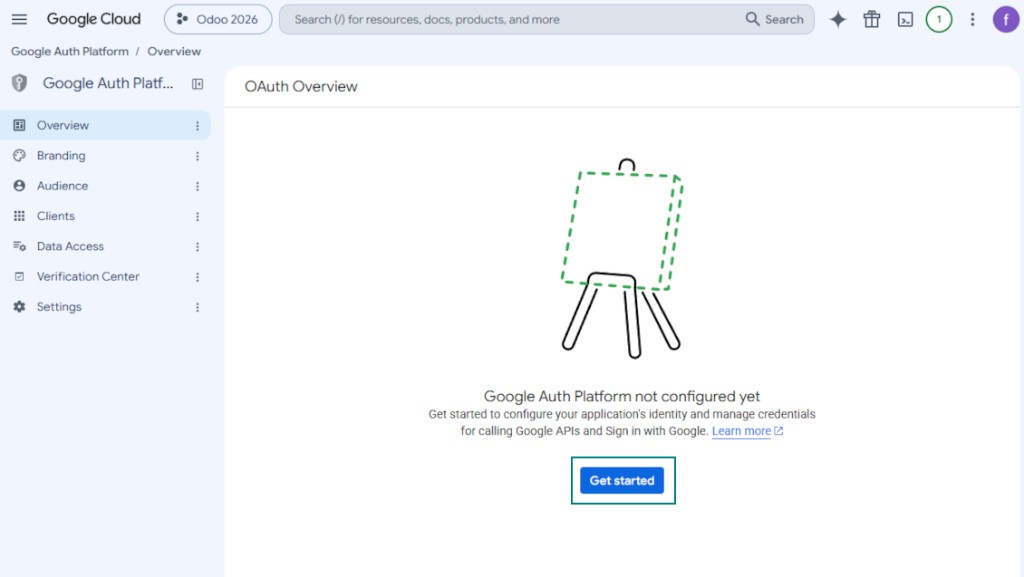
- After the project is selected, the console opens the Google Auth Platform. Press 'Get Started'
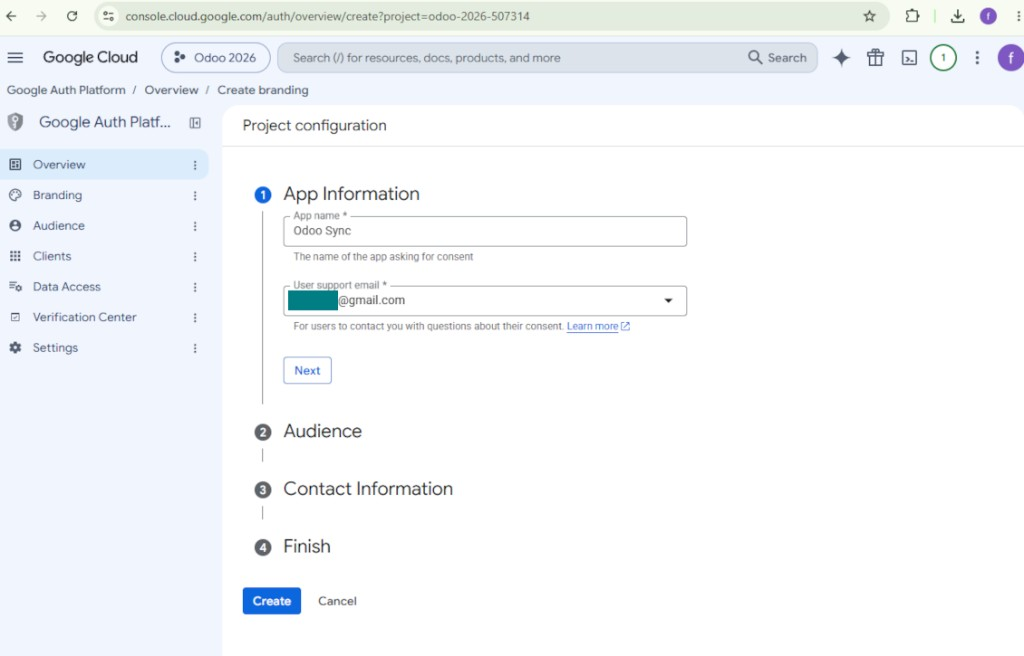
- Add app information
- As an app name select any suitable
- As a user support email select your email address
- Press 'Next'
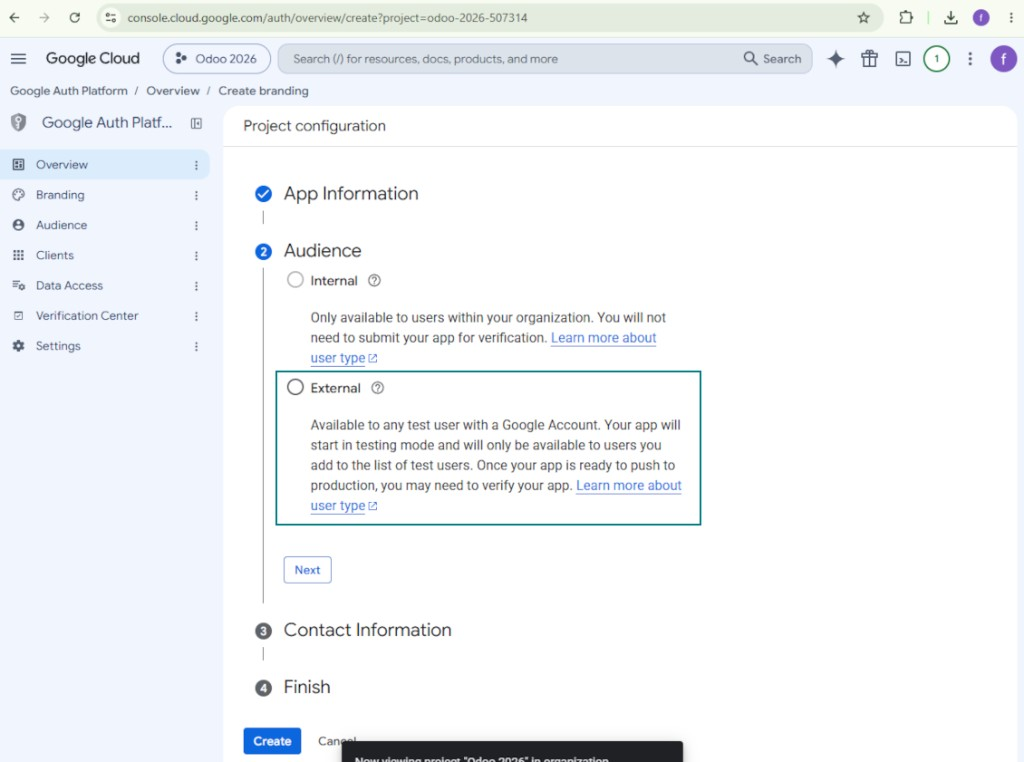
- As the audience select 'External' and press 'Next'. Note: you are anyway going to use this app only for your own Odoo connection
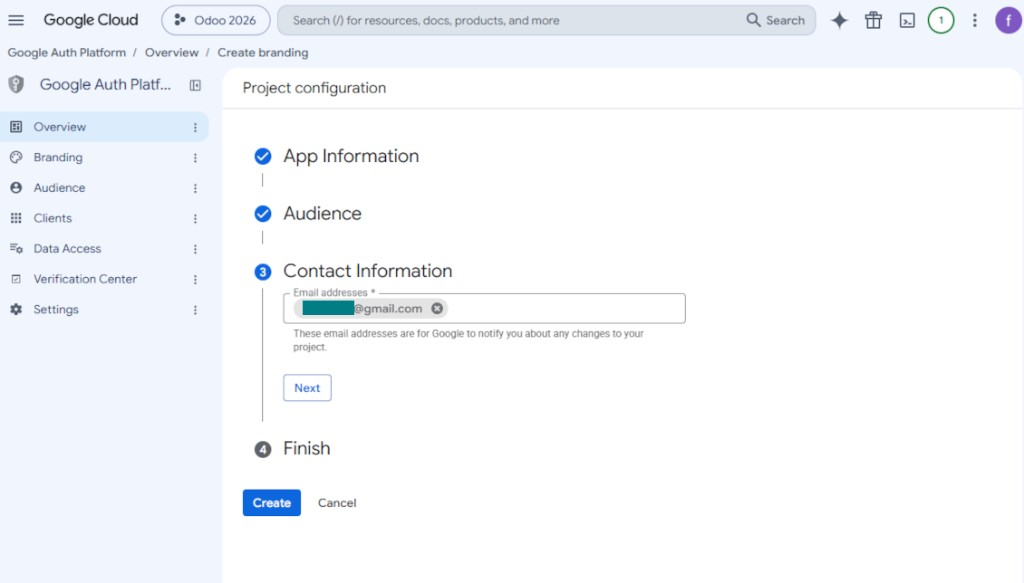
- As the contact information enter your Google or Google Workspace email address and press 'Next'
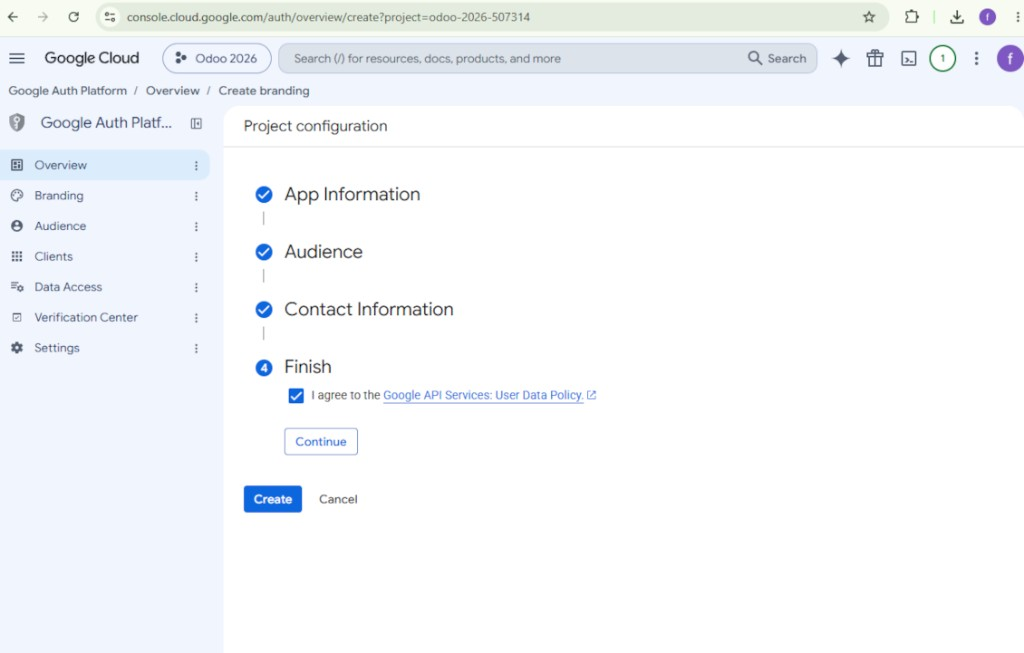
- Agree with the Google API Services User Data Policy, press 'Continue', and then press 'Create'
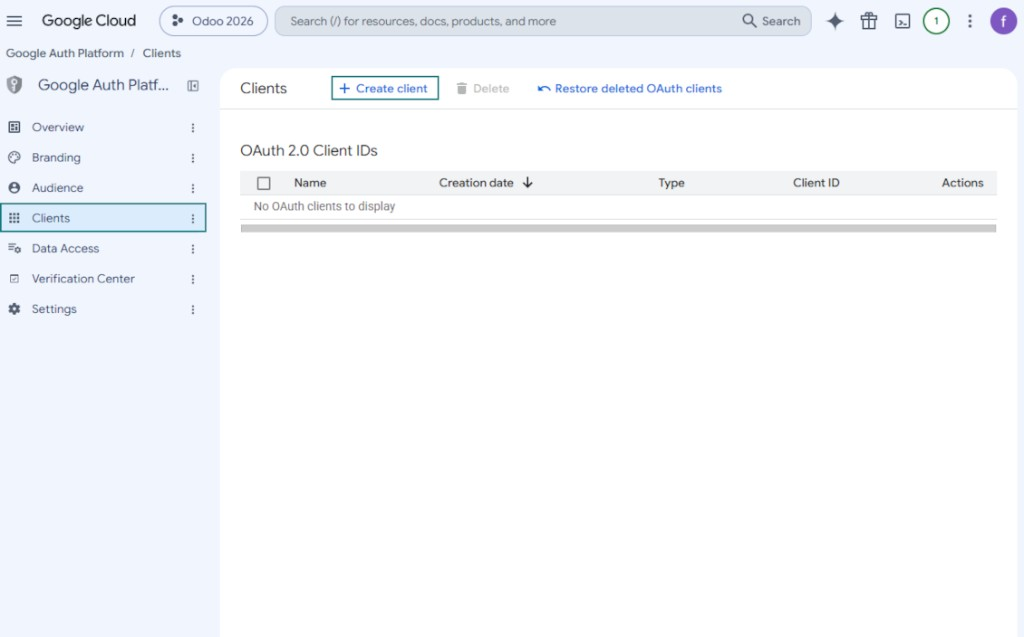
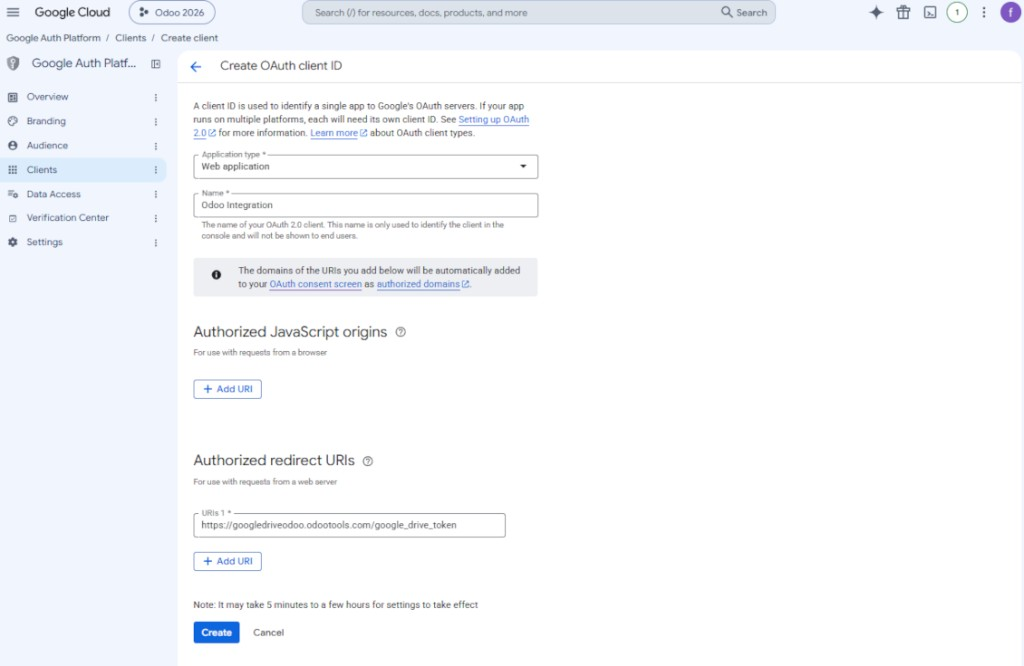
- Go to 'Clients' and press 'Create client'
- As the application type select 'Web application'
- As a name select any suitable
- As the authorized redirect URI, add the link in a format [YOURODOOSITENAME]/google_drive_token (e.g. https://odootools.com/google_drive_token).
- Press 'Create'
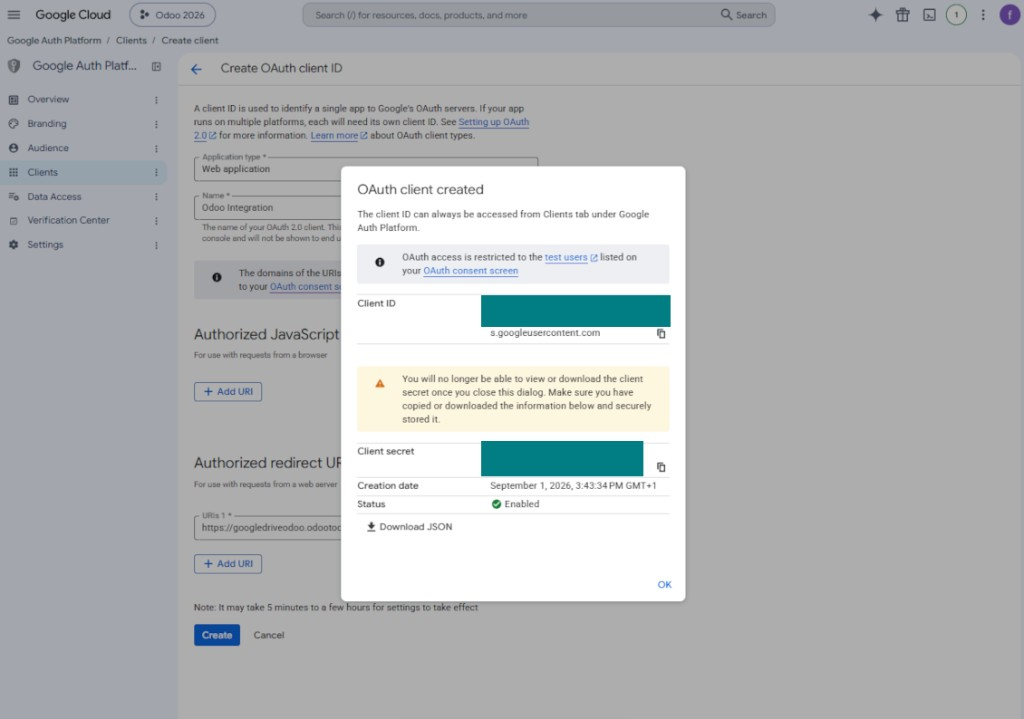
- Copy and safely store 'Client ID' and 'Client secret'. The client secret is shown only once
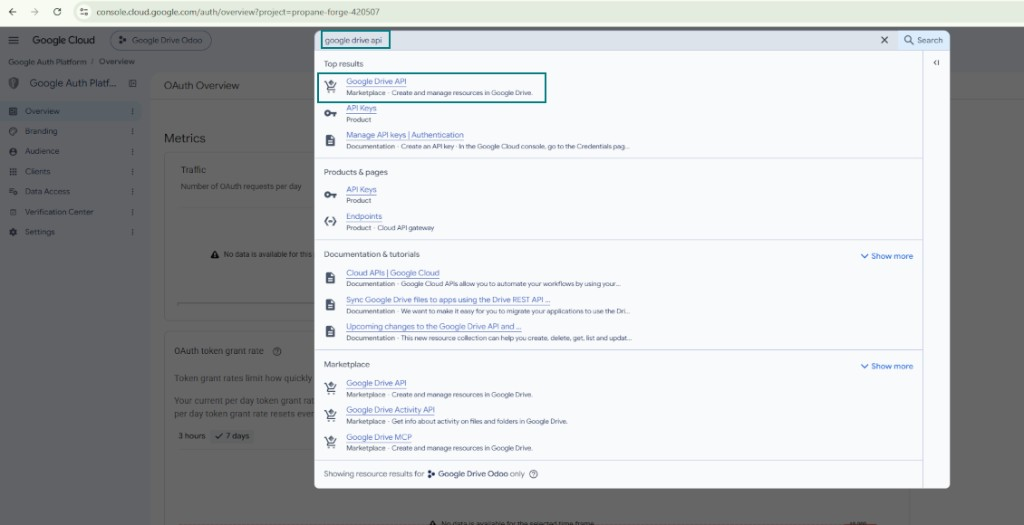
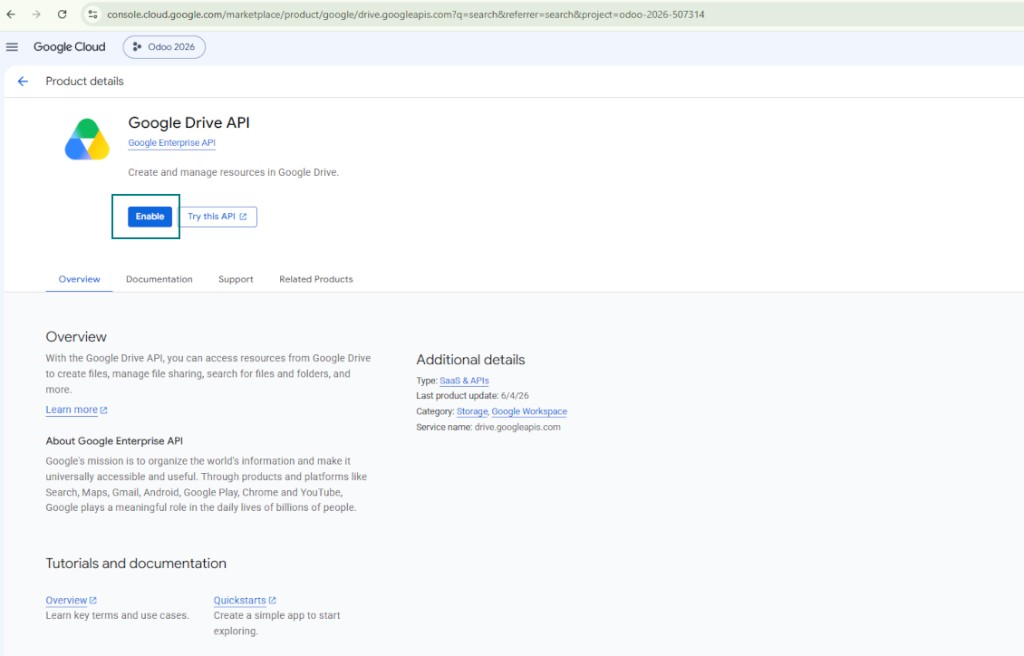
- Enable the Google Drive API for this project: type 'Google Drive API' in the top search box, open the found product, and press 'Enable'
- Go to 'Audience' and add your email address as a test user
- Publish the app. Otherwise, the app stays in the testing state and its token expires every 7 days
- Open 'Branding' and fill in the application home page and the application privacy policy link (for example, the links to your Odoo website). Add the domains of those links as the authorized domains
- Open 'Audience' and press 'Publish app'
- Do not upload an app logo. This would invoke a long and complex Google verification process that is of no actual need to you
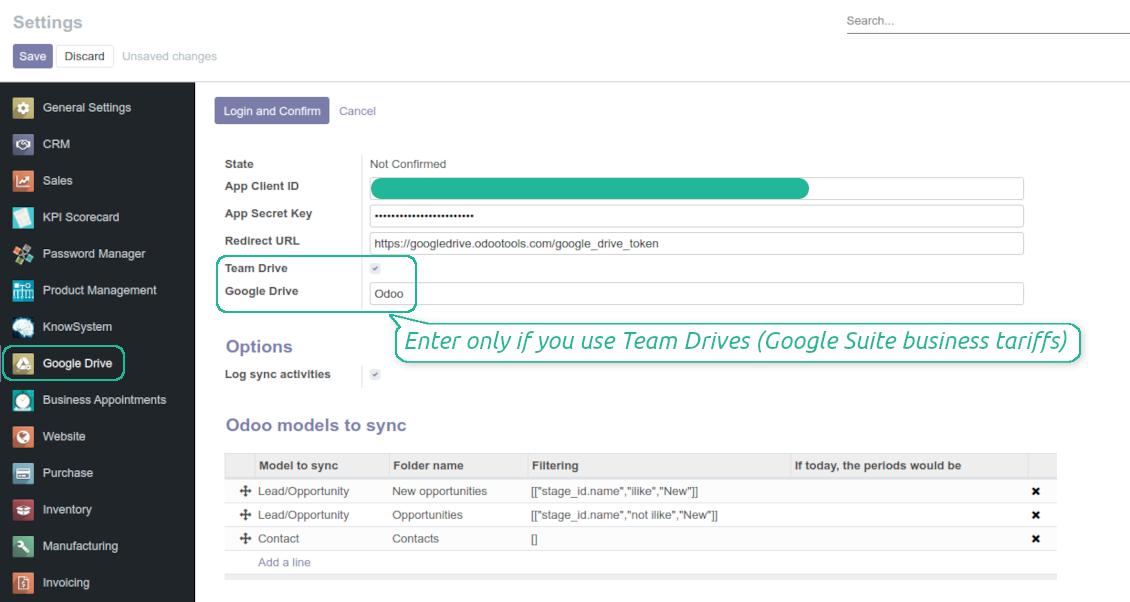
- Go to the Odoo Google Drive Settings
- Copy 'Client ID' from step 8 into the field 'App Client ID'
- Copy 'Client secret' from step 8 into the field 'App Secret Key'
- Insert the redirect URL you entered in step 8
- If you use team drives, check the related box. Make sure you really use team drives. In you Google Drive you should find the item 'Team Drives' in the left sidebar. This feature is available only for business and enterprise tariffs
- If the option 'Team Drive' is enabled, introduce its name. It should be absolutely the same as you see it in your Google Drive. Make sure that your user has full rights for this team drive
- Press 'Save'
- Press 'Login and Confirm'. Odoo redirects you to Google login page. Check in, agree with all conditions, and grant permissions asked
- After login, Google redirects you back to Odoo. Google Drive - Odoo synchronization is ready to be done.
Åbn Google Auth Platform
Tilføj appoplysninger
Vælg målgruppen External
Tilføj kontaktoplysninger
Acceptér politikkerne, og opret appen
Opret en OAuth-klient
Konfigurer webapplikationsklienten
Kopiér Client ID og Client secret
Find Google Drive API
Aktivér Google Drive API
Udfyld Branding for at udgive appen
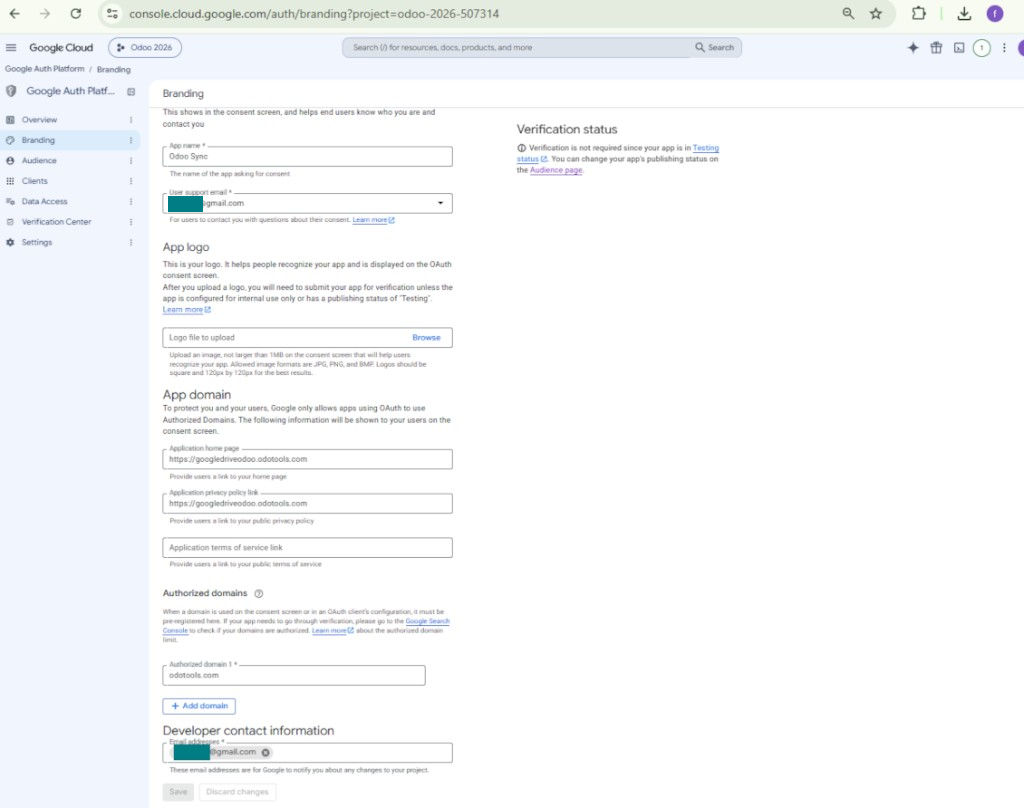
Tilføj testbrugere, og udgiv appen
Enter Google app credentials to Odoo
Odoo server configuration and cron job configuration
To make sure the synchronization works correctly apply proper timeouts to the Odoo configuration file: LIMIT_TIME_CPU, LIMIT_TIME_REAL should be more than 900 seconds.
For Odoo.sh this should not be done, since timeouts are predefined and are not configurable.
Then, timeout should be entered to your Odoo. To that goal find the section 'Settings' on the app configuration page and copy the number there.
Afterwards, it is needed to make the cron jobs suit the applied timeouts. In the debug mode go to the Settings > Technical > Automation > Scheduled Jobs:
- Set up the job 'Synchronize attachments with cloud' as (a) frequency - 2*timeout; (b) the next execution as the next hour +timeout. For example, for 900seconds timeout: frequency - as 30minutes; the next execution - at 08:15
- Set up the job 'Synchronize attachments from cloud' as (a) frequency - 2*timeout; (b) the next execution as the next hour + timeout*2. For example, for 900seconds timeout: frequency - as 30minutes; the next execution- at 08:30.
Ofte stillede spørgsmål om Google Drive Odoo Integration Odoo v.12
Deles genererede Google Drive-mapper automatisk blandt Odoo-brugere?
Appen styrer ikke adgangsrettigheder på Google Drive-siden. Det skal gøres manuelt der. Odoo opretter målmappene i Google Drive; som standard er de ikke delt, men du kan ændre rettigheder for enhver mappe. For eksempel fulde rettigheder til mappen «Odoo» eller til «Odoo > Sale Orders» eller «Odoo > Sale Orders > SO-001».
Appen arbejder med ét brugerendepunkt. Alle synkoperationer kører under den samme Google Drive-bruger (ifølge den Google API-app, du har konfigureret).
Jeg slettede en fil i Google Drive, men den er stadig i Odoo
For at slette en fil helt skal du også tømme papirkurven i Google Drive.
Husk også, at filen stadig kan være i Odoo, fordi den baglæns synk endnu ikke har behandlet vedhæftningen. Det er en planlagt proces og tager tid.
Vil Google opkræve mig ud fra API-anmodningerne?
Modulet bruger kun det gratis API, så Google opkræver ikke.
Kan jeg ændre hyppigheden af synkroniseringsjob?
Ja, det kan du. Gør sådan:
Slå fejlfindingstilstand til
Gå til tekniske indstillinger > Automatisering > Planlagte handlinger
Find jobbene «Synchronize attachments with cloud» og «Update attachments from cloud».
Gør dem ikke for hyppige. Et job bør være færdigt, før det næste starter. Konfigurationen afhænger af, hvor mange elementer der skal synkroniseres. Hyppigheden er normalt mellem 15 minutter og 4 timer.
Sæt også tilstrækkelige tidsgrænser i Odoo-konfigurationsfilen. LIMIT_TIME_CPU og LIMIT_TIME_REAL skal være lig med eller større end den planlagte crontid. Fra version 13 skal du også tage LIMIT_TIME_REAL_CRON med.
Vigtig bemærkning til Odoo.sh-kunder: den maksimale tid for et cronjob kan være begrænset til 15 minutter.
Kan jeg konfigurere en anden struktur for synkroniserede mapper end den, synkroniseringen antager?
Nej, denne funktion findes først fra version 15. Før det arbejder modulet med en foruddefineret mappestruktur:
Odoo - rodmappe til synken
Modeller - mapper for hver Odoo-dokumenttype. For eksempel «Projects», «Partners». Efter domæne kan der være mere specifikke mapper: «Customer 1 Projects», «Projects of the Customer 2», «Internal Projects» osv.
Objekter - mapper for hvert dokument, f.eks. «Project 1» eller «Customer 1»
Filer og mapper knyttet til dette Odoo-dokument, som skal synkroniseres.
Så kan du for eksempel have:
Odoo / Projects / Project 1 / filer og mapper til projekt 1
Odoo / Customer 1 Projects / Project 1; Odoo / Customer 2 Projects / Project 3, ...
Odoo / Customers / Customer 1 / filer og mapper til kunde 1
Strukturen er altid flad: kun disse niveauer. Forskellige dokumenttyper kan ikke ligge i samme gren. I mappen «Customer 1» kan man ikke holde både ordrer, fakturaer og projekter. Hver type har egen/egne mappe(r). Ellers har den baglæns synk intet kriterium.
Skal jeg oprette bestemte brugeradgange i Odoo?
Nej, værktøjet bruger ét brugerendepunkt. Alle synkprocesser kører under én cloud-administrator (app). Rettigheder til oprettede mapper / filer automatiseres ikke. Administrer dem i din cloudlagerløsning.
Hvor gemmes synkroniserede filer? Duplikeres de i Odoo og i clouds?
Appen antager, at den binære indhold af vedhæftninger gemmes i Cloud Client i stedet for på Odoo-serveren. Sådanne vedhæftninger i Odoo bliver af typen URL, og du kan når som helst åbne dem fra vedhæftningsfeltet eller fra Cloud Client.
Efter opsætningen kræves ingen manuelle handlinger: synkroniseringen er fuldt automatisk. Beslut, hvilke Odoo-dokumenttyper der skal synkroniseres, og opret en relateret model for hver (kunder, salgs- eller indkøbsordrer, opgaver, projekter osv.).
Kan jeg have flere mapper til samme dokumenttype? For eksempel interne projekter og kundeprojekter?
Ja, det kan du. Opret en regel til hver og anvend filtre: for eksempel efter projekttype.
Gør filtrene indbyrdes udelukkende, så et dokument kan tildeles entydigt. For eksempel: «kunde men ikke leverandør», «leverandør men ikke kunde». Ellers hopper dokumentmappen fra én model til en anden.
Behøver jeg kun appen Cloud Storage Solution?
Nej, værktøjet er kun en teknisk kerne. Du skal også bruge forbindelsen til din cloud-klient.
Er det okay, hvis jeg har mange objekter at synkronisere, for eksempel 10000?
Ja, selvom processen kan være langsom med mange mapper/vedhæftninger. Kunder har dog rapporteret miljøer med >10k partnere og ~5k produktvarianter, og processerne var acceptable.
Nogle punkter:
- Synken er bygget, så ethvert element synkroniseres og ikke går tabt, selv om det ikke er hurtigt. FIFO-køer og commit af hvert job garanterer det.
- Antallet af objekter kan begrænses logisk. Modelkonfigurationen lader dig udelukke forældede poster (f.eks. arkiverede partnere eller ordrer fra for 2 år siden).
Er det muligt at gøre synkroniseringen realtids?
Nej. Vi har stærke grunde til at undgå realtidssynk:
Ydeevne. Ved realtidssynk giver hver filupload en indlæsningsskærm.
Konflikter. Hvis 2 brugere ændrer et element samtidig, kan det blive uløseligt. Med almindelige job kan vi rette bagefter; i realtid skulle der bruges en kø, endnu mere vildledende.
Funktionalitet. Især omdøbning og omstrukturering. Den baglæns synk bygger strengt på kataloglogikken og tjekker 100 % af elementerne ved hver synk. Efter hver opdatering ville det være tusindvis af anmodninger i sekundet. Ellers ville ændringer gå tabt.
Kan jeg synkronisere vedhæftninger til flere cloud-klienter
Nej, denne funktion er først tilgængelig fra version 15.
Vi bruger en særlig editor i vores clouds (f.eks. OnlyOffice, Office 365). Ville filer åbnes i den editor?
Ja, afhængigt af din cloud-klients konfiguration.
Hvad er opdateringspolitikken for jeres vaerktojer?
Ifolge de gaeldende regler for Odoo Apps Store:
- Hvert modul kobt til version 12.0 eller tidligere giver adgang til alle versioner op til 12.0.
- Fra version 13.0 skal hver modulversion kobes separat.
- Uanset version giver kobet ret til alle opdateringer og fejlrettelser inden for en hovedversion.
faOtools-teamet styrer ikke disse regler. Ved sporgsmaal, kontakt Odoo Apps Store-representanterne direkte.
Hvordan installerer jeg jeres app pa Odoo.sh?
Den mest direkte tilgang er Odoo-butikkens indbyggede arbejdsgang:
1. Abn modulets side, og klik pa Deploy on odoo.sh
2. Du bliver omdirigeret til GitHub. Log ind, og klik pa Create a new repo, eller brug et eksisterende. Repot skal vaere privat. Apps under OPL-1 ma ikke offentliggores. Opret om nodvendigt et nyt repo til Odoo.sh-projektet
3. Ga derefter til odoo.sh, klik pa Deploy, bekraeft, og klik pa Continue. Installationen starter.
Disse trin installerer appen pa production-grenen. Til andre grene eller opdatering:
1. Download kildekoden fra Odoo-butikken
2. Commit modulet til GitHub-repot. Ingen app-mapper/filer ma sta i .gitignore. Repoer oprettet af odoo.sh kan ignorere vigtige stier (f.eks. /lib). Upload alle modulmapper og -filer
3. Deploy malgrenen i odoo.sh-projektet, eller vent pa det automatiske build, hvis indstillingerne angiver det.
Hvordan installerer jeg jeres app pa min egen server?
2. Genstart Odoo-serveren;
3. Sla udviklertilstand til (tekniske indstillinger);
4. Opdater applisten (Apps-menuen);
5. Find appen, og klik pa Activate/Install;
6. Folg retningslinjerne pa appsiden, hvis de findes.
Jeres app har ekstra tilfojelser. Kan jeg kobe dem senere?
Ja. Odoo laegger automatisk alle afhaengigheder i indkobskurven: udelad allerede kobte vaerktojer, sa du ikke betaler to gange.
Jeg deployede jeres app pa Odoo.sh og ser advarsel/fejl i testene
En rod/orange advarsel pavirker ikke appens funktioner. Nogle gange består vores moduler ikke de standard automatiske tests, fordi de forventer en adfaerd, der er i konflikt med appens mal. Vi aendrer f.eks. prisberegningen, mens Odoo-testene sammenligner slutprisen med standardalgoritmen.
Tjek forst funktionerne i den deployede database. Virker alt?
Hvis du stadig mener, at advarslen pavirker reelle funktioner, kontakt os, og send de fulde installationslogfiler og den fulde liste over deployede moduler (kerne og tredjepart).
Kan jeg kobe jeres app direkte hos jer?
Nej, vi distribuerer kun vaerktojerne via den officielle Odoo-appbutik.
Jeg vil gerne have rabat
Desvaerre har vi ikke tekniske midler til individuelle priser.
Kan jeg installere appen pa min Odoo Online (SaaS)-database?
Nej, tredjepartsapps kan ikke bruges pa Odoo Online. Odoo SaaS blokerer den mulighed.
Jeres vaerktoj afhaenger af andre apps. Skal jeg kobe dem?
Ja, vaerktojet kraver alle moduler markeret som afhaengigheder. Prisen pa appsiden inkluderer allerede disse afhaengigheder.
Hvad koster modulet i amerikanske dollar? Hvorfor aendrede den sig?
Prisen pa vores moduler er sat i euro. Odoo-butikken omregner til andre valutaer efter den interne valutakurs. Derfor kan prisen i amerikanske dollar aendre sig, nar kursen opdateres.
App- og webstedstekster på andre sprog end engelsk er AI-assisterede og afstemt med officielle Odoo-oversættelser. Hvis du opdager en fejl, send en sag om oversættelseskorrekthed så retter vi det.
Fejlrapportering
Hvis du støder på fejl eller inkonsistent adfærd, så kontakt os. Vi garanterer rettelser inden 60 dage efter køb og forbedrer værktøjerne også bagefter.
Du behøver hverken telefonnummer eller kreditkort for at kontakte os. Det er nok med en kort e-mailtilmelding, der tager under 30 sekunder.
Medtag så mange detaljer som muligt: skærmbilleder, Odoo-serverlogs og en fuld beskrivelse af, hvordan problemet genskabes. Det tager som regel nogle hverdage at lave en arbejdsplan (hvis fejlen bekræftes) eller retningslinjer (ellers).
Offentlige funktionsønsker og modulidéer (gratis udvikling)
Vi er stærkt motiverede til at forbedre vores værktøjer og taknemmelige for al feedback. Hvis kravene er til offentlig nytte og kan implementeres effektivt, tager teamet dem med på opgavelisten.
En sådan opgaveliste behandles regelmæssigt og indebærer ingen ekstra gebyrer. Selvom vi ikke kan love frister og endeligt design, kan det være en god måde at få ønskede funktioner uden investeringer og risici.
Du behøver hverken telefonnummer eller kreditkort for at kontakte os. Det er nok med en kort e-mailtilmelding, der tager under 30 sekunder.

Værktøjet til sikkert at opbevare adgangskoder i Odoo til fælles brug. Delte bokse

Værktøjet til at bygge en dyb og struktureret vidensbase til intern og ekstern brug. Knowledge System. KMS. Wiki-lignende revisioner.
398€
Værktøjet til at sætte KPI-mål og styre deres opfyldelse efter perioder. KPI-dashboards. Dashboard-designer. KPI-diagrammer

Værktøjet til tidsbaseret ydelsesstyring fra booking af aftaler til salg og anmeldelser
398€
Værktøjet til at styre Odoo fra dine foretrukne AI-chats via MCP. Claude. Enhver AI med MCP-understøttelse.

Værktøjet til at strukturere Odoo-vedhæftninger i mapper og synkronisere kataloger med skyklienter: Google Drive, OneDrive/SharePoint, Nextcloud/ownCloud, Dropbox, Amazon S3, Box og NAS. DMS. Filhåndtering. Dokumenthåndteringssystem
398€
Værktøjet til automatisk at synkronisere Odoo-vedhæftede filer med OneDrive-filer begge veje
487€
Værktøjet til automatisk at synkronisere Odoo-vedhæftede filer med ownCloud/Nextcloud-filer begge veje
487€
Værktøjet til automatisk tovejs synkronisering af Odoo-vedhæftninger med NAS-løsninger. Synology, QNAP, TrueNAS og alle andre NAS-løsninger, der understøtter WebDav
487€