Amazon S3 / MinIO Odoo Integration v.17
The tool to automatically synchronize Odoo attachments with Amazon S3 or/and MinIO files in both ways
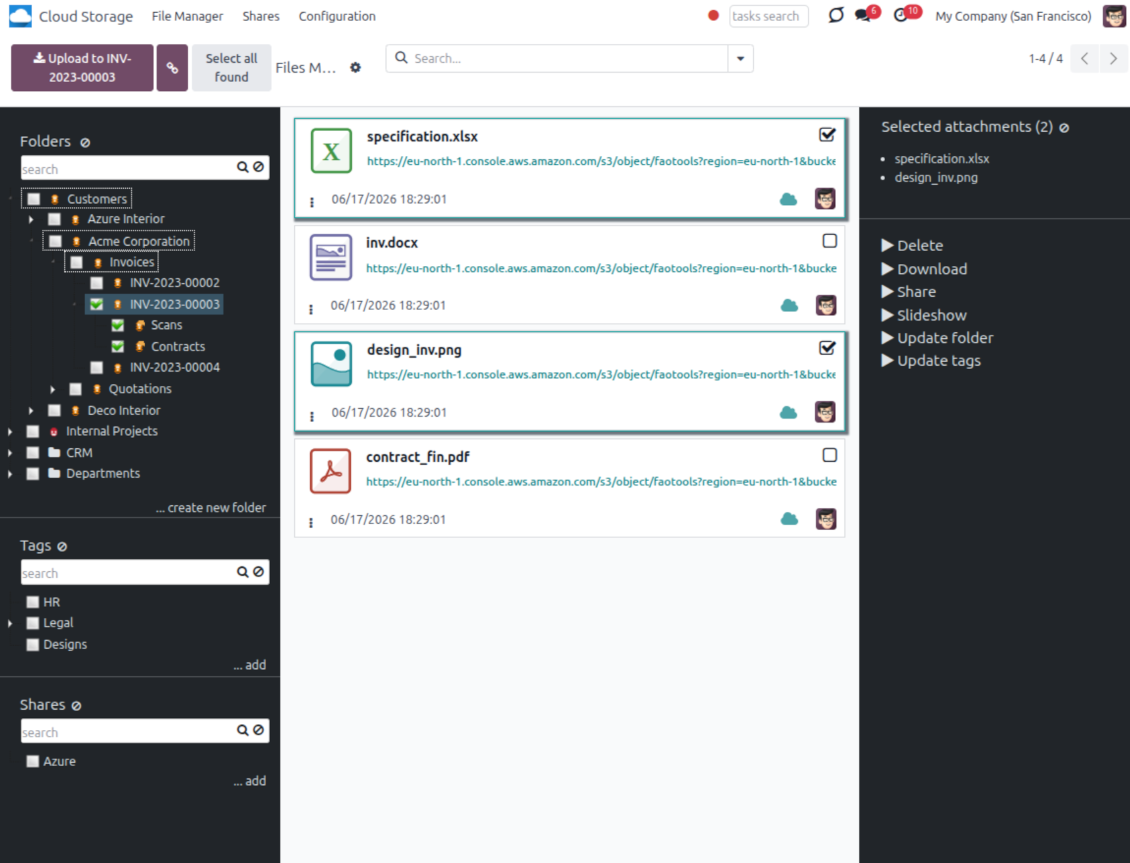
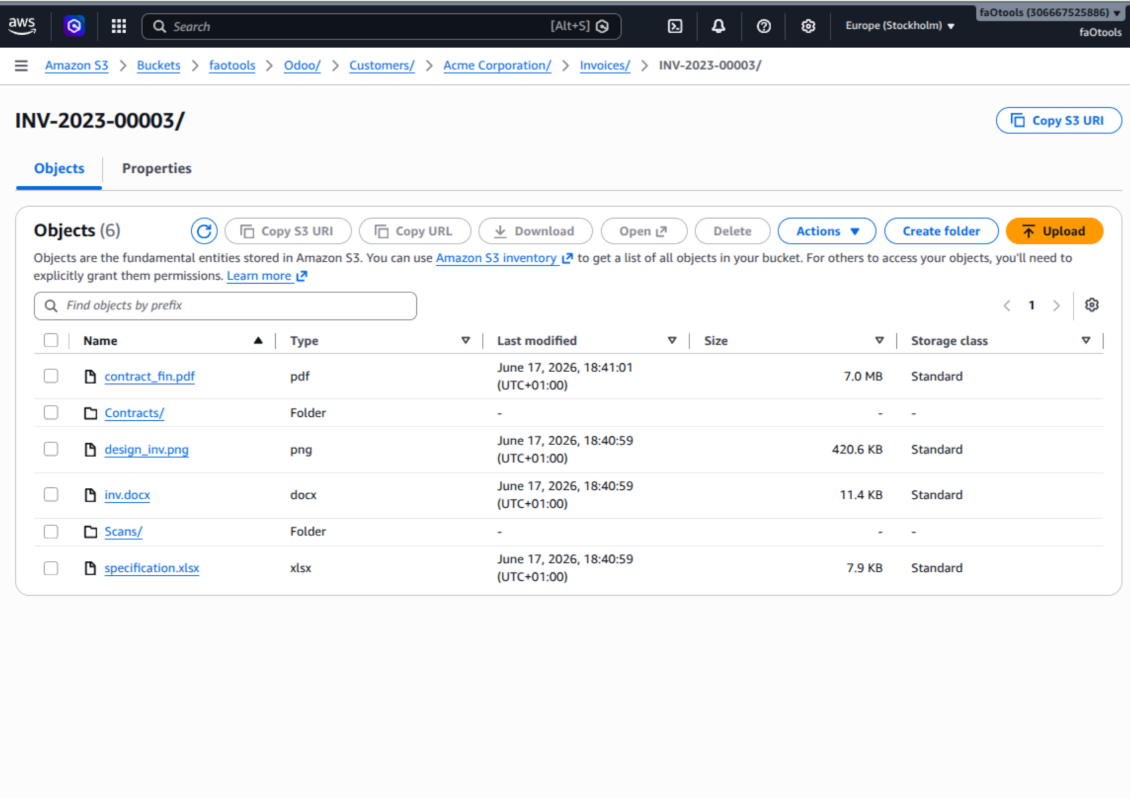
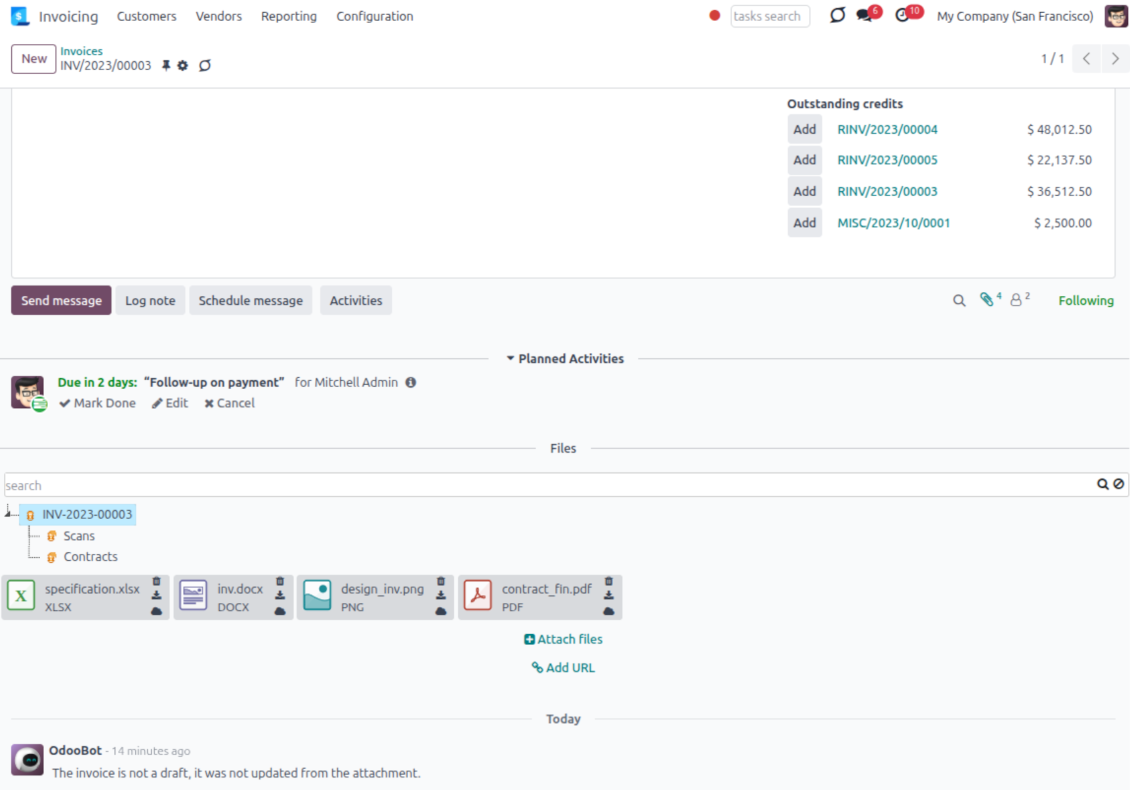
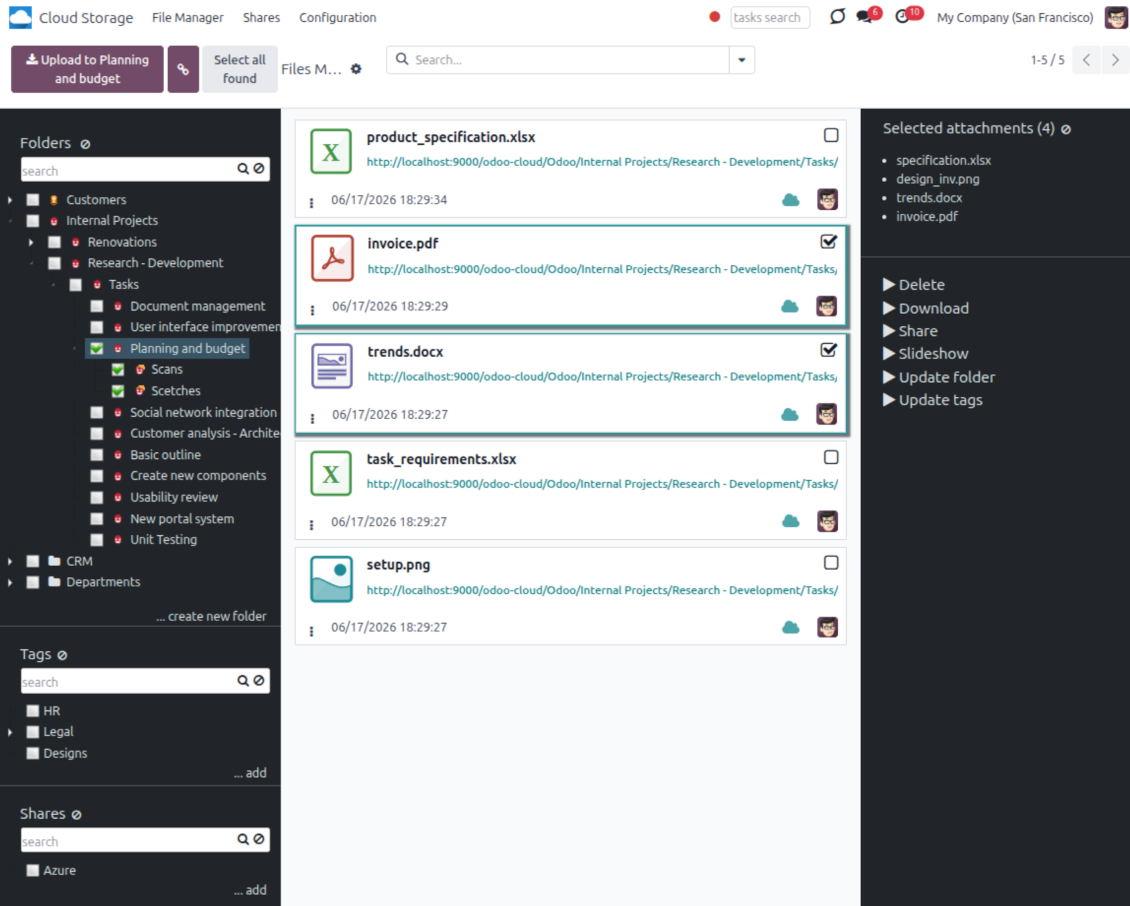
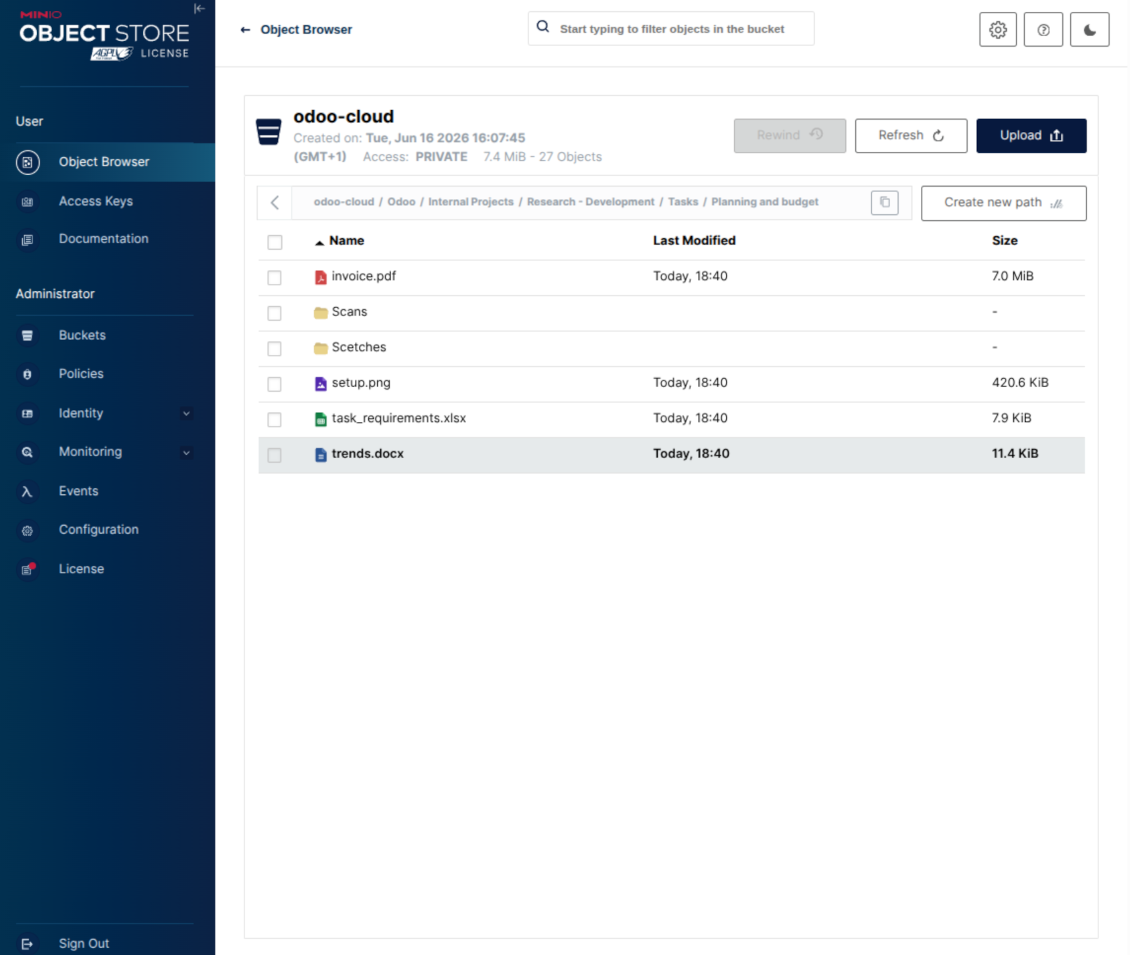
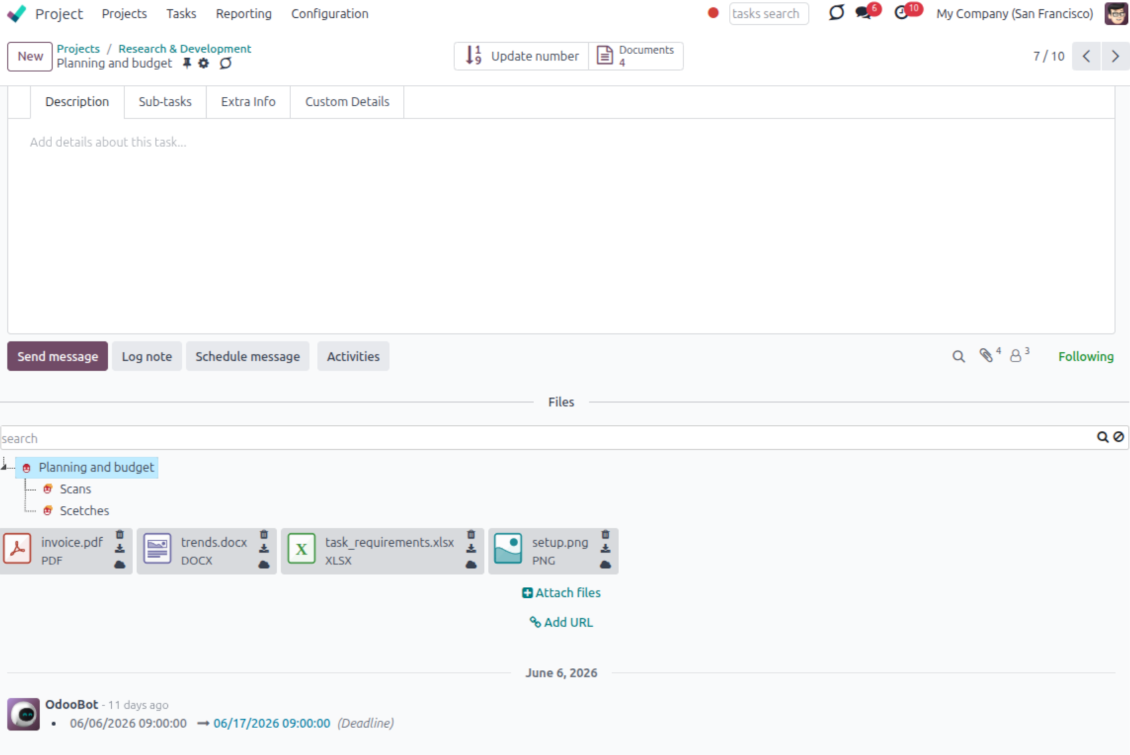
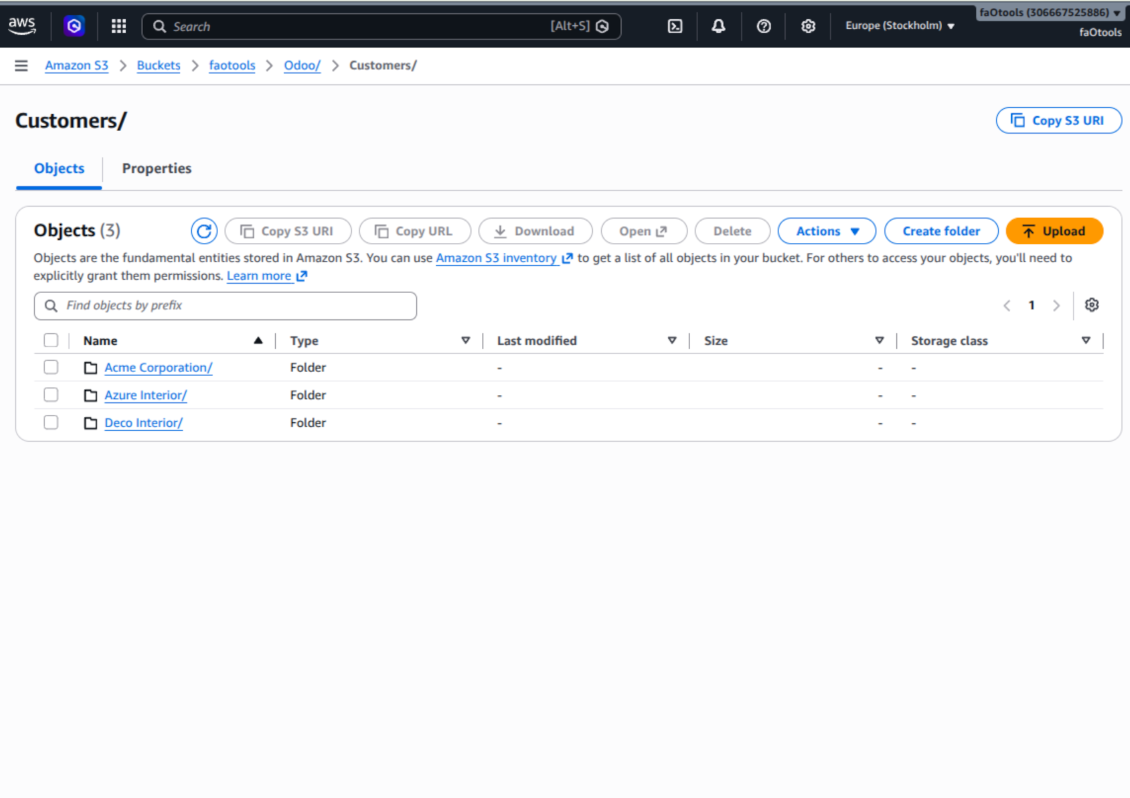
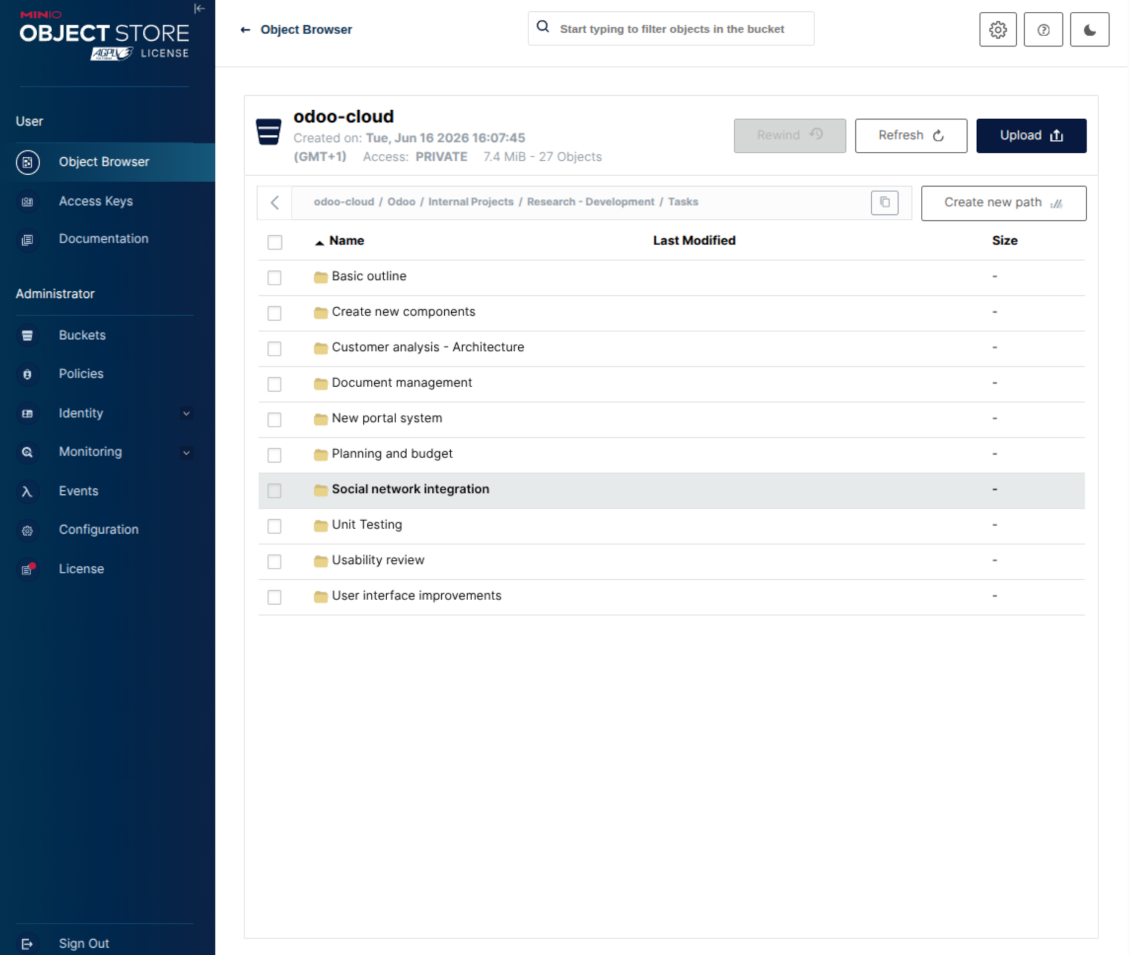
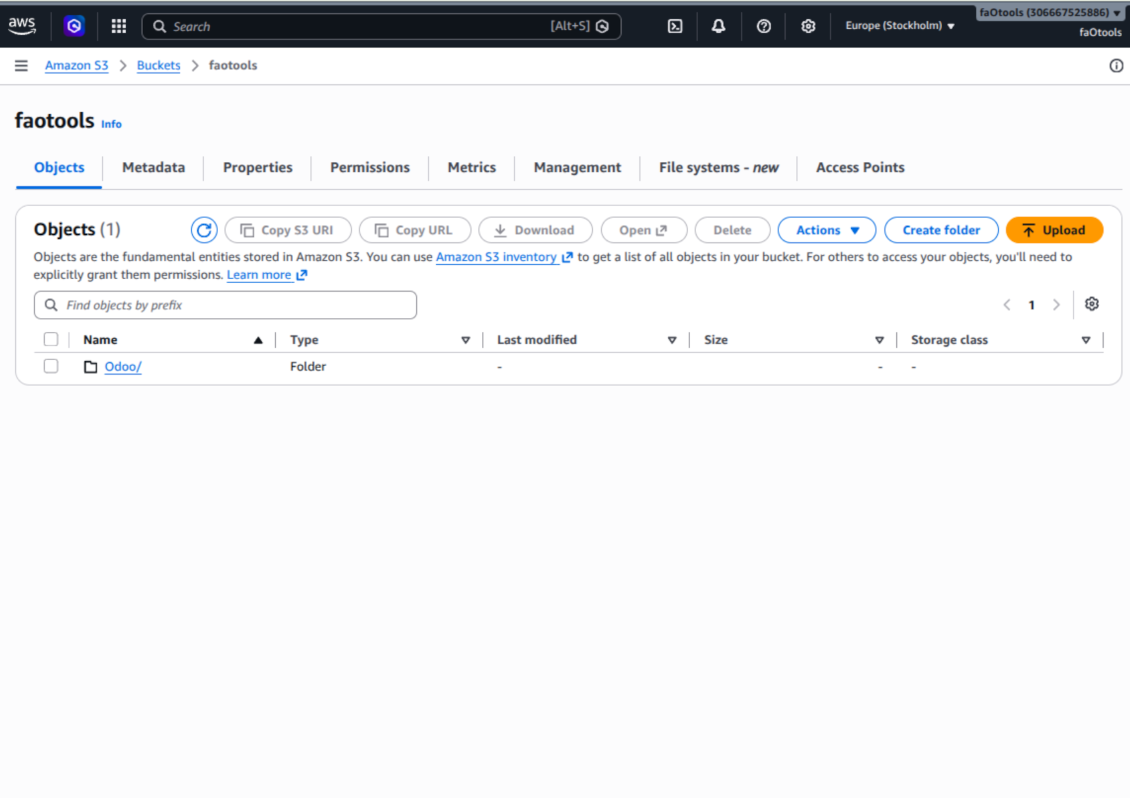
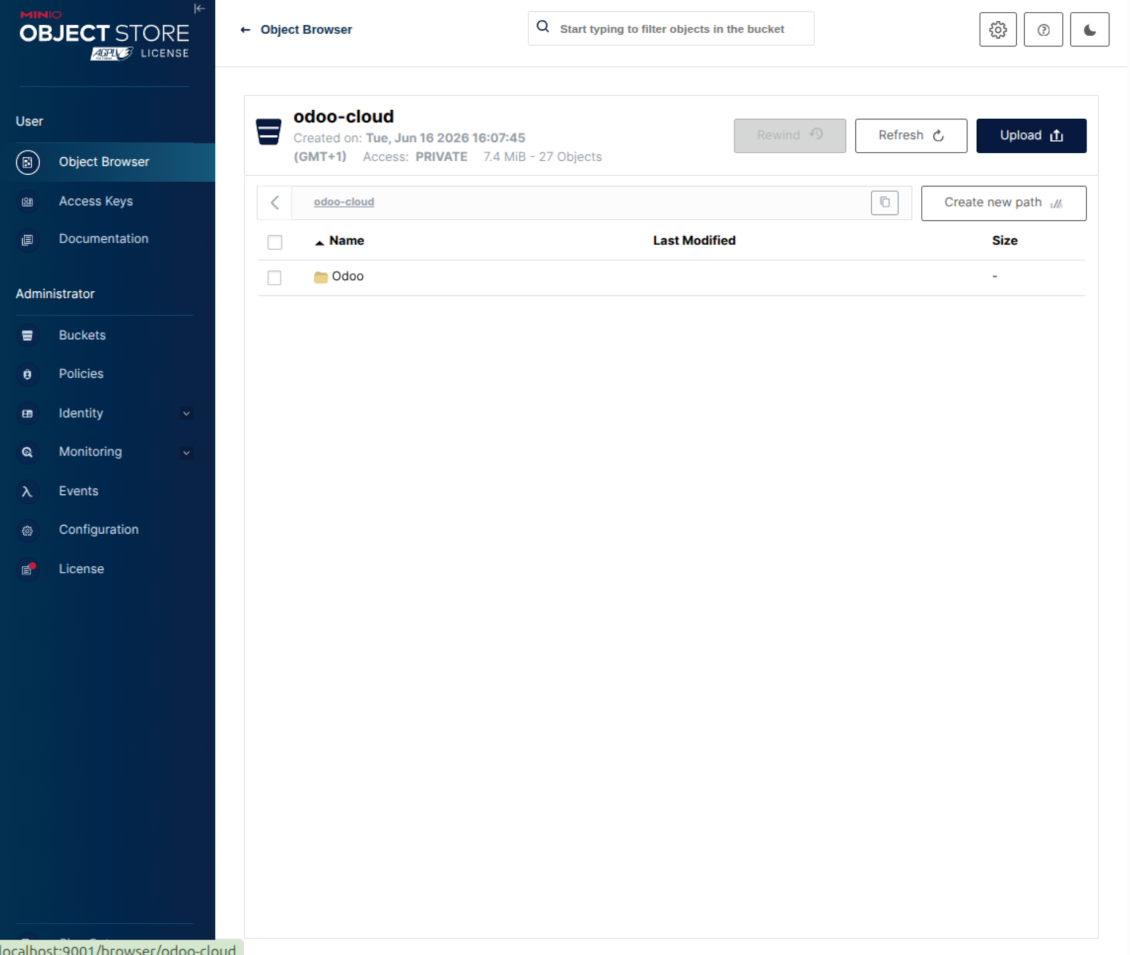
This is the tool to integrate Amazon S3 or/and MinIO features with Odoo folders and files. The app automatically stores Odoo attachments and directories in an Amazon/MinIO S3 bucket and provides access to synced objects through presigned or public web links.
Automatic folders' structure
Decide which Odoo document types should have their own folders trees and synchronize those to Amazon/MinIO S3
Automatic regular sync
Rely on auto-synchronization between Odoo and Amazon S3/MinIO S3 based on scheduled jobs. No manual interaction is required
Bilateral sync
Odoo sends attachments to Amazon/MinIO S3 and retrieves files from there. Binary content is kept in the bucket, while Odoo provides direct access to synced objects
Cloud synchronization history
Control Amazon S3//MinIO S3 sync logs right in Odoo. Export and share those in case of any issues. Be notified of any client disconnections
File manager interface
Manage synced folders and attachments from a single Odoo view. Navigate by directories, search and download files, upload and move attachments to folders
Attachment box
Organize files of any Odoo object in a set of subfolders. Instantly access folders and files in the attachment box and in Amazon S3
How synchronization works
Automatic two-sided sync
-
Configure sync for one or multiple Amazon S3 / MinIO S3 buckets or S3-compatible endpoints
-
Synchronization is bilateral. Updates in Odoo are reflected in Amazon S3 / MinIO S3 (direct sync); changes in Amazon S3 / MinIO S3 modify Odoo folders and attachments (backward sync)
-
Cloud connection with Amazon S3 / MinIO S3 might be reset. In this way, the app assumes getting all synced items back to Odoo (reverse sync)
Queue-based synchronization
-
Once in 15 minutes, the app examines updates in Odoo and Amazon S3 / MinIO S3 to prepare a synchronization queue
-
The connector lists the whole S3 root prefix to track virtual folders and object keys in a stable way during each sync run
-
If the app faces sync failures, it will retry operations afterward. Sync queue processing would not be stopped if there are items not blocked by such failures
Odoo attachments for Amazon S3 / MinIO S3: direct sync
-
Direct sync prepares the virtual folders hierarchy and uploads Odoo attachments to Amazon S3 / MinIO S3
-
Since S3 has no native folders, the app creates empty marker objects to keep empty Odoo directories visible
-
Renaming or moving S3 objects is implemented as copy and delete, following Amazon S3 / MinIO S3 mechanics
Amazon S3 objects for Odoo: backward sync
-
Backward sync checks whether any objects or sub-prefixes are added to Amazon S3 / MinIO S3 folders. If so, the app creates URL attachments or subdirectories inside linked Odoo directories
-
External S3 renames are treated according to S3 nature: old key removed and new key created. Odoo will converge by deleting and recreating the related attachment if required
-
In case of conflicts, direct sync changes are in general considered more important than backward updates
Amazon S3 URLs
Amazon S3 has a specific way to open existing objects. This connector always keeps links on the Amazon S3 side, not as local Odoo download links.
If Use Public URLs is enabled, Odoo saves direct S3 object URLs. Those links work only when the related bucket, prefix, object, CDN, or compatible storage endpoint is publicly accessible.
If Use Public URLs is disabled, Odoo saves AWS Console links to the related bucket object or prefix. Those links are intended for Amazon users: a person opening such a link must be logged in to AWS and must have enough IAM permissions to view the bucket object. If the user has no AWS access, Amazon will not open the file.
Съвети за конфигурация и инсталация за Amazon S3 / MinIO Odoo Integration Odoo v.17
Python dependency
The tool depends on the external library 'boto3'. Install this library for your Odoo server through the command:
pip3 install boto3Amazon S3 Configuration and log in
- Turn on the option 'Amazon S3 Sync' (Cloud Storage > Configuration > Configuration). The optional add-on Amazon S3 Odoo Integration is required
- Open the Amazon S3 Console: https://console.aws.amazon.com/s3/
- Create a new bucket or choose an existing one. Copy the exact bucket name: it should be inserted in Odoo into the field 'Bucket'
- Open the bucket details and copy its AWS Region. Insert it in Odoo into the field 'Region' (for example, eu-west-1 or us-east-1)
- Open the AWS IAM Console: https://console.aws.amazon.com/iam/
- Create a new IAM user or choose an existing technical user. This user should have full rights to list, read, create, write, copy, and delete objects within the selected bucket. You can select the full right admin, or create a new policy (see below)
- In the IAM user form, open the tab 'Security credentials' and press 'Create access key'
- On the page 'Access key best practices & alternatives', select the option Application running outside AWS. This is the correct option when your Odoo server connects to S3 by access key from outside AWS, from Odoo.sh, from your own server, or from another hosting provider. If your Odoo is installed on an AWS EC2 instance, you may instead select Application running on an AWS compute service, but the fields copied to Odoo are the same
- Press 'Next'. On the next step, optionally enter a description tag such as Odoo S3 Sync, then press 'Create access key'
- On the final AWS page, copy Access key or Access key ID into the Odoo field 'Access Key'
- Copy Secret access key into the Odoo field 'Secret Key'. Important: AWS shows the secret key only once, so save it before closing the window
- If you use an S3-compatible provider instead of AWS S3, copy the endpoint URL from that provider's admin panel and insert it into Odoo into the field 'Amazon S3 endpoint URL'. For example, MinIO often uses a URL like https://minio.example.com or http://localhost:9000; LocalStack commonly uses http://localhost:4566
- Go to Odoo Cloud Storage > Configuration > Cloud Clients and press 'Create'
- As a reference, introduce any name which would be clear to all users
- As a Cloud client, choose 'Amazon S3'
- As a Root folder name, enter a title that will be used as the parent S3 prefix for all synced folders. For example, 'Odoo' or 'OdooERP'
- Fill in the fields 'Bucket', 'Region', 'Access Key', 'Secret Key', and, if needed, 'Amazon S3 endpoint URL' and addressing style
- Choose whether Odoo should use temporary presigned URLs or public bucket/CDN URLs. For private buckets, keep presigned URLs enabled and set their lifetime in seconds
- Press 'Confirm'. Odoo checks bucket access and creates or verifies the root folder prefix. Amazon S3 - Odoo synchronization is ready to be done
- Apply the newly created cloud client to folder rules and/or manual folders which should be synced to that Amazon S3 bucket
- Await the sync scheduled job to be started. For testing purposes only: trigger integration manually from Cloud Storage > Configuration > Configuration > the button 'Launch sync'.
Useful AWS documentation: creating an S3 bucket: https://docs.aws.amazon.com/AmazonS3/latest/userguide/creating-bucket.html, managing IAM access keys: https://docs.aws.amazon.com/IAM/latest/UserGuide/id_credentials_access-keys.html.
Bucket policy example
    {
    "Version": "2012-10-17",
    "Statement": [
        {
            "Sid": "ListObjectsInBucket",
            "Effect": "Allow",
            "Action": [
                "s3:ListBucket"
            ],
            "Resource": "arn:aws:s3:::NAME_OF_YOUR_BUCKET"
        },
        {
            "Sid": "AllObjectActions",
            "Effect": "Allow",
            "Action": [
                "s3:GetObject",
                "s3:PutObject",
                "s3:DeleteObject"
            ],
            "Resource": "arn:aws:s3:::NAME_OF_YOUR_BUCKET/*"
        }
    ]
}
Create a new AWS IAM user

Specify the IAM user name

Attach permission policies directly

Amazon S3 bucket policy JSON example

Review and name the S3 policy

Select the bucket policy for the user

Review and create the IAM user

Create an access key for the user

Choose the access key use case

Set the access key description tag

Retrieve the access key and secret

Configure the Amazon S3 client in Odoo

Amazon S3 URLs and access rights
Amazon S3 has an important peculiarity: the URL shown in Odoo is always an Amazon-side link.
If Use Public URLs is enabled, Odoo saves a direct S3 object URL. This link works only if the related S3 bucket, prefix, object, CDN, or compatible endpoint is publicly readable. Otherwise, Amazon S3 will show AccessDenied, even if the user is logged in to the AWS console.
For public links, configure the bucket permissions in Amazon S3 and allow public read access for the Odoo prefix. Example bucket policy:
{
  "Version": "2012-10-17",
  "Statement": [
    {
      "Sid": "PublicReadOdooPrefix",
      "Effect": "Allow",
      "Principal": "*",
      "Action": "s3:GetObject",
      "Resource": "arn:aws:s3:::YOUR_BUCKET_NAME/Odoo/*"
    }
  ]
}
Replace YOUR_BUCKET_NAME with the real bucket name and Odoo/ with the selected root folder prefix. Also make sure that Amazon S3 Block public access settings do not block that bucket policy.
If Use Public URLs is disabled, Odoo saves AWS Console links to the related bucket object or prefix. Such links are useful for Amazon users: the person opening the link must be logged in to AWS and must have IAM access to that bucket object. If the user has no AWS access, Amazon will not open the file.
MinIO configuration and log in
- Prepare a running MinIO server
- Open the MinIO Console
- Create a new bucket or choose an existing one. Copy the exact bucket name: it should be inserted in Odoo into the field 'Bucket'
- Create access credentials for Odoo. In MinIO, use an access key / secret key pair or a service account that has rights to list, read, create, write, copy, and delete objects within the selected bucket
- Copy the MinIO Access Key into the Odoo field 'Access Key'
- Copy the MinIO Secret Key into the Odoo field 'Secret Key'. Important: save the secret before closing the MinIO page if MinIO shows it only once
- Copy the MinIO S3 API endpoint URL into Odoo into the field 'Amazon S3 endpoint URL'. For example, a local server usually uses http://localhost:9000, while a production server may use https://minio.example.com
- Go to Odoo Cloud Storage > Configuration > Cloud Clients and press 'Create'
- As a reference, introduce any name which would be clear to all users
- As a Cloud client, choose 'MinIO'
- As a Root folder name, enter a title that will be used as the parent MinIO object prefix for all synced folders. For example, 'Odoo' or 'OdooERP'
- Fill in the fields 'Bucket', 'Access Key', 'Secret Key', and 'Amazon S3 endpoint URL'. The field 'Region' is optional for MinIO; if it is empty, Odoo uses us-east-1 for S3-compatible signing
- Keep the addressing style as Path-style. This is the recommended option for MinIO endpoints, especially when the MinIO host does not provide bucket-specific DNS names
- Choose whether Odoo should use direct public MinIO URLs. Enable 'Use Public URLs' only when the bucket, prefix, reverse proxy, or CDN is publicly readable. For private MinIO buckets, leave it disabled
- Press 'Confirm'. Odoo checks bucket access and creates or verifies the root folder prefix. MinIO - Odoo synchronization is ready to be done
- Apply the newly created cloud client to folder rules and/or manual folders which should be synced to that MinIO bucket
- Await the sync scheduled job to be started. For testing purposes only: trigger integration manually from Cloud Storage > Configuration > Configuration > the button 'Launch sync'.
Useful MinIO documentation: https://min.io/docs/minio/linux/administration/identity-access-management.html, https://min.io/docs/minio/linux/reference/minio-server/minio-server.html.
Create a MinIO access key

Copy the new MinIO credentials

Configure the MinIO cloud client in Odoo

Често задавани въпроси за Amazon S3 / MinIO Odoo Integration Odoo v.17
Къде се съхраняват синхронизираните полета? Дублират ли се в Odoo и clouds?
Приложението приема, че двоичното съдържание на прикачените файлове се съхранява в Cloud Client вместо на сървъра на Odoo. Такива прикачени файлове в Odoo стават от тип URL и можете по всяко време да ги отворите от полето за прикачени файлове или от Cloud Client.
След настройката не са нужни ръчни действия, защото синхронизацията е напълно автоматична. Решете кои типове документи на Odoo да се синхронизират и задайте свързан модел за всеки от тях (клиенти, поръчки за продажба или покупка, задачи, проекти и т.н.).
Мога ли да имам няколко папки за същия тип документ? Например вътрешни проекти и клиентски проекти?
Да, можете. За целта подгответе правило за всеки и след това приложете филтри: например по тип на проекта.
Опитайте филтрите да са взаимно изключващи се, за да може документът да се присвои еднозначно. Например „клиент, но не доставчик“, „доставчик, но не клиент“. Иначе папката на конкретен документ ще скача от един модел към друг.
Възможна ли е синхронизация в реално време?
Не. Имаме сериозни причини да избягваме синхронизация в реално време:
Проблеми с производителността. Ако синхронизацията е в реално време, всяко качване на файл ще показва екран на зареждане.
Проблеми с конфликти. Ако 2 потребители променят едновременно елемент, може да възникнат неразрешими ситуации. При регулярни задачи можем да го оправим после, а при реално време трябва да го пазим като опашка, което е още по-объркващо за потребителите.
Проблеми с функционалността. Особено преименуване и преструктуриране на елементи. При обратната синхронизация инструментът стриктно разчита на логиката на директориите и при всяка синхронизация се проверяват 100% от елементите. Ако това става след всяка промяна, ще има хиляди заявки в секунда. Ако не: промените ще се загубят.
Мога ли да променя имената на папките по подразбиране в облаците?
Можете да зададете свое име на директориите на моделите (поръчки за продажба, възможности, доставчици и т.н.) за всеки тип документ.
За папките на обектите (SO-001, John Smith и т.н.) инструментът разчита на метода на Odoo за изграждане на показваното име на този тип документ. Можете да го промените, като дефинирате израз за името. Използва се точният синтаксис на Odoo шаблоните за имейл.
Мога ли да променя честотата на задачите за синхронизация?
Не, от версия 15 не трябва да променяте планираните задачи. Оптимизирани са да се изпълняват на всеки 15 минути за най-стабилна и бърза връзка.
Уверете се, че времената за изчакване на сървъра Odoo са поне 15 минути (900 секунди).
Ако трябва да спрете синхронизацията за известно време, направете го във формуляра на конкретния cloud client.
Мога ли да синхронизирам прикачени файлове с няколко cloud клиента
Да, от версия 15 можете да настройте няколко връзки. Така някои папки се синхронизират с един cloud client, други — с друг.
Имайте предвид, че една и съща папка не може да се синхронизира едновременно с няколко cloud storages.
В нашите облаци използваме специален редактор (напр. OnlyOffice, Office 365 и др.). Ще се отварят ли файловете в този редактор?
Да, в зависимост от конфигурацията на cloud client.
Нуждая ли се само от приложението Cloud Storage Solution?
От версия 15 приложението може да се ползва самостоятелно за подреждане на прикачени файлове в папки и интерфейс на файлов мениджър.
Ако целта е връзка с някой от облачните клиенти, трябва да се инсталира поне едно допълнително клиентско приложение.
Какво става, когато променя правило за папка?
Когато правило за папка се промени, се променя и списъкът с папки. Ако папка вече не отговаря на условията, се премахва. Ако файловете са били синхронизирани, обратната синхронизация ги връща в Odoo и ги изтрива от Cloud Client.
Ако обектът на документ не отговаря на условията на правило за папка, папката му няма да се създаде. Ако по-късно отговаря, свързаната папка ще бъде генерирана.
Текстовете на приложението и уебсайта на езици, различни от английски, са с помощта на ИИ и са съгласувани с официалните преводи на Odoo. Ако забележите грешка, изпратете тикет за коректност на преводите и ще го поправим.
Демонстрационни бази Odoo (прегледи наживо)
За това приложение можем да предоставим безплатна персонализирана демо база.
За да се свържете с нас не са нужни телефонен номер или кредитна карта. Достатъчна е кратка регистрация по имейл, която не отнема повече от 30 секунди.
По ваше искане ще подготвим индивидуална база за преглед наживо, където около две седмици можете да правите тестове и да проверявате предположения.
Докладване на грешки
Ако срещнете грешки или непоследователно поведение, свържете се с нас. Гарантираме поправки до 60 дни от покупката и сме силно заинтересовани да подобряваме инструментите и след този срок.
За да се свържете с нас не са нужни телефонен номер или кредитна карта. Достатъчна е кратка регистрация по имейл, която не отнема повече от 30 секунди.
Включете възможно най-много подробности в заявката: екранни снимки, дневници на Odoo сървъра, пълно описание как да възпроизведете проблема и т.н. Обикновено са нужни няколко работни дни, за да се подготви работен план (ако грешката е потвърдена) или насоки какво да се направи (в противен случай).
Публични заявки за функции и идеи за модули (безплатна разработка)
Силно сме мотивирани да подобряваме инструментите си и ще сме благодарни за всяка обратна връзка. Ако изискванията ви са от обществена полза и могат да се реализират ефективно, екипът ще ги включи в нашия списък със задачи.
Такъв списък със задачи се обработва редовно и не предполага допълнителни такси. Макар да не можем да обещаем срокове и окончателен дизайн, това може да е добър начин да получите желаните функции без инвестиции и рискове.
За да се свържете с нас не са нужни телефонен номер или кредитна карта. Достатъчна е кратка регистрация по имейл, която не отнема повече от 30 секунди.


The tool to build a deep and structured knowledge base for internal and external use. Knowledge System. KMS. Wiki-like revisions.
398€
The tool to set up KPI targets and control their fulfillment by periods. KPI dashboards. Dashboard designer. KPI charts

The tool for time-based service management from booking appointments to sales and reviews
398€
The tool to manage your Odoo from your favorite AI chats through MCP. Claude. Any MCP-supporting AI.

The tool to flexibly structure Odoo attachments in folders and synchronize directories with cloud clients: Google Drive, OneDrive/SharePoint, Nextcloud/ownCloud, Dropbox, Amazon S3, Box, and NAS. DMS. File Manager. Document management system
398€
The tool to automatically synchronize Odoo attachments with OneDrive files in both ways
487€
The tool to automatically synchronize Odoo attachments with Google Drive files in both ways
487€
The tool to automatically synchronize Odoo attachments with ownCloud/Nextcloud files in both ways
487€