Amazon S3 / MinIO Odoo Integration v.17
The tool to automatically synchronize Odoo attachments with Amazon S3 or/and MinIO files in both ways
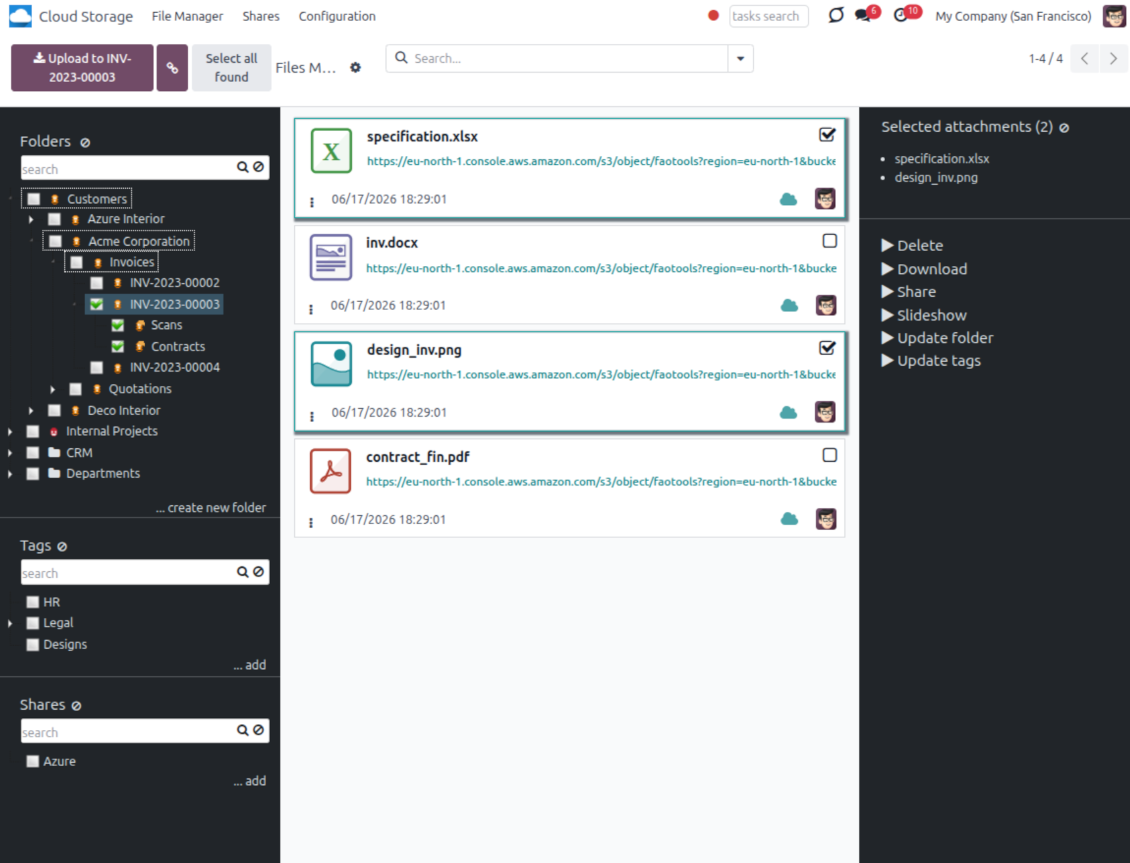
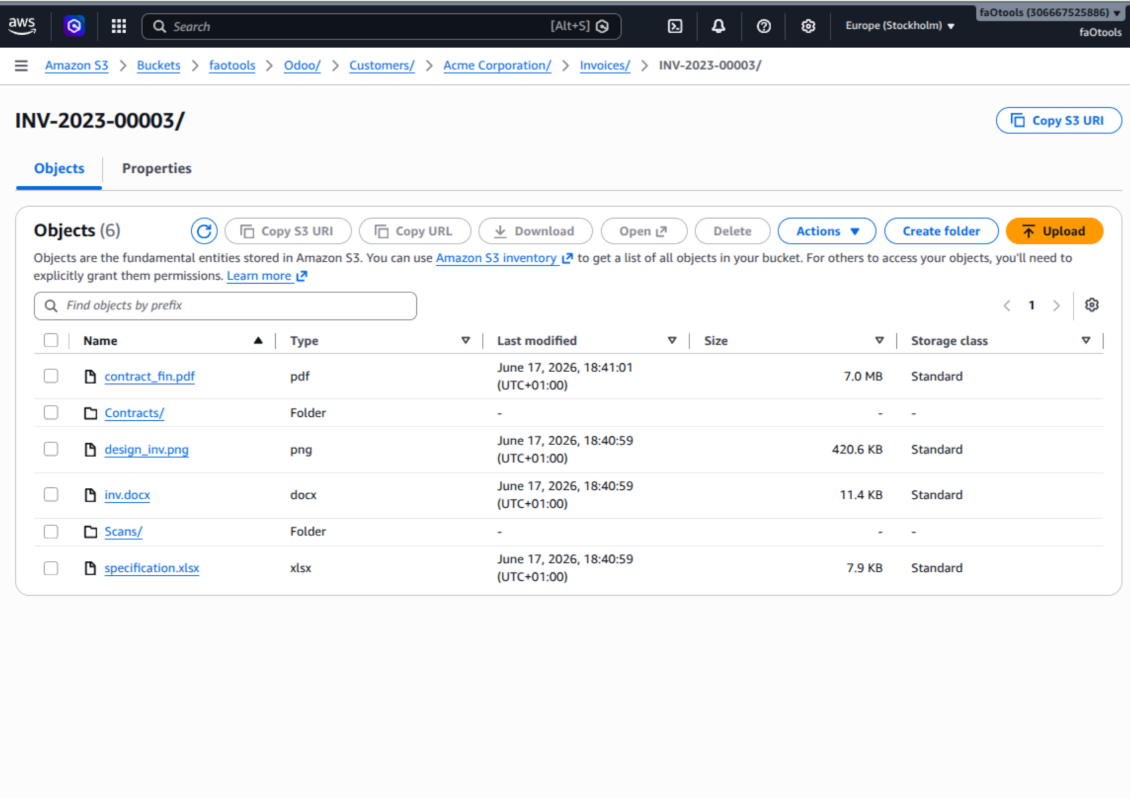
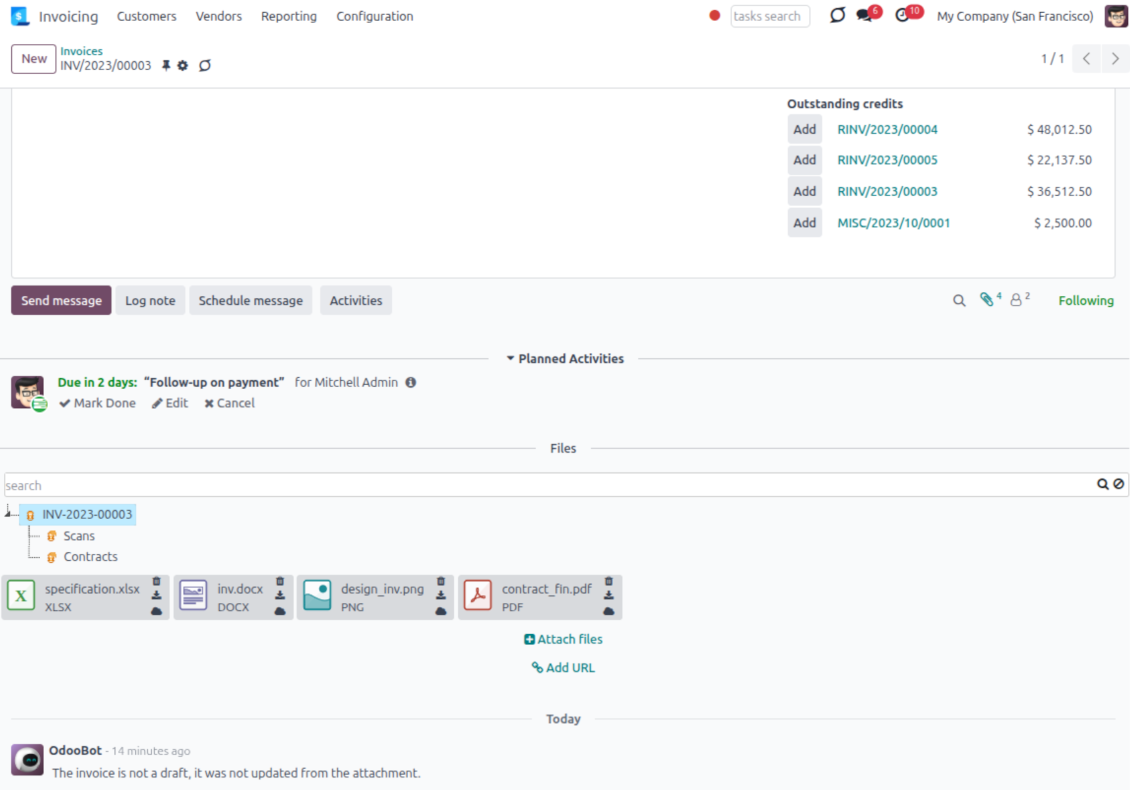
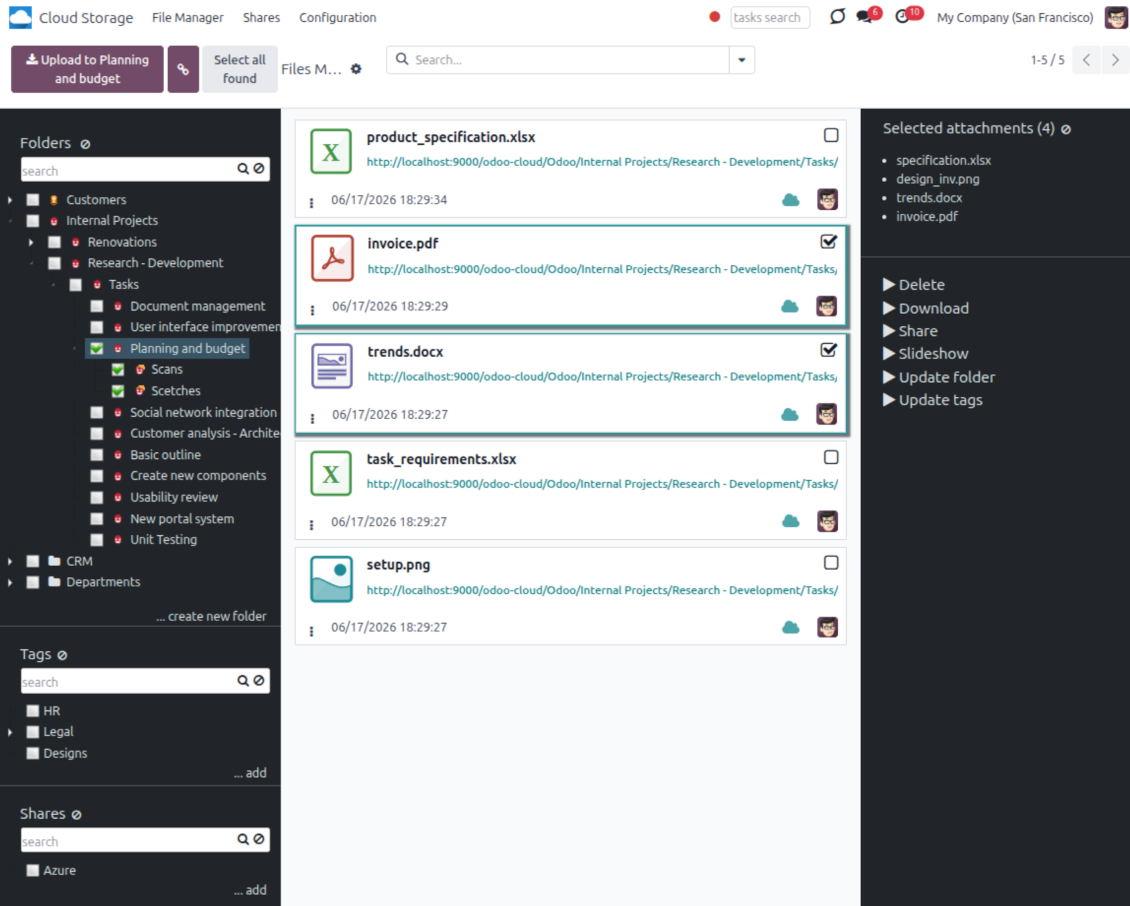
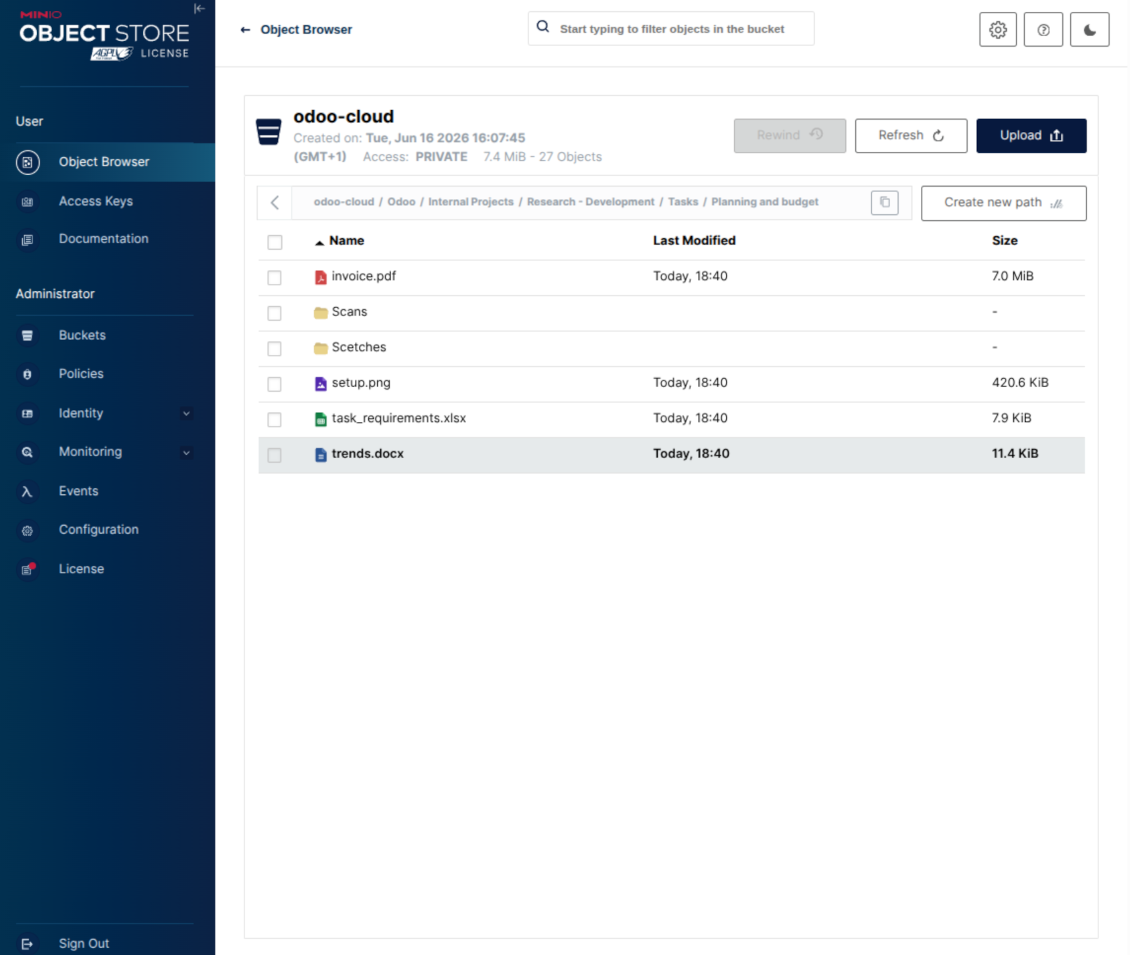
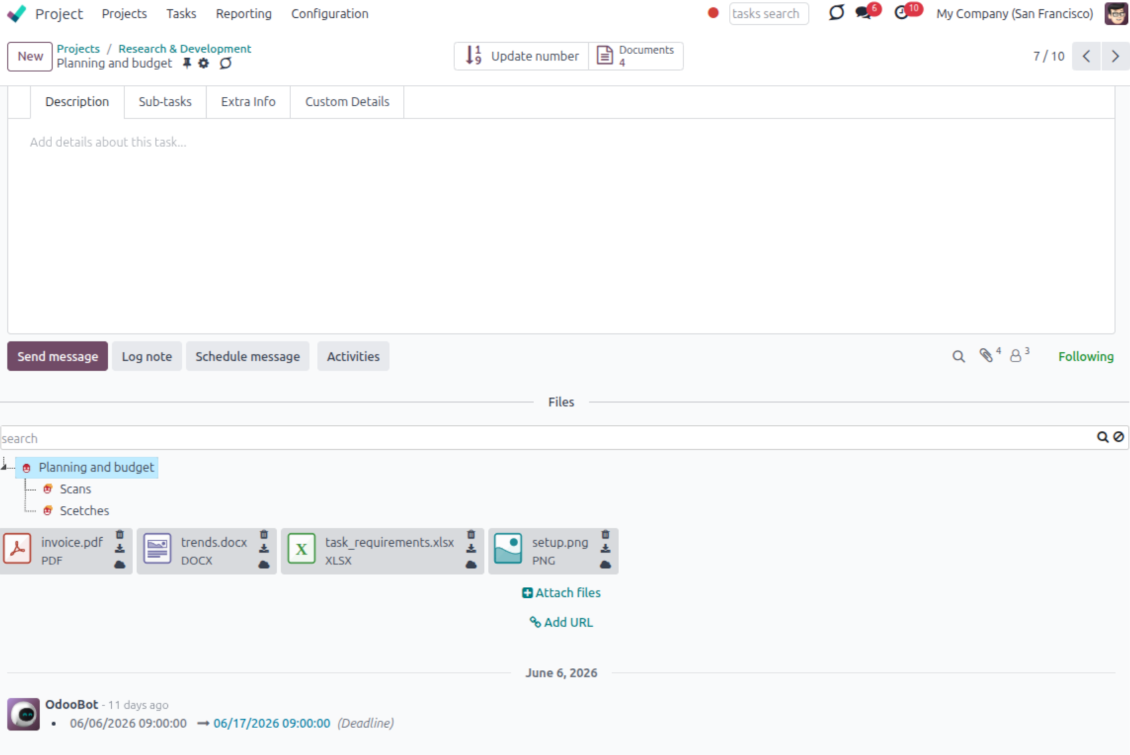
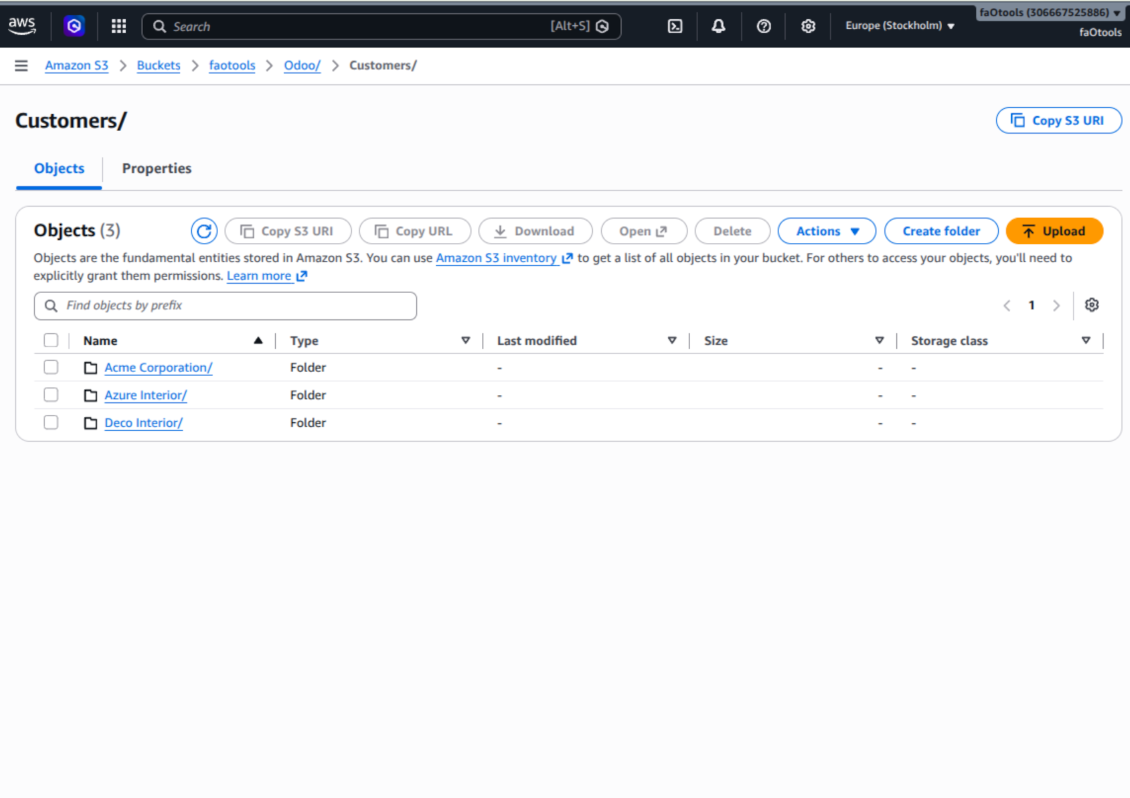
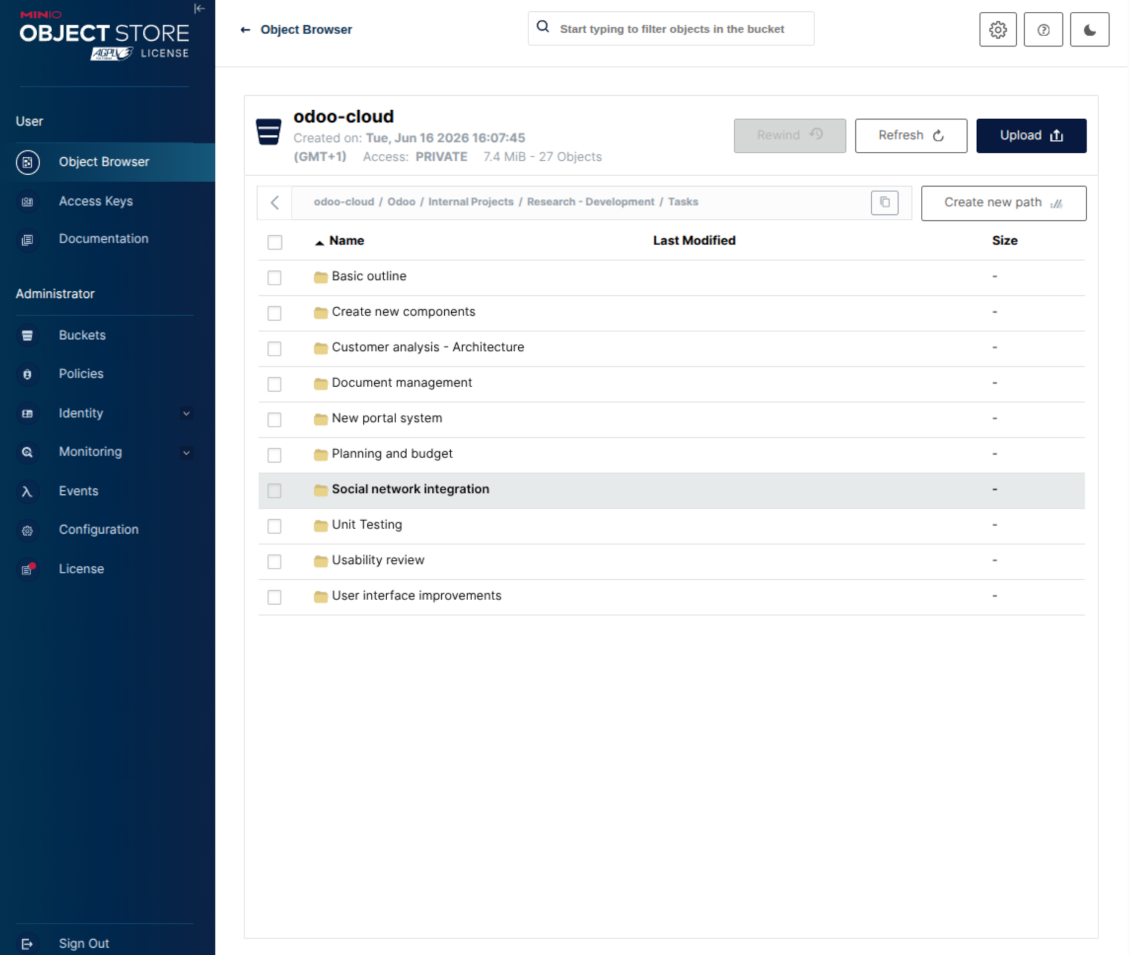
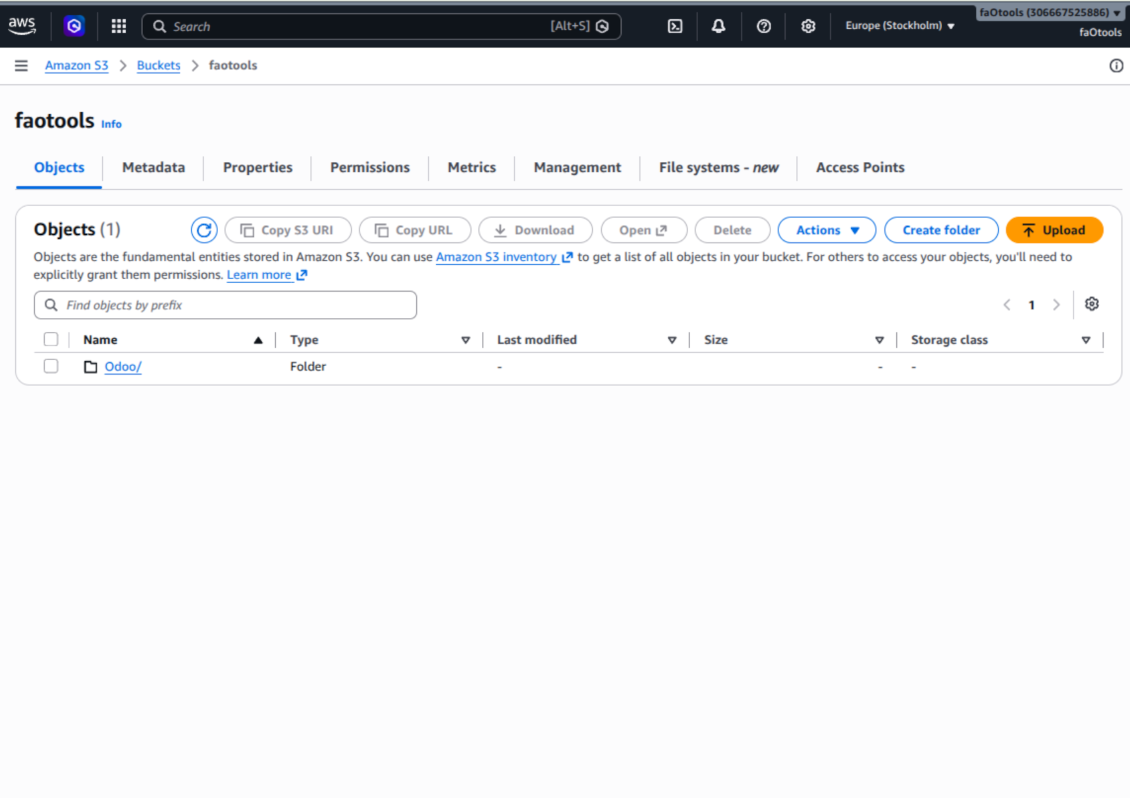
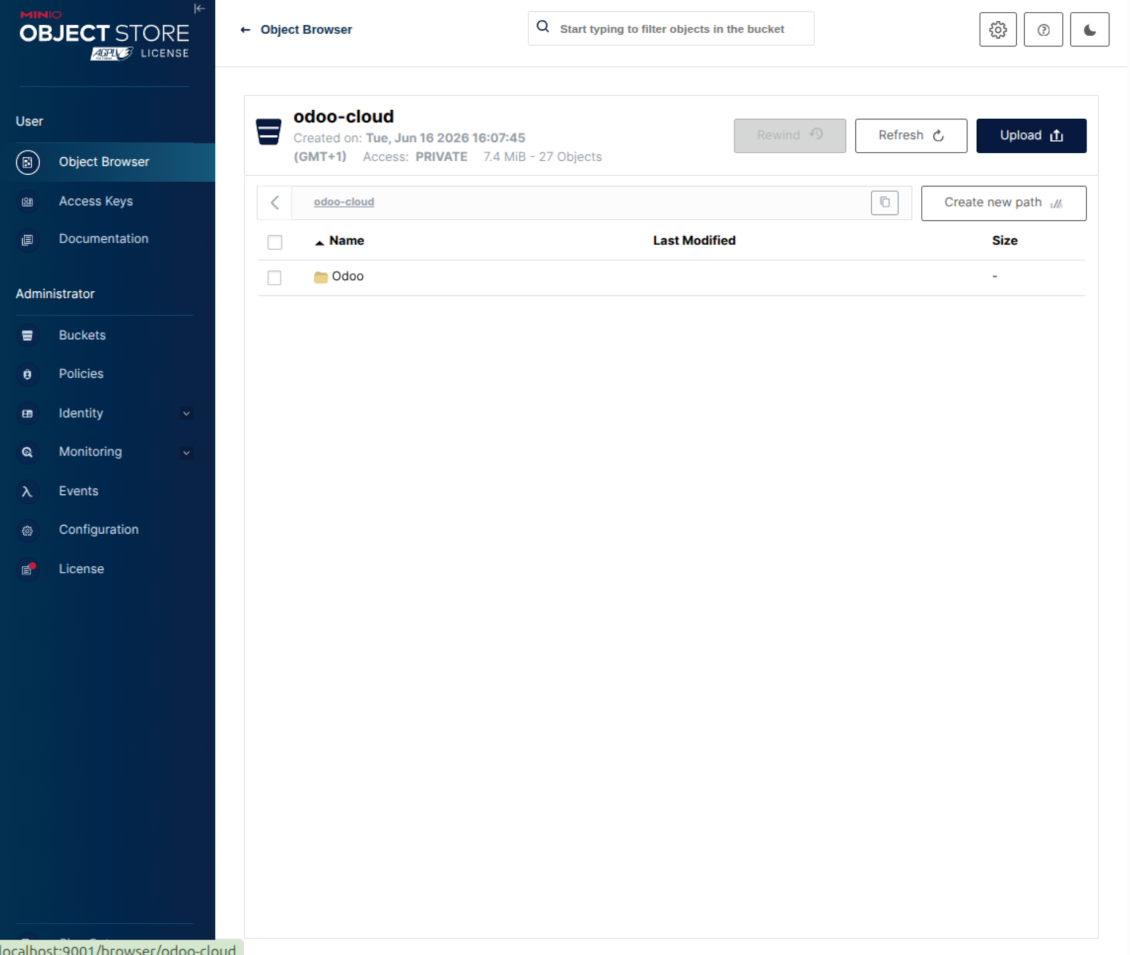
This is the tool to integrate Amazon S3 or/and MinIO features with Odoo folders and files. The app automatically stores Odoo attachments and directories in an Amazon/MinIO S3 bucket and provides access to synced objects through presigned or public web links.
Automatic folders' structure
Decide which Odoo document types should have their own folders trees and synchronize those to Amazon/MinIO S3
Automatic regular sync
Rely on auto-synchronization between Odoo and Amazon S3/MinIO S3 based on scheduled jobs. No manual interaction is required
Bilateral sync
Odoo sends attachments to Amazon/MinIO S3 and retrieves files from there. Binary content is kept in the bucket, while Odoo provides direct access to synced objects
Cloud synchronization history
Control Amazon S3//MinIO S3 sync logs right in Odoo. Export and share those in case of any issues. Be notified of any client disconnections
File manager interface
Manage synced folders and attachments from a single Odoo view. Navigate by directories, search and download files, upload and move attachments to folders
Attachment box
Organize files of any Odoo object in a set of subfolders. Instantly access folders and files in the attachment box and in Amazon S3
How synchronization works
Automatic two-sided sync
-
Configure sync for one or multiple Amazon S3 / MinIO S3 buckets or S3-compatible endpoints
-
Synchronization is bilateral. Updates in Odoo are reflected in Amazon S3 / MinIO S3 (direct sync); changes in Amazon S3 / MinIO S3 modify Odoo folders and attachments (backward sync)
-
Cloud connection with Amazon S3 / MinIO S3 might be reset. In this way, the app assumes getting all synced items back to Odoo (reverse sync)
Queue-based synchronization
-
Once in 15 minutes, the app examines updates in Odoo and Amazon S3 / MinIO S3 to prepare a synchronization queue
-
The connector lists the whole S3 root prefix to track virtual folders and object keys in a stable way during each sync run
-
If the app faces sync failures, it will retry operations afterward. Sync queue processing would not be stopped if there are items not blocked by such failures
Odoo attachments for Amazon S3 / MinIO S3: direct sync
-
Direct sync prepares the virtual folders hierarchy and uploads Odoo attachments to Amazon S3 / MinIO S3
-
Since S3 has no native folders, the app creates empty marker objects to keep empty Odoo directories visible
-
Renaming or moving S3 objects is implemented as copy and delete, following Amazon S3 / MinIO S3 mechanics
Amazon S3 objects for Odoo: backward sync
-
Backward sync checks whether any objects or sub-prefixes are added to Amazon S3 / MinIO S3 folders. If so, the app creates URL attachments or subdirectories inside linked Odoo directories
-
External S3 renames are treated according to S3 nature: old key removed and new key created. Odoo will converge by deleting and recreating the related attachment if required
-
In case of conflicts, direct sync changes are in general considered more important than backward updates
Amazon S3 URLs
Amazon S3 has a specific way to open existing objects. This connector always keeps links on the Amazon S3 side, not as local Odoo download links.
If Use Public URLs is enabled, Odoo saves direct S3 object URLs. Those links work only when the related bucket, prefix, object, CDN, or compatible storage endpoint is publicly accessible.
If Use Public URLs is disabled, Odoo saves AWS Console links to the related bucket object or prefix. Those links are intended for Amazon users: a person opening such a link must be logged in to AWS and must have enough IAM permissions to view the bucket object. If the user has no AWS access, Amazon will not open the file.
Савети за конфигурацију и инсталацију за Amazon S3 / MinIO Odoo Integration Odoo v.17
Python dependency
The tool depends on the external library 'boto3'. Install this library for your Odoo server through the command:
pip3 install boto3Amazon S3 Configuration and log in
- Turn on the option 'Amazon S3 Sync' (Cloud Storage > Configuration > Configuration). The optional add-on Amazon S3 Odoo Integration is required
- Open the Amazon S3 Console: https://console.aws.amazon.com/s3/
- Create a new bucket or choose an existing one. Copy the exact bucket name: it should be inserted in Odoo into the field 'Bucket'
- Open the bucket details and copy its AWS Region. Insert it in Odoo into the field 'Region' (for example, eu-west-1 or us-east-1)
- Open the AWS IAM Console: https://console.aws.amazon.com/iam/
- Create a new IAM user or choose an existing technical user. This user should have full rights to list, read, create, write, copy, and delete objects within the selected bucket. You can select the full right admin, or create a new policy (see below)
- In the IAM user form, open the tab 'Security credentials' and press 'Create access key'
- On the page 'Access key best practices & alternatives', select the option Application running outside AWS. This is the correct option when your Odoo server connects to S3 by access key from outside AWS, from Odoo.sh, from your own server, or from another hosting provider. If your Odoo is installed on an AWS EC2 instance, you may instead select Application running on an AWS compute service, but the fields copied to Odoo are the same
- Press 'Next'. On the next step, optionally enter a description tag such as Odoo S3 Sync, then press 'Create access key'
- On the final AWS page, copy Access key or Access key ID into the Odoo field 'Access Key'
- Copy Secret access key into the Odoo field 'Secret Key'. Important: AWS shows the secret key only once, so save it before closing the window
- If you use an S3-compatible provider instead of AWS S3, copy the endpoint URL from that provider's admin panel and insert it into Odoo into the field 'Amazon S3 endpoint URL'. For example, MinIO often uses a URL like https://minio.example.com or http://localhost:9000; LocalStack commonly uses http://localhost:4566
- Go to Odoo Cloud Storage > Configuration > Cloud Clients and press 'Create'
- As a reference, introduce any name which would be clear to all users
- As a Cloud client, choose 'Amazon S3'
- As a Root folder name, enter a title that will be used as the parent S3 prefix for all synced folders. For example, 'Odoo' or 'OdooERP'
- Fill in the fields 'Bucket', 'Region', 'Access Key', 'Secret Key', and, if needed, 'Amazon S3 endpoint URL' and addressing style
- Choose whether Odoo should use temporary presigned URLs or public bucket/CDN URLs. For private buckets, keep presigned URLs enabled and set their lifetime in seconds
- Press 'Confirm'. Odoo checks bucket access and creates or verifies the root folder prefix. Amazon S3 - Odoo synchronization is ready to be done
- Apply the newly created cloud client to folder rules and/or manual folders which should be synced to that Amazon S3 bucket
- Await the sync scheduled job to be started. For testing purposes only: trigger integration manually from Cloud Storage > Configuration > Configuration > the button 'Launch sync'.
Useful AWS documentation: creating an S3 bucket: https://docs.aws.amazon.com/AmazonS3/latest/userguide/creating-bucket.html, managing IAM access keys: https://docs.aws.amazon.com/IAM/latest/UserGuide/id_credentials_access-keys.html.
Bucket policy example
    {
    "Version": "2012-10-17",
    "Statement": [
        {
            "Sid": "ListObjectsInBucket",
            "Effect": "Allow",
            "Action": [
                "s3:ListBucket"
            ],
            "Resource": "arn:aws:s3:::NAME_OF_YOUR_BUCKET"
        },
        {
            "Sid": "AllObjectActions",
            "Effect": "Allow",
            "Action": [
                "s3:GetObject",
                "s3:PutObject",
                "s3:DeleteObject"
            ],
            "Resource": "arn:aws:s3:::NAME_OF_YOUR_BUCKET/*"
        }
    ]
}
Create a new AWS IAM user

Specify the IAM user name

Attach permission policies directly

Amazon S3 bucket policy JSON example

Review and name the S3 policy

Select the bucket policy for the user

Review and create the IAM user

Create an access key for the user

Choose the access key use case

Set the access key description tag

Retrieve the access key and secret

Configure the Amazon S3 client in Odoo

Amazon S3 URLs and access rights
Amazon S3 has an important peculiarity: the URL shown in Odoo is always an Amazon-side link.
If Use Public URLs is enabled, Odoo saves a direct S3 object URL. This link works only if the related S3 bucket, prefix, object, CDN, or compatible endpoint is publicly readable. Otherwise, Amazon S3 will show AccessDenied, even if the user is logged in to the AWS console.
For public links, configure the bucket permissions in Amazon S3 and allow public read access for the Odoo prefix. Example bucket policy:
{
  "Version": "2012-10-17",
  "Statement": [
    {
      "Sid": "PublicReadOdooPrefix",
      "Effect": "Allow",
      "Principal": "*",
      "Action": "s3:GetObject",
      "Resource": "arn:aws:s3:::YOUR_BUCKET_NAME/Odoo/*"
    }
  ]
}
Replace YOUR_BUCKET_NAME with the real bucket name and Odoo/ with the selected root folder prefix. Also make sure that Amazon S3 Block public access settings do not block that bucket policy.
If Use Public URLs is disabled, Odoo saves AWS Console links to the related bucket object or prefix. Such links are useful for Amazon users: the person opening the link must be logged in to AWS and must have IAM access to that bucket object. If the user has no AWS access, Amazon will not open the file.
MinIO configuration and log in
- Prepare a running MinIO server
- Open the MinIO Console
- Create a new bucket or choose an existing one. Copy the exact bucket name: it should be inserted in Odoo into the field 'Bucket'
- Create access credentials for Odoo. In MinIO, use an access key / secret key pair or a service account that has rights to list, read, create, write, copy, and delete objects within the selected bucket
- Copy the MinIO Access Key into the Odoo field 'Access Key'
- Copy the MinIO Secret Key into the Odoo field 'Secret Key'. Important: save the secret before closing the MinIO page if MinIO shows it only once
- Copy the MinIO S3 API endpoint URL into Odoo into the field 'Amazon S3 endpoint URL'. For example, a local server usually uses http://localhost:9000, while a production server may use https://minio.example.com
- Go to Odoo Cloud Storage > Configuration > Cloud Clients and press 'Create'
- As a reference, introduce any name which would be clear to all users
- As a Cloud client, choose 'MinIO'
- As a Root folder name, enter a title that will be used as the parent MinIO object prefix for all synced folders. For example, 'Odoo' or 'OdooERP'
- Fill in the fields 'Bucket', 'Access Key', 'Secret Key', and 'Amazon S3 endpoint URL'. The field 'Region' is optional for MinIO; if it is empty, Odoo uses us-east-1 for S3-compatible signing
- Keep the addressing style as Path-style. This is the recommended option for MinIO endpoints, especially when the MinIO host does not provide bucket-specific DNS names
- Choose whether Odoo should use direct public MinIO URLs. Enable 'Use Public URLs' only when the bucket, prefix, reverse proxy, or CDN is publicly readable. For private MinIO buckets, leave it disabled
- Press 'Confirm'. Odoo checks bucket access and creates or verifies the root folder prefix. MinIO - Odoo synchronization is ready to be done
- Apply the newly created cloud client to folder rules and/or manual folders which should be synced to that MinIO bucket
- Await the sync scheduled job to be started. For testing purposes only: trigger integration manually from Cloud Storage > Configuration > Configuration > the button 'Launch sync'.
Useful MinIO documentation: https://min.io/docs/minio/linux/administration/identity-access-management.html, https://min.io/docs/minio/linux/reference/minio-server/minio-server.html.
Create a MinIO access key

Copy the new MinIO credentials

Configure the MinIO cloud client in Odoo

Често постављана питања о Amazon S3 / MinIO Odoo Integration Odoo v.17
Где се чувају синхронизована поља? Да ли се дуплирају у Odoo и clouds?
Апликација претпоставља да се бинарни садржај прилога чува у Cloud Client уместо на Odoo серверу. Такви прилози у Odoo постају типа URL и можете им приступити у било ком тренутку из поља прилога или из Cloud Client.
Након подешавања нису потребне ручне радње, јер је синхронизација потпуно аутоматска. Одлучите које типове Odoo докумената треба синхронизовати и подесите повезани модел за сваки од њих (купци, налози за продају или набавку, задаци, пројекти итд.).
Могу ли имати неколико фасцикли за исти тип документа? На пример, интерни пројекти и пројекти купаца?
Да, можете. У ту сврху припремите правило за сваки, а затим примените филтере: на пример по типу пројекта.
Покушајте да филтери буду међусобно искључиви како би се документ могао једнозначно доделити. На пример, „купац али не добављач“, „добављач али не купац“. Иначе би фасцикла одређеног документа скакала с једног модела на други.
Да ли је могуће да синхронизација буде у реалном времену?
Не. Имамо озбиљне разлоге да избегавамо синхронизацију у реалном времену:
Проблеми перформанси. Ако је синхронизација у реалном времену, свако отпремање датотеке ће приказати екран учитавања.
Проблеми сукоба. Ако 2 корисника истовремено измене ставку, то може довести до нерешених ситуација. Код редовних послова то можемо исправити накнадно, а у реалном времену морали бисмо то чувати као ред, што би кориснике још више збуњивало.
Проблеми функционалности. Посебно преименовање и реструктурирање ставки. У повратној синхронизацији алат се строго ослања на логику директоријума и при свакој синхронизацији проверава се 100% ставки. Ако се то ради после сваког ажурирања, биће хиљаде захтева у секунди. Ако не: измене би биле изгубљене.
Могу ли да променим подразумевана имена фасцикли у облацима?
Можете да доделите сопствени назив директоријумима модела (налози продаје, прилике, добављачи итд.) за било који тип документа.
За фасцикле објеката (SO-001, John Smith итд.) алат се ослања на Odoo метод за састављање приказаног назива тог типа документа. То можете променити дефинисањем израза назива. Користи се тачна синтакса Odoo шаблона имејла.
Могу ли да променим учесталост послова синхронизације?
Не, од верзије 15 не треба да мењате заказане послове. Оптимизовани су да се покрећу сваких 15 минута како би веза била најстабилнија и најбржа.
Проверите да су временска ограничења Odoo сервера постављена на најмање 15 минута (900 секунди).
Ако треба привремено да зауставите синхронизацију, урадите то на формулару одређеног cloud client.
Могу ли да синхронизујем прилоге са неколико cloud клијената
Да, од верзије 15 можете подесити више веза. Тако се неке фасцикле синхронизују са једним cloud client-ом, а друге са другим.
Имајте у виду да исту фасциклу није могуће истовремено синхронизовати са више cloud storages.
У нашим облацима користимо посебан уређивач (нпр. OnlyOffice, Office 365 итд.). Да ли би се датотеке отварале у том уређивачу?
Да, у зависности од конфигурације cloud client.
Да ли ми треба само апликација Cloud Storage Solution?
Од верзије 15 апликација се може користити самостално за слагање прилога у фасцикле и интерфејс менаџера датотека.
Међутим, ако је циљ веза са једним од облачних клијената, треба инсталирати бар једну опциону апликацију клијента.
Шта се дешава када променим правило фасцикле?
Када се правило фасцикле промени, мења се и списак фасцикли. Ако фасцикла више не испуњава услове правила, уклања се. Ако су датотеке синхронизоване, обрнута синхронизација враћа их у Odoo и брише из Cloud Client.
Ако објекат документа не испуњава услове правила фасцикле, њена фасцикла неће бити направљена. Ако их касније испуни, повезана фасцикла биће генерисана.
Текстови апликације и сајта на језицима осим енглеског рађени су уз помоћ ВИ и усклађени са званичним Odoo преводима. Ако уочите грешку, пошаљите тикет о исправности превода и исправићемо.
Odoo демонстрационе базе (прегледи уживо)
За ову апликацију можемо обезбедити бесплатну персонализовану демо базу.
Да нас контактирате није потребан број телефона ни кредитна картица. Довољна је кратка регистрација е-поштом која не траје више од 30 секунди.
На ваш захтев припремићемо појединачну базу за преглед уживо, где можете око две недеље радити тестове и проверавати претпоставке.
Пријављивање грешака
Ако наиђете на грешке или недоследно понашање, слободно нас контактирајте. Гарантујемо исправке у року од 60 дана од куповине и веома смо заинтересовани да унапређујемо алате и после тог периода.
Да нас контактирате није потребан број телефона ни кредитна картица. Довољна је кратка регистрација е-поштом која не траје више од 30 секунди.
У захтев укључите што више детаља: снимке екрана, дневнике Odoo сервера, пун опис како поновити проблем и тако даље. Обично треба неколико радних дана да се припреми радни план (ако је грешка потврђена) или смернице шта треба урадити (у супротном).
Јавни захтеви за функције и идеје модула (бесплатан развој)
Снажно смо мотивисани да побољшамо своје алате и били бисмо захвални на свакој повратној информацији. Ако су ваши захтеви од јавне користи и могу се ефикасно спровести, тим ће их укључити у нашу листу задатака.
Таква листа задатака се обрађује редовно и не подразумева додатне накнаде. Иако не можемо обећати рокове и коначан дизајн, то може бити добар начин да добијете жељене функције без улагања и ризика.
Да нас контактирате није потребан број телефона ни кредитна картица. Довољна је кратка регистрација е-поштом која не траје више од 30 секунди.


The tool to build a deep and structured knowledge base for internal and external use. Knowledge System. KMS. Wiki-like revisions.
398€
The tool to set up KPI targets and control their fulfillment by periods. KPI dashboards. Dashboard designer. KPI charts

The tool for time-based service management from booking appointments to sales and reviews
398€
The tool to manage your Odoo from your favorite AI chats through MCP. Claude. Any MCP-supporting AI.

The tool to flexibly structure Odoo attachments in folders and synchronize directories with cloud clients: Google Drive, OneDrive/SharePoint, Nextcloud/ownCloud, Dropbox, Amazon S3, Box, and NAS. DMS. File Manager. Document management system
398€
The tool to automatically synchronize Odoo attachments with OneDrive files in both ways
487€
The tool to automatically synchronize Odoo attachments with Google Drive files in both ways
487€
The tool to automatically synchronize Odoo attachments with ownCloud/Nextcloud files in both ways
487€