Amazon S3 / MinIO Odoo Integration v.17
The tool to automatically synchronize Odoo attachments with Amazon S3 or/and MinIO files in both ways
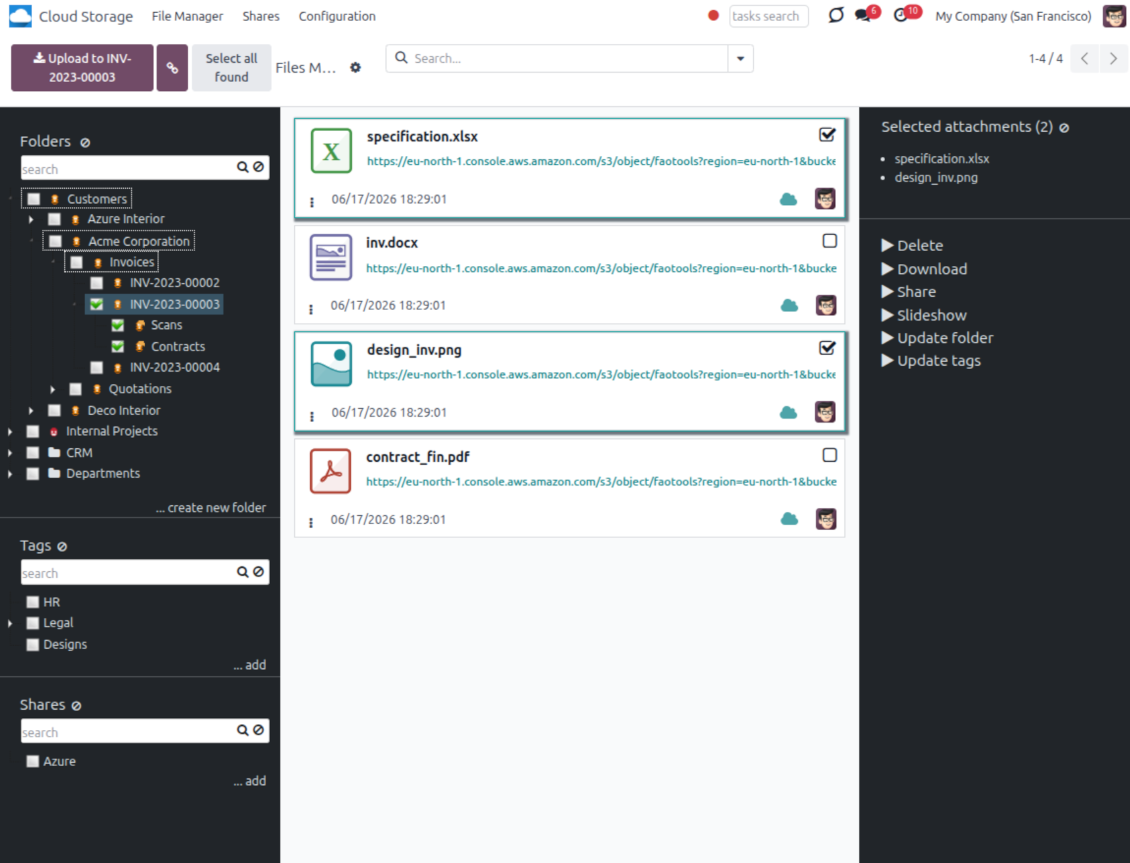
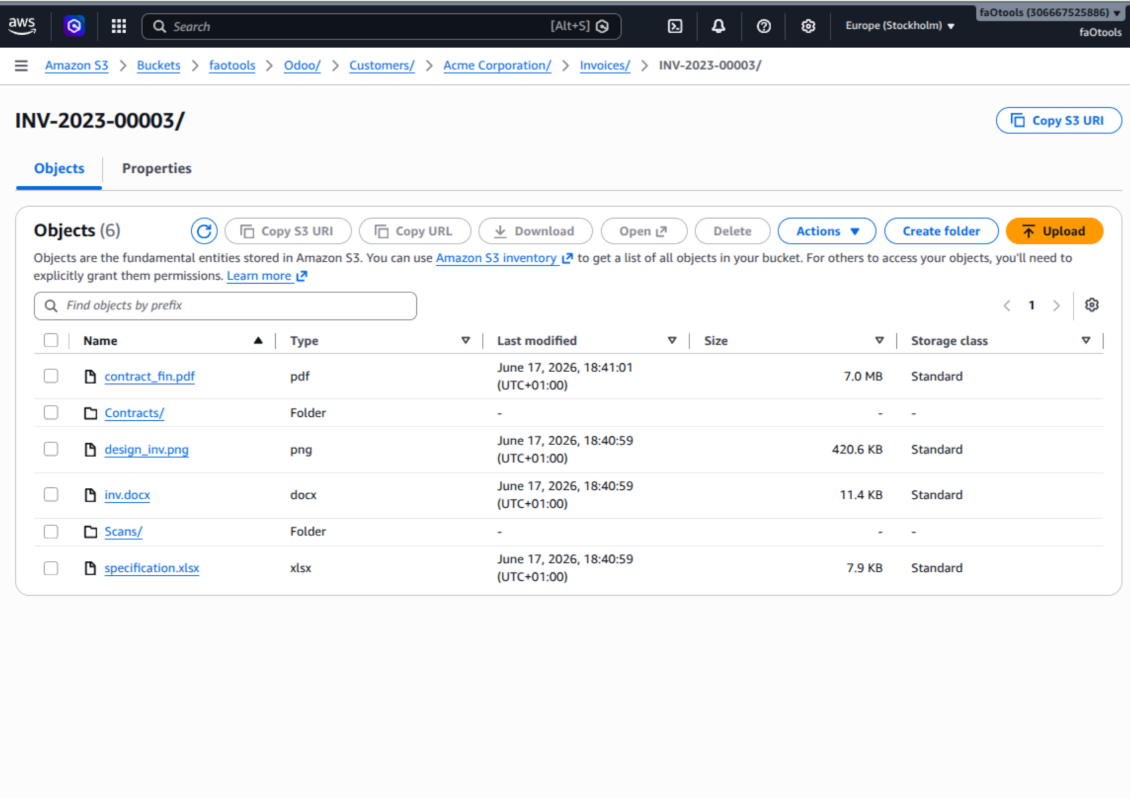
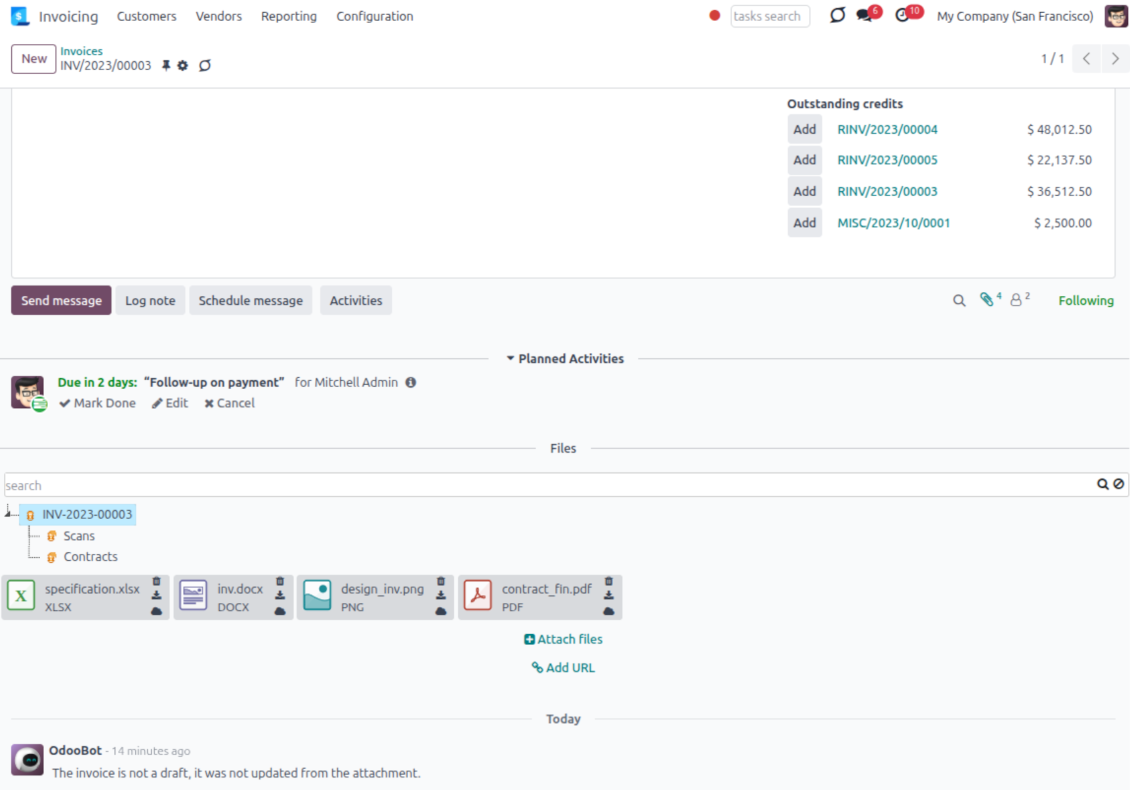
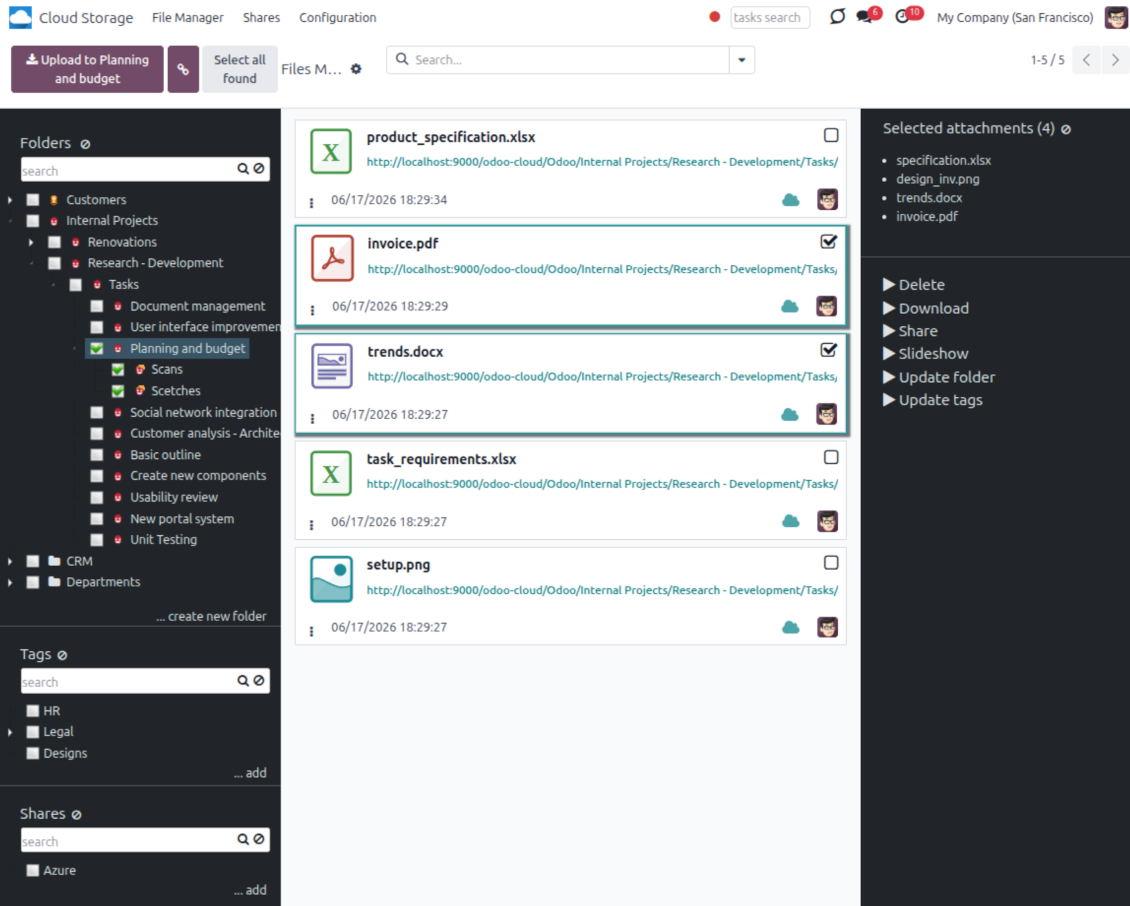
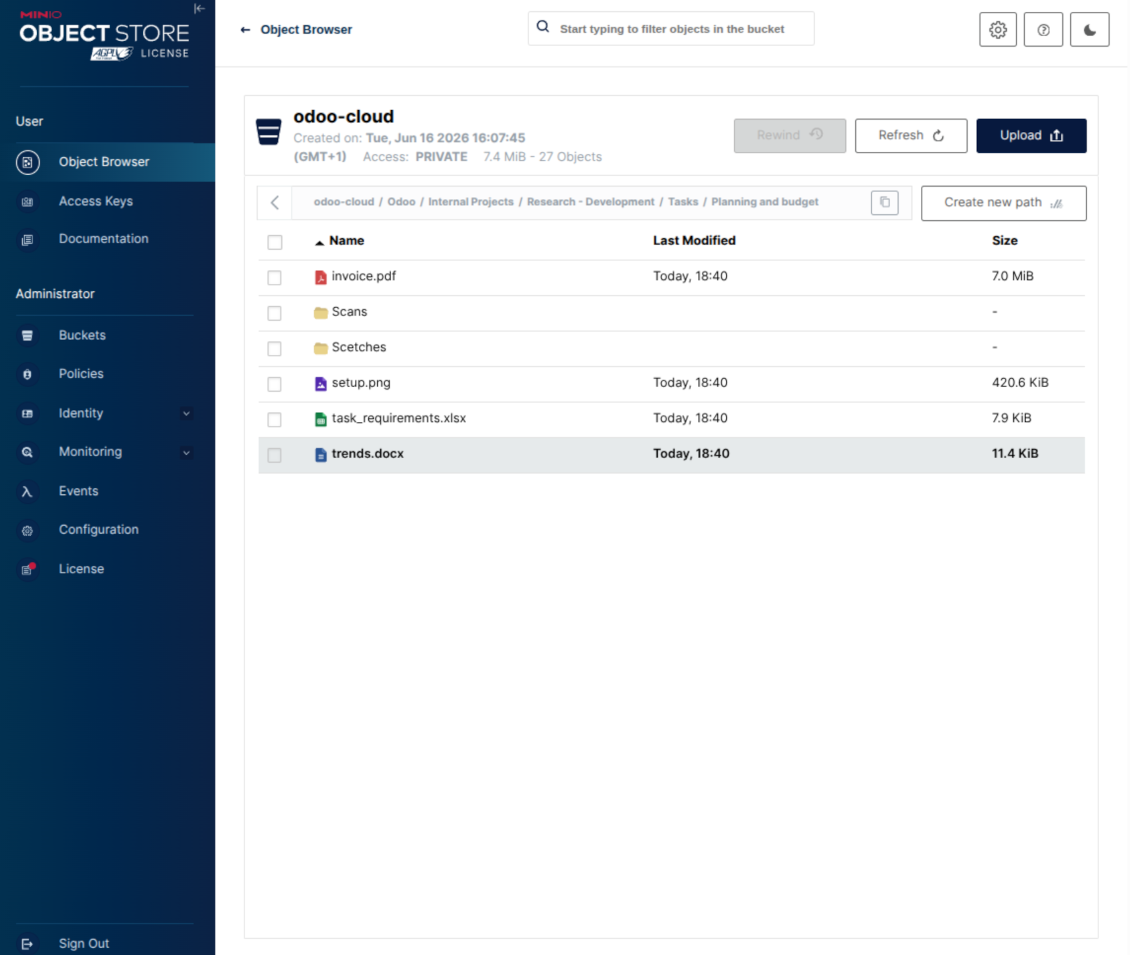
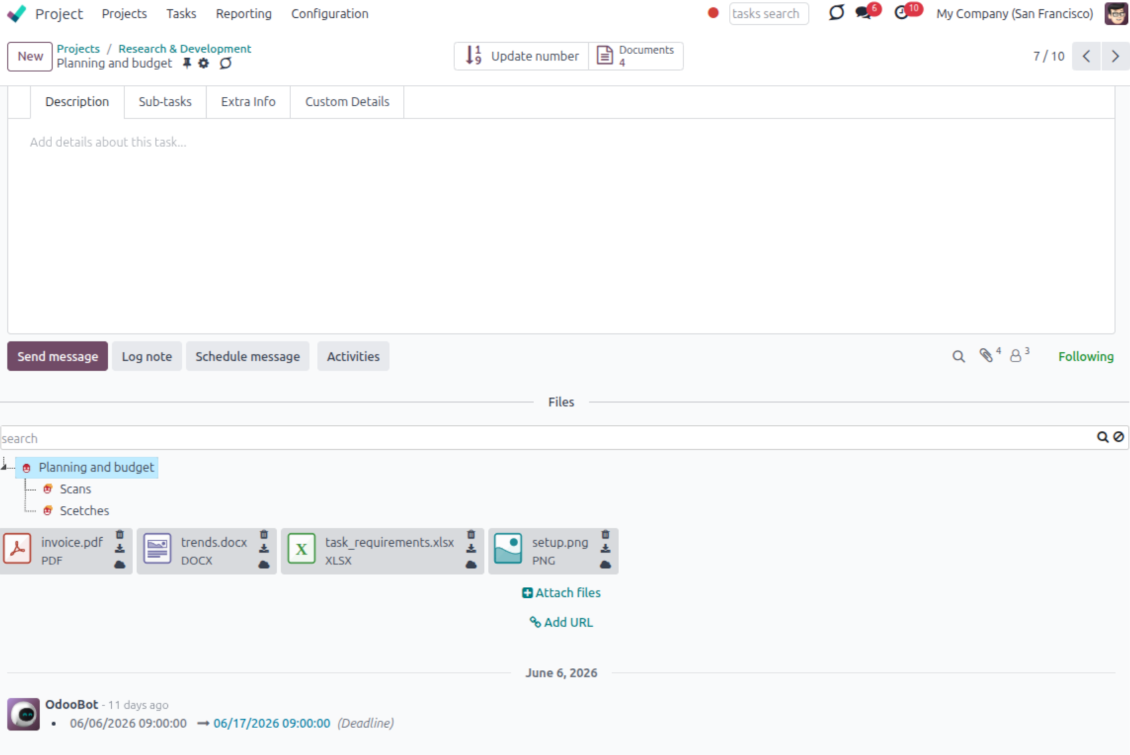
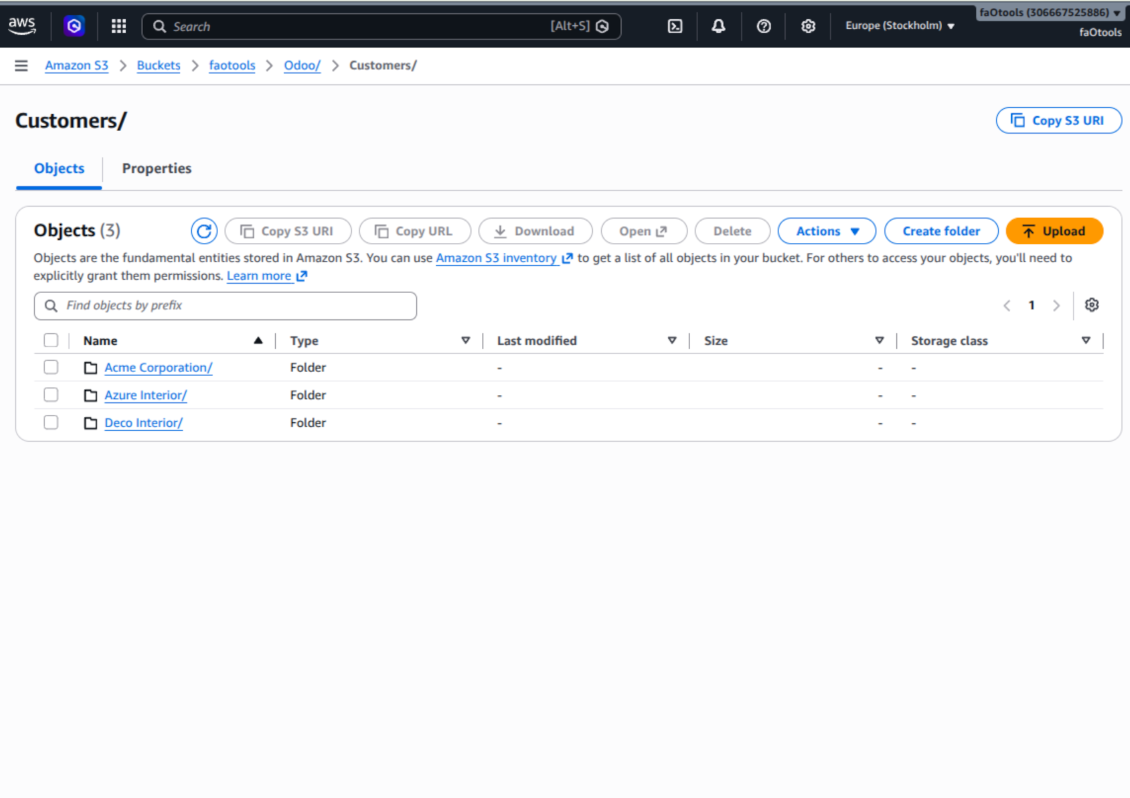
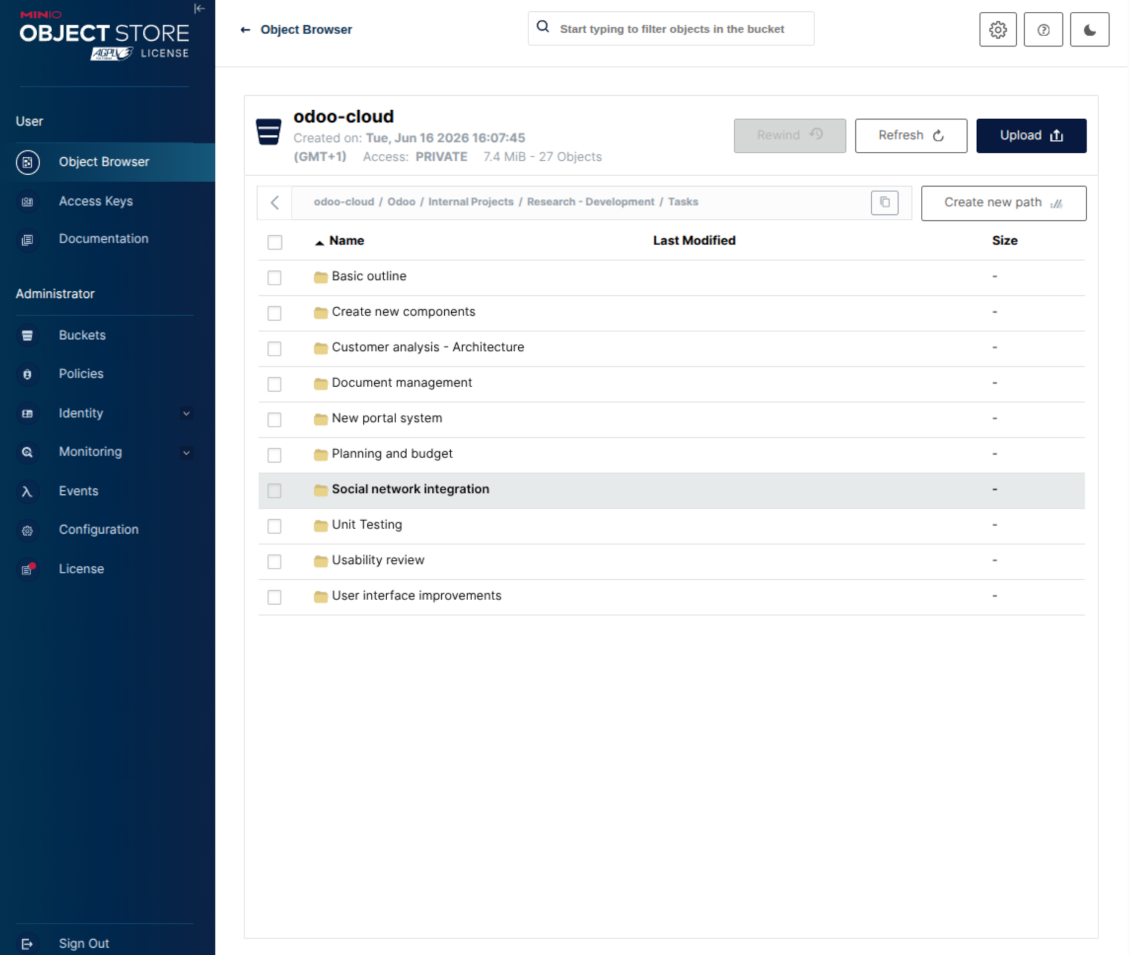
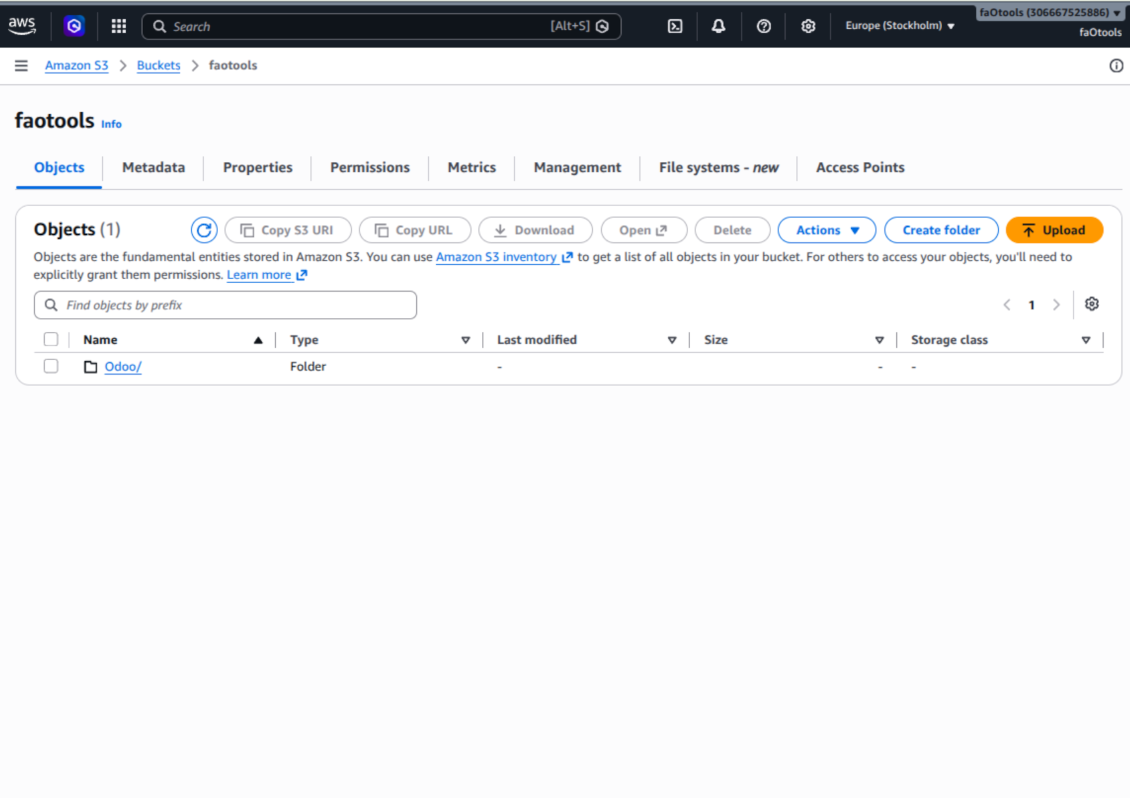
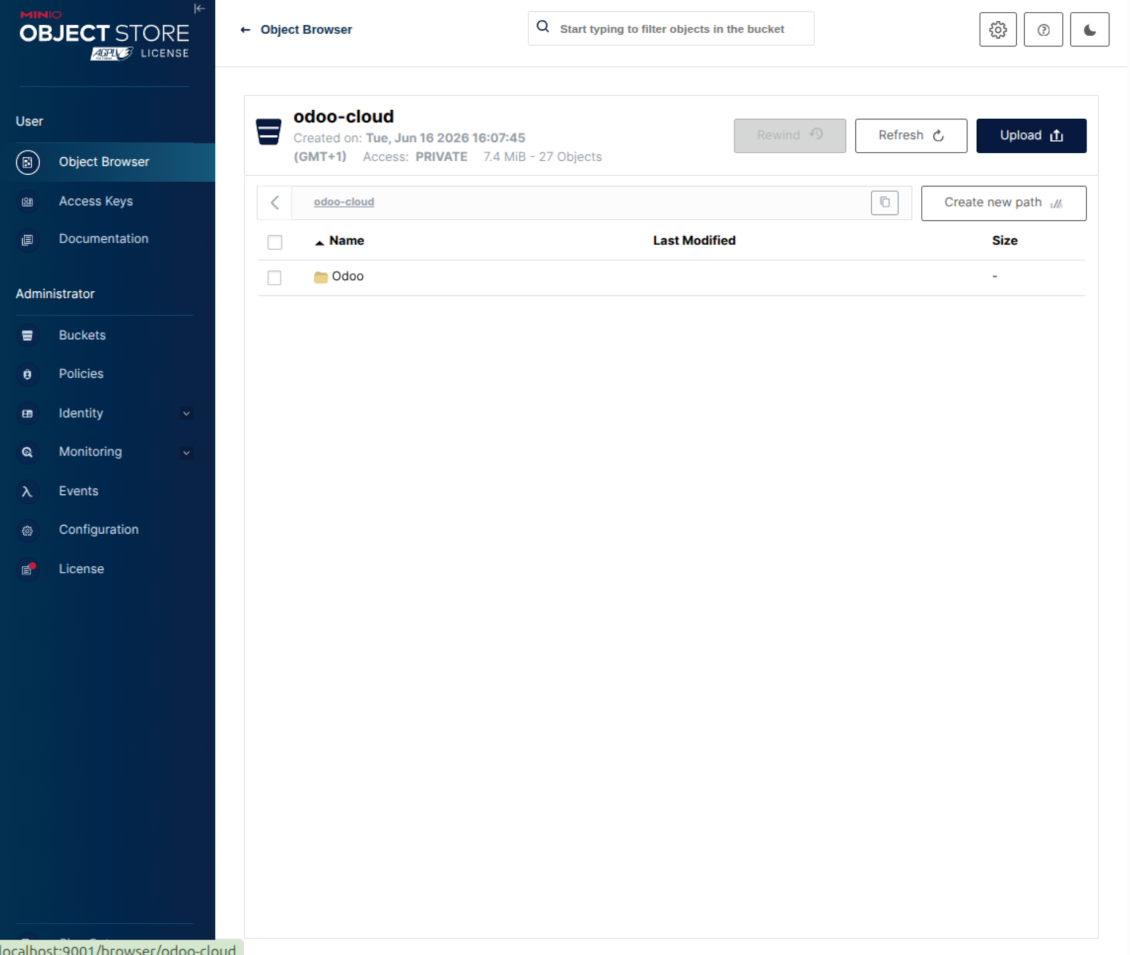
This is the tool to integrate Amazon S3 or/and MinIO features with Odoo folders and files. The app automatically stores Odoo attachments and directories in an Amazon/MinIO S3 bucket and provides access to synced objects through presigned or public web links.
Automatic folders' structure
Decide which Odoo document types should have their own folders trees and synchronize those to Amazon/MinIO S3
Automatic regular sync
Rely on auto-synchronization between Odoo and Amazon S3/MinIO S3 based on scheduled jobs. No manual interaction is required
Bilateral sync
Odoo sends attachments to Amazon/MinIO S3 and retrieves files from there. Binary content is kept in the bucket, while Odoo provides direct access to synced objects
Cloud synchronization history
Control Amazon S3//MinIO S3 sync logs right in Odoo. Export and share those in case of any issues. Be notified of any client disconnections
File manager interface
Manage synced folders and attachments from a single Odoo view. Navigate by directories, search and download files, upload and move attachments to folders
Attachment box
Organize files of any Odoo object in a set of subfolders. Instantly access folders and files in the attachment box and in Amazon S3
How synchronization works
Automatic two-sided sync
-
Configure sync for one or multiple Amazon S3 / MinIO S3 buckets or S3-compatible endpoints
-
Synchronization is bilateral. Updates in Odoo are reflected in Amazon S3 / MinIO S3 (direct sync); changes in Amazon S3 / MinIO S3 modify Odoo folders and attachments (backward sync)
-
Cloud connection with Amazon S3 / MinIO S3 might be reset. In this way, the app assumes getting all synced items back to Odoo (reverse sync)
Queue-based synchronization
-
Once in 15 minutes, the app examines updates in Odoo and Amazon S3 / MinIO S3 to prepare a synchronization queue
-
The connector lists the whole S3 root prefix to track virtual folders and object keys in a stable way during each sync run
-
If the app faces sync failures, it will retry operations afterward. Sync queue processing would not be stopped if there are items not blocked by such failures
Odoo attachments for Amazon S3 / MinIO S3: direct sync
-
Direct sync prepares the virtual folders hierarchy and uploads Odoo attachments to Amazon S3 / MinIO S3
-
Since S3 has no native folders, the app creates empty marker objects to keep empty Odoo directories visible
-
Renaming or moving S3 objects is implemented as copy and delete, following Amazon S3 / MinIO S3 mechanics
Amazon S3 objects for Odoo: backward sync
-
Backward sync checks whether any objects or sub-prefixes are added to Amazon S3 / MinIO S3 folders. If so, the app creates URL attachments or subdirectories inside linked Odoo directories
-
External S3 renames are treated according to S3 nature: old key removed and new key created. Odoo will converge by deleting and recreating the related attachment if required
-
In case of conflicts, direct sync changes are in general considered more important than backward updates
Amazon S3 URLs
Amazon S3 has a specific way to open existing objects. This connector always keeps links on the Amazon S3 side, not as local Odoo download links.
If Use Public URLs is enabled, Odoo saves direct S3 object URLs. Those links work only when the related bucket, prefix, object, CDN, or compatible storage endpoint is publicly accessible.
If Use Public URLs is disabled, Odoo saves AWS Console links to the related bucket object or prefix. Those links are intended for Amazon users: a person opening such a link must be logged in to AWS and must have enough IAM permissions to view the bucket object. If the user has no AWS access, Amazon will not open the file.
Seadistamise ja paigaldamise näpunäited Amazon S3 / MinIO Odoo Integration Odoo v.17
Python dependency
The tool depends on the external library 'boto3'. Install this library for your Odoo server through the command:
pip3 install boto3Amazon S3 Configuration and log in
- Turn on the option 'Amazon S3 Sync' (Cloud Storage > Configuration > Configuration). The optional add-on Amazon S3 Odoo Integration is required
- Open the Amazon S3 Console: https://console.aws.amazon.com/s3/
- Create a new bucket or choose an existing one. Copy the exact bucket name: it should be inserted in Odoo into the field 'Bucket'
- Open the bucket details and copy its AWS Region. Insert it in Odoo into the field 'Region' (for example, eu-west-1 or us-east-1)
- Open the AWS IAM Console: https://console.aws.amazon.com/iam/
- Create a new IAM user or choose an existing technical user. This user should have full rights to list, read, create, write, copy, and delete objects within the selected bucket. You can select the full right admin, or create a new policy (see below)
- In the IAM user form, open the tab 'Security credentials' and press 'Create access key'
- On the page 'Access key best practices & alternatives', select the option Application running outside AWS. This is the correct option when your Odoo server connects to S3 by access key from outside AWS, from Odoo.sh, from your own server, or from another hosting provider. If your Odoo is installed on an AWS EC2 instance, you may instead select Application running on an AWS compute service, but the fields copied to Odoo are the same
- Press 'Next'. On the next step, optionally enter a description tag such as Odoo S3 Sync, then press 'Create access key'
- On the final AWS page, copy Access key or Access key ID into the Odoo field 'Access Key'
- Copy Secret access key into the Odoo field 'Secret Key'. Important: AWS shows the secret key only once, so save it before closing the window
- If you use an S3-compatible provider instead of AWS S3, copy the endpoint URL from that provider's admin panel and insert it into Odoo into the field 'Amazon S3 endpoint URL'. For example, MinIO often uses a URL like https://minio.example.com or http://localhost:9000; LocalStack commonly uses http://localhost:4566
- Go to Odoo Cloud Storage > Configuration > Cloud Clients and press 'Create'
- As a reference, introduce any name which would be clear to all users
- As a Cloud client, choose 'Amazon S3'
- As a Root folder name, enter a title that will be used as the parent S3 prefix for all synced folders. For example, 'Odoo' or 'OdooERP'
- Fill in the fields 'Bucket', 'Region', 'Access Key', 'Secret Key', and, if needed, 'Amazon S3 endpoint URL' and addressing style
- Choose whether Odoo should use temporary presigned URLs or public bucket/CDN URLs. For private buckets, keep presigned URLs enabled and set their lifetime in seconds
- Press 'Confirm'. Odoo checks bucket access and creates or verifies the root folder prefix. Amazon S3 - Odoo synchronization is ready to be done
- Apply the newly created cloud client to folder rules and/or manual folders which should be synced to that Amazon S3 bucket
- Await the sync scheduled job to be started. For testing purposes only: trigger integration manually from Cloud Storage > Configuration > Configuration > the button 'Launch sync'.
Useful AWS documentation: creating an S3 bucket: https://docs.aws.amazon.com/AmazonS3/latest/userguide/creating-bucket.html, managing IAM access keys: https://docs.aws.amazon.com/IAM/latest/UserGuide/id_credentials_access-keys.html.
Bucket policy example
    {
    "Version": "2012-10-17",
    "Statement": [
        {
            "Sid": "ListObjectsInBucket",
            "Effect": "Allow",
            "Action": [
                "s3:ListBucket"
            ],
            "Resource": "arn:aws:s3:::NAME_OF_YOUR_BUCKET"
        },
        {
            "Sid": "AllObjectActions",
            "Effect": "Allow",
            "Action": [
                "s3:GetObject",
                "s3:PutObject",
                "s3:DeleteObject"
            ],
            "Resource": "arn:aws:s3:::NAME_OF_YOUR_BUCKET/*"
        }
    ]
}
Create a new AWS IAM user

Specify the IAM user name

Attach permission policies directly

Amazon S3 bucket policy JSON example

Review and name the S3 policy

Select the bucket policy for the user

Review and create the IAM user

Create an access key for the user

Choose the access key use case

Set the access key description tag

Retrieve the access key and secret

Configure the Amazon S3 client in Odoo

Amazon S3 URLs and access rights
Amazon S3 has an important peculiarity: the URL shown in Odoo is always an Amazon-side link.
If Use Public URLs is enabled, Odoo saves a direct S3 object URL. This link works only if the related S3 bucket, prefix, object, CDN, or compatible endpoint is publicly readable. Otherwise, Amazon S3 will show AccessDenied, even if the user is logged in to the AWS console.
For public links, configure the bucket permissions in Amazon S3 and allow public read access for the Odoo prefix. Example bucket policy:
{
  "Version": "2012-10-17",
  "Statement": [
    {
      "Sid": "PublicReadOdooPrefix",
      "Effect": "Allow",
      "Principal": "*",
      "Action": "s3:GetObject",
      "Resource": "arn:aws:s3:::YOUR_BUCKET_NAME/Odoo/*"
    }
  ]
}
Replace YOUR_BUCKET_NAME with the real bucket name and Odoo/ with the selected root folder prefix. Also make sure that Amazon S3 Block public access settings do not block that bucket policy.
If Use Public URLs is disabled, Odoo saves AWS Console links to the related bucket object or prefix. Such links are useful for Amazon users: the person opening the link must be logged in to AWS and must have IAM access to that bucket object. If the user has no AWS access, Amazon will not open the file.
MinIO configuration and log in
- Prepare a running MinIO server
- Open the MinIO Console
- Create a new bucket or choose an existing one. Copy the exact bucket name: it should be inserted in Odoo into the field 'Bucket'
- Create access credentials for Odoo. In MinIO, use an access key / secret key pair or a service account that has rights to list, read, create, write, copy, and delete objects within the selected bucket
- Copy the MinIO Access Key into the Odoo field 'Access Key'
- Copy the MinIO Secret Key into the Odoo field 'Secret Key'. Important: save the secret before closing the MinIO page if MinIO shows it only once
- Copy the MinIO S3 API endpoint URL into Odoo into the field 'Amazon S3 endpoint URL'. For example, a local server usually uses http://localhost:9000, while a production server may use https://minio.example.com
- Go to Odoo Cloud Storage > Configuration > Cloud Clients and press 'Create'
- As a reference, introduce any name which would be clear to all users
- As a Cloud client, choose 'MinIO'
- As a Root folder name, enter a title that will be used as the parent MinIO object prefix for all synced folders. For example, 'Odoo' or 'OdooERP'
- Fill in the fields 'Bucket', 'Access Key', 'Secret Key', and 'Amazon S3 endpoint URL'. The field 'Region' is optional for MinIO; if it is empty, Odoo uses us-east-1 for S3-compatible signing
- Keep the addressing style as Path-style. This is the recommended option for MinIO endpoints, especially when the MinIO host does not provide bucket-specific DNS names
- Choose whether Odoo should use direct public MinIO URLs. Enable 'Use Public URLs' only when the bucket, prefix, reverse proxy, or CDN is publicly readable. For private MinIO buckets, leave it disabled
- Press 'Confirm'. Odoo checks bucket access and creates or verifies the root folder prefix. MinIO - Odoo synchronization is ready to be done
- Apply the newly created cloud client to folder rules and/or manual folders which should be synced to that MinIO bucket
- Await the sync scheduled job to be started. For testing purposes only: trigger integration manually from Cloud Storage > Configuration > Configuration > the button 'Launch sync'.
Useful MinIO documentation: https://min.io/docs/minio/linux/administration/identity-access-management.html, https://min.io/docs/minio/linux/reference/minio-server/minio-server.html.
Create a MinIO access key

Copy the new MinIO credentials

Configure the MinIO cloud client in Odoo

Korduma kippuvad küsimused Amazon S3 / MinIO Odoo Integration Odoo v.17
Kuhu sünkroonitud väljad salvestatakse? Kas need dubleeritakse Odoo-sse ja pilvedesse?
Rakendus eeldab, et manuste binaarsisu hoitakse Cloud Clientis, mitte Odoo serveris. Seega muutuvad sellised manused Odoos URL-tüüpi manusteks ning neile pääseb igal ajal ligi kas manuste kastist või Cloud Clientist.
Pärast seadistamist pole käsitsi toiminguid vaja, sest sünkroonimine on täielikult automaatne. Otsustage, milliseid Odoo dokumenditüüpe sünkroonida, ja seadistage igaühe jaoks seotud mudel (kliendid, müügi- või ostutellimused, ülesanded, projektid jne).
Kas saan samale dokumenditüübile mitu kausta? Näiteks siseprojektid ja kliendiprojektid?
Jah, saate. Selleks valmistage igaühele reegel ja seejärel rakendage filtrid: näiteks projekti tüübi järgi.
Püüdke teha filtrid vastastikku välistavateks, et dokument saaks üheselt määratud. Näiteks „klient, kuid mitte tarnija“, „tarnija, kuid mitte klient“. Muidu hüppab konkreetse dokumendi kaust ühelt mudelilt teisele.
Kas sünkroonimist saab teha reaalajas?
Ei. Meil on tugevad põhjused vältida reaalajas sünkroonimist:
Jõudlusprobleemid. Kui sünkroonimine oleks reaalajas, tööks iga faili üleslaadimine kaasa laadimisekraani.
Konfliktiprobleemid. Kui 2 kasutajat muudavad üksust korraga, võib tekkida lahendamata olukordi. Regulaarsete tööde korral saame selle hiljem parandada; reaalajas tuleks see salvestada järjekorrana, mis ajaks kasutajaid veelgi rohkem.
Funktsionaalsuse probleemid. Eelkõige üksuste ümbernimetamine ja ümberkorraldamine. Tagasisünkroonimisel tuginetakse rangelt kataloogiloogikale ning iga sünkroonimise ajal kontrollitakse 100% üksustest. Kui seda teha pärast iga uuendust, oleks tuhandeid päringuid sekundis. Kui mitte: muudatused läheksid kaduma.
Kas ma saan pilvedes kaustade vaike nimesid muuta?
Saate mudelite kataloogidele (müügitellimused, võimalused, tarnijad jne) anda oma nime mis tahes dokumenditüübi jaoks.
Objektide kaustade (SO-001, John Smith jne) puhul tuginetakse Odoo meetodile selle dokumenditüübi kuvanime koostamiseks. Seda saab muuta nimeavaldist määrates. Kasutatakse täpselt Odoo e-kirja mallide süntaksit.
Kas ma saan sünkroonimistööde sagedust muuta?
Ei, alates versioonist 15 ei tohiks ajastatud töid muuta. Need on optimeeritud käima iga 15 minuti järel, et tagada stabiilseim ja kiireim ühendus.
Veenduge, et Odoo serveri ajalõpud oleksid vähemalt 15 minutit (900 sekundit).
Kui peate sünkroonimise ajutiselt peatama, tehke seda konkreetse cloud client vormil.
Kas ma saan manuseid sünkroonida mõne pilve kliendiga
Jah, alates versioonist 15 saate seadistada mitu ühendust. Nii saate mõned kaustad sünkroonida ühe cloud clientiga ja teised teisega.
Arvestage, et sama kausta ei saa korraga sünkroonida mitme cloud storage’iga.
Kasutame pilvedes spetsiaalset redaktorit (nt OnlyOffice, Office 365 jne). Kas failid avataks selles redaktoris?
Jah, olenevalt teie cloud client seadistusest.
Kas mul on vaja ainult rakendust Cloud Storage Solution?
Alates versioonist 15 saab rakendust kasutada eraldiseisvalt manuste kaustadesse korraldamiseks ja failihalduri liideseks.
Kui eesmärk on ühendus mõne pilvekliendiga, tuleb paigaldada vähemalt üks valikuline kliendiga seotud rakendus.
Mis juhtub, kui muudan kaustareeglit?
Kui kaustareegel muutub, muutub ka kaustade loend. Kui kaust ei vasta enam reeglite tingimustele, eemaldatakse see. Kui failid olid sünkroonitud, toob vastassünkroon need Odoosse tagasi ja kustutab Cloud Clientist.
Kui dokumendi objekt ei vasta kaustareegli tingimustele, selle kausta ei looda. Kui see hiljem vastab, luuakse seotud kaust.
Rakenduse ja veebilehe sõnastus muudes keeltes kui inglise on tehisintellekti abil ja kooskõlas ametlike Odoo tõlgetega. Kui märkate viga, saatke pilet tõlgete õigsuse kohta ja parandame selle.
Odoo demonstratsiooniandmebaasid (otse eelvaated)
Selle rakenduse jaoks võime pakkuda tasuta personaliseeritud demoandmebaasi.
Meiega ühenduse võtmiseks pole telefoninumbrit ega krediitkaarti vaja. Piisab lühikesest e-posti registreerimisest, mis ei kesta üle 30 sekundi.
Teie taotlusel valmistame individuaalse otse eelvaate andmebaasi, kus saate umbes kaks nädalat teha teste ja kontrollida eeldusi.
Vigadest teatamine
Kui kohtate vigu või ebajärjekindlat käitumist, võtke julgelt ühendust. Tagame parandused 60 päeva jooksul ostust ja oleme huvitatud tööriistade täiustamisest ka pärast seda perioodi.
Meiega ühenduse võtmiseks pole telefoninumbrit ega krediitkaarti vaja. Piisab lühikesest e-posti registreerimisest, mis ei kesta üle 30 sekundi.
Lisage taotlusse võimalikult palju üksikasju: kuvatõmmised, Odoo serveri logid, täielik kirjeldus probleemi taasesitamiseks jne. Tavaliselt kulub mõni tööpäev, et koostada tööplaan (kui viga kinnitatakse) või anda juhised, mida teha (muul juhul).
Avalikud funktsioonisoovid ja mooduliideed (tasuta arendus)
Oleme tugevalt motiveeritud oma tööriistu parandama ja oleme tänulikud iga tagasiside eest. Kui teie nõuded on üldkasulikud ja neid saab tõhusalt ellu viia, lisab meeskond need meie ülesannete loendisse.
Sellist ülesannete loendit töödeldakse regulaarselt ja lisatasusid ei kaasne. Kuigi me ei saa lubada tähtaegu ega lõplikku kujundust, võib see olla hea viis soovitud funktsioonide saamiseks ilma investeeringute ja riskideta.
Meiega ühenduse võtmiseks pole telefoninumbrit ega krediitkaarti vaja. Piisab lühikesest e-posti registreerimisest, mis ei kesta üle 30 sekundi.


The tool to build a deep and structured knowledge base for internal and external use. Knowledge System. KMS. Wiki-like revisions.
398€
The tool to set up KPI targets and control their fulfillment by periods. KPI dashboards. Dashboard designer. KPI charts

The tool for time-based service management from booking appointments to sales and reviews
398€
The tool to manage your Odoo from your favorite AI chats through MCP. Claude. Any MCP-supporting AI.

The tool to flexibly structure Odoo attachments in folders and synchronize directories with cloud clients: Google Drive, OneDrive/SharePoint, Nextcloud/ownCloud, Dropbox, Amazon S3, Box, and NAS. DMS. File Manager. Document management system
398€
The tool to automatically synchronize Odoo attachments with OneDrive files in both ways
487€
The tool to automatically synchronize Odoo attachments with Google Drive files in both ways
487€
The tool to automatically synchronize Odoo attachments with ownCloud/Nextcloud files in both ways
487€