Google Drive Odoo Integration v.14
The tool to automatically synchronize Odoo attachments with Google Drive files in both ways
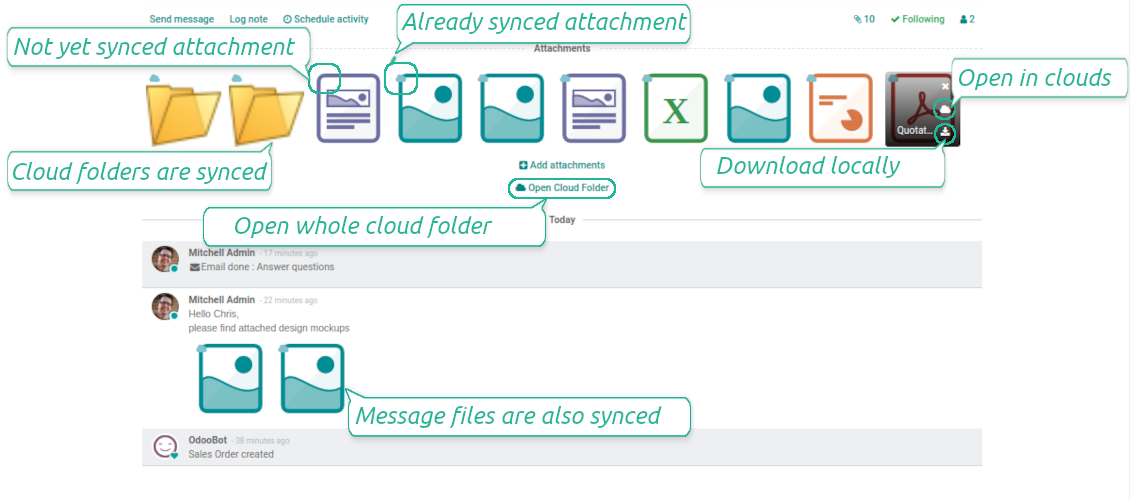
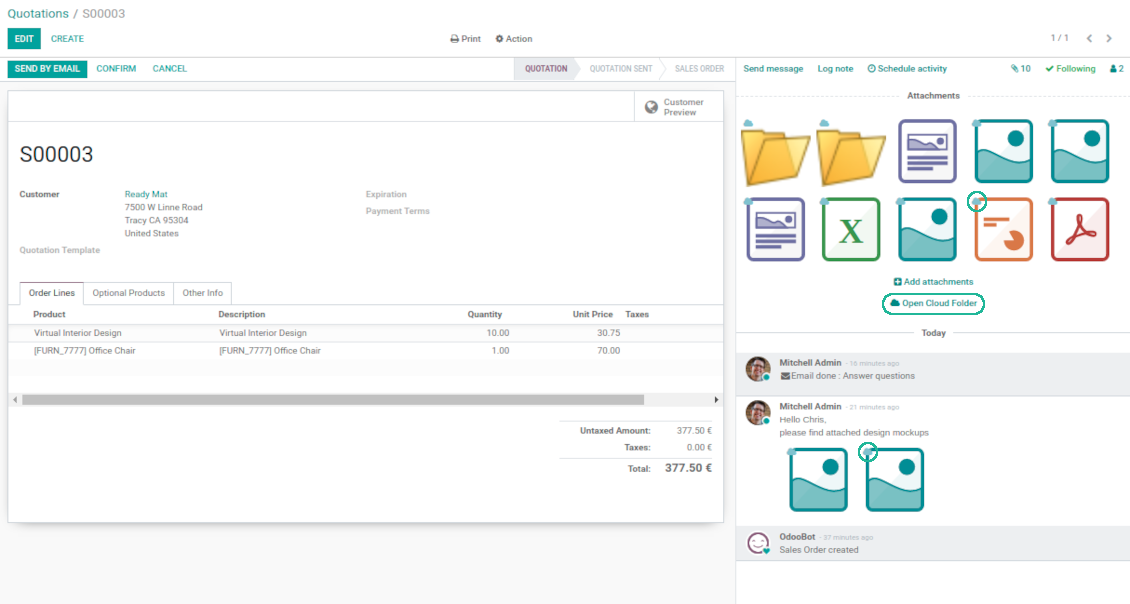
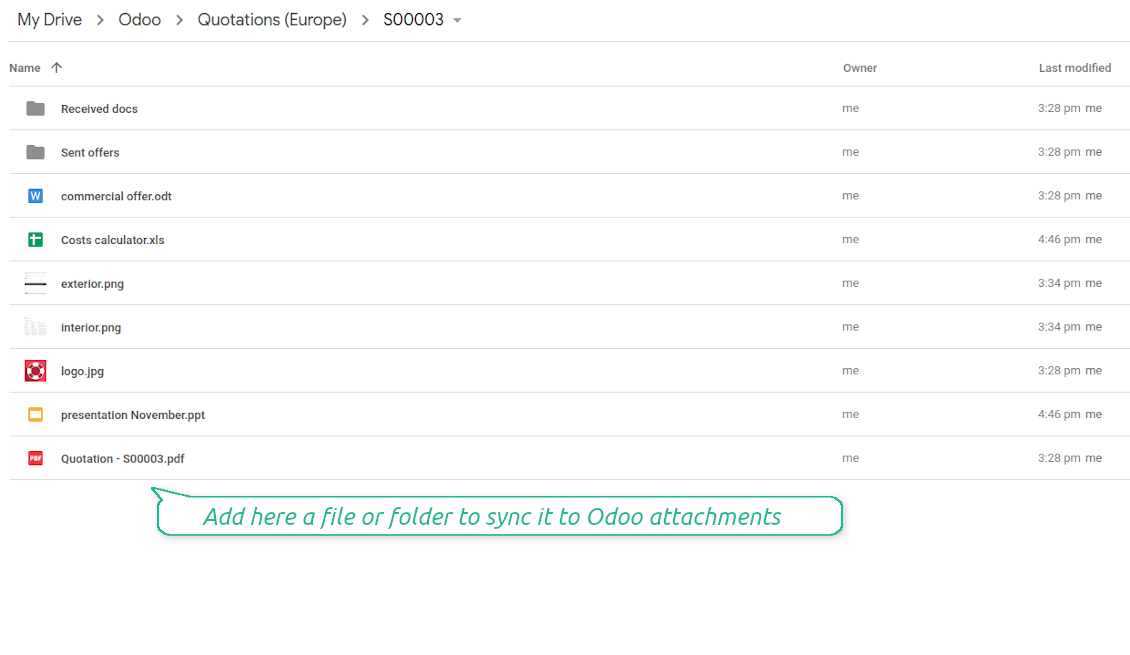
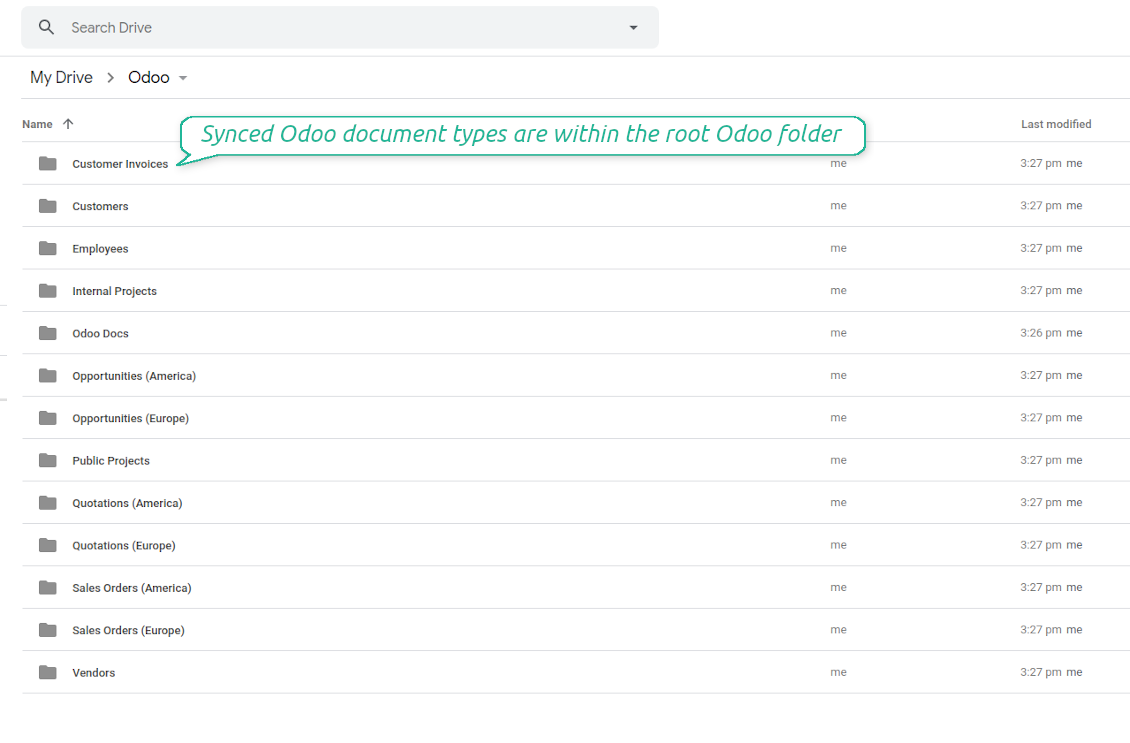
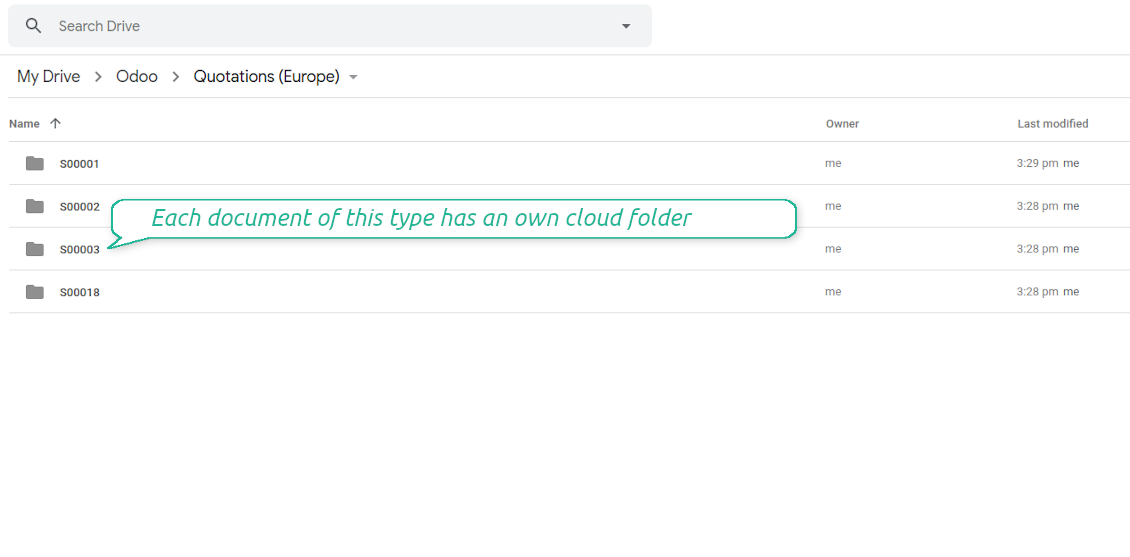
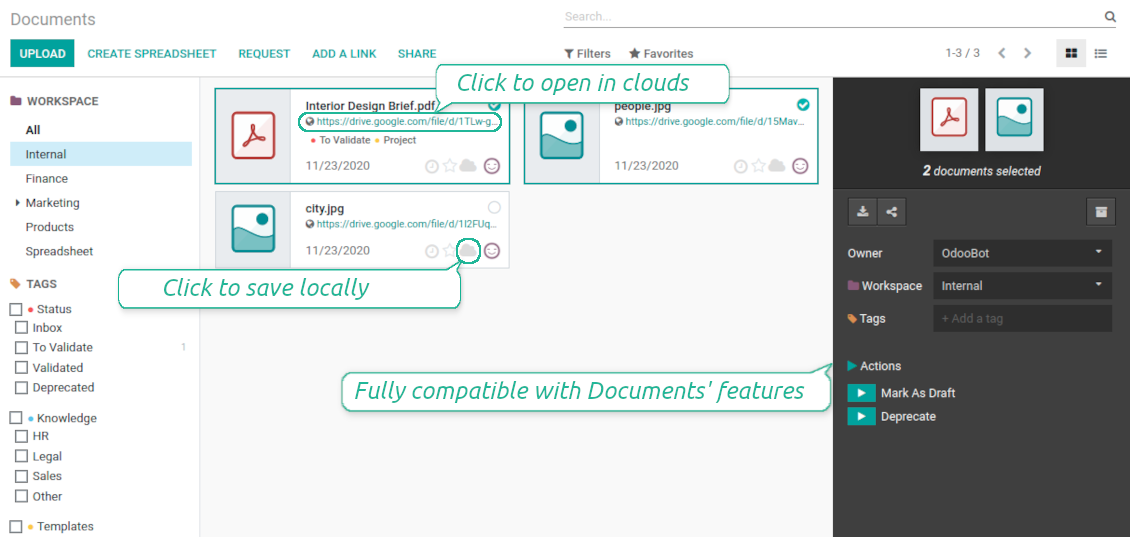

This is the tool to integrate Google Drive features into your Odoo business work flow. The app automatically stores Odoo attachments in Google Drive, and it provides an instant access to them via web links. In such a way users work with files comfortably in the cloud storage, while the results are fully available in Odoo.
- the technical core which provides basic mechanics of auto synchronization. This is a required module for integration. سعره هو 398€.
- the connector itself which introduces links between Odoo and Google Drive. سعره هو 89€.
- an optional add-on to sync Odoo documents (introduced by the enterprise app 'Documents') with clouds. The features assumed by this add-on are marked by the icon . سعره هو 44€.
Automatic regular sync
Synchronization between Odoo and Google Drive is based on scheduled jobs. No manual interaction is required
Bilateral Google Drive sync
Odoo sends attachments to Google Drive and retrieves files from there. Binary content is kept in clouds, while Odoo provides direct access to synced items
Any Odoo document types for sync
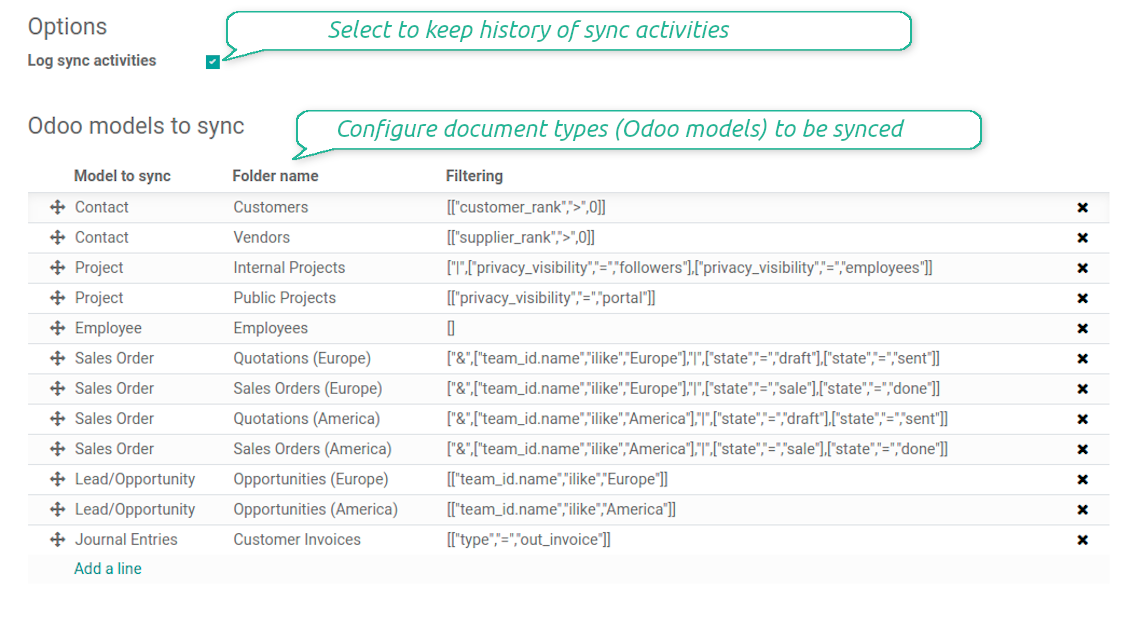
Decide which Odoo document types should be synced. Customers, opportunities, sale or purchase orders, tasks or issues, employees or users, etc. Custom models are also supported
Instant access for Google Drive
The tool redefines Odoo attachments boxes to make work comfortable: download files locally without login, open files and folders in Google Drive (if possible, items would be opened in Google Drive editors and previewers), use standard Odoo previewers
Compatible with Odoo Enterprise documents
Reflect Odoo Enterprise Documents' structure and items in Google Drive. All features (including sharing, downloading, and signing) would anyway work
Google team and individual drives
Sync works both for individual and team drives (Google Suite business and enterprise tariffs). In the latter case the root folder Odoo is placed within a chosen team drive, in the former case - within a current user drive
Google Drive sync history
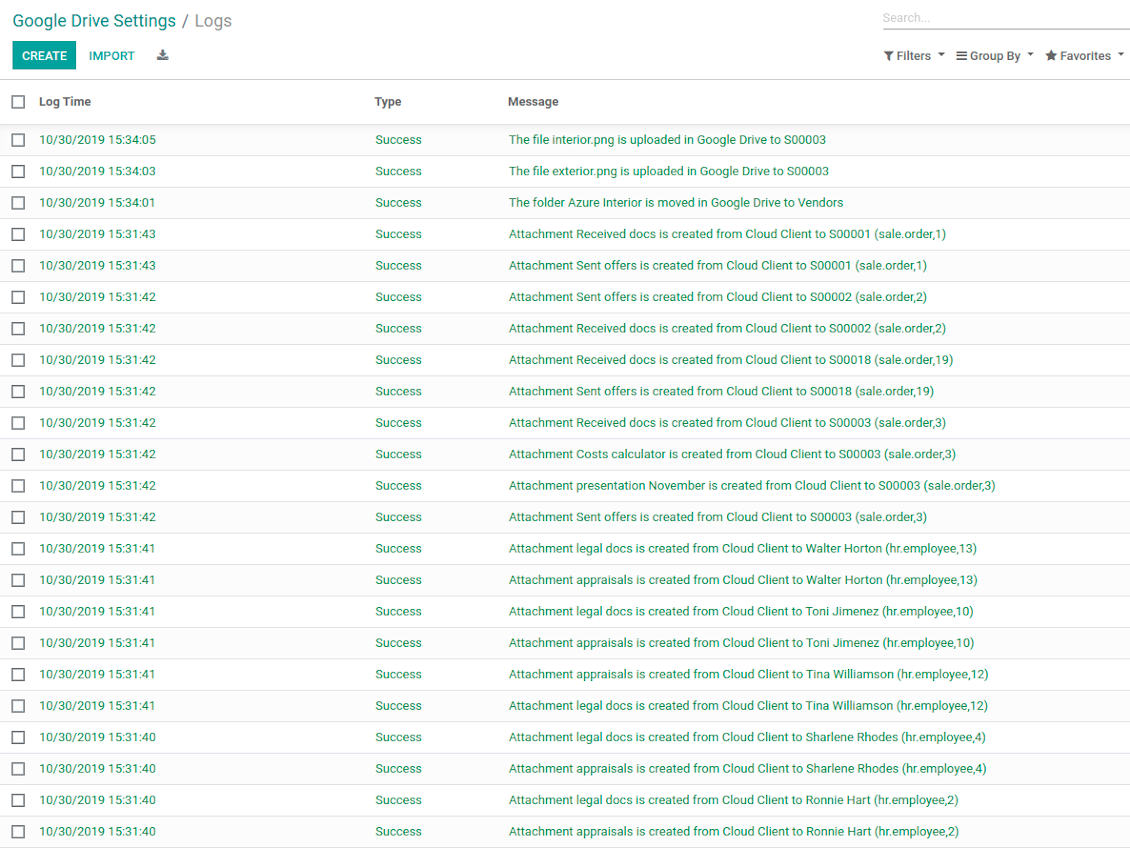
Sync activities might be logged. Control over files and folders creations, moves, name changes and removals. Just turn on the option 'Log sync activities', and you would be able to observe the history through the button 'Sync logs'
Default folders
The tool let generate default directories' structure for this document type during the very first sync of a related object. For example, for all employees you may have pre-defined folders 'Scans', 'Scans/Official', 'Photos', etc.
Tricky setup, but works perfectly now
Really solid module. We managed to get a very flexible folder structure (sorted by clients) and synced all our sales orders, invoices and tasks by projects to Google Drive.
Initial setup was a bit of a pain and kinda tricky to configure everything at first, but now it's running smoothly and works perfectly. The faotools team helped a lot. Def worth it if u need to keep your docs organized in Odoo and Google Drive.
Recommended!
Excellent !!!
Great App and great Service from faOtools.
Best module for integration with google drive
The module performs its function correctly and faOtools responds quickly to any problem and, in case of detecting any bug, quickly apply the changes. Its support is 10 stars.
Sync any documents you like
Configuring models to sync
-
To sync a specific document type, you should add it as a model to sync. Any Odoo model might be chosen
-
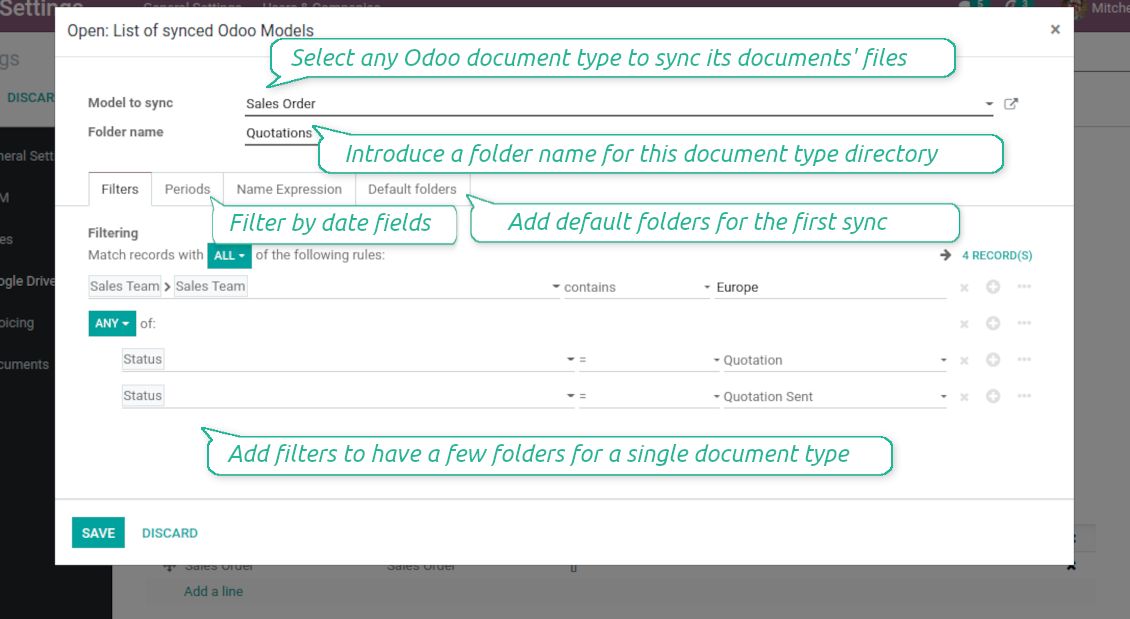
The app let split models into a few folders based on selected filters. Use any document storable field to distinguish a directory. Have a separate folder for individuals and companies, for European and American opportunities, for quotations and confirmed orders, for each project, etc.
-
Limit also documents by relative periods through using date fields of linked documents. For example, leads registered in the last 3 months or invoices updated the last week
-
Define name expressions to specify titles of documents' Google Drive folders. For instance, to include project name to a task directory
-
Prepare hierarchy of default folders to be created when a document directory is synced to Google Drive for the first time
Typical use cases
-
Projects: have an own Google Drive folder for each customer project
-
Customers: add all partner files in a single directory available both from Odoo and from Google Drive. Modify those using default cloud editors and access them when working in Odoo
-
Employees: gather all files by this employee in a single cloud folder: photos, document scans, contracts. Access and upload those from Odoo and Google Drive alternatively
-
Opportunities: carefully store all specifications, requirements, any files which would let you make a good offer
-
Orders: keep all printings and contracts in Google Drive with instant availability from Odoo
-
Picking operations: save warehouse docs to Google Drive.
How synchronization works
Direct Sync
-
Direct synchronization is based on the scheduled job 'Synchronize attachments with cloud'
-
Direct sync make all synced Odoo attachments change their type to a link (URL), while binary content is removed with a next Odoo cleaner. So, no actual files would be stored on your Odoo server
-
Direct sync checks whether attachments are added or deleted for synced documents. If so, they would be created or removed in Google Drive
-
Direct sync checks whether a new document type (e.g. sale orders) is added / renamed / replaced in the to-sync-models configurations. If so, this should be reflected in Google Drive
-
Direct sync checks whether a new document (e.g. quotation SO-001) related to a synced document type is generated / updated / unlinked. If so, the connector would make the same changes in Google Drive
-
The final goal of direct Google Drive integration is to have the structure 'Odoo / Document Types / Documents / Files. For example, 'Odoo / Quotations / SO019 / commercial offer.pdf'
Backward Sync
-
Backward synchronization is based on the scheduled job 'Synchronize attachments from cloud'
-
Backward sync checks whether any items are added to a Google Drive document folder. If so, the app would create URL attachments for that items in a linked Odoo object
-
Backward sync checks whether any items are deleted / moved in a cloud document folder. If so, a linked Odoo attachment would be also unlinked or moved
-
Backward sync checks whether any item is renamed in Google Drive. If so, a chained Odoo attachment should be also renamed
-
In Google folders you can put not only files but also child folders. In that case a link for this folder (not its content) would be kept in Odoo attachments
-
If you deleted a folder related to this document type or this document, their child files would be deleted as well. Thus, Odoo would remove related attachments. The folders, however, will be recovered with a next direct sync
Misc notes
-
The connector works on a queue (first in - first out) principle: it tries to firstly reflect the oldest changes
-
Each sync, especially the very first one, might take quite a long. It is not recommended to make sync too frequent: once an hour seems reasonable frequency
-
File names and content should be managed in Google Drive: each backward sync would recover Google Drive names, Odoo is here less important
-
Take into account that files or folders deleted in Google Drive are really deleted only when you clean trash. Otherwise, such files still exist and would be reflected in Odoo
-
Try to avoid the following symbols in folders' and files' names: *, ?, ", ', :, <, >, /, +, %, !, @, \, /,. Direct sync will replace such symbols with '-'. It is done to avoid conflicts with file systems.
Odoo Enterprise Documents
-
The special add-on 'Cloud Sync for Enterprise documents' is introduced to synchronize Google Drive with the Odoo app 'Documents' (the latter is distributed under the Odoo Enterprise license)
-
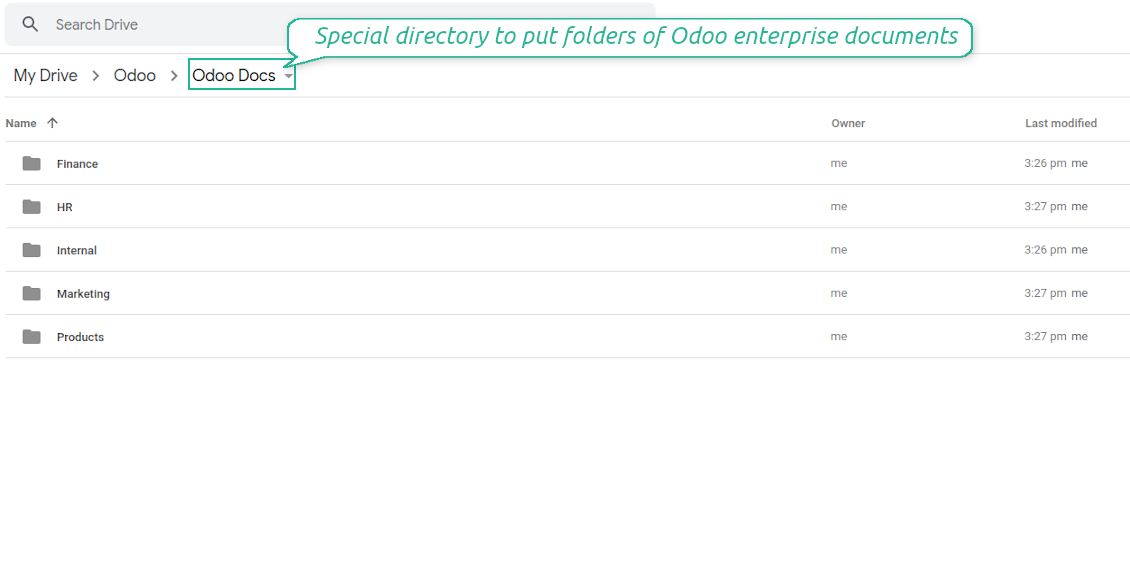
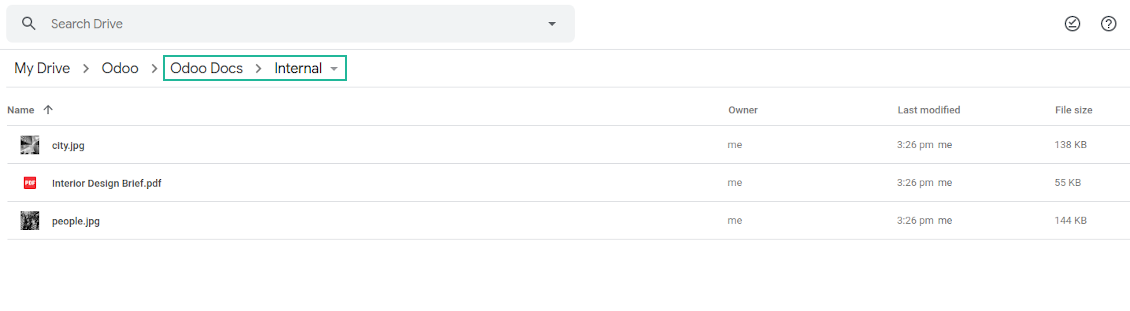
Based on that add-on the Odoo documents' hierarchy would be reflected within the folder 'Odoo / Odoo Docs'
-
Each Odoo folder would have a linked Google Drive folder. Take into account that folders created in the cloud storage will be synced as Odoo attachments. The key principle is: folders are managed by Odoo, files are managed by the cloud client
-
All files are synced with the same logic as usual attachments. Files created in Odoo will be added to the cloud storage and will be replaced with links in Odoo. Files created in cloud storage will generate URL attachments within a paired documents directory
-
Standard Google Drive sync and integration with Enterprise Documents are done within the same jobs. Avoid the scenarios when a single file is synced as a simple Odoo attachment and as an Odoo document simultaneously
-
Odoo spread sheet files are not synced by the connector: so, they are still manageable in Odoo
-
Please do not name synced models as 'Odoo Docs'. This is the reserved name for Odoo Enterprise Documents.
نصائح التكوين والتثبيت لـ Google Drive Odoo Integration Odoo v.14
Login and Google Drive Credentials
- Go to the Google Cloud Console via the URL https://console.cloud.google.com
- Select or create a project
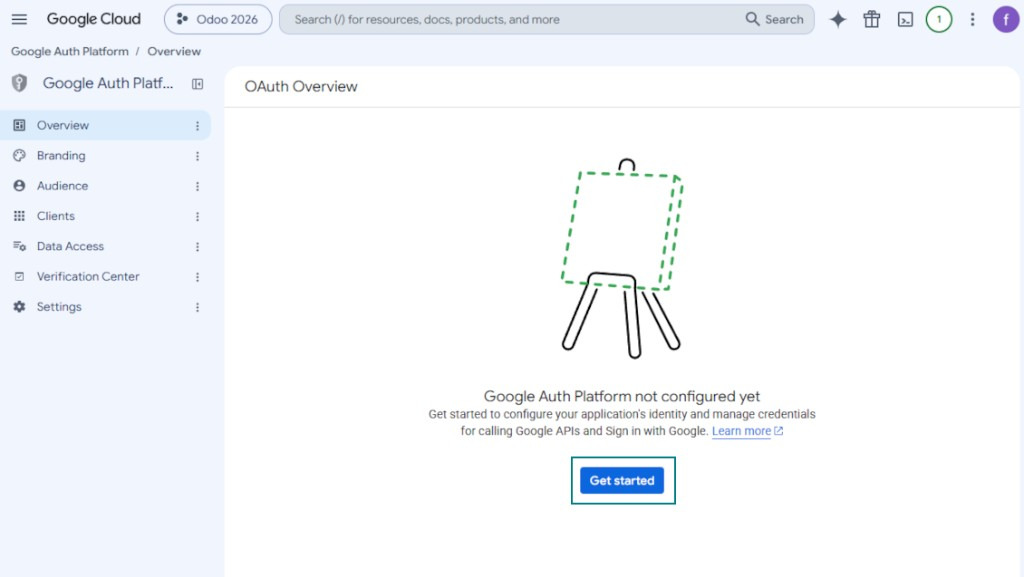
- After the project is selected, the console opens the Google Auth Platform. Press 'Get Started'
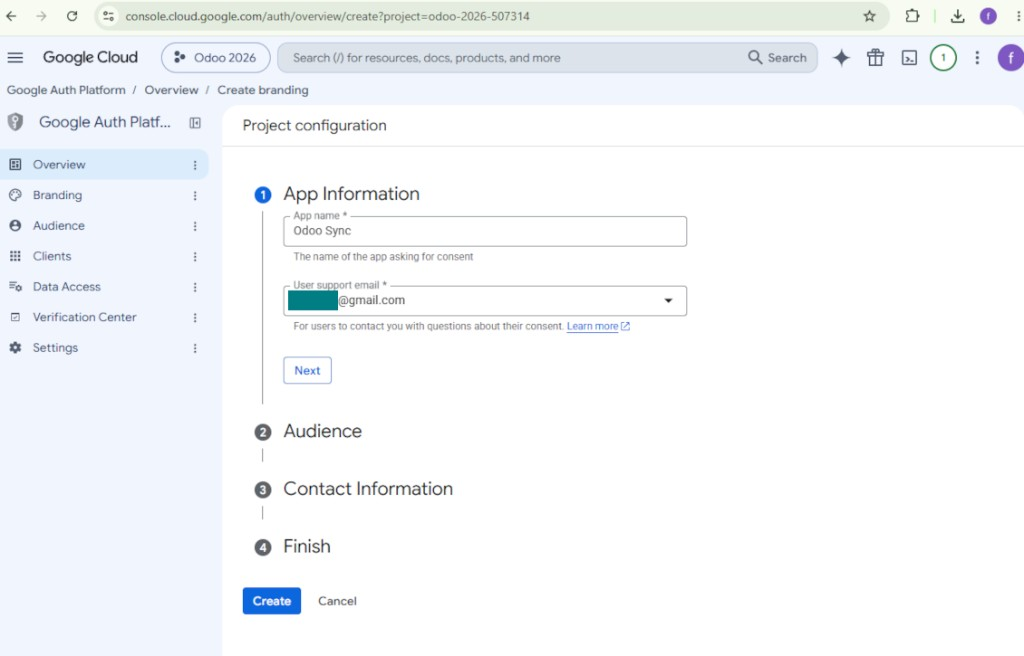
- Add app information
- As an app name select any suitable
- As a user support email select your email address
- Press 'Next'
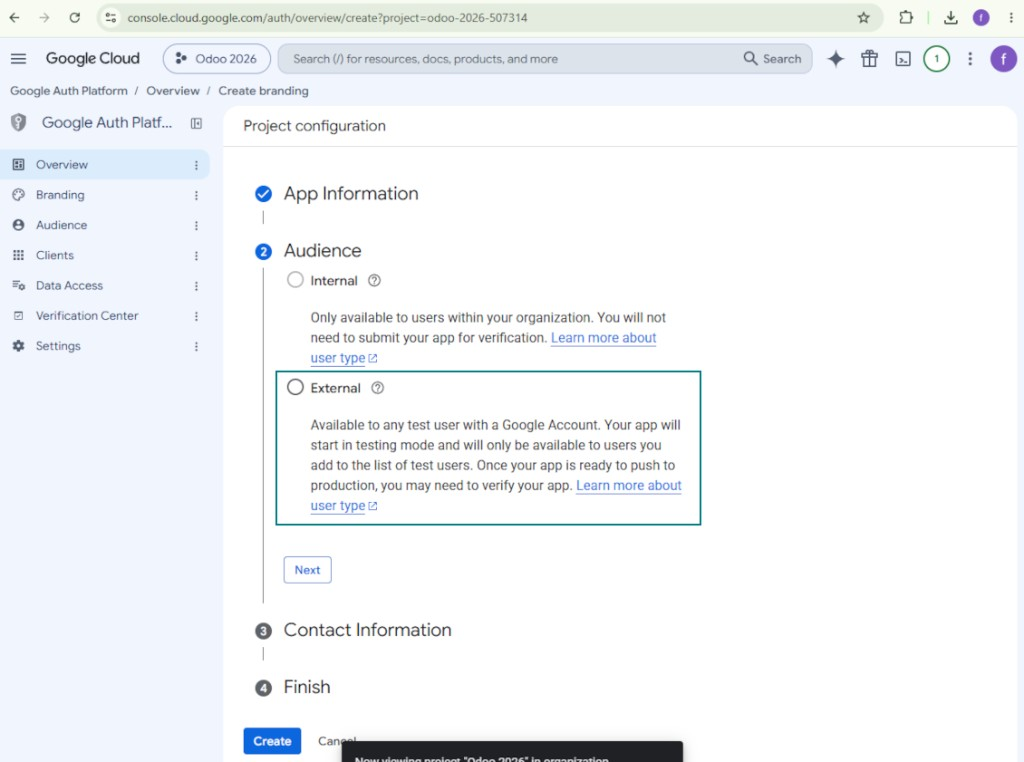
- As the audience select 'External' and press 'Next'. Note: you are anyway going to use this app only for your own Odoo connection
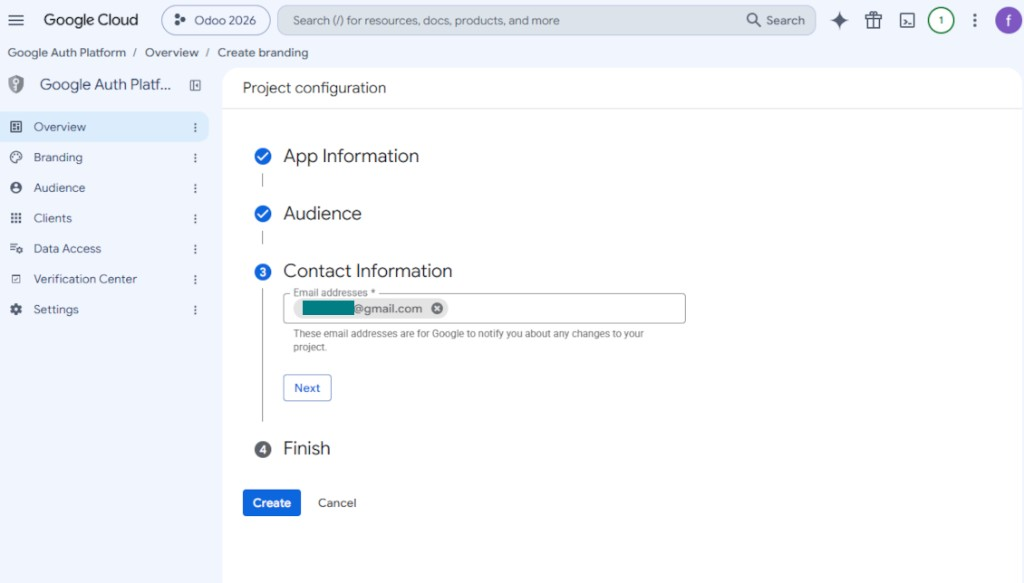
- As the contact information enter your Google or Google Workspace email address and press 'Next'
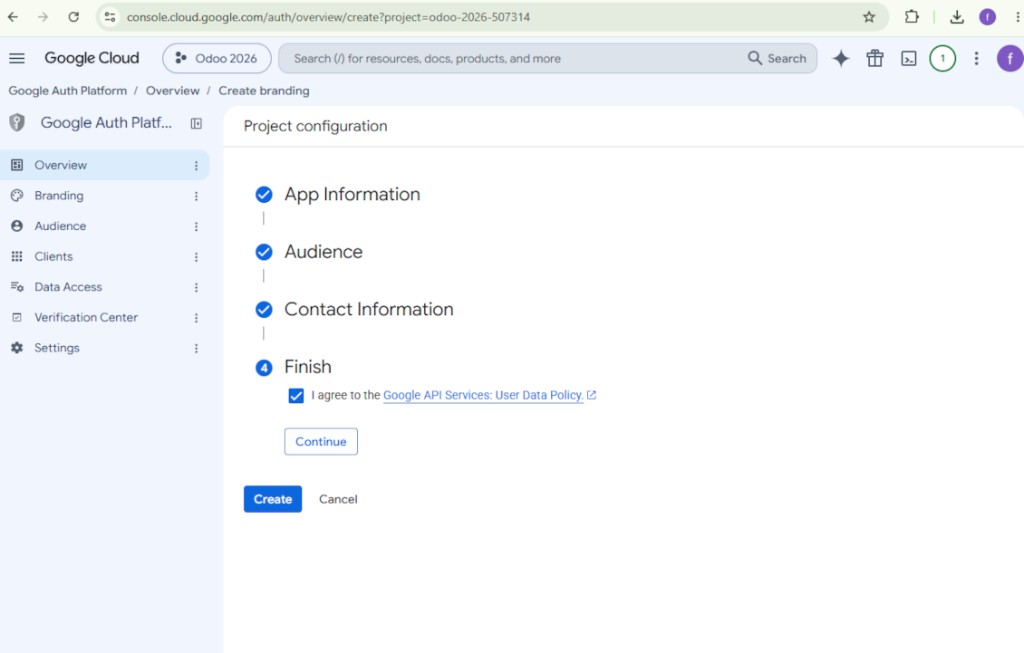
- Agree with the Google API Services User Data Policy, press 'Continue', and then press 'Create'
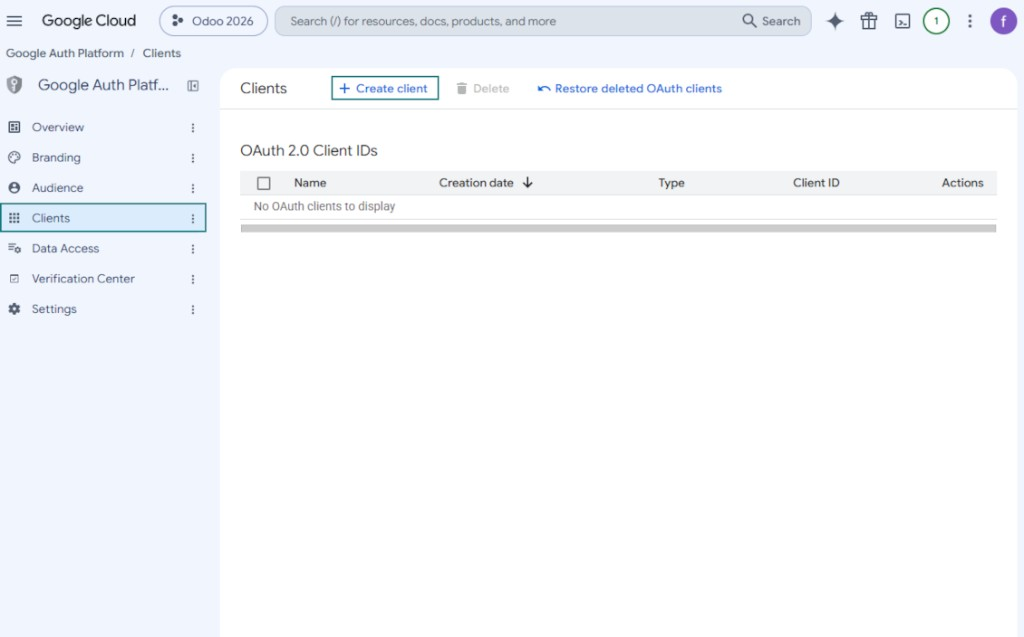
- Go to 'Clients' and press 'Create client'
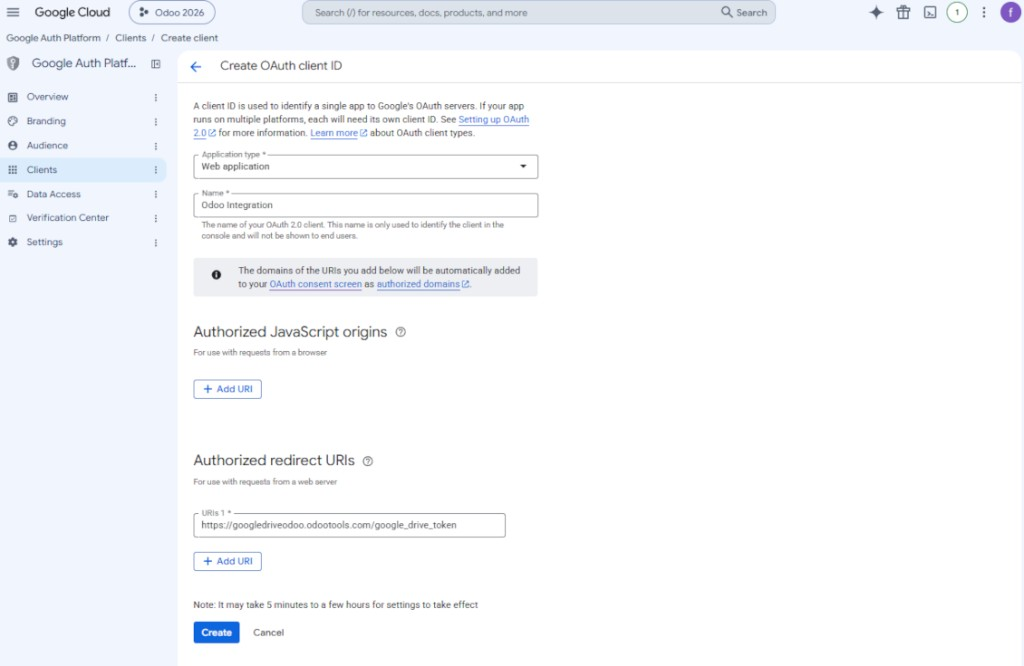
- As the application type select 'Web application'
- As a name select any suitable
- As the authorized redirect URI, add the link in a format [YOURODOOSITENAME]/google_drive_token (e.g. https://odootools.com/google_drive_token).
- Press 'Create'
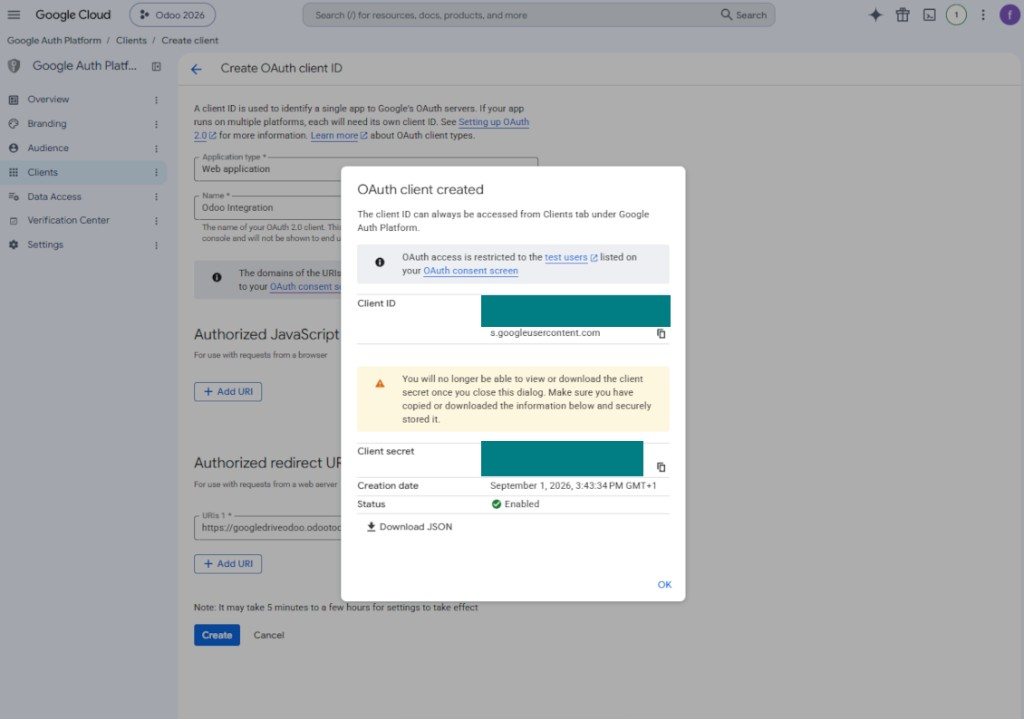
- Copy and safely store 'Client ID' and 'Client secret'. The client secret is shown only once
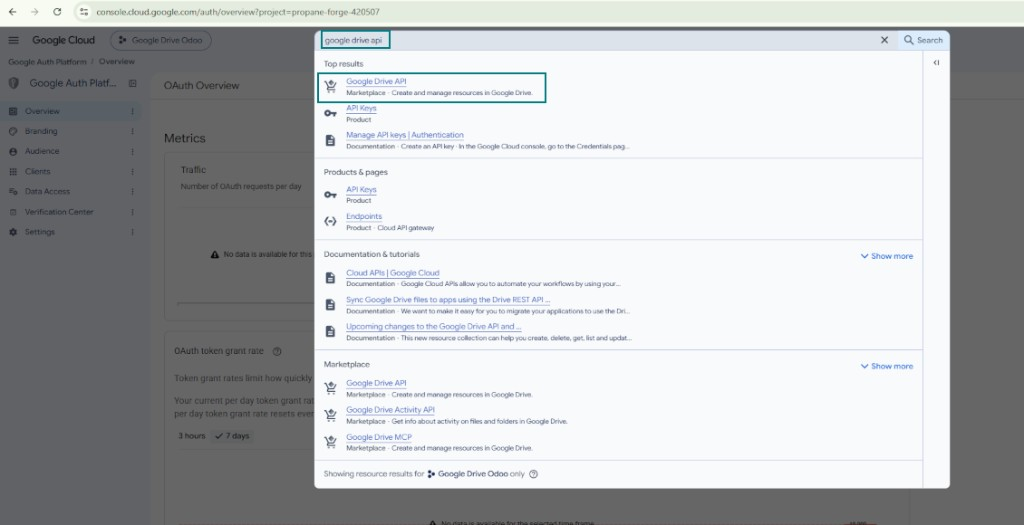
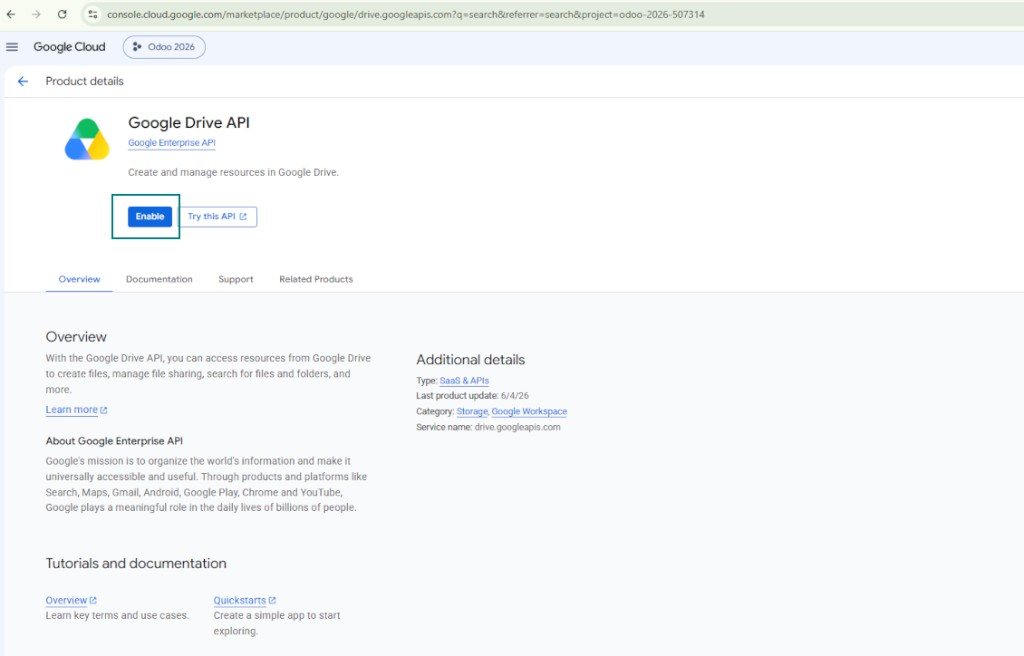
- Enable the Google Drive API for this project: type 'Google Drive API' in the top search box, open the found product, and press 'Enable'
- Go to 'Audience' and add your email address as a test user
- Publish the app. Otherwise, the app stays in the testing state and its token expires every 7 days
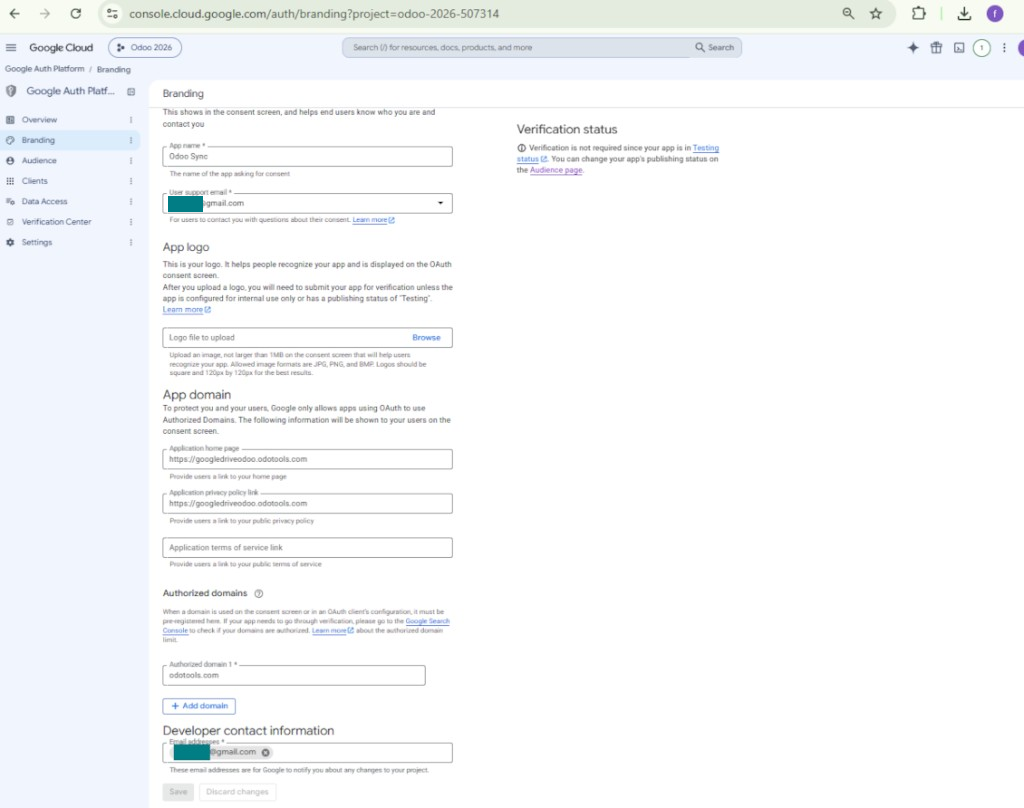
- Open 'Branding' and fill in the application home page and the application privacy policy link (for example, the links to your Odoo website). Add the domains of those links as the authorized domains
- Open 'Audience' and press 'Publish app'
- Do not upload an app logo. This would invoke a long and complex Google verification process that is of no actual need to you
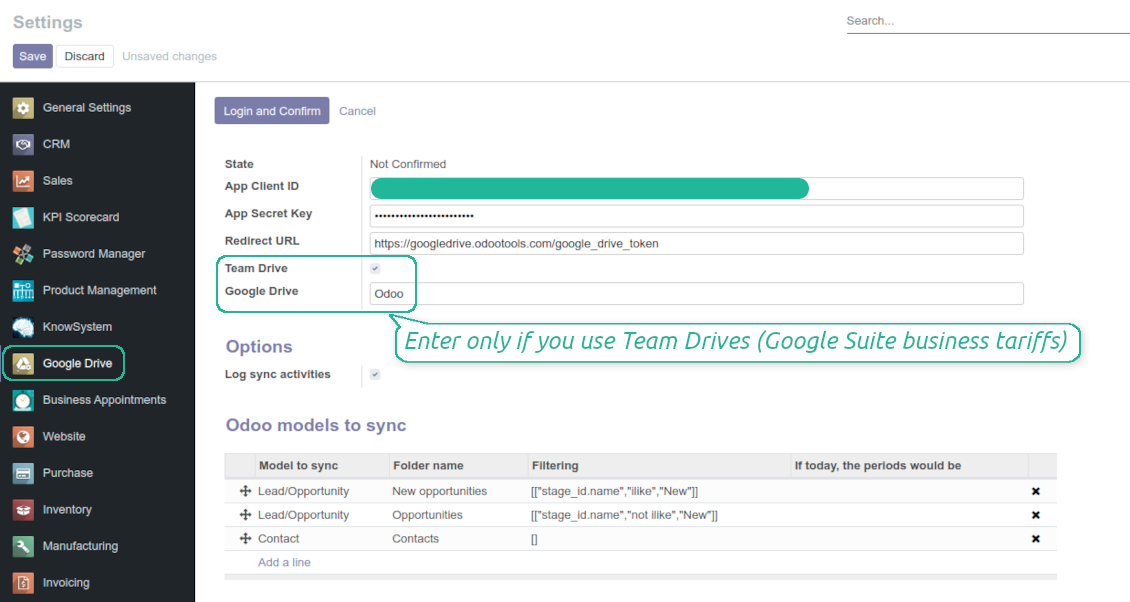
- Go to the Odoo Google Drive Settings
- Copy 'Client ID' from step 8 into the field 'App Client ID'
- Copy 'Client secret' from step 8 into the field 'App Secret Key'
- Insert the redirect URL you entered in step 8
- If you use team drives, check the related box. Make sure you really use team drives. In you Google Drive you should find the item 'Team Drives' in the left sidebar. This feature is available only for business and enterprise tariffs
- If the option 'Team Drive' is enabled, introduce its name. It should be absolutely the same as you see it in your Google Drive. Make sure that your user has full rights for this team drive
- Press 'Save'
- Press 'Login and Confirm'. Odoo redirects you to Google login page. Check in, agree with all conditions, and grant permissions asked
- After login, Google redirects you back to Odoo. Google Drive - Odoo synchronization is ready to be done.
Open the Google Auth Platform
Add app information
Select the external audience
Add contact information
Agree with the policies and create the app
Create an OAuth client
Configure the web application client
Copy the client ID and client secret
Find the Google Drive API
Enable the Google Drive API
Fill in branding to publish the app
Add test users and publish the app
Enter Google app credentials to Odoo
Odoo server configuration and cron job configuration
To make sure the synchronization works correctly apply proper timeouts to the Odoo configuration file: LIMIT_TIME_CPU, LIMIT_TIME_REAL, LIMIT_TIME_REAL_CRON should be more than 900 seconds.
For Odoo.sh this should not be done, since timeouts are predefined and are not configurable.
Then, timeout should be entered to your Odoo. To that goal find the section 'Settings' on the app configuration page and copy the number there.
Afterwards, it is needed to make the cron jobs suit the applied timeouts. In the debug mode go to the Settings > Technical > Automation > Scheduled Jobs:
- Set up the job 'Synchronize attachments with cloud' as (a) frequency - 2*timeout; (b) the next execution as the next hour +timeout. For example, for 900seconds timeout: frequency - as 30minutes; the next execution - at 08:15
- Set up the job 'Synchronize attachments from cloud' as (a) frequency - 2*timeout; (b) the next execution as the next hour + timeout*2. For example, for 900seconds timeout: frequency - as 30minutes; the next execution- at 08:30.
الأسئلة الشائعة حول Google Drive Odoo Integration Odoo v.14
هل تُشارَك مجلدات Google Drive المُنشأة تلقائياً بين مستخدمي Odoo؟
التطبيق نفسه لا ينظّم صلاحيات الوصول في جانب Google Drive. يجب فعل ذلك هناك يدوياً. ينشئ Odoo المجلدات المستهدفة في Google Drive وهي غير مشتركة افتراضياً، ويمكنك تغيير صلاحيات أي مجلد. مثلاً منح صلاحيات كاملة لدليل «Odoo» أو لـ «Odoo > Sale Orders» أو «Odoo > Sale Orders > SO-001».
يعمل التطبيق بمبدأ نقطة نهاية مستخدم واحدة. فكل عمليات المزامنة تتم تحت نفس مستخدم Google Drive (وفق تطبيق Google API الذي أعددته).
حذفت ملفاً في Google Drive لكنه ما زال في Odoo
لحذف الملف بالكامل، أفرغ سلة المحذوفات في Google Drive أيضاً.
وتذكّر أن الملف قد يبقى في Odoo لأن المزامنة العكسية لم تعالج المرفق بعد. هذه عملية مجدولة وتحتاج وقتاً.
هل يحاسبني Google بناءً على طلبات API؟
تستخدم الوحدة API المجاني فقط، لذلك لن يحاسبك Google.
هل يمكنني تغيير معدل تكرار مهام المزامنة؟
نعم، يمكنك ذلك. للقيام بذلك:
فعّل وضع التصحيح
انتقل إلى الإعدادات التقنية > الأتمتة > المهام المجدولة
ابحث عن المهمتين «Synchronize attachments with cloud» و«Update attachments from cloud».
لا تجعلها متكررة جداً. يفضَّل أن تنتهي المهمة قبل بدء التالية. تعتمد الإعدادات على عدد العناصر المطلوب مزامنتها. عادة تكون الفترة بين 15 دقيقة و4 ساعات.
وتأكد أيضاً من حدود زمنية كافية في ملف إعدادات Odoo. يجب أن يكون LIMIT_TIME_CPU وLIMIT_TIME_REAL مساويين أو أكبر من وقت cron المخطط. اعتباراً من الإصدار 13 راعِ أيضاً LIMIT_TIME_REAL_CRON.
ملاحظة مهمة لعملاء Odoo.sh: قد يكون الحد الأقصى لمهمة cron 15 دقيقة فقط.
هل يمكنني ضبط بنية مختلفة للمجلدات المتزامنة غير التي تفترضها المزامنة؟
لا، هذه الميزة متاحة فقط من الإصدار 15. قبل ذلك يعمل الوحدة ببنية مجلدات محددة مسبقاً:
Odoo - المجلد الجذر للمزامنة
النماذج - مجلد لكل نوع مستند Odoo. مثلاً «Projects» و«Partners». حسب النطاق قد تكون هناك مجلدات أدق: «Customer 1 Projects» و«Projects of the Customer 2» و«Internal Projects» وغيرها.
الكائنات - مجلد لكل مستند، مثلاً «Project 1» أو «Customer 1»
الملفات والمجلدات المرتبطة بهذا المستند والمراد مزامنتها.
قد ينتج مثلاً:
Odoo / Projects / Project 1 / ملفات ومجلدات المشروع 1
Odoo / Customer 1 Projects / Project 1؛ Odoo / Customer 2 Projects / Project 3، ...
Odoo / Customers / Customer 1 / ملفات ومجلدات العميل 1
البنية مسطحة دائماً: هذه المستويات فقط. لا تُخلط أنواع مستندات مختلفة في نفس الفرع. داخل «Customer 1» لا تُحفَظ معاً أوامر البيع والفواتير والمشاريع. لكل نوع مجلد أو أكثر. وإلا فلن يمكن إجراء المزامنة العكسية لانعدام المعيار.
هل يجب إعداد صلاحيات مستخدمين محددة في Odoo؟
لا، تعتمد الأداة على نقطة نهاية مستخدم واحدة. تعني أن كل عمليات المزامنة تتم تحت مسؤول سحابة واحد (تطبيق). لا تُؤتمت صلاحيات المجلدات / الملفات المنشأة. أدِرها في حل التخزين السحابي لديك.
أين تُخزَّن الملفات المتزامنة؟ هل تُنسَخ في Odoo وفي السحابات؟
يفترض التطبيق أن المحتوى الثنائي للمرفقات يُحفَظ في Cloud Client وليس على خادم Odoo. فتصبح هذه المرفقات في Odoo من نوع URL ويمكن الوصول إليها في أي وقت من صندوق المرفقات أو من Cloud Client.
بعد الإعداد لا حاجة لإجراءات يدوية: المزامنة تلقائية بالكامل. حدّد أنواع مستندات Odoo المطلوب مزامنتها واضبط نموذجاً مرتبطاً لكل منها (العملاء، أوامر البيع أو الشراء، المهام، المشاريع، وغيرها).
هل يمكنني إنشاء عدة مجلدات لنفس نوع المستند؟ مثلاً المشاريع الداخلية ومشاريع العملاء؟
نعم، يمكنك ذلك. جهّز قاعدة لكل حالة ثم طبّق عوامل التصفية: مثلاً حسب نوع المشروع.
اجعل عوامل التصفية متنافية حتى يُسنَد المستند بوضوح. مثلاً: «عميل وليس مورّداً»، «مورّد وليس عميلاً». وإلا فستنتقل مجلد المستند من نموذج إلى آخر.
هل أحتاج فقط إلى تطبيق Cloud Storage Solution؟
لا، الأداة نواة تقنية فقط. تحتاج أيضاً إلى موصل عميل السحابة لديك.
هل الأمر مقبول إذا كان لدي كائنات كثيرة للمزامنة، مثلاً 10000؟
نعم، وإن كان العملية قد تبطؤ عند كثرة المجلدات/المرفقات. ومع ذلك أبلغ عملاؤنا عن بيئات فيها >10 آلاف شريك و~5 آلاف متغير منتج، وكانت العمليات مقبولة.
نقاط للتأكيد:
- المزامنة مصممة بحيث يُزامَن أي عنصر ولا يُفقَد، وإن لم تكن سريعة. تضمن ذلك طوابير FIFO وتثبيت كل مهمة.
- يمكن تقييد عدد الكائنات منطقياً. إعداد النماذج يتيح استبعاد العناصر القديمة (مثلاً لا معنى لمزامنة الشركاء المؤرشفين أو الطلبات من سنتين).
هل يمكن جعل المزامنة فورية؟
لا. لدينا أسباب قوية لتجنب المزامنة الفورية:
الأداء. إذا كانت المزامنة فورية، فكل رفع ملف يُظهر شاشة التحميل.
التعارضات. إذا غيّر مستخدمان عنصراً في الوقت نفسه، قد يتعذر الحل. مع المهام المنتظمة يمكن الإصلاح لاحقاً؛ أما فورياً فسنحتاج طابوراً، وهذا أكثر إرباكاً.
الوظائف. خاصة إعادة التسمية وإعادة الهيكلة. تعتمد المزامنة العكسية على منطق المجلدات وتفحص 100% من العناصر في كل مزامنة. إن تم ذلك بعد كل تحديث فستكون آلاف الطلبات في الثانية. وإلا فستضيع التغييرات.
هل يمكنني تغيير الاسم الافتراضي للمجلدات في السحابات؟
يمكنك تعيين اسمك لدلائل النماذج (أوامر البيع، الفرص، المورّدين، إلخ) لأي نوع مستند.
لمجلدات الكائنات (SO-001، John Smith، إلخ) تعتمد الأداة على طريقة Odoo لبناء الاسم المعروض. يمكن تغيير ذلك بتعريف تعبير الاسم. يُستخدم نفس بناء قوالب بريد Odoo.
هل يمكنني مزامنة المرفقات مع عدة عملاء سحابة
لا، تتوفر هذه الميزة فقط اعتباراً من الإصدار 15.
نستخدم محرراً خاصاً في سحاباتنا (مثل OnlyOffice وOffice 365 وغيرها). هل تُفتَح الملفات في ذلك المحرر؟
نعم، بحسب إعداد عميل السحابة لديك.
ما سياسة تحديث ادواتكم؟
وفق سياسات Odoo Apps Store الحالية:
- كل وحدة مشتراة للإصدار 12.0 وما قبله تمنح الوصول إلى كل الإصدارات حتى 12.0.
- بدءا من الإصدار 13.0 تُشترى كل نسخة من الوحدة على حدة.
- بغض النظر عن الإصدار، الشراء يعطي حق كل التحديثات والإصلاحات ضمن الإصدار الرئيسي.
فريق faOtools لا يتحكم بهذه السياسات. للأسئلة تواصلوا مباشرة مع ممثلي Odoo Apps Store.
كيف اثبّت التطبيق على Odoo.sh؟
أبسط طريقة هي مسار متجر Odoo المدمج:
1. افتح صفحة الوحدة واضغط Deploy on odoo.sh
2. ستُنقل إلى GitHub. سجّل الدخول ثم Create a new repo أو استخدم مستودعا قائما. يجب أن يكون المستودع خاصا. لا يُسمح بنشر التطبيقات بترخيص OPL-1. أنشئ مستودعا جديدا لمشروع Odoo.sh عند الحاجة
3. ثم في odoo.sh اضغط Deploy وأكّد ثم Continue. يبدأ التثبيت.
هذه الخطوات تثبّت التطبيق على فرع الإنتاج. لفروع أخرى أو للتحديث:
1. نزّل الشيفرة من متجر Odoo
2. اعمل commit للوحدة في مستودع GitHub. لا تُستثنى مجلدات/ملفات التطبيق في .gitignore. مستودعات odoo.sh قد تتجاهل مسارات مهمة (مثل /lib). ارفع كل مجلدات وملفات الوحدة
3. انشر الفرع المستهدف في مشروع odoo.sh أو انتظر البناء التلقائي إن كانت الإعدادات كذلك.
كيف اثبّت التطبيق على خادمي؟
2. أعد تشغيل خادم Odoo;
3. فعّل وضع المطوّر (الإعدادات التقنية);
4. حدّث قائمة التطبيقات (قائمة التطبيقات);
5. اعثر على التطبيق واضغط Activate/Install;
6. اتبع الإرشادات في صفحة التطبيق إن وُجدت.
للتطبيق إضافات أخرى. هل اشتريها لاحقا؟
نعم. يضيف Odoo التبعيات تلقائيا إلى السلة؛ استبعد الأدوات المشتراة سابقا حتى لا تدفع مرتين.
نشرت التطبيق على Odoo.sh وأرى تحذيرا/خطأ في الاختبارات
التحذير الأحمر/البرتقالي لا يؤثر على وظائف التطبيق. أحيانا لا تتجاوز وحداتنا الاختبارات التلقائية القياسية لأنها تفترض سلوكا يتعارض مع أهداف التطبيق. مثلا نغيّر حساب السعر بينما تقارن اختبارات Odoo السعر النهائي بالخوارزمية القياسية.
تحقق أولا من وظائف قاعدة البيانات المنشورة. هل كل شيء يعمل؟
إن ظننتم أن التحذير يؤثر على وظائف حقيقية، تواصلوا معنا وأرسلوا سجلات التثبيت كاملة وقائمة الوحدات المنشورة كاملة (الأساسية والطرف الثالث).
هل يمكنني شراء التطبيق منكم مباشرة؟
لا، نوزع الأدوات فقط عبر متجر تطبيقات Odoo الرسمي.
اريد خصما
للأسف ليست لدينا وسيلة تقنية لتقديم أسعار فردية.
هل يمكن تثبيت التطبيق على قاعدة Odoo Online (SaaS)؟
لا، لا يمكن استخدام تطبيقات الطرف الثالث على Odoo Online. خدمة Odoo SaaS تمنع ذلك.
للاداة تبعيات على تطبيقات أخرى. هل اشتريها؟
نعم، تحتاج الأداة إلى كل الوحدات المذكورة في التبعيات. السعر في صفحة التطبيق يشمل هذه التبعيات.
ما سعر الوحدة بالدولار الأمريكي؟ لماذا تغيّر؟
أسعار وحداتنا باليورو. يحوّل متجر Odoo الأسعار إلى عملات أخرى حسب سعره الداخلي. لذا قد يتغيّر السعر بالدولار الأمريكي عند تحديث سعر الصرف.
تتم صياغة نصوص التطبيق والموقع الإلكتروني باللغات غير الإنجليزية بمساعدة الذكاء الاصطناعي وبما يتوافق مع ترجمات Odoo الرسمية. إذا لاحظت خطأ، أرسل تذكرة تصحيح الترجمة وسنقوم بتصحيحه.
الإبلاغ عن الأخطاء
إذا واجهت أخطاء أو سلوكًا غير متسق, فلا تتردد في الاتصال بنا. نحن نضمن تقديم الإصلاحات خلال 60 يومًا من الشراء ونهتم بشدة بتحسين أدواتنا حتى بعد هذه الفترة.
لا تحتاج إلى رقم هاتف أو بطاقة ائتمان للاتصال بنا. يجب عليك فقط اجتياز عملية تسجيل قصيرة عبر البريد الإلكتروني, والتي لا تستغرق أكثر من 30 ثانية.
يرجى تضمين أكبر قدر ممكن من التفاصيل في طلبك: لقطات الشاشة وسجلات خادم Odoo ووصف كامل لكيفية إعادة إنتاج المشكلة وما الى ذلك. عادة ما يستغرق إعداد خطة عمل للمشكلة بضعة أيام عمل (اذا تأكد وجود خطا) او تزويدك بارشادات حول ما ينبغي فعله (في الحالات الأخرى).
طلبات الميزات العامة وأفكار الوحدات (تطوير مجاني)
لدينا دوافع قوية لتحسين أدواتنا وسنكون ممتنين لأي تعليقات. إذا كانت متطلباتك ذات استخدام عام ويمكن تنفيذها بكفاءة, فسيقوم الفريق بإدراج تلك المتطلبات في قائمة المهام الخاصة بنا.
تتم معالجة قائمة المهام هذه بانتظام ولا يتم فرض رسوم إضافية. على الرغم من أننا لا نستطيع أن نعد بالمواعيد النهائية والتصميم النهائي, إلا أنها قد تكون طريقة جيدة للحصول على الميزات المطلوبة دون استثمارات ومخاطر.
لا تحتاج إلى رقم هاتف أو بطاقة ائتمان للاتصال بنا. يجب عليك فقط اجتياز عملية تسجيل قصيرة عبر البريد الإلكتروني, والتي لا تستغرق أكثر من 30 ثانية.


اداة لبناء قاعدة معرفة عميقة للاستخدام الداخلي والخارجي. KMS. مراجعات شبيهة بالويكي
398€

اداة لإدارة الخدمات بالمواعيد من الحجز حتى المبيعات والمراجعات
398€
اداة لإدارة Odoo من محادثات الذكاء الاصطناعي عبر MCP. Claude. اي ذكاء يدعم MCP.

اداة لتنظيم مرفقات Odoo في مجلدات ومزامنة الدلائل مع Google Drive وOneDrive/SharePoint وNextcloud/ownCloud وDropbox وAmazon S3 وBox وNAS. مدير الملفات. DMS
398€

اداة لمزامنة مرفقات Odoo مع ownCloud/Nextcloud في الاتجاهين
487€
اداة لمزامنة مرفقات Odoo مع حلول NAS في الاتجاهين. Synology وQNAP وTrueNAS واي NAS يدعم WebDAV
487€