In Short
Amazon S3 / MinIO Odoo Integration is an Odoo 19 Document Management app. The tool to automatically synchronize Odoo attachments with Amazon S3 or/and MinIO files in both ways.
Amazon S3 / MinIO Odoo Integration connects Cloud Storage Solutions with S3-compatible object storage. It synchronizes Odoo folders and attachments with Amazon S3 or MinIO buckets in both directions and lets Odoo users access synced objects through configured presigned or public links.
Perfect for
Object-storage teams
Use Amazon S3 or S3-compatible buckets as the storage backend for Odoo attachments and folder trees.
MinIO and S3-compatible storage
Connect Odoo to MinIO or other S3-compatible environments where self-hosted object storage is preferred.
Controlled object access
Choose presigned or public object links so Odoo can open synced files according to the bucket access policy.
Why teams choose it
Key benefits before you dive into the details
Amazon S3 buckets
Store synced Odoo attachments and folders in Amazon S3 buckets while Odoo keeps business context.
MinIO compatibility
Use MinIO or S3-compatible storage when your infrastructure needs a self-hosted object-storage backend.
Odoo-driven object paths
Generate bucket object paths from Odoo folder rules, manual folders, and record attachment boxes.
Bilateral sync
Push Odoo attachments to S3-compatible storage and reflect cloud-side objects back into Odoo.
Presigned or public URLs
Open synced objects through presigned or public links based on bucket policy and connector settings.
Logs and recovery
Monitor S3/MinIO sync jobs, retries, and reverse sync operations from Odoo logs.
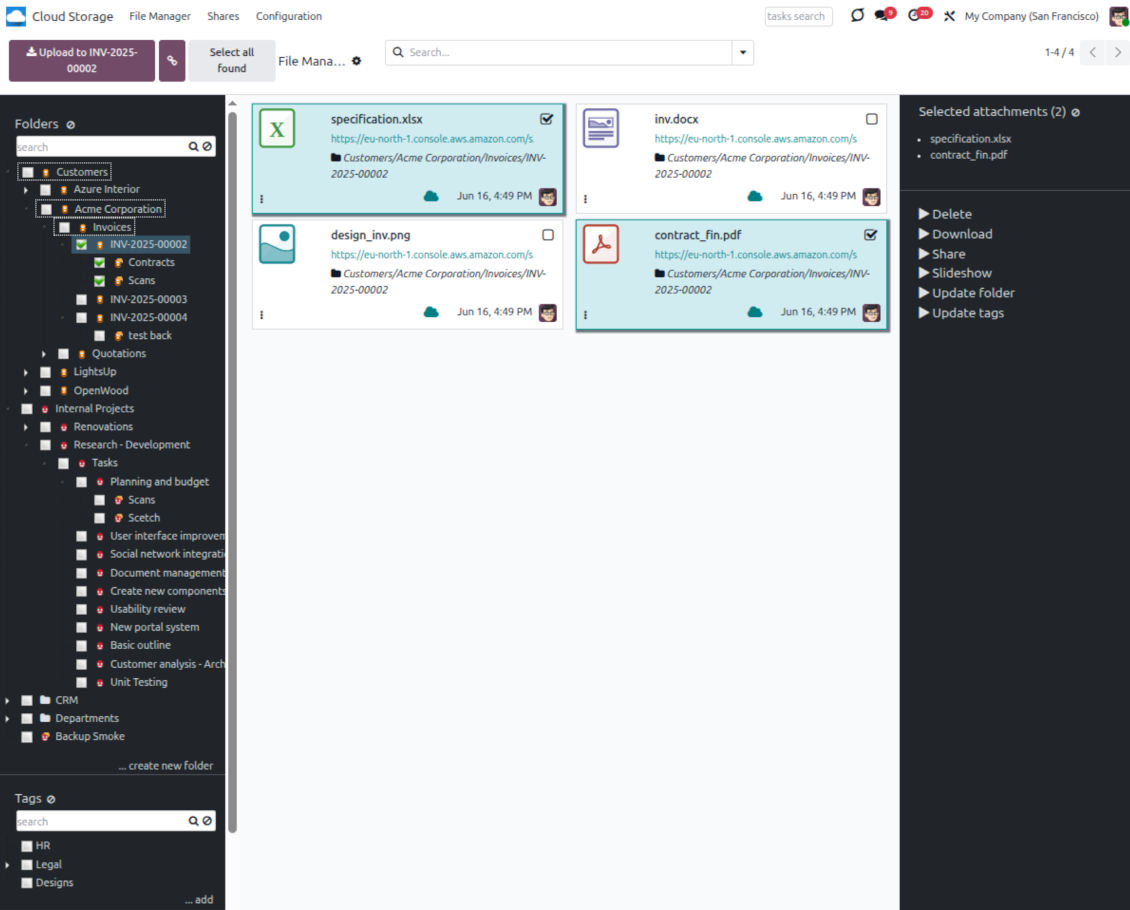
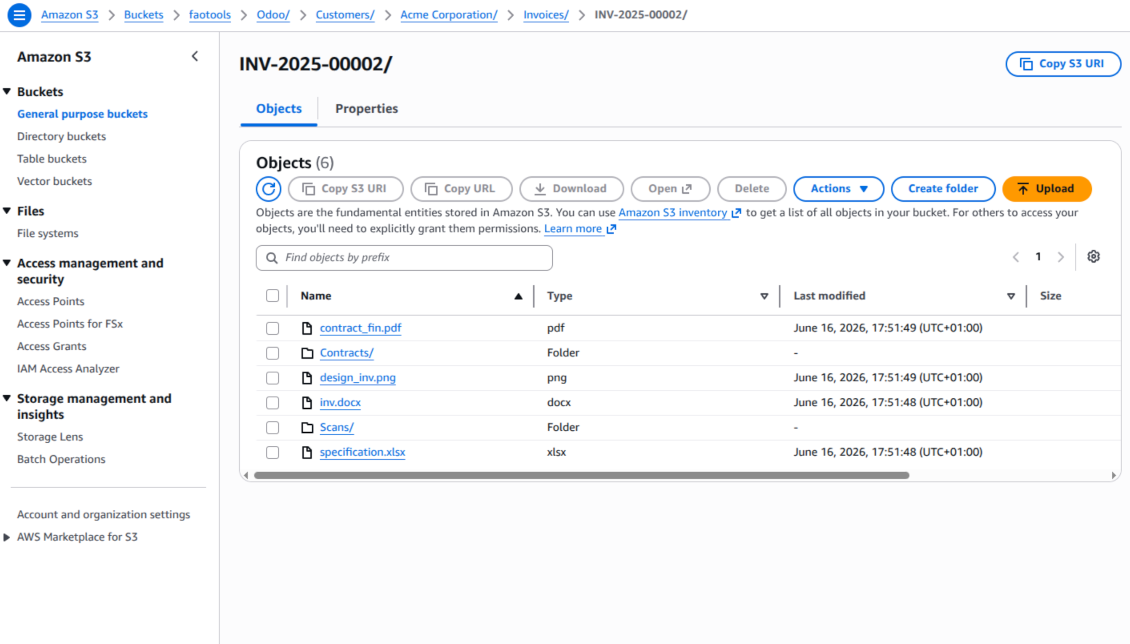
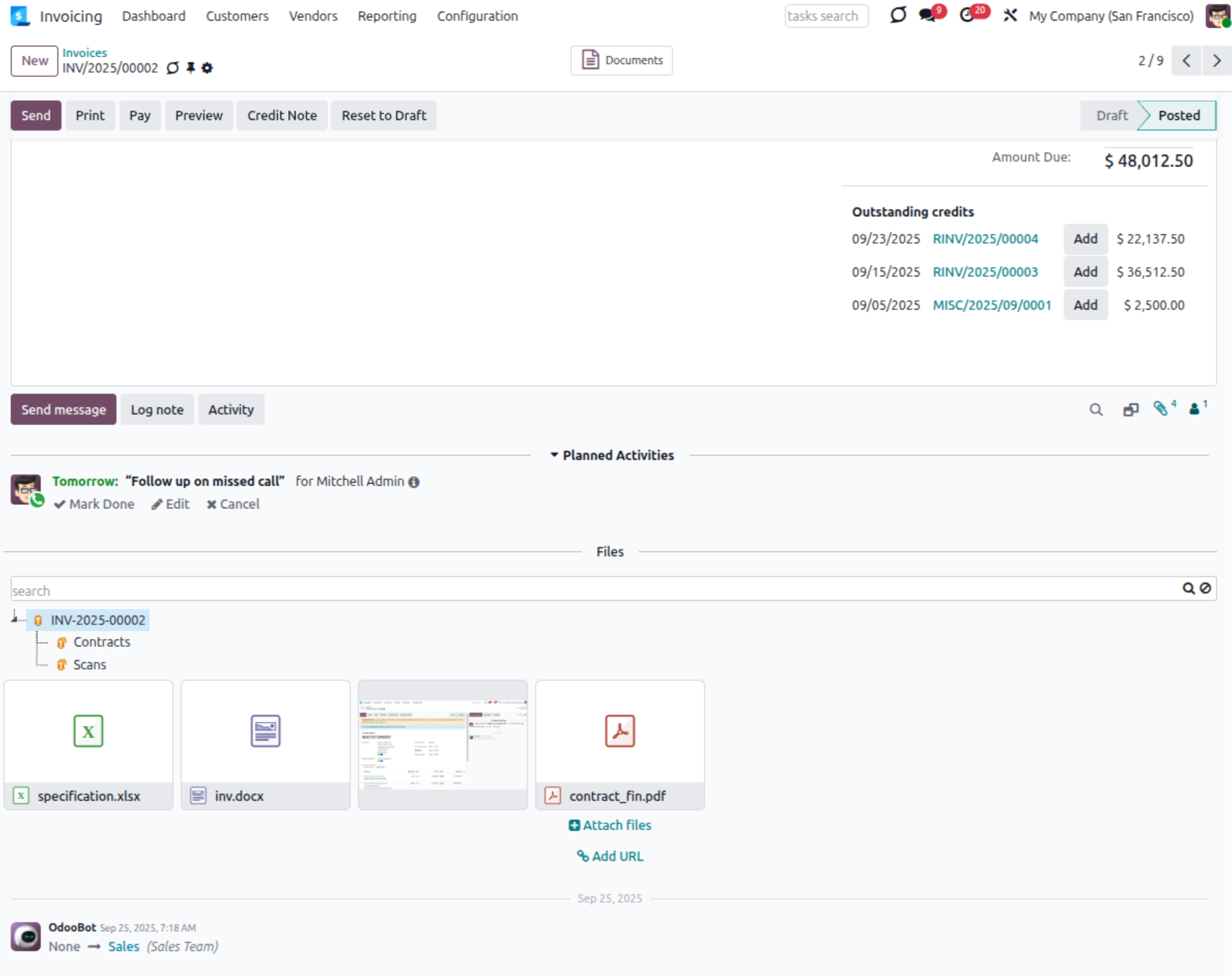
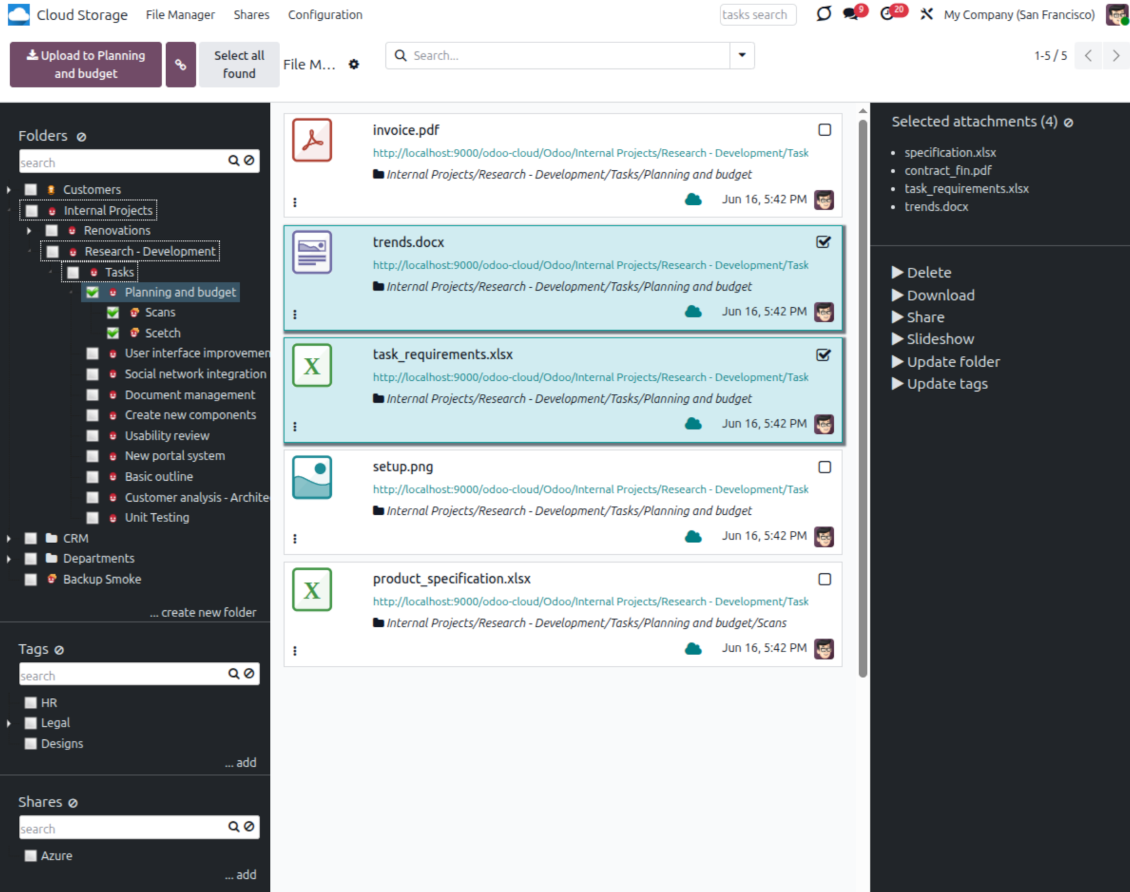
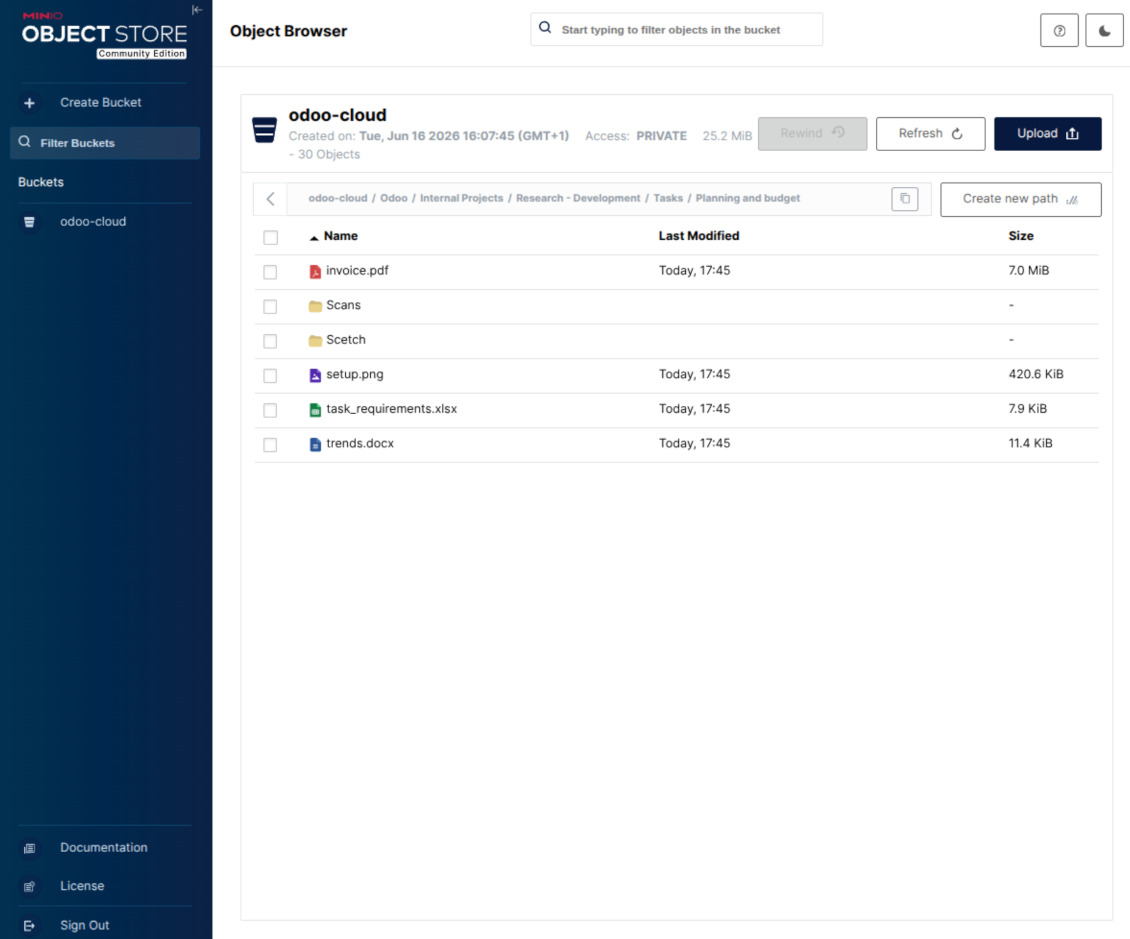
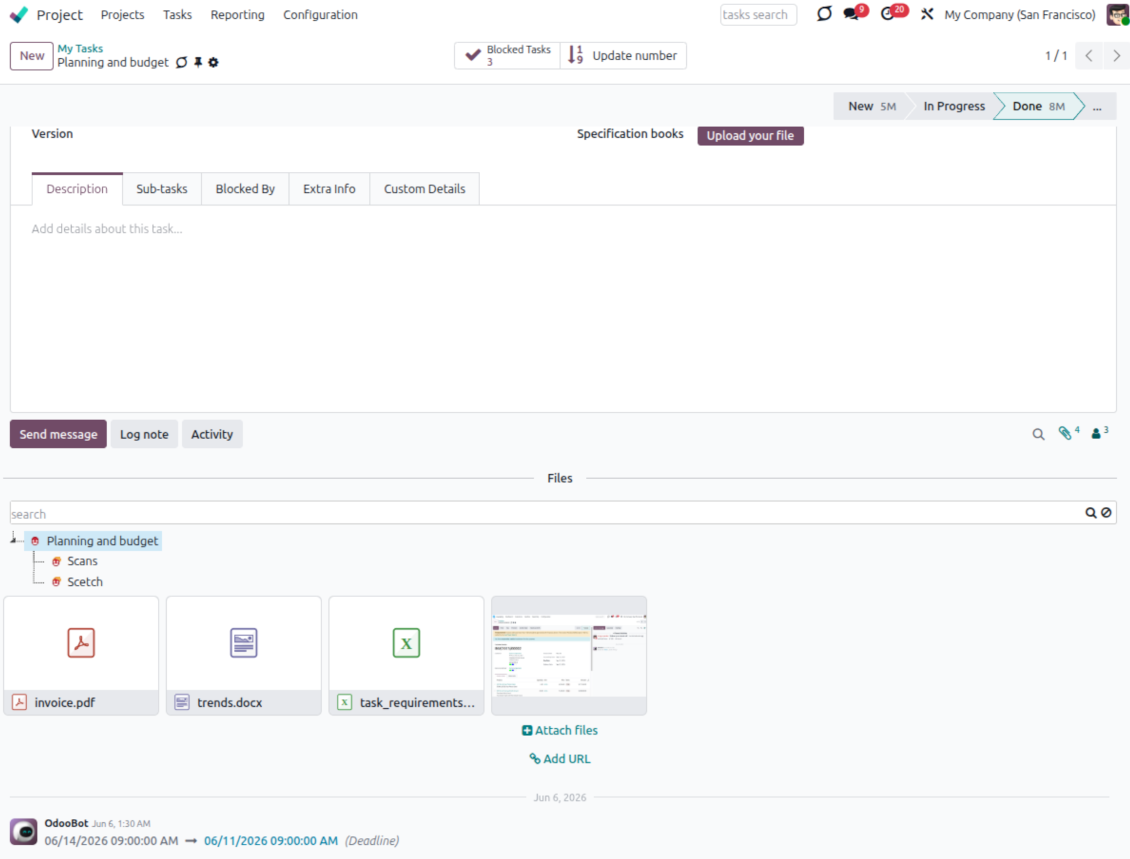
How Amazon S3 / MinIO Synchronization Works
Scheduled sync keeps Odoo folders and S3-compatible bucket objects aligned.
Odoo to S3-compatible storage
- Direct sync creates bucket object paths and uploads attachments from synced Odoo folders.
- Synced binaries become URL attachments in Odoo, reducing Odoo filestore usage.
- Queue jobs process Amazon S3 and MinIO changes with logs for administrators.
Buckets back to Odoo
- Backward sync creates Odoo URL attachments and subfolders for new bucket objects.
- Updates, moves, and deletions in S3-compatible storage are reflected in linked Odoo folders where possible.
- Reverse sync can bring files back to Odoo when an S3 or MinIO connection is reset or changed.
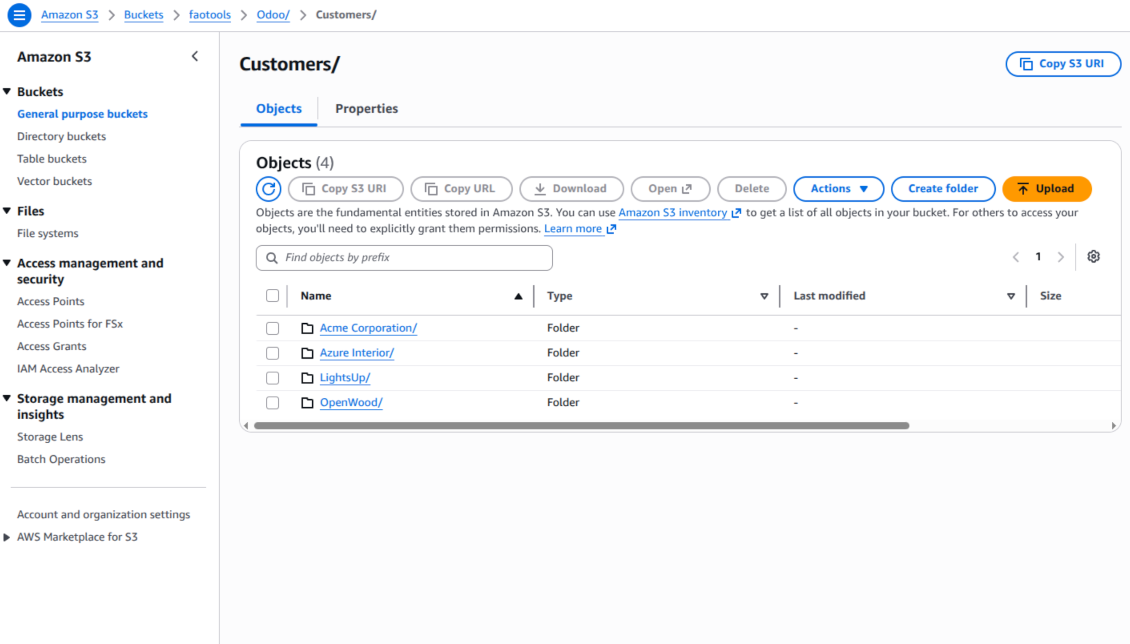
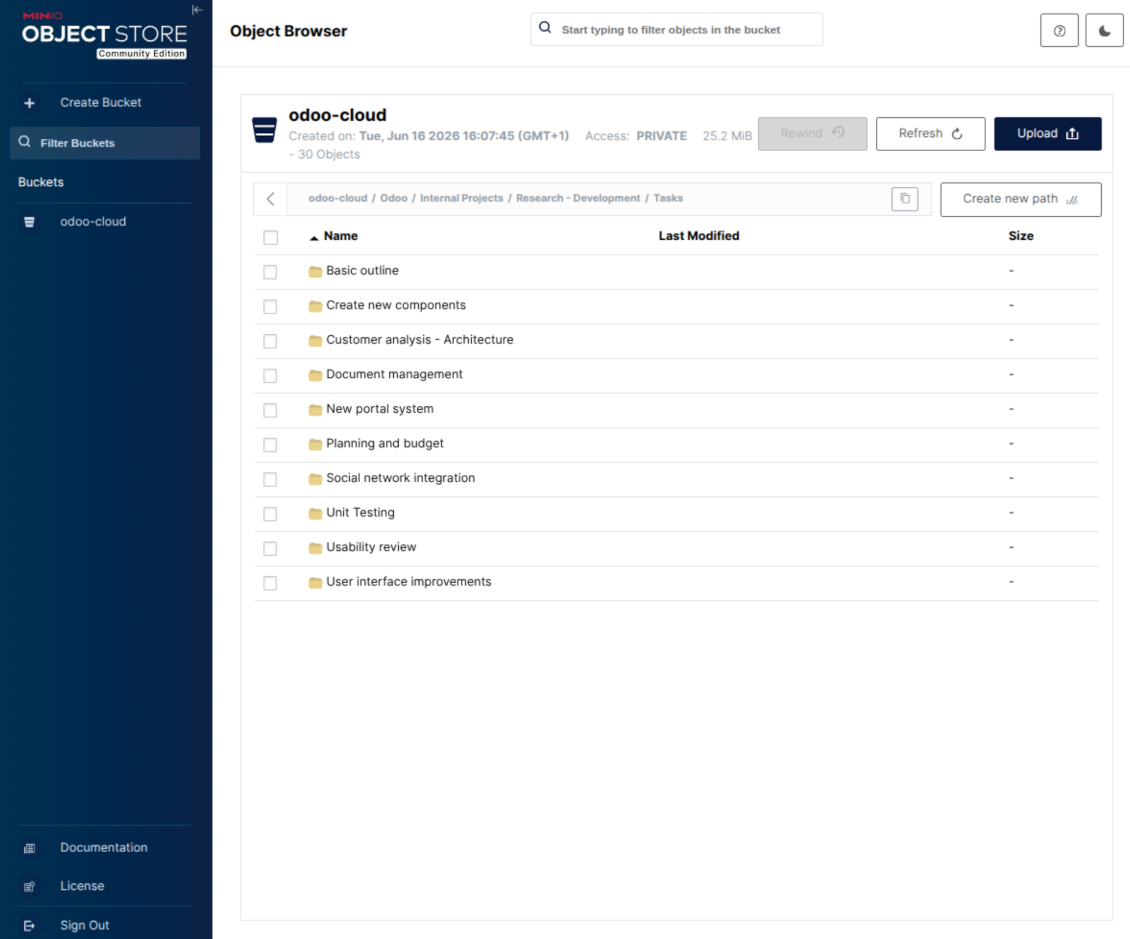
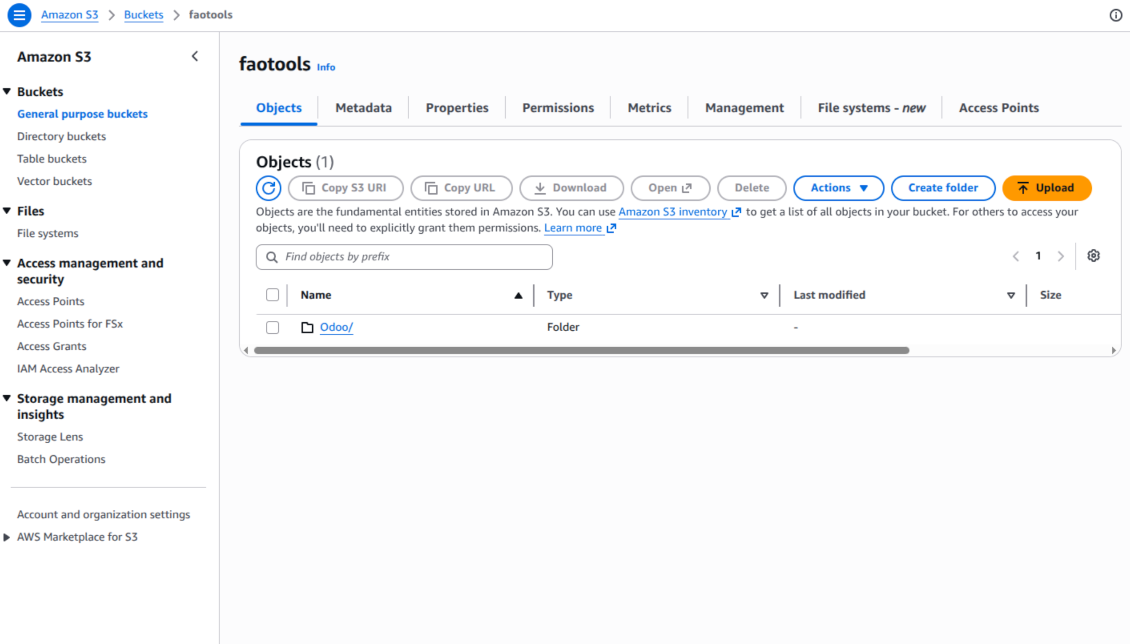
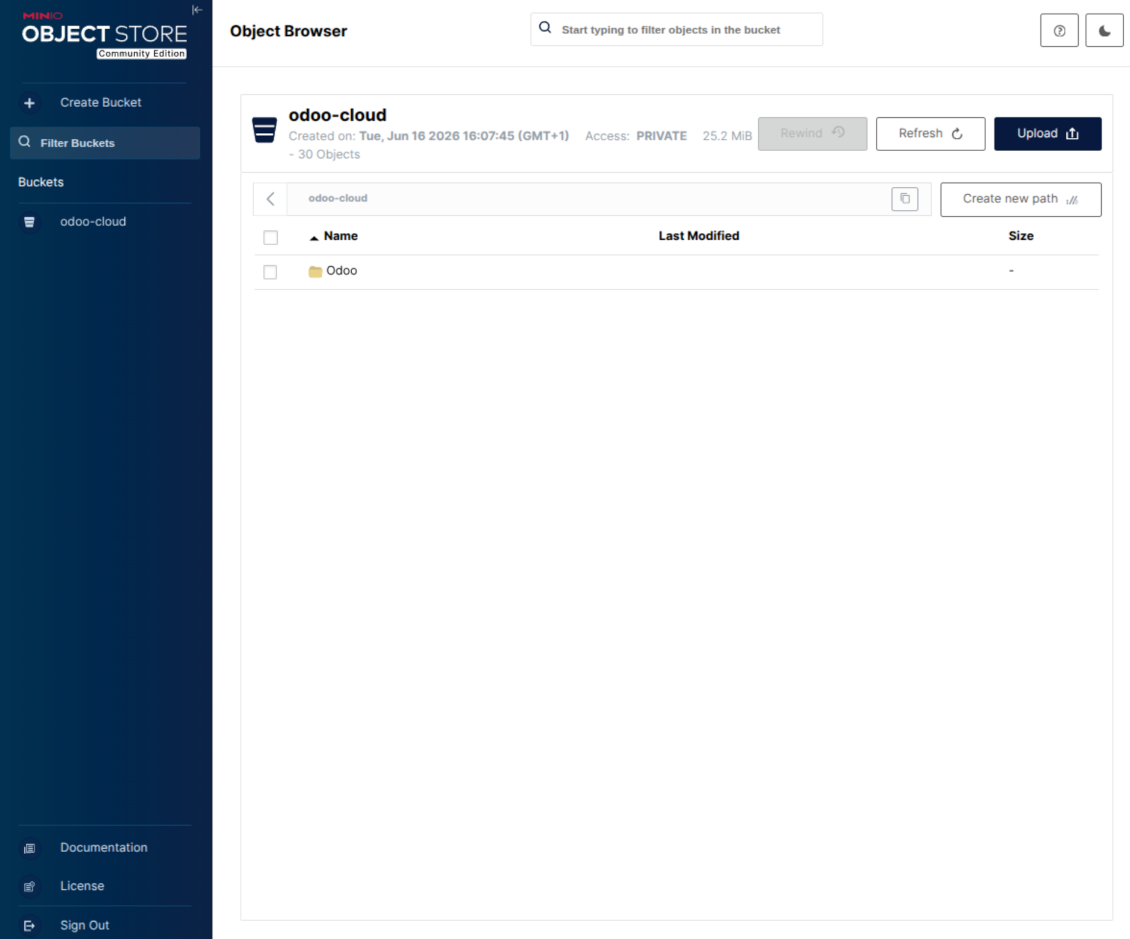
Amazon S3 / MinIO URLs
Open synced bucket objects from Odoo using the link mode that matches your storage policy.
Presigned object links
- Use presigned URLs when bucket objects should remain private but still open from Odoo.
- Link generation follows the S3-compatible client configuration and expiration policy.
- This mode is useful for controlled access without exposing bucket objects globally.
Public object links
- Use public links when bucket policy intentionally exposes synced objects.
- Odoo keeps the record, folder, and attachment context even when object access is controlled by S3 policy.
- Administrators manage bucket credentials, sync scope, and logs from Cloud Storage settings.
Ready to evaluate?
Start with a free demo request or purchase in the Odoo Apps Store.
Free personalized demo database. No phone number or credit card required. Free life-time updates and expert support within the major Odoo version.
Configuration and Installation Tips for Amazon S3 / MinIO Odoo Integration Odoo v.19
Python dependency
The tool depends on the external library 'boto3'. Install this library for your Odoo server through the command:
pip3 install boto3Amazon S3 Configuration and log in
- Turn on the option 'Amazon S3 Sync' (Cloud Storage > Configuration > Configuration). The optional add-on Amazon S3 Odoo Integration is required
- Open the Amazon S3 Console: https://console.aws.amazon.com/s3/
- Create a new bucket or choose an existing one. Copy the exact bucket name: it should be inserted in Odoo into the field 'Bucket'
- Open the bucket details and copy its AWS Region. Insert it in Odoo into the field 'Region' (for example, eu-west-1 or us-east-1)
- Open the AWS IAM Console: https://console.aws.amazon.com/iam/
- Create a new IAM user or choose an existing technical user. This user should have full rights to list, read, create, write, copy, and delete objects within the selected bucket. You can select the full right admin, or create a new policy (see below)
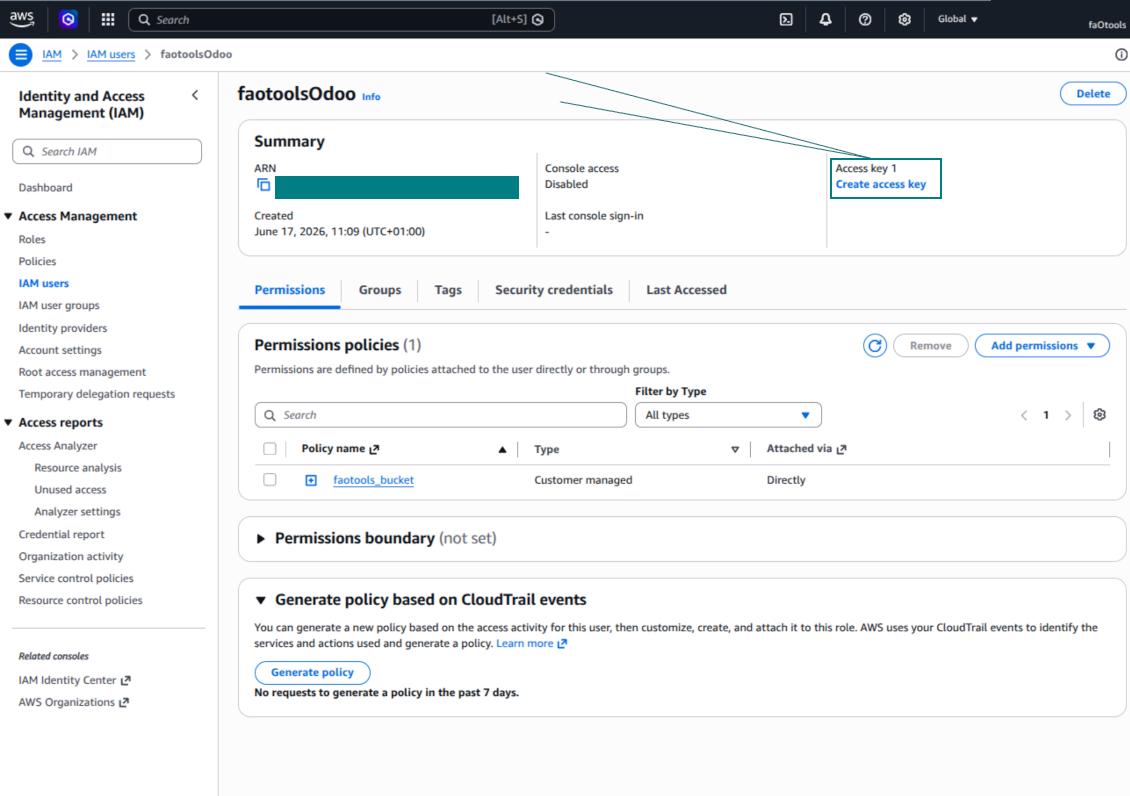
- In the IAM user form, open the tab 'Security credentials' and press 'Create access key'
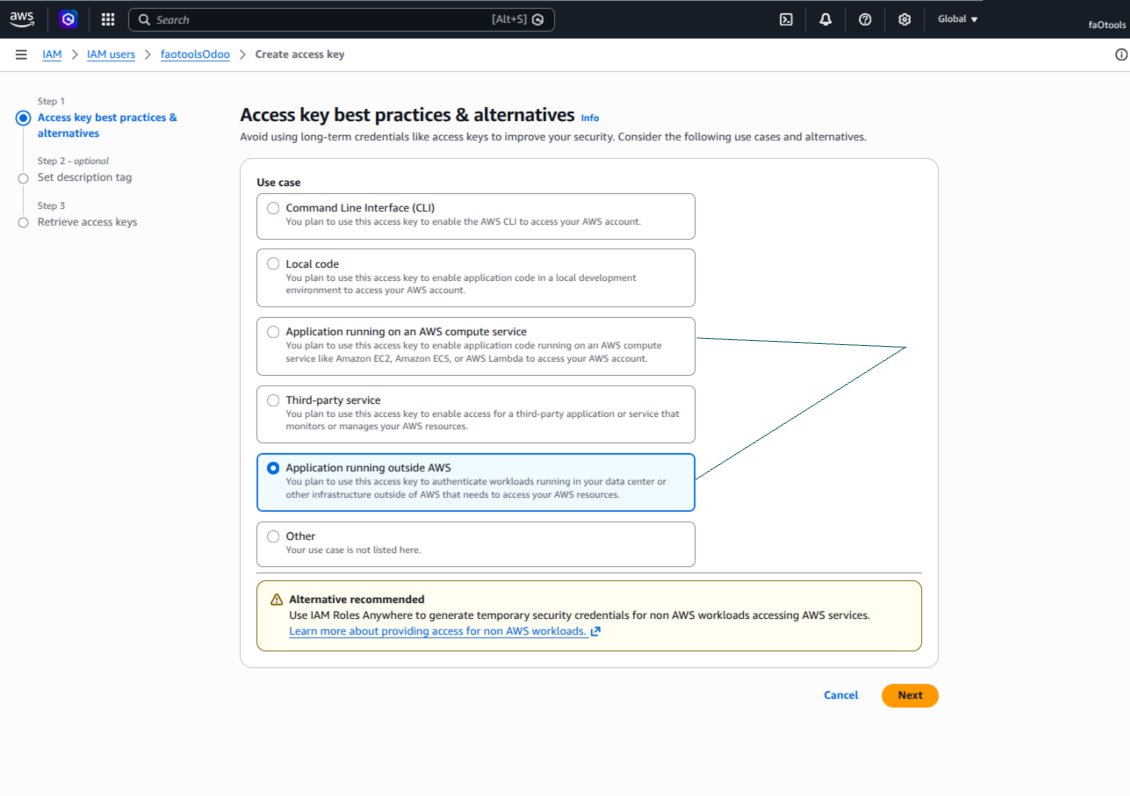
- On the page 'Access key best practices & alternatives', select the option Application running outside AWS. This is the correct option when your Odoo server connects to S3 by access key from outside AWS, from Odoo.sh, from your own server, or from another hosting provider. If your Odoo is installed on an AWS EC2 instance, you may instead select Application running on an AWS compute service, but the fields copied to Odoo are the same
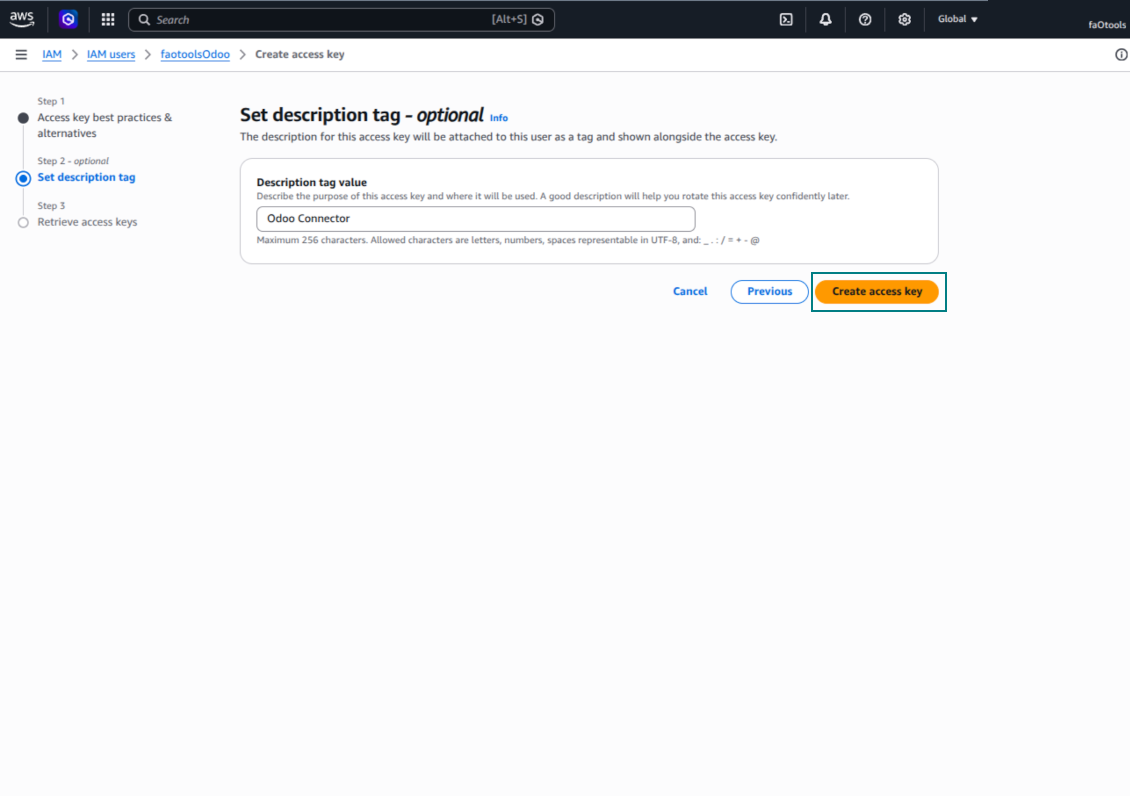
- Press 'Next'. On the next step, optionally enter a description tag such as Odoo S3 Sync, then press 'Create access key'
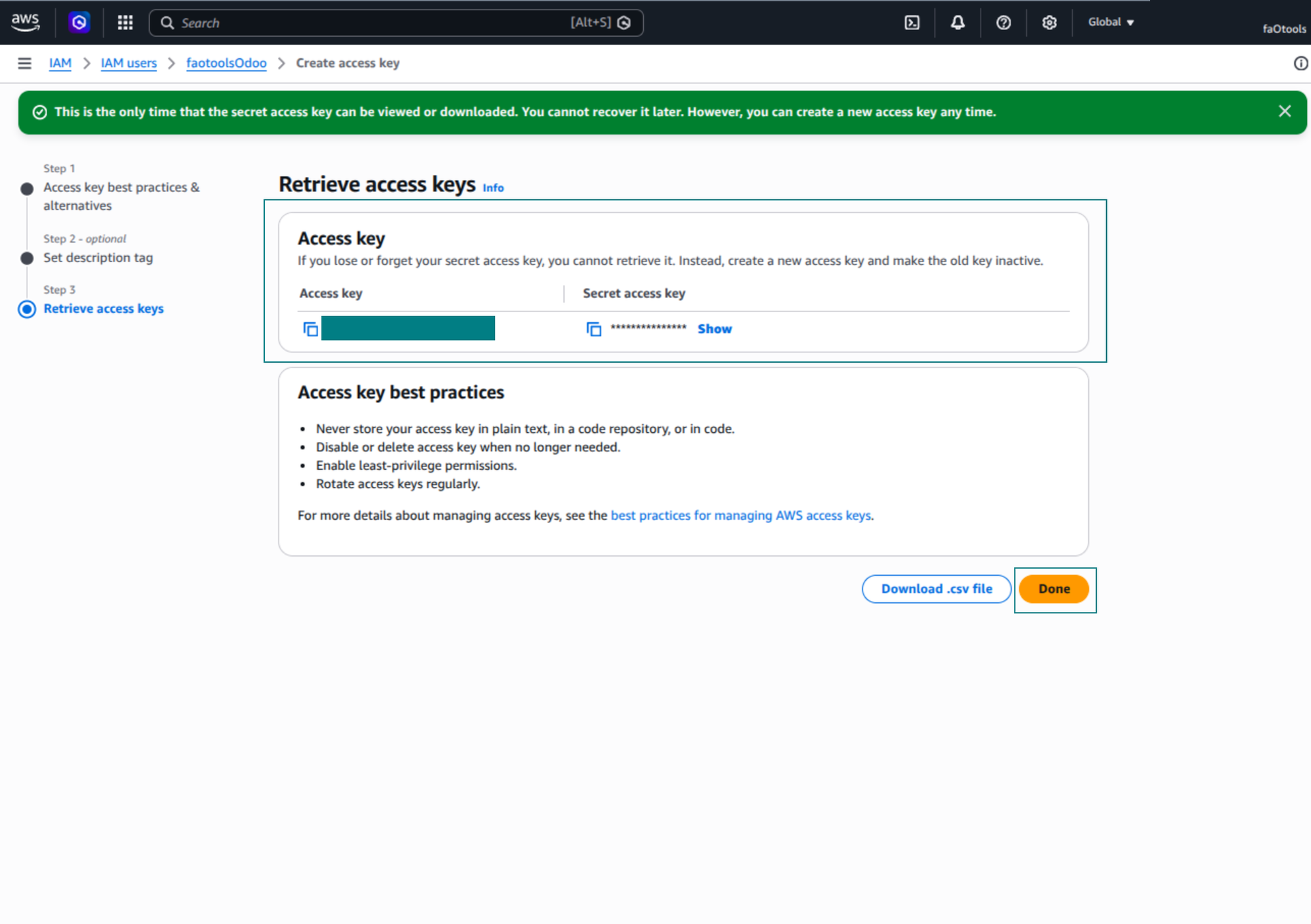
- On the final AWS page, copy Access key or Access key ID into the Odoo field 'Access Key'
- Copy Secret access key into the Odoo field 'Secret Key'. Important: AWS shows the secret key only once, so save it before closing the window
- If you use an S3-compatible provider instead of AWS S3, copy the endpoint URL from that provider's admin panel and insert it into Odoo into the field 'Amazon S3 endpoint URL'. For example, MinIO often uses a URL like https://minio.example.com or http://localhost:9000; LocalStack commonly uses http://localhost:4566
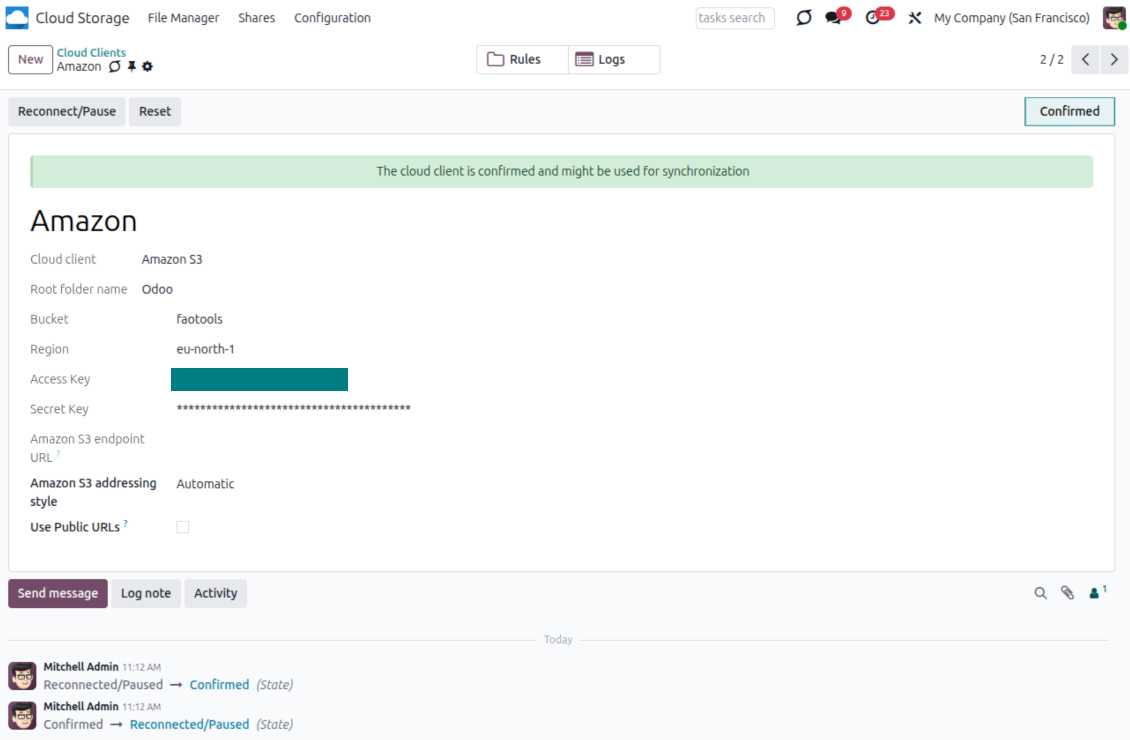
- Go to Odoo Cloud Storage > Configuration > Cloud Clients and press 'Create'
- As a reference, introduce any name which would be clear to all users
- As a Cloud client, choose 'Amazon S3'
- As a Root folder name, enter a title that will be used as the parent S3 prefix for all synced folders. For example, 'Odoo' or 'OdooERP'
- Fill in the fields 'Bucket', 'Region', 'Access Key', 'Secret Key', and, if needed, 'Amazon S3 endpoint URL' and addressing style
- Choose whether Odoo should use temporary presigned URLs or public bucket/CDN URLs. For private buckets, keep presigned URLs enabled and set their lifetime in seconds
- Press 'Confirm'. Odoo checks bucket access and creates or verifies the root folder prefix. Amazon S3 - Odoo synchronization is ready to be done
- Apply the newly created cloud client to folder rules and/or manual folders which should be synced to that Amazon S3 bucket
- Await the sync scheduled job to be started. For testing purposes only: trigger integration manually from Cloud Storage > Configuration > Configuration > the button 'Launch sync'.
Useful AWS documentation: creating an S3 bucket: https://docs.aws.amazon.com/AmazonS3/latest/userguide/creating-bucket.html, managing IAM access keys: https://docs.aws.amazon.com/IAM/latest/UserGuide/id_credentials_access-keys.html.
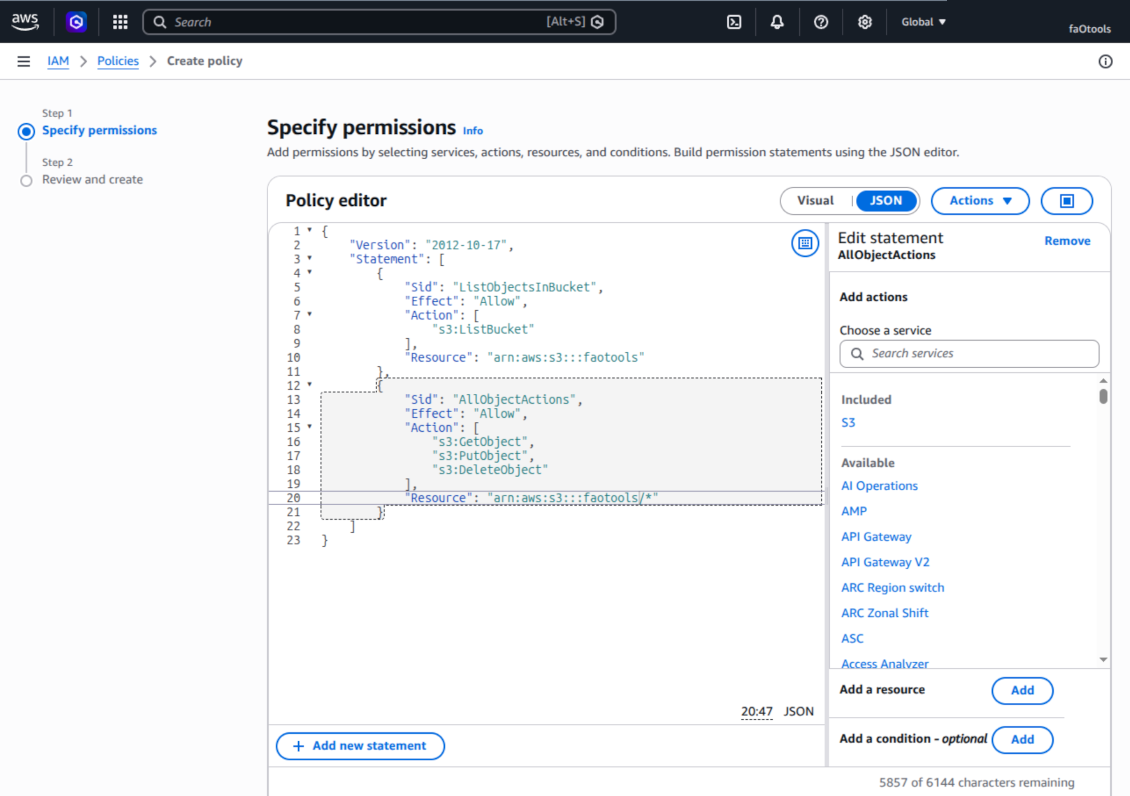
Bucket policy example
    {
    "Version": "2012-10-17",
    "Statement": [
        {
            "Sid": "ListObjectsInBucket",
            "Effect": "Allow",
            "Action": [
                "s3:ListBucket"
            ],
            "Resource": "arn:aws:s3:::NAME_OF_YOUR_BUCKET"
        },
        {
            "Sid": "AllObjectActions",
            "Effect": "Allow",
            "Action": [
                "s3:GetObject",
                "s3:PutObject",
                "s3:DeleteObject"
            ],
            "Resource": "arn:aws:s3:::NAME_OF_YOUR_BUCKET/*"
        }
    ]
}
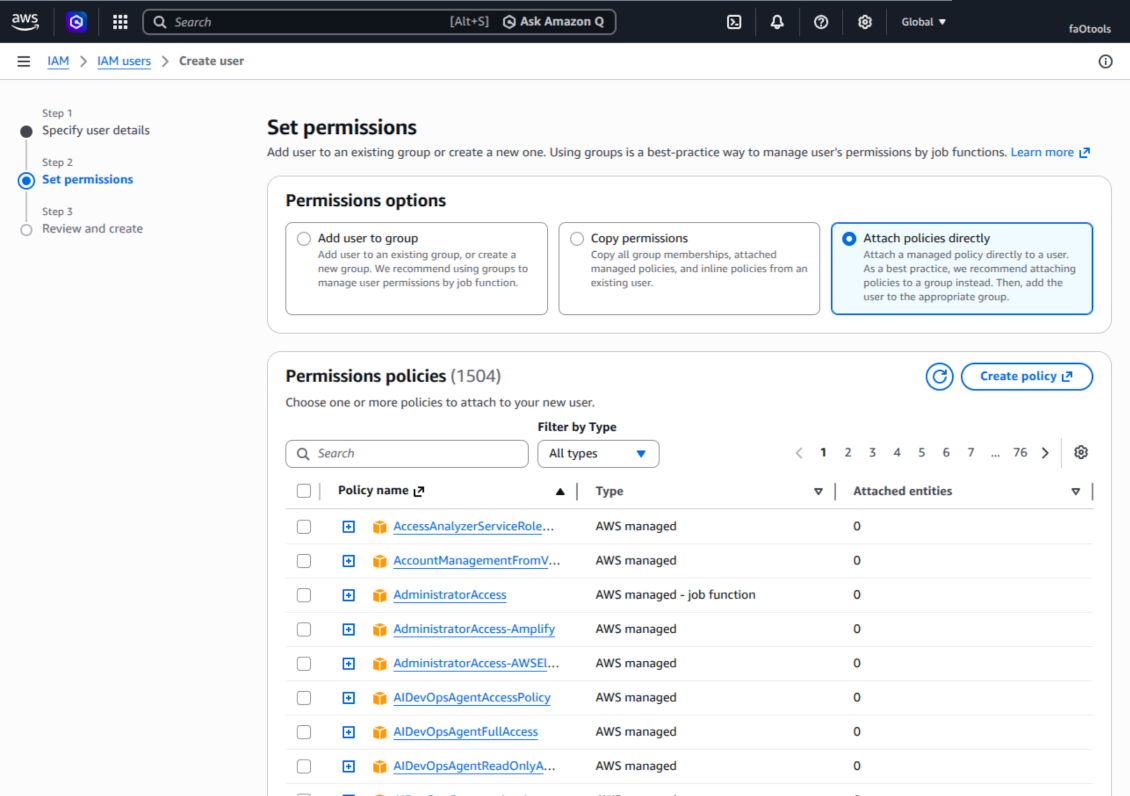
Create a new AWS IAM user
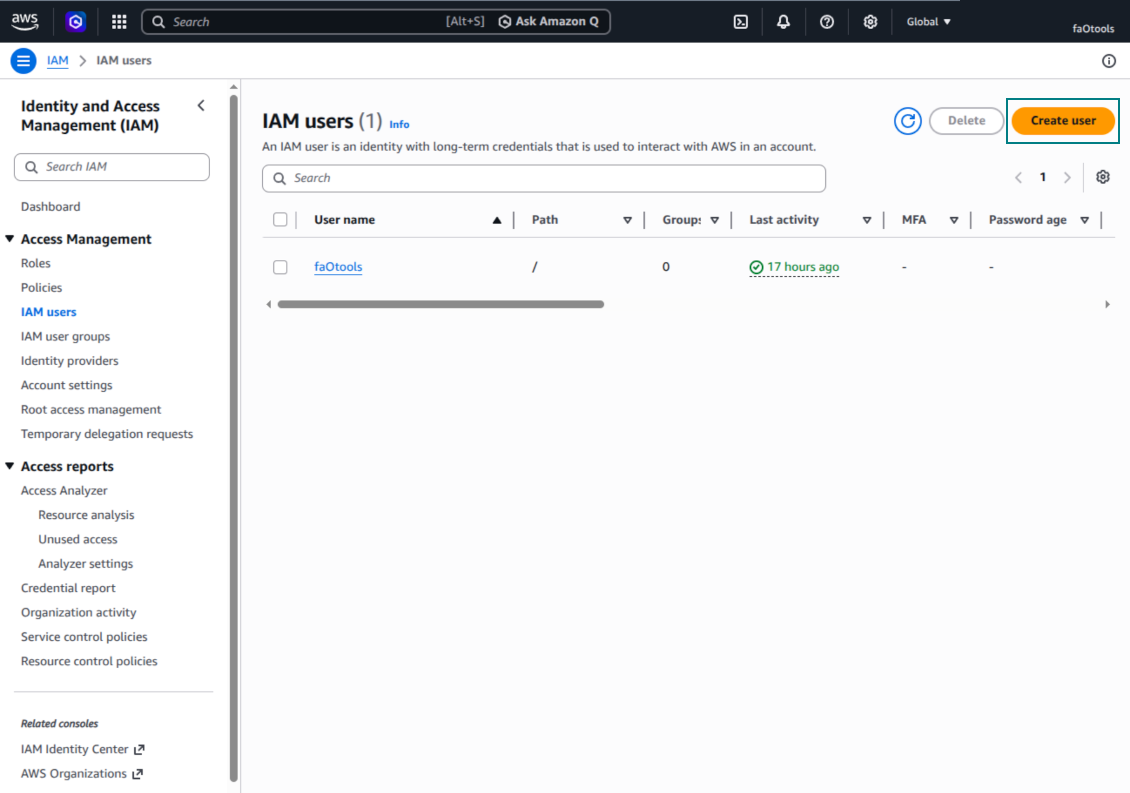
Specify the IAM user name
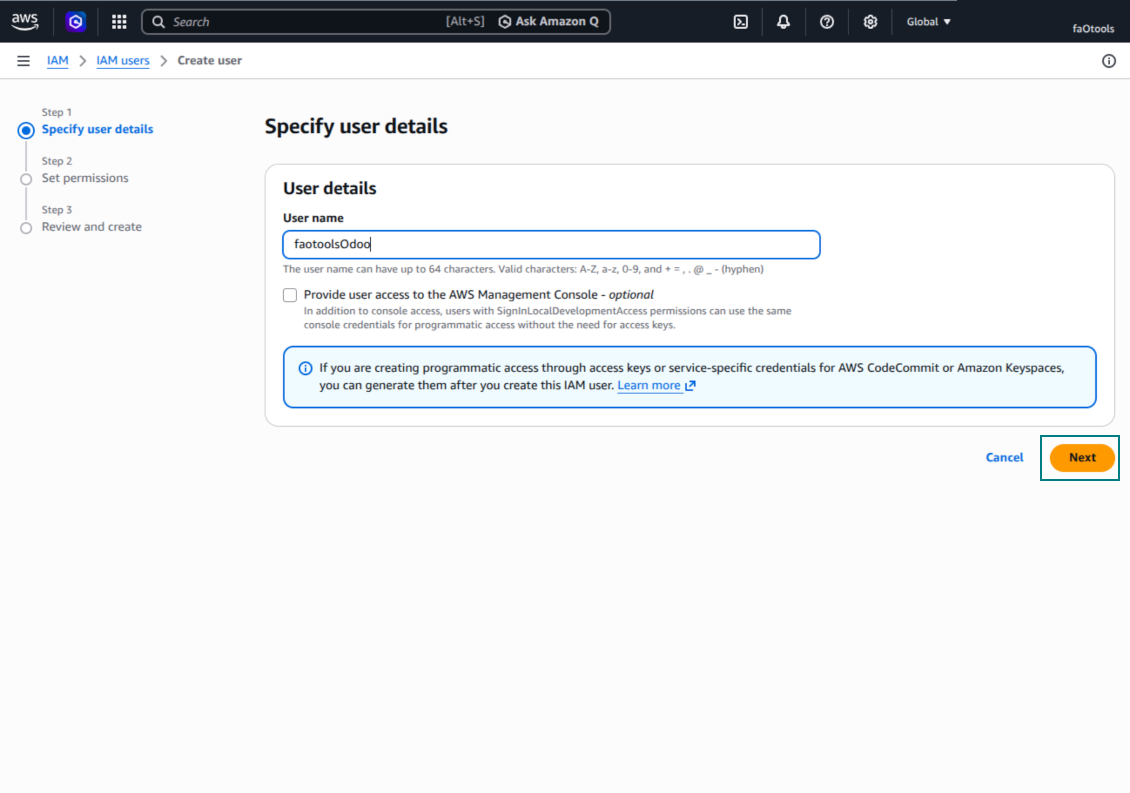
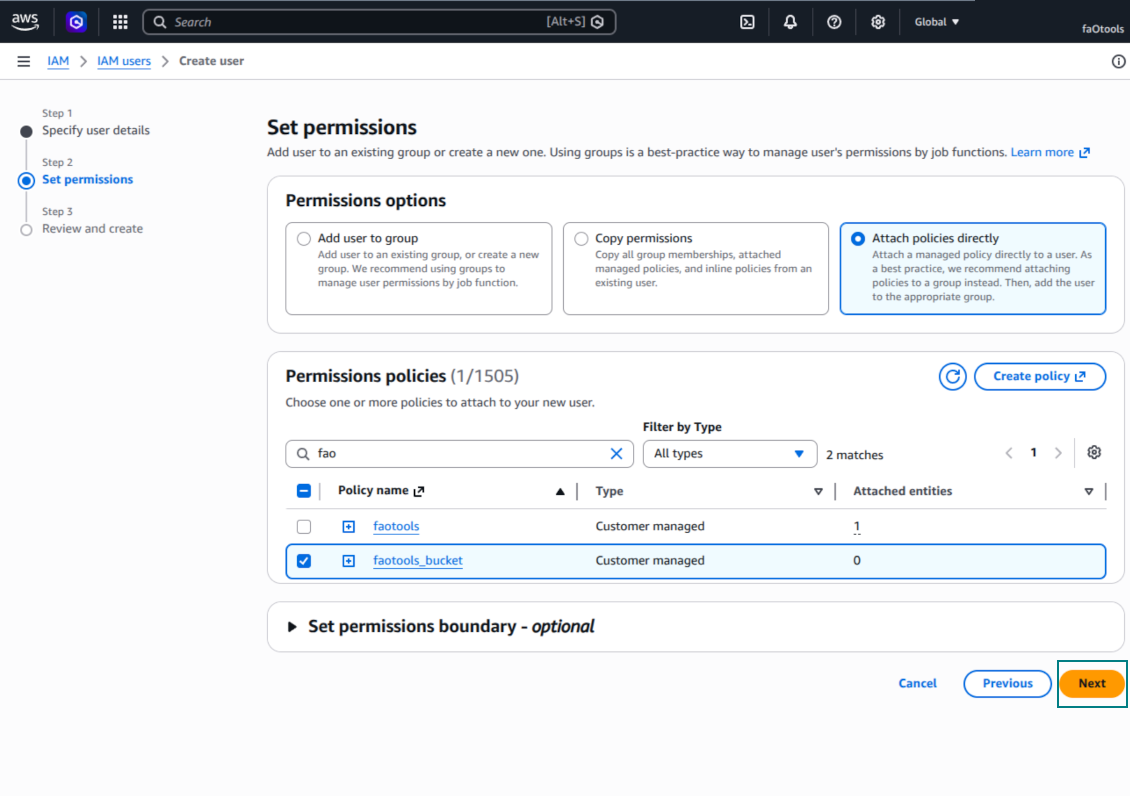
Attach permission policies directly
Amazon S3 bucket policy JSON example
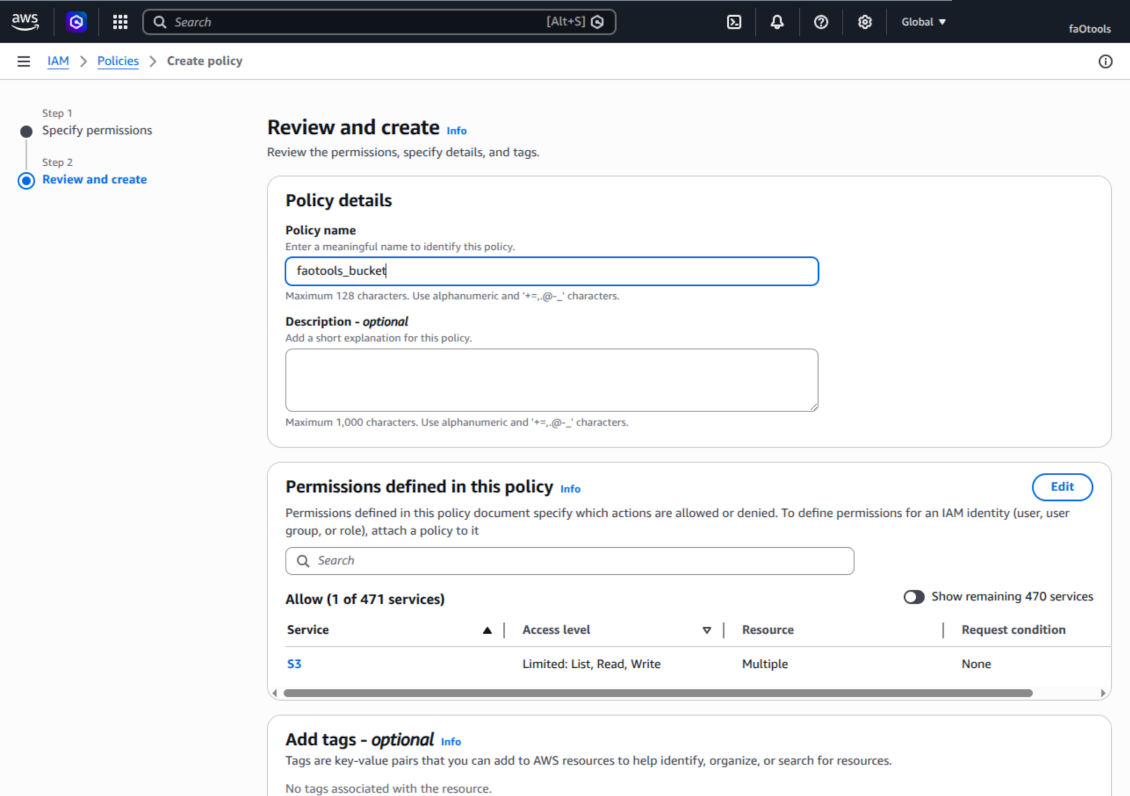
Review and name the S3 policy
Select the bucket policy for the user
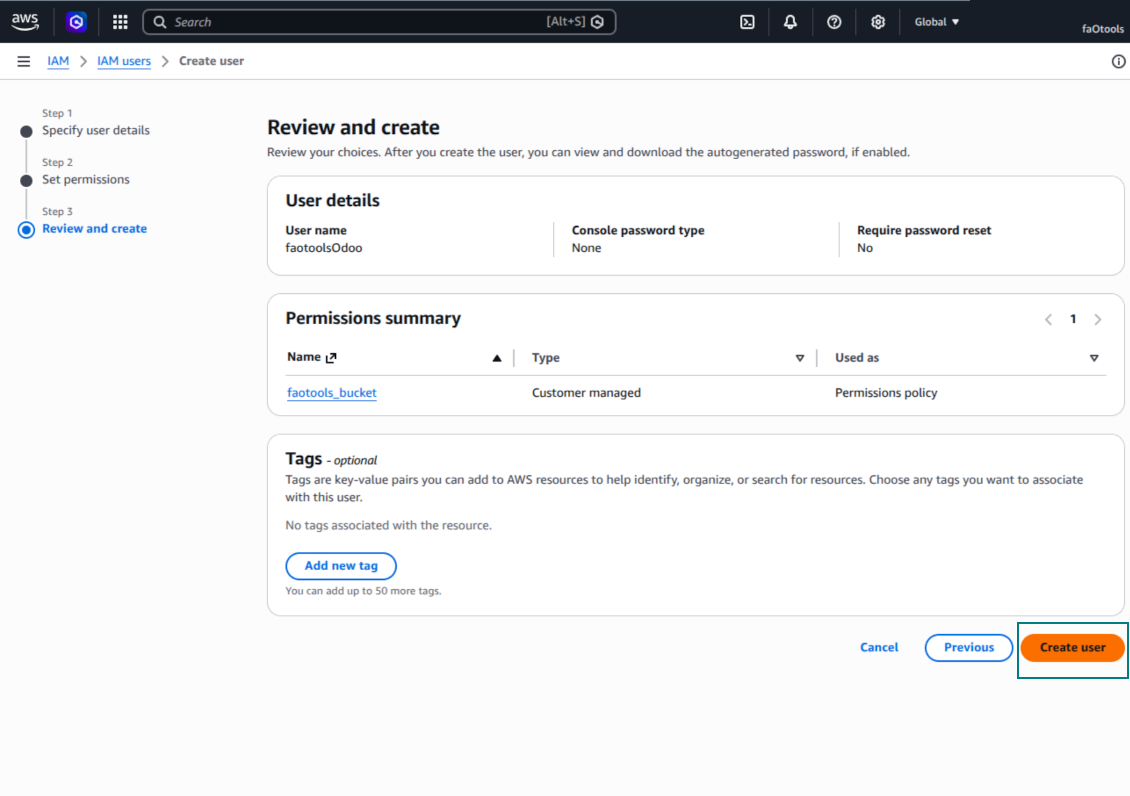
Review and create the IAM user
Create an access key for the user
Choose the access key use case
Set the access key description tag
Retrieve the access key and secret
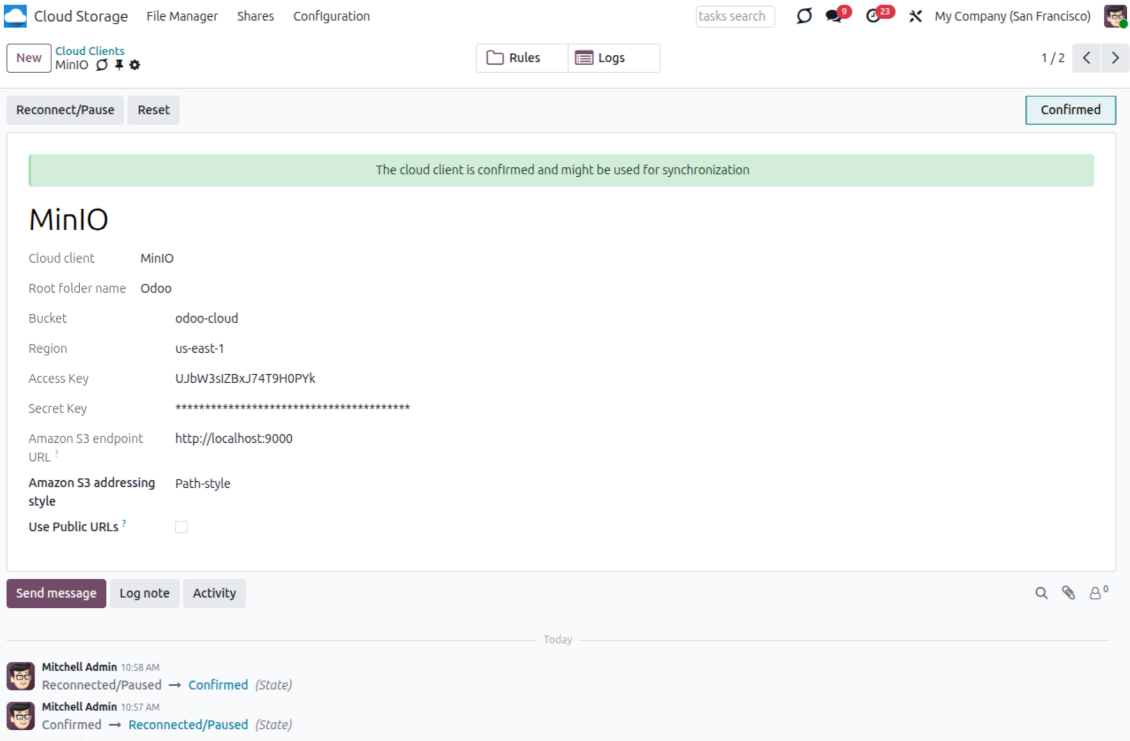
Configure the Amazon S3 client in Odoo
Amazon S3 URLs and access rights
Amazon S3 has an important peculiarity: the URL shown in Odoo is always an Amazon-side link.
If Use Public URLs is enabled, Odoo saves a direct S3 object URL. This link works only if the related S3 bucket, prefix, object, CDN, or compatible endpoint is publicly readable. Otherwise, Amazon S3 will show AccessDenied, even if the user is logged in to the AWS console.
For public links, configure the bucket permissions in Amazon S3 and allow public read access for the Odoo prefix. Example bucket policy:
{
  "Version": "2012-10-17",
  "Statement": [
    {
      "Sid": "PublicReadOdooPrefix",
      "Effect": "Allow",
      "Principal": "*",
      "Action": "s3:GetObject",
      "Resource": "arn:aws:s3:::YOUR_BUCKET_NAME/Odoo/*"
    }
  ]
}
Replace YOUR_BUCKET_NAME with the real bucket name and Odoo/ with the selected root folder prefix. Also make sure that Amazon S3 Block public access settings do not block that bucket policy.
If Use Public URLs is disabled, Odoo saves AWS Console links to the related bucket object or prefix. Such links are useful for Amazon users: the person opening the link must be logged in to AWS and must have IAM access to that bucket object. If the user has no AWS access, Amazon will not open the file.
MinIO configuration and log in
- Prepare a running MinIO server
- Open the MinIO Console
- Create a new bucket or choose an existing one. Copy the exact bucket name: it should be inserted in Odoo into the field 'Bucket'
- Create access credentials for Odoo. In MinIO, use an access key / secret key pair or a service account that has rights to list, read, create, write, copy, and delete objects within the selected bucket
- Copy the MinIO Access Key into the Odoo field 'Access Key'
- Copy the MinIO Secret Key into the Odoo field 'Secret Key'. Important: save the secret before closing the MinIO page if MinIO shows it only once
- Copy the MinIO S3 API endpoint URL into Odoo into the field 'Amazon S3 endpoint URL'. For example, a local server usually uses http://localhost:9000, while a production server may use https://minio.example.com
- Go to Odoo Cloud Storage > Configuration > Cloud Clients and press 'Create'
- As a reference, introduce any name which would be clear to all users
- As a Cloud client, choose 'MinIO'
- As a Root folder name, enter a title that will be used as the parent MinIO object prefix for all synced folders. For example, 'Odoo' or 'OdooERP'
- Fill in the fields 'Bucket', 'Access Key', 'Secret Key', and 'Amazon S3 endpoint URL'. The field 'Region' is optional for MinIO; if it is empty, Odoo uses us-east-1 for S3-compatible signing
- Keep the addressing style as Path-style. This is the recommended option for MinIO endpoints, especially when the MinIO host does not provide bucket-specific DNS names
- Choose whether Odoo should use direct public MinIO URLs. Enable 'Use Public URLs' only when the bucket, prefix, reverse proxy, or CDN is publicly readable. For private MinIO buckets, leave it disabled
- Press 'Confirm'. Odoo checks bucket access and creates or verifies the root folder prefix. MinIO - Odoo synchronization is ready to be done
- Apply the newly created cloud client to folder rules and/or manual folders which should be synced to that MinIO bucket
- Await the sync scheduled job to be started. For testing purposes only: trigger integration manually from Cloud Storage > Configuration > Configuration > the button 'Launch sync'.
Useful MinIO documentation: https://min.io/docs/minio/linux/administration/identity-access-management.html, https://min.io/docs/minio/linux/reference/minio-server/minio-server.html.
Create a MinIO access key
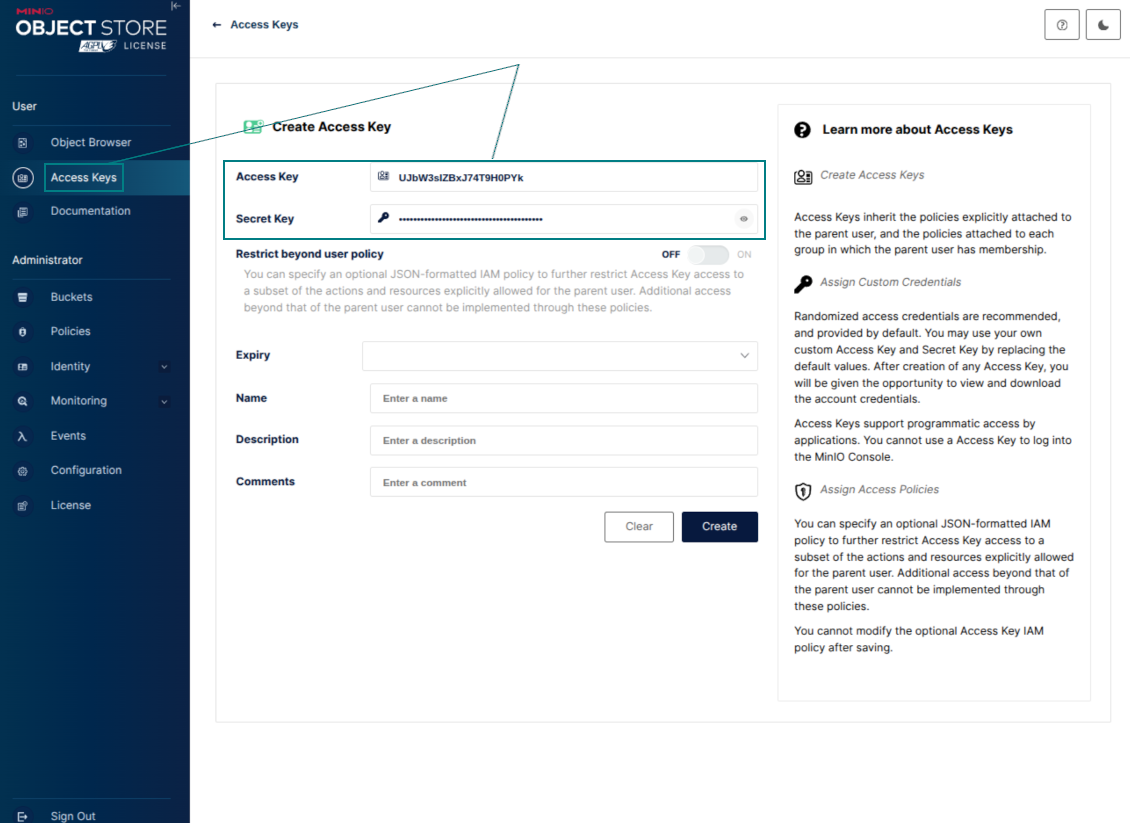
Copy the new MinIO credentials
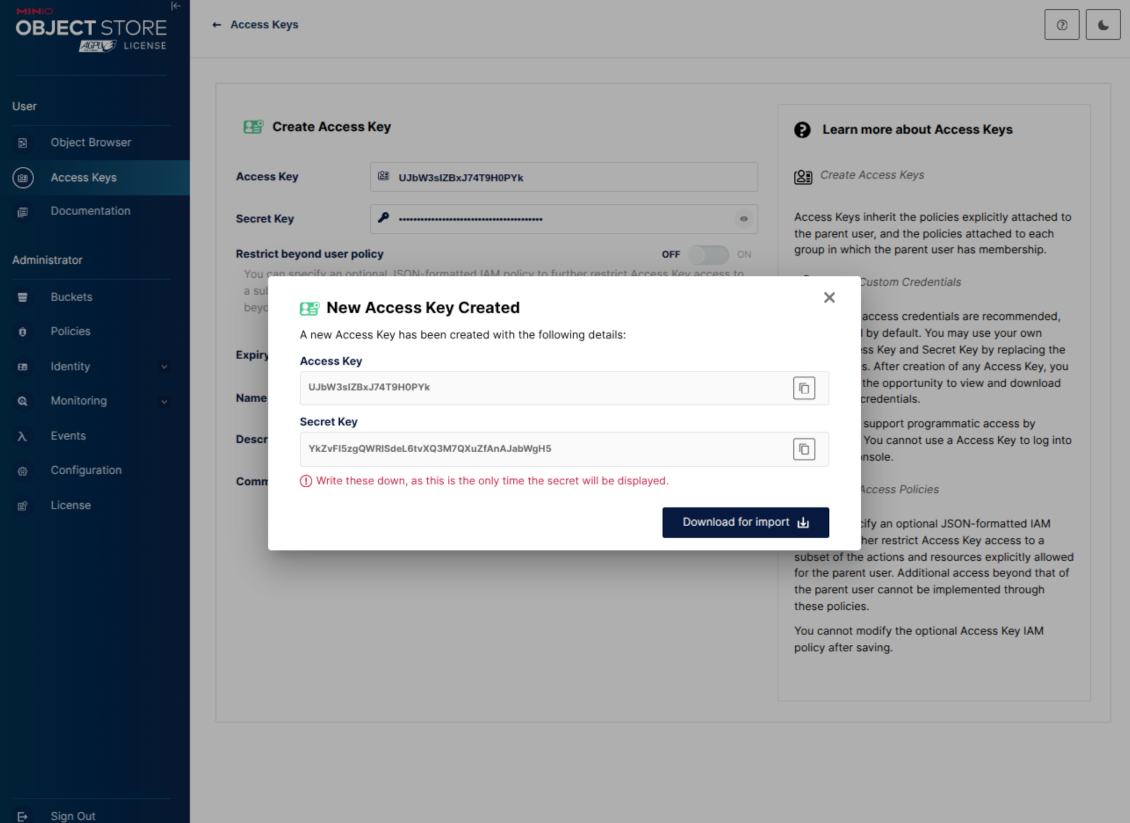
Configure the MinIO cloud client in Odoo
Frequently Asked Questions about Amazon S3 / MinIO Odoo Integration Odoo v.19
Where would be synced fields stored? Are they duplicated to Odoo and clouds?
The app assumes that the binary content of attachments is kept in Cloud Client instead of the Odoo server. So, such attachments in Odoo become of the URL type, and you may any time access them either from the attachments box or from the Cloud Client.
After the setup, no manual actions are required, as the synchronization is fully automatic. Just decide which Odoo document types should be synced and set up a related model to sync for each of those (Customers, Sale or Purchase Orders, Tasks, Projects, etc.).
Can I have a few folders for the the same document type? For example, internal projects and customer projects?
Yes, you can. To that goal, prepare a rule for each, and then those apply filters: for example by type of a project.
Try to make filters self-exclusive in order a document can be definitely assigned. For instance, 'customer but not supplier', 'supplier but not customer'. Otherwise, a specific document folder would jump from one model to another.
Is it possible to make synchronization real-time?
No. We have strong reasons to avoid real time sync:
Performance issues. In case a sync is real time, each file upload will result in the loading screen.
Conflict issues. If 2 users simultaneously change an item, it might lead to unresolved situations. In case of regular jobs we can fix it afterwards, while in case of real time we would need to save it as some queue, and it will be even more misleading for users.
Functionality issues. In particular, renaming and restructuring of items. In the backward sync the tool strictly relies upon directories' logic, and during each sync 100% of items are checked. In case it is done after each update, it will be thousands of requests per second. If not: changes would be lost.
May I change default folders' name in clouds?
You may assign your name for models' directories (sale orders, opportunities, suppliers, etc.) for any document type.
For objects' folders (SO-001, John Smith, etc.), the tool relies upon the Odoo method to construct a display name for this document type. However, you can change that by defining the name expression. The exact syntax for Odoo email templates is used.
May I change frequency of sync jobs?
No, starting from version 15, you should not change scheduled jobs. They are optimized to run every 15 minutes to guarantee the most stable and quick connection.
Ensure that your Odoo server timeouts are set for at least 15 minutes (900 seconds).
If you need to stop sync for a while, do that on a particular cloud client form.
May I sync attachments to a few cloud clients
Yes, starting from version 15, you can set up multiple connections. In this way, it is possible to sync some folders to one cloud client and others - to another.
Take into account that it is not any way possible to sync the same folder for a few cloud storages simultaneously.
We use a special editor in our clouds (e.g. OnlyOffice, Office 365, etc.). Would files be opened in that editor?
Yes, depending on your cloud client configuration.
Do I need only the Cloud Storage Solution app?
Starting from version 15, the app might be used stand-alone to structure attachments in folders and to provide a file manager interface.
However, if your goal is to establish a connection with one of its cloud clients, you would need at least one optional client-related app to be installed.
What happens when I change a folder rule?
When a folder rule changes, the list of folders also changes. So, if a folder no longer matches the conditions of the folder rules - it is removed. If the files have been synced, the reversed sync returns them to Odoo and deletes them from the Cloud Client.
If a document's object doesn't match the conditions of a folder rule, then its folder will not be created. However, if it matches the conditions later, the related folder will be generated.
Can I keep only the direct sync, or turn off the backward sync?
Yes. On the cloud client, open the Settings page and turn on Turn off the backward sync.
The sync stays one-way. Changes made in Odoo are still pushed to the cloud storage. Files and folders created, renamed, or deleted in the cloud storage are not reflected in Odoo, and folders deleted there are not restored.
Turn the option off again to apply those accumulated changes, including deletions, on the next sync.
This setting is available from version 18. Unlinking, resetting, or deactivating the client still runs the reverse sync, unless you also turn that off.
Odoo demonstration databases (live previews)
For this app, we might provide a free personalized demo database.
You do not need a phone number or credit card to contact us. You should only pass a short email sign-up, which does not take more than 30 seconds.
By your request, we will prepare an individual live preview database, where you can apply any tests and check assumptions for about two weeks.
Bug reporting
If you encounter bugs or inconsistent behavior, do not hesitate to contact us. We guarantee to provide fixes within 60 days of purchase and are intensely interested in improving our tools even after this period.
You do not need a phone number or credit card to contact us. You should only pass a short email sign-up, which does not take more than 30 seconds.
Please include as many details as possible in your request: screenshots, Odoo server logs, a full description of how to reproduce your problem, and so on. Usually, it takes a few business days to prepare a working plan for an issue (if a bug is confirmed) or provide you with guidelines on what should be done (otherwise).
Public features requests and module ideas (free development)
We are strongly motivated to improve our tools and would be grateful for any feedback. If your requirements are of public use and might be efficiently implemented, the team will include those in our to-do list.
Such a to-do list is processed regularly and does not assume extra fees. Although we cannot promise deadlines and final design, it might be a good way to get desired features without investments and risks.
You do not need a phone number or credit card to contact us. You should only pass a short email sign-up, which does not take more than 30 seconds.


The tool to build a deep and structured knowledge base for internal and external use. Knowledge System. KMS. Wiki-like revisions.
398€
The tool to set up KPI targets and control their fulfillment by periods. KPI dashboards. Dashboard designer. KPI charts

The tool for time-based service management from booking appointments to sales and reviews
398€
The tool to manage your Odoo from your favorite AI chats through MCP. Claude. Any MCP-supporting AI.

The tool to flexibly structure Odoo attachments in folders and synchronize directories with cloud clients: Google Drive, OneDrive/SharePoint, Nextcloud/ownCloud, Dropbox, Amazon S3, Box, and NAS. DMS. File Manager. Document management system
398€
The tool to automatically synchronize Odoo attachments with OneDrive files in both ways
487€
The tool to automatically synchronize Odoo attachments with Google Drive files in both ways
487€
The tool to automatically synchronize Odoo attachments with ownCloud/Nextcloud files in both ways
487€