OneDrive / SharePoint Odoo Integration v.16
The tool to automatically synchronize Odoo attachments with OneDrive files in both ways
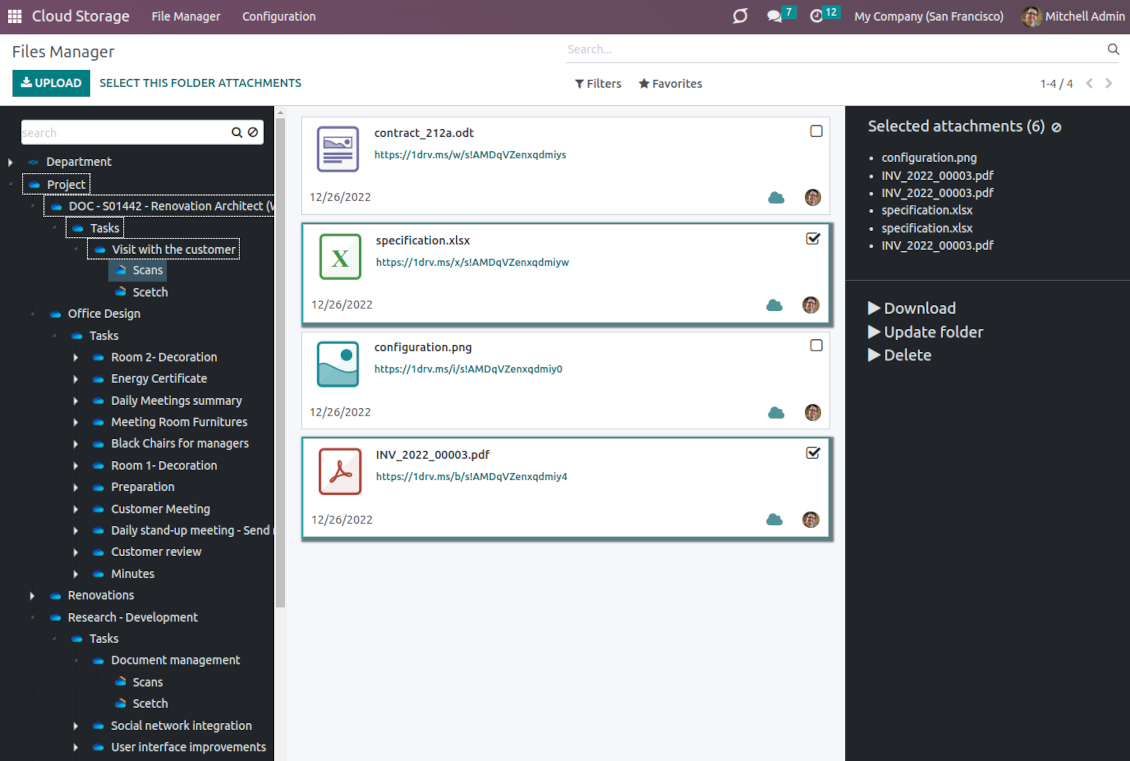
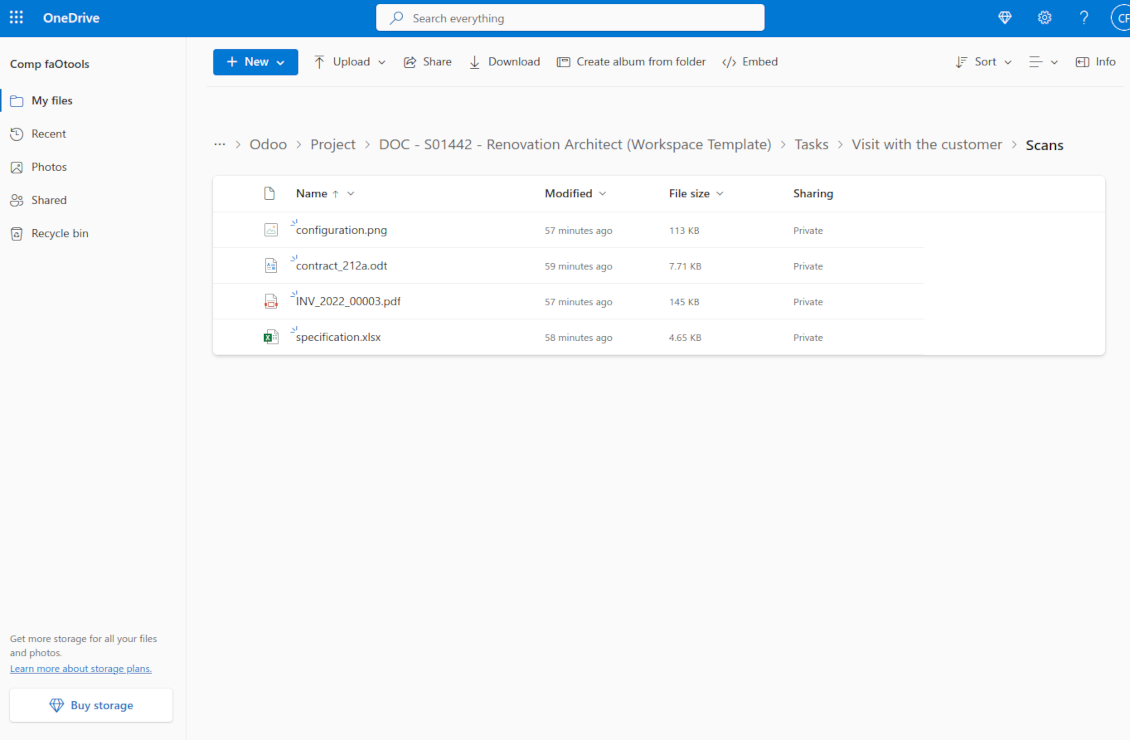
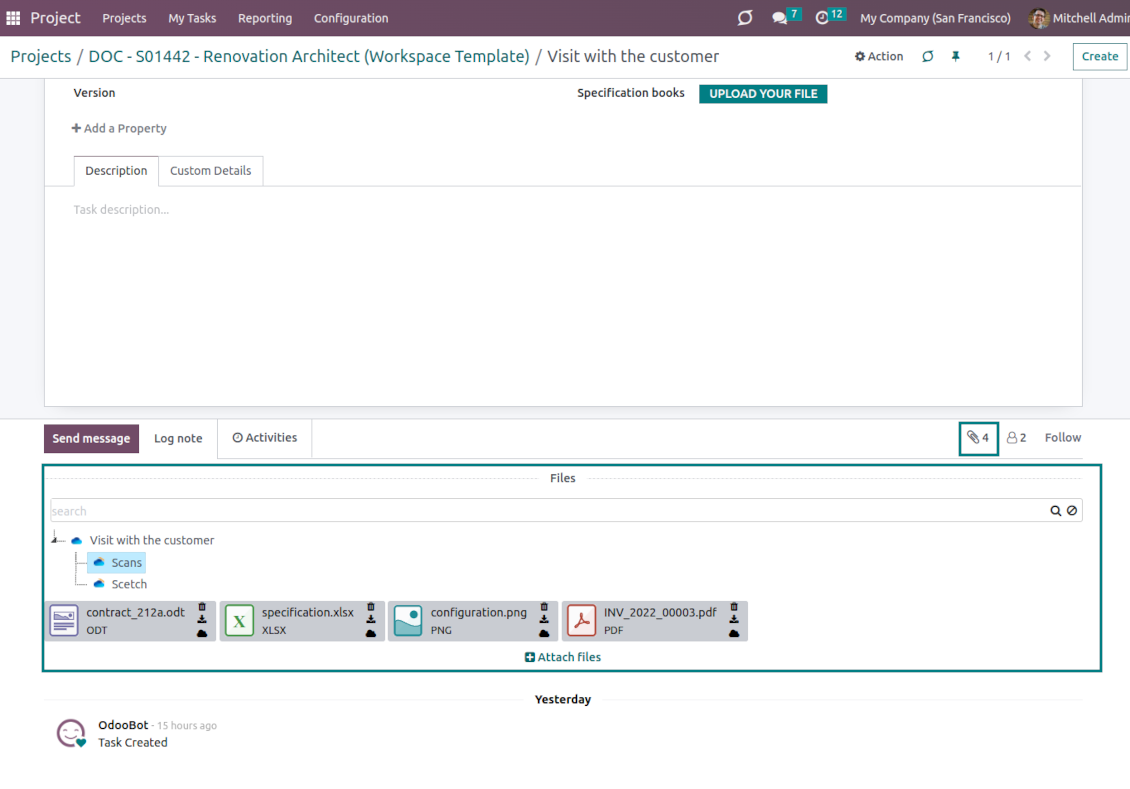
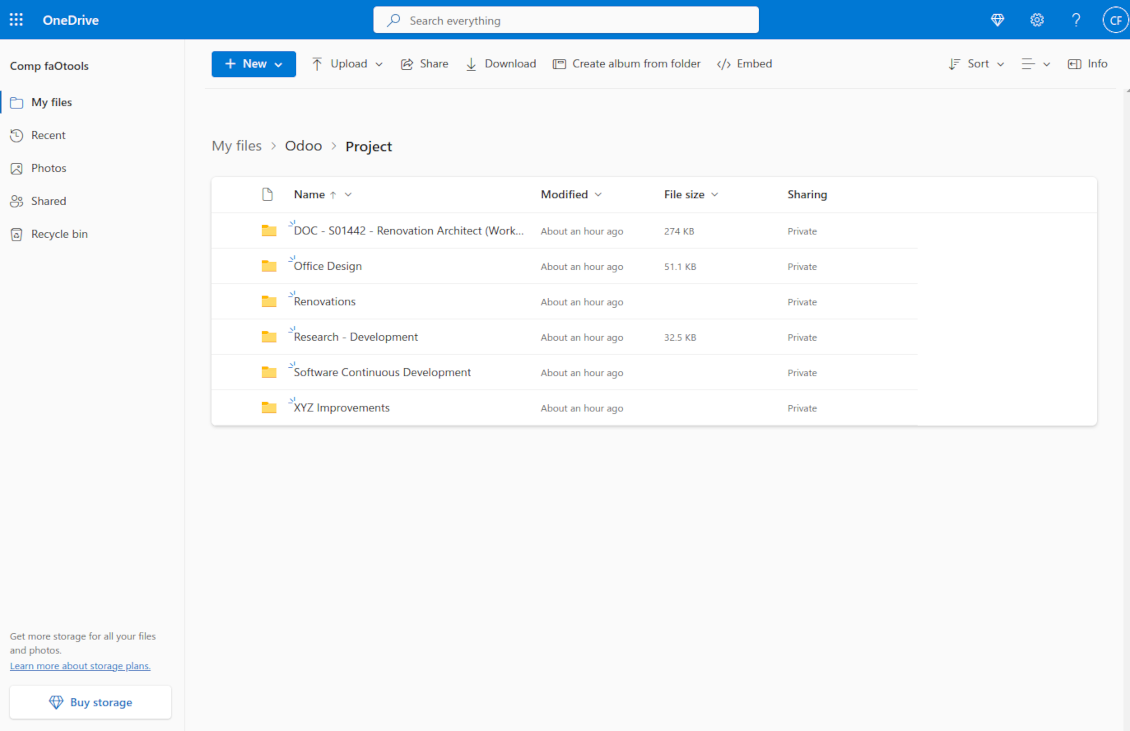
This is the tool to integrate OneDrive/SharePoint features with Odoo folders and files. The app automatically stores Odoo attachments and directories in SharePoint/OneDrive and provides instant access to them via web links.
Automatic folders' structure
Decide which Odoo document types should have their own folders trees and synchronize those to OneDrive/SharePoint
Automatic regular sync
Rely on auto-synchronization between Odoo and OneDrive/SharePoint based on scheduled jobs. No manual interaction is required
Bilateral sync
Odoo sends attachments to OneDrive/SharePoint and retrieves files from there. Binary content is kept in clouds, while Odoo provides direct access to synced items
Cloud synchronization history
Control OneDrive/SharePoint sync logs right in Odoo. Export and share those in case of any issues. Be notified of any client disconnections
File manager interface
Manage synced folders and attachments from a single Odoo view. Comfortably navigate by directories. Search and download files one by one or in batch. Upload and move attachments to folders
Attachment box
Organize files of any Odoo object in a set of subfolders. Instantly access folders and files in the attachment box and in OneDrive / SharePoint.
Works well with SharePoint. Supportive team
We've been using this with SharePoint and it's been working great. One of the best things is having everything, including logs right in Odoo's interface, so you can actually see what's going on. It's also super convenient that you can view or download synced files from the attachment box without having to leave the page or even log in to Sharepoint.
Setup was pretty smooth for us. When we had a few questions about setting up the folder hierarchy and priorities, the developer team got back to us in just a couple of hours and helped us figure it out. Great support and great extension!
Great support, assistance and very good connector!
We are very happy with the support we received when configuring the Sharepoint - Odoo connector. The connector has great functionalities.
All our questions were answered very fast (within one day).
FaOtools helped us optimising our connector and assisted us with future improvements.
We really recommend this connector.
very professional app, excellen t customer service
This app is very well programmed and does its job very well. But the best is the excellent customer service who also helps when the problem lies somewhere else. You receive a lot for your money.
An impressive app and world-class support
I have been very impressed by the way the OneDrive / SharePoint Odoo Integration module synchronises content in both directions and allows me to share documents in Odoo with my SharePoint site. Above all the technical support is top-notch, which greatly increases the value of this product. I highly recommend this product for anyone considering synchronising Odoo with SharePoint/OneDrive.
Works fine, good support
The first experience with the module is excellent. I had some trouble to configure things right on the Microsoft-side, but the team provided quick and good support.
How synchronization works
Automatic two-sided sync
-
Configure sync for one or multiple OneDrive / SharePoint instances
-
Integration is based on scheduled jobs and is fully automatized. The app regularly checks changes in systems and runs sync operations
-
Synchronization is bilateral. Updates in Odoo are reflected in OneDrive / SharePoint (direct sync); changes in OneDrive / SharePoint modify Odoo folders and attachments (backward sync)
-
Cloud connection with OneDrive / SharePoint might be reset. In this way, the app assumes getting back all items back to Odoo (reverse sync)
-
Odoo folders and attachments might be re-attached to a new cloud client from OneDrive / SharePoint. Hence, items will be first taken back to Odoo (reverse sync) and then will be put into the new cloud storage (direct sync)
Queue-based synchronization
-
Once in 15 minutes, the app examines updates in Odoo and OneDrive / SharePoint to prepare a synchronization queue
-
Folders' checks follow the First-In-First-Out (FIFO) principle. So, directories that have not been examined for the longest will be processed first
-
Once in 15 minutes, the sync queue is run by the special scheduled job. Firstly, the most important (blocking) tasks would be done
-
Control planned jobs and their fulfillment in the special Odoo logs interface (Cloud Storage > Configuration > Sync Logs). Subscribe for particular cloud clients notifications
-
If the app faces sync failures, it will re-try operations afterward. Sync queue processing would not be stopped if there are items not blocked by such failures
Odoo attachments for OneDrive / SharePoint: direct sync
-
Direct sync prepares the folders' hierarchy and uploads Odoo attachments for OneDrive / SharePoint
-
Direct sync checks whether attachments are added or deleted for synced directories. If so, they would be created or removed in OneDrive / SharePoint. In particular, it means that any file added to a folder-related Odoo object (e.g. Quotation), would be automatically moved to a linked cloud client
-
Direct sync makes all synced Odoo attachments change their type to a link (URL), while binary content is removed with one of the next Odoo cleaners. So, no actual files would be stored on your Odoo server
-
Direct sync checks whether a new folder is added. Disregarding whether it is done manually or automatically, the app would generate a peer directory in OneDrive / SharePoint
-
Direct sync checks whether there are any updates in folders. If so, such changes are reflected in OneDrive / SharePoint
OneDrive / SharePoint files and folders for Odoo: backward sync
-
Backward sync checks whether any files or subfolders are added to OneDrive / SharePoint folders. If so, the app would create URL attachments/subdirectories inside linked Odoo directories (and hence Odoo objects if any)
-
Backward sync checks whether there are any updates in folders or attachments. Such updates would be then reflected in Odoo
-
Backward sync checks whether any files are deleted/moved in a OneDrive / SharePoint document folder. If so, a linked Odoo attachment would be also unlinked or moved
-
If you deleted a OneDrive / SharePoint folder related to a folder rule / Odoo object, their child files would be deleted as well. Thus, Odoo would remove related attachments. The folders, however, will be recovered with a direct sync
-
In case of conflicts, direct sync changes are in general considered more important than backward updates.
Resetting or changing OneDrive / SharePoint: reverse sync
-
In case you decided to reset the connection with OneDrive / SharePoint, files would be moved back to Odoo
-
In case you decided to change the cloud client of a folder rule or a folder, files would be first taken back to Odoo, and then direct sync for a new client would be done
-
Reverse sync operations are prioritized to direct and backward sync operations
-
Not all items can be correctly reversed to Odoo due to cloud client peculiarities. For example, there are documents that may exist only in cloud storage environments. The app would try to convert such documents, but in some cases, it would require manual interactions.
Konfigurations- och installationstips för OneDrive / SharePoint Odoo Integration Odoo v.16
Python dependency
The tool depends on the external library 'microsoftgraph'. Install this library for your Odoo server through the command:
pip3 install microsoftgraph-pythonConfiguration and log in
- Turn on the option 'OneDrive / SharePoint Sync' (cloud Storage > Configuration > Configuration). The optional add-on OneDrive / SharePoint Odoo Integration is required
- Make sure your Microsoft user has full admin rights for OneDrive / SharePoint you want to connect to Odoo. This user is required only to grant permissions, the user data would not be kept in Odoo, and will not be used afterward. Besides, make sure the Microsoft email address you use does not have a redirection (usually happens when you configure your domain name, while the prime address is still one of Microsoft domains like @outlook.com, @office365, etc.)
- Go to your Azure Portal: https://portal.azure.com/#blade/Microsoft_AAD_RegisteredApps/ApplicationsListBlade
The app must be registered inside a directory (tenant). Microsoft no longer allows creating a new app outside one.
- If you already have a company Microsoft 365 / Azure directory, switch the portal (top right) to it and continue.
- If you only have a personal account (@outlook.com, @hotmail.com, @live.com) and see "these applications are associated with the account ... but are not contained within any directory", you do not have a directory yet. Sign up for a free Azure account with the same Microsoft account: https://azure.microsoft.com/free/ - Try Azure for free. This creates a Default Directory for you at no cost.
- Microsoft asks for a card for identity verification only; a temporary ~1 USD hold is placed and reversed. You are not charged for the directory or for the app registration.
- The directory (Microsoft Entra ID Free) and any app registered in it keep working independently of the 30-day / $200 Azure trial credit. That credit is for paid Azure resources you are not using here. No payment is required for our app.
- If the whole directory sits completely unused for a very long time (Microsoft's own threshold is around 200 days of no activity at all), Microsoft may email a warning and eventually retire it. Since Odoo calls this app every time it syncs, an active connection keeps the directory active - this only matters if you stop syncing entirely for months.
- Once you are in a real directory (not "Microsoft Services"), open App registrations there.
- Click 'New registration'
- Introduce a new name for the application and assign the redirect URI as [YOURODOOSITENAME]/one_drive_token (e.g. https://odootools.com/one_drive_token). As the supported account types choose 'Accounts in any organizational directory (Any Azure AD directory - Multitenant) and personal Microsoft accounts (e.g. Skype, Xbox)'.
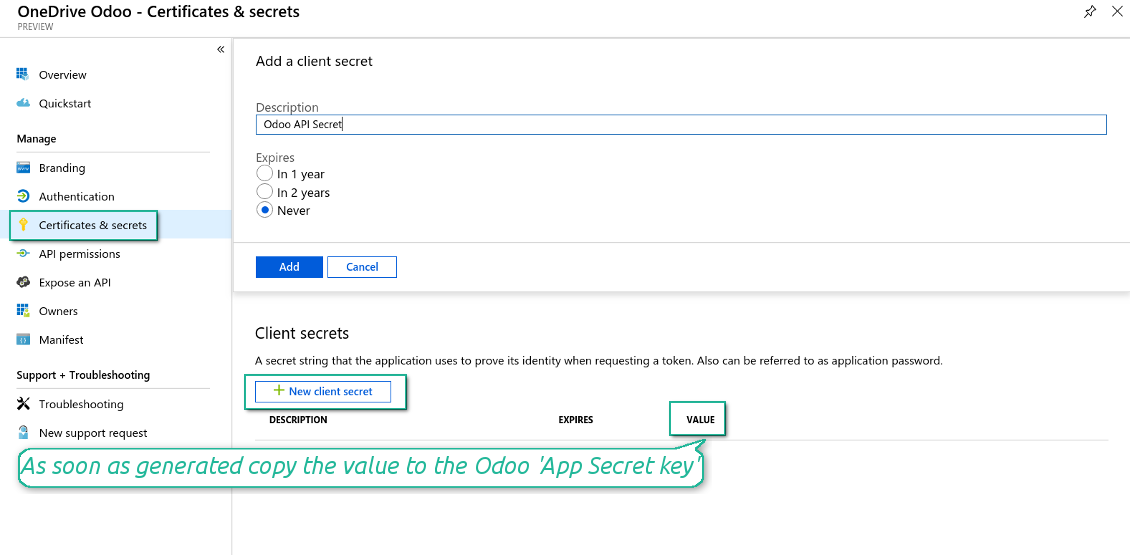
- Go to Certificates & secrets - Click 'New Client Secret'. Save somewhere the secret value
- Go to Odoo Cloud Storage > Configuration > Cloud Clients press 'Create'
- As a reference, introduce any name which would be clear to all users
- As a cloud client, choose 'OneDrive' or 'SharePoint' depending on the software you are using
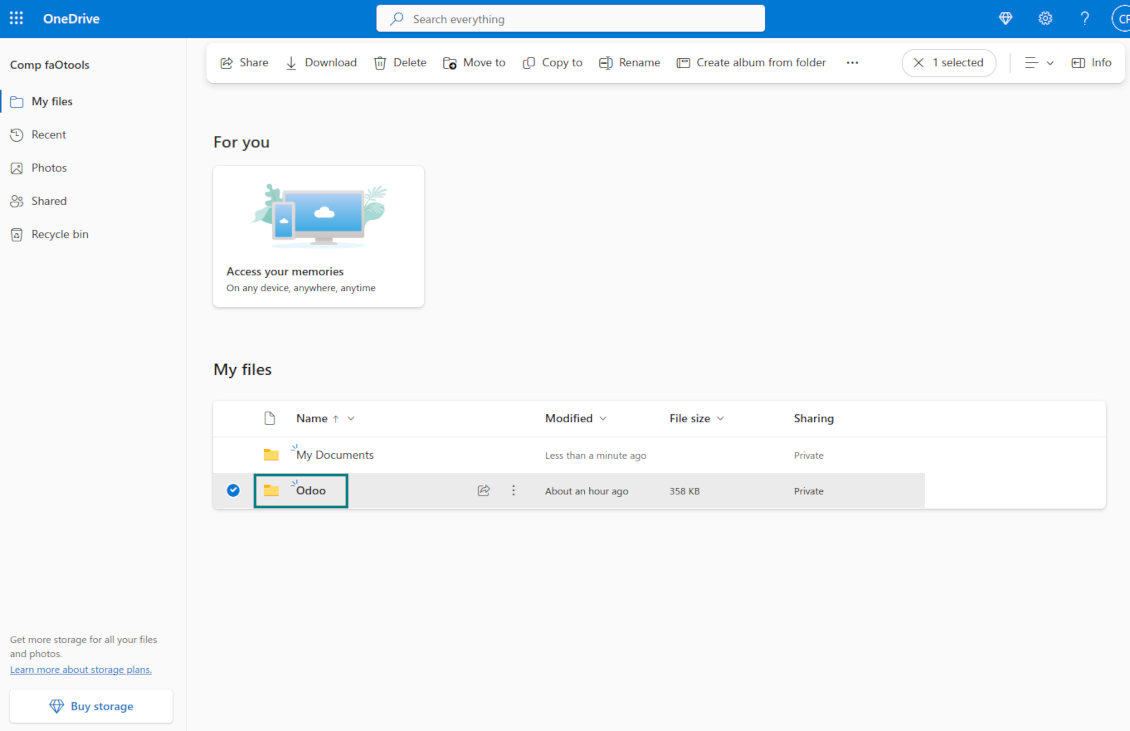
- As a root folder name, enter a title that will be used as the parent OneDrive directory for all synced folders. For example, 'Odoo' or 'OdooERP'
- Copy 'Application Client ID' to the 'App client ID'
- Copy the secret value into the field 'App client secret'
- Insert previously generated redirect URL
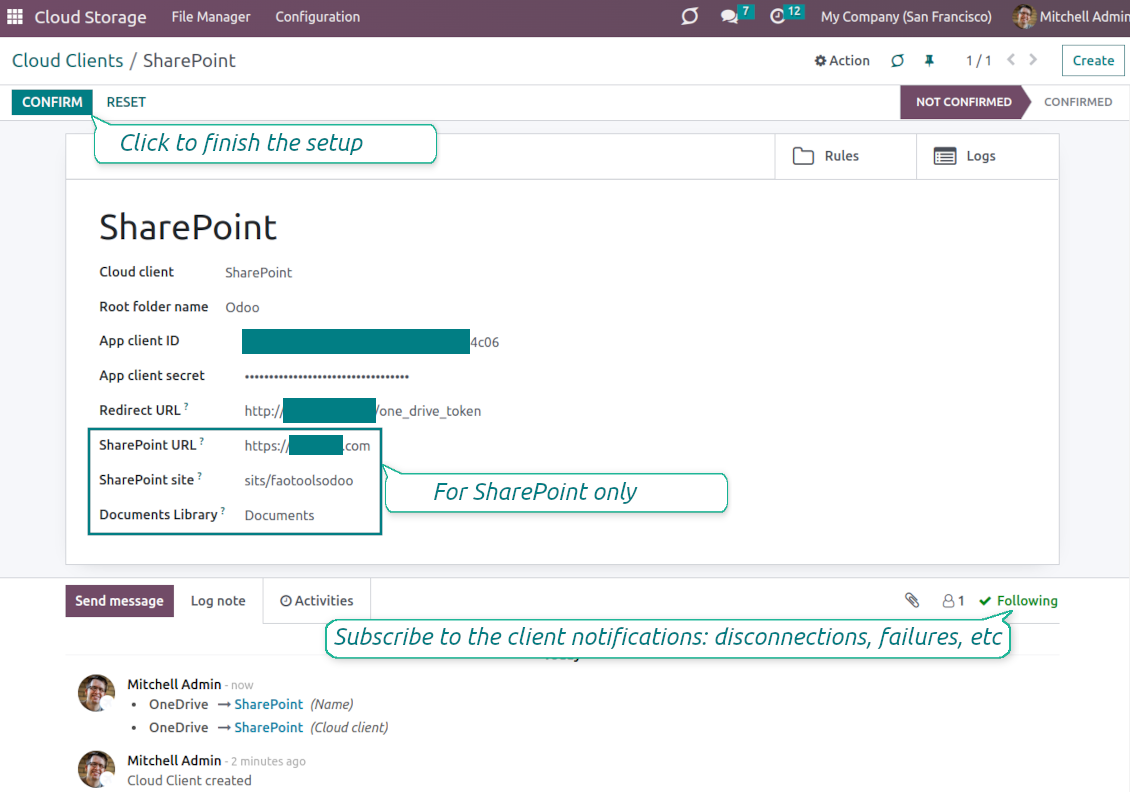
- If you use SharePoint:
- Go to your SharePoint site and prepare a new documents library (drive). You might use one of the existing ones, e.g. 'Documents'. Odoo folder would be put there afterward, and it would be impossible to move it to another library
- The SharePoint URL should be of the type https://[URL]/. The last '/' is required - the site name should not be included. For example, https://odootools.sharepoint.com/
- SharePoint site should be either root (the very root SharePoint site), my_site_name (in that case it is considered as sites/my_site_name) or sites/my_site_name (instead of 'sites' it might be 'teams' and so on). There should be no '/' at the beginning or at the end. For example, sites/odootools
- As Documents Library use one created in SharePoint
- Press 'Confirm'. Odoo redirects you to the Microsoft login page. Check in the system, agree with all conditions, and grant all permissions asked. If Microsoft shows an account already signed in and says it does not exist in tenant 'Microsoft Services' (or any other unrelated tenant), do not click that row. Click 'Use another account' and sign in with the Microsoft account that owns the app's directory
- After login, OneDrive redirects you back to Odoo. OneDrive - Odoo synchronization is ready to be done
- Apply the newly created cloud client to folder rules and/or manual folders which should be synced to that OneDrive or SharePoint instance
- Await the sync scheduled job to be started. For testing purposes only: trigger integration manually from Cloud Storage > Configuration > Configuration > the button 'Launch sync'.
Watch also the configuration video
Register a new Azure application
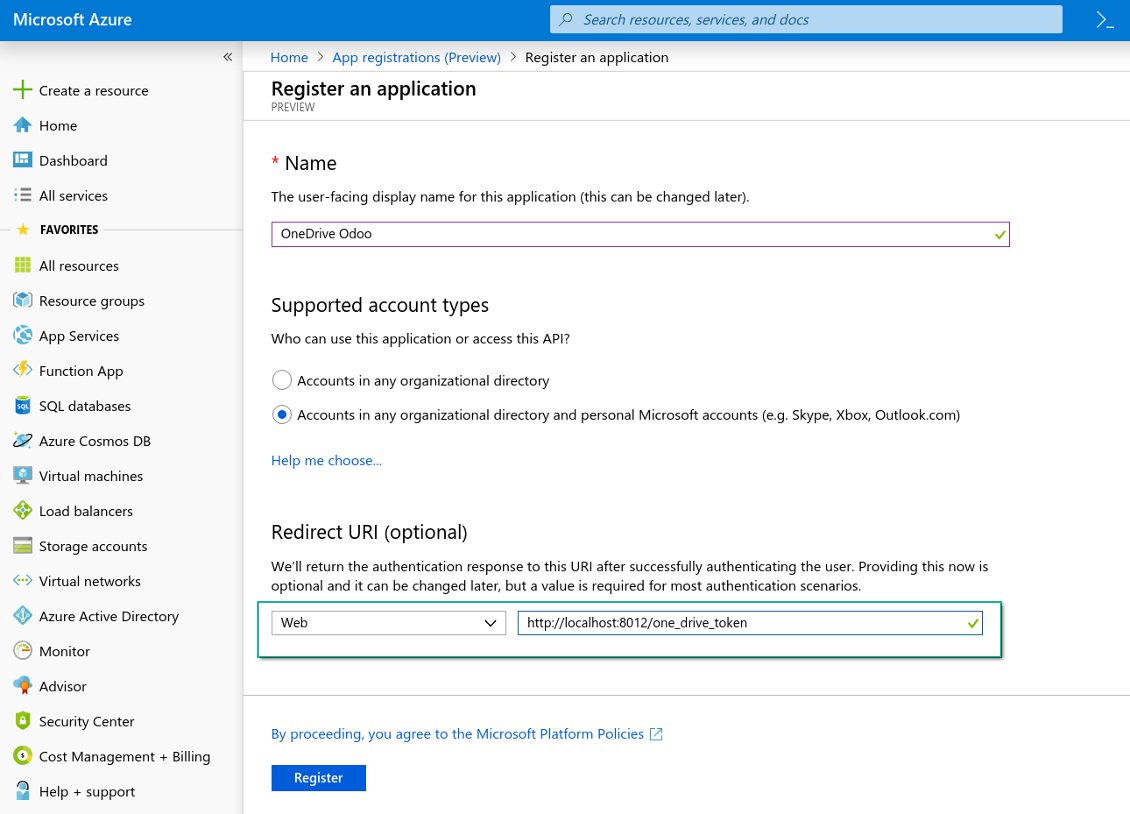
New OneDrive Web platform and the redirect URL
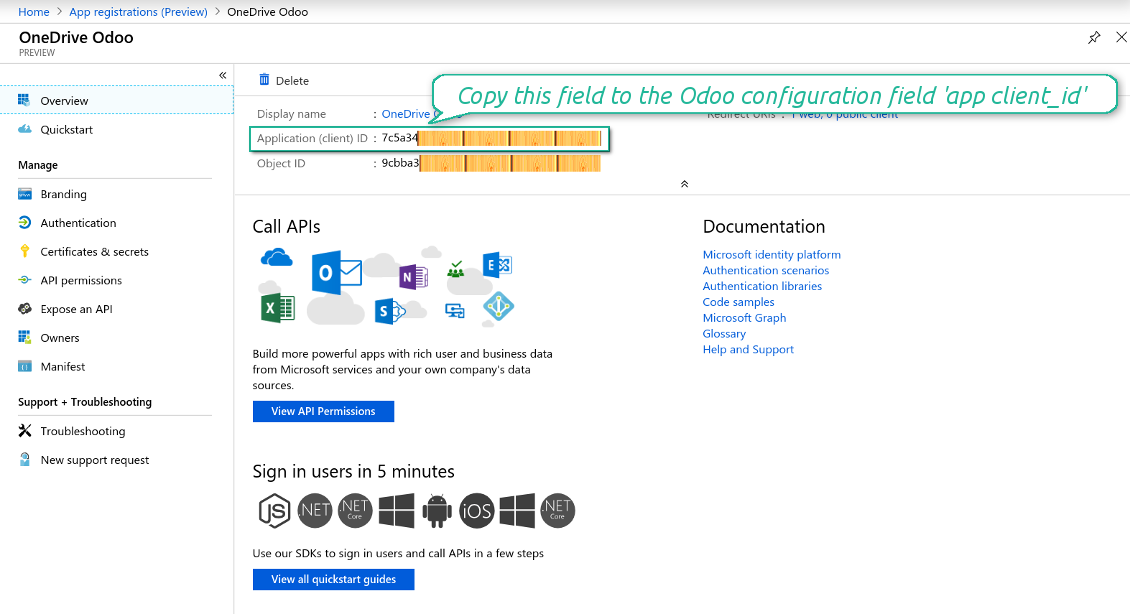
Generate a new secret for the Azure application
Enter the configuration keys in Odoo
Vanliga frågor om OneDrive / SharePoint Odoo Integration Odoo v.16
Jag ser ett fel när jag klickar på molnlänken för den synkade bilden
Felet «This item might have been deleted, expired, or you might not have permission to access it. Contact the owner of this item for more information.» betyder att du inte är inloggad på tjänsten photos.onedrive.com.
Var lagras synkade filer? Dupliceras de till Odoo och molnen?
Appen utgår från att bilagornas binära innehåll ligger i Cloud Client i stället för på Odoo-servern. Sådana bilagor blir därför av typen URL i Odoo, och du kan när som helst nå dem antingen från bilagefältet eller från Cloud Client.
Efter installationen krävs inga manuella åtgärder, eftersom synkroniseringen är helt automatisk. Bestäm bara vilka Odoo-dokumenttyper som ska synkas och sätt upp en relaterad modell att synka för var och en (kunder, försäljnings- eller inköpsorder, uppgifter, projekt osv.).
Kan jag ha flera mappar för samma dokumenttyp? Till exempel interna projekt och kundprojekt?
Ja, det går. Skapa en regel för varje och applicera filter: till exempel efter projekttyp.
Gör filtren ömsesidigt uteslutande så att ett dokument kan tilldelas entydigt. Till exempel: «kund men inte leverantör», «leverantör men inte kund». Annars hoppar dokumentmappen från en modell till en annan.
Är det okej om jag har många objekt att synka, till exempel 10000?
Ja, även om processen kan vara långsam med många mappar/bilagor. Samtidigt har kunder rapporterat miljöer med >10k partners och ~5k produktvarianter, och processerna var acceptabla.
Några punkter:
- Synken är byggd så att varje objekt synkas och inte går förlorat, även om det inte är snabbt. FIFO-köer och commit av varje jobb garanterar det.
- Antalet objekt kan begränsas logiskt. Modellkonfigurationen låter dig utesluta föråldrade poster (t.ex. arkiverade partners eller order från 2 år sedan).
Går det att göra synkroniseringen i realtid?
Nej. Vi har starka skäl att undvika realtidssynk:
Prestanda. Vid realtidssynk ger varje filuppladdning en laddningsskärm.
Konflikter. Om 2 användare ändrar ett objekt samtidigt kan det bli olösligt. Med vanliga jobb kan vi rätta efteråt; i realtid behövs en kö, ännu mer vilseledande.
Funktion. Särskilt namnbyte och omstrukturering. Bakåtsynken bygger strikt på kataloglogiken och vid varje synk kontrolleras 100 % av objekten. Efter varje uppdatering skulle det bli tusentals anrop per sekund. Annars går ändringar förlorade.
Kan jag ändra standardnamnen på mappar i molnen?
Du kan ge modellkatalogerna (säljordrar, möjligheter, leverantörer osv.) ett eget namn för varje dokumenttyp.
För objektmappar (SO-001, John Smith osv.) använder verktyget Odoos metod för visningsnamn. Du kan ändra det med ett namnuttryck. Syntaxen är densamma som i Odoos e-postmallar.
Kan jag ändra frekvensen för synkroniseringsjobb?
Nej, från och med version 15 ska du inte ändra schemalagda jobb. De är optimerade att köras var 15:e minut för att ge den mest stabila och snabba anslutningen.
Se till att Odoo-serverns timeouts är minst 15 minuter (900 sekunder).
Om du behöver stoppa synkroniseringen ett tag gör du det på formuläret för den aktuella molnklienten.
Kan jag synka bilagor till flera molnklienter
Ja, från version 15 kan du sätta upp flera anslutningar. Då kan vissa mappar synkas till en molnklient och andra till en annan.
Observera att det inte går att synka samma mapp till flera molnlagringar samtidigt.
Vi använder en särskild redigerare i våra moln (t.ex. OnlyOffice, Office 365 osv.). Skulle filerna öppnas i den redigeraren?
Ja, beroende på din molnklients konfiguration.
Behöver jag bara appen Cloud Storage Solution?
Från version 15 kan appen användas fristående för att strukturera bilagor i mappar och ge ett filhanterargränssnitt.
Om målet är anslutning till någon av molnklienterna måste minst en valfri klientapp installeras.
Vad händer när jag ändrar en mappregel?
När en mappregel ändras ändras också listan över mappar. Matchar en mapp inte längre villkoren tas den bort. Har filerna synkats återför bakåtsynken dem till Odoo och tar bort dem från Cloud Client.
Matchar dokumentobjektet inte en mappregel skapas ingen mapp. Matchar det senare skapas den relaterade mappen.
Vilka uppdateringsregler gäller for era verktyg?
Enligt de aktuella reglerna for Odoo Apps Store:
- Varje modul kop for version 12.0 eller tidigare ger tillgang till alla versioner upp till 12.0.
- Från och med version 13.0 måste varje modulversion kopas separat.
- Oavsett version ger kopet rätt till alla uppdateringar och felrättningar inom en huvudversion.
faOtools-teamet styr inte dessa regler. Vid frågor, kontakta representanterna for Odoo Apps Store direkt.
Hur installerar jag er app pa Odoo.sh?
Det mest direkta sättet ar Odoo-butikens inbyggda flöde:
1. Öppna modulens sida och klicka pa Deploy on odoo.sh
2. Du omdirigeras till GitHub. Logga in och klicka pa Create a new repo eller använd ett befintligt. Repot måste vara privat. Appar under OPL-1 far inte publiceras. Skapa vid behov ett nytt repo for Odoo.sh-projektet
3. Ga sedan till odoo.sh, klicka pa Deploy, bekräfta och klicka pa Continue. Installationen startar.
Stegen installerar appen pa production-grenen. For andra grenar eller uppdatering:
1. Ladda ner kallkoden från Odoo-butiken
2. Committa modulen till GitHub-repot. Ingen app-mapp/fil far sta i .gitignore. Repon som odoo.sh skapar kan ignorera viktiga sokvagar (t.ex. /lib). Ladda upp alla modulmappar och filer
3. Deploya malgrenen i odoo.sh-projektet eller vänta pa den automatiska builden om inställningarna anger det.
Hur installerar jag er app pa min egen server?
2. Starta om Odoo-servern;
3. Sla pa utvecklarlaget (tekniska inställningar);
4. Uppdatera applistan (Appar-menyn);
5. Hitta appen och klicka pa Activate/Install;
6. Följ anvisningarna pa appsidan om det finns någon.
Er app har extra tillägg. Kan jag kopa dem senare?
Ja. Odoo lägger automatiskt alla beroenden i varukorgen: uteslut redan kopta verktyg sa att du inte betalar tva gånger.
Jag deployade er app pa Odoo.sh och ser en varning/ett fel i testerna
En rod/orange varning påverkar inte appens funktioner. Ibland klarar vara moduler inte de vanliga automatiska testerna, eftersom de förväntar ett beteende som strider mot appens mal. Vi ändrar till exempel prisberakningen, medan Odoo-testerna jämför slutpriset med standardalgoritmen.
Kontrollera först funktionerna i den deployade databasen. Fungerar allt?
Om du ändå tror att varningen påverkar verkliga funktioner, kontakta oss och skicka de fullständiga installationsloggarna och den fullständiga listan över deployade moduler (karn och tredje part).
Kan jag kopa er app direkt av er?
Nej, vi distribuerar verktygen endast via den officiella Odoo-appbutiken.
Jag vill ha rabatt
Tyvärr har vi inte tekniska möjligheter att erbjuda individuella priser.
Kan jag installera appen pa min Odoo Online (SaaS)-databas?
Nej, tredjepartsappar kan inte användas pa Odoo Online. Odoo SaaS blockerar den möjligheten.
Ert verktyg beror pa andra appar. Behöver jag kopa dem?
Ja, verktyget behöver alla moduler som anges som beroenden. Priset pa appsidan inkluderar redan dessa beroenden.
Vad kostar modulen i amerikanska dollar? Varför andrades det?
Priset for vara moduler anges i euro. Odoo-butiken konverterar till andra valutor enligt sin interna vaxelkurs. Därför kan priset i amerikanska dollar andras nar kursen uppdateras.
App- och webbplatsformuleringar på andra språk än engelska är AI-assisterade och anpassade till officiella Odoo-översättningar. Om du upptäcker ett fel, skicka ett ärende om översättningskorrekthet så åtgärdar vi det.
Odoo-demodatabaser (liveförhandsvisningar)
För den här appen kan vi erbjuda en gratis personlig demodatabas.
Du behöver varken telefonnummer eller kreditkort för att kontakta oss. Det räcker med en kort e-postregistrering som tar högst 30 sekunder.
På din begäran förbereder vi en individuell liveförhandsvisningsdatabas där du kan göra tester och kontrollera antaganden i cirka två veckor.
Felrapportering
Om du stöter på fel eller inkonsekvent beteende, kontakta oss. Vi garanterar rättningar inom 60 dagar efter köpet och vill förbättra verktygen även efter det.
Du behöver varken telefonnummer eller kreditkort för att kontakta oss. Det räcker med en kort e-postregistrering som tar högst 30 sekunder.
Ta med så många detaljer som möjligt: skärmbilder, Odoo-serverloggar och en fullständig beskrivning av hur problemet återskapas. Det tar vanligtvis några arbetsdagar att ta fram en arbetsplan (om felet bekräftas) eller riktlinjer (annars).
Offentliga funktionsönskemål och modulidéer (gratis utveckling)
Vi är starkt motiverade att förbättra våra verktyg och tackar för all feedback. Om kraven är av allmänt intresse och kan implementeras effektivt tar teamet med dem i att-göra-listan.
En sådan att göra-lista behandlas regelbundet och innebär inga extraavgifter. Även om vi inte kan lova tidsfrister och slutlig design kan det vara ett bra sätt att få önskade funktioner utan investeringar och risker.
Du behöver varken telefonnummer eller kreditkort för att kontakta oss. Det räcker med en kort e-postregistrering som tar högst 30 sekunder.


The tool to build a deep and structured knowledge base for internal and external use. Knowledge System. KMS. Wiki-like revisions.
398€
The tool to set up KPI targets and control their fulfillment by periods. KPI dashboards. Dashboard designer. KPI charts

The tool for time-based service management from booking appointments to sales and reviews
398€
Verktyget för att styra Odoo från dina AI-chattar via MCP. Claude. Valfri AI med MCP.

The tool to flexibly structure Odoo attachments in folders and synchronize directories with cloud clients: Google Drive, OneDrive/SharePoint, Nextcloud/ownCloud, and Dropbox. DMS. File Manager. Document management system
398€
The tool to automatically synchronize Odoo attachments with Google Drive files in both ways
487€
The tool to automatically synchronize Odoo attachments with ownCloud/Nextcloud files in both ways
487€
Verktyget för att automatiskt synkronisera Odoo bilagor med NAS Solutions i båda ways. Synology, QNAP, TrueNAS och valfri andra WebDav-supporting NAS solutions
487€