OneDrive / SharePoint Odoo Integration v.16
The tool to automatically synchronize Odoo attachments with OneDrive files in both ways
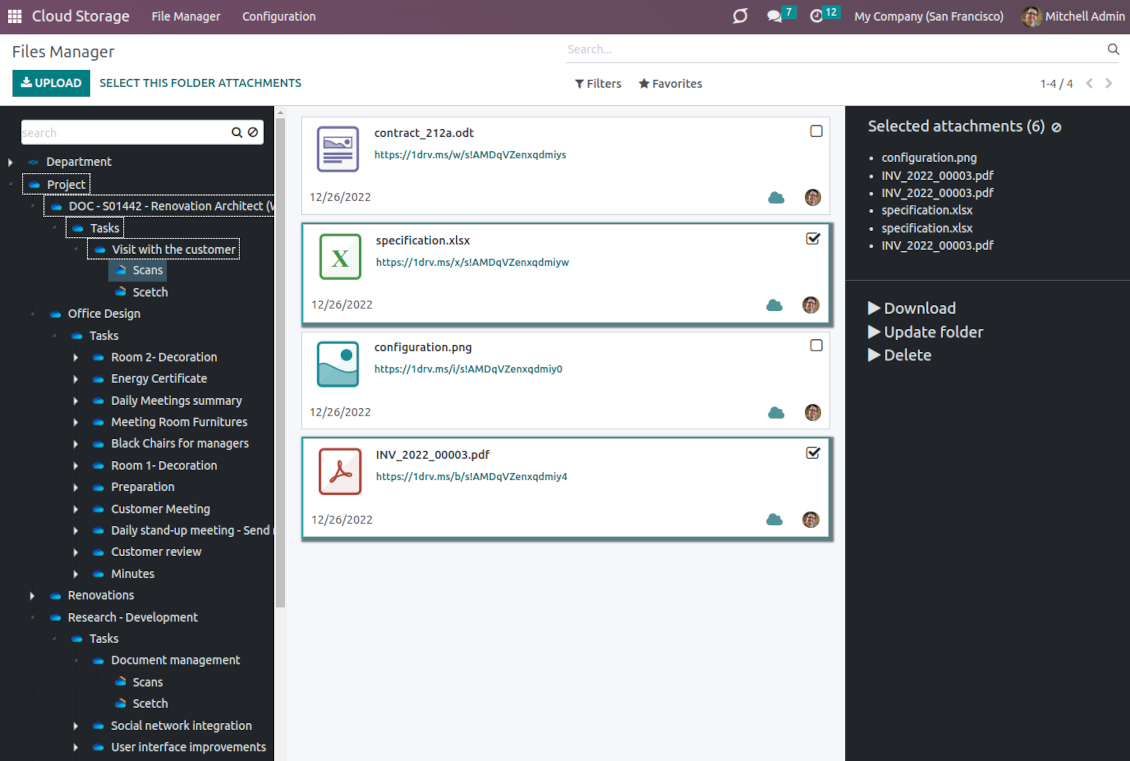
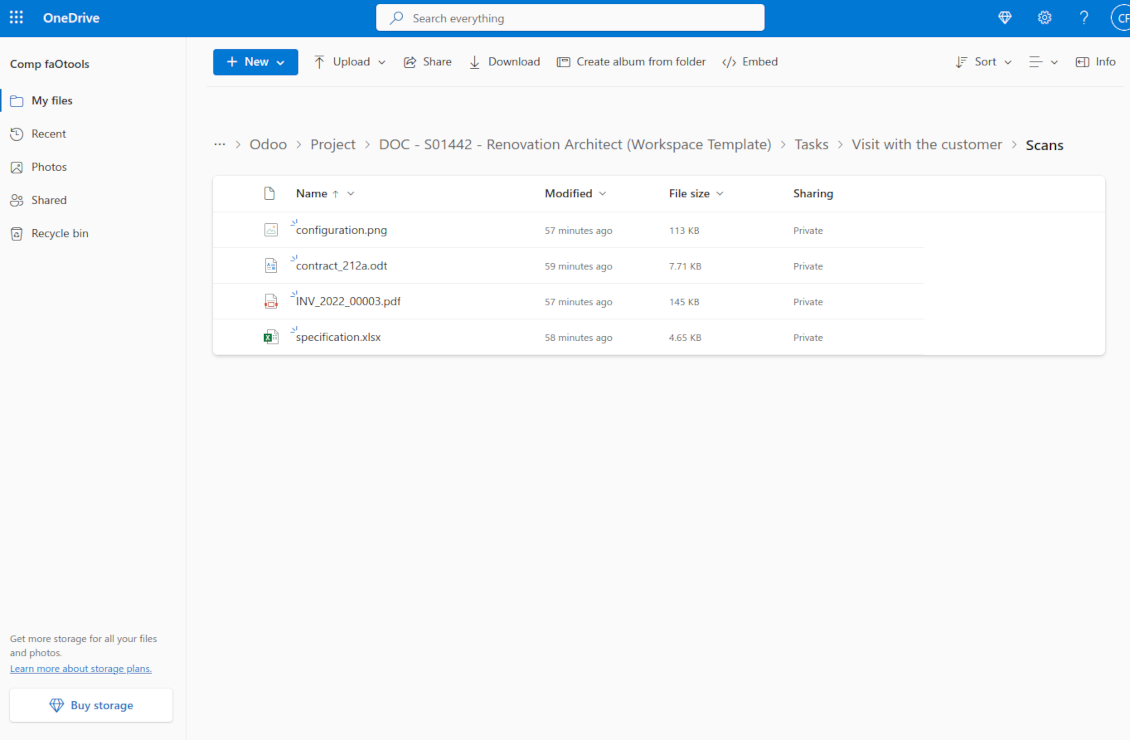
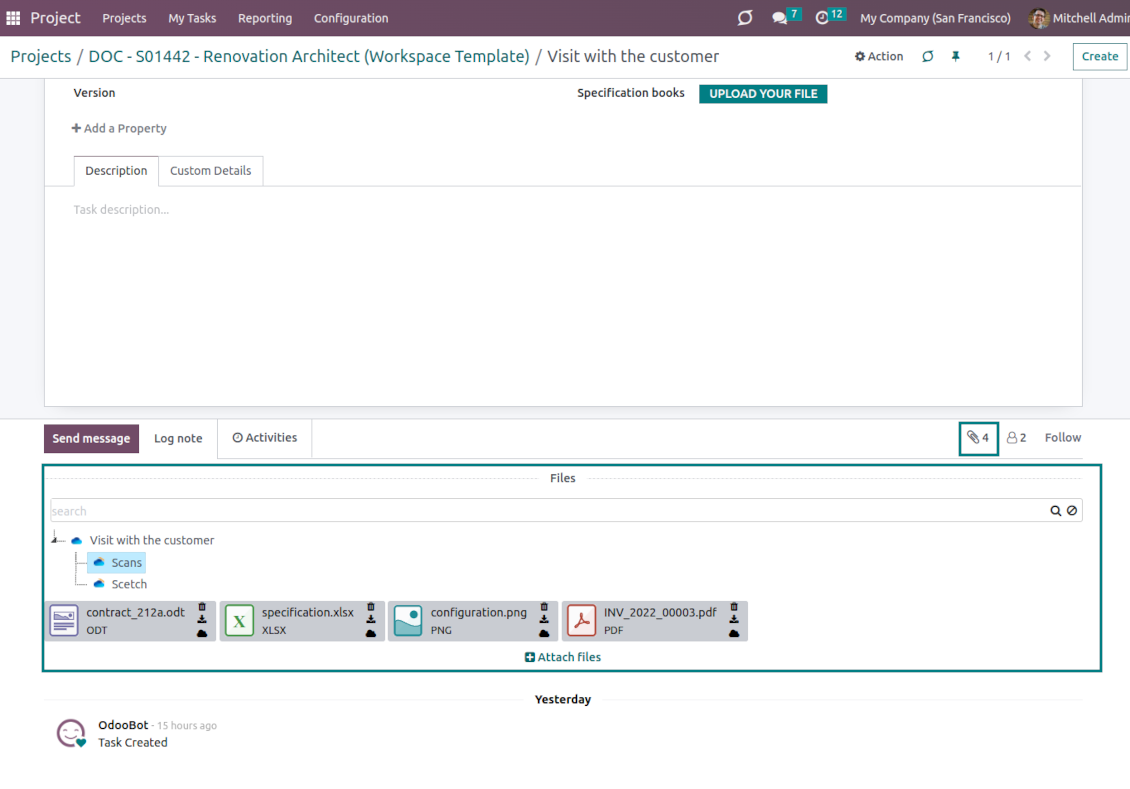
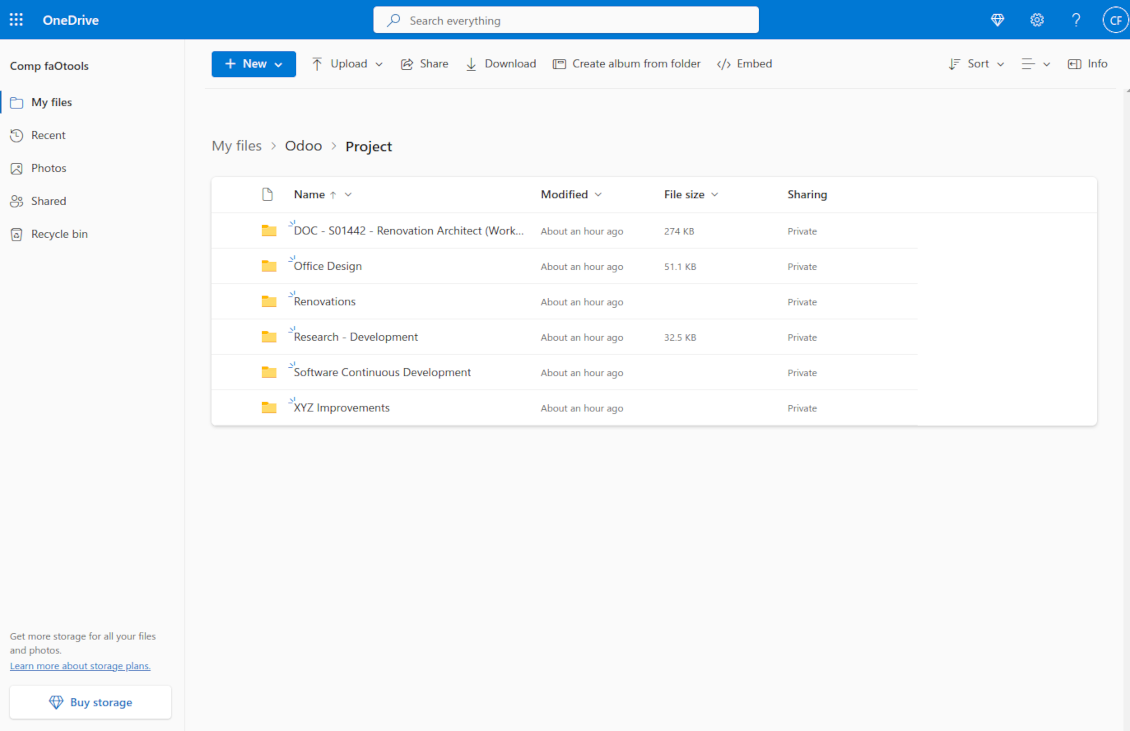
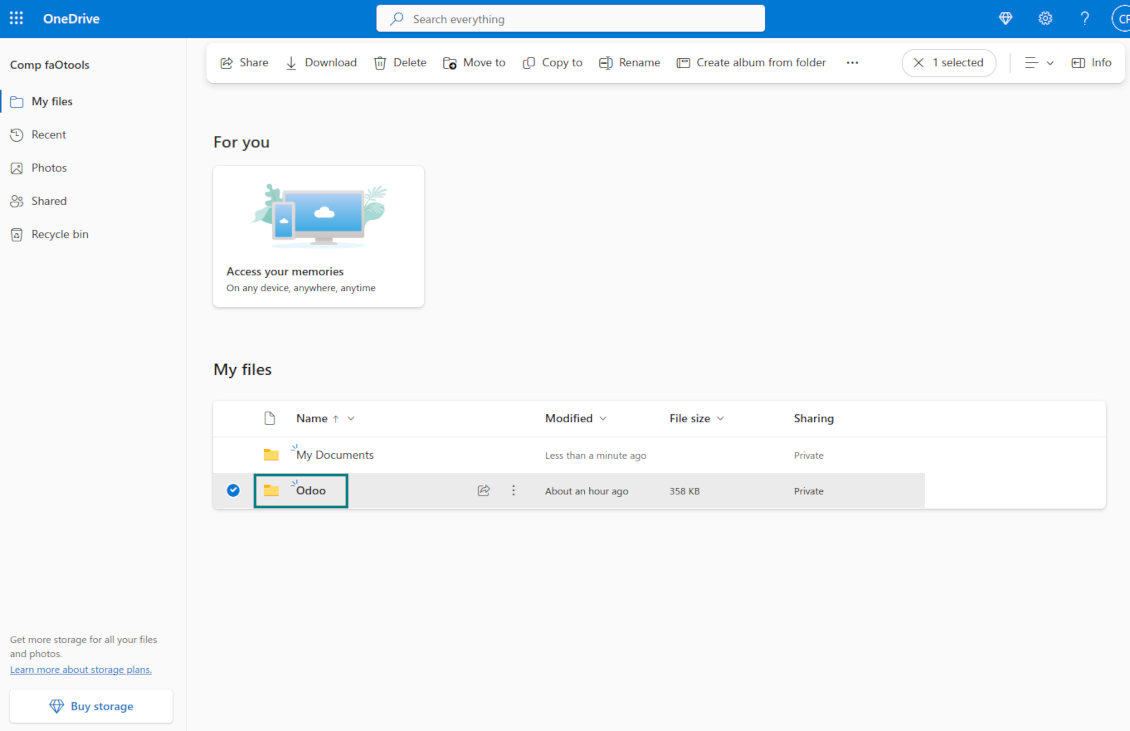
This is the tool to integrate OneDrive/SharePoint features with Odoo folders and files. The app automatically stores Odoo attachments and directories in SharePoint/OneDrive and provides instant access to them via web links.
Automatic folders' structure
Decide which Odoo document types should have their own folders trees and synchronize those to OneDrive/SharePoint
Automatic regular sync
Rely on auto-synchronization between Odoo and OneDrive/SharePoint based on scheduled jobs. No manual interaction is required
Bilateral sync
Odoo sends attachments to OneDrive/SharePoint and retrieves files from there. Binary content is kept in clouds, while Odoo provides direct access to synced items
Cloud synchronization history
Control OneDrive/SharePoint sync logs right in Odoo. Export and share those in case of any issues. Be notified of any client disconnections
File manager interface
Manage synced folders and attachments from a single Odoo view. Comfortably navigate by directories. Search and download files one by one or in batch. Upload and move attachments to folders
Attachment box
Organize files of any Odoo object in a set of subfolders. Instantly access folders and files in the attachment box and in OneDrive / SharePoint.
Works well with SharePoint. Supportive team
We've been using this with SharePoint and it's been working great. One of the best things is having everything, including logs right in Odoo's interface, so you can actually see what's going on. It's also super convenient that you can view or download synced files from the attachment box without having to leave the page or even log in to Sharepoint.
Setup was pretty smooth for us. When we had a few questions about setting up the folder hierarchy and priorities, the developer team got back to us in just a couple of hours and helped us figure it out. Great support and great extension!
Great support, assistance and very good connector!
We are very happy with the support we received when configuring the Sharepoint - Odoo connector. The connector has great functionalities.
All our questions were answered very fast (within one day).
FaOtools helped us optimising our connector and assisted us with future improvements.
We really recommend this connector.
very professional app, excellen t customer service
This app is very well programmed and does its job very well. But the best is the excellent customer service who also helps when the problem lies somewhere else. You receive a lot for your money.
An impressive app and world-class support
I have been very impressed by the way the OneDrive / SharePoint Odoo Integration module synchronises content in both directions and allows me to share documents in Odoo with my SharePoint site. Above all the technical support is top-notch, which greatly increases the value of this product. I highly recommend this product for anyone considering synchronising Odoo with SharePoint/OneDrive.
Works fine, good support
The first experience with the module is excellent. I had some trouble to configure things right on the Microsoft-side, but the team provided quick and good support.
How synchronization works
Automatic two-sided sync
-
Configure sync for one or multiple OneDrive / SharePoint instances
-
Integration is based on scheduled jobs and is fully automatized. The app regularly checks changes in systems and runs sync operations
-
Synchronization is bilateral. Updates in Odoo are reflected in OneDrive / SharePoint (direct sync); changes in OneDrive / SharePoint modify Odoo folders and attachments (backward sync)
-
Cloud connection with OneDrive / SharePoint might be reset. In this way, the app assumes getting back all items back to Odoo (reverse sync)
-
Odoo folders and attachments might be re-attached to a new cloud client from OneDrive / SharePoint. Hence, items will be first taken back to Odoo (reverse sync) and then will be put into the new cloud storage (direct sync)
Queue-based synchronization
-
Once in 15 minutes, the app examines updates in Odoo and OneDrive / SharePoint to prepare a synchronization queue
-
Folders' checks follow the First-In-First-Out (FIFO) principle. So, directories that have not been examined for the longest will be processed first
-
Once in 15 minutes, the sync queue is run by the special scheduled job. Firstly, the most important (blocking) tasks would be done
-
Control planned jobs and their fulfillment in the special Odoo logs interface (Cloud Storage > Configuration > Sync Logs). Subscribe for particular cloud clients notifications
-
If the app faces sync failures, it will re-try operations afterward. Sync queue processing would not be stopped if there are items not blocked by such failures
Odoo attachments for OneDrive / SharePoint: direct sync
-
Direct sync prepares the folders' hierarchy and uploads Odoo attachments for OneDrive / SharePoint
-
Direct sync checks whether attachments are added or deleted for synced directories. If so, they would be created or removed in OneDrive / SharePoint. In particular, it means that any file added to a folder-related Odoo object (e.g. Quotation), would be automatically moved to a linked cloud client
-
Direct sync makes all synced Odoo attachments change their type to a link (URL), while binary content is removed with one of the next Odoo cleaners. So, no actual files would be stored on your Odoo server
-
Direct sync checks whether a new folder is added. Disregarding whether it is done manually or automatically, the app would generate a peer directory in OneDrive / SharePoint
-
Direct sync checks whether there are any updates in folders. If so, such changes are reflected in OneDrive / SharePoint
OneDrive / SharePoint files and folders for Odoo: backward sync
-
Backward sync checks whether any files or subfolders are added to OneDrive / SharePoint folders. If so, the app would create URL attachments/subdirectories inside linked Odoo directories (and hence Odoo objects if any)
-
Backward sync checks whether there are any updates in folders or attachments. Such updates would be then reflected in Odoo
-
Backward sync checks whether any files are deleted/moved in a OneDrive / SharePoint document folder. If so, a linked Odoo attachment would be also unlinked or moved
-
If you deleted a OneDrive / SharePoint folder related to a folder rule / Odoo object, their child files would be deleted as well. Thus, Odoo would remove related attachments. The folders, however, will be recovered with a direct sync
-
In case of conflicts, direct sync changes are in general considered more important than backward updates.
Resetting or changing OneDrive / SharePoint: reverse sync
-
In case you decided to reset the connection with OneDrive / SharePoint, files would be moved back to Odoo
-
In case you decided to change the cloud client of a folder rule or a folder, files would be first taken back to Odoo, and then direct sync for a new client would be done
-
Reverse sync operations are prioritized to direct and backward sync operations
-
Not all items can be correctly reversed to Odoo due to cloud client peculiarities. For example, there are documents that may exist only in cloud storage environments. The app would try to convert such documents, but in some cases, it would require manual interactions.
Konfigūravimo ir diegimo patarimai OneDrive / SharePoint Odoo Integration Odoo v.16
Python dependency
The tool depends on the external library 'microsoftgraph'. Install this library for your Odoo server through the command:
pip3 install microsoftgraph-pythonConfiguration and log in
- Turn on the option 'OneDrive / SharePoint Sync' (cloud Storage > Configuration > Configuration). The optional add-on OneDrive / SharePoint Odoo Integration is required
- Make sure your Microsoft user has full admin rights for OneDrive / SharePoint you want to connect to Odoo. This user is required only to grant permissions, the user data would not be kept in Odoo, and will not be used afterward. Besides, make sure the Microsoft email address you use does not have a redirection (usually happens when you configure your domain name, while the prime address is still one of Microsoft domains like @outlook.com, @office365, etc.)
- Go to your Azure Portal: https://portal.azure.com/#blade/Microsoft_AAD_RegisteredApps/ApplicationsListBlade
The app must be registered inside a directory (tenant). Microsoft no longer allows creating a new app outside one.
- If you already have a company Microsoft 365 / Azure directory, switch the portal (top right) to it and continue.
- If you only have a personal account (@outlook.com, @hotmail.com, @live.com) and see "these applications are associated with the account ... but are not contained within any directory", you do not have a directory yet. Sign up for a free Azure account with the same Microsoft account: https://azure.microsoft.com/free/ - Try Azure for free. This creates a Default Directory for you at no cost.
- Microsoft asks for a card for identity verification only; a temporary ~1 USD hold is placed and reversed. You are not charged for the directory or for the app registration.
- The directory (Microsoft Entra ID Free) and any app registered in it keep working independently of the 30-day / $200 Azure trial credit. That credit is for paid Azure resources you are not using here. No payment is required for our app.
- If the whole directory sits completely unused for a very long time (Microsoft's own threshold is around 200 days of no activity at all), Microsoft may email a warning and eventually retire it. Since Odoo calls this app every time it syncs, an active connection keeps the directory active - this only matters if you stop syncing entirely for months.
- Once you are in a real directory (not "Microsoft Services"), open App registrations there.
- Click 'New registration'
- Introduce a new name for the application and assign the redirect URI as [YOURODOOSITENAME]/one_drive_token (e.g. https://odootools.com/one_drive_token). As the supported account types choose 'Accounts in any organizational directory (Any Azure AD directory - Multitenant) and personal Microsoft accounts (e.g. Skype, Xbox)'.
- Go to Certificates & secrets - Click 'New Client Secret'. Save somewhere the secret value
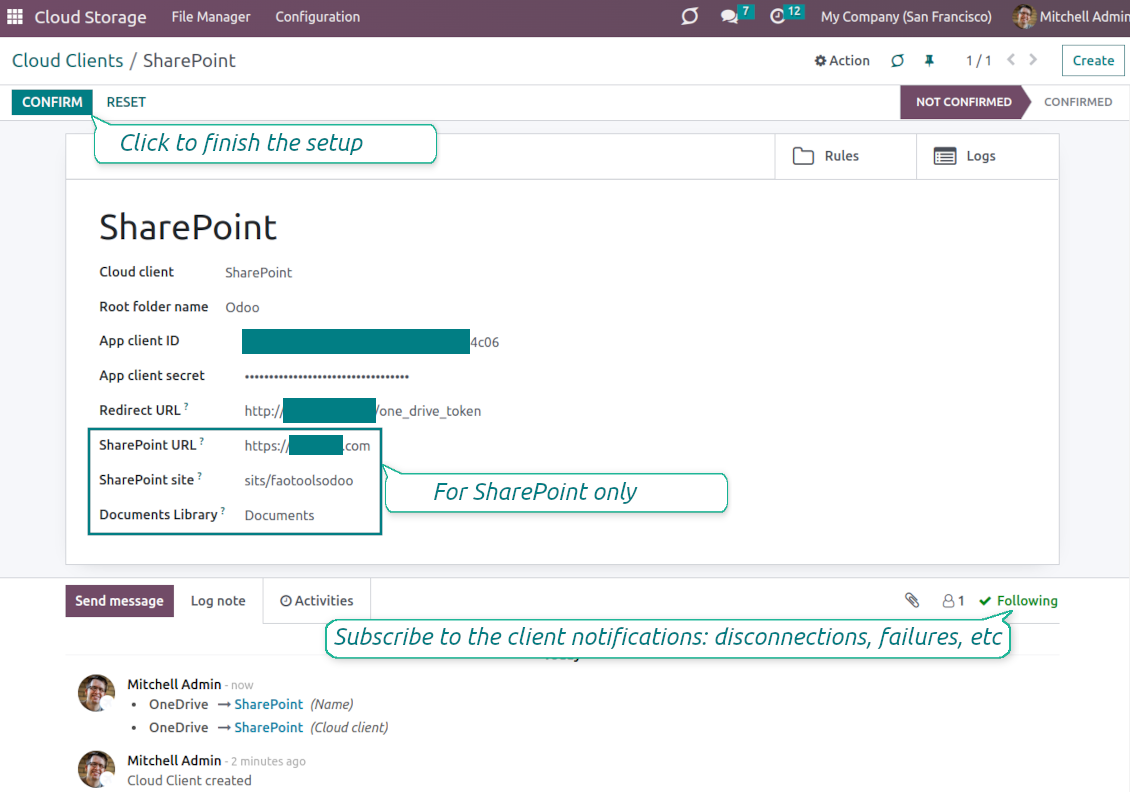
- Go to Odoo Cloud Storage > Configuration > Cloud Clients press 'Create'
- As a reference, introduce any name which would be clear to all users
- As a cloud client, choose 'OneDrive' or 'SharePoint' depending on the software you are using
- As a root folder name, enter a title that will be used as the parent OneDrive directory for all synced folders. For example, 'Odoo' or 'OdooERP'
- Copy 'Application Client ID' to the 'App client ID'
- Copy the secret value into the field 'App client secret'
- Insert previously generated redirect URL
- If you use SharePoint:
- Go to your SharePoint site and prepare a new documents library (drive). You might use one of the existing ones, e.g. 'Documents'. Odoo folder would be put there afterward, and it would be impossible to move it to another library
- The SharePoint URL should be of the type https://[URL]/. The last '/' is required - the site name should not be included. For example, https://odootools.sharepoint.com/
- SharePoint site should be either root (the very root SharePoint site), my_site_name (in that case it is considered as sites/my_site_name) or sites/my_site_name (instead of 'sites' it might be 'teams' and so on). There should be no '/' at the beginning or at the end. For example, sites/odootools
- As Documents Library use one created in SharePoint
- Press 'Confirm'. Odoo redirects you to the Microsoft login page. Check in the system, agree with all conditions, and grant all permissions asked. If Microsoft shows an account already signed in and says it does not exist in tenant 'Microsoft Services' (or any other unrelated tenant), do not click that row. Click 'Use another account' and sign in with the Microsoft account that owns the app's directory
- After login, OneDrive redirects you back to Odoo. OneDrive - Odoo synchronization is ready to be done
- Apply the newly created cloud client to folder rules and/or manual folders which should be synced to that OneDrive or SharePoint instance
- Await the sync scheduled job to be started. For testing purposes only: trigger integration manually from Cloud Storage > Configuration > Configuration > the button 'Launch sync'.
Watch also the configuration video
Register a new Azure application
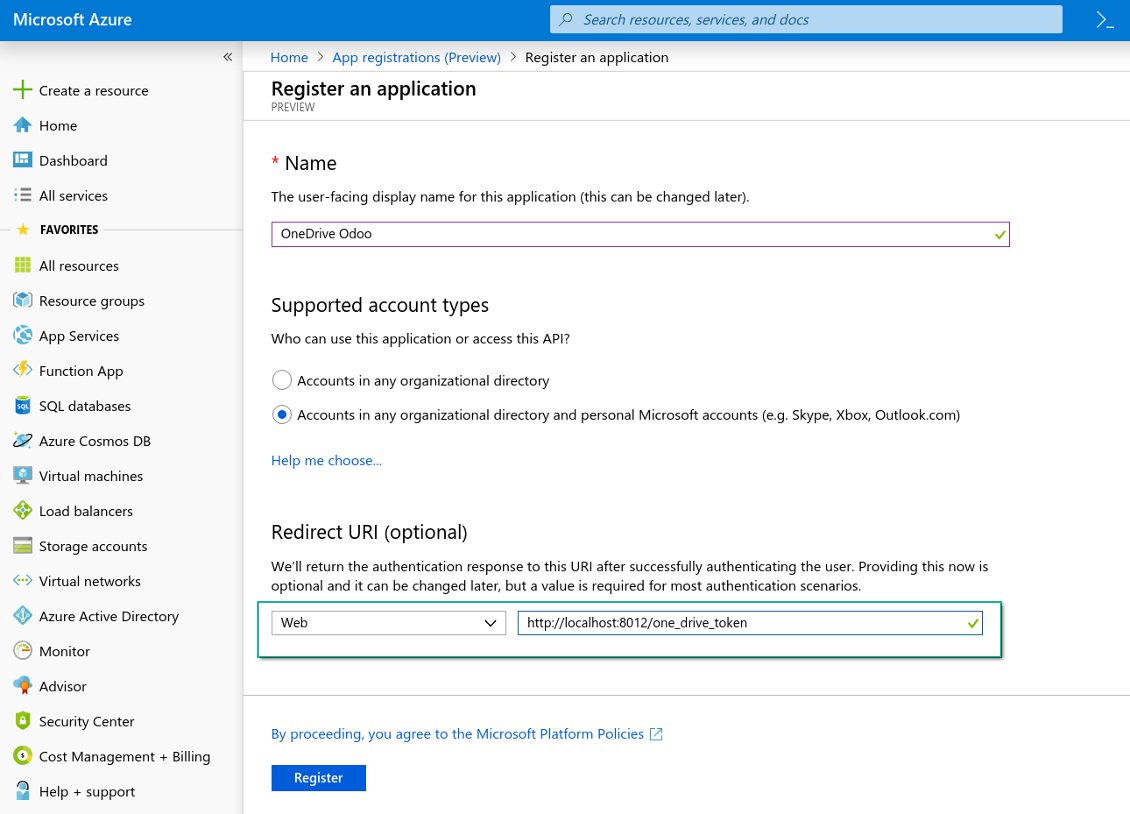
New OneDrive Web platform and the redirect URL
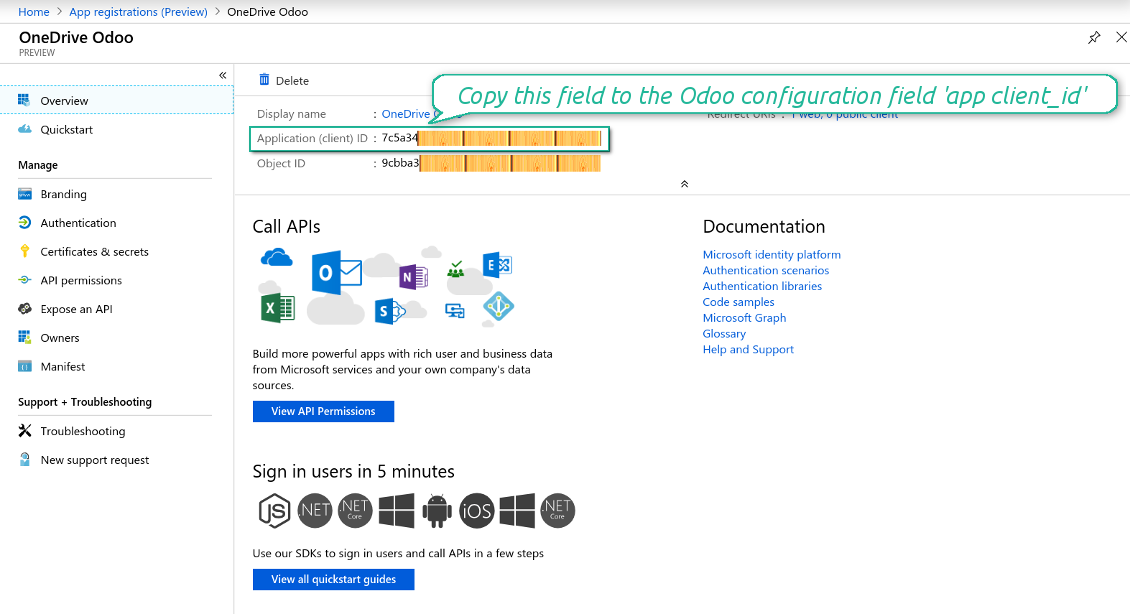
Generate a new secret for the Azure application
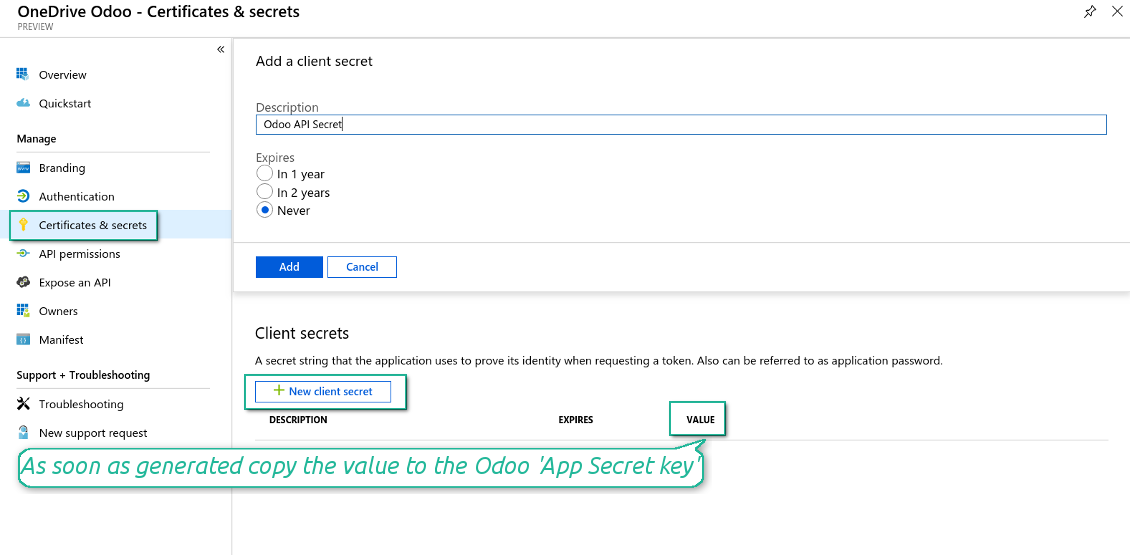
Enter the configuration keys in Odoo
Dažnai užduodami klausimai apie OneDrive / SharePoint Odoo Integration Odoo v.16
Matau klaidą spustelėjęs sinchronizuoto vaizdo debesijos nuorodą
Klaida "This item might have been deleted, expired, or you might not have permission to access it. Contact the owner of this item for more information." reiškia, kad nesate prisijungę prie tarnybos photos.onedrive.com.
Kur saugomi sinchronizuoti laukai? Ar jie dubliuojami Odoo ir debesyse?
Programa daro prielaidą, kad priedų dvejetainis turinys saugomas Cloud Client, o ne Odoo serveryje. Todėl tokie priedai Odoo tampa URL tipo ir bet kada galite juos atidaryti iš priedų lauko arba iš Cloud Client.
Po nustatymo rankinių veiksmų nereikia, nes sinchronizacija visiškai automatinė. Nuspręskite, kuriuos Odoo dokumentų tipus sinchronizuoti, ir kiekvienam jų nustatykite susijusį modelį (klientai, pardavimo ar pirkimo užsakymai, užduotys, projektai ir t. t.).
Ar galiu turėti kelis aplankus tam pačiam dokumento tipui? Pavyzdžiui, vidiniams projektams ir klientų projektams?
Taip, galite. Tam paruoškite taisyklę kiekvienam ir tada taikykite filtrus: pvz. pagal projekto tipą.
Stenkitės, kad filtrai būtų vienas kitą išskiriantys, kad dokumentą būtų galima priskirti vienareikšmiškai. Pvz. „klientas, bet ne tiekėjas“, „tiekėjas, bet ne klientas“. Kitaip konkretaus dokumento aplankas šokinės iš vieno modelio į kitą.
Ar gerai, jei sinchronizuoti reikia daug objektų, pavyzdžiui, 10000?
Taip, nors kai reikia sinchronizuoti daug aplankų/priedų, procesas gali būti lėtas. Tuo pačiu klientai pranešė apie aplinkas su >10k partnerių ir ~5k produktų variantų sinchronizavimui, ir procesai buvo priimtini.
Keletas akcentų:
- Sinchronizacija sukonstruota taip, kad bet kuris elementas būtų sinchronizuotas ir neprarastas, nors tai gali būti lėta. Tai garantuoja FIFO eilės ir kiekvieno darbo commit.
- Objektų skaičių galima logiškai apriboti. Modelių konfigūracija leidžia apriboti pasenusių elementų sinchronizaciją (pvz., nėra prasmės sinchronizuoti archyvuotų partnerių ar užsakymų prieš 2 metus).
Ar galima sinchronizaciją padaryti realiuoju laiku?
Ne. Turime svarių priežasčių vengti sinchronizacijos realiuoju laiku:
Našumo problemos. Jei sinchronizacija vyktų realiuoju laiku, kiekvienas failo įkėlimas rodytų įkėlimo ekraną.
Konfliktų problemos. Jei 2 naudotojai vienu metu pakeičia elementą, gali kilti neišsprendžiamų situacijų. Reguliarių darbų atveju galime tai pataisyti vėliau, o realiuoju laiku tektų tai saugoti kaip eilę ir tai naudotojams būtų dar painiau.
Funkcionalumo problemos. Ypač elementų pervadinimas ir struktūros keitimas. Atgalinėje sinchronizacijoje įrankis griežtai remiasi katalogų logika ir kiekvienos sinchronizacijos metu tikrinama 100 % elementų. Jei tai būtų daroma po kiekvieno atnaujinimo, tai būtų tūkstančiai užklausų per sekundę. Jei ne: pakeitimai būtų prarasti.
Ar galiu keisti numatytuosius aplankų pavadinimus debesyse?
Galite priskirti savo pavadinimą modelių katalogams (pardavimo užsakymai, galimybės, tiekėjai ir t. t.) bet kuriam dokumento tipui.
Objektų aplankams (SO-001, John Smith ir t. t.) įrankis naudoja Odoo metodą šio dokumento tipo rodymo pavadinimui sudaryti. Tai galima pakeisti apibrėžiant pavadinimo išraišką. Naudojama tiksli Odoo el. laiškų šablonų sintaksė.
Ar galiu keisti sinchronizavimo užduočių dažnį?
Ne, nuo 15 versijos planuotų darbų keisti nereikia. Jie optimizuoti paleisti kas 15 minučių, kad ryšys būtų kuo stabilesnis ir greitesnis.
Įsitikinkite, kad Odoo serverio skirtasis laikas yra bent 15 minučių (900 sekundžių).
Jei sinchronizaciją reikia laikinai sustabdyti, darykite tai konkretaus cloud client formoje.
Ar galiu sinchronizuoti priedus su keliais debesijos klientais
Taip, nuo 15 versijos galima nustatyti kelis ryšius. Taip vienus aplankus sinchronizuojate su vienu cloud client, kitus – su kitu.
Atminkite, kad to paties aplanko negalima vienu metu sinchronizuoti su keliais cloud storage.
Mūsų debesyse naudojame specialų redaktorių (pvz. OnlyOffice, Office 365 ir kt.). Ar failai būtų atidaromi tame redaktoriuje?
Taip, priklausomai nuo cloud client konfigūracijos.
Ar man reikia tik programos Cloud Storage Solution?
Nuo 15 versijos programą galima naudoti atskirai priedams dėlioti į aplankus ir failų tvarkytuvės sąsajai.
Tačiau jei tikslas – ryšys su kuriuo nors debesies klientų, reikia įdiegti bent vieną pasirenkamą kliento programą.
Kas nutiks, kai pakeisiu aplanko taisyklę?
Pasikeitus aplanko taisyklei, keičiasi ir aplankų sąrašas. Jei aplankas nebeatitinka taisyklių sąlygų, jis pašalinamas. Jei failai buvo sinchronizuoti, atvirkštinė sinchronizacija grąžina juos į Odoo ir ištrina iš Cloud Client.
Jei dokumento objektas neatitinka aplanko taisyklės sąlygų, jo aplankas nebus sukurtas. Jei vėliau atitiks, susijęs aplankas bus sukurtas.
Kokios jūsų įrankių naujinimo politikos?
Pagal dabartinės Odoo Apps Store taisykles:
- Kiekvienas 12.0 ir senesnės versijos modulis suteikia prieigą prie visų versijų iki 12.0.
- Nuo 13.0 versijos kiekviena modulio versija perkamą atskirai.
- Nepriklausomai nuo versijos, pirkimas suteikia teisę į visus atnaujinimus ir pataisas pagrindinės versijos ribose.
Atkreipkite dėmesį: komanda faOtools šių taisyklių nekontroliuoja. Klausimus kreipkite tiesiai Odoo Apps Store atstovams.
Kaip įdiegti jūsų programą Odoo.sh?
Tiesiausias būdas – naudoti įtaisytąją Odoo parduotuvės eigą:
1. Atidarykite modulio puslapį ir spustelėkite mygtuką Deploy on odoo.sh
2. Po to būsite nukreipti į GitHub puslapį. Prisijunkite prie paskyros ir spustelėkite 'Create a new repo' arba naudokite esamą. Įsitikinkite, kad saugykla privati. Programėlių skelbti pagal OPL-1 licenciją negalima. Prireikus sukurkite naują repo Odoo.sh projektui
3. Tada eikite į odoo.sh ir spustelėkite mygtuką Deploy. Iššokančiame lange pateikite sprendimą ir spustelėkite 'Continue.' Tai paleis diegimą.
Šie veiksmai įdiegs programėlę gamybinėje projekto šakoje. Jei norite diegti programėles kitose šakose arba atnaujinti modulį, atlikite šiuos veiksmus:
1. Įkelkite programėlės išeities kodą iš Odoo parduotuvės
2. Įrašykite modulį į reikiamą GitHub saugyklą. Įsitikinkite, kad jokie programėlės aplankai/failai nėra ignoruojami (t. y. nėra repo .gitignore). Saugyklas automatiškai sukuria odoo.sh ir pagal numatymą jose gali būti svarbių elementų (pvz., /lib). Įkelkite visus modulio katalogus, pakatalogius ir failus be išimčių
3. Įdiekite norimą odoo.sh projekto šaką arba, jei nustatymai tai numato, palaukite, kol ji bus sukurta automatiškai.
Kaip įdiegti jūsų programą savo serveryje?
2. Paleiskite Odoo serverį iš naujo;
3. Įjunkite kūrėjo režimą (techniniai nustatymai);
4. Atnaujinkite programų sąrašą (programų meniu);
5. Raskite programą ir spustelėkite „Activate“/„Install“;
6. Vadovaukitės programos puslapio gairėmis, jei jos yra.
Pastebėjau, kad jūsų programa turi papildomų priedų. Ar galiu juos įsigyti vėliau?
Taip, žinoma. Tuo pačiu Odoo automatiškai įdeda visas priklausomybes į krepšelį, todėl anksčiau pirktus įrankius reikia pašalinti, kad nemokėtumėte dukart.
Įdiegiau jūsų programą Odoo.sh ir testuose matau įspėjimą/klaidą
Raudonas/oranžinis įspėjimas nekeičia programos funkcijų. Deja, kartais mūsų moduliai neišlaiko standartinių automatinių testų, nes jie tikisi elgsenos, kuri prieštarauja programos tikslams. Pvz., keičiame kainos skaičiavimą, o standartiniai Odoo modulio testai lygina galutinę kainą su standartiniu algoritmu.
Pirmiausia patikrinkite diegtos duomenų bazės funkcijas. Ar viskas veikia teisingai?
Jei vis tiek manote, kad įspėjimas veikia tikras funkcijas, susisiekite ir atsiųskite visus diegimo žurnalus bei visą diegtų modulių sąrašą (įskaitant branduolį ir trečiųjų šalių).
Ar galiu nusipirkti programėlę tiesiogiai iš jūsų įmonės?
Ne, įrankius platiname tik per oficialią Odoo programų parduotuvę.
Norėčiau gauti nuolaidą
Deja, neturime techninių priemonių individualioms kainoms pateikti.
Ar galiu įdiegti programėlę savo Odoo Online (SaaS) duomenų bazėje?
Ne, trečiųjų šalių programų negalima naudoti Odoo Online. Deja, Odoo SaaS tai blokuoja.
Jūsų įrankis priklauso nuo kitų programų. Ar turiu jas pirkti?
Taip, įrankiui reikia visų priklausomybėse pažymėtų modulių, kad veiktų teisingai. Programos puslapyje nurodyta kaina jau apima visas būtinas priklausomybes.
Kokia modulio kaina JAV doleriais? Kodėl ji pasikeitė?
Mūsų modulių kaina nustatyta eurais. Odoo parduotuvė konvertuoja kainas į kitas valiutas pagal vidinį kursą. Todėl kaina JAV doleriais gali keistis atnaujinus kursą.
Programos ir svetainės tekstai kitomis kalbomis nei anglų parengti su DI ir suderinti su oficialiais Odoo vertimais. Jei pastebėjote klaidą, siųskite bilietą dėl vertimų teisingumo ir pataisysime.
Odoo demonstracinės duomenų bazės (gyvos peržiūros)
Šiai programai galime suteikti nemokamą individualią demo duomenų bazę.
Norėdami susisiekti, jums nereikia telefono numerio ar kredito kortelės. Užtenka trumpos registracijos el. paštu, kuri trunka ne ilgiau kaip 30 sekundžių.
Jūsų prašymu paruošime individualią gyvos peržiūros duomenų bazę, kurioje apie dvi savaitės galėsite atlikti bet kokius testus ir tikrinti prielaidas.
Klaidų pranešimas
Jei susidursite su klaidomis ar nenuosekliu elgesiu, nedvejodami susisiekite. Garantuoame pataisymus per 60 dienų nuo pirkimo ir ir toliau stengiamės tobulinti įrankius po šio laikotarpio.
Norėdami susisiekti, jums nereikia telefono numerio ar kredito kortelės. Užtenka trumpos registracijos el. paštu, kuri trunka ne ilgiau kaip 30 sekundžių.
Į užklausą įtraukite kuo daugiau informacijos: ekrano nuotraukas, Odoo serverio žurnalus, išsamų problemos atkūrimo aprašymą ir pan. Paprastai darbo plano parengimas problemai (jei klaida patvirtinama) arba gairių, ką daryti (kitu atveju), pateikimas trunka kelias darbo dienas.
Vieši funkcijų prašymai ir modulių idėjos (nemokama plėtra)
Esame labai motyvuoti tobulinti savo įrankius ir būsime dėkingi už bet kokį atsiliepimą. Jei jūsų reikalavimai naudingi visiems ir gali būti efektyviai įgyvendinti, komanda įtrauks juos į mūsų darbų sąrašą.
Toks darbų sąrašas tvarkomas reguliariai ir nereiškia papildomų mokesčių. Nors negalime pažadėti terminų ir galutinio dizaino, tai gali būti geras būdas gauti norimas funkcijas be investicijų ir rizikos.
Norėdami susisiekti, jums nereikia telefono numerio ar kredito kortelės. Užtenka trumpos registracijos el. paštu, kuri trunka ne ilgiau kaip 30 sekundžių.


The tool to build a deep and structured knowledge base for internal and external use. Knowledge System. KMS. Wiki-like revisions.
398€
The tool to set up KPI targets and control their fulfillment by periods. KPI dashboards. Dashboard designer. KPI charts

The tool for time-based service management from booking appointments to sales and reviews
398€
Įrankis valdyti Odoo iš mėgstamų AI pokalbių per MCP. Claude. Bet kuris AI su MCP.

The tool to flexibly structure Odoo attachments in folders and synchronize directories with cloud clients: Google Drive, OneDrive/SharePoint, Nextcloud/ownCloud, and Dropbox. DMS. File Manager. Document management system
398€
The tool to automatically synchronize Odoo attachments with Google Drive files in both ways
487€
The tool to automatically synchronize Odoo attachments with ownCloud/Nextcloud files in both ways
487€
Įrankis automatinei dvikryptei Odoo priedų sinchronizacijai su NAS sprendimais. Synology, QNAP, TrueNAS ir bet kuris kitas NAS su WebDav
487€