Amazon S3 / MinIO Odoo Integration v.18
The tool to automatically synchronize Odoo attachments with Amazon S3 or/and MinIO files in both ways
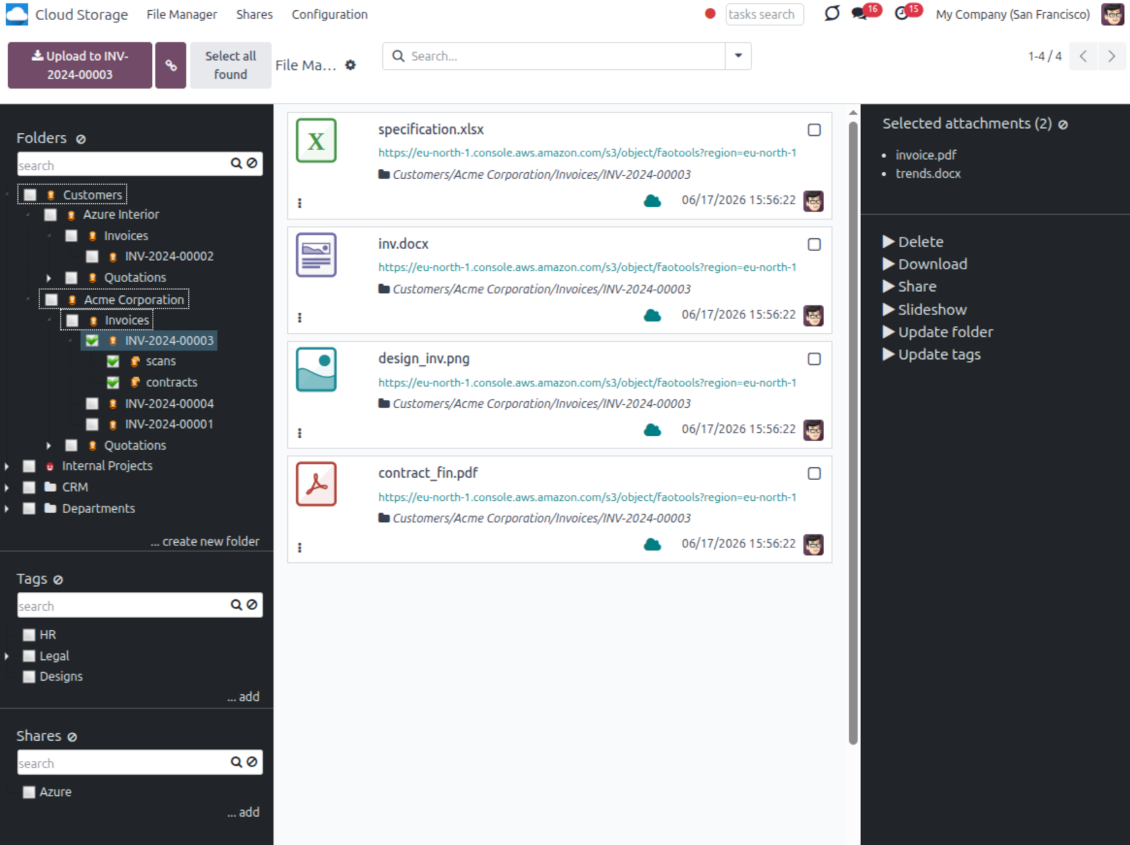
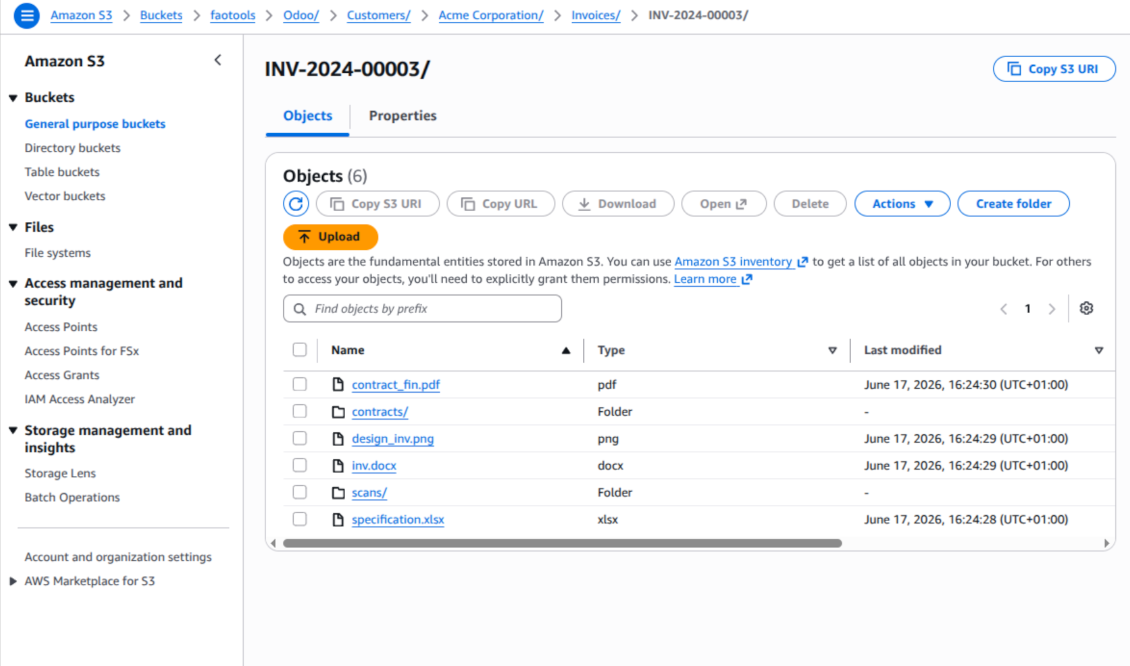
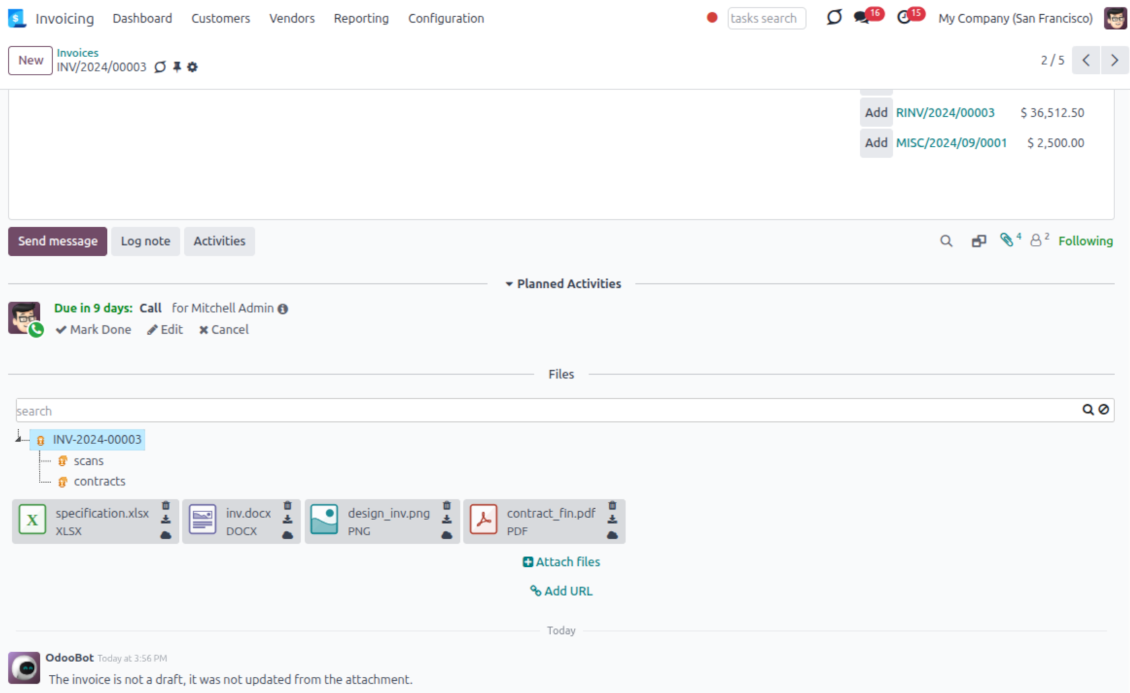
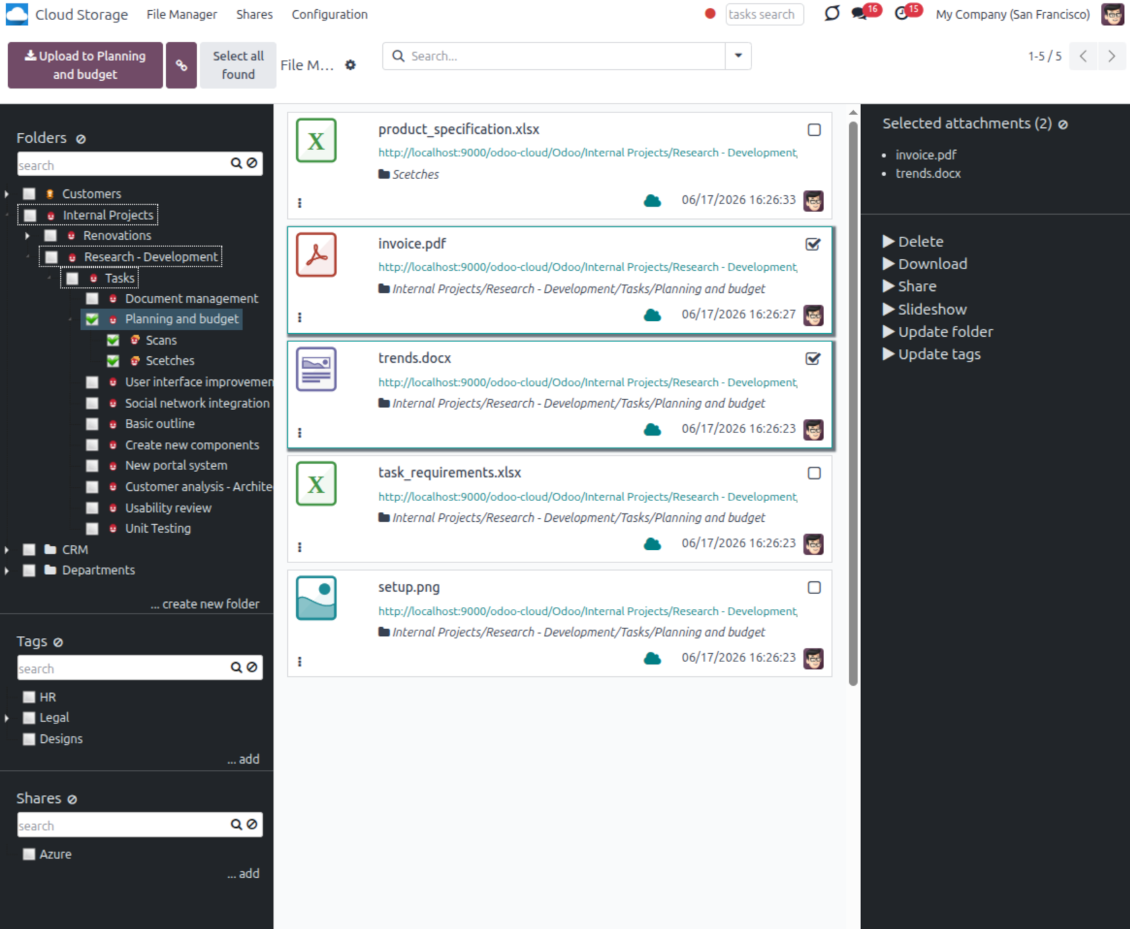
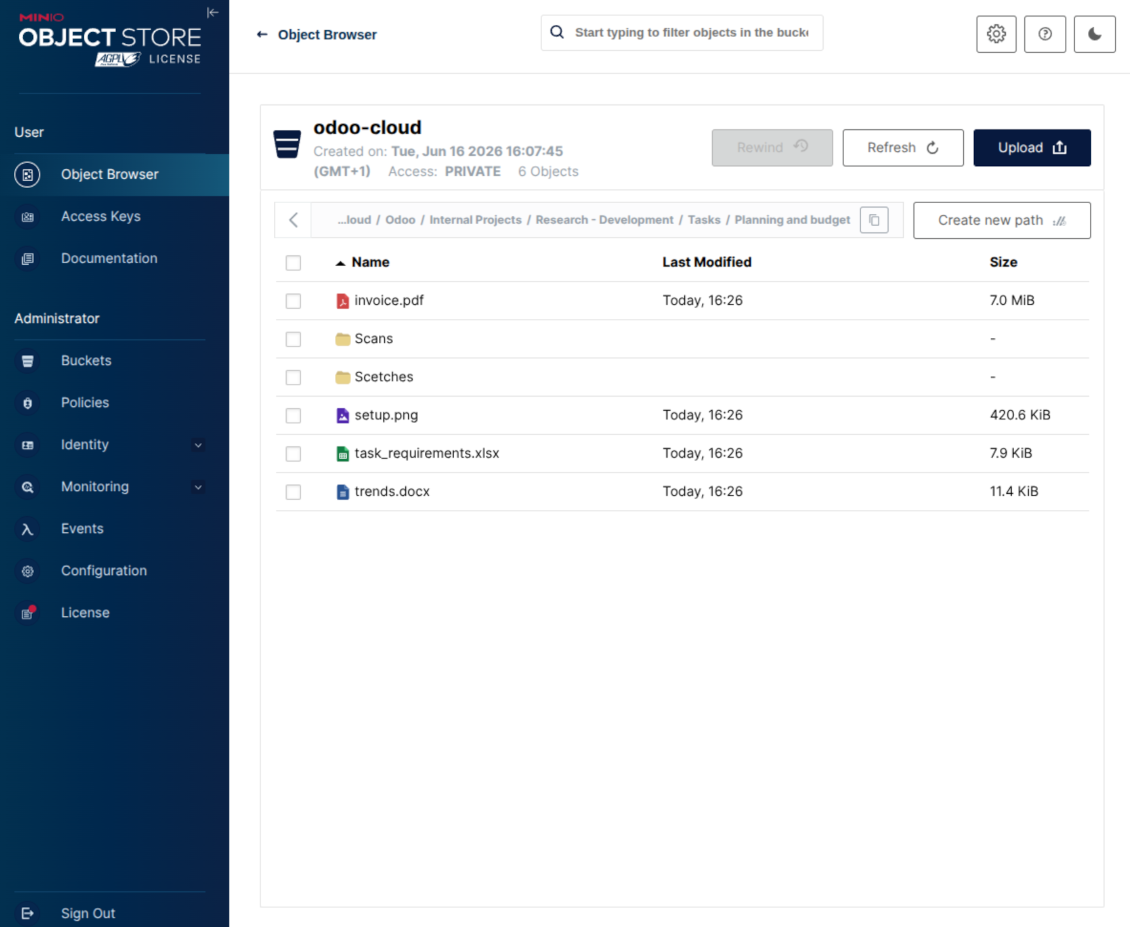
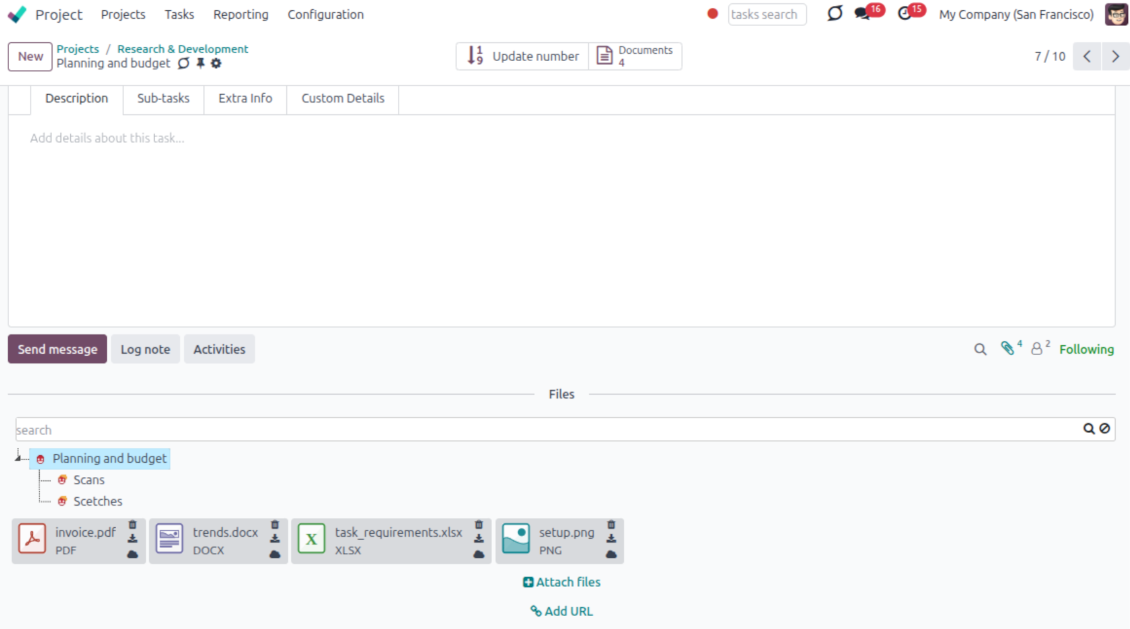
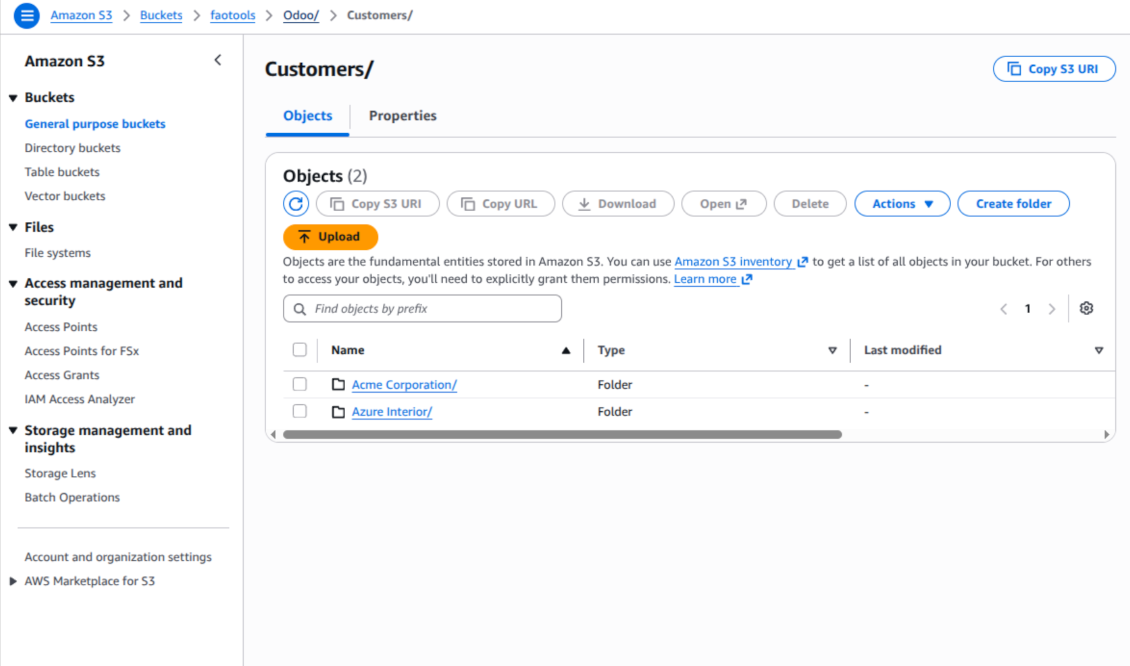
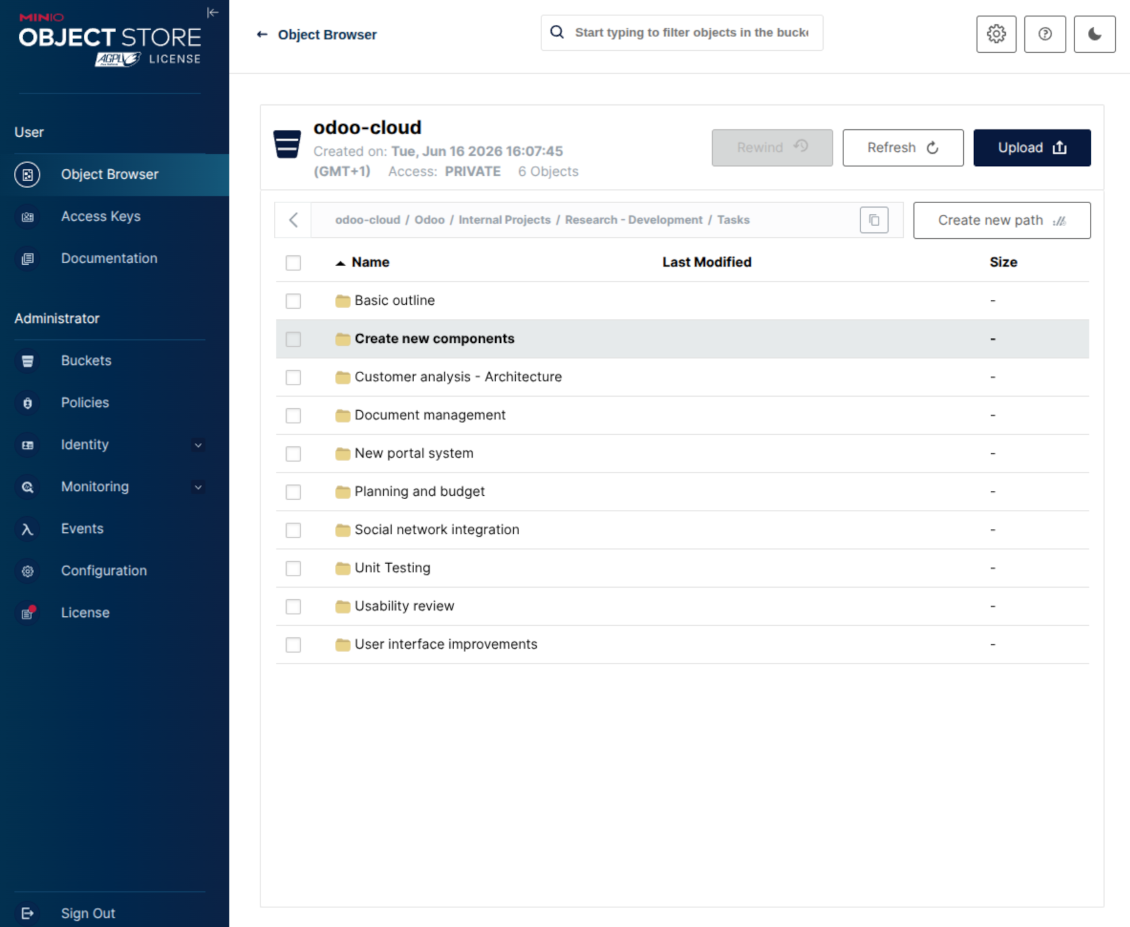
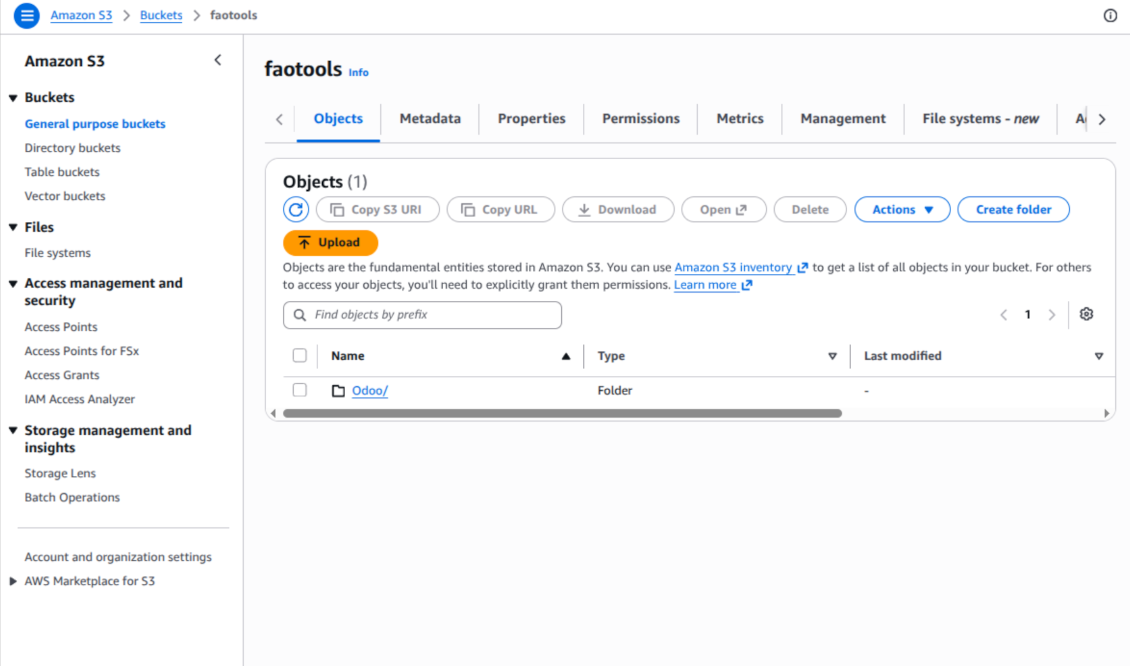
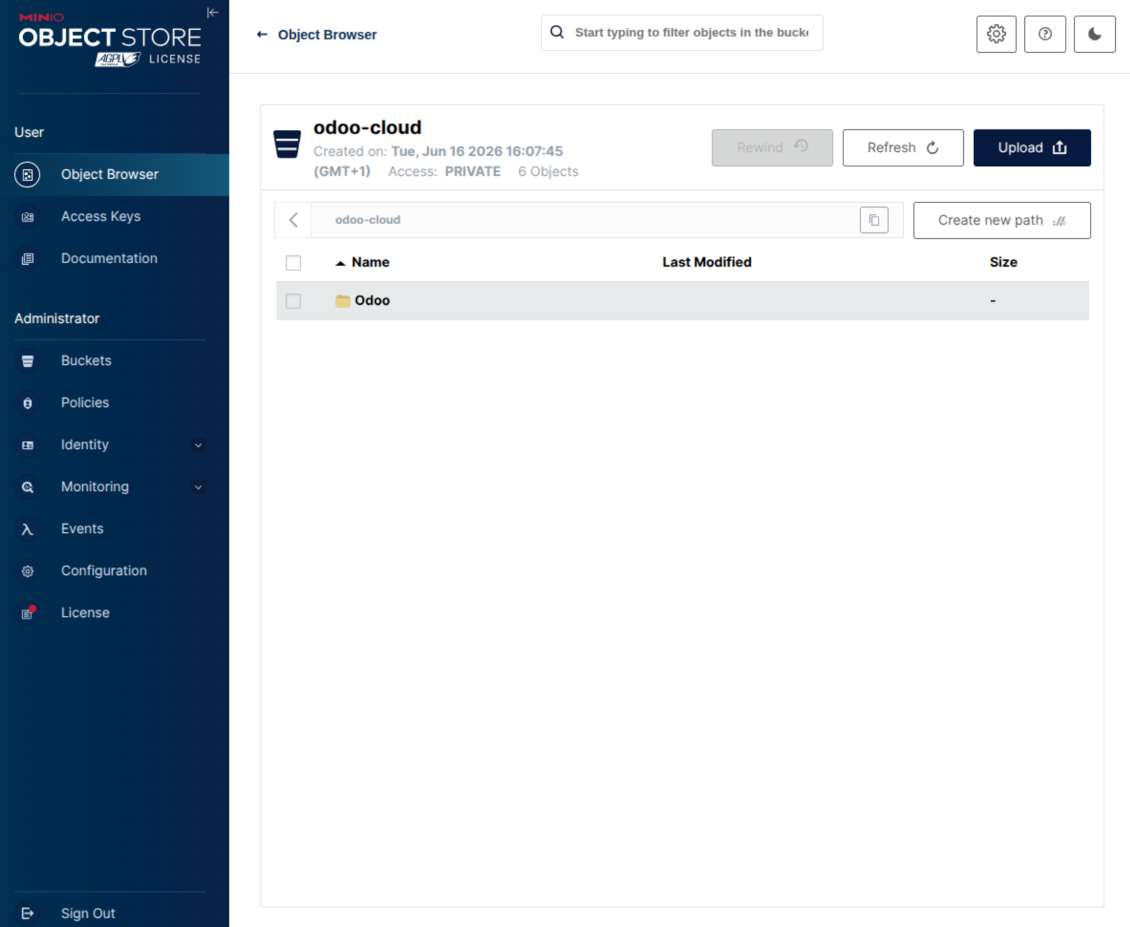
This is the tool to integrate Amazon S3 or/and MinIO features with Odoo folders and files. The app automatically stores Odoo attachments and directories in an Amazon/MinIO S3 bucket and provides access to synced objects through presigned or public web links.
Automatic folders' structure
Decide which Odoo document types should have their own folders trees and synchronize those to Amazon/MinIO S3
Automatic regular sync
Rely on auto-synchronization between Odoo and Amazon S3/MinIO S3 based on scheduled jobs. No manual interaction is required
Bilateral sync
Odoo sends attachments to Amazon/MinIO S3 and retrieves files from there. Binary content is kept in the bucket, while Odoo provides direct access to synced objects
Cloud synchronization history
Control Amazon S3//MinIO S3 sync logs right in Odoo. Export and share those in case of any issues. Be notified of any client disconnections
File manager interface
Manage synced folders and attachments from a single Odoo view. Navigate by directories, search and download files, upload and move attachments to folders
Attachment box
Organize files of any Odoo object in a set of subfolders. Instantly access folders and files in the attachment box and in Amazon S3
How synchronization works
Automatic two-sided sync
-
Configure sync for one or multiple Amazon S3 / MinIO S3 buckets or S3-compatible endpoints
-
Synchronization is bilateral. Updates in Odoo are reflected in Amazon S3 / MinIO S3 (direct sync); changes in Amazon S3 / MinIO S3 modify Odoo folders and attachments (backward sync)
-
Cloud connection with Amazon S3 / MinIO S3 might be reset. In this way, the app assumes getting all synced items back to Odoo (reverse sync)
Queue-based synchronization
-
Once in 15 minutes, the app examines updates in Odoo and Amazon S3 / MinIO S3 to prepare a synchronization queue
-
The connector lists the whole S3 root prefix to track virtual folders and object keys in a stable way during each sync run
-
If the app faces sync failures, it will retry operations afterward. Sync queue processing would not be stopped if there are items not blocked by such failures
Odoo attachments for Amazon S3 / MinIO S3: direct sync
-
Direct sync prepares the virtual folders hierarchy and uploads Odoo attachments to Amazon S3 / MinIO S3
-
Since S3 has no native folders, the app creates empty marker objects to keep empty Odoo directories visible
-
Renaming or moving S3 objects is implemented as copy and delete, following Amazon S3 / MinIO S3 mechanics
Amazon S3 objects for Odoo: backward sync
-
Backward sync checks whether any objects or sub-prefixes are added to Amazon S3 / MinIO S3 folders. If so, the app creates URL attachments or subdirectories inside linked Odoo directories
-
External S3 renames are treated according to S3 nature: old key removed and new key created. Odoo will converge by deleting and recreating the related attachment if required
-
In case of conflicts, direct sync changes are in general considered more important than backward updates
Amazon S3 URLs
Amazon S3 has a specific way to open existing objects. This connector always keeps links on the Amazon S3 side, not as local Odoo download links.
If Use Public URLs is enabled, Odoo saves direct S3 object URLs. Those links work only when the related bucket, prefix, object, CDN, or compatible storage endpoint is publicly accessible.
If Use Public URLs is disabled, Odoo saves AWS Console links to the related bucket object or prefix. Those links are intended for Amazon users: a person opening such a link must be logged in to AWS and must have enough IAM permissions to view the bucket object. If the user has no AWS access, Amazon will not open the file.
Sfaturi de configurare și instalare pentru Amazon S3 / MinIO Odoo Integration Odoo v.18
Python dependency
The tool depends on the external library 'boto3'. Install this library for your Odoo server through the command:
pip3 install boto3Amazon S3 Configuration and log in
- Turn on the option 'Amazon S3 Sync' (Cloud Storage > Configuration > Configuration). The optional add-on Amazon S3 Odoo Integration is required
- Open the Amazon S3 Console: https://console.aws.amazon.com/s3/
- Create a new bucket or choose an existing one. Copy the exact bucket name: it should be inserted in Odoo into the field 'Bucket'
- Open the bucket details and copy its AWS Region. Insert it in Odoo into the field 'Region' (for example, eu-west-1 or us-east-1)
- Open the AWS IAM Console: https://console.aws.amazon.com/iam/
- Create a new IAM user or choose an existing technical user. This user should have full rights to list, read, create, write, copy, and delete objects within the selected bucket. You can select the full right admin, or create a new policy (see below)
- In the IAM user form, open the tab 'Security credentials' and press 'Create access key'
- On the page 'Access key best practices & alternatives', select the option Application running outside AWS. This is the correct option when your Odoo server connects to S3 by access key from outside AWS, from Odoo.sh, from your own server, or from another hosting provider. If your Odoo is installed on an AWS EC2 instance, you may instead select Application running on an AWS compute service, but the fields copied to Odoo are the same
- Press 'Next'. On the next step, optionally enter a description tag such as Odoo S3 Sync, then press 'Create access key'
- On the final AWS page, copy Access key or Access key ID into the Odoo field 'Access Key'
- Copy Secret access key into the Odoo field 'Secret Key'. Important: AWS shows the secret key only once, so save it before closing the window
- If you use an S3-compatible provider instead of AWS S3, copy the endpoint URL from that provider's admin panel and insert it into Odoo into the field 'Amazon S3 endpoint URL'. For example, MinIO often uses a URL like https://minio.example.com or http://localhost:9000; LocalStack commonly uses http://localhost:4566
- Go to Odoo Cloud Storage > Configuration > Cloud Clients and press 'Create'
- As a reference, introduce any name which would be clear to all users
- As a Cloud client, choose 'Amazon S3'
- As a Root folder name, enter a title that will be used as the parent S3 prefix for all synced folders. For example, 'Odoo' or 'OdooERP'
- Fill in the fields 'Bucket', 'Region', 'Access Key', 'Secret Key', and, if needed, 'Amazon S3 endpoint URL' and addressing style
- Choose whether Odoo should use temporary presigned URLs or public bucket/CDN URLs. For private buckets, keep presigned URLs enabled and set their lifetime in seconds
- Press 'Confirm'. Odoo checks bucket access and creates or verifies the root folder prefix. Amazon S3 - Odoo synchronization is ready to be done
- Apply the newly created cloud client to folder rules and/or manual folders which should be synced to that Amazon S3 bucket
- Await the sync scheduled job to be started. For testing purposes only: trigger integration manually from Cloud Storage > Configuration > Configuration > the button 'Launch sync'.
Useful AWS documentation: creating an S3 bucket: https://docs.aws.amazon.com/AmazonS3/latest/userguide/creating-bucket.html, managing IAM access keys: https://docs.aws.amazon.com/IAM/latest/UserGuide/id_credentials_access-keys.html.
Bucket policy example
    {
    "Version": "2012-10-17",
    "Statement": [
        {
            "Sid": "ListObjectsInBucket",
            "Effect": "Allow",
            "Action": [
                "s3:ListBucket"
            ],
            "Resource": "arn:aws:s3:::NAME_OF_YOUR_BUCKET"
        },
        {
            "Sid": "AllObjectActions",
            "Effect": "Allow",
            "Action": [
                "s3:GetObject",
                "s3:PutObject",
                "s3:DeleteObject"
            ],
            "Resource": "arn:aws:s3:::NAME_OF_YOUR_BUCKET/*"
        }
    ]
}
Create a new AWS IAM user

Specify the IAM user name

Attach permission policies directly

Amazon S3 bucket policy JSON example

Review and name the S3 policy

Select the bucket policy for the user

Review and create the IAM user

Create an access key for the user

Choose the access key use case

Set the access key description tag

Retrieve the access key and secret

Configure the Amazon S3 client in Odoo

Amazon S3 URLs and access rights
Amazon S3 has an important peculiarity: the URL shown in Odoo is always an Amazon-side link.
If Use Public URLs is enabled, Odoo saves a direct S3 object URL. This link works only if the related S3 bucket, prefix, object, CDN, or compatible endpoint is publicly readable. Otherwise, Amazon S3 will show AccessDenied, even if the user is logged in to the AWS console.
For public links, configure the bucket permissions in Amazon S3 and allow public read access for the Odoo prefix. Example bucket policy:
{
  "Version": "2012-10-17",
  "Statement": [
    {
      "Sid": "PublicReadOdooPrefix",
      "Effect": "Allow",
      "Principal": "*",
      "Action": "s3:GetObject",
      "Resource": "arn:aws:s3:::YOUR_BUCKET_NAME/Odoo/*"
    }
  ]
}
Replace YOUR_BUCKET_NAME with the real bucket name and Odoo/ with the selected root folder prefix. Also make sure that Amazon S3 Block public access settings do not block that bucket policy.
If Use Public URLs is disabled, Odoo saves AWS Console links to the related bucket object or prefix. Such links are useful for Amazon users: the person opening the link must be logged in to AWS and must have IAM access to that bucket object. If the user has no AWS access, Amazon will not open the file.
MinIO configuration and log in
- Prepare a running MinIO server
- Open the MinIO Console
- Create a new bucket or choose an existing one. Copy the exact bucket name: it should be inserted in Odoo into the field 'Bucket'
- Create access credentials for Odoo. In MinIO, use an access key / secret key pair or a service account that has rights to list, read, create, write, copy, and delete objects within the selected bucket
- Copy the MinIO Access Key into the Odoo field 'Access Key'
- Copy the MinIO Secret Key into the Odoo field 'Secret Key'. Important: save the secret before closing the MinIO page if MinIO shows it only once
- Copy the MinIO S3 API endpoint URL into Odoo into the field 'Amazon S3 endpoint URL'. For example, a local server usually uses http://localhost:9000, while a production server may use https://minio.example.com
- Go to Odoo Cloud Storage > Configuration > Cloud Clients and press 'Create'
- As a reference, introduce any name which would be clear to all users
- As a Cloud client, choose 'MinIO'
- As a Root folder name, enter a title that will be used as the parent MinIO object prefix for all synced folders. For example, 'Odoo' or 'OdooERP'
- Fill in the fields 'Bucket', 'Access Key', 'Secret Key', and 'Amazon S3 endpoint URL'. The field 'Region' is optional for MinIO; if it is empty, Odoo uses us-east-1 for S3-compatible signing
- Keep the addressing style as Path-style. This is the recommended option for MinIO endpoints, especially when the MinIO host does not provide bucket-specific DNS names
- Choose whether Odoo should use direct public MinIO URLs. Enable 'Use Public URLs' only when the bucket, prefix, reverse proxy, or CDN is publicly readable. For private MinIO buckets, leave it disabled
- Press 'Confirm'. Odoo checks bucket access and creates or verifies the root folder prefix. MinIO - Odoo synchronization is ready to be done
- Apply the newly created cloud client to folder rules and/or manual folders which should be synced to that MinIO bucket
- Await the sync scheduled job to be started. For testing purposes only: trigger integration manually from Cloud Storage > Configuration > Configuration > the button 'Launch sync'.
Useful MinIO documentation: https://min.io/docs/minio/linux/administration/identity-access-management.html, https://min.io/docs/minio/linux/reference/minio-server/minio-server.html.
Create a MinIO access key

Copy the new MinIO credentials

Configure the MinIO cloud client in Odoo

Întrebări frecvente despre Amazon S3 / MinIO Odoo Integration Odoo v.18
Unde sunt stocate câmpurile sincronizate? Sunt duplicate în Odoo și în clouds?
Aplicația presupune că conținutul binar al atașamentelor este păstrat în Cloud Client, nu pe serverul Odoo. Astfel, aceste atașamente din Odoo devin de tip URL și le puteți accesa oricând din caseta de atașamente sau din Cloud Client.
După configurare nu sunt necesare acțiuni manuale, sincronizarea fiind complet automată. Decideți ce tipuri de documente Odoo trebuie sincronizate și configurați un model asociat pentru fiecare (clienți, comenzi de vânzare sau achiziție, sarcini, proiecte etc.).
Pot avea câteva foldere pentru același tip de document? De exemplu, proiecte interne și proiecte clienți?
Da, puteți. În acest scop pregătiți o regulă pentru fiecare, apoi aplicați filtre: de exemplu după tipul proiectului.
Încercați să faceți filtrele mutual exclusive, astfel încât un document să poată fi atribuit cu certitudine. De exemplu, „client, dar nu furnizor”, „furnizor, dar nu client”. Altfel, dosarul unui document specific ar sări de la un model la altul.
Este posibilă sincronizarea în timp real?
Nu. Avem motive temeinice să evităm sincronizarea în timp real:
Probleme de performanță. Dacă sincronizarea este în timp real, fiecare încărcare de fișier va afișa ecranul de încărcare.
Probleme de conflict. Dacă 2 utilizatori modifică simultan un element, pot apărea situații nerezolvate. La lucrări periodice le putem repara ulterior; în timp real ar trebui salvate ca o coadă, și mai derutantă pentru utilizatori.
Probleme de funcționalitate. În special redenumirea și restructurarea elementelor. În sincronizarea inversă instrumentul se bazează strict pe logica directoarelor, iar la fiecare sincronizare se verifică 100% din elemente. Dacă s-ar face după fiecare actualizare, ar fi mii de cereri pe secundă. Dacă nu: modificările s-ar pierde.
Pot schimba numele folderelor implicite în cloud-uri?
Puteți atribui propriul nume directoarelor de modele (comenzi de vânzare, oportunități, furnizori etc.) pentru orice tip de document.
Pentru folderele obiectelor (SO-001, John Smith etc.), instrumentul se bazează pe metoda Odoo de a construi numele afișat al acestui tip de document. Totuși, puteți schimba asta definind expresia numelui. Se folosește exact sintaxa șabloanelor de e-mail Odoo.
Pot schimba frecvența lucrărilor de sincronizare?
Nu, începând cu versiunea 15 nu ar trebui să modificați lucrările planificate. Sunt optimizate să ruleze la fiecare 15 minute pentru cea mai stabilă și rapidă conexiune.
Asigurați-vă că timeout-urile serverului Odoo sunt setate la cel puțin 15 minute (900 de secunde).
Dacă trebuie să opriți sincronizarea o vreme, faceți-o pe formularul cloud client respectiv.
Pot sincroniza atașamentele cu câțiva clienți cloud
Da, de la versiunea 15 puteți configura mai multe conexiuni. Astfel, unele dosare se sincronizează cu un cloud client, altele cu altul.
Rețineți că nu este posibil să sincronizați același dosar simultan cu mai multe cloud storages.
Folosim un editor special în cloud-urile noastre (de ex. OnlyOffice, Office 365 etc.). Fișierele s-ar deschide în acel editor?
Da, în funcție de configurația cloud client.
Am nevoie doar de aplicația Cloud Storage Solution?
Începând cu versiunea 15, aplicația poate fi folosită de sine stătător pentru a organiza atașamentele în foldere și a oferi interfața managerului de fișiere.
Totuși, dacă scopul este o conexiune cu unul dintre clienții de stocare în nor, trebuie instalată cel puțin o aplicație opțională a clientului.
Ce se întâmplă când schimb o regulă de dosar?
Când o regulă de dosar se schimbă, se schimbă și lista de dosare. Dacă un dosar nu mai îndeplinește condițiile, este eliminat. Dacă fișierele au fost sincronizate, sincronizarea inversă le readuce în Odoo și le șterge din Cloud Client.
Dacă obiectul unui document nu îndeplinește condițiile unei reguli de dosar, dosarul lui nu va fi creat. Dacă le îndeplinește mai târziu, dosarul aferent va fi generat.
Pot păstra doar sincronizarea directă sau pot dezactiva sincronizarea din cloud?
Da. Pe clientul cloud deschideți pagina Setări și activați Dezactivați sincronizarea din cloud.
Sincronizarea rămâne într-un singur sens. Modificările făcute în Odoo sunt în continuare trimise în stocarea cloud. Fișierele și folderele create, redenumite sau șterse în stocarea cloud nu apar în Odoo, iar folderele șterse acolo nu sunt restaurate.
Dezactivați din nou opțiunea ca modificările acumulate, inclusiv ștergerile, să se aplice la următoarea sincronizare.
Această setare este disponibilă de la versiunea 18. Deconectarea, resetarea sau dezactivarea clientului rulează în continuare sincronizarea inversă, dacă nu o dezactivați și pe ea.
Textele aplicației și ale site-ului în alte limbi decât engleza sunt asistate de IA și aliniate cu traducerile oficiale Odoo. Dacă observați o greșeală, trimiteți un tichet de corectitudine a traducerilor și o vom corectă.
Baze de demonstrație Odoo (previzualizări live)
Pentru această aplicație putem oferi o bază demo personalizată gratuită.
Nu aveți nevoie de număr de telefon sau card de credit pentru a ne contacta. Este suficientă o înscriere scurtă prin e-mail, care nu durează mai mult de 30 de secunde.
La cererea dvs. pregătim o bază individuală de previzualizare live, unde puteți aplică teste și verifica ipoteze timp de aproximativ două săptămâni.
Raportarea erorilor
Dacă întâmpinați erori sau comportament inconsecvent, nu ezitați să ne contactați. Garantăm corecturi în 60 de zile de la cumpărare și suntem interesați să îmbunătățim instrumentele și după această perioadă.
Nu aveți nevoie de număr de telefon sau card de credit pentru a ne contacta. Este suficientă o înscriere scurtă prin e-mail, care nu durează mai mult de 30 de secunde.
Includeți cât mai multe detalii în cerere: capturi de ecran, jurnalele serverului Odoo, o descriere completă a reproducerii problemei și așa mai departe. De obicei, durează câteva zile lucrătoare pentru a pregăti un plan de lucru (dacă un defect este confirmat) sau pentru a vă oferi indicații despre ce trebuie făcut (în caz contrar).
Cereri publice de funcții și idei de module (dezvoltare gratuită)
Suntem puternic motivați să ne îmbunătățim instrumentele și am fi recunoscători pentru orice feedback. Dacă cerințele dvs. sunt de interes public și pot fi implementate eficient, echipa le va include în lista noastră de sarcini.
O astfel de listă de sarcini este prelucrată regulat și nu presupune taxe suplimentare. Deși nu putem promite termene și un design final, poate fi o cale bună de a obține funcțiile dorite fără investiții și riscuri.
Nu aveți nevoie de număr de telefon sau card de credit pentru a ne contacta. Este suficientă o înscriere scurtă prin e-mail, care nu durează mai mult de 30 de secunde.


The tool to build a deep and structured knowledge base for internal and external use. Knowledge System. KMS. Wiki-like revisions.
398€
The tool to set up KPI targets and control their fulfillment by periods. KPI dashboards. Dashboard designer. KPI charts

The tool for time-based service management from booking appointments to sales and reviews
398€
The tool to manage your Odoo from your favorite AI chats through MCP. Claude. Any MCP-supporting AI.

Instrumentul pentru a structura flexibil atașamentele Odoo în foldere și a sincroniza directoarele cu clienți cloud: Google Drive, OneDrive/SharePoint, Nextcloud/ownCloud, Dropbox, Amazon S3, Box și NAS. DMS. Manager de fișiere. Sistem de gestiune a documentelor
398€
The tool to automatically synchronize Odoo attachments with OneDrive files in both ways
487€
The tool to automatically synchronize Odoo attachments with Google Drive files in both ways
487€
The tool to automatically synchronize Odoo attachments with ownCloud/Nextcloud files in both ways
487€