Amazon S3 / MinIO Odoo Integration v.18
The tool to automatically synchronize Odoo attachments with Amazon S3 or/and MinIO files in both ways
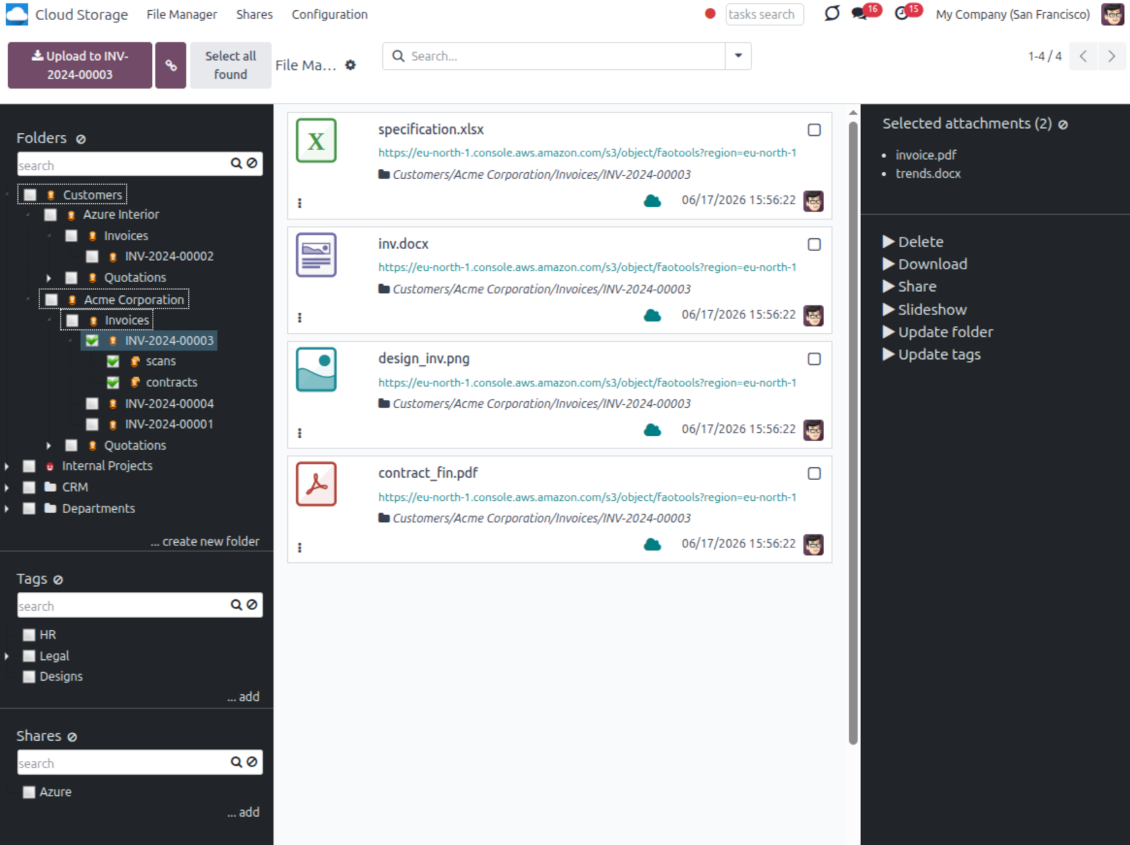
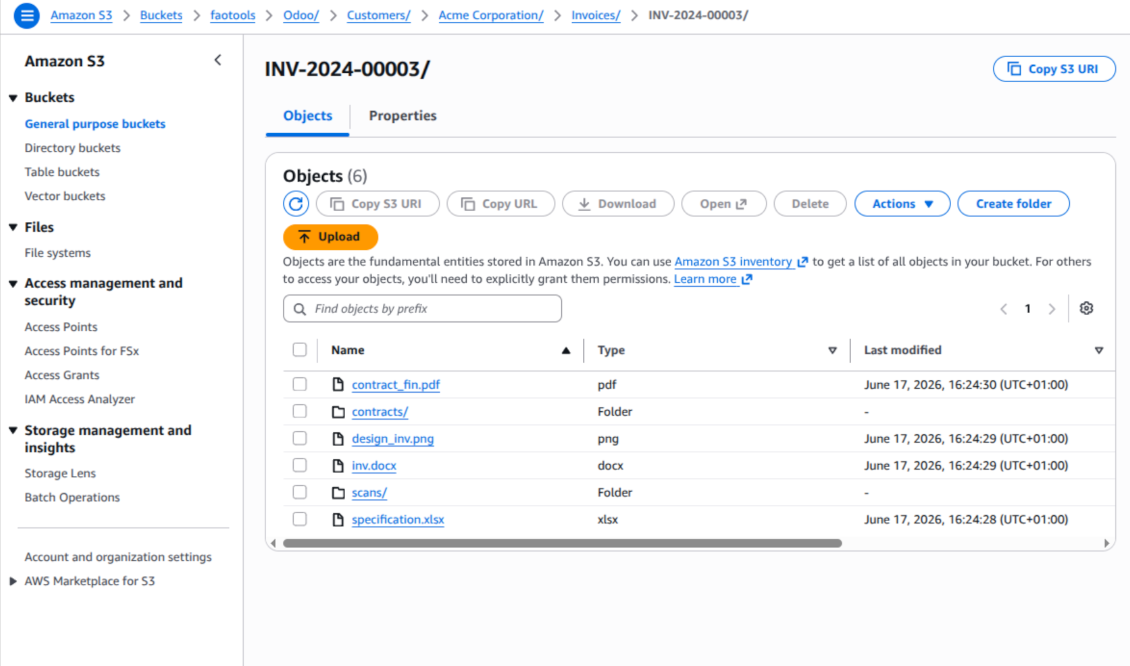
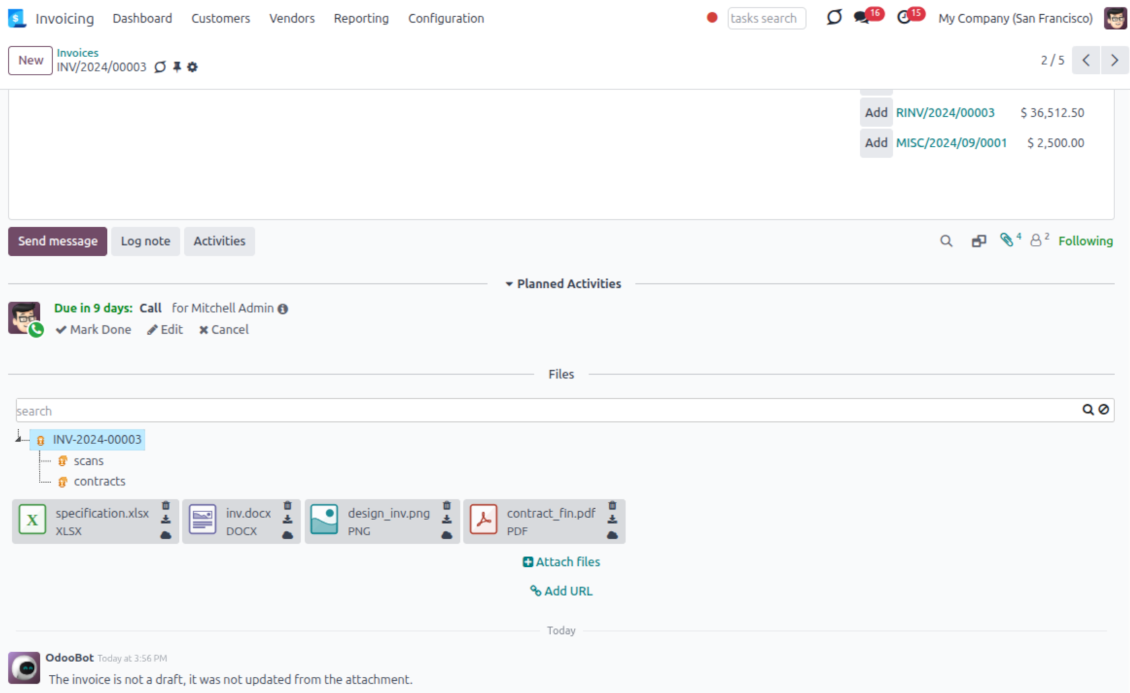
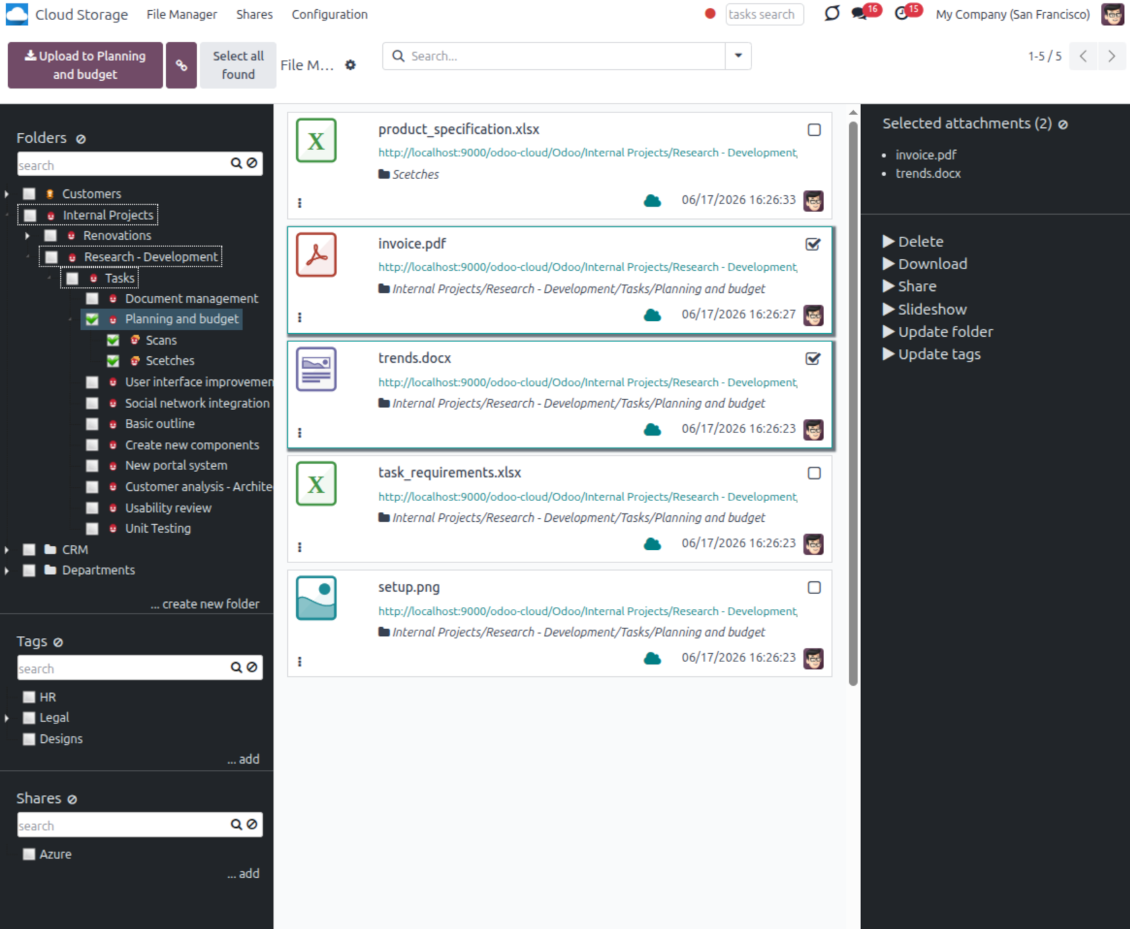
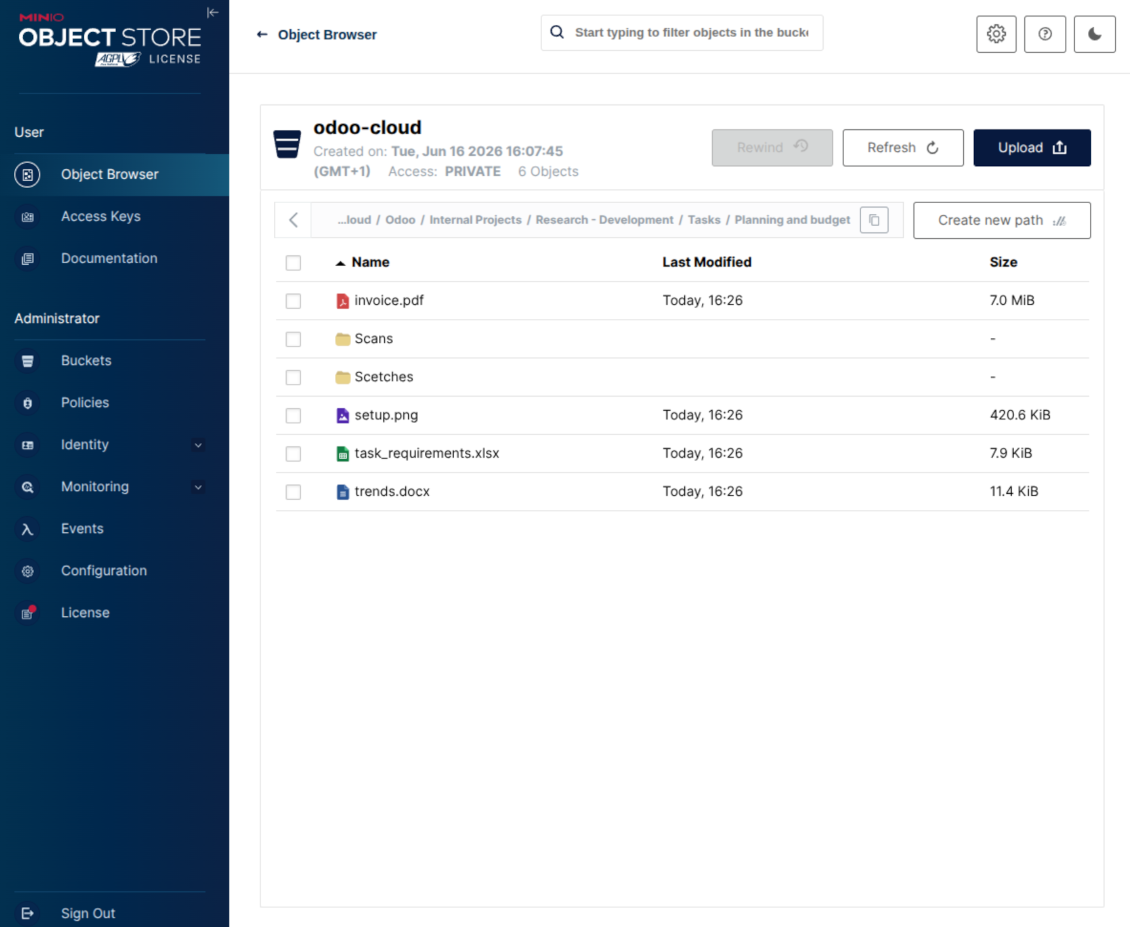
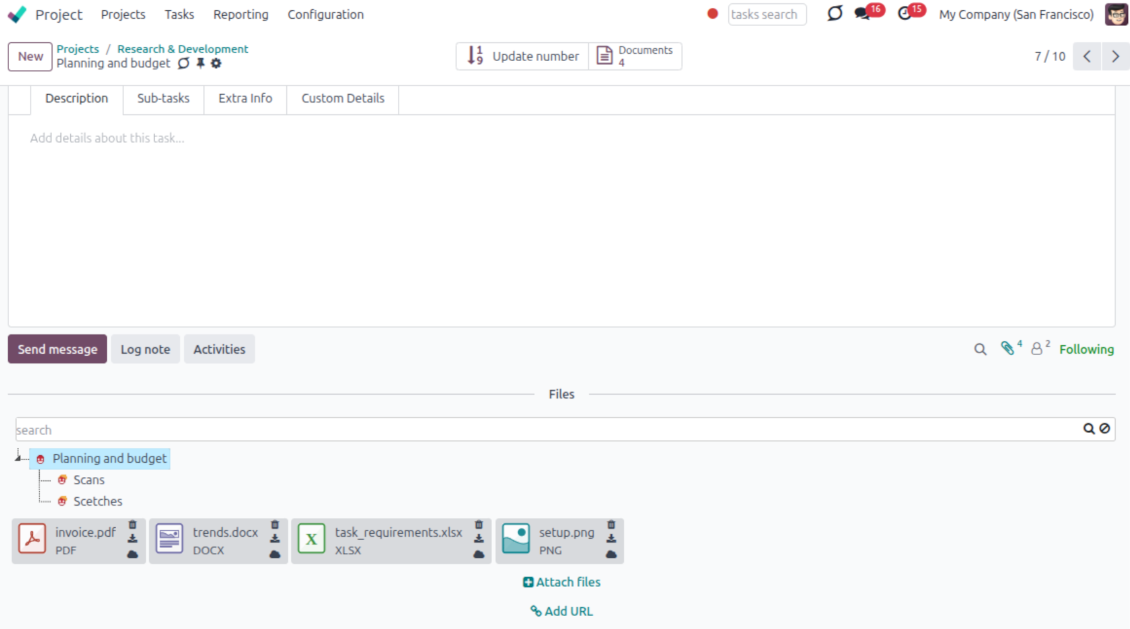
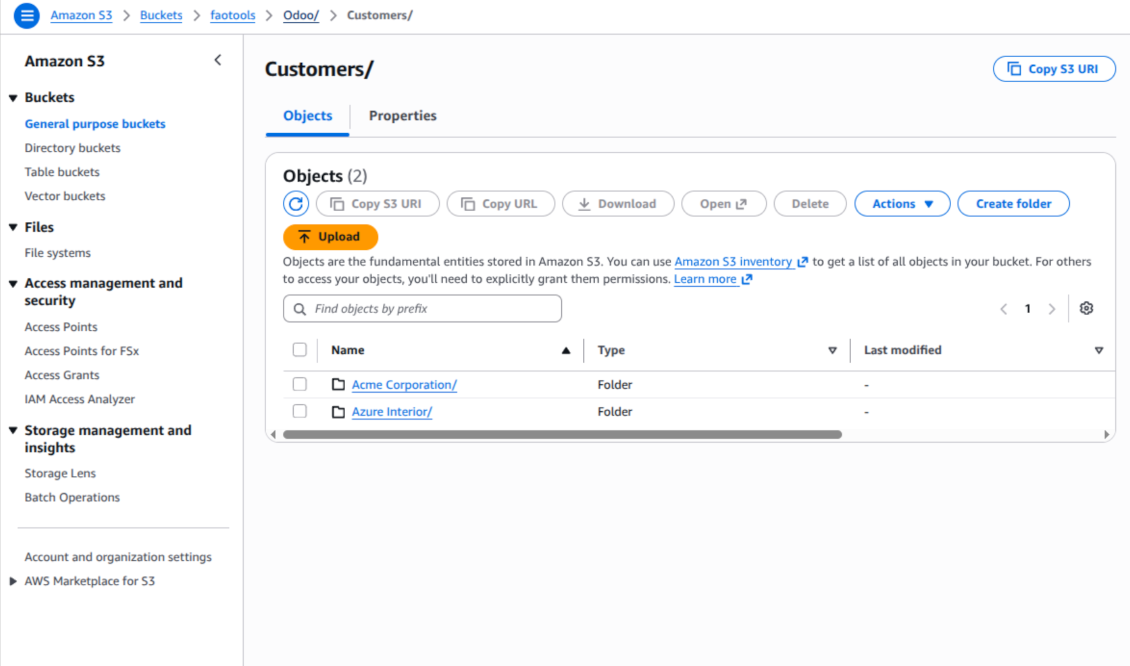
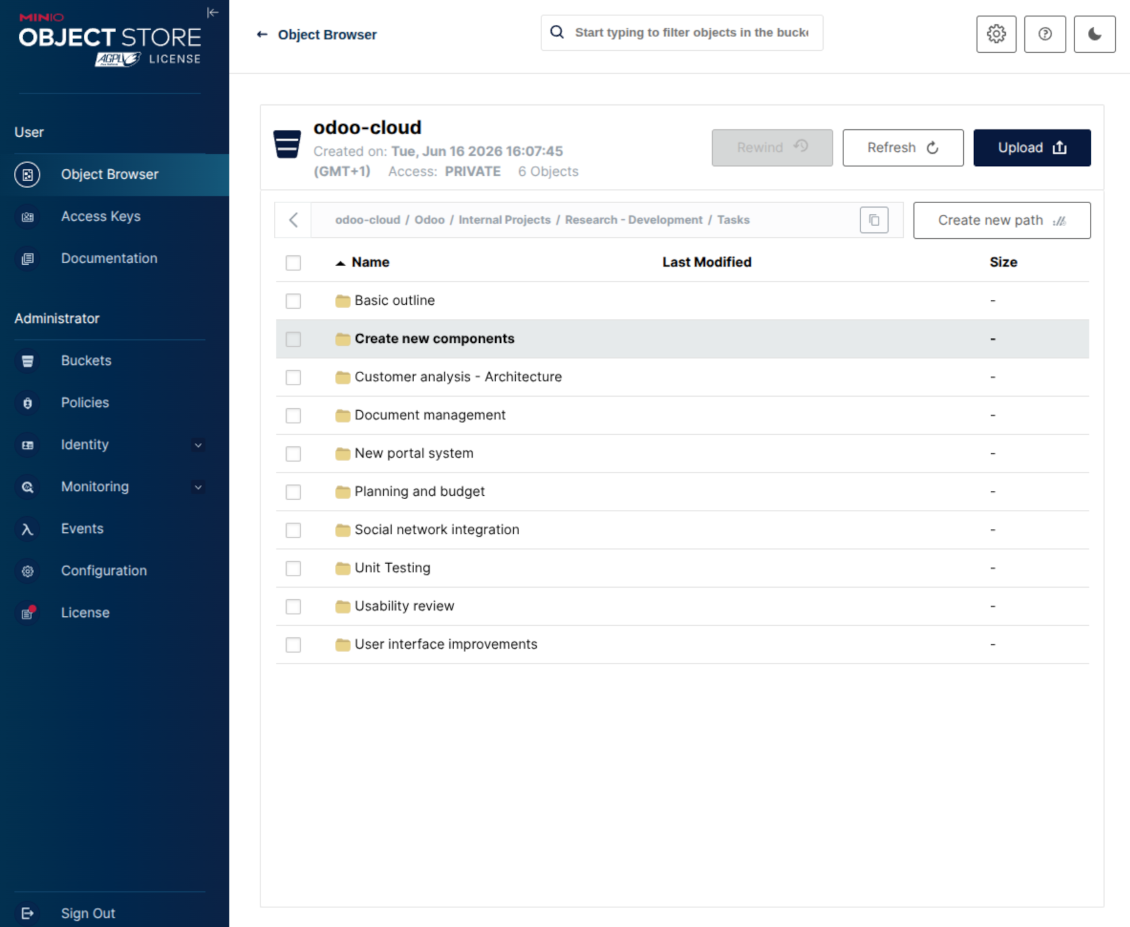
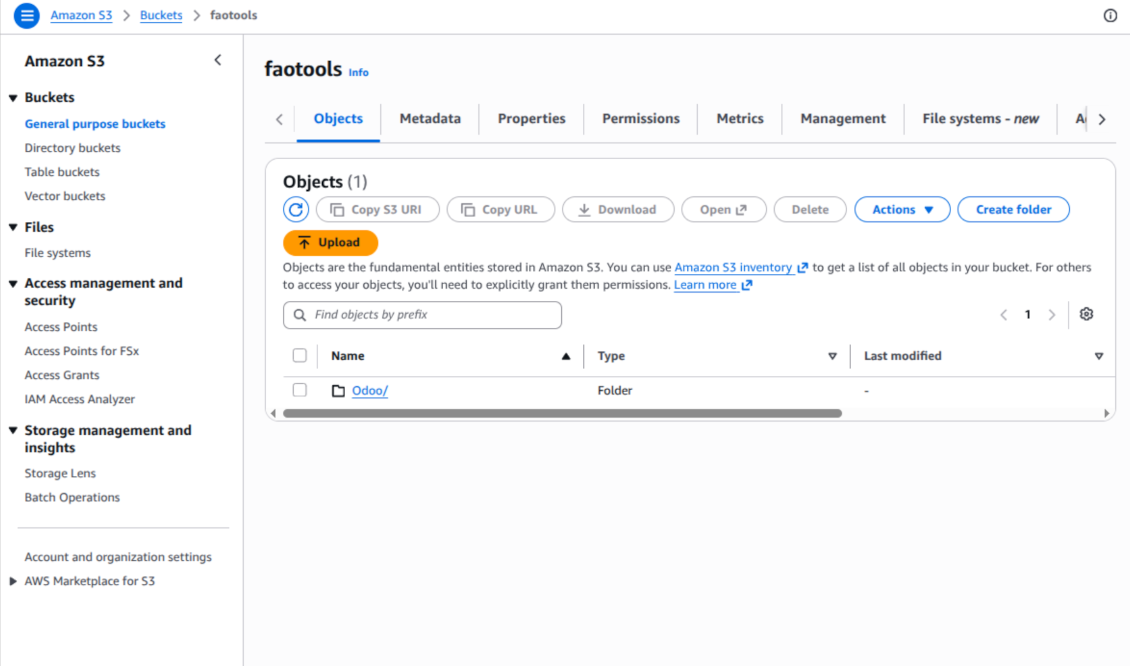
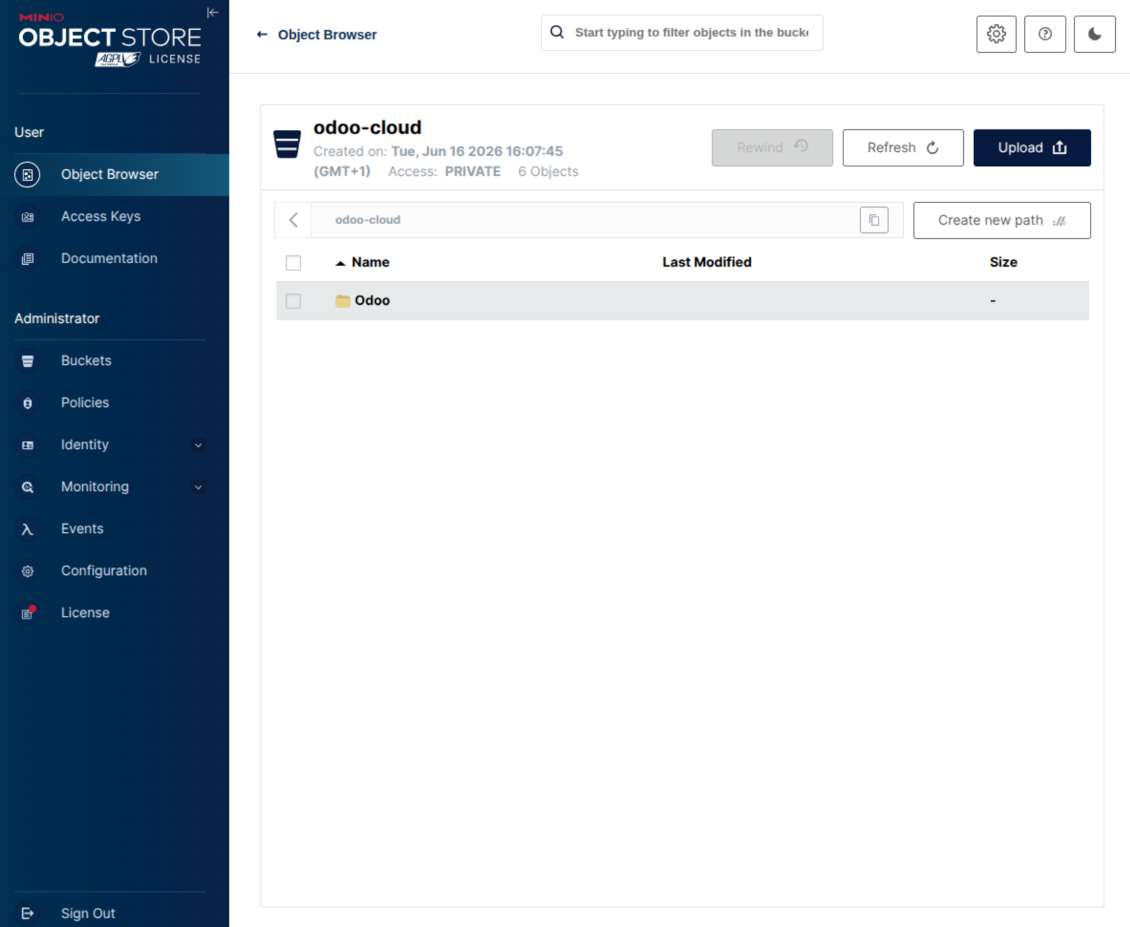
This is the tool to integrate Amazon S3 or/and MinIO features with Odoo folders and files. The app automatically stores Odoo attachments and directories in an Amazon/MinIO S3 bucket and provides access to synced objects through presigned or public web links.
Automatic folders' structure
Decide which Odoo document types should have their own folders trees and synchronize those to Amazon/MinIO S3
Automatic regular sync
Rely on auto-synchronization between Odoo and Amazon S3/MinIO S3 based on scheduled jobs. No manual interaction is required
Bilateral sync
Odoo sends attachments to Amazon/MinIO S3 and retrieves files from there. Binary content is kept in the bucket, while Odoo provides direct access to synced objects
Cloud synchronization history
Control Amazon S3//MinIO S3 sync logs right in Odoo. Export and share those in case of any issues. Be notified of any client disconnections
File manager interface
Manage synced folders and attachments from a single Odoo view. Navigate by directories, search and download files, upload and move attachments to folders
Attachment box
Organize files of any Odoo object in a set of subfolders. Instantly access folders and files in the attachment box and in Amazon S3
How synchronization works
Automatic two-sided sync
-
Configure sync for one or multiple Amazon S3 / MinIO S3 buckets or S3-compatible endpoints
-
Synchronization is bilateral. Updates in Odoo are reflected in Amazon S3 / MinIO S3 (direct sync); changes in Amazon S3 / MinIO S3 modify Odoo folders and attachments (backward sync)
-
Cloud connection with Amazon S3 / MinIO S3 might be reset. In this way, the app assumes getting all synced items back to Odoo (reverse sync)
Queue-based synchronization
-
Once in 15 minutes, the app examines updates in Odoo and Amazon S3 / MinIO S3 to prepare a synchronization queue
-
The connector lists the whole S3 root prefix to track virtual folders and object keys in a stable way during each sync run
-
If the app faces sync failures, it will retry operations afterward. Sync queue processing would not be stopped if there are items not blocked by such failures
Odoo attachments for Amazon S3 / MinIO S3: direct sync
-
Direct sync prepares the virtual folders hierarchy and uploads Odoo attachments to Amazon S3 / MinIO S3
-
Since S3 has no native folders, the app creates empty marker objects to keep empty Odoo directories visible
-
Renaming or moving S3 objects is implemented as copy and delete, following Amazon S3 / MinIO S3 mechanics
Amazon S3 objects for Odoo: backward sync
-
Backward sync checks whether any objects or sub-prefixes are added to Amazon S3 / MinIO S3 folders. If so, the app creates URL attachments or subdirectories inside linked Odoo directories
-
External S3 renames are treated according to S3 nature: old key removed and new key created. Odoo will converge by deleting and recreating the related attachment if required
-
In case of conflicts, direct sync changes are in general considered more important than backward updates
Amazon S3 URLs
Amazon S3 has a specific way to open existing objects. This connector always keeps links on the Amazon S3 side, not as local Odoo download links.
If Use Public URLs is enabled, Odoo saves direct S3 object URLs. Those links work only when the related bucket, prefix, object, CDN, or compatible storage endpoint is publicly accessible.
If Use Public URLs is disabled, Odoo saves AWS Console links to the related bucket object or prefix. Those links are intended for Amazon users: a person opening such a link must be logged in to AWS and must have enough IAM permissions to view the bucket object. If the user has no AWS access, Amazon will not open the file.
Συμβουλές διαμόρφωσης και εγκατάστασης για Amazon S3 / MinIO Odoo Integration Odoo v.18
Python dependency
The tool depends on the external library 'boto3'. Install this library for your Odoo server through the command:
pip3 install boto3Amazon S3 Configuration and log in
- Turn on the option 'Amazon S3 Sync' (Cloud Storage > Configuration > Configuration). The optional add-on Amazon S3 Odoo Integration is required
- Open the Amazon S3 Console: https://console.aws.amazon.com/s3/
- Create a new bucket or choose an existing one. Copy the exact bucket name: it should be inserted in Odoo into the field 'Bucket'
- Open the bucket details and copy its AWS Region. Insert it in Odoo into the field 'Region' (for example, eu-west-1 or us-east-1)
- Open the AWS IAM Console: https://console.aws.amazon.com/iam/
- Create a new IAM user or choose an existing technical user. This user should have full rights to list, read, create, write, copy, and delete objects within the selected bucket. You can select the full right admin, or create a new policy (see below)
- In the IAM user form, open the tab 'Security credentials' and press 'Create access key'
- On the page 'Access key best practices & alternatives', select the option Application running outside AWS. This is the correct option when your Odoo server connects to S3 by access key from outside AWS, from Odoo.sh, from your own server, or from another hosting provider. If your Odoo is installed on an AWS EC2 instance, you may instead select Application running on an AWS compute service, but the fields copied to Odoo are the same
- Press 'Next'. On the next step, optionally enter a description tag such as Odoo S3 Sync, then press 'Create access key'
- On the final AWS page, copy Access key or Access key ID into the Odoo field 'Access Key'
- Copy Secret access key into the Odoo field 'Secret Key'. Important: AWS shows the secret key only once, so save it before closing the window
- If you use an S3-compatible provider instead of AWS S3, copy the endpoint URL from that provider's admin panel and insert it into Odoo into the field 'Amazon S3 endpoint URL'. For example, MinIO often uses a URL like https://minio.example.com or http://localhost:9000; LocalStack commonly uses http://localhost:4566
- Go to Odoo Cloud Storage > Configuration > Cloud Clients and press 'Create'
- As a reference, introduce any name which would be clear to all users
- As a Cloud client, choose 'Amazon S3'
- As a Root folder name, enter a title that will be used as the parent S3 prefix for all synced folders. For example, 'Odoo' or 'OdooERP'
- Fill in the fields 'Bucket', 'Region', 'Access Key', 'Secret Key', and, if needed, 'Amazon S3 endpoint URL' and addressing style
- Choose whether Odoo should use temporary presigned URLs or public bucket/CDN URLs. For private buckets, keep presigned URLs enabled and set their lifetime in seconds
- Press 'Confirm'. Odoo checks bucket access and creates or verifies the root folder prefix. Amazon S3 - Odoo synchronization is ready to be done
- Apply the newly created cloud client to folder rules and/or manual folders which should be synced to that Amazon S3 bucket
- Await the sync scheduled job to be started. For testing purposes only: trigger integration manually from Cloud Storage > Configuration > Configuration > the button 'Launch sync'.
Useful AWS documentation: creating an S3 bucket: https://docs.aws.amazon.com/AmazonS3/latest/userguide/creating-bucket.html, managing IAM access keys: https://docs.aws.amazon.com/IAM/latest/UserGuide/id_credentials_access-keys.html.
Bucket policy example
    {
    "Version": "2012-10-17",
    "Statement": [
        {
            "Sid": "ListObjectsInBucket",
            "Effect": "Allow",
            "Action": [
                "s3:ListBucket"
            ],
            "Resource": "arn:aws:s3:::NAME_OF_YOUR_BUCKET"
        },
        {
            "Sid": "AllObjectActions",
            "Effect": "Allow",
            "Action": [
                "s3:GetObject",
                "s3:PutObject",
                "s3:DeleteObject"
            ],
            "Resource": "arn:aws:s3:::NAME_OF_YOUR_BUCKET/*"
        }
    ]
}
Create a new AWS IAM user

Specify the IAM user name

Attach permission policies directly

Amazon S3 bucket policy JSON example

Review and name the S3 policy

Select the bucket policy for the user

Review and create the IAM user

Create an access key for the user

Choose the access key use case

Set the access key description tag

Retrieve the access key and secret

Configure the Amazon S3 client in Odoo

Amazon S3 URLs and access rights
Amazon S3 has an important peculiarity: the URL shown in Odoo is always an Amazon-side link.
If Use Public URLs is enabled, Odoo saves a direct S3 object URL. This link works only if the related S3 bucket, prefix, object, CDN, or compatible endpoint is publicly readable. Otherwise, Amazon S3 will show AccessDenied, even if the user is logged in to the AWS console.
For public links, configure the bucket permissions in Amazon S3 and allow public read access for the Odoo prefix. Example bucket policy:
{
  "Version": "2012-10-17",
  "Statement": [
    {
      "Sid": "PublicReadOdooPrefix",
      "Effect": "Allow",
      "Principal": "*",
      "Action": "s3:GetObject",
      "Resource": "arn:aws:s3:::YOUR_BUCKET_NAME/Odoo/*"
    }
  ]
}
Replace YOUR_BUCKET_NAME with the real bucket name and Odoo/ with the selected root folder prefix. Also make sure that Amazon S3 Block public access settings do not block that bucket policy.
If Use Public URLs is disabled, Odoo saves AWS Console links to the related bucket object or prefix. Such links are useful for Amazon users: the person opening the link must be logged in to AWS and must have IAM access to that bucket object. If the user has no AWS access, Amazon will not open the file.
MinIO configuration and log in
- Prepare a running MinIO server
- Open the MinIO Console
- Create a new bucket or choose an existing one. Copy the exact bucket name: it should be inserted in Odoo into the field 'Bucket'
- Create access credentials for Odoo. In MinIO, use an access key / secret key pair or a service account that has rights to list, read, create, write, copy, and delete objects within the selected bucket
- Copy the MinIO Access Key into the Odoo field 'Access Key'
- Copy the MinIO Secret Key into the Odoo field 'Secret Key'. Important: save the secret before closing the MinIO page if MinIO shows it only once
- Copy the MinIO S3 API endpoint URL into Odoo into the field 'Amazon S3 endpoint URL'. For example, a local server usually uses http://localhost:9000, while a production server may use https://minio.example.com
- Go to Odoo Cloud Storage > Configuration > Cloud Clients and press 'Create'
- As a reference, introduce any name which would be clear to all users
- As a Cloud client, choose 'MinIO'
- As a Root folder name, enter a title that will be used as the parent MinIO object prefix for all synced folders. For example, 'Odoo' or 'OdooERP'
- Fill in the fields 'Bucket', 'Access Key', 'Secret Key', and 'Amazon S3 endpoint URL'. The field 'Region' is optional for MinIO; if it is empty, Odoo uses us-east-1 for S3-compatible signing
- Keep the addressing style as Path-style. This is the recommended option for MinIO endpoints, especially when the MinIO host does not provide bucket-specific DNS names
- Choose whether Odoo should use direct public MinIO URLs. Enable 'Use Public URLs' only when the bucket, prefix, reverse proxy, or CDN is publicly readable. For private MinIO buckets, leave it disabled
- Press 'Confirm'. Odoo checks bucket access and creates or verifies the root folder prefix. MinIO - Odoo synchronization is ready to be done
- Apply the newly created cloud client to folder rules and/or manual folders which should be synced to that MinIO bucket
- Await the sync scheduled job to be started. For testing purposes only: trigger integration manually from Cloud Storage > Configuration > Configuration > the button 'Launch sync'.
Useful MinIO documentation: https://min.io/docs/minio/linux/administration/identity-access-management.html, https://min.io/docs/minio/linux/reference/minio-server/minio-server.html.
Create a MinIO access key

Copy the new MinIO credentials

Configure the MinIO cloud client in Odoo

Συχνές ερωτήσεις για Amazon S3 / MinIO Odoo Integration Odoo v.18
Πού αποθηκεύονται τα συγχρονισμένα πεδία; Αντιγράφονται στο Odoo και στα clouds;
Η εφαρμογή υποθέτει ότι το δυαδικό περιεχόμενο των συνημμένων φυλάσσεται στο Cloud Client αντί στον διακομιστή Odoo. Έτσι, αυτά τα συνημμένα στο Odoo γίνονται τύπου URL και μπορείτε ανά πάσα στιγμή να τα ανοίξετε είτε από το πλαίσιο συνημμένων είτε από το Cloud Client.
Μετά τη ρύθμιση δεν απαιτούνται χειροκίνητες ενέργειες, καθώς ο συγχρονισμός είναι πλήρως αυτόματος. Αποφασίστε ποιοι τύποι εγγράφων Odoo θα συγχρονίζονται και ορίστε ένα σχετικό μοντέλο συγχρονισμού για καθέναν από αυτούς (Πελάτες, παραγγελίες πώλησης ή αγοράς, Εργασίες, Έργα κ.λπ.).
Μπορώ να έχω μερικούς φακέλους για τον ίδιο τύπο εγγράφου; Για παράδειγμα, εσωτερικά έργα και έργα πελατών;
Ναι, μπορείτε. Για αυτό ετοιμάστε έναν κανόνα για τον καθένα και μετά εφαρμόστε φίλτρα: π.χ. κατά τύπο έργου.
Προσπαθήστε τα φίλτρα να είναι αμοιβαία αποκλειόμενα ώστε ένα έγγραφο να αντιστοιχίζεται με βεβαιότητα. Π.χ. «πελάτης αλλά όχι προμηθευτής», «προμηθευτής αλλά όχι πελάτης». Διαφορετικά, ο φάκελος ενός εγγράφου θα μεταπηδά από μοντέλο σε μοντέλο.
Είναι δυνατόν ο συγχρονισμός να γίνεται σε πραγματικό χρόνο;
Όχι. Έχουμε σοβαρούς λόγους να αποφεύγουμε τον συγχρονισμό σε πραγματικό χρόνο:
Προβλήματα απόδοσης. Αν ο συγχρονισμός είναι σε πραγματικό χρόνο, κάθε μεταφόρτωση αρχείου θα εμφανίζει οθόνη φόρτωσης.
Προβλήματα συγκρούσεων. Αν 2 χρήστες αλλάξουν ταυτόχρονα ένα στοιχείο, μπορεί να προκύψουν άλυτες καταστάσεις. Με τακτικές εργασίες μπορούμε να το διορθώσουμε εκ των υστέρων, ενώ σε πραγματικό χρόνο θα έπρεπε να το σώσουμε ως ουρά, κάτι ακόμη πιο παραπλανητικό για τους χρήστες.
Προβλήματα λειτουργικότητας. Ιδιαίτερα η μετονομασία και η αναδιάρθρωση στοιχείων. Στον αντίστροφο συγχρονισμό το εργαλείο βασίζεται αυστηρά στη λογική των καταλόγων και σε κάθε συγχρονισμό ελέγχεται το 100% των στοιχείων. Αν γίνεται μετά από κάθε ενημέρωση, θα είναι χιλιάδες αιτήματα ανά δευτερόλεπτο. Αν όχι: οι αλλαγές θα χάνονταν.
Μπορώ να αλλάξω τα προεπιλεγμένα ονόματα φακέλων στα σύννεφα;
Μπορείτε να ορίσετε δικό σας όνομα για τους καταλόγους μοντέλων (παραγγελίες πώλησης, ευκαιρίες, προμηθευτές κ.λπ.) για οποιονδήποτε τύπο εγγράφου.
Για τους φακέλους αντικειμένων (SO-001, John Smith κ.λπ.), το εργαλείο βασίζεται στη μέθοδο Odoo για το όνομα εμφάνισης αυτού του τύπου εγγράφου. Μπορείτε όμως να το αλλάξετε ορίζοντας την έκφραση ονόματος. Χρησιμοποιείται ακριβώς η σύνταξη των προτύπων email του Odoo.
Μπορώ να αλλάξω τη συχνότητα των εργασιών συγχρονισμού;
Όχι, από την έκδοση 15 δεν πρέπει να αλλάζετε τις προγραμματισμένες εργασίες. Είναι βελτιστοποιημένες να τρέχουν κάθε 15 λεπτά ώστε να διασφαλίζεται η σταθερότερη και ταχύτερη σύνδεση.
Βεβαιωθείτε ότι τα χρονικά όρια του διακομιστή Odoo είναι τουλάχιστον 15 λεπτά (900 δευτερόλεπτα).
Αν χρειάζεται να σταματήσετε τον συγχρονισμό για λίγο, κάντε το στη φόρμα του συγκεκριμένου cloud client.
Μπορώ να συγχρονίσω συνημμένα σε λίγους πελάτες cloud
Ναι, από την έκδοση 15 μπορείτε να ρυθμίσετε πολλές συνδέσεις. Έτσι κάποιοι φάκελοι συγχρονίζονται με έναν cloud client και άλλοι με άλλον.
Λάβετε υπόψη ότι δεν είναι δυνατό να συγχρονιστεί ο ίδιος φάκελος ταυτόχρονα με πολλά cloud storages.
Στα clouds μας χρησιμοποιούμε ειδικό επεξεργαστή (π.χ. OnlyOffice, Office 365 κ.λπ.). Θα ανοίγουν τα αρχεία σε αυτόν τον επεξεργαστή;
Ναι, ανάλογα με τη διαμόρφωση του cloud client.
Χρειάζομαι μόνο την εφαρμογή Cloud Storage Solution;
Από την έκδοση 15 η εφαρμογή μπορεί να χρησιμοποιηθεί αυτόνομα για οργάνωση συνημμένων σε φακέλους και διεπαφή διαχειριστή αρχείων.
Ωστόσο, αν στόχος είναι σύνδεση με έναν από τους πελάτες νέφους, χρειάζεστε τουλάχιστον μία προαιρετική εφαρμογή πελάτη εγκατεστημένη.
Τι γίνεται όταν αλλάξω κανόνα φακέλου;
Όταν αλλάζει ένας κανόνας φακέλου, αλλάζει και η λίστα φακέλων. Αν ένας φάκελος δεν πληροί πλέον τις συνθήκες των κανόνων, αφαιρείται. Αν τα αρχεία έχουν συγχρονιστεί, ο αντίστροφος συγχρονισμός τα επιστρέφει στο Odoo και τα διαγράφει από το Cloud Client.
Αν το αντικείμενο ενός εγγράφου δεν πληροί τις συνθήκες κανόνα φακέλου, ο φάκελός του δεν δημιουργείται. Αν όμως αργότερα τις πληροί, θα δημιουργηθεί ο σχετικός φάκελος.
Μπορώ να κρατήσω μόνο τον άμεσο συγχρονισμό ή να απενεργοποιήσω τον συγχρονισμό από το cloud;
Ναι. Στον πελάτη cloud ανοίξτε τη σελίδα Ρυθμίσεις και ενεργοποιήστε το Απενεργοποίηση του συγχρονισμού από το cloud.
Ο συγχρονισμός μένει μονόδρομος. Οι αλλαγές που γίνονται στο Odoo στέλνονται ακόμη στον χώρο αποθήκευσης cloud. Αρχεία και φάκελοι που δημιουργούνται, μετονομάζονται ή διαγράφονται στον χώρο αποθήκευσης cloud δεν εμφανίζονται στο Odoo και οι φάκελοι που διαγράφονται εκεί δεν επαναφέρονται.
Απενεργοποιήστε ξανά την επιλογή για να εφαρμοστούν οι συσσωρευμένες αλλαγές, μαζί με τις διαγραφές, στον επόμενο συγχρονισμό.
Αυτή η ρύθμιση είναι διαθέσιμη από την έκδοση 18. Η αποσύνδεση, η επαναφορά ή η απενεργοποίηση του πελάτη εκτελεί ακόμη τον αντίστροφο συγχρονισμό, εκτός αν απενεργοποιήσετε και αυτόν.
Το κείμενο εφαρμογής και ιστότοπου σε άλλες γλώσσες πλην των αγγλικών γίνεται με βοήθεια ΤΝ και ευθυγραμμίζεται με τις επίσημες μεταφράσεις Odoo. Αν εντοπίσετε λάθος, στείλτε αίτημα για ορθότητα μεταφράσεων και θα το διορθώσουμε.
Βάσεις επίδειξης Odoo (ζωντανές προεπισκοπήσεις)
Για αυτή την εφαρμογή ενδέχεται να παρέχουμε δωρεάν εξατομικευμένη βάση επίδειξης.
Δεν χρειάζεστε αριθμό τηλεφώνου ή πιστωτική κάρτα για να επικοινωνήσετε. Αρκεί μια σύντομη εγγραφή με e-mail που δεν διαρκεί πάνω από 30 δευτερόλεπτα.
Κατόπιν αιτήματός σας, θα προετοιμάσουμε μια ατομική βάση ζωντανής προεπισκόπησης, όπου μπορείτε να κάνετε δοκιμές και να ελέγξετε υποθέσεις για περίπου δύο εβδομάδες.
Αναφορά σφαλμάτων
Αν αντιμετωπίσετε σφάλματα ή ασυνεπή συμπεριφορά, μη διστάσετε να επικοινωνήσετε μαζί μας. Εγγυόμαστε διορθώσεις εντός 60 ημερών από την αγορά και ενδιαφερόμαστε έντονα να βελτιώνουμε τα εργαλεία μας και μετά από αυτή την περίοδο.
Δεν χρειάζεστε αριθμό τηλεφώνου ή πιστωτική κάρτα για να επικοινωνήσετε. Αρκεί μια σύντομη εγγραφή με e-mail που δεν διαρκεί πάνω από 30 δευτερόλεπτα.
Συμπεριλάβετε όσο το δυνατόν περισσότερες λεπτομέρειες στο αίτημά σας: στιγμιότυπα οθόνης, αρχεία καταγραφής διακομιστή Odoo, πλήρη περιγραφή αναπαραγωγής του προβλήματος κ.λπ. Συνήθως χρειάζονται μερικές εργάσιμες ημέρες για να ετοιμαστεί σχέδιο εργασίας για ένα ζήτημα (αν επιβεβαιωθεί σφάλμα) ή να σας δοθούν οδηγίες για το τι πρέπει να γίνει (διαφορετικά).
Δημόσια αιτήματα λειτουργιών και ιδέες μονάδων (δωρεάν ανάπτυξη)
Έχουμε ισχυρό κίνητρο να βελτιώνουμε τα εργαλεία μας και θα εκτιμούσαμε κάθε σχόλιο. Αν οι απαιτήσεις σας είναι κοινής ωφέλειας και μπορούν να υλοποιηθούν αποδοτικά, η ομάδα θα τις εντάξει στη λίστα εργασιών μας.
Τέτοια λίστα εργασιών επεξεργάζεται τακτικά και δεν συνεπάγεται επιπλέον χρεώσεις. Αν και δεν μπορούμε να υποσχεθούμε προθεσμίες και τελικό σχεδιασμό, μπορεί να είναι καλός τρόπος να αποκτήσετε τις επιθυμητές λειτουργίες χωρίς επενδύσεις και κινδύνους.
Δεν χρειάζεστε αριθμό τηλεφώνου ή πιστωτική κάρτα για να επικοινωνήσετε. Αρκεί μια σύντομη εγγραφή με e-mail που δεν διαρκεί πάνω από 30 δευτερόλεπτα.


The tool to build a deep and structured knowledge base for internal and external use. Knowledge System. KMS. Wiki-like revisions.
398€
The tool to set up KPI targets and control their fulfillment by periods. KPI dashboards. Dashboard designer. KPI charts

The tool for time-based service management from booking appointments to sales and reviews
398€
The tool to manage your Odoo from your favorite AI chats through MCP. Claude. Any MCP-supporting AI.

Το εργαλείο για να οργανώνετε ευέλικτα τα συνημμένα του Odoo σε φακέλους και να συγχρονίζετε καταλόγους με πελάτες cloud: Google Drive, OneDrive/SharePoint, Nextcloud/ownCloud, Dropbox, Amazon S3, Box και NAS. DMS. Διαχειριστής αρχείων. Σύστημα διαχείρισης εγγράφων
398€
The tool to automatically synchronize Odoo attachments with OneDrive files in both ways
487€
The tool to automatically synchronize Odoo attachments with Google Drive files in both ways
487€
The tool to automatically synchronize Odoo attachments with ownCloud/Nextcloud files in both ways
487€