Amazon S3 / MinIO Odoo Integration v.18
The tool to automatically synchronize Odoo attachments with Amazon S3 or/and MinIO files in both ways
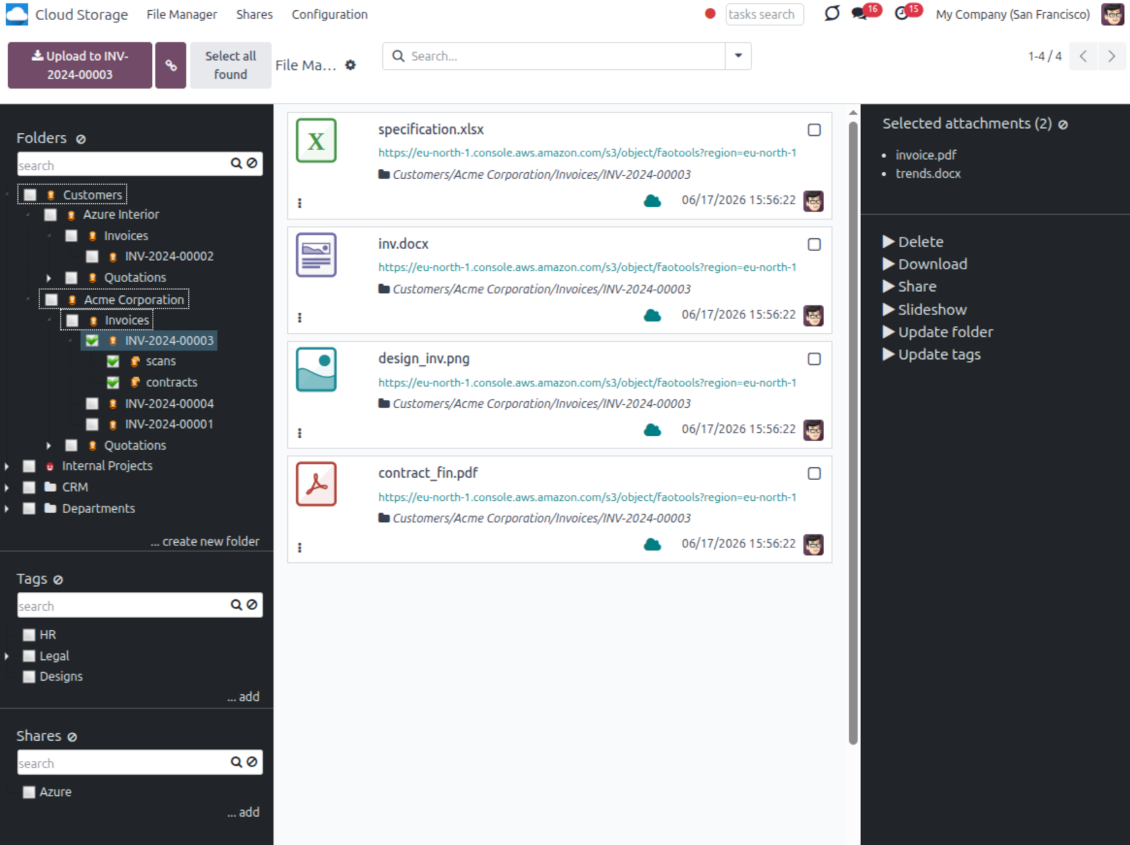
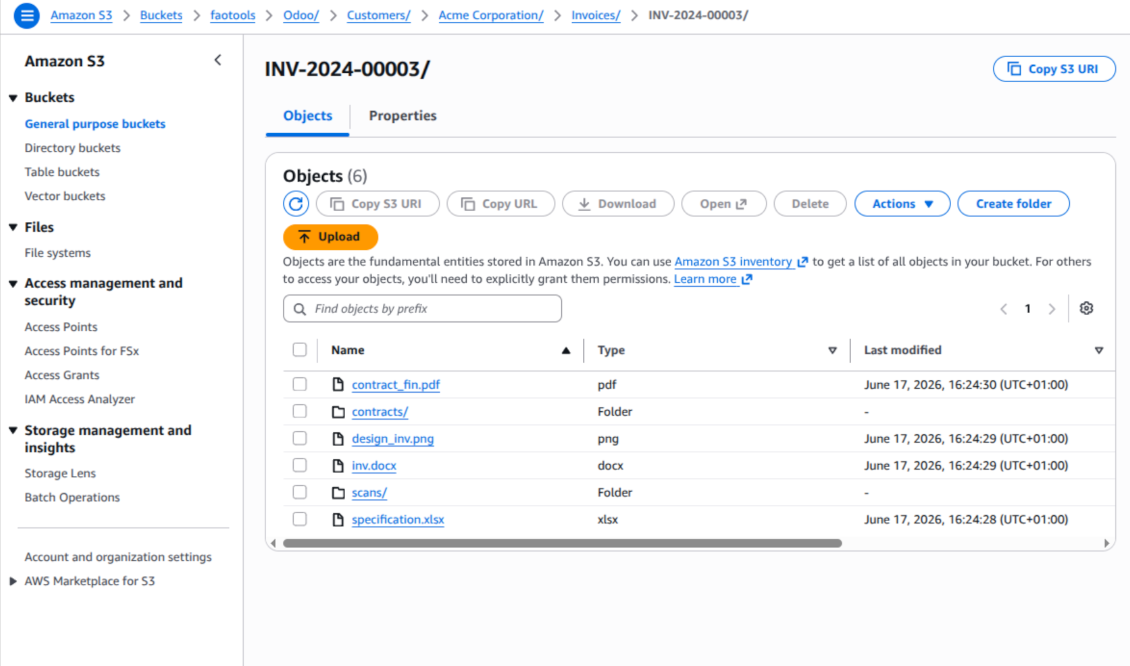
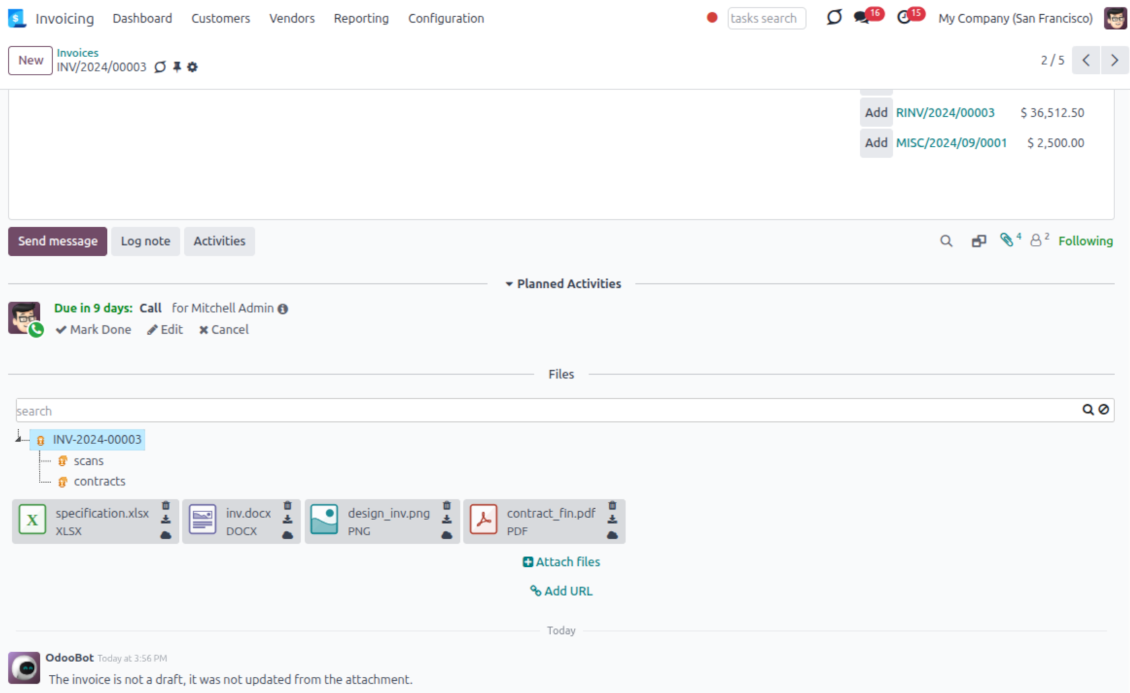
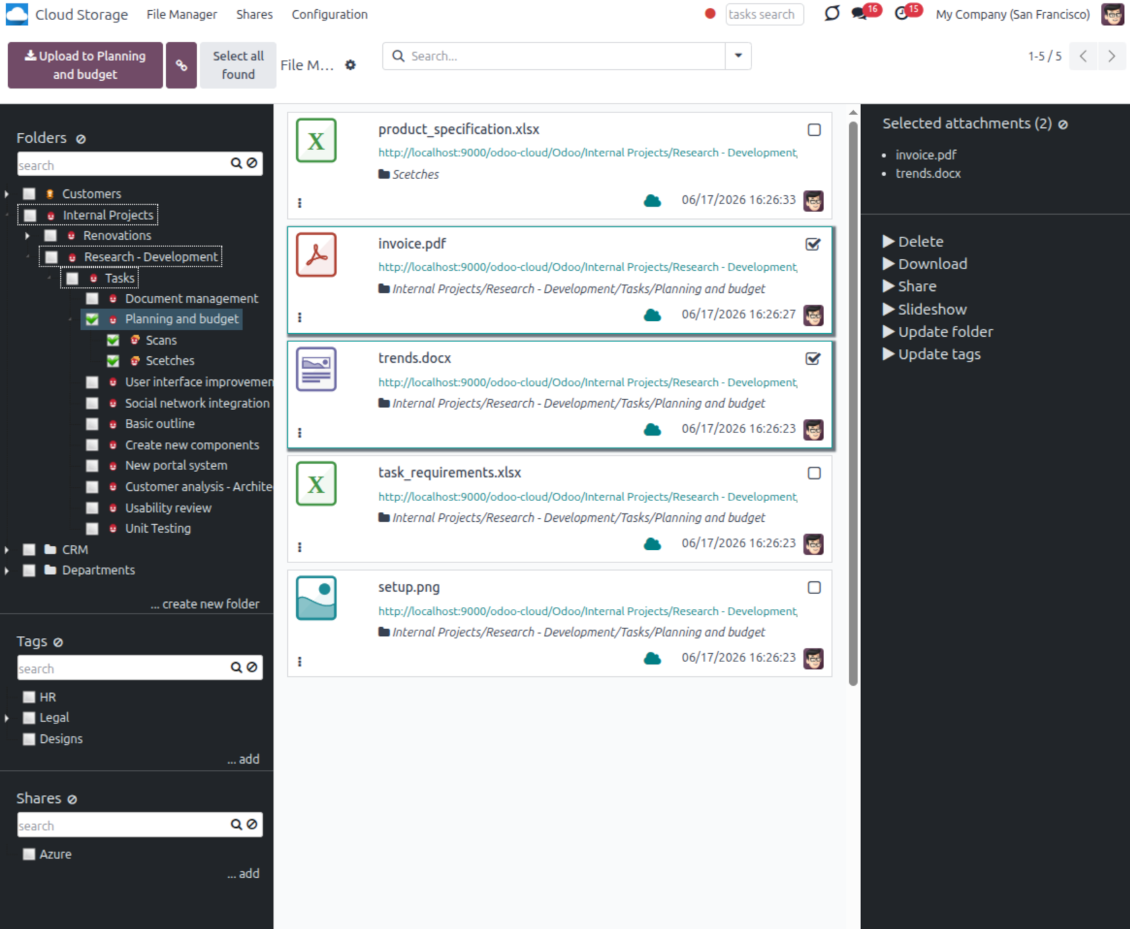
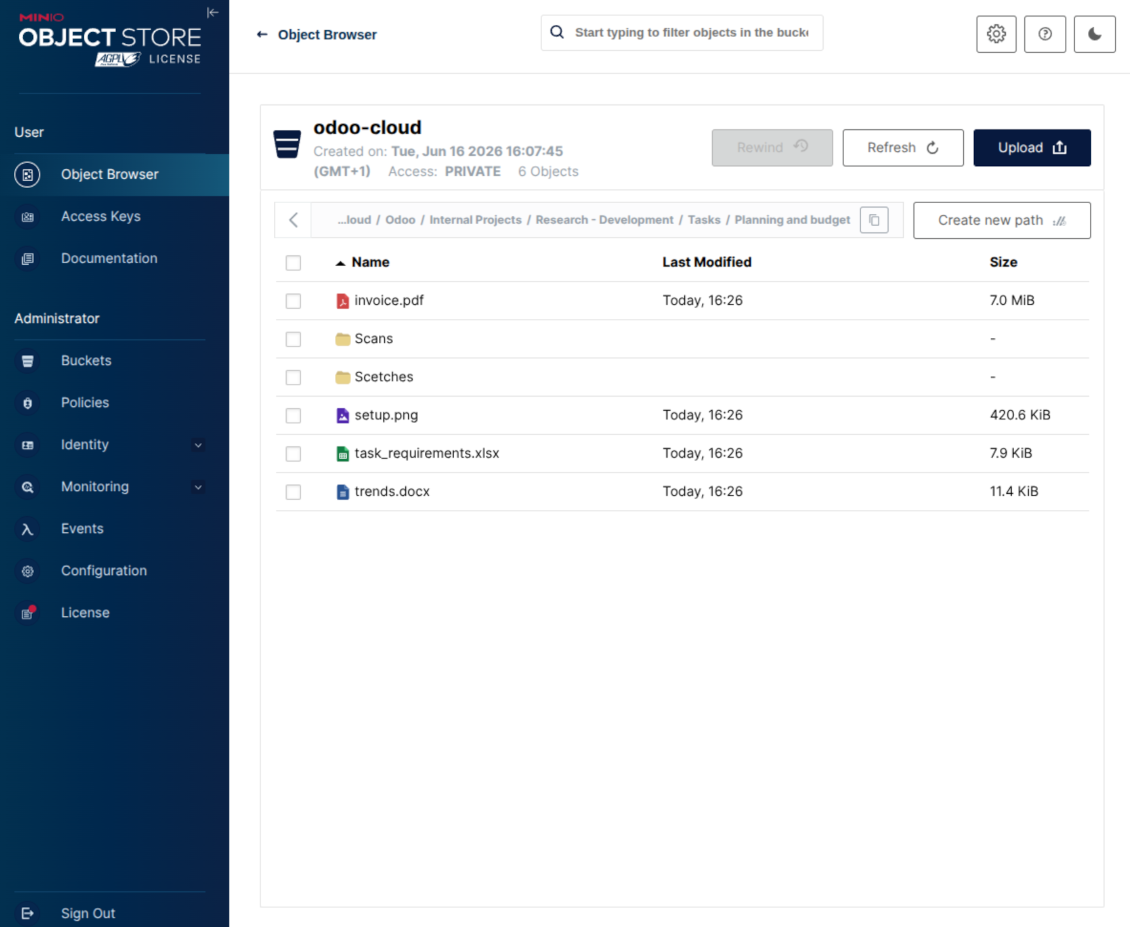
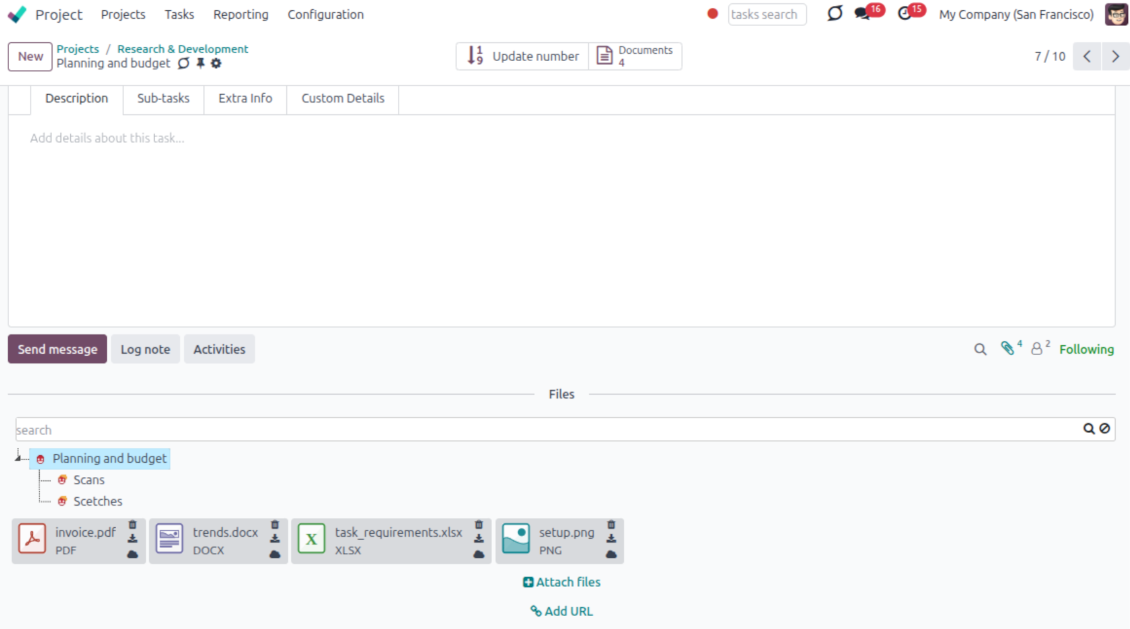
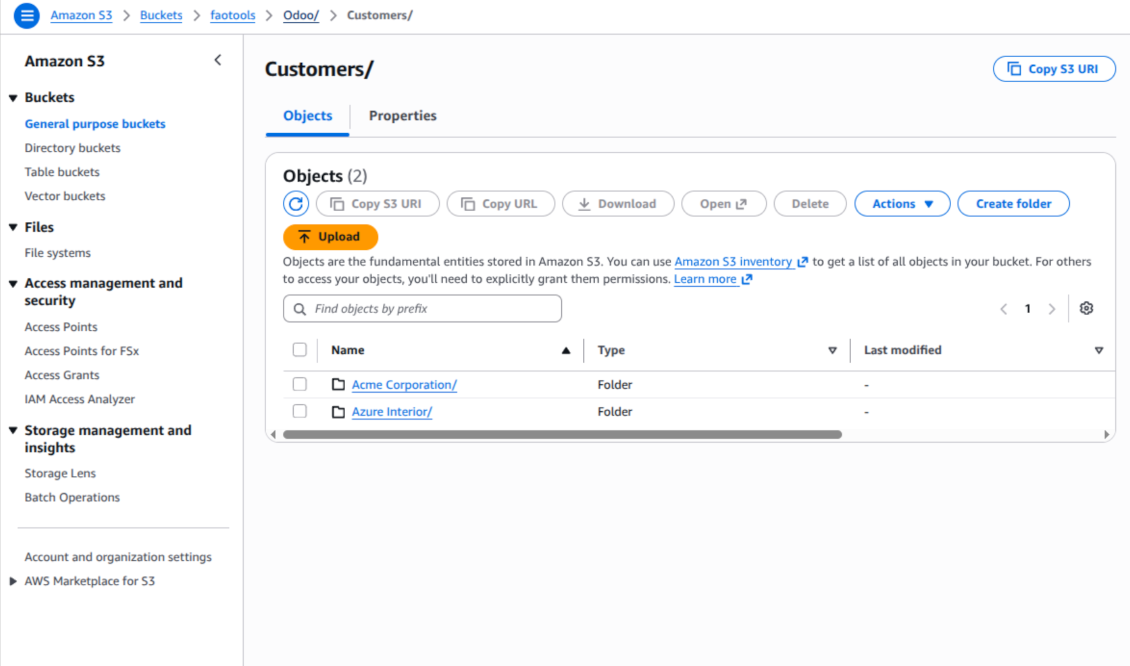
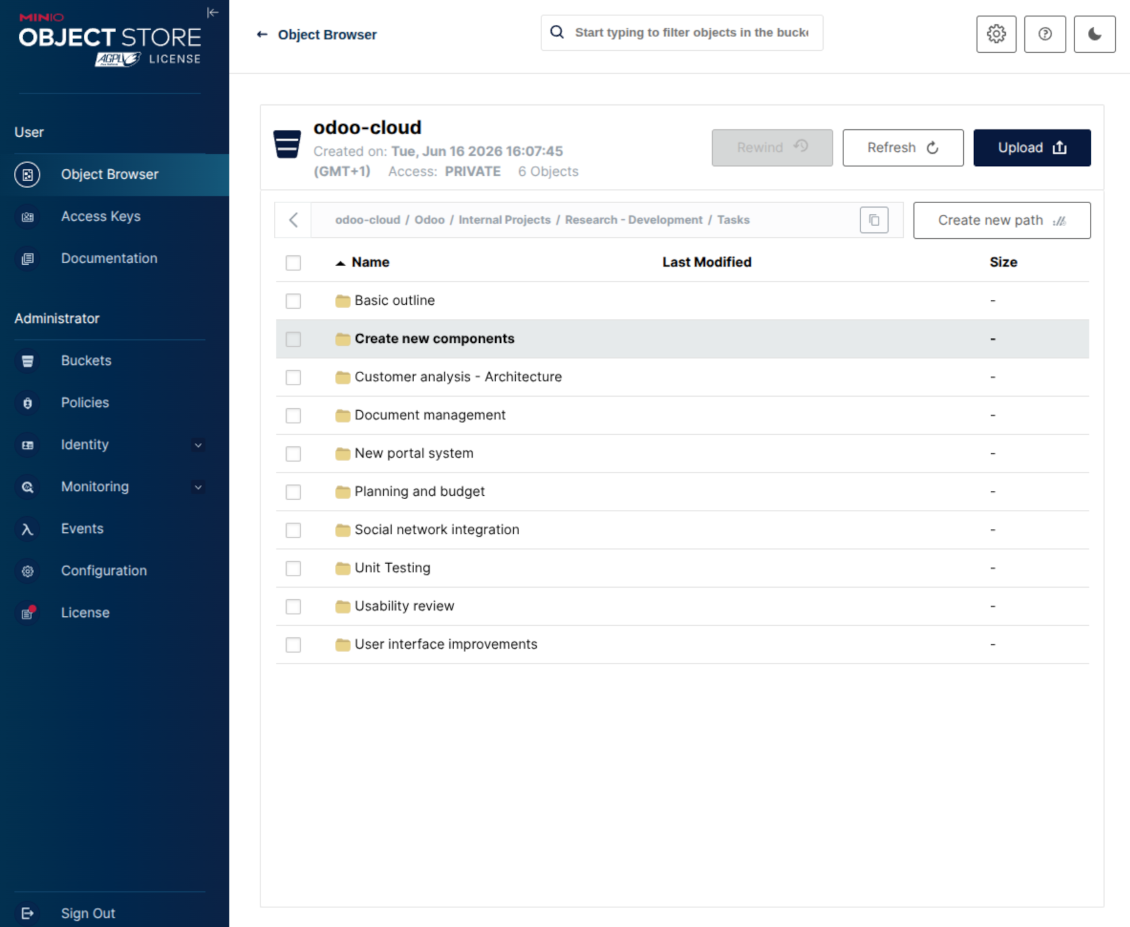
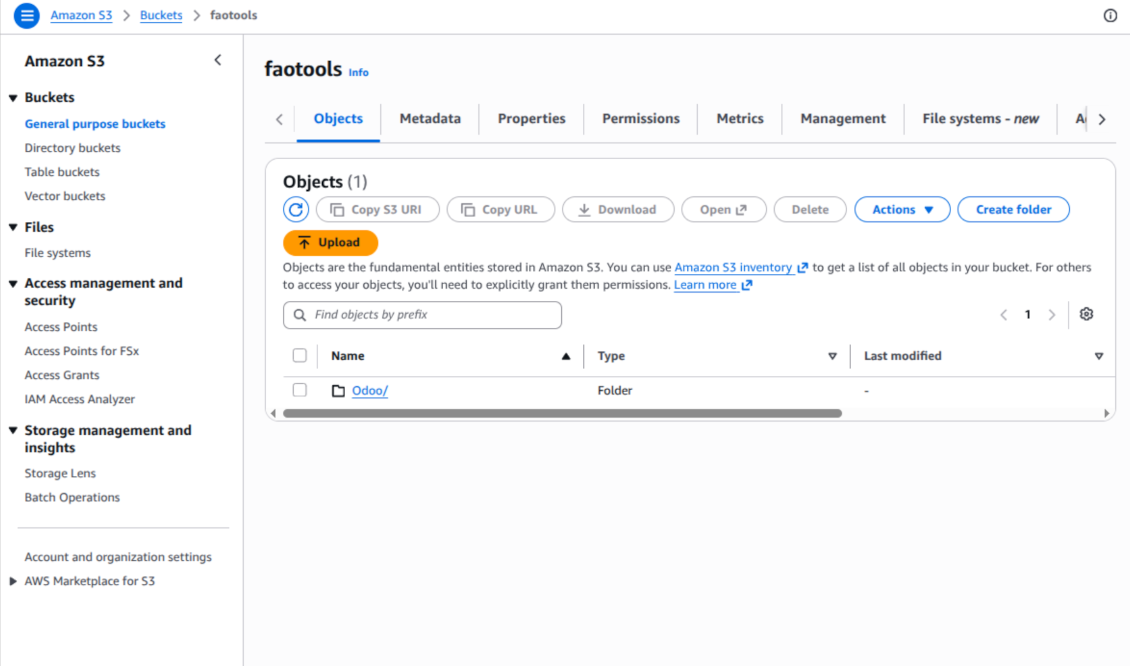
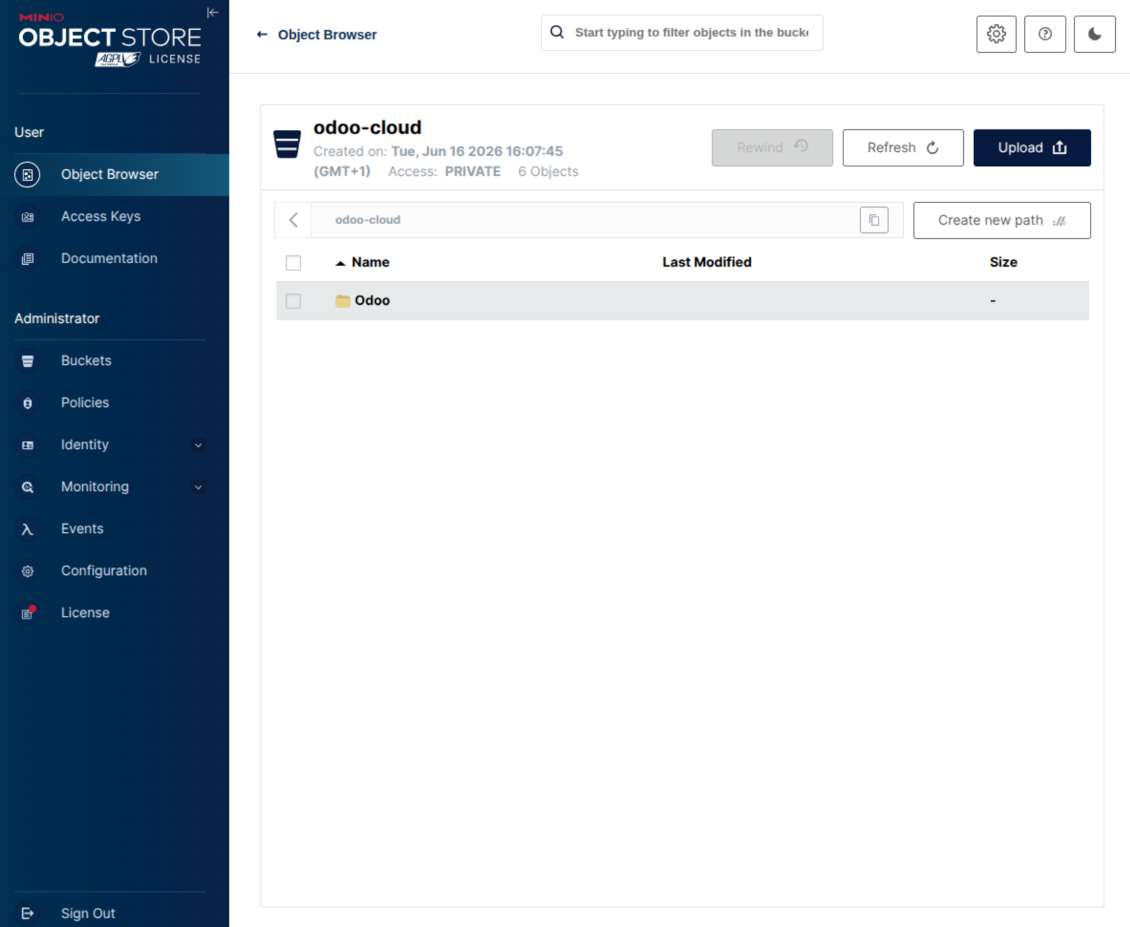
This is the tool to integrate Amazon S3 or/and MinIO features with Odoo folders and files. The app automatically stores Odoo attachments and directories in an Amazon/MinIO S3 bucket and provides access to synced objects through presigned or public web links.
Automatic folders' structure
Decide which Odoo document types should have their own folders trees and synchronize those to Amazon/MinIO S3
Automatic regular sync
Rely on auto-synchronization between Odoo and Amazon S3/MinIO S3 based on scheduled jobs. No manual interaction is required
Bilateral sync
Odoo sends attachments to Amazon/MinIO S3 and retrieves files from there. Binary content is kept in the bucket, while Odoo provides direct access to synced objects
Cloud synchronization history
Control Amazon S3//MinIO S3 sync logs right in Odoo. Export and share those in case of any issues. Be notified of any client disconnections
File manager interface
Manage synced folders and attachments from a single Odoo view. Navigate by directories, search and download files, upload and move attachments to folders
Attachment box
Organize files of any Odoo object in a set of subfolders. Instantly access folders and files in the attachment box and in Amazon S3
How synchronization works
Automatic two-sided sync
-
Configure sync for one or multiple Amazon S3 / MinIO S3 buckets or S3-compatible endpoints
-
Synchronization is bilateral. Updates in Odoo are reflected in Amazon S3 / MinIO S3 (direct sync); changes in Amazon S3 / MinIO S3 modify Odoo folders and attachments (backward sync)
-
Cloud connection with Amazon S3 / MinIO S3 might be reset. In this way, the app assumes getting all synced items back to Odoo (reverse sync)
Queue-based synchronization
-
Once in 15 minutes, the app examines updates in Odoo and Amazon S3 / MinIO S3 to prepare a synchronization queue
-
The connector lists the whole S3 root prefix to track virtual folders and object keys in a stable way during each sync run
-
If the app faces sync failures, it will retry operations afterward. Sync queue processing would not be stopped if there are items not blocked by such failures
Odoo attachments for Amazon S3 / MinIO S3: direct sync
-
Direct sync prepares the virtual folders hierarchy and uploads Odoo attachments to Amazon S3 / MinIO S3
-
Since S3 has no native folders, the app creates empty marker objects to keep empty Odoo directories visible
-
Renaming or moving S3 objects is implemented as copy and delete, following Amazon S3 / MinIO S3 mechanics
Amazon S3 objects for Odoo: backward sync
-
Backward sync checks whether any objects or sub-prefixes are added to Amazon S3 / MinIO S3 folders. If so, the app creates URL attachments or subdirectories inside linked Odoo directories
-
External S3 renames are treated according to S3 nature: old key removed and new key created. Odoo will converge by deleting and recreating the related attachment if required
-
In case of conflicts, direct sync changes are in general considered more important than backward updates
Amazon S3 URLs
Amazon S3 has a specific way to open existing objects. This connector always keeps links on the Amazon S3 side, not as local Odoo download links.
If Use Public URLs is enabled, Odoo saves direct S3 object URLs. Those links work only when the related bucket, prefix, object, CDN, or compatible storage endpoint is publicly accessible.
If Use Public URLs is disabled, Odoo saves AWS Console links to the related bucket object or prefix. Those links are intended for Amazon users: a person opening such a link must be logged in to AWS and must have enough IAM permissions to view the bucket object. If the user has no AWS access, Amazon will not open the file.
Konfigurations- og installationstips til Amazon S3 / MinIO Odoo Integration Odoo v.18
Python dependency
The tool depends on the external library 'boto3'. Install this library for your Odoo server through the command:
pip3 install boto3Amazon S3 Configuration and log in
- Turn on the option 'Amazon S3 Sync' (Cloud Storage > Configuration > Configuration). The optional add-on Amazon S3 Odoo Integration is required
- Open the Amazon S3 Console: https://console.aws.amazon.com/s3/
- Create a new bucket or choose an existing one. Copy the exact bucket name: it should be inserted in Odoo into the field 'Bucket'
- Open the bucket details and copy its AWS Region. Insert it in Odoo into the field 'Region' (for example, eu-west-1 or us-east-1)
- Open the AWS IAM Console: https://console.aws.amazon.com/iam/
- Create a new IAM user or choose an existing technical user. This user should have full rights to list, read, create, write, copy, and delete objects within the selected bucket. You can select the full right admin, or create a new policy (see below)
- In the IAM user form, open the tab 'Security credentials' and press 'Create access key'
- On the page 'Access key best practices & alternatives', select the option Application running outside AWS. This is the correct option when your Odoo server connects to S3 by access key from outside AWS, from Odoo.sh, from your own server, or from another hosting provider. If your Odoo is installed on an AWS EC2 instance, you may instead select Application running on an AWS compute service, but the fields copied to Odoo are the same
- Press 'Next'. On the next step, optionally enter a description tag such as Odoo S3 Sync, then press 'Create access key'
- On the final AWS page, copy Access key or Access key ID into the Odoo field 'Access Key'
- Copy Secret access key into the Odoo field 'Secret Key'. Important: AWS shows the secret key only once, so save it before closing the window
- If you use an S3-compatible provider instead of AWS S3, copy the endpoint URL from that provider's admin panel and insert it into Odoo into the field 'Amazon S3 endpoint URL'. For example, MinIO often uses a URL like https://minio.example.com or http://localhost:9000; LocalStack commonly uses http://localhost:4566
- Go to Odoo Cloud Storage > Configuration > Cloud Clients and press 'Create'
- As a reference, introduce any name which would be clear to all users
- As a Cloud client, choose 'Amazon S3'
- As a Root folder name, enter a title that will be used as the parent S3 prefix for all synced folders. For example, 'Odoo' or 'OdooERP'
- Fill in the fields 'Bucket', 'Region', 'Access Key', 'Secret Key', and, if needed, 'Amazon S3 endpoint URL' and addressing style
- Choose whether Odoo should use temporary presigned URLs or public bucket/CDN URLs. For private buckets, keep presigned URLs enabled and set their lifetime in seconds
- Press 'Confirm'. Odoo checks bucket access and creates or verifies the root folder prefix. Amazon S3 - Odoo synchronization is ready to be done
- Apply the newly created cloud client to folder rules and/or manual folders which should be synced to that Amazon S3 bucket
- Await the sync scheduled job to be started. For testing purposes only: trigger integration manually from Cloud Storage > Configuration > Configuration > the button 'Launch sync'.
Useful AWS documentation: creating an S3 bucket: https://docs.aws.amazon.com/AmazonS3/latest/userguide/creating-bucket.html, managing IAM access keys: https://docs.aws.amazon.com/IAM/latest/UserGuide/id_credentials_access-keys.html.
Bucket policy example
    {
    "Version": "2012-10-17",
    "Statement": [
        {
            "Sid": "ListObjectsInBucket",
            "Effect": "Allow",
            "Action": [
                "s3:ListBucket"
            ],
            "Resource": "arn:aws:s3:::NAME_OF_YOUR_BUCKET"
        },
        {
            "Sid": "AllObjectActions",
            "Effect": "Allow",
            "Action": [
                "s3:GetObject",
                "s3:PutObject",
                "s3:DeleteObject"
            ],
            "Resource": "arn:aws:s3:::NAME_OF_YOUR_BUCKET/*"
        }
    ]
}
Create a new AWS IAM user

Specify the IAM user name

Attach permission policies directly

Amazon S3 bucket policy JSON example

Review and name the S3 policy

Select the bucket policy for the user

Review and create the IAM user

Create an access key for the user

Choose the access key use case

Set the access key description tag

Retrieve the access key and secret

Configure the Amazon S3 client in Odoo

Amazon S3 URLs and access rights
Amazon S3 has an important peculiarity: the URL shown in Odoo is always an Amazon-side link.
If Use Public URLs is enabled, Odoo saves a direct S3 object URL. This link works only if the related S3 bucket, prefix, object, CDN, or compatible endpoint is publicly readable. Otherwise, Amazon S3 will show AccessDenied, even if the user is logged in to the AWS console.
For public links, configure the bucket permissions in Amazon S3 and allow public read access for the Odoo prefix. Example bucket policy:
{
  "Version": "2012-10-17",
  "Statement": [
    {
      "Sid": "PublicReadOdooPrefix",
      "Effect": "Allow",
      "Principal": "*",
      "Action": "s3:GetObject",
      "Resource": "arn:aws:s3:::YOUR_BUCKET_NAME/Odoo/*"
    }
  ]
}
Replace YOUR_BUCKET_NAME with the real bucket name and Odoo/ with the selected root folder prefix. Also make sure that Amazon S3 Block public access settings do not block that bucket policy.
If Use Public URLs is disabled, Odoo saves AWS Console links to the related bucket object or prefix. Such links are useful for Amazon users: the person opening the link must be logged in to AWS and must have IAM access to that bucket object. If the user has no AWS access, Amazon will not open the file.
MinIO configuration and log in
- Prepare a running MinIO server
- Open the MinIO Console
- Create a new bucket or choose an existing one. Copy the exact bucket name: it should be inserted in Odoo into the field 'Bucket'
- Create access credentials for Odoo. In MinIO, use an access key / secret key pair or a service account that has rights to list, read, create, write, copy, and delete objects within the selected bucket
- Copy the MinIO Access Key into the Odoo field 'Access Key'
- Copy the MinIO Secret Key into the Odoo field 'Secret Key'. Important: save the secret before closing the MinIO page if MinIO shows it only once
- Copy the MinIO S3 API endpoint URL into Odoo into the field 'Amazon S3 endpoint URL'. For example, a local server usually uses http://localhost:9000, while a production server may use https://minio.example.com
- Go to Odoo Cloud Storage > Configuration > Cloud Clients and press 'Create'
- As a reference, introduce any name which would be clear to all users
- As a Cloud client, choose 'MinIO'
- As a Root folder name, enter a title that will be used as the parent MinIO object prefix for all synced folders. For example, 'Odoo' or 'OdooERP'
- Fill in the fields 'Bucket', 'Access Key', 'Secret Key', and 'Amazon S3 endpoint URL'. The field 'Region' is optional for MinIO; if it is empty, Odoo uses us-east-1 for S3-compatible signing
- Keep the addressing style as Path-style. This is the recommended option for MinIO endpoints, especially when the MinIO host does not provide bucket-specific DNS names
- Choose whether Odoo should use direct public MinIO URLs. Enable 'Use Public URLs' only when the bucket, prefix, reverse proxy, or CDN is publicly readable. For private MinIO buckets, leave it disabled
- Press 'Confirm'. Odoo checks bucket access and creates or verifies the root folder prefix. MinIO - Odoo synchronization is ready to be done
- Apply the newly created cloud client to folder rules and/or manual folders which should be synced to that MinIO bucket
- Await the sync scheduled job to be started. For testing purposes only: trigger integration manually from Cloud Storage > Configuration > Configuration > the button 'Launch sync'.
Useful MinIO documentation: https://min.io/docs/minio/linux/administration/identity-access-management.html, https://min.io/docs/minio/linux/reference/minio-server/minio-server.html.
Create a MinIO access key

Copy the new MinIO credentials

Configure the MinIO cloud client in Odoo

Ofte stillede spørgsmål om Amazon S3 / MinIO Odoo Integration Odoo v.18
Hvor gemmes synkroniserede filer? Duplikeres de i Odoo og i clouds?
Appen antager, at den binære indhold af vedhæftninger gemmes i Cloud Client i stedet for på Odoo-serveren. Sådanne vedhæftninger i Odoo bliver af typen URL, og du kan når som helst åbne dem fra vedhæftningsfeltet eller fra Cloud Client.
Efter opsætningen kræves ingen manuelle handlinger: synkroniseringen er fuldt automatisk. Beslut, hvilke Odoo-dokumenttyper der skal synkroniseres, og opret en relateret model for hver (kunder, salgs- eller indkøbsordrer, opgaver, projekter osv.).
Kan jeg have flere mapper til samme dokumenttype? For eksempel interne projekter og kundeprojekter?
Ja, det kan du. Opret en regel til hver og anvend filtre: for eksempel efter projekttype.
Gør filtrene indbyrdes udelukkende, så et dokument kan tildeles entydigt. For eksempel: «kunde men ikke leverandør», «leverandør men ikke kunde». Ellers hopper dokumentmappen fra én model til en anden.
Er det muligt at gøre synkroniseringen realtids?
Nej. Vi har stærke grunde til at undgå realtidssynk:
Ydeevne. Ved realtidssynk giver hver filupload en indlæsningsskærm.
Konflikter. Hvis 2 brugere ændrer et element samtidig, kan det blive uløseligt. Med almindelige job kan vi rette bagefter; i realtid skulle der bruges en kø, endnu mere vildledende.
Funktionalitet. Især omdøbning og omstrukturering. Den baglæns synk bygger strengt på kataloglogikken og tjekker 100 % af elementerne ved hver synk. Efter hver opdatering ville det være tusindvis af anmodninger i sekundet. Ellers ville ændringer gå tabt.
Kan jeg ændre mappernes standardnavne i clouds?
Du kan give modelmapperne (salgsordrer, muligheder, leverandører osv.) dit eget navn for enhver dokumenttype.
For objektmapper (SO-001, John Smith osv.) bruger værktøjet Odoos metode til visningsnavn. Du kan ændre det med et navneudtryk. Syntaksen er den samme som i Odoo e-mailskabeloner.
Kan jeg ændre hyppigheden af synkroniseringsjob?
Nej, fra version 15 bør du ikke ændre planlagte job. De er optimeret til at køre hvert 15. minut for den mest stabile og hurtige forbindelse.
Odoo-serverens timeouts skal være mindst 15 minutter (900 sekunder).
Hvis du skal stoppe synken et stykke tid, så gør det på formularen for den pågældende cloud-klient.
Kan jeg synkronisere vedhæftninger til flere cloud-klienter
Ja, fra version 15 kan du oprette flere forbindelser. På den måde kan nogle mapper synkroniseres til én cloud-klient og andre til en anden.
Bemærk, at det på ingen måde er muligt at synkronisere den samme mappe til flere cloudlagre samtidig.
Vi bruger en særlig editor i vores clouds (f.eks. OnlyOffice, Office 365). Ville filer åbnes i den editor?
Ja, afhængigt af din cloud-klients konfiguration.
Behøver jeg kun appen Cloud Storage Solution?
Fra version 15 kan appen bruges alene til at strukturere vedhæftninger i mapper og give en filhåndteringsgrænseflade.
Hvis målet er forbindelse til én af cloud-klienterne, skal mindst én valgfri klientapp installeres.
Hvad sker der, når jeg ændrer en mappe-regel?
Når en mappe-regel ændres, ændres mappelisten også. Matcher en mappe ikke længere betingelserne, fjernes den. Er filerne synkroniseret, returnerer den baglæns synk dem til Odoo og sletter dem fra Cloud Client.
Matcher dokumentets objekt ikke en mappe-regel, oprettes mappen ikke. Matcher det senere, genereres den relaterede mappe.
Kan jeg beholde kun den direkte synkronisering eller slå synkronisering fra skyen fra?
Ja. Åbn siden Indstillinger på skyklienten, og slå Slå synkronisering fra skyen fra til.
Synkroniseringen forbliver envejs. Ændringer i Odoo sendes stadig til skylageret. Filer og mapper, der oprettes, omdøbes eller slettes i skylageret, afspejles ikke i Odoo, og mapper, der slettes der, gendannes ikke.
Slå indstillingen fra igen for at anvende de opsamlede ændringer, inklusive sletninger, ved næste synkronisering.
Indstillingen findes fra version 18. At fjerne, nulstille eller deaktivere klienten kører stadig den omvendte synkronisering, medmindre du også slår den fra.
App- og webstedstekster på andre sprog end engelsk er AI-assisterede og afstemt med officielle Odoo-oversættelser. Hvis du opdager en fejl, send en sag om oversættelseskorrekthed så retter vi det.
Odoo-demodatabaser (livedemoer)
Til denne app kan vi tilbyde en gratis personlig demodatabase.
Du behøver hverken telefonnummer eller kreditkort for at kontakte os. Det er nok med en kort e-mailtilmelding, der tager under 30 sekunder.
På din anmodning forbereder vi en individuel live-forhåndsvisningsdatabase, hvor du i ca. to uger kan teste og tjekke antagelser.
Fejlrapportering
Hvis du støder på fejl eller inkonsistent adfærd, så kontakt os. Vi garanterer rettelser inden 60 dage efter køb og forbedrer værktøjerne også bagefter.
Du behøver hverken telefonnummer eller kreditkort for at kontakte os. Det er nok med en kort e-mailtilmelding, der tager under 30 sekunder.
Medtag så mange detaljer som muligt: skærmbilleder, Odoo-serverlogs og en fuld beskrivelse af, hvordan problemet genskabes. Det tager som regel nogle hverdage at lave en arbejdsplan (hvis fejlen bekræftes) eller retningslinjer (ellers).
Offentlige funktionsønsker og modulidéer (gratis udvikling)
Vi er stærkt motiverede til at forbedre vores værktøjer og taknemmelige for al feedback. Hvis kravene er til offentlig nytte og kan implementeres effektivt, tager teamet dem med på opgavelisten.
En sådan opgaveliste behandles regelmæssigt og indebærer ingen ekstra gebyrer. Selvom vi ikke kan love frister og endeligt design, kan det være en god måde at få ønskede funktioner uden investeringer og risici.
Du behøver hverken telefonnummer eller kreditkort for at kontakte os. Det er nok med en kort e-mailtilmelding, der tager under 30 sekunder.


The tool to build a deep and structured knowledge base for internal and external use. Knowledge System. KMS. Wiki-like revisions.
398€
The tool to set up KPI targets and control their fulfillment by periods. KPI dashboards. Dashboard designer. KPI charts

The tool for time-based service management from booking appointments to sales and reviews
398€
The tool to manage your Odoo from your favorite AI chats through MCP. Claude. Any MCP-supporting AI.

Værktøjet til at strukturere Odoo-vedhæftninger i mapper og synkronisere kataloger med skyklienter: Google Drive, OneDrive/SharePoint, Nextcloud/ownCloud, Dropbox, Amazon S3, Box og NAS. DMS. Filhåndtering. Dokumenthåndteringssystem
398€
The tool to automatically synchronize Odoo attachments with OneDrive files in both ways
487€
The tool to automatically synchronize Odoo attachments with Google Drive files in both ways
487€
The tool to automatically synchronize Odoo attachments with ownCloud/Nextcloud files in both ways
487€