Google Drive Odoo Integration v.10
The tool to automatically synchronize Odoo attachments with Google Drive files in both ways




Synchronization is bilateral. All Odoo attachments are put in Google Drive regularly. Google Drive files create attachments in Odoo in case they are placed in a correct folder. Look at the sections From Odoo to Google Drive and From Google Drive to Odoo
Integration is automatic in both ways. Based on scheduled jobs, Odoo send attachments to Google Drive and retrieve files from there
Any Odoo document might be synced: customers, opportunities, sale or purchase orders, tasks or issues, employees or users, etc. You decide by your own which records should be in Google Drive, and which should be left in Odoo
Synchronization works both for individual drives and team drives (Google Suite business and enterprise tariffs). In the latter case the root folder Odoo is place within a chosen team drive, in the first case - within a current user drive
All synced files are easily accessible though clicking on an attachment. Odoo automatically redirects you to a file previewer. Among others it might be Google Documents and Google Spreadsheets. Besides, you might open a whole document folder by clicking on 'Open folder' on the attachment widget
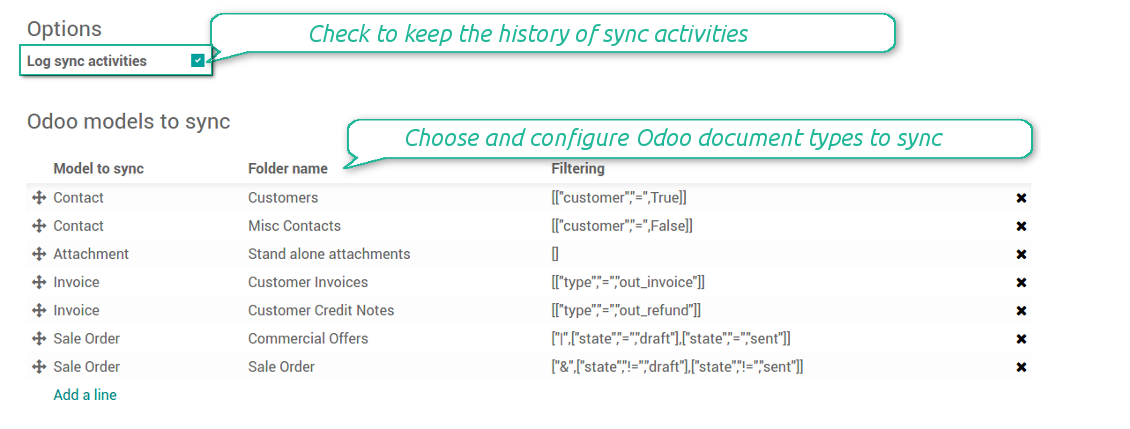
All sync activities might be logged. Control over files and folders creations, moves, name changes and removals. Just turn on the option 'Log sync activities' and access history through the button 'Sync logs'
The tool is compatible with Odoo reporting and mailing apps. If such an app faces a synced file, it retrieves a real content from Google Drive. In particular, the reports 'always reload' feature and messages & mass mailing attachments work properly
Integration is based on a single user endpoint. It means that you should login in Google Drive only once. Afterwards for integrations Odoo would use that credentials disregarding an actual Odoo user. Make sure, however, that real Odoo users have an access to Google Drive to open URLs linked to their attachments
- Prepare and keep updated folders' structure in Google Drive
- Upload new attachments to a correct folder
Odoo creates a convenient directory structure in Google Drive: Odoo / Document type name / Document name / Files, where:
- Odoo is a central directory for Odoo Sync in your Drive.
- Document type is a synced Odoo model, for example, 'Sale orders', 'Opportunities', 'Customers'
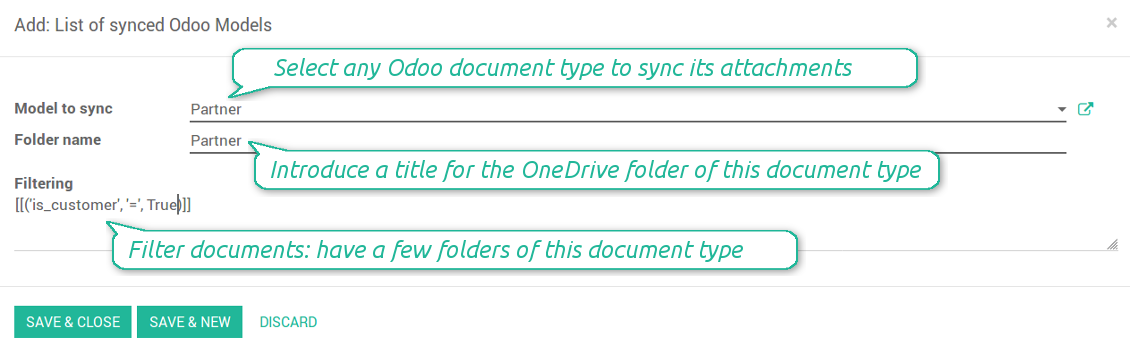
- You select document types by yourself. It might be any document type
- Moreover, you might have a few folders for a single document type. Use Odoo domains to have not global 'Partners, but 'Customers' and 'Suppliers', not just 'Sale orders' but 'Commercial offers', 'To deliver', and 'Done orders'
- With each sync Odoo would try to update document types' folders. Add a new document type at any moment. It will appear in Google Drive with a next sync
- You are welcome to introduce or change document types folder names at any moment in Odoo. Take into account: renaming in Google Drive will be recovered to Odoo names
- If you remove a model from integration, it will not be deleted from Google Drive to keep already synced files safe. However, new documents of this type would not be synced
- In case you removed a directory in Google Drive, but it is still configured in Odoo, with a next sync a folder structure is going to be recovered (not files, surely).
- Document is an exact object to sync. For instance, 'Agrolait' or 'SO019'
- Documents are synced in case they relate to a synced document type and satisfy its filters. For example, you are not obliged to sync all partners, you may integrate only 'Customers' and 'Vendors' or only 'Companies', not 'Contacts'
- Odoo would generate a folder in Google Drive for each suitable document even for documents without attachments. It is needed for a backward sync to easily add new files
- Google Drive folder name equals a real document name. It relies upon Odoo name_get method. Thus, Odoo 'Michael Fletcher' (a contact of 'Agrolait') would be Google Drive 'Agrolait, Michael Fletcher'
- If an exact document changes its document type (e.g. a quotation is now confirmed), Odoo will automatically relocate its related folder to a proper parent directory (in the example: from 'Commercial offers' to 'To deliver')
- In case a document relates to a few types (for instance, you have 'Vendors' and 'Customers', while Agrolait is both), this document folder would be put into the most prioritized document type. A document type priority is higher as closer to the top in Odoo interfaces it is
- If an Odoo document is removed, the next sync will remove a corresponding Google Drive directory
- In case you remove a directory in Google Drive, but it still exists in Odoo, Google Drive folder structure would be recovered (while files would be unlinked in both Odoo and Google Drive)
- Folders renaming in Google Drive will be replaced with Odoo names, Odoo document names are more important
- Files are real files taken from Odoo attachments
The resulted path would be, for example, 'Odoo / Quotations / SO019 / commercial offer.png'.
The only exclusion of the rule are stand alone attachments which do not relate to any Odoo documents (their document type is 'ir.attachment'). Such attachments' path is 'Odoo / Stand Alone Attachments / image.png'.
The very first sync might take quite a long, since a lot of folders should be created. Afterwards, it would be much faster. However, it is not recommended to make sync too frequent: once an hour seems quite good for large files.
FilesWith each direct sync, Odoo tries to find not yet synced attachments. If such attachments suit any document type to sync, a file will be uploaded to Google Drive to a proper folder. In Odoo such attachments will become of 'url' type. It means that a file is not any more kept in Odoo server space, but now it is in Google Drive. Until sync is done, Odoo attachment remains binary and stores an actual file. Such approach helps Odoo to work faster.
Clicking on such attachment leads you to a file previewer / editor in Google Drive. Depending on your Google Drive configurations it might be Google Documents, Google Spreadsheets, PDF previewer, etc. Anyway changes to file contents in Google Drive are available in Odoo at the same moment.
If you unlinked an attachment from Odoo, it would be deleted in Google Drive as well.
Take into account that file names should be managed in Google Drive: each backward sync would recover Google Drive names, Odoo is here less important.
- If a new file is added to a proper document folder (e.g. to 'Odoo / Customers / Agrolait'), the same attachment will be added to Odoo document (in the example - to 'Agrolait')
- In document folders you can put not only files but also child folders. In that case a link for this folder (not its content) is kept in attachments
- In case you rename a file in Google Drive, it will be renamed in Odoo as well
- Files' removal from Google Drive leads to related Odoo attachments' removal
- If you move a file to another document folder, in Odoo a related attachment would be re-attached to this new document. Take into account: if you move a file for a not document folder, in Odoo attachment will be deleted as it has been removed from Google Drive
- If you deleted a document type or a document folder, their child files are deleted as well. Thus, Odoo would remove related attachments. The folders, however, will be recovered with a next direct sync. Folders' move to another directory is also considered as a removal. Avoid such situations by following the simple rule: folders are managed mostly by Odoo, files - mostly by Google Drive.
Backward Google Drive sync might take quite much time, since each folder should be checked (the more folders, the more time the backward sync requires). It is recommended to make frequency oftener than once an hour or two hours.
- Take into account that files or folders deleted in Google Drive are really deleted only when you clean trash. Otherwise, such files still exist and would be reflected in Odoo
- Try to avoid the following symbols in folders' and files' names: *, ?, ", ', :, <, >, |, +, %, !, @, \, /,. Direct sync will replace such symbols with '-'. It is done to avoid conflicts with file systems.
Login and Google Drive Credentials
- Go to the Google Cloud Console via the URL https://console.cloud.google.com
- Select or create a project
- After the project is selected, the console opens the Google Auth Platform. Press 'Get Started'
- Add app information
- As an app name select any suitable
- As a user support email select your email address
- Press 'Next'
- As the audience select 'External' and press 'Next'. Note: you are anyway going to use this app only for your own Odoo connection
- As the contact information enter your Google or Google Workspace email address and press 'Next'
- Agree with the Google API Services User Data Policy, press 'Continue', and then press 'Create'
- Go to 'Clients' and press 'Create client'
- As the application type select 'Web application'
- As a name select any suitable
- As the authorized redirect URI, add the link in a format [YOURODOOSITENAME]/google_drive_token (e.g. https://odootools.com/google_drive_token).
- Press 'Create'
- Copy and safely store 'Client ID' and 'Client secret'. The client secret is shown only once
- Enable the Google Drive API for this project: type 'Google Drive API' in the top search box, open the found product, and press 'Enable'
- Go to 'Audience' and add your email address as a test user
- Publish the app. Otherwise, the app stays in the testing state and its token expires every 7 days
- Open 'Branding' and fill in the application home page and the application privacy policy link (for example, the links to your Odoo website). Add the domains of those links as the authorized domains
- Open 'Audience' and press 'Publish app'
- Do not upload an app logo. This would invoke a long and complex Google verification process that is of no actual need to you
- Go to the Odoo Google Drive Settings
- Copy 'Client ID' from step 8 into the field 'App Client ID'
- Copy 'Client secret' from step 8 into the field 'App Secret Key'
- Insert the redirect URL you entered in step 8
- If you use team drives, check the related box. Make sure you really use team drives. In you Google Drive you should find the item 'Team Drives' in the left sidebar. This feature is available only for business and enterprise tariffs
- If the option 'Team Drive' is enabled, introduce its name. It should be absolutely the same as you see it in your Google Drive. Make sure that your user has full rights for this team drive
- Press 'Save'
- Press 'Login and Confirm'. Odoo redirects you to Google login page. Check in, agree with all conditions, and grant permissions asked
- After login, Google redirects you back to Odoo. Google Drive - Odoo synchronization is ready to be done.
Open the Google Auth Platform
Add app information
Select the external audience
Add contact information
Agree with the policies and create the app
Create an OAuth client
Configure the web application client
Copy the client ID and client secret
Find the Google Drive API
Enable the Google Drive API
Fill in branding to publish the app
Add test users and publish the app
Scheduled jobs
- Turn on debug mode
- Go to technical settings > Automation > Scheduled jobs
- Find the jobs 'Synchronize attachments with cloud' and 'Update attachments from cloud'
관련 자주 묻는 질문 Google Drive Odoo Integration Odoo v.10
생성된 Google Drive 폴더가 Odoo 사용자 간에 자동으로 공유되나요?
앱 자체는 Google Drive 쪽 접근 권한을 규제하지 않습니다. 그곳은 직접 설정해야 합니다. 따라서 Odoo는 Google Drive에 대상 폴더를 만들며, 기본값은 공유되지 않습니다. 폴더마다 권한을 바꿀 수 있습니다. 예를 들어 'Odoo' 디렉터리나 특정 'Odoo > Sale Orders' 또는 'Odoo > Sale Orders > SO-001'에 전체 권한을 부여할 수 있습니다.
앱은 단일 사용자 엔드포인트 원칙으로 동작합니다. 따라서 모든 동기화는 구성한 Google API 앱에 따라 동일한 Google Drive 사용자로 수행됩니다.
Google Drive에서 파일을 삭제했는데 Odoo에 그대로 있습니다
파일을 완전히 삭제하려면 Google Drive의 휴지통도 비워야 합니다.
또한 파일이 아직 Odoo에 있을 수 있습니다. 역방향 동기화가 첨부를 아직 처리하지 않았기 때문입니다. 예약된 프로세스이므로 시간이 필요합니다.
API 요청을 기준으로 Google에서 요금이 부과됩니까?
이 모듈은 무료 API만 사용하므로 Google이 요금을 청구하지 않습니다.
동기화 작업 주기를 바꿀 수 있나요?
네, 가능합니다. 방법은 다음과 같습니다:
디버그 모드를 켭니다
기술 설정 > 자동화 > 예약된 작업으로 이동합니다
'Synchronize attachments with cloud' 및 'Update attachments from cloud' 작업을 찾습니다.
너무 자주 실행하지 마세요. 다음 작업이 시작되기 전에 현재 작업이 끝나는 것이 좋습니다. 설정은 동기화할 항목 수에 따라 달라집니다. 보통 주기는 15분에서 4시간 사이입니다.
Odoo 구성 파일에도 충분한 시간 제한을 설정했는지 확인하세요. LIMIT_TIME_CPU와 LIMIT_TIME_REAL 매개변수는 예정된 cron 작업 시간 이상이어야 합니다. 버전 13부터는 매개변수 LIMIT_TIME_REAL_CRON도 고려하세요.
Odoo.sh 고객을 위한 중요 안내: cron 작업의 최대 시간이 15분으로만 설정되어 있을 수 있습니다.
동기화가 가정한 것과 다른 동기화 디렉터리 구조를 구성할 수 있습니까?
아니요, 이 기능은 버전 15부터만 사용할 수 있습니다. 그 이전 버전에서는 모듈이 미리 정의된 폴더 구조로 동작합니다:
Odoo - 동기화용 핵심 폴더
Models - 각 Odoo 문서 유형별 폴더입니다. 예: 'Projects', 'Partners'. 도메인으로 구분하면 더 구체적인 폴더가 있을 수 있습니다. 예: 'Customer 1 Projects', 'Projects of the Customer 2', 'Internal Projects' 등.
Objects - 문서별 폴더, 예: 'Project 1' 또는 'Customer 1'
이 Odoo 문서와 관련된 동기화 대상 파일과 폴더.
그 결과 예를 들어 다음과 같을 수 있습니다:
Odoo / Projects / Project 1 / project 1 관련 파일과 폴더
Odoo / Customer 1 Projects / Project 1; Odoo / Customer 2 Projects / Project 3, ...
Odoo / Customers / Customer 1 / customer 1 관련 파일과 폴더
이 구조는 항상 평면입니다. 즉 계층은 그 수준들뿐입니다. 따라서 여러 문서 유형을 같은 구조 안에 둘 수 없는 것이 맞습니다. 폴더 'Customer 1' 안에는 판매 주문, 송장, 프로젝트에 모두 관련된 파일을 함께 둘 수 없습니다. 각 문서 유형은 자체 폴더(또는 몇 개의 자체 폴더)를 가집니다. 그렇지 않으면 의존할 기준이 없어 역방향 동기화를 할 수 없습니다.
Odoo에서 특정 사용자 액세스를 설정해야 하나요?
아니요. 도구는 단일 사용자 엔드포인트에 의존합니다. 모든 동기화는 하나의 클라우드 관리자(앱)로 수행됩니다. 생성된 폴더/파일의 접근 권한은 자동화되지 않습니다. 클라우드 스토리지 솔루션에서 그 권한을 관리해야 합니다.
동기화된 필드는 어디에 저장됩니까? Odoo와 클라우드에 복제됩니까?
앱은 첨부 파일의 바이너리 콘텐츠가 Odoo 서버가 아닌 Cloud Client에 보관된다고 가정합니다. 따라서 이러한 첨부 파일은 Odoo에서 URL 유형이 되며, 첨부 상자 또는 Cloud Client에서 언제든지 접근할 수 있습니다.
설정 후에는 동기화가 완전히 자동이므로 수동 작업이 필요 없습니다. 동기화할 Odoo 문서 유형을 정하고 각각에 대해 관련 모델을 설정하세요(고객, 판매 또는 구매 주문, 작업, 프로젝트 등).
같은 문서 유형에 폴더를 여러 개 둘 수 있나요? 예를 들어 내부 프로젝트와 고객 프로젝트요?
예. 각각에 대한 규칙을 만든 뒤 필터를 적용하세요. 예: 프로젝트 유형별.
문서를 명확하게 지정하려면 필터를 상호 배타적으로 만드세요. 예: '고객이지만 공급업체는 아님', '공급업체이지만 고객은 아님'. 그렇지 않으면 특정 문서 폴더가 모델 사이를 오갑니다.
Cloud Storage Solution 앱만 있으면 되나요?
아니요, 이 도구는 기술 코어일 뿐입니다. cloud client용 커넥터도 필요합니다.
동기화할 개체가 예를 들어 10000개처럼 많아도 괜찮을까요?
예. 다만 동기화할 폴더/첨부가 많으면 느릴 수 있습니다. 동시에 고객들은 >10k 협력사와 ~5k 품목 변형을 동기화한 환경을 보고했으며 처리는 허용 가능했습니다.
강조할 몇 가지:
- 동기화는 모든 항목이 동기화되고 유실되지 않도록 설계되어 있습니다. 빠르지 않을 수는 있습니다. FIFO 대기열과 각 작업의 커밋이 이를 보장합니다.
- 대상 수는 논리적으로 제한할 수 있습니다. 모델 구성으로 오래된 항목의 동기화를 제한할 수 있습니다(예: 보관된 협력사나 2년 전 주문을 동기화할 이유가 없음).
동기화를 실시간으로 할 수 있나요?
아니요. 실시간 동기화를 피하는 분명한 이유가 있습니다:
성능 문제. 동기화가 실시간이면 파일 업로드마다 로딩 화면이 나타납니다.
충돌 문제. 사용자 2명이 항목을 동시에 바꾸면 해결되지 않는 상황이 생길 수 있습니다. 정기 작업에서는 나중에 고칠 수 있지만, 실시간이면 대기열로 저장해야 해서 사용자에게 더 혼란스럽습니다.
기능 문제. 특히 항목 이름 변경과 재구성입니다. 역방향 동기화에서 도구는 디렉터리 로직에 엄격히 의존하며 동기화마다 항목의 100%를 확인합니다. 업데이트마다 하면 초당 수천 건의 요청이 됩니다. 그렇지 않으면 변경이 사라집니다.
첨부 파일을 몇 개의 클라우드 클라이언트와 동기화할 수 있나요
아니요, 이 기능은 버전 15부터만 사용할 수 있습니다.
클라우드에서 특수 편집기(예: OnlyOffice, Office 365 등)를 씁니다. 파일이 그 편집기에서 열립니까?
예, cloud client 구성에 따라 다릅니다.
도구의 업데이트 정책은 무엇입니까?
현재 Odoo Apps Store 정책에 따르면:
- 버전 12.0 이하용으로 구매한 모듈은 12.0까지의 모든 버전에 접근할 수 있습니다.
- 버전 13.0부터는 모듈 버전마다 따로 구매해야 합니다.
- 버전과 관계없이 구매하면 해당 메이저 버전 내의 모든 업데이트와 버그 수정 권한이 있습니다.
faOtools 팀은 해당 정책을 통제하지 않습니다. 문의는 Odoo Apps Store 담당자에게 직접 하세요.
앱을 Odoo.sh에 어떻게 설치하나요?
가장 단순한 방법은 Odoo 스토어의 기본 제공 워크플로를 사용하는 것입니다:
1. 모듈 페이지를 열고 Deploy on odoo.sh 버튼을 클릭합니다.
2. 그러면 GitHub 페이지로 이동합니다. 계정에 로그인한 뒤 'Create a new repo'를 클릭하거나 기존 저장소를 사용하세요. 저장소는 비공개여야 합니다. OPL-1 라이선스 앱을 공개하는 것은 허용되지 않습니다. 필요하면 Odoo.sh 프로젝트용 새 repo를 만드세요.
3. 그런 다음 odoo.sh로 가서 Deploy 버튼을 클릭합니다. 팝업에서 결정을 제출하고 'Continue.'를 클릭합니다. 그러면 설치가 시작됩니다.
이 단계로 프로젝트의 프로덕션 브랜치에 앱이 설치됩니다. 다른 브랜치에 앱을 배포하거나 모듈을 업데이트하려면 다음을 수행하세요:
1. Odoo 스토어에서 앱 소스 코드를 업로드합니다.
2. 모듈을 필요한 GitHub 저장소에 커밋합니다. 앱 폴더/파일이 무시되지 않는지 확인하세요(즉 repo의 .gitignore에 넣지 마세요). 저장소는 odoo.sh가 자동 생성하며 기본적으로 중요한 항목(예: /lib)이 포함될 수 있습니다. 모듈의 모든 디렉터리, 하위 디렉터리, 파일을 예외 없이 업로드하세요.
3. odoo.sh 프로젝트의 대상 브랜치를 Deploy하거나, 설정이 그렇게 되어 있으면 자동 빌드될 때까지 기다립니다.
자체 서버에 앱은 어떻게 설치하나요?
2. Odoo 서버를 다시 시작합니다;
3. 개발자 모드를 켭니다(기술 설정);
4. 앱 목록을 업데이트합니다(앱 메뉴);
5. 앱을 찾아 'Activate'/'Install'을 누릅니다;
6. 앱 페이지에 안내가 있으면 따릅니다.
앱에 추가 기능이 있는 것을 봤습니다. 나중에 구매해도 되나요?
네, 물론입니다. 동시에 Odoo가 모든 의존성을 장바구니에 자동 추가하므로, 이중 결제를 피하려면 이미 구매한 도구를 제외하십시오.
앱을 Odoo.sh에 배포했는데 테스트에서 경고/오류가 보입니다
빨강/주황 경고는 앱 기능에 영향을 주지 않습니다. 안타깝게도 표준 자동 테스트가 앱 목표와 충돌하는 동작을 가정해 모듈이 통과하지 못할 때가 있습니다. 예를 들어 우리는 가격 계산을 바꾸는데, 표준 Odoo 모듈 테스트는 최종 가격을 표준 알고리즘과 비교합니다.
먼저 배포된 데이터베이스 기능이 정상인지 확인하십시오. 모두 올바르게 동작합니까?
그래도 경고가 실제 기능에 영향을 준다고 생각되면 연락해 주시고 전체 설치 로그와 배포된 모듈 전체 목록(코어 및 서드파티 포함)을 보내 주십시오.
앱을 귀사에서 직접 구매할 수 있나요?
아니요, 도구는 오직 공식 Odoo 앱 스토어.
할인을 받고 싶습니다
유감스럽게도 개별 가격을 제공할 기술적 수단이 없습니다.
Odoo Online (SaaS) 데이터베이스에 앱을 설치할 수 있나요?
아니요, 서드파티 앱은 Odoo Online에서 사용할 수 없습니다. 유감스럽게도 Odoo SaaS가 이를 차단합니다.
도구가 다른 앱에 의존합니다. 그것도 구매해야 합니까?
예, 도구가 올바르게 동작하려면 의존성에 표시된 모든 모듈이 필요합니다. 앱 페이지의 가격에는 필요한 의존성이 이미 포함되어 있습니다.
모듈의 미국 달러 가격은 얼마입니까? 왜 바뀌었습니까?
모듈 가격은 유로로 책정됩니다. Odoo 스토어는 내부 환율에 따라 다른 통화로 변환합니다. 따라서 환율이 갱신되면 미국 달러 가격이 바뀔 수 있습니다.
영어 이외 언어의 앱·웹사이트 문구는 AI 지원으로 작성되며 공식 Odoo 번역과 맞춥니다. 오류를 발견하시면 번역 정확성 티켓을 보내 주세요 그러면 수정하겠습니다.
버그 신고
버그나 일관되지 않은 동작을 발견하면 주저 말고 문의하세요. 구매 후 60일 이내 수정을 보장하며, 그 이후에도 도구를 개선하는 데 관심이 큽니다.
문의에 전화번호나 신용카드가 필요 없습니다. 30초가 넘지 않는 짧은 이메일 가입만 하면 됩니다.
요청에 가능한 한 많은 세부정보를 포함하세요: 스크린샷, Odoo 서버 로그, 문제 재현 방법의 전체 설명 등. 일반적으로 이슈에 대한 작업 계획 준비(버그가 확인된 경우) 또는 수행 지침 제공(그 외의 경우)에는 영업일 기준 며칠이 걸립니다.
공개 기능 요청 및 모듈 아이디어(무료 개발)
도구를 개선하려는 동기가 강하며 어떤 피드백이든 감사드립니다. 요구 사항이 공익에 맞고 효율적으로 구현될 수 있다면 팀이 할 일 목록에 넣습니다.
이런 할 일 목록은 정기적으로 처리되며 추가 요금이 없습니다. 기한과 최종 디자인을 약속할 수는 없지만, 투자와 위험 없이 원하는 기능을 얻는 좋은 방법이 될 수 있습니다.
문의에 전화번호나 신용카드가 필요 없습니다. 30초가 넘지 않는 짧은 이메일 가입만 하면 됩니다.


내부와 외부 모두를 위한 깊고 구조화된 지식 베이스를 구축하는 도구. Knowledge System. KMS. 위키형 개정.
398€


즐겨 쓰는 AI 채팅에서 MCP로 Odoo를 관리하는 도구. Claude. MCP를 지원하는 모든 AI.

Odoo 첨부 파일을 폴더로 유연하게 구성하고 Google Drive, OneDrive/SharePoint, Nextcloud/ownCloud, Dropbox, Amazon S3, Box, NAS와 디렉터리를 동기화하는 도구. DMS. 파일 관리자. 문서 관리 시스템
398€


Odoo 첨부 파일을 NAS 솔루션과 자동으로 양방향 동기화하는 도구. Synology, QNAP, TrueNAS 및 WebDav를 지원하는 기타 NAS
487€