DropBox Odoo Integration v.12
The tool to automatically synchronize Odoo attachments with DropBox files in both ways
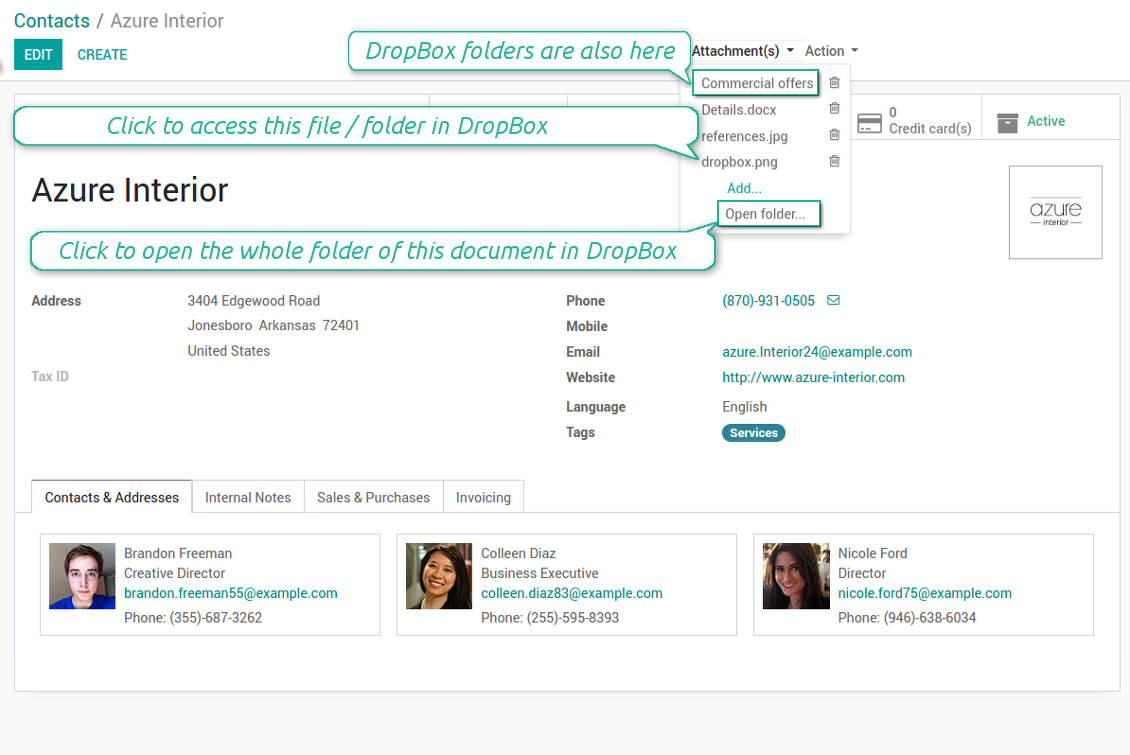
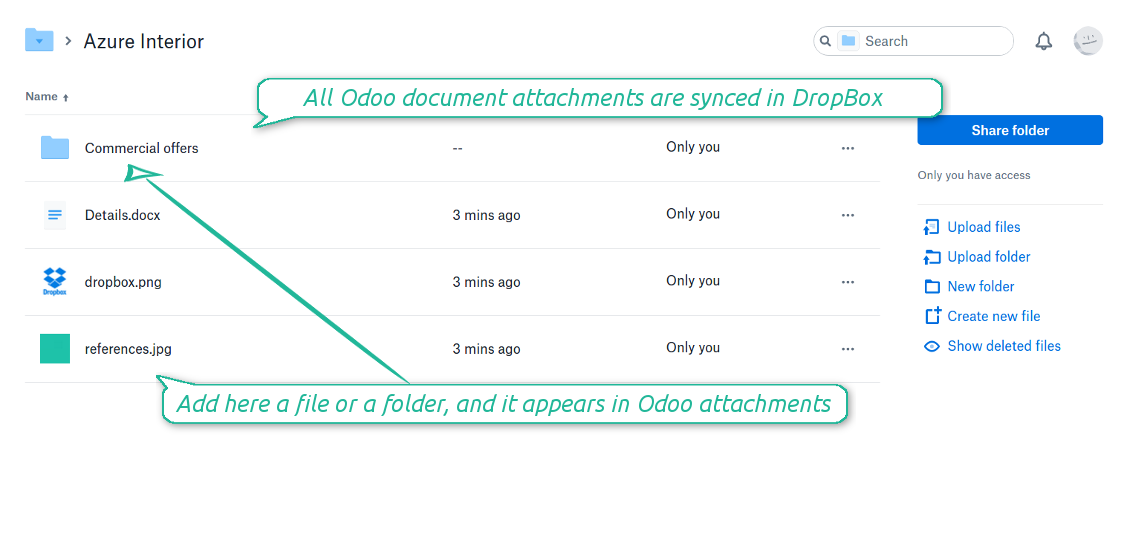
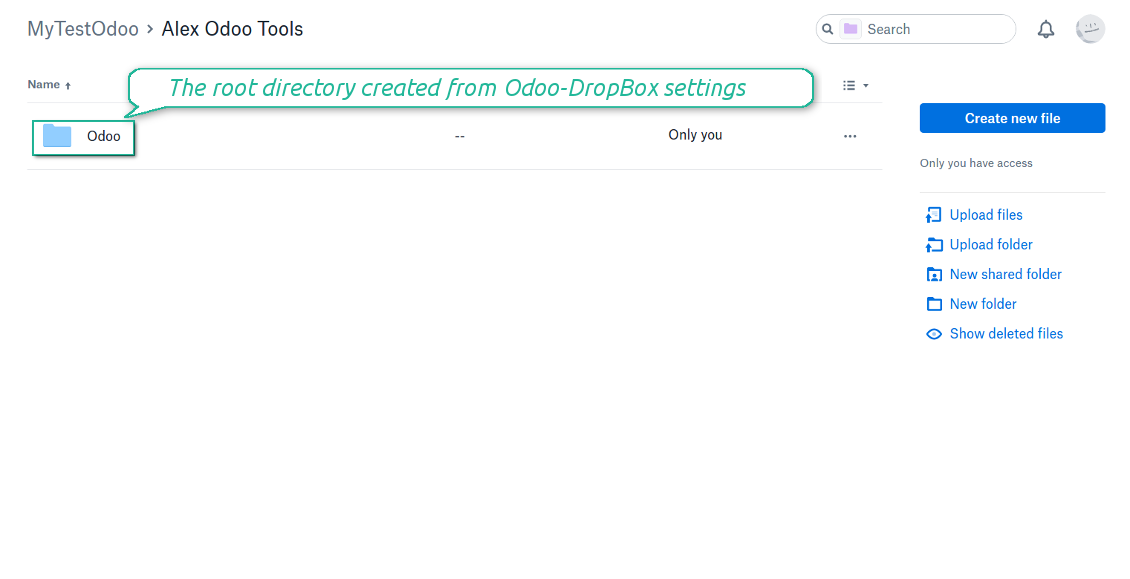
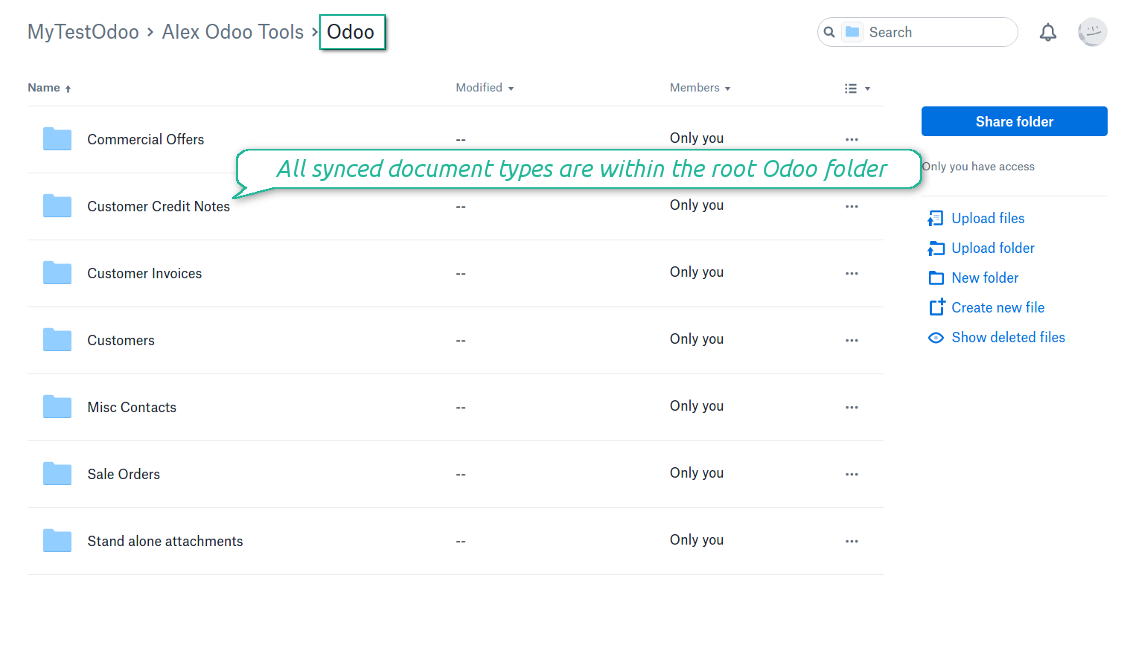
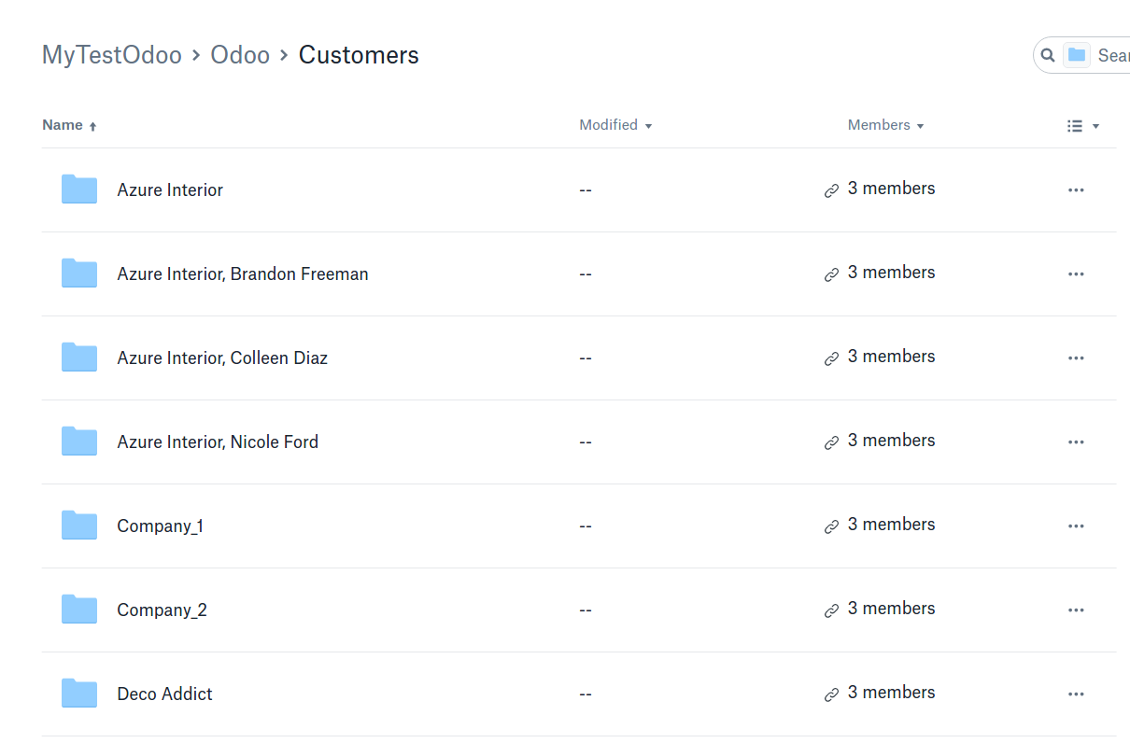
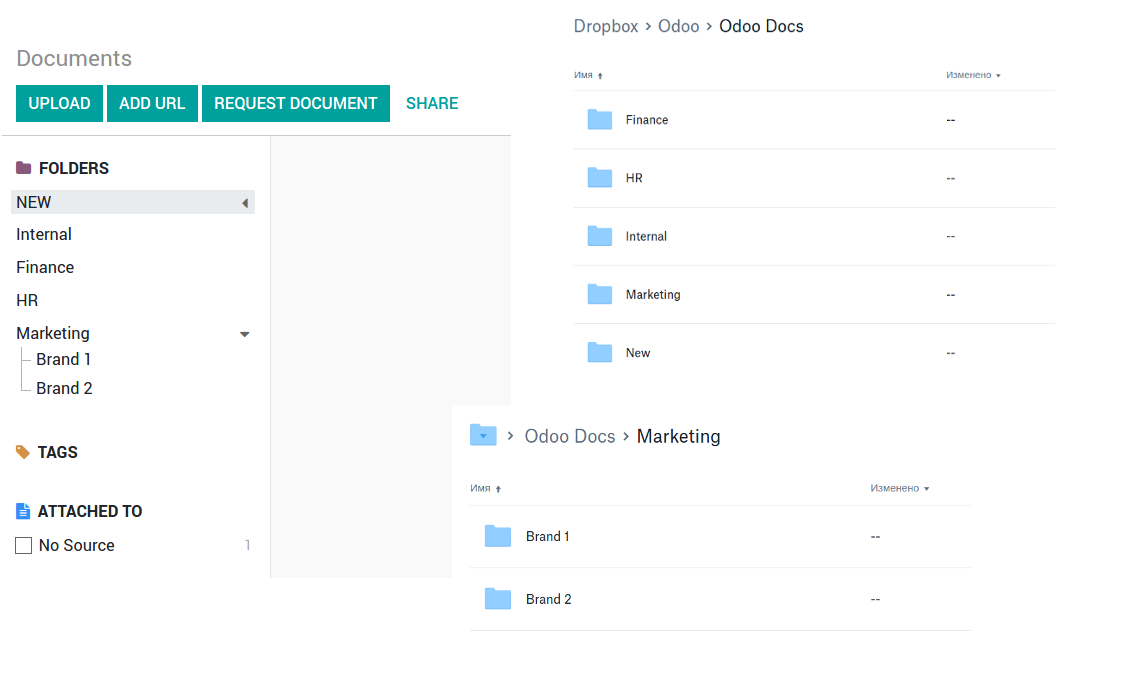
Synchronization is bilateral. All Odoo attachments are put in DropBox regularly. DropBox files create attachments in Odoo in case they are placed in a correct folder. Look at the sections From Odoo to DropBox and From DropBox to Odoo
Integration is automatic in both ways. Based on scheduled jobs, Odoo send attachments to DropBox and retrieve files from there
Any Odoo document might be synced: customers, opportunities, sale or purchase orders, tasks or issues, employees or users, etc. You decide by your own which records should be in DropBox, and which should be left in Odoo
Synchronization works for any DropBox tariff, including Personal DropBox (Basic, Plus, Family) and business DropBox (Professional, Standard, Advanced)
The tool works fine with the Odoo Enterprise Documents module. For full compatibility and to reflect new module directories structure use the app Cloud Sync for Enterprise Documents. Look also at the section Odoo Enterprise Documents
All synced files are easily accessible though clicking on an attachment. You might also open a whole document folder by clicking on 'Open folder' on the attachment widget. This feature migth be optionally turned off: look at the section DropBox URLs
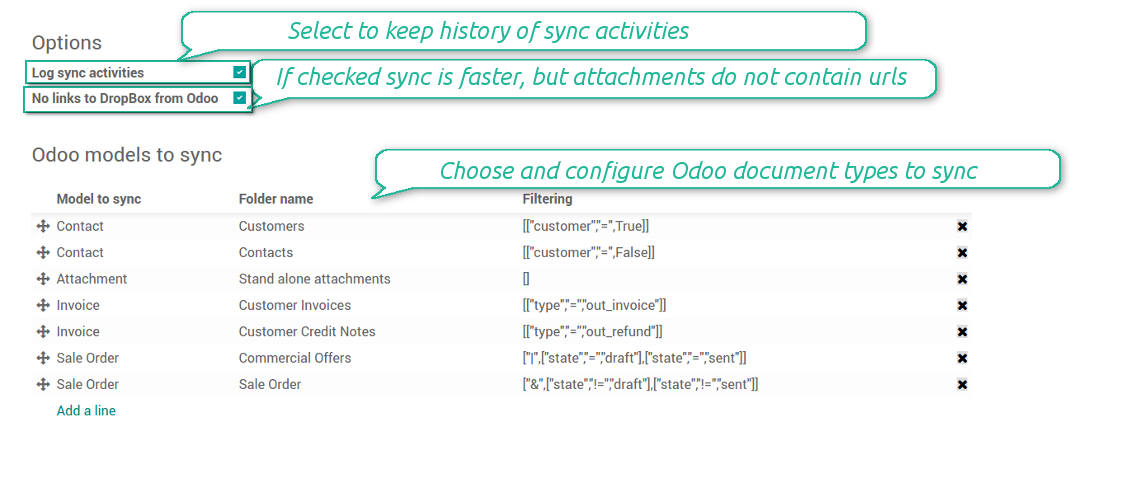
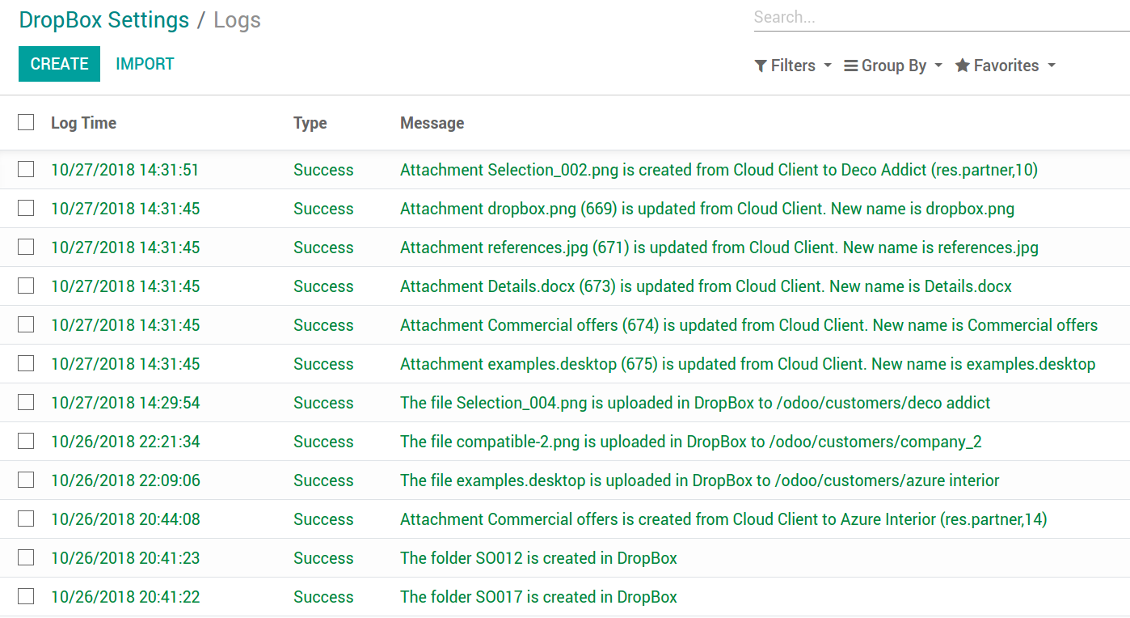
All sync activities might be logged. Control over files and folders creations, moves, name changes and removals. Just turn on the option 'Log sync activities' and access history through the button 'Sync logs'
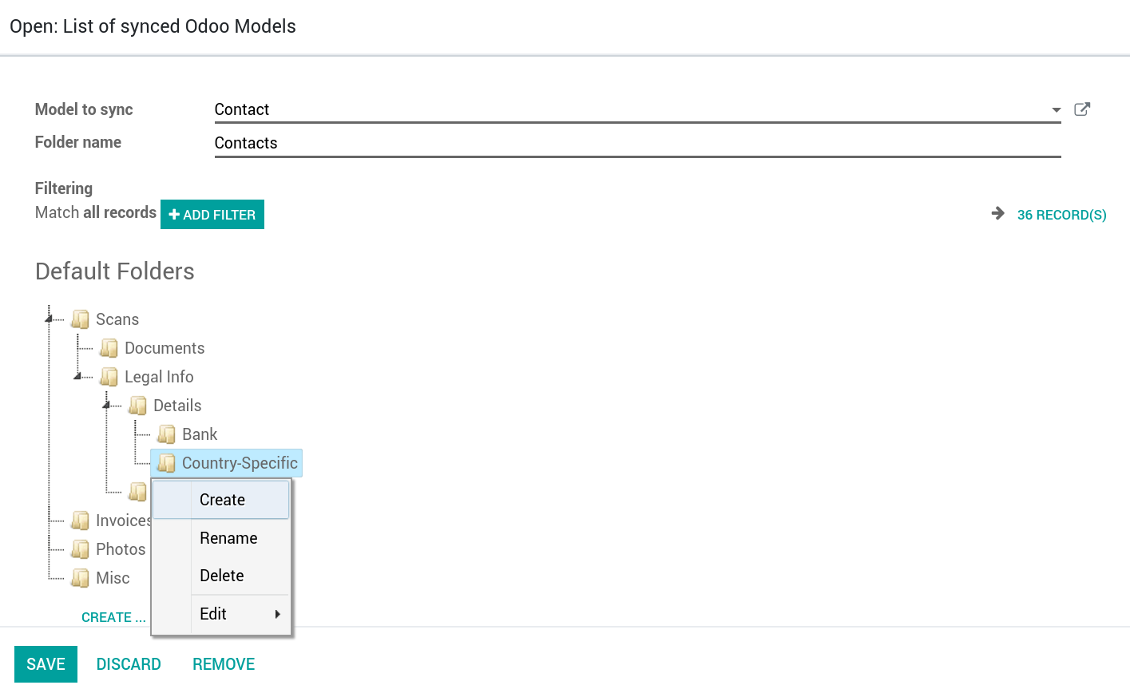
New For each document of this type you may create a default directories' structure. When this folder is firstly synced, Odoo would generate default folders. For example, for all employees you may have pre-defined folders 'Scans', 'Scans/Official', 'Photos', etc.
The tool is compatible with Odoo reporting and mailing apps. If such an app faces a synced file, it retrieves a real content from DropBox. In particular, the reports 'always reload' feature and messages & mass mailing attachments work properly
Integration is based on a single user endpoint. It means that a single user login/password of DropBox is used. Afterwards for integrations Odoo would use that credentials disregarding an actual Odoo user
- Prepare and keep updated folders' structure in DropBox
- Upload new attachments to a correct folder
Odoo creates a convenient directory structure in DropBox: Odoo / Document type name / Document name / Files, where:
- Odoo is a central directory for Odoo Sync in your cloud storage.
- Document type is a synced Odoo model, for example, 'Sale orders', 'Opportunities', 'Customers'
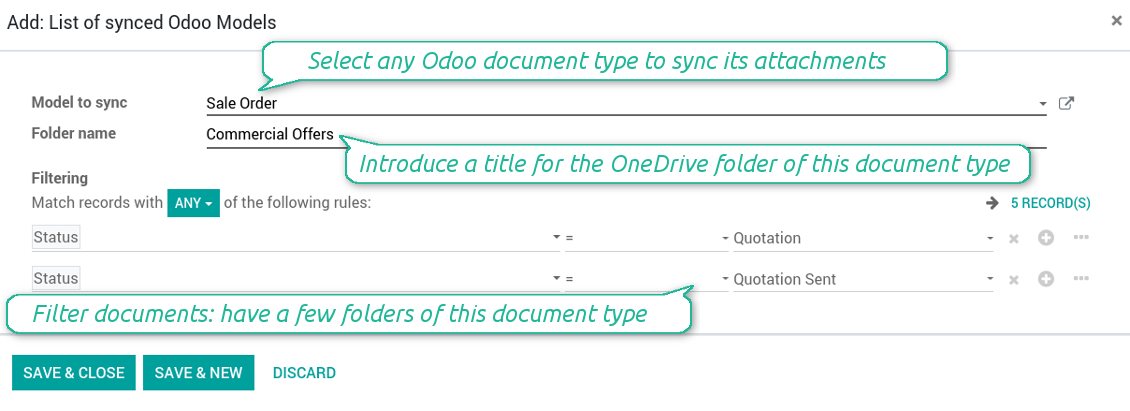
- You select document types by yourself. It might be any document type
- Moreover, you might have a few folders for a single document type. Use Odoo domains to have not global 'Partners, but 'Customers' and 'Suppliers', not just 'Sale orders' but 'Commercial offers', 'To deliver', and 'Done orders'
- With each sync Odoo would try to update document types' folders. Add a new document type at any moment. It will appear in DropBox with a next sync
- You are welcome to introduce or change document types folder names at any moment in Odoo. Take into account: renaming in DropBox will be recovered to Odoo names
- If you remove a model from integration, it will not be deleted from DropBox to keep already synced files safe. However, new documents of this type would not be synced
- In case you removed a directory in DropBox, but it is still configured in Odoo, with a next sync a folder structure is going to be recovered (not files, surely).
- Document is an exact object to sync. For instance, 'Agrolait' or 'SO019'
- Documents are synced in case they relate to a synced document type and satisfy its filters. For example, you are not obliged to sync all partners, you may integrate only 'Customers' and 'Vendors' or only 'Companies', not 'Contacts'
- Odoo would generate a folder in DropBox for each suitable document even for documents without attachments. It is needed for a backward sync to easily add new files
- DropBox folder name equals a real document name. It relies upon Odoo name_get method. Thus, Odoo 'Michael Fletcher' (a contact of 'Agrolait') would be DropBox 'Agrolait, Michael Fletcher'
- If an exact document changes its document type (e.g. a quotation is now confirmed), Odoo will automatically relocate its related folder to a proper parent directory (in the example: from 'Commercial offers' to 'To deliver')
- In case a document relates to a few types (for instance, you have 'Vendors' and 'Customers', while Agrolait is both), this document folder would be put into the most prioritized document type. A document type priority is higher as closer to the top in Odoo interfaces it is
- If an Odoo document is removed, the next sync will remove a corresponding DropBox directory
- In case you remove a directory in DropBox, but it still exists in Odoo, DropBox folder structure would be recovered (while files would be unlinked in both Odoo and DropBox)
- Folders renaming in DropBox will be replaced with Odoo names, Odoo document names are more important
- Files are real files taken from Odoo attachments
The resulted path would be, for example, 'Odoo / Quotations / SO019 / commercial offer.png'.
The only exclusion of the rule are stand alone attachments which do not relate to any Odoo documents (their document type is 'ir.attachment'). Such attachments' path is 'Odoo / Stand Alone Attachments / image.png'.
The direct sync might take quite a long, since a lot of folders should be created. It is not recommended to make sync too frequent: once an hour or two hours is fine.
FilesWith each direct sync, Odoo tries to find not yet synced attachments. If such attachments suit any document type to sync, a file will be uploaded to DropBox to a proper folder. In Odoo such attachments will become of 'url' type (look also at the section DropBox URLs). It means that a file is not any more kept in Odoo server space, but now it is in DropBox. Until sync is done, Odoo attachment remains binary and stores an actual file. Such approach helps Odoo to work faster.
If you unlinked an attachment from Odoo, it would be deleted in DropBox as well.
Take into account that file names should be managed in DropBox: each backward sync would recover DropBox names, Odoo is here less important.
- If a new file is added to a proper document folder (e.g. to 'Odoo / Customers / Agrolait'), the same attachment will be added to Odoo document (in the example - to 'Agrolait')
- In document folders you can put not only files but also child folders. In that case a link for this folder (not its content) is kept in attachments
- In case you rename a file in DropBox, it will be renamed in Odoo as well
- Files' removal from DropBox leads to related Odoo attachments' removal
- If you move a file to another document folder, in Odoo a related attachment would be re-attached to this new document. Take into account: if you move a file for a not document folder, this Odoo attachment will be deleted as it has been removed from DropBox
- If you deleted a document type or document folder, their child files are deleted as well. Thus, Odoo would remove related attachments. The folders, however, will be recovered with a next direct sync. Folders' move to another directory is also considered as a removal. Avoid such situations by following the simple rule: folders are managed mostly by Odoo, files - mostly by DropBox.
Backward DropBox might take quite much time, since each folder should be checked (the more folders, the more time the backward sync requires). It is recommended to make frequency oftener than once an hour or two hours.
DropBox has a specific way to generate links for existing files and folders. In particular, there are no concepts of internal or private URLs. Instead, each DropBox item might get so-called shared URLs. Such shared links are either public or team-only. Moreover, the latter feature is available only for DropBox business account.
This tool relies upon share links' mechanics. It means, that each attachment link is either public (all personal DropBox accounts) or team-only (all business DropBox accounts).
Sometimes it is considered to be not fully safe. Although website URLs will be hardly known by external users, there is a slight chance that they become available as a result of some user actions. Besides, sharing links generation is not super fast and might make a sync process slower. That is why the feature to switch off sharing urls is introduced.
If checked, all DropBox urls in Odoo will be of type https://www.dropbox.com/home/Odoo/[PATH]. Such links will not work in quite a many cases. Thus, if you need to open DropBox files / folders from Odoo, do not switch off the feature 'No links to DropBox from Odoo'.
- Try to avoid the following symbols in folders' and files' names: *, ?, ", ', :, <, >, |, +, %, !, @, \, /,. Direct sync will replace such symbols with '-'. It is done to avoid conflicts with file systems.
This tool is not in conflict with the 'documents' module provided by the Enterprise license. Attachments related to Enterprise folders would be synced as any other files: according to a document they relate to. In the most cases it means they would be linked to stand-alone attachments.
It is not always comfortable, and you might be interested in reflecting directories' structure introduced by the module 'Documents'. To this end the extension Cloud Sync for Enterprise Documents (its standard price is 44 Euros) is developed. This tool has the following features:
- The documents hierarchy is reflected within the folder 'Odoo / Odoo Docs'
- Each Odoo folder has a linked cloud folder. Take into account that folders created in the cloud storage will be synced as Odoo attachments. The key principle is: folders are managed by Odoo, files are managed by the cloud client
- All files are synced with the same logic as usual attachments. Files created in Odoo will be added to the cloud storage and will be replaced with links in Odoo. Files created in cloud storage will generate attachments within a paired directory
- Please do not name synced models as 'Odoo Docs'. This is the reserved name for Odoo Enterprise Documents
Configuration and Login
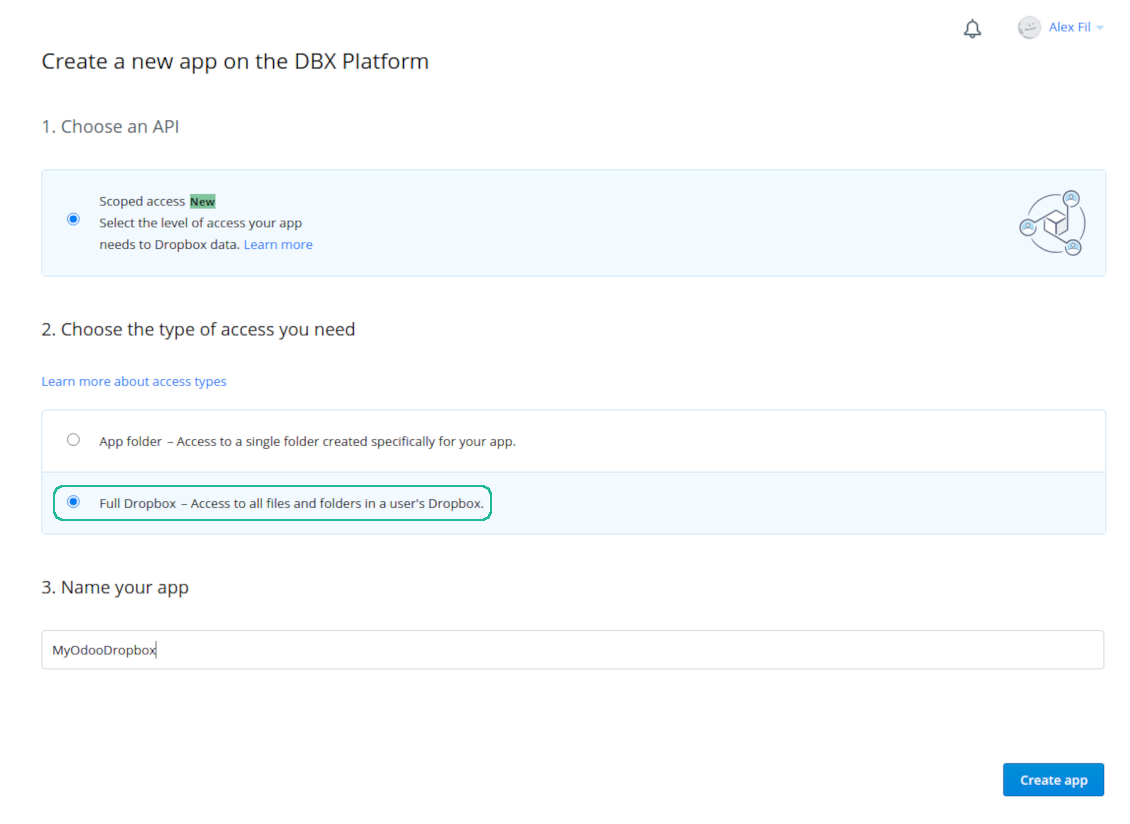
- Follow the url https://www.dropbox.com/developers/apps/create
- Choose an API as 'Scoped access'
- Choose the type of access as 'Full Dropbox'
- Select any suitable name for the app and push the button 'Create app'
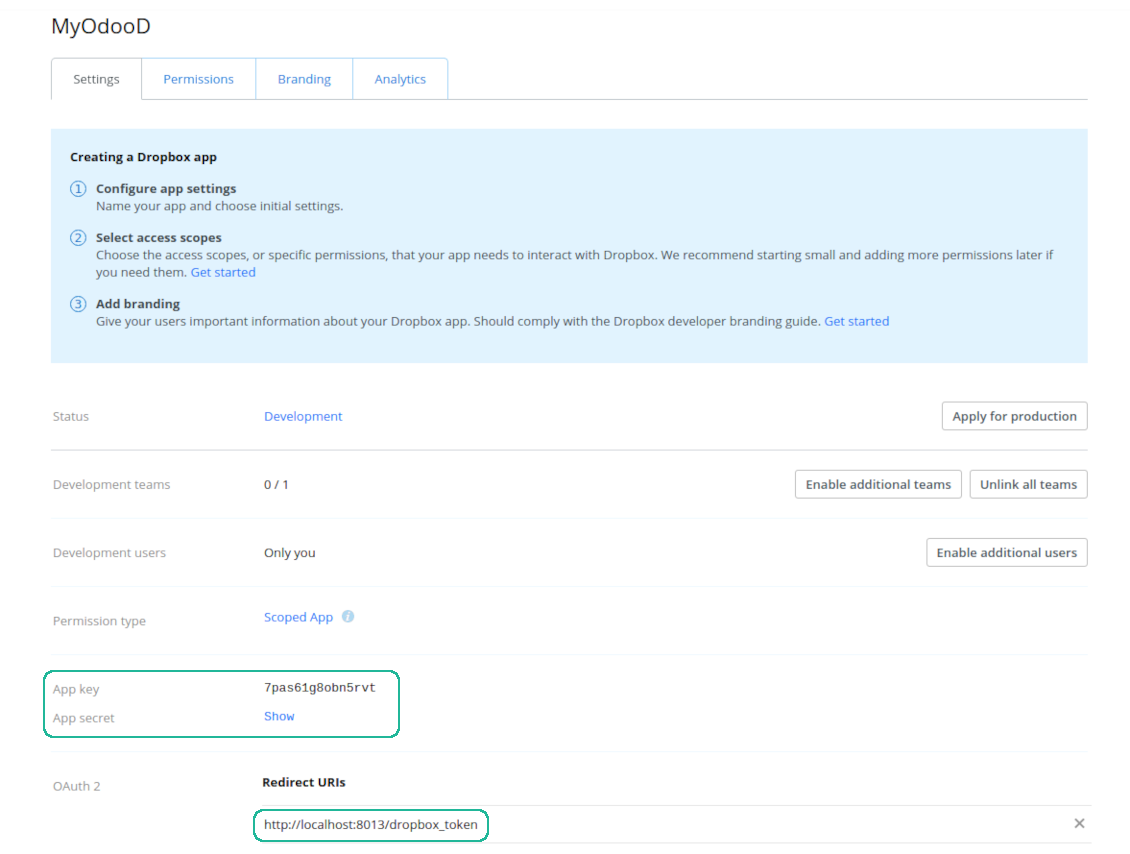
- Add the redirect URI as YOURODOOSITENAME]/dropbox_token (e.g. https://faotools.com/dropbox_token). A valid SSL certificate (https) is required
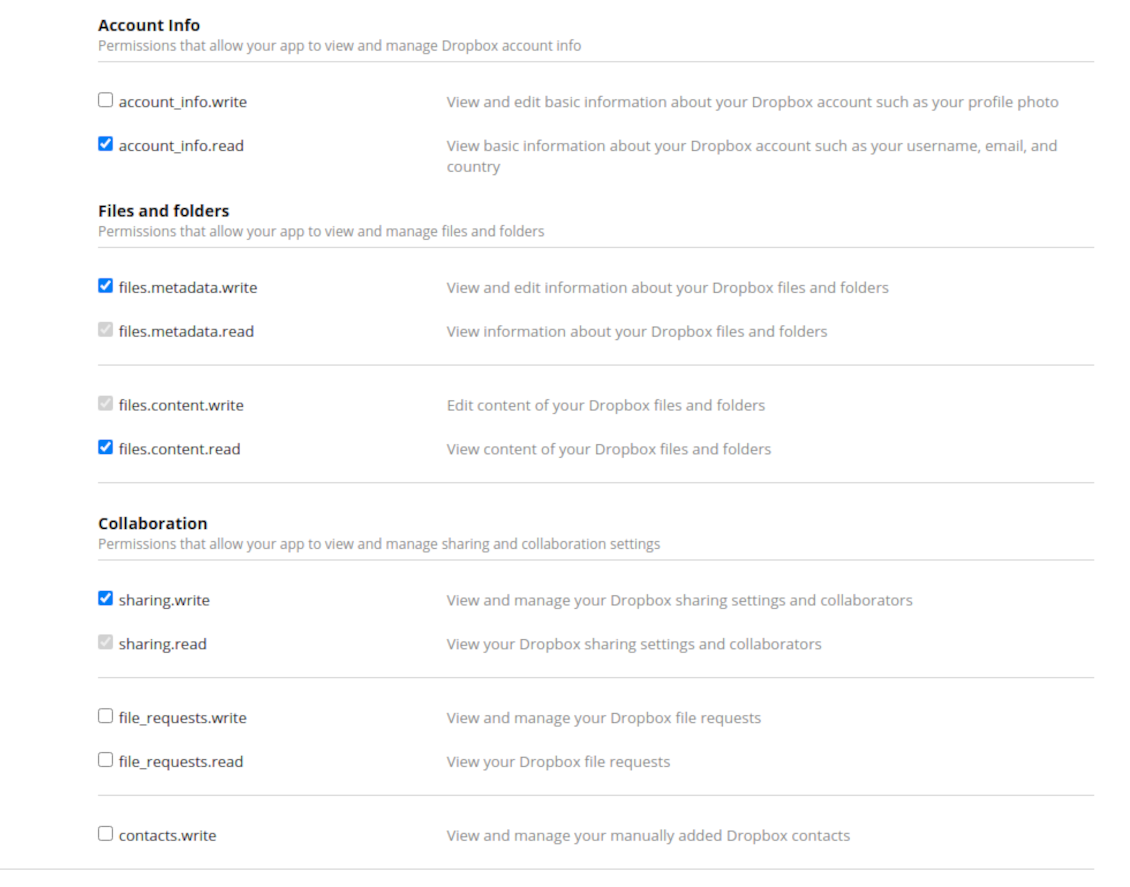
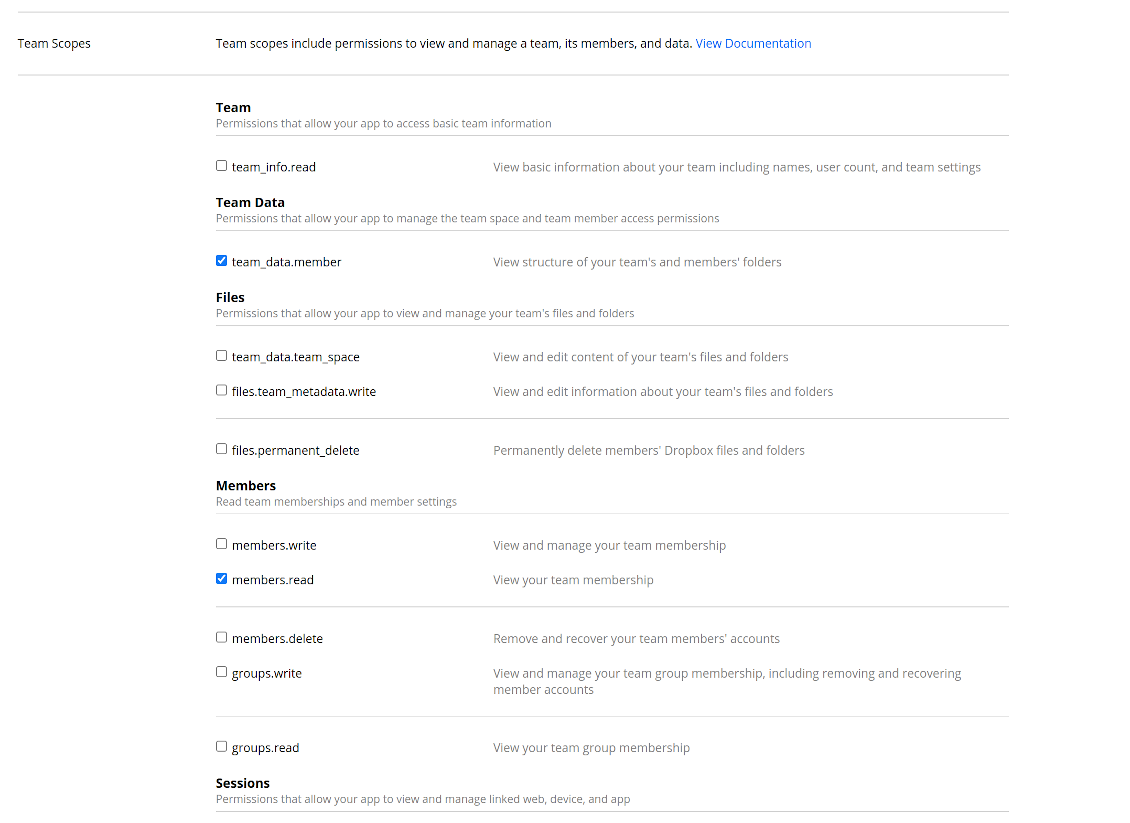
- Grant permissions to the app: 'Account Info (Read)', 'Files and folders Metadata (Write)', 'Files Content (Write)', 'Collaboration (Write)'. For team DropBox assign also 'Team Data Members', 'Members (Read)'. Make sure no other permissions are assigned.
- Submit App
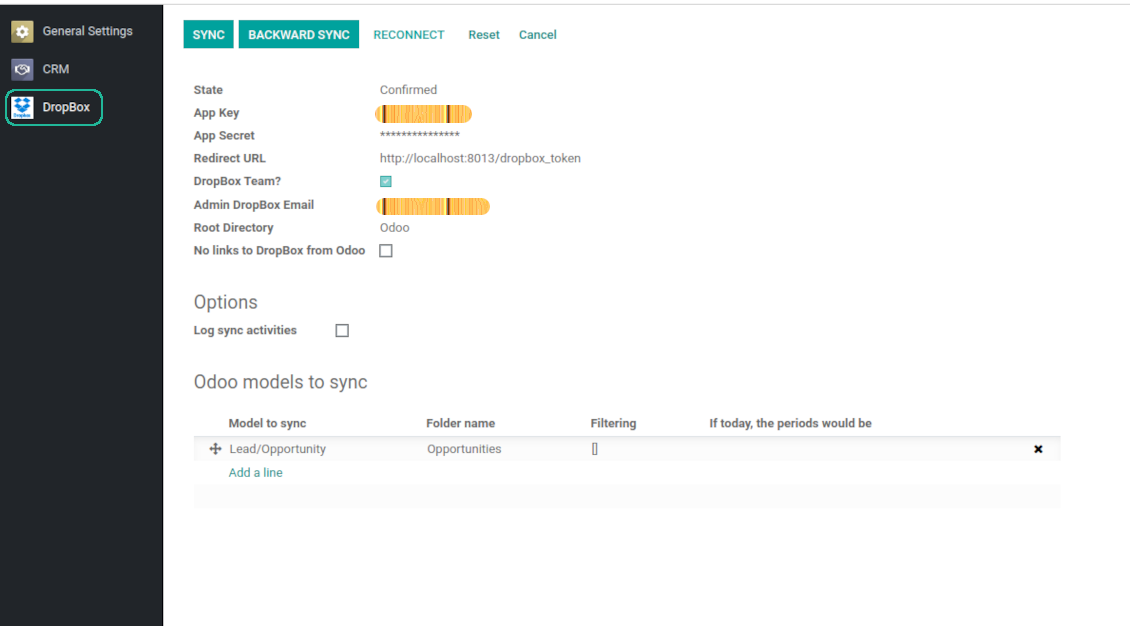
- Go to Odoo general settings - DropBox
- Copy App Key, App secret, and redirect URI to the Odoo configuration page
-
For team DropBoxes only
- Check the box 'DropBox Team'
- Set an email of DropBox user. Inside this user folder all Odoo related items would be created and only after that they are shared to all other users. Under this user all files and folders are created, changed, moved, and deleted
- Choose a suitable name for the root Odoo folder, e.g. 'Odoo' or 'ERP'
- Press Save
- Press 'Login and Confirm'
Create a DropBox app
Set up DropBox App: redirection URL
DropBox permissions for personal accounts
DropBox permissions for business accounts
Set up Odoo for DropBox integration
Odoo server configuration and cron job configuration
To make sure the synchronization works correctly apply proper timeouts to the Odoo configuration file: LIMIT_TIME_CPU, LIMIT_TIME_REAL should be more than 900 seconds.
For Odoo.sh this should not be done, since timeouts are predefined and are not configurable.
Then, timeout should be entered to your Odoo. To that goal find the section 'Settings' on the app configuration page and copy the number there.
Afterwards, it is needed to make the cron jobs suit the applied timeouts. In the debug mode go to the Settings > Technical > Automation > Scheduled Jobs:
- Set up the job 'Synchronize attachments with cloud' as (a) frequency - 2*timeout; (b) the next execution as the next hour +timeout. For example, for 900seconds timeout: frequency - as 30minutes; the next execution - at 08:15
- Set up the job 'Synchronize attachments from cloud' as (a) frequency - 2*timeout; (b) the next execution as the next hour + timeout*2. For example, for 900seconds timeout: frequency - as 30minutes; the next execution- at 08:30.
に関するよくある質問 DropBox Odoo Integration Odoo v.12
同期ジョブの頻度を変更できますか?
はい、できます。その手順は次のとおりです:
デバッグモードをオンにする
技術設定 > 自動化 > スケジュール済みジョブ に移動します
ジョブ 'Synchronize attachments with cloud' と 'Update attachments from cloud' を探します。
実行頻度を高くしすぎないでください。次のジョブが始まる前に、現在のジョブが終わるのが望ましいです。設定は同期する項目数に応じて変えます。通常、頻度は15分から4時間です。
Odoo 設定ファイルでも十分な時間制限を設定してください。LIMIT_TIME_CPU と LIMIT_TIME_REAL は、予定した cron ジョブ時間以上である必要があります。バージョン 13 以降はパラメータ LIMIT_TIME_REAL_CRON も考慮してください。
Odoo.sh のお客様への重要な注意: cron ジョブの最大時間が 15 分のみに設定されている場合があります。
同期が想定するのではなく、同期ディレクトリの別構造を設定できますか?
いいえ。この機能はバージョン15以降でのみ利用できます。それ以前のバージョンでは、モジュールは事前定義されたフォルダ構造で動作します:
Odoo - 同期の中核フォルダ
Models - 各 Odoo ドキュメントタイプ用のフォルダ。例: 'Projects'、'Partners'。domain で区別すると、より具体的なフォルダがある場合があります。例: 'Customer 1 Projects'、'Projects of the Customer 2'、'Internal Projects' など。
Objects - 各ドキュメント用フォルダ。例: 'Project 1' または 'Customer 1'
この Odoo ドキュメントに関連し、同期されるファイルとフォルダ。
その結果、例えば次のようになります:
Odoo / Projects / Project 1 / project 1 に関連するファイルとフォルダ
Odoo / Customer 1 Projects / Project 1; Odoo / Customer 2 Projects / Project 3, ...
Odoo / Customers / Customer 1 / customer 1 に関連するファイルとフォルダ
この構造は常にフラットです。つまり階層はそのレベルだけです。そのため、異なるドキュメントタイプを同じ構造内に置けないのは正しいです。フォルダ 'Customer 1' 内に、販売オーダ、請求書、プロジェクトのすべてに関連するファイルを置くことはできません。各ドキュメントタイプには独自のフォルダ(または複数)があります。そうでなければ、依拠する基準がなく、逆方向の同期ができません。
Odoo で特定ユーザーのアクセスを設定すべきですか?
いいえ。本ツールは単一ユーザーのエンドポイントに依存します。同期はすべて 1 人のクラウド管理者(アプリ)で行われます。作成したフォルダ / ファイルのアクセス権は自動化されません。クラウドストレージ側で管理してください。
同期フィールドはどこに保存されますか?Odooとクラウドに重複しますか?
本アプリは、添付のバイナリ内容が Odoo サーバーではなく Cloud Client に保管されることを前提とします。そのため、Odoo 上の該当添付は URL タイプになり、添付ボックスまたは Cloud Client からいつでもアクセスできます。
セットアップ後は同期が完全に自動のため、手動操作は不要です。同期する Odoo のドキュメントタイプを決め、それぞれに関連モデルを設定してください(顧客、販売オーダまたは購買オーダ、タスク、プロジェクトなど)。
同じ文書タイプに複数のフォルダを持てますか?例えば社内プロジェクトと顧客プロジェクトです。
はい。それぞれにルールを用意し、その後フィルタを適用します。例: プロジェクトの種類。
文書を確実に割り当てられるよう、フィルタは互いに排他的にしてください。例: 「顧客だが仕入先ではない」「仕入先だが顧客ではない」。そうしないと、特定文書のフォルダがモデル間を行き来します。
Cloud Storage Solutionアプリだけが必要ですか?
いいえ。本ツールは技術コアのみです。ご利用の cloud client 用コネクタも必要です。
同期するオブジェクトが例えば10000件と多くても問題ありませんか?
はい。ただし同期するフォルダ/添付が多いと遅くなることがあります。一方、>10k の取引先と約 5k のプロダクトバリアントを同期した環境でも処理は許容範囲だったとお客様から報告があります。
強調すべき点:
- 同期は、どの項目も失われず同期されるように作られています。速くない場合もあります。FIFO キューと各ジョブのコミットがそれを保証します。
- 対象数は論理的に制限できます。モデル設定で古い項目の同期を制限できます(例: アーカイブ済み取引先や 2 年前のオーダを同期する意味はありません)。
同期をリアルタイムにできますか?
いいえ。リアルタイム同期を避ける確かな理由があります:
パフォーマンスの問題。同期がリアルタイムだと、ファイルアップロードのたびに読み込み画面が出ます。
競合の問題。2 人のユーザーが同時に項目を変更すると、解決できない状況になり得ます。定期ジョブなら後から直せますが、リアルタイムではキューとして保存する必要があり、ユーザーにとってさらに分かりにくくなります。
機能上の問題。特に項目の名前変更と再構成です。逆方向同期ではディレクトリ論理に厳密に依存し、毎回 100% の項目を確認します。更新のたびに行うと毎秒数千リクエストになります。行わなければ変更は失われます。
添付をいくつかのクラウドクライアントと同期できますか
いいえ、この機能はバージョン 15 以降でのみ利用できます。
クラウドでは専用エディタ(OnlyOffice、Office 365 など)を使っています。ファイルはそのエディタで開きますか?
はい、cloud client の設定によります。
ツールの更新ポリシーは何ですか?
現行の Odoo Apps Store ポリシーによると:
- バージョン 12.0 以前向けに購入したモジュールは、12.0 までの全バージョンにアクセスできます。
- バージョン 13.0 以降、各モジュールバージョンは個別に購入します。
- バージョンに関係なく、購入するとメジャーバージョン内の すべての更新と不具合修正の権利が得られます。
faOtools チームはこれらのポリシーを管理していません。ご質問は Odoo Apps Store の担当者へ直接お問い合わせください。
アプリを Odoo.sh にインストールする方法は?
最も単純な方法は、Odooストア組み込みのワークフローを使うことです:
1. モジュールのページを開き、Deploy on odoo.sh ボタンをクリックします。
2. その後 GitHub ページにリダイレクトされます。アカウントにログインし、'Create a new repo' をクリックするか既存のものを使います。リポジトリはプライベートにしてください。OPL-1 ライセンスのアプリを公開することは許可されていません。必要なら Odoo.sh プロジェクト用に新しい repo を作成します。
3. 次に odoo.sh に行き、Deploy ボタンをクリックします。ポップアップで決定を送信し、'Continue.' をクリックします。これでインストールが始まります。
これらの手順でプロジェクトの本番ブランチにアプリがインストールされます。他のブランチにデプロイする、またはモジュールを更新する場合は、次の操作を行います:
1. Odooストアからアプリのソースコードをアップロードします。
2. モジュールを必要な GitHub リポジトリにコミットします。アプリのフォルダ/ファイルが無視されていないこと(repo の .gitignore に含まれていないこと)を確認してください。リポジトリは odoo.sh が自動作成し、既定で重要な項目(例: /lib)が含まれることがあります。モジュールのディレクトリ、サブディレクトリ、ファイルを例外なくすべてアップロードしてください。
3. odoo.sh プロジェクトの対象ブランチを Deploy するか、 設定がそうなっている場合は自動ビルドされるまで待ちます。
自分のサーバーにアプリをインストールするには?
2. Odoo サーバーを再起動します;
3. 開発者モードをオンにします(技術設定);
4. アプリ一覧を更新します(アプリメニュー);
5. アプリを見つけて「Activate」/「Install」を押します;
6. アプリページにガイドラインがあれば従ってください。
アプリに追加アドオンがあるのに気づきました。後から購入できますか?
はい、もちろんです。同時に Odoo は依存関係をすべてカートに自動追加するので、二重払いを避けるには既に購入したツールを除外してください。
アプリを Odoo.sh にデプロイしたらテストで警告/エラーが出ます
赤/オレンジの警告はアプリの機能に影響しません。残念ながら、標準の自動テストがアプリの目的と衝突する動作を想定するため、モジュールが通らないことがあります。たとえば価格計算を変える一方、標準 Odoo モジュールのテストは最終価格を標準アルゴリズムと比較します。
まず、デプロイ済みデータベースの機能を確認してください。すべて正しく動いていますか?
それでも警告が実機能に影響すると考える場合はご連絡のうえ、インストールログ一式とデプロイ済みモジュールの全一覧(コアおよびサードパーティ含む)を送ってください。
アプリを御社から直接購入できますか?
いいえ、ツールは 公式の Odoo アプリストア.
割引をいただきたいです
残念ながら、個別価格を提示する技術的手段が ありません。
Odoo Online (SaaS)データベースにアプリをインストールできますか?
いいえ、サードパーティアプリは Odoo Online では使えません。残念ながら Odoo SaaS がその可能性をブロックします。
ツールは他のアプリに依存しています。それらも購入すべきですか?
はい、ツールが正しく動くには依存関係に記されたすべてのモジュールが必要です。アプリページの価格には必要な依存関係がすでに含まれています。
モジュールの米ドル価格はいくらですか?なぜ変わりましたか?
モジュールの価格はユーロ建てです。Odoo ストアは内部為替レートで他通貨に換算します。そのため為替が更新されると米ドル価格が変わることがあります。
英語以外のアプリ・サイト文言は AI 支援で作成され、 公式の Odoo 翻訳に揃えています。誤りを見つけたら、 翻訳の正確さについてチケットを送る 修正します。
不具合報告
不具合や一貫しない動作があれば、遠慮なくご連絡ください。購入から60日以内の修正を保証し、その後もツール改善に力を入れています。
ご連絡に電話番号やクレジットカードは不要です。30 秒以内の短いメール登録だけです。
リクエストにはできるだけ多くの詳細を含めてください:スクリーンショット、Odoo サーバーログ、問題の再現手順の完全な説明など。通常、問題の作業計画の作成(不具合が確認された場合)または実施すべき内容の案内(それ以外)には数営業日かかります。
公開の機能リクエストとモジュールのアイデア(無償開発)
ツール改善への意欲は強く、フィードバックには感謝します。要件が広く役立ち、効率よく実装できる場合、チームは To-do リストに加えます。
このような To-do リストは定期的に処理され、追加料金は発生しません。期限や最終デザインは約束できませんが、投資とリスクなしで望む機能を得る良い方法になることがあります。
ご連絡に電話番号やクレジットカードは不要です。30 秒以内の短いメール登録だけです。


社内・社外向けに深く構造化されたナレッジベースを構築するツール。Knowledge System。KMS。Wiki のような改訂。
398€


お気に入りの AI チャットから MCP 経由で Odoo を管理するツール。Claude。MCP 対応の任意の AI。

Odoo の添付ファイルをフォルダに柔軟に整理し、Google Drive、OneDrive/SharePoint、Nextcloud/ownCloud、Dropbox、Amazon S3、Box、NAS とディレクトリを同期するツール。DMS。ファイルマネージャー。文書管理システム
398€

