DropBox Odoo Integration v.12
The tool to automatically synchronize Odoo attachments with DropBox files in both ways
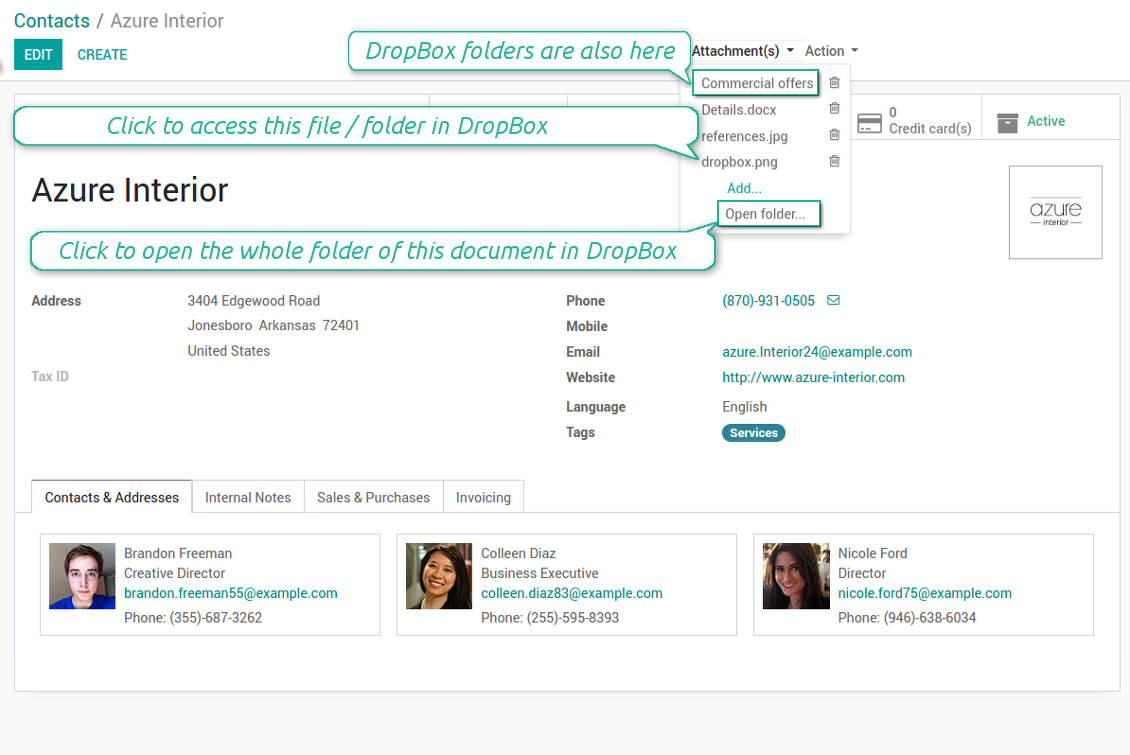
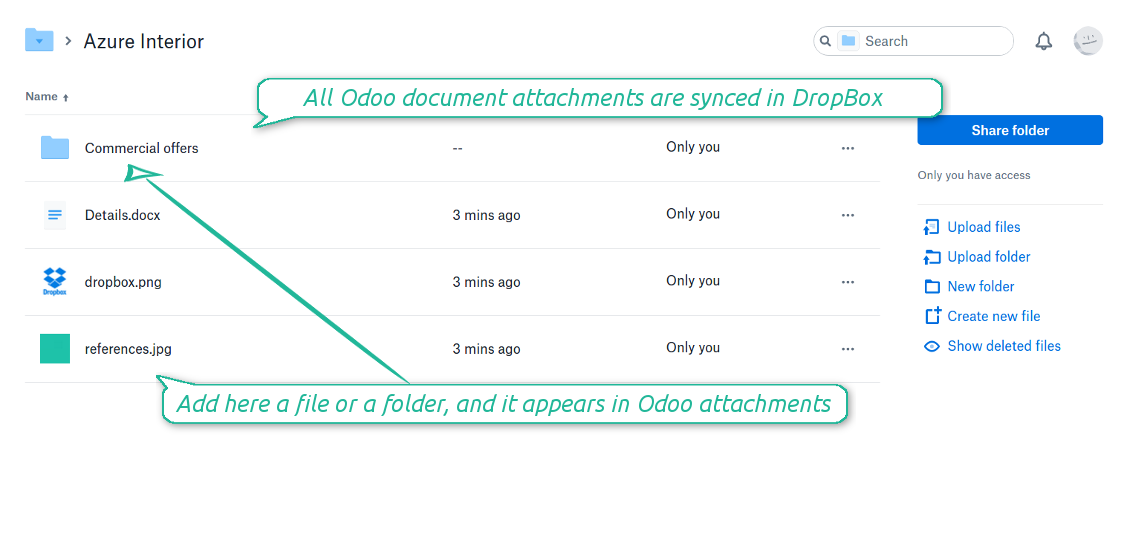
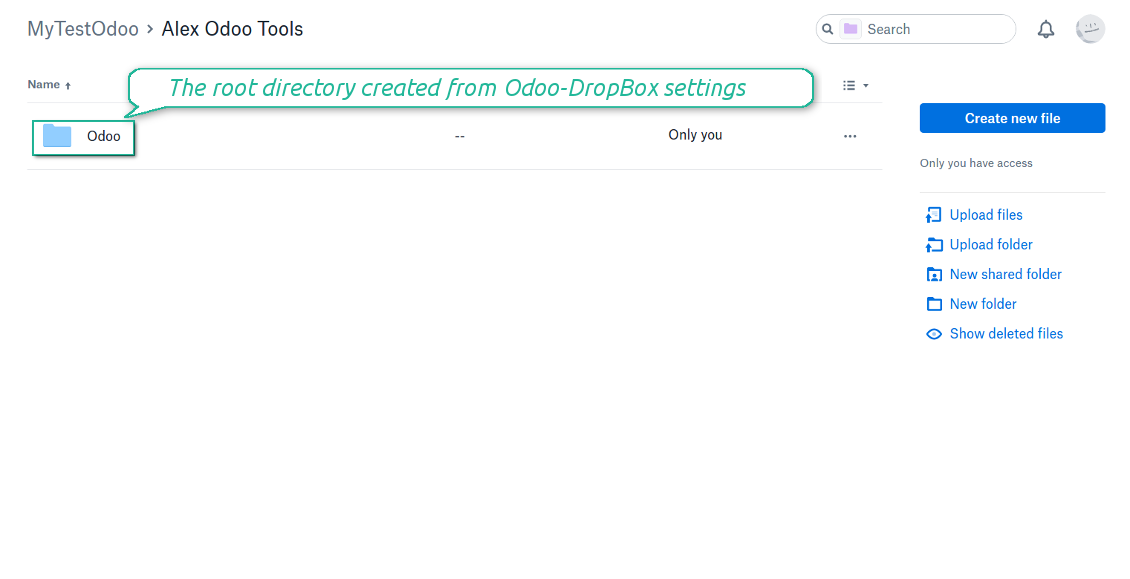
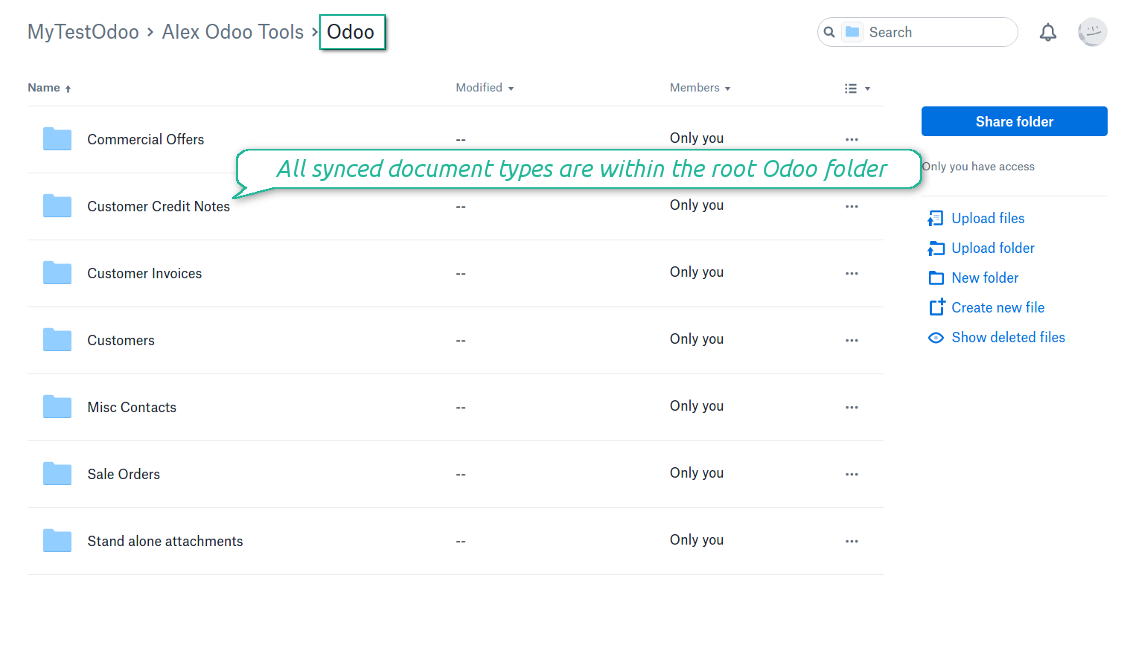
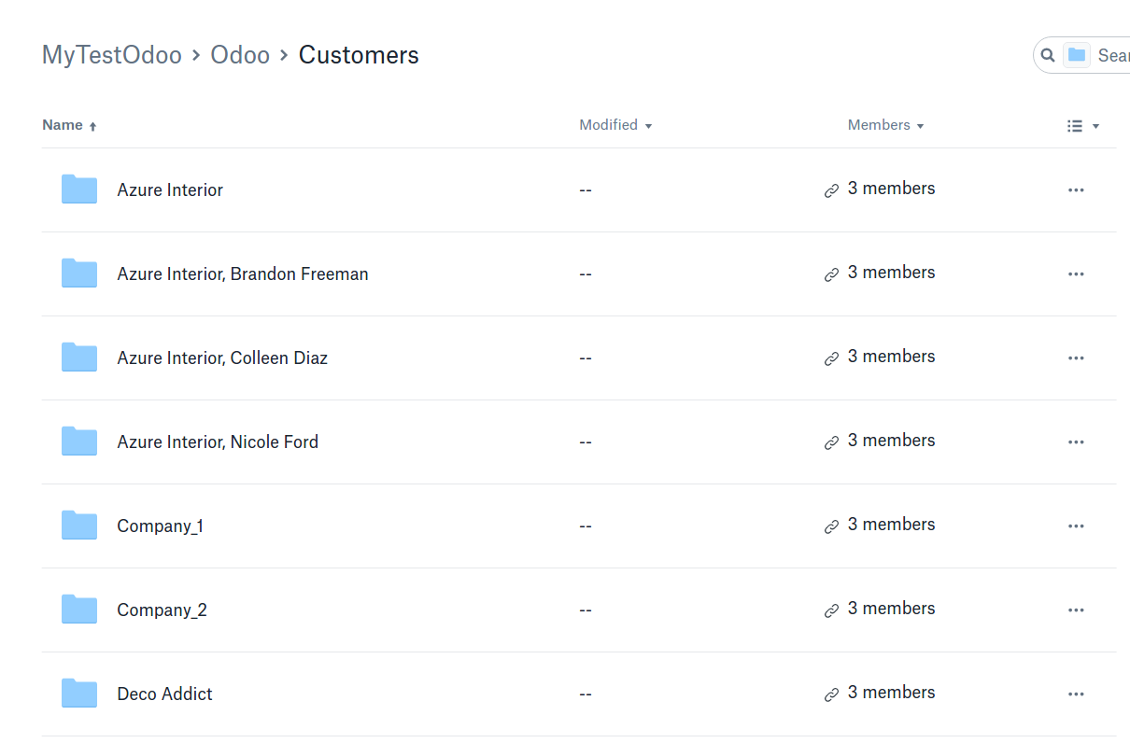
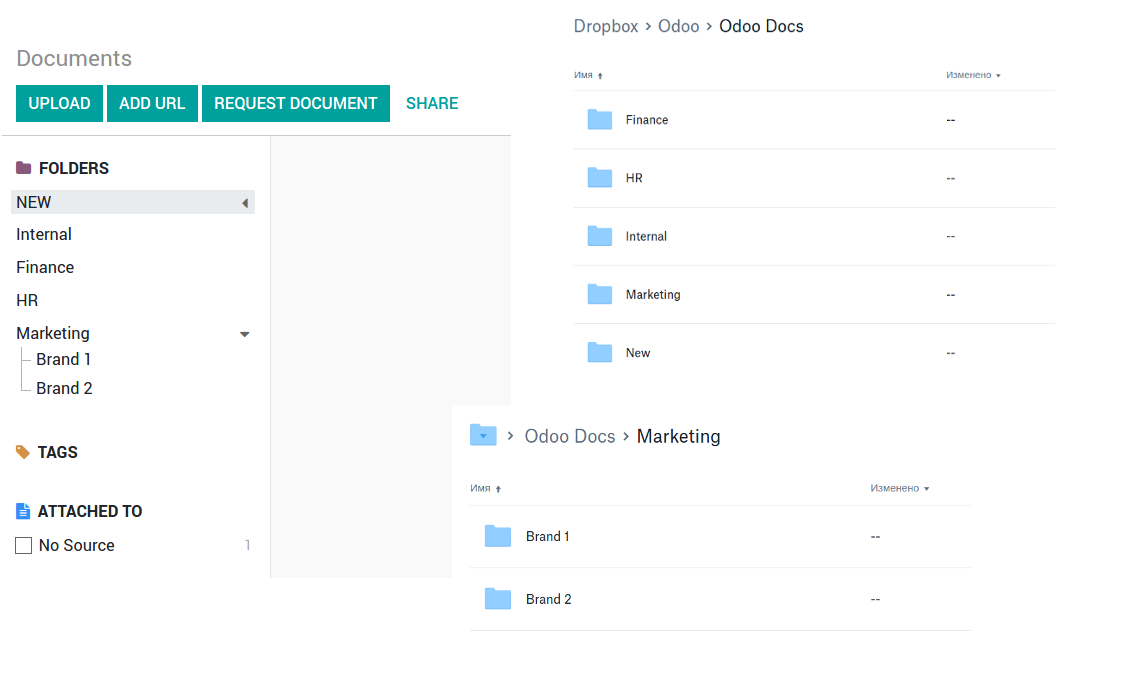
Synchronization is bilateral. All Odoo attachments are put in DropBox regularly. DropBox files create attachments in Odoo in case they are placed in a correct folder. Look at the sections From Odoo to DropBox and From DropBox to Odoo
Integration is automatic in both ways. Based on scheduled jobs, Odoo send attachments to DropBox and retrieve files from there
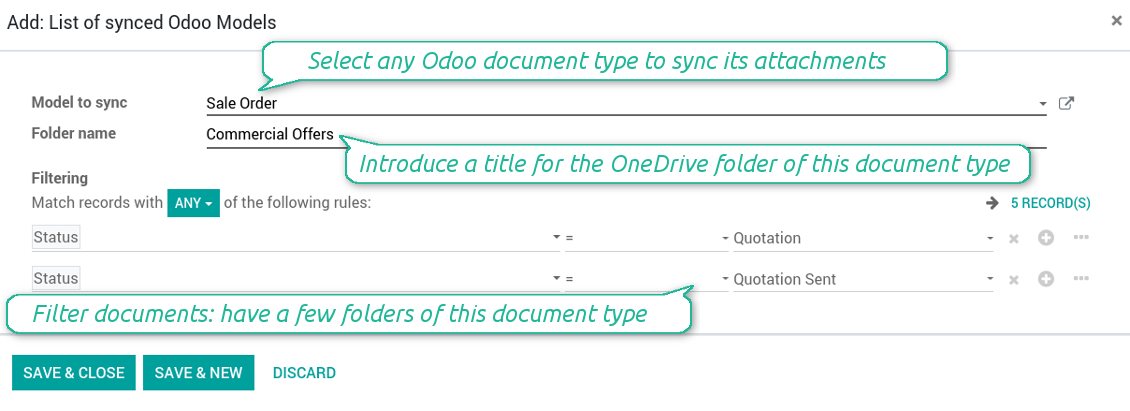
Any Odoo document might be synced: customers, opportunities, sale or purchase orders, tasks or issues, employees or users, etc. You decide by your own which records should be in DropBox, and which should be left in Odoo
Synchronization works for any DropBox tariff, including Personal DropBox (Basic, Plus, Family) and business DropBox (Professional, Standard, Advanced)
The tool works fine with the Odoo Enterprise Documents module. For full compatibility and to reflect new module directories structure use the app Cloud Sync for Enterprise Documents. Look also at the section Odoo Enterprise Documents
All synced files are easily accessible though clicking on an attachment. You might also open a whole document folder by clicking on 'Open folder' on the attachment widget. This feature migth be optionally turned off: look at the section DropBox URLs
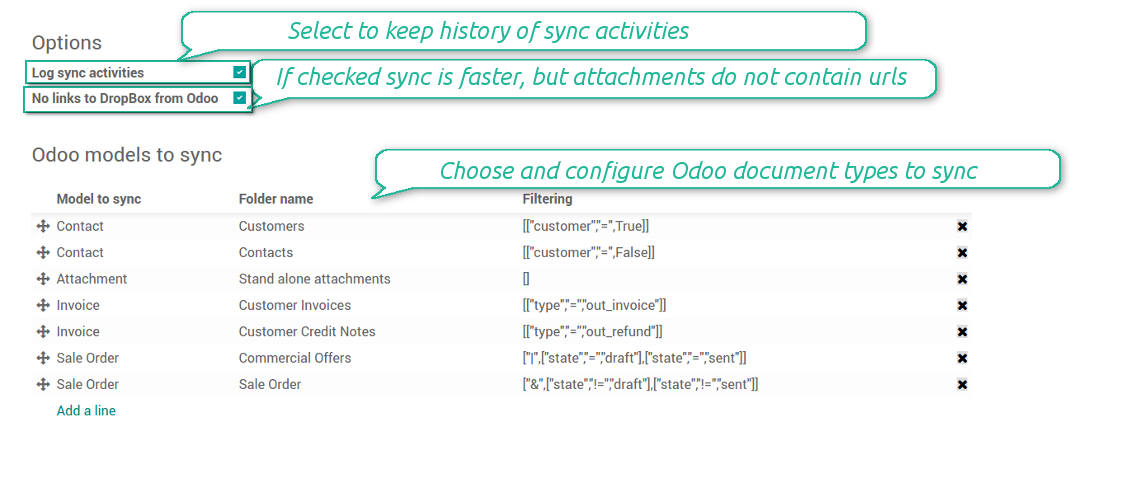
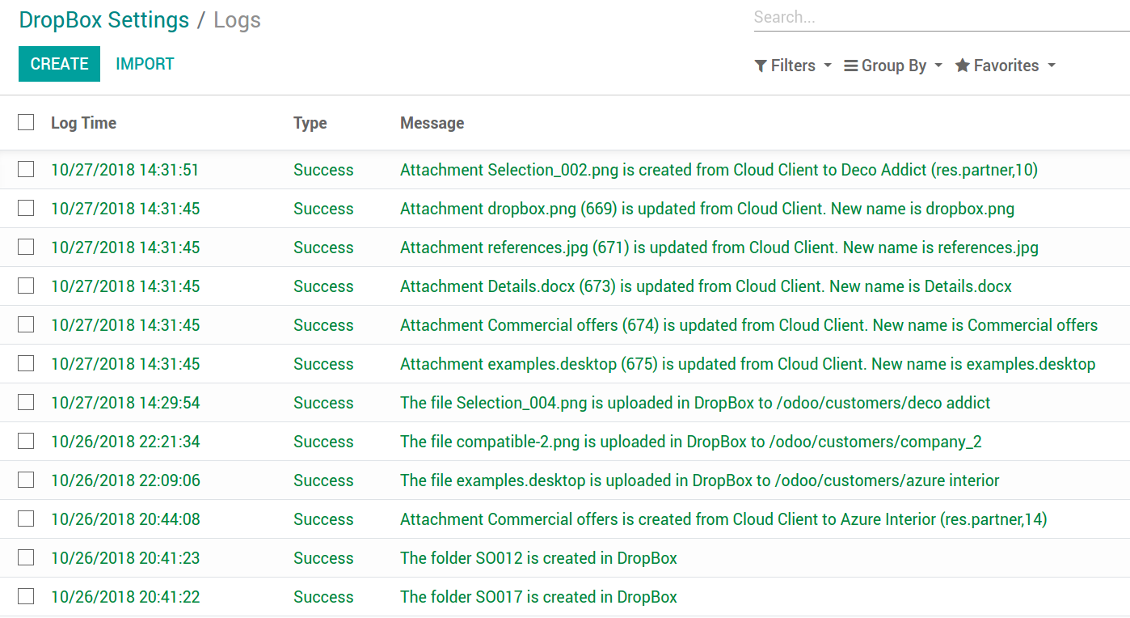
All sync activities might be logged. Control over files and folders creations, moves, name changes and removals. Just turn on the option 'Log sync activities' and access history through the button 'Sync logs'
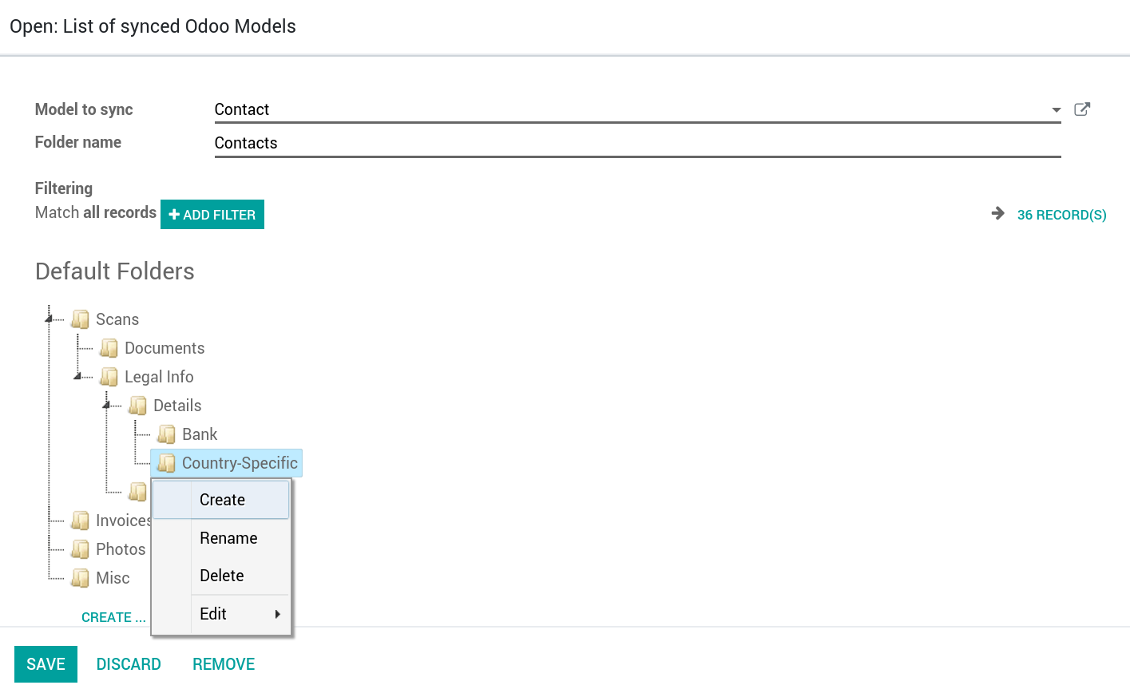
New For each document of this type you may create a default directories' structure. When this folder is firstly synced, Odoo would generate default folders. For example, for all employees you may have pre-defined folders 'Scans', 'Scans/Official', 'Photos', etc.
The tool is compatible with Odoo reporting and mailing apps. If such an app faces a synced file, it retrieves a real content from DropBox. In particular, the reports 'always reload' feature and messages & mass mailing attachments work properly
Integration is based on a single user endpoint. It means that a single user login/password of DropBox is used. Afterwards for integrations Odoo would use that credentials disregarding an actual Odoo user
- Prepare and keep updated folders' structure in DropBox
- Upload new attachments to a correct folder
Odoo creates a convenient directory structure in DropBox: Odoo / Document type name / Document name / Files, where:
- Odoo is a central directory for Odoo Sync in your cloud storage.
- Document type is a synced Odoo model, for example, 'Sale orders', 'Opportunities', 'Customers'
- You select document types by yourself. It might be any document type
- Moreover, you might have a few folders for a single document type. Use Odoo domains to have not global 'Partners, but 'Customers' and 'Suppliers', not just 'Sale orders' but 'Commercial offers', 'To deliver', and 'Done orders'
- With each sync Odoo would try to update document types' folders. Add a new document type at any moment. It will appear in DropBox with a next sync
- You are welcome to introduce or change document types folder names at any moment in Odoo. Take into account: renaming in DropBox will be recovered to Odoo names
- If you remove a model from integration, it will not be deleted from DropBox to keep already synced files safe. However, new documents of this type would not be synced
- In case you removed a directory in DropBox, but it is still configured in Odoo, with a next sync a folder structure is going to be recovered (not files, surely).
- Document is an exact object to sync. For instance, 'Agrolait' or 'SO019'
- Documents are synced in case they relate to a synced document type and satisfy its filters. For example, you are not obliged to sync all partners, you may integrate only 'Customers' and 'Vendors' or only 'Companies', not 'Contacts'
- Odoo would generate a folder in DropBox for each suitable document even for documents without attachments. It is needed for a backward sync to easily add new files
- DropBox folder name equals a real document name. It relies upon Odoo name_get method. Thus, Odoo 'Michael Fletcher' (a contact of 'Agrolait') would be DropBox 'Agrolait, Michael Fletcher'
- If an exact document changes its document type (e.g. a quotation is now confirmed), Odoo will automatically relocate its related folder to a proper parent directory (in the example: from 'Commercial offers' to 'To deliver')
- In case a document relates to a few types (for instance, you have 'Vendors' and 'Customers', while Agrolait is both), this document folder would be put into the most prioritized document type. A document type priority is higher as closer to the top in Odoo interfaces it is
- If an Odoo document is removed, the next sync will remove a corresponding DropBox directory
- In case you remove a directory in DropBox, but it still exists in Odoo, DropBox folder structure would be recovered (while files would be unlinked in both Odoo and DropBox)
- Folders renaming in DropBox will be replaced with Odoo names, Odoo document names are more important
- Files are real files taken from Odoo attachments
The resulted path would be, for example, 'Odoo / Quotations / SO019 / commercial offer.png'.
The only exclusion of the rule are stand alone attachments which do not relate to any Odoo documents (their document type is 'ir.attachment'). Such attachments' path is 'Odoo / Stand Alone Attachments / image.png'.
The direct sync might take quite a long, since a lot of folders should be created. It is not recommended to make sync too frequent: once an hour or two hours is fine.
FilesWith each direct sync, Odoo tries to find not yet synced attachments. If such attachments suit any document type to sync, a file will be uploaded to DropBox to a proper folder. In Odoo such attachments will become of 'url' type (look also at the section DropBox URLs). It means that a file is not any more kept in Odoo server space, but now it is in DropBox. Until sync is done, Odoo attachment remains binary and stores an actual file. Such approach helps Odoo to work faster.
If you unlinked an attachment from Odoo, it would be deleted in DropBox as well.
Take into account that file names should be managed in DropBox: each backward sync would recover DropBox names, Odoo is here less important.
- If a new file is added to a proper document folder (e.g. to 'Odoo / Customers / Agrolait'), the same attachment will be added to Odoo document (in the example - to 'Agrolait')
- In document folders you can put not only files but also child folders. In that case a link for this folder (not its content) is kept in attachments
- In case you rename a file in DropBox, it will be renamed in Odoo as well
- Files' removal from DropBox leads to related Odoo attachments' removal
- If you move a file to another document folder, in Odoo a related attachment would be re-attached to this new document. Take into account: if you move a file for a not document folder, this Odoo attachment will be deleted as it has been removed from DropBox
- If you deleted a document type or document folder, their child files are deleted as well. Thus, Odoo would remove related attachments. The folders, however, will be recovered with a next direct sync. Folders' move to another directory is also considered as a removal. Avoid such situations by following the simple rule: folders are managed mostly by Odoo, files - mostly by DropBox.
Backward DropBox might take quite much time, since each folder should be checked (the more folders, the more time the backward sync requires). It is recommended to make frequency oftener than once an hour or two hours.
DropBox has a specific way to generate links for existing files and folders. In particular, there are no concepts of internal or private URLs. Instead, each DropBox item might get so-called shared URLs. Such shared links are either public or team-only. Moreover, the latter feature is available only for DropBox business account.
This tool relies upon share links' mechanics. It means, that each attachment link is either public (all personal DropBox accounts) or team-only (all business DropBox accounts).
Sometimes it is considered to be not fully safe. Although website URLs will be hardly known by external users, there is a slight chance that they become available as a result of some user actions. Besides, sharing links generation is not super fast and might make a sync process slower. That is why the feature to switch off sharing urls is introduced.
If checked, all DropBox urls in Odoo will be of type https://www.dropbox.com/home/Odoo/[PATH]. Such links will not work in quite a many cases. Thus, if you need to open DropBox files / folders from Odoo, do not switch off the feature 'No links to DropBox from Odoo'.
- Try to avoid the following symbols in folders' and files' names: *, ?, ", ', :, <, >, |, +, %, !, @, \, /,. Direct sync will replace such symbols with '-'. It is done to avoid conflicts with file systems.
This tool is not in conflict with the 'documents' module provided by the Enterprise license. Attachments related to Enterprise folders would be synced as any other files: according to a document they relate to. In the most cases it means they would be linked to stand-alone attachments.
It is not always comfortable, and you might be interested in reflecting directories' structure introduced by the module 'Documents'. To this end the extension Cloud Sync for Enterprise Documents (its standard price is 44 Euros) is developed. This tool has the following features:
- The documents hierarchy is reflected within the folder 'Odoo / Odoo Docs'
- Each Odoo folder has a linked cloud folder. Take into account that folders created in the cloud storage will be synced as Odoo attachments. The key principle is: folders are managed by Odoo, files are managed by the cloud client
- All files are synced with the same logic as usual attachments. Files created in Odoo will be added to the cloud storage and will be replaced with links in Odoo. Files created in cloud storage will generate attachments within a paired directory
- Please do not name synced models as 'Odoo Docs'. This is the reserved name for Odoo Enterprise Documents
Configuration and Login
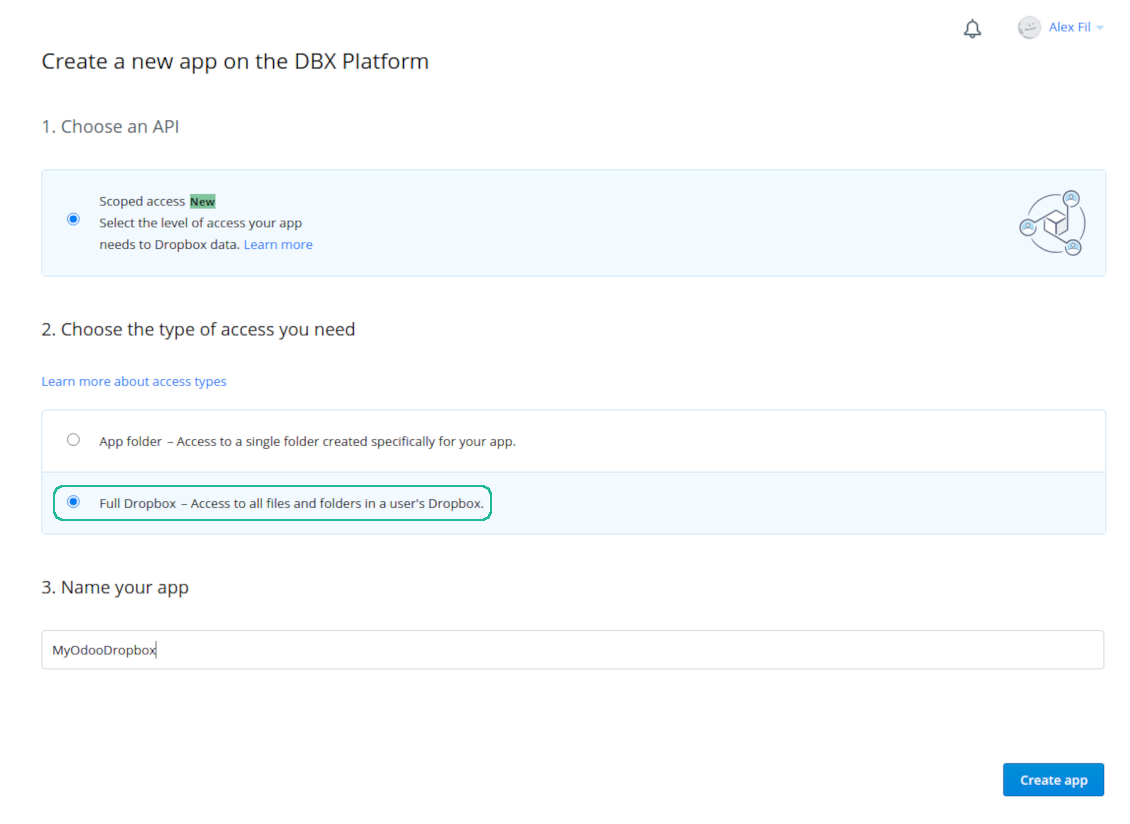
- Follow the url https://www.dropbox.com/developers/apps/create
- Choose an API as 'Scoped access'
- Choose the type of access as 'Full Dropbox'
- Select any suitable name for the app and push the button 'Create app'
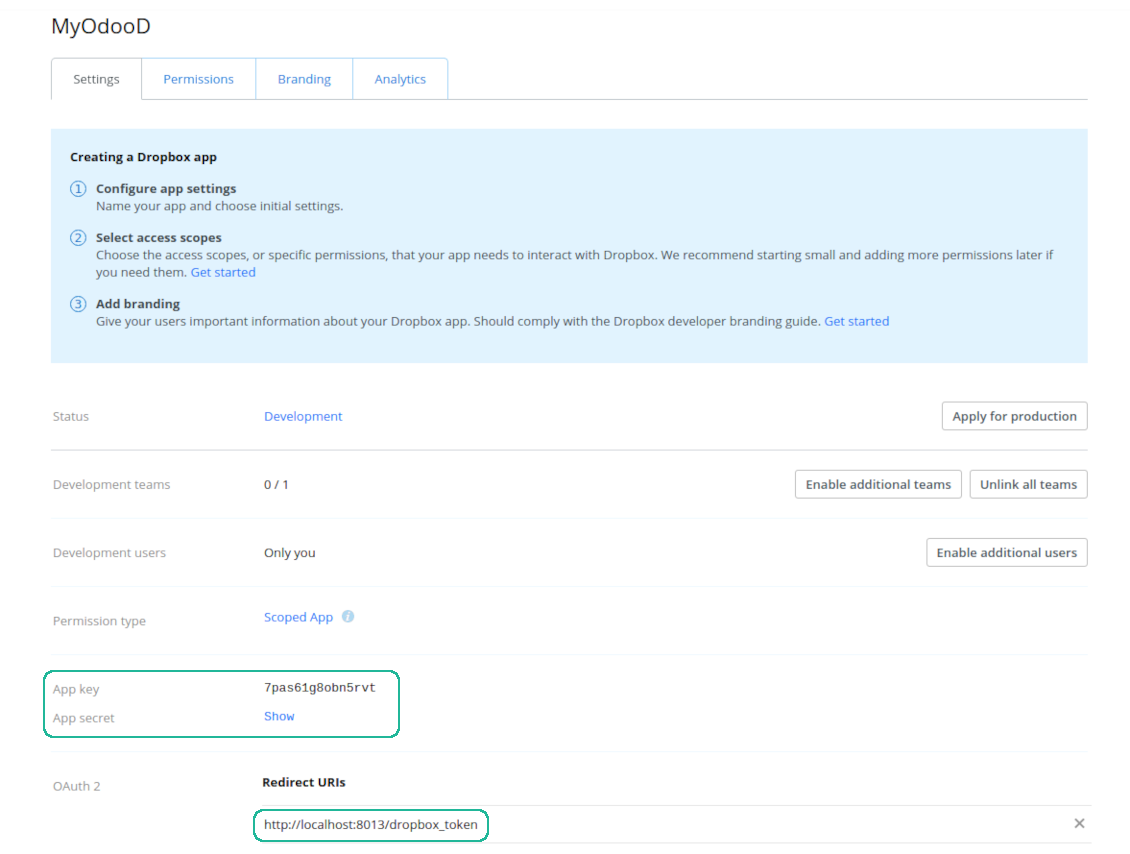
- Add the redirect URI as YOURODOOSITENAME]/dropbox_token (e.g. https://faotools.com/dropbox_token). A valid SSL certificate (https) is required
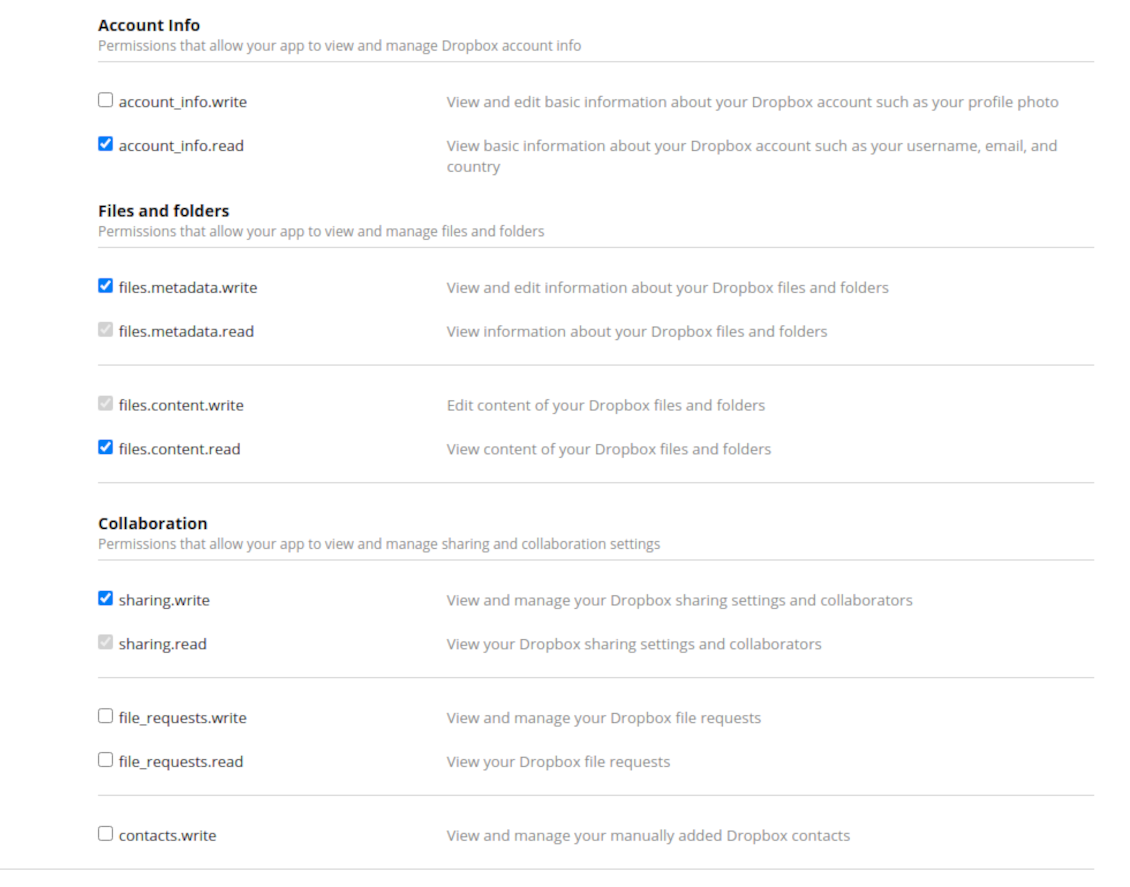
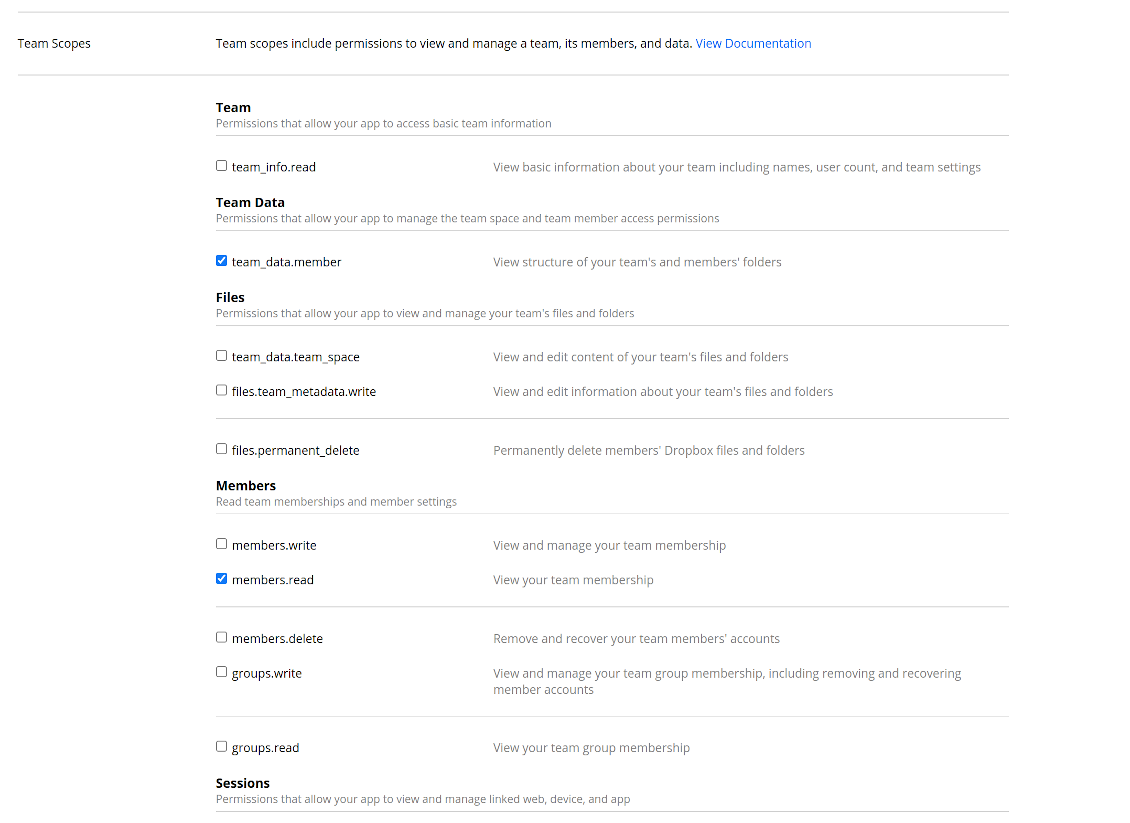
- Grant permissions to the app: 'Account Info (Read)', 'Files and folders Metadata (Write)', 'Files Content (Write)', 'Collaboration (Write)'. For team DropBox assign also 'Team Data Members', 'Members (Read)'. Make sure no other permissions are assigned.
- Submit App
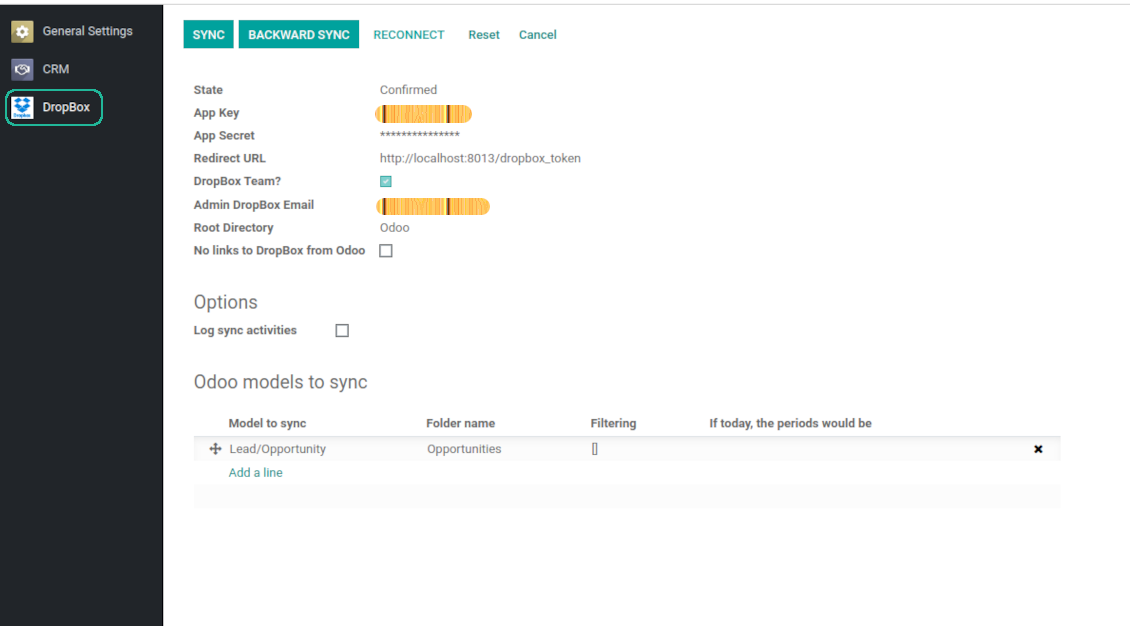
- Go to Odoo general settings - DropBox
- Copy App Key, App secret, and redirect URI to the Odoo configuration page
-
For team DropBoxes only
- Check the box 'DropBox Team'
- Set an email of DropBox user. Inside this user folder all Odoo related items would be created and only after that they are shared to all other users. Under this user all files and folders are created, changed, moved, and deleted
- Choose a suitable name for the root Odoo folder, e.g. 'Odoo' or 'ERP'
- Press Save
- Press 'Login and Confirm'
Create a DropBox app
Set up DropBox App: redirection URL
DropBox permissions for personal accounts
DropBox permissions for business accounts
Set up Odoo for DropBox integration
Odoo server configuration and cron job configuration
To make sure the synchronization works correctly apply proper timeouts to the Odoo configuration file: LIMIT_TIME_CPU, LIMIT_TIME_REAL should be more than 900 seconds.
For Odoo.sh this should not be done, since timeouts are predefined and are not configurable.
Then, timeout should be entered to your Odoo. To that goal find the section 'Settings' on the app configuration page and copy the number there.
Afterwards, it is needed to make the cron jobs suit the applied timeouts. In the debug mode go to the Settings > Technical > Automation > Scheduled Jobs:
- Set up the job 'Synchronize attachments with cloud' as (a) frequency - 2*timeout; (b) the next execution as the next hour +timeout. For example, for 900seconds timeout: frequency - as 30minutes; the next execution - at 08:15
- Set up the job 'Synchronize attachments from cloud' as (a) frequency - 2*timeout; (b) the next execution as the next hour + timeout*2. For example, for 900seconds timeout: frequency - as 30minutes; the next execution- at 08:30.
Häufig gestellte Fragen zu DropBox Odoo Integration Odoo v.12
Kann ich die Häufigkeit der Synchronisierungsjobs ändern?
Ja, das geht. Gehen Sie so vor:
Debug-Modus einschalten
Technische Einstellungen > Automatisierung > Geplante Aktionen öffnen
Die Jobs «Synchronize attachments with cloud» und «Update attachments from cloud» suchen.
Machen Sie sie nicht zu häufig. Ein Job sollte fertig sein, bevor der nächste startet. Die Einstellung hängt davon ab, wie viele Elemente zu synchronisieren sind. Üblich ist eine Frequenz zwischen 15 Minuten und 4 Stunden.
Setzen Sie außerdem ausreichende Zeitlimits in der Odoo-Konfigurationsdatei. LIMIT_TIME_CPU und LIMIT_TIME_REAL müssen mindestens so groß sein wie die geplante Cron-Zeit. Ab Version 13 beachten Sie auch LIMIT_TIME_REAL_CRON.
Wichtiger Hinweis für Odoo.sh-Kunden: Die maximale Laufzeit eines Cron-Jobs kann auf 15 Minuten begrenzt sein.
Kann ich eine andere Struktur der synchronisierten Verzeichnisse einrichten als die von der Synchronisierung vorgesehene?
Nein, diese Funktion gibt es erst ab Version 15. Davor arbeitet das Modul mit einer festen Ordnerstruktur:
Odoo - Stammordner für den Sync
Modelle - Ordner je Odoo-Dokumenttyp. Zum Beispiel «Projects», «Partners». Über die Domain kann es spezifischere Ordner geben: «Customer 1 Projects», «Projects of the Customer 2», «Internal Projects» usw.
Objekte - Ordner je Dokument, z. B. «Project 1» oder «Customer 1»
Dateien und Ordner zu diesem Odoo-Dokument, die synchronisiert werden.
Daraus kann zum Beispiel werden:
Odoo / Projects / Project 1 / Dateien und Ordner zu Projekt 1
Odoo / Customer 1 Projects / Project 1; Odoo / Customer 2 Projects / Project 3, ...
Odoo / Customers / Customer 1 / Dateien und Ordner zu Kunde 1
Die Struktur ist immer flach: nur diese Hierarchieebenen. Verschiedene Dokumenttypen gehören nicht in denselben Zweig. Im Ordner «Customer 1» können nicht zugleich Aufträge, Rechnungen und Projekte liegen. Jeder Dokumenttyp hat eigene(n) Ordner. Sonst wäre der Rückwärts-Sync nicht möglich, weil kein Kriterium bleibt.
Muss ich in Odoo spezielle Benutzerzugriffe einrichten?
Nein, das Tool nutzt einen einzigen Benutzer-Endpunkt. Alle Sync-Prozesse laufen unter einem Cloud-Admin (App). Zugriffsrechte für erstellte Ordner / Dateien werden nicht automatisiert. Verwalten Sie diese in Ihrer Cloud-Speicherlösung.
Wo werden die synchronisierten Dateien gespeichert? Werden sie in Odoo und in den Clouds dupliziert?
Die App geht davon aus, dass der Binärinhalt der Anhänge im Cloud Client statt auf dem Odoo-Server liegt. Solche Anhänge werden in Odoo vom Typ URL, und Sie können jederzeit aus der Anhangsbox oder aus dem Cloud Client darauf zugreifen.
Nach der Einrichtung sind keine manuellen Schritte nötig, die Synchronisierung läuft vollautomatisch. Legen Sie fest, welche Odoo-Dokumenttypen synchronisiert werden, und richten Sie für jeden ein zugehöriges Modell ein (Kunden, Verkaufs- oder Einkaufsaufträge, Aufgaben, Projekte usw.).
Kann ich mehrere Ordner für denselben Dokumenttyp anlegen? Zum Beispiel interne Projekte und Kundenprojekte?
Ja, das geht. Legen Sie dazu für jede Variante eine Regel an und setzen Sie Filter, zum Beispiel nach Projekttyp.
Machen Sie die Filter einander ausschließend, damit ein Dokument eindeutig zugeordnet wird. Zum Beispiel: „Kunde, aber nicht Lieferant“, „Lieferant, aber nicht Kunde“. Sonst springt der Dokumentordner von einem Modell zum anderen.
Brauche ich nur die App Cloud Storage Solution?
Nein, das Tool ist nur der technische Kern. Sie brauchen außerdem den Connector für Ihren Cloud-Client.
Ist es in Ordnung, wenn ich viele Objekte synchronisieren muss, zum Beispiel 10000?
Ja, auch wenn bei vielen Ordnern/Anhängen der Prozess langsam sein kann. Kunden berichteten jedoch von Umgebungen mit >10k Partnern und ~5k Produktvarianten, und die Abläufe waren akzeptabel.
Einige Punkte:
- Der Sync ist so gebaut, dass jedes Element synchronisiert wird und nicht verloren geht, auch wenn es nicht schnell ist. FIFO-Warteschlangen und das Commit jedes Jobs garantieren das.
- Die Objektzahl lässt sich logisch begrenzen. Die Modellkonfiguration erlaubt, veraltete Elemente auszuschließen (z. B. archivierte Partner oder Aufträge von vor 2 Jahren).
Ist eine Echtzeit-Synchronisierung möglich?
Nein. Es gibt starke Gründe gegen Echtzeit-Sync:
Leistung. Bei Echtzeit-Sync führt jeder Datei-Upload zum Ladebildschirm.
Konflikte. Ändern 2 Benutzer gleichzeitig ein Element, kann das unlösbar werden. Bei regulären Jobs können wir das danach beheben; in Echtzeit müsste eine Warteschlange her, das wäre noch verwirrender.
Funktion. Besonders Umbenennen und Umstrukturieren. Der Rückwärts-Sync stützt sich strikt auf die Verzeichnisslogik und prüft bei jedem Lauf 100 % der Elemente. Nach jeder Änderung wären das Tausende Anfragen pro Sekunde. Sonst gingen Änderungen verloren.
Kann ich Anhänge mit mehreren Cloud-Clients synchronisieren
Nein, diese Funktion gibt es erst ab Version 15.
Wir nutzen einen speziellen Editor in unseren Clouds (z. B. OnlyOffice, Office 365 usw.). Würden Dateien in diesem Editor geöffnet?
Ja, abhängig von der Konfiguration Ihres Cloud-Clients.
Wie sind die Update-Richtlinien Ihrer Tools?
Laut den aktuellen Richtlinien des Odoo Apps Store:
- Ein fur Version 12.0 oder früher gekauftes Modul gibt Zugang zu allen Versionen bis 12.0.
- Ab Version 13.0 muss jede Modulversion separat gekauft werden.
- Unabhängig von der Version berechtigt der Kauf zu allen Updates und Fehlerbehebungen innerhalb einer Hauptversion.
Das faOtools-Team steuert diese Richtlinien nicht. Fragen richten Sie bitte direkt an die Vertreter des Odoo Apps Store.
Wie installiere ich Ihre App auf Odoo.sh?
Der direkteste Weg ist der integrierte Ablauf des Odoo Stores:
1. Öffnen Sie die Modulseite und klicken Sie auf Deploy on odoo.sh
2. Sie werden zu GitHub weitergeleitet. Melden Sie sich an und klicken Sie auf Create a new repo oder nutzen Sie ein vorhandenes. Das Repository muss privat sein. Apps unter OPL-1 dürfen nicht öffentlich gemacht werden. Legen Sie bei Bedarf ein neues Repo fur das Odoo.sh-Projekt an
3. Gehen Sie zu odoo.sh, klicken Sie auf Deploy, bestätigen Sie und klicken Sie auf Continue. Die Installation startet.
Damit wird die App auf dem Production-Branch installiert. Fur andere Branches oder Updates:
1. Laden Sie den Quellcode aus dem Odoo Store
2. Committen Sie das Modul in das GitHub-Repository. Keine App-Ordner/Dateien dürfen in .gitignore stehen. Von odoo.sh erzeugte Repos ignorieren oft wichtige Pfade (z. B. /lib). Laden Sie alle Modulverzeichnisse und Dateien hoch
3. Deployen Sie den Ziel-Branch des odoo.sh-Projekts oder warten Sie auf den automatischen Build.
Wie installiere ich Ihre App auf meinem eigenen Server?
2. Starten Sie den Odoo-Server neu;
3. Schalten Sie den Entwicklermodus ein (technische Einstellungen);
4. Aktualisieren Sie die App-Liste (Apps-Menü);
5. Finden Sie die App und klicken Sie auf Activate/Install;
6. Folgen Sie den Hinweisen auf der App-Seite, falls vorhanden.
Ihre App hat Zusatzmodule. Kann ich sie später kaufen?
Ja. Odoo legt alle Abhängigkeiten automatisch in den Warenkorb. SchlieBen Sie bereits gekaufte Tools aus, um nicht doppelt zu zahlen.
Ich habe Ihre App auf Odoo.sh bereitgestellt und sehe eine Warnung/einen Fehler in den Tests
Eine rote/orange Warnung beeinflusst die Funktionen der App nicht. Manchmal bestehen unsere Module die Standard-Automatiktests nicht, weil diese ein Verhalten erwarten, das unseren Zielen widerspricht. Zum Beispiel ändern wir die Preisberechnung, während die Odoo-Tests den Endpreis mit dem Standardalgorithmus vergleichen.
Prüfen Sie zuerst die Funktionen der bereitgestellten Datenbank. Funktioniert alles?
Wenn Sie dennoch annehmen, dass die Warnung echte Funktionen betrifft, senden Sie uns die vollständigen Installationsprotokolle und die vollständige Liste der bereitgestellten Module (Kern und Drittanbieter).
Kann ich Ihre App direkt bei Ihnen kaufen?
Nein, wir vertreiben die Tools nur über den offiziellen Odoo Apps Store.
Ich mochte einen Rabatt
Leider haben wir keine technischen Mittel fur individuelle Preise.
Kann ich die App auf meiner Odoo Online (SaaS)-Datenbank installieren?
Nein, Drittanbieter-Apps können nicht auf Odoo Online genutzt werden. Odoo SaaS blockiert das.
Ihr Tool hängt von anderen Apps ab. Muss ich diese kaufen?
Ja, das Tool benötigt alle als Abhängigkeit markierten Module. Der Preis auf der App-Seite enthält bereits alle noetigen Abhängigkeiten.
Was kostet das Modul in US-Dollar? Warum hat sich der Preis geändert?
Die Preise unserer Module sind in Euro festgelegt. Der Odoo Store rechnet nach seinem internen Wechselkurs um. Der Preis in US-Dollar kann sich ändern, wenn der Kurs aktualisiert wird.
Die Texte der App und Website in anderen Sprachen als Englisch werden KI-gestützt erstellt und an die offiziellen Odoo-Übersetzungen angeglichen. Wenn Sie einen Fehler entdecken, ein Uebersetzungs-Ticket senden und wir korrigieren es.
Fehlermeldung
Wenn Sie auf Fehler oder inkonsistentes Verhalten stoßen, zögern Sie nicht, uns zu kontaktieren. Wir garantieren eine Reparatur innerhalb von 60 Tagen nach dem Kauf und sind auch nach diesem Zeitraum stark daran interessiert, unsere Werkzeuge zu verbessern.
Sie benötigen keine Telefonnummer oder Kreditkarte, um mit uns Kontakt aufzunehmen. Sie sollten nur eine kurze E-Mail-Anmeldung durchführen, die nicht länger als 30 Sekunden dauert.
Bitte nehmen Sie moglichst viele Details in Ihre Anfrage auf: Screenshots, Odoo-Serverprotokolle, eine vollständige Beschreibung zur Reproduktion Ihres Problems usw. Normalerweise dauert es einige Werktage, einen Arbeitsplan fur ein Problem zu erstellen (wenn ein Fehler bestätigt wird) oder Ihnen Hinweise zum weiteren Vorgehen zu geben (andernfalls).
Öffentliche Funktionsanfragen und Modulideen (kostenlose Entwicklung)
Wir sind stark motiviert, unsere Tools zu verbessern und wären für jedes Feedback dankbar. Wenn Ihre Anforderungen von öffentlichem Nutzen sind und effizient umgesetzt werden könnten, nimmt das Team diese in unsere To-Do-Liste auf.
Eine solche To-Do-Liste wird regelmäßig bearbeitet und erfordert keine zusätzlichen Gebühren. Obwohl wir keine Fristen und keinen endgültigen Entwurf versprechen können, könnte dies eine gute Möglichkeit sein, die gewünschten Funktionen ohne Investitionen und Risiken zu erhalten.
Sie benötigen keine Telefonnummer oder Kreditkarte, um mit uns Kontakt aufzunehmen. Sie sollten nur eine kurze E-Mail-Anmeldung durchführen, die nicht länger als 30 Sekunden dauert.

Das Werkzeug, um Passwörter in Odoo sicher gemeinsam zu halten. Geteilte Tresore

Das Werkzeug fur eine tiefe Wissensdatenbank intern und extern. KMS. Wiki-Revisionen
398€
Das Werkzeug, um KPI-Ziele zu setzen und die Erfullung je Periode zu kontrollieren. Dashboards. Diagramme

Das Werkzeug fur terminbasierte Dienste von der Buchung bis Verkauf und Bewertungen
398€
Das Werkzeug, um Odoo aus Ihren KI-Chats per MCP zu steuern. Claude. Jede MCP-KI.

Das Werkzeug, um Odoo-Anhänge in Ordnern zu strukturieren und mit Google Drive, OneDrive/SharePoint, Nextcloud/ownCloud, Dropbox, Amazon S3, Box und NAS zu synchronisieren. Dateimanager. DMS
398€
Das Werkzeug zum bidirektionalen Sync von Odoo-Anhangen mit OneDrive
487€
Das Werkzeug zum bidirektionalen Sync von Odoo-Anhangen mit Google Drive
487€
Das Werkzeug zum bidirektionalen Sync von Odoo-Anhangen mit ownCloud/Nextcloud
487€