OwnCloud / NextCloud Odoo Integration v.10
The tool to automatically synchronize Odoo attachments with OwnCloud / NextCloud files in both ways

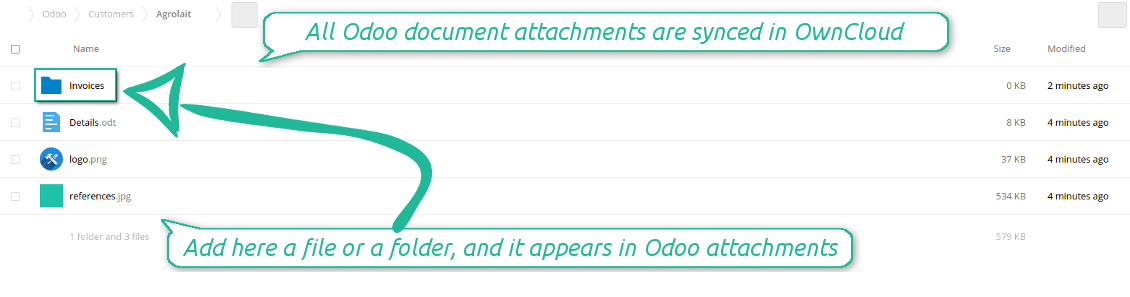
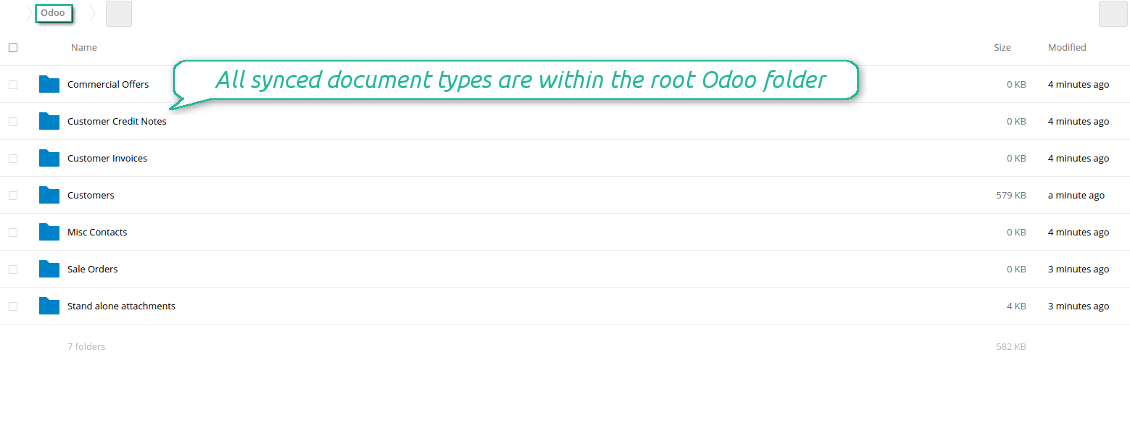
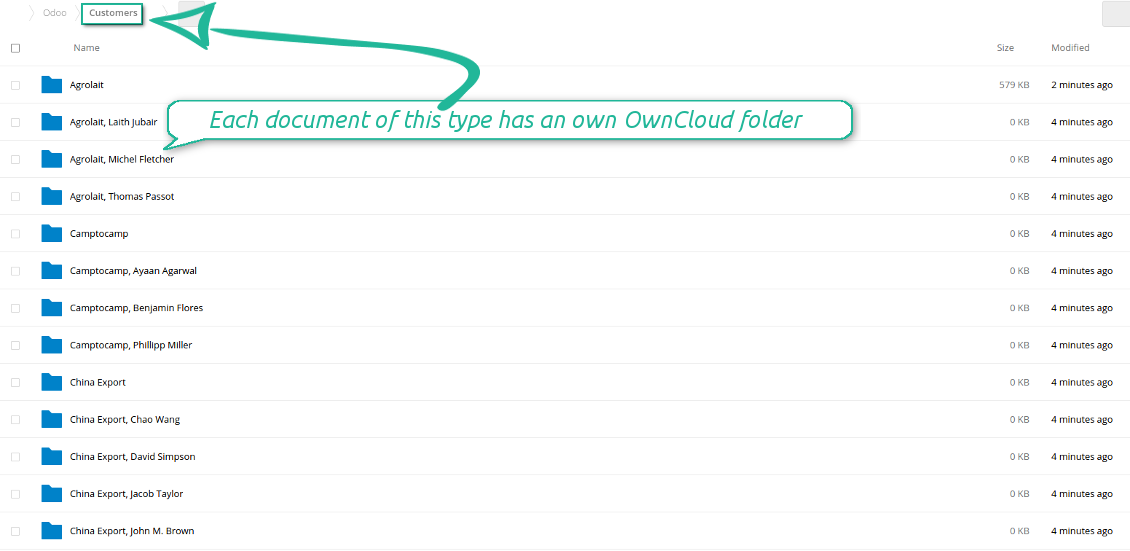
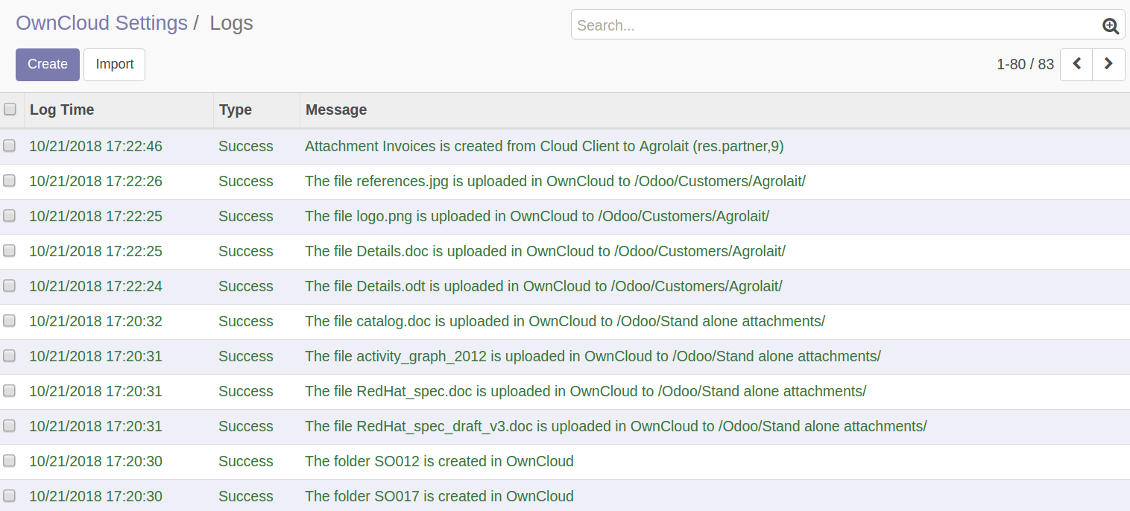
Synchronization is bilateral. All Odoo attachments are put in OwnCloud / NextCloud regularly. OwnCloud / NextCloud files create attachments in Odoo in case they are placed in a correct folder. Look at the sections From Odoo to OwnCloud / NextCloud and From OwnCloud / NextCloud to Odoo
Integration is automatic in both ways. Based on scheduled jobs, Odoo send attachments to OwnCloud / NextCloud and retrieve files from there
Any Odoo document might be synced: customers, opportunities, sale or purchase orders, tasks or issues, employees or users, etc. You decide by your own which records should be in OwnCloud / NextCloud, and which should be left in Odoo
Synchronization equally works for OwnCloud and NextCloud
All synced files are easily accessible though clicking on an attachment. You might also open a whole document folder by clicking on 'Open folder' on the attachment widget
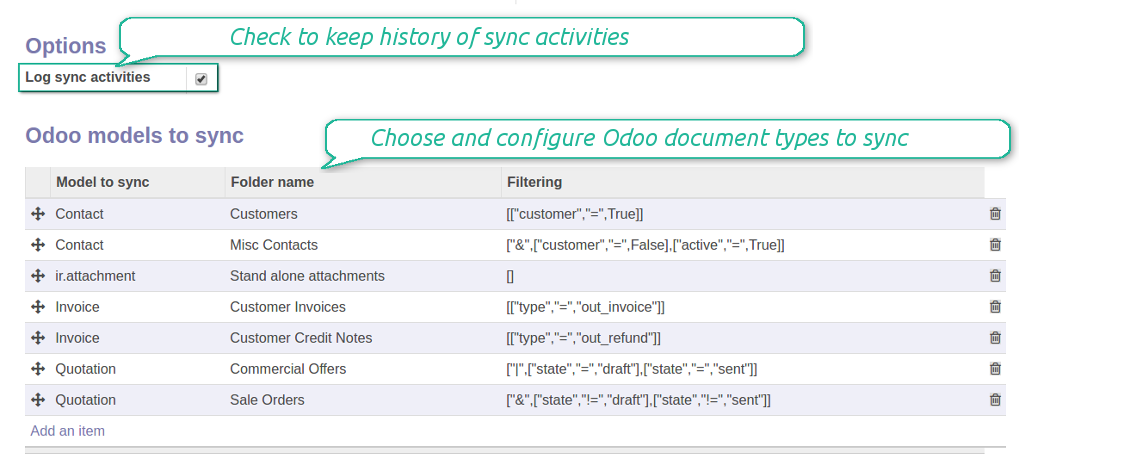
All sync activities might be logged. Control over files and folders creations, moves, name changes and removals. Just turn on the option 'Log sync activities' and access history through the button 'Sync logs'
The tool is compatible with Odoo reporting and mailing apps. If such an app faces a synced file, it retrieves a real content from OwnCloud / NextCloud. In particular, the reports 'always reload' feature and messages & mass mailing attachments work properly
Integration is based on a single user endpoint. It means that a single user login/password of OwnCloud / NextCloud is used. Afterwards for integrations Odoo would use that credentials disregarding an actual Odoo user. Make sure, however, that real Odoo users have an access to OwnCloud / NextCloud to open URLs linked to their attachments
- Prepare and keep updated folders' structure in OwnCloud / NextCloud
- Upload new attachments to a correct folder
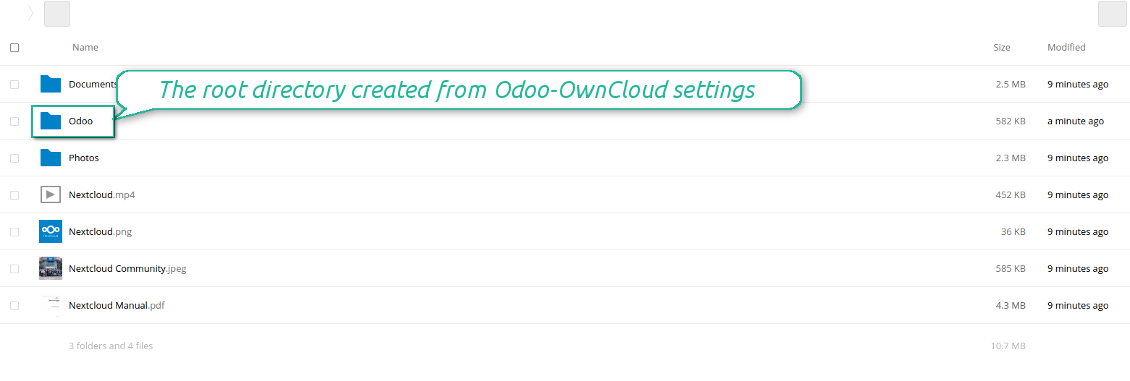
Odoo creates a convenient directory structure in OwnCloud / NextCloud: Odoo / Document type name / Document name / Files, where:
- Odoo is a central directory for Odoo Sync in your cloud storage.
- Document type is a synced Odoo model, for example, 'Sale orders', 'Opportunities', 'Customers'
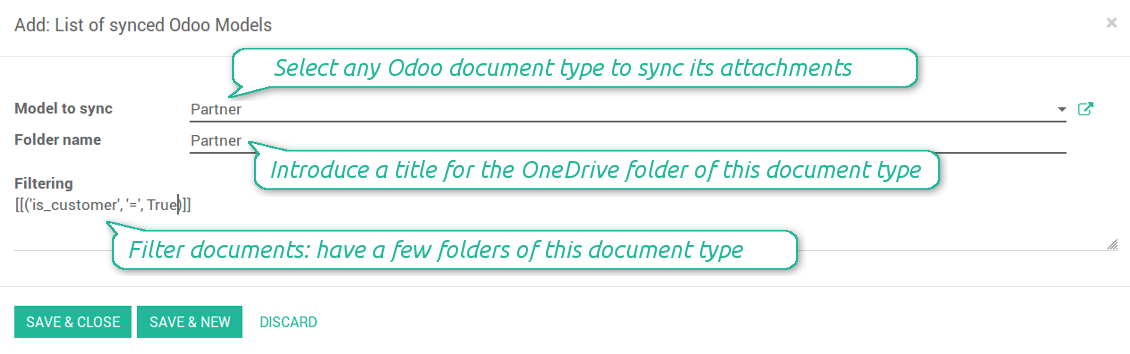
- You select document types by yourself. It might be any document type
- Moreover, you might have a few folders for a single document type. Use Odoo domains to have not global 'Partners, but 'Customers' and 'Suppliers', not just 'Sale orders' but 'Commercial offers', 'To deliver', and 'Done orders'
- With each sync Odoo would try to update document types' folders. Add a new document type at any moment. It will appear in OwnCloud / NextCloud with a next sync
- You are welcome to introduce or change document types folder names at any moment in Odoo. Take into account: renaming in OwnCloud / NextCloud will be recovered to Odoo names
- If you remove a model from integration, it will not be deleted from OwnCloud / NextCloud to keep already synced files safe. However, new documents of this type would not be synced
- In case you removed a directory in OwnCloud / NextCloud, but it is still configured in Odoo, with a next sync a folder structure is going to be recovered (not files, surely).
- Document is an exact object to sync. For instance, 'Agrolait' or 'SO019'
- Documents are synced in case they relate to a synced document type and satisfy its filters. For example, you are not obliged to sync all partners, you may integrate only 'Customers' and 'Vendors' or only 'Companies', not 'Contacts'
- Odoo would generate a folder in OwnCloud / NextCloud for each suitable document even for documents without attachments. It is needed for a backward sync to easily add new files
- OwnCloud / NextCloud folder name equals a real document name. It relies upon Odoo name_get method. Thus, Odoo 'Michael Fletcher' (a contact of 'Agrolait') would be OwnCloud / NextCloud 'Agrolait, Michael Fletcher'
- If an exact document changes its document type (e.g. a quotation is now confirmed), Odoo will automatically relocate its related folder to a proper parent directory (in the example: from 'Commercial offers' to 'To deliver')
- In case a document relates to a few types (for instance, you have 'Vendors' and 'Customers', while Agrolait is both), this document folder would be put into the most prioritized document type. A document type priority is higher as closer to the top in Odoo interfaces it is
- If an Odoo document is removed, the next sync will remove a corresponding OwnCloud / NextCloud directory
- In case you remove a directory in OwnCloud / NextCloud, but it still exists in Odoo, OwnCloud / NextCloud folder structure would be recovered (while files would be unlinked in both Odoo and OwnCloud / NextCloud)
- Folders renaming in OwnCloud / NextCloud will be replaced with Odoo names, Odoo document names are more important
- Files are real files taken from Odoo attachments
The resulted path would be, for example, 'Odoo / Quotations / SO019 / commercial offer.png'.
The only exclusion of the rule are stand alone attachments which do not relate to any Odoo documents (their document type is 'ir.attachment'). Such attachments' path is 'Odoo / Stand Alone Attachments / image.png'.
The direct sync might take quite a long, since a lot of folders should be created. It is not recommended to make sync too frequent: once an hour or two hours is fine.
FilesWith each direct sync, Odoo tries to find not yet synced attachments. If such attachments suit any document type to sync, a file will be uploaded to OwnCloud / NextCloud to a proper folder. In Odoo such attachments will become of 'url' type. It means that a file is not any more kept in Odoo server space, but now it is in OwnCloud / NextCloud. Until sync is done, Odoo attachment remains binary and stores an actual file. Such approach helps Odoo to work faster.
If you unlinked an attachment from Odoo, it would be deleted in OwnCloud / NextCloud as well.
Take into account that file names should be managed in OwnCloud / NextCloud: each backward sync would recover OwnCloud / NextCloud names, Odoo is here less important.
- If a new file is added to a proper document folder (e.g. to 'Odoo / Customers / Agrolait'), the same attachment will be added to Odoo document (in the example - to 'Agrolait')
- In document folders you can put not only files but also child folders. In that case a link for this folder (not its content) is kept in attachments
- In case you rename a file in OwnCloud / NextCloud, it will be renamed in Odoo as well
- Files' removal from OwnCloud / NextCloud leads to related Odoo attachments' removal
- If you move a file to another document folder, in Odoo a related attachment would be re-attached to this new document. Take into account: if you move a file for a not document folder, in Odoo attachment will be deleted as it has been removed from OwnCloud / NextCloud
- If you deleted a document type or document folder, their child files are deleted as well. Thus, Odoo would remove related attachments. The folders, however, will be recovered with a next direct sync. Folders' move to another directory is also considered as a removal. Avoid such situations by following the simple rule: folders are managed mostly by Odoo, files - mostly by OwnCloud / NextCloud.
Backward OwnCloud / NextCloud might take quite much time, since each folder should be checked (the more folders, the more time the backward sync requires). It is recommended to make frequency oftener than once an hour or two hours.
- Do not add folders inside root or document types' folders. If they have the same name as newly synced folders, the latter would not be uploaded
- Make sure your database has a proper SSL certificate required to use OwnCloud API
- Try to avoid the following symbols in folders' and files' names: *, ?, ", ', :, <, >, |, +, %, !, @, \, /,. Direct sync will replace such symbols with '-'. It is done to avoid conflicts with file systems.
Log in
- Enter your cloud storage full url
- Select an OwnCloud / NextCloud, which has full rights to read, create, write and delete files and folders within a root directory
- Enter login and password of this user
- Introduce the title for OwnCloud / NextCloud folder, e.g. Odoo
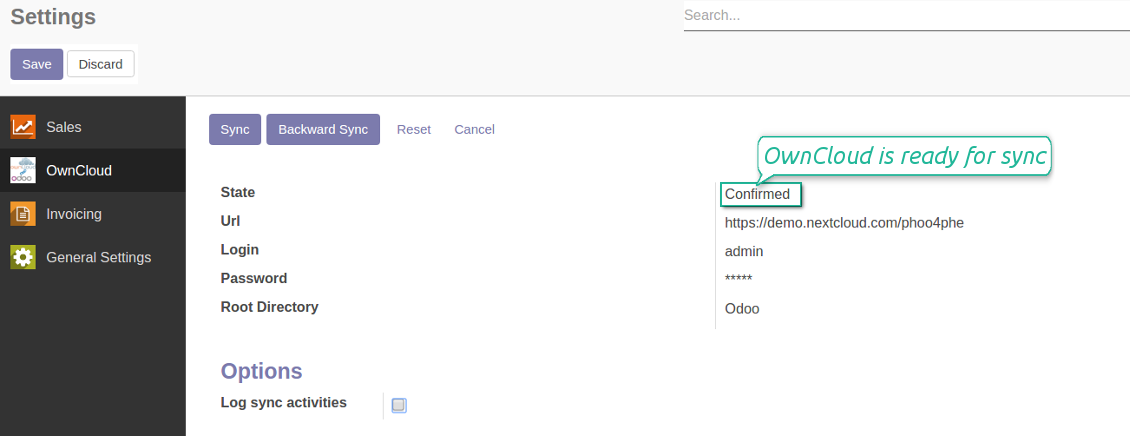
- Push the button 'Login and Confirm'
- If everything is fine, push the button 'Sync'
- Make sure that the root directory or its children are shared with your colleagues
Enter OwnCloud / NextCloud credentials
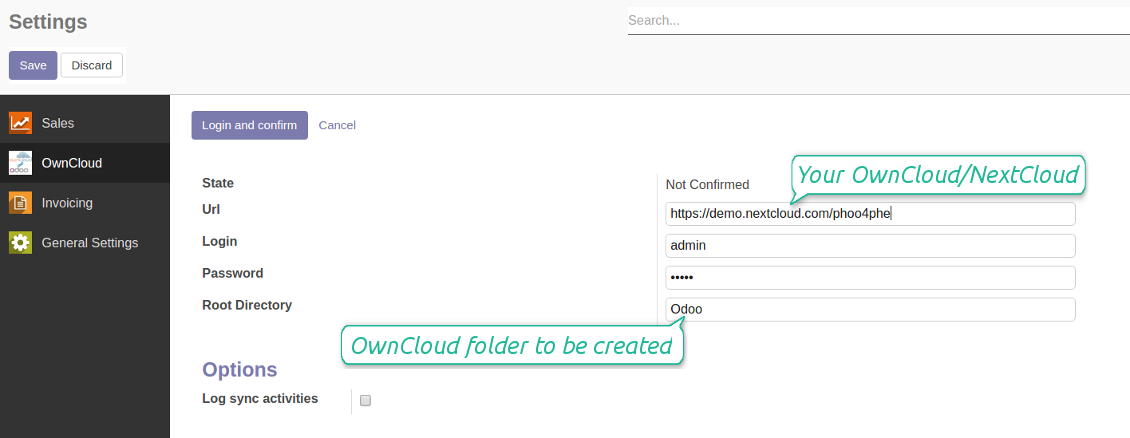
Confirmed credentials to start sync
Migration from the versions prior to the version 1.3.0
- Push the button 'Backward sync' (to make sure recent OwnCloud / NextCloud changes are synced)
- Push the button 'Migrate from the version under 3.0'
- Check / update synced models
- Push the button 'Sync' to apply changes
الأسئلة الشائعة حول OwnCloud / NextCloud Odoo Integration Odoo v.10
هل يمكنني تغيير معدل تكرار مهام المزامنة؟
نعم، يمكنك ذلك. للقيام بذلك:
فعّل وضع التصحيح
انتقل إلى الإعدادات التقنية > الأتمتة > المهام المجدولة
ابحث عن المهمتين «Synchronize attachments with cloud» و«Update attachments from cloud».
لا تجعلها متكررة جداً. يفضَّل أن تنتهي المهمة قبل بدء التالية. تعتمد الإعدادات على عدد العناصر المطلوب مزامنتها. عادة تكون الفترة بين 15 دقيقة و4 ساعات.
وتأكد أيضاً من حدود زمنية كافية في ملف إعدادات Odoo. يجب أن يكون LIMIT_TIME_CPU وLIMIT_TIME_REAL مساويين أو أكبر من وقت cron المخطط. اعتباراً من الإصدار 13 راعِ أيضاً LIMIT_TIME_REAL_CRON.
ملاحظة مهمة لعملاء Odoo.sh: قد يكون الحد الأقصى لمهمة cron 15 دقيقة فقط.
هل يمكنني ضبط بنية مختلفة للمجلدات المتزامنة غير التي تفترضها المزامنة؟
لا، هذه الميزة متاحة فقط من الإصدار 15. قبل ذلك يعمل الوحدة ببنية مجلدات محددة مسبقاً:
Odoo - المجلد الجذر للمزامنة
النماذج - مجلد لكل نوع مستند Odoo. مثلاً «Projects» و«Partners». حسب النطاق قد تكون هناك مجلدات أدق: «Customer 1 Projects» و«Projects of the Customer 2» و«Internal Projects» وغيرها.
الكائنات - مجلد لكل مستند، مثلاً «Project 1» أو «Customer 1»
الملفات والمجلدات المرتبطة بهذا المستند والمراد مزامنتها.
قد ينتج مثلاً:
Odoo / Projects / Project 1 / ملفات ومجلدات المشروع 1
Odoo / Customer 1 Projects / Project 1؛ Odoo / Customer 2 Projects / Project 3، ...
Odoo / Customers / Customer 1 / ملفات ومجلدات العميل 1
البنية مسطحة دائماً: هذه المستويات فقط. لا تُخلط أنواع مستندات مختلفة في نفس الفرع. داخل «Customer 1» لا تُحفَظ معاً أوامر البيع والفواتير والمشاريع. لكل نوع مجلد أو أكثر. وإلا فلن يمكن إجراء المزامنة العكسية لانعدام المعيار.
هل يجب إعداد صلاحيات مستخدمين محددة في Odoo؟
لا، تعتمد الأداة على نقطة نهاية مستخدم واحدة. تعني أن كل عمليات المزامنة تتم تحت مسؤول سحابة واحد (تطبيق). لا تُؤتمت صلاحيات المجلدات / الملفات المنشأة. أدِرها في حل التخزين السحابي لديك.
أين تُخزَّن الملفات المتزامنة؟ هل تُنسَخ في Odoo وفي السحابات؟
يفترض التطبيق أن المحتوى الثنائي للمرفقات يُحفَظ في Cloud Client وليس على خادم Odoo. فتصبح هذه المرفقات في Odoo من نوع URL ويمكن الوصول إليها في أي وقت من صندوق المرفقات أو من Cloud Client.
بعد الإعداد لا حاجة لإجراءات يدوية: المزامنة تلقائية بالكامل. حدّد أنواع مستندات Odoo المطلوب مزامنتها واضبط نموذجاً مرتبطاً لكل منها (العملاء، أوامر البيع أو الشراء، المهام، المشاريع، وغيرها).
هل يمكنني إنشاء عدة مجلدات لنفس نوع المستند؟ مثلاً المشاريع الداخلية ومشاريع العملاء؟
نعم، يمكنك ذلك. جهّز قاعدة لكل حالة ثم طبّق عوامل التصفية: مثلاً حسب نوع المشروع.
اجعل عوامل التصفية متنافية حتى يُسنَد المستند بوضوح. مثلاً: «عميل وليس مورّداً»، «مورّد وليس عميلاً». وإلا فستنتقل مجلد المستند من نموذج إلى آخر.
هل أحتاج فقط إلى تطبيق Cloud Storage Solution؟
لا، الأداة نواة تقنية فقط. تحتاج أيضاً إلى موصل عميل السحابة لديك.
هل الأمر مقبول إذا كان لدي كائنات كثيرة للمزامنة، مثلاً 10000؟
نعم، وإن كان العملية قد تبطؤ عند كثرة المجلدات/المرفقات. ومع ذلك أبلغ عملاؤنا عن بيئات فيها >10 آلاف شريك و~5 آلاف متغير منتج، وكانت العمليات مقبولة.
نقاط للتأكيد:
- المزامنة مصممة بحيث يُزامَن أي عنصر ولا يُفقَد، وإن لم تكن سريعة. تضمن ذلك طوابير FIFO وتثبيت كل مهمة.
- يمكن تقييد عدد الكائنات منطقياً. إعداد النماذج يتيح استبعاد العناصر القديمة (مثلاً لا معنى لمزامنة الشركاء المؤرشفين أو الطلبات من سنتين).
هل يمكن جعل المزامنة فورية؟
لا. لدينا أسباب قوية لتجنب المزامنة الفورية:
الأداء. إذا كانت المزامنة فورية، فكل رفع ملف يُظهر شاشة التحميل.
التعارضات. إذا غيّر مستخدمان عنصراً في الوقت نفسه، قد يتعذر الحل. مع المهام المنتظمة يمكن الإصلاح لاحقاً؛ أما فورياً فسنحتاج طابوراً، وهذا أكثر إرباكاً.
الوظائف. خاصة إعادة التسمية وإعادة الهيكلة. تعتمد المزامنة العكسية على منطق المجلدات وتفحص 100% من العناصر في كل مزامنة. إن تم ذلك بعد كل تحديث فستكون آلاف الطلبات في الثانية. وإلا فستضيع التغييرات.
هل يمكنني مزامنة المرفقات مع عدة عملاء سحابة
لا، تتوفر هذه الميزة فقط اعتباراً من الإصدار 15.
نستخدم محرراً خاصاً في سحاباتنا (مثل OnlyOffice وOffice 365 وغيرها). هل تُفتَح الملفات في ذلك المحرر؟
نعم، بحسب إعداد عميل السحابة لديك.
هل يمكنني تحديث وسوم OwnCloud باستخدام الموصل؟
لا، الوسوم لا تُزامَن. درسنا هذه الميزة سابقاً وقررنا عدم تقديمها لعدة أسباب:
مكتبة الموصل لا تدعم جلب أو تحديث وسوم OwnCloud
مرفقات Odoo ليس لها السمة «tags» وليس واضحاً متى تُسنَد هذه الوسوم للمستخدمين.
وبما أن التطبيق يوفّر مزامنة ثنائية الاتجاه، فقد تظهر تعارضات حرجة يصعب حلها.
ما سياسة تحديث ادواتكم؟
وفق سياسات Odoo Apps Store الحالية:
- كل وحدة مشتراة للإصدار 12.0 وما قبله تمنح الوصول إلى كل الإصدارات حتى 12.0.
- بدءا من الإصدار 13.0 تُشترى كل نسخة من الوحدة على حدة.
- بغض النظر عن الإصدار، الشراء يعطي حق كل التحديثات والإصلاحات ضمن الإصدار الرئيسي.
فريق faOtools لا يتحكم بهذه السياسات. للأسئلة تواصلوا مباشرة مع ممثلي Odoo Apps Store.
كيف اثبّت التطبيق على Odoo.sh؟
أبسط طريقة هي مسار متجر Odoo المدمج:
1. افتح صفحة الوحدة واضغط Deploy on odoo.sh
2. ستُنقل إلى GitHub. سجّل الدخول ثم Create a new repo أو استخدم مستودعا قائما. يجب أن يكون المستودع خاصا. لا يُسمح بنشر التطبيقات بترخيص OPL-1. أنشئ مستودعا جديدا لمشروع Odoo.sh عند الحاجة
3. ثم في odoo.sh اضغط Deploy وأكّد ثم Continue. يبدأ التثبيت.
هذه الخطوات تثبّت التطبيق على فرع الإنتاج. لفروع أخرى أو للتحديث:
1. نزّل الشيفرة من متجر Odoo
2. اعمل commit للوحدة في مستودع GitHub. لا تُستثنى مجلدات/ملفات التطبيق في .gitignore. مستودعات odoo.sh قد تتجاهل مسارات مهمة (مثل /lib). ارفع كل مجلدات وملفات الوحدة
3. انشر الفرع المستهدف في مشروع odoo.sh أو انتظر البناء التلقائي إن كانت الإعدادات كذلك.
كيف اثبّت التطبيق على خادمي؟
2. أعد تشغيل خادم Odoo;
3. فعّل وضع المطوّر (الإعدادات التقنية);
4. حدّث قائمة التطبيقات (قائمة التطبيقات);
5. اعثر على التطبيق واضغط Activate/Install;
6. اتبع الإرشادات في صفحة التطبيق إن وُجدت.
للتطبيق إضافات أخرى. هل اشتريها لاحقا؟
نعم. يضيف Odoo التبعيات تلقائيا إلى السلة؛ استبعد الأدوات المشتراة سابقا حتى لا تدفع مرتين.
نشرت التطبيق على Odoo.sh وأرى تحذيرا/خطأ في الاختبارات
التحذير الأحمر/البرتقالي لا يؤثر على وظائف التطبيق. أحيانا لا تتجاوز وحداتنا الاختبارات التلقائية القياسية لأنها تفترض سلوكا يتعارض مع أهداف التطبيق. مثلا نغيّر حساب السعر بينما تقارن اختبارات Odoo السعر النهائي بالخوارزمية القياسية.
تحقق أولا من وظائف قاعدة البيانات المنشورة. هل كل شيء يعمل؟
إن ظننتم أن التحذير يؤثر على وظائف حقيقية، تواصلوا معنا وأرسلوا سجلات التثبيت كاملة وقائمة الوحدات المنشورة كاملة (الأساسية والطرف الثالث).
هل يمكنني شراء التطبيق منكم مباشرة؟
لا، نوزع الأدوات فقط عبر متجر تطبيقات Odoo الرسمي.
اريد خصما
للأسف ليست لدينا وسيلة تقنية لتقديم أسعار فردية.
هل يمكن تثبيت التطبيق على قاعدة Odoo Online (SaaS)؟
لا، لا يمكن استخدام تطبيقات الطرف الثالث على Odoo Online. خدمة Odoo SaaS تمنع ذلك.
للاداة تبعيات على تطبيقات أخرى. هل اشتريها؟
نعم، تحتاج الأداة إلى كل الوحدات المذكورة في التبعيات. السعر في صفحة التطبيق يشمل هذه التبعيات.
ما سعر الوحدة بالدولار الأمريكي؟ لماذا تغيّر؟
أسعار وحداتنا باليورو. يحوّل متجر Odoo الأسعار إلى عملات أخرى حسب سعره الداخلي. لذا قد يتغيّر السعر بالدولار الأمريكي عند تحديث سعر الصرف.
تتم صياغة نصوص التطبيق والموقع الإلكتروني باللغات غير الإنجليزية بمساعدة الذكاء الاصطناعي وبما يتوافق مع ترجمات Odoo الرسمية. إذا لاحظت خطأ، أرسل تذكرة تصحيح الترجمة وسنقوم بتصحيحه.
الإبلاغ عن الأخطاء
إذا واجهت أخطاء أو سلوكًا غير متسق, فلا تتردد في الاتصال بنا. نحن نضمن تقديم الإصلاحات خلال 60 يومًا من الشراء ونهتم بشدة بتحسين أدواتنا حتى بعد هذه الفترة.
لا تحتاج إلى رقم هاتف أو بطاقة ائتمان للاتصال بنا. يجب عليك فقط اجتياز عملية تسجيل قصيرة عبر البريد الإلكتروني, والتي لا تستغرق أكثر من 30 ثانية.
يرجى تضمين أكبر قدر ممكن من التفاصيل في طلبك: لقطات الشاشة وسجلات خادم Odoo ووصف كامل لكيفية إعادة إنتاج المشكلة وما الى ذلك. عادة ما يستغرق إعداد خطة عمل للمشكلة بضعة أيام عمل (اذا تأكد وجود خطا) او تزويدك بارشادات حول ما ينبغي فعله (في الحالات الأخرى).
طلبات الميزات العامة وأفكار الوحدات (تطوير مجاني)
لدينا دوافع قوية لتحسين أدواتنا وسنكون ممتنين لأي تعليقات. إذا كانت متطلباتك ذات استخدام عام ويمكن تنفيذها بكفاءة, فسيقوم الفريق بإدراج تلك المتطلبات في قائمة المهام الخاصة بنا.
تتم معالجة قائمة المهام هذه بانتظام ولا يتم فرض رسوم إضافية. على الرغم من أننا لا نستطيع أن نعد بالمواعيد النهائية والتصميم النهائي, إلا أنها قد تكون طريقة جيدة للحصول على الميزات المطلوبة دون استثمارات ومخاطر.
لا تحتاج إلى رقم هاتف أو بطاقة ائتمان للاتصال بنا. يجب عليك فقط اجتياز عملية تسجيل قصيرة عبر البريد الإلكتروني, والتي لا تستغرق أكثر من 30 ثانية.


اداة لبناء قاعدة معرفة عميقة للاستخدام الداخلي والخارجي. KMS. مراجعات شبيهة بالويكي
398€

اداة لإدارة الخدمات بالمواعيد من الحجز حتى المبيعات والمراجعات
398€
اداة لإدارة Odoo من محادثات الذكاء الاصطناعي عبر MCP. Claude. اي ذكاء يدعم MCP.

اداة لتنظيم مرفقات Odoo في مجلدات ومزامنة الدلائل مع Google Drive وOneDrive/SharePoint وNextcloud/ownCloud وDropbox وAmazon S3 وBox وNAS. مدير الملفات. DMS
398€


اداة لمزامنة مرفقات Odoo مع حلول NAS في الاتجاهين. Synology وQNAP وTrueNAS واي NAS يدعم WebDAV
487€