Joint Calendar v.12
The tool to combine different Odoo events in a few configurable super calendars. Shared calendar. Common calendar.
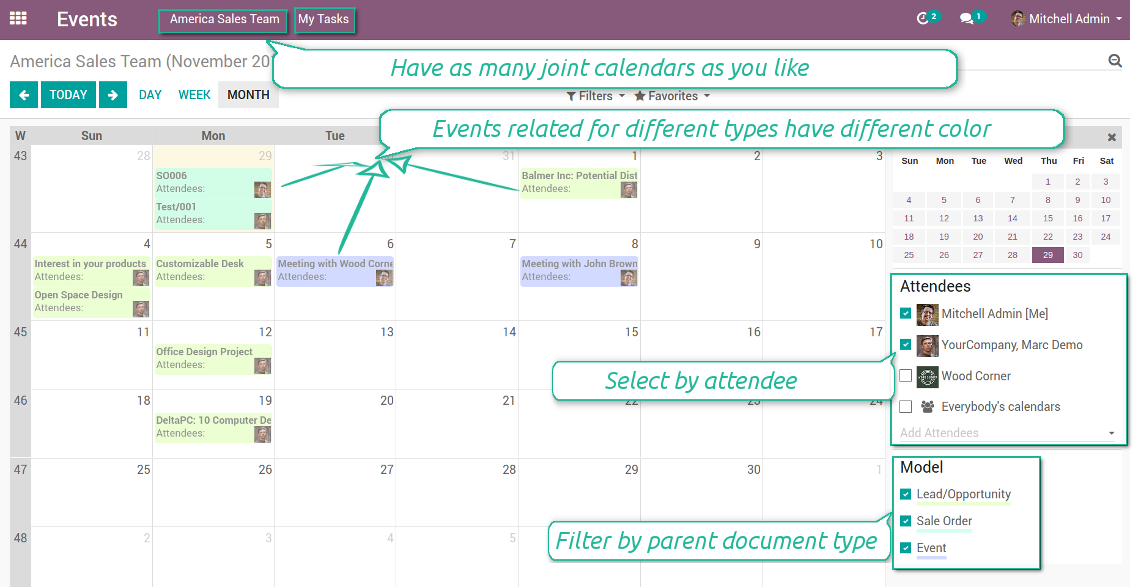
Multifarious events on a single calendar
Besides, you may have an unlimited number of joint calendars with various events, configurations and user groups included, divided by teams or functional areas. Each joint calendar has an own menu item.
Super calendars are updated automatically according to the scheduled jobs. It is fast, especially if you applied time frames.
截图
Joint document types on a single calendar
Fast switching between functional areas
Topical and relevant information
You may also define which documents to show by setting up special filters. Show opportunities but not leads. Work with orders of this sales team but not of others. Merge only overdue activities but not future ones.
How to add a new document type for a joint calendar
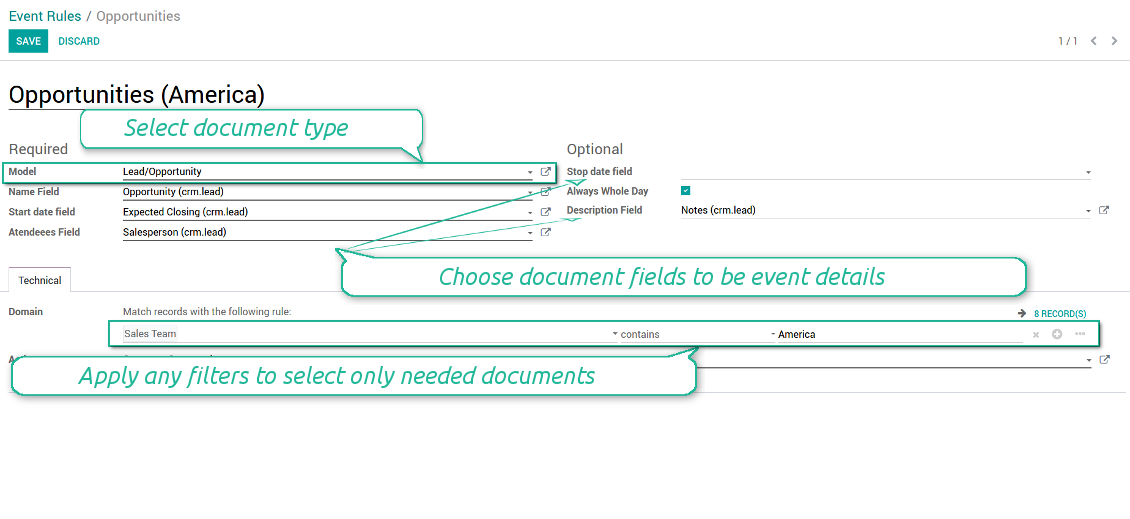
To add a new document type for a joint calendar you should set up a joint calendar rule. This rule defines which Odoo objects should create events, which fields of that object should be shown, and whether any filtering should take place. The app will try to add the most typical values by default, but you should think which data is required in your exact case.
- Model - which objects to scan: opportunities, tasks, orders, meetings, activities, and so on. You can choose your custom document type as well!
- Name - what to use as a joint event name (also used as calendar event title). Usually it is 'name', 'subject' or 'reference'.
- Start date - when an event starts. For example, 'expecting closing' for opportunities or 'order date' for quotations. It may be any date or date with time field of a source Odoo object.
- Attendees - who are participants (responsible persons, event owners). Usually, it is a field 'assigned to', 'a sales person' or 'attendees'. You may use even document 'followers'. It is possible to apply both users and partners as attendees
- Stop date - when an even is shown as finished on a calendar.
- Always Whole Day - means that all generated events would last the whole day disregarding whether start or stop are defined with hours and minutes. Such an event would be shown at a special place on a calendar (above the time line)
- Whole Day - a special boolean field of source object which indicates that a related joint event may lasts the whole day. This setting is usually applied to standard Odoo calendar events which both might have definite time indicated or might be planned for a whole day.
- Description - are there any notes important for joint events? Usually the fields like 'internal notes' or 'comments' are used
- Contact Link - is this event linked to a specific partner? Usually the fields like 'customer' or 'vendor' are used
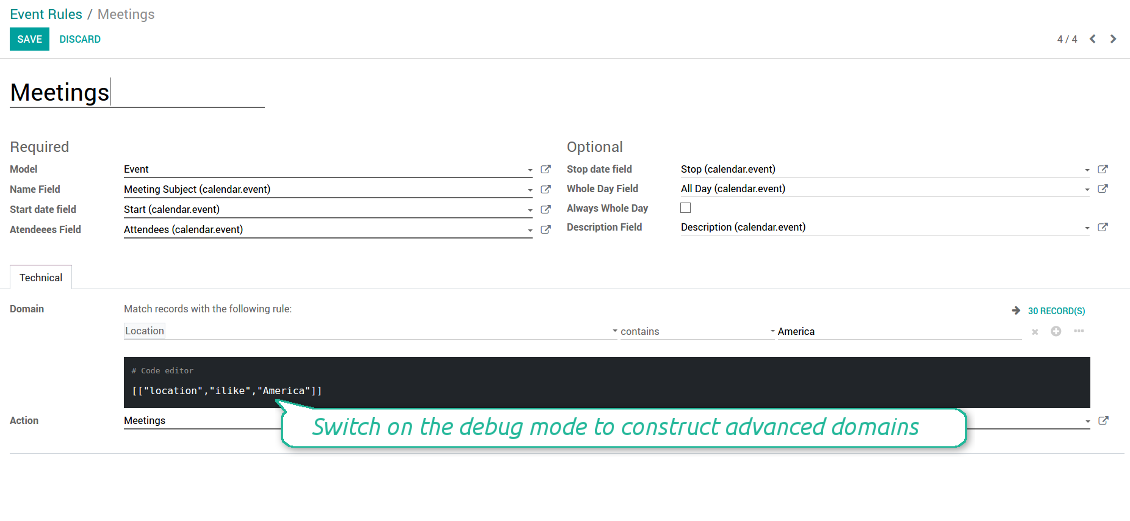
- Domain - the special filters' constructor to include only topical documents into a joint calendar. You might search almost by any criteria. For example, show only quotations without sales orders, or show opportunities only of this sales team or of this customer. If you are confident to make Reverse Polish Notations you may also turn on the debug mode to construct advanced filters.
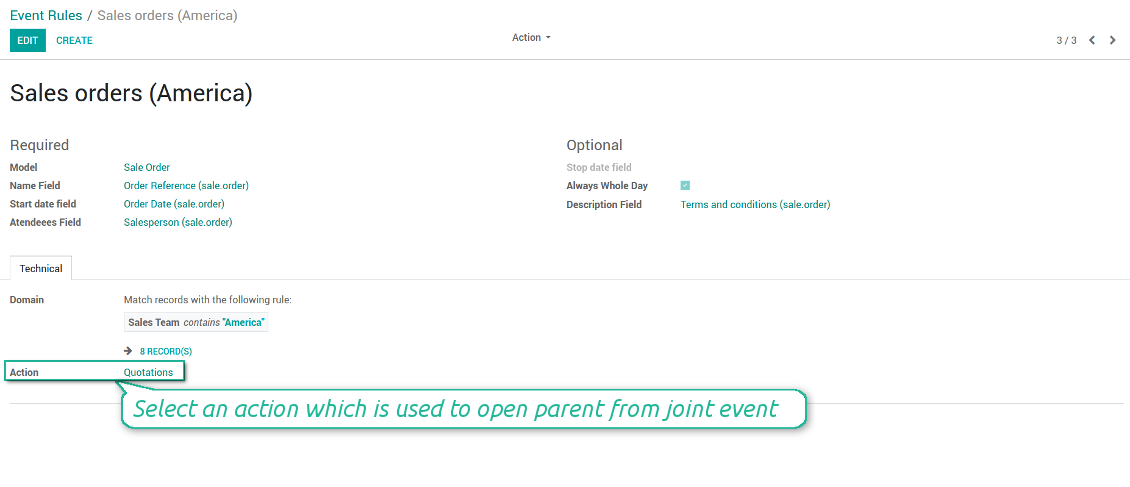
- Action - defines which form view should be shown when you open a source document from a joint event. It is a technical field which in the most cases should not be changed in comparison to a default value.
How to configure a new joint calendar based on rules
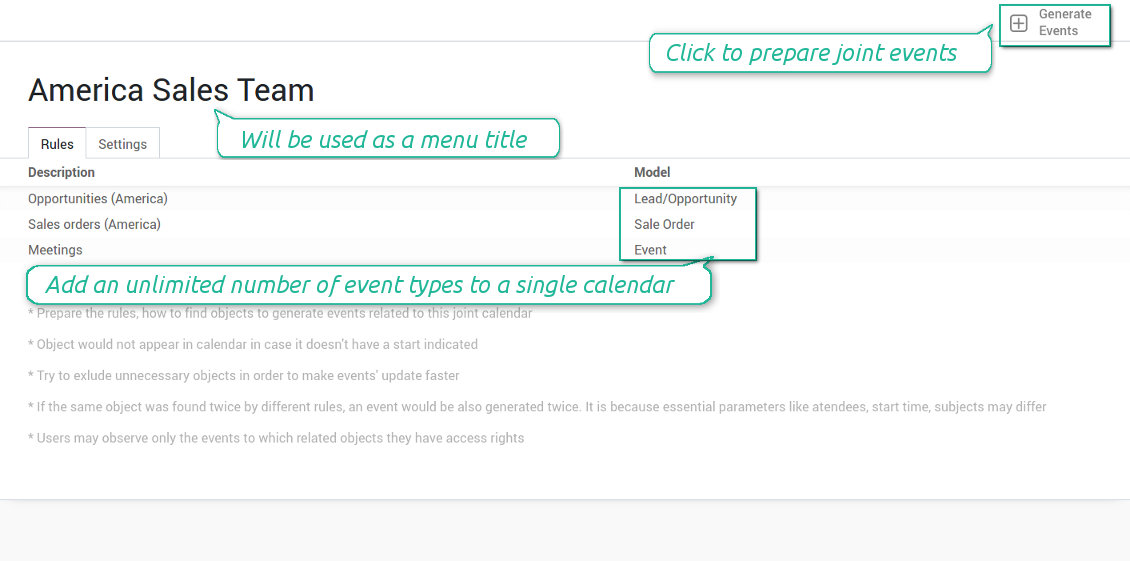
As soon as you prepare a few joint event rules, you are ready to configure a new joint calendar.
First of all, define a title. It would be used as a menu entry for all joint calendar users.
Second of all, choose document types (rules) which should be merged on this shared calendar.
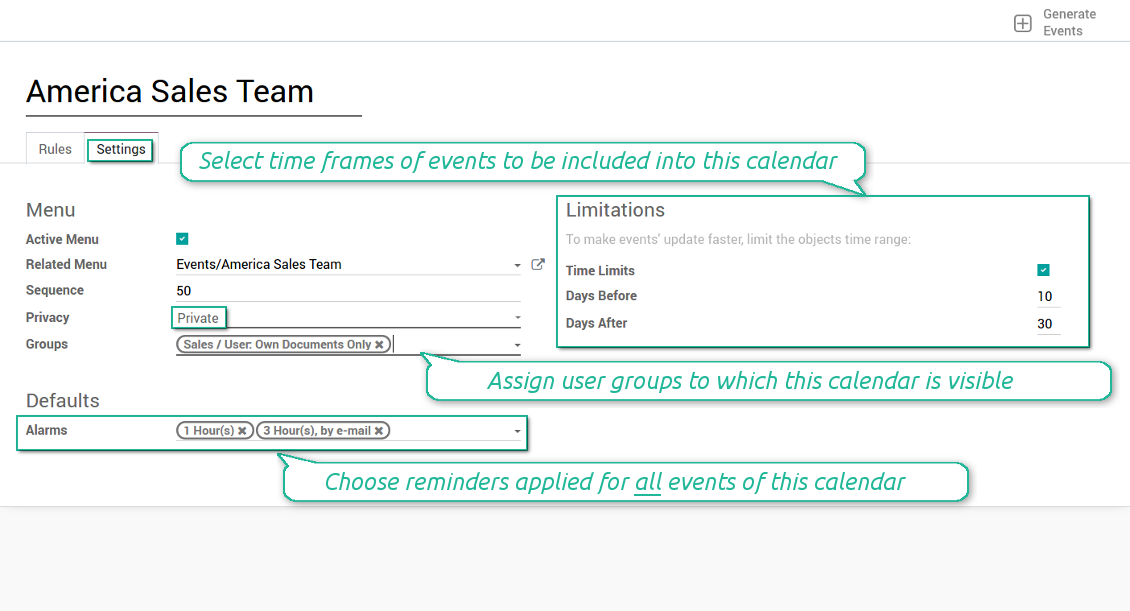
Then, switch to the advanced settings. Some of those might be useful:
- Sequence - in which order various joint calendars' entries are shown. Should it be before the previous super calendar? Then, make a sequence smaller.
- Privacy - let you make a calendar public or private (for predefined user groups only).
- Time limits - allow you optimizing performance of joint events' interfaces. Often there is no need to show the documents of the last year on a calendar.
Is this joint calendar is not any more of use, but it might be needed in the Future? Fine, just archive this calendar: you can activate it at any moment afterwards.
截图
Multiple rules to search documents by types
Joint calendar settings
Joint event rule (example of opportunities)
Joint event rule (example of sale orders)
Joint event rule (example of meetings)
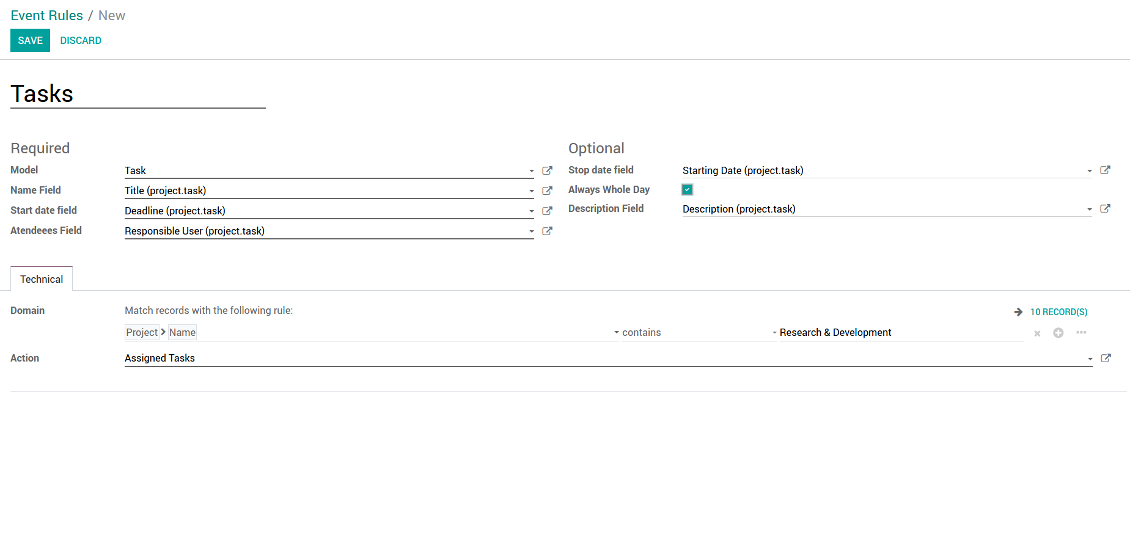
Joint event rule (example of tasks)
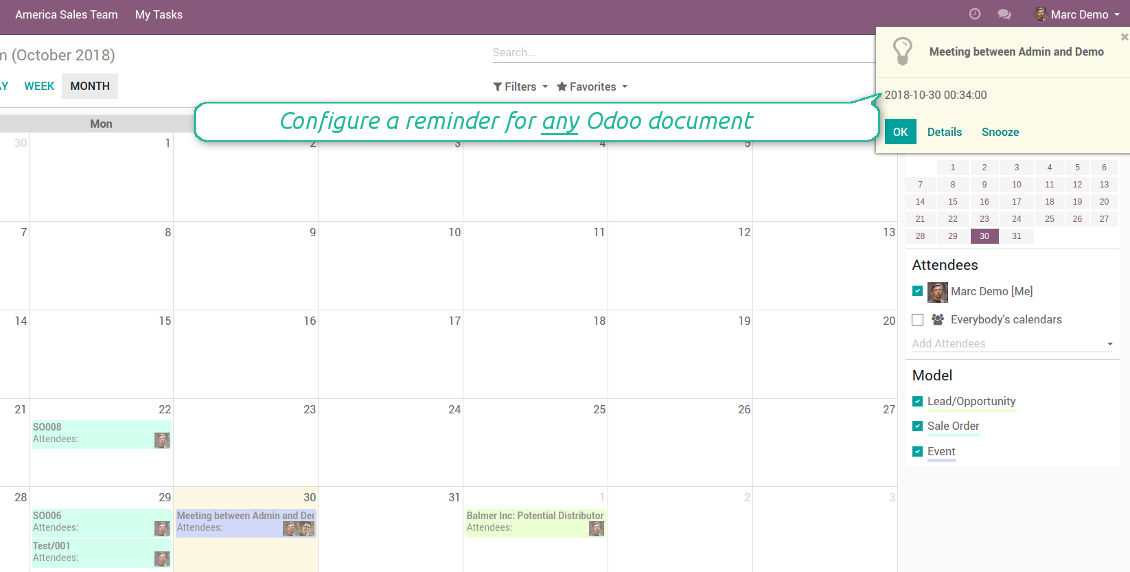
Automatic reminders for any Odoo document
How to introduce a warning system
All you need is to prepare a few reminders and indicate those as default on a shared calendar form. Once joint events are generated, each of those would have the same alarms. Afterwards, you may update the these alarms for certain items if you want.
Thus, you can make reminders for any Odoo document automatically. Remind sales persons about next actions in opportunities and calls. Warn workers about a new manufacturing order. Notify programmers about deadlines. So on and so on.
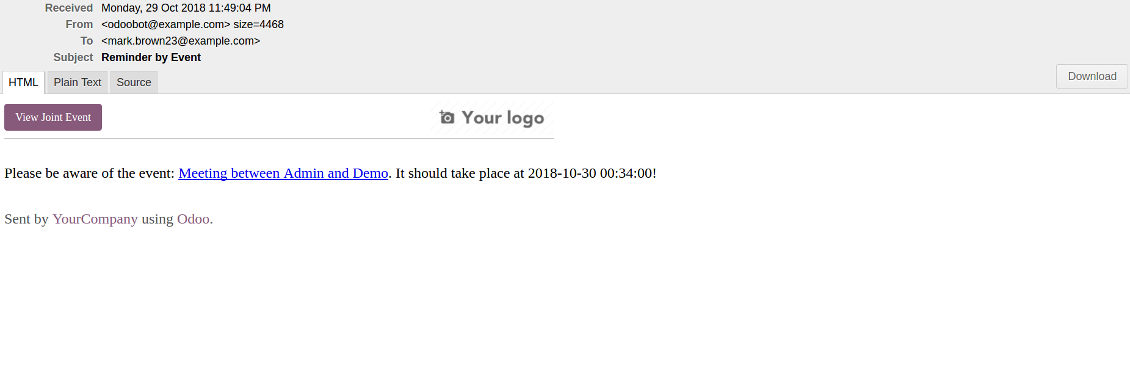
Use both email notifications or pop-up warnings. Warn attendees and responsible users at the moment you like to: from 5 minutes to hundreds of days before.
截图
Configure pop-up alarm for any Odoo event
Email reminder by any Odoo object
Quick access to source details
How are source documents and joint events interrelated
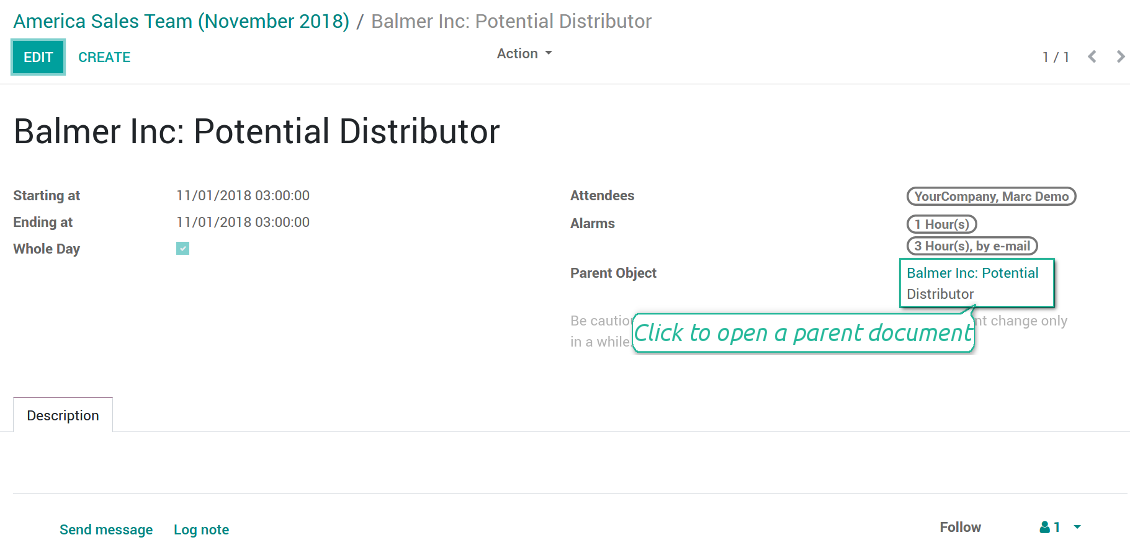
Users observes a link for a source document right on an event form. Thus, it is always possible to expand miscellaneous details.
If you changed a joint event, its parent object would be updated correspondingly in real time. For example, you drag a record and drop it to another date, then a source document would be also moved. Be cautious: it does not work for computed and readonly fields (e.g. a create date can not be modified logically).
If you changed a source object, a joint event would be updated with a next super calendar scheduled job.
截图
Joint event form with simple access to parent document
Simple user rights administration
More details about joint calendar security
The right to create and configure joint calendars belongs only to Odoo administrators (users with the rights 'Administration - Access Rights').
Users may open joint events related to public joint calendars or private joint calendar with one of her/his group indicated. Configure private groups on a joint calendar form, the tab 'Settings', the fields 'Privacy' and 'Groups'. In such a way it is possible to make a joint calendar only for sales managers or only for accountants.
Take into account that in order a user may observe or update a joint event, she/he should have the same rights for a source document. For example, if a sales person doesn't have a right to observe an opportunity, she/he would not see a related joint event as well.
Manually created joint events (without a parent object) may be either public (for all employees) or private (visible for attendees only).
Used in any functional area
Have a look at typical use cases
Activities by all objects and responsibles on a single calendar
Activities are a great Odoo invention, which helps you organize daily routine as a set of well-reached and structured tasks. They are quite comfortable for use, but for team collaboration and efficient management, sometimes you want to have a calendar overview of planned and overdue activities.
Joint Calendar let you achieve that goal. Just add an activity rule as joint calendar rule:
- As a model use 'Activity'
- As a name use 'Display Name'
- As a start date field use 'Due Date'
- As attendees fields use 'Assigned to'
- As a domain apply 'Summary is set'
- For the action field create a new one: go to the Settings > Technical > Actions > Window Action. As an object use 'mail.activity', as a view mode - 'form', as a name - any suitable
Opportunities on a super calendar
- As a model use 'Lead / Opportunity'
- As a name use 'Opportunity'
- As a start date field use 'Expecting Closing'
- As attendees fields use 'Salesperson'
- As a contact link use customer
- As a domain optionally restrict opportunities by sales teams.
Tasks on a joint calendar
- As a model use 'Task'
- As a name use 'Title'
- As a start date field use 'Deadline'
- As attendees fields use 'Assigned to'
- As a domain optionally you can set definite projects
Share employees leaves
- As a model use 'HR Leave'
- As a name use 'Description'
- As a start date field use 'Start Date'
- As attendees fields use 'User'
- As a stop date field use 'Start Date'
- As a domain filter by status: show only approved leaves.
Better then expected
The app does exactly what was needed. Combine all tasks from all calendars to one. And allows to manages all activities from all modules in one place.
This makes the Event Calendar so much more useful !
We bought this to combine certain project tasks with the schedules of our maintenance engineers. We now have a better overview which moments are overlapping the schedules of other events. The joining of multiple events in 1 event calendar is super easy, it should be a standard option in ODOO.
Excellent responsive team of programmers
Joint Calendar is the perfect addition to the standard Calendaring system that Odoo offers. It makes the job of setting up specific departmental calendars filled with any objects you wish very easy and Alex and the team provides fantastic after-sales support, responding in most cases within 24 hours to requests for help. Thanks for a great module.
Essential to have Activities, Tasks, Meetings etc all in one calendar and shared.
Great service support very quick and were right on with fixing the issue... I think the ability to see everything on one shared calendar is such an essential part of coordination and time management. Great product once you sort out the rules you need!
配置与安装提示: Joint Calendar Odoo v.12
Scheduled jobs
- Turn on the debug mode
- Go to technical settings > Automation > Scheduled jobs
- Find the job 'Refresh Joint Events' to change the frequency of calendars' update
- Find the job 'Notify About Joint Event' to change the frequency of email alarms.
Email alarm style
- Activate the developer mode
- Go to technical settings > Email > Templates
- Find the template 'Joint Event Notification'
- You are welcome to change here message body
- Email subject might be changed through the translated term 'Reminder by Event'.
相关常见问题 Joint Calendar Odoo v.12
打开或关闭选项“Always Whole Day”时会发生什么?
打开选项 "Always Whole Day" 后,该规则生成的所有事件都持续全天,无论开始或结束是否带有时和分。此类事件显示在日历的特殊位置。
例如,为模型 "Sale Order" 创建规则并打开 "Always Whole Day",事件会放在日视图和周视图超级日历的时间线上方。
若关闭该选项,且开始或结束带有时/分,事件会落在当天的具体时刻,标题前会显示时间。
我的 Odoo 里看不到日历菜单。该怎么办?
请确认:
1. 至少已有一个已创建、已配置并已刷新的联合日历。设置任何联合日历后请刷新浏览器页面
2. 您至少能访问其中一个日历
我创建了带规则的日历,但菜单里看不到它们。
原因可能有几个。相关的计划作业可能尚未运行。此时可在联合日历界面右侧栏点击刷新按钮,手动启动 cron。
也请检查日历是否设置了 Time Limits,否则只会显示特定时间范围内的事件。例如日历 'Sale Orders' 的限制为前 10 天、后 30 天。若 Sale Order 是 12 天前创建的,则不会出现在日历中。
确保规则上没有匹配不到记录的筛选。例如规则 'Sale Order' 带筛选 'Customer = Deco Addict',则相关日历只显示该客户的订单。
一个联合日历里可以合并多少 Odoo 文档(例如销售订单、项目、活动)?
你可以把任意多份 Odoo 单据合并到一个日历。也可以分到多个日历(例如 Sales Calendar 与 Projects, Tasks and Activities Calendar),再在 systray 中切换。
什么是联合日历规则?
规则定义哪些 Odoo 对象应创建事件、该对象的哪些字段应使用并显示,以及是否应进行筛选。
创建规则时,可自行定义联合事件标题、开始或结束日期、目标与会者等。
字段“Stop date”有什么用?可以留空吗?
Stop date 是目标 Odoo 模型的字段,用于定义事件在日历上何时显示为已结束。例如,为模型 "Sale Order" 创建规则并将 Stop date 设为 "Delivery Date",则事件会从该报价的计划日(Start Date 字段 - Order Date)显示到产品交付日。
该字段可选,可留空。此时事件只会出现在 Start Date 字段所定义的那一天。
日历里有“Undefined”类型的活动。这是什么意思?
表示此事件为手动创建,没有父对象,也不受规则约束。此类联合事件会出现在无颜色的过滤器 "Undefined" 下。
凡有权限查看该日历的人,都可以创建并查看其未定义事件。
您的工具的更新政策是什么?
根据当前 Odoo Apps Store 政策:
- 为 12.0 及更早版本购买的每个模块,均可使用直至 12.0 的所有版本。
- 从 13.0 起,每个模块版本需单独购买。
- 无论版本如何,购买工具即获得该主版本内的 全部更新和缺陷修复权利。
请注意,faOtools 团队不控制这些政策。如有疑问,请直接联系 Odoo Apps Store 代表。
如何在 Odoo.sh 上安装您的应用?
最直接的做法是使用 Odoo 商店的内置流程:
1. 打开模块页面并点击 Deploy on odoo.sh 按钮
2. 之后会跳转到 GitHub 页面。登录帐户,然后点击 'Create a new repo' 或使用现有仓库。请确保仓库为私有。不得以 OPL-1 许可公开发布应用。如有需要,为 Odoo.sh 项目新建 repo
3. 然后转到 odoo.sh 并点击 Deploy 按钮。在弹出窗口中提交决定并点击 'Continue.' 这将触发安装过程。
这些步骤会将应用安装到项目的生产分支。若要部署到其他分支或更新模块,请执行以下操作:
1. 从 Odoo 商店上传应用的源代码
2. 将模块提交到所需的 GitHub 仓库。确保没有任何应用文件夹/文件被忽略(即未列入 repo 的 .gitignore)。仓库由 odoo.sh 自动创建,默认可能包含关键项(例如 /lib)。应上传模块的全部目录、子目录和文件,不得遗漏
3. 部署 odoo.sh 项目的目标分支,或在设置如此假定时 等待其自动构建。
应如何在自己的服务器上安装您的应用?
2. 重新启动 Odoo 服务器;
3. 打开开发者模式(技术设置);
4. 更新应用列表(应用菜单);
5. 找到应用并点击“Activate”/“Install”;
6. 如应用页面有指南,请按指南操作。
我注意到您的应用有额外附加模块。可以之后再购买吗?
可以。同时 Odoo 会自动把所有依赖加入购物车,因此应排除已购买的工具以免重复付款。
我在 Odoo.sh 上部署了您的应用,测试中出现警告/错误
红/橙色警告不影响应用功能。遗憾的是,标准自动测试有时假定与本应用目标冲突的行为,因此我们的模块会未通过。例如我们改了价格计算,而标准 Odoo 模块测试把最终价格与标准算法比较。
请先检查已部署数据库的功能。是否都正常?
若仍认为该警告影响真实功能,请联系我们并转发完整安装日志以及已部署模块的完整清单(含核心与第三方)。
我可以直接向贵公司购买应用吗?
不,我们只通过 官方 Odoo 应用商店.
希望获得折扣
很遗憾,我们没有技术手段 提供单独报价。
我可以在 Odoo Online (SaaS) 数据库上安装该应用吗?
不能,第三方应用无法在 Odoo Online 上使用。遗憾的是 Odoo SaaS 会阻止这种可能。
您的工具依赖其他应用。我需要购买那些应用吗?
是的,工具需要依赖中列出的全部模块才能正常工作。应用页上的价格已包含所有必要依赖。
该模块的美元价格是多少?为什么变了?
我们的模块价格以欧元标价。Odoo 商店按内部汇率换成其他货币。因此美元价格可能随汇率更新而变化。
非英语的应用和网站措辞由 AI 辅助 并与官方 Odoo 翻译对齐。若发现错误, 发送翻译正确性工单 我们会修好。
缺陷反馈
如遇缺陷或不一致行为,请随时联系我们。我们保证在购买后 60 天内提供修复,并在此期限后仍积极改进工具。
联系我们无需电话号码或信用卡。只需完成不超过 30 秒的简短电子邮件注册。
请在请求中尽可能提供详细信息:截图、Odoo 服务器日志、完整的问题复现说明等。通常需要几个工作日来准备问题的工作计划(若确认是缺陷)或提供应采取的指引(否则)。
公开功能请求与模块构想(免费开发)
我们非常希望改进工具,并感谢任何反馈。若您的需求具有普遍价值且能高效实现,团队会将其列入待办清单。
此类待办清单会定期处理,不产生额外费用。虽然我们无法承诺截止日期和最终设计,但这可能是在无投入、无风险的情况下获得所需功能的好办法。
联系我们无需电话号码或信用卡。只需完成不超过 30 秒的简短电子邮件注册。

用于将 Odoo 附件灵活归入文件夹并将目录与云客户端同步的工具:Google Drive、OneDrive/SharePoint、Nextcloud/ownCloud、Dropbox、Amazon S3、Box 和 NAS。DMS。文件管理器。文档管理系统
398€





通过 MCP 从常用 AI 聊天管理 Odoo 的工具。Claude。任何支持 MCP 的 AI。
