Joint Calendar v.12
The tool to combine different Odoo events in a few configurable super calendars. Shared calendar. Common calendar.
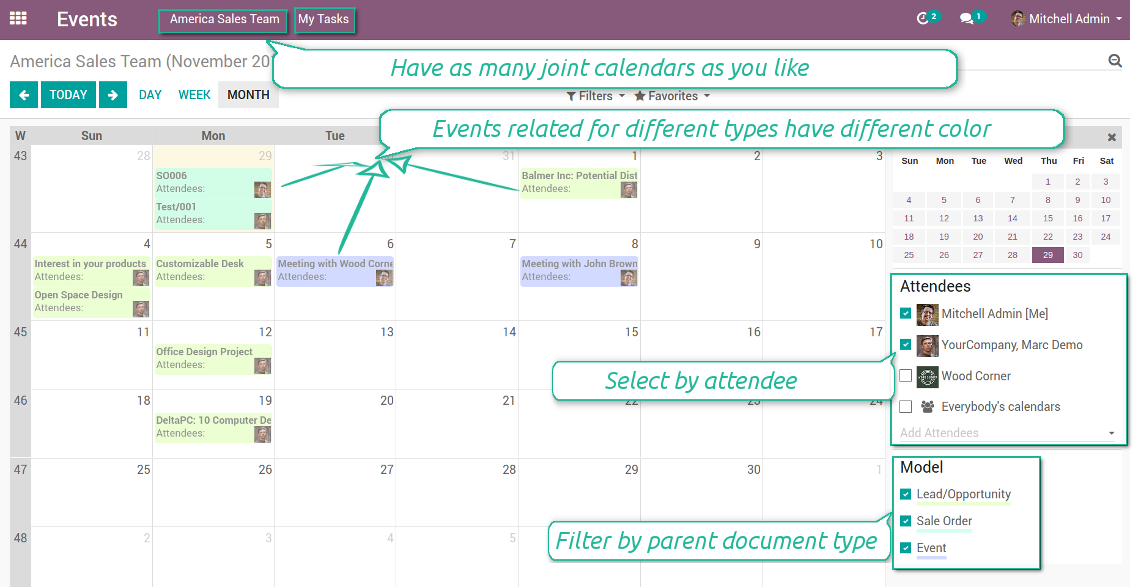
Multifarious events on a single calendar
Besides, you may have an unlimited number of joint calendars with various events, configurations and user groups included, divided by teams or functional areas. Each joint calendar has an own menu item.
Super calendars are updated automatically according to the scheduled jobs. It is fast, especially if you applied time frames.
Ekran Görüntüleri
Joint document types on a single calendar
Fast switching between functional areas
Topical and relevant information
You may also define which documents to show by setting up special filters. Show opportunities but not leads. Work with orders of this sales team but not of others. Merge only overdue activities but not future ones.
How to add a new document type for a joint calendar
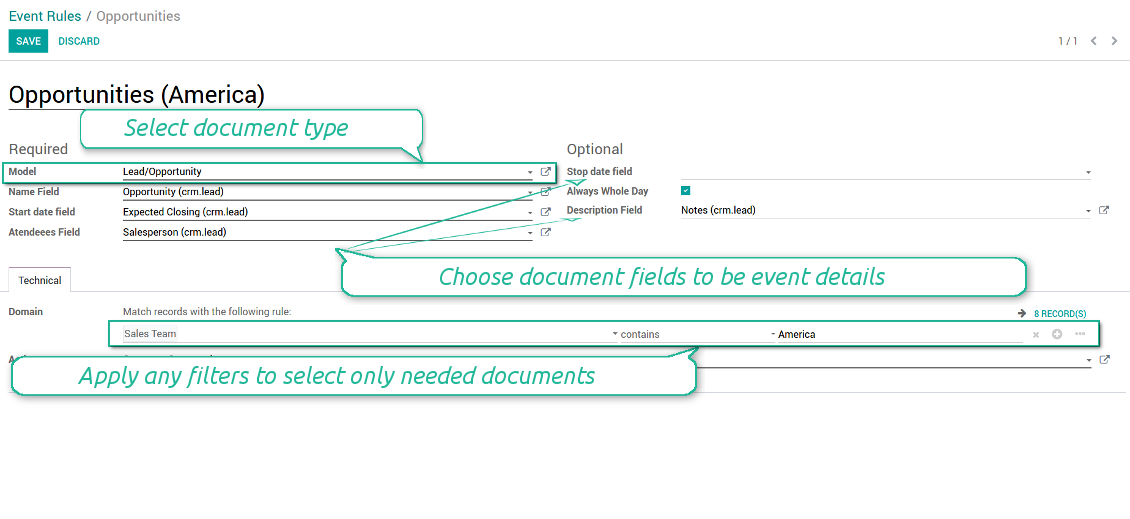
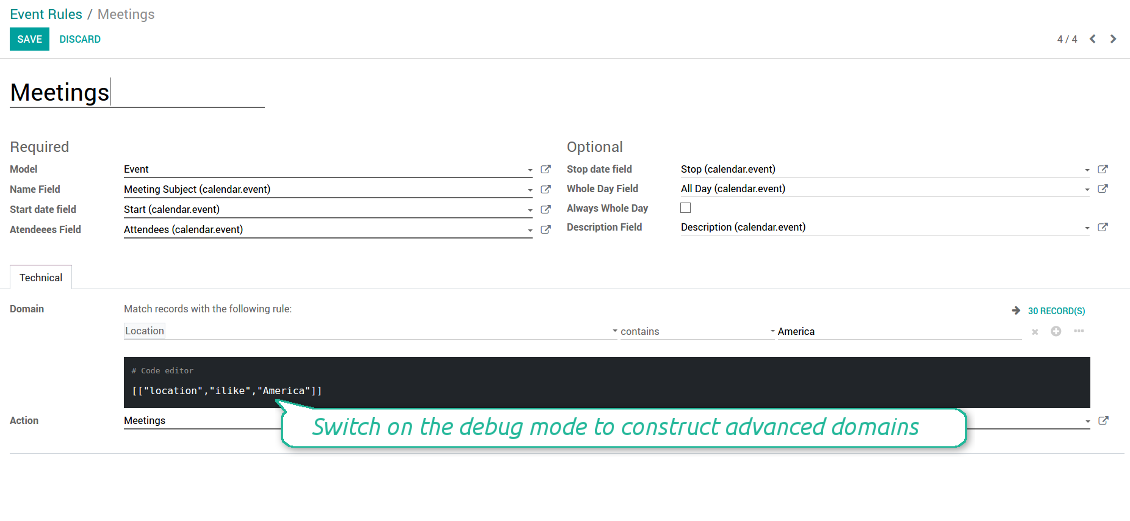
To add a new document type for a joint calendar you should set up a joint calendar rule. This rule defines which Odoo objects should create events, which fields of that object should be shown, and whether any filtering should take place. The app will try to add the most typical values by default, but you should think which data is required in your exact case.
- Model - which objects to scan: opportunities, tasks, orders, meetings, activities, and so on. You can choose your custom document type as well!
- Name - what to use as a joint event name (also used as calendar event title). Usually it is 'name', 'subject' or 'reference'.
- Start date - when an event starts. For example, 'expecting closing' for opportunities or 'order date' for quotations. It may be any date or date with time field of a source Odoo object.
- Attendees - who are participants (responsible persons, event owners). Usually, it is a field 'assigned to', 'a sales person' or 'attendees'. You may use even document 'followers'. It is possible to apply both users and partners as attendees
- Stop date - when an even is shown as finished on a calendar.
- Always Whole Day - means that all generated events would last the whole day disregarding whether start or stop are defined with hours and minutes. Such an event would be shown at a special place on a calendar (above the time line)
- Whole Day - a special boolean field of source object which indicates that a related joint event may lasts the whole day. This setting is usually applied to standard Odoo calendar events which both might have definite time indicated or might be planned for a whole day.
- Description - are there any notes important for joint events? Usually the fields like 'internal notes' or 'comments' are used
- Contact Link - is this event linked to a specific partner? Usually the fields like 'customer' or 'vendor' are used
- Domain - the special filters' constructor to include only topical documents into a joint calendar. You might search almost by any criteria. For example, show only quotations without sales orders, or show opportunities only of this sales team or of this customer. If you are confident to make Reverse Polish Notations you may also turn on the debug mode to construct advanced filters.
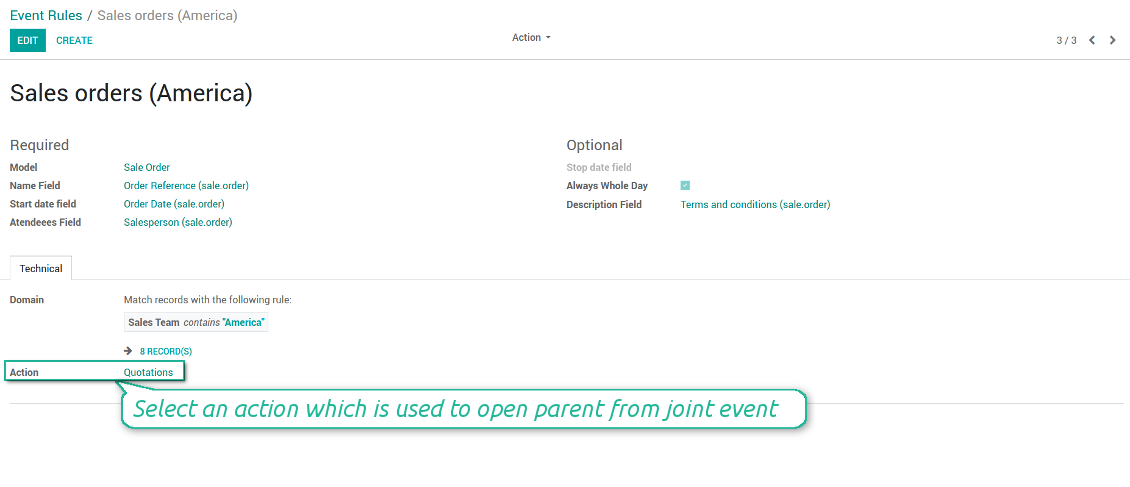
- Action - defines which form view should be shown when you open a source document from a joint event. It is a technical field which in the most cases should not be changed in comparison to a default value.
How to configure a new joint calendar based on rules
As soon as you prepare a few joint event rules, you are ready to configure a new joint calendar.
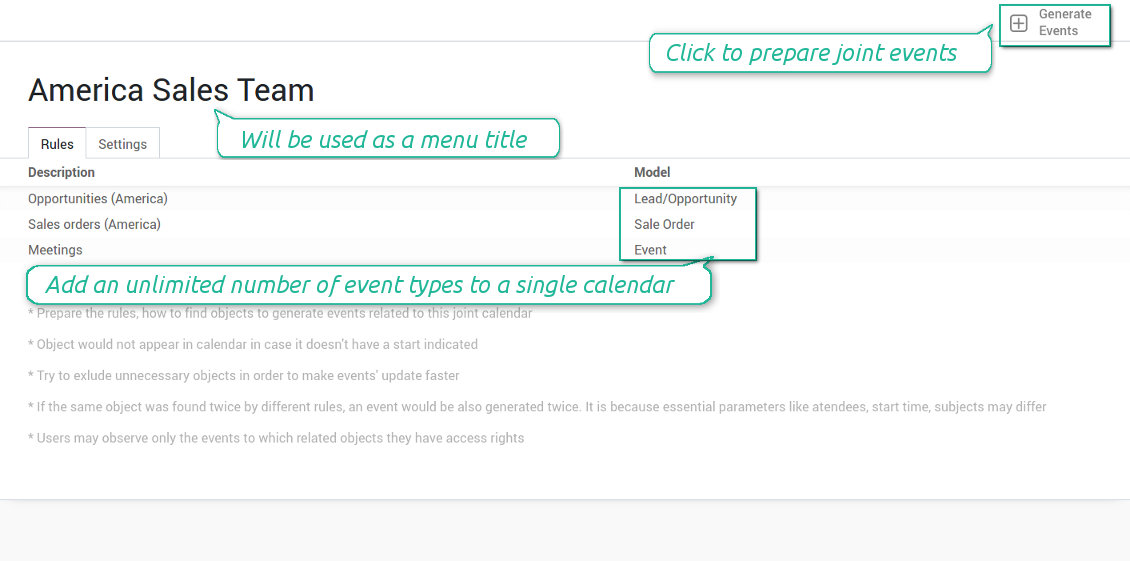
First of all, define a title. It would be used as a menu entry for all joint calendar users.
Second of all, choose document types (rules) which should be merged on this shared calendar.
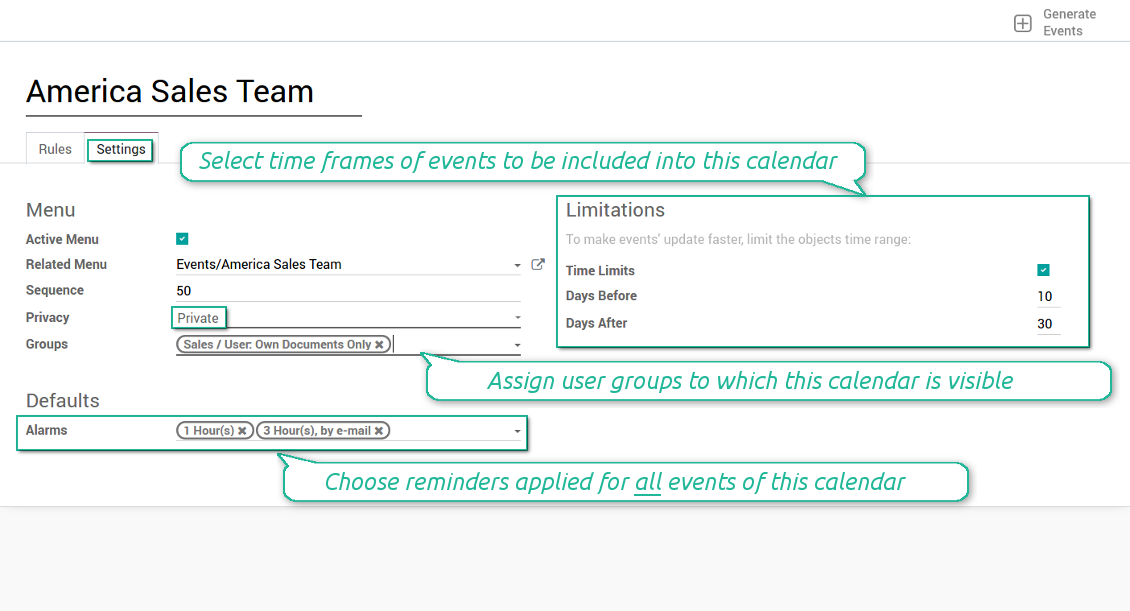
Then, switch to the advanced settings. Some of those might be useful:
- Sequence - in which order various joint calendars' entries are shown. Should it be before the previous super calendar? Then, make a sequence smaller.
- Privacy - let you make a calendar public or private (for predefined user groups only).
- Time limits - allow you optimizing performance of joint events' interfaces. Often there is no need to show the documents of the last year on a calendar.
Is this joint calendar is not any more of use, but it might be needed in the Future? Fine, just archive this calendar: you can activate it at any moment afterwards.
Ekran Görüntüleri
Multiple rules to search documents by types
Joint calendar settings
Joint event rule (example of opportunities)
Joint event rule (example of sale orders)
Joint event rule (example of meetings)
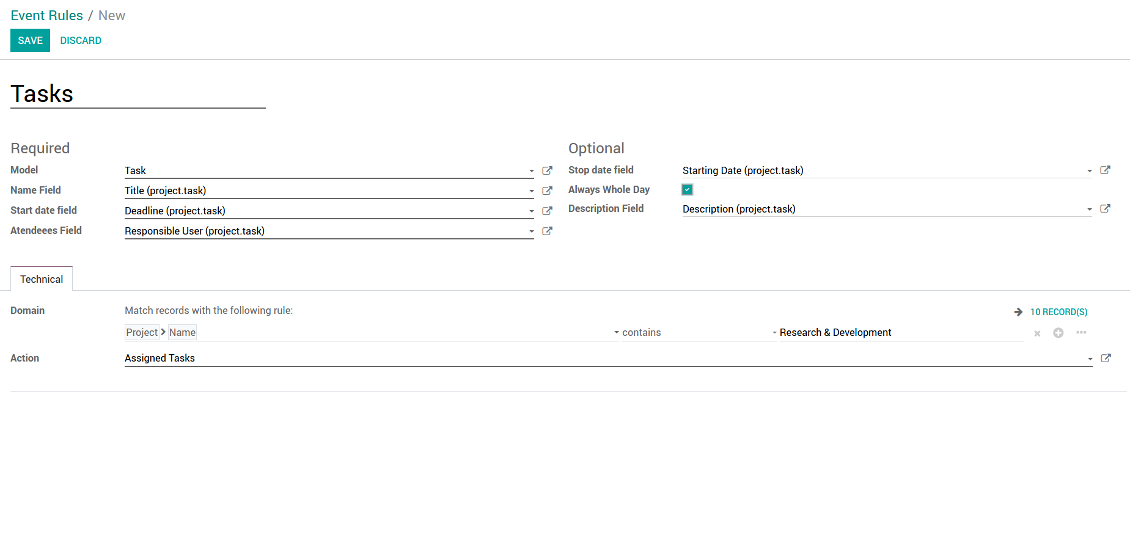
Joint event rule (example of tasks)
Automatic reminders for any Odoo document
How to introduce a warning system
All you need is to prepare a few reminders and indicate those as default on a shared calendar form. Once joint events are generated, each of those would have the same alarms. Afterwards, you may update the these alarms for certain items if you want.
Thus, you can make reminders for any Odoo document automatically. Remind sales persons about next actions in opportunities and calls. Warn workers about a new manufacturing order. Notify programmers about deadlines. So on and so on.
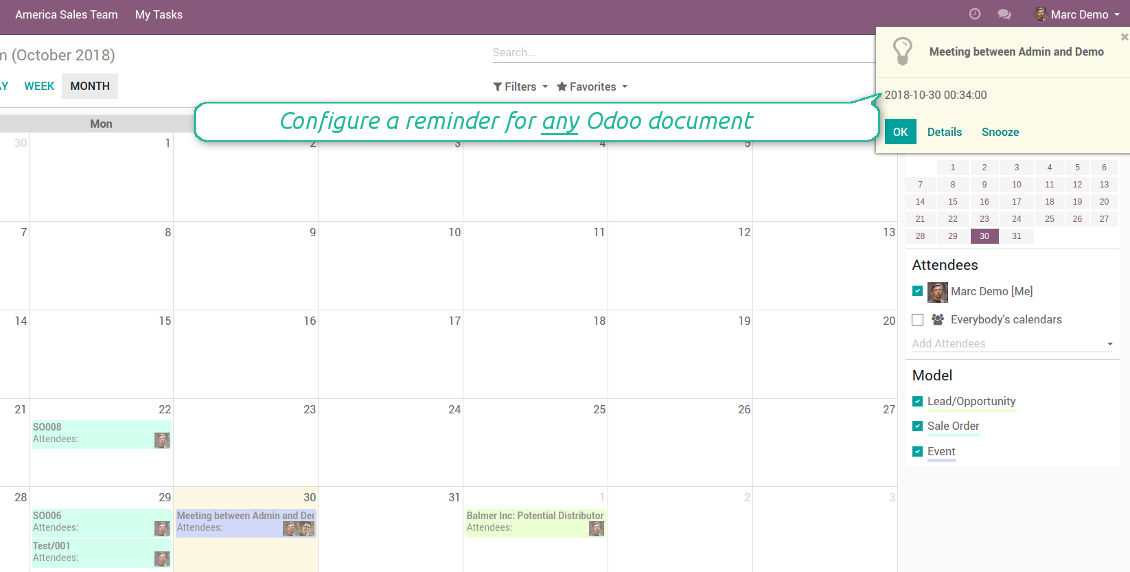
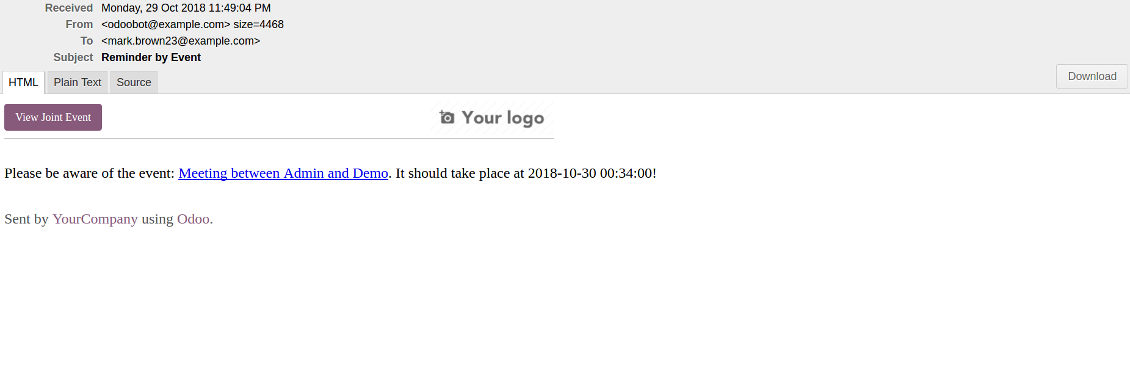
Use both email notifications or pop-up warnings. Warn attendees and responsible users at the moment you like to: from 5 minutes to hundreds of days before.
Ekran Görüntüleri
Configure pop-up alarm for any Odoo event
Email reminder by any Odoo object
Quick access to source details
How are source documents and joint events interrelated
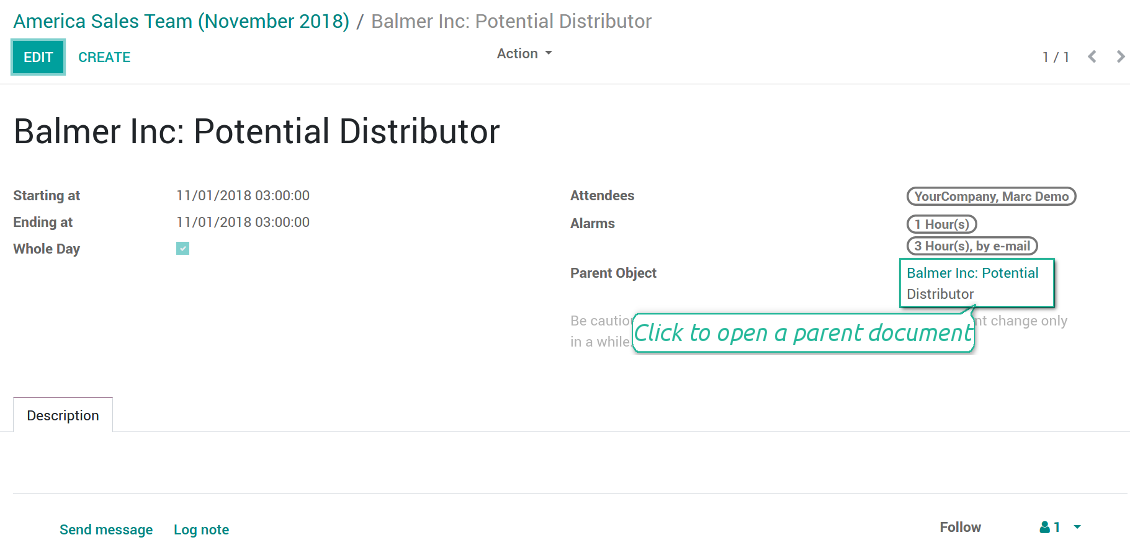
Users observes a link for a source document right on an event form. Thus, it is always possible to expand miscellaneous details.
If you changed a joint event, its parent object would be updated correspondingly in real time. For example, you drag a record and drop it to another date, then a source document would be also moved. Be cautious: it does not work for computed and readonly fields (e.g. a create date can not be modified logically).
If you changed a source object, a joint event would be updated with a next super calendar scheduled job.
Ekran Görüntüleri
Joint event form with simple access to parent document
Simple user rights administration
More details about joint calendar security
The right to create and configure joint calendars belongs only to Odoo administrators (users with the rights 'Administration - Access Rights').
Users may open joint events related to public joint calendars or private joint calendar with one of her/his group indicated. Configure private groups on a joint calendar form, the tab 'Settings', the fields 'Privacy' and 'Groups'. In such a way it is possible to make a joint calendar only for sales managers or only for accountants.
Take into account that in order a user may observe or update a joint event, she/he should have the same rights for a source document. For example, if a sales person doesn't have a right to observe an opportunity, she/he would not see a related joint event as well.
Manually created joint events (without a parent object) may be either public (for all employees) or private (visible for attendees only).
Used in any functional area
Have a look at typical use cases
Activities by all objects and responsibles on a single calendar
Activities are a great Odoo invention, which helps you organize daily routine as a set of well-reached and structured tasks. They are quite comfortable for use, but for team collaboration and efficient management, sometimes you want to have a calendar overview of planned and overdue activities.
Joint Calendar let you achieve that goal. Just add an activity rule as joint calendar rule:
- As a model use 'Activity'
- As a name use 'Display Name'
- As a start date field use 'Due Date'
- As attendees fields use 'Assigned to'
- As a domain apply 'Summary is set'
- For the action field create a new one: go to the Settings > Technical > Actions > Window Action. As an object use 'mail.activity', as a view mode - 'form', as a name - any suitable
Opportunities on a super calendar
- As a model use 'Lead / Opportunity'
- As a name use 'Opportunity'
- As a start date field use 'Expecting Closing'
- As attendees fields use 'Salesperson'
- As a contact link use customer
- As a domain optionally restrict opportunities by sales teams.
Tasks on a joint calendar
- As a model use 'Task'
- As a name use 'Title'
- As a start date field use 'Deadline'
- As attendees fields use 'Assigned to'
- As a domain optionally you can set definite projects
Share employees leaves
- As a model use 'HR Leave'
- As a name use 'Description'
- As a start date field use 'Start Date'
- As attendees fields use 'User'
- As a stop date field use 'Start Date'
- As a domain filter by status: show only approved leaves.
Better then expected
The app does exactly what was needed. Combine all tasks from all calendars to one. And allows to manages all activities from all modules in one place.
This makes the Event Calendar so much more useful !
We bought this to combine certain project tasks with the schedules of our maintenance engineers. We now have a better overview which moments are overlapping the schedules of other events. The joining of multiple events in 1 event calendar is super easy, it should be a standard option in ODOO.
Excellent responsive team of programmers
Joint Calendar is the perfect addition to the standard Calendaring system that Odoo offers. It makes the job of setting up specific departmental calendars filled with any objects you wish very easy and Alex and the team provides fantastic after-sales support, responding in most cases within 24 hours to requests for help. Thanks for a great module.
Essential to have Activities, Tasks, Meetings etc all in one calendar and shared.
Great service support very quick and were right on with fixing the issue... I think the ability to see everything on one shared calendar is such an essential part of coordination and time management. Great product once you sort out the rules you need!
Yapılandırma ve kurulum ipuçları: Joint Calendar Odoo v.12
Scheduled jobs
- Turn on the debug mode
- Go to technical settings > Automation > Scheduled jobs
- Find the job 'Refresh Joint Events' to change the frequency of calendars' update
- Find the job 'Notify About Joint Event' to change the frequency of email alarms.
Email alarm style
- Activate the developer mode
- Go to technical settings > Email > Templates
- Find the template 'Joint Event Notification'
- You are welcome to change here message body
- Email subject might be changed through the translated term 'Reminder by Event'.
Hakkında sık sorulan sorular Joint Calendar Odoo v.12
"Always Whole Day" seçeneği açılınca veya kapanınca ne olur?
"Always Whole Day" aciksa kuralin urettigi tum etkinlikler, baslangic ve bitiş saatli olsa da tum gun sürer. Etkinlik takvimde özel bir yerde gösterilir.
Ornek: "Sale Order" modeli ve "Always Whole Day" ile etkinlik günlük ve haftalik süper takvimlerde zaman cizgisinin üstüne konur.
Seçeneği kapatir ve baslangic veya bitiş saat/dakika icerirse etkinlik günün belirli saatine konur ve saat basligin önünde görünür.
Odoo'da takvim menusunu gormuyorum. Ne yapmaliyim?
Kontrol edin:
1. En az bir yapilandirilmis ve yenilenmis ortak takvim olsun. Kurulumdan sonra tarayiciyi yenileyin.
2. En az bir takvime erisiminiz olsun.
Kuralli takvimler olusturdum ama menude gormuyorum.
Birkaç neden olabilir. Ilgili cron henüz calismamis olabilir: ortak takvim arayuzunun sag sutunundaki yenile dugmesiyle elle baslatin.
Time Limits'i de kontrol edin; yoksa yalnizca belirli araliktaki etkinlikler görünür. Ornek: 'Sale Orders' takvimi 10 gun önce / 30 gun sonra ise 12 gun önce oluşturulan sipariş görünmez.
Kurallarda eslesmeyen filtre olmadigindan emin olun. Ornek: 'Sale Order' kurali ve 'Customer = Deco Addict' filtresi yalnizca o müşterinin siparislerini gösterir.
Kac Odoo belgesini (or. satis siparişleri, projeler, aktiviteler) tek ortak takvimde birlestirebilirim?
Istediğiniz kadar Odoo belgesini tek takvimde birlestirebilirsiniz. Veya birkaç takvime bölüp (or. Satis Takvimi ile Projeler, Görevler ve Aktiviteler) systray'den geçiş yapabilirsiniz.
Ortak takvim kurali nedir?
Kurallar hangi Odoo nesnelerinin etkinlik uretecegini, hangi alanlarin kullanilacagini ve filtre olup olmayacagini belirler.
Kuralda basligi, baslangici veya Stop date'i, katilimcilari siz tanimlarsiniz.
"Stop date" alanı ne işe yarar? Boş bırakabilir miyim?
Stop date, hedef Odoo modelinde etkinligin takvimde bittiği ani tanimlayan alandir. Ornek: "Sale Order" kurali ve Stop date olarak "Delivery Date" etkinliği teklifin planlandigi günden (Start Date - Order Date) teslimata kadar gösterir.
Isteğe baglidir, bos birakabilirsiniz. Bu durumda etkinlik yalnizca Start Date gününde yer alir.
Takvimde "Undefined" turunde etkinlikler var. Ne anlama gelir?
Etkinlik elle oluşturuldu: ust nesne ve kural yok. "Undefined" filtresinde, renksiz görünür.
Takvimi gorebilen herkes Undefined etkinliklerini olusturup gorebilir.
Araclarinizin güncelleme politikalari nedir?
Güncel Odoo Apps Store politikalarina göre:
- 12.0 ve önceki sürüm için alinan her modül, 12.0'a kadar tum surumlere erişim verir.
- 13.0 surumunden itibaren her modül sürümü ayri satin alinmalidir.
- Surumden bagimsiz olarak satin alma, o ana sürüm içindeki tum güncelleme ve hata duzeltmelerine hak verir.
faOtools ekibi bu politikalari kontrol etmez. Sorulariniz için doğrudan Odoo Apps Store temsilcilerine ulasin.
Uygulamanizi Odoo.sh üzerine nasil kurarim?
En doğrudan yaklasim, Odoo magazasinin yerlesik is akisidir:
1. Modül sayfasini acin ve Deploy on odoo.sh düğmesine tiklayin
2. GitHub sayfasina yonlendirilirsiniz. Hesabiniza giriş yapin, ardindan Create a new repo'ya tiklayin veya mevcut birini kullanin. Depo özel olmalidir. OPL-1 lisansli uygulamalarin yayimlanmasi yasaktir. Gerekirse Odoo.sh projeniz için yeni bir depo oluşturun
3. Ardindan odoo.sh'e gidin, Deploy'a tiklayin, karari onaylayin ve Continue'ya tiklayin. Kurulum başlar.
Bu adimlar uygulamayi projenin production dalina kurar. Diğer dallar veya modül guncellemesi için:
1. Kaynak kodu Odoo magazasindan indirin
2. Modulu gerekli GitHub deposuna commit edin. Hiçbir uygulama klasörü/dosyasi .gitignore'da olmamalidir. odoo.sh'in oluşturduğu depolar varsayilan olarak önemli yollari (örneğin /lib) yok sayabilir. Tum modül dizinlerini ve dosyalarini istisnasiz yükleyin
3. odoo.sh projesinin hedef dalini deploy edin veya ayarlariniz otomatik derlemeyi ongoruyorsa bekleyin.
Uygulamayi kendi sunucuma nasil kurarim?
2. Odoo sunucusunu yeniden baslatin;
3. Gelistirici modunu acin (teknik ayarlar);
4. Uygulama listesini güncelleyin (Uygulamalar menusu);
5. Uygulamayi bulun ve Activate/Install düğmesine basin;
6. Varsa uygulama sayfasindaki yonergeyi izleyin.
Uygulamanizin ek eklentileri var. Sonradan alabilir miyim?
Evet. Odoo tum bagimliliklari sepete otomatik ekler: çift odemeyi onlemek için daha önce satin alinan araclari cikarin.
Uygulamayi Odoo.sh üzerine kurdum ve testlerde uyari/hata goruyorum
Kirmizi/turuncu uyari uygulamanin özelliklerini etkilemez. Bazen modüllerimiz standart otomatik testleri gecemez, çünkü bunlar uygulamamizin amaclarina aykiri davranis bekler. Örneğin fiyati farkli hesaplariz, Odoo testleri ise nihai fiyati standart algoritmayla karsilastirir.
Önce dagitilan veritabaninin özelliklerini kontrol edin. Her sey doğru calisiyor mu?
Uyarinin gerçek özellikleri etkiledigini dusunuyorsaniz bize yazin; tam kurulum günlüklerini ve dagitilan modüllerin tam listesini (çekirdek ve üçüncü taraf) gönderin.
Uygulamanizi doğrudan sizden satin alabilir miyim?
Hayir, araclari yalnizca resmi Odoo uygulama magazasi üzerinden dagitiyoruz.
Indirim almak istiyorum
Ne yazik ki bireysel fiyat sunacak teknik imkanimiz yok.
Uygulamayi Odoo Online (SaaS) veritabanima kurabilir miyim?
Hayir, üçüncü taraf uygulamalar Odoo Online'da kullanilamaz. Odoo SaaS bunu engeller.
Aracinizin başka uygulamalara bagimliligi var. Onlari da almali miyim?
Evet, aracimizin doğru calismasi için bagimliliklarda isaretlenen tum modullere ihtiyaci vardir. Uygulama sayfasindaki fiyat bu bagimliliklari zaten içerir.
Modulun ABD dolari fiyati nedir? Neden değişti?
Modullerimizin fiyati euro cinsinden belirlenir. Odoo magazasi fiyatlari kendi ic kuruna göre diğer para birimlerine çevirir. Bu yüzden ABD dolari fiyati kur guncellendiginde degisebilir.
İngilizce dışındaki dillerdeki uygulama ve web sitesi metinleri yapay zeka desteklidir ve resmi Odoo çevirileriyle hizalanır. Bir hata görürseniz, çeviri doğruluğu bileti gönderin ve düzeltiriz.
Hata bildirimi
Hata veya tutarsız davranış görürseniz bize yazın. Satın alımdan sonra 60 gün içinde düzeltme garantisi veririz; bu süreden sonra da araçları geliştirmeye devam ederiz.
Bize yazmak için telefon veya kredi kartı gerekmez. Yalnızca 30 saniyeyi aşmayan kısa e-posta kaydı yeter.
İstekte mümkün olduğunca ayrıntı verin: ekran görüntüleri, Odoo sunucu günlükleri, sorunu nasıl yeniden üreteceğinizin tam açıklaması. Genellikle birkaç iş günü içinde (hata doğrulanırsa) çalışma planı veya (değilse) yönergeler hazırlanır.
Genel özellik talepleri ve modül fikirleri (ücretsiz geliştirme)
Araçlarımızı geliştirmeye güçlü şekilde motiveyiz ve her geri bildirime minnettarız. Gereksinimleriniz kamuya yararlıysa ve verimli uygulanabilirse ekip bunları yapılacaklar listesine alır.
Böyle bir yapılacaklar listesi düzenli işlenir ve ek ücret varsaymaz. Son tarihler ve nihai tasarım sözü veremesek de istenen özellikleri yatırım ve risk olmadan almanın iyi bir yolu olabilir.
Bize yazmak için telefon veya kredi kartı gerekmez. Yalnızca 30 saniyeyi aşmayan kısa e-posta kaydı yeter.

Odoo eklerini klasörlerde esnek yapılandıran ve dizinleri bulut istemcileriyle senkronize eden araç: Google Drive, OneDrive/SharePoint, Nextcloud/ownCloud, Dropbox, Amazon S3, Box ve NAS. DMS. Dosya Yöneticisi. Belge yönetim sistemi
398€
otomatik olarak senkronize et Odoo ekler ile OneDrive dosyalar içinde her iki ways
487€
otomatik olarak senkronize et Odoo ekler ile Google Drive dosyalar içinde her iki ways
487€
Odoo'da paylaşarak kullanmak üzere parolaları güvenle saklama aracı. Paylaşılan kasalar

İç ve dış kullanım için derin ve yapılandırılmış bir bilgi bankası kurma aracı. Knowledge System. KMS. Wiki benzeri revizyonlar.
398€
KPI hedeflerini kurmak ve dönemlere göre gerçekleşmeyi denetlemek için araç. KPI gösterge panelleri. Gösterge paneli tasarımcısı. KPI grafikleri

Randevu rezervasyonundan satış ve değerlendirmelere zaman tabanlı hizmet yönetimi aracı
398€
Odoo'nuzu MCP ile favori AI sohbetlerinizden yönetme aracı. Claude. MCP destekleyen her AI.
