Joint Calendar v.13
The tool to combine different Odoo events in a few configurable super calendars. Shared calendar. Common calendar.
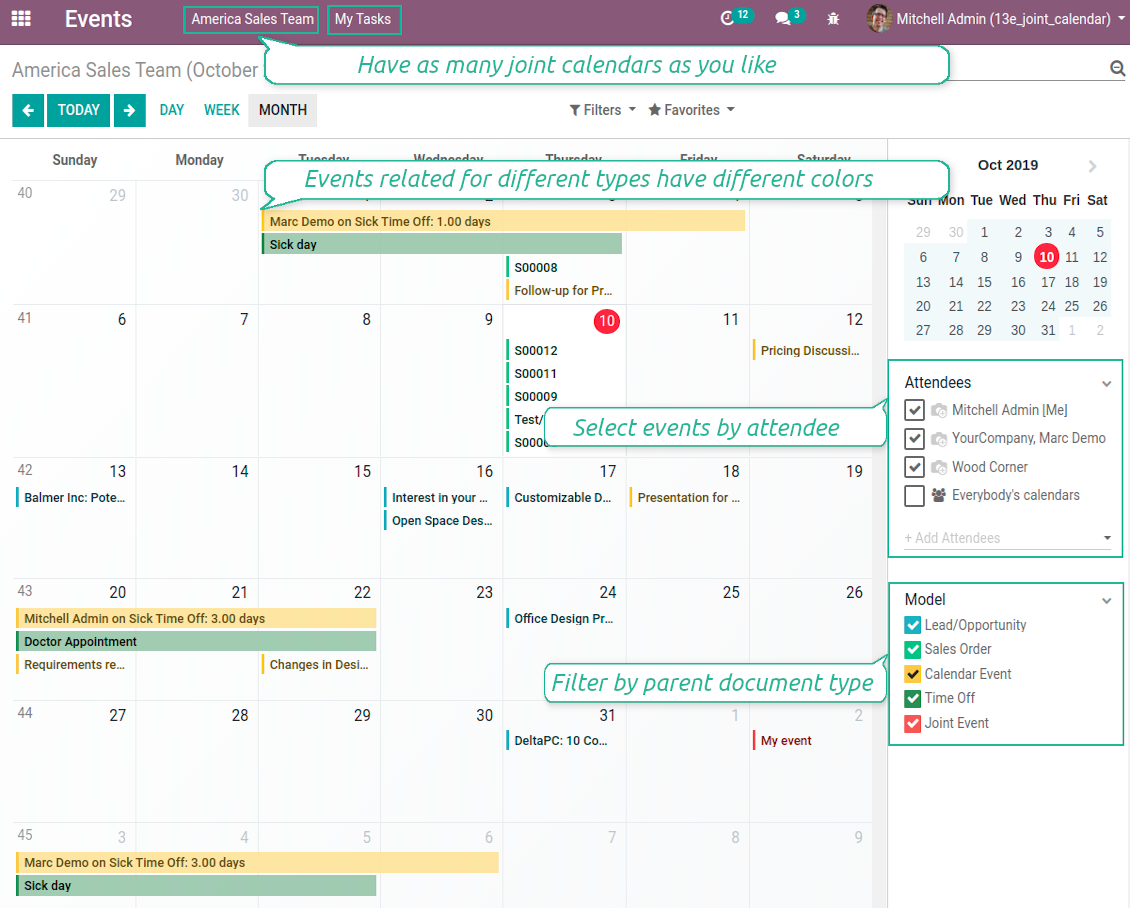
Multifarious events on a single calendar
Besides, you may have an unlimited number of joint calendars with various events, configurations and user groups included, divided by teams or functional areas. Each joint calendar has an own menu item.
Super calendars are updated automatically according to the scheduled jobs. It is fast, especially if you applied time frames.
Schermate
Joint document types on a single calendar
Fast switching between functional areas
Topical and relevant information
You may also define which documents to show by setting up special filters. Show opportunities but not leads. Work with orders of this sales team but not of others. Merge only overdue activities but not future ones.
How to add a new document type for a joint calendar
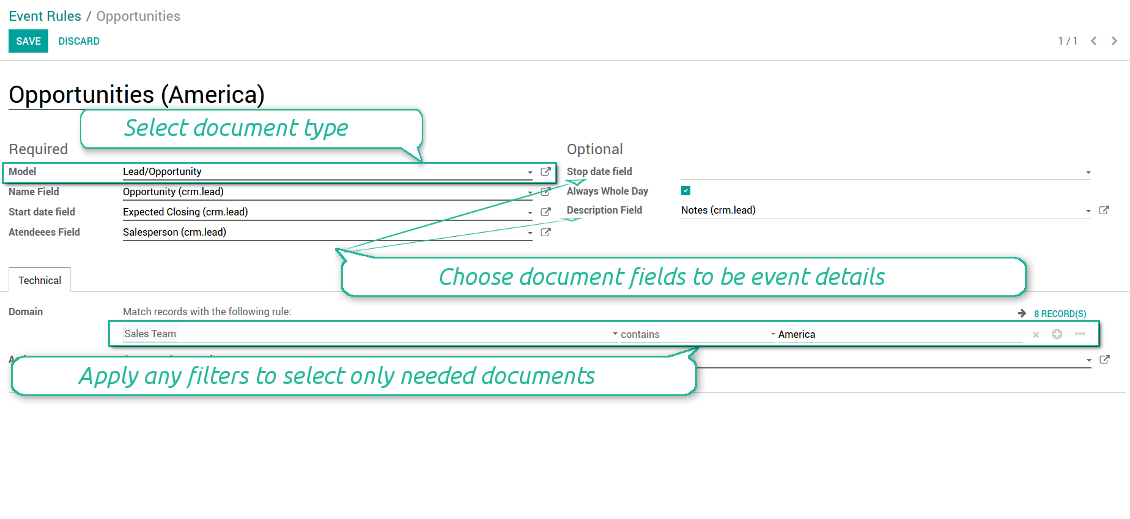
To add a new document type for a joint calendar you should set up a joint calendar rule. This rule defines which Odoo objects should create events, which fields of that object should be shown, and whether any filtering should take place. The app will try to add the most typical values by default, but you should think which data is required in your exact case.
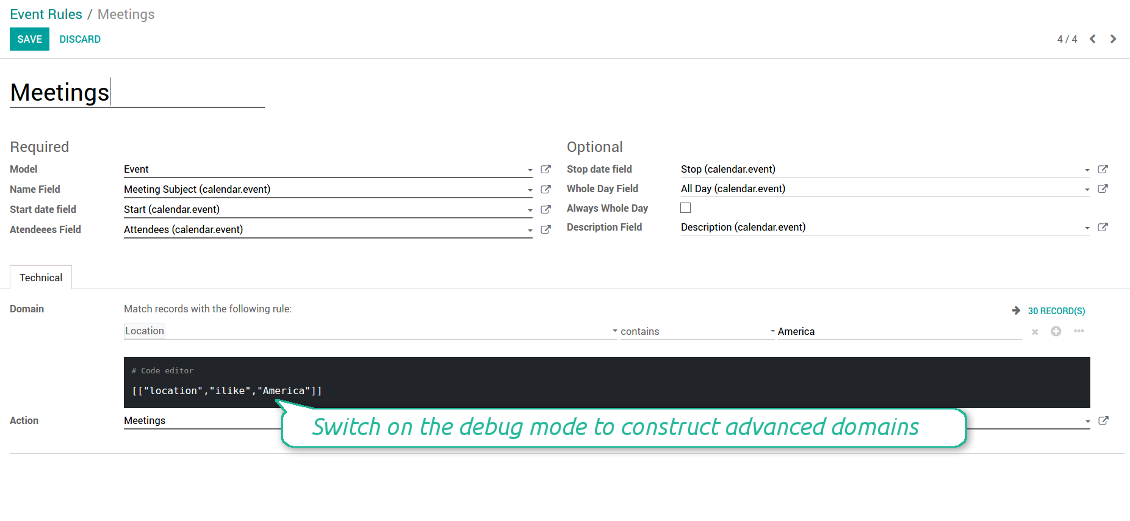
- Model - which objects to scan: opportunities, tasks, orders, meetings, activities, and so on. You can choose your custom document type as well!
- Name - what to use as a joint event name (also used as calendar event title). Usually it is 'name', 'subject' or 'reference'.
- Start date - when an event starts. For example, 'expecting closing' for opportunities or 'order date' for quotations. It may be any date or date with time field of a source Odoo object.
- Attendees - who are participants (responsible persons, event owners). Usually, it is a field 'assigned to', 'a sales person' or 'attendees'. You may use even document 'followers'. It is possible to apply both users and partners as attendees
- Stop date - when an even is shown as finished on a calendar.
- Always Whole Day - means that all generated events would last the whole day disregarding whether start or stop are defined with hours and minutes. Such an event would be shown at a special place on a calendar (above the time line)
- Whole Day - a special boolean field of source object which indicates that a related joint event may lasts the whole day. This setting is usually applied to standard Odoo calendar events which both might have definite time indicated or might be planned for a whole day.
- Description - are there any notes important for joint events? Usually the fields like 'internal notes' or 'comments' are used
- Contact Link - is this event linked to a specific partner? Usually the fields like 'customer' or 'vendor' are used
- Domain - the special filters' constructor to include only topical documents into a joint calendar. You might search almost by any criteria. For example, show only quotations without sales orders, or show opportunities only of this sales team or of this customer. If you are confident to make Reverse Polish Notations you may also turn on the debug mode to construct advanced filters.
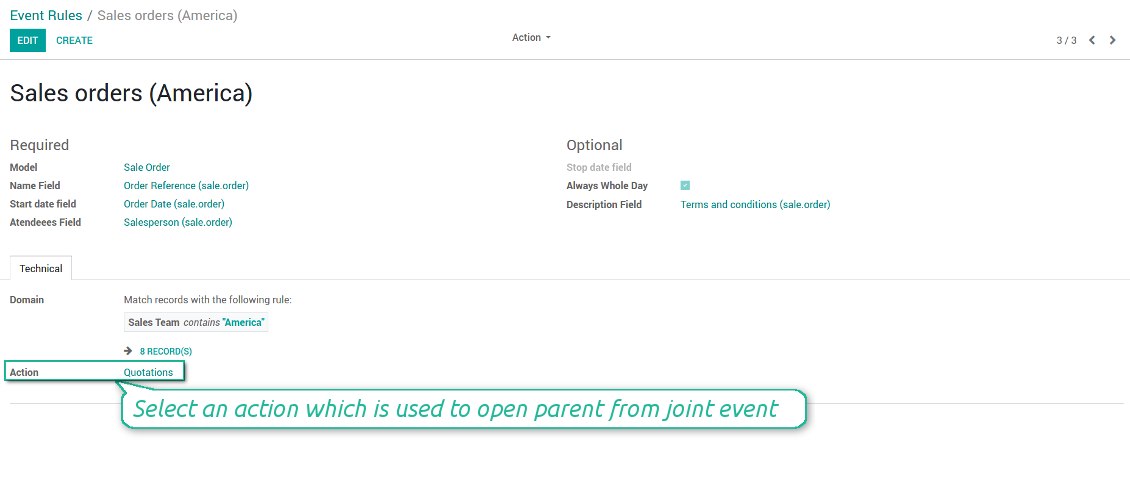
- Action - defines which form view should be shown when you open a source document from a joint event. It is a technical field which in the most cases should not be changed in comparison to a default value.
How to configure a new joint calendar based on rules
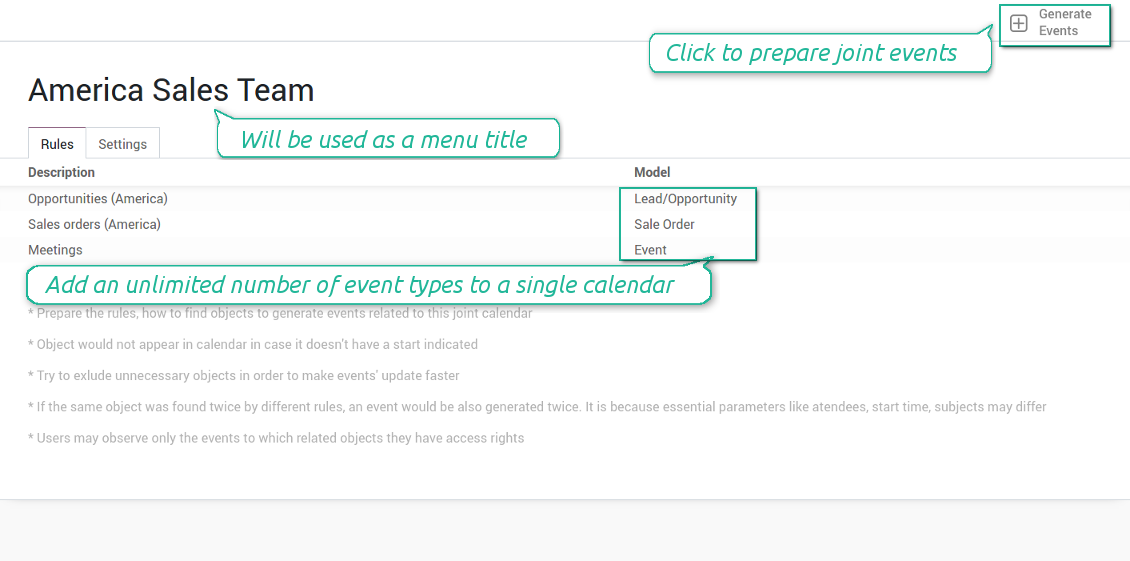
As soon as you prepare a few joint event rules, you are ready to configure a new joint calendar.
First of all, define a title. It would be used as a menu entry for all joint calendar users.
Second of all, choose document types (rules) which should be merged on this shared calendar.
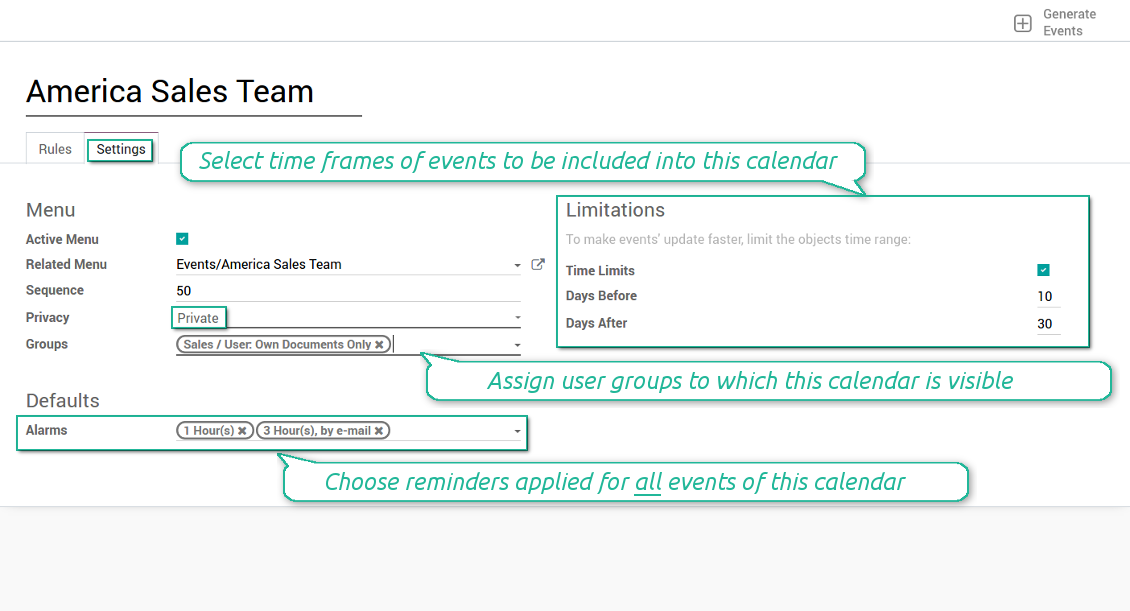
Then, switch to the advanced settings. Some of those might be useful:
- Sequence - in which order various joint calendars' entries are shown. Should it be before the previous super calendar? Then, make a sequence smaller.
- Privacy - let you make a calendar public or private (for predefined user groups only).
- Time limits - allow you optimizing performance of joint events' interfaces. Often there is no need to show the documents of the last year on a calendar.
Is this joint calendar is not any more of use, but it might be needed in the Future? Fine, just archive this calendar: you can activate it at any moment afterwards.
Schermate
Multiple rules to search documents by types
Joint calendar settings
Joint event rule (example of opportunities)
Joint event rule (example of sale orders)
Joint event rule (example of meetings)
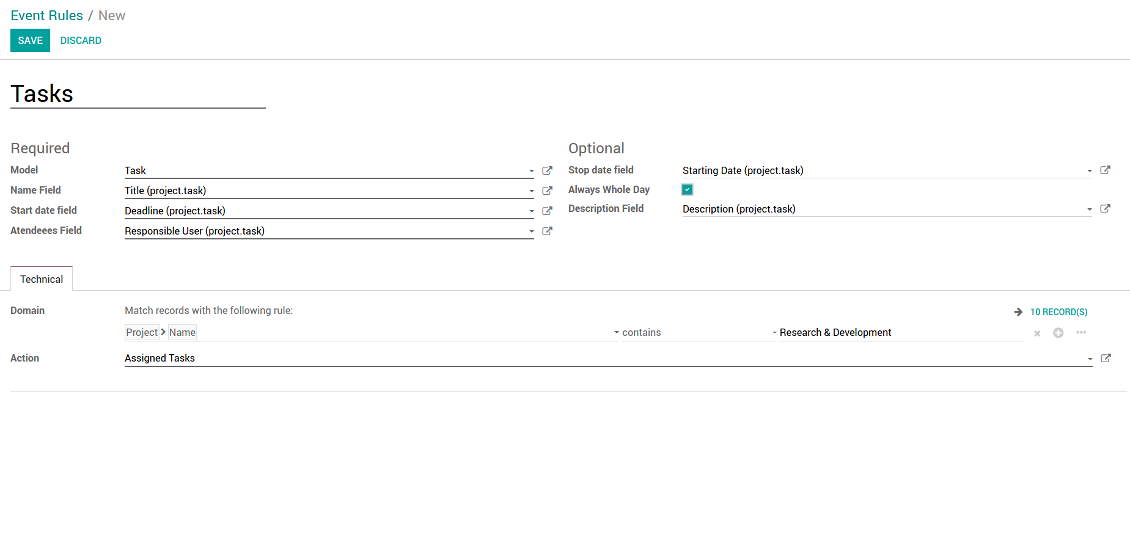
Joint event rule (example of tasks)
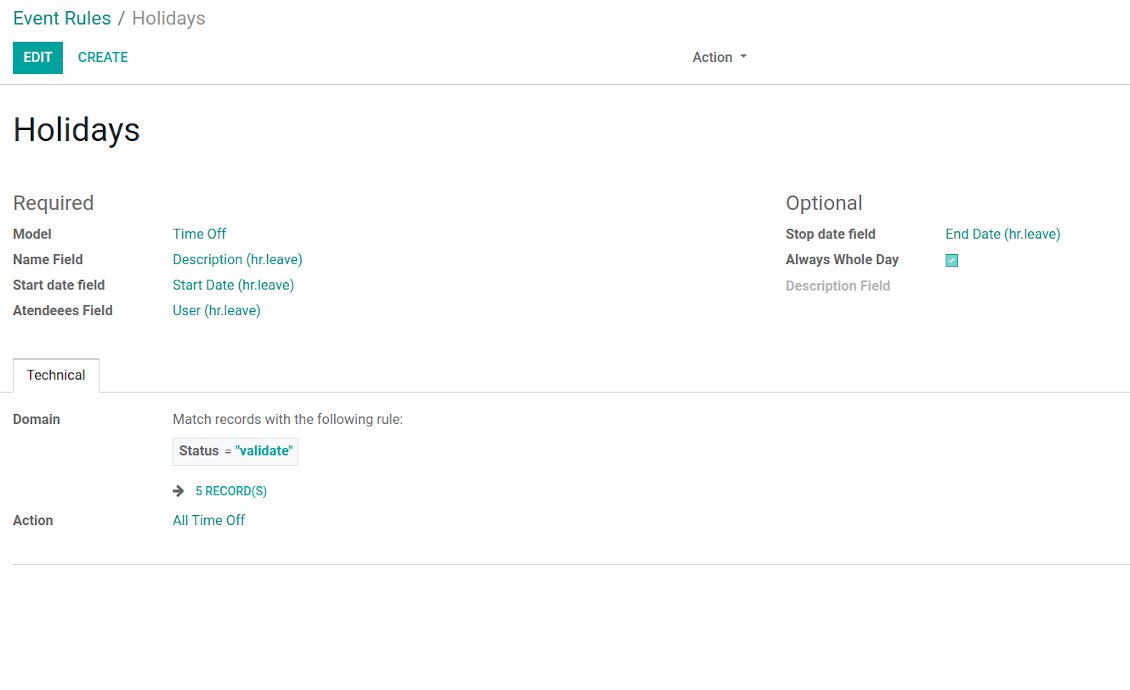
Joint event rule (example of time offs)
Automatic reminders for any Odoo document
How to introduce a warning system
All you need is to prepare a few reminders and indicate those as default on a shared calendar form. Once joint events are generated, each of those would have the same alarms. Afterwards, you may update the these alarms for certain items if you want.
Thus, you can make reminders for any Odoo document automatically. Remind sales persons about next actions in opportunities and calls. Warn workers about a new manufacturing order. Notify programmers about deadlines. So on and so on.
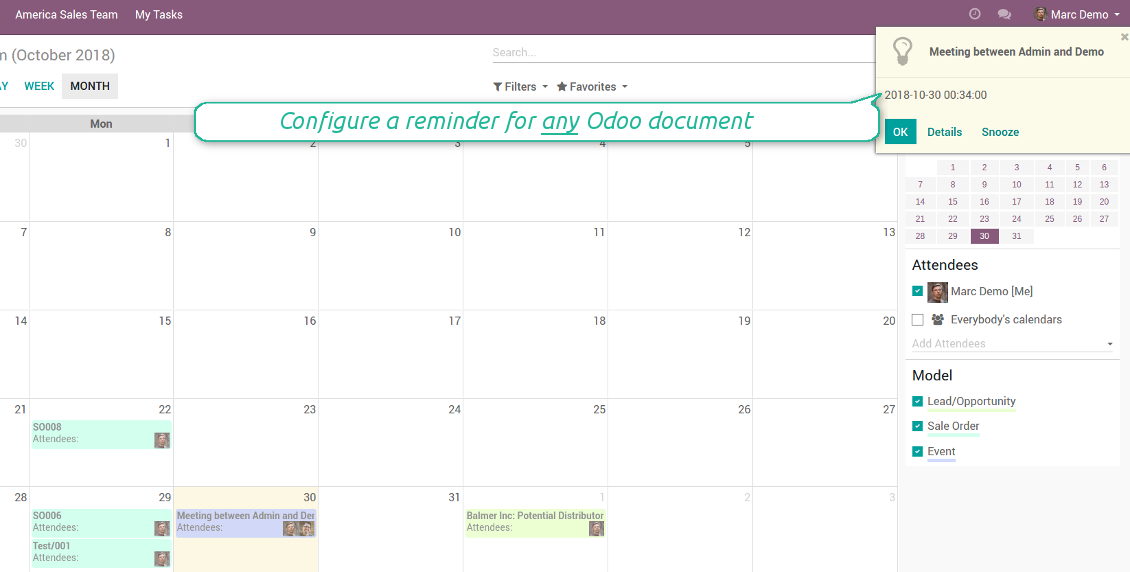
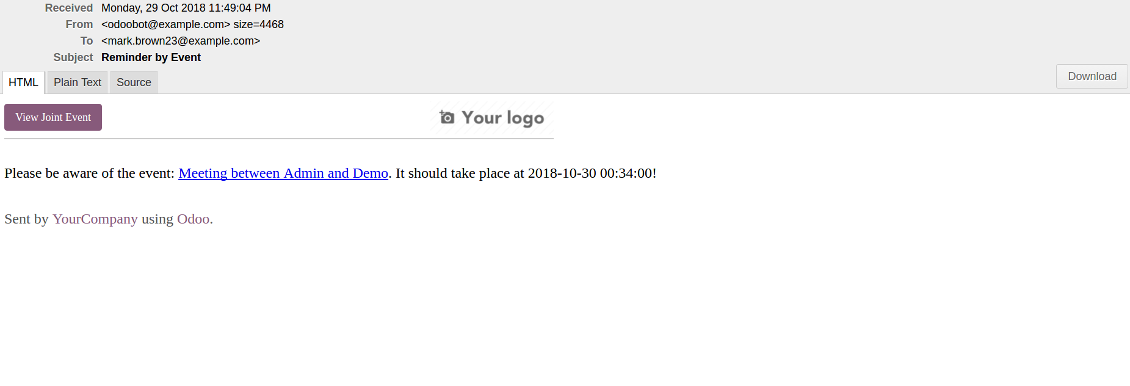
Use both email notifications or pop-up warnings. Warn attendees and responsible users at the moment you like to: from 5 minutes to hundreds of days before.
Schermate
Configure pop-up alarm for any Odoo event
Email reminder by any Odoo object
Better then expected
The app does exactly what was needed. Combine all tasks from all calendars to one. And allows to manages all activities from all modules in one place.
This makes the Event Calendar so much more useful !
We bought this to combine certain project tasks with the schedules of our maintenance engineers. We now have a better overview which moments are overlapping the schedules of other events. The joining of multiple events in 1 event calendar is super easy, it should be a standard option in ODOO.
Excellent responsive team of programmers
Joint Calendar is the perfect addition to the standard Calendaring system that Odoo offers. It makes the job of setting up specific departmental calendars filled with any objects you wish very easy and Alex and the team provides fantastic after-sales support, responding in most cases within 24 hours to requests for help. Thanks for a great module.
Essential to have Activities, Tasks, Meetings etc all in one calendar and shared.
Great service support very quick and were right on with fixing the issue... I think the ability to see everything on one shared calendar is such an essential part of coordination and time management. Great product once you sort out the rules you need!
Quick access to source details
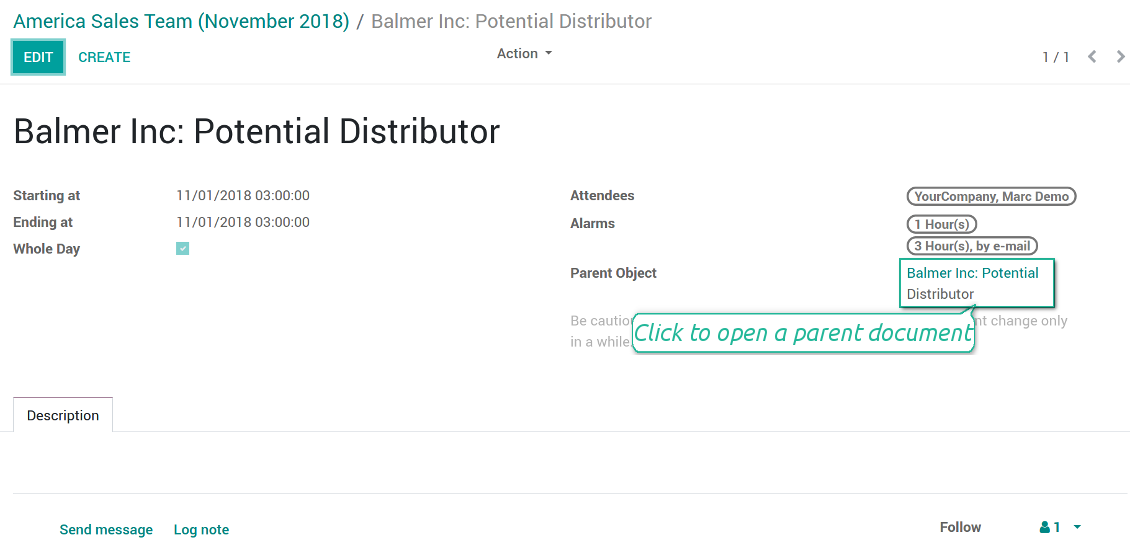
How are source documents and joint events interrelated
Users observes a link for a source document right on an event form. Thus, it is always possible to expand miscellaneous details.
If you changed a joint event, its parent object would be updated correspondingly in real time. For example, you drag a record and drop it to another date, then a source document would be also moved. Be cautious: it does not work for computed and readonly fields (e.g. a create date can not be modified logically).
If you changed a source object, a joint event would be updated with a next super calendar scheduled job.
Schermate
Joint event form with simple access to parent document
Simple user rights administration
More details about joint calendar security
The right to create and configure joint calendars belongs only to Odoo administrators (users with the rights 'Administration - Access Rights').
Users may open joint events related to public joint calendars or private joint calendar with one of her/his group indicated. Configure private groups on a joint calendar form, the tab 'Settings', the fields 'Privacy' and 'Groups'. In such a way it is possible to make a joint calendar only for sales managers or only for accountants.
Take into account that in order a user may observe or update a joint event, she/he should have the same rights for a source document. For example, if a sales person doesn't have a right to observe an opportunity, she/he would not see a related joint event as well.
Manually created joint events (without a parent object) may be either public (for all employees) or private (visible for attendees only).
Used in any functional area
Have a look at typical use cases
Activities by all objects and responsibles on a single calendar
Activities are a great Odoo invention, which helps you organize daily routine as a set of well-reached and structured tasks. They are quite comfortable for use, but for team collaboration and efficient management, sometimes you want to have a calendar overview of planned and overdue activities.
Joint Calendar let you achieve that goal. Just add an activity rule as joint calendar rule:
- As a model use 'Activity'
- As a name use 'Display Name'
- As a start date field use 'Due Date'
- As attendees fields use 'Assigned to'
- As a domain apply 'Summary is set'
Opportunities on a super calendar
- As a model use 'Lead / Opportunity'
- As a name use 'Opportunity'
- As a start date field use 'Expecting Closing'
- As attendees fields use 'Salesperson'
- As a contact link use customer
- As a domain optionally restrict opportunities by sales teams.
Tasks on a joint calendar
- As a model use 'Task'
- As a name use 'Title'
- As a start date field use 'Deadline'
- As attendees fields use 'Assigned to'
- As a domain optionally you can set definite projects
Share employees time offs and leaves:
- As a model use 'Time Off'
- As a name use 'Description'
- As a start date field use 'Start Date'
- As attendees fields use 'User'
- As a stop date field use 'End Date'
- As a domain filter by status: show only approved leaves.
Suggerimenti di configurazione e installazione per Joint Calendar Odoo v.13
Scheduled jobs
- Turn on the debug mode
- Go to technical settings > Automation > Scheduled jobs
- Find the job 'Refresh Joint Events' to change the frequency of calendars' update
- Find the job 'Notify About Joint Event' to change the frequency of email alarms.
Email alarm style
- Activate the developer mode
- Go to technical settings > Email > Templates
- Find the template 'Joint Event Notification'
- You are welcome to change here message body
- Email subject might be changed through the translated term 'Reminder by Event'.
Domande frequenti su Joint Calendar Odoo v.13
Cosa succede se "Always Whole Day" e attiva/disattiva?
Se "Always Whole Day" e attiva, tutti gli eventi della regola durano tutto il giorno anche se inizio e fine hanno ore. L'evento compare in un punto speciale del calendario.
Esempio: una regola per "Sale Order" con "Always Whole Day" mette l'evento sopra la sequenza temporale dei super calendari giornaliero e settimanale.
Se disattivi l'opzione e inizio o fine hanno ore/minuti, l'evento sta a un orario preciso e l'ora precede il titolo.
Non vedo il menu del calendario in Odoo. Cosa faccio?
Controlla:
1. C'e almeno un calendario congiunto configurato e aggiornato. Ricarica la pagina dopo la configurazione.
2. Hai accesso ad almeno un calendario.
Ho creato calendari con regole, ma non li vedo nel menu.
Puo esserci piu di una causa. Il cron collegato forse non e ancora partito: avvialo a mano dal pulsante di aggiornamento nella colonna destra dell'interfaccia.
Controlla anche Time Limits: altrimenti vedi solo eventi in un intervallo. Esempio: calendario 'Sale Orders' con 10 giorni prima e 30 dopo: un ordine di 12 giorni fa non compare.
Assicurati che le regole non abbiano filtri senza corrispondenze. Esempio: regola 'Sale Order' con 'Customer = Deco Addict' mostra solo gli ordini di quel cliente.
Quanti documenti Odoo (es. ordini di vendita, progetti, attività) posso unire in un calendario congiunto?
Puoi unire quanti documenti Odoo vuoi in un solo calendario. Oppure dividerli tra piu calendari (es. Vendite e Progetti, lavori e attività) e passare dal systray.
Cos'e una regola del calendario congiunto?
Le regole dicono quali oggetti Odoo creano eventi, quali campi usare e se filtrare.
Nella regola definisci tu titolo, inizio o Stop date, partecipanti ecc.
A cosa serve il campo "Stop date"? Posso lasciarlo vuoto?
Stop date e un campo del modello Odoo di destinazione che indica quando l'evento e finito nel calendario. Esempio: regola per "Sale Order" con "Delivery Date" come Stop date mostra l'evento dal giorno previsto del preventivo (Start Date - Order Date) fino alla consegna.
Il campo e facoltativo, puoi lasciarlo vuoto. Allora l'evento sta solo nel giorno dello Start Date.
Ho un tipo di eventi "Undefined" nel calendario. Cosa significa?
L'evento e stato creato a mano: nessun oggetto padre ne regola. Compare sotto il filtro "Undefined", senza colore.
Chi ha accesso al calendario puo creare e vedere gli eventi Undefined.
Quali sono le politiche di aggiornamento dei vostri strumenti?
Secondo le politiche attuali dell'Odoo Apps Store:
- Ogni modulo acquistato per la versione 12.0 o precedente da accesso a tutte le versioni fino alla 12.0.
- Dalla versione 13.0 ogni versione del modulo va acquistata separatamente.
- Indipendentemente dalla versione, l'acquisto da diritto a tutti gli aggiornamenti e le correzioni entro una major version.
Il team faOtools non controlla queste politiche. Per qualsiasi domanda, contattate direttamente i rappresentanti dell'Odoo Apps Store.
Come installo l'app su Odoo.sh?
L'approccio piu diretto e il flusso integrato dello store Odoo:
1. Apri la pagina del modulo e fai clic su Deploy on odoo.sh
2. Verrai reindirizzato a GitHub. Accedi e fai clic su Create a new repo o usa uno esistente. Il repository deve essere privato. Non e consentito pubblicare le app con licenza OPL-1. Se serve, crea un nuovo repo per il progetto Odoo.sh
3. Poi, in odoo.sh, fai clic su Deploy, conferma e fai clic su Continue. Parte l'installazione.
Questi passaggi installano l'app sul branch di produzione. Per altri branch o per aggiornare:
1. Scarica il codice sorgente dallo store Odoo
2. Esegui il commit del modulo nel repository GitHub. Nessuna cartella/file dell'app deve essere in .gitignore. I repo creati da odoo.sh a volte ignorano percorsi importanti (es. /lib). Carica tutte le directory e i file del modulo
3. Esegui il deploy del branch di destinazione del progetto odoo.sh oppure attendi la build automatica se previsto.
Come installo l'app sul mio server?
2. Riavvia il server Odoo;
3. Attiva la modalità sviluppatore (impostazioni tecniche);
4. Aggiorna l'elenco delle app (menu Applicazioni);
5. Trova l'app e premi Activate/Install;
6. Segui le linee guida nella pagina dell'app, se ci sono.
L'app ha componenti extra. Posso acquistarli dopo?
Si. Odoo aggiunge automaticamente le dipendenze al carrello: escludi gli strumenti gia acquistati per non pagare due volte.
Ho distribuito l'app su Odoo.sh e vedo un avviso/errore nei test
Un avviso rosso/arancione non influisce sulle funzioni dell'app. A volte i nostri moduli non superano i test automatici standard perché questi assumono un comportamento in conflitto con gli obiettivi dell'app. Ad esempio cambiamo il calcolo del prezzo, mentre i test Odoo confrontano il prezzo finale con l'algoritmo standard.
Controllate prima le funzioni del database distribuito. Funziona tutto?
Se pensate ancora che l'avviso influisca sulle funzioni reali, contattateci e inviate i log di installazione completi e l'elenco completo dei moduli distribuiti (core e di terze parti).
Posso acquistare l'app direttamente da voi?
No, distribuiamo gli strumenti solo tramite lo store ufficiale delle app Odoo.
Vorrei uno sconto
Purtroppo non abbiamo i mezzi tecnici per prezzi individuali.
Posso installare l'app sul database Odoo Online (SaaS)?
No, le app di terze parti non si possono usare su Odoo Online. Odoo SaaS blocca questa possibilità.
Lo strumento dipende da altre app. Devo acquistarle?
Si, lo strumento richiede tutti i moduli indicati nelle dipendenze. Il prezzo sulla pagina dell'app le include gia.
Qual e il prezzo del modulo in dollari USA? Perché e cambiato?
Il prezzo dei nostri moduli e in euro. Lo store Odoo converte le valute secondo il proprio tasso interno. Quindi il prezzo in dollari USA puo cambiare quando il tasso viene aggiornato.
I testi dell'app e del sito web in lingue diverse dall'inglese sono realizzati con l'assistenza dell'IA e allineati alle traduzioni ufficiali di Odoo. Se noti un errore, invia un ticket di traduzione e lo correggeremo.
Segnalazione degli errori
Se riscontri bug o comportamenti incoerenti, non esitare a contattarci. Garantiamo di fornire soluzioni entro 60 giorni dall'acquisto e siamo fortemente interessati a migliorare i nostri strumenti anche dopo questo periodo.
Non hai bisogno di un numero di telefono o di una carta di credito per contattarci. Dovresti solo effettuare una breve registrazione via e-mail, che non richiede più di 30 secondi.
Includi nella richiesta il maggior numero possibile di dettagli: schermate, registri del server Odoo, una descrizione completa di come riprodurre il problema e così via. In genere sono necessari alcuni giorni lavorativi per preparare un piano operativo relativo a un problema (se viene confermato un bug) o fornire indicazioni su cosa fare (in caso contrario).
Richieste di funzionalità pubbliche e idee per moduli (sviluppo gratuito)
Siamo fortemente motivati a migliorare i nostri strumenti e saremmo grati per qualsiasi feedback. Se le tue esigenze sono di uso pubblico e possono essere implementate in modo efficiente, il team le includerà nella nostra lista di cose da fare.
Tale elenco di cose da fare viene elaborato regolarmente e non prevede costi aggiuntivi. Sebbene non possiamo garantire scadenze e progettazione finale, potrebbe essere un buon modo per ottenere le funzionalità desiderate senza investimenti e rischi.
Non hai bisogno di un numero di telefono o di una carta di credito per contattarci. Dovresti solo effettuare una breve registrazione via e-mail, che non richiede più di 30 secondi.

Lo strumento per strutturare gli allegati Odoo in cartelle e sincronizzare con Google Drive, OneDrive/SharePoint, Nextcloud/ownCloud, Dropbox, Amazon S3, Box e NAS. Gestione file. DMS
398€
Lo strumento per sincronizzare gli allegati Odoo con OneDrive in entrambi i sensi
487€
Lo strumento per sincronizzare gli allegati Odoo con Google Drive in entrambi i sensi
487€
Lo strumento per conservare le password in Odoo in modo sicuro e condiviso. Vault

Lo strumento per una knowledge base strutturata, interna ed esterna. KMS. Revisioni tipo wiki
398€
Lo strumento per impostare target KPI e controllarne il raggiungimento per periodo. Dashboard. Grafici

Lo strumento per servizi su appuntamento, dalla prenotazione a vendite e recensioni
398€
Lo strumento per gestire Odoo dalle chat IA tramite MCP. Claude. Qualsiasi IA con MCP.

Lo strumento per tradurre gli URL delle pagine del sito Odoo
38€