Joint Calendar v.13
The tool to combine different Odoo events in a few configurable super calendars. Shared calendar. Common calendar.
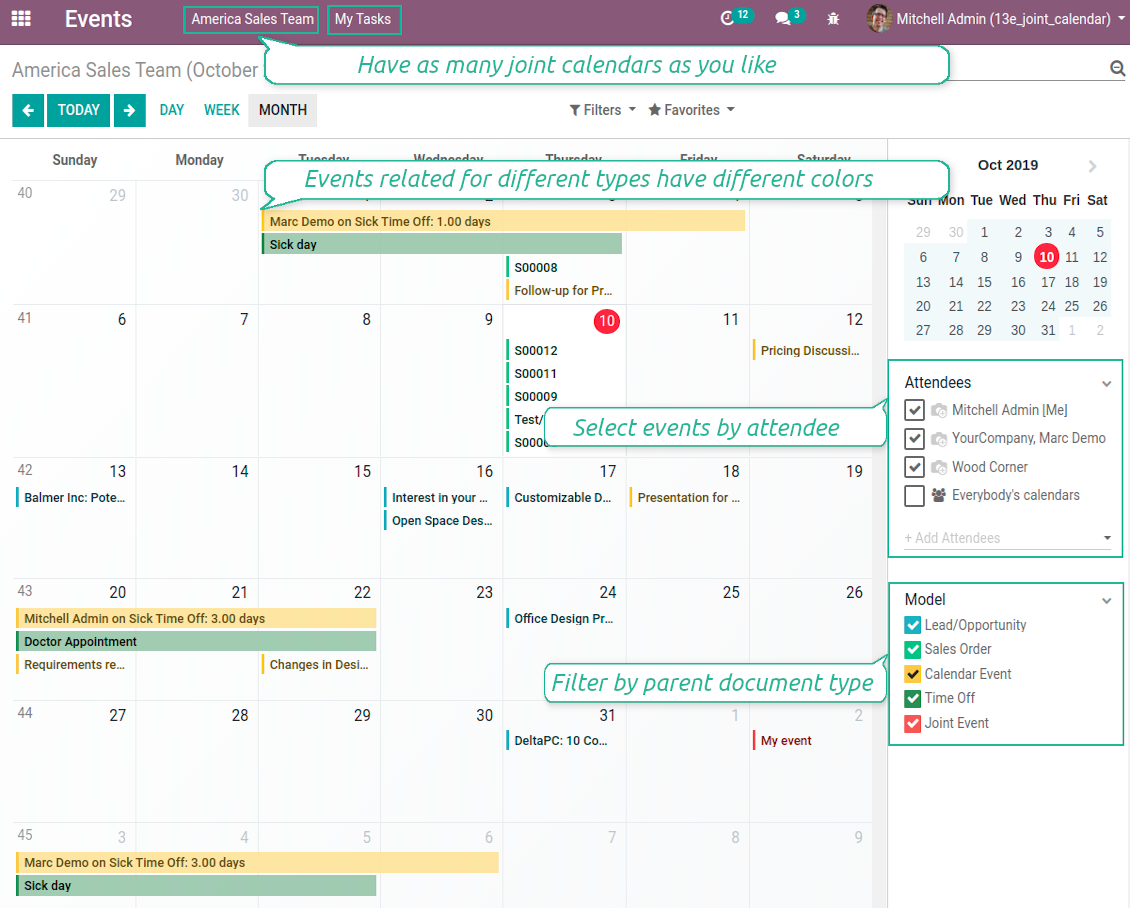
Multifarious events on a single calendar
Besides, you may have an unlimited number of joint calendars with various events, configurations and user groups included, divided by teams or functional areas. Each joint calendar has an own menu item.
Super calendars are updated automatically according to the scheduled jobs. It is fast, especially if you applied time frames.
Screenshots
Joint document types on a single calendar
Fast switching between functional areas
Topical and relevant information
You may also define which documents to show by setting up special filters. Show opportunities but not leads. Work with orders of this sales team but not of others. Merge only overdue activities but not future ones.
How to add a new document type for a joint calendar
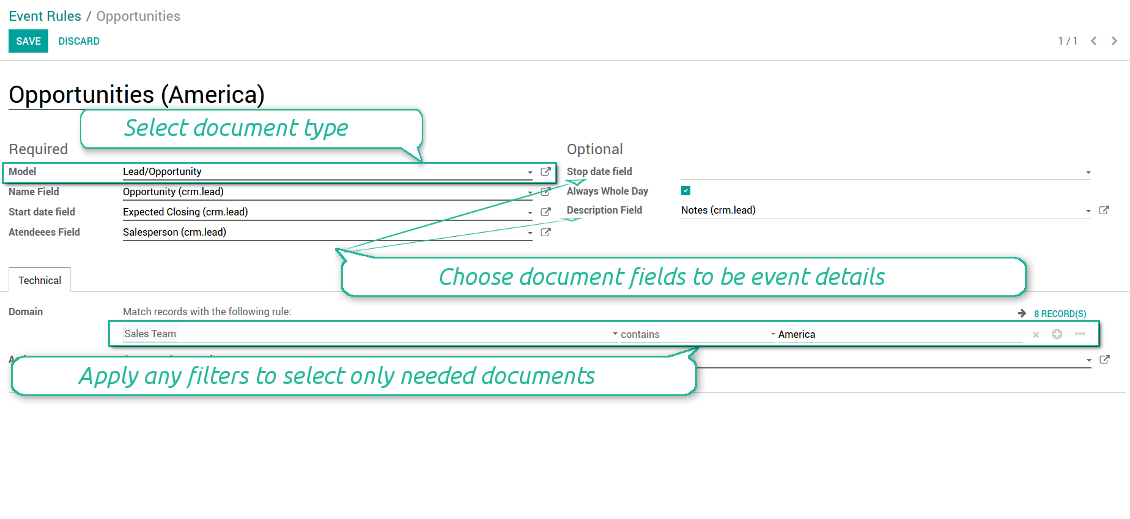
To add a new document type for a joint calendar you should set up a joint calendar rule. This rule defines which Odoo objects should create events, which fields of that object should be shown, and whether any filtering should take place. The app will try to add the most typical values by default, but you should think which data is required in your exact case.
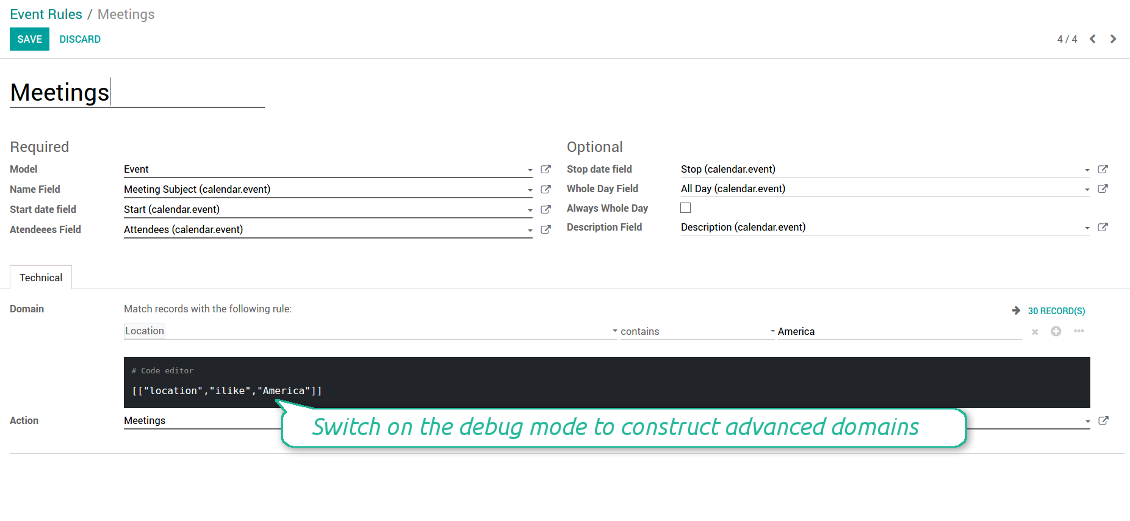
- Model - which objects to scan: opportunities, tasks, orders, meetings, activities, and so on. You can choose your custom document type as well!
- Name - what to use as a joint event name (also used as calendar event title). Usually it is 'name', 'subject' or 'reference'.
- Start date - when an event starts. For example, 'expecting closing' for opportunities or 'order date' for quotations. It may be any date or date with time field of a source Odoo object.
- Attendees - who are participants (responsible persons, event owners). Usually, it is a field 'assigned to', 'a sales person' or 'attendees'. You may use even document 'followers'. It is possible to apply both users and partners as attendees
- Stop date - when an even is shown as finished on a calendar.
- Always Whole Day - means that all generated events would last the whole day disregarding whether start or stop are defined with hours and minutes. Such an event would be shown at a special place on a calendar (above the time line)
- Whole Day - a special boolean field of source object which indicates that a related joint event may lasts the whole day. This setting is usually applied to standard Odoo calendar events which both might have definite time indicated or might be planned for a whole day.
- Description - are there any notes important for joint events? Usually the fields like 'internal notes' or 'comments' are used
- Contact Link - is this event linked to a specific partner? Usually the fields like 'customer' or 'vendor' are used
- Domain - the special filters' constructor to include only topical documents into a joint calendar. You might search almost by any criteria. For example, show only quotations without sales orders, or show opportunities only of this sales team or of this customer. If you are confident to make Reverse Polish Notations you may also turn on the debug mode to construct advanced filters.
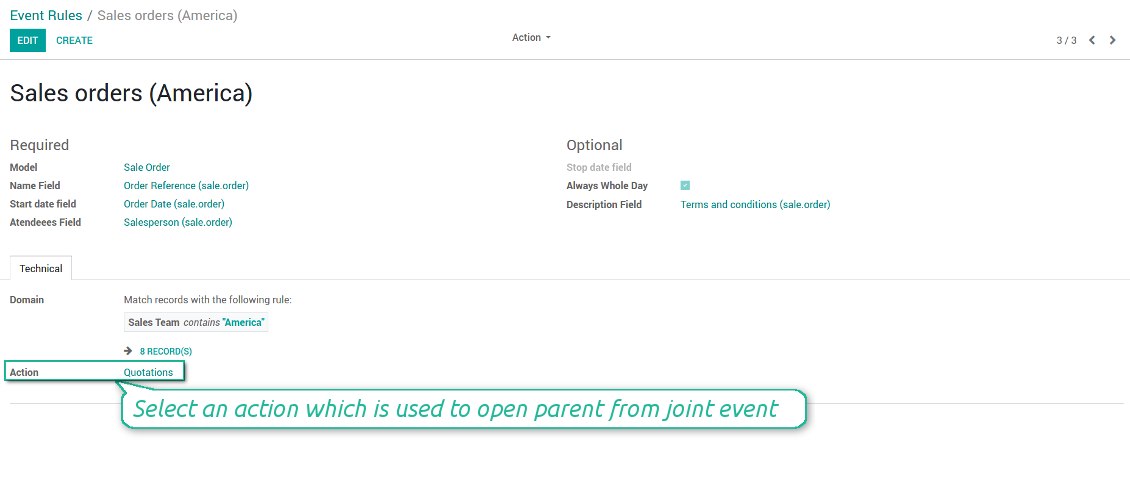
- Action - defines which form view should be shown when you open a source document from a joint event. It is a technical field which in the most cases should not be changed in comparison to a default value.
How to configure a new joint calendar based on rules
As soon as you prepare a few joint event rules, you are ready to configure a new joint calendar.
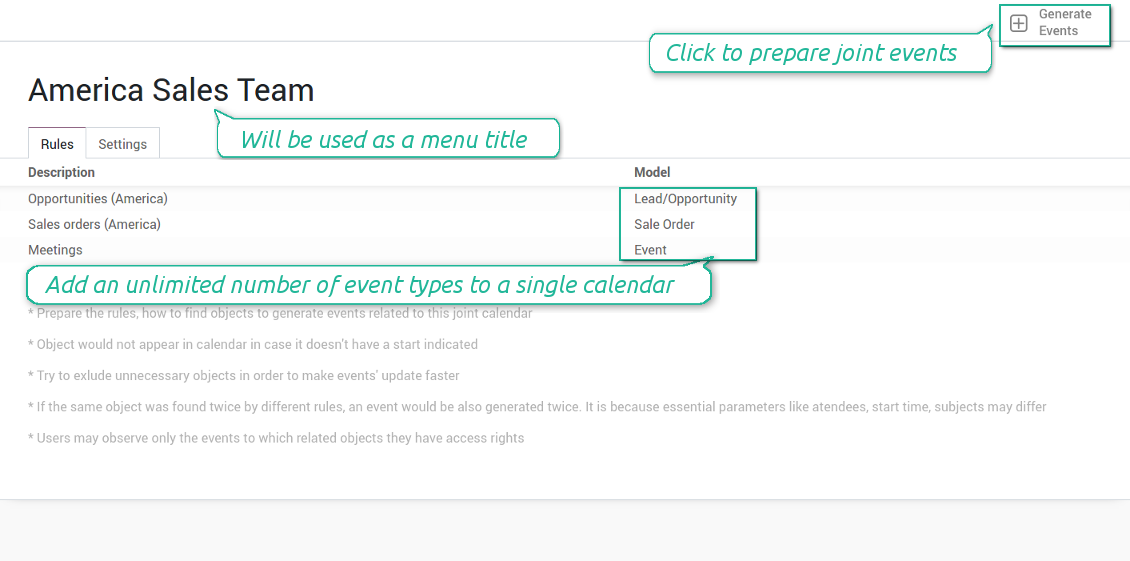
First of all, define a title. It would be used as a menu entry for all joint calendar users.
Second of all, choose document types (rules) which should be merged on this shared calendar.
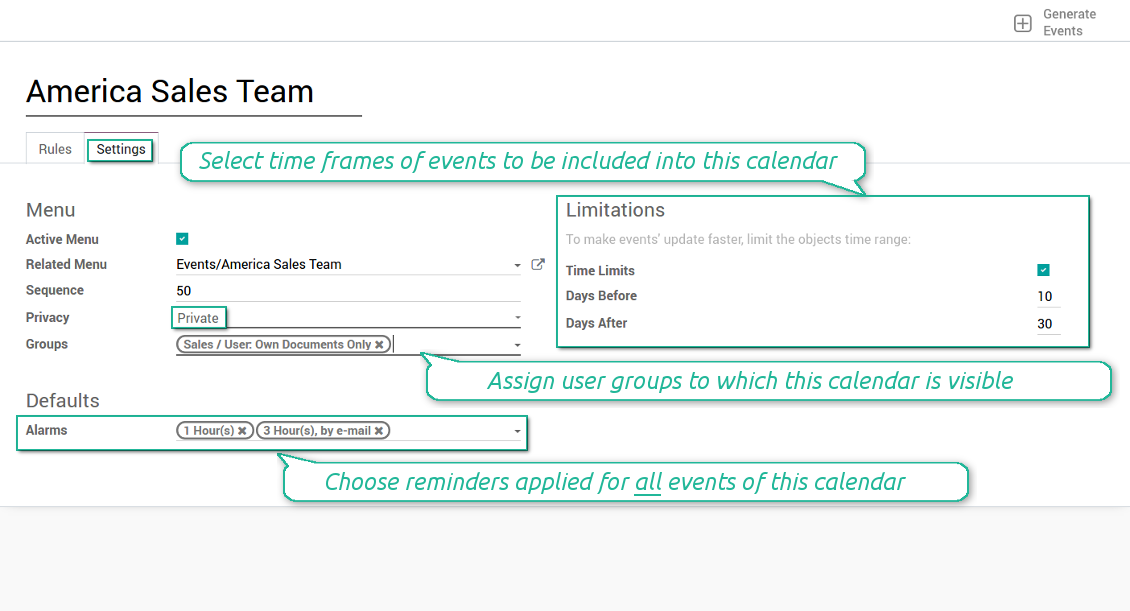
Then, switch to the advanced settings. Some of those might be useful:
- Sequence - in which order various joint calendars' entries are shown. Should it be before the previous super calendar? Then, make a sequence smaller.
- Privacy - let you make a calendar public or private (for predefined user groups only).
- Time limits - allow you optimizing performance of joint events' interfaces. Often there is no need to show the documents of the last year on a calendar.
Is this joint calendar is not any more of use, but it might be needed in the Future? Fine, just archive this calendar: you can activate it at any moment afterwards.
Screenshots
Multiple rules to search documents by types
Joint calendar settings
Joint event rule (example of opportunities)
Joint event rule (example of sale orders)
Joint event rule (example of meetings)
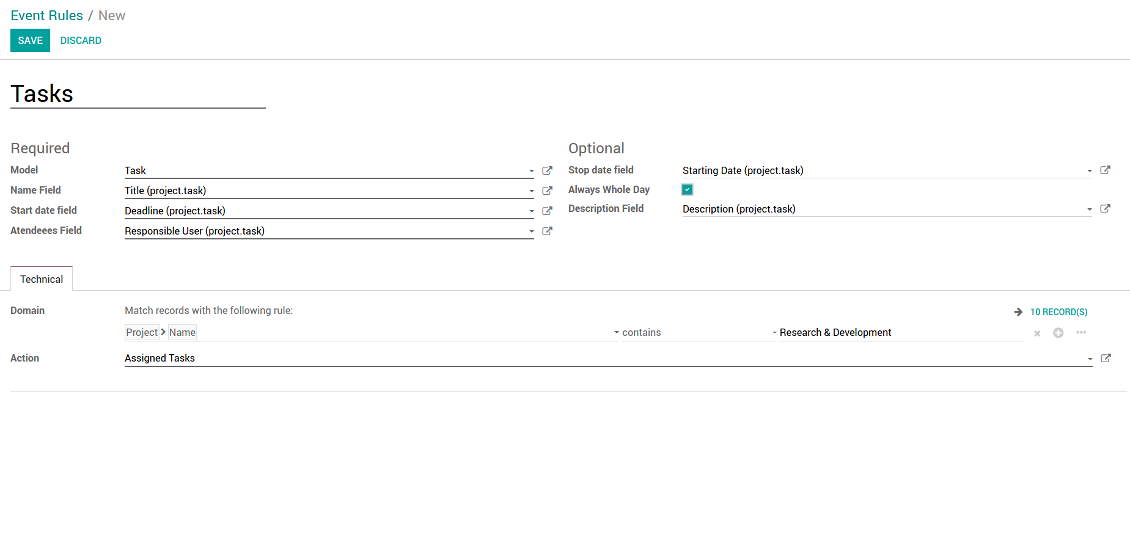
Joint event rule (example of tasks)
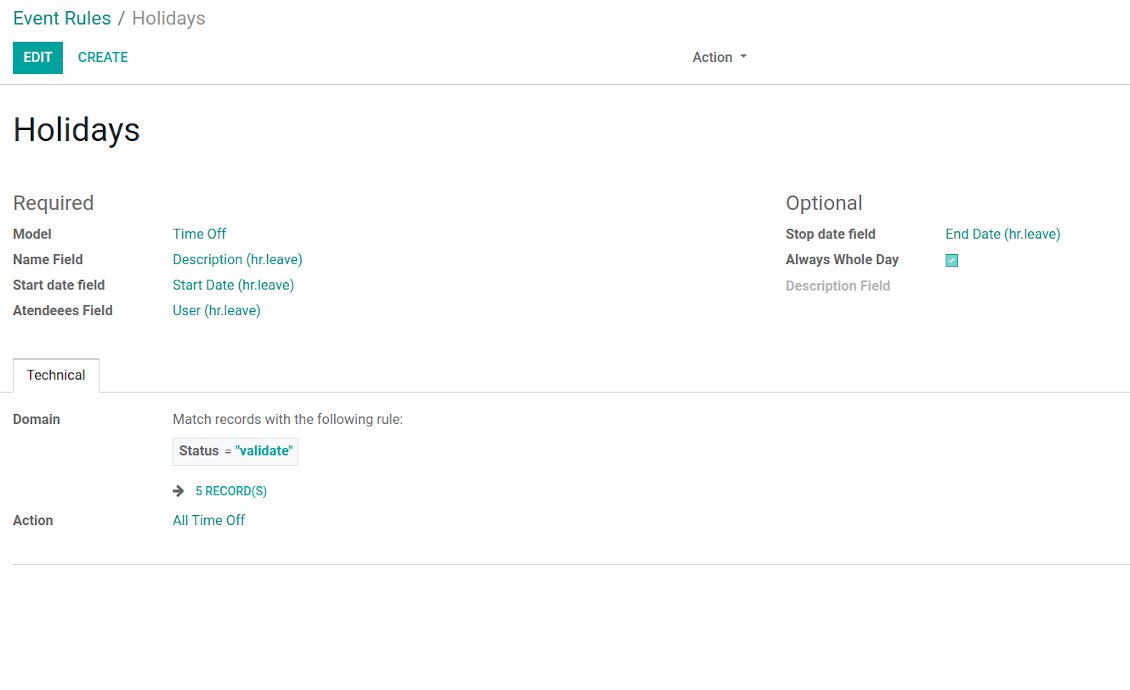
Joint event rule (example of time offs)
Automatic reminders for any Odoo document
How to introduce a warning system
All you need is to prepare a few reminders and indicate those as default on a shared calendar form. Once joint events are generated, each of those would have the same alarms. Afterwards, you may update the these alarms for certain items if you want.
Thus, you can make reminders for any Odoo document automatically. Remind sales persons about next actions in opportunities and calls. Warn workers about a new manufacturing order. Notify programmers about deadlines. So on and so on.
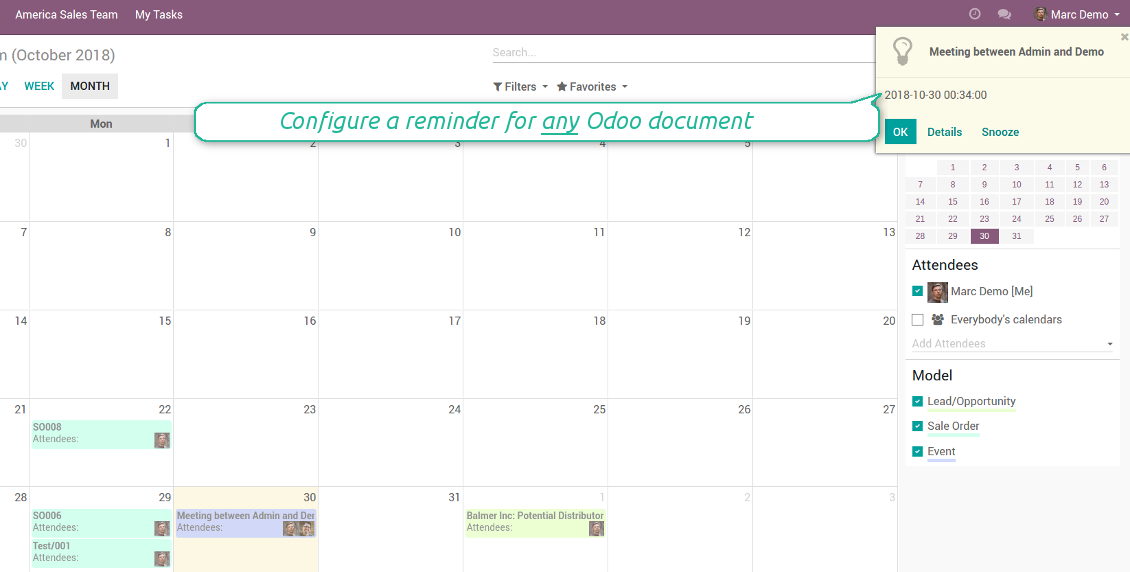
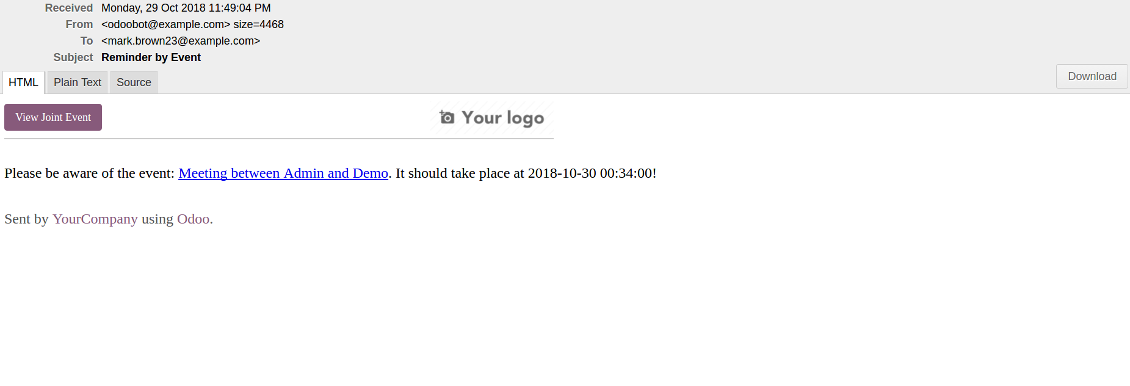
Use both email notifications or pop-up warnings. Warn attendees and responsible users at the moment you like to: from 5 minutes to hundreds of days before.
Screenshots
Configure pop-up alarm for any Odoo event
Email reminder by any Odoo object
Better then expected
The app does exactly what was needed. Combine all tasks from all calendars to one. And allows to manages all activities from all modules in one place.
This makes the Event Calendar so much more useful !
We bought this to combine certain project tasks with the schedules of our maintenance engineers. We now have a better overview which moments are overlapping the schedules of other events. The joining of multiple events in 1 event calendar is super easy, it should be a standard option in ODOO.
Excellent responsive team of programmers
Joint Calendar is the perfect addition to the standard Calendaring system that Odoo offers. It makes the job of setting up specific departmental calendars filled with any objects you wish very easy and Alex and the team provides fantastic after-sales support, responding in most cases within 24 hours to requests for help. Thanks for a great module.
Essential to have Activities, Tasks, Meetings etc all in one calendar and shared.
Great service support very quick and were right on with fixing the issue... I think the ability to see everything on one shared calendar is such an essential part of coordination and time management. Great product once you sort out the rules you need!
Quick access to source details
How are source documents and joint events interrelated
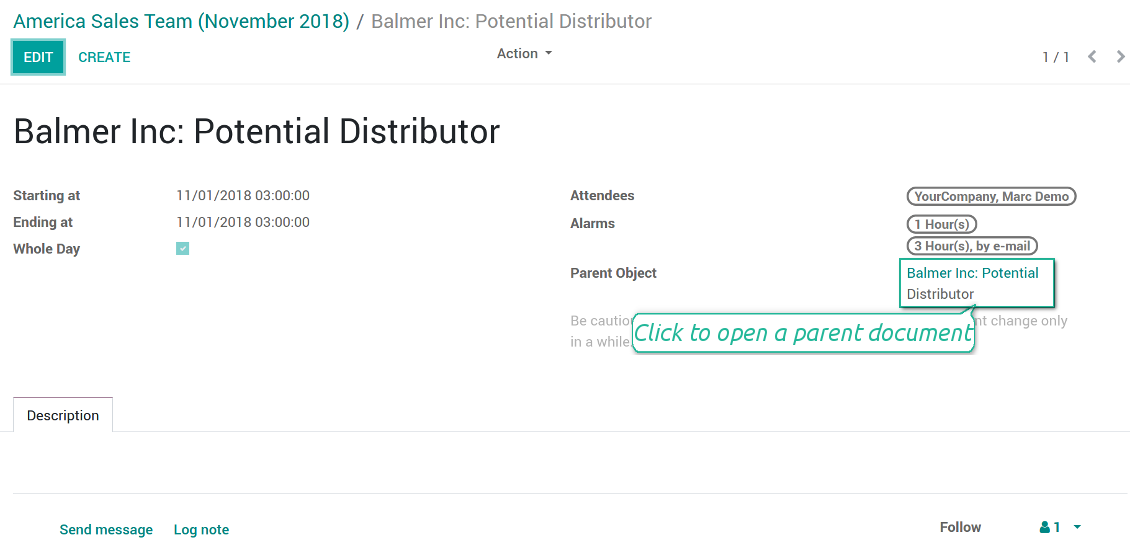
Users observes a link for a source document right on an event form. Thus, it is always possible to expand miscellaneous details.
If you changed a joint event, its parent object would be updated correspondingly in real time. For example, you drag a record and drop it to another date, then a source document would be also moved. Be cautious: it does not work for computed and readonly fields (e.g. a create date can not be modified logically).
If you changed a source object, a joint event would be updated with a next super calendar scheduled job.
Screenshots
Joint event form with simple access to parent document
Simple user rights administration
More details about joint calendar security
The right to create and configure joint calendars belongs only to Odoo administrators (users with the rights 'Administration - Access Rights').
Users may open joint events related to public joint calendars or private joint calendar with one of her/his group indicated. Configure private groups on a joint calendar form, the tab 'Settings', the fields 'Privacy' and 'Groups'. In such a way it is possible to make a joint calendar only for sales managers or only for accountants.
Take into account that in order a user may observe or update a joint event, she/he should have the same rights for a source document. For example, if a sales person doesn't have a right to observe an opportunity, she/he would not see a related joint event as well.
Manually created joint events (without a parent object) may be either public (for all employees) or private (visible for attendees only).
Used in any functional area
Have a look at typical use cases
Activities by all objects and responsibles on a single calendar
Activities are a great Odoo invention, which helps you organize daily routine as a set of well-reached and structured tasks. They are quite comfortable for use, but for team collaboration and efficient management, sometimes you want to have a calendar overview of planned and overdue activities.
Joint Calendar let you achieve that goal. Just add an activity rule as joint calendar rule:
- As a model use 'Activity'
- As a name use 'Display Name'
- As a start date field use 'Due Date'
- As attendees fields use 'Assigned to'
- As a domain apply 'Summary is set'
Opportunities on a super calendar
- As a model use 'Lead / Opportunity'
- As a name use 'Opportunity'
- As a start date field use 'Expecting Closing'
- As attendees fields use 'Salesperson'
- As a contact link use customer
- As a domain optionally restrict opportunities by sales teams.
Tasks on a joint calendar
- As a model use 'Task'
- As a name use 'Title'
- As a start date field use 'Deadline'
- As attendees fields use 'Assigned to'
- As a domain optionally you can set definite projects
Share employees time offs and leaves:
- As a model use 'Time Off'
- As a name use 'Description'
- As a start date field use 'Start Date'
- As attendees fields use 'User'
- As a stop date field use 'End Date'
- As a domain filter by status: show only approved leaves.
Konfigurations- und Installationstipps für Joint Calendar Odoo v.13
Scheduled jobs
- Turn on the debug mode
- Go to technical settings > Automation > Scheduled jobs
- Find the job 'Refresh Joint Events' to change the frequency of calendars' update
- Find the job 'Notify About Joint Event' to change the frequency of email alarms.
Email alarm style
- Activate the developer mode
- Go to technical settings > Email > Templates
- Find the template 'Joint Event Notification'
- You are welcome to change here message body
- Email subject might be changed through the translated term 'Reminder by Event'.
Häufig gestellte Fragen zu Joint Calendar Odoo v.13
Was passiert, wenn „Always Whole Day“ ein- oder ausgeschaltet ist?
Ist „Always Whole Day“ an, dauern alle Termine der Regel den ganzen Tag, auch wenn Start und Ende Uhrzeiten haben. So ein Termin steht an einer besonderen Stelle im Kalender.
Beispiel: Regel fur "Sale Order" mit „Always Whole Day“ legt den Termin in Tages- und Wochen-Superkalendern oberhalb der Zeitleiste.
Ist die Option aus und Start oder Ende haben Stunden/Minuten, steht der Termin zu einer bestimmten Uhrzeit; die Zeit steht vor dem Titel.
Ich sehe das Kalendermenü in Odoo nicht. Was tun?
Prüfen Sie:
1. Es gibt mindestens einen eingerichteten und aktualisierten Joint Calendar. Laden Sie die Seite nach der Einrichtung neu.
2. Sie haben Zugriff auf mindestens einen Kalender.
Ich habe Kalender mit Regeln angelegt, sehe sie aber nicht im Menü.
Es kann mehrere Gründe geben. Der zugehörige Cron ist vielleicht noch nicht gelaufen: starten Sie ihn manuell über Aktualisieren in der rechten Spalte der Joint-Calendar-Oberfläche.
Prüfen Sie Time Limits, sonst erscheinen nur Termine eines Zeitraums. Beispiel: Kalender 'Sale Orders' mit 10 Tagen vorher und 30 danach: ein Auftrag von vor 12 Tagen fehlt.
Achten Sie darauf, dass Regeln keine Filter ohne Treffer haben. Beispiel: Regel 'Sale Order' mit 'Customer = Deco Addict' zeigt nur Aufträge dieses Kunden.
Wie viele Odoo-Belege (z. B. Verkaufsaufträge, Projekte, Aktivitäten) kann ich in einem Joint Calendar zusammenführen?
Sie können beliebig viele Odoo-Belege in einem Kalender bündeln. Oder sie auf mehrere Kalender verteilen (z. B. Verkaufskalender und Projekte, Aufgaben und Aktivitäten) und im Systray umschalten.
Was ist eine Joint-Calendar-Regel?
Regeln legen fest, welche Odoo-Objekte Termine erzeugen, welche Felder gelten und ob gefiltert wird.
In der Regel bestimmen Sie Titel, Start oder Stop date, Teilnehmer usw. selbst.
Wofur ist das Feld „Stop date“? Kann ich es leer lassen?
Odoo Stop date ist ein Feld des Zielmodells, das festlegt, wann der Termin im Kalender als beendet gilt. Beispiel: Regel fur "Sale Order" mit "Delivery Date" als Stop date zeigt den Termin vom geplanten Angebotstag (Start Date - Order Date) bis zur Lieferung.
Das Feld ist optional und darf leer bleiben. Dann steht der Termin nur am Tag des Start Date.
Ich habe den Ereignistyp „Undefined“ im Kalender. Was bedeutet das?
Der Termin wurde manuell angelegt: kein Elternobjekt, keine Regel. Solche Termine stehen unter dem Filter „Undefined“, ohne Farbe.
Alle mit Kalenderzugriff können Undefined-Termine anlegen und sehen.
Wie sind die Update-Richtlinien Ihrer Tools?
Laut den aktuellen Richtlinien des Odoo Apps Store:
- Ein fur Version 12.0 oder früher gekauftes Modul gibt Zugang zu allen Versionen bis 12.0.
- Ab Version 13.0 muss jede Modulversion separat gekauft werden.
- Unabhängig von der Version berechtigt der Kauf zu allen Updates und Fehlerbehebungen innerhalb einer Hauptversion.
Das faOtools-Team steuert diese Richtlinien nicht. Fragen richten Sie bitte direkt an die Vertreter des Odoo Apps Store.
Wie installiere ich Ihre App auf Odoo.sh?
Der direkteste Weg ist der integrierte Ablauf des Odoo Stores:
1. Öffnen Sie die Modulseite und klicken Sie auf Deploy on odoo.sh
2. Sie werden zu GitHub weitergeleitet. Melden Sie sich an und klicken Sie auf Create a new repo oder nutzen Sie ein vorhandenes. Das Repository muss privat sein. Apps unter OPL-1 dürfen nicht öffentlich gemacht werden. Legen Sie bei Bedarf ein neues Repo fur das Odoo.sh-Projekt an
3. Gehen Sie zu odoo.sh, klicken Sie auf Deploy, bestätigen Sie und klicken Sie auf Continue. Die Installation startet.
Damit wird die App auf dem Production-Branch installiert. Fur andere Branches oder Updates:
1. Laden Sie den Quellcode aus dem Odoo Store
2. Committen Sie das Modul in das GitHub-Repository. Keine App-Ordner/Dateien dürfen in .gitignore stehen. Von odoo.sh erzeugte Repos ignorieren oft wichtige Pfade (z. B. /lib). Laden Sie alle Modulverzeichnisse und Dateien hoch
3. Deployen Sie den Ziel-Branch des odoo.sh-Projekts oder warten Sie auf den automatischen Build.
Wie installiere ich Ihre App auf meinem eigenen Server?
2. Starten Sie den Odoo-Server neu;
3. Schalten Sie den Entwicklermodus ein (technische Einstellungen);
4. Aktualisieren Sie die App-Liste (Apps-Menü);
5. Finden Sie die App und klicken Sie auf Activate/Install;
6. Folgen Sie den Hinweisen auf der App-Seite, falls vorhanden.
Ihre App hat Zusatzmodule. Kann ich sie später kaufen?
Ja. Odoo legt alle Abhängigkeiten automatisch in den Warenkorb. SchlieBen Sie bereits gekaufte Tools aus, um nicht doppelt zu zahlen.
Ich habe Ihre App auf Odoo.sh bereitgestellt und sehe eine Warnung/einen Fehler in den Tests
Eine rote/orange Warnung beeinflusst die Funktionen der App nicht. Manchmal bestehen unsere Module die Standard-Automatiktests nicht, weil diese ein Verhalten erwarten, das unseren Zielen widerspricht. Zum Beispiel ändern wir die Preisberechnung, während die Odoo-Tests den Endpreis mit dem Standardalgorithmus vergleichen.
Prüfen Sie zuerst die Funktionen der bereitgestellten Datenbank. Funktioniert alles?
Wenn Sie dennoch annehmen, dass die Warnung echte Funktionen betrifft, senden Sie uns die vollständigen Installationsprotokolle und die vollständige Liste der bereitgestellten Module (Kern und Drittanbieter).
Kann ich Ihre App direkt bei Ihnen kaufen?
Nein, wir vertreiben die Tools nur über den offiziellen Odoo Apps Store.
Ich mochte einen Rabatt
Leider haben wir keine technischen Mittel fur individuelle Preise.
Kann ich die App auf meiner Odoo Online (SaaS)-Datenbank installieren?
Nein, Drittanbieter-Apps können nicht auf Odoo Online genutzt werden. Odoo SaaS blockiert das.
Ihr Tool hängt von anderen Apps ab. Muss ich diese kaufen?
Ja, das Tool benötigt alle als Abhängigkeit markierten Module. Der Preis auf der App-Seite enthält bereits alle noetigen Abhängigkeiten.
Was kostet das Modul in US-Dollar? Warum hat sich der Preis geändert?
Die Preise unserer Module sind in Euro festgelegt. Der Odoo Store rechnet nach seinem internen Wechselkurs um. Der Preis in US-Dollar kann sich ändern, wenn der Kurs aktualisiert wird.
Die Texte der App und Website in anderen Sprachen als Englisch werden KI-gestützt erstellt und an die offiziellen Odoo-Übersetzungen angeglichen. Wenn Sie einen Fehler entdecken, ein Uebersetzungs-Ticket senden und wir korrigieren es.
Fehlermeldung
Wenn Sie auf Fehler oder inkonsistentes Verhalten stossen, zögern Sie nicht, uns zu kontaktieren. Wir garantieren eine Reparatur innerhalb von 60 Tagen nach dem Kauf und sind auch nach diesem Zeitraum stark daran interessiert, unsere Werkzeuge zu verbessern.
Sie benötigen keine Telefonnummer oder Kreditkarte, um mit uns Kontakt aufzunehmen. Sie sollten nur eine kurze E-Mail-Anmeldung durchführen, die nicht länger als 30 Sekunden dauert.
Bitte nehmen Sie moglichst viele Details in Ihre Anfrage auf: Screenshots, Odoo-Serverprotokolle, eine vollständige Beschreibung zur Reproduktion Ihres Problems usw. Normalerweise dauert es einige Werktage, einen Arbeitsplan fur ein Problem zu erstellen (wenn ein Fehler bestätigt wird) oder Ihnen Hinweise zum weiteren Vorgehen zu geben (andernfalls).
Öffentliche Funktionsanfragen und Modulideen (kostenlose Entwicklung)
Wir sind stark motiviert, unsere Tools zu verbessern und wären für jedes Feedback dankbar. Wenn Ihre Anforderungen von öffentlichem Nutzen sind und effizient umgesetzt werden könnten, nimmt das Team diese in unsere To-Do-Liste auf.
Eine solche To-Do-Liste wird regelmässig bearbeitet und erfordert keine zusätzlichen Gebühren. Obwohl wir keine Fristen und keinen endgültigen Entwurf versprechen können, könnte dies eine gute Möglichkeit sein, die gewünschten Funktionen ohne Investitionen und Risiken zu erhalten.
Sie benötigen keine Telefonnummer oder Kreditkarte, um mit uns Kontakt aufzunehmen. Sie sollten nur eine kurze E-Mail-Anmeldung durchführen, die nicht länger als 30 Sekunden dauert.

Das Werkzeug, um Odoo-Anhänge in Ordnern zu strukturieren und mit Google Drive, OneDrive/SharePoint, Nextcloud/ownCloud, Dropbox, Amazon S3, Box und NAS zu synchronisieren. Dateimanager. DMS
398€
Das Werkzeug zum bidirektionalen Sync von Odoo-Anhängen mit OneDrive
487€
Das Werkzeug zum bidirektionalen Sync von Odoo-Anhängen mit Google Drive
487€
Das Werkzeug, um Passwörter in Odoo sicher gemeinsam zu halten. Geteilte Tresore

Das Werkzeug fur eine tiefe Wissensdatenbank intern und extern. KMS. Wiki-Revisionen
398€
Das Werkzeug, um KPI-Ziele zu setzen und die Erfullung je Periode zu kontrollieren. Dashboards. Diagramme

Das Werkzeug fur terminbasierte Dienste von der Buchung bis Verkauf und Bewertungen
398€
Das Werkzeug, um Odoo aus Ihren KI-Chats per MCP zu steuern. Claude. Jede MCP-KI.

Das Werkzeug, um URL-Adressen von Odoo-Website-Seiten zu übersetzen
38€