OneDrive / SharePoint Odoo Integration v.12
The tool to automatically synchronize Odoo attachments with OneDrive files in both ways
OneDrive / SharePoint doesn't have such disadvantages. This is the tool to integrate its features into your Odoo business work flow. The app automatically stores all Odoo attachments in OneDrive or SharePoint Documents, and it provides an instant access to them via web links. In such a way users work with files comfortably in the cloud storage, while the results are fully available in Odoo.
Automatic integration
Bilateral sync
How files and folders are synced from Odoo to OneDrive / SharePoint
- Prepare and keep updated folders' structure in OneDrive
- Upload new attachments to a correct folder
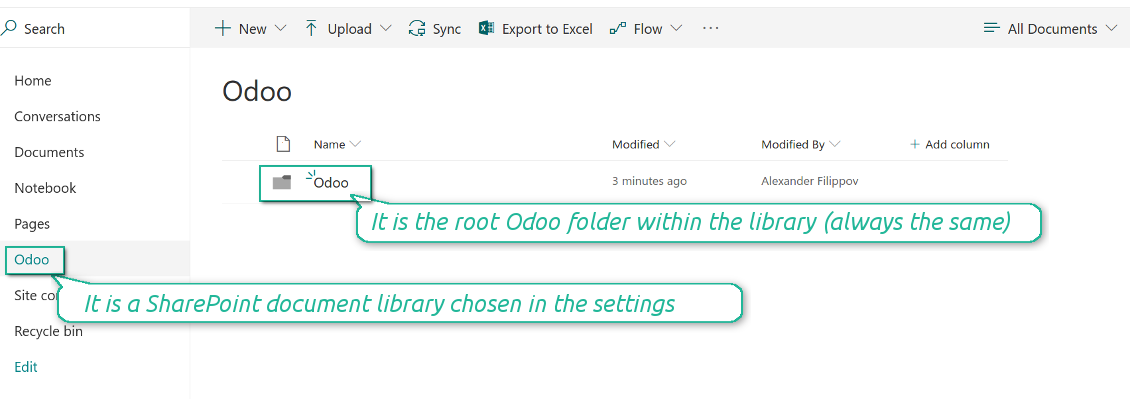
Odoo creates a convenient directory structure in OneDrive: Odoo / Document type name / Document name / Files, where:
- Odoo is a central directory for Odoo Sync in your Drive.
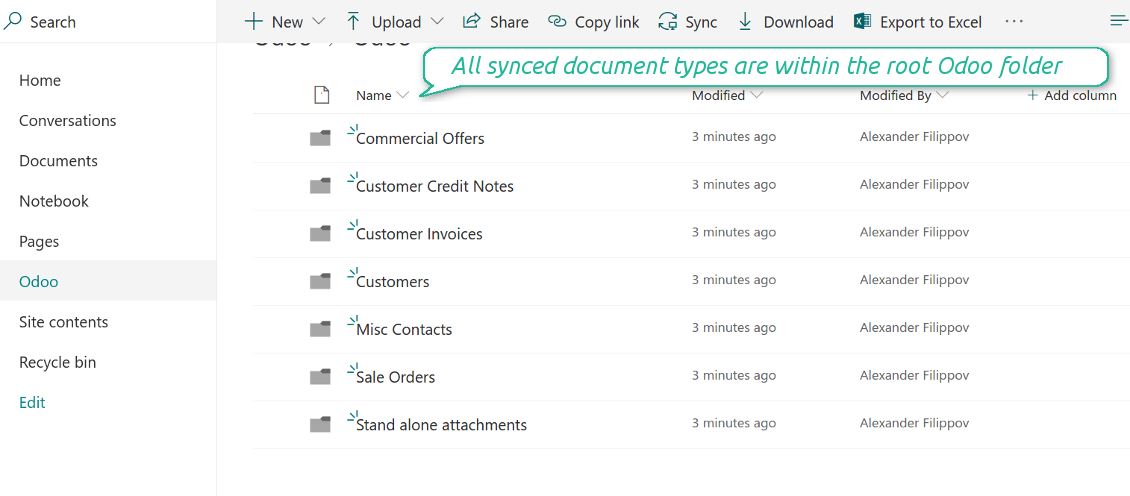
- Document type is a synced Odoo model, for example, 'Sale orders', 'Opportunities', 'Customers'
- You select document types by yourself. It might be any document type
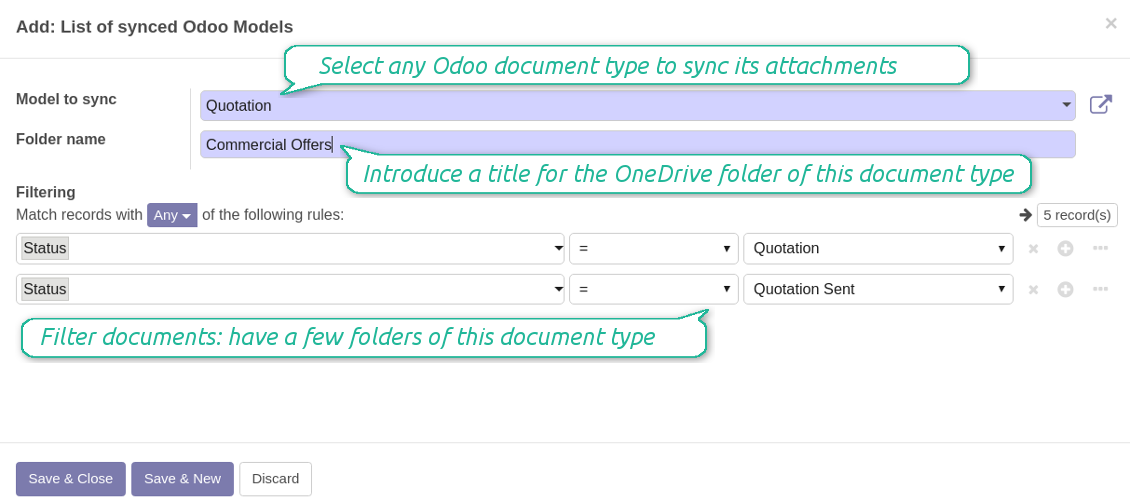
- Moreover, you might have a few folders for a single document type. Use Odoo domains to have not global 'Partners, but 'Customers' and 'Suppliers', not just 'Sale orders' but 'Commercial offers', 'To deliver', and 'Done orders'
- With each sync Odoo would try to update document types' folders. Add a new document type at any moment. It will appear in OneDrive with a next sync
- You are welcome to introduce or change document types folder names at any moment in Odoo. Take into account: renaming in OneDrive will be recovered to Odoo names
- If you remove a model from integration, it will not be deleted from OneDrive to keep already synced files safe. However, new documents of this type would not be synced
- In case you removed a directory in OneDrive / SharePoint, but it is still configured in Odoo, with a next sync a folder structure is going to be recovered (not files, surely).
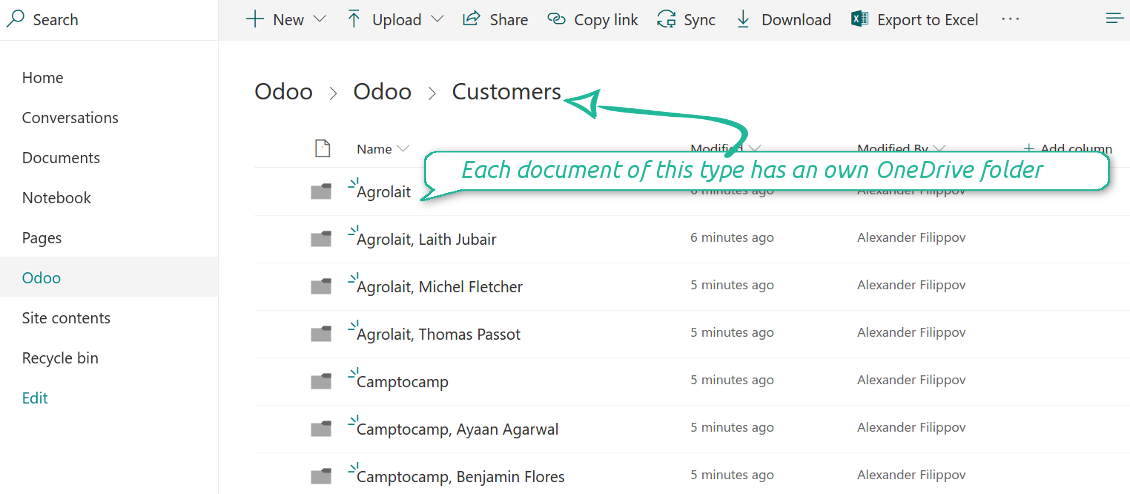
- Document is an exact object to sync. For instance, 'Agrolait' or 'SO019'
- Documents are synced in case they relate to a synced document type and satisfy its filters. For example, you are not obliged to sync all partners, you may integrate only 'Customers' and 'Vendors' or only 'Companies', not 'Contacts'
- Odoo would generate a folder in OneDrive for each suitable document even for documents without attachments. It is needed for a backward sync to easily add new files
- OneDrive folder name equals a real document name. It relies upon Odoo name_get method. Thus, Odoo 'Michael Fletcher' (a contact of 'Agrolait') would be OneDrive 'Agrolait, Michael Fletcher'
- If an exact document changes its document type (e.g. a quotation is now confirmed), Odoo will automatically relocate its related folder to a proper parent directory (in the example: from 'Commercial offers' to 'To deliver')
- In case a document relates to a few types (for instance, you have 'Vendors' and 'Customers', while Agrolait is both), this document folder would be put into the most prioritized document type. A document type priority is higher as closer to the top in Odoo interfaces it is
- If an Odoo document is removed, the next sync will remove a corresponding OneDrive directory
- In case you remove a directory in OneDrive / SharePoint, but it still exists in Odoo, OneDrive folder structure would be recovered (while files would be unlinked in both Odoo and OneDrive)
- Folders renaming in OneDrive will be replaced with Odoo names, Odoo document names are more important
- Files are real files taken from Odoo attachments
The resulted path would be, for example, 'Odoo / Quotations / SO019 / commercial offer.png'.
The only exclusion of the rule are stand alone attachments which do not relate to any Odoo documents (their document type is 'ir.attachment'). Such attachments' path is 'Odoo / Stand Alone Attachments / image.png'.
The very first sync might take quite a long, since a lot of folders should be created. Afterwards, it would be much faster. However, it is not recommended to make sync too frequent: once an hour seems quite good for large files.
FilesWith each direct sync, Odoo tries to find not yet synced attachments. If such attachments suit any document type to sync, a file will be uploaded to OneDrive to a proper folder. In Odoo such attachments will become of 'url' type. It means that a file is not any more kept in Odoo server space, but now it is in OneDrive. Until sync is done, Odoo attachment remains binary and stores an actual file. Such approach helps Odoo to work faster.
Clicking on such attachment leads you to a file previewer / editor in OneDrive. Depending on your OneDrive / SharePoint configurations it might be Word, Excel, PDF previewer, etc. Anyway changes to file contents in OneDrive are available in Odoo at the same moment.
If you unlinked an attachment from Odoo, it would be deleted in OneDrive as well.
Take into account that file names should be managed in OneDrive: each backward sync would recover OneDrive names, Odoo is here less important.
How items are retrieved from OneDrive / SharePoint to Odoo
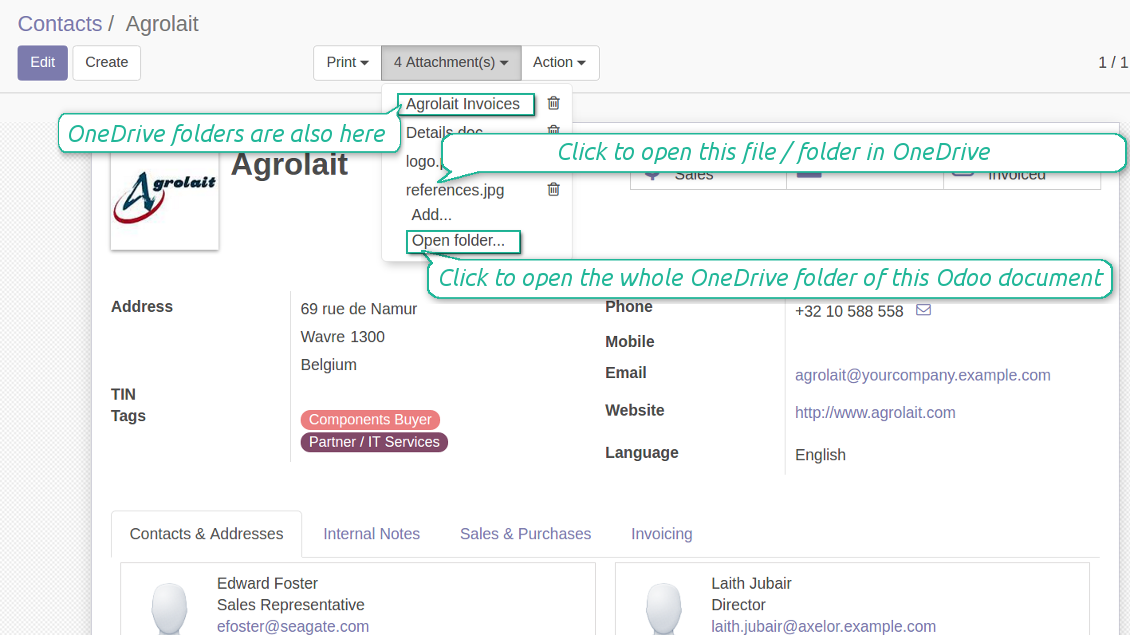
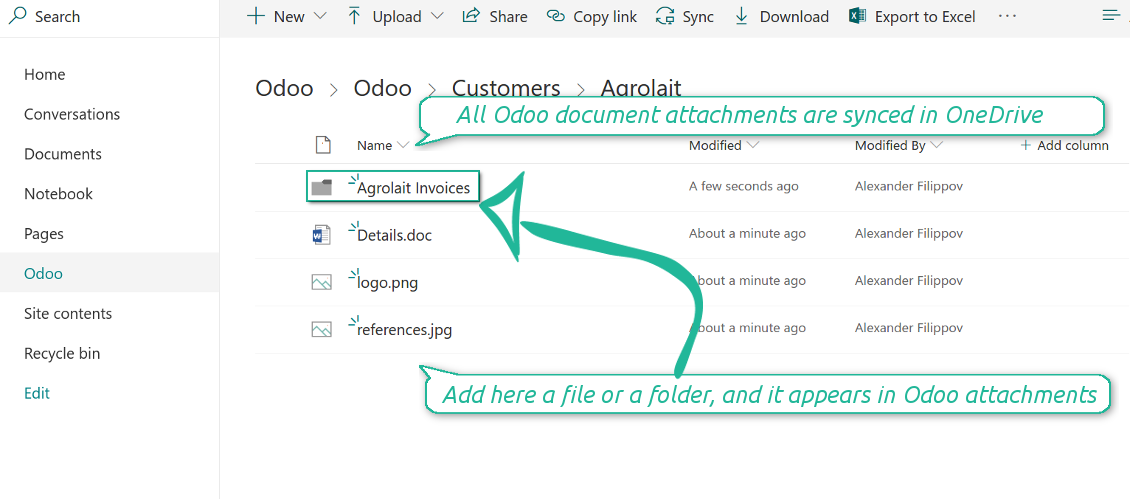
- If a new file is added to a proper document folder (e.g. to 'Odoo / Customers / Agrolait'), the same attachment will be added to Odoo document (in the example - to 'Agrolait')
- In document folders you can put not only files but also child folders. In that case a link for this folder (not its content) is kept in attachments
- In case you rename a file in OneDrive, it will be renamed in Odoo as well
- Files' removal from OneDrive leads to related Odoo attachments' removal
- If you move a file to another document folder, in Odoo a related attachment would be re-attached to this new document. Take into account: if you move a file for a not document folder, in Odoo attachment will be deleted as it has been removed from OneDrive
- If you deleted a document type or document folder, their child files are deleted as well. Thus, Odoo would remove related attachments. The folders, however, will be recovered with a next direct sync. Folders' move to another directory is also considered as a removal. Avoid such situations by following the simple rule: folders are managed mostly by Odoo, files - mostly by OneDrive.
Backward OneDrive sync might take time. It is recommended to make frequency oftener than once an hour or two hours.
Schermate
All document types are in the root directory 'Odoo'
Document types' folders
All document of this type has an own folder
Sync any documents you like
The tool let you split any business model into a few directories. Have a separate folder for individuals and companies, for European and American opportunities, for each project, etc.
Moreover, it is possible to guarantee that only topical documents are synced by using relative periods: leads registered in the last 3 months, invoices updated the last week, and so on.
Typical use cases
- Projects: automatically forward all project-related documents to OneDrive to share those with a customer as a cloud link.
- Customers: add all partner files in a single directory available both from Odoo and from OneDrive / SharePoint. Modify those using default cloud editors and access them when working in Odoo.
- Employees: gather all files by this employee in a single cloud folder: photos, document scans, contracts. Access and upload those from Odoo and OneDrive / SharePoint Documents alternatively.
- Opportunities: carefully store all specifications, requirements and any file which would let you make a good offer.
- Orders: keep all printings and contracts in OneDrive / SharePoint with simple availability from Odoo.
Schermate
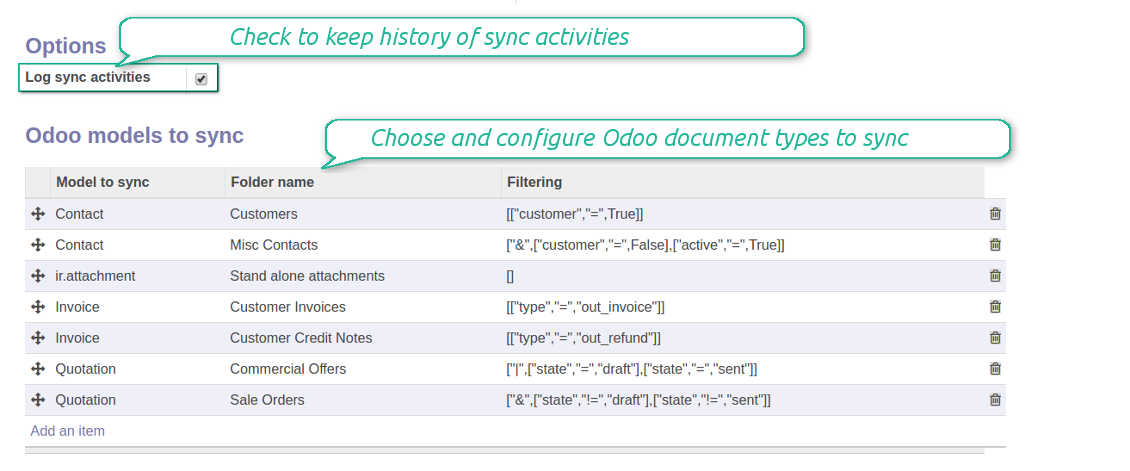
Choose document types to be synced
Document type might have a few folders based on filters
Easy accessible files
Schermate
Fast access to OneDrive files and folders
Synced files are simply found in OneDrive. Add unlimited number of files or folders here
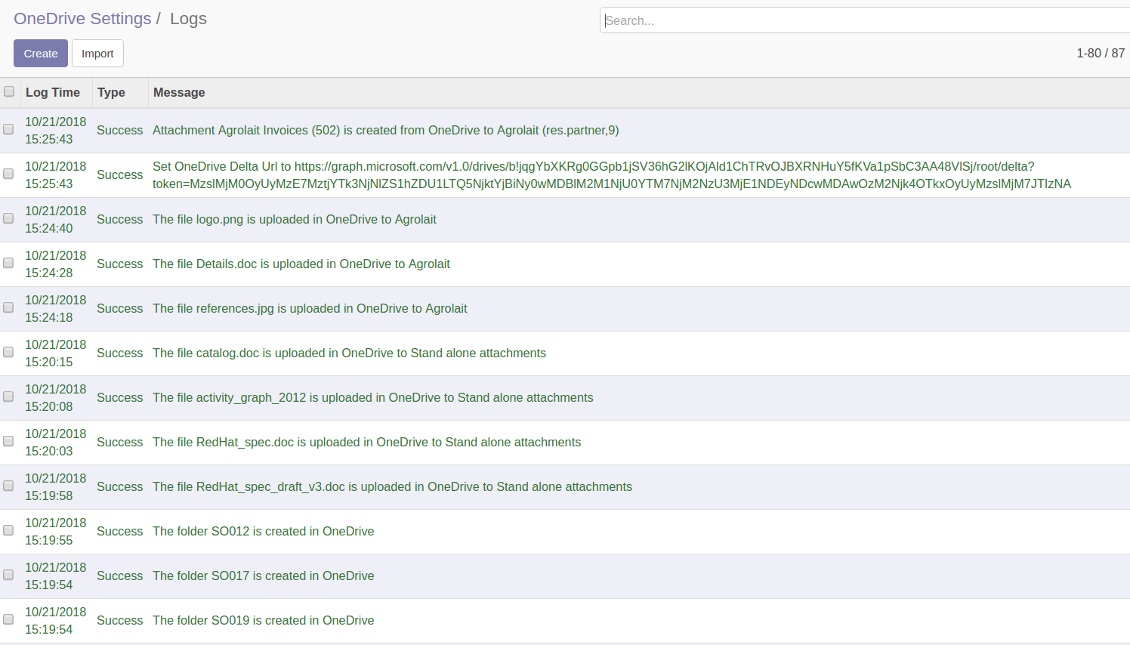
Sync logs in Odoo
Schermate
Logged synchronisation activities
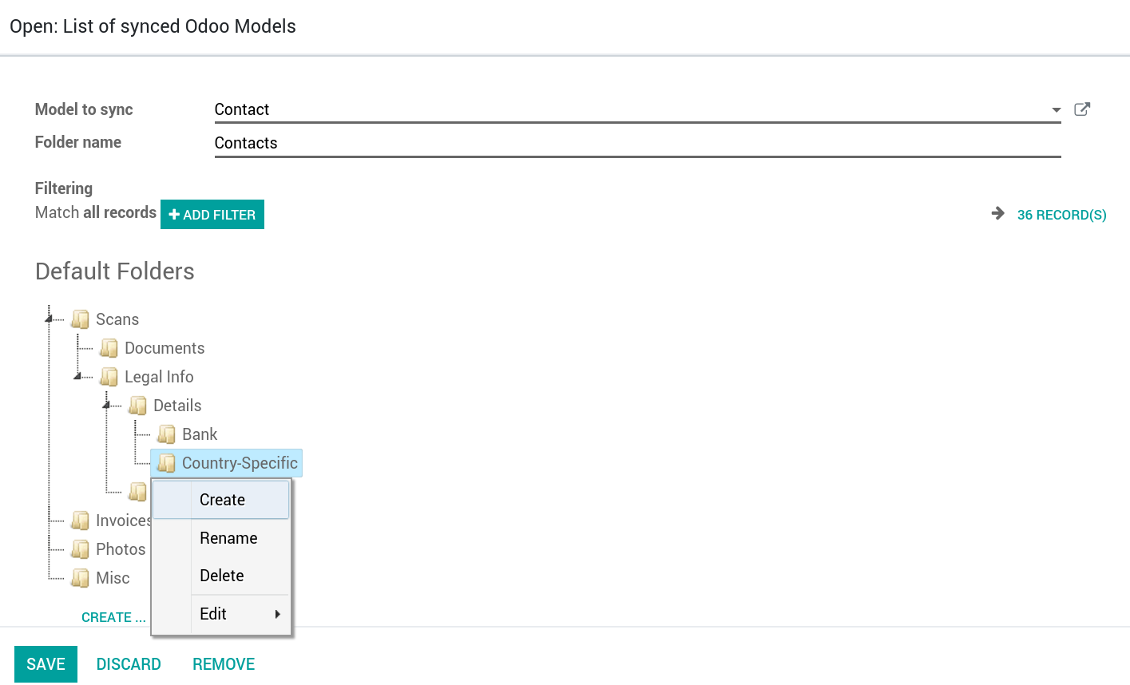
Default folders for documents
Schermate
Default folders for this document types to be created while firstly synced
Applicable to all Odoo apps
Dangerous symbols
- Try to avoid the following symbols in folders' and files' names: '~', '#', '&', ':', '{', '}', '*', '?', '"', "'", '<', '>', '|', '+', '%', '!', '@', '\\', '/', '.'. Direct sync will replace such symbols with '-'. It is done to avoid conflicts with file systems.
Compatible with Odoo Enterprise Documents
How Odoo Enterprise Documents are synced
This tool is not in conflict with the 'documents' module provided by the Enterprise license. Attachments related to Enterprise folders would be synced as any other files: according to a document they relate to. In the most cases it means they would be linked to stand-alone attachments.
It is not always comfortable, and you might be interested in reflecting directories' structure introduced by the module 'Documents'. To this end the extension Cloud Sync for Enterprise Documents (its standard price is 44 Euros) is developed. This tool has the following features:
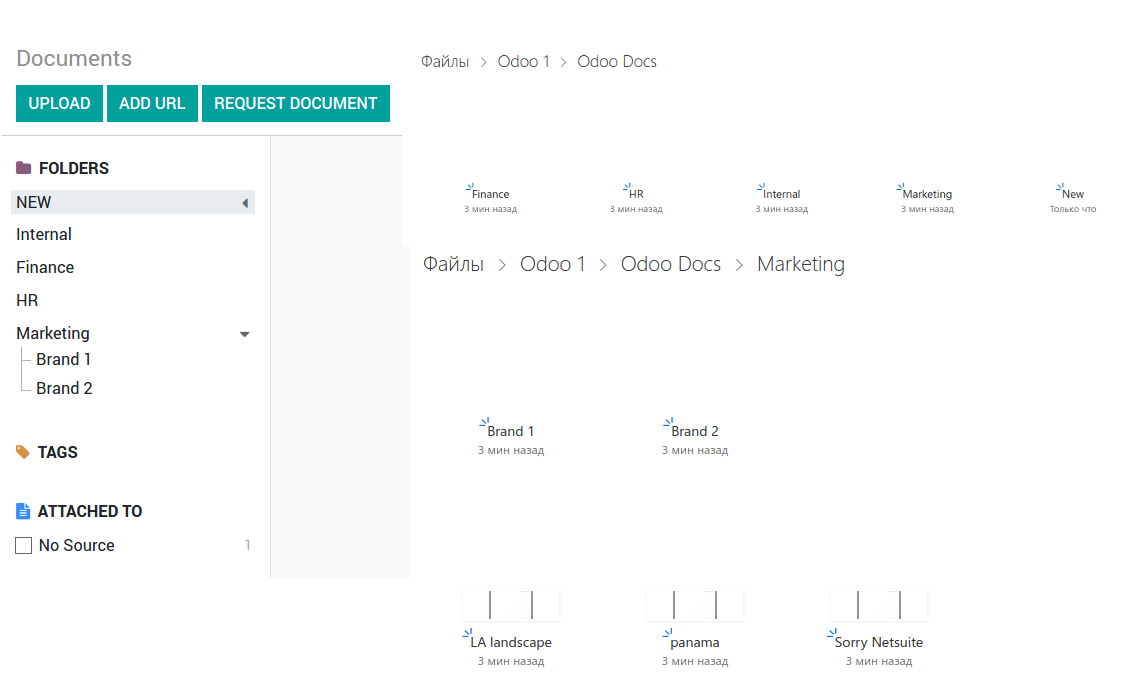
- The documents hierarchy is reflected within the folder 'Odoo / Odoo Docs'
- Each Odoo folder has a linked cloud folder. Take into account that folders created in the cloud storage will be synced as Odoo attachments. The key principle is: folders are managed by Odoo, files are managed by the cloud client
- All files are synced with the same logic as usual attachments. Files created in Odoo will be added to the cloud storage and will be replaced with links in Odoo. Files created in cloud storage will generate attachments within a paired directory
- Please do not name synced models as 'Odoo Docs'. This is the reserved name for Odoo Enterprise Documents
Schermate
Odoo Enterprise documents sync
Works well with SharePoint. Supportive team
We've been using this with SharePoint and it's been working great. One of the best things is having everything, including logs right in Odoo's interface, so you can actually see what's going on. It's also super convenient that you can view or download synced files from the attachment box without having to leave the page or even log in to Sharepoint.
Setup was pretty smooth for us. When we had a few questions about setting up the folder hierarchy and priorities, the developer team got back to us in just a couple of hours and helped us figure it out. Great support and great extension!
Great support, assistance and very good connector!
We are very happy with the support we received when configuring the Sharepoint - Odoo connector. The connector has great functionalities.
All our questions were answered very fast (within one day).
FaOtools helped us optimising our connector and assisted us with future improvements.
We really recommend this connector.
very professional app, excellen t customer service
This app is very well programmed and does its job very well. But the best is the excellent customer service who also helps when the problem lies somewhere else. You receive a lot for your money.
An impressive app and world-class support
I have been very impressed by the way the OneDrive / SharePoint Odoo Integration module synchronises content in both directions and allows me to share documents in Odoo with my SharePoint site. Above all the technical support is top-notch, which greatly increases the value of this product. I highly recommend this product for anyone considering synchronising Odoo with SharePoint/OneDrive.
Works fine, good support
The first experience with the module is excellent. I had some trouble to configure things right on the Microsoft-side, but the team provided quick and good support.
Suggerimenti di configurazione e installazione per OneDrive / SharePoint Odoo Integration Odoo v.12
Python dependency
pip3 install microsoftgraph-pythonConfiguration and log in
- Make sure your Microsoft user has full admin rights for OneDrive / SharePoint you want to connect to Odoo. This user is required only to grant permissions, the user data would not be kept any where in Odoo, and would not be used any more. Besides, make sure a Microsoft email address you use does not have a redirection (usually happens when you configure your domain name, while the prime address is still one of Microsoft domains like @outlook.com, @office365, etc.)
- Go to your Azure Portal: https://portal.azure.com/#blade/Microsoft_AAD_RegisteredApps/ApplicationsListBlade
The app must be registered inside a directory (tenant). Microsoft no longer allows creating a new app outside one.
- If you already have a company Microsoft 365 / Azure directory, switch the portal (top right) to it and continue.
- If you only have a personal account (@outlook.com, @hotmail.com, @live.com) and see "these applications are associated with the account ... but are not contained within any directory", you do not have a directory yet. Sign up for a free Azure account with the same Microsoft account: https://azure.microsoft.com/free/ - Try Azure for free. This creates a Default Directory for you at no cost.
- Microsoft asks for a card for identity verification only; a temporary ~1 USD hold is placed and reversed. You are not charged for the directory or for the app registration.
- The directory (Microsoft Entra ID Free) and any app registered in it keep working independently of the 30-day / $200 Azure trial credit. That credit is for paid Azure resources you are not using here. No payment is required for our app.
- If the whole directory sits completely unused for a very long time (Microsoft's own threshold is around 200 days of no activity at all), Microsoft may email a warning and eventually retire it. Since Odoo calls this app every time it syncs, an active connection keeps the directory active - this only matters if you stop syncing entirely for months.
- Once you are in a real directory (not "Microsoft Services"), open App registrations there.
- Click 'New registration'
- Introduce a new name for the application and assign the redirect URI as [YOURODOOSITENAME]/one_drive_token (e.g. https://odootools.com/one_drive_token). As the supported account types choose 'Accounts in any organizational directory (Any Azure AD directory - Multitenant) and personal Microsoft accounts (e.g. Skype, Xbox)'.
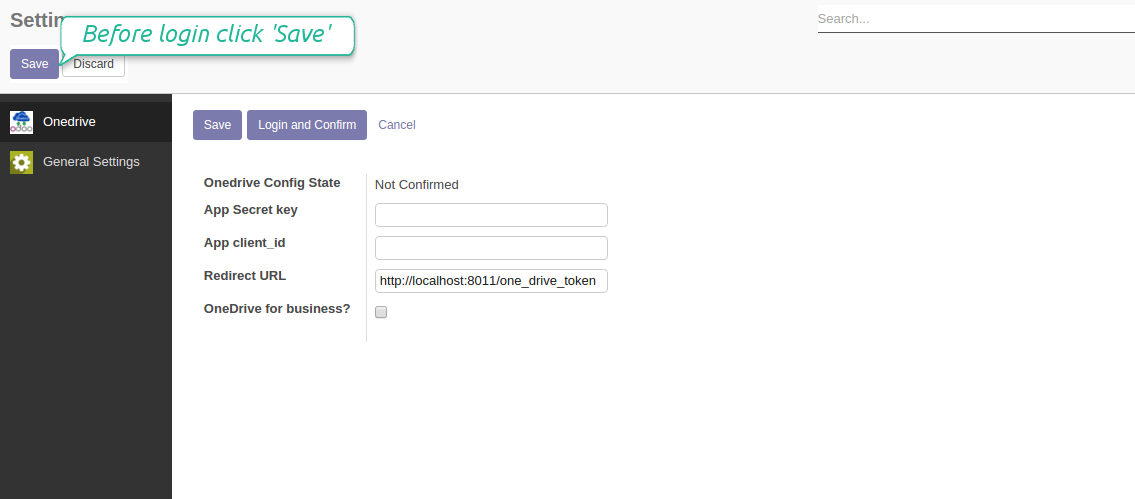
- Copy the Application Client ID to the Odoo field 'App client_id'
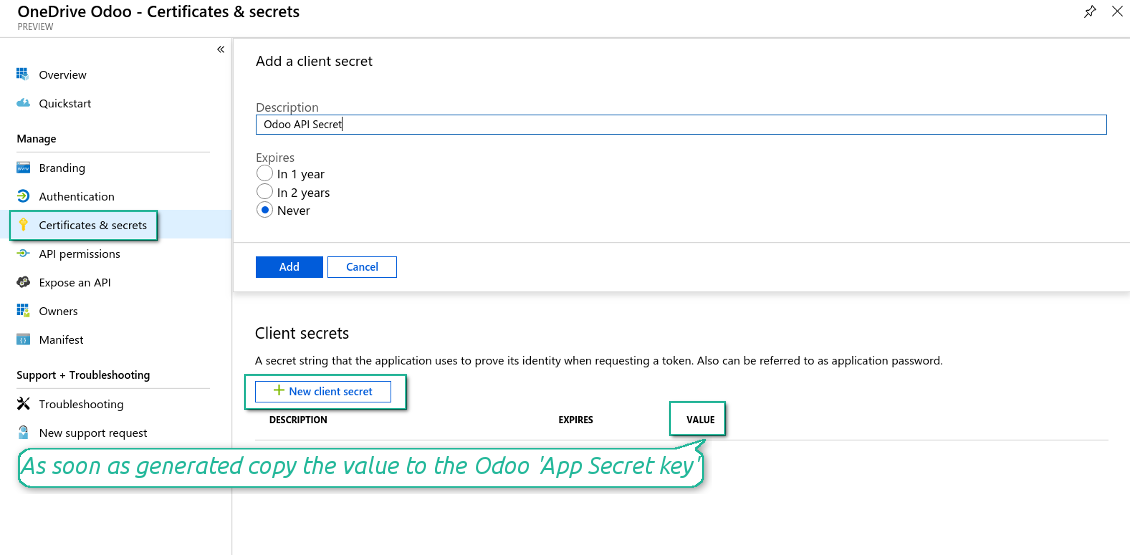
- Go to Certificates & secrets > Click 'New Client Secret'. Copy the secret value to the Odoo field 'App Secret Key'
- For SharePoint sites only:
- Go to your SharePoint site and prepare a new documents' library (drive). You might use one of the existing ones, e.g. 'Documents'. Odoo folder would be put there afterwards, and it would be impossible to move it for another library
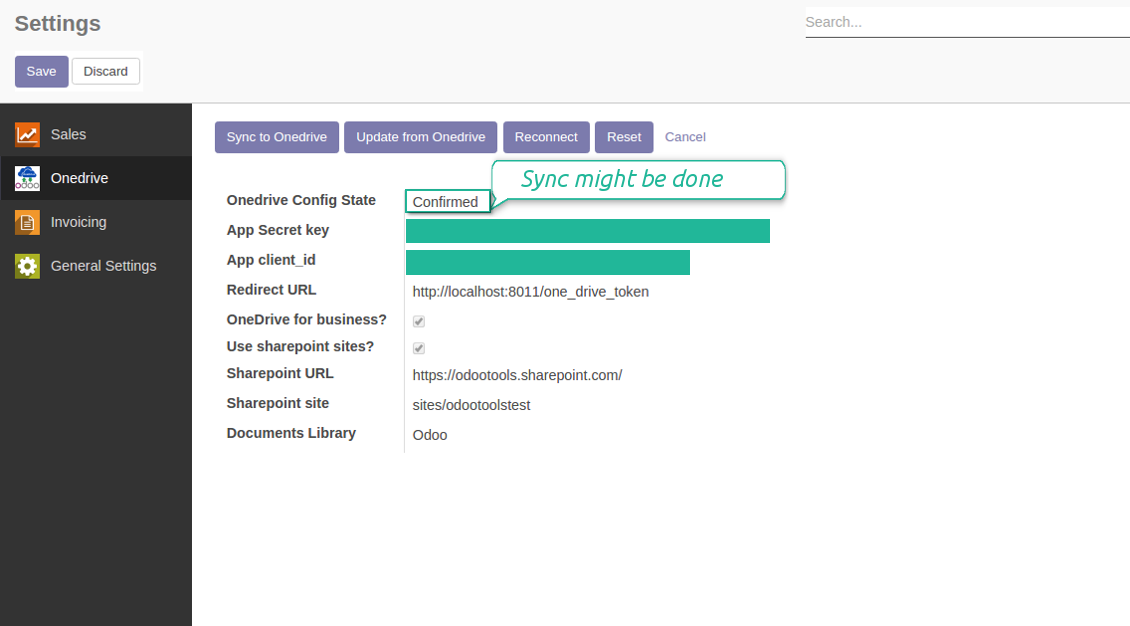
- Check the boxes 'OneDrive for business' and 'Use SharePoint sites'
- The SharePoint URL should be of the type https://[URL]/. The last '/' is required, sitename should not be included into. For example, https://odootools.sharepoint.com/
- SharePoint site should be either my_site_name (in that case it is considered as sites/my_site_name) or sites/my_site_name (instead of 'sites' it might be 'teams' and so on). There should be no '/' at the beginning or at the end. For example, sites/odootools
- As Documents Library use one created in SharePoint
- Press Save on the Odoo configuration Page.
- Press 'Login and Confirm'. Odoo redirects you to Microsoft login page. Check in and grant permissions asked. If Microsoft shows an account already signed in and says it does not exist in tenant 'Microsoft Services' (or any other unrelated tenant), do not click that row. Click 'Use another account' and sign in with the Microsoft account that owns the app's directory.
- After login, Microsoft redirects you back to Odoo. OneDrive - Odoo synchronization is ready to be done.
Create OneDrive application
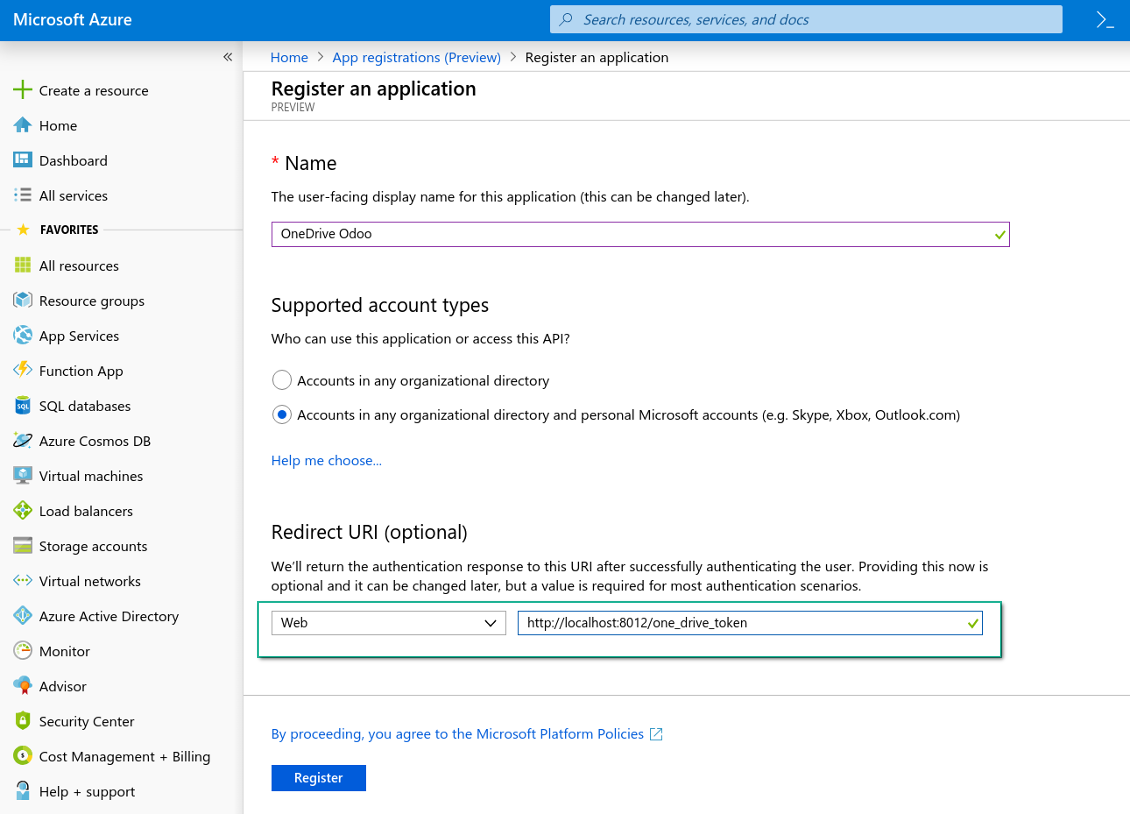
New OneDrive Web platform and redirect url
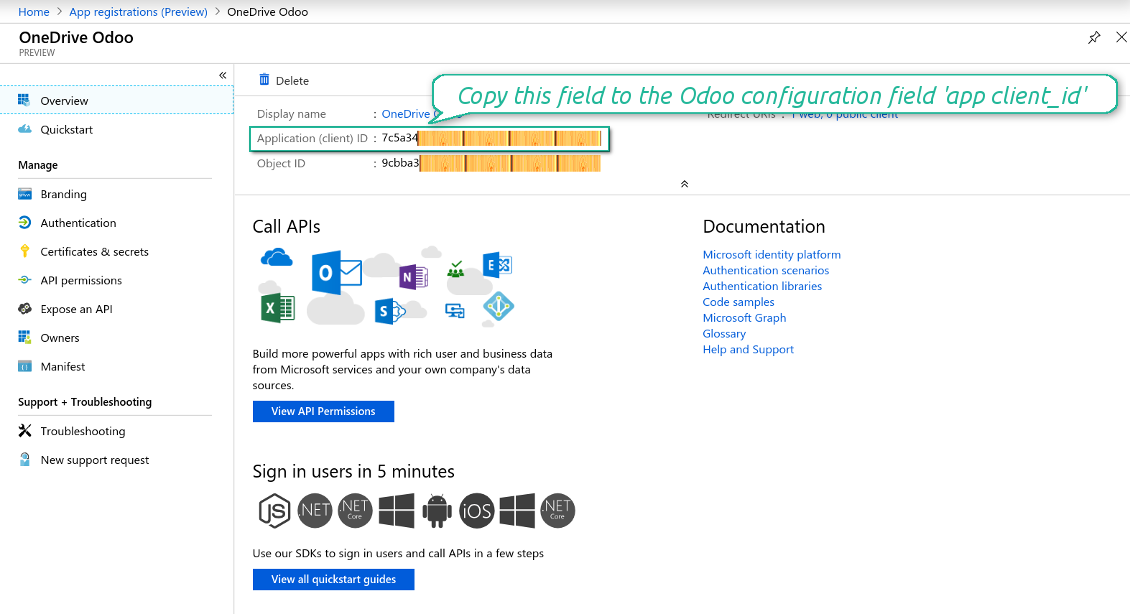
Generate new secret for your application
Enter configuration keys in Odoo
Odoo <> SharePoint sync settings
Odoo server configuration and cron job configuration
To make sure the synchronization works correctly apply proper timeouts to the Odoo configuration file: LIMIT_TIME_CPU, LIMIT_TIME_REAL should be more than 900 seconds.
For Odoo.sh this should not be done, since timeouts are predefined and are not configurable.
Then, timeout should be entered to your Odoo. To that goal find the section 'Settings' on the app configuration page and copy the number there.
Afterwards, it is needed to make the cron jobs suit the applied timeouts. In the debug mode go to the Settings > Technical > Automation > Scheduled Jobs:
- Set up the job 'Synchronize attachments with cloud' as (a) frequency - 2*timeout; (b) the next execution as the next hour +timeout. For example, for 900seconds timeout: frequency - as 30minutes; the next execution - at 08:15
- Set up the job 'Synchronize attachments from cloud' as (a) frequency - 2*timeout; (b) the next execution as the next hour + timeout*2. For example, for 900seconds timeout: frequency - as 30minutes; the next execution- at 08:30.
Reconnection
- Press the button 'Reconnect'
- Press the button 'Login and confirm'
Domande frequenti su OneDrive / SharePoint Odoo Integration Odoo v.12
Compare un errore quando clicco sul link cloud dell'immagine sincronizzata
L'errore «This item might have been deleted, expired, or you might not have permission to access it. Contact the owner of this item for more information.» indica che non avete effettuato l'accesso al servizio photos.onedrive.com.
Posso modificare la frequenza dei job di sincronizzazione?
Sì, è possibile. Per farlo:
Attivate la modalità debug
Andate in impostazioni tecniche > Automazione > Azioni pianificate
Trovate i job «Synchronize attachments with cloud» e «Update attachments from cloud».
Non renderli troppo frequenti. È preferibile che un job finisca prima che ne parta un altro. La configurazione dipende da quanti elementi dovete sincronizzare. Di solito la frequenza è tra 15 minuti e 4 ore.
Impostate anche limiti di tempo sufficienti nel file di configurazione Odoo. LIMIT_TIME_CPU e LIMIT_TIME_REAL devono essere uguali o maggiori del tempo cron previsto. Dalla versione 13 considerate anche LIMIT_TIME_REAL_CRON.
Nota importante per i clienti Odoo.sh: il tempo massimo di un job cron può essere limitato a 15 minuti.
Posso configurare una struttura delle directory sincronizzate diversa da quella prevista dalla sincronizzazione?
No, questa funzione esiste solo dalla versione 15. Prima il modulo usa una struttura di cartelle predefinita:
Odoo - cartella radice della sync
Modelli - cartelle per ogni tipo di documento Odoo. Ad esempio «Projects», «Partners». Per dominio possono esserci cartelle più specifiche: «Customer 1 Projects», «Projects of the Customer 2», «Internal Projects», ecc.
Oggetti - cartelle per ogni documento, es. «Project 1» o «Customer 1»
File e cartelle di questo documento Odoo da sincronizzare.
Potete così avere ad esempio:
Odoo / Projects / Project 1 / file e cartelle del progetto 1
Odoo / Customer 1 Projects / Project 1; Odoo / Customer 2 Projects / Project 3, ...
Odoo / Customers / Customer 1 / file e cartelle del cliente 1
La struttura è sempre piatta: solo questi livelli. Tipi di documento diversi non stanno nello stesso ramo. Nella cartella «Customer 1» non si tengono insieme ordini, fatture e progetti. Ogni tipo ha la/e propria/e cartella/e. Altrimenti la sync inversa non avrebbe un criterio.
Devo impostare accessi utente specifici in Odoo?
No, lo strumento usa un unico endpoint utente. Tutti i processi di sync avvengono sotto un solo admin cloud (app). I diritti delle cartelle / file creati non sono automatizzati. Gestiteli nella vostra soluzione di storage cloud.
Dove vengono salvati i file sincronizzati? Sono duplicati in Odoo e nei cloud?
L'app presuppone che il contenuto binario degli allegati sia conservato nel Cloud Client e non sul server Odoo. Tali allegati in Odoo diventano di tipo URL e potete accedervi in qualsiasi momento dalla casella allegati o dal Cloud Client.
Dopo la configurazione non servono azioni manuali: la sincronizzazione è completamente automatica. Decidete quali tipi di documento Odoo sincronizzare e impostate un modello correlato per ciascuno (clienti, ordini di vendita o acquisto, attività, progetti, ecc.).
Posso avere più cartelle per lo stesso tipo di documento? Ad esempio, progetti interni e progetti cliente?
Sì, è possibile. Preparate una regola per ciascuna e applicate dei filtri: ad esempio per tipo di progetto.
Rendete i filtri mutuamente esclusivi così un documento viene assegnato in modo certo. Ad esempio: «cliente ma non fornitore», «fornitore ma non cliente». Altrimenti la cartella del documento passerebbe da un modello all'altro.
Mi basta solo l'app Cloud Storage Solution?
No, lo strumento è solo un nucleo tecnico. Serve anche il connettore del vostro client cloud.
Va bene se ho molti oggetti da sincronizzare, ad esempio 10000?
Sì, anche se con molte cartelle/allegati il processo può essere lento. I clienti hanno comunque segnalato ambienti con >10k partner e ~5k varianti prodotto, e i processi erano accettabili.
Alcuni punti:
- La sync è costruita perché ogni elemento venga sincronizzato e non perso, anche se non è veloce. Code FIFO e il commit di ogni job lo garantiscono.
- Il numero di oggetti può essere limitato logicamente. La configurazione dei modelli consente di escludere elementi obsoleti (es. partner archiviati o ordini di 2 anni fa).
È possibile rendere la sincronizzazione in tempo reale?
No. Abbiamo ragioni solide per evitare la sincronizzazione in tempo reale:
Prestazioni. Se la sync è in tempo reale, ogni caricamento file mostra la schermata di attesa.
Conflitti. Se 2 utenti modificano un elemento insieme, la situazione può restare irrisolta. Con job regolari si può correggere dopo; in tempo reale servirebbe una coda, ancora più fuorviante.
Funzionalità. In particolare rinomina e ristrutturazione. La sync inversa si basa strettamente sulla logica delle directory e a ogni sync controlla il 100 % degli elementi. Dopo ogni aggiornamento sarebbero migliaia di richieste al secondo. Altrimenti le modifiche andrebbero perse.
Posso sincronizzare gli allegati con più client cloud
No, questa funzione è disponibile solo dalla versione 15.
Usiamo un editor speciale nei nostri cloud (ad es. OnlyOffice, Office 365, ecc.). I file si aprirebbero in quell'editor?
Sì, in base alla configurazione del client cloud.
Quali sono le politiche di aggiornamento dei vostri strumenti?
Secondo le politiche attuali dell'Odoo Apps Store:
- Ogni modulo acquistato per la versione 12.0 o precedente da accesso a tutte le versioni fino alla 12.0.
- Dalla versione 13.0 ogni versione del modulo va acquistata separatamente.
- Indipendentemente dalla versione, l'acquisto da diritto a tutti gli aggiornamenti e le correzioni entro una major version.
Il team faOtools non controlla queste politiche. Per qualsiasi domanda, contattate direttamente i rappresentanti dell'Odoo Apps Store.
Come installo l'app su Odoo.sh?
L'approccio piu diretto e il flusso integrato dello store Odoo:
1. Apri la pagina del modulo e fai clic su Deploy on odoo.sh
2. Verrai reindirizzato a GitHub. Accedi e fai clic su Create a new repo o usa uno esistente. Il repository deve essere privato. Non e consentito pubblicare le app con licenza OPL-1. Se serve, crea un nuovo repo per il progetto Odoo.sh
3. Poi, in odoo.sh, fai clic su Deploy, conferma e fai clic su Continue. Parte l'installazione.
Questi passaggi installano l'app sul branch di produzione. Per altri branch o per aggiornare:
1. Scarica il codice sorgente dallo store Odoo
2. Esegui il commit del modulo nel repository GitHub. Nessuna cartella/file dell'app deve essere in .gitignore. I repo creati da odoo.sh a volte ignorano percorsi importanti (es. /lib). Carica tutte le directory e i file del modulo
3. Esegui il deploy del branch di destinazione del progetto odoo.sh oppure attendi la build automatica se previsto.
Come installo l'app sul mio server?
2. Riavvia il server Odoo;
3. Attiva la modalità sviluppatore (impostazioni tecniche);
4. Aggiorna l'elenco delle app (menu Applicazioni);
5. Trova l'app e premi Activate/Install;
6. Segui le linee guida nella pagina dell'app, se ci sono.
L'app ha componenti extra. Posso acquistarli dopo?
Si. Odoo aggiunge automaticamente le dipendenze al carrello: escludi gli strumenti gia acquistati per non pagare due volte.
Ho distribuito l'app su Odoo.sh e vedo un avviso/errore nei test
Un avviso rosso/arancione non influisce sulle funzioni dell'app. A volte i nostri moduli non superano i test automatici standard perché questi assumono un comportamento in conflitto con gli obiettivi dell'app. Ad esempio cambiamo il calcolo del prezzo, mentre i test Odoo confrontano il prezzo finale con l'algoritmo standard.
Controllate prima le funzioni del database distribuito. Funziona tutto?
Se pensate ancora che l'avviso influisca sulle funzioni reali, contattateci e inviate i log di installazione completi e l'elenco completo dei moduli distribuiti (core e di terze parti).
Posso acquistare l'app direttamente da voi?
No, distribuiamo gli strumenti solo tramite lo store ufficiale delle app Odoo.
Vorrei uno sconto
Purtroppo non abbiamo i mezzi tecnici per prezzi individuali.
Posso installare l'app sul database Odoo Online (SaaS)?
No, le app di terze parti non si possono usare su Odoo Online. Odoo SaaS blocca questa possibilità.
Lo strumento dipende da altre app. Devo acquistarle?
Si, lo strumento richiede tutti i moduli indicati nelle dipendenze. Il prezzo sulla pagina dell'app le include gia.
Qual e il prezzo del modulo in dollari USA? Perché e cambiato?
Il prezzo dei nostri moduli e in euro. Lo store Odoo converte le valute secondo il proprio tasso interno. Quindi il prezzo in dollari USA puo cambiare quando il tasso viene aggiornato.
I testi dell'app e del sito web in lingue diverse dall'inglese sono realizzati con l'assistenza dell'IA e allineati alle traduzioni ufficiali di Odoo. Se noti un errore, invia un ticket di traduzione e lo correggeremo.
Segnalazione degli errori
Se riscontri bug o comportamenti incoerenti, non esitare a contattarci. Garantiamo di fornire soluzioni entro 60 giorni dall'acquisto e siamo fortemente interessati a migliorare i nostri strumenti anche dopo questo periodo.
Non hai bisogno di un numero di telefono o di una carta di credito per contattarci. Dovresti solo effettuare una breve registrazione via e-mail, che non richiede più di 30 secondi.
Includi nella richiesta il maggior numero possibile di dettagli: schermate, registri del server Odoo, una descrizione completa di come riprodurre il problema e così via. In genere sono necessari alcuni giorni lavorativi per preparare un piano operativo relativo a un problema (se viene confermato un bug) o fornire indicazioni su cosa fare (in caso contrario).
Richieste di funzionalità pubbliche e idee per moduli (sviluppo gratuito)
Siamo fortemente motivati a migliorare i nostri strumenti e saremmo grati per qualsiasi feedback. Se le tue esigenze sono di uso pubblico e possono essere implementate in modo efficiente, il team le includerà nella nostra lista di cose da fare.
Tale elenco di cose da fare viene elaborato regolarmente e non prevede costi aggiuntivi. Sebbene non possiamo garantire scadenze e progettazione finale, potrebbe essere un buon modo per ottenere le funzionalità desiderate senza investimenti e rischi.
Non hai bisogno di un numero di telefono o di una carta di credito per contattarci. Dovresti solo effettuare una breve registrazione via e-mail, che non richiede più di 30 secondi.

Lo strumento per conservare le password in Odoo in modo sicuro e condiviso. Vault

Lo strumento per una knowledge base strutturata, interna ed esterna. KMS. Revisioni tipo wiki
398€
Lo strumento per impostare target KPI e controllarne il raggiungimento per periodo. Dashboard. Grafici

Lo strumento per servizi su appuntamento, dalla prenotazione a vendite e recensioni
398€
Lo strumento per gestire Odoo dalle chat IA tramite MCP. Claude. Qualsiasi IA con MCP.

Lo strumento per strutturare gli allegati Odoo in cartelle e sincronizzare con Google Drive, OneDrive/SharePoint, Nextcloud/ownCloud, Dropbox, Amazon S3, Box e NAS. Gestione file. DMS
398€
Lo strumento per sincronizzare gli allegati Odoo con Google Drive in entrambi i sensi
487€
Lo strumento per sincronizzare gli allegati Odoo con ownCloud/Nextcloud in entrambi i sensi
487€
Lo strumento per sincronizzare gli allegati Odoo con NAS in entrambi i sensi. Synology, QNAP, TrueNAS, WebDAV
487€