OneDrive / SharePoint Odoo Integration v.12
The tool to automatically synchronize Odoo attachments with OneDrive files in both ways
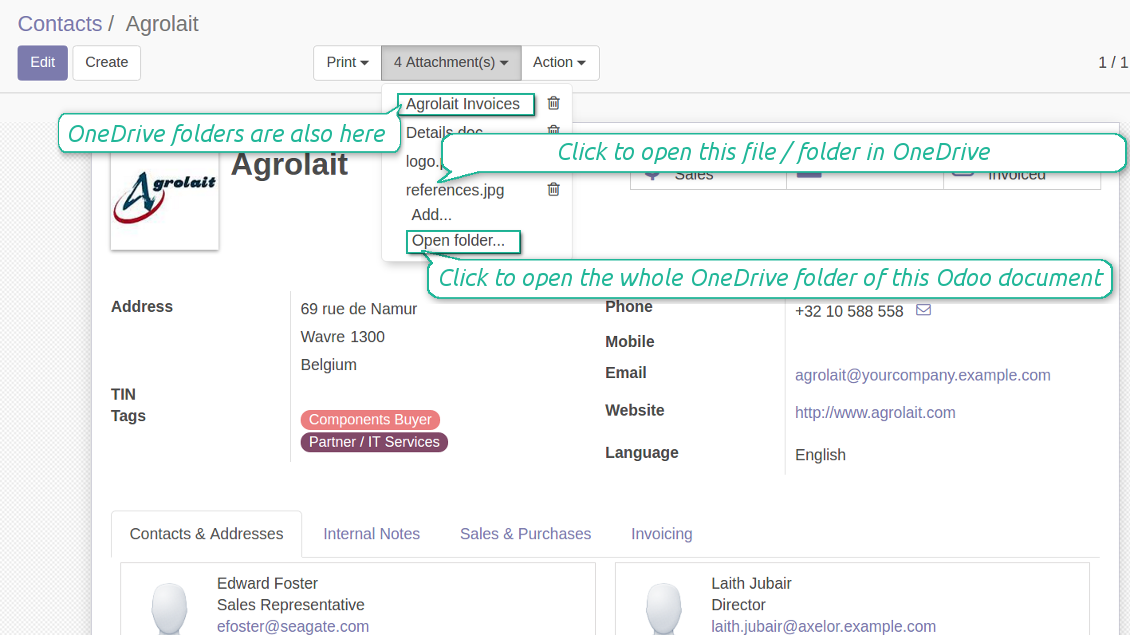
OneDrive / SharePoint doesn't have such disadvantages. This is the tool to integrate its features into your Odoo business work flow. The app automatically stores all Odoo attachments in OneDrive or SharePoint Documents, and it provides an instant access to them via web links. In such a way users work with files comfortably in the cloud storage, while the results are fully available in Odoo.
Automatic integration
Bilateral sync
How files and folders are synced from Odoo to OneDrive / SharePoint
- Prepare and keep updated folders' structure in OneDrive
- Upload new attachments to a correct folder
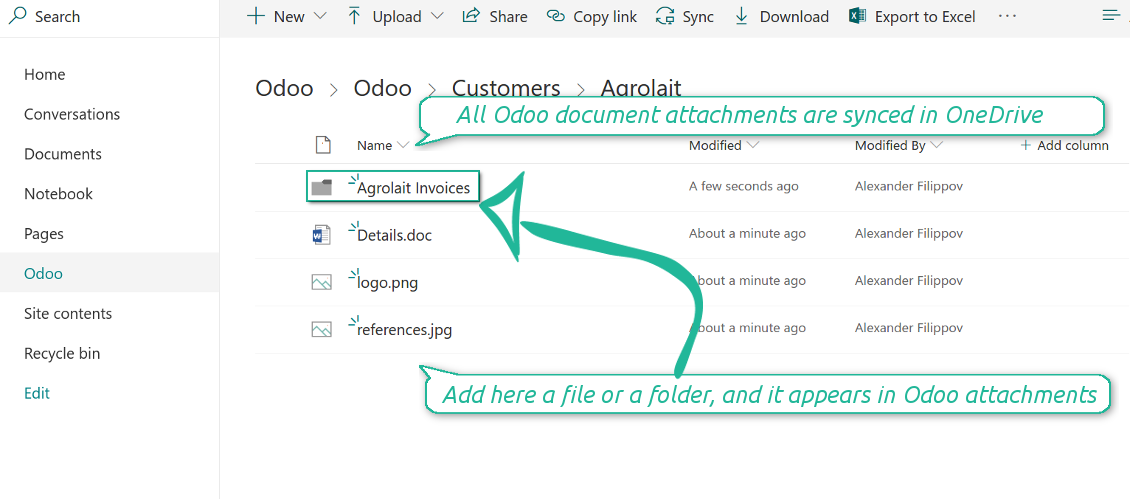
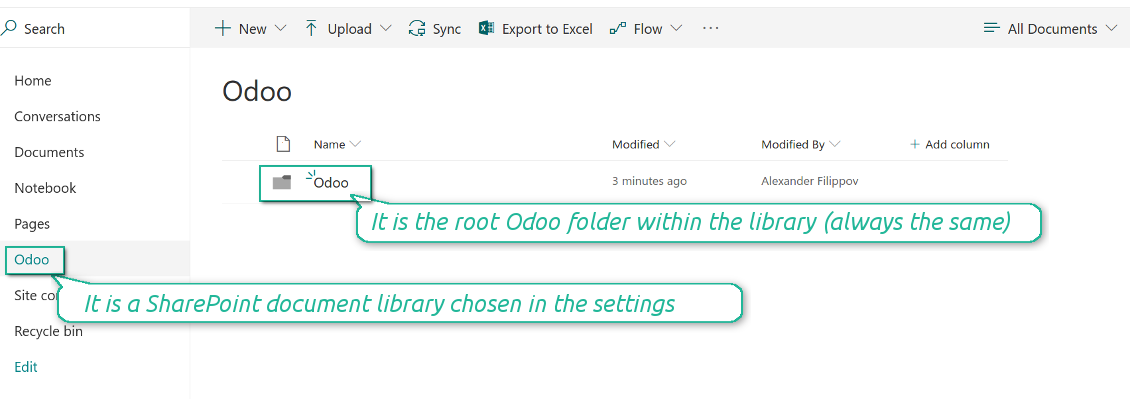
Odoo creates a convenient directory structure in OneDrive: Odoo / Document type name / Document name / Files, where:
- Odoo is a central directory for Odoo Sync in your Drive.
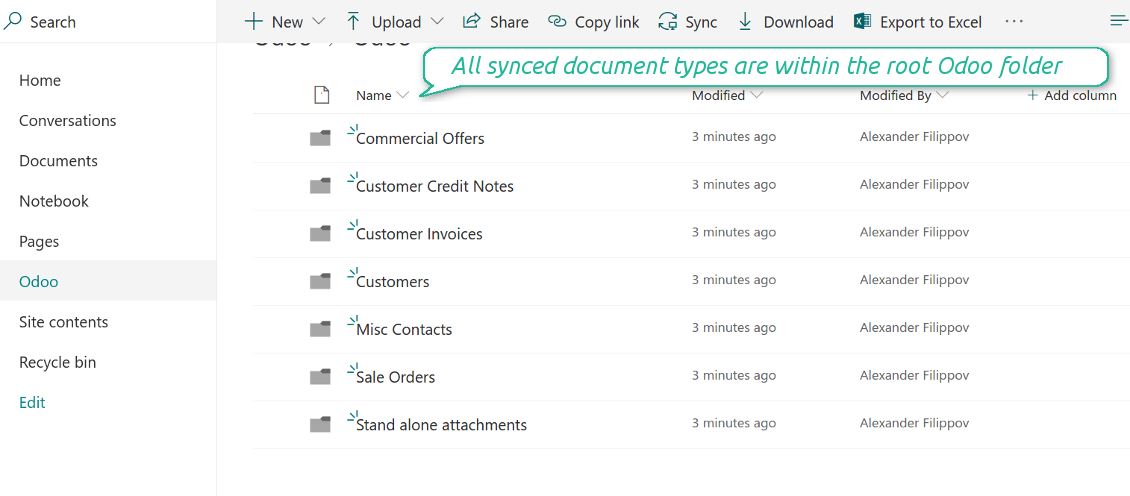
- Document type is a synced Odoo model, for example, 'Sale orders', 'Opportunities', 'Customers'
- You select document types by yourself. It might be any document type
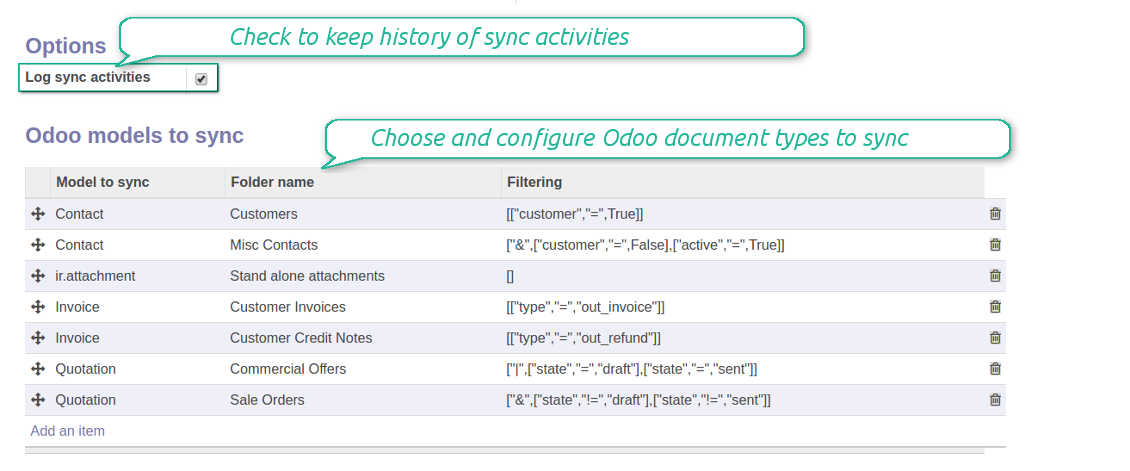
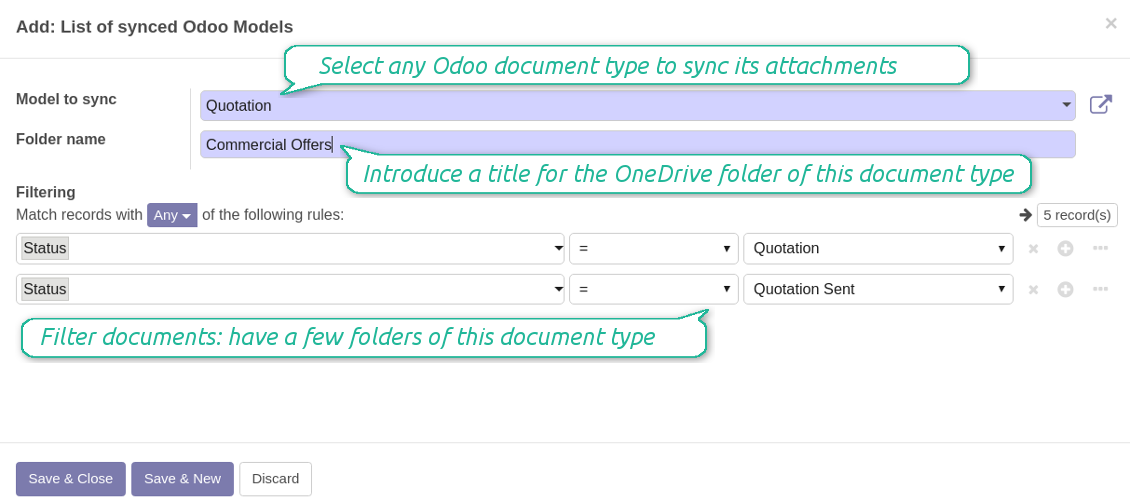
- Moreover, you might have a few folders for a single document type. Use Odoo domains to have not global 'Partners, but 'Customers' and 'Suppliers', not just 'Sale orders' but 'Commercial offers', 'To deliver', and 'Done orders'
- With each sync Odoo would try to update document types' folders. Add a new document type at any moment. It will appear in OneDrive with a next sync
- You are welcome to introduce or change document types folder names at any moment in Odoo. Take into account: renaming in OneDrive will be recovered to Odoo names
- If you remove a model from integration, it will not be deleted from OneDrive to keep already synced files safe. However, new documents of this type would not be synced
- In case you removed a directory in OneDrive / SharePoint, but it is still configured in Odoo, with a next sync a folder structure is going to be recovered (not files, surely).
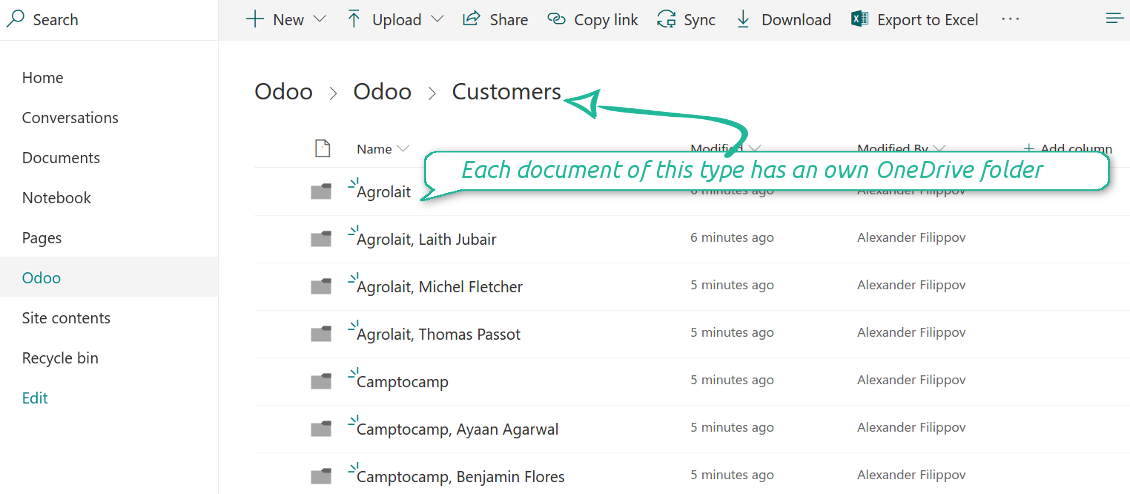
- Document is an exact object to sync. For instance, 'Agrolait' or 'SO019'
- Documents are synced in case they relate to a synced document type and satisfy its filters. For example, you are not obliged to sync all partners, you may integrate only 'Customers' and 'Vendors' or only 'Companies', not 'Contacts'
- Odoo would generate a folder in OneDrive for each suitable document even for documents without attachments. It is needed for a backward sync to easily add new files
- OneDrive folder name equals a real document name. It relies upon Odoo name_get method. Thus, Odoo 'Michael Fletcher' (a contact of 'Agrolait') would be OneDrive 'Agrolait, Michael Fletcher'
- If an exact document changes its document type (e.g. a quotation is now confirmed), Odoo will automatically relocate its related folder to a proper parent directory (in the example: from 'Commercial offers' to 'To deliver')
- In case a document relates to a few types (for instance, you have 'Vendors' and 'Customers', while Agrolait is both), this document folder would be put into the most prioritized document type. A document type priority is higher as closer to the top in Odoo interfaces it is
- If an Odoo document is removed, the next sync will remove a corresponding OneDrive directory
- In case you remove a directory in OneDrive / SharePoint, but it still exists in Odoo, OneDrive folder structure would be recovered (while files would be unlinked in both Odoo and OneDrive)
- Folders renaming in OneDrive will be replaced with Odoo names, Odoo document names are more important
- Files are real files taken from Odoo attachments
The resulted path would be, for example, 'Odoo / Quotations / SO019 / commercial offer.png'.
The only exclusion of the rule are stand alone attachments which do not relate to any Odoo documents (their document type is 'ir.attachment'). Such attachments' path is 'Odoo / Stand Alone Attachments / image.png'.
The very first sync might take quite a long, since a lot of folders should be created. Afterwards, it would be much faster. However, it is not recommended to make sync too frequent: once an hour seems quite good for large files.
FilesWith each direct sync, Odoo tries to find not yet synced attachments. If such attachments suit any document type to sync, a file will be uploaded to OneDrive to a proper folder. In Odoo such attachments will become of 'url' type. It means that a file is not any more kept in Odoo server space, but now it is in OneDrive. Until sync is done, Odoo attachment remains binary and stores an actual file. Such approach helps Odoo to work faster.
Clicking on such attachment leads you to a file previewer / editor in OneDrive. Depending on your OneDrive / SharePoint configurations it might be Word, Excel, PDF previewer, etc. Anyway changes to file contents in OneDrive are available in Odoo at the same moment.
If you unlinked an attachment from Odoo, it would be deleted in OneDrive as well.
Take into account that file names should be managed in OneDrive: each backward sync would recover OneDrive names, Odoo is here less important.
How items are retrieved from OneDrive / SharePoint to Odoo
- If a new file is added to a proper document folder (e.g. to 'Odoo / Customers / Agrolait'), the same attachment will be added to Odoo document (in the example - to 'Agrolait')
- In document folders you can put not only files but also child folders. In that case a link for this folder (not its content) is kept in attachments
- In case you rename a file in OneDrive, it will be renamed in Odoo as well
- Files' removal from OneDrive leads to related Odoo attachments' removal
- If you move a file to another document folder, in Odoo a related attachment would be re-attached to this new document. Take into account: if you move a file for a not document folder, in Odoo attachment will be deleted as it has been removed from OneDrive
- If you deleted a document type or document folder, their child files are deleted as well. Thus, Odoo would remove related attachments. The folders, however, will be recovered with a next direct sync. Folders' move to another directory is also considered as a removal. Avoid such situations by following the simple rule: folders are managed mostly by Odoo, files - mostly by OneDrive.
Backward OneDrive sync might take time. It is recommended to make frequency oftener than once an hour or two hours.
Снимци екрана
All document types are in the root directory 'Odoo'
Document types' folders
All document of this type has an own folder
Sync any documents you like
The tool let you split any business model into a few directories. Have a separate folder for individuals and companies, for European and American opportunities, for each project, etc.
Moreover, it is possible to guarantee that only topical documents are synced by using relative periods: leads registered in the last 3 months, invoices updated the last week, and so on.
Typical use cases
- Projects: automatically forward all project-related documents to OneDrive to share those with a customer as a cloud link.
- Customers: add all partner files in a single directory available both from Odoo and from OneDrive / SharePoint. Modify those using default cloud editors and access them when working in Odoo.
- Employees: gather all files by this employee in a single cloud folder: photos, document scans, contracts. Access and upload those from Odoo and OneDrive / SharePoint Documents alternatively.
- Opportunities: carefully store all specifications, requirements and any file which would let you make a good offer.
- Orders: keep all printings and contracts in OneDrive / SharePoint with simple availability from Odoo.
Снимци екрана
Choose document types to be synced
Document type might have a few folders based on filters
Easy accessible files
Снимци екрана
Fast access to OneDrive files and folders
Synced files are simply found in OneDrive. Add unlimited number of files or folders here
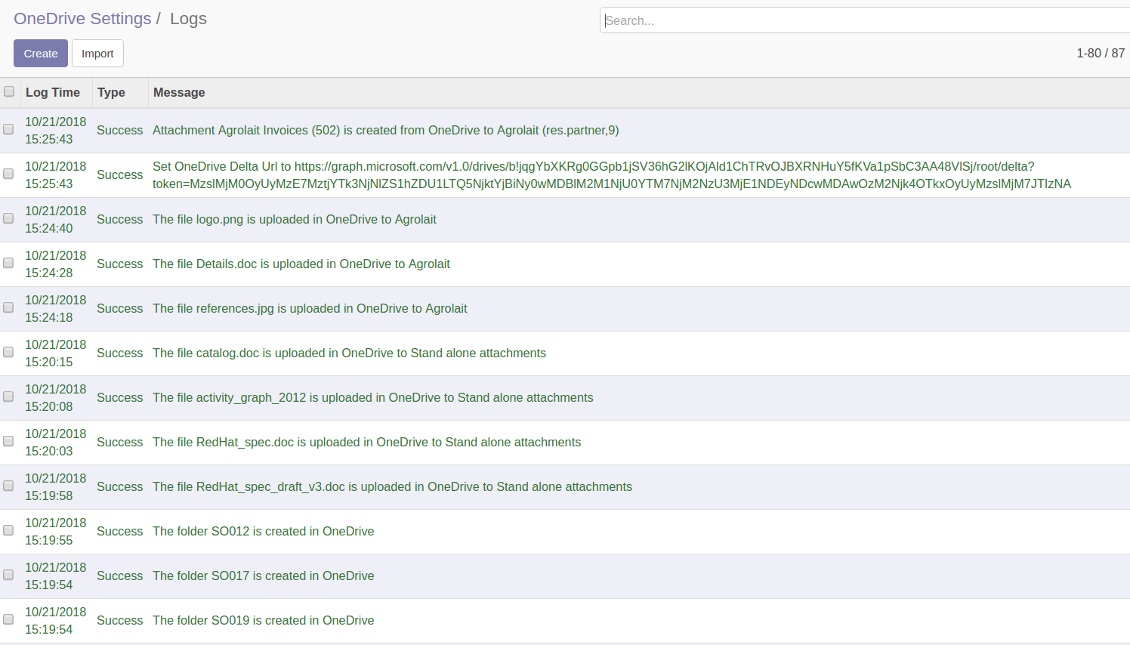
Sync logs in Odoo
Снимци екрана
Logged synchronisation activities
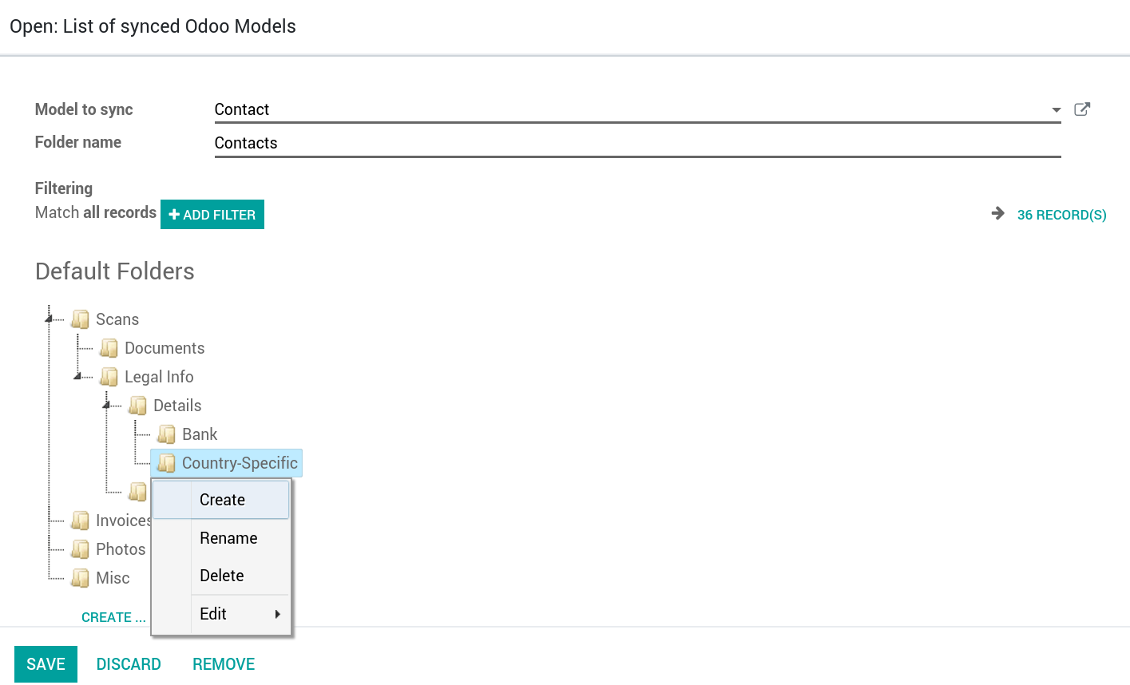
Default folders for documents
Снимци екрана
Default folders for this document types to be created while firstly synced
Applicable to all Odoo apps
Dangerous symbols
- Try to avoid the following symbols in folders' and files' names: '~', '#', '&', ':', '{', '}', '*', '?', '"', "'", '<', '>', '|', '+', '%', '!', '@', '\\', '/', '.'. Direct sync will replace such symbols with '-'. It is done to avoid conflicts with file systems.
Compatible with Odoo Enterprise Documents
How Odoo Enterprise Documents are synced
This tool is not in conflict with the 'documents' module provided by the Enterprise license. Attachments related to Enterprise folders would be synced as any other files: according to a document they relate to. In the most cases it means they would be linked to stand-alone attachments.
It is not always comfortable, and you might be interested in reflecting directories' structure introduced by the module 'Documents'. To this end the extension Cloud Sync for Enterprise Documents (its standard price is 44 Euros) is developed. This tool has the following features:
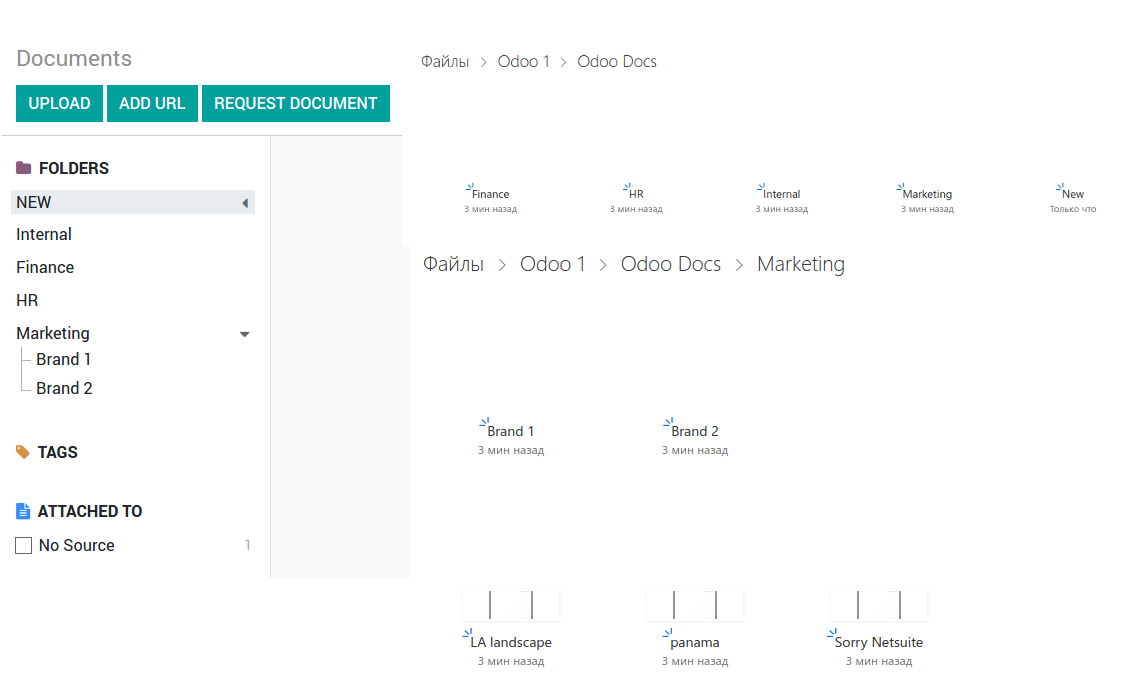
- The documents hierarchy is reflected within the folder 'Odoo / Odoo Docs'
- Each Odoo folder has a linked cloud folder. Take into account that folders created in the cloud storage will be synced as Odoo attachments. The key principle is: folders are managed by Odoo, files are managed by the cloud client
- All files are synced with the same logic as usual attachments. Files created in Odoo will be added to the cloud storage and will be replaced with links in Odoo. Files created in cloud storage will generate attachments within a paired directory
- Please do not name synced models as 'Odoo Docs'. This is the reserved name for Odoo Enterprise Documents
Снимци екрана
Odoo Enterprise documents sync
Works well with SharePoint. Supportive team
We've been using this with SharePoint and it's been working great. One of the best things is having everything, including logs right in Odoo's interface, so you can actually see what's going on. It's also super convenient that you can view or download synced files from the attachment box without having to leave the page or even log in to Sharepoint.
Setup was pretty smooth for us. When we had a few questions about setting up the folder hierarchy and priorities, the developer team got back to us in just a couple of hours and helped us figure it out. Great support and great extension!
Great support, assistance and very good connector!
We are very happy with the support we received when configuring the Sharepoint - Odoo connector. The connector has great functionalities.
All our questions were answered very fast (within one day).
FaOtools helped us optimising our connector and assisted us with future improvements.
We really recommend this connector.
very professional app, excellen t customer service
This app is very well programmed and does its job very well. But the best is the excellent customer service who also helps when the problem lies somewhere else. You receive a lot for your money.
An impressive app and world-class support
I have been very impressed by the way the OneDrive / SharePoint Odoo Integration module synchronises content in both directions and allows me to share documents in Odoo with my SharePoint site. Above all the technical support is top-notch, which greatly increases the value of this product. I highly recommend this product for anyone considering synchronising Odoo with SharePoint/OneDrive.
Works fine, good support
The first experience with the module is excellent. I had some trouble to configure things right on the Microsoft-side, but the team provided quick and good support.
Савети за конфигурацију и инсталацију за OneDrive / SharePoint Odoo Integration Odoo v.12
Python dependency
pip3 install microsoftgraph-pythonConfiguration and log in
- Make sure your Microsoft user has full admin rights for OneDrive / SharePoint you want to connect to Odoo. This user is required only to grant permissions, the user data would not be kept any where in Odoo, and would not be used any more. Besides, make sure a Microsoft email address you use does not have a redirection (usually happens when you configure your domain name, while the prime address is still one of Microsoft domains like @outlook.com, @office365, etc.)
- Go to your Azure Portal: https://portal.azure.com/#blade/Microsoft_AAD_RegisteredApps/ApplicationsListBlade
The app must be registered inside a directory (tenant). Microsoft no longer allows creating a new app outside one.
- If you already have a company Microsoft 365 / Azure directory, switch the portal (top right) to it and continue.
- If you only have a personal account (@outlook.com, @hotmail.com, @live.com) and see "these applications are associated with the account ... but are not contained within any directory", you do not have a directory yet. Sign up for a free Azure account with the same Microsoft account: https://azure.microsoft.com/free/ - Try Azure for free. This creates a Default Directory for you at no cost.
- Microsoft asks for a card for identity verification only; a temporary ~1 USD hold is placed and reversed. You are not charged for the directory or for the app registration.
- The directory (Microsoft Entra ID Free) and any app registered in it keep working independently of the 30-day / $200 Azure trial credit. That credit is for paid Azure resources you are not using here. No payment is required for our app.
- If the whole directory sits completely unused for a very long time (Microsoft's own threshold is around 200 days of no activity at all), Microsoft may email a warning and eventually retire it. Since Odoo calls this app every time it syncs, an active connection keeps the directory active - this only matters if you stop syncing entirely for months.
- Once you are in a real directory (not "Microsoft Services"), open App registrations there.
- Click 'New registration'
- Introduce a new name for the application and assign the redirect URI as [YOURODOOSITENAME]/one_drive_token (e.g. https://odootools.com/one_drive_token). As the supported account types choose 'Accounts in any organizational directory (Any Azure AD directory - Multitenant) and personal Microsoft accounts (e.g. Skype, Xbox)'.
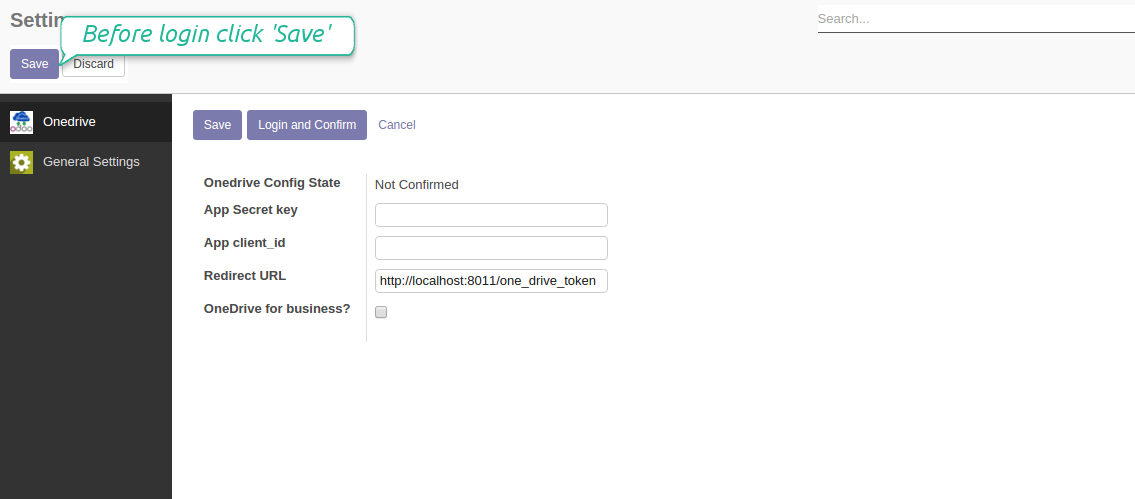
- Copy the Application Client ID to the Odoo field 'App client_id'
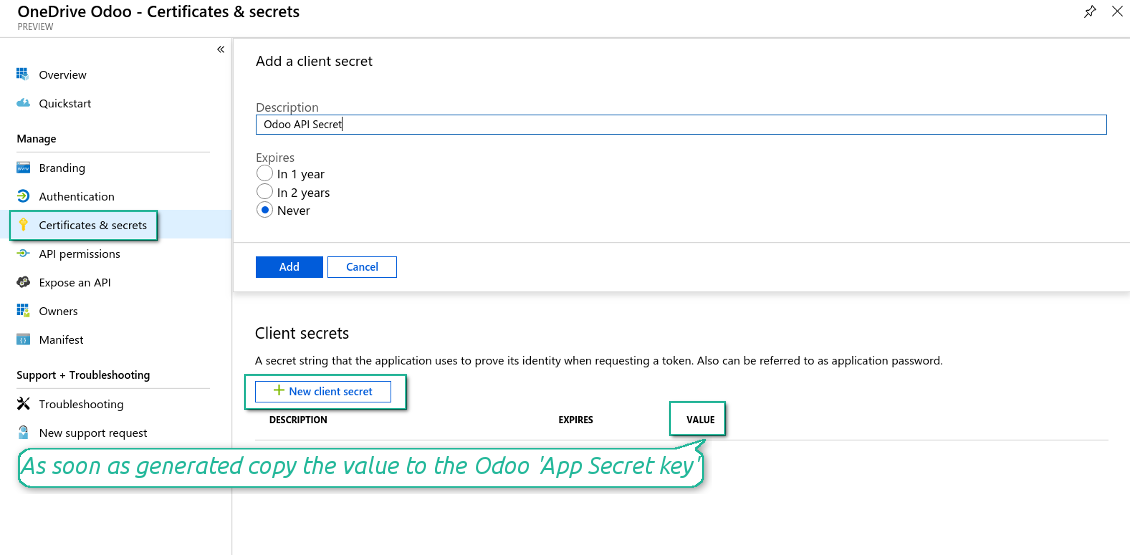
- Go to Certificates & secrets > Click 'New Client Secret'. Copy the secret value to the Odoo field 'App Secret Key'
- For SharePoint sites only:
- Go to your SharePoint site and prepare a new documents' library (drive). You might use one of the existing ones, e.g. 'Documents'. Odoo folder would be put there afterwards, and it would be impossible to move it for another library
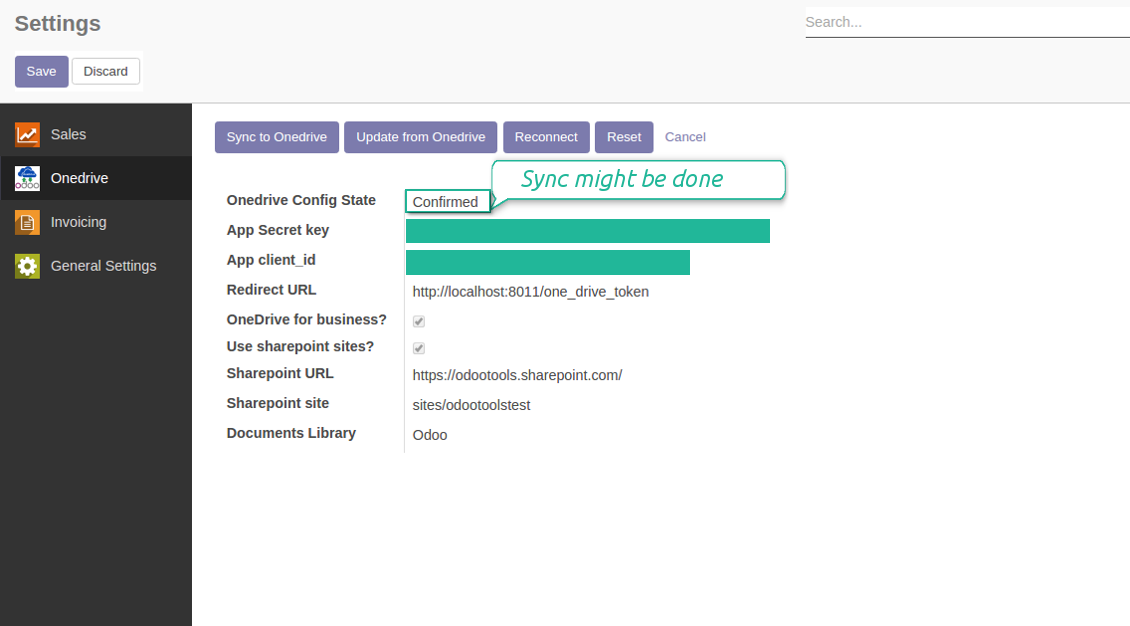
- Check the boxes 'OneDrive for business' and 'Use SharePoint sites'
- The SharePoint URL should be of the type https://[URL]/. The last '/' is required, sitename should not be included into. For example, https://odootools.sharepoint.com/
- SharePoint site should be either my_site_name (in that case it is considered as sites/my_site_name) or sites/my_site_name (instead of 'sites' it might be 'teams' and so on). There should be no '/' at the beginning or at the end. For example, sites/odootools
- As Documents Library use one created in SharePoint
- Press Save on the Odoo configuration Page.
- Press 'Login and Confirm'. Odoo redirects you to Microsoft login page. Check in and grant permissions asked. If Microsoft shows an account already signed in and says it does not exist in tenant 'Microsoft Services' (or any other unrelated tenant), do not click that row. Click 'Use another account' and sign in with the Microsoft account that owns the app's directory.
- After login, Microsoft redirects you back to Odoo. OneDrive - Odoo synchronization is ready to be done.
Create OneDrive application
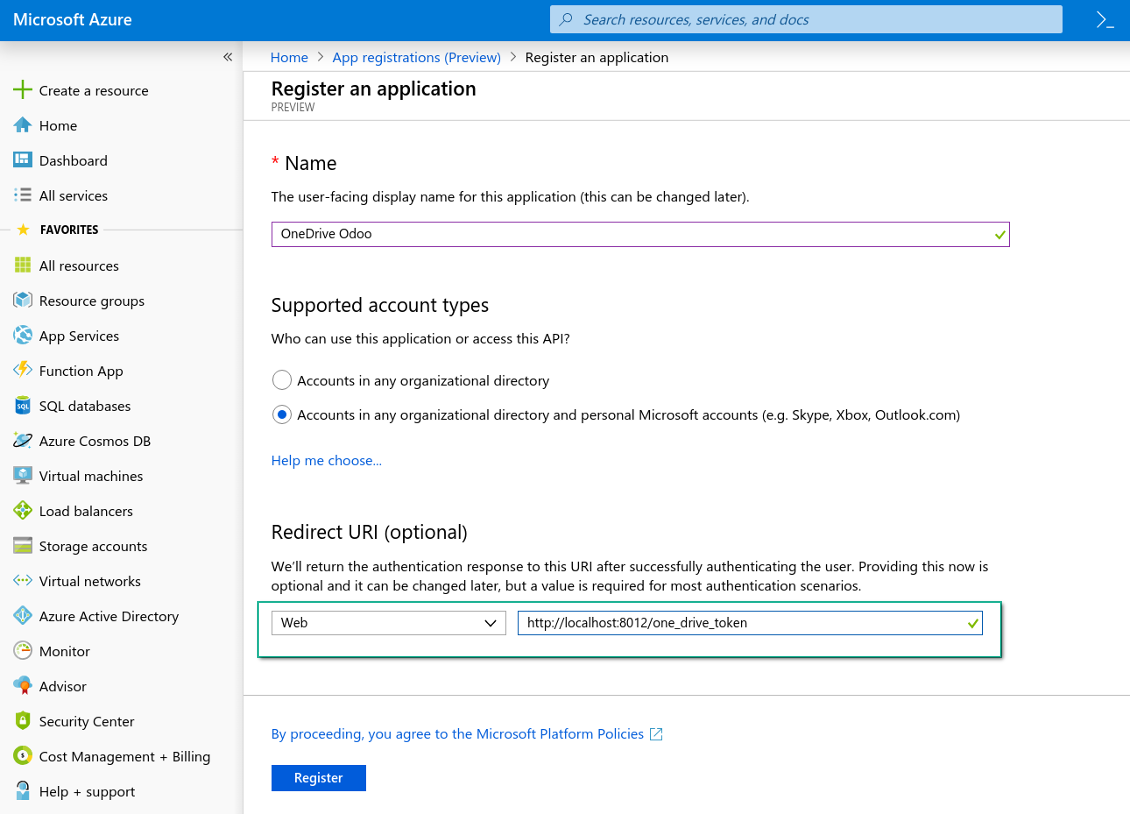
New OneDrive Web platform and redirect url
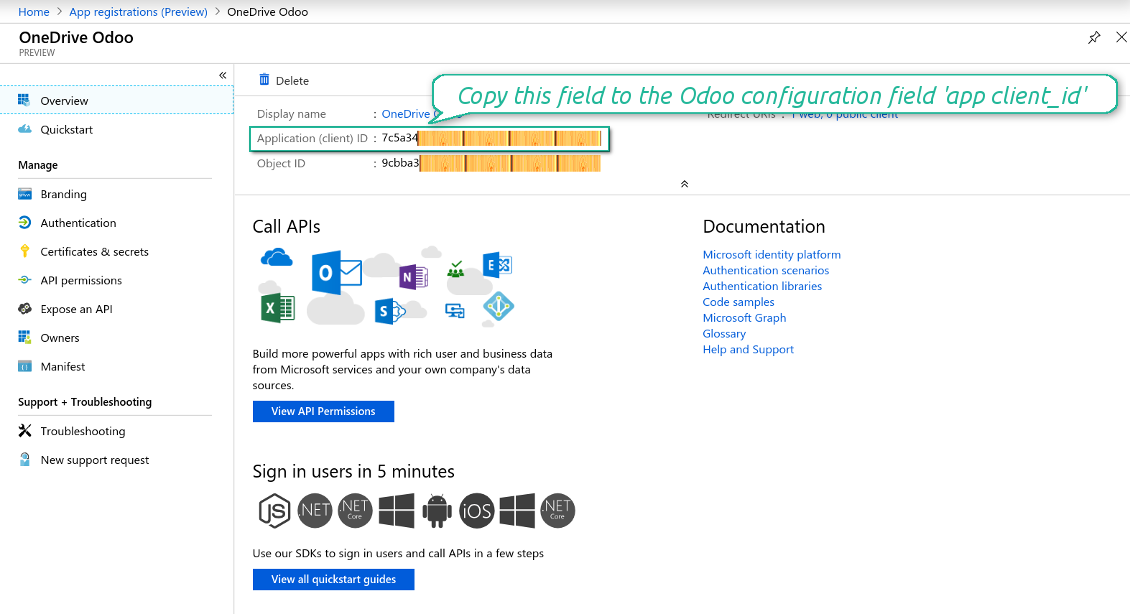
Generate new secret for your application
Enter configuration keys in Odoo
Odoo <> SharePoint sync settings
Odoo server configuration and cron job configuration
To make sure the synchronization works correctly apply proper timeouts to the Odoo configuration file: LIMIT_TIME_CPU, LIMIT_TIME_REAL should be more than 900 seconds.
For Odoo.sh this should not be done, since timeouts are predefined and are not configurable.
Then, timeout should be entered to your Odoo. To that goal find the section 'Settings' on the app configuration page and copy the number there.
Afterwards, it is needed to make the cron jobs suit the applied timeouts. In the debug mode go to the Settings > Technical > Automation > Scheduled Jobs:
- Set up the job 'Synchronize attachments with cloud' as (a) frequency - 2*timeout; (b) the next execution as the next hour +timeout. For example, for 900seconds timeout: frequency - as 30minutes; the next execution - at 08:15
- Set up the job 'Synchronize attachments from cloud' as (a) frequency - 2*timeout; (b) the next execution as the next hour + timeout*2. For example, for 900seconds timeout: frequency - as 30minutes; the next execution- at 08:30.
Reconnection
- Press the button 'Reconnect'
- Press the button 'Login and confirm'
Често постављана питања о OneDrive / SharePoint Odoo Integration Odoo v.12
Видим грешку када кликнем на везу синхронизоване слике у облаку
Грешка "This item might have been deleted, expired, or you might not have permission to access it. Contact the owner of this item for more information." значи да нисте пријављени на услугу photos.onedrive.com.
Могу ли да променим учесталост послова синхронизације?
Да, можете. У ту сврху:
Укључите режим за отклањање грешака
Идите на техничка подешавања > Аутоматизација > Заказани послови
Пронађите послове 'Synchronize attachments with cloud' и 'Update attachments from cloud'.
Не постављајте их превише често. Пожељно је да посао заврши пре него што крене следећи. Подешавање зависи од тога колико ставки треба синхронизовати. Учесталост је обично између 15 минута и 4 сата.
Проверите и да сте у конфигурационом фајлу Odoo поставили довољна временска ограничења. Параметри LIMIT_TIME_CPU и LIMIT_TIME_REAL морају бити једнаки или већи од планираног времена cron посла. Од верзије 13 узмите у обзир и параметар LIMIT_TIME_REAL_CRON.
Важна напомена за клијенте Odoo.sh: максимално време cron посла може бити само 15 минута.
Могу ли да подесим другачију структуру синхронизованих директоријума од оне коју претпоставља синхронизација?
Не, ова функција је доступна тек од верзије 15. Пре те верзије модул ради са унапред дефинисаном структуром фасцикли:
Odoo - главна фасцикла за синхронизацију
Models - фасцикле за сваки тип документа Odoo. На пример, 'Projects', 'Partners'. По домену могу постојати специфичније фасцикле: нпр. 'Customer 1 Projects', 'Projects of the Customer 2', 'Internal Projects' итд.
Objects - фасцикле за сваки документ, нпр. 'Project 1' или 'Customer 1'
Датотеке и фасцикле повезане са овим Odoo документом које треба синхронизовати.
Као резултат можете имати на пример:
Odoo / Projects / Project 1 / датотеке и фасцикле повезане са project 1
Odoo / Customer 1 Projects / Project 1; Odoo / Customer 2 Projects / Project 3, ...
Odoo / Customers / Customer 1 / датотеке и фасцикле повезане са customer 1
Ова структура је увек равна, што значи да постоје само ти нивои хијерархије. Дакле, тачно је да се различити типови докумената не могу држати у истој структури. У фасцикли 'Customer 1' не можемо чувати датотеке повезане и са налозима продаје, и са рачунима, и са пројектима. Сваки од тих типова документа има сопствену фасциклу (или неколико сопствених). Иначе не бисмо могли да урадимо повратну синхронизацију, јер не би било критеријума на који да се ослонимо.
Да ли треба да подесим приступе одређених корисника у Odoo?
Не, алат се ослања на једну корисничку крајњу тачку. Сви процеси синхронизације се обављају под једним cloud администратором (апликацијом). Права приступа за креиране фасцикле / датотеке нису аутоматизована. Та права треба да администрирате у свом решењу за складиштење у облаку.
Где се чувају синхронизована поља? Да ли се дуплирају у Odoo и clouds?
Апликација претпоставља да се бинарни садржај прилога чува у Cloud Client уместо на Odoo серверу. Такви прилози у Odoo постају типа URL и можете им приступити у било ком тренутку из поља прилога или из Cloud Client.
Након подешавања нису потребне ручне радње, јер је синхронизација потпуно аутоматска. Одлучите које типове Odoo докумената треба синхронизовати и подесите повезани модел за сваки од њих (купци, налози за продају или набавку, задаци, пројекти итд.).
Могу ли имати неколико фасцикли за исти тип документа? На пример, интерни пројекти и пројекти купаца?
Да, можете. У ту сврху припремите правило за сваки, а затим примените филтере: на пример по типу пројекта.
Покушајте да филтери буду међусобно искључиви како би се документ могао једнозначно доделити. На пример, „купац али не добављач“, „добављач али не купац“. Иначе би фасцикла одређеног документа скакала с једног модела на други.
Да ли ми треба само апликација Cloud Storage Solution?
Не, алат је само техничко језгро. Потребан вам је и конектор за ваш cloud client.
Да ли је у реду ако имам много објеката за синхронизацију, на пример 10000?
Да, иако код много фасцикли/прилога које треба синхронизовати процес може бити спор. Истовремено, клијенти су пријавили окружења са >10k партнера и ~5k варијанти производа за синхронизацију, а процеси су били прихватљиви.
Неколико тачака за нагласити:
- Синхронизација је направљена тако да свака ставка буде синхронизована и да се не изгуби, иако можда није брза. То гарантују FIFO редови и сваки посао који се потврди.
- Број објеката може се логички ограничити. Конфигурација модела омогућава ограничење синхронизације застарелих ставки (нпр. нема смисла синхронизовати архивиране партнере или налоге од пре 2 године).
Да ли је могуће да синхронизација буде у реалном времену?
Не. Имамо озбиљне разлоге да избегавамо синхронизацију у реалном времену:
Проблеми перформанси. Ако је синхронизација у реалном времену, свако отпремање датотеке ће приказати екран учитавања.
Проблеми сукоба. Ако 2 корисника истовремено измене ставку, то може довести до нерешених ситуација. Код редовних послова то можемо исправити накнадно, а у реалном времену морали бисмо то чувати као ред, што би кориснике још више збуњивало.
Проблеми функционалности. Посебно преименовање и реструктурирање ставки. У повратној синхронизацији алат се строго ослања на логику директоријума и при свакој синхронизацији проверава се 100% ставки. Ако се то ради после сваког ажурирања, биће хиљаде захтева у секунди. Ако не: измене би биле изгубљене.
Могу ли да синхронизујем прилоге са неколико cloud клијената
Не, ова функција је доступна тек од верзије 15.
У нашим облацима користимо посебан уређивач (нпр. OnlyOffice, Office 365 итд.). Да ли би се датотеке отварале у том уређивачу?
Да, у зависности од конфигурације cloud client.
Које су политике ажурирања ваших алата?
Према важећим правилима Odoo Apps Store:
- Сваки модул купљен за верзију 12.0 и старију даје приступ свим верзијама до 12.0.
- Од верзије 13.0 свака верзија модула се купује засебно.
- Без обзира на верзију, куповина даје право на сва ажурирања и исправке у оквиру главне верзије.
Имајте у виду да тим faOtools не контролише та правила. За питања обратите се директно представницима Odoo Apps Store.
Како могу инсталирати вашу апликацију на Odoo.sh?
Најдиректнији приступ је да користите уграђени ток рада Odoo продавнице:
1. Отворите страницу модула и кликните дугме Deploy on odoo.sh
2. Након тога бићете преусмерени на GitHub страницу. Пријавите се на налог, затим кликните 'Create a new repo' или користите постојећи. Проверите да је спремиште приватно. Није дозвољено објављивати апликације под лиценцом OPL-1. Ако треба, направите нови repo за Odoo.sh пројекат
3. Затим идите на odoo.sh и кликните дугме Deploy. У искачућем прозору пошаљите одлуку и кликните 'Continue.' Ова радња покреће инсталацију.
Ови кораци ће инсталирати апликацију на продукциону грану пројекта. Ако желите да примените апликације на друге гране или да ажурирате модул, урадите следеће:
1. Отпремите изворни код апликације из Odoo продавнице
2. Урадите commit модула у потребно GitHub спремиште. Проверите да ниједна фасцикла/датотека апликације није игнорисана (тј. није у .gitignore репоа). Спремишта аутоматски прави odoo.sh и могу подразумевано садржати важне ставке (нпр. /lib). Отпремите све директоријуме, поддиректоријуме и датотеке модула без изузетака
3. Примените циљну грану odoo.sh пројекта или, ако то претпостављају подешавања, сачекајте да се аутоматски изгради.
Како да инсталирам вашу апликацију на сопствени сервер?
2. Поново покрените Odoo сервер;
3. Укључите режим програмера (техничка подешавања);
4. Ажурирајте листу апликација (мени апликација);
5. Пронађите апликацију и притисните „Activate“/„Install“;
6. Пратите смернице на страници апликације ако постоје.
Приметио сам да ваша апликација има додатне додатке. Могу ли их купити накнадно?
Да, наравно. Истовремено Odoo аутоматски додаје све зависности у корпу, па треба искључити већ купљене алате да не платите двапут.
Поставио сам вашу апликацију на Odoo.sh и у тестовима видим упозорење/грешку
Црвено/наранџасто упозорење не утиче на функције апликације. Нажалост, наши модули понекад не прођу стандардне аутоматске тестове јер они претпостављају понашање које је у сукобу са циљевима апликације. На пример, мењамо обрачун цене, а тестови стандардног Odoo модула упоређују коначну цену са стандардним алгоритмом.
Пре свега проверите функције постављене базе. Да ли све ради исправно?
Ако и даље сматрате да упозорење утиче на стварне функције, контактирајте нас и пошаљите потпуне дневнике инсталације и потпун списак постављених модула (укључујући језгро и треће стране).
Могу ли да купим апликацију директно од ваше компаније?
Не, алате дистрибуирамо само преко званичне продавнице апликација Odoo.
Желео бих да добијем попуст
Нажалост, немамо техничких средстава да понудимо појединачне цене.
Могу ли да инсталирам апликацију на своју Odoo Online (SaaS) базу?
Не, апликације трећих страна не могу се користити на Odoo Online. Нажалост Odoo SaaS то блокира.
Ваш алат зависи од других апликација. Треба ли да их купим?
Да, алату су потребни сви модули наведени у зависностима да би радио исправно. Цена на страници апликације већ укључује све потребне зависности.
Која је цена модула у америчким доларима? Зашто се променила?
Цена наших модула је у еврима. Odoo продавница прерачунава цене у друге валуте по свом интерном курсу. Зато се цена у америчким доларима може променити кад се курс ажурира.
Текстови апликације и сајта на језицима осим енглеског рађени су уз помоћ ВИ и усклађени са званичним Odoo преводима. Ако уочите грешку, пошаљите тикет о исправности превода и исправићемо.
Пријављивање грешака
Ако наиђете на грешке или недоследно понашање, слободно нас контактирајте. Гарантујемо исправке у року од 60 дана од куповине и веома смо заинтересовани да унапређујемо алате и после тог периода.
Да нас контактирате није потребан број телефона ни кредитна картица. Довољна је кратка регистрација е-поштом која не траје више од 30 секунди.
У захтев укључите што више детаља: снимке екрана, дневнике Odoo сервера, пун опис како поновити проблем и тако даље. Обично треба неколико радних дана да се припреми радни план (ако је грешка потврђена) или смернице шта треба урадити (у супротном).
Јавни захтеви за функције и идеје модула (бесплатан развој)
Снажно смо мотивисани да побољшамо своје алате и били бисмо захвални на свакој повратној информацији. Ако су ваши захтеви од јавне користи и могу се ефикасно спровести, тим ће их укључити у нашу листу задатака.
Таква листа задатака се обрађује редовно и не подразумева додатне накнаде. Иако не можемо обећати рокове и коначан дизајн, то може бити добар начин да добијете жељене функције без улагања и ризика.
Да нас контактирате није потребан број телефона ни кредитна картица. Довољна је кратка регистрација е-поштом која не траје више од 30 секунди.

Алат за безбедно чување лозинки у Odoo за заједничку употребу. Дељени трезори

Алат за изградњу дубоке и структурисане базе знања за интерну и екстерну употребу. Knowledge System. KMS. Ревизије као на викију.
398€
Алат за постављање KPI циљева и контролу њиховог испуњења по периодима. KPI контролне табле. Дизајнер табли. KPI графикони

Алат за управљање услугама засновано на времену, од резервације термина до продаје и рецензија
398€
Алат за управљање Odoo из омиљених AI ћаскања преко MCP. Claude. Било који AI који подржава MCP.

Алат за флексибилно слагање прилога Odoo у фасцикле и синхронизацију директоријума са cloud клијентима: Google Drive, OneDrive/SharePoint, Nextcloud/ownCloud, Dropbox, Amazon S3, Box и NAS. DMS. Менаџер датотека. Систем за управљање документима
398€
Алат за аутоматску двосмерну синхронизацију прилога Odoo са датотекама Google Drive
487€
Алат за аутоматску двосмерну синхронизацију прилога Odoo са датотекама ownCloud/Nextcloud
487€
Алат за аутоматску двосмерну синхронизацију прилога Odoo са NAS решењима. Synology, QNAP, TrueNAS и сваки други NAS који подржава WebDav
487€