OneDrive / SharePoint Odoo Integration v.12
The tool to automatically synchronize Odoo attachments with OneDrive files in both ways
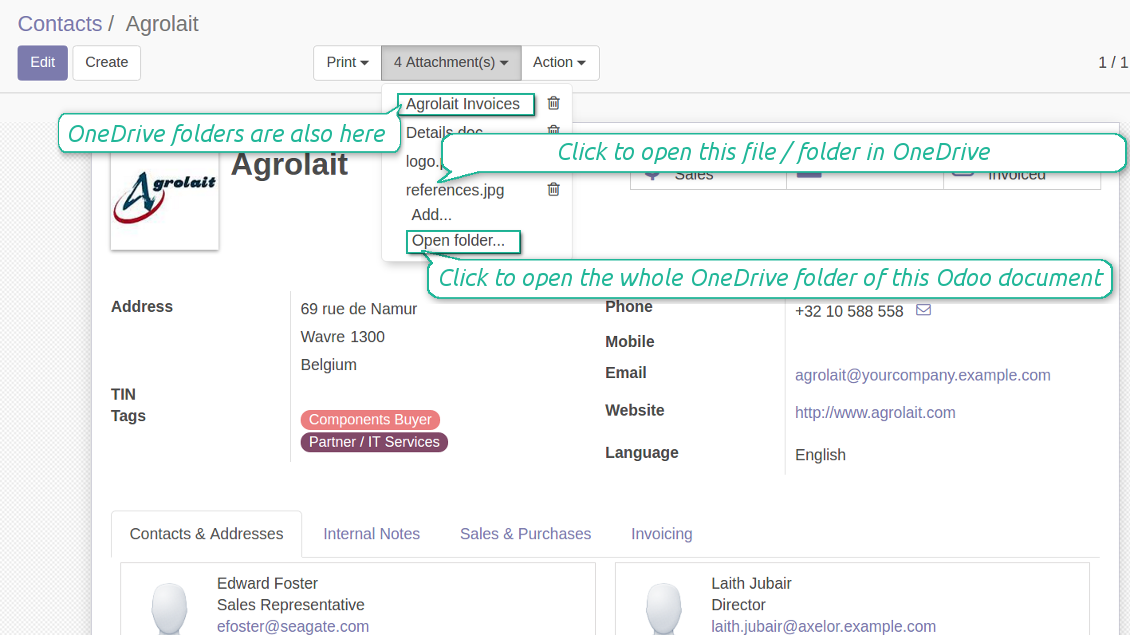
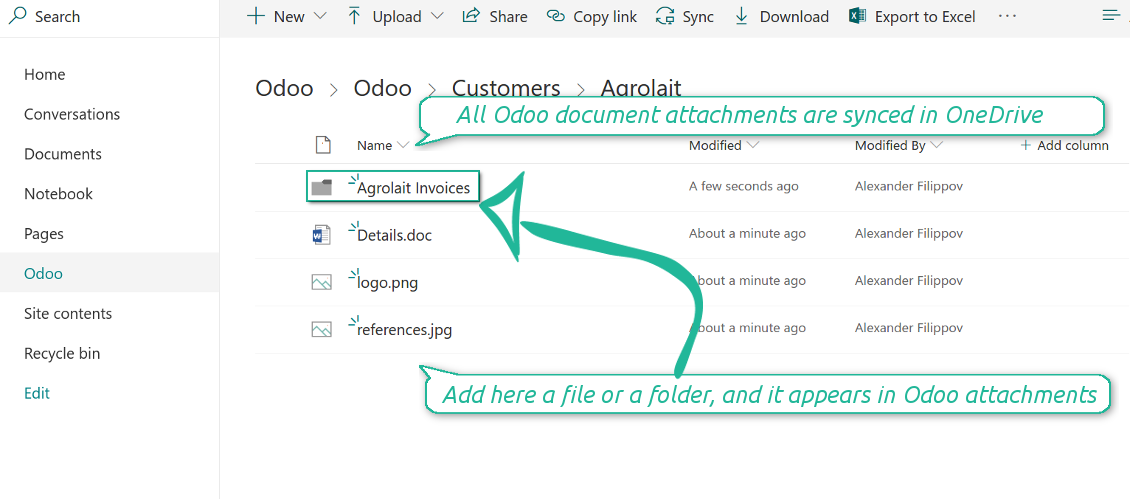
OneDrive / SharePoint doesn't have such disadvantages. This is the tool to integrate its features into your Odoo business work flow. The app automatically stores all Odoo attachments in OneDrive or SharePoint Documents, and it provides an instant access to them via web links. In such a way users work with files comfortably in the cloud storage, while the results are fully available in Odoo.
Automatic integration
Bilateral sync
How files and folders are synced from Odoo to OneDrive / SharePoint
- Prepare and keep updated folders' structure in OneDrive
- Upload new attachments to a correct folder
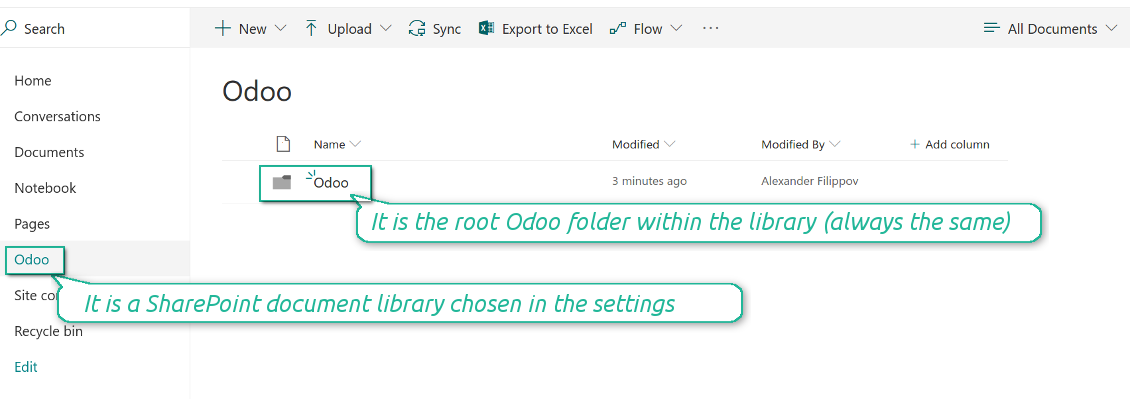
Odoo creates a convenient directory structure in OneDrive: Odoo / Document type name / Document name / Files, where:
- Odoo is a central directory for Odoo Sync in your Drive.
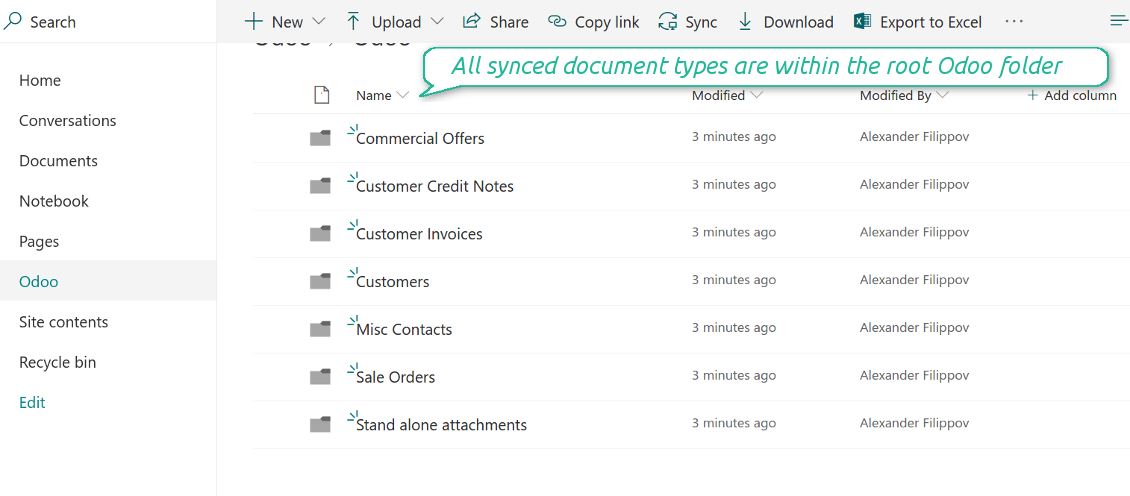
- Document type is a synced Odoo model, for example, 'Sale orders', 'Opportunities', 'Customers'
- You select document types by yourself. It might be any document type
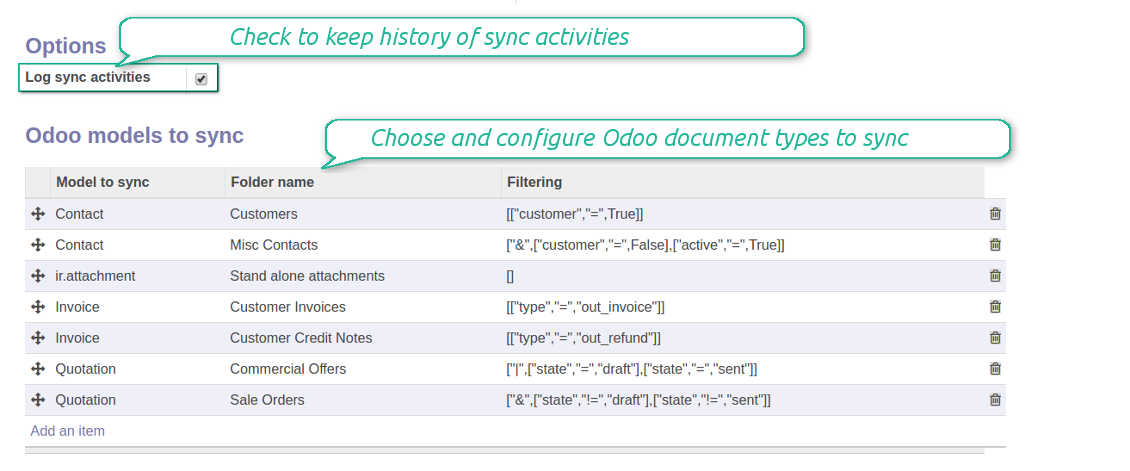
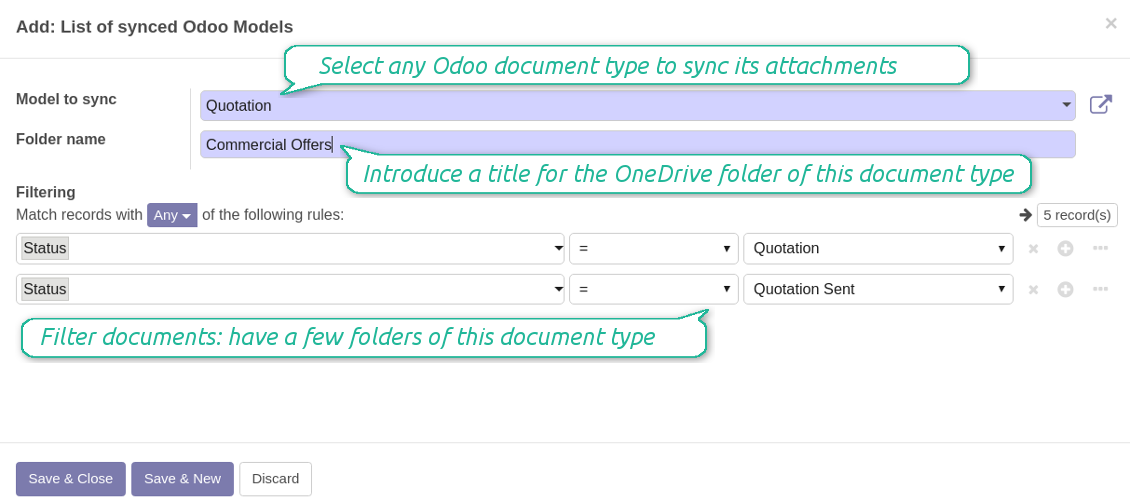
- Moreover, you might have a few folders for a single document type. Use Odoo domains to have not global 'Partners, but 'Customers' and 'Suppliers', not just 'Sale orders' but 'Commercial offers', 'To deliver', and 'Done orders'
- With each sync Odoo would try to update document types' folders. Add a new document type at any moment. It will appear in OneDrive with a next sync
- You are welcome to introduce or change document types folder names at any moment in Odoo. Take into account: renaming in OneDrive will be recovered to Odoo names
- If you remove a model from integration, it will not be deleted from OneDrive to keep already synced files safe. However, new documents of this type would not be synced
- In case you removed a directory in OneDrive / SharePoint, but it is still configured in Odoo, with a next sync a folder structure is going to be recovered (not files, surely).
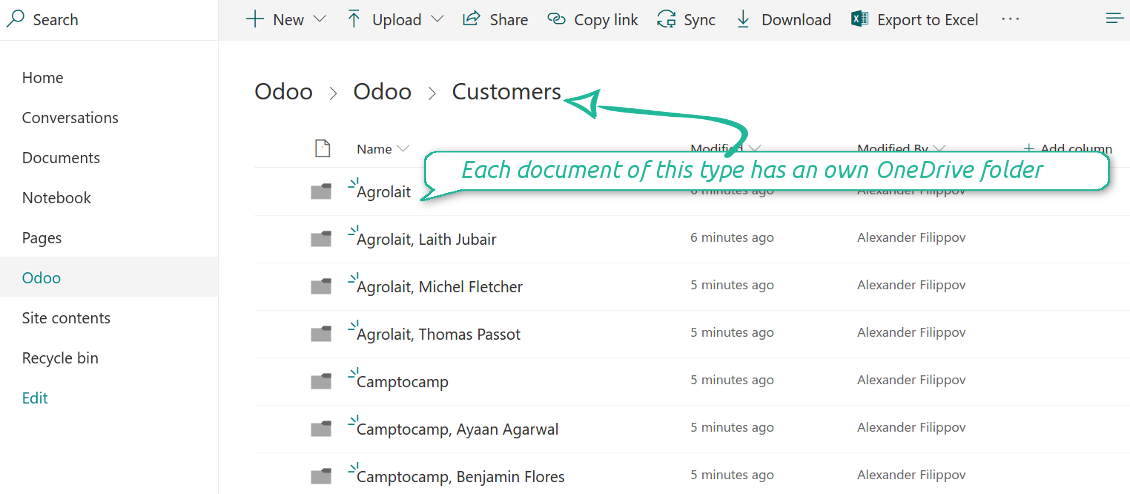
- Document is an exact object to sync. For instance, 'Agrolait' or 'SO019'
- Documents are synced in case they relate to a synced document type and satisfy its filters. For example, you are not obliged to sync all partners, you may integrate only 'Customers' and 'Vendors' or only 'Companies', not 'Contacts'
- Odoo would generate a folder in OneDrive for each suitable document even for documents without attachments. It is needed for a backward sync to easily add new files
- OneDrive folder name equals a real document name. It relies upon Odoo name_get method. Thus, Odoo 'Michael Fletcher' (a contact of 'Agrolait') would be OneDrive 'Agrolait, Michael Fletcher'
- If an exact document changes its document type (e.g. a quotation is now confirmed), Odoo will automatically relocate its related folder to a proper parent directory (in the example: from 'Commercial offers' to 'To deliver')
- In case a document relates to a few types (for instance, you have 'Vendors' and 'Customers', while Agrolait is both), this document folder would be put into the most prioritized document type. A document type priority is higher as closer to the top in Odoo interfaces it is
- If an Odoo document is removed, the next sync will remove a corresponding OneDrive directory
- In case you remove a directory in OneDrive / SharePoint, but it still exists in Odoo, OneDrive folder structure would be recovered (while files would be unlinked in both Odoo and OneDrive)
- Folders renaming in OneDrive will be replaced with Odoo names, Odoo document names are more important
- Files are real files taken from Odoo attachments
The resulted path would be, for example, 'Odoo / Quotations / SO019 / commercial offer.png'.
The only exclusion of the rule are stand alone attachments which do not relate to any Odoo documents (their document type is 'ir.attachment'). Such attachments' path is 'Odoo / Stand Alone Attachments / image.png'.
The very first sync might take quite a long, since a lot of folders should be created. Afterwards, it would be much faster. However, it is not recommended to make sync too frequent: once an hour seems quite good for large files.
FilesWith each direct sync, Odoo tries to find not yet synced attachments. If such attachments suit any document type to sync, a file will be uploaded to OneDrive to a proper folder. In Odoo such attachments will become of 'url' type. It means that a file is not any more kept in Odoo server space, but now it is in OneDrive. Until sync is done, Odoo attachment remains binary and stores an actual file. Such approach helps Odoo to work faster.
Clicking on such attachment leads you to a file previewer / editor in OneDrive. Depending on your OneDrive / SharePoint configurations it might be Word, Excel, PDF previewer, etc. Anyway changes to file contents in OneDrive are available in Odoo at the same moment.
If you unlinked an attachment from Odoo, it would be deleted in OneDrive as well.
Take into account that file names should be managed in OneDrive: each backward sync would recover OneDrive names, Odoo is here less important.
How items are retrieved from OneDrive / SharePoint to Odoo
- If a new file is added to a proper document folder (e.g. to 'Odoo / Customers / Agrolait'), the same attachment will be added to Odoo document (in the example - to 'Agrolait')
- In document folders you can put not only files but also child folders. In that case a link for this folder (not its content) is kept in attachments
- In case you rename a file in OneDrive, it will be renamed in Odoo as well
- Files' removal from OneDrive leads to related Odoo attachments' removal
- If you move a file to another document folder, in Odoo a related attachment would be re-attached to this new document. Take into account: if you move a file for a not document folder, in Odoo attachment will be deleted as it has been removed from OneDrive
- If you deleted a document type or document folder, their child files are deleted as well. Thus, Odoo would remove related attachments. The folders, however, will be recovered with a next direct sync. Folders' move to another directory is also considered as a removal. Avoid such situations by following the simple rule: folders are managed mostly by Odoo, files - mostly by OneDrive.
Backward OneDrive sync might take time. It is recommended to make frequency oftener than once an hour or two hours.
Capturas de tela
All document types are in the root directory 'Odoo'
Document types' folders
All document of this type has an own folder
Sync any documents you like
The tool let you split any business model into a few directories. Have a separate folder for individuals and companies, for European and American opportunities, for each project, etc.
Moreover, it is possible to guarantee that only topical documents are synced by using relative periods: leads registered in the last 3 months, invoices updated the last week, and so on.
Typical use cases
- Projects: automatically forward all project-related documents to OneDrive to share those with a customer as a cloud link.
- Customers: add all partner files in a single directory available both from Odoo and from OneDrive / SharePoint. Modify those using default cloud editors and access them when working in Odoo.
- Employees: gather all files by this employee in a single cloud folder: photos, document scans, contracts. Access and upload those from Odoo and OneDrive / SharePoint Documents alternatively.
- Opportunities: carefully store all specifications, requirements and any file which would let you make a good offer.
- Orders: keep all printings and contracts in OneDrive / SharePoint with simple availability from Odoo.
Capturas de tela
Choose document types to be synced
Document type might have a few folders based on filters
Easy accessible files
Capturas de tela
Fast access to OneDrive files and folders
Synced files are simply found in OneDrive. Add unlimited number of files or folders here
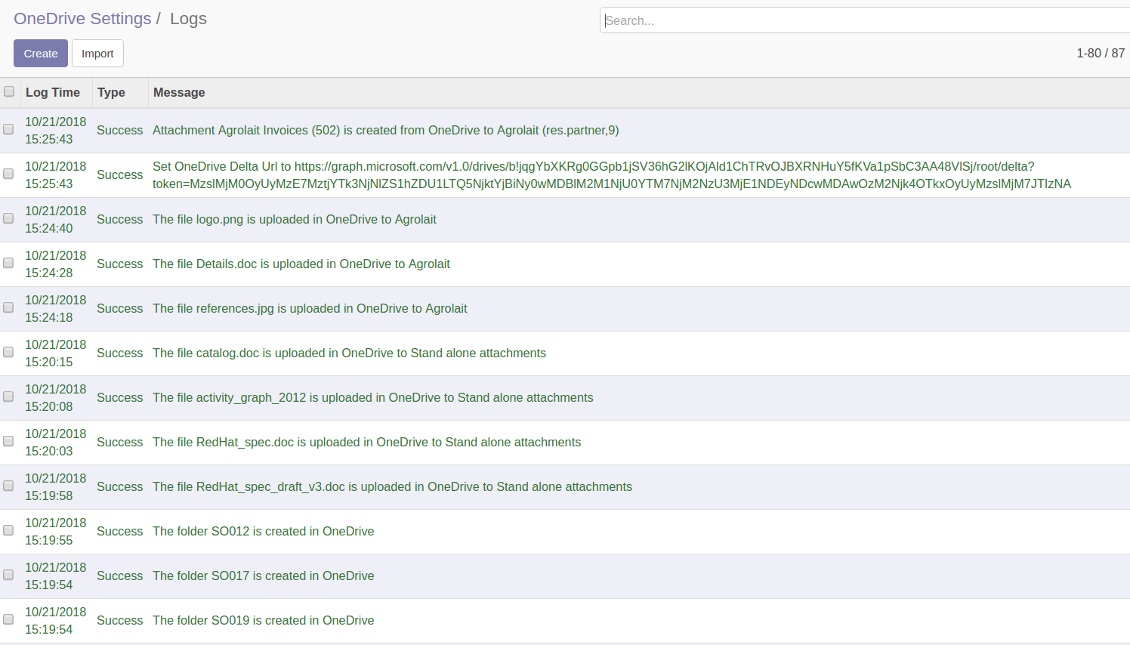
Sync logs in Odoo
Capturas de tela
Logged synchronisation activities
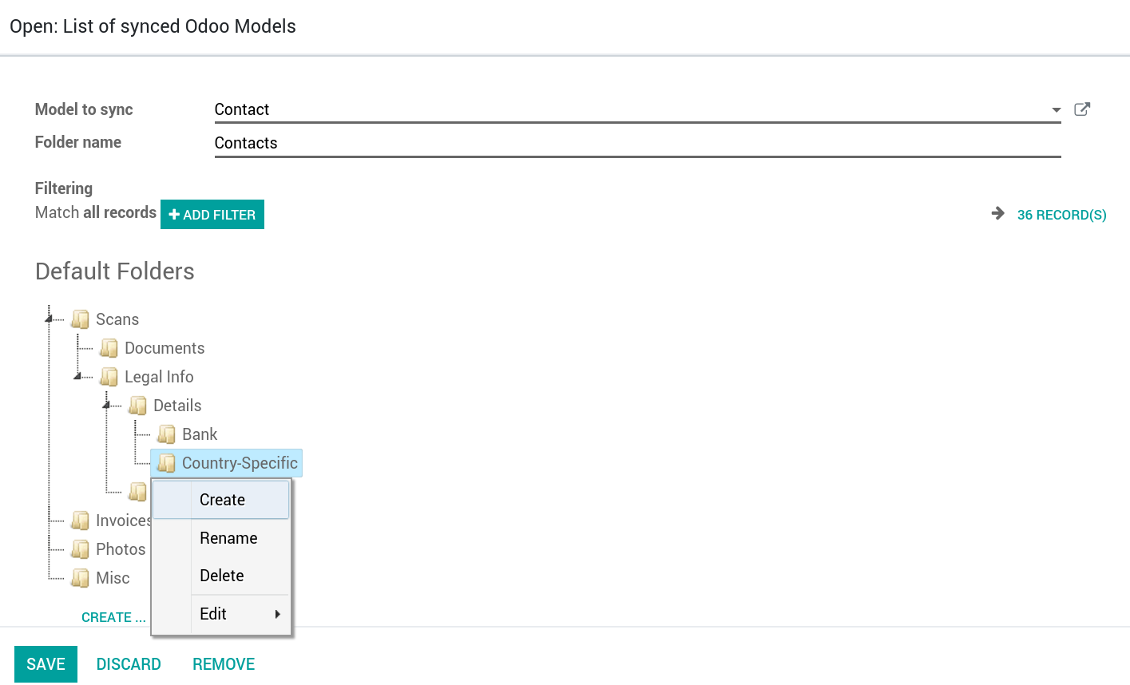
Default folders for documents
Capturas de tela
Default folders for this document types to be created while firstly synced
Applicable to all Odoo apps
Dangerous symbols
- Try to avoid the following symbols in folders' and files' names: '~', '#', '&', ':', '{', '}', '*', '?', '"', "'", '<', '>', '|', '+', '%', '!', '@', '\\', '/', '.'. Direct sync will replace such symbols with '-'. It is done to avoid conflicts with file systems.
Compatible with Odoo Enterprise Documents
How Odoo Enterprise Documents are synced
This tool is not in conflict with the 'documents' module provided by the Enterprise license. Attachments related to Enterprise folders would be synced as any other files: according to a document they relate to. In the most cases it means they would be linked to stand-alone attachments.
It is not always comfortable, and you might be interested in reflecting directories' structure introduced by the module 'Documents'. To this end the extension Cloud Sync for Enterprise Documents (its standard price is 44 Euros) is developed. This tool has the following features:
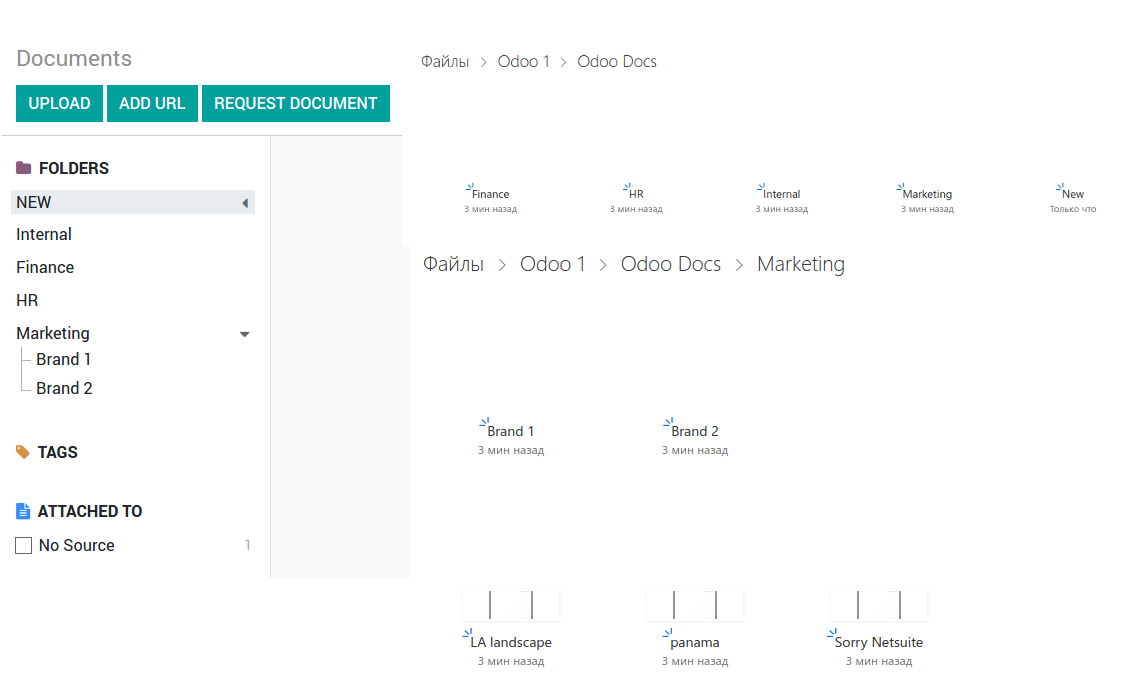
- The documents hierarchy is reflected within the folder 'Odoo / Odoo Docs'
- Each Odoo folder has a linked cloud folder. Take into account that folders created in the cloud storage will be synced as Odoo attachments. The key principle is: folders are managed by Odoo, files are managed by the cloud client
- All files are synced with the same logic as usual attachments. Files created in Odoo will be added to the cloud storage and will be replaced with links in Odoo. Files created in cloud storage will generate attachments within a paired directory
- Please do not name synced models as 'Odoo Docs'. This is the reserved name for Odoo Enterprise Documents
Capturas de tela
Odoo Enterprise documents sync
Works well with SharePoint. Supportive team
We've been using this with SharePoint and it's been working great. One of the best things is having everything, including logs right in Odoo's interface, so you can actually see what's going on. It's also super convenient that you can view or download synced files from the attachment box without having to leave the page or even log in to Sharepoint.
Setup was pretty smooth for us. When we had a few questions about setting up the folder hierarchy and priorities, the developer team got back to us in just a couple of hours and helped us figure it out. Great support and great extension!
Great support, assistance and very good connector!
We are very happy with the support we received when configuring the Sharepoint - Odoo connector. The connector has great functionalities.
All our questions were answered very fast (within one day).
FaOtools helped us optimising our connector and assisted us with future improvements.
We really recommend this connector.
very professional app, excellen t customer service
This app is very well programmed and does its job very well. But the best is the excellent customer service who also helps when the problem lies somewhere else. You receive a lot for your money.
An impressive app and world-class support
I have been very impressed by the way the OneDrive / SharePoint Odoo Integration module synchronises content in both directions and allows me to share documents in Odoo with my SharePoint site. Above all the technical support is top-notch, which greatly increases the value of this product. I highly recommend this product for anyone considering synchronising Odoo with SharePoint/OneDrive.
Works fine, good support
The first experience with the module is excellent. I had some trouble to configure things right on the Microsoft-side, but the team provided quick and good support.
Sugestões de configuração e instalação para OneDrive / SharePoint Odoo Integration Odoo v.12
Python dependency
pip3 install microsoftgraph-pythonConfiguration and log in
- Make sure your Microsoft user has full admin rights for OneDrive / SharePoint you want to connect to Odoo. This user is required only to grant permissions, the user data would not be kept any where in Odoo, and would not be used any more. Besides, make sure a Microsoft email address you use does not have a redirection (usually happens when you configure your domain name, while the prime address is still one of Microsoft domains like @outlook.com, @office365, etc.)
- Go to your Azure Portal: https://portal.azure.com/#blade/Microsoft_AAD_RegisteredApps/ApplicationsListBlade
The app must be registered inside a directory (tenant). Microsoft no longer allows creating a new app outside one.
- If you already have a company Microsoft 365 / Azure directory, switch the portal (top right) to it and continue.
- If you only have a personal account (@outlook.com, @hotmail.com, @live.com) and see "these applications are associated with the account ... but are not contained within any directory", you do not have a directory yet. Sign up for a free Azure account with the same Microsoft account: https://azure.microsoft.com/free/ - Try Azure for free. This creates a Default Directory for you at no cost.
- Microsoft asks for a card for identity verification only; a temporary ~1 USD hold is placed and reversed. You are not charged for the directory or for the app registration.
- The directory (Microsoft Entra ID Free) and any app registered in it keep working independently of the 30-day / $200 Azure trial credit. That credit is for paid Azure resources you are not using here. No payment is required for our app.
- If the whole directory sits completely unused for a very long time (Microsoft's own threshold is around 200 days of no activity at all), Microsoft may email a warning and eventually retire it. Since Odoo calls this app every time it syncs, an active connection keeps the directory active - this only matters if you stop syncing entirely for months.
- Once you are in a real directory (not "Microsoft Services"), open App registrations there.
- Click 'New registration'
- Introduce a new name for the application and assign the redirect URI as [YOURODOOSITENAME]/one_drive_token (e.g. https://odootools.com/one_drive_token). As the supported account types choose 'Accounts in any organizational directory (Any Azure AD directory - Multitenant) and personal Microsoft accounts (e.g. Skype, Xbox)'.
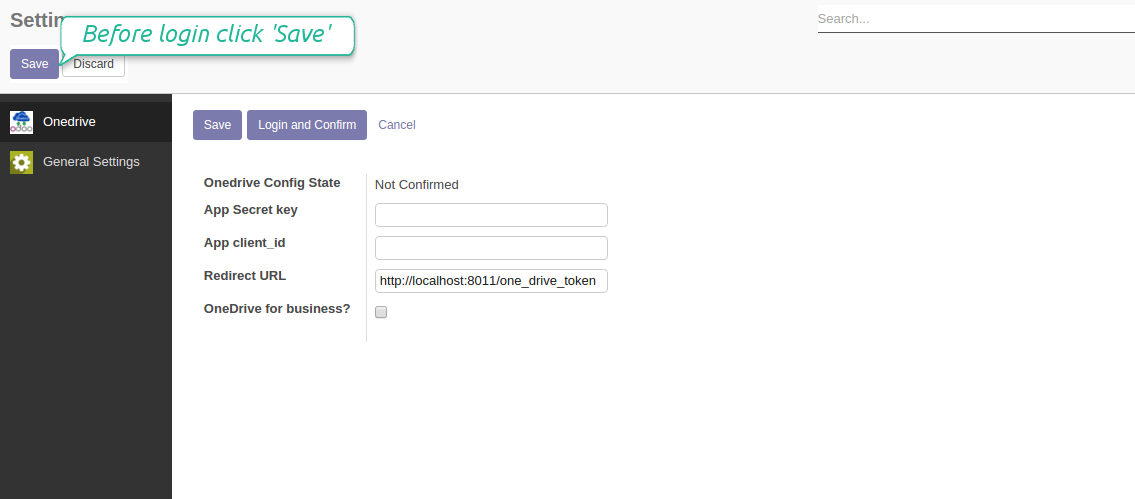
- Copy the Application Client ID to the Odoo field 'App client_id'
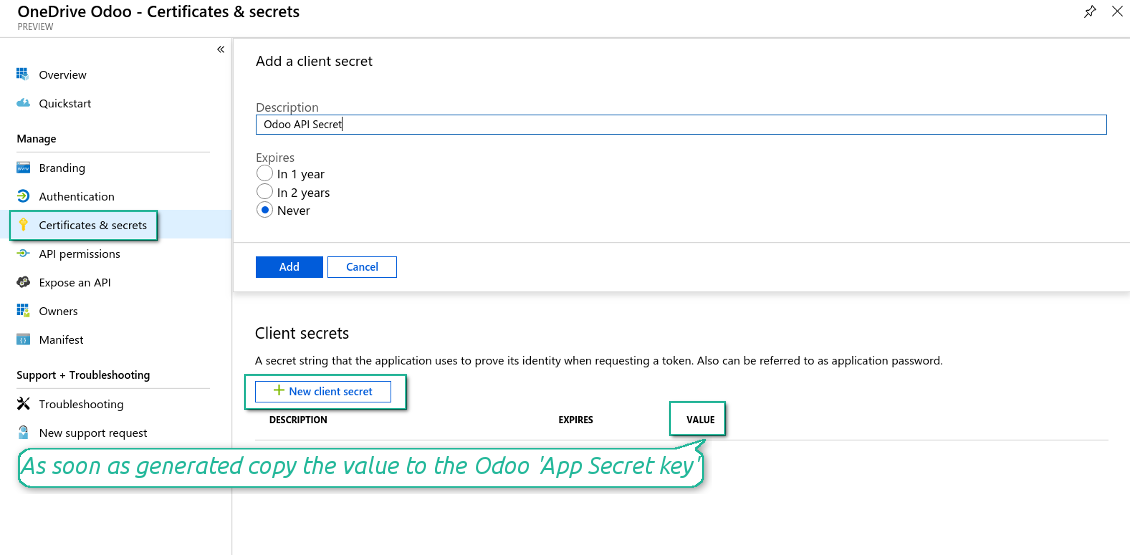
- Go to Certificates & secrets > Click 'New Client Secret'. Copy the secret value to the Odoo field 'App Secret Key'
- For SharePoint sites only:
- Go to your SharePoint site and prepare a new documents' library (drive). You might use one of the existing ones, e.g. 'Documents'. Odoo folder would be put there afterwards, and it would be impossible to move it for another library
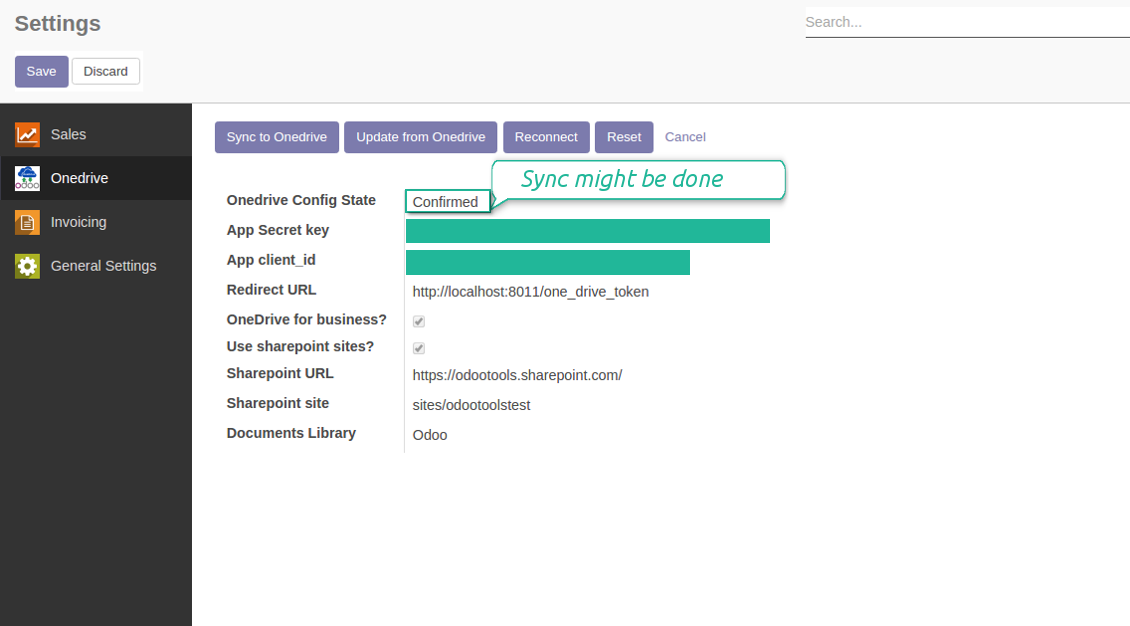
- Check the boxes 'OneDrive for business' and 'Use SharePoint sites'
- The SharePoint URL should be of the type https://[URL]/. The last '/' is required, sitename should not be included into. For example, https://odootools.sharepoint.com/
- SharePoint site should be either my_site_name (in that case it is considered as sites/my_site_name) or sites/my_site_name (instead of 'sites' it might be 'teams' and so on). There should be no '/' at the beginning or at the end. For example, sites/odootools
- As Documents Library use one created in SharePoint
- Press Save on the Odoo configuration Page.
- Press 'Login and Confirm'. Odoo redirects you to Microsoft login page. Check in and grant permissions asked. If Microsoft shows an account already signed in and says it does not exist in tenant 'Microsoft Services' (or any other unrelated tenant), do not click that row. Click 'Use another account' and sign in with the Microsoft account that owns the app's directory.
- After login, Microsoft redirects you back to Odoo. OneDrive - Odoo synchronization is ready to be done.
Create OneDrive application
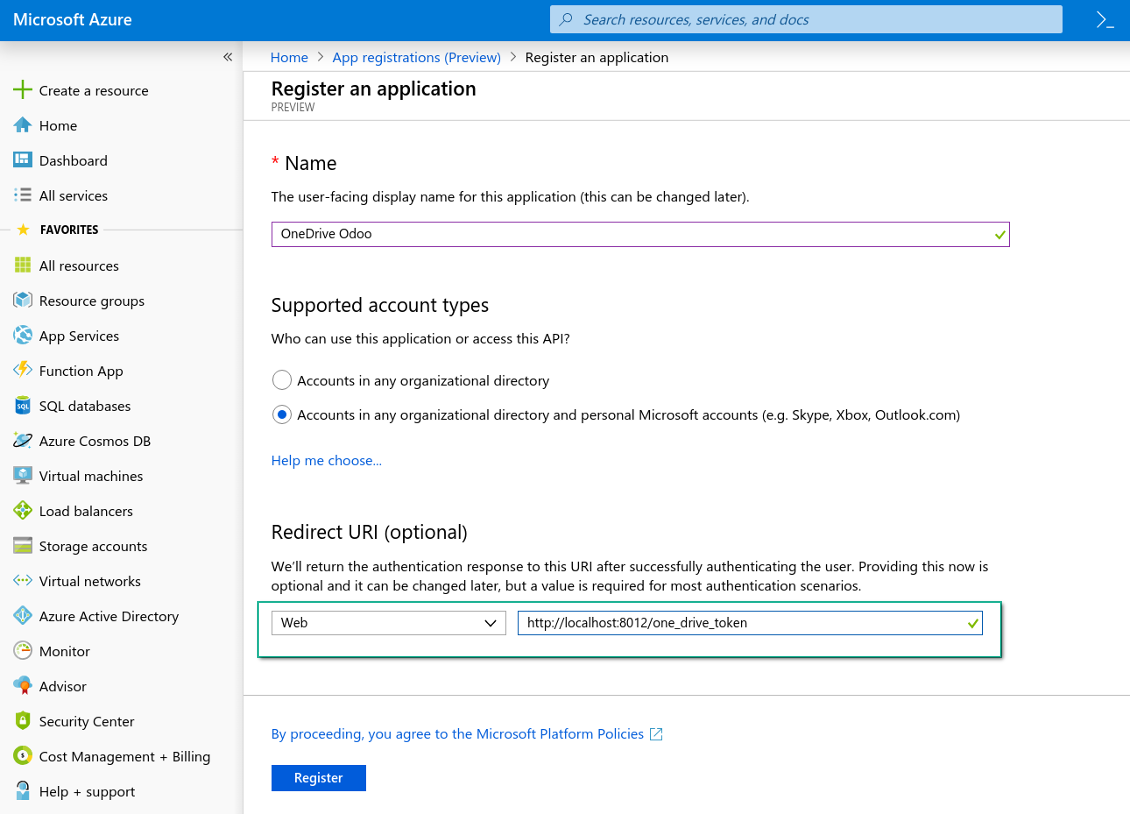
New OneDrive Web platform and redirect url
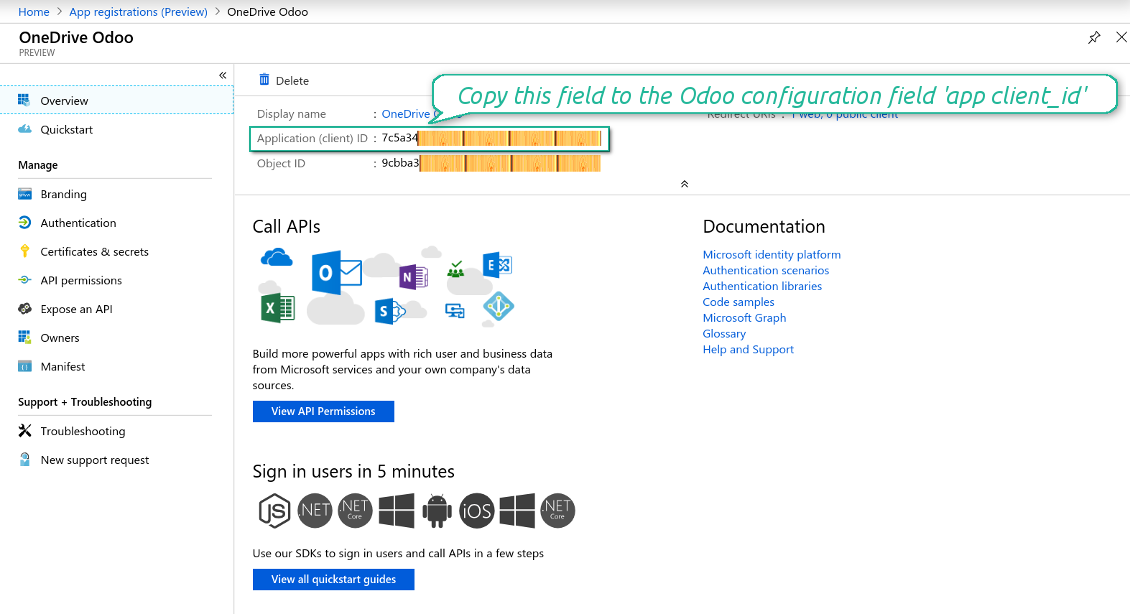
Generate new secret for your application
Enter configuration keys in Odoo
Odoo <> SharePoint sync settings
Odoo server configuration and cron job configuration
To make sure the synchronization works correctly apply proper timeouts to the Odoo configuration file: LIMIT_TIME_CPU, LIMIT_TIME_REAL should be more than 900 seconds.
For Odoo.sh this should not be done, since timeouts are predefined and are not configurable.
Then, timeout should be entered to your Odoo. To that goal find the section 'Settings' on the app configuration page and copy the number there.
Afterwards, it is needed to make the cron jobs suit the applied timeouts. In the debug mode go to the Settings > Technical > Automation > Scheduled Jobs:
- Set up the job 'Synchronize attachments with cloud' as (a) frequency - 2*timeout; (b) the next execution as the next hour +timeout. For example, for 900seconds timeout: frequency - as 30minutes; the next execution - at 08:15
- Set up the job 'Synchronize attachments from cloud' as (a) frequency - 2*timeout; (b) the next execution as the next hour + timeout*2. For example, for 900seconds timeout: frequency - as 30minutes; the next execution- at 08:30.
Reconnection
- Press the button 'Reconnect'
- Press the button 'Login and confirm'
Perguntas frequentes sobre OneDrive / SharePoint Odoo Integration Odoo v.12
Vejo um erro ao clicar na ligação cloud da imagem sincronizada
O erro «This item might have been deleted, expired, or you might not have permission to access it. Contact the owner of this item for more information.» indica que não tem sessão iniciada no serviço photos.onedrive.com.
Posso alterar a frequência dos trabalhos de sincronização?
Sim, pode. Para isso:
Ative o modo de depuração
Vá a definições técnicas > Automatização > Ações agendadas
Encontre os trabalhos «Synchronize attachments with cloud» e «Update attachments from cloud».
Não os torne demasiado frequentes. É preferível que o trabalho termine antes de o seguinte começar. A configuração depende de quantos itens tem para sincronizar. Normalmente a frequência fica entre 15 minutos e 4 horas.
Garanta também limites de tempo suficientes no arquivo de configuração do Odoo. LIMIT_TIME_CPU e LIMIT_TIME_REAL devem ser iguais ou superiores ao tempo previsto do cron. A partir da versão 13 considere também LIMIT_TIME_REAL_CRON.
Nota importante para clientes Odoo.sh: o tempo máximo de um trabalho cron pode estar limitado a 15 minutos.
Posso configurar uma estrutura diferente dos diretórios sincronizados em vez da assumida pela sincronização?
Não, esta funcionalidade só existe a partir da versão 15. Antes, o módulo usa uma estrutura de pastas predefinida:
Odoo - pasta raiz da sincronização
Modelos - pastas para cada tipo de documento Odoo. Por exemplo «Projects», «Partners». Por domínio pode haver pastas mais específicas: «Customer 1 Projects», «Projects of the Customer 2», «Internal Projects», etc.
Objetos - pastas para cada documento, p. ex. «Project 1» ou «Customer 1»
Arquivos e pastas deste documento Odoo a sincronizar.
Assim pode ter, por exemplo:
Odoo / Projects / Project 1 / arquivos e pastas do projeto 1
Odoo / Customer 1 Projects / Project 1; Odoo / Customer 2 Projects / Project 3, ...
Odoo / Customers / Customer 1 / arquivos e pastas do cliente 1
A estrutura é sempre plana: só esses níveis. Não se misturam vários tipos de documento na mesma ramificação. Na pasta «Customer 1» não se guardam ao mesmo tempo encomendas, faturas e projetos. Cada tipo tem a(s) sua(s) pasta(s). Caso contrário, a sincronização inversa não teria critério.
Devo configurar acessos específicos de utilizadores no Odoo?
Não, a ferramenta usa um único ponto de extremidade de utilizador. Todos os processos de sincronização correm sob um único administrador cloud (aplicativo). Os direitos das pastas / arquivos criados não são automatizados. Administre-os na sua solução de armazenamento cloud.
Onde ficam armazenados os arquivos sincronizados? São duplicados no Odoo e nas clouds?
A aplicativo assume que o conteúdo binário dos anexos fica no Cloud Client e não no servidor Odoo. Esses anexos no Odoo passam a ser do tipo URL e pode aceder-lhes a qualquer momento a partir da caixa de anexos ou do Cloud Client.
Após a configuração, não são necessárias ações manuais: a sincronização é totalmente automática. Decida que tipos de documento Odoo devem ser sincronizados e configure um modelo relacionado para cada um (clientes, encomendas de venda ou compra, tarefas, projetos, etc.).
Posso ter várias pastas para o mesmo tipo de documento? Por exemplo, projetos internos e projetos de clientes?
Sim, pode. Para isso, prepare uma regra para cada uma e aplique filtros: por exemplo, por tipo de projeto.
Torne os filtros mutuamente exclusivos para que um documento seja atribuído de forma inequívoca. Por exemplo: «cliente mas não fornecedor», «fornecedor mas não cliente». Caso contrário, a pasta do documento saltaria de um modelo para outro.
Preciso apenas da aplicativo Cloud Storage Solution?
Não, a ferramenta é apenas um núcleo técnico. Precisa também do conector do seu cliente cloud.
Não há problema se tiver muitos objetos para sincronizar, por exemplo 10000?
Sim, embora com muitas pastas/anexos o processo possa ser lento. Ainda assim, clientes relataram ambientes com >10k parceiros e ~5k variantes de produto, e os processos foram aceitáveis.
Alguns pontos:
- A sincronização está feita para que qualquer item seja sincronizado e não se perca, ainda que não seja rápido. Filas FIFO e o commit de cada trabalho garantem-no.
- O número de objetos pode ser limitado logicamente. A configuração dos modelos permite restringir itens obsoletos (p. ex. parceiros arquivados ou encomendas de há 2 anos).
É possível tornar a sincronização em tempo real?
Não. Temos razões fortes para evitar a sincronização em tempo real:
Desempenho. Se a sincronização for em tempo real, cada carregamento de arquivo mostra o ecrã de espera.
Conflitos. Se 2 utilizadores alterarem um item ao mesmo tempo, a situação pode ficar sem solução. Com trabalhos regulares podemos corrigir depois; em tempo real seria preciso uma fila, ainda mais confusa.
Funcionalidade. Em especial, mudar o nome e reestruturar. A sincronização inversa baseia-se na lógica dos diretórios e em cada sincronização verifica 100 % dos itens. Após cada atualização seriam milhares de pedidos por segundo. Caso contrário, as alterações perder-se-iam.
Posso sincronizar anexos com vários clientes cloud
Não, esta funcionalidade só fica disponível a partir da versão 15.
Usamos um editor especial nas clouds (p. ex. OnlyOffice, Office 365, etc.). Os arquivos seriam abertos nesse editor?
Sim, consoante a configuração do seu cliente cloud.
Quais sao as políticas de atualização das vossas ferramentas?
Segundo as políticas atuais da Odoo Apps Store:
- Cada módulo comprado para a versao 12.0 ou anterior da acesso a todas as versões ate 12.0.
- A partir da versao 13.0, cada versao do módulo deve ser comprada em separado.
- Independentemente da versao, a compra da direito a todas as atualizações e correcoes dentro de uma versao major.
A equipa faOtools nao controla essas políticas. Para questões, contacte diretamente os representantes da Odoo Apps Store.
Como posso instalar a aplicacao no Odoo.sh?
A forma mais direta e usar o fluxo da loja Odoo:
1. Abra a página do módulo e clique em Deploy on odoo.sh
2. Será redirecionado para o GitHub. Inicie sessão e clique em Create a new repo ou use um existente. O repositorio deve ser privado. Nao e permitido publicar as apps com licença OPL-1. Se necessário, crie um repo novo para o projeto Odoo.sh
3. Depois, no odoo.sh, clique em Deploy, confirme e clique em Continue. A instalação começa.
Estes passos instalam a app no ramo de produção. Para outros ramos ou para atualizar:
1. Transferir o código-fonte da loja Odoo
2. Fazer commit do módulo no repositorio GitHub. Nenhuma pasta/arquivo da app deve estar no .gitignore. Os repos criados pelo odoo.sh podem ignorar caminhos importantes (p. ex. /lib). Envie todos os diretórios e arquivos do módulo
3. Fazer deploy do ramo alvo do projeto odoo.sh ou esperar pela compilacao automática se as definições o assumirem.
Como devo instalar a aplicacao no meu próprio servidor?
2. Reinicie o servidor Odoo;
3. Ative o modo programador (definições técnicas);
4. Atualize a lista de aplicações (menu Aplicações);
5. Encontre a app e clique em Activate/Install;
6. Siga as indicações na página da app, se existirem.
A app tem extras. Posso compra-los mais tarde?
Sim. O Odoo adiciona automaticamente as dependências ao carrinho: exclua as ferramentas ja compradas para nao pagar duas vezes.
Instalei a app no Odoo.sh e vejo um aviso/erro nos testes
Um aviso vermelho/laranja nao afeta as funções da app. Por vezes os nossos módulos nao passam os testes automáticos padrão, porque estes assumem um comportamento que conflitua com os objetivos da app. Por exemplo, alteramos o cálculo do preço e os testes Odoo comparam o preço final com o algoritmo padrão.
Primeiro, verifique as funções da base implantada. Esta tudo a funcionar?
Se ainda achar que o aviso afeta funções reais, contacte-nos e envie os registos completos de instalação e a lista completa de módulos implantados (nucleo e de terceiros).
Posso comprar a aplicacao diretamente junto de vos?
Nao, so distribuimos as ferramentas através da loja oficial de aplicações Odoo.
Gostaria de ter um desconto
Infelizmente, nao temos meios tecnicos para oferecer preços individuais.
Posso instalar a app na minha base Odoo Online (SaaS)?
Nao, as apps de terceiros nao podem ser usadas no Odoo Online. O Odoo SaaS bloqueia essa possibilidade.
A ferramenta depende de outras apps. Devo compra-las?
Sim, a ferramenta precisa de todos os módulos assinalados nas dependências. O preço na página da app ja as inclui.
Qual e o preço do módulo em dolares americanos? Porque mudou?
O preço dos nossos módulos e definido em euros. A loja Odoo converte para outras moedas segundo a taxa interna. Assim, o preço em dolares americanos pode mudar quando a taxa e atualizada.
Os textos da aplicação e do site em idiomas diferentes do inglês são assistidos por IA e estão alinhados com as traduções oficiais do Odoo. Se detetar um erro, enviar um pedido de tradução e nos corrigimos.
Comunicação de erros
Se encontrar bugs ou comportamento inconsistente, não hesite em nos contactar. Garantimos o fornecimento de correções em até 60 dias após a compra e estamos intensamente interessados em melhorar nossas ferramentas mesmo após esse período.
Não precisa de um número de telefone ou cartão de crédito para entrar em contacto connosco. Deve apenas passar por um breve registo de e-mail, que não demora mais de 30 segundos.
Inclua o máximo de detalhes possível no seu pedido: capturas de ecrã, registos do servidor Odoo, uma descrição completa de como reproduzir o problema, entre outros. Normalmente, sao necessários alguns dias úteis para preparar um plano de trabalho para um problema (se for confirmado um erro) ou fornecer orientacoes sobre o que deve ser feito (caso contrário).
Pedidos de recursos públicos e ideias de módulos (desenvolvimento gratuito)
Estamos fortemente motivados para melhorar as nossas ferramentas e ficaríamos gratos por qualquer feedback. Se os seus requisitos forem de utilização pública e puderem ser implementados de forma eficiente, a equipa irá incluí-los na nossa lista de tarefas.
Esta lista de tarefas é processada regularmente e não envolve taxas extra. Embora não possamos prometer prazos e design final, pode ser uma boa forma de obter as características desejadas sem investimentos e riscos.
Não precisa de um número de telefone ou cartão de crédito para entrar em contacto connosco. Deve apenas passar por um breve registo de e-mail, que não demora mais de 30 segundos.

A ferramenta para guardar palavras-passe no Odoo com segurança partilhada. Cofres

A ferramenta para construir uma base de conhecimento profunda, interna e externa. KMS. Revisões tipo wiki
398€
A ferramenta para definir metas KPI e controlar o cumprimento por período. Painéis. Graficos

A ferramenta para serviços por marcação, da reserva as vendas e avaliações
398€
A ferramenta para gerir o Odoo a partir de chats de IA via MCP. Claude. Qualquer IA com MCP.

A ferramenta para estruturar anexos Odoo em pastas e sincronizar com Google Drive, OneDrive/SharePoint, Nextcloud/ownCloud, Dropbox, Amazon S3, Box e NAS. Gestor de arquivos. DMS
398€
A ferramenta para sincronizar anexos Odoo com Google Drive nos dois sentidos
487€
A ferramenta para sincronizar anexos Odoo com ownCloud/Nextcloud nos dois sentidos
487€
A ferramenta para sincronizar anexos Odoo com NAS nos dois sentidos. Synology, QNAP, TrueNAS, WebDAV
487€