OneDrive / SharePoint Odoo Integration v.12
The tool to automatically synchronize Odoo attachments with OneDrive files in both ways
OneDrive / SharePoint doesn't have such disadvantages. This is the tool to integrate its features into your Odoo business work flow. The app automatically stores all Odoo attachments in OneDrive or SharePoint Documents, and it provides an instant access to them via web links. In such a way users work with files comfortably in the cloud storage, while the results are fully available in Odoo.
Automatic integration
Bilateral sync
How files and folders are synced from Odoo to OneDrive / SharePoint
- Prepare and keep updated folders' structure in OneDrive
- Upload new attachments to a correct folder
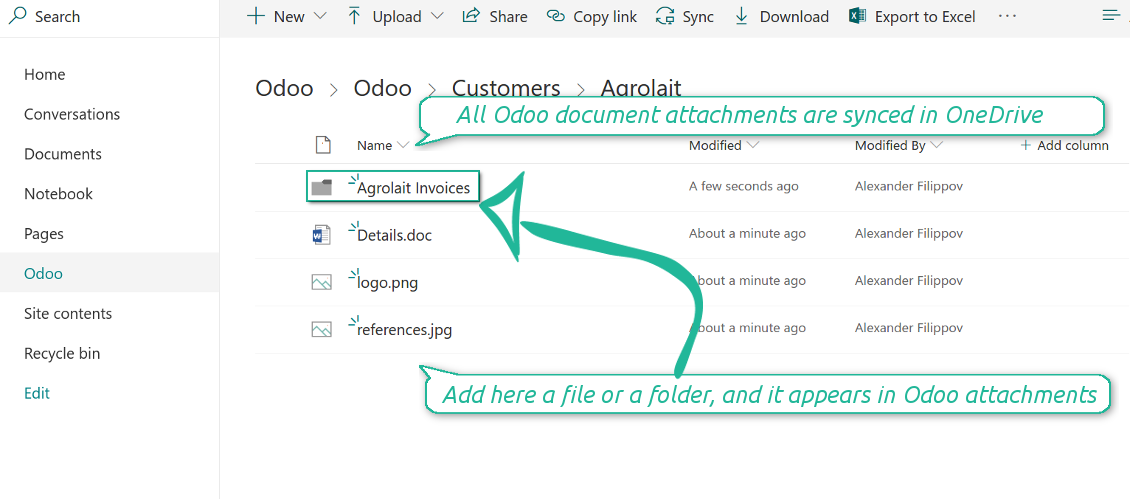
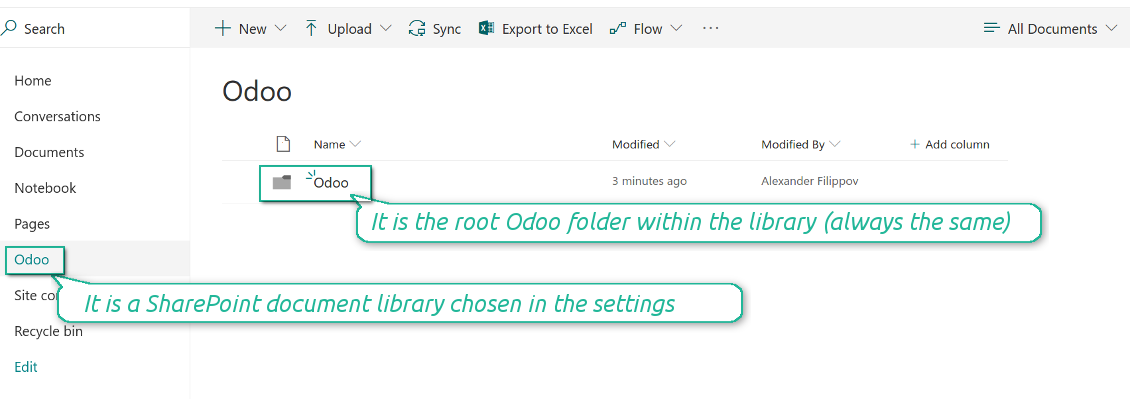
Odoo creates a convenient directory structure in OneDrive: Odoo / Document type name / Document name / Files, where:
- Odoo is a central directory for Odoo Sync in your Drive.
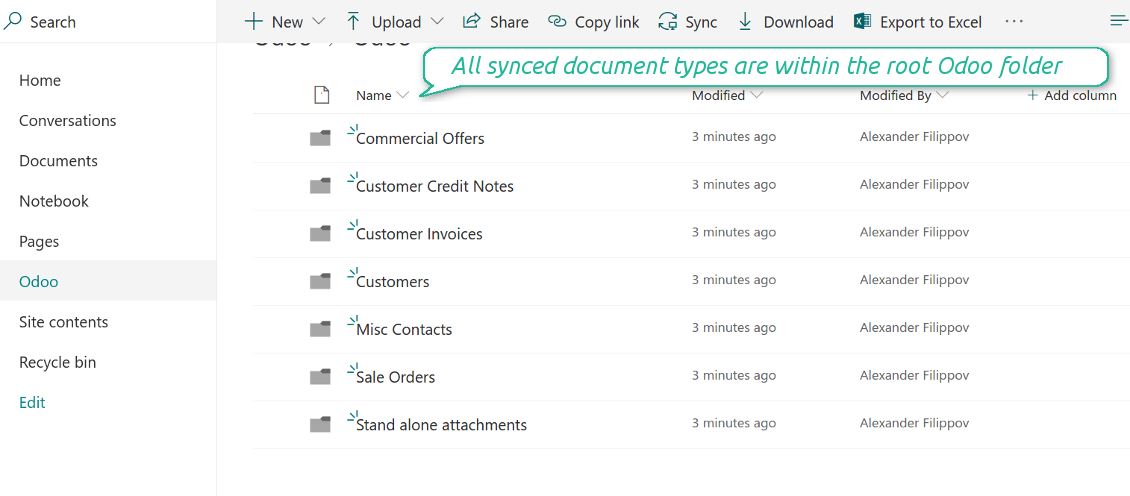
- Document type is a synced Odoo model, for example, 'Sale orders', 'Opportunities', 'Customers'
- You select document types by yourself. It might be any document type
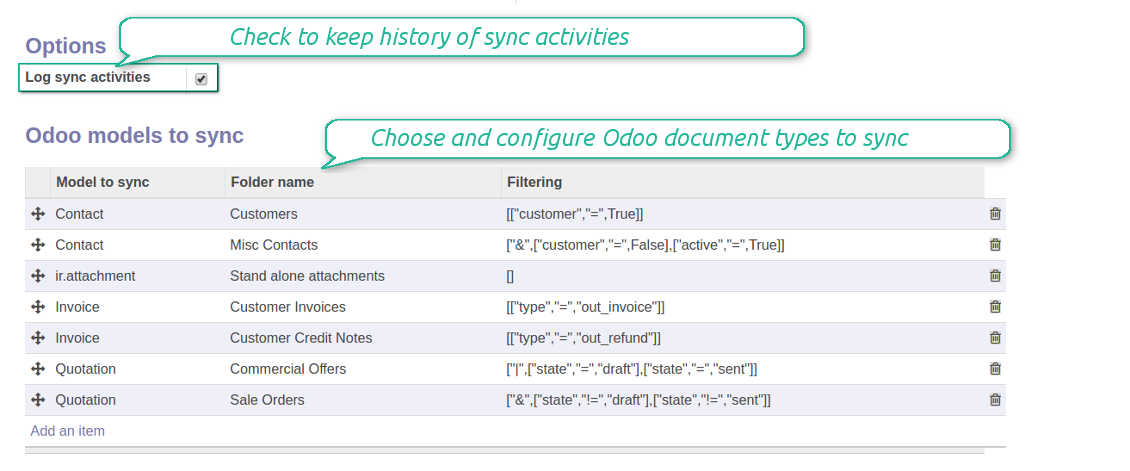
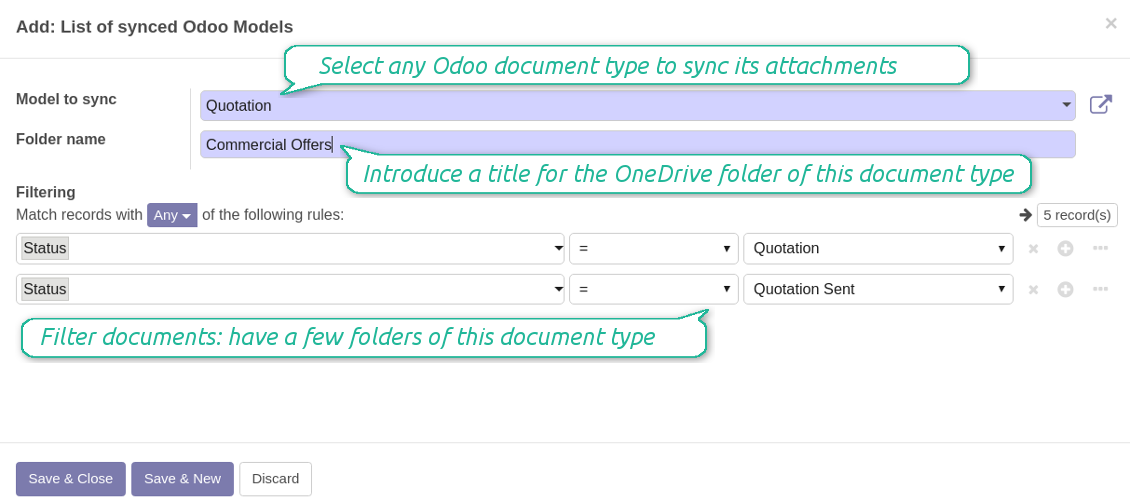
- Moreover, you might have a few folders for a single document type. Use Odoo domains to have not global 'Partners, but 'Customers' and 'Suppliers', not just 'Sale orders' but 'Commercial offers', 'To deliver', and 'Done orders'
- With each sync Odoo would try to update document types' folders. Add a new document type at any moment. It will appear in OneDrive with a next sync
- You are welcome to introduce or change document types folder names at any moment in Odoo. Take into account: renaming in OneDrive will be recovered to Odoo names
- If you remove a model from integration, it will not be deleted from OneDrive to keep already synced files safe. However, new documents of this type would not be synced
- In case you removed a directory in OneDrive / SharePoint, but it is still configured in Odoo, with a next sync a folder structure is going to be recovered (not files, surely).
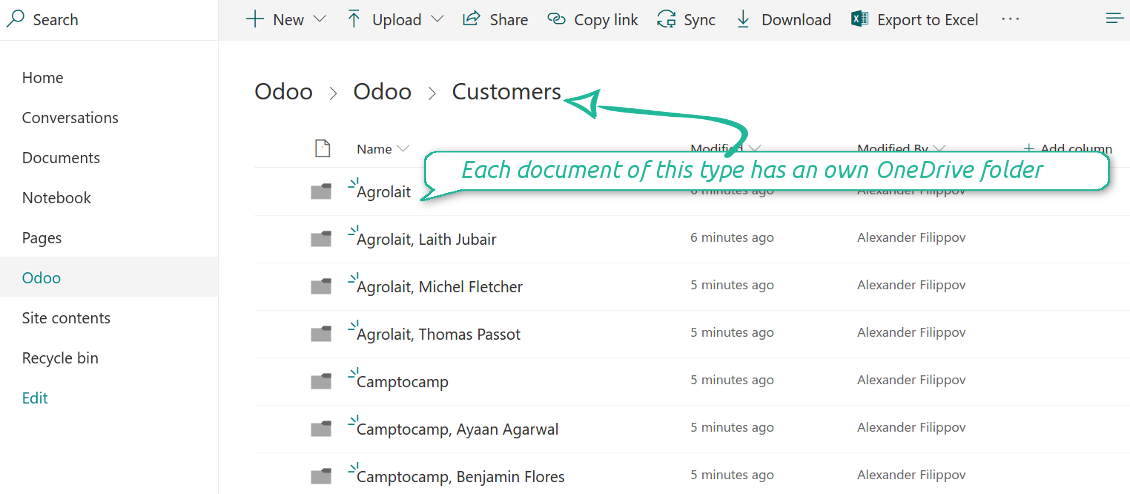
- Document is an exact object to sync. For instance, 'Agrolait' or 'SO019'
- Documents are synced in case they relate to a synced document type and satisfy its filters. For example, you are not obliged to sync all partners, you may integrate only 'Customers' and 'Vendors' or only 'Companies', not 'Contacts'
- Odoo would generate a folder in OneDrive for each suitable document even for documents without attachments. It is needed for a backward sync to easily add new files
- OneDrive folder name equals a real document name. It relies upon Odoo name_get method. Thus, Odoo 'Michael Fletcher' (a contact of 'Agrolait') would be OneDrive 'Agrolait, Michael Fletcher'
- If an exact document changes its document type (e.g. a quotation is now confirmed), Odoo will automatically relocate its related folder to a proper parent directory (in the example: from 'Commercial offers' to 'To deliver')
- In case a document relates to a few types (for instance, you have 'Vendors' and 'Customers', while Agrolait is both), this document folder would be put into the most prioritized document type. A document type priority is higher as closer to the top in Odoo interfaces it is
- If an Odoo document is removed, the next sync will remove a corresponding OneDrive directory
- In case you remove a directory in OneDrive / SharePoint, but it still exists in Odoo, OneDrive folder structure would be recovered (while files would be unlinked in both Odoo and OneDrive)
- Folders renaming in OneDrive will be replaced with Odoo names, Odoo document names are more important
- Files are real files taken from Odoo attachments
The resulted path would be, for example, 'Odoo / Quotations / SO019 / commercial offer.png'.
The only exclusion of the rule are stand alone attachments which do not relate to any Odoo documents (their document type is 'ir.attachment'). Such attachments' path is 'Odoo / Stand Alone Attachments / image.png'.
The very first sync might take quite a long, since a lot of folders should be created. Afterwards, it would be much faster. However, it is not recommended to make sync too frequent: once an hour seems quite good for large files.
FilesWith each direct sync, Odoo tries to find not yet synced attachments. If such attachments suit any document type to sync, a file will be uploaded to OneDrive to a proper folder. In Odoo such attachments will become of 'url' type. It means that a file is not any more kept in Odoo server space, but now it is in OneDrive. Until sync is done, Odoo attachment remains binary and stores an actual file. Such approach helps Odoo to work faster.
Clicking on such attachment leads you to a file previewer / editor in OneDrive. Depending on your OneDrive / SharePoint configurations it might be Word, Excel, PDF previewer, etc. Anyway changes to file contents in OneDrive are available in Odoo at the same moment.
If you unlinked an attachment from Odoo, it would be deleted in OneDrive as well.
Take into account that file names should be managed in OneDrive: each backward sync would recover OneDrive names, Odoo is here less important.
How items are retrieved from OneDrive / SharePoint to Odoo
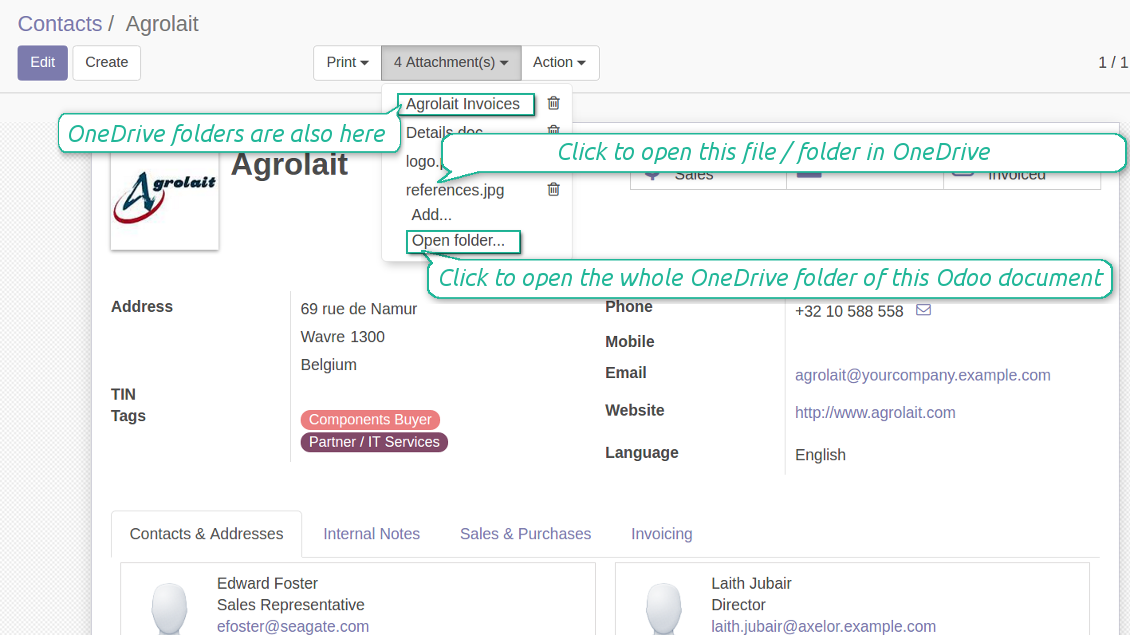
- If a new file is added to a proper document folder (e.g. to 'Odoo / Customers / Agrolait'), the same attachment will be added to Odoo document (in the example - to 'Agrolait')
- In document folders you can put not only files but also child folders. In that case a link for this folder (not its content) is kept in attachments
- In case you rename a file in OneDrive, it will be renamed in Odoo as well
- Files' removal from OneDrive leads to related Odoo attachments' removal
- If you move a file to another document folder, in Odoo a related attachment would be re-attached to this new document. Take into account: if you move a file for a not document folder, in Odoo attachment will be deleted as it has been removed from OneDrive
- If you deleted a document type or document folder, their child files are deleted as well. Thus, Odoo would remove related attachments. The folders, however, will be recovered with a next direct sync. Folders' move to another directory is also considered as a removal. Avoid such situations by following the simple rule: folders are managed mostly by Odoo, files - mostly by OneDrive.
Backward OneDrive sync might take time. It is recommended to make frequency oftener than once an hour or two hours.
Στιγμιότυπα οθόνης
All document types are in the root directory 'Odoo'
Document types' folders
All document of this type has an own folder
Sync any documents you like
The tool let you split any business model into a few directories. Have a separate folder for individuals and companies, for European and American opportunities, for each project, etc.
Moreover, it is possible to guarantee that only topical documents are synced by using relative periods: leads registered in the last 3 months, invoices updated the last week, and so on.
Typical use cases
- Projects: automatically forward all project-related documents to OneDrive to share those with a customer as a cloud link.
- Customers: add all partner files in a single directory available both from Odoo and from OneDrive / SharePoint. Modify those using default cloud editors and access them when working in Odoo.
- Employees: gather all files by this employee in a single cloud folder: photos, document scans, contracts. Access and upload those from Odoo and OneDrive / SharePoint Documents alternatively.
- Opportunities: carefully store all specifications, requirements and any file which would let you make a good offer.
- Orders: keep all printings and contracts in OneDrive / SharePoint with simple availability from Odoo.
Στιγμιότυπα οθόνης
Choose document types to be synced
Document type might have a few folders based on filters
Easy accessible files
Στιγμιότυπα οθόνης
Fast access to OneDrive files and folders
Synced files are simply found in OneDrive. Add unlimited number of files or folders here
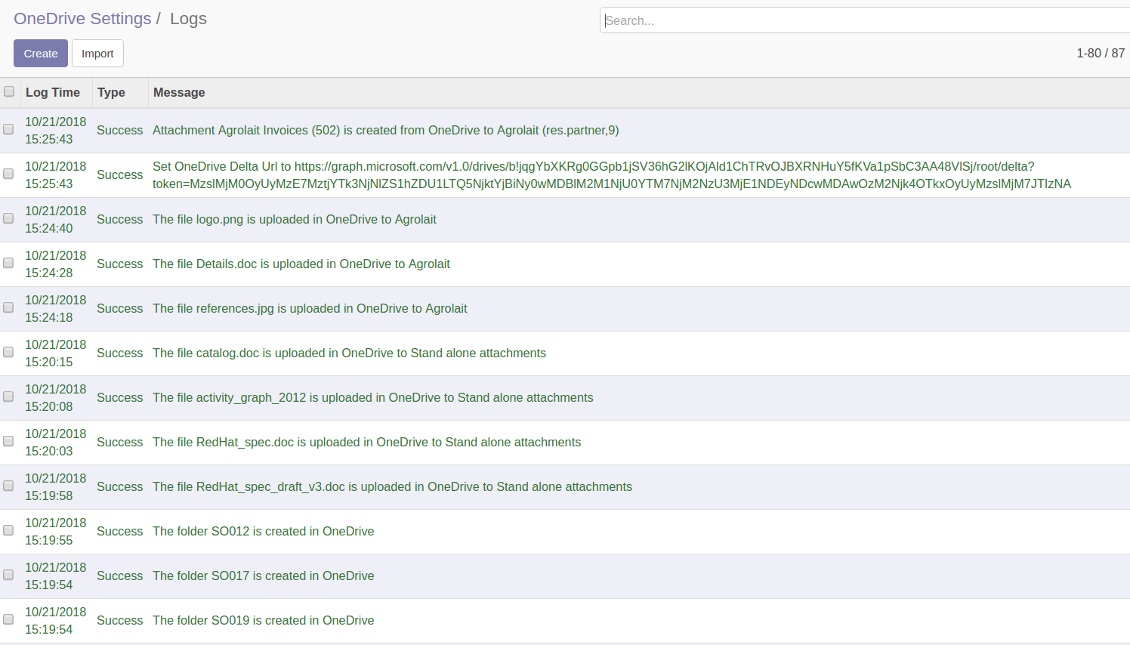
Sync logs in Odoo
Στιγμιότυπα οθόνης
Logged synchronisation activities
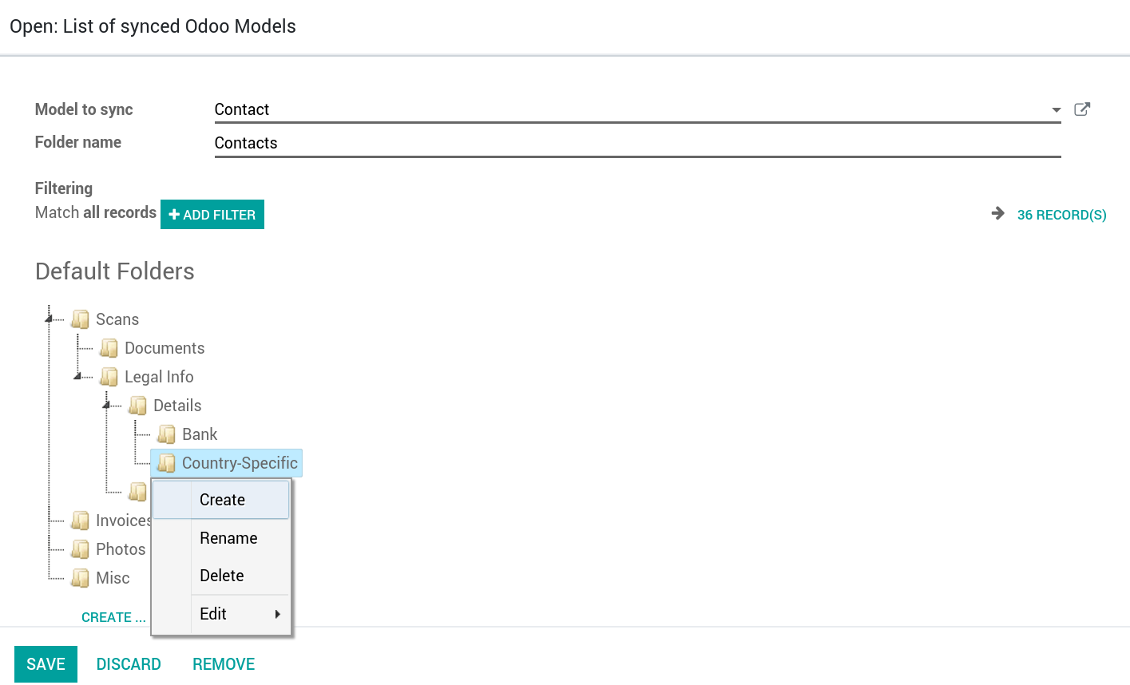
Default folders for documents
Στιγμιότυπα οθόνης
Default folders for this document types to be created while firstly synced
Applicable to all Odoo apps
Dangerous symbols
- Try to avoid the following symbols in folders' and files' names: '~', '#', '&', ':', '{', '}', '*', '?', '"', "'", '<', '>', '|', '+', '%', '!', '@', '\\', '/', '.'. Direct sync will replace such symbols with '-'. It is done to avoid conflicts with file systems.
Compatible with Odoo Enterprise Documents
How Odoo Enterprise Documents are synced
This tool is not in conflict with the 'documents' module provided by the Enterprise license. Attachments related to Enterprise folders would be synced as any other files: according to a document they relate to. In the most cases it means they would be linked to stand-alone attachments.
It is not always comfortable, and you might be interested in reflecting directories' structure introduced by the module 'Documents'. To this end the extension Cloud Sync for Enterprise Documents (its standard price is 44 Euros) is developed. This tool has the following features:
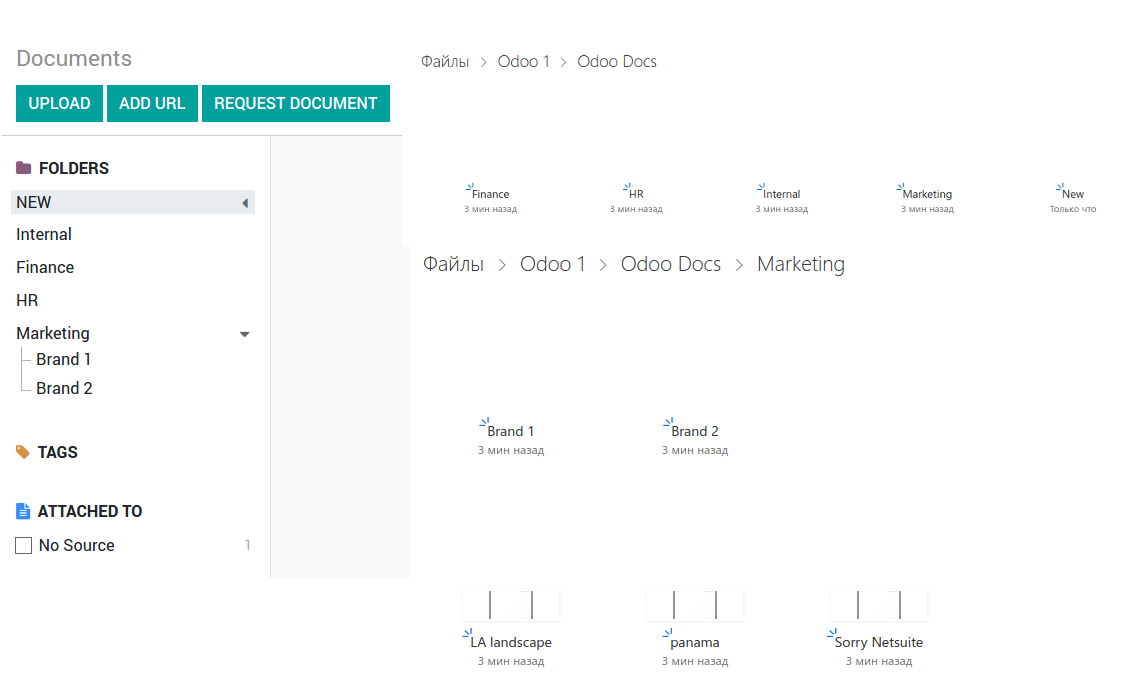
- The documents hierarchy is reflected within the folder 'Odoo / Odoo Docs'
- Each Odoo folder has a linked cloud folder. Take into account that folders created in the cloud storage will be synced as Odoo attachments. The key principle is: folders are managed by Odoo, files are managed by the cloud client
- All files are synced with the same logic as usual attachments. Files created in Odoo will be added to the cloud storage and will be replaced with links in Odoo. Files created in cloud storage will generate attachments within a paired directory
- Please do not name synced models as 'Odoo Docs'. This is the reserved name for Odoo Enterprise Documents
Στιγμιότυπα οθόνης
Odoo Enterprise documents sync
Works well with SharePoint. Supportive team
We've been using this with SharePoint and it's been working great. One of the best things is having everything, including logs right in Odoo's interface, so you can actually see what's going on. It's also super convenient that you can view or download synced files from the attachment box without having to leave the page or even log in to Sharepoint.
Setup was pretty smooth for us. When we had a few questions about setting up the folder hierarchy and priorities, the developer team got back to us in just a couple of hours and helped us figure it out. Great support and great extension!
Great support, assistance and very good connector!
We are very happy with the support we received when configuring the Sharepoint - Odoo connector. The connector has great functionalities.
All our questions were answered very fast (within one day).
FaOtools helped us optimising our connector and assisted us with future improvements.
We really recommend this connector.
very professional app, excellen t customer service
This app is very well programmed and does its job very well. But the best is the excellent customer service who also helps when the problem lies somewhere else. You receive a lot for your money.
An impressive app and world-class support
I have been very impressed by the way the OneDrive / SharePoint Odoo Integration module synchronises content in both directions and allows me to share documents in Odoo with my SharePoint site. Above all the technical support is top-notch, which greatly increases the value of this product. I highly recommend this product for anyone considering synchronising Odoo with SharePoint/OneDrive.
Works fine, good support
The first experience with the module is excellent. I had some trouble to configure things right on the Microsoft-side, but the team provided quick and good support.
Συμβουλές διαμόρφωσης και εγκατάστασης για OneDrive / SharePoint Odoo Integration Odoo v.12
Python dependency
pip3 install microsoftgraph-pythonConfiguration and log in
- Make sure your Microsoft user has full admin rights for OneDrive / SharePoint you want to connect to Odoo. This user is required only to grant permissions, the user data would not be kept any where in Odoo, and would not be used any more. Besides, make sure a Microsoft email address you use does not have a redirection (usually happens when you configure your domain name, while the prime address is still one of Microsoft domains like @outlook.com, @office365, etc.)
- Go to your Azure Portal: https://portal.azure.com/#blade/Microsoft_AAD_RegisteredApps/ApplicationsListBlade
The app must be registered inside a directory (tenant). Microsoft no longer allows creating a new app outside one.
- If you already have a company Microsoft 365 / Azure directory, switch the portal (top right) to it and continue.
- If you only have a personal account (@outlook.com, @hotmail.com, @live.com) and see "these applications are associated with the account ... but are not contained within any directory", you do not have a directory yet. Sign up for a free Azure account with the same Microsoft account: https://azure.microsoft.com/free/ - Try Azure for free. This creates a Default Directory for you at no cost.
- Microsoft asks for a card for identity verification only; a temporary ~1 USD hold is placed and reversed. You are not charged for the directory or for the app registration.
- The directory (Microsoft Entra ID Free) and any app registered in it keep working independently of the 30-day / $200 Azure trial credit. That credit is for paid Azure resources you are not using here. No payment is required for our app.
- If the whole directory sits completely unused for a very long time (Microsoft's own threshold is around 200 days of no activity at all), Microsoft may email a warning and eventually retire it. Since Odoo calls this app every time it syncs, an active connection keeps the directory active - this only matters if you stop syncing entirely for months.
- Once you are in a real directory (not "Microsoft Services"), open App registrations there.
- Click 'New registration'
- Introduce a new name for the application and assign the redirect URI as [YOURODOOSITENAME]/one_drive_token (e.g. https://odootools.com/one_drive_token). As the supported account types choose 'Accounts in any organizational directory (Any Azure AD directory - Multitenant) and personal Microsoft accounts (e.g. Skype, Xbox)'.
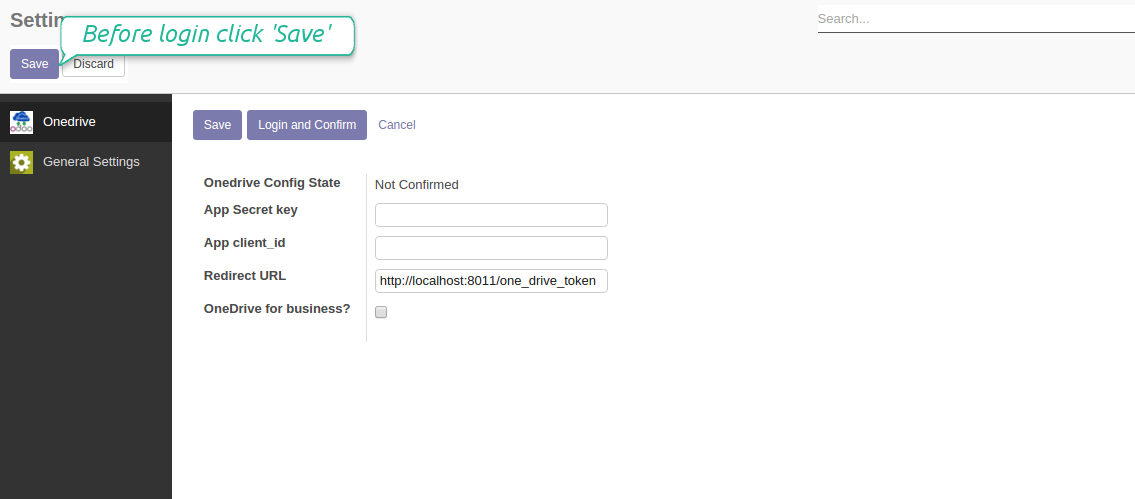
- Copy the Application Client ID to the Odoo field 'App client_id'
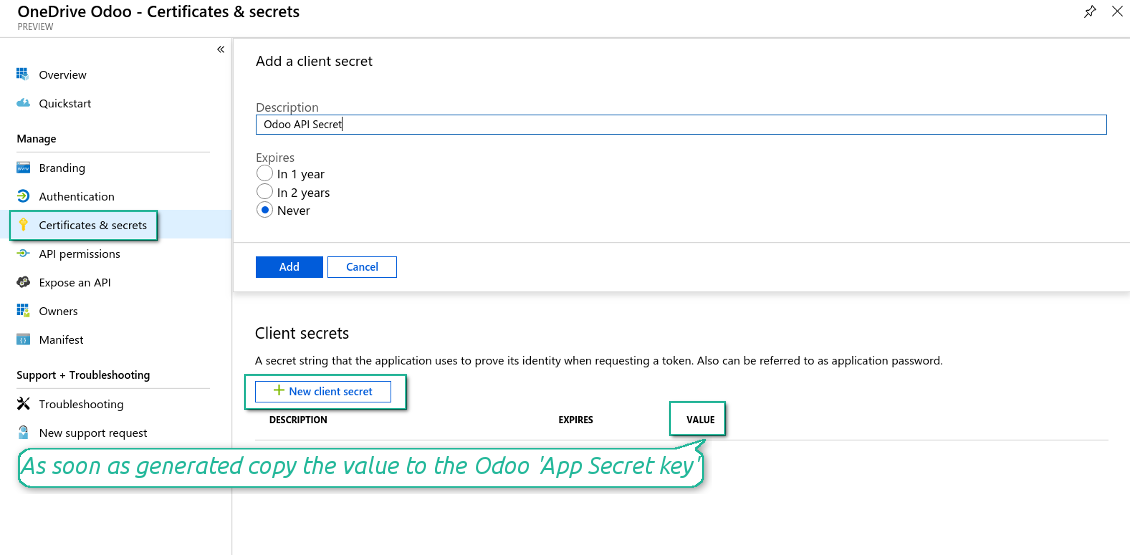
- Go to Certificates & secrets > Click 'New Client Secret'. Copy the secret value to the Odoo field 'App Secret Key'
- For SharePoint sites only:
- Go to your SharePoint site and prepare a new documents' library (drive). You might use one of the existing ones, e.g. 'Documents'. Odoo folder would be put there afterwards, and it would be impossible to move it for another library
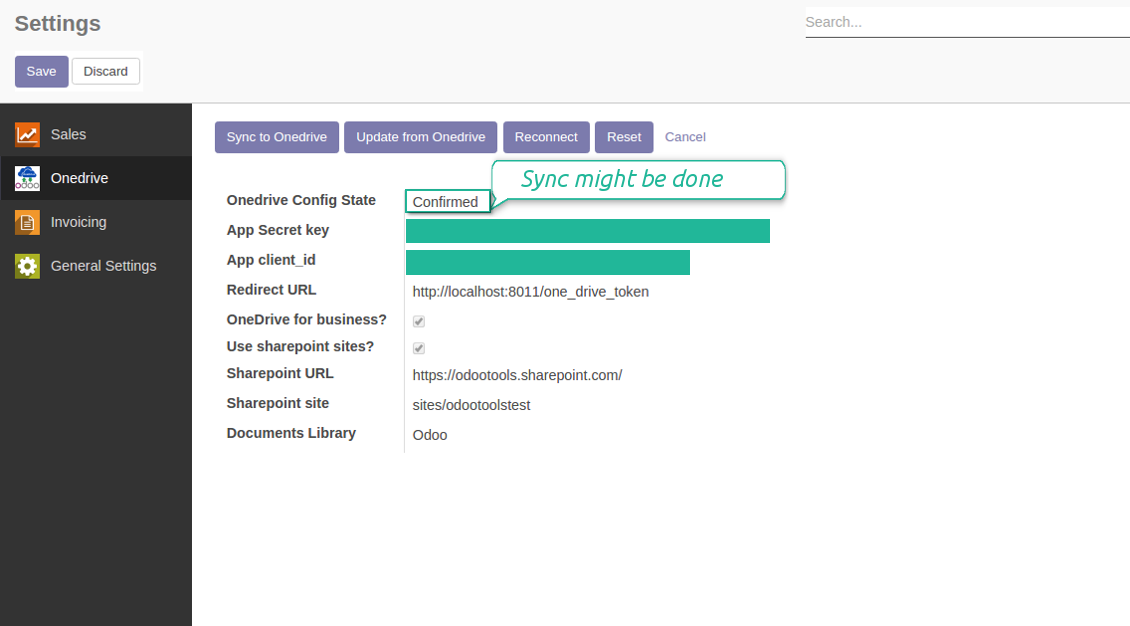
- Check the boxes 'OneDrive for business' and 'Use SharePoint sites'
- The SharePoint URL should be of the type https://[URL]/. The last '/' is required, sitename should not be included into. For example, https://odootools.sharepoint.com/
- SharePoint site should be either my_site_name (in that case it is considered as sites/my_site_name) or sites/my_site_name (instead of 'sites' it might be 'teams' and so on). There should be no '/' at the beginning or at the end. For example, sites/odootools
- As Documents Library use one created in SharePoint
- Press Save on the Odoo configuration Page.
- Press 'Login and Confirm'. Odoo redirects you to Microsoft login page. Check in and grant permissions asked. If Microsoft shows an account already signed in and says it does not exist in tenant 'Microsoft Services' (or any other unrelated tenant), do not click that row. Click 'Use another account' and sign in with the Microsoft account that owns the app's directory.
- After login, Microsoft redirects you back to Odoo. OneDrive - Odoo synchronization is ready to be done.
Create OneDrive application
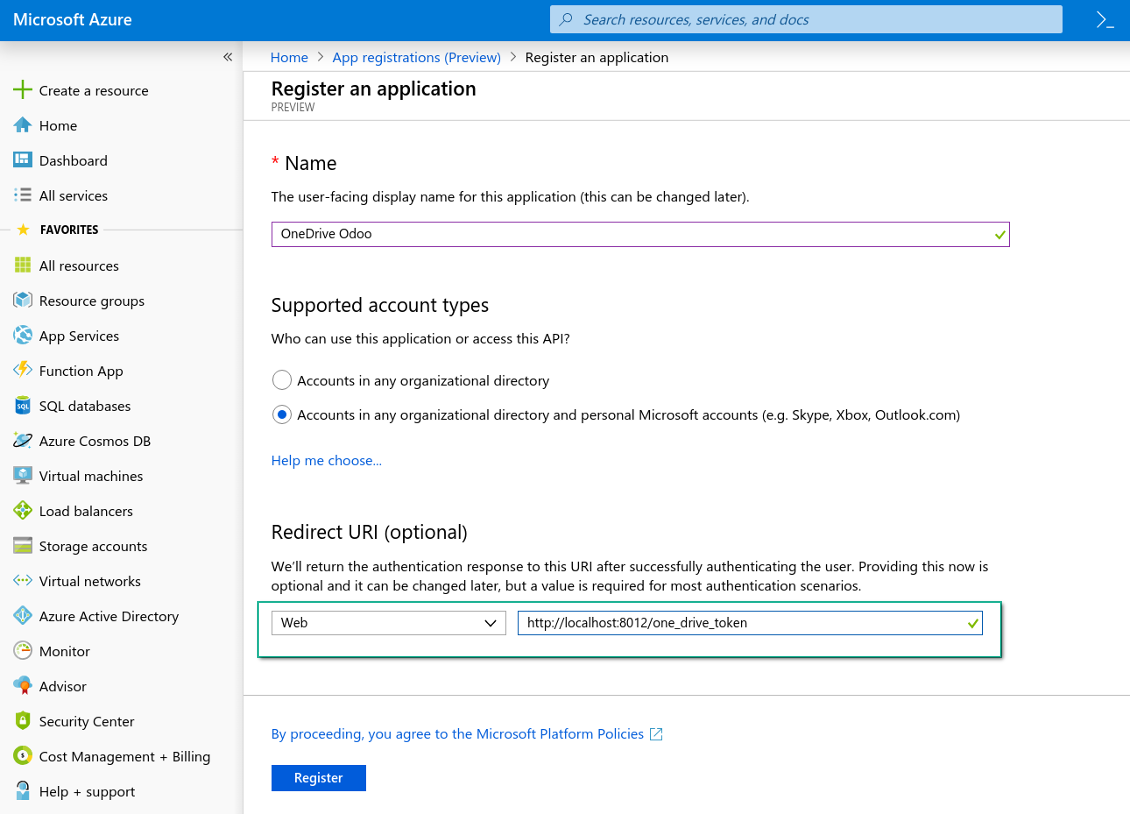
New OneDrive Web platform and redirect url
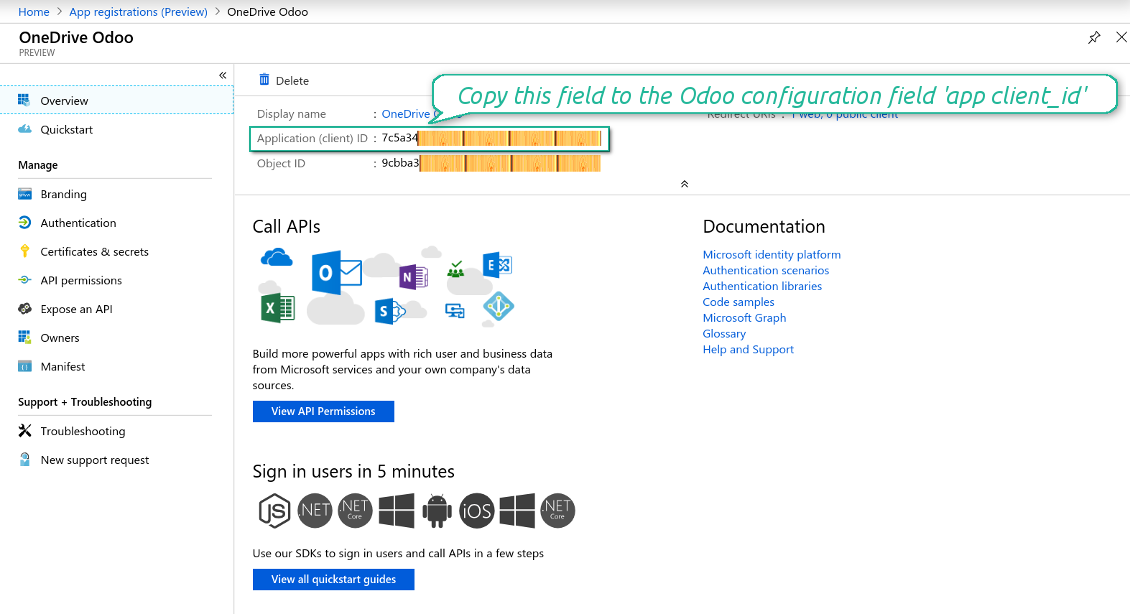
Generate new secret for your application
Enter configuration keys in Odoo
Odoo <> SharePoint sync settings
Odoo server configuration and cron job configuration
To make sure the synchronization works correctly apply proper timeouts to the Odoo configuration file: LIMIT_TIME_CPU, LIMIT_TIME_REAL should be more than 900 seconds.
For Odoo.sh this should not be done, since timeouts are predefined and are not configurable.
Then, timeout should be entered to your Odoo. To that goal find the section 'Settings' on the app configuration page and copy the number there.
Afterwards, it is needed to make the cron jobs suit the applied timeouts. In the debug mode go to the Settings > Technical > Automation > Scheduled Jobs:
- Set up the job 'Synchronize attachments with cloud' as (a) frequency - 2*timeout; (b) the next execution as the next hour +timeout. For example, for 900seconds timeout: frequency - as 30minutes; the next execution - at 08:15
- Set up the job 'Synchronize attachments from cloud' as (a) frequency - 2*timeout; (b) the next execution as the next hour + timeout*2. For example, for 900seconds timeout: frequency - as 30minutes; the next execution- at 08:30.
Reconnection
- Press the button 'Reconnect'
- Press the button 'Login and confirm'
Συχνές ερωτήσεις για OneDrive / SharePoint Odoo Integration Odoo v.12
Βλέπω σφάλμα όταν κάνω κλικ στον σύνδεσμο συγχρονισμένης εικόνας στο cloud
Το σφάλμα "This item might have been deleted, expired, or you might not have permission to access it. Contact the owner of this item for more information." δείχνει ότι δεν είστε συνδεδεμένοι στην υπηρεσία photos.onedrive.com.
Μπορώ να αλλάξω τη συχνότητα των εργασιών συγχρονισμού;
Ναι, μπορείτε. Για τον σκοπό αυτό:
Ενεργοποιήστε τη λειτουργία εντοπισμού σφαλμάτων
Μεταβείτε στις τεχνικές ρυθμίσεις > Αυτοματισμός > Προγραμματισμένες εργασίες
Βρείτε τις εργασίες 'Synchronize attachments with cloud' και 'Update attachments from cloud'.
Λάβετε υπόψη ότι δεν πρέπει να τις κάνετε υπερβολικά συχνές. Είναι προτιμότερο να ολοκληρώνεται η εργασία πριν ξεκινήσει η επόμενη. Η ρύθμιση εξαρτάται από το πόσα στοιχεία έχετε προς συγχρονισμό. Συνήθως η συχνότητα είναι από 15 λεπτά έως 4 ώρες.
Βεβαιωθείτε επίσης ότι έχετε ορίσει αρκετά χρονικά όρια στο αρχείο διαμόρφωσης του Odoo. Οι παράμετροι LIMIT_TIME_CPU και LIMIT_TIME_REAL πρέπει να είναι ίσες ή μεγαλύτερες από τον προβλεπόμενο χρόνο της εργασίας cron. Από την έκδοση 13 λάβετε υπόψη και την παράμετρο LIMIT_TIME_REAL_CRON.
Σημαντική σημείωση για πελάτες Odoo.sh: ο μέγιστος χρόνος εργασίας cron μπορεί να είναι μόνο 15 λεπτά.
Μπορώ να ρυθμίσω διαφορετική δομή συγχρονισμένων καταλόγων από αυτήν που υποθέτει ο συγχρονισμός;
Όχι, αυτή η δυνατότητα είναι διαθέσιμη μόνο από την έκδοση 15. Πριν από αυτή την έκδοση, η μονάδα λειτουργεί με προκαθορισμένη δομή φακέλων:
Odoo - κεντρικός φάκελος συγχρονισμού
Models - φάκελοι για κάθε τύπο εγγράφου Odoo. Για παράδειγμα, 'Projects', 'Partners'. Με διάκριση κατά domain μπορεί να υπάρχουν πιο ειδικοί φάκελοι: π.χ., 'Customer 1 Projects', 'Projects of the Customer 2', 'Internal Projects', κ.λπ.
Objects - φάκελοι για κάθε έγγραφο, π.χ. 'Project 1' ή 'Customer 1'
Αρχεία και φάκελοι που σχετίζονται με αυτό το έγγραφο Odoo και θα συγχρονιστούν.
Ως αποτέλεσμα μπορείτε να έχετε για παράδειγμα:
Odoo / Projects / Project 1 / αρχεία και φάκελοι που σχετίζονται με το project 1
Odoo / Customer 1 Projects / Project 1; Odoo / Customer 2 Projects / Project 3, ...
Odoo / Customers / Customer 1 / αρχεία και φάκελοι που σχετίζονται με τον customer 1
Αυτή η δομή είναι πάντα επίπεδη, δηλαδή υπάρχουν μόνο αυτά τα επίπεδα ιεραρχίας. Επομένως είναι σωστό ότι διάφοροι τύποι εγγράφων δεν μπορούν να μπουν στην ίδια δομή. Μέσα στον φάκελο 'Customer 1' δεν μπορούμε να κρατάμε αρχεία που σχετίζονται ταυτόχρονα με παραγγελίες πώλησης, τιμολόγια και έργα. Κάθε τέτοιος τύπος εγγράφου έχει δικό του φάκελο (ή μερικούς δικούς του). Διαφορετικά δεν θα μπορούσαμε να κάνουμε αντίστροφο συγχρονισμό, γιατί δεν θα υπήρχε κριτήριο να βασιστούμε.
Πρέπει να ρυθμίσω συγκεκριμένες προσβάσεις χρηστών στο Odoo;
Όχι, το εργαλείο βασίζεται σε ένα ενιαίο σημείο λήξης χρήστη. Όλες οι διαδικασίες συγχρονισμού γίνονται υπό έναν διαχειριστή cloud (εφαρμογή). Τα δικαιώματα πρόσβασης για φακέλους / αρχεία που δημιουργούνται δεν αυτοματοποιούνται. Πρέπει να τα διαχειρίζεστε στη λύση αποθήκευσης cloud.
Πού αποθηκεύονται τα συγχρονισμένα πεδία; Αντιγράφονται στο Odoo και στα clouds;
Η εφαρμογή υποθέτει ότι το δυαδικό περιεχόμενο των συνημμένων φυλάσσεται στο Cloud Client αντί στον διακομιστή Odoo. Έτσι, αυτά τα συνημμένα στο Odoo γίνονται τύπου URL και μπορείτε ανά πάσα στιγμή να τα ανοίξετε είτε από το πλαίσιο συνημμένων είτε από το Cloud Client.
Μετά τη ρύθμιση δεν απαιτούνται χειροκίνητες ενέργειες, καθώς ο συγχρονισμός είναι πλήρως αυτόματος. Αποφασίστε ποιοι τύποι εγγράφων Odoo θα συγχρονίζονται και ορίστε ένα σχετικό μοντέλο συγχρονισμού για καθέναν από αυτούς (Πελάτες, παραγγελίες πώλησης ή αγοράς, Εργασίες, Έργα κ.λπ.).
Μπορώ να έχω μερικούς φακέλους για τον ίδιο τύπο εγγράφου; Για παράδειγμα, εσωτερικά έργα και έργα πελατών;
Ναι, μπορείτε. Για αυτό ετοιμάστε έναν κανόνα για τον καθένα και μετά εφαρμόστε φίλτρα: π.χ. κατά τύπο έργου.
Προσπαθήστε τα φίλτρα να είναι αμοιβαία αποκλειόμενα ώστε ένα έγγραφο να αντιστοιχίζεται με βεβαιότητα. Π.χ. «πελάτης αλλά όχι προμηθευτής», «προμηθευτής αλλά όχι πελάτης». Διαφορετικά, ο φάκελος ενός εγγράφου θα μεταπηδά από μοντέλο σε μοντέλο.
Χρειάζομαι μόνο την εφαρμογή Cloud Storage Solution;
Όχι, το εργαλείο είναι μόνο τεχνικός πυρήνας. Χρειάζεστε επίσης τον σύνδεσμο για τον cloud client σας.
Είναι εντάξει αν έχω πολλά αντικείμενα προς συγχρονισμό, για παράδειγμα 10000;
Ναι, αν και με πολλούς φακέλους/συνημμένα προς συγχρονισμό η διαδικασία μπορεί να είναι αργή. Ταυτόχρονα, πελάτες μας ανέφεραν περιβάλλοντα με >10k συναλλασσόμενους και ~5k παραλλαγές προϊόντων προς συγχρονισμό, και οι διαδικασίες ήταν αποδεκτές.
Μερικά σημεία προς έμφαση:
- Ο συγχρονισμός είναι κατασκευασμένος ώστε κάθε στοιχείο να συγχρονίζεται και να μην χάνεται, αν και μπορεί να μην είναι γρήγορος. Αυτό διασφαλίζεται από ουρές FIFO και από κάθε εργασία που ολοκληρώνεται με commit.
- Ο αριθμός των αντικειμένων μπορεί να περιοριστεί λογικά. Η διαμόρφωση μοντέλων σάς επιτρέπει να περιορίσετε τον συγχρονισμό παρωχημένων στοιχείων (π.χ. δεν έχει νόημα να συγχρονίζονται αρχειοθετημένοι συναλλασσόμενοι ή παραγγελίες πριν από 2 χρόνια).
Είναι δυνατόν ο συγχρονισμός να γίνεται σε πραγματικό χρόνο;
Όχι. Έχουμε σοβαρούς λόγους να αποφεύγουμε τον συγχρονισμό σε πραγματικό χρόνο:
Προβλήματα απόδοσης. Αν ο συγχρονισμός είναι σε πραγματικό χρόνο, κάθε μεταφόρτωση αρχείου θα εμφανίζει οθόνη φόρτωσης.
Προβλήματα συγκρούσεων. Αν 2 χρήστες αλλάξουν ταυτόχρονα ένα στοιχείο, μπορεί να προκύψουν άλυτες καταστάσεις. Με τακτικές εργασίες μπορούμε να το διορθώσουμε εκ των υστέρων, ενώ σε πραγματικό χρόνο θα έπρεπε να το σώσουμε ως ουρά, κάτι ακόμη πιο παραπλανητικό για τους χρήστες.
Προβλήματα λειτουργικότητας. Ιδιαίτερα η μετονομασία και η αναδιάρθρωση στοιχείων. Στον αντίστροφο συγχρονισμό το εργαλείο βασίζεται αυστηρά στη λογική των καταλόγων και σε κάθε συγχρονισμό ελέγχεται το 100% των στοιχείων. Αν γίνεται μετά από κάθε ενημέρωση, θα είναι χιλιάδες αιτήματα ανά δευτερόλεπτο. Αν όχι: οι αλλαγές θα χάνονταν.
Μπορώ να συγχρονίσω συνημμένα σε λίγους πελάτες cloud
Όχι, αυτή η δυνατότητα είναι διαθέσιμη μόνο από την έκδοση 15.
Στα clouds μας χρησιμοποιούμε ειδικό επεξεργαστή (π.χ. OnlyOffice, Office 365 κ.λπ.). Θα ανοίγουν τα αρχεία σε αυτόν τον επεξεργαστή;
Ναι, ανάλογα με τη διαμόρφωση του cloud client.
Ποιες είναι οι πολιτικές ενημέρωσης των εργαλείων σας;
Σύμφωνα με τις ισχύουσες πολιτικές του Odoo Apps Store:
- Κάθε άρθρωμα που αγοράστηκε για την έκδοση 12.0 και παλαιότερα δίνει πρόσβαση σε όλες τις εκδόσεις έως την 12.0.
- Από την έκδοση 13.0 κάθε έκδοση αρθρώματος αγοράζεται χωριστά.
- Ανεξάρτητα από την έκδοση, η αγορά δίνει δικαίωμα σε όλες τις ενημερώσεις και διορθώσεις εντός μιας μείζονος έκδοσης.
Σημειώστε ότι η ομάδα faOtools δεν ελέγχει αυτές τις πολιτικές. Για ερωτήσεις επικοινωνήστε απευθείας με τους εκπροσώπους του Odoo Apps Store.
Πώς μπορώ να εγκαταστήσω την εφαρμογή σας στο Odoo.sh;
Η πιο απλή προσέγγιση είναι να χρησιμοποιήσετε την ενσωματωμένη ροή εργασίας του καταστήματος Odoo:
1. Ανοίξτε τη σελίδα της μονάδας και πατήστε το κουμπί Deploy on odoo.sh
2. Έπειτα θα ανακατευθυνθείτε στη σελίδα του GitHub. Συνδεθείτε στον λογαριασμό σας και πατήστε 'Create a new repo' ή χρησιμοποιήστε υπάρχον. Βεβαιωθείτε ότι το αποθετήριο είναι ιδιωτικό. Δεν επιτρέπεται η δημοσίευση εφαρμογών με άδεια OPL-1. Αν χρειάζεται, δημιουργήστε νέο repo για το έργο Odoo.sh
3. Έπειτα πηγαίνετε στο odoo.sh και πατήστε το κουμπί Deploy. Στο αναδυόμενο παράθυρο υποβάλετε την απόφαση και πατήστε 'Continue.' Αυτή η ενέργεια ξεκινά την εγκατάσταση.
Αυτά τα βήματα εγκαθιστούν την εφαρμογή στον κλάδο παραγωγής του έργου. Αν θέλετε να αναπτύξετε τις εφαρμογές σε άλλους κλάδους ή να ενημερώσετε τη μονάδα, ακολουθήστε τις εξής ενέργειες:
1. Ανεβάστε τον πηγαίο κώδικα της εφαρμογής από το κατάστημα Odoo
2. Κάντε commit τη μονάδα στο απαιτούμενο αποθετήριο GitHub. Βεβαιωθείτε ότι κανένας φάκελος/αρχείο της εφαρμογής δεν αγνοείται (δηλαδή δεν περιλαμβάνεται στο .gitignore του repo). Τα αποθετήρια δημιουργούνται αυτόματα από το odoo.sh και μπορεί από προεπιλογή να περιλαμβάνουν κρίσιμα στοιχεία (π.χ. /lib). Ανεβάστε όλους τους καταλόγους, υποκαταλόγους και αρχεία της μονάδας χωρίς εξαιρέσεις
3. Κάντε Deploy τον στοχευμένο κλάδο του έργου odoo.sh ή, αν το προβλέπουν οι ρυθμίσεις σας, περιμένετε μέχρι να δημιουργηθεί αυτόματα.
Πώς να εγκαταστήσω την εφαρμογή σας στον δικό μου διακομιστή;
2. Επανεκκινήστε τον διακομιστή Odoo;
3. Ενεργοποιήστε τη λειτουργία προγραμματιστή (τεχνικές ρυθμίσεις);
4. Ενημερώστε τη λίστα εφαρμογών (μενού εφαρμογών);
5. Βρείτε την εφαρμογή και πατήστε «Activate»/«Install»;
6. Ακολουθήστε τις οδηγίες στη σελίδα της εφαρμογής, αν υπάρχουν.
Παρατήρησα ότι η εφαρμογή σας έχει επιπλέον πρόσθετα. Μπορώ να τα αγοράσω αργότερα;
Ναι, βεβαίως. Ταυτόχρονα το Odoo προσθέτει αυτόματα όλες τις εξαρτήσεις στο καλάθι, οπότε πρέπει να εξαιρέσετε εργαλεία που έχετε ήδη αγοράσει για να αποφύγετε διπλή πληρωμή.
Ανάπτυξα την εφαρμογή σας στο Odoo.sh και βλέπω προειδοποίηση/σφάλμα στις δοκιμές
Μια κόκκινη/πορτοκαλί προειδοποίηση δεν επηρεάζει τις λειτουργίες της εφαρμογής. Δυστυχώς, μερικές φορές τα module μας δεν περνούν τα τυπικά αυτόματα τεστ, γιατί αυτά υποθέτουν συμπεριφορά που συγκρούεται με τους στόχους της εφαρμογής. Π.χ. αλλάζουμε τον υπολογισμό τιμής, ενώ τα τεστ του τυπικού module Odoo συγκρίνουν την τελική τιμή με τον τυπικό αλγόριθμο.
Πρώτα απ' όλα, ελέγξτε τις λειτουργίες της αναπτυγμένης βάσης. Λειτουργούν όλα σωστά;
Αν εξακολουθείτε να θεωρείτε ότι η προειδοποίηση επηρεάζει πραγματικές λειτουργίες, επικοινωνήστε μαζί μας και στείλτε πλήρη αρχεία εγκατάστασης και την πλήρη λίστα αναπτυγμένων module (πυρήνα και τρίτων).
Μπορώ να αγοράσω την εφαρμογή απευθείας από την εταιρεία σας;
Όχι, διανέμουμε τα εργαλεία μόνο μέσω του επίσημου καταστήματος εφαρμογών Odoo.
Θα ήθελα να λάβω έκπτωση
Δυστυχώς, δεν έχουμε τα τεχνικά μέσα για να προσφέρουμε ατομικές τιμές.
Μπορώ να εγκαταστήσω την εφαρμογή στη βάση Odoo Online (SaaS);
Όχι, εφαρμογές τρίτων δεν μπορούν να χρησιμοποιηθούν στο Odoo Online. Δυστυχώς το Odoo SaaS αποκλείει αυτή τη δυνατότητα.
Το εργαλείο σας εξαρτάται από άλλες εφαρμογές. Πρέπει να τις αγοράσω;
Ναι, το εργαλείο απαιτεί όλα τα module που σημειώνονται στις εξαρτήσεις για να λειτουργεί σωστά. Η τιμή στη σελίδα της εφαρμογής περιλαμβάνει ήδη όλες τις απαραίτητες εξαρτήσεις.
Ποια είναι η τιμή του αρθρώματος σε δολάρια ΗΠΑ; Γιατί άλλαξε;
Η τιμή των module μας ορίζεται σε ευρώ. Το κατάστημα Odoo μετατρέπει τις τιμές σε άλλα νομίσματα σύμφωνα με την εσωτερική ισοτιμία του. Έτσι η τιμή σε δολάρια ΗΠΑ μπορεί να αλλάξει όταν ενημερώνεται η ισοτιμία.
Το κείμενο εφαρμογής και ιστότοπου σε άλλες γλώσσες πλην των αγγλικών γίνεται με βοήθεια ΤΝ και ευθυγραμμίζεται με τις επίσημες μεταφράσεις Odoo. Αν εντοπίσετε λάθος, στείλτε αίτημα για ορθότητα μεταφράσεων και θα το διορθώσουμε.
Αναφορά σφαλμάτων
Αν αντιμετωπίσετε σφάλματα ή ασυνεπή συμπεριφορά, μη διστάσετε να επικοινωνήσετε μαζί μας. Εγγυόμαστε διορθώσεις εντός 60 ημερών από την αγορά και ενδιαφερόμαστε έντονα να βελτιώνουμε τα εργαλεία μας και μετά από αυτή την περίοδο.
Δεν χρειάζεστε αριθμό τηλεφώνου ή πιστωτική κάρτα για να επικοινωνήσετε. Αρκεί μια σύντομη εγγραφή με e-mail που δεν διαρκεί πάνω από 30 δευτερόλεπτα.
Συμπεριλάβετε όσο το δυνατόν περισσότερες λεπτομέρειες στο αίτημά σας: στιγμιότυπα οθόνης, αρχεία καταγραφής διακομιστή Odoo, πλήρη περιγραφή αναπαραγωγής του προβλήματος κ.λπ. Συνήθως χρειάζονται μερικές εργάσιμες ημέρες για να ετοιμαστεί σχέδιο εργασίας για ένα ζήτημα (αν επιβεβαιωθεί σφάλμα) ή να σας δοθούν οδηγίες για το τι πρέπει να γίνει (διαφορετικά).
Δημόσια αιτήματα λειτουργιών και ιδέες μονάδων (δωρεάν ανάπτυξη)
Έχουμε ισχυρό κίνητρο να βελτιώνουμε τα εργαλεία μας και θα εκτιμούσαμε κάθε σχόλιο. Αν οι απαιτήσεις σας είναι κοινής ωφέλειας και μπορούν να υλοποιηθούν αποδοτικά, η ομάδα θα τις εντάξει στη λίστα εργασιών μας.
Τέτοια λίστα εργασιών επεξεργάζεται τακτικά και δεν συνεπάγεται επιπλέον χρεώσεις. Αν και δεν μπορούμε να υποσχεθούμε προθεσμίες και τελικό σχεδιασμό, μπορεί να είναι καλός τρόπος να αποκτήσετε τις επιθυμητές λειτουργίες χωρίς επενδύσεις και κινδύνους.
Δεν χρειάζεστε αριθμό τηλεφώνου ή πιστωτική κάρτα για να επικοινωνήσετε. Αρκεί μια σύντομη εγγραφή με e-mail που δεν διαρκεί πάνω από 30 δευτερόλεπτα.

Το εργαλείο για ασφαλή φύλαξη κωδικών στο Odoo για κοινή χρήση. Κοινά θησαυροφυλάκια

Το εργαλείο για να χτίσετε μια βαθιά και δομημένη βάση γνώσης για εσωτερική και εξωτερική χρήση. Knowledge System. KMS. Αναθεωρήσεις τύπου wiki.
398€
Το εργαλείο για να ορίζετε στόχους KPI και να ελέγχετε την εκπλήρωσή τους ανά περιόδους. Πίνακες KPI. Σχεδιαστής πινάκων. Γραφήματα KPI

Το εργαλείο για διαχείριση υπηρεσιών βάσει χρόνου, από κράτηση ραντεβού έως πωλήσεις και αξιολογήσεις
398€
Το εργαλείο για να διαχειρίζεστε το Odoo από τα αγαπημένα σας AI chats μέσω MCP. Claude. Οποιοδήποτε AI που υποστηρίζει MCP.

Το εργαλείο για να οργανώνετε ευέλικτα τα συνημμένα του Odoo σε φακέλους και να συγχρονίζετε καταλόγους με πελάτες cloud: Google Drive, OneDrive/SharePoint, Nextcloud/ownCloud, Dropbox, Amazon S3, Box και NAS. DMS. Διαχειριστής αρχείων. Σύστημα διαχείρισης εγγράφων
398€
Το εργαλείο για αυτόματο αμφίδρομο συγχρονισμό των συνημμένων του Odoo με αρχεία Google Drive
487€
Το εργαλείο για αυτόματο αμφίδρομο συγχρονισμό των συνημμένων του Odoo με αρχεία ownCloud/Nextcloud
487€
Το εργαλείο για αυτόματο αμφίδρομο συγχρονισμό των συνημμένων του Odoo με λύσεις NAS. Synology, QNAP, TrueNAS και κάθε άλλο NAS που υποστηρίζει WebDav
487€