OneDrive / SharePoint Odoo Integration v.11
The tool to automatically synchronize Odoo attachments with OneDrive files in both ways
OneDrive / SharePoint doesn't have such disadvantages. This is the tool to integrate its features into your Odoo business work flow. The app automatically stores all Odoo attachments in OneDrive or SharePoint Documents, and it provides an instant access to them via web links. In such a way users work with files comfortably in the cloud storage, while the results are fully available in Odoo.
Automatic integration
Bilateral sync
How files and folders are synced from Odoo to OneDrive / SharePoint
- Prepare and keep updated folders' structure in OneDrive
- Upload new attachments to a correct folder
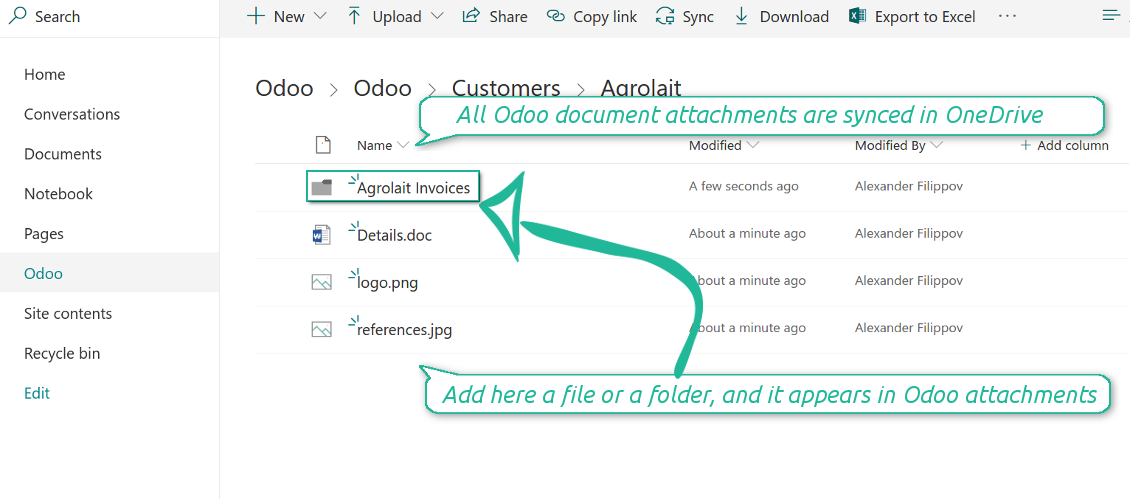
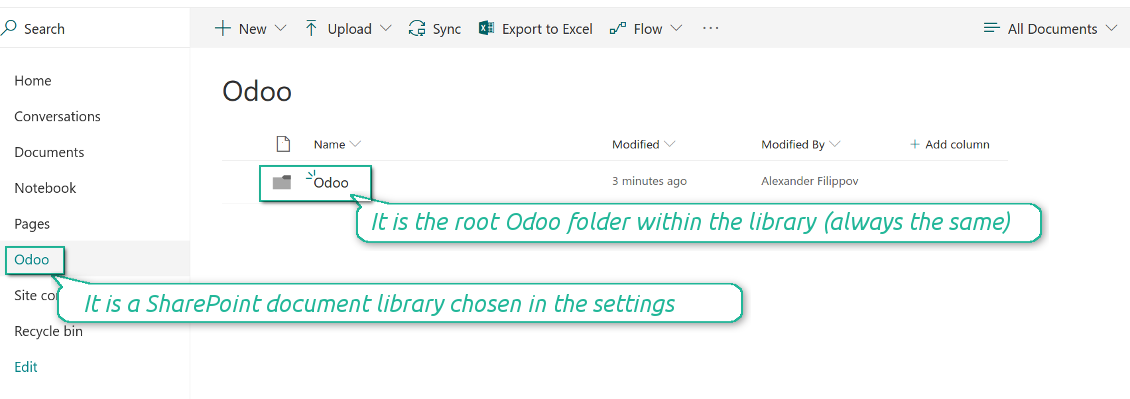
Odoo creates a convenient directory structure in OneDrive: Odoo / Document type name / Document name / Files, where:
- Odoo is a central directory for Odoo Sync in your Drive.
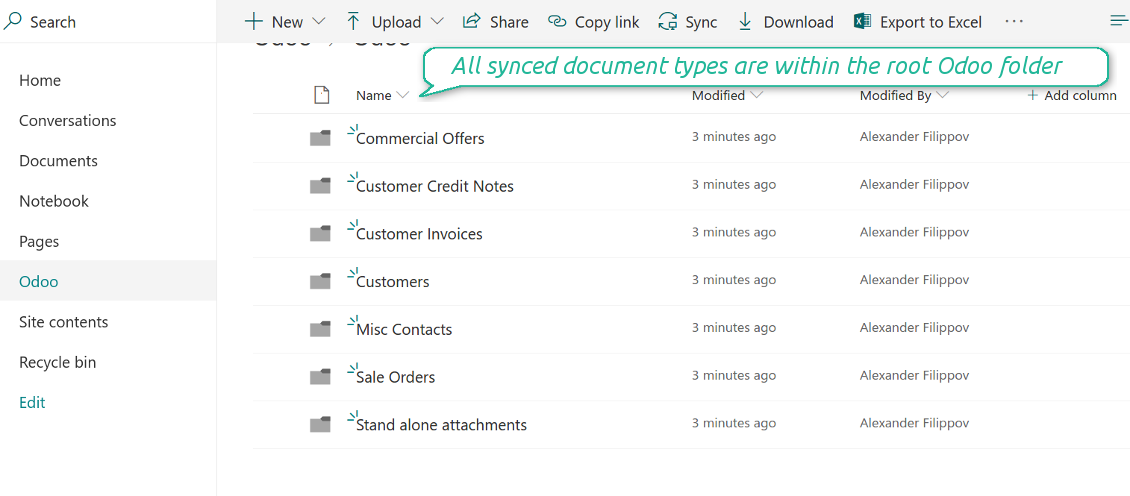
- Document type is a synced Odoo model, for example, 'Sale orders', 'Opportunities', 'Customers'
- You select document types by yourself. It might be any document type
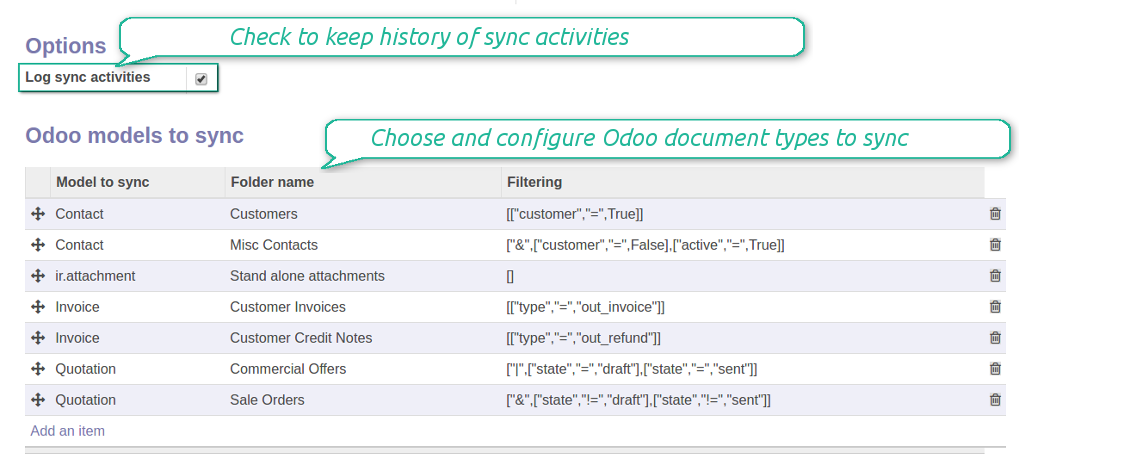
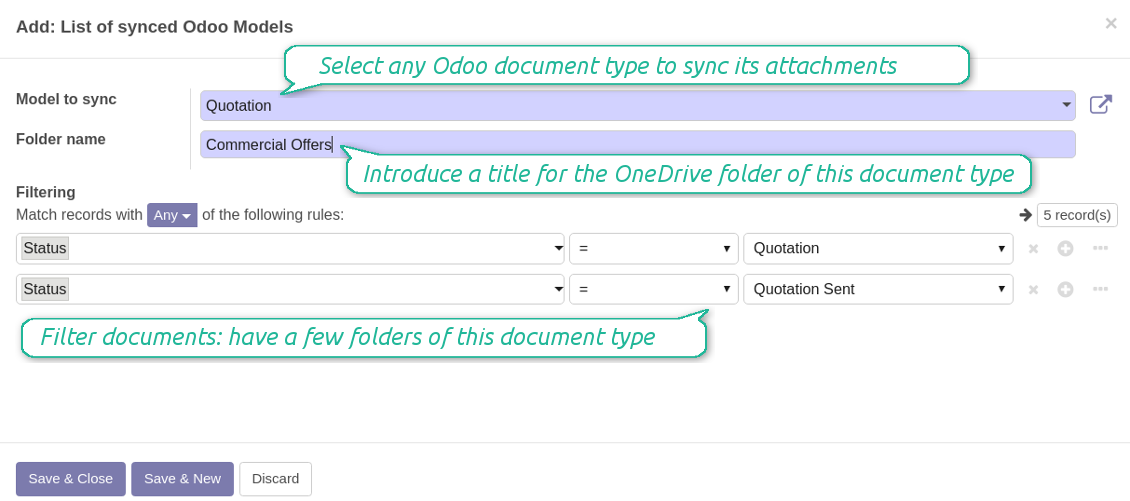
- Moreover, you might have a few folders for a single document type. Use Odoo domains to have not global 'Partners, but 'Customers' and 'Suppliers', not just 'Sale orders' but 'Commercial offers', 'To deliver', and 'Done orders'
- With each sync Odoo would try to update document types' folders. Add a new document type at any moment. It will appear in OneDrive with a next sync
- You are welcome to introduce or change document types folder names at any moment in Odoo. Take into account: renaming in OneDrive will be recovered to Odoo names
- If you remove a model from integration, it will not be deleted from OneDrive to keep already synced files safe. However, new documents of this type would not be synced
- In case you removed a directory in OneDrive / SharePoint, but it is still configured in Odoo, with a next sync a folder structure is going to be recovered (not files, surely).
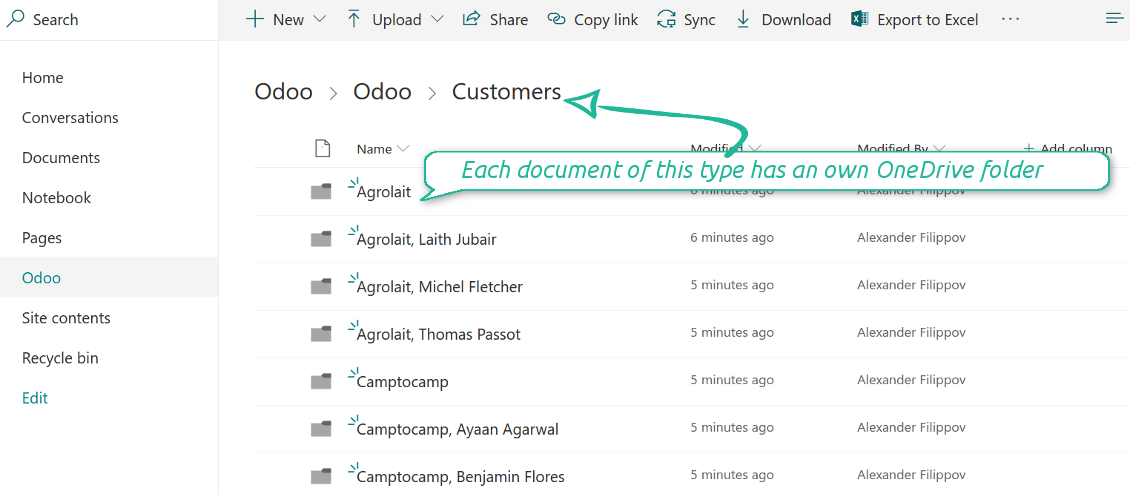
- Document is an exact object to sync. For instance, 'Agrolait' or 'SO019'
- Documents are synced in case they relate to a synced document type and satisfy its filters. For example, you are not obliged to sync all partners, you may integrate only 'Customers' and 'Vendors' or only 'Companies', not 'Contacts'
- Odoo would generate a folder in OneDrive for each suitable document even for documents without attachments. It is needed for a backward sync to easily add new files
- OneDrive folder name equals a real document name. It relies upon Odoo name_get method. Thus, Odoo 'Michael Fletcher' (a contact of 'Agrolait') would be OneDrive 'Agrolait, Michael Fletcher'
- If an exact document changes its document type (e.g. a quotation is now confirmed), Odoo will automatically relocate its related folder to a proper parent directory (in the example: from 'Commercial offers' to 'To deliver')
- In case a document relates to a few types (for instance, you have 'Vendors' and 'Customers', while Agrolait is both), this document folder would be put into the most prioritized document type. A document type priority is higher as closer to the top in Odoo interfaces it is
- If an Odoo document is removed, the next sync will remove a corresponding OneDrive directory
- In case you remove a directory in OneDrive / SharePoint, but it still exists in Odoo, OneDrive folder structure would be recovered (while files would be unlinked in both Odoo and OneDrive)
- Folders renaming in OneDrive will be replaced with Odoo names, Odoo document names are more important
- Files are real files taken from Odoo attachments
The resulted path would be, for example, 'Odoo / Quotations / SO019 / commercial offer.png'.
The only exclusion of the rule are stand alone attachments which do not relate to any Odoo documents (their document type is 'ir.attachment'). Such attachments' path is 'Odoo / Stand Alone Attachments / image.png'.
The very first sync might take quite a long, since a lot of folders should be created. Afterwards, it would be much faster. However, it is not recommended to make sync too frequent: once an hour seems quite good for large files.
FilesWith each direct sync, Odoo tries to find not yet synced attachments. If such attachments suit any document type to sync, a file will be uploaded to OneDrive to a proper folder. In Odoo such attachments will become of 'url' type. It means that a file is not any more kept in Odoo server space, but now it is in OneDrive. Until sync is done, Odoo attachment remains binary and stores an actual file. Such approach helps Odoo to work faster.
Clicking on such attachment leads you to a file previewer / editor in OneDrive. Depending on your OneDrive / SharePoint configurations it might be Word, Excel, PDF previewer, etc. Anyway changes to file contents in OneDrive are available in Odoo at the same moment.
If you unlinked an attachment from Odoo, it would be deleted in OneDrive as well.
Take into account that file names should be managed in OneDrive: each backward sync would recover OneDrive names, Odoo is here less important.
How items are retrieved from OneDrive / SharePoint to Odoo
- If a new file is added to a proper document folder (e.g. to 'Odoo / Customers / Agrolait'), the same attachment will be added to Odoo document (in the example - to 'Agrolait')
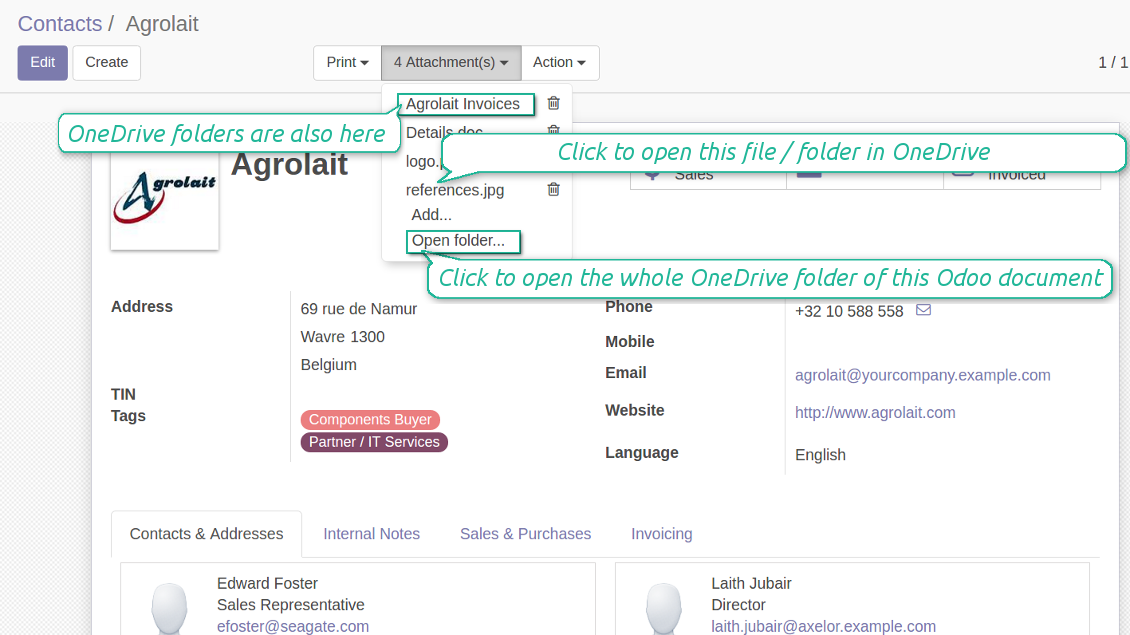
- In document folders you can put not only files but also child folders. In that case a link for this folder (not its content) is kept in attachments
- In case you rename a file in OneDrive, it will be renamed in Odoo as well
- Files' removal from OneDrive leads to related Odoo attachments' removal
- If you move a file to another document folder, in Odoo a related attachment would be re-attached to this new document. Take into account: if you move a file for a not document folder, in Odoo attachment will be deleted as it has been removed from OneDrive
- If you deleted a document type or document folder, their child files are deleted as well. Thus, Odoo would remove related attachments. The folders, however, will be recovered with a next direct sync. Folders' move to another directory is also considered as a removal. Avoid such situations by following the simple rule: folders are managed mostly by Odoo, files - mostly by OneDrive.
Backward OneDrive sync might take time. It is recommended to make frequency oftener than once an hour or two hours.
Snimke zaslona
All document types are in the root directory 'Odoo'
Document types' folders
All document of this type has an own folder
Sync any documents you like
The tool let you split any business model into a few directories. Have a separate folder for individuals and companies, for European and American opportunities, for each project, etc.
Moreover, it is possible to guarantee that only topical documents are synced by using relative periods: leads registered in the last 3 months, invoices updated the last week, and so on.
Typical use cases
- Projects: automatically forward all project-related documents to OneDrive to share those with a customer as a cloud link.
- Customers: add all partner files in a single directory available both from Odoo and from OneDrive / SharePoint. Modify those using default cloud editors and access them when working in Odoo.
- Employees: gather all files by this employee in a single cloud folder: photos, document scans, contracts. Access and upload those from Odoo and OneDrive / SharePoint Documents alternatively.
- Opportunities: carefully store all specifications, requirements and any file which would let you make a good offer.
- Orders: keep all printings and contracts in OneDrive / SharePoint with simple availability from Odoo.
Snimke zaslona
Choose document types to be synced
Document type might have a few folders based on filters
Easy accessible files
Snimke zaslona
Fast access to OneDrive files and folders
Synced files are simply found in OneDrive. Add unlimited number of files or folders here
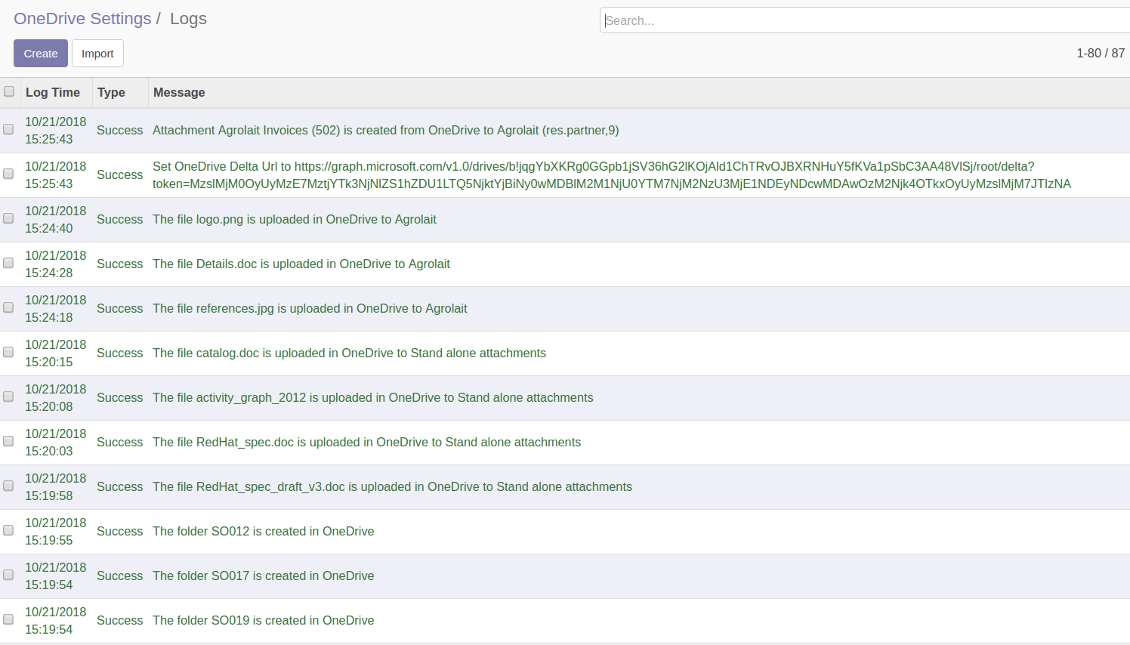
Sync logs in Odoo
Snimke zaslona
Logged synchronisation activities
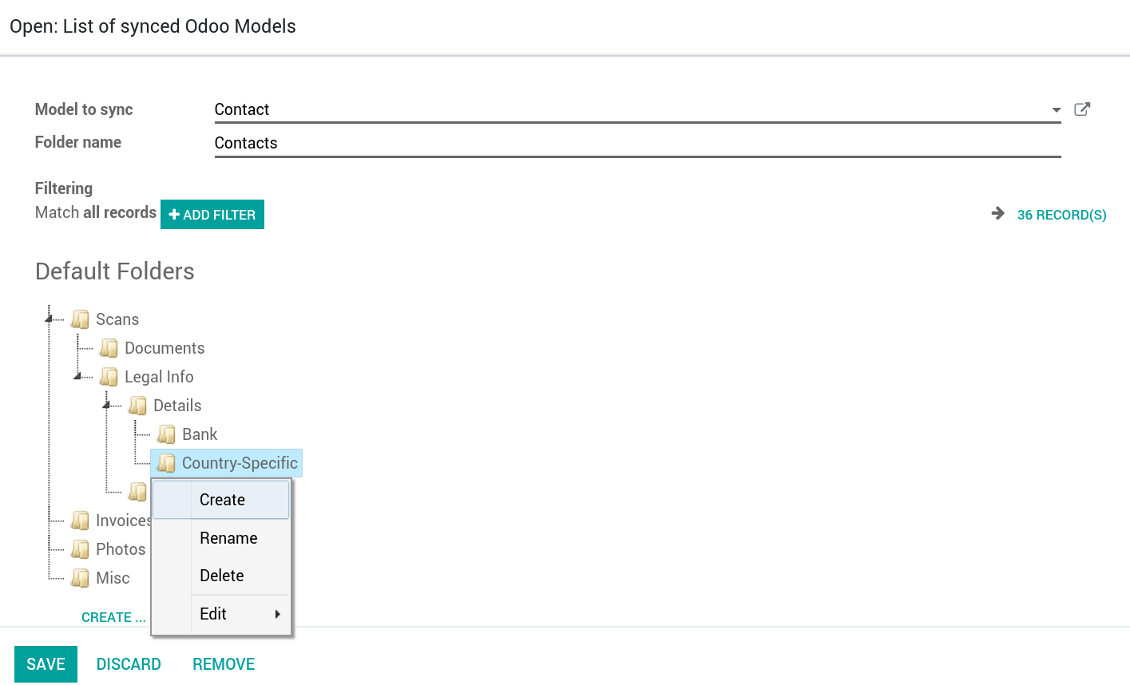
Default folders for documents
Snimke zaslona
Default folders for this document types to be created while firstly synced
Applicable to all Odoo apps
Dangerous symbols
- Try to avoid the following symbols in folders' and files' names: '~', '#', '&', ':', '{', '}', '*', '?', '"', "'", '<', '>', '|', '+', '%', '!', '@', '\\', '/', '.'. Direct sync will replace such symbols with '-'. It is done to avoid conflicts with file systems.
Works well with SharePoint. Supportive team
We've been using this with SharePoint and it's been working great. One of the best things is having everything, including logs right in Odoo's interface, so you can actually see what's going on. It's also super convenient that you can view or download synced files from the attachment box without having to leave the page or even log in to Sharepoint.
Setup was pretty smooth for us. When we had a few questions about setting up the folder hierarchy and priorities, the developer team got back to us in just a couple of hours and helped us figure it out. Great support and great extension!
Great support, assistance and very good connector!
We are very happy with the support we received when configuring the Sharepoint - Odoo connector. The connector has great functionalities.
All our questions were answered very fast (within one day).
FaOtools helped us optimising our connector and assisted us with future improvements.
We really recommend this connector.
very professional app, excellen t customer service
This app is very well programmed and does its job very well. But the best is the excellent customer service who also helps when the problem lies somewhere else. You receive a lot for your money.
An impressive app and world-class support
I have been very impressed by the way the OneDrive / SharePoint Odoo Integration module synchronises content in both directions and allows me to share documents in Odoo with my SharePoint site. Above all the technical support is top-notch, which greatly increases the value of this product. I highly recommend this product for anyone considering synchronising Odoo with SharePoint/OneDrive.
Works fine, good support
The first experience with the module is excellent. I had some trouble to configure things right on the Microsoft-side, but the team provided quick and good support.
Savjeti za konfiguraciju i instalaciju za OneDrive / SharePoint Odoo Integration Odoo v.11
Python dependency
pip install microsoftgraph-pythonConfiguration and log in
- Make sure your Microsoft user has full admin rights for OneDrive / SharePoint you want to connect to Odoo. This user is required only to grant permissions, the user data would not be kept any where in Odoo, and would not be used any more. Besides, make sure a Microsoft email address you use does not have a redirection (usually happens when you configure your domain name, while the prime address is still one of Microsoft domains like @outlook.com, @office365, etc.)
- Go to your Azure Portal: https://portal.azure.com/#blade/Microsoft_AAD_RegisteredApps/ApplicationsListBlade
The app must be registered inside a directory (tenant). Microsoft no longer allows creating a new app outside one.
- If you already have a company Microsoft 365 / Azure directory, switch the portal (top right) to it and continue.
- If you only have a personal account (@outlook.com, @hotmail.com, @live.com) and see "these applications are associated with the account ... but are not contained within any directory", you do not have a directory yet. Sign up for a free Azure account with the same Microsoft account: https://azure.microsoft.com/free/ - Try Azure for free. This creates a Default Directory for you at no cost.
- Microsoft asks for a card for identity verification only; a temporary ~1 USD hold is placed and reversed. You are not charged for the directory or for the app registration.
- The directory (Microsoft Entra ID Free) and any app registered in it keep working independently of the 30-day / $200 Azure trial credit. That credit is for paid Azure resources you are not using here. No payment is required for our app.
- If the whole directory sits completely unused for a very long time (Microsoft's own threshold is around 200 days of no activity at all), Microsoft may email a warning and eventually retire it. Since Odoo calls this app every time it syncs, an active connection keeps the directory active - this only matters if you stop syncing entirely for months.
- Once you are in a real directory (not "Microsoft Services"), open App registrations there.
- Click 'New registration'
- Introduce a new name for the application and assign the redirect URI as [YOURODOOSITENAME]/one_drive_token (e.g. https://odootools.com/one_drive_token). As the supported account types choose 'Accounts in any organizational directory (Any Azure AD directory - Multitenant) and personal Microsoft accounts (e.g. Skype, Xbox)'.
- Copy the Application Client ID to the Odoo field 'App client_id'
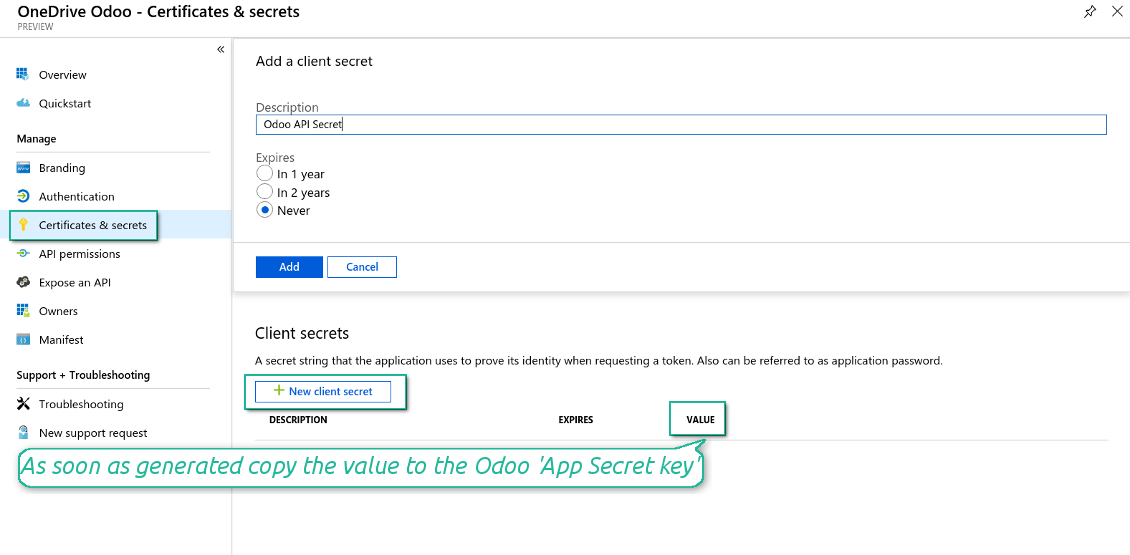
- Go to Certificates & secrets > Click 'New Client Secret'. Copy the secret value to the Odoo field 'App Secret Key'
- For SharePoint sites only:
- Go to your SharePoint site and prepare a new documents' library (drive). You might use one of the existing ones, e.g. 'Documents'. Odoo folder would be put there afterwards, and it would be impossible to move it for another library
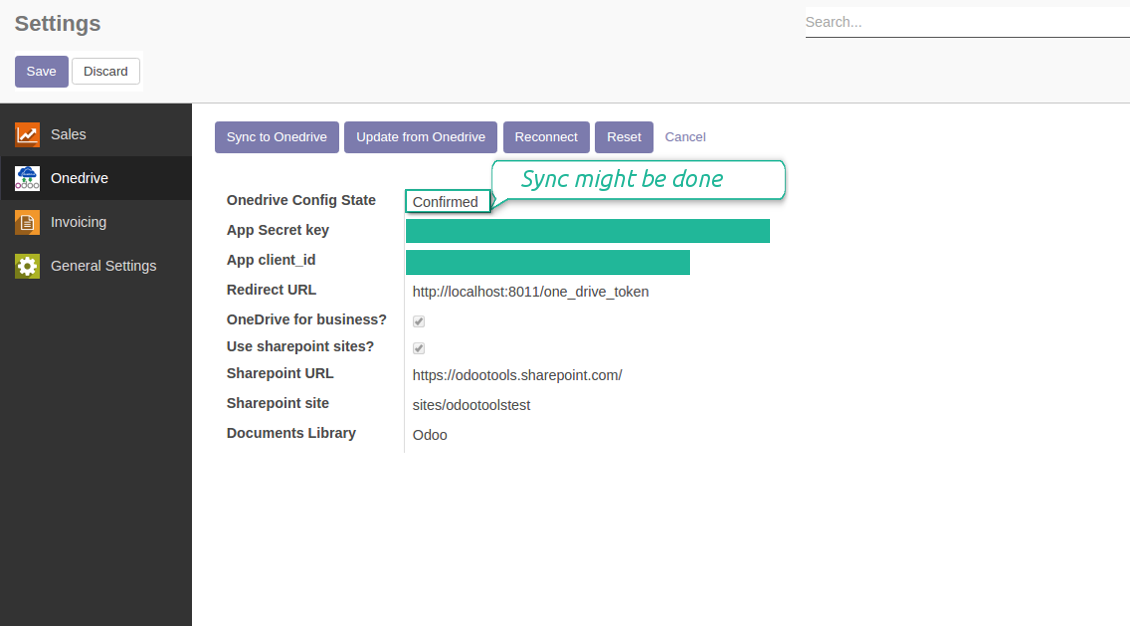
- Check the boxes 'OneDrive for business' and 'Use SharePoint sites'
- The SharePoint URL should be of the type https://[URL]/. The last '/' is required, sitename should not be included into. For example, https://odootools.sharepoint.com/
- SharePoint site should be either my_site_name (in that case it is considered as sites/my_site_name) or sites/my_site_name (instead of 'sites' it might be 'teams' and so on). There should be no '/' at the beginning or at the end. For example, sites/odootools
- As Documents Library use one created in SharePoint
- Press Save on the Odoo configuration Page.
- Press 'Login and Confirm'. Odoo redirects you to Microsoft login page. Check in and grant permissions asked. If Microsoft shows an account already signed in and says it does not exist in tenant 'Microsoft Services' (or any other unrelated tenant), do not click that row. Click 'Use another account' and sign in with the Microsoft account that owns the app's directory.
- After login, Microsoft redirects you back to Odoo. OneDrive - Odoo synchronization is ready to be done.
Create OneDrive application
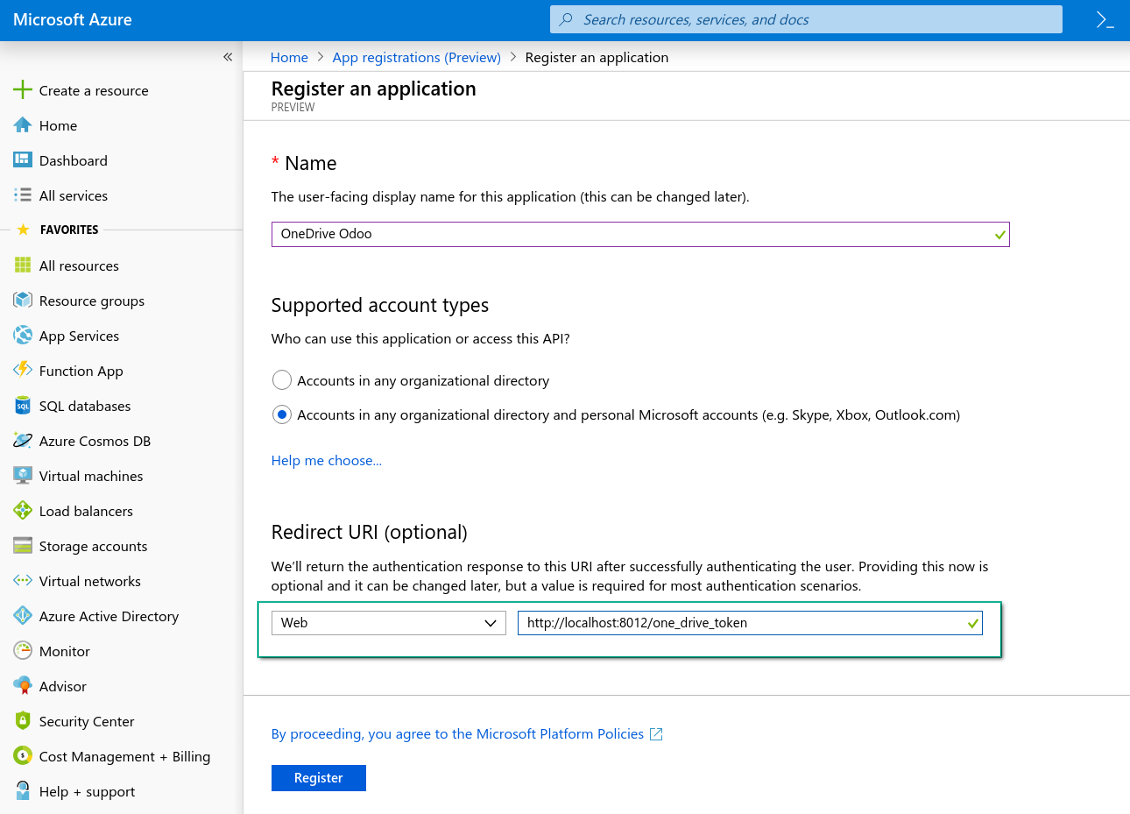
New OneDrive Web platform and redirect url
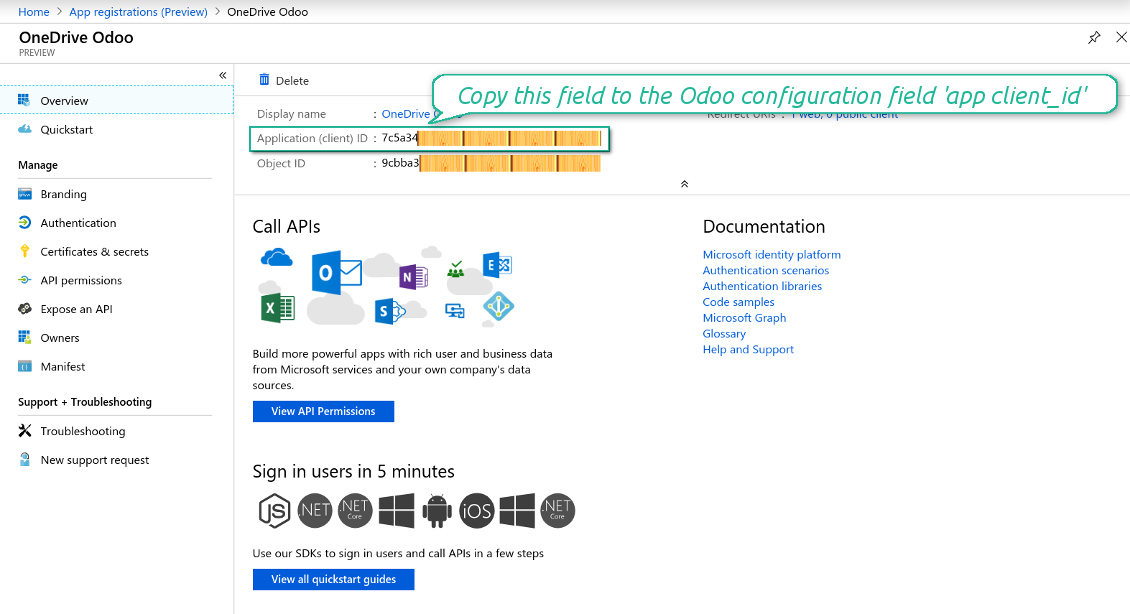
Generate new secret for your application
Enter configuration keys in Odoo
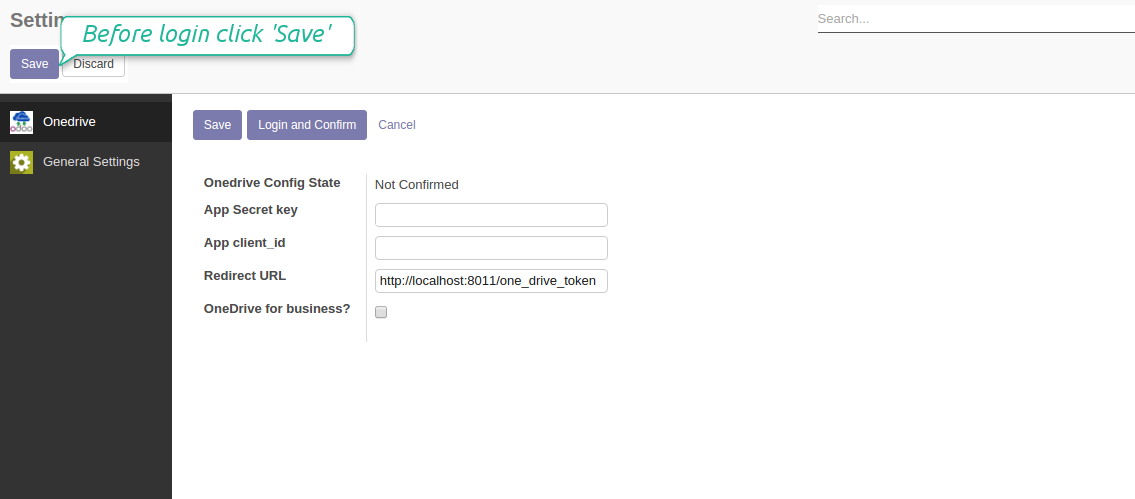
Odoo <> SharePoint sync settings
Odoo server configuration and cron job configuration
To make sure the synchronization works correctly apply proper timeouts to the Odoo configuration file: LIMIT_TIME_CPU, LIMIT_TIME_REAL should be more than 900 seconds.
For Odoo.sh this should not be done, since timeouts are predefined and are not configurable.
Then, timeout should be entered to your Odoo. To that goal find the section 'Settings' on the app configuration page and copy the number there.
Afterwards, it is needed to make the cron jobs suit the applied timeouts. In the debug mode go to the Settings > Technical > Automation > Scheduled Jobs:
- Set up the job 'Synchronize attachments with cloud' as (a) frequency - 2*timeout; (b) the next execution as the next hour +timeout. For example, for 900seconds timeout: frequency - as 30minutes; the next execution - at 08:15
- Set up the job 'Synchronize attachments from cloud' as (a) frequency - 2*timeout; (b) the next execution as the next hour + timeout*2. For example, for 900seconds timeout: frequency - as 30minutes; the next execution- at 08:30.
Reconnection
- You use this tool with version prior to 1.2.0. In that case you should also install the library 'microsoftgraph'. Look above
- You have not used the sync tool for more than 6 months
- Press the button 'Reconnect'
- Press the button 'Login and confirm'
Migration from the versions prior to the version 1.3.0
- Push the button 'Backward sync' (to make sure recent OneDrive changes are synced)
- Push the button 'Reconnect' and log in Microsoft
- Push the button 'Migrate from the version under 3.0'
- Check / update synced models
- Push the button 'Sync' to apply changes
Često postavljana pitanja o OneDrive / SharePoint Odoo Integration Odoo v.11
Vidim pogrešku kada kliknem na poveznicu sinkronizirane slike u oblaku
Pogreška "This item might have been deleted, expired, or you might not have permission to access it. Contact the owner of this item for more information." znači da niste prijavljeni u uslugu photos.onedrive.com.
Mogu li mijenjati učestalost poslova sinkronizacije?
Da, možete. U tu svrhu:
Uključite način rada za otklanjanje pogrešaka
Idite na tehničke postavke > Automatizacija > Zakazani poslovi
Pronađite poslove 'Synchronize attachments with cloud' i 'Update attachments from cloud'.
Nemojte ih pokretati prečesto. Poželjno je da posao završi prije nego što krene sljedeći. Postavka ovisi o tome koliko stavki imate za sinkronizaciju. Učestalost je obično između 15 minuta i 4 sata.
Provjerite i da ste u konfiguracijskoj datoteci Odoo postavili dovoljna vremenska ograničenja. Parametri LIMIT_TIME_CPU i LIMIT_TIME_REAL moraju biti jednaki ili veći od planiranog vremena cron posla. Od verzije 13 uzmite u obzir i parametar LIMIT_TIME_REAL_CRON.
Važna napomena za klijente Odoo.sh: maksimalno vrijeme cron posla može biti samo 15 minuta.
Mogu li konfigurirati drugačiju strukturu sinkroniziranih direktorija od one koju pretpostavlja sinkronizacija?
Ne, ova je značajka dostupna tek od verzije 15. Prije te verzije modul radi s unaprijed definiranom strukturom mapa:
Odoo - središnja mapa za sinkronizaciju
Models - mape za svaki tip dokumenta Odoo. Na primjer, 'Projects', 'Partners'. Po domeni mogu postojati specifičnije mape: npr. 'Customer 1 Projects', 'Projects of the Customer 2', 'Internal Projects' itd.
Objects - mape za svaki dokument, npr. 'Project 1' ili 'Customer 1'
Datoteke i mape povezane s ovim Odoo dokumentom koje se sinkroniziraju.
Kao rezultat možete imati na primjer:
Odoo / Projects / Project 1 / datoteke i mape povezane s project 1
Odoo / Customer 1 Projects / Project 1; Odoo / Customer 2 Projects / Project 3, ...
Odoo / Customers / Customer 1 / datoteke i mape povezane s customer 1
Ova je struktura uvijek ravna, što znači da postoje samo te razine hijerarhije. Stoga je točno da se različiti tipovi dokumenata ne mogu držati unutar iste strukture. Unutar mape 'Customer 1' ne možemo držati datoteke povezane i s prodajnim narudžbama, i s računima, i s projektima. Svaki od tih tipova dokumenata ima vlastitu mapu (ili nekoliko vlastitih). Inače ne bismo mogli napraviti povratnu sinkronizaciju jer ne bi bilo kriterija na koji se osloniti.
Trebam li u Odoo postaviti pristupe određenih korisnika?
Ne, alat se oslanja na jednu korisničku krajnju točku. Svi procesi sinkronizacije izvode se pod jednim cloud administratorom (aplikacijom). Prava pristupa za stvorene mape / datoteke nisu automatizirana. Ta prava trebate administrirati u svom rješenju pohrane u oblaku.
Gdje se pohranjuju sinkronizirana polja? Jesu li duplicirana u Odoo i oblake?
Aplikacija pretpostavlja da se binarni sadržaj privitaka čuva u Cloud Clientu umjesto na Odoo poslužitelju. Takvi privici u Odoo postaju tipa URL i možete im bilo kada pristupiti iz okvira privitaka ili iz Cloud Clienta.
Nakon postavljanja nisu potrebne ručne radnje jer je sinkronizacija potpuno automatska. Odlučite koje vrste Odoo dokumenata treba sinkronizirati i postavite povezani model za svaku od njih (klijenti, prodajni ili nabavni nalozi, zadaci, projekti itd.).
Mogu li imati nekoliko mapa za isti tip dokumenta? Na primjer, interni projekti i projekti kupaca?
Da, možete. U tu svrhu pripremite pravilo za svaki, a zatim primijenite filtre: na primjer prema vrsti projekta.
Pokušajte filtre učiniti međusobno isključivima kako bi se dokument mogao jednoznačno dodijeliti. Npr. „klijent, ali ne dobavljač“, „dobavljač, ali ne klijent“. Inače će mapa određenog dokumenta skakati s jednog modela na drugi.
Trebam li samo aplikaciju Cloud Storage Solution?
Ne, alat je samo tehnička jezgra. Trebate i konektor za svoj cloud client.
Je li u redu ako imam mnogo objekata za sinkronizaciju, na primjer 10000?
Da, iako kod mnogo mapa/privitaka koje treba sinkronizirati proces može biti spor. Istodobno, klijenti su prijavili okruženja s >10k partnera i ~5k varijanti proizvoda za sinkronizaciju, a procesi su bili prihvatljivi.
Nekoliko točaka za naglasiti:
- Sinkronizacija je izgrađena tako da se svaka stavka sinkronizira i ne izgubi, iako možda nije brza. To jamče redovi prvi-uđi-prvi-izađi i svaki posao koji se potvrdi.
- Broj objekata može se logički ograničiti. Konfiguracija modela omogućuje ograničenje sinkronizacije zastarjelih stavki (npr. nema smisla sinkronizirati arhivirane partnere ili naloge od prije 2 godine).
Je li moguće sinkronizaciju učiniti u stvarnom vremenu?
Ne. Imamo ozbiljne razloge da izbjegavamo sinkronizaciju u stvarnom vremenu:
Problemi performansi. Ako je sinkronizacija u stvarnom vremenu, svako učitavanje datoteke rezultirat će zaslonom učitavanja.
Problemi sukoba. Ako 2 korisnika istodobno promijene stavku, to može dovesti do neriješenih situacija. Kod redovitih poslova to možemo popraviti naknadno, a u stvarnom vremenu morali bismo to spremiti kao red, što bi korisnike još više zbunitilo.
Problemi funkcionalnosti. Posebno preimenovanje i restrukturiranje stavki. U povratnoj sinkronizaciji alat se strogo oslanja na logiku direktorija i pri svakoj sinkronizaciji provjerava se 100% stavki. Ako se to radi nakon svake promjene, bit će tisuće zahtjeva u sekundi. Ako ne: promjene bi se izgubile.
Mogu li sinkronizirati privitke s nekoliko cloud klijenata
Ne, ova je značajka dostupna tek od verzije 15.
U našim cloudovima koristimo poseban uređivač (npr. OnlyOffice, Office 365 itd.). Bi li se datoteke otvarale u tom uređivaču?
Da, ovisno o konfiguraciji cloud clienta.
Koje su politike ažuriranja vaših alata?
Prema važećim pravilima Odoo Apps Store:
- Svaki modul kupljen za verziju 12.0 i stariju daje pristup svim verzijama do 12.0.
- Od verzije 13.0 svaku verziju modula treba kupiti zasebno.
- Bez obzira na verziju, kupnja daje pravo na sva ažuriranja i ispravke unutar glavne verzije.
Imajte na umu da tim faOtools ne kontrolira ta pravila. Za pitanja obratite se izravno predstavnicima Odoo Apps Store.
Kako mogu instalirati vašu aplikaciju na Odoo.sh?
Najizravniji je pristup koristiti ugrađeni tijek rada Odoo trgovine:
1. Otvorite stranicu modula i kliknite gumb Deploy on odoo.sh
2. Nakon toga bit ćete preusmjereni na GitHub stranicu. Prijavite se na račun, zatim kliknite 'Create a new repo' ili upotrijebite postojeći. Provjerite da je spremište privatno. Nije dopušteno objavljivati aplikacije pod licencijom OPL-1. Ako treba, stvorite novi repo za Odoo.sh projekt
3. Zatim idite na odoo.sh i kliknite gumb Deploy. U skočnom prozoru potvrdite odluku i kliknite 'Continue.' Time se pokreće instalacija.
Ovi koraci instalirat će aplikaciju na produkcijsku granu projekta. Ako želite postaviti aplikacije na druge grane ili ažurirati modul, poduzmite sljedeće:
1. Prenesite izvorni kod aplikacije iz Odoo trgovine
2. Napravite commit modula u potrebni GitHub repozitorij. Provjerite da nijedna mapa/datoteka aplikacije nije ignorirana (tj. nije u .gitignore repozitorija). Repozitorije automatski stvara odoo.sh i po zadanim postavkama mogu sadržavati važne stavke (npr. /lib). Prenesite sve direktorije, poddirektorije i datoteke modula bez iznimaka
3. Postavite ciljnu granu odoo.sh projekta ili, ako to pretpostavljaju postavke, pričekajte dok se automatski izgradi.
Kako trebam instalirati vašu aplikaciju na vlastiti poslužitelj?
2. Ponovno pokrenite Odoo poslužitelj;
3. Uključite način za razvoj (tehničke postavke);
4. Ažurirajte popis aplikacija (izbornik aplikacija);
5. Pronađite aplikaciju i pritisnite „Activate“/„Install“;
6. Slijedite smjernice na stranici aplikacije ako postoje.
Primijetio sam da vaša aplikacija ima dodatne dodatke. Mogu li ih kupiti naknadno?
Da, naravno. Istodobno Odoo automatski dodaje sve ovisnosti u košaricu, pa prethodno kupljene alate treba isključiti da ne platite dvaput.
Postavio sam vašu aplikaciju na Odoo.sh i u testovima vidim upozorenje/pogrešku
Crveno/narančasto upozorenje ne utječe na značajke aplikacije. Nažalost, naši moduli ponekad ne prođu standardne automatske testove jer oni pretpostavljaju ponašanje koje je u sukobu s ciljevima aplikacije. Npr. mijenjamo izračun cijene, a testovi standardnog Odoo modula uspoređuju konačnu cijenu sa standardnim algoritmom.
Prije svega provjerite značajke postavljene baze. Radi li sve ispravno?
Ako i dalje smatrate da upozorenje utječe na stvarne značajke, javite nam i pošaljite potpune zapisnike instalacije i potpuni popis postavljenih modula (uključujući jezgru i treće strane).
Mogu li kupiti aplikaciju izravno od vaše tvrtke?
Ne, alate distribuiramo samo preko službene trgovine aplikacija Odoo.
Želio bih dobiti popust
Nažalost, nemamo tehničkih sredstava za individualne cijene.
Mogu li instalirati aplikaciju u svoju bazu Odoo Online (SaaS)?
Ne, aplikacije trećih strana ne mogu se koristiti na Odoo Online. Nažalost Odoo SaaS to blokira.
Vaš alat ovisi o drugim aplikacijama. Trebam li ih kupiti?
Da, alatu su potrebni svi moduli navedeni u ovisnostima da bi ispravno radio. Cijena na stranici aplikacije već uključuje sve potrebne ovisnosti.
Koja je cijena modula u američkim dolarima? Zašto se promijenila?
Cijena naših modula je u eurima. Odoo trgovina pretvara cijene u druge valute prema internom tečaju. Stoga se cijena u američkim dolarima može promijeniti kad se tečaj ažurira.
Tekstovi aplikacije i web stranice na jezicima osim engleskog izrađeni su uz pomoć UI i usklađeni sa službenim Odoo prijevodima. Ako uočite pogrešku, pošaljite prijavu o ispravnosti prijevoda i ispravit ćemo.
Prijava grešaka
Ako naiđete na greške ili nedosljedno ponašanje, slobodno nas kontaktirajte. Jamčimo ispravke unutar 60 dana od kupnje i i dalje želimo unapređivati alate nakon tog razdoblja.
Za kontakt nije potreban broj telefona ni kreditna kartica. Potrebna je samo kratka prijava e-poštom koja ne traje više od 30 sekundi.
U zahtjev uključite što više pojedinosti: snimke zaslona, zapisnike Odoo poslužitelja, potpuni opis kako reproducirati problem i slično. Obično treba nekoliko radnih dana za pripremu radnog plana (ako je greška potvrđena) ili smjernica što učiniti (inače).
Javni zahtjevi za značajke i ideje modula (besplatan razvoj)
Snažno smo motivirani poboljšati svoje alate i zahvalni smo na svakoj povratnoj informaciji. Ako su vaši zahtjevi od javne koristi i mogu se učinkovito provesti, tim će ih uvrstiti na naš popis zadataka.
Takav popis zadataka obrađuje se redovito i ne podrazumijeva dodatne naknade. Iako ne možemo obećati rokove i konačni dizajn, to može biti dobar način da dobijete željene značajke bez ulaganja i rizika.
Za kontakt nije potreban broj telefona ni kreditna kartica. Potrebna je samo kratka prijava e-poštom koja ne traje više od 30 sekundi.

Alat za sigurno čuvanje lozinki u Odoo za zajedničku upotrebu. Dijeljeni trezori

Alat za izgradnju duboke i strukturirane baze znanja za internu i vanjsku uporabu. Knowledge System. KMS. Revizije poput wikija.
398€
Alat za postavljanje KPI ciljeva i kontrolu njihova ispunjenja po razdobljima. KPI nadzorne ploče. Dizajner ploča. KPI grafikoni

Alat za vremenski upravljanje uslugama od rezervacije termina do prodaje i recenzija
398€
Alat za upravljanje Odoo iz omiljenih AI chatova putem MCP. Claude. Bilo koji AI koji podržava MCP.

Alat za fleksibilno strukturiranje Odoo privitaka u mapama i sinkronizaciju direktorija s cloud klijentima: Google Drive, OneDrive/SharePoint, Nextcloud/ownCloud, Dropbox, Amazon S3, Box i NAS. DMS. Upravitelj datotekama. Sustav za upravljanje dokumentima
398€
Alat za automatsku dvosmjernu sinkronizaciju Odoo privitaka s datotekama Google Drive
487€
Alat za automatsku dvosmjernu sinkronizaciju Odoo privitaka s datotekama ownCloud/Nextcloud
487€
Alat za automatsku dvosmjernu sinkronizaciju Odoo privitaka s NAS rješenjima. Synology, QNAP, TrueNAS i svaki drugi NAS koji podržava WebDav
487€