OneDrive / SharePoint Odoo Integration v.11
The tool to automatically synchronize Odoo attachments with OneDrive files in both ways
OneDrive / SharePoint doesn't have such disadvantages. This is the tool to integrate its features into your Odoo business work flow. The app automatically stores all Odoo attachments in OneDrive or SharePoint Documents, and it provides an instant access to them via web links. In such a way users work with files comfortably in the cloud storage, while the results are fully available in Odoo.
Automatic integration
Bilateral sync
How files and folders are synced from Odoo to OneDrive / SharePoint
- Prepare and keep updated folders' structure in OneDrive
- Upload new attachments to a correct folder
Odoo creates a convenient directory structure in OneDrive: Odoo / Document type name / Document name / Files, where:
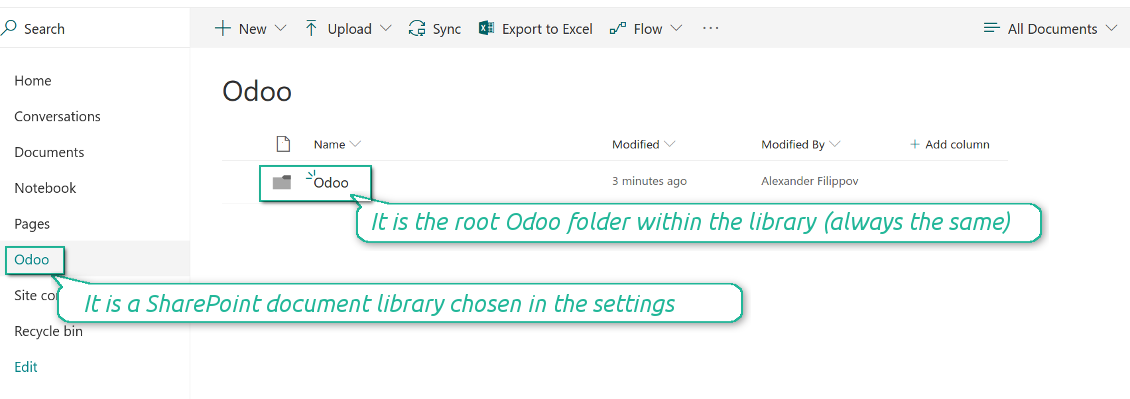
- Odoo is a central directory for Odoo Sync in your Drive.
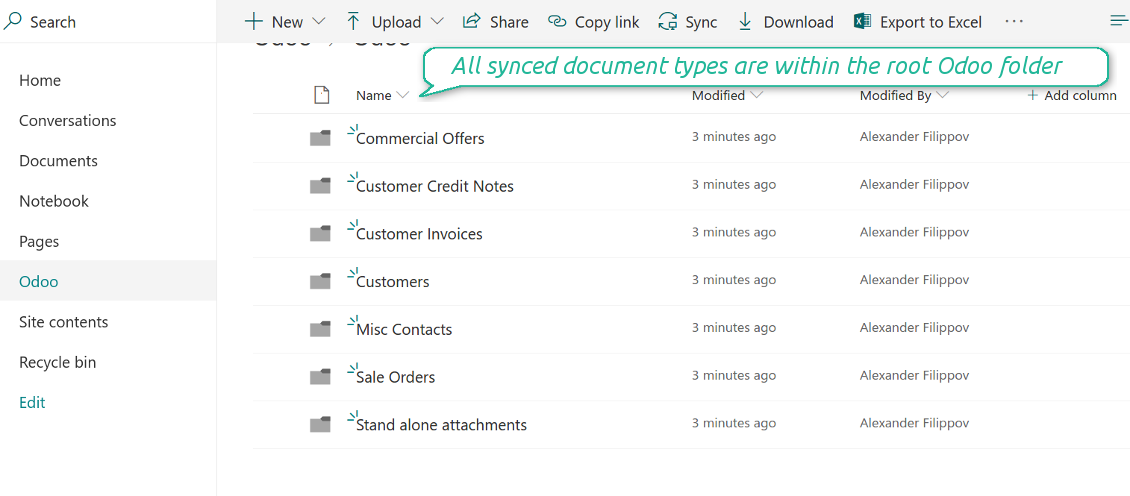
- Document type is a synced Odoo model, for example, 'Sale orders', 'Opportunities', 'Customers'
- You select document types by yourself. It might be any document type
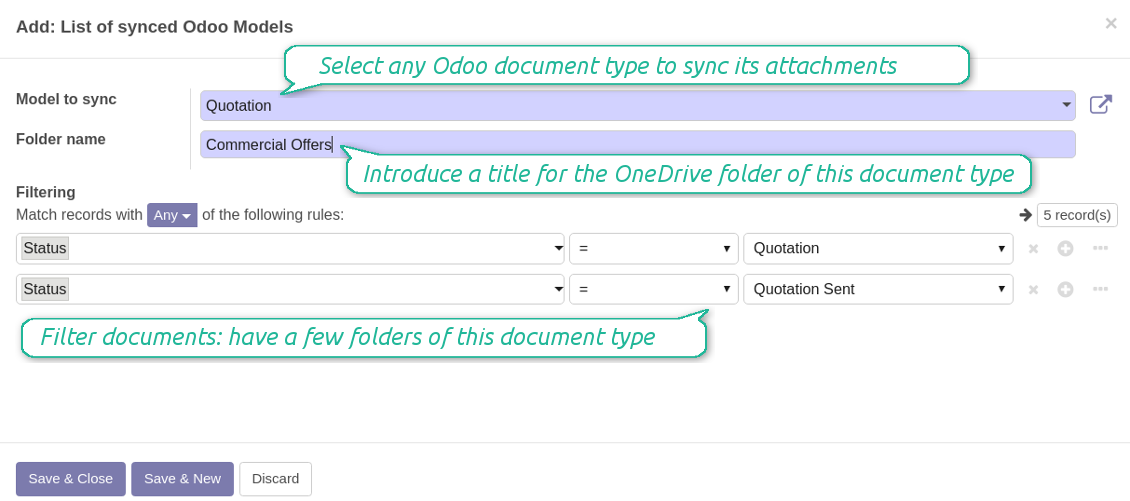
- Moreover, you might have a few folders for a single document type. Use Odoo domains to have not global 'Partners, but 'Customers' and 'Suppliers', not just 'Sale orders' but 'Commercial offers', 'To deliver', and 'Done orders'
- With each sync Odoo would try to update document types' folders. Add a new document type at any moment. It will appear in OneDrive with a next sync
- You are welcome to introduce or change document types folder names at any moment in Odoo. Take into account: renaming in OneDrive will be recovered to Odoo names
- If you remove a model from integration, it will not be deleted from OneDrive to keep already synced files safe. However, new documents of this type would not be synced
- In case you removed a directory in OneDrive / SharePoint, but it is still configured in Odoo, with a next sync a folder structure is going to be recovered (not files, surely).
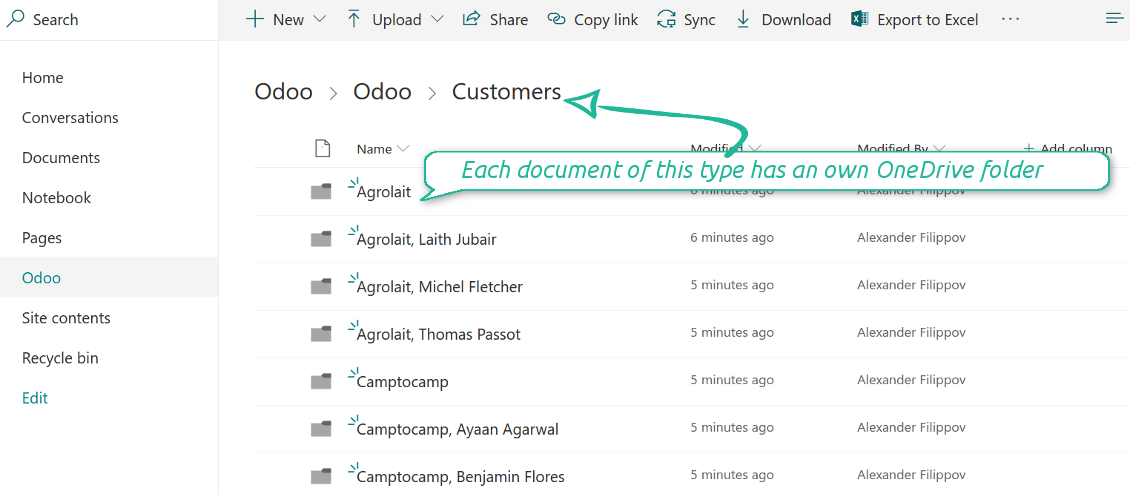
- Document is an exact object to sync. For instance, 'Agrolait' or 'SO019'
- Documents are synced in case they relate to a synced document type and satisfy its filters. For example, you are not obliged to sync all partners, you may integrate only 'Customers' and 'Vendors' or only 'Companies', not 'Contacts'
- Odoo would generate a folder in OneDrive for each suitable document even for documents without attachments. It is needed for a backward sync to easily add new files
- OneDrive folder name equals a real document name. It relies upon Odoo name_get method. Thus, Odoo 'Michael Fletcher' (a contact of 'Agrolait') would be OneDrive 'Agrolait, Michael Fletcher'
- If an exact document changes its document type (e.g. a quotation is now confirmed), Odoo will automatically relocate its related folder to a proper parent directory (in the example: from 'Commercial offers' to 'To deliver')
- In case a document relates to a few types (for instance, you have 'Vendors' and 'Customers', while Agrolait is both), this document folder would be put into the most prioritized document type. A document type priority is higher as closer to the top in Odoo interfaces it is
- If an Odoo document is removed, the next sync will remove a corresponding OneDrive directory
- In case you remove a directory in OneDrive / SharePoint, but it still exists in Odoo, OneDrive folder structure would be recovered (while files would be unlinked in both Odoo and OneDrive)
- Folders renaming in OneDrive will be replaced with Odoo names, Odoo document names are more important
- Files are real files taken from Odoo attachments
The resulted path would be, for example, 'Odoo / Quotations / SO019 / commercial offer.png'.
The only exclusion of the rule are stand alone attachments which do not relate to any Odoo documents (their document type is 'ir.attachment'). Such attachments' path is 'Odoo / Stand Alone Attachments / image.png'.
The very first sync might take quite a long, since a lot of folders should be created. Afterwards, it would be much faster. However, it is not recommended to make sync too frequent: once an hour seems quite good for large files.
FilesWith each direct sync, Odoo tries to find not yet synced attachments. If such attachments suit any document type to sync, a file will be uploaded to OneDrive to a proper folder. In Odoo such attachments will become of 'url' type. It means that a file is not any more kept in Odoo server space, but now it is in OneDrive. Until sync is done, Odoo attachment remains binary and stores an actual file. Such approach helps Odoo to work faster.
Clicking on such attachment leads you to a file previewer / editor in OneDrive. Depending on your OneDrive / SharePoint configurations it might be Word, Excel, PDF previewer, etc. Anyway changes to file contents in OneDrive are available in Odoo at the same moment.
If you unlinked an attachment from Odoo, it would be deleted in OneDrive as well.
Take into account that file names should be managed in OneDrive: each backward sync would recover OneDrive names, Odoo is here less important.
How items are retrieved from OneDrive / SharePoint to Odoo
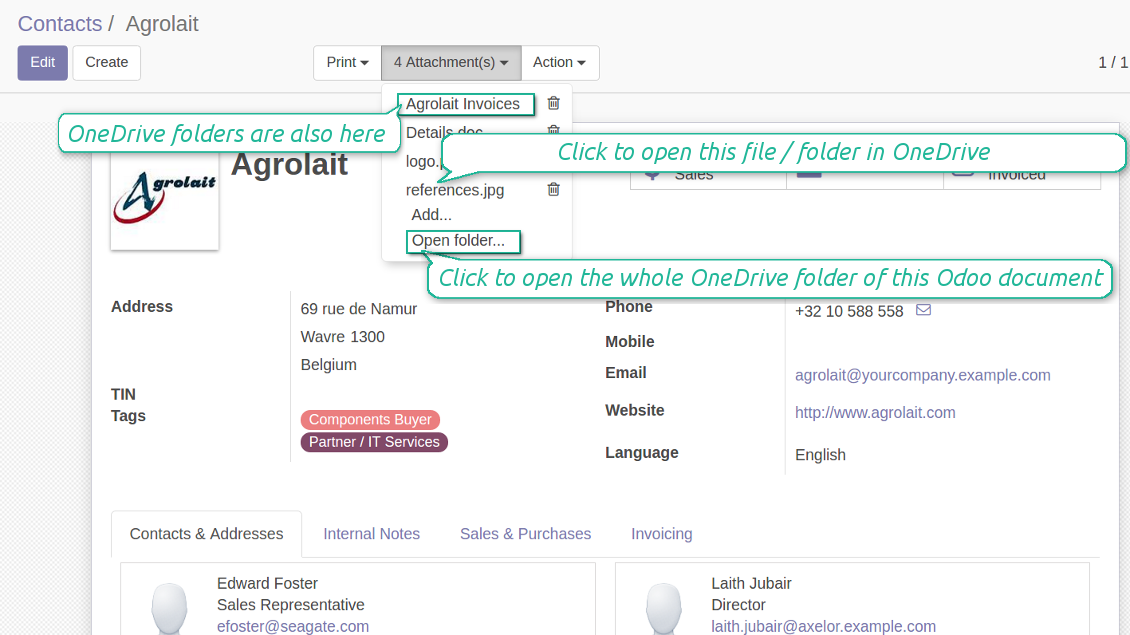
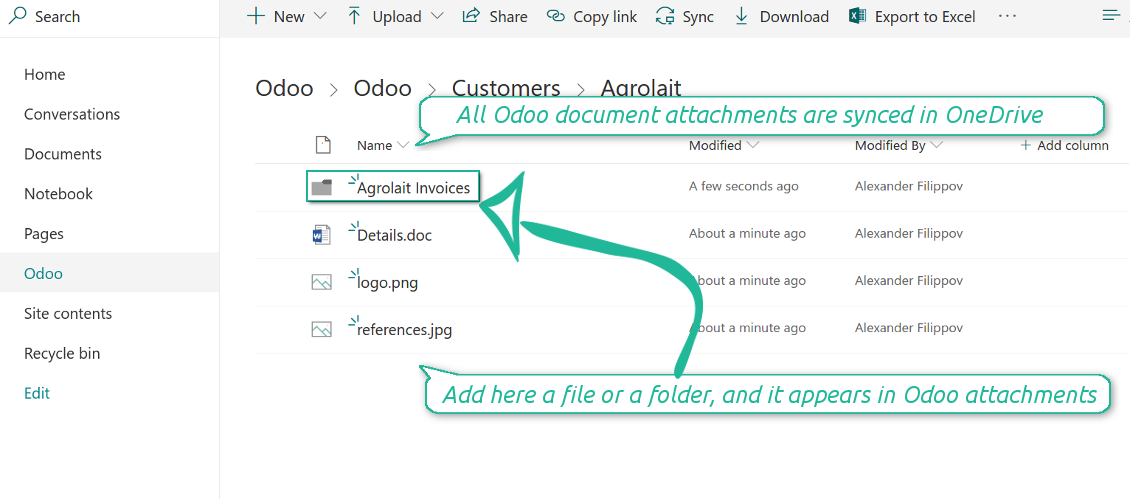
- If a new file is added to a proper document folder (e.g. to 'Odoo / Customers / Agrolait'), the same attachment will be added to Odoo document (in the example - to 'Agrolait')
- In document folders you can put not only files but also child folders. In that case a link for this folder (not its content) is kept in attachments
- In case you rename a file in OneDrive, it will be renamed in Odoo as well
- Files' removal from OneDrive leads to related Odoo attachments' removal
- If you move a file to another document folder, in Odoo a related attachment would be re-attached to this new document. Take into account: if you move a file for a not document folder, in Odoo attachment will be deleted as it has been removed from OneDrive
- If you deleted a document type or document folder, their child files are deleted as well. Thus, Odoo would remove related attachments. The folders, however, will be recovered with a next direct sync. Folders' move to another directory is also considered as a removal. Avoid such situations by following the simple rule: folders are managed mostly by Odoo, files - mostly by OneDrive.
Backward OneDrive sync might take time. It is recommended to make frequency oftener than once an hour or two hours.
Capturas de pantalla
All document types are in the root directory 'Odoo'
Document types' folders
All document of this type has an own folder
Sync any documents you like
The tool let you split any business model into a few directories. Have a separate folder for individuals and companies, for European and American opportunities, for each project, etc.
Moreover, it is possible to guarantee that only topical documents are synced by using relative periods: leads registered in the last 3 months, invoices updated the last week, and so on.
Typical use cases
- Projects: automatically forward all project-related documents to OneDrive to share those with a customer as a cloud link.
- Customers: add all partner files in a single directory available both from Odoo and from OneDrive / SharePoint. Modify those using default cloud editors and access them when working in Odoo.
- Employees: gather all files by this employee in a single cloud folder: photos, document scans, contracts. Access and upload those from Odoo and OneDrive / SharePoint Documents alternatively.
- Opportunities: carefully store all specifications, requirements and any file which would let you make a good offer.
- Orders: keep all printings and contracts in OneDrive / SharePoint with simple availability from Odoo.
Capturas de pantalla
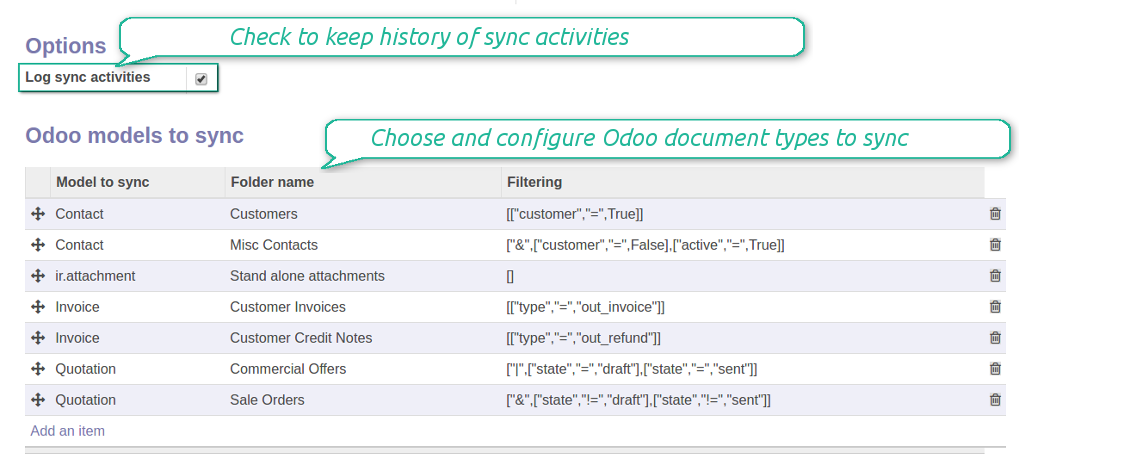
Choose document types to be synced
Document type might have a few folders based on filters
Easy accessible files
Capturas de pantalla
Fast access to OneDrive files and folders
Synced files are simply found in OneDrive. Add unlimited number of files or folders here
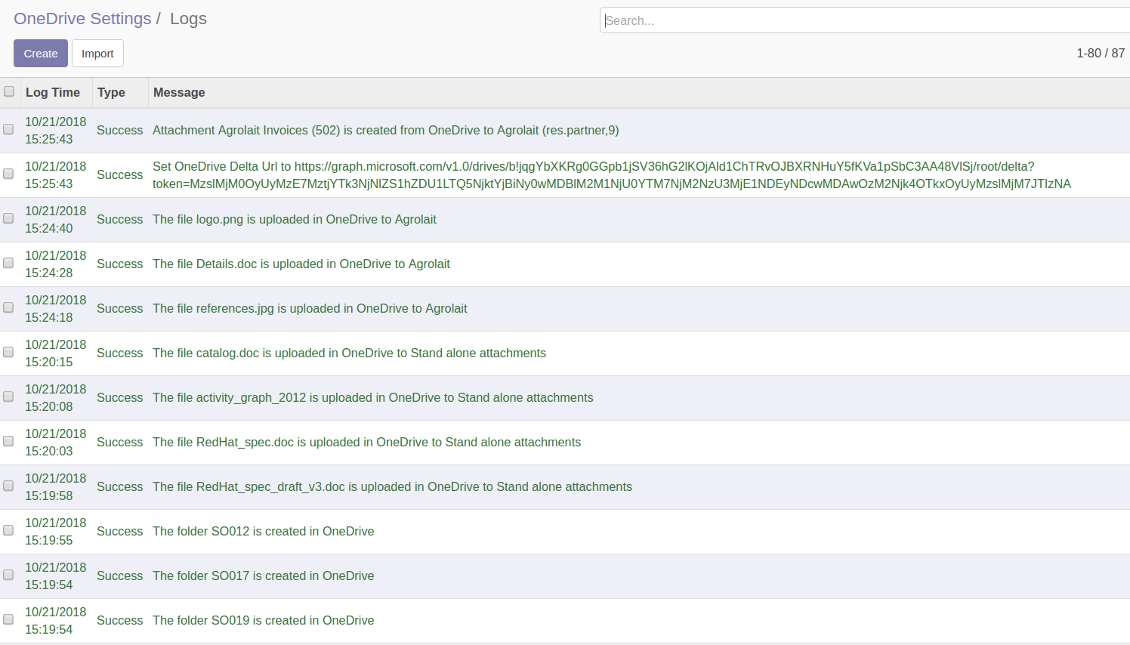
Sync logs in Odoo
Capturas de pantalla
Logged synchronisation activities
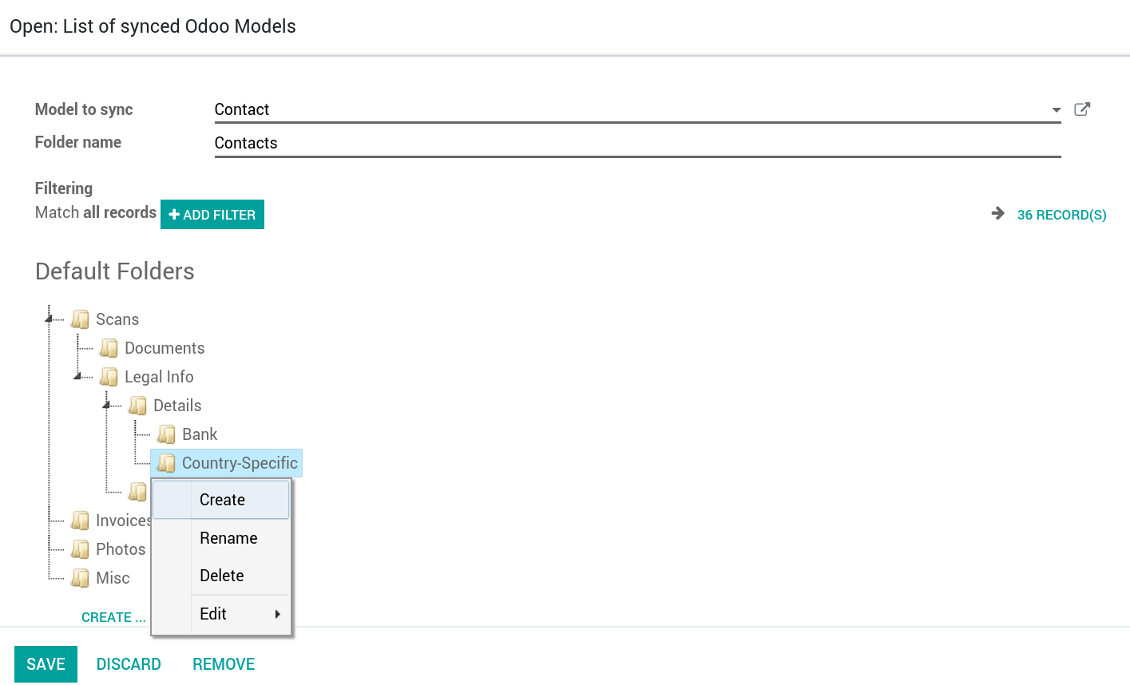
Default folders for documents
Capturas de pantalla
Default folders for this document types to be created while firstly synced
Applicable to all Odoo apps
Dangerous symbols
- Try to avoid the following symbols in folders' and files' names: '~', '#', '&', ':', '{', '}', '*', '?', '"', "'", '<', '>', '|', '+', '%', '!', '@', '\\', '/', '.'. Direct sync will replace such symbols with '-'. It is done to avoid conflicts with file systems.
Works well with SharePoint. Supportive team
We've been using this with SharePoint and it's been working great. One of the best things is having everything, including logs right in Odoo's interface, so you can actually see what's going on. It's also super convenient that you can view or download synced files from the attachment box without having to leave the page or even log in to Sharepoint.
Setup was pretty smooth for us. When we had a few questions about setting up the folder hierarchy and priorities, the developer team got back to us in just a couple of hours and helped us figure it out. Great support and great extension!
Great support, assistance and very good connector!
We are very happy with the support we received when configuring the Sharepoint - Odoo connector. The connector has great functionalities.
All our questions were answered very fast (within one day).
FaOtools helped us optimising our connector and assisted us with future improvements.
We really recommend this connector.
very professional app, excellen t customer service
This app is very well programmed and does its job very well. But the best is the excellent customer service who also helps when the problem lies somewhere else. You receive a lot for your money.
An impressive app and world-class support
I have been very impressed by the way the OneDrive / SharePoint Odoo Integration module synchronises content in both directions and allows me to share documents in Odoo with my SharePoint site. Above all the technical support is top-notch, which greatly increases the value of this product. I highly recommend this product for anyone considering synchronising Odoo with SharePoint/OneDrive.
Works fine, good support
The first experience with the module is excellent. I had some trouble to configure things right on the Microsoft-side, but the team provided quick and good support.
Consejos de configuración e instalación para OneDrive / SharePoint Odoo Integration Odoo v.11
Python dependency
pip install microsoftgraph-pythonConfiguration and log in
- Make sure your Microsoft user has full admin rights for OneDrive / SharePoint you want to connect to Odoo. This user is required only to grant permissions, the user data would not be kept any where in Odoo, and would not be used any more. Besides, make sure a Microsoft email address you use does not have a redirection (usually happens when you configure your domain name, while the prime address is still one of Microsoft domains like @outlook.com, @office365, etc.)
- Go to your Azure Portal: https://portal.azure.com/#blade/Microsoft_AAD_RegisteredApps/ApplicationsListBlade
The app must be registered inside a directory (tenant). Microsoft no longer allows creating a new app outside one.
- If you already have a company Microsoft 365 / Azure directory, switch the portal (top right) to it and continue.
- If you only have a personal account (@outlook.com, @hotmail.com, @live.com) and see "these applications are associated with the account ... but are not contained within any directory", you do not have a directory yet. Sign up for a free Azure account with the same Microsoft account: https://azure.microsoft.com/free/ - Try Azure for free. This creates a Default Directory for you at no cost.
- Microsoft asks for a card for identity verification only; a temporary ~1 USD hold is placed and reversed. You are not charged for the directory or for the app registration.
- The directory (Microsoft Entra ID Free) and any app registered in it keep working independently of the 30-day / $200 Azure trial credit. That credit is for paid Azure resources you are not using here. No payment is required for our app.
- If the whole directory sits completely unused for a very long time (Microsoft's own threshold is around 200 days of no activity at all), Microsoft may email a warning and eventually retire it. Since Odoo calls this app every time it syncs, an active connection keeps the directory active - this only matters if you stop syncing entirely for months.
- Once you are in a real directory (not "Microsoft Services"), open App registrations there.
- Click 'New registration'
- Introduce a new name for the application and assign the redirect URI as [YOURODOOSITENAME]/one_drive_token (e.g. https://odootools.com/one_drive_token). As the supported account types choose 'Accounts in any organizational directory (Any Azure AD directory - Multitenant) and personal Microsoft accounts (e.g. Skype, Xbox)'.
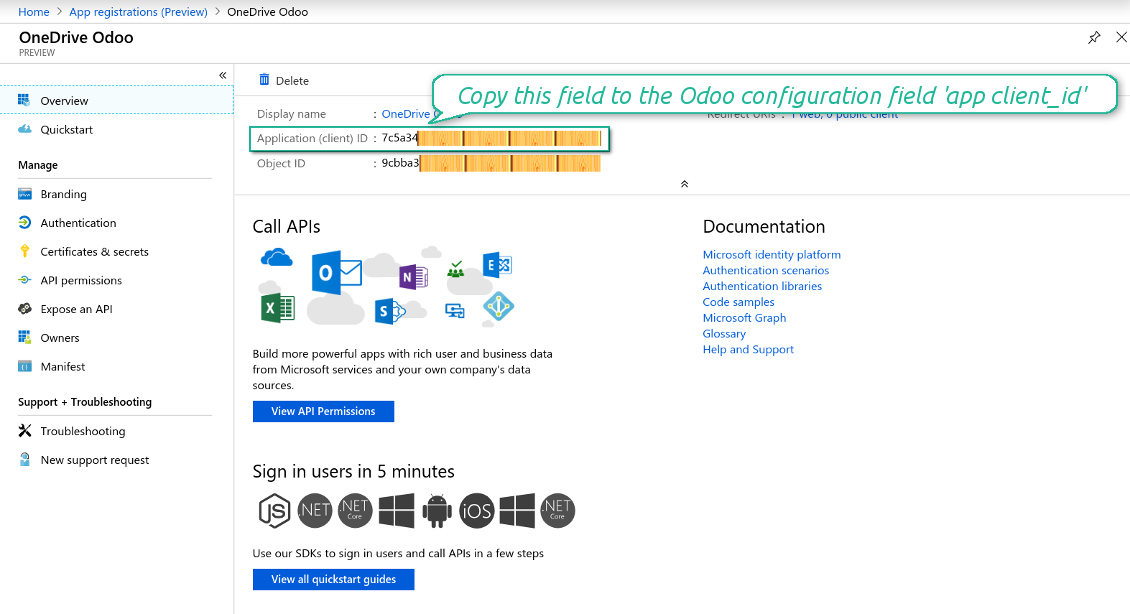
- Copy the Application Client ID to the Odoo field 'App client_id'
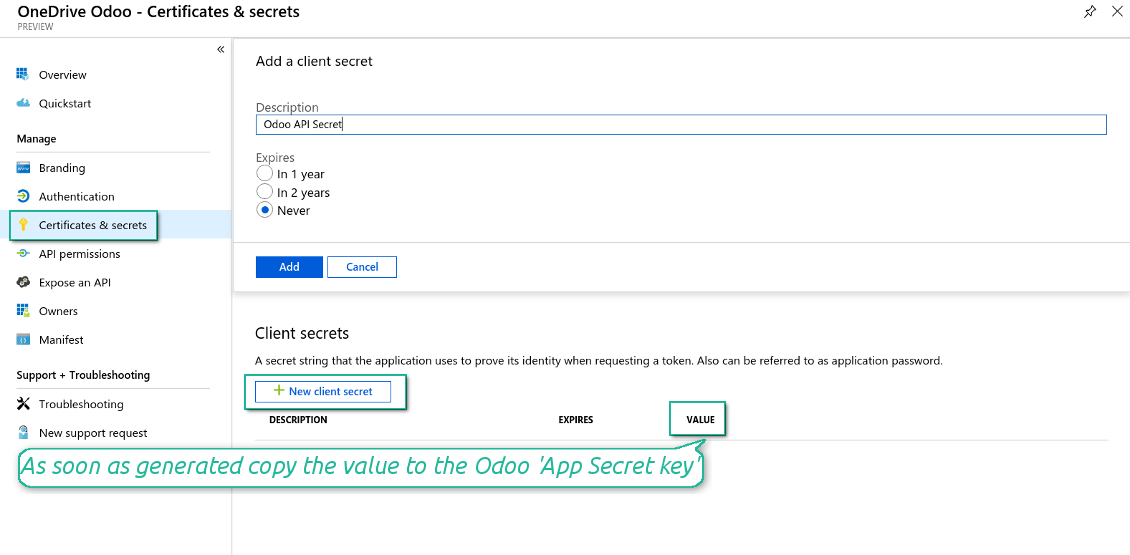
- Go to Certificates & secrets > Click 'New Client Secret'. Copy the secret value to the Odoo field 'App Secret Key'
- For SharePoint sites only:
- Go to your SharePoint site and prepare a new documents' library (drive). You might use one of the existing ones, e.g. 'Documents'. Odoo folder would be put there afterwards, and it would be impossible to move it for another library
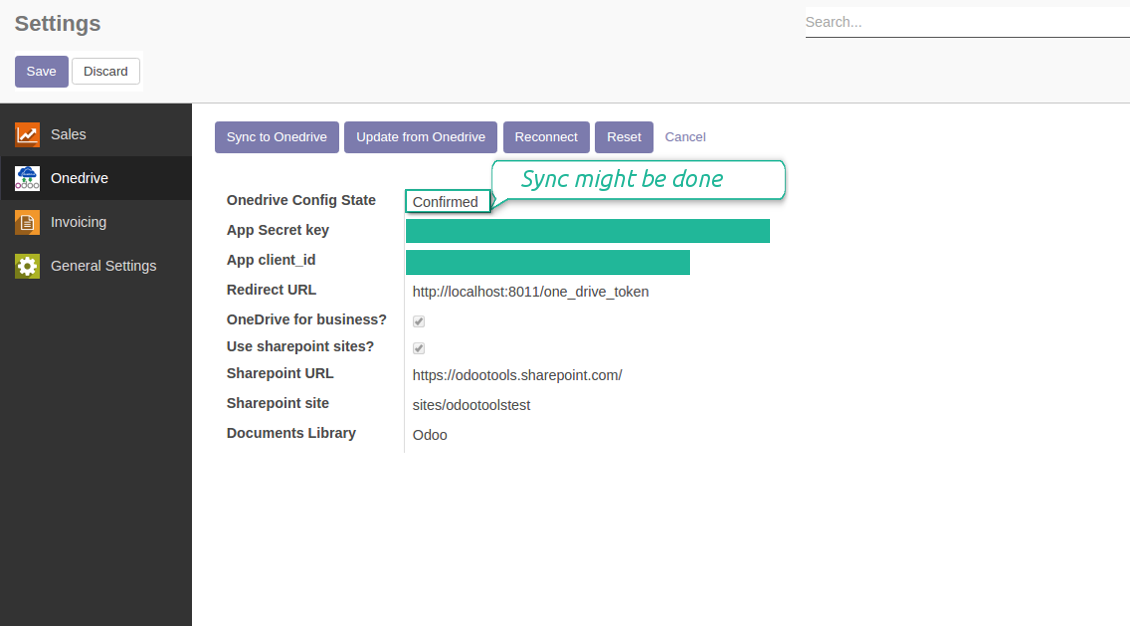
- Check the boxes 'OneDrive for business' and 'Use SharePoint sites'
- The SharePoint URL should be of the type https://[URL]/. The last '/' is required, sitename should not be included into. For example, https://odootools.sharepoint.com/
- SharePoint site should be either my_site_name (in that case it is considered as sites/my_site_name) or sites/my_site_name (instead of 'sites' it might be 'teams' and so on). There should be no '/' at the beginning or at the end. For example, sites/odootools
- As Documents Library use one created in SharePoint
- Press Save on the Odoo configuration Page.
- Press 'Login and Confirm'. Odoo redirects you to Microsoft login page. Check in and grant permissions asked. If Microsoft shows an account already signed in and says it does not exist in tenant 'Microsoft Services' (or any other unrelated tenant), do not click that row. Click 'Use another account' and sign in with the Microsoft account that owns the app's directory.
- After login, Microsoft redirects you back to Odoo. OneDrive - Odoo synchronization is ready to be done.
Create OneDrive application
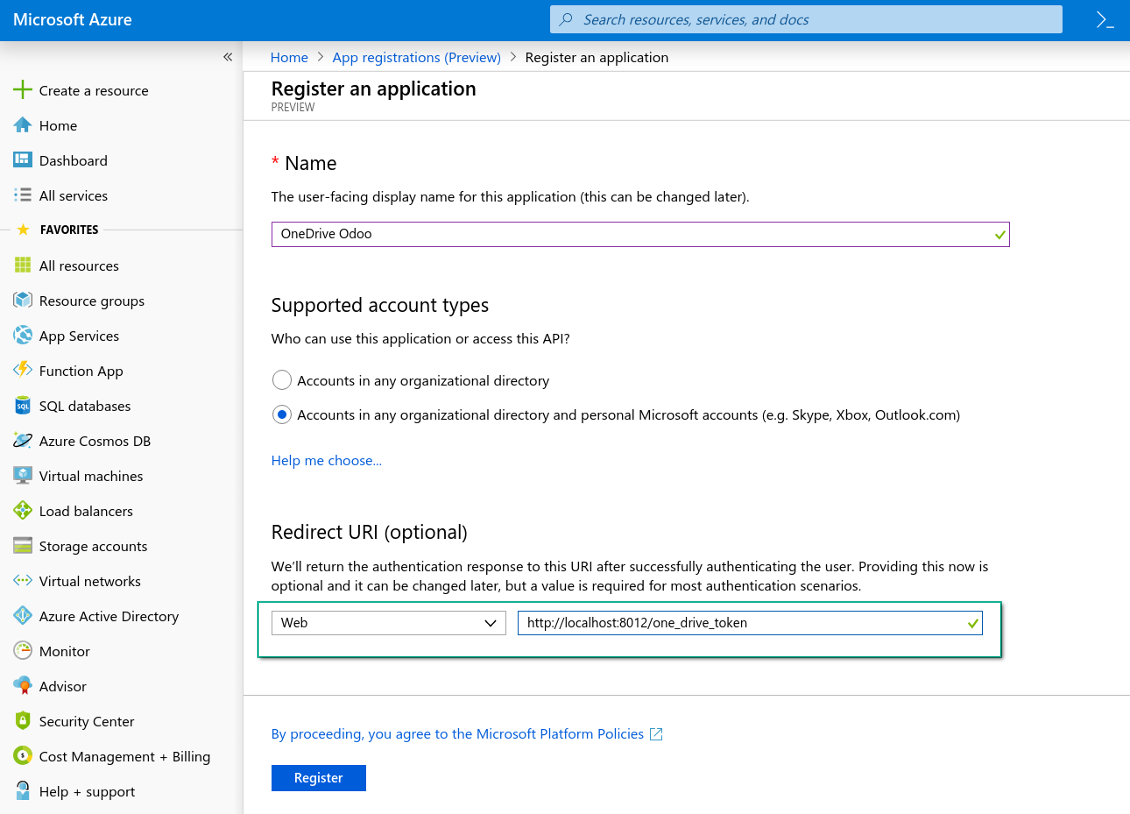
New OneDrive Web platform and redirect url
Generate new secret for your application
Enter configuration keys in Odoo
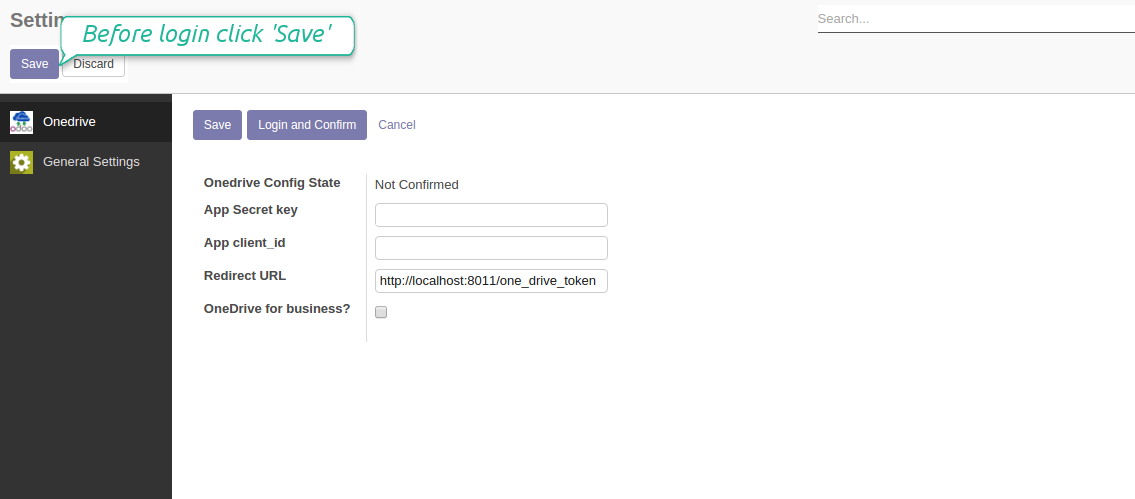
Odoo <> SharePoint sync settings
Odoo server configuration and cron job configuration
To make sure the synchronization works correctly apply proper timeouts to the Odoo configuration file: LIMIT_TIME_CPU, LIMIT_TIME_REAL should be more than 900 seconds.
For Odoo.sh this should not be done, since timeouts are predefined and are not configurable.
Then, timeout should be entered to your Odoo. To that goal find the section 'Settings' on the app configuration page and copy the number there.
Afterwards, it is needed to make the cron jobs suit the applied timeouts. In the debug mode go to the Settings > Technical > Automation > Scheduled Jobs:
- Set up the job 'Synchronize attachments with cloud' as (a) frequency - 2*timeout; (b) the next execution as the next hour +timeout. For example, for 900seconds timeout: frequency - as 30minutes; the next execution - at 08:15
- Set up the job 'Synchronize attachments from cloud' as (a) frequency - 2*timeout; (b) the next execution as the next hour + timeout*2. For example, for 900seconds timeout: frequency - as 30minutes; the next execution- at 08:30.
Reconnection
- You use this tool with version prior to 1.2.0. In that case you should also install the library 'microsoftgraph'. Look above
- You have not used the sync tool for more than 6 months
- Press the button 'Reconnect'
- Press the button 'Login and confirm'
Migration from the versions prior to the version 1.3.0
- Push the button 'Backward sync' (to make sure recent OneDrive changes are synced)
- Push the button 'Reconnect' and log in Microsoft
- Push the button 'Migrate from the version under 3.0'
- Check / update synced models
- Push the button 'Sync' to apply changes
Preguntas frecuentes sobre OneDrive / SharePoint Odoo Integration Odoo v.11
Veo un error al pulsar el enlace en la nube de la imagen sincronizada
El error «This item might have been deleted, expired, or you might not have permission to access it. Contact the owner of this item for more information.» indica que no ha iniciado sesión en el servicio photos.onedrive.com.
¿Puedo cambiar la frecuencia de los trabajos de sincronización?
Sí, puede. Para ello:
Active el modo depuración
Vaya a ajustes técnicos > Automatización > Acciones planificadas
Busque los trabajos «Synchronize attachments with cloud» y «Update attachments from cloud».
No los haga demasiado frecuentes. Es preferible que un trabajo termine antes de que empiece el siguiente. La configuración depende de cuántos elementos deba sincronizar. Suele estar entre 15 minutos y 4 horas.
Asegúrese también de definir límites de tiempo suficientes en el archivo de configuración de Odoo. LIMIT_TIME_CPU y LIMIT_TIME_REAL deben ser iguales o mayores que el tiempo previsto del cron. Desde la versión 13 tenga también en cuenta LIMIT_TIME_REAL_CRON.
Aviso importante para clientes de Odoo.sh: el tiempo máximo de un cron puede estar limitado a 15 minutos.
¿Puedo configurar una estructura de directorios sincronizados distinta de la que asume la sincronización?
No, esta función solo existe desde la versión 15. Antes el módulo usa una estructura de carpetas predefinida:
Odoo - carpeta raíz de la sincronización
Modelos - carpetas por tipo de documento Odoo. Por ejemplo «Projects», «Partners». Por dominio puede haber carpetas más específicas: «Customer 1 Projects», «Projects of the Customer 2», «Internal Projects», etc.
Objetos - carpetas por documento, p. ej. «Project 1» o «Customer 1»
Archivos y carpetas de ese documento Odoo que se sincronizan.
Así puede tener, por ejemplo:
Odoo / Projects / Project 1 / archivos y carpetas del proyecto 1
Odoo / Customer 1 Projects / Project 1; Odoo / Customer 2 Projects / Project 3, ...
Odoo / Customers / Customer 1 / archivos y carpetas del cliente 1
La estructura es siempre plana: solo esos niveles. No se pueden mezclar varios tipos de documento en la misma rama. En «Customer 1» no se pueden guardar a la vez pedidos, facturas y proyectos. Cada tipo tiene su(s) carpeta(s). Si no, no habría criterio para la sincronización inversa.
¿Debo configurar accesos específicos de usuarios en Odoo?
No, la herramienta usa un único punto de conexión de usuario. Todos los procesos de sincronización se hacen bajo un solo administrador cloud (aplicación). Los derechos de las carpetas / archivos creados no se automatizan. Adminístrelos en su almacenamiento en la nube.
¿Dónde se almacenan los archivos sincronizados? ¿Se duplican en Odoo y en las nubes?
La aplicación asume que el contenido binario de los adjuntos se guarda en el Cloud Client en lugar del servidor Odoo. Esos adjuntos en Odoo pasan a ser de tipo URL y puede acceder a ellos en cualquier momento desde el recuadro de adjuntos o desde el Cloud Client.
Tras la configuración no se requieren acciones manuales: la sincronización es totalmente automática. Decida qué tipos de documento de Odoo sincronizar y configure un modelo relacionado para cada uno (clientes, pedidos de venta o compra, tareas, proyectos, etc.).
¿Puedo tener varias carpetas para el mismo tipo de documento? Por ejemplo, proyectos internos y proyectos de clientes?
Sí, puede. Para ello, prepare una regla para cada una y aplique filtros: por ejemplo, por tipo de proyecto.
Haga que los filtros se excluyan entre sí para que un documento se asigne con certeza. Por ejemplo: «cliente pero no proveedor», «proveedor pero no cliente». Si no, la carpeta de un documento saltaría de un modelo a otro.
¿Necesito solo la aplicación Cloud Storage Solution?
No, la herramienta es solo un núcleo técnico. También necesita el conector de su cliente cloud.
¿Está bien si tengo muchos objetos que sincronizar, por ejemplo 10000?
Sí, aunque con muchas carpetas/adjuntos el proceso puede ser lento. Aun así, clientes informaron de entornos con >10k partners y ~5k variantes de producto, y los procesos eran aceptables.
Algunos puntos:
- La sincronización está hecha para que ningún elemento se pierda, aunque no sea rápida. Lo garantizan colas FIFO y el commit de cada trabajo.
- El número de objetos se puede limitar lógicamente. La configuración de modelos permite restringir elementos obsoletos (p. ej. partners archivados o pedidos de hace 2 años).
¿Es posible hacer la sincronización en tiempo real?
No. Tenemos razones de peso para evitar la sincronización en tiempo real:
Rendimiento. Si la sincronización es en tiempo real, cada subida de archivo muestra la pantalla de carga.
Conflictos. Si 2 usuarios cambian un elemento a la vez, la situación puede no resolverse. Con trabajos regulares se puede corregir después; en tiempo real habría que guardar una cola, aún más confusa.
Funcionalidad. En concreto, renombrar y reestructurar. La sincronización inversa se basa estrictamente en la lógica de directorios y en cada sincronización se comprueba el 100 % de los elementos. Tras cada actualización serían miles de peticiones por segundo. Si no, se perderían los cambios.
Puedo sincronizar adjuntos con varios clientes cloud
No, esta función solo está disponible a partir de la versión 15.
Usamos un editor especial en nuestras nubes (p. ej. OnlyOffice, Office 365, etc.). ¿Se abrirían los archivos en ese editor?
Sí, según la configuración de su cliente cloud.
Cuales son las políticas de actualización de sus herramientas?
Según las políticas actuales de Odoo Apps Store:
- Cada módulo comprado para la versión 12.0 o anterior da acceso a todas las versiones hasta 12.0.
- A partir de la version 13.0, cada version del módulo se compra por separado.
- Sea cual sea la version, la compra da derecho a todas las actualizaciones y correcciones dentro de una version mayor.
El equipo de faOtools no controla esas políticas. Para cualquier duda, contacte directamente con los representantes de Odoo Apps Store.
Cómo instalo su aplicación en Odoo.sh?
La via mas directa es el flujo integrado de la tienda Odoo:
1. Abra la página del módulo y pulse Deploy on odoo.sh
2. Será redirigido a GitHub. Inicie sesión y pulse Create a new repo o use uno existente. El repositorio debe ser privado. No esta permitido publicar las apps con licencia OPL-1. Cree un repo nuevo para el proyecto Odoo.sh si hace falta
3. Luego, en odoo.sh, pulse Deploy, confirme y pulse Continue. Se inicia la instalación.
Estos pasos instalan la app en la rama de producción. Para otras ramas o para actualizar:
1. Descargue el código fuente de la tienda Odoo
2. Haga commit del módulo en el repositorio GitHub. Ninguna carpeta/archivo de la app debe estar en .gitignore. Los repos creados por odoo.sh a veces ignoran rutas importantes (p. ej. /lib). Suba todos los directorios y archivos del módulo
3. Despliegue la rama destino del proyecto odoo.sh o espere la compilacion automática si asi esta configurado.
Cómo instalo su aplicación en mi propio servidor?
2. Reinicie el servidor Odoo;
3. Active el modo desarrollador (ajustes tecnicos);
4. Actualice la lista de aplicaciones (menú Aplicaciones);
5. Encuentre la app y pulse Activate/Install;
6. Siga las pautas de la página de la app si existen.
Su app tiene complementos extra. Puedo comprarlos después?
Si. Odoo anade automáticamente las dependencias al carrito: excluya las herramientas ya compradas para no pagar dos veces.
Desplegue su app en Odoo.sh y veo un aviso/error en las pruebas
Un aviso rojo/naranja no afecta a las funciones de la app. A veces nuestros módulos no pasan las pruebas automáticas estándar porque estas asumen un comportamiento que choca con los objetivos de la app. Por ejemplo, cambiamos el cálculo del precio y las pruebas de Odoo comparan el precio final con el algoritmo estándar.
Compruebe primero las funciones de la base desplegada. Funciona todo correctamente?
Si aun cree que el aviso afecta a funciones reales, contáctenos y envíe los registros completos de instalación y la lista completa de módulos desplegados (nucleo y de terceros).
Puedo comprar su aplicación directamente a su empresa?
No, solo distribuimos las herramientas a través de la tienda oficial de aplicaciones Odoo.
Quiero un descuento
Lamentablemente, no tenemos medios tecnicos para ofrecer precios individuales.
Puedo instalar la app en mi base Odoo Online (SaaS)?
No, las apps de terceros no se pueden usar en Odoo Online. Odoo SaaS bloquea esa posibilidad.
Su herramienta depende de otras apps. Debo comprarlas?
Si, la herramienta necesita todos los módulos marcados como dependencias. El precio de la página de la app ya las incluye.
Cual es el precio del módulo en dolares estadounidenses? Por que cambio?
El precio de nuestros módulos esta en euros. La tienda Odoo convierte a otras monedas según su tipo de cambio interno. Por eso el precio en dolares estadounidenses puede cambiar cuando se actualiza el tipo.
La redacción de la aplicación y el sitio web en idiomas distintos del inglés cuenta con asistencia de IA y se ajusta a las traducciones oficiales de Odoo. Si detecta un error, enviar un ticket de traducción y lo corregiremos.
Notificación de errores
Si encuentra errores o comportamiento inconsistente, no dude en contactarnos. Garantizamos proporcionar correcciones dentro de los 60 días posteriores a la compra y estamos muy interesados en mejorar nuestras herramientas incluso después de este período.
No necesita un número de teléfono ni una tarjeta de crédito para contactarnos. Sólo debes pasar un breve registro por correo electrónico, que no lleva más de 30 segundos.
Incluya tantos detalles como sea posible en su solicitud: capturas de pantalla, registros del servidor Odoo, una descripción completa de como reproducir el problema, etc. Por lo general, se necesitan varios días laborables para preparar un plan de trabajo para un problema (si se confirma un error) o proporcionarle indicaciones sobre lo que se debe hacer (en caso contrario).
Solicitudes de funciones públicas e ideas de módulos (desarrollo gratuito)
Estamos muy motivados para mejorar nuestras herramientas y agradeceríamos cualquier comentario. Si sus requisitos son de uso público y podrían implementarse de manera eficiente, el equipo los incluirá en nuestra lista de tareas pendientes.
Esta lista de tareas pendientes se procesa periódicamente y no implica cargos adicionales. Aunque no podemos prometer plazos ni diseño final, podría ser una buena manera de conseguir las funciones deseadas sin inversiones ni riesgos.
No necesita un número de teléfono ni una tarjeta de crédito para contactarnos. Sólo debes pasar un breve registro por correo electrónico, que no lleva más de 30 segundos.

La herramienta para guardar contraseñas en Odoo de forma segura y compartida. Bóvedas

La herramienta para construir una base de conocimiento profunda, interna y externa. KMS. Revisiones tipo wiki
398€
La herramienta para fijar objetivos KPI y controlar su cumplimiento por periodos. Tableros. Graficos

La herramienta para servicios por cita, de la reserva a ventas y reseñas
398€
La herramienta para gestionar Odoo desde chats de IA via MCP. Claude. Cualquier IA con MCP.

La herramienta para organizar adjuntos de Odoo en carpetas y sincronizar con Google Drive, OneDrive/SharePoint, Nextcloud/ownCloud, Dropbox, Amazon S3, Box y NAS. Gestor de archivos. DMS
398€
La herramienta para sincronizar adjuntos de Odoo con Google Drive en ambos sentidos
487€
La herramienta para sincronizar adjuntos de Odoo con ownCloud/Nextcloud en ambos sentidos
487€
La herramienta para sincronizar adjuntos de Odoo con NAS en ambos sentidos. Synology, QNAP, TrueNAS, WebDAV
487€