Cloud Storage Solutions v.15
The tool to flexibly structure Odoo attachments in folders and synchronize directories with cloud clients: Google Drive, OneDrive/SharePoint, Nextcloud/ownCloud, Dropbox. DMS. File Manager. Document management system.
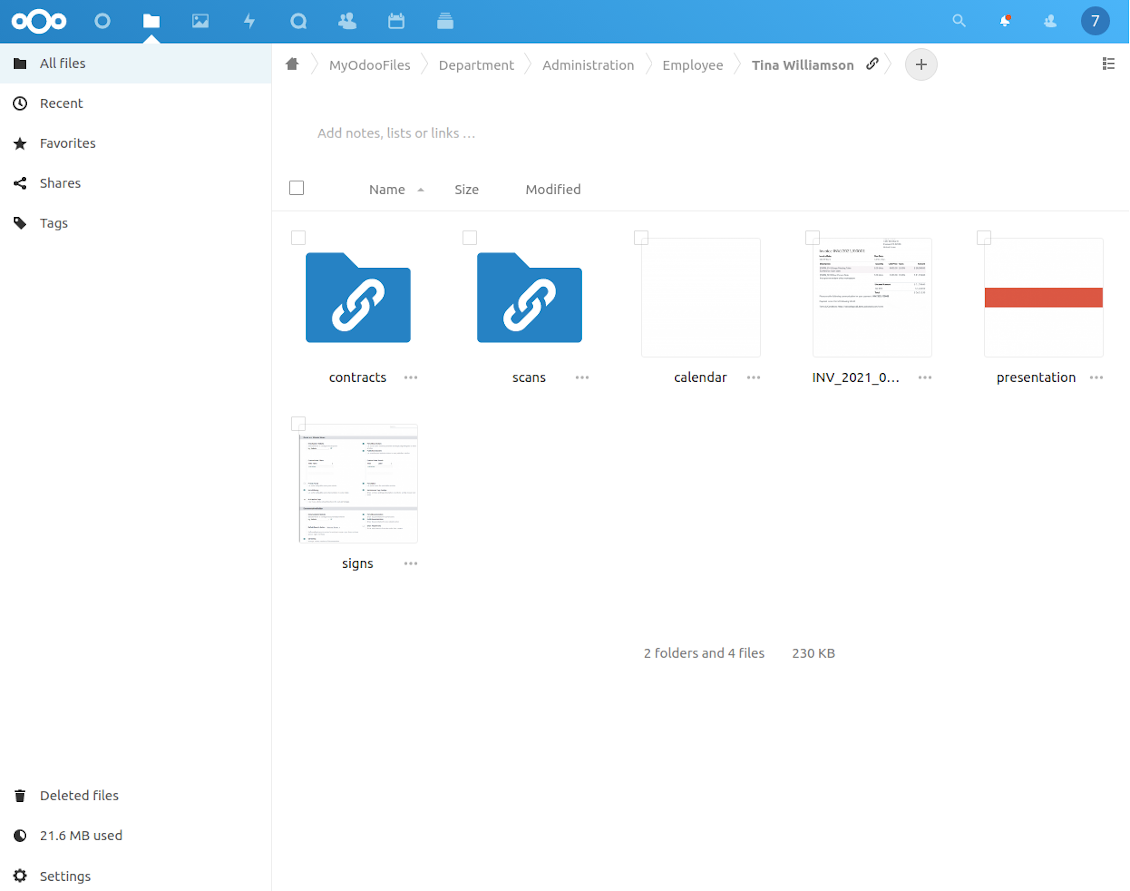
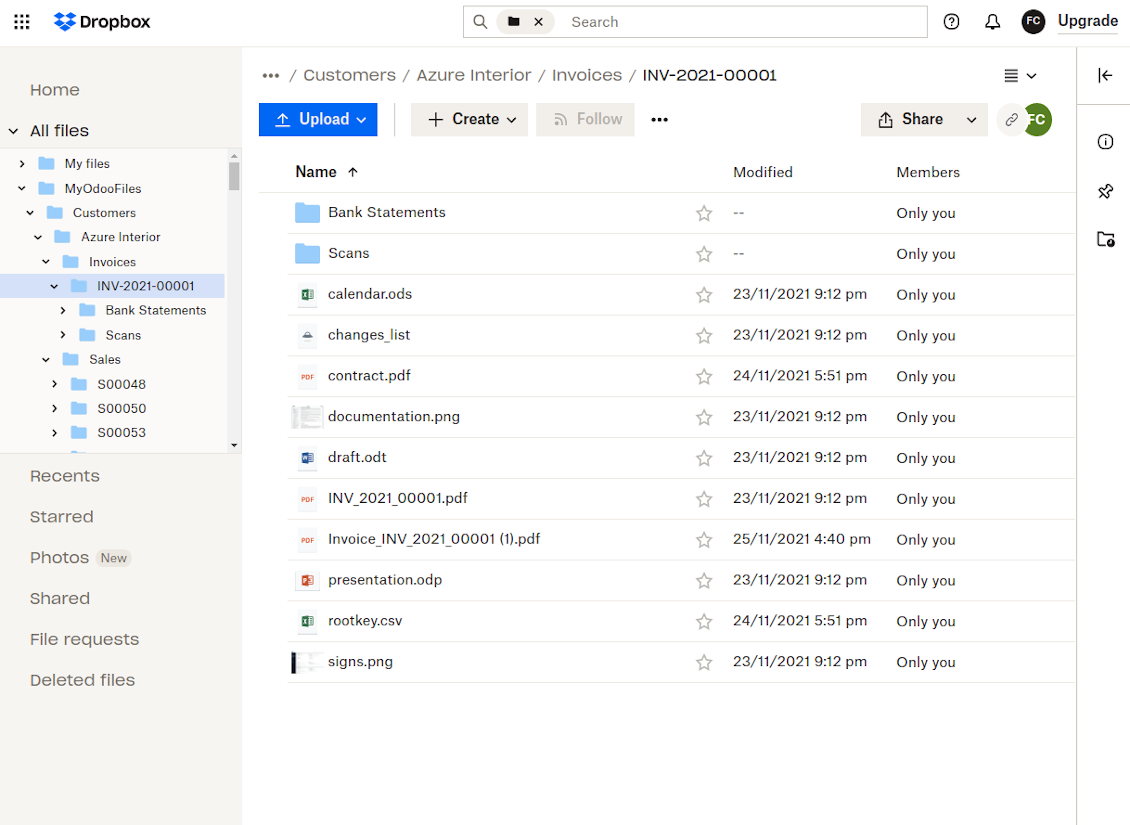
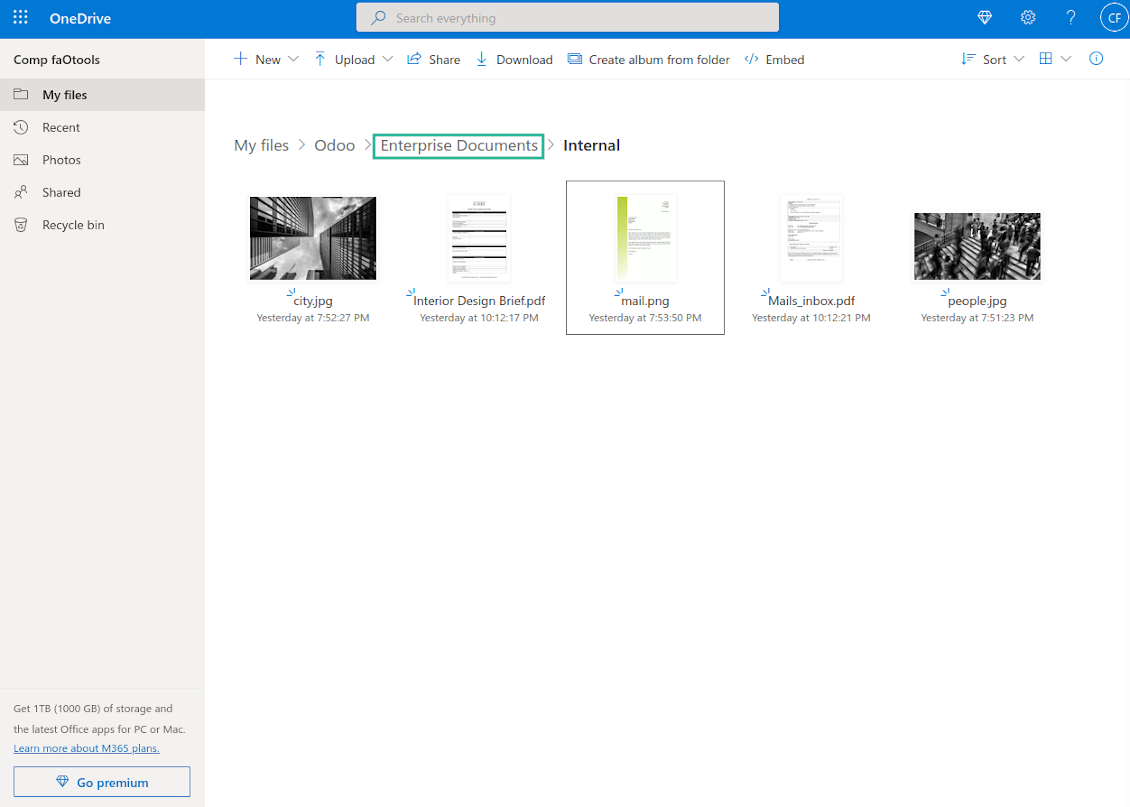

This is the tool to organize attachments in folders' trees and synchronize Odoo with the cloud storage solution(s) of your choice. The app introduces automatic algorithms to prepare directories for documents' and integrate those with workflows of Google Drive, OneDrive / SharePoint, Nextcloud / ownCloud, and Dropbox.
- the core module which introduces the file manager interface and basic mechanics for synchronizations with various cloud clients. 价格为 398€.
- the connector to synchronize Odoo folders and attachments with Google Drive. The features assumed by this add-on are marked by the icon . 价格为 89€.
- the connector to synchronize Odoo folders and attachments with Nextcloud or/and ownCloud. The features assumed by this add-on are marked by the icon . 价格为 89€.
- the connector to synchronize Odoo folders and attachments with OneDrive or/and SharePoint. The features assumed by this add-on are marked by the icon . 价格为 89€.
- the connector to synchronize Odoo folders and attachments with Dropbox. The features assumed by this add-on are marked by the icon . 价格为 89€.
- an optional add-on to prepare workspace-related folders and to sync Odoo documents (introduced by the enterprise app 'Documents') with clouds. The features assumed by this add-on are marked by the icon . 价格为 44€.
Automatic folders' structure
Decide which Odoo document types should have their own folder trees. Directories are regularly updated based on flexible rules and existing Odoo objects
Sync with chosen cloud storage solutions
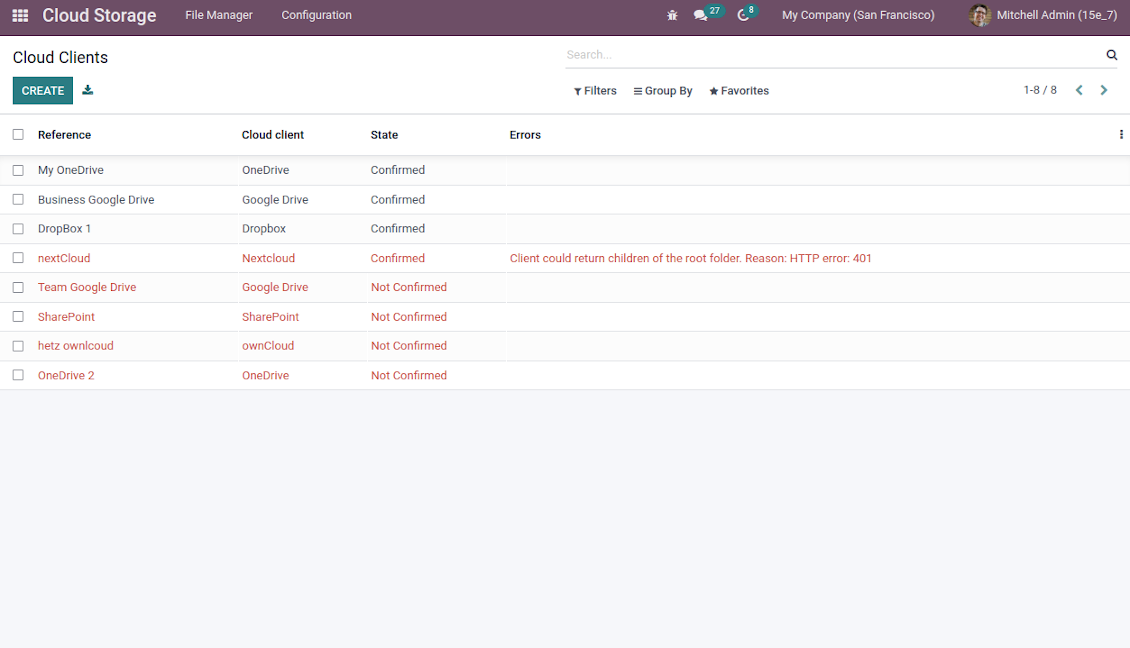
Synchronize chosen folders and files with specific cloud storage: Google Drive, OneDrive, SharePoint, Nextcloud, Dropbox, and ownCloud. Have as many connections as you need
File manager interface
Manage folders and attachments from a single view. Comfortably navigate by directories. Search and download files one by one or in batch. Upload and move attachments
Attachment box
Organize files of any Odoo object in a set of subfolders. Instantly access folders and files in the attachment box and in synced cloud interfaces
Automatic regular sync
Rely on auto-synchronization between Odoo and cloud solutions based on scheduled jobs. No manual interaction is required
Bilateral sync
Odoo sends attachments to cloud storage solutions and retrieves files from there. Binary content is kept in clouds, while Odoo provides direct access to synced items
Cloud synchronization history
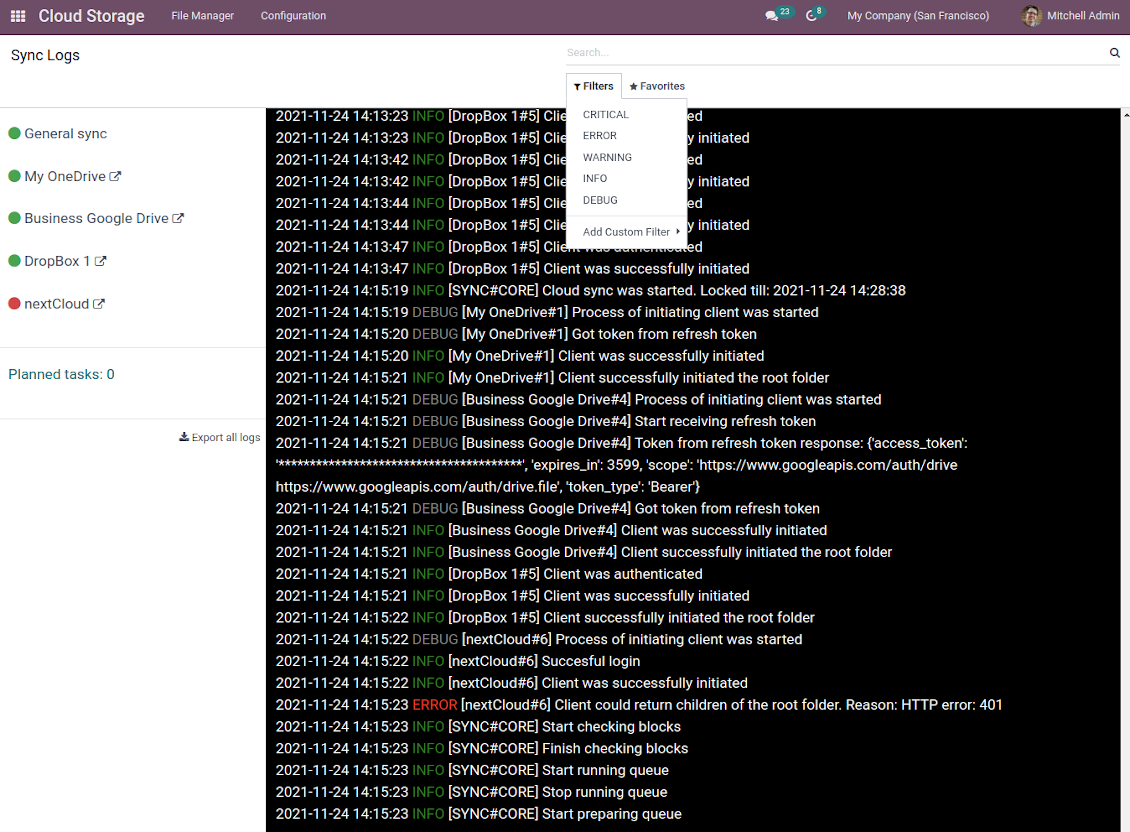
Control sync logs right in Odoo. Export and share those in case of any issues. Be notified of any client disconnections
Enterprise documents compatible
Set up rules to prepare folders based on Odoo Enterprise workspaces. All features, including sharing, downloading, and signing, would work even after sync.
Excellent
We have been using Cloud Storage Solutions for a few years already, starting with Odoo 17 mostly because our attachments were a mess. Now we're moving to Odoo 20, and we've surely decided to keep using the app. The File Manager is great for finding a file by folder or tag instead of remembering which sales order it was attached to. And the attachment box on contacts and projects shows the same folders, which lets us avoid excess clicks.
The folder rules are the part I keep showing people: new customer and project folders just appear, with the sub-folders we set up once, and everything lands in our Google Drive through the connector. We also use sharing a folder with our external partners, which is often especially efficient for tasks.
Big thanks to the team too. I asked a lot of questions about the sync and the access rights initially and now during the switch, and every answer came back fast. Really felt like they wanted it to work for us. Happy customer here.
Works well with SharePoint. Supportive team
We've been using this with SharePoint and it's been working great. One of the best things is having everything, including logs right in Odoo's interface, so you can actually see what's going on. It's also super convenient that you can view or download synced files from the attachment box without having to leave the page or even log in to Sharepoint.
Setup was pretty smooth for us. When we had a few questions about setting up the folder hierarchy and priorities, the developer team got back to us in just a couple of hours and helped us figure it out. Great support and great extension!
Tricky setup, but works perfectly now
Really solid module. We managed to get a very flexible folder structure (sorted by clients) and synced all our sales orders, invoices and tasks by projects to Google Drive.
Initial setup was a bit of a pain and kinda tricky to configure everything at first, but now it's running smoothly and works perfectly. The faotools team helped a lot. Def worth it if u need to keep your docs organized in Odoo and Google Drive.
Recommended!
Great support, assistance and very good connector!
We are very happy with the support we received when configuring the Sharepoint - Odoo connector. The connector has great functionalities.
All our questions were answered very fast (within one day).
FaOtools helped us optimising our connector and assisted us with future improvements.
We really recommend this connector.
Great module and Great Support!
The module works great! and the support is phenomenal!
A must-buy if it suits your requirements!
very professional app, excellen t customer service
This app is very well programmed and does its job very well. But the best is the excellent customer service who also helps when the problem lies somewhere else. You receive a lot for your money.
Excellent !!!
Great App and great Service from faOtools.
An impressive app and world-class support
I have been very impressed by the way the OneDrive / SharePoint Odoo Integration module synchronises content in both directions and allows me to share documents in Odoo with my SharePoint site. Above all the technical support is top-notch, which greatly increases the value of this product. I highly recommend this product for anyone considering synchronising Odoo with SharePoint/OneDrive.
Very good product
A perfect solution to integrate Owncloud with Odoo. We sync a high volume of objects across multiple Odoo models, which works seamless and stable. For us it is the perfect solution to have an external DMS instead of the Odoo native attachment handling, which also enables us to interchange files between systems in our best-of-breed setup.
The team behind this module is extremely professional and responsive. They helped us on a few occasions and provided clear answers and prompt support when required, and they even went out of their way to assist us with another requirement we had. Cannot recommend the product and team highly enough, try this if you're in the market to connect Odoo with an external document solution.
Works fine, good support
The first experience with the module is excellent. I had some trouble to configure things right on the Microsoft-side, but the team provided quick and good support.
Best module for integration with google drive
The module performs its function correctly and faOtools responds quickly to any problem and, in case of detecting any bug, quickly apply the changes. Its support is 10 stars.
Works according to specs
I have used this app with Odoo 12 and Nextcloud 16 and it works as specified. Odoo Tools offers very responsive support which is really helpful. Of course 5 stars...!
This is Awesome
I have used Cloud Sync on Next/Own Cloud and works really great.
Odoo File Manager Interface
-
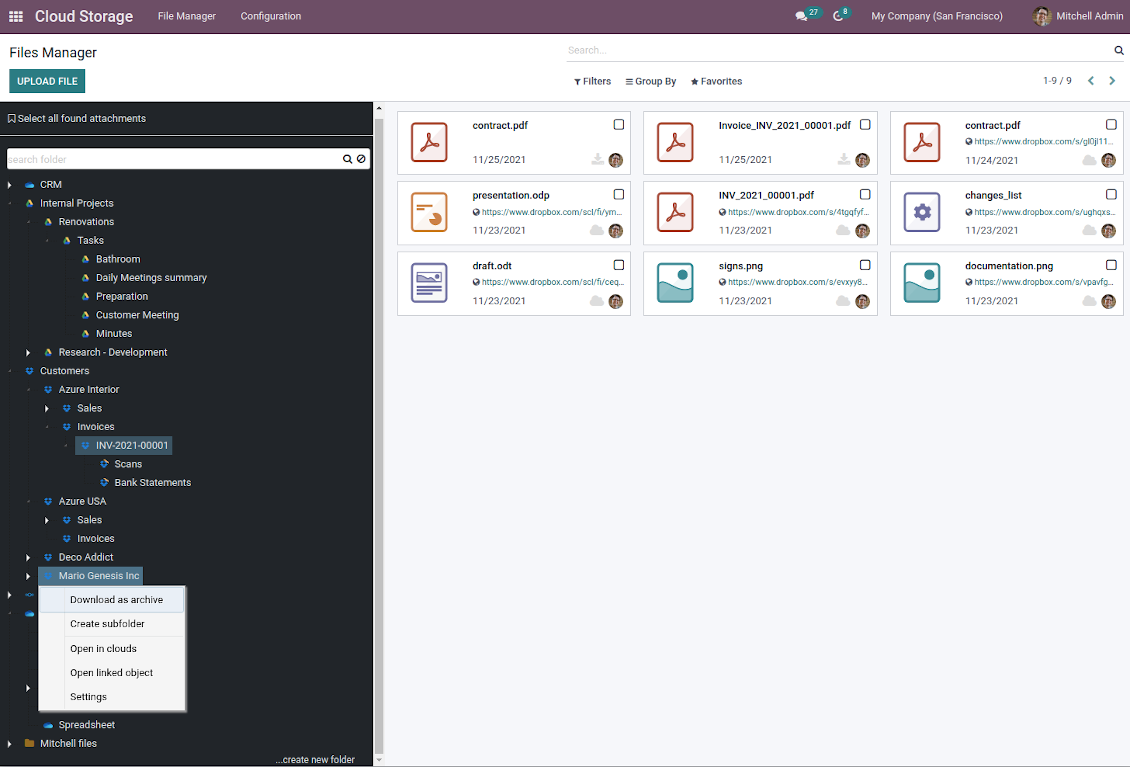
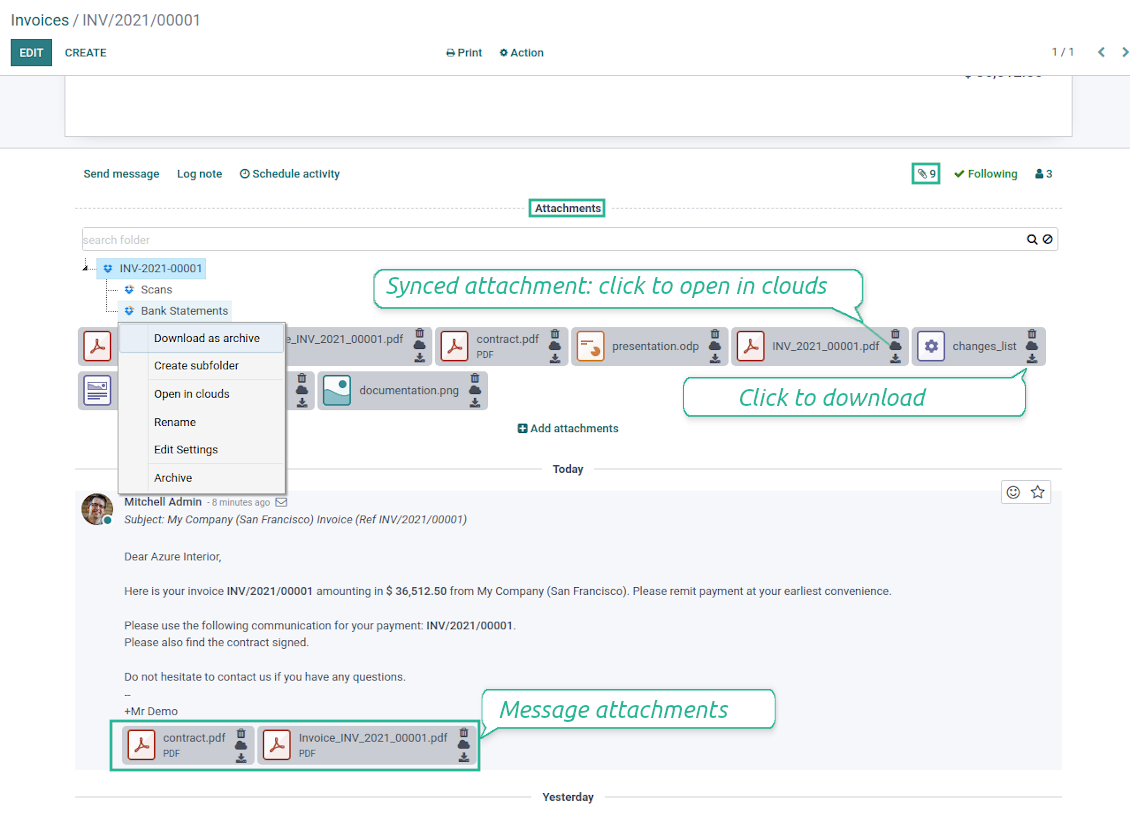
Comfortably navigate by folders' tree: select a directory to show its attachments; expand and hide folders' layers in a click
-
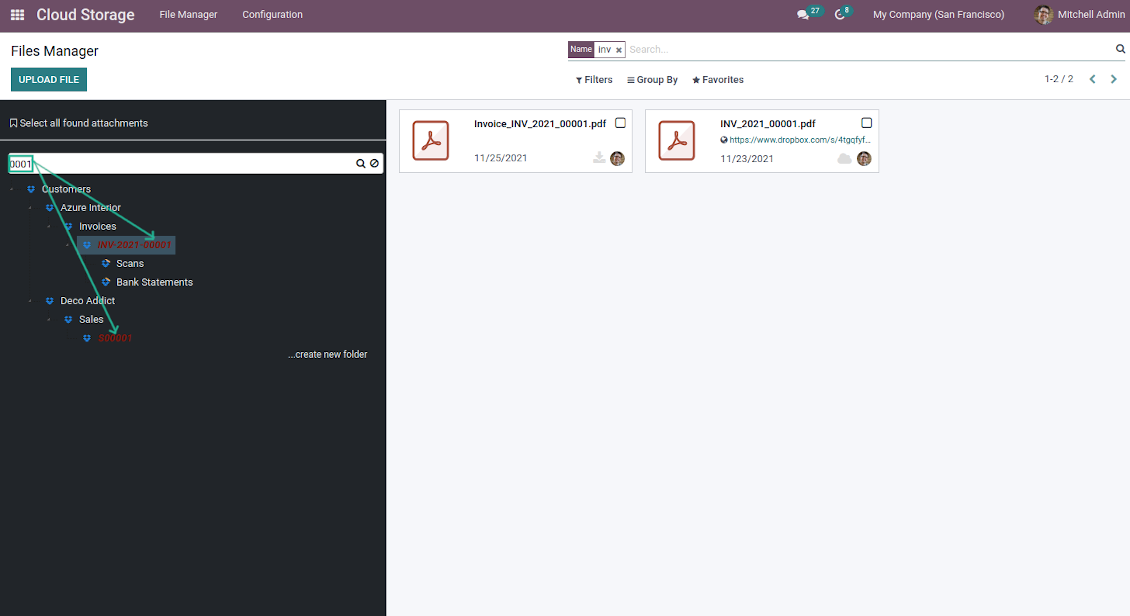
Search and highlight folders in seconds even if there are thousands of items (use the left navigation input 'search folder')
-
Add subfolders to any directory (right mouse click > Create subfolder)
-
Drag and drop to re-structure folders (relates only to manually created directories; for automatic folders change rules instead)
-
Download any folder with all attachments as a single zip archive (right mouse click > Download as archive)
-
Open any synced folder in its cloud client (right mouse click > Open in clouds)
-
Show a folder peer Odoo object if there is such a connection (right mouse click > Open linked object)
-
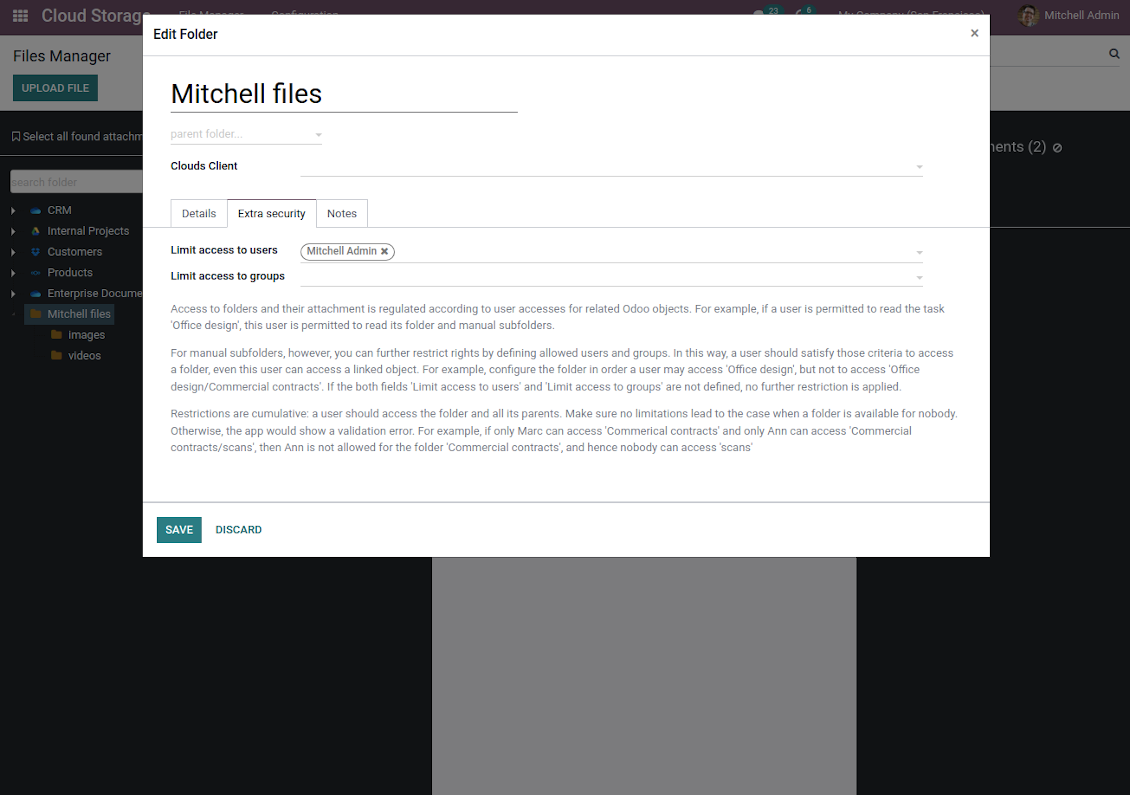
Change settings of manually created folders, including granting access rights (right mouse click > Edit Settings)
-
Upload attachment to a chosen directory (use the top header button 'Upload file')
-
Apply standard attachments' search and groupings to find required files
-
Instantly open any synced attachment in a linked cloud client (push the link in the middle of attachment cards)
-
Download any attachment to your local computer disregarding whether it is synced or not (push the icon 'cloud' or 'download' in the footer right corner)
-
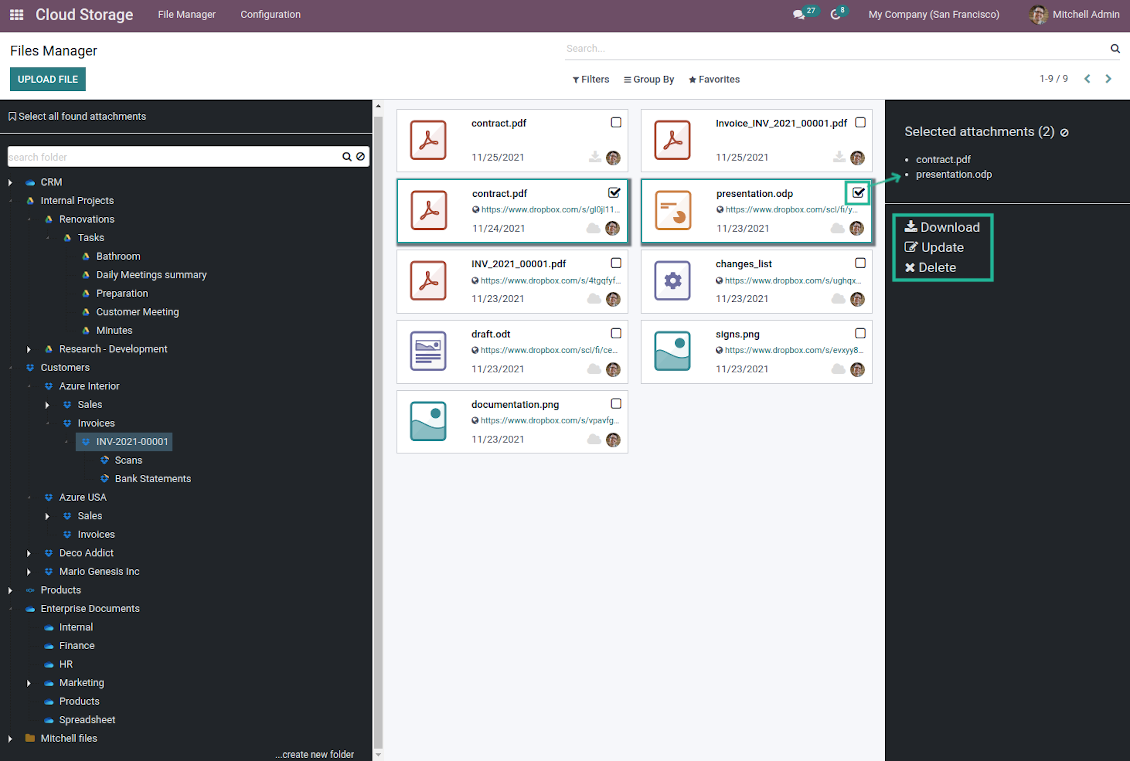
Consequentially select attachments and download them as a single zip archive
-
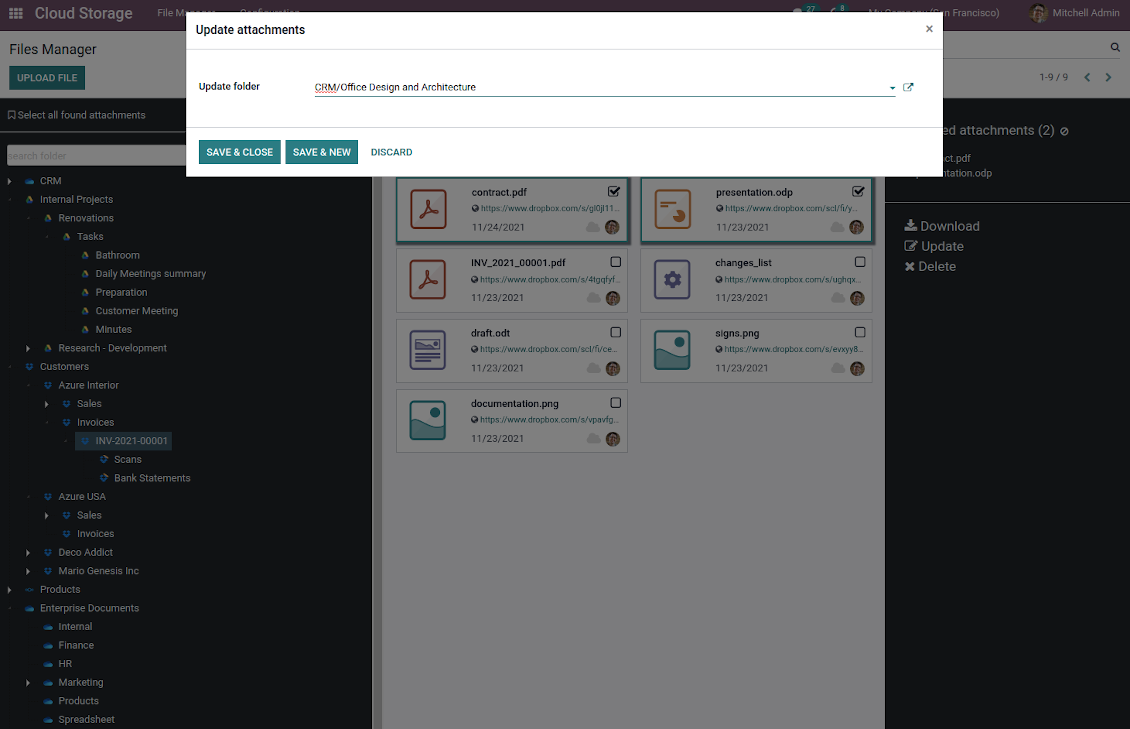
Comfortably move any file(s) to any folder, including re-attaching items between Odoo objects (e.g. from a sale order SO-001 to another quotation or its customer folder)
-
Delete attachments in batch.
Enhanced attachment box
-
Any Odoo object might be linked to its own folder. See Automatic folders' structure
-
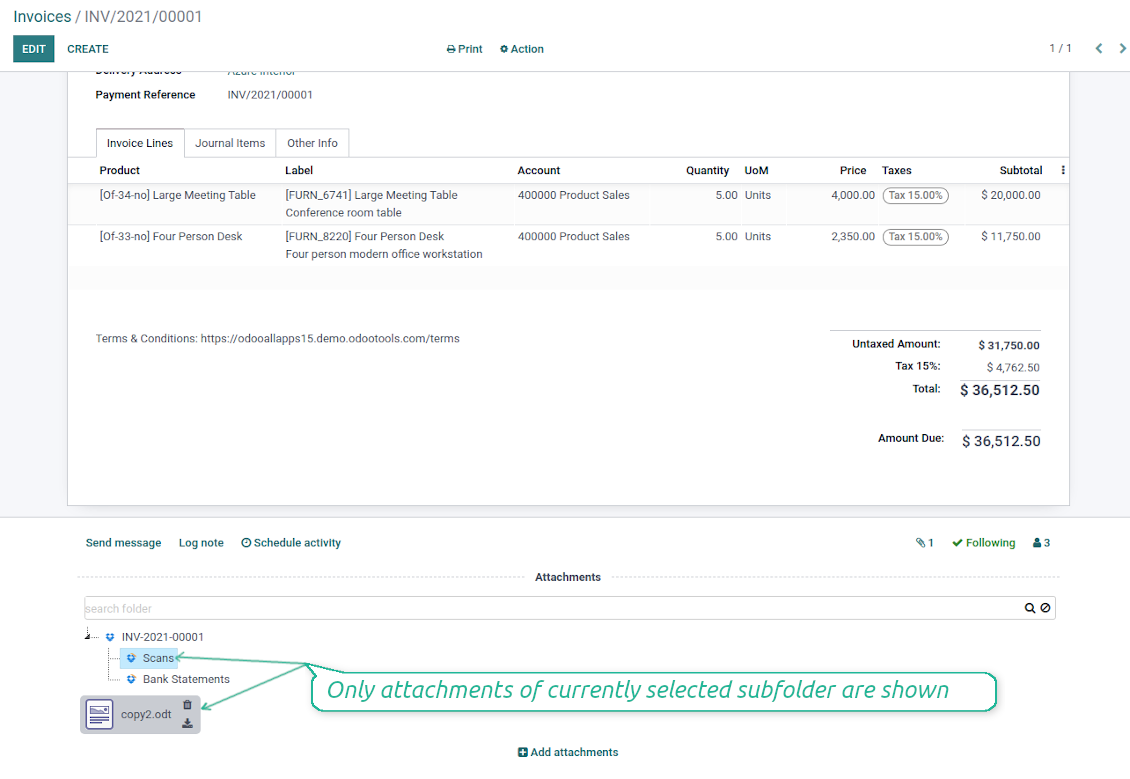
Flexibly define subfolders to organize the structure you need (right mouse click > Create subfolder)
-
Drag and drop to re-structure subfolders
-
Select a folder to see its attachments. By default files of the object root directory are shown
-
Download any folder with all attachments as a single zip archive (right mouse click > Download as archive)
-
Open the already synced folder in its cloud client (right mouse click > Open in clouds)
-
Upload attachment to a chosen folder (use the button 'Add attachments' or drag files to the attachment box area)
-
Instantly open any synced attachment in a linked cloud client (push the icon 'clouds')
-
Download any attachment to your local computer disregarding whether it is synced or not (push the icon 'download')
-
Use standard Odoo preview for both synced and local files (click on a file thumbnail)
-
Delete attachments as usual
-
All actions are equally applicable to object attachments and attachments related to messages.
Cloud storage synchronization
Multi synchronization
-
Use optional add-ons to synchronize the document management system with the cloud client(s) of your choice: Google Drive, OneDrive, SharePoint, Nextcloud, Dropbox, and ownCloud
-
Establish multiple connections to different cloud clients simultaneously. For example, sync sales-related folders to Google Drive; tasks and projects - to SharePoint or OneDrive; HR documents - to Nextcloud / ownCloud; manufacturing specifications - to Dropbox. Take into account that a specific folder might be synced to only a single cloud storage solution. Its children would be synced to the same client
-
For each cloud client, the app lets set up a few instances. For example, for Google Drive, you may share some folders to your personal drive, others - to one of your team drives, and the rest - to your teammate's drive
-
To establish a connection with particular cloud storage, follow the instructions that are specific for client types. See the tab Configuration for details
-
Any connection might be paused manually if it is needed. It might be also auto-stopped if there are critical issues during the sync. Then, you should re-connect to a target cloud client
Cloud clients
-
Synchronization for all cloud clients is based on the same principles and on the same queue. Simultaneously, there might be differences in sync results due to different features of various cloud storage solutions
-
Establishing connections for different types of cloud clients assumes installing optional add-ons, different approaches for Odoo, and external API configuration. Follow the instructions on the tab 'Guidelines'
-
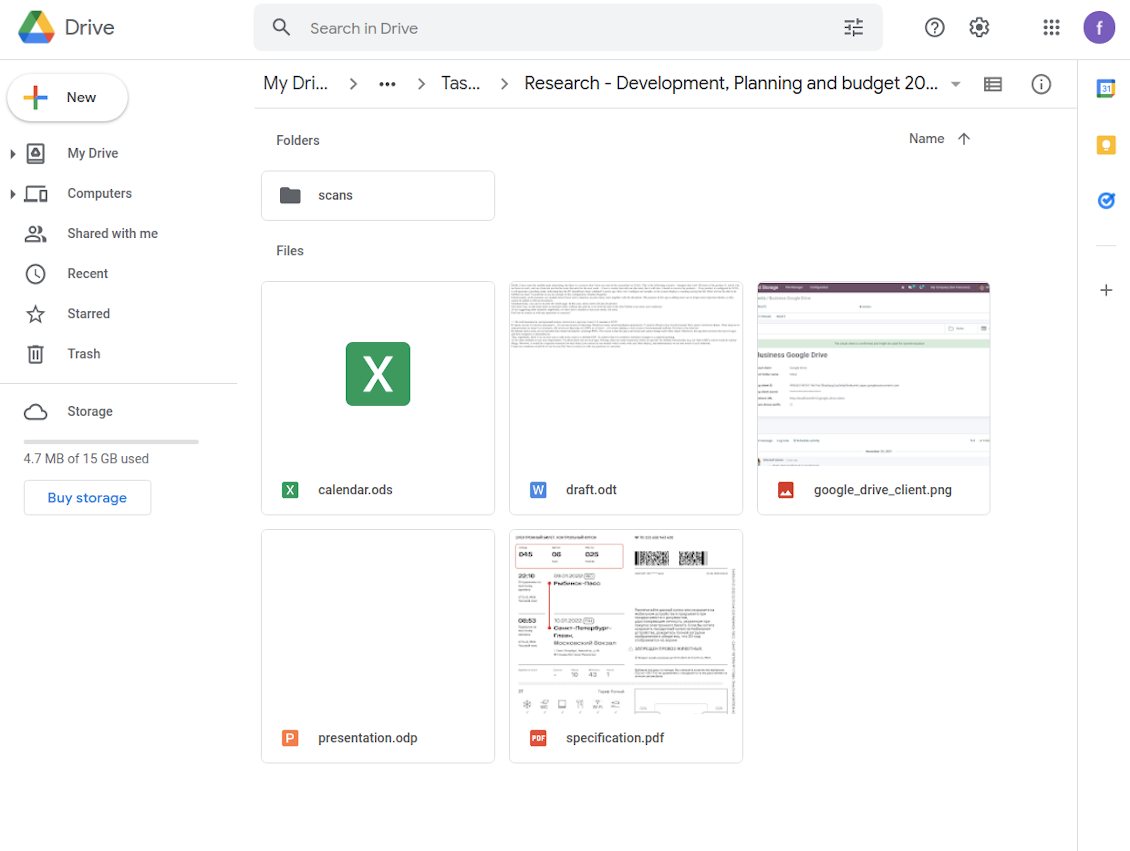
Google Drive Odoo Integration allows establishing a connection with any personal or team drive
-
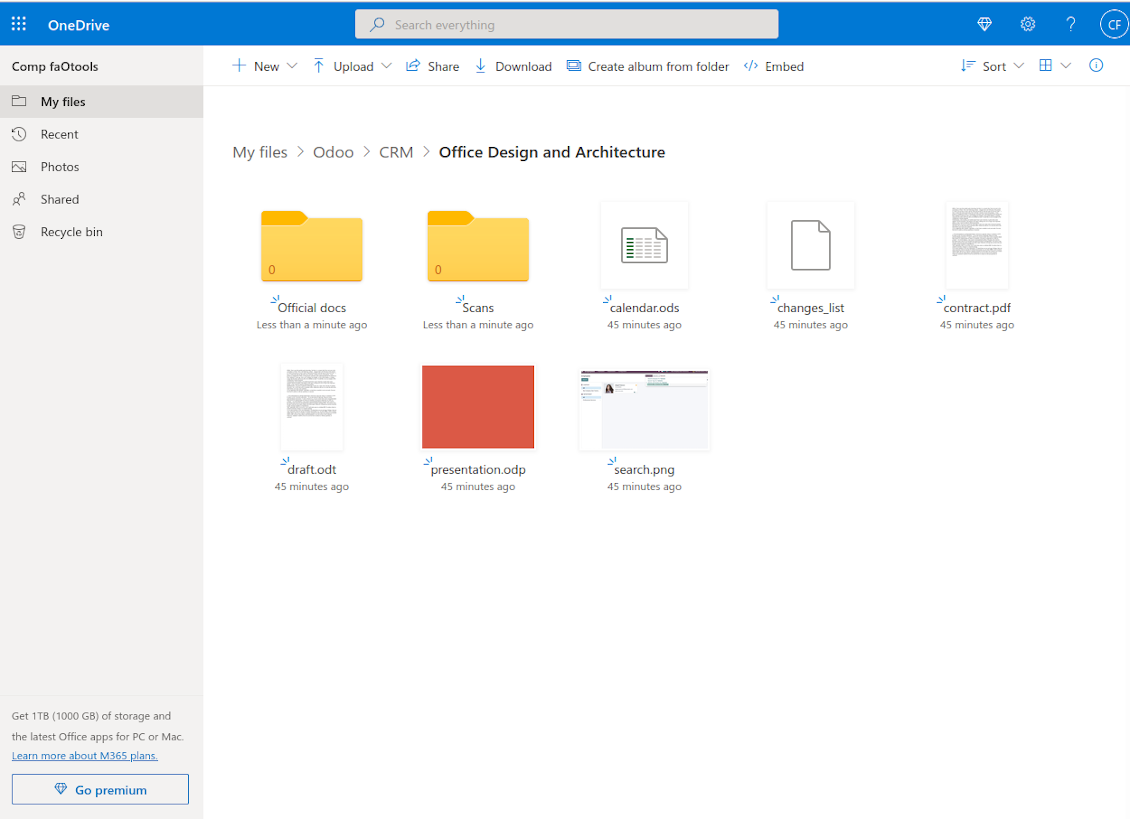
OneDrive / SharePoint Odoo Integration assumes synchronization with any drive of personal/business/SharePoint tariffs
-
ownCloud / Nextcloud Odoo Integration et integrate Odoo with any instances of ownCloud and Nextcloud. In comparison to other clients, the app allows setting the type of attachment links. By default Odoo links are internal: only authorized users may access them. Optionally make links public (the setting 'Use Public URLs'). See details on the guidelines tab
-
Dropbox Odoo Integration works for all DropBox tariffs, including Personal DropBox (Basic, Plus, Family) and business DropBox (Professional, Standard, Advanced). In comparison to other clients, the app allows choosing whether cloud items would be shared or internal. See details on the guidelines tab
Automatic two-sided sync
-
Integration is based on scheduled jobs and is fully automatized. The app regularly checks changes in systems and runs sync operations
-
Synchronization is bilateral. Updates in Odoo are reflected in cloud clients (direct sync); changes in cloud clients modify Odoo folders and attachments (backward sync)
-
Any cloud connection might be reset. In this way, the app assumes getting back all items back to Odoo (reverse sync)
-
Odoo folders and attachments might be re-attached to a new cloud client. Hence, items would be first taken back to Odoo (reverse sync) and then put to new cloud storage (direct sync)
Queue-based synchronization
-
Once in 15 minutes, the app examines updates in Odoo and cloud storage(s) to prepare a synchronization queue
-
Folders' checks follow the First-In-First-Out (FIFO) principle. So, directories that have not been examined for the longest will be processed first
-
Once in 15 minutes, the sync queue is run by the special scheduled job. Firstly, the most important (blocking) tasks would be done
-
Control planned jobs and their fulfillment in the special Odoo logs interface (Cloud Storage > Configuration > Sync Logs). Subscribe for particular cloud clients notifications
-
If the app faces sync failures, it will re-try operations afterward. Sync queue processing would not be stopped if there are items not blocked by such failures
Odoo attachments for cloud storage: direct sync
-
Direct sync prepares the folders' hierarchy and uploads Odoo attachments for cloud storage
-
Direct sync checks whether attachments are added or deleted for synced directories. If so, they would be created or removed in cloud storage. In particular, it means that any file added to a folder-related Odoo object (e.g. Quotation), would be automatically moved to a linked cloud client
-
Direct sync makes all synced Odoo attachments change their type to a link (URL), while binary content is removed with one of next Odoo cleaners. So, no actual files would be stored on your Odoo server
-
Direct sync checks whether a new folder is added. Disregarding whether it is done manually or automatically, the app would generate a peer directory in a cloud storage
-
Direct sync checks whether there are any updates in folders. If so, such changes are reflected in a cloud client
Cloud storage files and folders for Odoo: backward sync
-
Backward sync checks whether any files or subfolders are added to cloud storage folders. If so, the app would create URL attachments/subdirectories inside linked Odoo directories (and hence Odoo objects if any)
-
Backward sync checks whether there are any updates in folders or attachments. Such updates would be then reflected in Odoo
-
Backward sync checks whether any files are deleted/moved in a cloud document folder. If so, a linked Odoo attachment would be also unlinked or moved
-
If you deleted a cloud storage folder related to a folder rule / Odoo object, their child files would be deleted as well. Thus, Odoo would remove related attachments. The folders, however, will be recovered with a direct sync
-
In case of conflicts, direct sync changes are in general considered more important than backward updates.
Resetting or changing cloud client: reverse sync
-
In case you decided to reset the connection with a specific cloud client, files would be moved back to Odoo
-
In case you decided to change the cloud client of a folder rule or a folder, files would be first taken back to Odoo, and then direct sync for a new client would be done
-
Reverse sync operations are prioritized to direct and backward sync operations
-
Not all items can be correctly reversed to Odoo due to cloud client peculiarities. For example, there are documents that may exist only in cloud storage environments (e.g. Google Sheet). The app would try to convert such documents, but in some cases, it would require manual interactions.
Automatic folder structure
Rules for automatic folders
-
The app allows preparing its own folder for any Odoo object
-
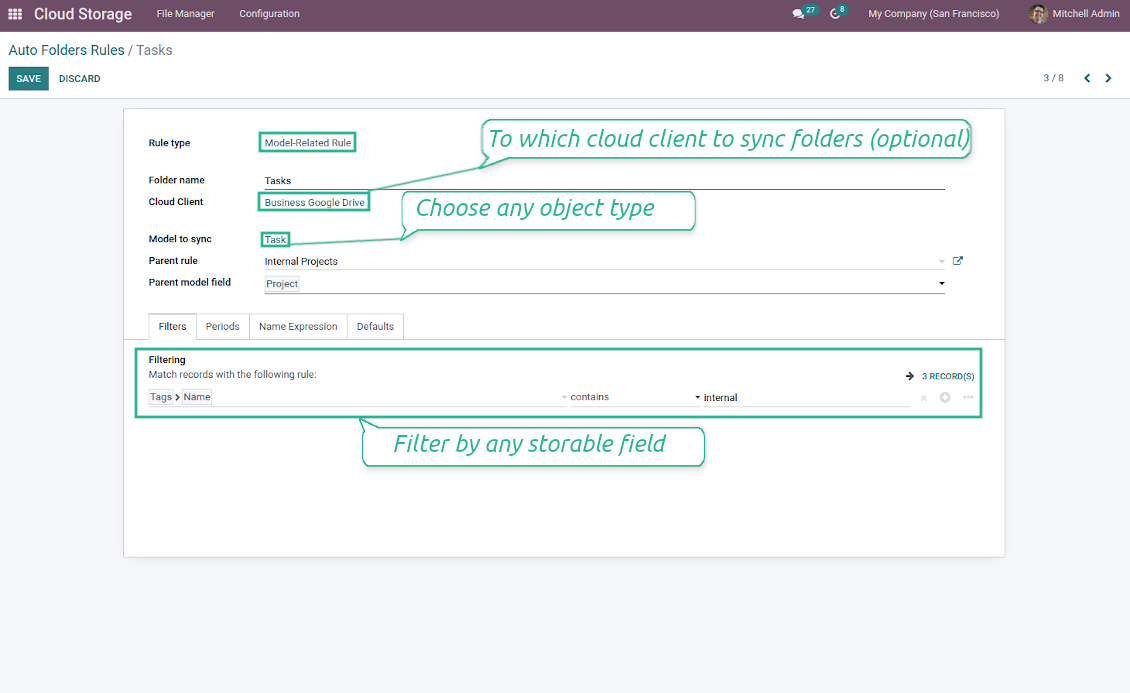
To configure a particular Odoo document type to generate a folder, you should just prepare a new folder rule (Cloud Storage > Configuration > Folder rules). For example, select the model 'Task' to make Odoo add a folder for each project task, so Tasks > Task 1, Task 2, ...
-
Automatically created directories would contain all attachments their linked objects have
-
Folders are updated regularly based on the scheduled job
Multi directories for each model
-
Each Odoo model might have a few linked folders
-
Apply any model storable field to filter Odoo objects and, in this way, split objects into a few super directories. For example, have own folders for individuals and companies, for European and American opportunities, for quotations and confirmed orders, for each project
-
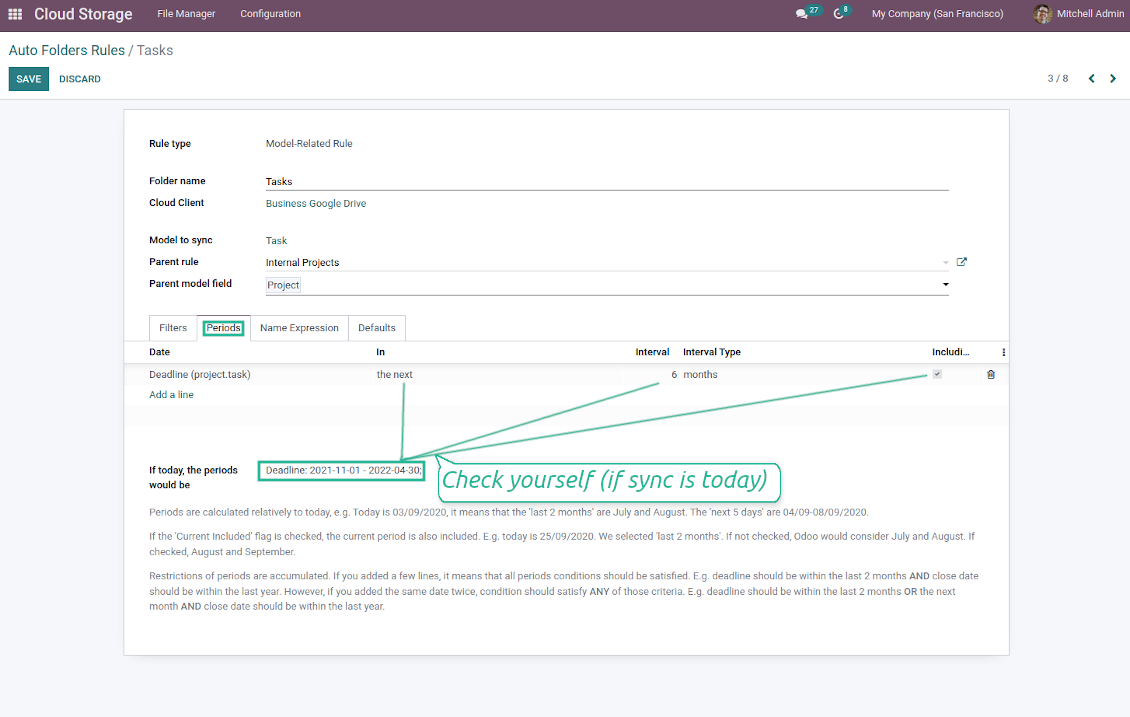
Filter Odoo objects by relative periods by applying date fields of linked documents. For example, leads registered in the last 3 months or invoices updated in the last week
-
As a result, the app lets have paths like 'Odoo > Quotations Europe > SO-001' or ' Odoo > the last year posted invoices (America) > SO-001'
Flexible folders' tree
-
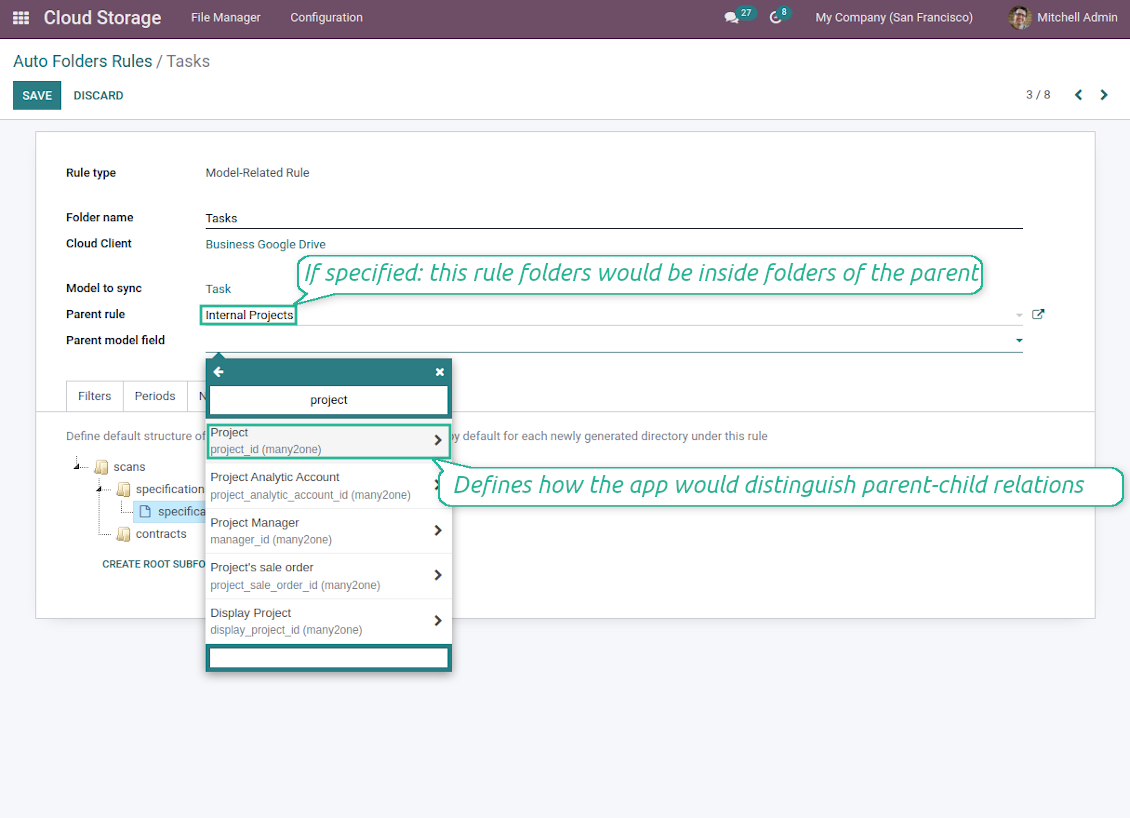
It is possible to set up a hierarchy of folder rules to prepare a more flexible directories structure
-
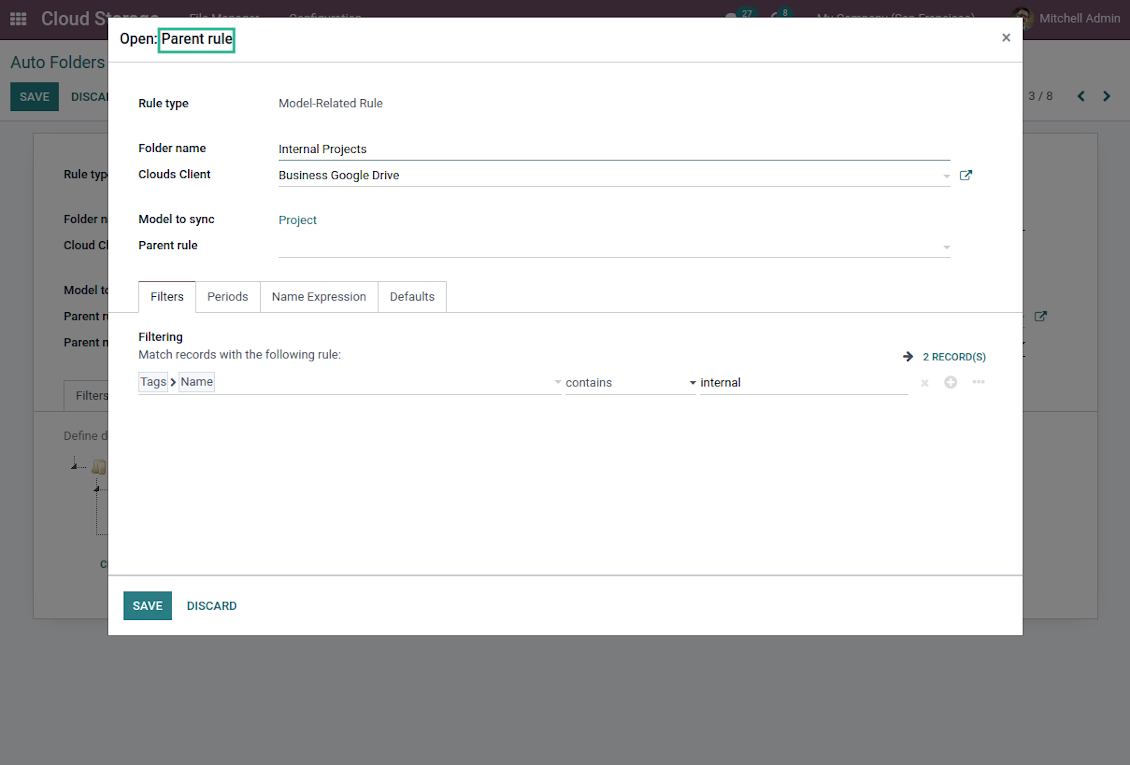
To that goal define a parent rule for a required folder configuration. For example, use a project-related rule as a parent for a task-related rule, a customer-related rule - for invoices-related rules
-
In order for folder relations to work correctly, it is also needed to enter a parent model field. So, it is the field that links models between each other (many2one relation). For example, 'Project' of a task, 'Customer' of a sales order, or 'Sales Team' of an opportunity
-
As a result, the tool allows reflecting your Odoo workflow logic and have paths like 'Odoo > Customers > Azure Interior > Projects > Software Design > Prepare Specification' and 'Odoo > Customers > Azure Interior > Quotations > SO-001'
Subfolders, default folders, and default files
-
The app lets add an unlimited number of manual subfolders for each folder. In particular, you may have a directories tree right in each object attachment box
-
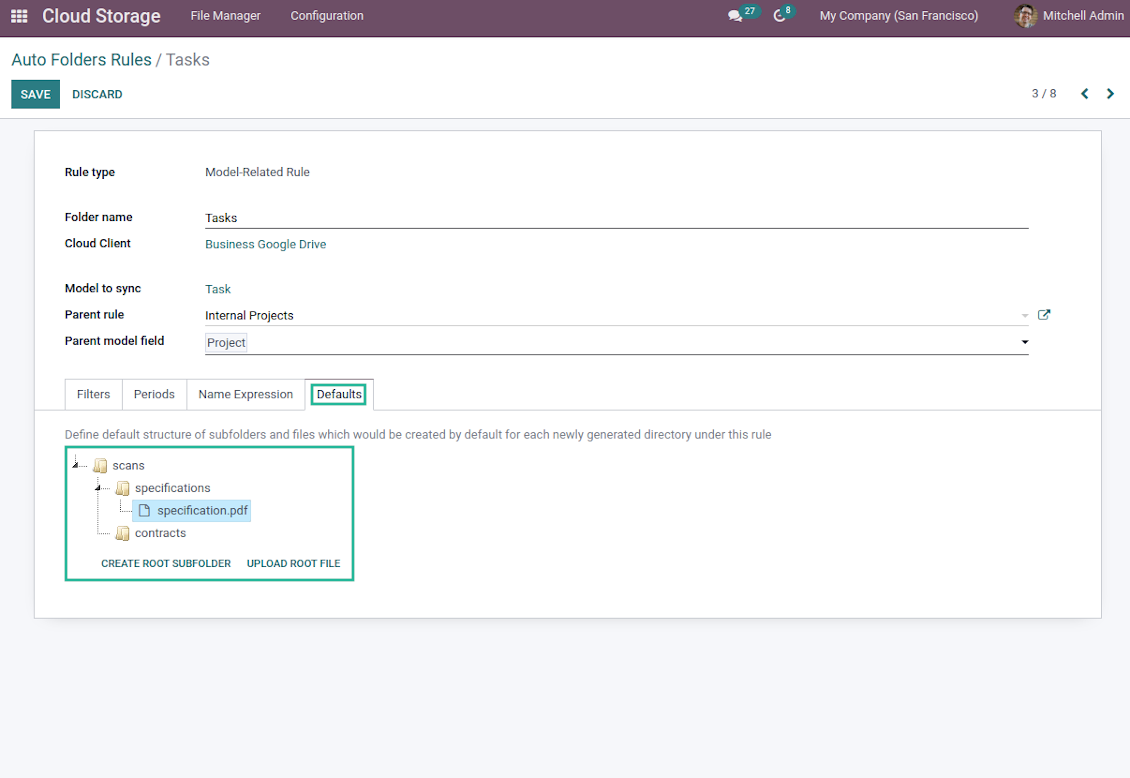
For the first generation, it is possible to define default folders, so subdirectories would be auto-generated for a specific Odoo object folder. Afterward, you may add delete/edit those or add new ones
-
The same mechanics are applied to prepare default files. For example, to have contract/personal card templates which then are assumed to be filled with real data
Configurable folder titles
-
Each folder rule assumes to generate a directory. Names for the such directory are assigned right on a rule form. For example, introduce 'Jobs' for a task-related rule or 'HR' for employees' folders. By default, the Odoo model name would be used
-
For object-related folders, the names are generated based on the Odoo name_get method. So, if not defined the opposite, it would be the same title as you see in the Odoo form view header
-
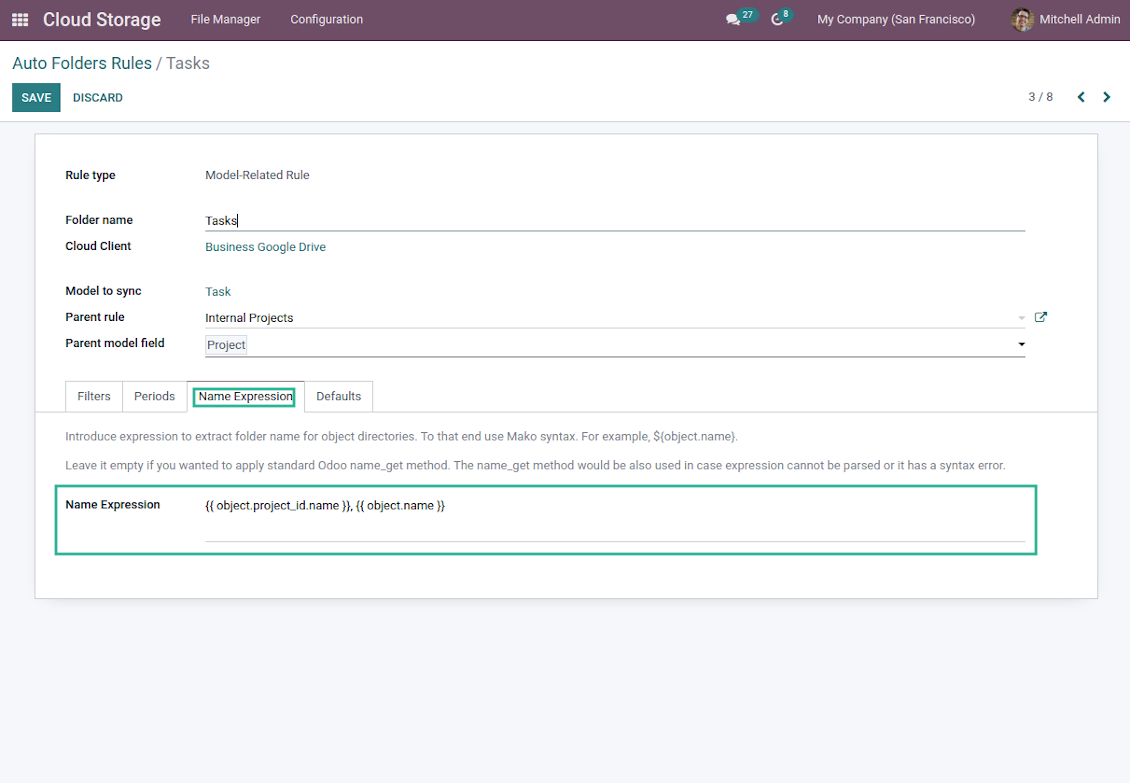
The app lets define complex name expressions for object-related folders (the tab 'Name Expression' on a folder rule form). To that goal, apply the syntax used in Odoo email templates. For example, {{ object.project_id.name }}, {{ object.name }} to reflect a project name in tasks folders
-
Avoid the following symbols in folders' and files' names: *, ?, ", ', :, <, >, /, +, %, !, @, \, /,. Direct sync will replace such symbols with '-'. It is done to avoid conflicts with file systems. Avoid also too long names: e.g. more than 100 symbols
Enterprise Documents
-
The app allows generating folders for workspaces introduced by the Odoo Enterprise apps 'Documents'
-
To force Odoo to prepare workspace-related directories, define folder rule(s) of the type 'Workspace-Related rule'. The tool would automatically create linked folders and sync those for chosen cloud storage with one of the next jobs
-
It is not obligatory to reflect the whole DMS structure. Thus, it is possible to filter workspaces by any storable field. For example, to add a folder only for workspaces that contain the keyword 'Internal'. Take into account: if a workspace was synced, all its child workspaces would be also synced
-
If you generated a subfolder for any workspace-related folder, the app would also create such a Documents workspace
Typical use cases
-
Customers: add all partner files in a single super directory. Optionally distinguish companies and individuals. For example, Odoo > Customers > Azure Interior > Contacts > John Brown
-
Sales orders and invoices: keep all sale-related printings and contracts in your own quotation directories for each customer. For example, Odoo > Customers > Azure Interior > Orders > SO-001 and Odoo > Customers > Azure Interior > Invoices > INV-00001
-
Opportunities: store all specifications, requirements, and any files which would let you make a good offer carefully structured by each sales team and case. For example, Odoo > Sale teams > Europe > Leads > Interest in 50 chairs
-
Project and tasks: prepare a folder for each customer project and task. For example, Odoo > Customers > Azure Interior > Projects > Software design > Tasks > Specification
-
Human resources: gather all files by each employee in a single folder: photos, document scans, contracts. Structure employees by department. For example, Odoo > Departments > Accounting department > Employees > Anita Olivier.
File manager and sync access rights
-
Access for each Odoo automatic folder is regulated based on a linked object. If such an Odoo object is available for a specific user, its directory would be also available for her/him. For example, if Anita Olivier is the task manager of 'Prepare specification', then she may access the folder 'Tasks' and 'Tasks > Prepare Specification'
-
Access for Odoo manual folders is regulated based on its user groups and users stated in those folders' settings. If nobody is specified, a manually created folder is available for everyone. For example, if Anita Oliver is a sales manager, she may access the quotation-related folder 'Odoo > Orders > SO-001'
-
To access any folder, a user should be able to access all its parents. For example, if Anita Oliver has rights for employees but does not have for departments, then she might not read 'Odoo > Departments > Administration > Employees > Mitchel Admin'. However, if the folder 'Employees' becomes a stand-alone folder without a parent, then Anita would be able to access 'Odoo > Employees > Mitchel Admin'
-
The app does not regulate access levels for cloud clients and their items. The tool regulates rights only for Odoo objects and synchronizes those to required storage. After the sync, if necessary, you should apply the settings for a target cloud client, folders, and files
-
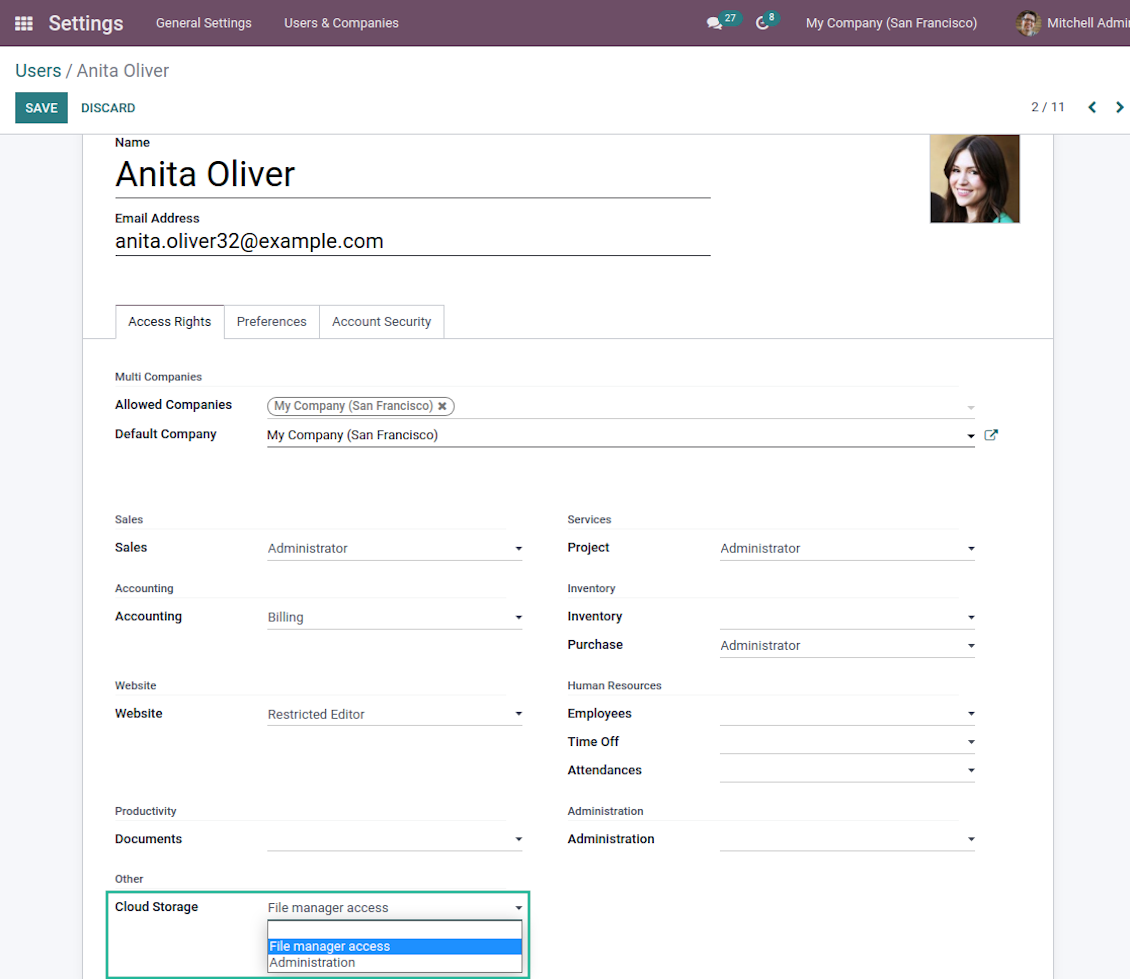
To observe the menu 'Cloud Storage' and the app file manager, a user should belong to the security group 'Cloud Storage > File Manager Access'
-
To configure automatic folder rules, establish connections with various cloud clients, control sync logs, and apply the app settings, a user should belong to the security group 'Cloud Storage > Administration'.
Use notes
-
The app assumes automatic regular synchronization with various cloud clients. Please take into account that synchronization is not real-time but is based on tasks queue and scheduled jobs. Depending on the number of folders and attachments, it might take time for the app to check all directories and do the jobs. That's why, until the sync is done, Odoo attachment interfaces work as in standard Odoo.
-
Cloud connections rely upon the API of the related cloud clients. Such communication between systems is risky by concept due to possible disconnections, API updates, and unsolvable conflicts. The app is designed to cope with such risks by carefully processing failures and checking cloud client states. Simultaneously, make sure that you have configured a proper backup strategy for both Odoo and cloud clients.
-
The special factors of risks are sync scope and reverse operations. The higher the sync scope is, the more it would take Odoo to finish integrations. Hence, more space for errors exists. Try to decrease sync scope logically by choosing only required folders. Reverse operations might be risky since assume reflecting cloud clients' features which might be absent in Odoo. For example, Google Sheets cannot be opened outside Google Docs. The app would try to solve the scenarios by applying similar features (e.g. by converting a file to simple electronic tables). However, that is not always possible, and in this way, manual interactions would be required.
配置与安装提示: Cloud Storage Solutions Odoo v.15
Odoo server configuration
To make sure the synchronization works correctly apply proper timeouts to the Odoo configuration file: LIMIT_TIME_CPU, LIMIT_TIME_REAL, LIMIT_TIME_REAL_CRON should be more than 900 seconds.
For Odoo.sh this should not be done, since timeouts are predefined and are not configurable.
Avoid also changing the cron jobs frequency assumed by the app: '[Cloud Storage] Prepare Cloud Folders', '[Cloud Storage] Run / Prepare sync queue'. Those jobs are configured to be run each 15 minutes, and that frequency is used in the algorithms to avoid breaks and data losses. If you need to stop sync for a while, pause particular cloud clients instead.
Setting up Google Drive Integration
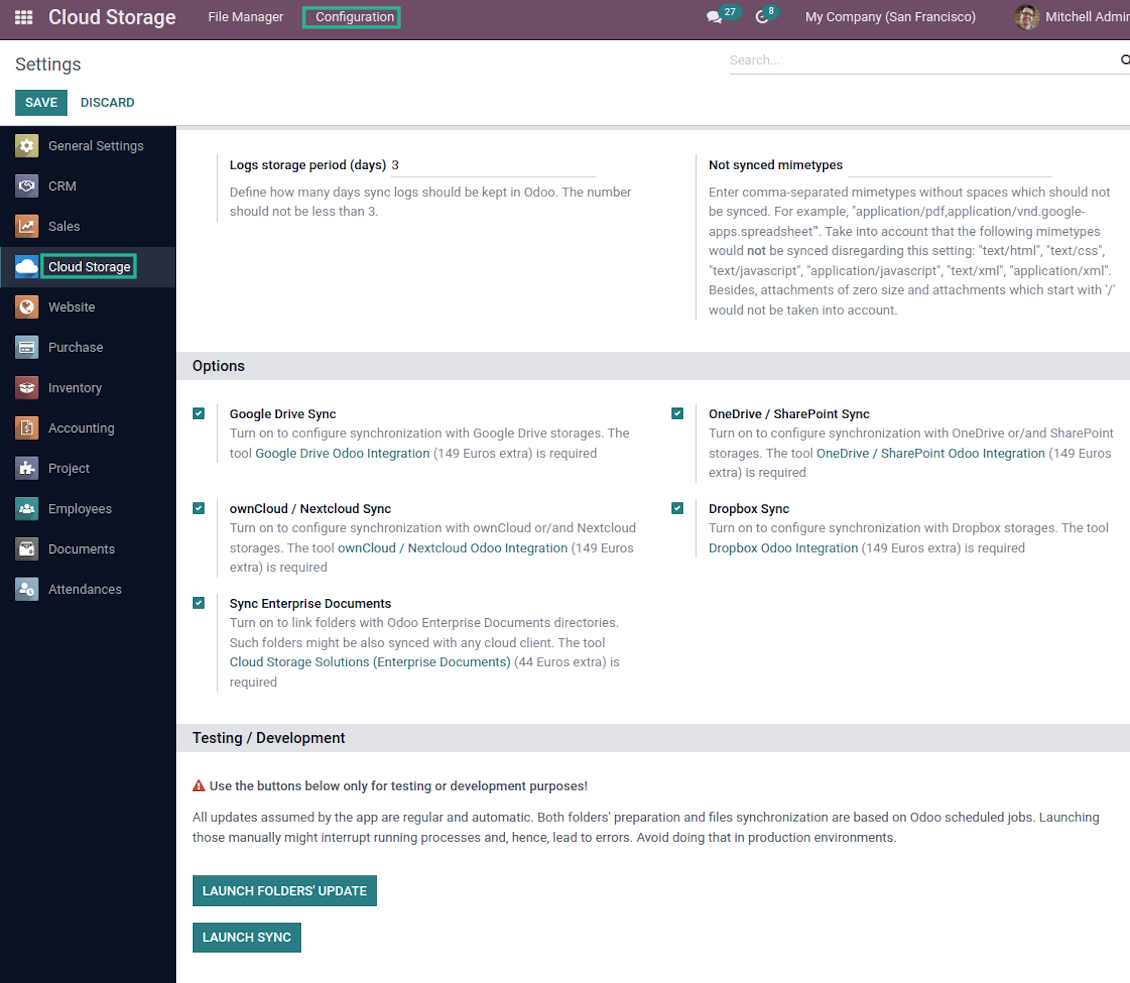
- Turn on the option 'Google Drive Sync' (cloud Storage > Configuration > Configuration). The optional add-on Google Drive Odoo Integration is required
- Go to the Google Cloud Console via the URL https://console.cloud.google.com
- Select or create a project
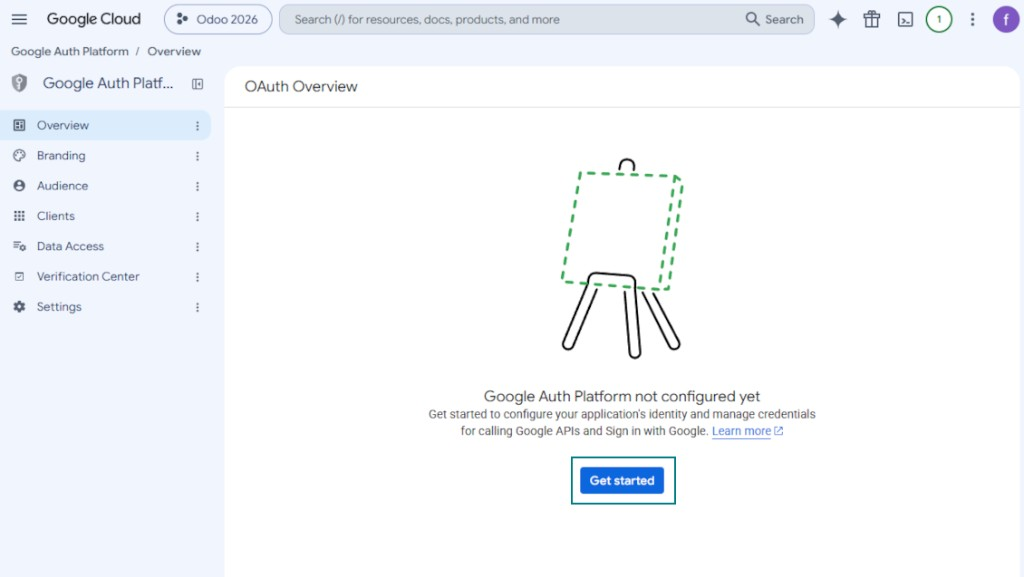
- After the project is selected, the console opens the Google Auth Platform. Press 'Get Started'
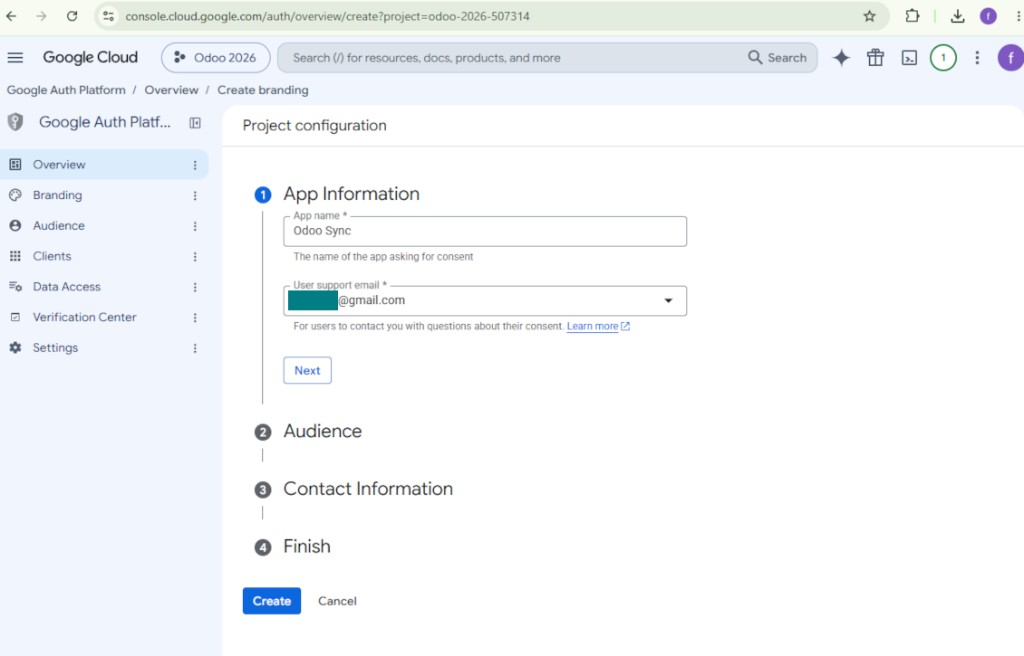
- Add app information
- As an app name select any suitable
- As a user support email select your email address
- Press 'Next'
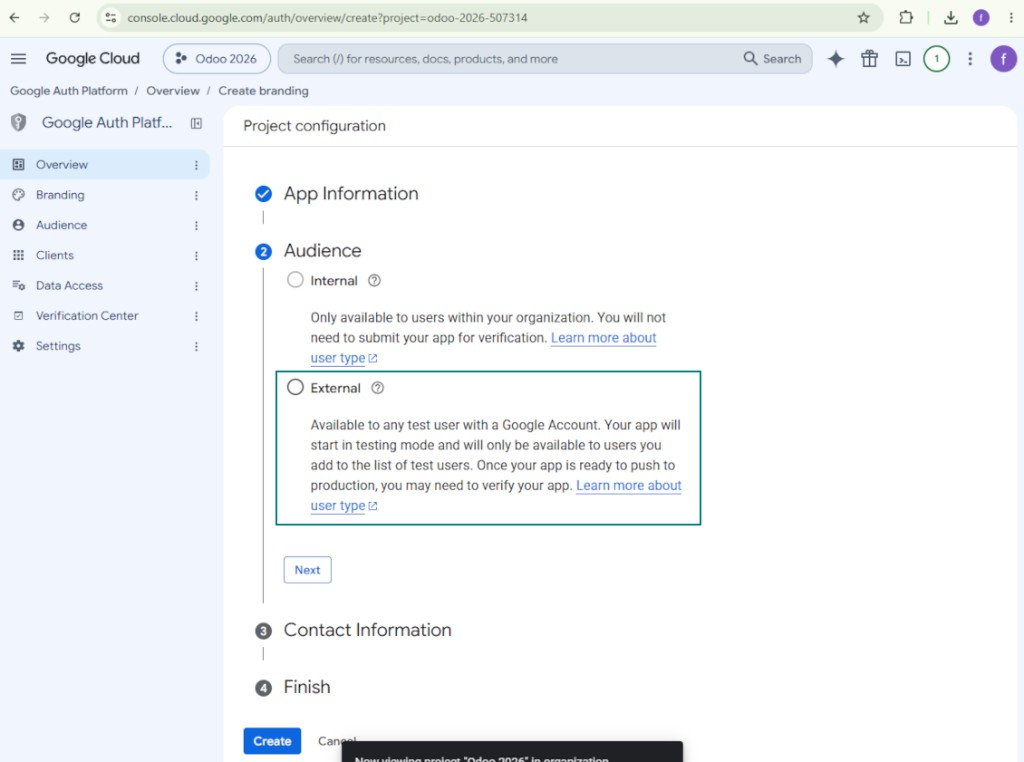
- As the audience select 'External' and press 'Next'. Note: you are anyway going to use this app only for your own Odoo connection
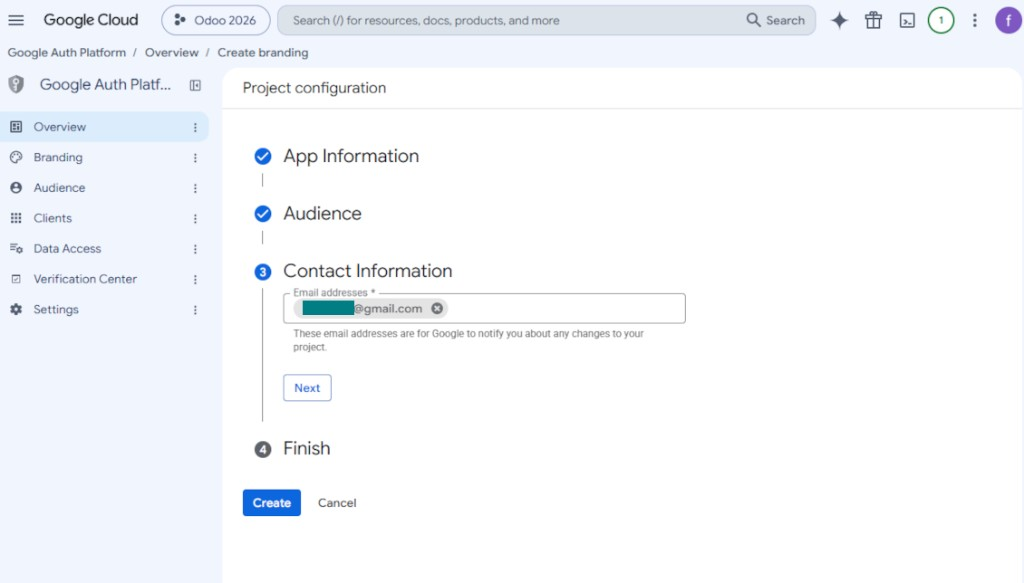
- As the contact information enter your Google or Google Workspace email address and press 'Next'
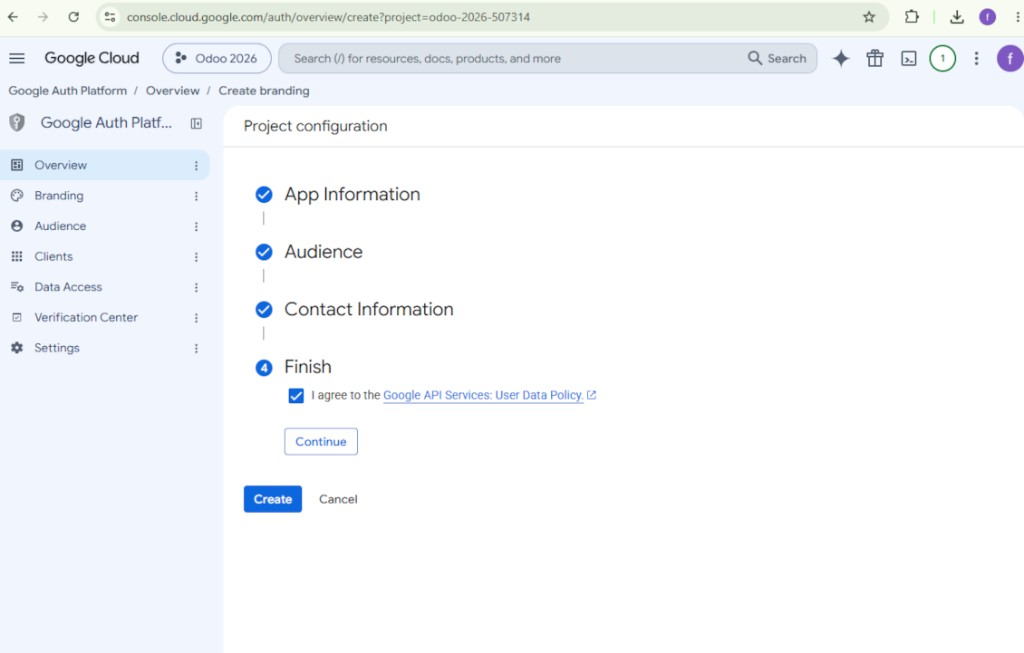
- Agree with the Google API Services User Data Policy, press 'Continue', and then press 'Create'
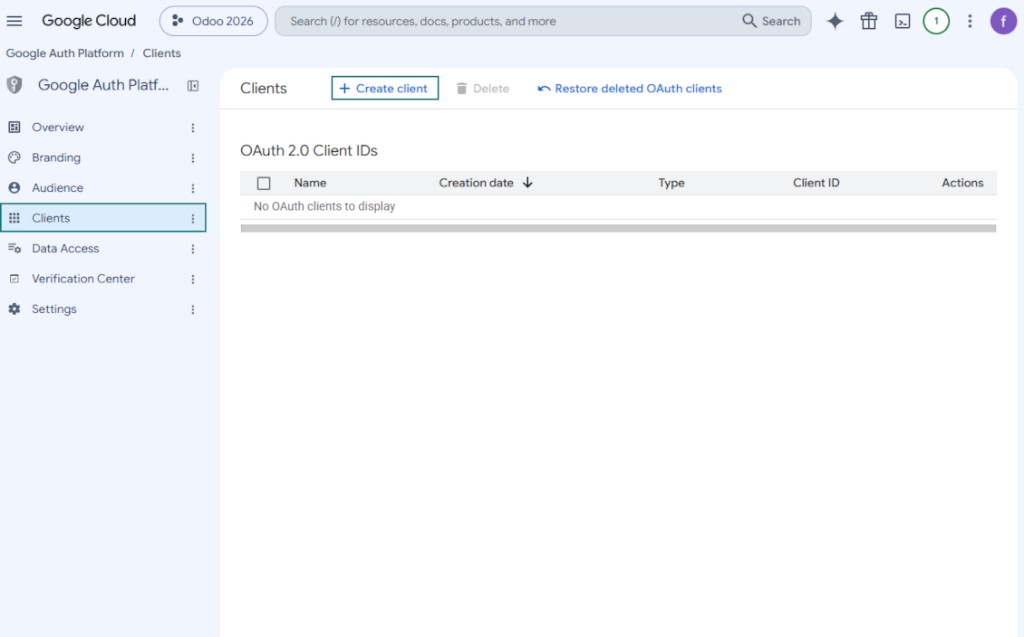
- Go to 'Clients' and press 'Create client'
- As the application type select 'Web application'
- As a name select any suitable
- As the authorized redirect URI, add the link in a format [YOURODOOSITENAME]/google_drive_token (e.g. https://odootools.com/google_drive_token).
- Press 'Create'
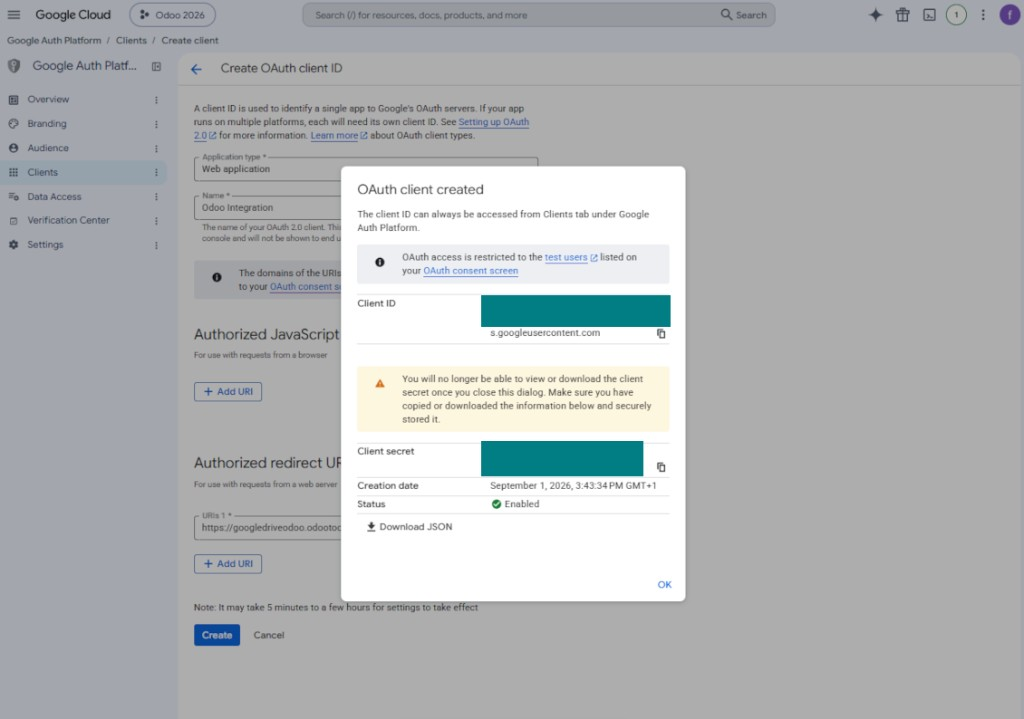
- Copy and safely store 'Client ID' and 'Client secret'. The client secret is shown only once
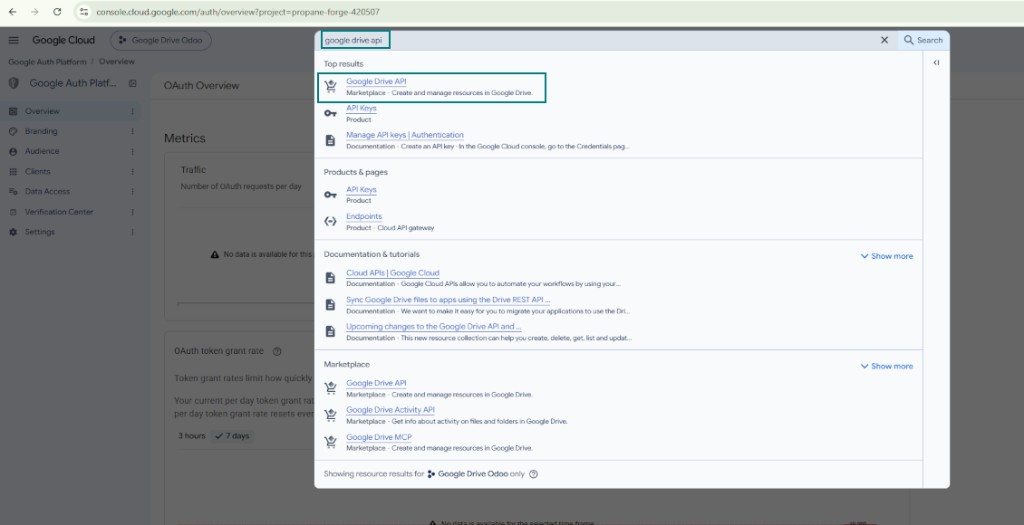
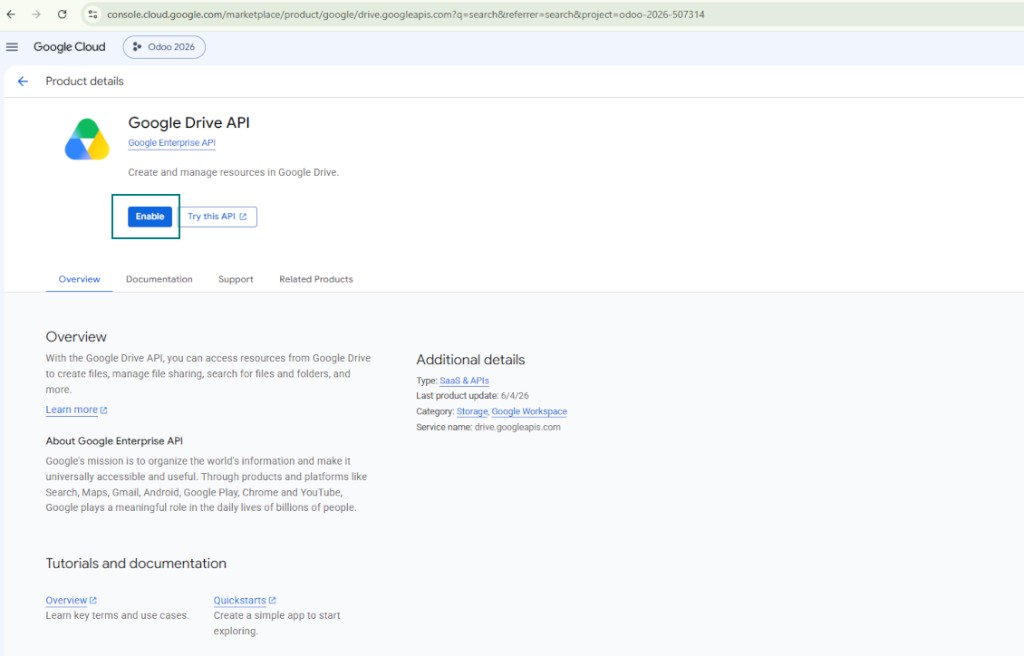
- Enable the Google Drive API for this project: type 'Google Drive API' in the top search box, open the found product, and press 'Enable'
- Go to 'Audience' and add your email address as a test user
- Publish the app. Otherwise, the app stays in the testing state and its token expires every 7 days
- Open 'Branding' and fill in the application home page and the application privacy policy link (for example, the links to your Odoo website). Add the domains of those links as the authorized domains
- Open 'Audience' and press 'Publish app'
- Do not upload an app logo. This would invoke a long and complex Google verification process that is of no actual need to you
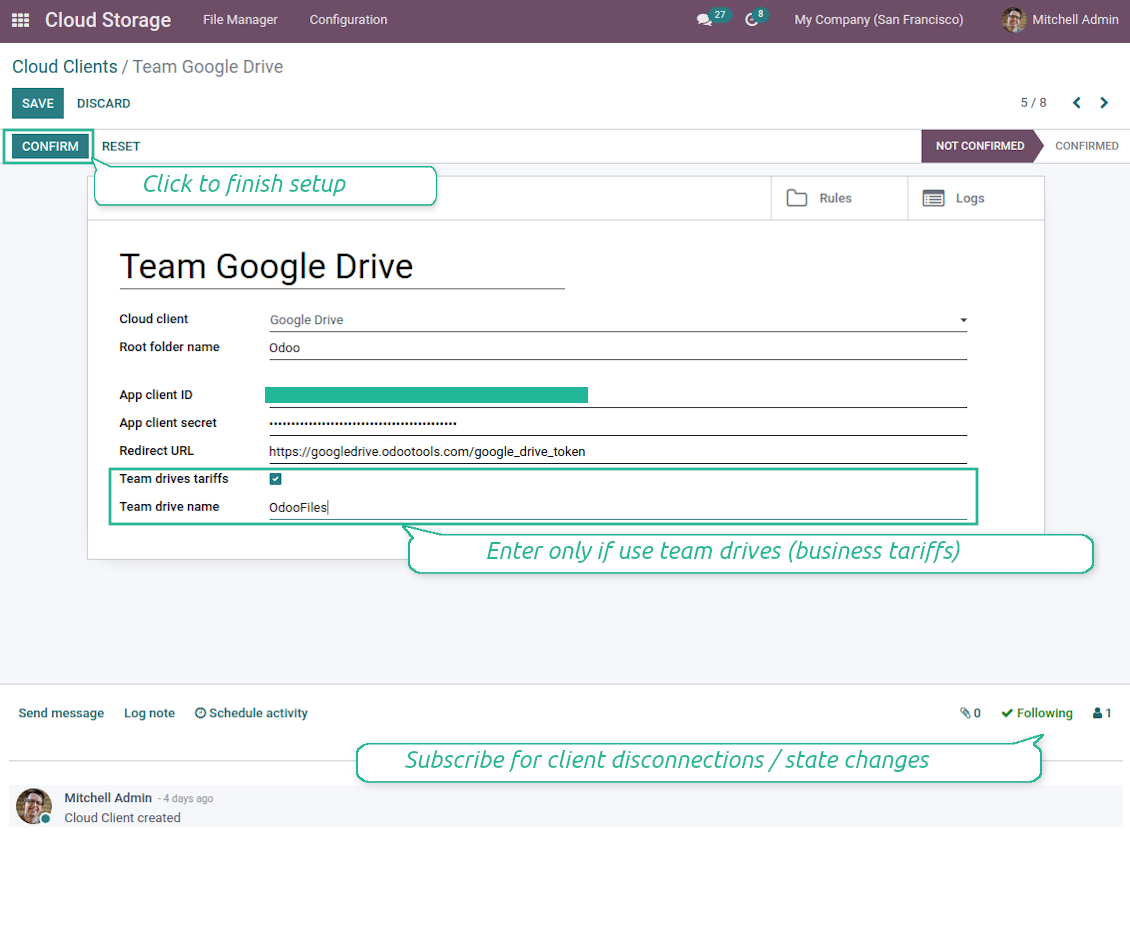
- Go to Odoo Cloud Storage > Configuration > Cloud Clients press 'Create'
- As a reference introduce any name which would be clear to all users
- As a Cloud client choose 'Google Drive'
- As a Root folder name enter a title which would be users as the parent Google Drive directory for all synced folders. For example, 'Odoo' or 'OdooERP'
- Copy 'Client ID' from step 9 into the field 'App client ID'
- Copy 'Client secret' from step 9 into the field 'App client secret'
- Insert the redirect URL you entered in step 9
- If you use team drives, check the related box. Make sure you really use team drives. In you Google Drive you should find the item 'Team Drives' in the left sidebar. This feature is available only for business and enterprise tariffs
- If the option 'Team Drive' is enabled, introduce its name. It should be absolutely the same as you see it in your Google Drive. Make sure that your user has full rights for all Google drives (usually, it is the same user who configures your team Google Drive)
- Press 'Confirm'. Odoo redirects you to Google login page. Check in the system, agree with all conditions, and grant all permissions asked
- After login, Google redirects you back to Odoo. Google Drive - Odoo synchronization is ready to be done
- Apply the newly created cloud client to folder rules and/or manual folders which should be synced to that Google Drive
- Await the sync scheduled job to be started. For testing purposes only: trigger integration manually from Cloud Storage > Configuration > Configuration > the button 'Launch sync'.
Open the Google Auth Platform
Add app information
Select the external audience
Add contact information
Agree with the policies and create the app
Create an OAuth client
Configure the web application client
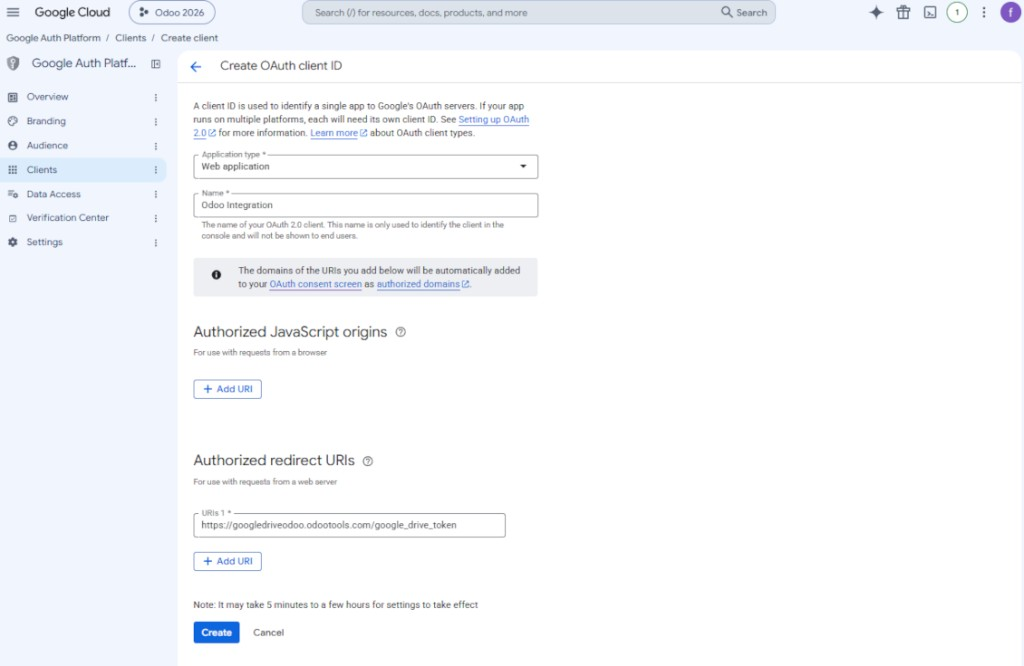
Copy the client ID and client secret
Find the Google Drive API
Enable the Google Drive API
Fill in branding to publish the app
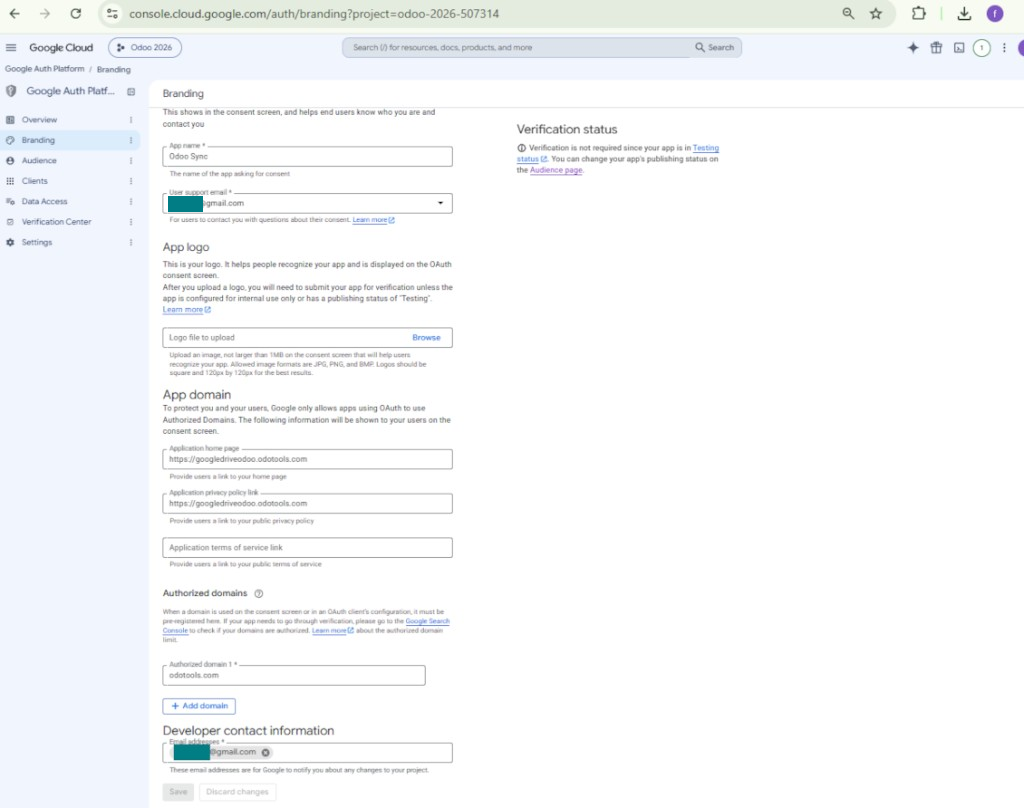
Add test users and publish the app
Enter Google app credentials to Odoo
Setting up Nextcloud or/and ownCloud Integration
Configuration and log in
- Turn on the option 'onwCloud / Nextcloud Sync' (cloud Storage > Configuration > Configuration). The optional add-on ownCloud / Nextcloud Odoo Integration is required
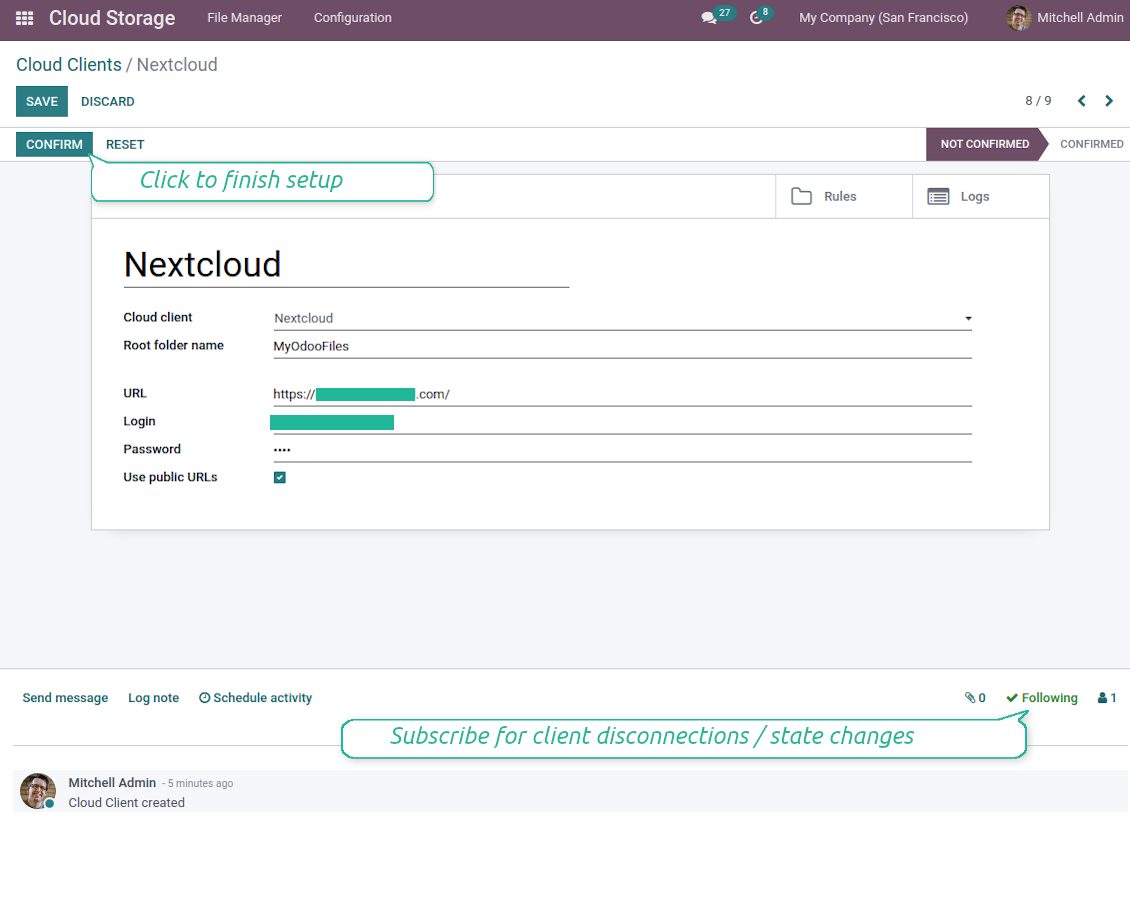
- Go to Odoo Cloud Storage > Configuration > Cloud Clients press 'Create'
- As a reference introduce any name which would be clear to all users
- As a Cloud client choose 'Nextcloud' or 'ownCloud' depending on the software you are using
- As a Root folder name enter a title which would be users as the parent directory for all synced folders. For example, 'Odoo' or 'OdooERP'
- Enter your ownCloud / Nextcloud full URL
- Select an ownCloud / Nextcloud user, which has full rights to read, create, write and delete files and folders within a root directory
- Enter login and password of this user to the fields 'Login' and 'Password'
- Choose whether you would like to apply public or internal URLs (see below)
- Press 'Confirm'. Odoo synchronization is ready to be done
- Apply the newly created cloud client to folder rules and/or manual folders which should be synced to that Nextcloud or ownCloud instance
- Await the sync scheduled job to be started. For testing purposes only: trigger integration manually from Cloud Storage > Configuration > Configuration > the button 'Launch sync'.
Internal and public URLs
By default links from Odoo to ownCloud / Nextcloud are internal: only authorized users may access them. Optionally make links public (the setting 'Use Public URLs'). Then, URLs would be 'shared', and everybody would access items by a direct link.
Be cautious if you decide to use shared (public) URLs. Although the links would be hardly known by external users, there is a slight chance that they become available as a result of some user actions. Besides, sharing links generation is not fast and might make the synchronization slower.
Enter ownCloud / Nextcloud credentials
Setting up OneDrive or/and SharePoint Integration
Python dependency
The tool depends on the external library 'microsoftgraph'. Install this library for your Odoo server through the command:
pip3 install microsoftgraph-python
Configuration and log in
- Turn on the option 'OneDrive / SharePoint Sync' (cloud Storage > Configuration > Configuration). The optional add-on OneDrive / SharePoint Odoo Integration is required
- Make sure your Microsoft user has full admin rights for OneDrive / SharePoint you want to connect to Odoo. This user is required only to grant permissions, the user data would not be kept in Odoo, and would not be used afterward. Besides, make sure a Microsoft email address you use does not have a redirection (usually happens when you configure your domain name, while the prime address is still one of Microsoft domains like @outlook.com, @office365, etc.)
- Go to your Azure Portal: https://portal.azure.com/#blade/Microsoft_AAD_RegisteredApps/ApplicationsListBlade
The app must be registered inside a directory (tenant). Microsoft no longer allows creating a new app outside one.
- If you already have a company Microsoft 365 / Azure directory, switch the portal (top right) to it and continue.
- If you only have a personal account (@outlook.com, @hotmail.com, @live.com) and see "these applications are associated with the account ... but are not contained within any directory", you do not have a directory yet. Sign up for a free Azure account with the same Microsoft account: https://azure.microsoft.com/free/ - Try Azure for free. This creates a Default Directory for you at no cost.
- Microsoft asks for a card for identity verification only; a temporary ~1 USD hold is placed and reversed. You are not charged for the directory or for the app registration.
- The directory (Microsoft Entra ID Free) and any app registered in it keep working independently of the 30-day / $200 Azure trial credit. That credit is for paid Azure resources you are not using here. No payment is required for our app.
- If the whole directory sits completely unused for a very long time (Microsoft's own threshold is around 200 days of no activity at all), Microsoft may email a warning and eventually retire it. Since Odoo calls this app every time it syncs, an active connection keeps the directory active - this only matters if you stop syncing entirely for months.
- Once you are in a real directory (not "Microsoft Services"), open App registrations there.
- Click 'New registration'
- Introduce a new name for the application and assign the redirect URI as [YOURODOOSITENAME]/one_drive_token (e.g. https://odootools.com/one_drive_token). As the supported account types choose 'Accounts in any organizational directory (Any Azure AD directory - Multitenant) and personal Microsoft accounts (e.g. Skype, Xbox)'.
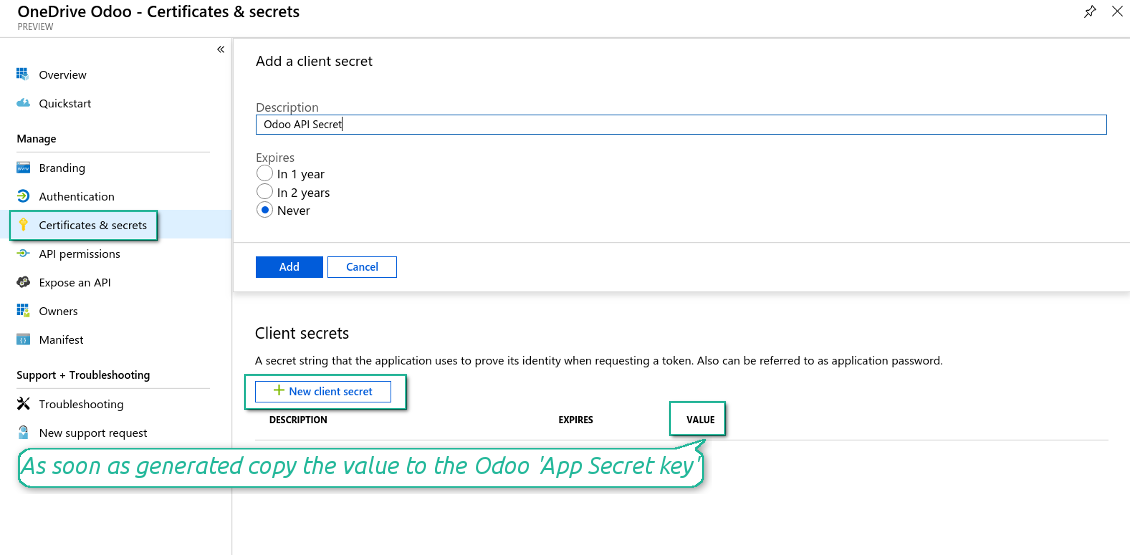
- Go to Certificates & secrets - Click 'New Client Secret'. Save somewhere the secret value
- Go to Odoo Cloud Storage > Configuration > Cloud Clients press 'Create'
- As a reference introduce any name which would be clear to all users
- As a Cloud client choose 'OneDrive' or 'SharePoint' depending on the software you are using
- As a Root folder name enter a title which would be users as the parent OneDrive directory for all synced folders. For example, 'Odoo' or 'OdooERP'
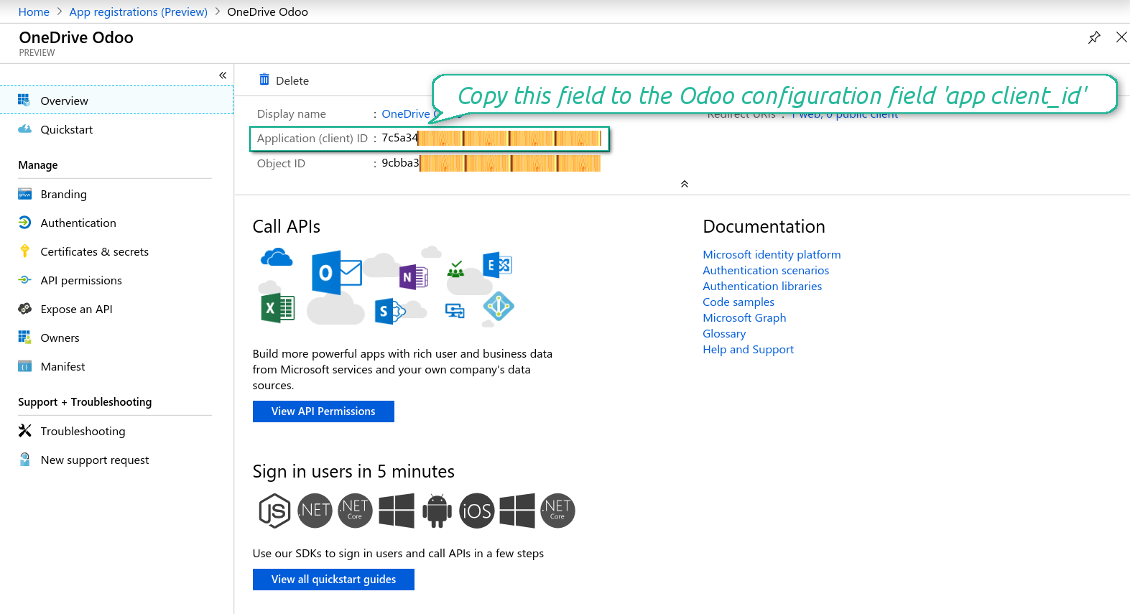
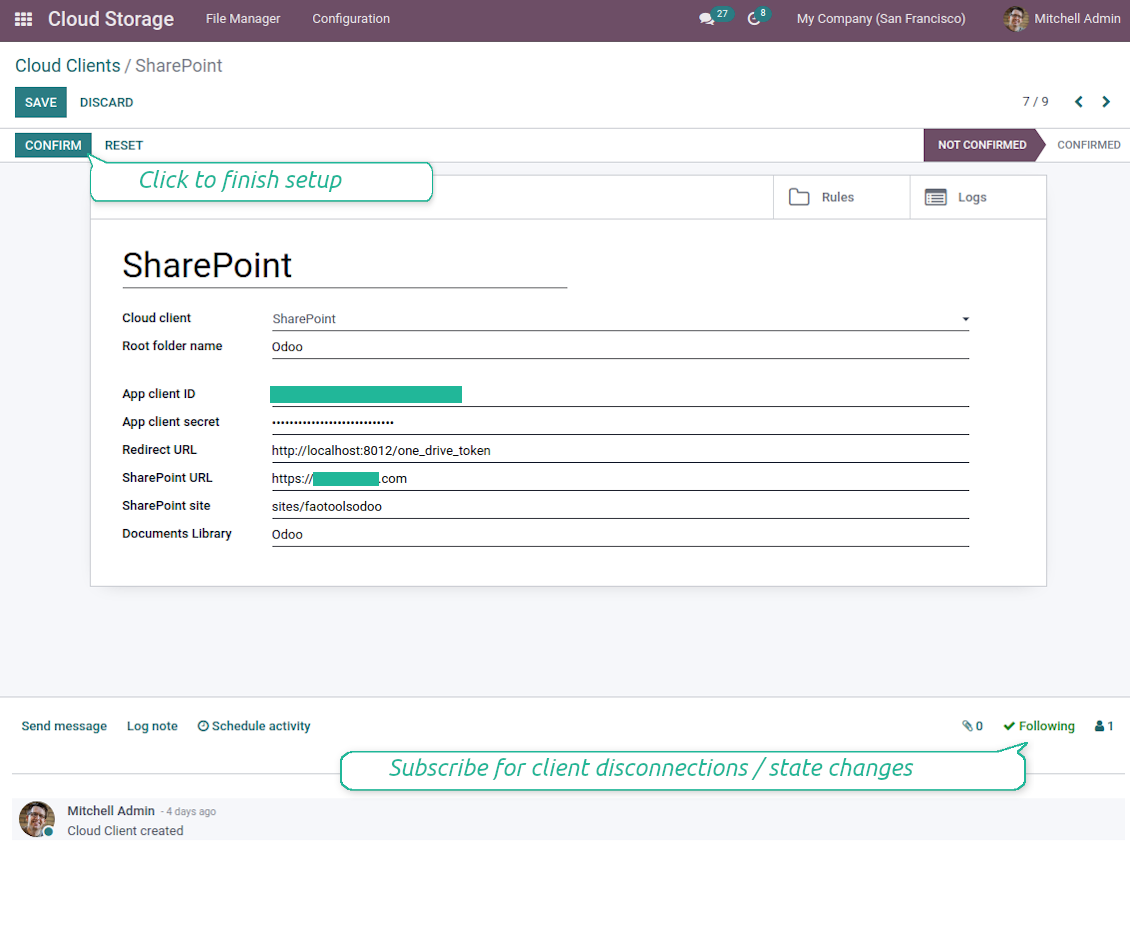
- Copy 'Application Client ID' to the 'App client ID'
- Copy secret value into the field 'App client secret'
- Insert previously generated redirect URL
- If you use SharePoint:
- Go to your SharePoint site and prepare a new documents library (drive). You might use one of the existing ones, e.g. 'Documents'. Odoo folder would be put there afterward, and it would be impossible to move it to another library
- The SharePoint URL should be of the type https://[URL]/. The last '/' is required - the site name should not be included. For example, https://odootools.sharepoint.com/
- SharePoint site should be either root (the very root SharePoint site), my_site_name (in that case it is considered as sites/my_site_name) or sites/my_site_name (instead of 'sites' it might be 'teams' and so on). There should be no '/' at the beginning or at the end. For example, sites/odootools
- As Documents Library use one created in SharePoint
- Press 'Confirm'. Odoo redirects you to the Microsoft login page. Check in the system, agree with all conditions, and grant all permissions asked. If Microsoft shows an account already signed in and says it does not exist in tenant 'Microsoft Services' (or any other unrelated tenant), do not click that row. Click 'Use another account' and sign in with the Microsoft account that owns the app's directory
- After login, OneDrive redirects you back to Odoo. OneDrive - Odoo synchronization is ready to be done
- Apply the newly created cloud client to folder rules and/or manual folders which should be synced to that OneDrive or SharePoint instance
- Await the sync scheduled job to be started. For testing purposes only: trigger integration manually from Cloud Storage > Configuration > Configuration > the button 'Launch sync'.
Create Azure application
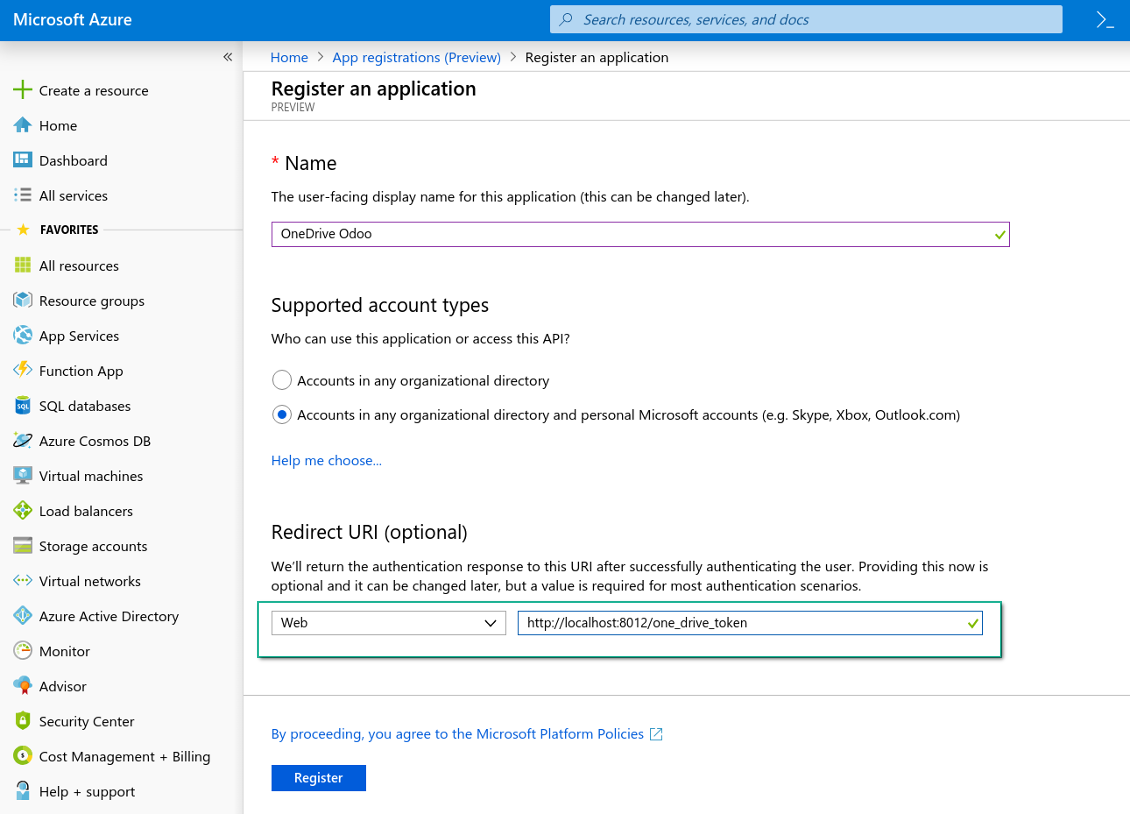
New OneDrive Web platform and redirect URL
Generate new secret for Azure application
Enter configuration keys in Odoo
Setting up Dropbox Integration
Python dependency
The tool depends on the external library 'dropbox'. Install this library for your Odoo server through the command:
pip3 install dropbox
Configuration and log in
- Turn on the option 'Dropbox Sync' (cloud Storage > Configuration > Configuration). The optional add-on Dropbox Odoo Integration is required
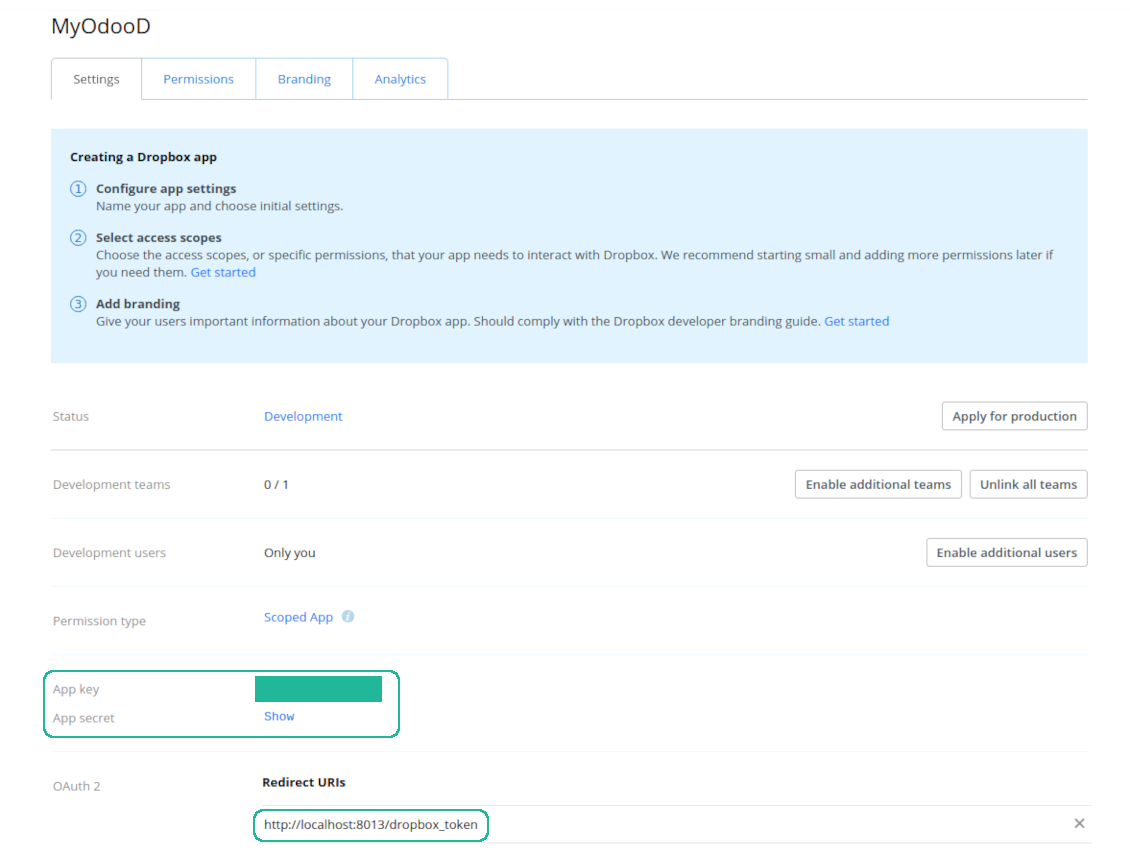
- Follow the URL https://www.dropbox.com/developers/apps/create
- Choose an API as 'Scoped access'
- Choose the type of access as 'Full Dropbox'
- Select any suitable name for the app and push the button 'Create app'
- Add the redirect URI as [YOURODOOSITENAME]/dropbox_token (e.g. https://faotools.com/dropbox_token). A valid SSL certificate (https) is required
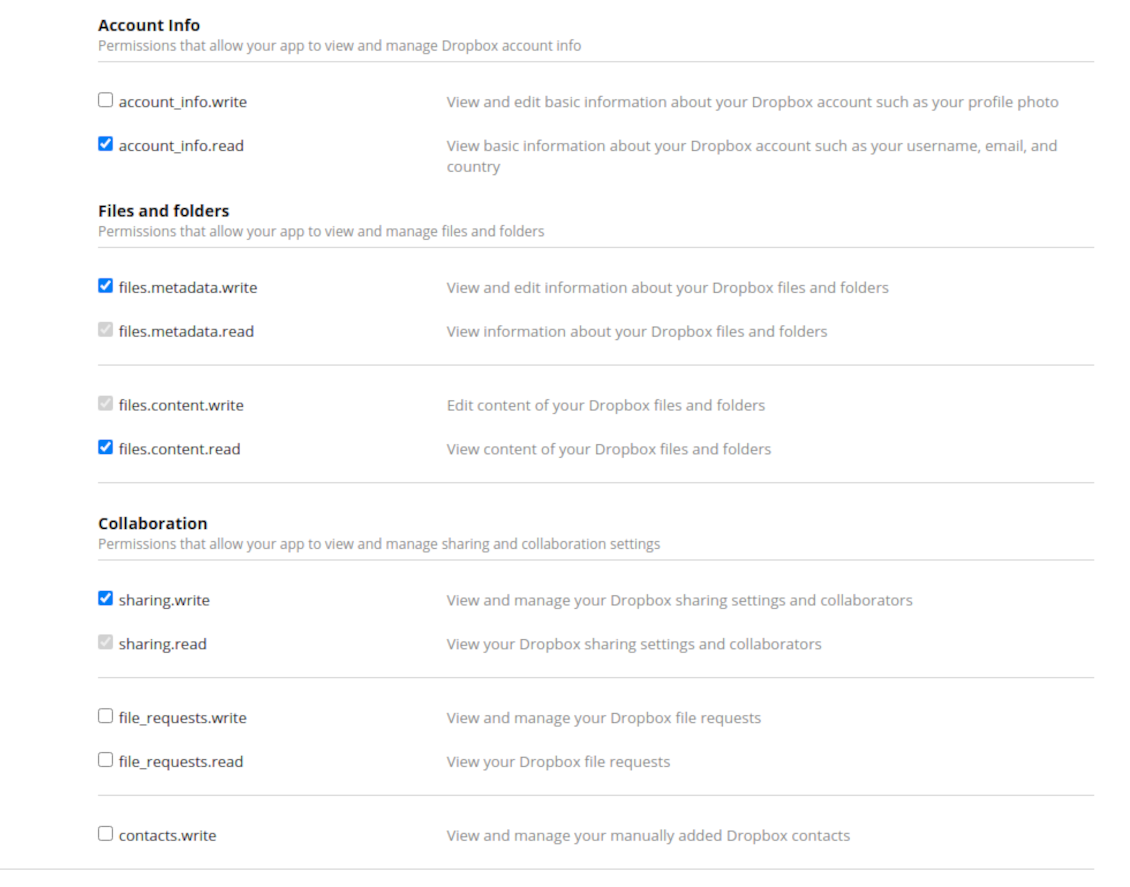
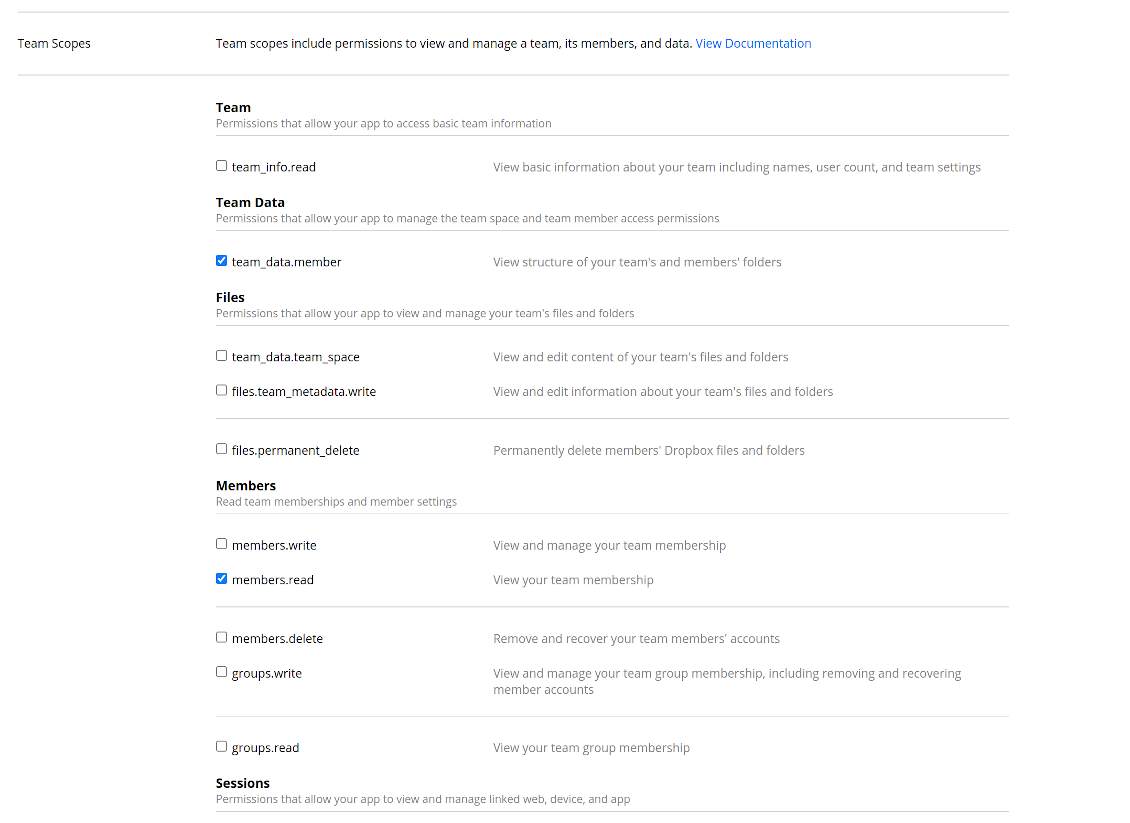
- Grant permissions to the app: 'Account Info (Read)', 'Files and folders Metadata (Write)', 'Files Content (Write)', 'Collaboration (Write)'. For team DropBox assign also 'Team Data Members', 'Members (Read)'. Make sure no other permissions are assigned.
- Submit App
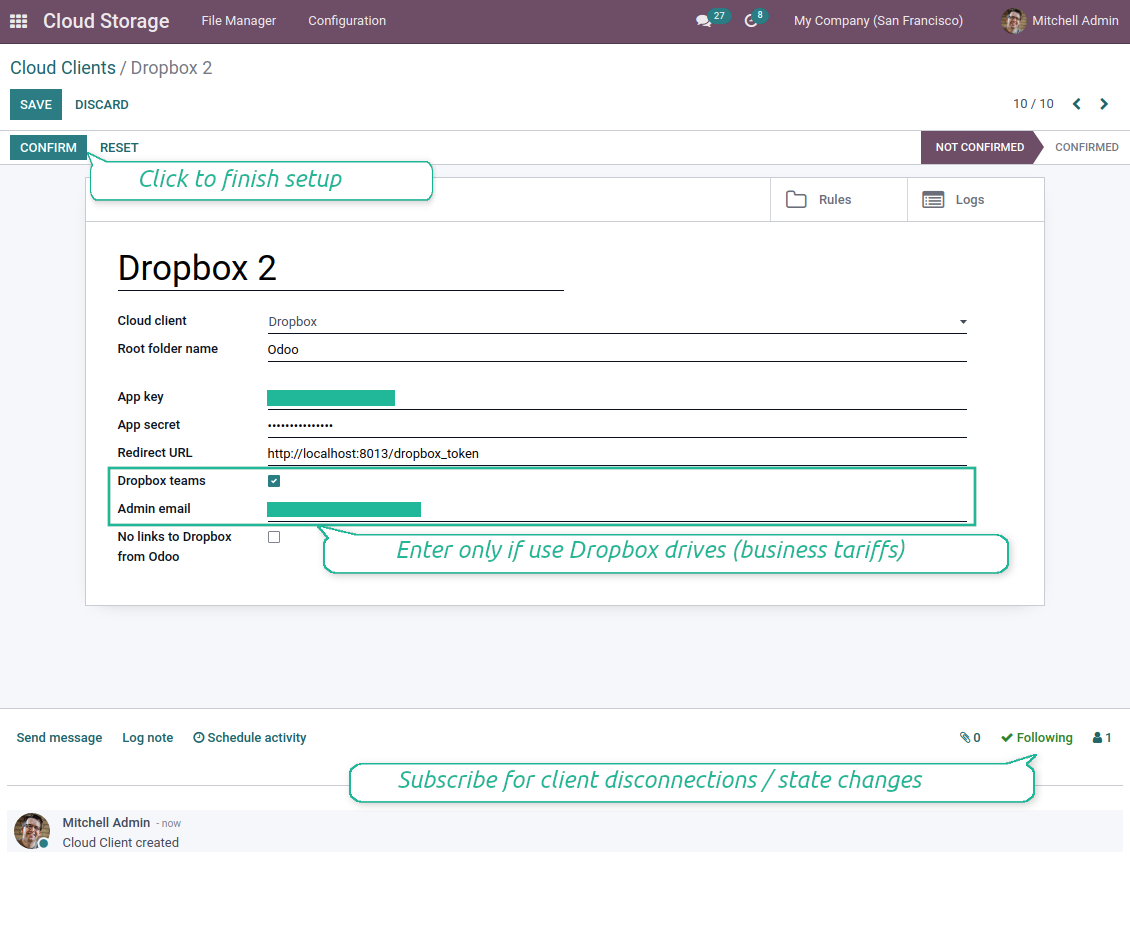
- Go to Odoo Cloud Storage > Configuration > Cloud Clients press 'Create'
- As a reference introduce any name which would be clear to all users
- As a Cloud client choose 'Dropbox'
- As a Root folder name enter a title which would be users as the parent Google Drive directory for all synced folders. For example, 'Odoo' or 'OdooERP'
- Copy 'App key' to the 'App key'
- Copy 'App Secret' into the field 'App secret'
- Insert previously generated redirect URL
- If you use Dropbox team drives
- Check the related box
- Set an email of the Dropbox user. Inside this user folder, all Odoo related items would be created, and only after that they are shared with all other users. Under this user, all files and folders are created, changed, moved, and deleted
- Press 'Confirm'. Odoo redirects you to the Dropbox login page. Check in the system, agree with all conditions, and grant all permissions asked
- After login, Dropbox redirects you back to Odoo. Dropbox - Odoo synchronization is ready to be done
- Apply the newly created cloud client to folder rules and/or manual folders which should be synced to that Dropbox instance
- Await the sync scheduled job to be started. For testing purposes only: trigger integration manually from Cloud Storage > Configuration > Configuration > the button 'Launch sync'.
Dropbox URLs
Dropbox has a specific way to generate links for existing files and folders. In particular, there are no concepts of internal or private URLs. Instead, each Dropbox item might get so-called shared URLs. Such shared links are either public or team-only. Moreover, the latter feature is available only for the Dropbox business account.
This tool relies upon shared links' mechanics. It means, that each attachment link is either public (all personal Dropbox accounts) or team-only (all business Dropbox accounts).
Sometimes it is considered to be not fully safe. Although website URLs will be hardly known by external users, there is a slight chance that they become available as a result of some user actions. Besides, sharing links generation is not super fast and might make the sync process slower. That is why the feature to switch off sharing URLs is introduced.
If checked, all Dropbox URLs in Odoo will be of type https://www.dropbox.com/home/Odoo/[PATH]. Such links will not work in many cases. Thus, if you need to open Dropbox files/folders from Odoo, be careful with the setting 'No links to Dropbox from Odoo'.
Create Dropbox app
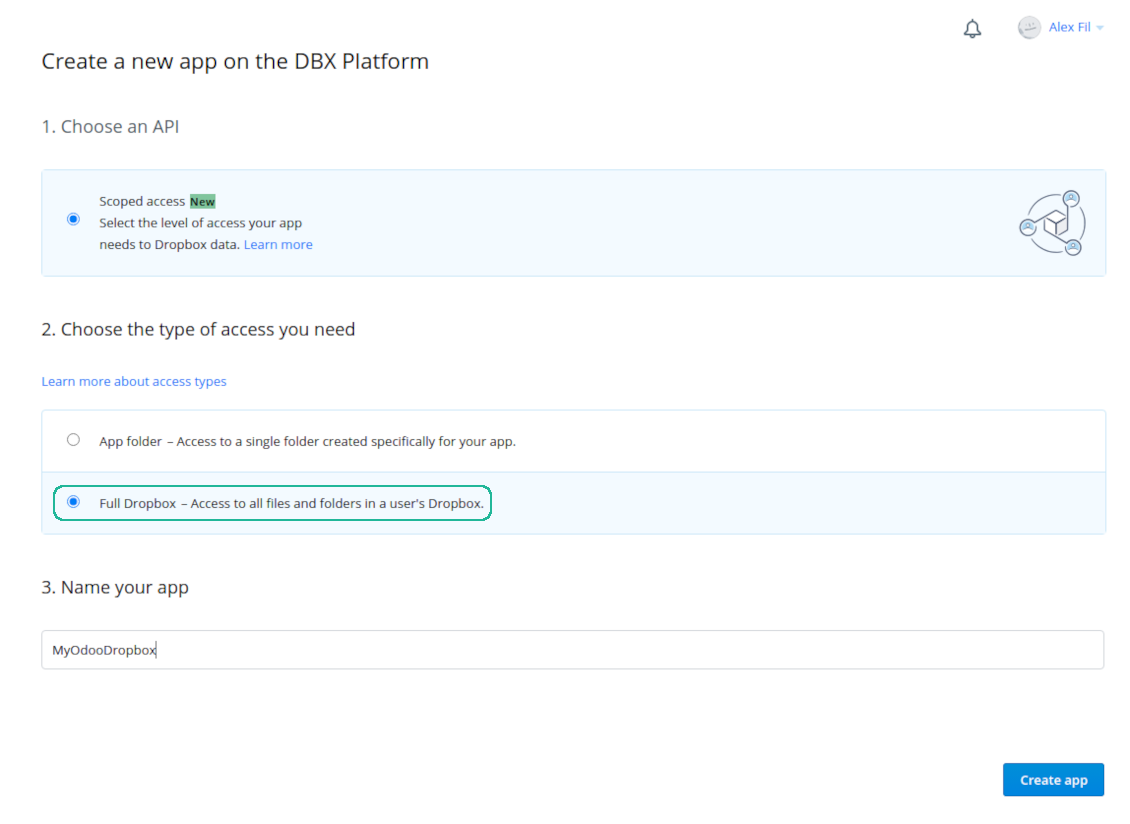
Set up Dropbox App: redirection URL
Dropbox permissions for personal accounts
Dropbox permissions for business accounts
Set up Odoo for Dropbox integration
General Python dependency
The tool depends on the external library 'sortedcontainers'. Install this library for your Odoo server through the command:
pip3 install sortedcontainers相关常见问题 Cloud Storage Solutions Odoo v.15
同步字段存储在哪里?会复制到 Odoo 和云端吗?
本应用假定附件的二进制内容保存在 Cloud Client 中,而不是 Odoo 服务器上。因此,Odoo 中的此类附件变为 URL 类型,您可随时从附件框或 Cloud Client 访问它们。
设置完成后无需手动操作,同步完全自动。只需决定要同步哪些 Odoo 单据类型,并为每一种设置关联模型(客户、销售或采购订单、任务、项目等)。
同一单据类型可以有多个文件夹吗?例如内部项目和客户项目?
可以。请为每一种准备规则,然后应用筛选:例如按项目类型。
尽量让筛选互斥,以便单据能被明确归类。例如“是客户但不是供应商”、“是供应商但不是客户”。否则某个单据文件夹会在模型之间跳动。
如果要同步的对象很多,例如 10000 个,可以吗?
可以,不过当需要同步的文件夹/附件很多时,过程可能较慢。同时,客户曾报告同步 >1 万合作伙伴和约 5 千产品变体的环境,过程仍可接受。
需要强调的几点:
- 同步的设计保证任何项目都会被同步且不会丢失,尽管可能不快。先进先出队列以及每个作业的提交可保证这一点。
- 对象数量可以按逻辑限制。模型配置可限制过时项目的同步(例如同步已归档合作伙伴或两年前的订单没有意义)。
可以将同步做成实时的吗?
不可以。我们有充分理由避免实时同步:
性能问题。若同步是实时的,每次上传文件都会出现加载屏幕。
冲突问题。若 2 位用户同时更改一项,可能出现无法解决的情况。定期作业可以事后修复;实时同步则必须存成队列,对用户更加费解。
功能问题。尤其是重命名和调整结构。反向同步严格依赖目录逻辑,每次同步都会检查 100% 的项目。若每次更新都做,将是每秒数千次请求。若不做:更改会丢失。
我可以更改云中默认文件夹的名称吗?
可为任何单据类型给模型目录(销售订单、商机、供应商等)指定自己的名称。
对象文件夹(SO-001、John Smith 等)依赖 Odoo 为该单据类型构造显示名称的方法。不过可通过定义名称表达式来更改。使用的正是 Odoo 电子邮件模板的语法。
我可以更改同步作业的频率吗?
不可以。从版本 15 起不应再改计划作业。它们已优化为每 15 分钟运行,以保证最稳定、最快的连接。
请确保 Odoo 服务器超时至少为 15 分钟(900 秒)。
若需暂时停止同步,请在相应的 cloud client 表单上进行。
我可以将附件同步到几个云客户端吗
可以,从版本 15 起可设置多个连接。这样一部分文件夹同步到一个 cloud client,另一部分同步到另一个。
请注意,同一文件夹无法同时同步到多个 cloud storages。
我们在云中使用专用编辑器(例如 OnlyOffice、Office 365 等)。文件会在该编辑器中打开吗?
可以,取决于您的 cloud client 配置。
我是否只需要Cloud Storage Solution应用?
从版本 15 起,应用可单独用来把附件按文件夹整理,并提供文件管理器界面。
不过,若要与某个云客户端建立连接,则需要 至少安装一个可选的客户端相关应用。
更改文件夹规则时会发生什么?
文件夹规则一变,文件夹列表也会变。不再符合规则条件的文件夹会被移除。若文件已同步,反向同步会将其退回 Odoo 并从 Cloud Client 删除。
若文档对象不符合文件夹规则的条件,则不会创建其文件夹。之后若符合条件,将生成相关文件夹。
您的工具的更新政策是什么?
根据当前 Odoo Apps Store 政策:
- 为 12.0 及更早版本购买的每个模块,均可使用直至 12.0 的所有版本。
- 从 13.0 起,每个模块版本需单独购买。
- 无论版本如何,购买工具即获得该主版本内的 全部更新和缺陷修复权利。
请注意,faOtools 团队不控制这些政策。如有疑问,请直接联系 Odoo Apps Store 代表。
如何在 Odoo.sh 上安装您的应用?
最直接的做法是使用 Odoo 商店的内置流程:
1. 打开模块页面并点击 Deploy on odoo.sh 按钮
2. 之后会跳转到 GitHub 页面。登录帐户,然后点击 'Create a new repo' 或使用现有仓库。请确保仓库为私有。不得以 OPL-1 许可公开发布应用。如有需要,为 Odoo.sh 项目新建 repo
3. 然后转到 odoo.sh 并点击 Deploy 按钮。在弹出窗口中提交决定并点击 'Continue.' 这将触发安装过程。
这些步骤会将应用安装到项目的生产分支。若要部署到其他分支或更新模块,请执行以下操作:
1. 从 Odoo 商店上传应用的源代码
2. 将模块提交到所需的 GitHub 仓库。确保没有任何应用文件夹/文件被忽略(即未列入 repo 的 .gitignore)。仓库由 odoo.sh 自动创建,默认可能包含关键项(例如 /lib)。应上传模块的全部目录、子目录和文件,不得遗漏
3. 部署 odoo.sh 项目的目标分支,或在设置如此假定时 等待其自动构建。
应如何在自己的服务器上安装您的应用?
2. 重新启动 Odoo 服务器;
3. 打开开发者模式(技术设置);
4. 更新应用列表(应用菜单);
5. 找到应用并点击“Activate”/“Install”;
6. 如应用页面有指南,请按指南操作。
我注意到您的应用有额外附加模块。可以之后再购买吗?
可以。同时 Odoo 会自动把所有依赖加入购物车,因此应排除已购买的工具以免重复付款。
我在 Odoo.sh 上部署了您的应用,测试中出现警告/错误
红/橙色警告不影响应用功能。遗憾的是,标准自动测试有时假定与本应用目标冲突的行为,因此我们的模块会未通过。例如我们改了价格计算,而标准 Odoo 模块测试把最终价格与标准算法比较。
请先检查已部署数据库的功能。是否都正常?
若仍认为该警告影响真实功能,请联系我们并转发完整安装日志以及已部署模块的完整清单(含核心与第三方)。
我可以直接向贵公司购买应用吗?
不,我们只通过 官方 Odoo 应用商店.
希望获得折扣
很遗憾,我们没有技术手段 提供单独报价。
我可以在 Odoo Online (SaaS) 数据库上安装该应用吗?
不能,第三方应用无法在 Odoo Online 上使用。遗憾的是 Odoo SaaS 会阻止这种可能。
您的工具依赖其他应用。我需要购买那些应用吗?
是的,工具需要依赖中列出的全部模块才能正常工作。应用页上的价格已包含所有必要依赖。
该模块的美元价格是多少?为什么变了?
我们的模块价格以欧元标价。Odoo 商店按内部汇率换成其他货币。因此美元价格可能随汇率更新而变化。
非英语的应用和网站措辞由 AI 辅助 并与官方 Odoo 翻译对齐。若发现错误, 发送翻译正确性工单 我们会修好。
缺陷反馈
如遇缺陷或不一致行为,请随时联系我们。我们保证在购买后 60 天内提供修复,并在此期限后仍积极改进工具。
联系我们无需电话号码或信用卡。只需完成不超过 30 秒的简短电子邮件注册。
请在请求中尽可能提供详细信息:截图、Odoo 服务器日志、完整的问题复现说明等。通常需要几个工作日来准备问题的工作计划(若确认是缺陷)或提供应采取的指引(否则)。
公开功能请求与模块构想(免费开发)
我们非常希望改进工具,并感谢任何反馈。若您的需求具有普遍价值且能高效实现,团队会将其列入待办清单。
此类待办清单会定期处理,不产生额外费用。虽然我们无法承诺截止日期和最终设计,但这可能是在无投入、无风险的情况下获得所需功能的好办法。
联系我们无需电话号码或信用卡。只需完成不超过 30 秒的简短电子邮件注册。
15.0.1.3.22
- The issue with not updating previously synced child folders is fixed.
15.0.1.3.21
- The failure re-tries number is now configurable and might differ for standard and reverse/move tasks.
15.0.1.3.19
- The tasks' parent blocking mechanism is optimized first to serve the most prioritized task.
15.0.1.3.17
- The blocking mechanism is specified for the sync operations to move items..
15.0.1.3.16
- The access to an intermediate rule-related folder is defined not based on that rule model but based on the parent folder access.
15.0.1.3.16
- The maximum size for the URLs is increased to 4096.
15.0.1.3.15
- The reverse sync is optimized. Hanging tasks caused by mutual blocking are removed.
15.0.1.3.14
- The issues with simultaneous reverse and backward synchronization are fixed.
15.0.1.3.13
- The algorithm to process rearranged and moved folders is optimized.
15.0.1.3.12
- The reverse synchronization algorithm is optimized.
15.0.1.3.11
- Special pre-failure checks for hanging tasks are introduced. Now if the task fully stops the cron job (e.g. because of the memory limit errors), the next cron will continue with a different task.
15.0.1.3.10
- The logging system is optimized to commit messages even if the job fails and fully stops the thread
15.0.1.3.9
- Duplicating attachments with explicitly passed res_model and res_id is fixed (HR Expenses compatibility is fixed).
15.0.1.3.8
- The feature of dynamic date in the relative periods is backported.
15.0.1.3.7
- The rare case when a folder's initial setup has failed 8 times but still should be synced is covered.
15.0.1.3.6
- The app is restructured to optimize the recent changes.





通过 MCP 从常用 AI 聊天管理 Odoo 的工具。Claude。任何支持 MCP 的 AI。



用于将 Odoo 附件与 NAS 方案自动双向同步的工具。Synology、QNAP、TrueNAS 以及任何支持 WebDav 的 NAS
487€