OneDrive / SharePoint Odoo Integration v.14
The tool to automatically synchronize Odoo attachments with OneDrive files in both ways
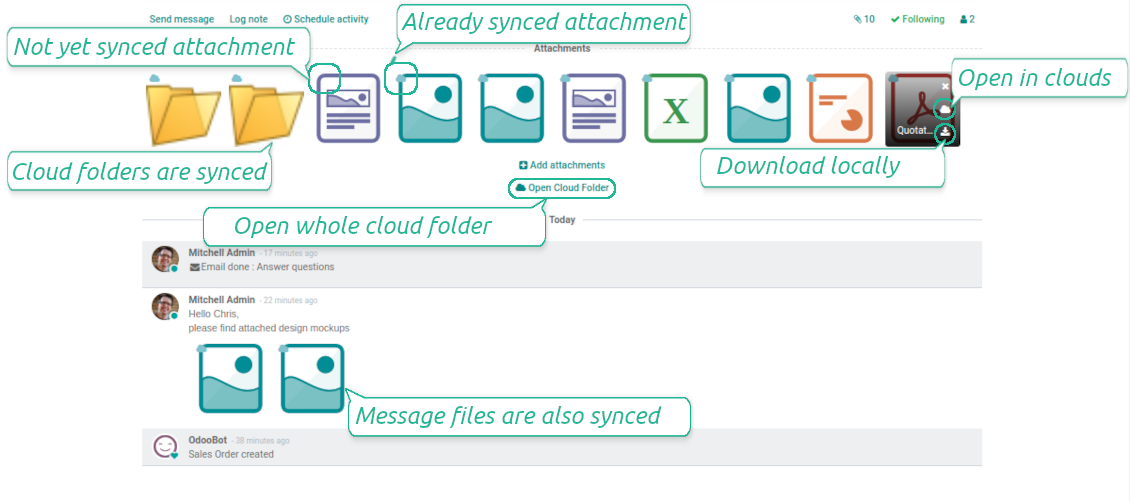


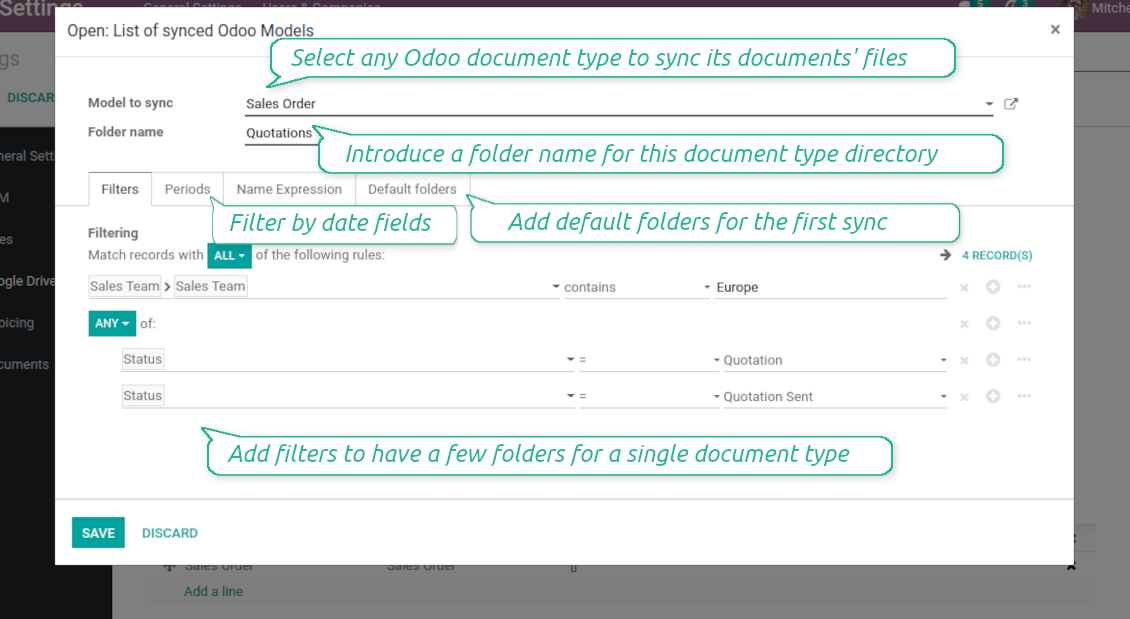
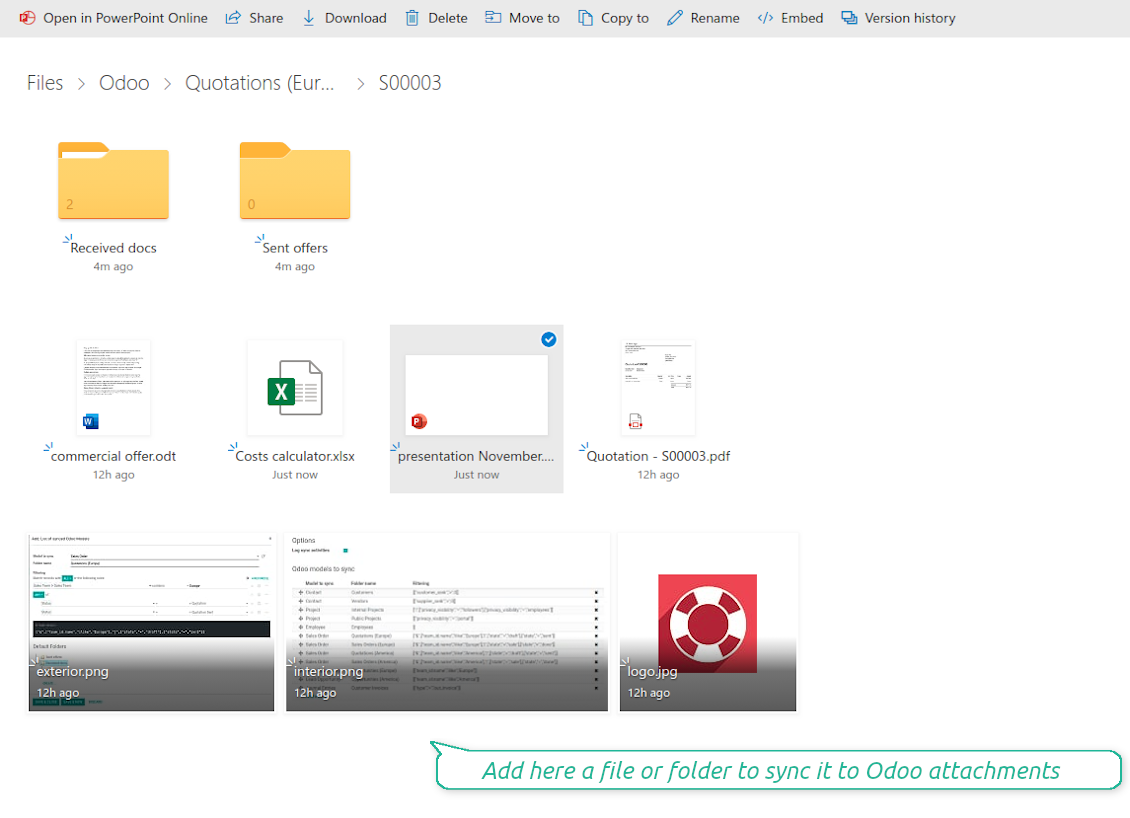
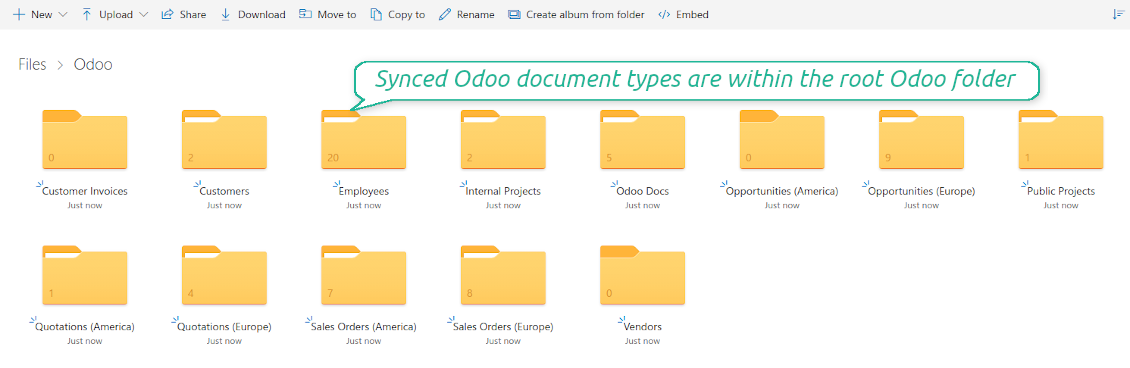
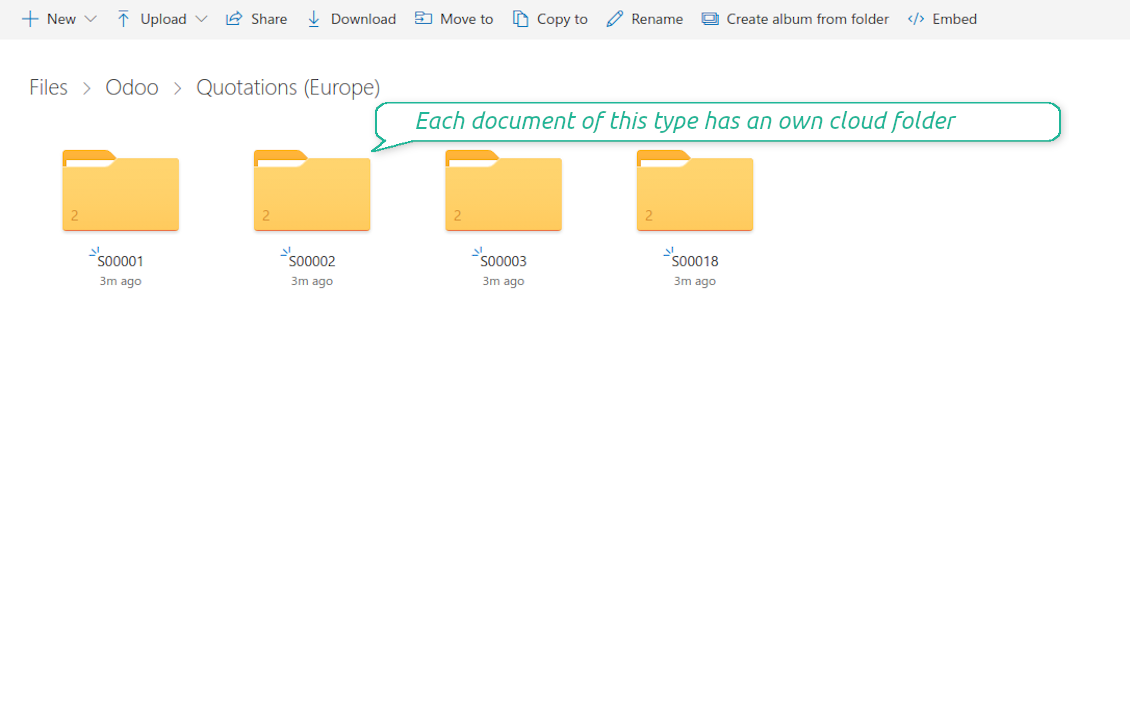
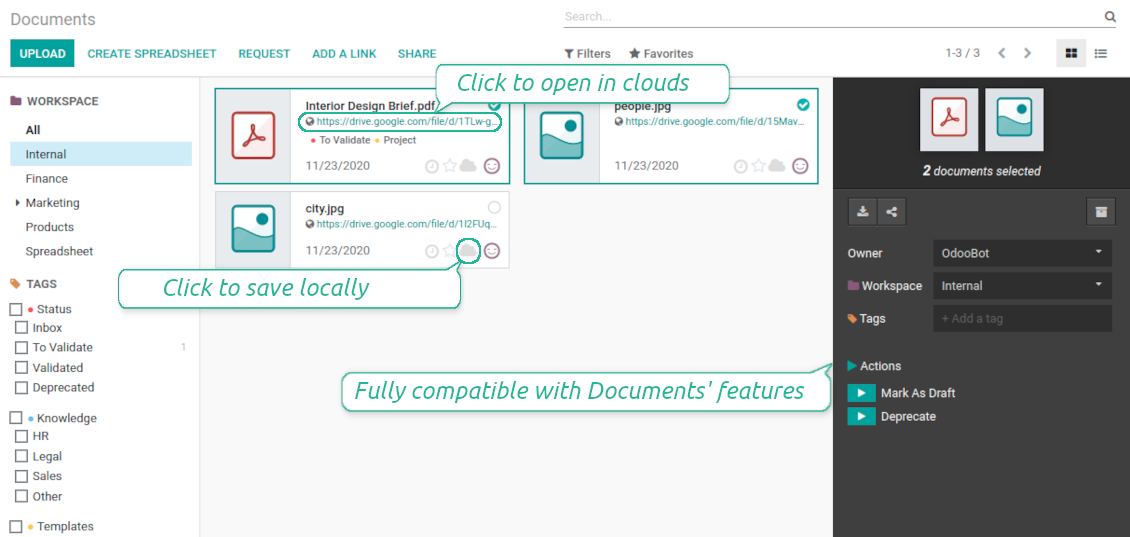

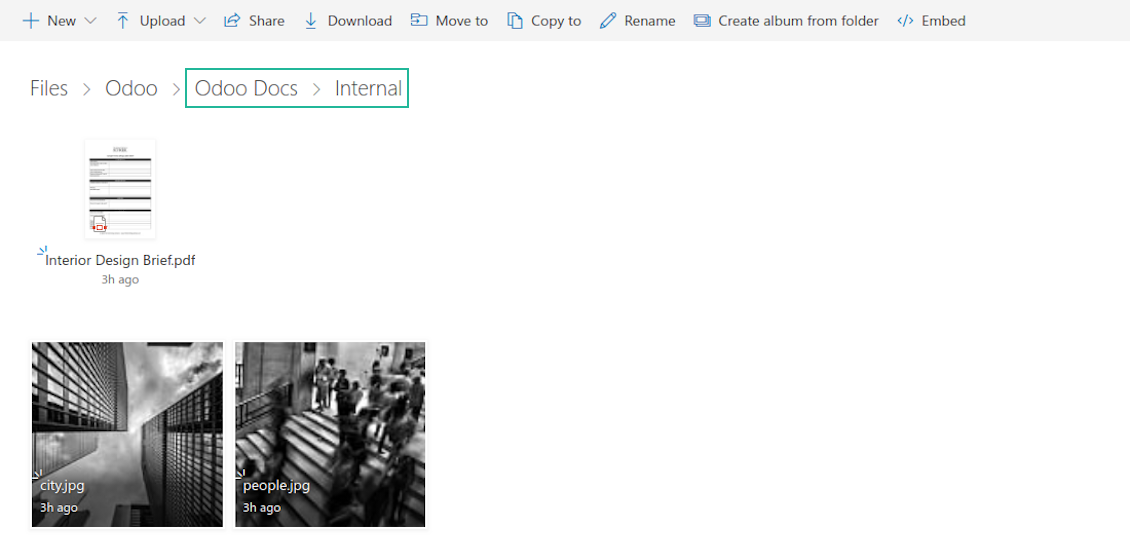

This is the tool to integrate OneDrive / SharePoint features into your Odoo business work flow. The app automatically stores Odoo attachments in OneDrive / SharePoint, and it provides an instant access to them via web links. In such a way users work with files comfortably in the cloud storage, while the results are fully available in Odoo.
- the technical core which provides basic mechanics of auto synchronization. This is a required module for integration. Fiyatı 398€.
- the connector itself which introduces links between Odoo and OneDrive / SharePoint. Fiyatı 89€.
- an optional add-on to sync Odoo documents (introduced by the enterprise app 'Documents') with clouds. The features assumed by this add-on are marked by the icon . Fiyatı 44€.
Automatic regular sync
Synchronization between Odoo and OneDrive / SharePoint is based on scheduled jobs. No manual interaction is required
Bilateral OneDrive / SharePoint sync
Odoo sends attachments to OneDrive / SharePoint and retrieves files from there. Binary content is kept in clouds, while Odoo provides direct access to synced items
Any Odoo document types for sync
Decide which Odoo document types should be synced. Customers, opportunities, sale or purchase orders, tasks or issues, employees or users, etc. Custom models are also supported
Instant access for OneDrive / SharePoint
The tool redefines Odoo attachments boxes to make work comfortable: download files locally without login, open files and folders in OneDrive / SharePoint (if possible, items would be opened in OneDrive / SharePoint editors and previewers), use standard Odoo previewers
Compatible with Odoo Enterprise documents
Reflect Odoo Enterprise Documents' structure and items in OneDrive / SharePoint. All features (including sharing, downloading, and signing) would anyway work
Personal OneDrive and SharePoint
Sync works both for personal OneDrives and business SharePoint tariffs
OneDrive / SharePoint sync history
Sync activities might be logged. Control over files and folders creations, moves, name changes and removals. Just turn on the option 'Log sync activities', and you would be able to observe the history through the button 'Sync logs'
Default folders
The tool let generate default directories' structure for this document type during the very first sync of a related object. For example, for all employees you may have pre-defined folders 'Scans', 'Scans/Official', 'Photos', etc.
Works well with SharePoint. Supportive team
We've been using this with SharePoint and it's been working great. One of the best things is having everything, including logs right in Odoo's interface, so you can actually see what's going on. It's also super convenient that you can view or download synced files from the attachment box without having to leave the page or even log in to Sharepoint.
Setup was pretty smooth for us. When we had a few questions about setting up the folder hierarchy and priorities, the developer team got back to us in just a couple of hours and helped us figure it out. Great support and great extension!
Great support, assistance and very good connector!
We are very happy with the support we received when configuring the Sharepoint - Odoo connector. The connector has great functionalities.
All our questions were answered very fast (within one day).
FaOtools helped us optimising our connector and assisted us with future improvements.
We really recommend this connector.
very professional app, excellen t customer service
This app is very well programmed and does its job very well. But the best is the excellent customer service who also helps when the problem lies somewhere else. You receive a lot for your money.
An impressive app and world-class support
I have been very impressed by the way the OneDrive / SharePoint Odoo Integration module synchronises content in both directions and allows me to share documents in Odoo with my SharePoint site. Above all the technical support is top-notch, which greatly increases the value of this product. I highly recommend this product for anyone considering synchronising Odoo with SharePoint/OneDrive.
Works fine, good support
The first experience with the module is excellent. I had some trouble to configure things right on the Microsoft-side, but the team provided quick and good support.
Sync any documents you like
Configuring models to sync
-
To sync a specific document type, you should add it as a model to sync. Any Odoo model might be chosen
-
The app let split models into a few folders based on selected filters. Use any document storable field to distinguish a directory. Have a separate folder for individuals and companies, for European and American opportunities, for quotations and confirmed orders, for each project, etc.
-
Limit also documents by relative periods through using date fields of linked documents. For example, leads registered in the last 3 months or invoices updated the last week
-
Define name expressions to specify titles of documents' OneDrive / SharePoint folders. For instance, to include project name to a task directory
-
Prepare hierarchy of default folders to be created when a document directory is synced to OneDrive / SharePoint for the first time
Typical use cases
-
Projects: have an own OneDrive / SharePoint folder for each customer project
-
Customers: add all partner files in a single directory available both from Odoo and from OneDrive / SharePoint. Modify those using default cloud editors and access them when working in Odoo
-
Employees: gather all files by this employee in a single cloud folder: photos, document scans, contracts. Access and upload those from Odoo and OneDrive / SharePoint alternatively
-
Opportunities: carefully store all specifications, requirements, any files which would let you make a good offer
-
Orders: keep all printings and contracts in OneDrive / SharePoint with instant availability from Odoo
-
Picking operations: save warehouse docs to OneDrive / SharePoint.
How synchronization works
Direct Sync
-
Direct synchronization is based on the scheduled job 'Synchronize attachments with cloud'
-
Direct sync make all synced Odoo attachments change their type to a link (URL), while binary content is removed with a next Odoo cleaner. So, no actual files would be stored on your Odoo server
-
Direct sync checks whether attachments are added or deleted for synced documents. If so, they would be created or removed in OneDrive / SharePoint
-
Direct sync checks whether a new document type (e.g. sale orders) is added / renamed / replaced in the to-sync-models configurations. If so, this should be reflected in OneDrive / SharePoint
-
Direct sync checks whether a new document (e.g. quotation SO-001) related to a synced document type is generated / updated / unlinked. If so, the connector would make the same changes in OneDrive / SharePoint
-
The final goal of direct OneDrive / SharePoint integration is to have the structure 'Odoo / Document Types / Documents / Files. For example, 'Odoo / Quotations / SO019 / commercial offer.pdf'
Backward Sync
-
Backward synchronization is based on the scheduled job 'Synchronize attachments from cloud'
-
Backward sync checks whether any items are added to a OneDrive / SharePoint document folder. If so, the app would create URL attachments for that items in a linked Odoo object
-
Backward sync checks whether any items are deleted / moved in a cloud document folder. If so, a linked Odoo attachment would be also unlinked or moved
-
Backward sync checks whether any item is renamed in OneDrive / SharePoint. If so, a chained Odoo attachment should be also renamed
-
In OneDrive folders you can put not only files but also child folders. In that case a link for this folder (not its content) would be kept in Odoo attachments
-
If you deleted a folder related to this document type or this document, their child files would be deleted as well. Thus, Odoo would remove related attachments. The folders, however, will be recovered with a next direct sync
Misc notes
-
The connector works on a queue (first in - first out) principle: it tries to firstly reflect the oldest changes
-
Each sync, especially the very first one, might take quite a long. It is not recommended to make sync too frequent: once an hour seems reasonable frequency
-
File names and content should be managed in OneDrive / SharePoint: each backward sync would recover OneDrive / SharePoint names, Odoo is here less important
-
Try to avoid the following symbols in folders' and files' names: *, ?, ", ', :, <, >, /, +, %, !, @, \, /,. Direct sync will replace such symbols with '-'. It is done to avoid conflicts with file systems.
Odoo Enterprise Documents
-
The special add-on 'Cloud Sync for Enterprise documents' is introduced to synchronize OneDrive / SharePoint with the Odoo app 'Documents' (the latter is distributed under the Odoo Enterprise license)
-
Based on that add-on the Odoo documents' hierarchy would be reflected within the folder 'Odoo / Odoo Docs'
-
Each Odoo folder would have a linked OneDrive / SharePoint folder. Take into account that folders created in the cloud storage will be synced as Odoo attachments. The key principle is: folders are managed by Odoo, files are managed by the cloud client
-
All files are synced with the same logic as usual attachments. Files created in Odoo will be added to the cloud storage and will be replaced with links in Odoo. Files created in cloud storage will generate URL attachments within a paired documents directory
-
Standard OneDrive / SharePoint sync and integration with Enterprise Documents are done within the same jobs. Avoid the scenarios when a single file is synced as a simple Odoo attachment and as an Odoo document simultaneously
-
Odoo spread sheet files are not synced by the connector: so, they are still manageable in Odoo
-
Please do not name synced models as 'Odoo Docs'. This is the reserved name for Odoo Enterprise Documents.
Yapılandırma ve kurulum ipuçları: OneDrive / SharePoint Odoo Integration Odoo v.14
Python dependency
The tool depends on external libraries 'microsoftgraph'. Install this library for your Odoo server through the command:
pip3 install microsoftgraph-pythonConfiguration and log in
- Make sure your Microsoft user has full admin rights for OneDrive / SharePoint you want to connect to Odoo. This user is required only to grant permissions, the user data would not be kept any where in Odoo, and would not be used any more. Besides, make sure a Microsoft email address you use does not have a redirection (usually happens when you configure your domain name, while the prime address is still one of Microsoft domains like @outlook.com, @office365, etc.)
- Go to your Azure Portal: https://portal.azure.com/#blade/Microsoft_AAD_RegisteredApps/ApplicationsListBlade
The app must be registered inside a directory (tenant). Microsoft no longer allows creating a new app outside one.
- If you already have a company Microsoft 365 / Azure directory, switch the portal (top right) to it and continue.
- If you only have a personal account (@outlook.com, @hotmail.com, @live.com) and see "these applications are associated with the account ... but are not contained within any directory", you do not have a directory yet. Sign up for a free Azure account with the same Microsoft account: https://azure.microsoft.com/free/ - Try Azure for free. This creates a Default Directory for you at no cost.
- Microsoft asks for a card for identity verification only; a temporary ~1 USD hold is placed and reversed. You are not charged for the directory or for the app registration.
- The directory (Microsoft Entra ID Free) and any app registered in it keep working independently of the 30-day / $200 Azure trial credit. That credit is for paid Azure resources you are not using here. No payment is required for our app.
- If the whole directory sits completely unused for a very long time (Microsoft's own threshold is around 200 days of no activity at all), Microsoft may email a warning and eventually retire it. Since Odoo calls this app every time it syncs, an active connection keeps the directory active - this only matters if you stop syncing entirely for months.
- Once you are in a real directory (not "Microsoft Services"), open App registrations there.
- Click 'New registration'
- Introduce a new name for the application and assign the redirect URI as [YOURODOOSITENAME]/one_drive_token (e.g. https://odootools.com/one_drive_token). As the supported account types choose 'Accounts in any organizational directory (Any Azure AD directory - Multitenant) and personal Microsoft accounts (e.g. Skype, Xbox)'.
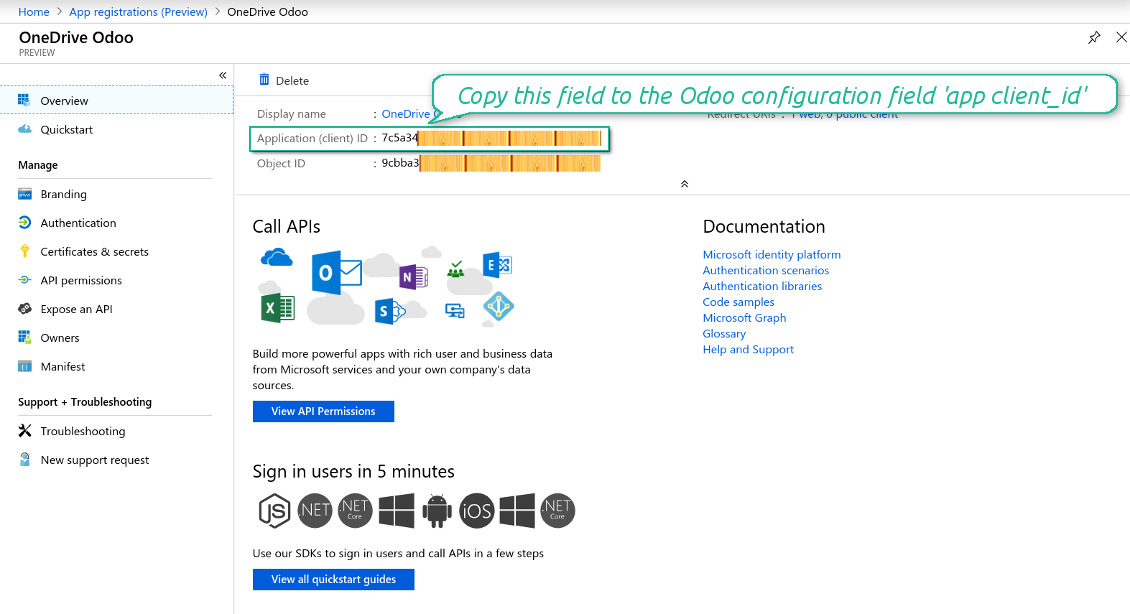
- Copy the Application Client ID to the Odoo field 'App client_id'
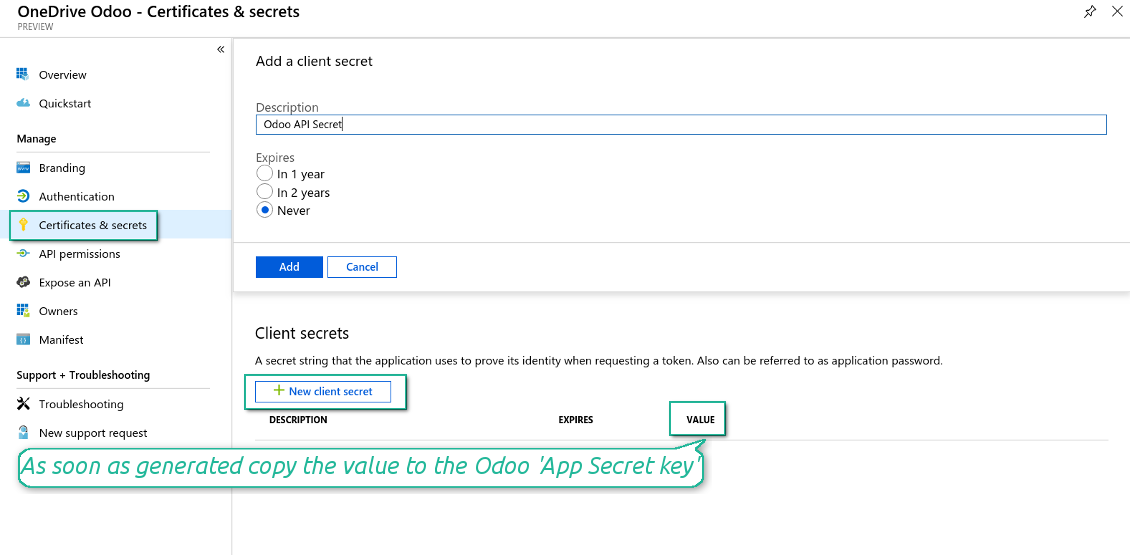
- Go to Certificates & secrets - Click 'New Client Secret'. Copy the secret value to the Odoo field 'App Secret Key'
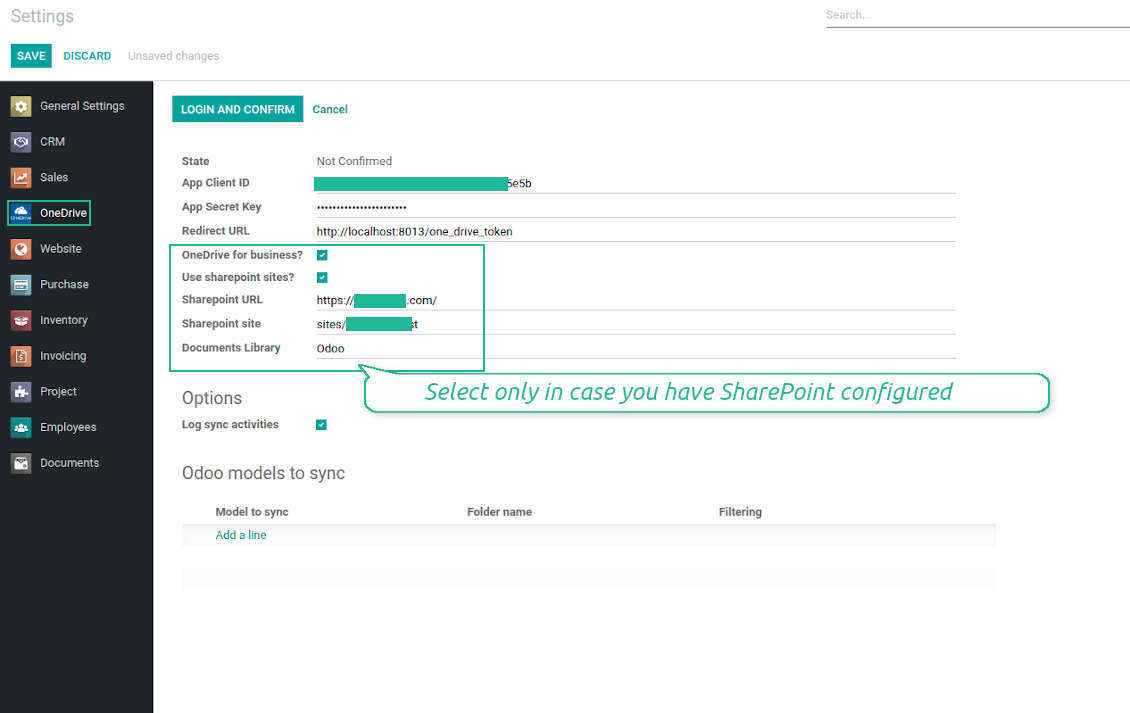
- For SharePoint sites only:
- Go to your SharePoint site and prepare a new documents' library (drive). You might use one of the existing ones, e.g. 'Documents'. Odoo folder would be put there afterwards, and it would be impossible to move it for another library
- Check the boxes 'OneDrive for business' and 'Use SharePoint sites'
- The SharePoint URL should be of the type https://[URL]/. The last '/' is required - site name should not be included into. For example, https://odootools.sharepoint.com/
- SharePoint site should be either my_site_name (in that case it is considered as sites/my_site_name) or sites/my_site_name (instead of 'sites' it might be 'teams' and so on). There should be no '/' at the beginning or at the end. For example, sites/odootools
- As Documents Library use one created in SharePoint
- Press Save on the Odoo configuration Page.
- Press 'Login and Confirm'. Odoo redirects you to Microsoft login page. Check in and grant permissions asked. If Microsoft shows an account already signed in and says it does not exist in tenant 'Microsoft Services' (or any other unrelated tenant), do not click that row. Click 'Use another account' and sign in with the Microsoft account that owns the app's directory.
- After login, Microsoft redirects you back to Odoo. OneDrive - Odoo synchronization is ready to be done.
Create Azure application
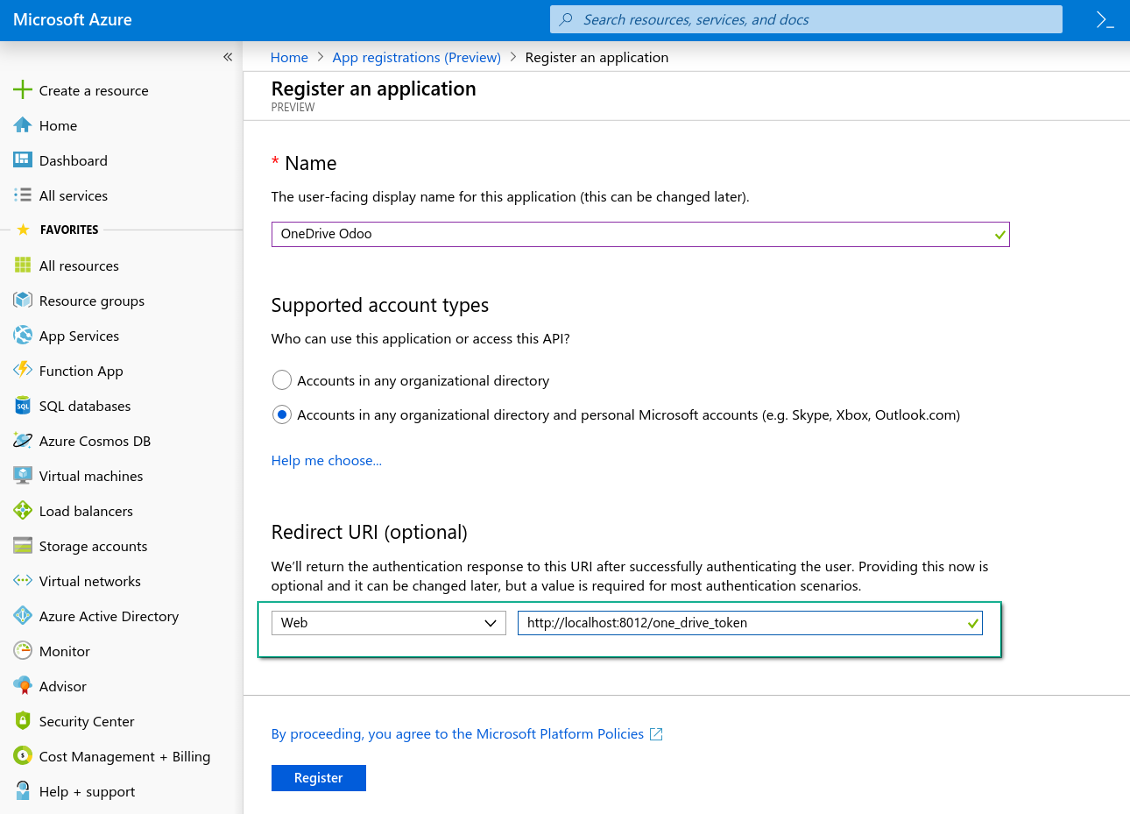
New OneDrive Web platform and redirect URL
Generate new secret for Azure application
Enter configuration keys in Odoo
Odoo server configuration and cron job configuration
To make sure the synchronization works correctly apply proper timeouts to the Odoo configuration file: LIMIT_TIME_CPU, LIMIT_TIME_REAL, LIMIT_TIME_REAL_CRON should be more than 900 seconds.
For Odoo.sh this should not be done, since timeouts are predefined and are not configurable.
Then, timeout should be entered to your Odoo. To that goal find the section 'Settings' on the app configuration page and copy the number there.
Afterwards, it is needed to make the cron jobs suit the applied timeouts. In the debug mode go to the Settings > Technical > Automation > Scheduled Jobs:
- Set up the job 'Synchronize attachments with cloud' as (a) frequency - 2*timeout; (b) the next execution as the next hour +timeout. For example, for 900seconds timeout: frequency - as 30minutes; the next execution - at 08:15
- Set up the job 'Synchronize attachments from cloud' as (a) frequency - 2*timeout; (b) the next execution as the next hour + timeout*2. For example, for 900seconds timeout: frequency - as 30minutes; the next execution- at 08:30.
Reconnection
Reconnection is required, when you have not used the sync tool for more than 6 months. In such a case:
- Press the button 'Reconnect'
- Press the button 'Login and confirm'
Hakkında sık sorulan sorular OneDrive / SharePoint Odoo Integration Odoo v.14
Eşitlenen görselin bulut bağlantısına tıklayınca bir hata görüyorum
«This item might have been deleted, expired, or you might not have permission to access it. Contact the owner of this item for more information.» hatası, photos.onedrive.com hizmetine giriş yapmadığınızı gösterir.
Senkronizasyon işlerinin sıklığını değiştirebilir miyim?
Evet, yapabilirsiniz. Bunun için:
Hata ayıklama modunu açın
Teknik ayarlar > Otomasyon > Zamanlanmış işler bölümüne gidin
«Synchronize attachments with cloud» ve «Update attachments from cloud» işlerini bulun.
Çok sık çalıştırmayın. Bir işin, yenisi başlamadan bitmesi tercih edilir. Ayar, senkronize edilecek öğe sayısına bağlıdır. Sıklık genellikle 15 dakika ile 4 saat arasındadır.
Odoo yapılandırma dosyasında yeterli zaman sınırları da ayarlayın. LIMIT_TIME_CPU ve LIMIT_TIME_REAL, planlanan cron süresine eşit veya daha büyük olmalıdır. Sürüm 13'ten itibaren LIMIT_TIME_REAL_CRON parametresini de dikkate alın.
Odoo.sh müşterileri için önemli not: cron işinin azami süresi yalnızca 15 dakika olabilir.
Senkronizasyonun varsaydığından farklı bir dizin yapısı yapılandırabilir miyim?
Hayır, bu özellik yalnızca sürüm 15'ten itibaren vardır. Öncesinde modül önceden tanımlı klasör yapısıyla çalışır:
Odoo - senkronun kök klasörü
Modeller - her Odoo belge türü için klasörler. Örneğin «Projects», «Partners». Alana göre daha özel klasörler olabilir: «Customer 1 Projects», «Projects of the Customer 2», «Internal Projects» vb.
Nesneler - her belge için klasör, örn. «Project 1» veya «Customer 1»
Bu Odoo belgesine ait senkronize edilecek dosya ve klasörler.
Sonuç olarak örneğin şunlar oluşabilir:
Odoo / Projects / Project 1 / proje 1'e ait dosya ve klasörler
Odoo / Customer 1 Projects / Project 1; Odoo / Customer 2 Projects / Project 3, ...
Odoo / Customers / Customer 1 / müşteri 1'e ait dosya ve klasörler
Yapı her zaman düzdür: yalnızca bu hiyerarşi düzeyleri. Farklı belge türleri aynı dalda tutulamaz. «Customer 1» klasöründe hem sipariş, hem fatura hem proje dosyaları olamaz. Her türün kendi klasörü (veya klasörleri) vardır. Aksi halde geri senkron için dayanak kalmaz.
Odoo'da belirli kullanıcı erişimleri ayarlamalı mıyım?
Hayır, araç tek bir kullanıcı uç noktasına dayanır. Tüm senkron süreçleri tek bir bulut yöneticisi (uygulama) altında yapılır. Oluşturulan klasör / dosya hakları otomatik değildir. Bunları bulut depolama çözümünüzde yönetin.
Senkronize edilen dosyalar nerede saklanır? Odoo ve bulutlarda çoğaltılır mı?
Uygulama, eklerin ikili içeriğinin Odoo sunucusu yerine Cloud Client'te tutulduğunu varsayar. Bu yüzden Odoo'daki bu ekler URL tipine dönüşür ve onlara istediğiniz zaman ek kutusundan veya Cloud Client'ten erişebilirsiniz.
Kurulumdan sonra elle işlem gerekmez; senkronizasyon tamamen otomatiktir. Hangi Odoo belge tiplerinin senkronize edileceğine karar verin ve her biri için ilgili modeli ayarlayın (müşteriler, satış veya satın alma siparişleri, görevler, projeler vb.).
Aynı belge türü için birkaç klasörüm olabilir mi? Örneğin iç projeler ve müşteri projeleri?
Evet, yapabilirsiniz. Bunun için her biri için bir kural hazırlayın ve filtre uygulayın: örneğin proje türüne göre.
Bir belgenin kesin atanması için filtreleri birbirini dışlar hale getirin. Örneğin: «müşteri ama tedarikçi değil», «tedarikçi ama müşteri değil». Aksi halde belgenin klasörü bir modelden diğerine atlar.
Yalnızca Cloud Storage Solution uygulaması yeterli mi?
Hayır, araç yalnızca teknik çekirdektir. Bulut istemcinizin bağlayıcısına da i̇htiyacınız var.
Senkronize edilecek çok nesne varsa, örneğin 10000, sorun olur mu?
Evet, çok klasör/ek varsa süreç yavaş olabilir. Yine de müşteriler >10 bin iş ortağı ve ~5 bin ürün varyantı olan ortamlar bildirdi ve süreçler kabul edilebilirdi.
Vurgulanacak noktalar:
- Senkron, her öğenin senkronize edilip kaybolmamasını sağlar; hızlı olmayabilir. FIFO kuyrukları ve her işin commit edilmesi bunu garanti eder.
- Nesne sayısı mantıksal olarak sınırlanabilir. Model yapılandırması eski öğeleri dışlar (ör. arşivlenmiş iş ortakları veya 2 yıl önceki siparişler).
Senkronizasyonu gerçek zamanlı yapmak mümkün mü?
Hayır. Gerçek zamanlı senkronizasyondan kaçınmamızın güçlü nedenleri var:
Performans. Senkron gerçek zamanlıysa her dosya yüklemesi yükleme ekranı gösterir.
Çakışmalar. 2 kullanıcı aynı anda bir öğeyi değiştirirse durum çözümsüz kalabilir. Düzenli işlerde sonra düzeltebiliriz; gerçek zamanda kuyruk gerekir ve bu daha kafa karıştırıcı olur.
İşlevsellik. Özellikle yeniden adlandırma ve yeniden yapılandırma. Geri senkron dizin mantığına sıkı bağlıdır ve her senkronde öğelerin %100'ü kontrol edilir. Her güncellemeden sonra saniyede binlerce istek olur. Yoksa değişiklikler kaybolur.
Bulutlardaki varsayılan klasör adlarını değiştirebilir miyim?
Her belge türü için model dizinlerine (satış siparişleri, fırsatlar, tedarikçiler vb.) kendi adınızı verebilirsiniz.
Nesne klasörleri (SO-001, John Smith vb.) için araç, Odoo'nun görünen ad yöntemine dayanır. Bunu bir ad ifadesi tanımlayarak değiştirebilirsiniz. Sözdizimi Odoo e-posta şablonlarıyla aynıdır.
Ekleri birkaç bulut istemcisine senkronize edebilir miyim
Hayır, bu özellik yalnızca sürüm 15'ten itibaren kullanılabilir.
Bulutlarımızda özel bir düzenleyici kullanıyoruz (ör. OnlyOffice, Office 365 vb.). Dosyalar o düzenleyicide açılır mı?
Evet, bulut istemcinizin yapılandırmasına bağlı olarak.
Araclarinizin güncelleme politikalari nedir?
Güncel Odoo Apps Store politikalarina göre:
- 12.0 ve önceki sürüm için alinan her modül, 12.0'a kadar tum surumlere erişim verir.
- 13.0 surumunden itibaren her modül sürümü ayri satin alinmalidir.
- Surumden bagimsiz olarak satin alma, o ana sürüm içindeki tum güncelleme ve hata duzeltmelerine hak verir.
faOtools ekibi bu politikalari kontrol etmez. Sorulariniz için doğrudan Odoo Apps Store temsilcilerine ulasin.
Uygulamanizi Odoo.sh üzerine nasil kurarim?
En doğrudan yaklasim, Odoo magazasinin yerlesik is akisidir:
1. Modül sayfasini acin ve Deploy on odoo.sh düğmesine tiklayin
2. GitHub sayfasina yonlendirilirsiniz. Hesabiniza giriş yapin, ardindan Create a new repo'ya tiklayin veya mevcut birini kullanin. Depo özel olmalidir. OPL-1 lisansli uygulamalarin yayimlanmasi yasaktir. Gerekirse Odoo.sh projeniz için yeni bir depo oluşturun
3. Ardindan odoo.sh'e gidin, Deploy'a tiklayin, karari onaylayin ve Continue'ya tiklayin. Kurulum başlar.
Bu adimlar uygulamayi projenin production dalina kurar. Diğer dallar veya modül guncellemesi için:
1. Kaynak kodu Odoo magazasindan indirin
2. Modulu gerekli GitHub deposuna commit edin. Hiçbir uygulama klasörü/dosyasi .gitignore'da olmamalidir. odoo.sh'in oluşturduğu depolar varsayilan olarak önemli yollari (örneğin /lib) yok sayabilir. Tum modül dizinlerini ve dosyalarini istisnasiz yükleyin
3. odoo.sh projesinin hedef dalini deploy edin veya ayarlariniz otomatik derlemeyi ongoruyorsa bekleyin.
Uygulamayi kendi sunucuma nasil kurarim?
2. Odoo sunucusunu yeniden baslatin;
3. Gelistirici modunu acin (teknik ayarlar);
4. Uygulama listesini güncelleyin (Uygulamalar menusu);
5. Uygulamayi bulun ve Activate/Install düğmesine basin;
6. Varsa uygulama sayfasindaki yonergeyi izleyin.
Uygulamanizin ek eklentileri var. Sonradan alabilir miyim?
Evet. Odoo tum bagimliliklari sepete otomatik ekler: çift odemeyi onlemek için daha önce satin alinan araclari cikarin.
Uygulamayi Odoo.sh üzerine kurdum ve testlerde uyari/hata goruyorum
Kirmizi/turuncu uyari uygulamanin özelliklerini etkilemez. Bazen modüllerimiz standart otomatik testleri gecemez, çünkü bunlar uygulamamizin amaclarina aykiri davranis bekler. Örneğin fiyati farkli hesaplariz, Odoo testleri ise nihai fiyati standart algoritmayla karsilastirir.
Önce dagitilan veritabaninin özelliklerini kontrol edin. Her sey doğru calisiyor mu?
Uyarinin gerçek özellikleri etkiledigini dusunuyorsaniz bize yazin; tam kurulum günlüklerini ve dagitilan modüllerin tam listesini (çekirdek ve üçüncü taraf) gönderin.
Uygulamanizi doğrudan sizden satin alabilir miyim?
Hayir, araclari yalnizca resmi Odoo uygulama magazasi üzerinden dagitiyoruz.
Indirim almak istiyorum
Ne yazik ki bireysel fiyat sunacak teknik imkanimiz yok.
Uygulamayi Odoo Online (SaaS) veritabanima kurabilir miyim?
Hayir, üçüncü taraf uygulamalar Odoo Online'da kullanilamaz. Odoo SaaS bunu engeller.
Aracinizin başka uygulamalara bagimliligi var. Onlari da almali miyim?
Evet, aracimizin doğru calismasi için bagimliliklarda isaretlenen tum modullere ihtiyaci vardir. Uygulama sayfasindaki fiyat bu bagimliliklari zaten içerir.
Modulun ABD dolari fiyati nedir? Neden değişti?
Modullerimizin fiyati euro cinsinden belirlenir. Odoo magazasi fiyatlari kendi ic kuruna göre diğer para birimlerine çevirir. Bu yüzden ABD dolari fiyati kur guncellendiginde degisebilir.
İngilizce dışındaki dillerdeki uygulama ve web sitesi metinleri yapay zeka desteklidir ve resmi Odoo çevirileriyle hizalanır. Bir hata görürseniz, çeviri doğruluğu bileti gönderin ve düzeltiriz.
Hata bildirimi
Hata veya tutarsız davranış görürseniz bize yazın. Satın alımdan sonra 60 gün içinde düzeltme garantisi veririz; bu süreden sonra da araçları geliştirmeye devam ederiz.
Bize yazmak için telefon veya kredi kartı gerekmez. Yalnızca 30 saniyeyi aşmayan kısa e-posta kaydı yeter.
İstekte mümkün olduğunca ayrıntı verin: ekran görüntüleri, Odoo sunucu günlükleri, sorunu nasıl yeniden üreteceğinizin tam açıklaması. Genellikle birkaç iş günü içinde (hata doğrulanırsa) çalışma planı veya (değilse) yönergeler hazırlanır.
Genel özellik talepleri ve modül fikirleri (ücretsiz geliştirme)
Araçlarımızı geliştirmeye güçlü şekilde motiveyiz ve her geri bildirime minnettarız. Gereksinimleriniz kamuya yararlıysa ve verimli uygulanabilirse ekip bunları yapılacaklar listesine alır.
Böyle bir yapılacaklar listesi düzenli işlenir ve ek ücret varsaymaz. Son tarihler ve nihai tasarım sözü veremesek de istenen özellikleri yatırım ve risk olmadan almanın iyi bir yolu olabilir.
Bize yazmak için telefon veya kredi kartı gerekmez. Yalnızca 30 saniyeyi aşmayan kısa e-posta kaydı yeter.

Odoo'da paylaşarak kullanmak üzere parolaları güvenle saklama aracı. Paylaşılan kasalar
198€
İç ve dış kullanım için derin ve yapılandırılmış bir bilgi bankası kurma aracı. Knowledge System. KMS. Wiki benzeri revizyonlar.
398€
KPI hedeflerini kurmak ve dönemlere göre gerçekleşmeyi denetlemek için araç. KPI gösterge panelleri. Gösterge paneli tasarımcısı. KPI grafikleri
198€
Randevu rezervasyonundan satış ve değerlendirmelere zaman tabanlı hizmet yönetimi aracı
398€
Odoo'nuzu MCP ile favori AI sohbetlerinizden yönetme aracı. Claude. MCP destekleyen her AI.
198€
Odoo eklerini klasörlerde esnek yapılandıran ve dizinleri bulut istemcileriyle senkronize eden araç: Google Drive, OneDrive/SharePoint, Nextcloud/ownCloud, Dropbox, Amazon S3, Box ve NAS. DMS. Dosya Yöneticisi. Belge yönetim sistemi
398€
otomatik olarak senkronize et Odoo ekler ile Google Drive dosyalar içinde her iki ways
487€
otomatik olarak senkronize et Odoo ekler ile ownCloud/Nextcloud dosyalar içinde her iki ways
487€
otomatik olarak senkronize et Odoo ekler ile DropBox dosyalar içinde her iki ways
487€