OneDrive / SharePoint Odoo Integration v.14
The tool to automatically synchronize Odoo attachments with OneDrive files in both ways
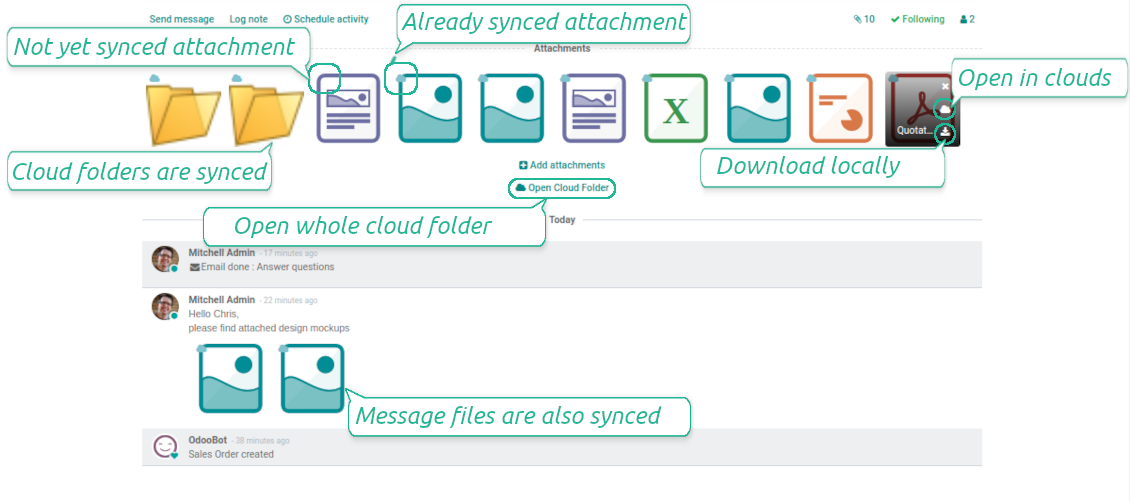


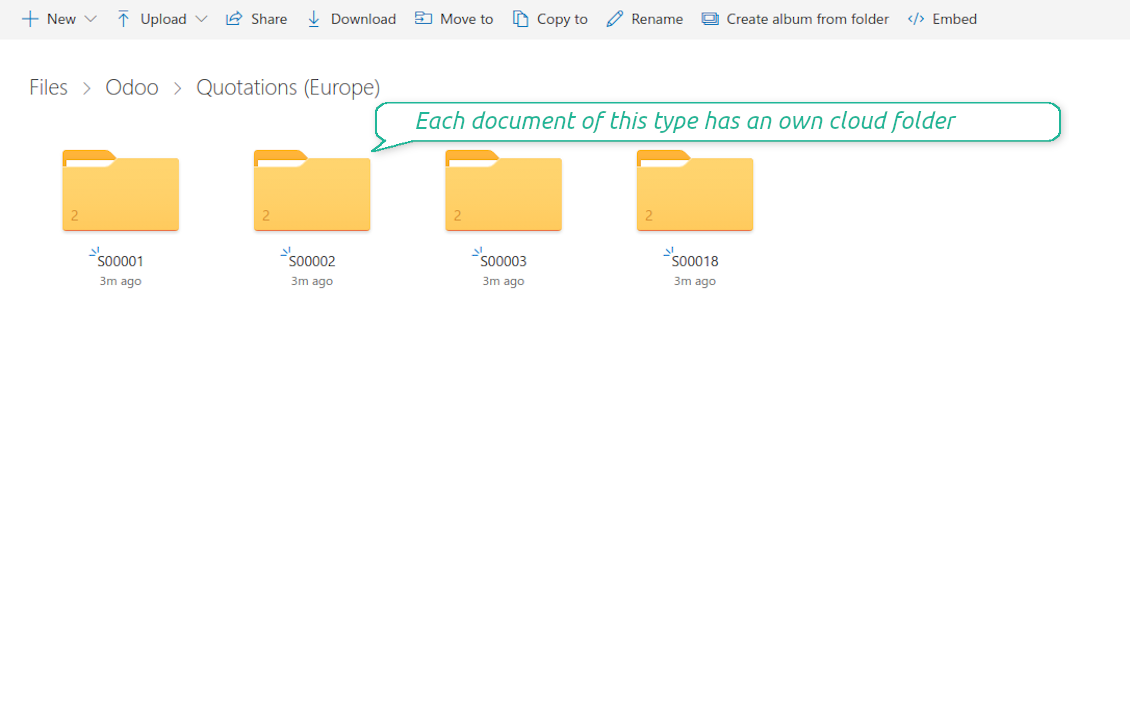


This is the tool to integrate OneDrive / SharePoint features into your Odoo business work flow. The app automatically stores Odoo attachments in OneDrive / SharePoint, and it provides an instant access to them via web links. In such a way users work with files comfortably in the cloud storage, while the results are fully available in Odoo.
- the technical core which provides basic mechanics of auto synchronization. This is a required module for integration. Prisen er 398€.
- the connector itself which introduces links between Odoo and OneDrive / SharePoint. Prisen er 89€.
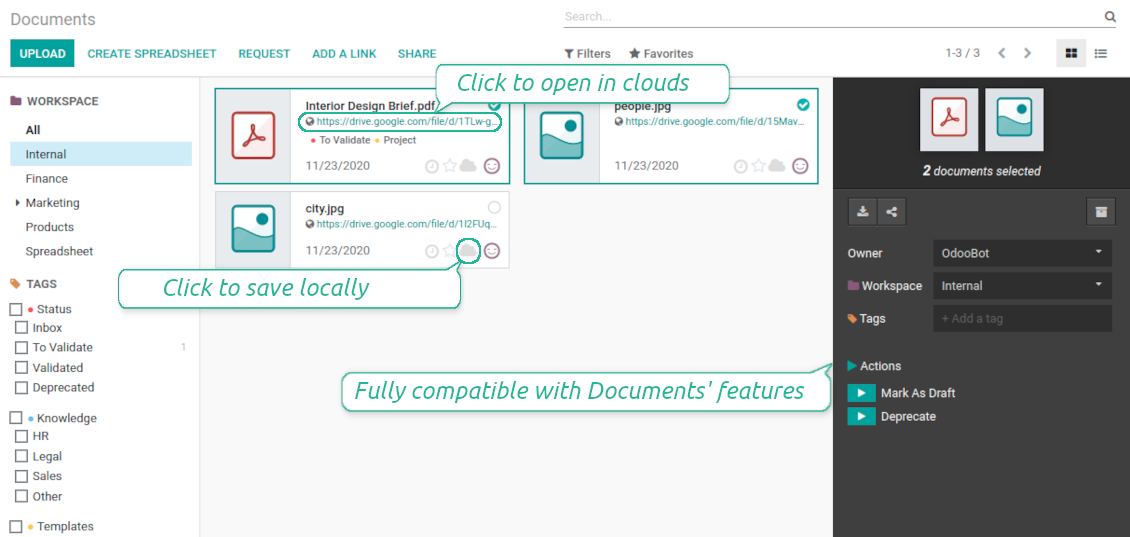
- an optional add-on to sync Odoo documents (introduced by the enterprise app 'Documents') with clouds. The features assumed by this add-on are marked by the icon . Prisen er 44€.
Automatic regular sync
Synchronization between Odoo and OneDrive / SharePoint is based on scheduled jobs. No manual interaction is required
Bilateral OneDrive / SharePoint sync
Odoo sends attachments to OneDrive / SharePoint and retrieves files from there. Binary content is kept in clouds, while Odoo provides direct access to synced items
Any Odoo document types for sync
Decide which Odoo document types should be synced. Customers, opportunities, sale or purchase orders, tasks or issues, employees or users, etc. Custom models are also supported
Instant access for OneDrive / SharePoint
The tool redefines Odoo attachments boxes to make work comfortable: download files locally without login, open files and folders in OneDrive / SharePoint (if possible, items would be opened in OneDrive / SharePoint editors and previewers), use standard Odoo previewers
Compatible with Odoo Enterprise documents
Reflect Odoo Enterprise Documents' structure and items in OneDrive / SharePoint. All features (including sharing, downloading, and signing) would anyway work
Personal OneDrive and SharePoint
Sync works both for personal OneDrives and business SharePoint tariffs
OneDrive / SharePoint sync history
Sync activities might be logged. Control over files and folders creations, moves, name changes and removals. Just turn on the option 'Log sync activities', and you would be able to observe the history through the button 'Sync logs'
Default folders
The tool let generate default directories' structure for this document type during the very first sync of a related object. For example, for all employees you may have pre-defined folders 'Scans', 'Scans/Official', 'Photos', etc.
Works well with SharePoint. Supportive team
We've been using this with SharePoint and it's been working great. One of the best things is having everything, including logs right in Odoo's interface, so you can actually see what's going on. It's also super convenient that you can view or download synced files from the attachment box without having to leave the page or even log in to Sharepoint.
Setup was pretty smooth for us. When we had a few questions about setting up the folder hierarchy and priorities, the developer team got back to us in just a couple of hours and helped us figure it out. Great support and great extension!
Great support, assistance and very good connector!
We are very happy with the support we received when configuring the Sharepoint - Odoo connector. The connector has great functionalities.
All our questions were answered very fast (within one day).
FaOtools helped us optimising our connector and assisted us with future improvements.
We really recommend this connector.
very professional app, excellen t customer service
This app is very well programmed and does its job very well. But the best is the excellent customer service who also helps when the problem lies somewhere else. You receive a lot for your money.
An impressive app and world-class support
I have been very impressed by the way the OneDrive / SharePoint Odoo Integration module synchronises content in both directions and allows me to share documents in Odoo with my SharePoint site. Above all the technical support is top-notch, which greatly increases the value of this product. I highly recommend this product for anyone considering synchronising Odoo with SharePoint/OneDrive.
Works fine, good support
The first experience with the module is excellent. I had some trouble to configure things right on the Microsoft-side, but the team provided quick and good support.
Sync any documents you like
Configuring models to sync
-
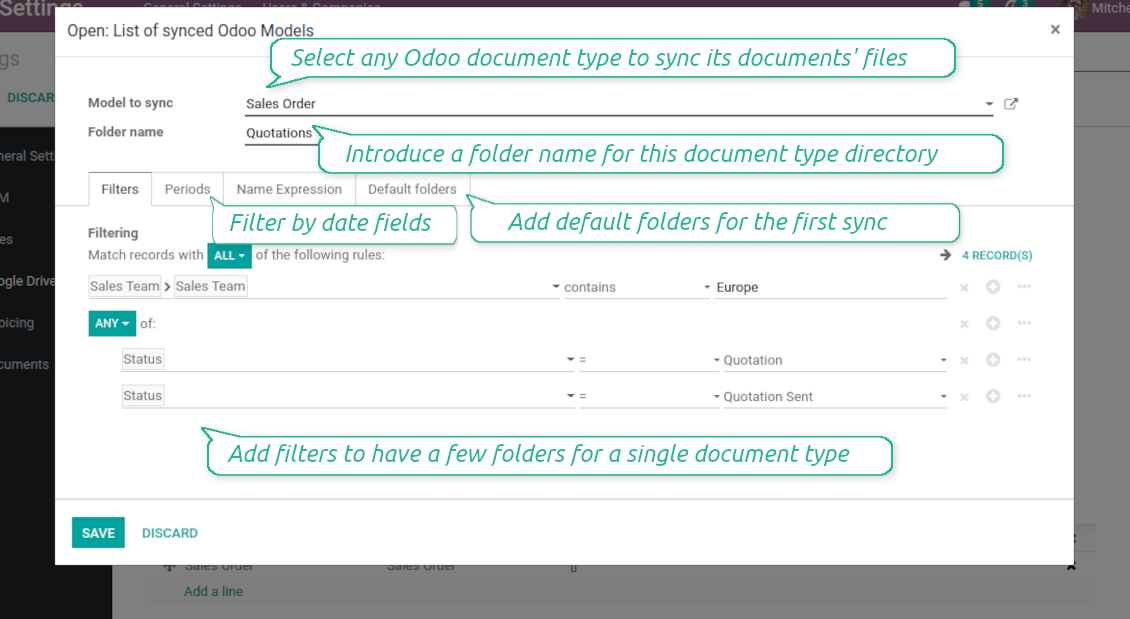
To sync a specific document type, you should add it as a model to sync. Any Odoo model might be chosen
-
The app let split models into a few folders based on selected filters. Use any document storable field to distinguish a directory. Have a separate folder for individuals and companies, for European and American opportunities, for quotations and confirmed orders, for each project, etc.
-
Limit also documents by relative periods through using date fields of linked documents. For example, leads registered in the last 3 months or invoices updated the last week
-
Define name expressions to specify titles of documents' OneDrive / SharePoint folders. For instance, to include project name to a task directory
-
Prepare hierarchy of default folders to be created when a document directory is synced to OneDrive / SharePoint for the first time
Typical use cases
-
Projects: have an own OneDrive / SharePoint folder for each customer project
-
Customers: add all partner files in a single directory available both from Odoo and from OneDrive / SharePoint. Modify those using default cloud editors and access them when working in Odoo
-
Employees: gather all files by this employee in a single cloud folder: photos, document scans, contracts. Access and upload those from Odoo and OneDrive / SharePoint alternatively
-
Opportunities: carefully store all specifications, requirements, any files which would let you make a good offer
-
Orders: keep all printings and contracts in OneDrive / SharePoint with instant availability from Odoo
-
Picking operations: save warehouse docs to OneDrive / SharePoint.
How synchronization works
Direct Sync
-
Direct synchronization is based on the scheduled job 'Synchronize attachments with cloud'
-
Direct sync make all synced Odoo attachments change their type to a link (URL), while binary content is removed with a next Odoo cleaner. So, no actual files would be stored on your Odoo server
-
Direct sync checks whether attachments are added or deleted for synced documents. If so, they would be created or removed in OneDrive / SharePoint
-
Direct sync checks whether a new document type (e.g. sale orders) is added / renamed / replaced in the to-sync-models configurations. If so, this should be reflected in OneDrive / SharePoint
-
Direct sync checks whether a new document (e.g. quotation SO-001) related to a synced document type is generated / updated / unlinked. If so, the connector would make the same changes in OneDrive / SharePoint
-
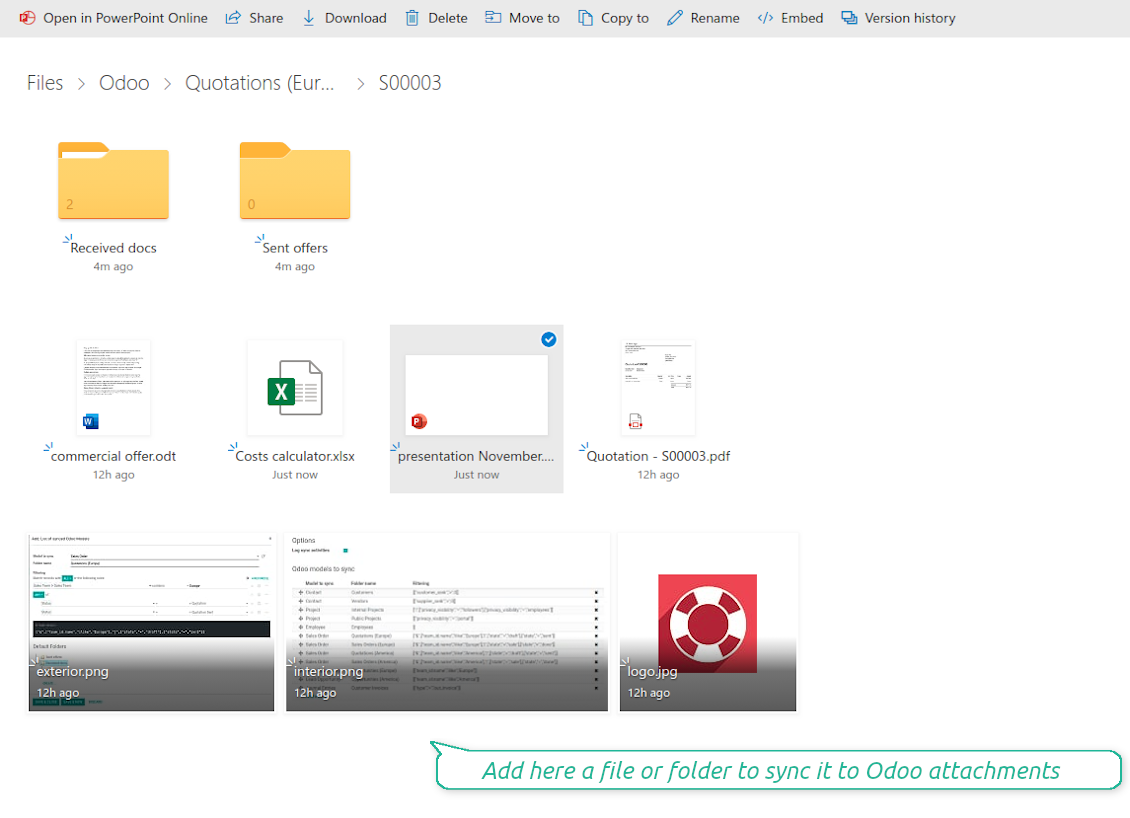
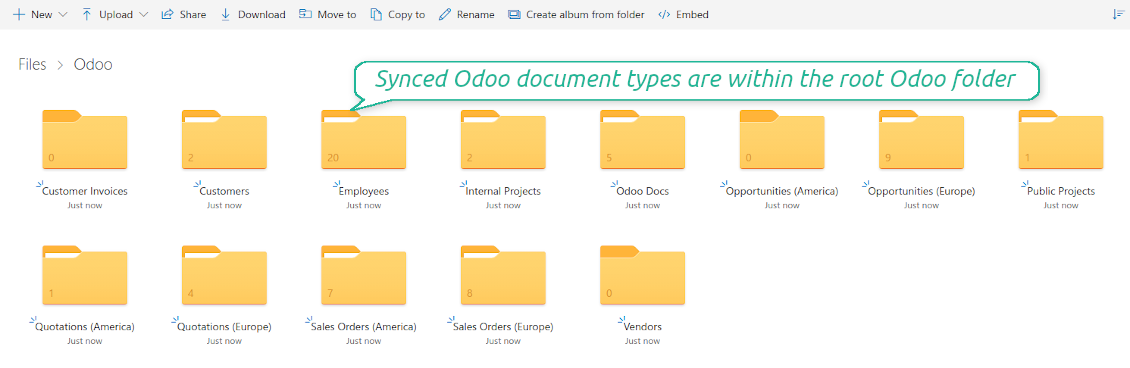
The final goal of direct OneDrive / SharePoint integration is to have the structure 'Odoo / Document Types / Documents / Files. For example, 'Odoo / Quotations / SO019 / commercial offer.pdf'
Backward Sync
-
Backward synchronization is based on the scheduled job 'Synchronize attachments from cloud'
-
Backward sync checks whether any items are added to a OneDrive / SharePoint document folder. If so, the app would create URL attachments for that items in a linked Odoo object
-
Backward sync checks whether any items are deleted / moved in a cloud document folder. If so, a linked Odoo attachment would be also unlinked or moved
-
Backward sync checks whether any item is renamed in OneDrive / SharePoint. If so, a chained Odoo attachment should be also renamed
-
In OneDrive folders you can put not only files but also child folders. In that case a link for this folder (not its content) would be kept in Odoo attachments
-
If you deleted a folder related to this document type or this document, their child files would be deleted as well. Thus, Odoo would remove related attachments. The folders, however, will be recovered with a next direct sync
Misc notes
-
The connector works on a queue (first in - first out) principle: it tries to firstly reflect the oldest changes
-
Each sync, especially the very first one, might take quite a long. It is not recommended to make sync too frequent: once an hour seems reasonable frequency
-
File names and content should be managed in OneDrive / SharePoint: each backward sync would recover OneDrive / SharePoint names, Odoo is here less important
-
Try to avoid the following symbols in folders' and files' names: *, ?, ", ', :, <, >, /, +, %, !, @, \, /,. Direct sync will replace such symbols with '-'. It is done to avoid conflicts with file systems.
Odoo Enterprise Documents
-
The special add-on 'Cloud Sync for Enterprise documents' is introduced to synchronize OneDrive / SharePoint with the Odoo app 'Documents' (the latter is distributed under the Odoo Enterprise license)
-
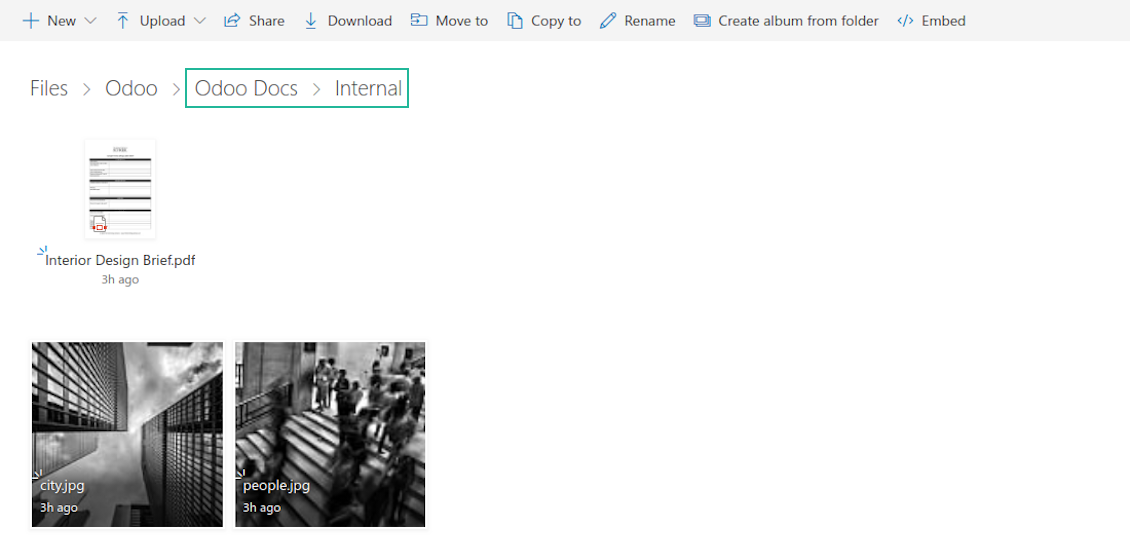
Based on that add-on the Odoo documents' hierarchy would be reflected within the folder 'Odoo / Odoo Docs'
-
Each Odoo folder would have a linked OneDrive / SharePoint folder. Take into account that folders created in the cloud storage will be synced as Odoo attachments. The key principle is: folders are managed by Odoo, files are managed by the cloud client
-
All files are synced with the same logic as usual attachments. Files created in Odoo will be added to the cloud storage and will be replaced with links in Odoo. Files created in cloud storage will generate URL attachments within a paired documents directory
-
Standard OneDrive / SharePoint sync and integration with Enterprise Documents are done within the same jobs. Avoid the scenarios when a single file is synced as a simple Odoo attachment and as an Odoo document simultaneously
-
Odoo spread sheet files are not synced by the connector: so, they are still manageable in Odoo
-
Please do not name synced models as 'Odoo Docs'. This is the reserved name for Odoo Enterprise Documents.
Konfigurasjons- og installasjonstips for OneDrive / SharePoint Odoo Integration Odoo v.14
Python dependency
The tool depends on external libraries 'microsoftgraph'. Install this library for your Odoo server through the command:
pip3 install microsoftgraph-pythonConfiguration and log in
- Make sure your Microsoft user has full admin rights for OneDrive / SharePoint you want to connect to Odoo. This user is required only to grant permissions, the user data would not be kept any where in Odoo, and would not be used any more. Besides, make sure a Microsoft email address you use does not have a redirection (usually happens when you configure your domain name, while the prime address is still one of Microsoft domains like @outlook.com, @office365, etc.)
- Go to your Azure Portal: https://portal.azure.com/#blade/Microsoft_AAD_RegisteredApps/ApplicationsListBlade
The app must be registered inside a directory (tenant). Microsoft no longer allows creating a new app outside one.
- If you already have a company Microsoft 365 / Azure directory, switch the portal (top right) to it and continue.
- If you only have a personal account (@outlook.com, @hotmail.com, @live.com) and see "these applications are associated with the account ... but are not contained within any directory", you do not have a directory yet. Sign up for a free Azure account with the same Microsoft account: https://azure.microsoft.com/free/ - Try Azure for free. This creates a Default Directory for you at no cost.
- Microsoft asks for a card for identity verification only; a temporary ~1 USD hold is placed and reversed. You are not charged for the directory or for the app registration.
- The directory (Microsoft Entra ID Free) and any app registered in it keep working independently of the 30-day / $200 Azure trial credit. That credit is for paid Azure resources you are not using here. No payment is required for our app.
- If the whole directory sits completely unused for a very long time (Microsoft's own threshold is around 200 days of no activity at all), Microsoft may email a warning and eventually retire it. Since Odoo calls this app every time it syncs, an active connection keeps the directory active - this only matters if you stop syncing entirely for months.
- Once you are in a real directory (not "Microsoft Services"), open App registrations there.
- Click 'New registration'
- Introduce a new name for the application and assign the redirect URI as [YOURODOOSITENAME]/one_drive_token (e.g. https://odootools.com/one_drive_token). As the supported account types choose 'Accounts in any organizational directory (Any Azure AD directory - Multitenant) and personal Microsoft accounts (e.g. Skype, Xbox)'.
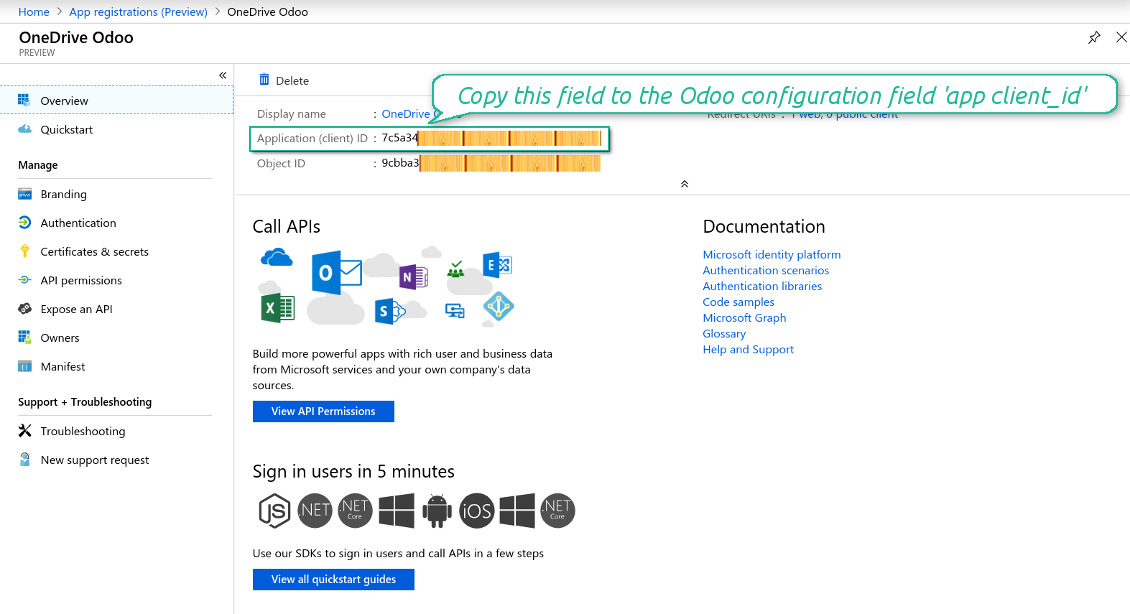
- Copy the Application Client ID to the Odoo field 'App client_id'
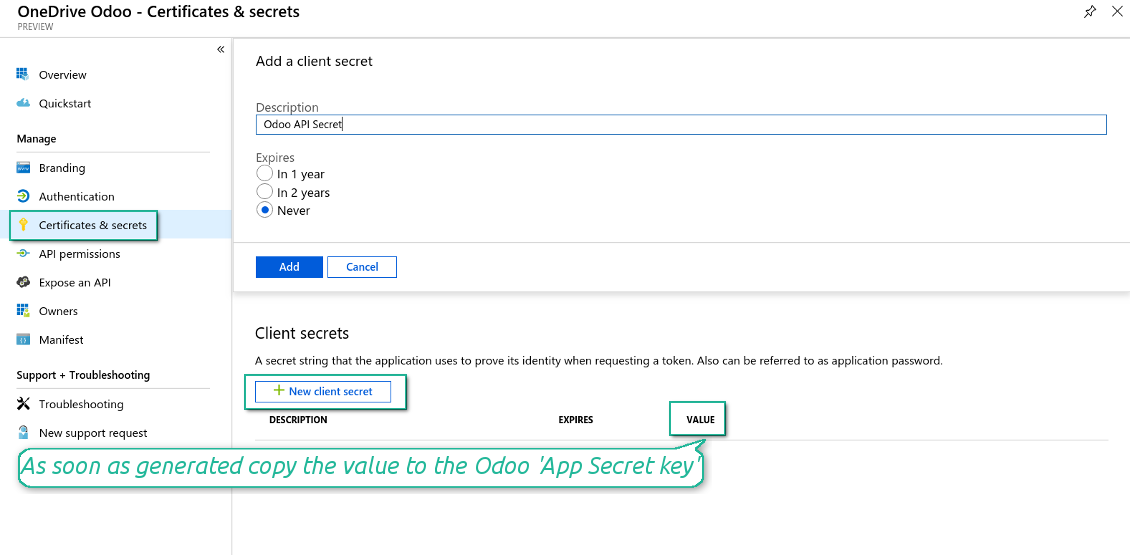
- Go to Certificates & secrets - Click 'New Client Secret'. Copy the secret value to the Odoo field 'App Secret Key'
- For SharePoint sites only:
- Go to your SharePoint site and prepare a new documents' library (drive). You might use one of the existing ones, e.g. 'Documents'. Odoo folder would be put there afterwards, and it would be impossible to move it for another library
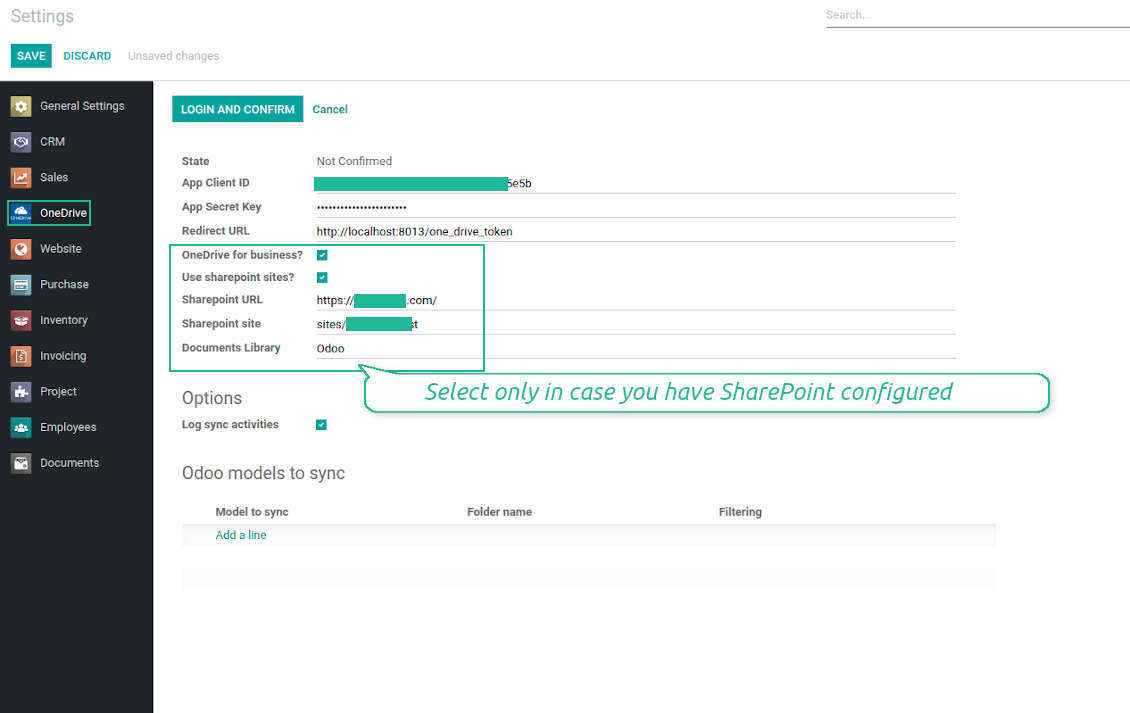
- Check the boxes 'OneDrive for business' and 'Use SharePoint sites'
- The SharePoint URL should be of the type https://[URL]/. The last '/' is required - site name should not be included into. For example, https://odootools.sharepoint.com/
- SharePoint site should be either my_site_name (in that case it is considered as sites/my_site_name) or sites/my_site_name (instead of 'sites' it might be 'teams' and so on). There should be no '/' at the beginning or at the end. For example, sites/odootools
- As Documents Library use one created in SharePoint
- Press Save on the Odoo configuration Page.
- Press 'Login and Confirm'. Odoo redirects you to Microsoft login page. Check in and grant permissions asked. If Microsoft shows an account already signed in and says it does not exist in tenant 'Microsoft Services' (or any other unrelated tenant), do not click that row. Click 'Use another account' and sign in with the Microsoft account that owns the app's directory.
- After login, Microsoft redirects you back to Odoo. OneDrive - Odoo synchronization is ready to be done.
Create Azure application
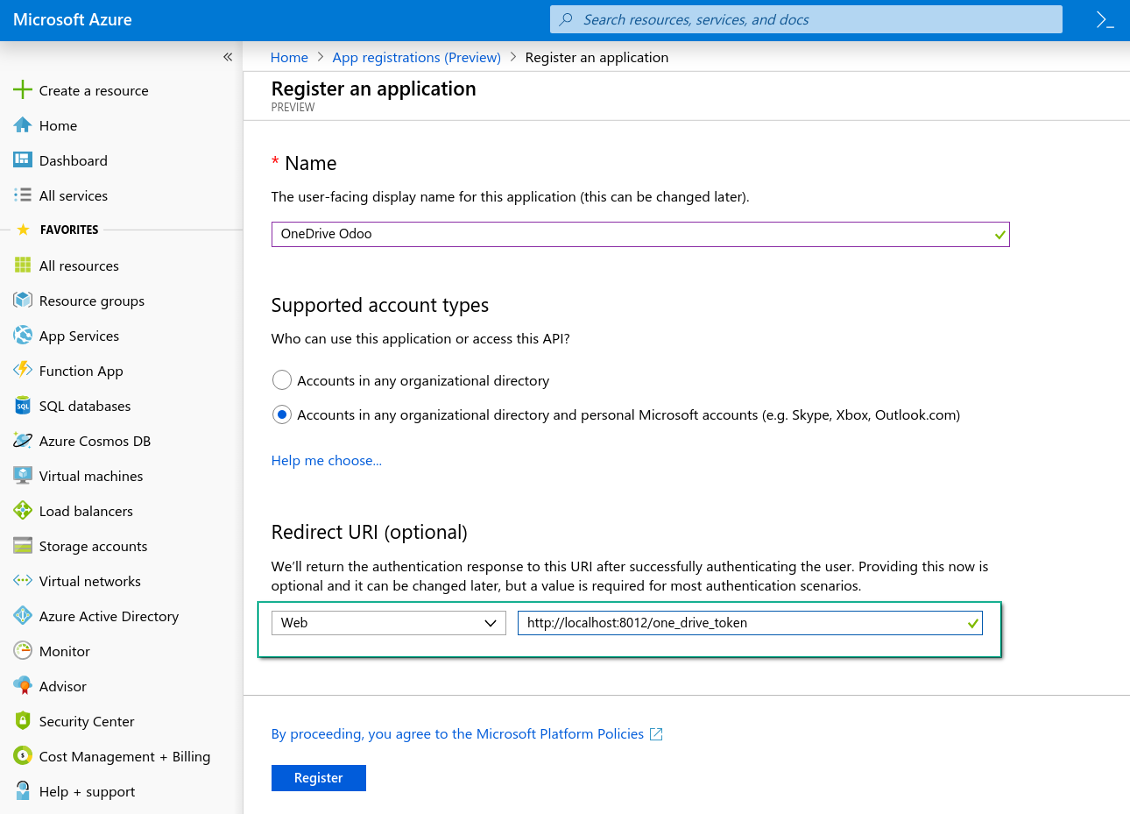
New OneDrive Web platform and redirect URL
Generate new secret for Azure application
Enter configuration keys in Odoo
Odoo server configuration and cron job configuration
To make sure the synchronization works correctly apply proper timeouts to the Odoo configuration file: LIMIT_TIME_CPU, LIMIT_TIME_REAL, LIMIT_TIME_REAL_CRON should be more than 900 seconds.
For Odoo.sh this should not be done, since timeouts are predefined and are not configurable.
Then, timeout should be entered to your Odoo. To that goal find the section 'Settings' on the app configuration page and copy the number there.
Afterwards, it is needed to make the cron jobs suit the applied timeouts. In the debug mode go to the Settings > Technical > Automation > Scheduled Jobs:
- Set up the job 'Synchronize attachments with cloud' as (a) frequency - 2*timeout; (b) the next execution as the next hour +timeout. For example, for 900seconds timeout: frequency - as 30minutes; the next execution - at 08:15
- Set up the job 'Synchronize attachments from cloud' as (a) frequency - 2*timeout; (b) the next execution as the next hour + timeout*2. For example, for 900seconds timeout: frequency - as 30minutes; the next execution- at 08:30.
Reconnection
Reconnection is required, when you have not used the sync tool for more than 6 months. In such a case:
- Press the button 'Reconnect'
- Press the button 'Login and confirm'
Ofte stilte spørsmål om OneDrive / SharePoint Odoo Integration Odoo v.14
Jeg ser en feil når jeg klikker på skylenken til det synkroniserte bildet
Feilen «This item might have been deleted, expired, or you might not have permission to access it. Contact the owner of this item for more information.» betyr at du ikke er logget inn på tjenesten photos.onedrive.com.
Kan jeg endre frekvensen på synkroniseringsjobber?
Ja, det kan du. Gjør slik:
Slå på feilsøkingsmodus
Gå til tekniske innstillinger > Automatisering > Planlagte handlinger
Finn jobbene «Synchronize attachments with cloud» og «Update attachments from cloud».
Ikke gjør dem for hyppige. En jobb bør være ferdig før neste starter. Oppsettet avhenger av hvor mange elementer som skal synkroniseres. Vanligvis er frekvensen mellom 15 minutter og 4 timer.
Sett også nok tidsgrenser i Odoo-konfigurasjonsfilen. LIMIT_TIME_CPU og LIMIT_TIME_REAL må være lik eller større enn planlagt crontid. Fra versjon 13 gjelder også LIMIT_TIME_REAL_CRON.
Viktig merknad for Odoo.sh-kunder: maksimal tid for en cronjobb kan være begrenset til 15 minutter.
Kan jeg konfigurere en annen struktur på synkroniserte kataloger enn den synken forutsetter?
Nei, denne funksjonen finnes først fra versjon 15. Før det bruker modulen en forhåndsdefinert mappestruktur:
Odoo - rotmappe for synken
Modeller - mapper for hver Odoo-dokumenttype. For eksempel «Projects», «Partners». Etter domene kan det finnes mer spesifikke mapper: «Customer 1 Projects», «Projects of the Customer 2», «Internal Projects» osv.
Objekter - mapper for hvert dokument, f.eks. «Project 1» eller «Customer 1»
Filer og mapper knyttet til dette Odoo-dokumentet som skal synkroniseres.
Da kan du for eksempel ha:
Odoo / Projects / Project 1 / filer og mapper for prosjekt 1
Odoo / Customer 1 Projects / Project 1; Odoo / Customer 2 Projects / Project 3, ...
Odoo / Customers / Customer 1 / filer og mapper for kunde 1
Strukturen er alltid flat: bare disse nivåene. Ulike dokumenttyper kan ikke ligge i samme gren. I mappen «Customer 1» kan man ikke holde både ordrer, fakturaer og prosjekter. Hver type har egen/egne mappe(r). Ellers har bakover-synken ingen kriterium.
Bør jeg sette opp bestemte brukertilganger i Odoo?
Nei, verktøyet bruker ett brukerendepunkt. Alle synkprosesser kjøres under én skyadministrator (app). Rettigheter for opprettede mapper / filer automatiseres ikke. Administrer dem i skylagringen din.
Hvor lagres synkroniserte filer? Dupliseres de til Odoo og skyene?
Appen forutsetter at det binære innholdet i vedlegg lagres i Cloud Client i stedet for på Odoo-serveren. Slike vedlegg i Odoo blir av typen URL, og du kan når som helst åpne dem fra vedleggsboksen eller fra Cloud Client.
Etter oppsettet trengs ingen manuelle handlinger: synkroniseringen er helautomatisk. Bestem hvilke Odoo-dokumenttyper som skal synkroniseres, og sett opp en relatert modell for hver (kunder, salgs- eller innkjøpsordrer, oppgaver, prosjekter osv.).
Kan jeg ha flere mapper for samme dokumenttype? For eksempel interne prosjekter og kundeprosjekter?
Ja, det kan du. Lag en regel for hver og bruk filtre: for eksempel etter prosjekttype.
Gjør filtrene gjensidig utelukkende slik at et dokument kan tildeles entydig. For eksempel: «kunde men ikke leverandør», «leverandør men ikke kunde». Ellers hopper dokumentmappen fra én modell til en annen.
Trenger jeg bare appen Cloud Storage Solution?
Nei, verktøyet er bare en teknisk kjerne. Du trenger også koblingen for skyklienten din.
Er det greit om jeg har mange objekter å synkronisere, for eksempel 10000?
Ja, selv om prosessen kan være treg med mange mapper/vedlegg. Kunder har likevel rapportert miljøer med >10k partnere og ~5k produktvarianter, og prosessene var akseptable.
Noen punkter:
- Synken er bygget slik at hvert element synkroniseres og ikke går tapt, selv om det ikke er raskt. FIFO-køer og commit av hver jobb garanterer det.
- Antall objekter kan begrenses logisk. Modellkonfigurasjonen lar deg utelate foreldede elementer (f.eks. arkiverte partnere eller ordrer fra 2 år siden).
Er det mulig å gjøre synkroniseringen sanntid?
Nei. Vi har sterke grunner til å unngå sanntidssynk:
Ytelse. Ved sanntidssynk gir hver filopplasting en lasteskjerm.
Konflikter. Hvis 2 brukere endrer et element samtidig, kan det bli uløselig. Med vanlige jobber kan vi rette etterpå; i sanntid trengs en kø, enda mer forvirrende.
Funksjonalitet. Særlig omdøping og omstrukturering. Bakover-synken bygger strengt på kataloglogikken og sjekker 100 % av elementene ved hver synk. Etter hver oppdatering ville det bli tusenvis av forespørsler per sekund. Hvis ikke, går endringer tapt.
Kan jeg endre standardnavnene på mapper i skyene?
Du kan gi modellkatalogene (salgsordrer, muligheter, leverandører osv.) ditt eget navn for alle dokumenttyper.
For objektmapper (SO-001, John Smith osv.) bruker verktøyet Odoos metode for visningsnavn. Du kan endre det med et navneuttrykk. Syntaksen er den samme som i Odoo e-postmaler.
Kan jeg synkronisere vedlegg til flere skyklienter
Nei, denne funksjonen er tilgjengelig først fra versjon 15.
Vi bruker en spesiell redigerer i skyene våre (f.eks. OnlyOffice, Office 365). Ville filer åpnes i den redigereren?
Ja, avhengig av konfigurasjonen til skyklienten.
Hva er oppdateringsreglene for verktoyene deres?
Ifolge gjeldende retningslinjer for Odoo Apps Store:
- Hver modul kjopt for versjon 12.0 eller tidligere gir tilgang til alle versjoner opp til 12.0.
- Fra versjon 13.0 ma hver modulversjon kjopes separat.
- Uavhengig av versjon gir kjop rett til alle oppdateringer og feilrettinger innen en hovedversjon.
faOtools-teamet styrer ikke disse retningslinjene. Ved sporsmal, kontakt Odoo Apps Store-representantene direkte.
Hvordan installerer jeg appen pa Odoo.sh?
Den mest direkte fremgangsmaten er den innebygde arbeidsflyten i Odoo-butikken:
1. Åpne modulens side og klikk pa Deploy on odoo.sh
2. Du blir omdirigert til GitHub. Logg inn og klikk Create a new repo eller bruk et eksisterende. Repet ma vaere privat. Apper under OPL-1 far ikke publiseres. Opprett et nytt repo for Odoo.sh-prosjektet om nodvendig
3. Ga deretter til odoo.sh, klikk Deploy, bekreft og klikk Continue. Installasjonen starter.
Disse trinnene installerer appen pa production-grenen. For andre grener eller oppdatering:
1. Last ned kildekoden fra Odoo-butikken
2. Commit modulen til GitHub-repot. Ingen app-mapper/filer ma sta i .gitignore. Repoer opprettet av odoo.sh kan ignorere viktige stier (f.eks. /lib). Last opp alle modulmapper og -filer
3. Deploy malgrenen i odoo.sh-prosjektet, eller vent pa automatisk bygg hvis innstillingene tilsier det.
Hvordan installerer jeg appen pa min egen server?
2. Start Odoo-serveren pa nytt;
3. Sla pa utviklermodus (tekniske innstillinger);
4. Oppdater applisten (Apper-menyen);
5. Finn appen og trykk pa Activate/Install;
6. Folg retningslinjene pa appsiden hvis de finnes.
Appen har ekstra tillegg. Kan jeg kjope dem senere?
Ja. Odoo legger automatisk alle avhengigheter i handlekurven: utelat allerede kjopte verktoy for a unngå dobbel betaling.
Jeg deployet appen pa Odoo.sh og ser advarsel/feil i testene
En rod/oransje advarsel pavirker ikke appens funksjoner. Noen ganger består ikke modulene vare de vanlige automatiske testene, fordi de forventer atferd som er i konflikt med appens mal. Vi endrer for eksempel prisberegningen, mens Odoo-testene sammenligner sluttprisen med standardalgoritmen.
Sjekk forst funksjonene i den deployede databasen. Fungerer alt?
Hvis du likevel tror at advarselen pavirker reelle funksjoner, kontakt oss og send de fulle installasjonsloggene og den fulle listen over deployede moduler (kjerne og tredjepart).
Kan jeg kjope appen direkte fra dere?
Nei, vi distribuerer verktoyene bare via den offisielle Odoo-appbutikken.
Jeg onsker rabatt
Dessverre har vi ikke teknisk mulighet til a gi individuelle priser.
Kan jeg installere appen pa Odoo Online (SaaS)-databasen min?
Nei, tredjepartsapper kan ikke brukes pa Odoo Online. Odoo SaaS blokkerer den muligheten.
Verktoyet avhenger av andre apper. Ma jeg kjope dem?
Ja, verktoyet trenger alle modulene merket som avhengigheter. Prisen pa appsiden inkluderer allerede disse avhengighetene.
Hva koster modulen i amerikanske dollar? Hvorfor endret den seg?
Prisen pa modulene vare er satt i euro. Odoo-butikken konverterer til andre valutaer etter intern vekslingskurs. Derfor kan prisen i amerikanske dollar endre seg nar kursen oppdateres.
App- og nettstedstekster på andre språk enn engelsk er AI-assisterte og tilpasset offisielle Odoo-oversettelser. Hvis du oppdager en feil, send en sak om oversettelseskorrekthet så fikser vi det.
Feilrapportering
Hvis du møter feil eller inkonsekvent oppførsel, kontakt oss. Vi garanterer rettelser innen 60 dager etter kjøp og forbedrer verktøyene også etter det.
Du trenger verken telefonnummer eller kredittkort for å kontakte oss. Det holder med en kort e-postregistrering som tar under 30 sekunder.
Ta med så mange detaljer som mulig: skjermbilder, Odoo-serverlogger og en full beskrivelse av hvordan problemet gjenskapes. Det tar vanligvis noen virkedager å lage en arbeidsplan (hvis feilen bekreftes) eller retningslinjer (ellers).
Offentlige funksjonsønsker og modulidéer (gratis utvikling)
Vi er sterkt motiverte til å forbedre verktøyene og takknemlige for all tilbakemelding. Hvis kravene er til offentlig nytte og kan implementeres effektivt, tar teamet dem med på oppgavelisten.
En slik gjøremålsliste behandles jevnlig og innebærer ingen ekstraavgifter. Selv om vi ikke kan love frister og endelig design, kan det være en god måte å få ønskede funksjoner uten investeringer og risiko.
Du trenger verken telefonnummer eller kredittkort for å kontakte oss. Det holder med en kort e-postregistrering som tar under 30 sekunder.

Verktøyet for å oppbevare passord trygt i Odoo for felles bruk. Delte hvelv

Verktøyet for å bygge en dyp og strukturert kunnskapsbase til intern og ekstern bruk. Knowledge System. KMS. Wiki-lignende revisjoner.
398€
Verktøyet for å sette KPI-mål og styre oppfyllelsen deres etter perioder. KPI-dashbord. Dashboard-designer. KPI-diagrammer

Verktøyet for tidsbasert tjenestestyring, fra booking av avtaler til salg og anmeldelser
398€
Verktøyet for å styre Odoo fra favoritt-AI-chattene via MCP. Claude. Enhver AI som støtter MCP.

Verktøyet for å strukturere Odoo-vedlegg i mapper og synkronisere kataloger med skyklienter: Google Drive, OneDrive/SharePoint, Nextcloud/ownCloud, Dropbox, Amazon S3, Box og NAS. DMS. Filbehandler. Dokumenthåndteringssystem
398€
Verktøyet for å synkronisere Odoo-vedlegg automatisk med Google Drive-filer begge veier
487€
Verktøyet for å synkronisere Odoo-vedlegg automatisk med ownCloud/Nextcloud-filer begge veier
487€
Verktøyet for automatisk toveis synkronisering av Odoo-vedlegg med NAS-løsninger. Synology, QNAP, TrueNAS og andre NAS-løsninger som støtter WebDav
487€