OneDrive / SharePoint Odoo Integration v.14
The tool to automatically synchronize Odoo attachments with OneDrive files in both ways
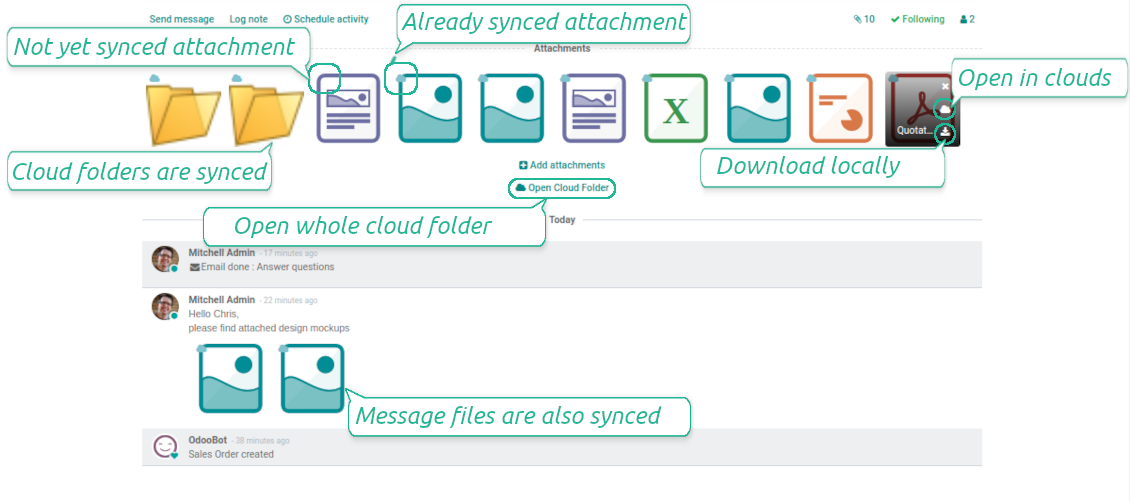


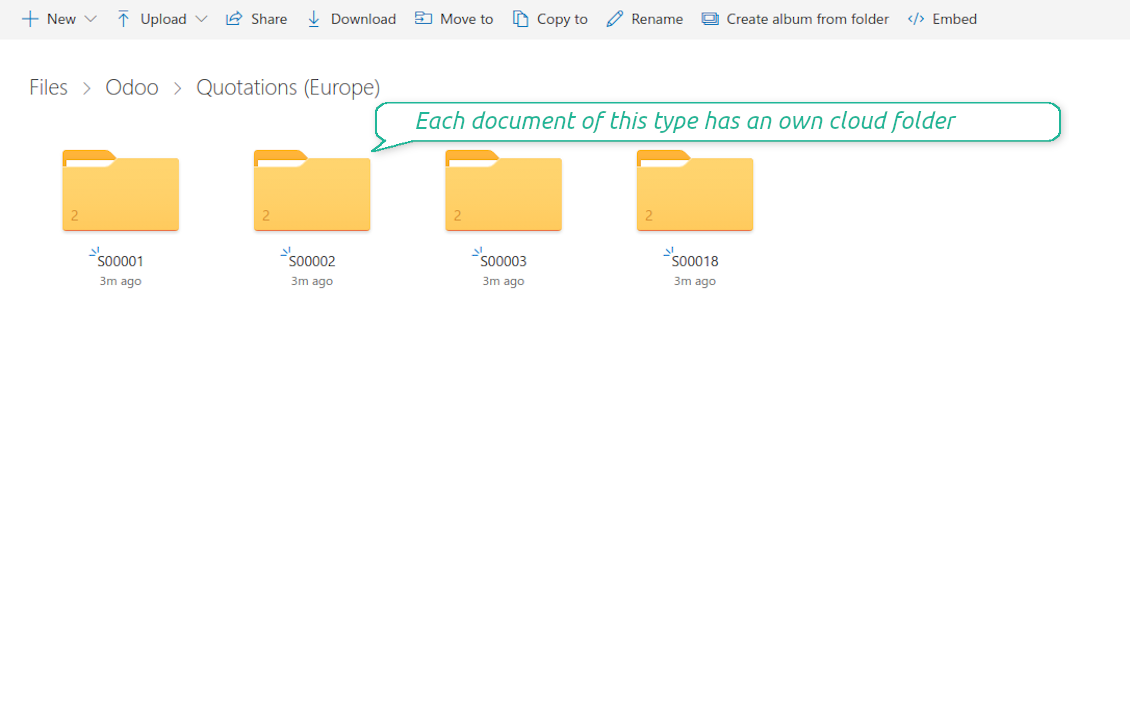
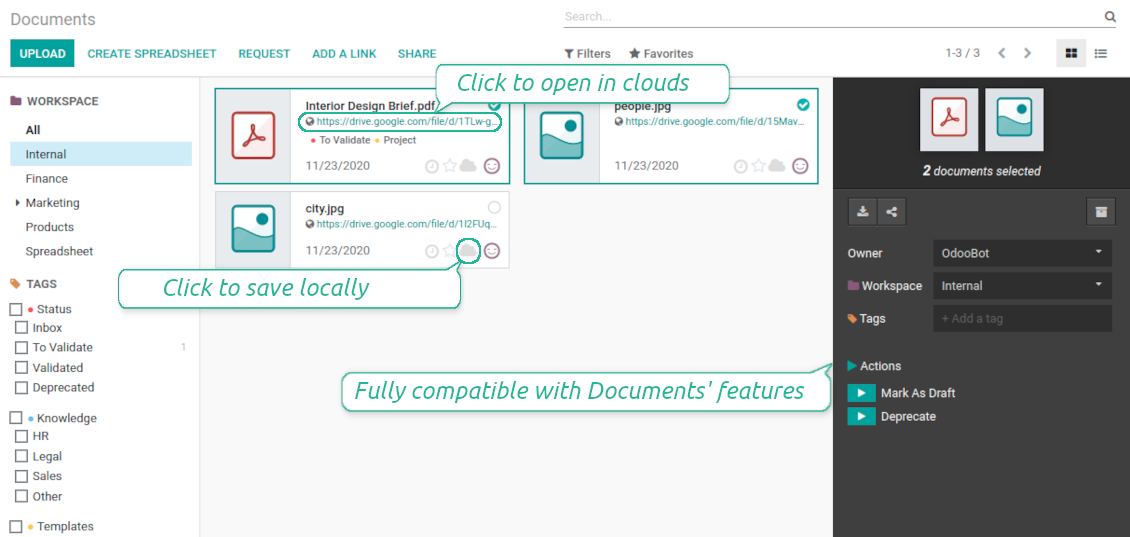

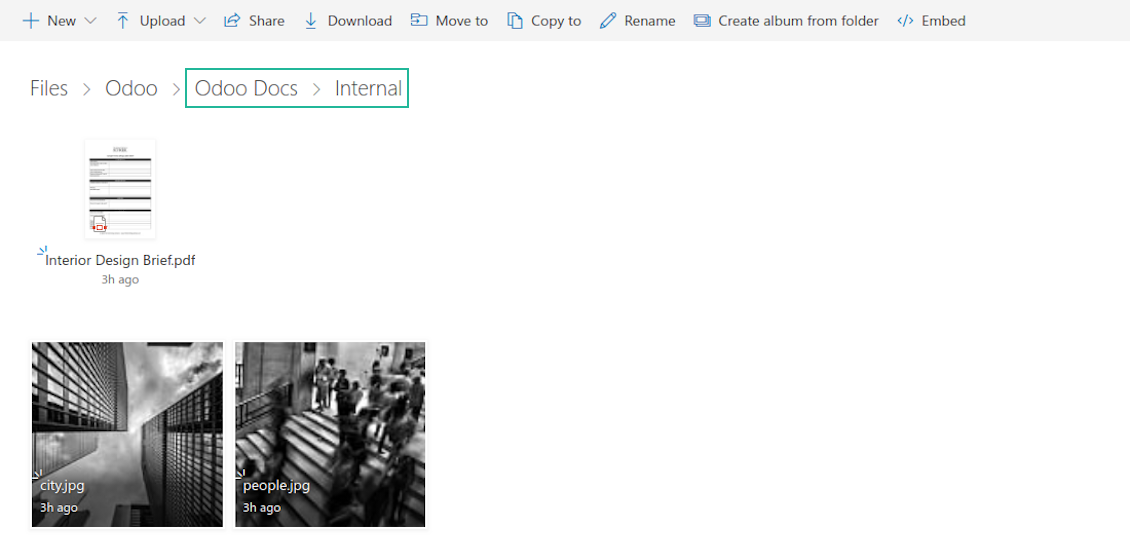

This is the tool to integrate OneDrive / SharePoint features into your Odoo business work flow. The app automatically stores Odoo attachments in OneDrive / SharePoint, and it provides an instant access to them via web links. In such a way users work with files comfortably in the cloud storage, while the results are fully available in Odoo.
- the technical core which provides basic mechanics of auto synchronization. This is a required module for integration. Harganya ialah 398€.
- the connector itself which introduces links between Odoo and OneDrive / SharePoint. Harganya ialah 89€.
- an optional add-on to sync Odoo documents (introduced by the enterprise app 'Documents') with clouds. The features assumed by this add-on are marked by the icon . Harganya ialah 44€.
Automatic regular sync
Synchronization between Odoo and OneDrive / SharePoint is based on scheduled jobs. No manual interaction is required
Bilateral OneDrive / SharePoint sync
Odoo sends attachments to OneDrive / SharePoint and retrieves files from there. Binary content is kept in clouds, while Odoo provides direct access to synced items
Any Odoo document types for sync
Decide which Odoo document types should be synced. Customers, opportunities, sale or purchase orders, tasks or issues, employees or users, etc. Custom models are also supported
Instant access for OneDrive / SharePoint
The tool redefines Odoo attachments boxes to make work comfortable: download files locally without login, open files and folders in OneDrive / SharePoint (if possible, items would be opened in OneDrive / SharePoint editors and previewers), use standard Odoo previewers
Compatible with Odoo Enterprise documents
Reflect Odoo Enterprise Documents' structure and items in OneDrive / SharePoint. All features (including sharing, downloading, and signing) would anyway work
Personal OneDrive and SharePoint
Sync works both for personal OneDrives and business SharePoint tariffs
OneDrive / SharePoint sync history
Sync activities might be logged. Control over files and folders creations, moves, name changes and removals. Just turn on the option 'Log sync activities', and you would be able to observe the history through the button 'Sync logs'
Default folders
The tool let generate default directories' structure for this document type during the very first sync of a related object. For example, for all employees you may have pre-defined folders 'Scans', 'Scans/Official', 'Photos', etc.
Works well with SharePoint. Supportive team
We've been using this with SharePoint and it's been working great. One of the best things is having everything, including logs right in Odoo's interface, so you can actually see what's going on. It's also super convenient that you can view or download synced files from the attachment box without having to leave the page or even log in to Sharepoint.
Setup was pretty smooth for us. When we had a few questions about setting up the folder hierarchy and priorities, the developer team got back to us in just a couple of hours and helped us figure it out. Great support and great extension!
Great support, assistance and very good connector!
We are very happy with the support we received when configuring the Sharepoint - Odoo connector. The connector has great functionalities.
All our questions were answered very fast (within one day).
FaOtools helped us optimising our connector and assisted us with future improvements.
We really recommend this connector.
very professional app, excellen t customer service
This app is very well programmed and does its job very well. But the best is the excellent customer service who also helps when the problem lies somewhere else. You receive a lot for your money.
An impressive app and world-class support
I have been very impressed by the way the OneDrive / SharePoint Odoo Integration module synchronises content in both directions and allows me to share documents in Odoo with my SharePoint site. Above all the technical support is top-notch, which greatly increases the value of this product. I highly recommend this product for anyone considering synchronising Odoo with SharePoint/OneDrive.
Works fine, good support
The first experience with the module is excellent. I had some trouble to configure things right on the Microsoft-side, but the team provided quick and good support.
Sync any documents you like
Configuring models to sync
-
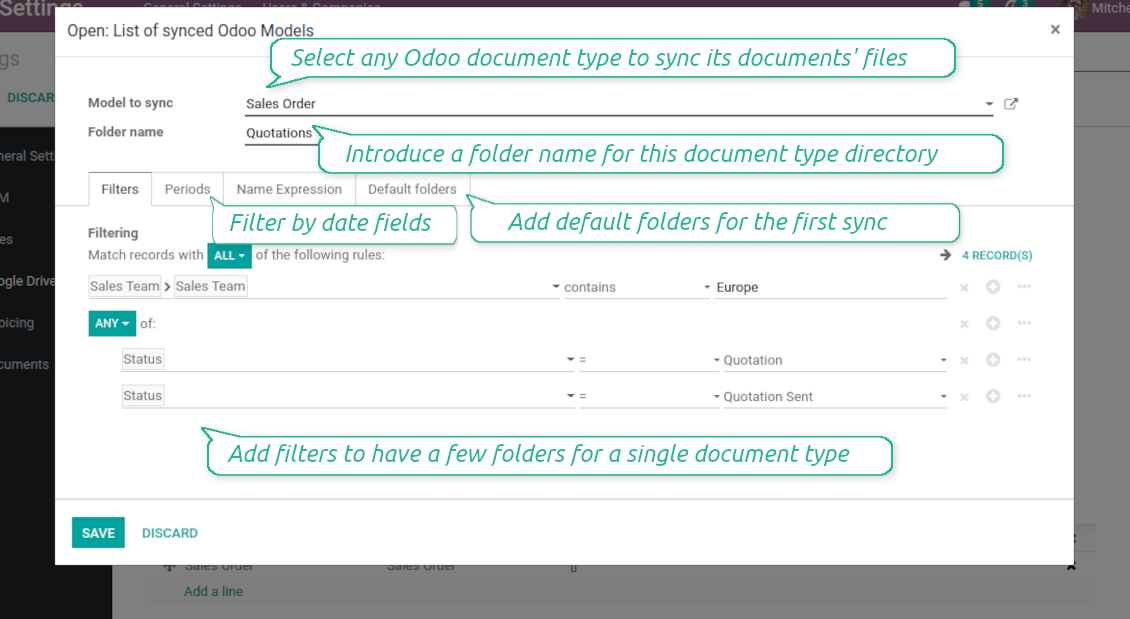
To sync a specific document type, you should add it as a model to sync. Any Odoo model might be chosen
-
The app let split models into a few folders based on selected filters. Use any document storable field to distinguish a directory. Have a separate folder for individuals and companies, for European and American opportunities, for quotations and confirmed orders, for each project, etc.
-
Limit also documents by relative periods through using date fields of linked documents. For example, leads registered in the last 3 months or invoices updated the last week
-
Define name expressions to specify titles of documents' OneDrive / SharePoint folders. For instance, to include project name to a task directory
-
Prepare hierarchy of default folders to be created when a document directory is synced to OneDrive / SharePoint for the first time
Typical use cases
-
Projects: have an own OneDrive / SharePoint folder for each customer project
-
Customers: add all partner files in a single directory available both from Odoo and from OneDrive / SharePoint. Modify those using default cloud editors and access them when working in Odoo
-
Employees: gather all files by this employee in a single cloud folder: photos, document scans, contracts. Access and upload those from Odoo and OneDrive / SharePoint alternatively
-
Opportunities: carefully store all specifications, requirements, any files which would let you make a good offer
-
Orders: keep all printings and contracts in OneDrive / SharePoint with instant availability from Odoo
-
Picking operations: save warehouse docs to OneDrive / SharePoint.
How synchronization works
Direct Sync
-
Direct synchronization is based on the scheduled job 'Synchronize attachments with cloud'
-
Direct sync make all synced Odoo attachments change their type to a link (URL), while binary content is removed with a next Odoo cleaner. So, no actual files would be stored on your Odoo server
-
Direct sync checks whether attachments are added or deleted for synced documents. If so, they would be created or removed in OneDrive / SharePoint
-
Direct sync checks whether a new document type (e.g. sale orders) is added / renamed / replaced in the to-sync-models configurations. If so, this should be reflected in OneDrive / SharePoint
-
Direct sync checks whether a new document (e.g. quotation SO-001) related to a synced document type is generated / updated / unlinked. If so, the connector would make the same changes in OneDrive / SharePoint
-
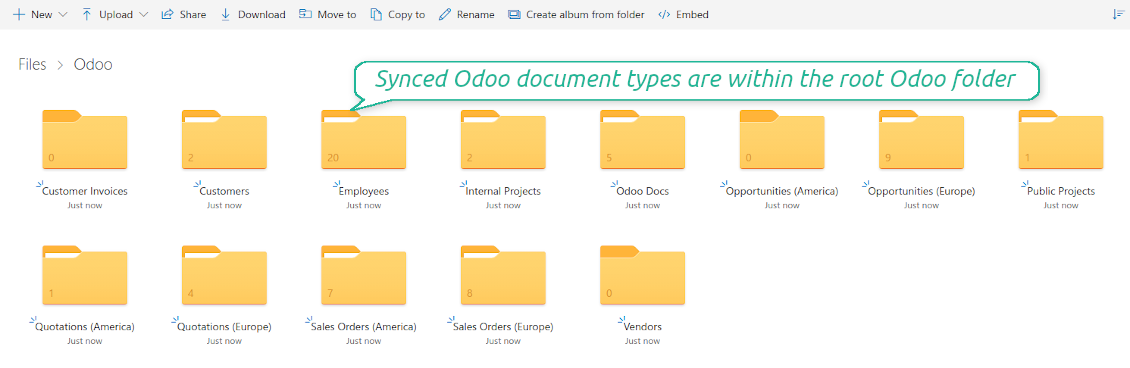
The final goal of direct OneDrive / SharePoint integration is to have the structure 'Odoo / Document Types / Documents / Files. For example, 'Odoo / Quotations / SO019 / commercial offer.pdf'
Backward Sync
-
Backward synchronization is based on the scheduled job 'Synchronize attachments from cloud'
-
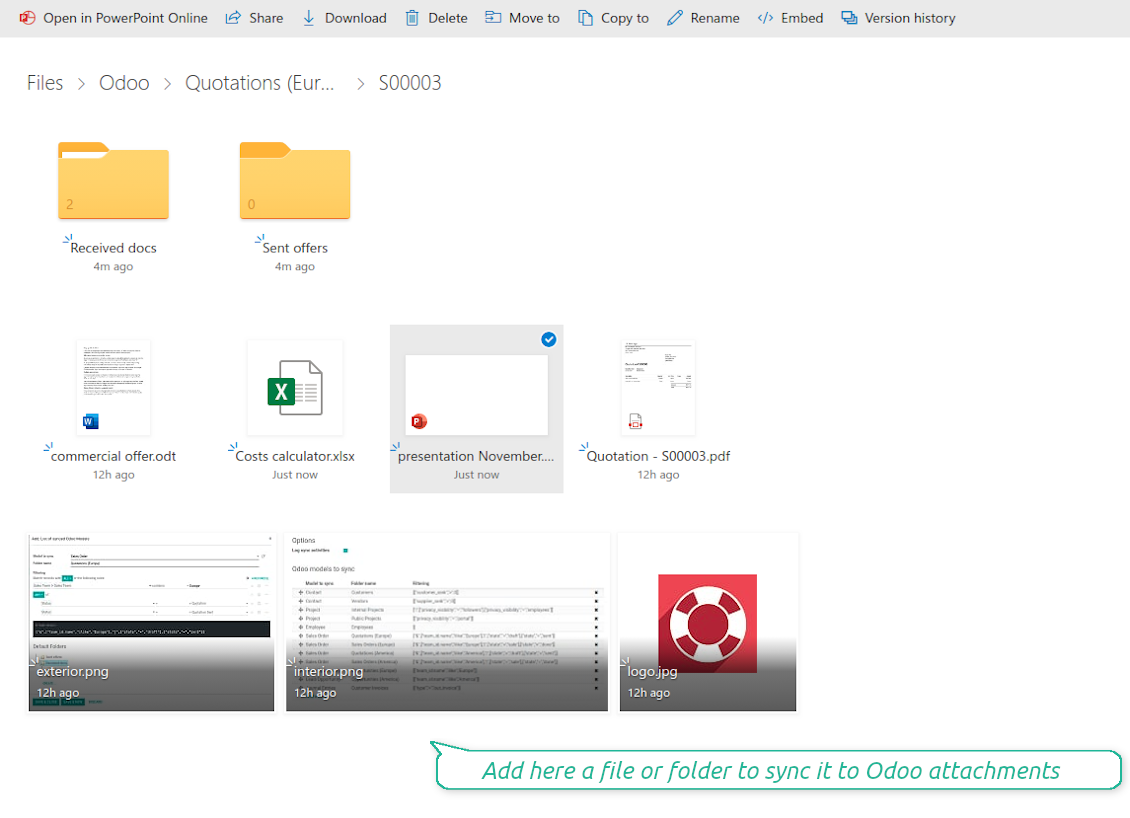
Backward sync checks whether any items are added to a OneDrive / SharePoint document folder. If so, the app would create URL attachments for that items in a linked Odoo object
-
Backward sync checks whether any items are deleted / moved in a cloud document folder. If so, a linked Odoo attachment would be also unlinked or moved
-
Backward sync checks whether any item is renamed in OneDrive / SharePoint. If so, a chained Odoo attachment should be also renamed
-
In OneDrive folders you can put not only files but also child folders. In that case a link for this folder (not its content) would be kept in Odoo attachments
-
If you deleted a folder related to this document type or this document, their child files would be deleted as well. Thus, Odoo would remove related attachments. The folders, however, will be recovered with a next direct sync
Misc notes
-
The connector works on a queue (first in - first out) principle: it tries to firstly reflect the oldest changes
-
Each sync, especially the very first one, might take quite a long. It is not recommended to make sync too frequent: once an hour seems reasonable frequency
-
File names and content should be managed in OneDrive / SharePoint: each backward sync would recover OneDrive / SharePoint names, Odoo is here less important
-
Try to avoid the following symbols in folders' and files' names: *, ?, ", ', :, <, >, /, +, %, !, @, \, /,. Direct sync will replace such symbols with '-'. It is done to avoid conflicts with file systems.
Odoo Enterprise Documents
-
The special add-on 'Cloud Sync for Enterprise documents' is introduced to synchronize OneDrive / SharePoint with the Odoo app 'Documents' (the latter is distributed under the Odoo Enterprise license)
-
Based on that add-on the Odoo documents' hierarchy would be reflected within the folder 'Odoo / Odoo Docs'
-
Each Odoo folder would have a linked OneDrive / SharePoint folder. Take into account that folders created in the cloud storage will be synced as Odoo attachments. The key principle is: folders are managed by Odoo, files are managed by the cloud client
-
All files are synced with the same logic as usual attachments. Files created in Odoo will be added to the cloud storage and will be replaced with links in Odoo. Files created in cloud storage will generate URL attachments within a paired documents directory
-
Standard OneDrive / SharePoint sync and integration with Enterprise Documents are done within the same jobs. Avoid the scenarios when a single file is synced as a simple Odoo attachment and as an Odoo document simultaneously
-
Odoo spread sheet files are not synced by the connector: so, they are still manageable in Odoo
-
Please do not name synced models as 'Odoo Docs'. This is the reserved name for Odoo Enterprise Documents.
Petua konfigurasi dan pemasangan untuk OneDrive / SharePoint Odoo Integration Odoo v.14
Python dependency
The tool depends on external libraries 'microsoftgraph'. Install this library for your Odoo server through the command:
pip3 install microsoftgraph-pythonConfiguration and log in
- Make sure your Microsoft user has full admin rights for OneDrive / SharePoint you want to connect to Odoo. This user is required only to grant permissions, the user data would not be kept any where in Odoo, and would not be used any more. Besides, make sure a Microsoft email address you use does not have a redirection (usually happens when you configure your domain name, while the prime address is still one of Microsoft domains like @outlook.com, @office365, etc.)
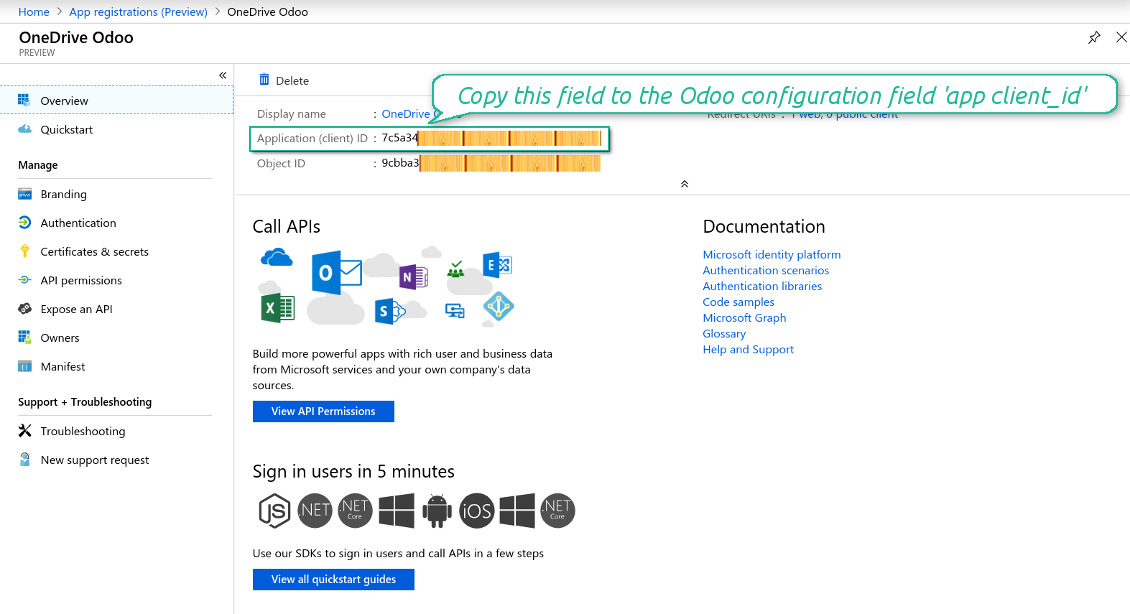
- Go to your Azure Portal: https://portal.azure.com/#blade/Microsoft_AAD_RegisteredApps/ApplicationsListBlade
The app must be registered inside a directory (tenant). Microsoft no longer allows creating a new app outside one.
- If you already have a company Microsoft 365 / Azure directory, switch the portal (top right) to it and continue.
- If you only have a personal account (@outlook.com, @hotmail.com, @live.com) and see "these applications are associated with the account ... but are not contained within any directory", you do not have a directory yet. Sign up for a free Azure account with the same Microsoft account: https://azure.microsoft.com/free/ - Try Azure for free. This creates a Default Directory for you at no cost.
- Microsoft asks for a card for identity verification only; a temporary ~1 USD hold is placed and reversed. You are not charged for the directory or for the app registration.
- The directory (Microsoft Entra ID Free) and any app registered in it keep working independently of the 30-day / $200 Azure trial credit. That credit is for paid Azure resources you are not using here. No payment is required for our app.
- If the whole directory sits completely unused for a very long time (Microsoft's own threshold is around 200 days of no activity at all), Microsoft may email a warning and eventually retire it. Since Odoo calls this app every time it syncs, an active connection keeps the directory active - this only matters if you stop syncing entirely for months.
- Once you are in a real directory (not "Microsoft Services"), open App registrations there.
- Click 'New registration'
- Introduce a new name for the application and assign the redirect URI as [YOURODOOSITENAME]/one_drive_token (e.g. https://odootools.com/one_drive_token). As the supported account types choose 'Accounts in any organizational directory (Any Azure AD directory - Multitenant) and personal Microsoft accounts (e.g. Skype, Xbox)'.
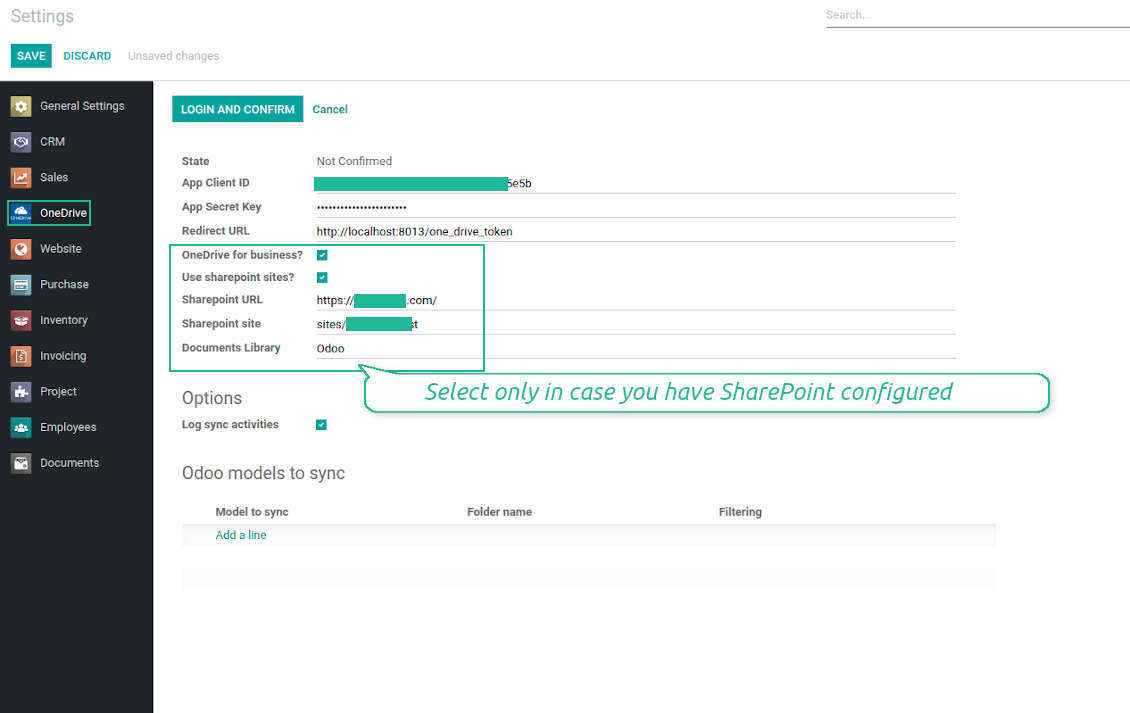
- Copy the Application Client ID to the Odoo field 'App client_id'
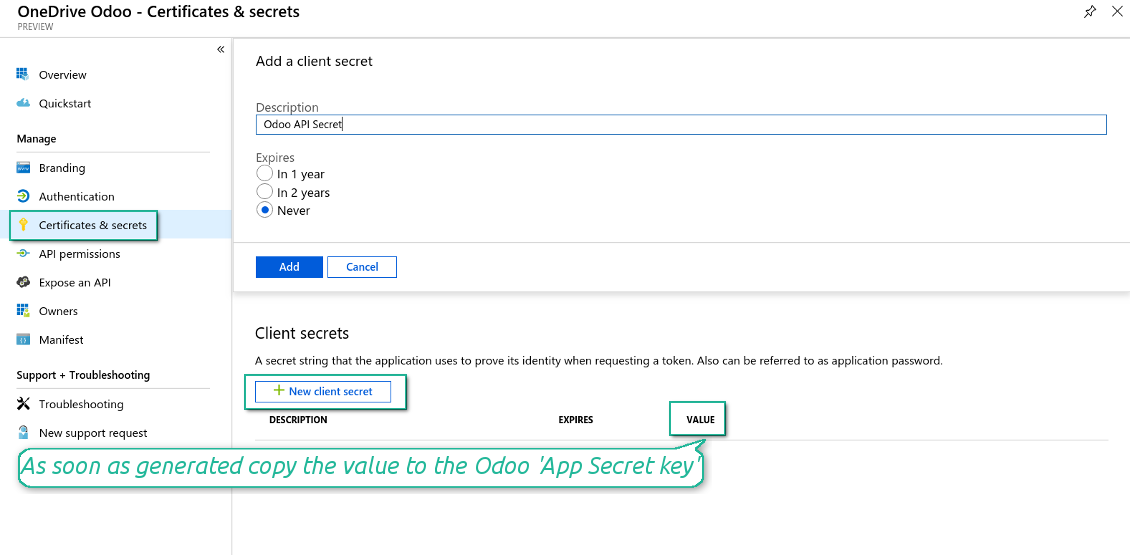
- Go to Certificates & secrets - Click 'New Client Secret'. Copy the secret value to the Odoo field 'App Secret Key'
- For SharePoint sites only:
- Go to your SharePoint site and prepare a new documents' library (drive). You might use one of the existing ones, e.g. 'Documents'. Odoo folder would be put there afterwards, and it would be impossible to move it for another library
- Check the boxes 'OneDrive for business' and 'Use SharePoint sites'
- The SharePoint URL should be of the type https://[URL]/. The last '/' is required - site name should not be included into. For example, https://odootools.sharepoint.com/
- SharePoint site should be either my_site_name (in that case it is considered as sites/my_site_name) or sites/my_site_name (instead of 'sites' it might be 'teams' and so on). There should be no '/' at the beginning or at the end. For example, sites/odootools
- As Documents Library use one created in SharePoint
- Press Save on the Odoo configuration Page.
- Press 'Login and Confirm'. Odoo redirects you to Microsoft login page. Check in and grant permissions asked. If Microsoft shows an account already signed in and says it does not exist in tenant 'Microsoft Services' (or any other unrelated tenant), do not click that row. Click 'Use another account' and sign in with the Microsoft account that owns the app's directory.
- After login, Microsoft redirects you back to Odoo. OneDrive - Odoo synchronization is ready to be done.
Create Azure application
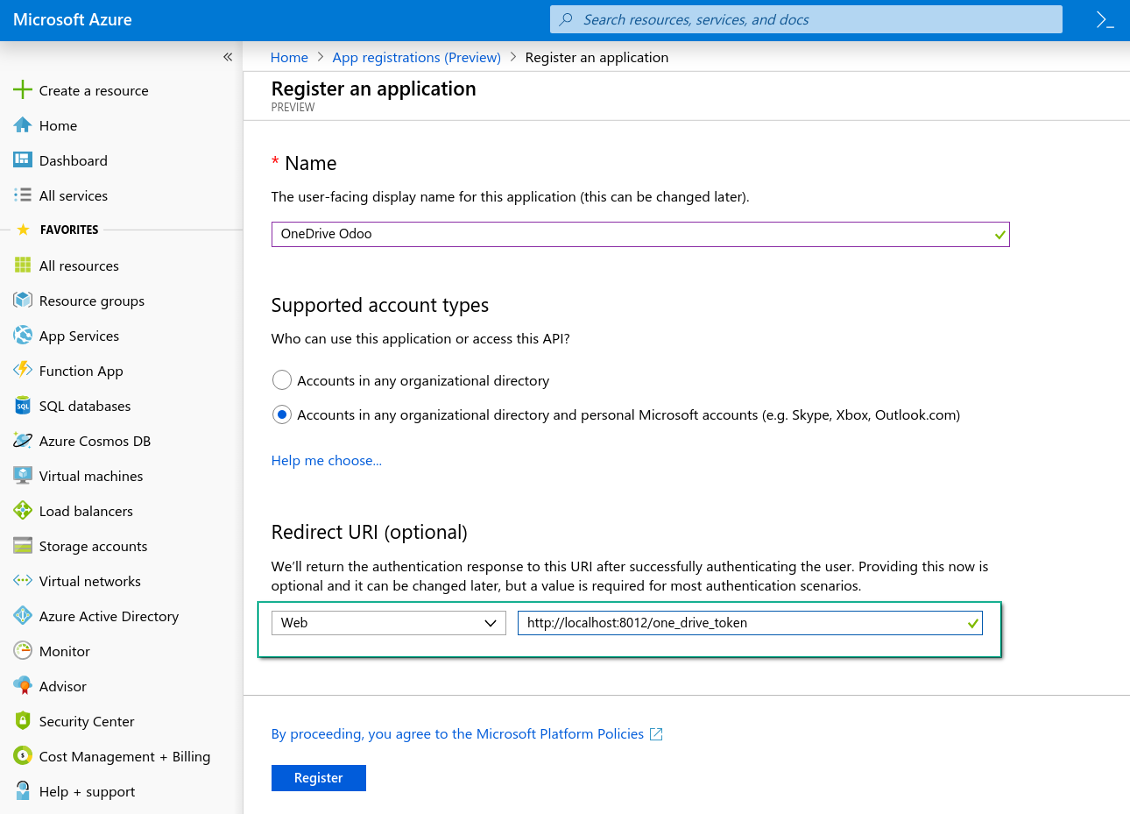
New OneDrive Web platform and redirect URL
Generate new secret for Azure application
Enter configuration keys in Odoo
Odoo server configuration and cron job configuration
To make sure the synchronization works correctly apply proper timeouts to the Odoo configuration file: LIMIT_TIME_CPU, LIMIT_TIME_REAL, LIMIT_TIME_REAL_CRON should be more than 900 seconds.
For Odoo.sh this should not be done, since timeouts are predefined and are not configurable.
Then, timeout should be entered to your Odoo. To that goal find the section 'Settings' on the app configuration page and copy the number there.
Afterwards, it is needed to make the cron jobs suit the applied timeouts. In the debug mode go to the Settings > Technical > Automation > Scheduled Jobs:
- Set up the job 'Synchronize attachments with cloud' as (a) frequency - 2*timeout; (b) the next execution as the next hour +timeout. For example, for 900seconds timeout: frequency - as 30minutes; the next execution - at 08:15
- Set up the job 'Synchronize attachments from cloud' as (a) frequency - 2*timeout; (b) the next execution as the next hour + timeout*2. For example, for 900seconds timeout: frequency - as 30minutes; the next execution- at 08:30.
Reconnection
Reconnection is required, when you have not used the sync tool for more than 6 months. In such a case:
- Press the button 'Reconnect'
- Press the button 'Login and confirm'
Soalan lazim tentang OneDrive / SharePoint Odoo Integration Odoo v.14
Saya nampak ralat apabila klik pautan awan imej yang disegerakkan
Ralat "This item might have been deleted, expired, or you might not have permission to access it. Contact the owner of this item for more information." menunjukkan anda belum log masuk ke perkhidmatan photos.onedrive.com.
Bolehkah saya menukar kekerapan kerja penyegerakan?
Ya, anda boleh. Untuk itu:
Hidupkan mod nyahpepijat
Pergi ke tetapan teknikal > Automasi > Kerja berjadual
Cari kerja 'Synchronize attachments with cloud' dan 'Update attachments from cloud'.
Jangan jadikannya terlalu kerap. Lebih baik kerja ini siap sebelum yang seterusnya bermula. Konfigurasi bergantung pada berapa banyak item yang perlu disegerakkan. Biasanya kekerapan adalah antara 15 minit hingga 4 jam.
Pastikan juga anda menetapkan had masa yang mencukupi dalam fail konfigurasi Odoo. Parameter LIMIT_TIME_CPU dan LIMIT_TIME_REAL mestilah sama atau lebih besar daripada masa kerja cron yang dirancang. Bermula versi 13, pertimbangkan juga parameter LIMIT_TIME_REAL_CRON.
Nota penting untuk klien Odoo.sh: masa maksimum kerja cron mungkin ditetapkan 15 minit sahaja.
Bolehkah saya konfigur struktur direktori disegerak yang berbeza daripada yang diandaikan oleh segerak?
Tidak, ciri ini hanya tersedia dari versi 15. Sebelum versi itu, modul berfungsi dengan struktur folder yang telah ditetapkan:
Odoo - folder teras untuk segerak
Models - folder untuk setiap jenis dokumen Odoo. Contohnya, 'Projects', 'Partners'. Dibeza mengikut domain, mungkin ada folder yang lebih khusus: cth., 'Customer 1 Projects', 'Projects of the Customer 2', 'Internal Projects', dll.
Objects - folder untuk setiap dokumen, cth. 'Project 1' atau 'Customer 1'
Fail dan folder berkaitan dokumen Odoo ini yang akan disegerakkan.
Hasilnya, anda mungkin mempunyai contohnya:
Odoo / Projects / Project 1 / fail dan folder berkaitan project 1
Odoo / Customer 1 Projects / Project 1; Odoo / Customer 2 Projects / Project 3, ...
Odoo / Customers / Customer 1 / fail dan folder berkaitan customer 1
Struktur ini sentiasa rata, bermaksud hanya ada tahap hierarki tersebut. Jadi betul bahawa pelbagai jenis dokumen tidak boleh berada dalam struktur yang sama. Dalam folder 'Customer 1' kita tidak boleh menyimpan fail yang berkaitan sekaligus dengan pesanan jualan, invois dan projek. Setiap jenis dokumen itu mempunyai folder sendiri (atau beberapa folder sendiri). Jika tidak, kita tidak dapat membuat segerak undur kerana tiada kriteria untuk dipegang.
Perlukah saya sediakan akses pengguna tertentu dalam Odoo?
Tidak, alat bergantung pada satu titik akhir pengguna. Semua proses penyegerakan dilakukan di bawah satu pentadbir awan (aplikasi). Hak akses folder / fail yang dicipta tidak diautomasikan. Anda harus mentadbir hak itu dalam penyelesaian storan awan.
Medan disegerak disimpan di mana? Adakah ia diduplikasikan ke Odoo dan clouds?
Aplikasi mengandaikan kandungan binari lampiran disimpan dalam Cloud Client, bukan pada pelayan Odoo. Lampiran sedemikian dalam Odoo menjadi jenis URL, dan anda boleh membukanya pada bila-bila masa dari kotak lampiran atau dari Cloud Client.
Selepas persediaan, tiada tindakan manual diperlukan kerana penyegerakan sepenuhnya automatik. Tentukan jenis dokumen Odoo yang perlu disegerakkan dan sediakan model berkaitan untuk setiap satunya (Pelanggan, pesanan jualan atau belian, Tugasan, Projek, dll.).
Bolehkah saya mempunyai beberapa folder untuk jenis dokumen yang sama? Contohnya, projek dalaman dan projek pelanggan?
Ya, anda boleh. Untuk itu sediakan peraturan untuk setiap satu, kemudian gunakan penapis: contohnya mengikut jenis projek.
Cuba jadikan penapis saling eksklusif supaya dokumen dapat ditetapkan dengan pasti. Contohnya 'pelanggan tetapi bukan pembekal', 'pembekal tetapi bukan pelanggan'. Jika tidak, folder dokumen tertentu akan meloncat dari satu model ke model lain.
Adakah saya hanya memerlukan aplikasi Cloud Storage Solution?
Tidak, alat ini hanya teras teknikal. Anda juga memerlukan penyambung untuk cloud client anda.
Adakah tidak mengapa jika saya ada banyak objek untuk disegerakkan, contohnya 10000?
Ya, walaupun jika banyak folder/lampiran perlu disegerakkan prosesnya mungkin perlahan. Pada masa yang sama, pelanggan melaporkan persekitaran dengan >10k rakan dan ~5k varian produk untuk disegerakkan, dan prosesnya masih diterima.
Beberapa perkara yang perlu ditekankan:
- Penyegerakan dibina supaya setiap item disegerakkan dan tidak hilang, walaupun mungkin tidak pantas. Ini dijamin oleh baris gilir first-in-first-out dan setiap kerja yang dikomit.
- Bilangan objek boleh dihadkan secara logik. Konfigurasi model membolehkan anda menyekat penyegerakan item lapuk (cth. tiada gunanya menyegerakkan rakan yang diarkibkan atau pesanan 2 tahun lalu).
Bolehkah penyegerakan dibuat masa nyata?
Tidak. Kami mempunyai alasan kukuh untuk mengelak penyegerakan masa nyata:
Isu prestasi. Jika penyegerakan masa nyata, setiap muat naik fail akan memaparkan skrin muat.
Isu konflik. Jika 2 pengguna menukar item secara serentak, situasi yang tidak selesai mungkin timbul. Dengan kerja berkala kami boleh membetulkannya kemudian; pada masa nyata ia perlu disimpan sebagai baris gilir, yang lebih mengelirukan pengguna.
Isu fungsi. Khususnya menamakan semula dan menyusun semula item. Dalam penyegerakan undur, alat bergantung ketat pada logik direktori, dan setiap penyegerakan 100% item diperiksa. Jika dilakukan selepas setiap kemas kini, akan ada beribu permintaan sesaat. Jika tidak: perubahan akan hilang.
Bolehkah saya menukar nama folder lalai dalam awan?
Anda boleh menetapkan nama sendiri untuk direktori model (pesanan jualan, peluang, pembekal, dll.) bagi mana-mana jenis dokumen.
Untuk folder objek (SO-001, John Smith, dll.), alat bergantung pada kaedah Odoo untuk membina nama paparan jenis dokumen ini. Walau bagaimanapun anda boleh menukarnya dengan mentakrif ungkapan nama. Sintaks yang digunakan sama seperti templat e-mel Odoo.
Bolehkah saya segerakkan lampiran ke beberapa klien awan
Tidak, ciri ini hanya tersedia dari versi 15.
Kami menggunakan editor khas dalam awan kami (cth. OnlyOffice, Office 365, dll.). Adakah fail dibuka dalam editor itu?
Ya, bergantung pada konfigurasi cloud client anda.
Apakah dasar kemas kini alat anda?
Mengikut dasar Odoo Apps Store semasa:
- Setiap modul yang dibeli untuk versi 12.0 dan sebelumnya memberi akses ke semua versi sehingga 12.0.
- Bermula versi 13.0, setiap versi modul perlu dibeli berasingan.
- Tanpa mengira versi, pembelian memberi hak kepada semua kemas kini dan pembetulan pepijat dalam versi utama.
Sila ambil perhatian bahawa pasukan faOtools tidak mengawal dasar itu. Untuk soalan, hubungi terus wakil Odoo Apps Store.
Bagaimana memasang aplikasi anda di Odoo.sh?
Pendekatan paling terus ialah menggunakan aliran kerja terbina dalam kedai Odoo:
1. Buka halaman modul dan klik butang Deploy on odoo.sh
2. Selepas itu anda akan dihalakan ke halaman GitHub. Log masuk ke akaun, kemudian klik 'Create a new repo' atau guna yang sedia ada. Pastikan repositori bersifat peribadi. Tidak dibenarkan menerbitkan aplikasi di bawah lesen OPL-1. Jika perlu, cipta repo baharu untuk projek Odoo.sh
3. Kemudian pergi ke odoo.sh dan klik butang Deploy. Dalam tetingkap pop timbul, hantar keputusan dan klik 'Continue.' Tindakan ini akan mencetuskan pemasangan.
Langkah ini akan memasang aplikasi pada cabang pengeluaran projek. Jika anda mahu men-deploy aplikasi ke cabang lain atau mengemas kini modul, lakukan tindakan berikut:
1. Muat naik kod sumber aplikasi dari kedai Odoo
2. Commit modul ke repositori GitHub yang diperlukan. Pastikan tiada folder/fail aplikasi diabaikan (iaitu tidak termasuk dalam .gitignore repo). Repositori dicipta secara automatik oleh odoo.sh dan secara lalai mungkin termasuk item penting (cth., /lib). Muat naik semua direktori, subdirektori dan fail modul tanpa pengecualian
3. Deploy cabang sasaran projek odoo.sh atau, jika tetapan anda mengandaikan demikian, tunggu sehingga ia dibina secara automatik.
Bagaimana memasang aplikasi anda pada pelayan saya sendiri?
2. Mulakan semula pelayan Odoo;
3. Hidupkan mod pembangun (tetapan teknikal);
4. Kemas kini senarai aplikasi (menu aplikasi);
5. Cari aplikasi dan tekan 'Activate'/'Install';
6. Ikuti garis panduan pada halaman aplikasi jika ada.
Saya perasan aplikasi anda ada add-on tambahan. Boleh beli kemudian?
Ya, sudah tentu. Pada masa yang sama Odoo secara automatik menambah semua kebergantungan ke troli, jadi anda harus kecualikan alat yang sudah dibeli untuk elak bayaran berganda.
Saya menyebarkan aplikasi anda di Odoo.sh dan nampak amaran/ralat dalam ujian
Amaran merah/oren tidak mempengaruhi ciri aplikasi. Malangnya, modul kami kadang-kadang tidak lulus ujian automatik standard kerana ujian itu mengandaikan tingkah laku yang bercanggah dengan matlamat aplikasi. Contohnya kami mengubah pengiraan harga, manakala ujian modul Odoo standard membandingkan harga akhir dengan algoritma standard.
Pertama sekali, semak ciri pangkalan data yang dilancarkan. Adakah semuanya berfungsi dengan betul?
Jika anda masih menganggap amaran mempengaruhi ciri sebenar, hubungi kami dan hantar log pemasangan penuh serta senarai penuh modul yang dilancarkan (termasuk teras dan pihak ketiga).
Bolehkah saya membeli aplikasi terus daripada syarikat anda?
Tidak, kami hanya mengedarkan alat melalui kedai aplikasi Odoo rasmi.
Saya ingin mendapat diskaun
Malangnya, kami tidak mempunyai cara teknikal untuk memberikan harga individu.
Bolehkah saya memasang aplikasi pada pangkalan data Odoo Online (SaaS) saya?
Tidak, aplikasi pihak ketiga tidak boleh digunakan di Odoo Online. Malangnya Odoo SaaS menyekat kemungkinan itu.
Alat anda bergantung pada aplikasi lain. Patutkah saya membelinya?
Ya, alat memerlukan semua modul yang ditanda dalam kebergantungan untuk berfungsi dengan betul. Harga pada halaman aplikasi sudah merangkumi semua kebergantungan yang diperlukan.
Berapakah harga modul dalam dolar AS? Mengapa ia berubah?
Harga modul kami ditetapkan dalam euro. Kedai Odoo menukar harga ke mata wang lain mengikut kadar pertukaran dalamannya. Jadi harga dalam dolar AS mungkin berubah apabila kadar dikemas kini.
Teks aplikasi dan laman web dalam bahasa selain Inggeris dibantu AI dan diselaraskan dengan terjemahan rasmi Odoo. Jika anda nampak kesilapan, hantar tiket ketepatan terjemahan dan kami akan membetulkannya.
Pelaporan pepijat
Jika anda menemui pepijat atau tingkah laku tidak konsisten, sila hubungi kami. Kami jamin pembetulan dalam 60 hari selepas belian dan masih berminat menambah baik alat selepas tempoh itu.
Anda tidak memerlukan nombor telefon atau kad kredit untuk menghubungi kami. Hanya pendaftaran e-mel ringkas yang tidak mengambil lebih daripada 30 saat.
Sertakan sebanyak mungkin butiran dalam permintaan: tangkapan skrin, log pelayan Odoo, penerangan penuh cara menghasilkan semula masalah, dan sebagainya. Biasanya mengambil beberapa hari bekerja untuk menyediakan pelan kerja (jika pepijat disahkan) atau memberi garis panduan apa yang perlu dilakukan (jika tidak).
Permintaan ciri awam dan idea modul (pembangunan percuma)
Kami sangat bermotivasi untuk menambah baik alat kami dan berterima kasih atas sebarang maklum balas. Jika keperluan anda berguna secara awam dan boleh dilaksanakan dengan cekap, pasukan akan memasukkannya ke senarai tugasan kami.
Senarai tugasan sebegini diproses secara berkala dan tidak melibatkan yuran tambahan. Walaupun kami tidak dapat menjanjikan tarikh akhir dan reka bentuk muktamad, ini mungkin cara baik untuk mendapat ciri yang diingini tanpa pelaburan dan risiko.
Anda tidak memerlukan nombor telefon atau kad kredit untuk menghubungi kami. Hanya pendaftaran e-mel ringkas yang tidak mengambil lebih daripada 30 saat.

Alat untuk menyimpan kata laluan dengan selamat dalam Odoo untuk kegunaan bersama. Peti besi dikongsi

Alat untuk membina pangkalan pengetahuan yang mendalam dan berstruktur untuk penggunaan dalaman dan luaran. Knowledge System. KMS. Semakan seperti wiki.
398€
Alat untuk menetapkan sasaran KPI dan mengawal pemenuhannya mengikut tempoh. Papan pemuka KPI. Pereka papan pemuka. Carta KPI

Alat pengurusan perkhidmatan berasaskan masa dari tempahan temu janji hingga jualan dan ulasan
398€
Alat untuk mengurus Odoo dari sembang AI kegemaran melalui MCP. Claude. Mana-mana AI yang menyokong MCP.

Alat untuk menyusun lampiran Odoo secara fleksibel dalam folder dan menyegerakkan direktori dengan klien awan: Google Drive, OneDrive/SharePoint, Nextcloud/ownCloud, Dropbox, Amazon S3, Box dan NAS. DMS. Pengurus Fail. Sistem pengurusan dokumen
398€
Alat untuk menyegerakkan lampiran Odoo secara automatik dengan fail Google Drive secara dua hala
487€
Alat untuk menyegerakkan lampiran Odoo secara automatik dengan fail ownCloud/Nextcloud secara dua hala
487€
Alat untuk menyegerakkan lampiran Odoo secara automatik dengan penyelesaian NAS secara dua hala. Synology, QNAP, TrueNAS dan mana-mana NAS lain yang menyokong WebDav
487€