Google Drive Odoo Integration v.11
The tool to automatically synchronize Odoo attachments with Google Drive files in both ways
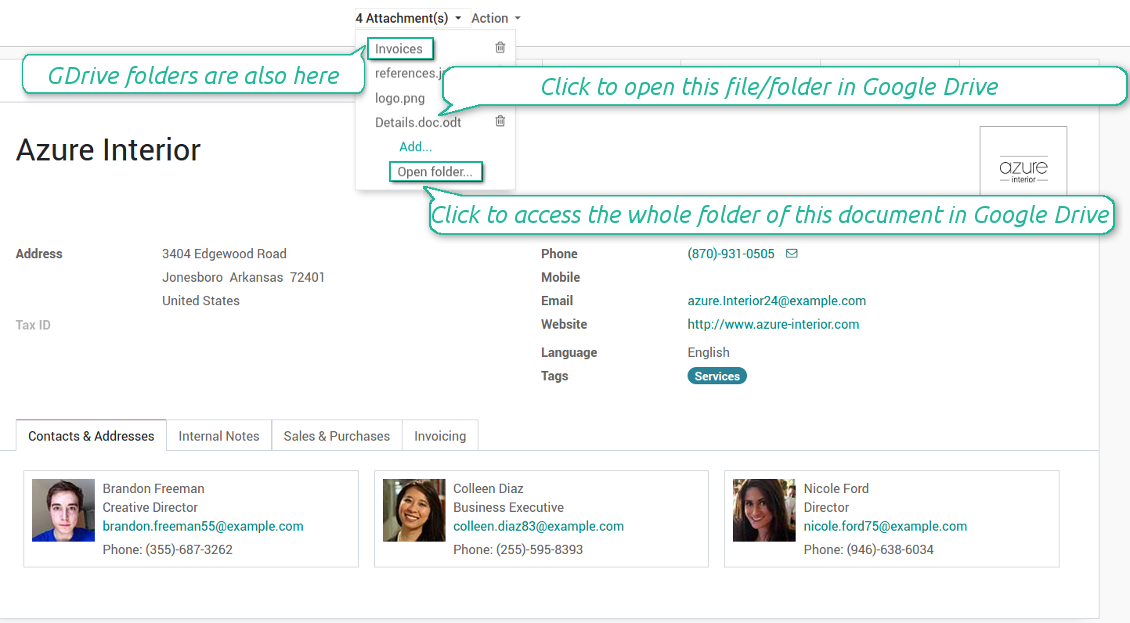

Google Drive doesn't have such disadvantages. This is the tool to integrate their features into your Odoo business work flow. The app automatically stores all Odoo attachments in Google Drive, and it provides an instant access to them via web links. In such a way users work with files comfortably in the cloud storage, while the results are fully available in Odoo.
Automatic integration
Bilateral sync
How files and folders are synced from Odoo to Google Drive
- Prepare and keep updated folders' structure in Google Drive
- Upload new attachments to a correct folder
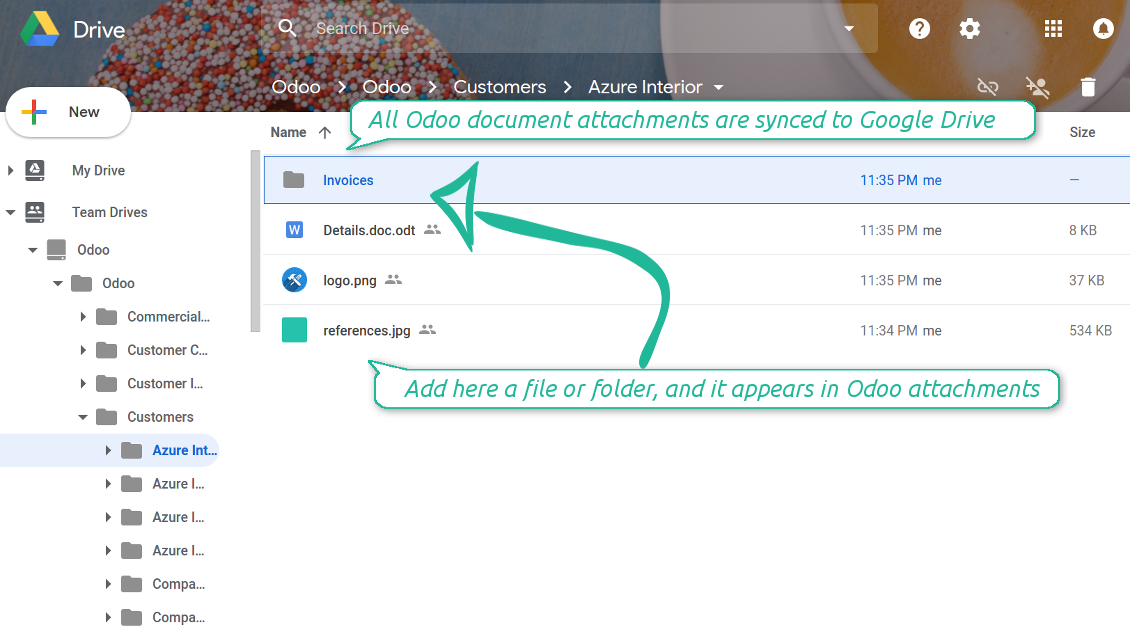
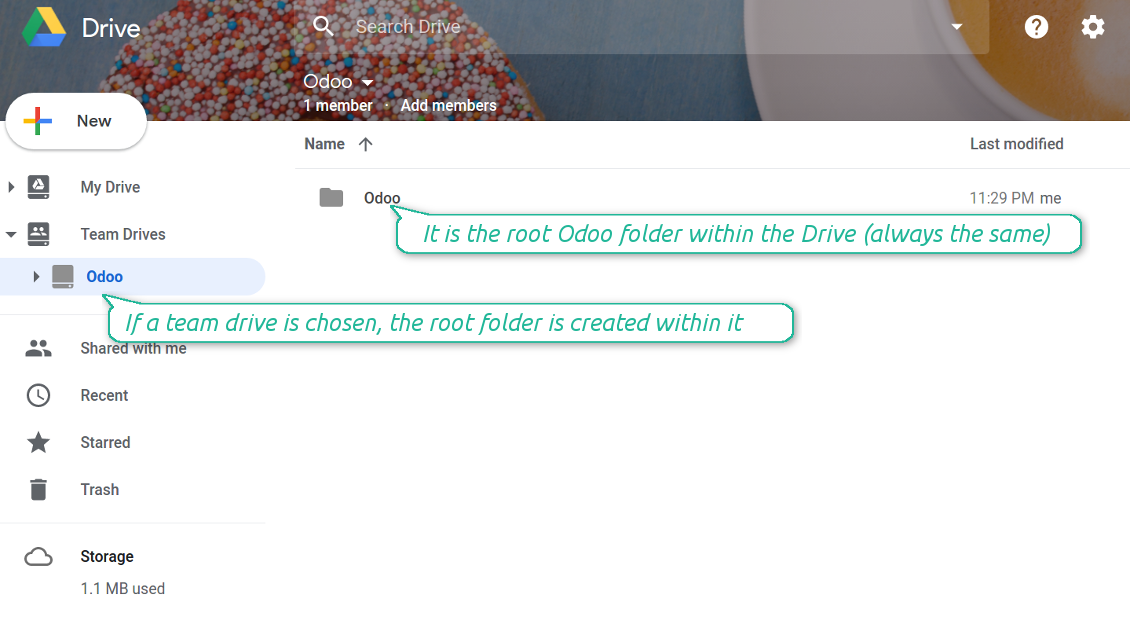
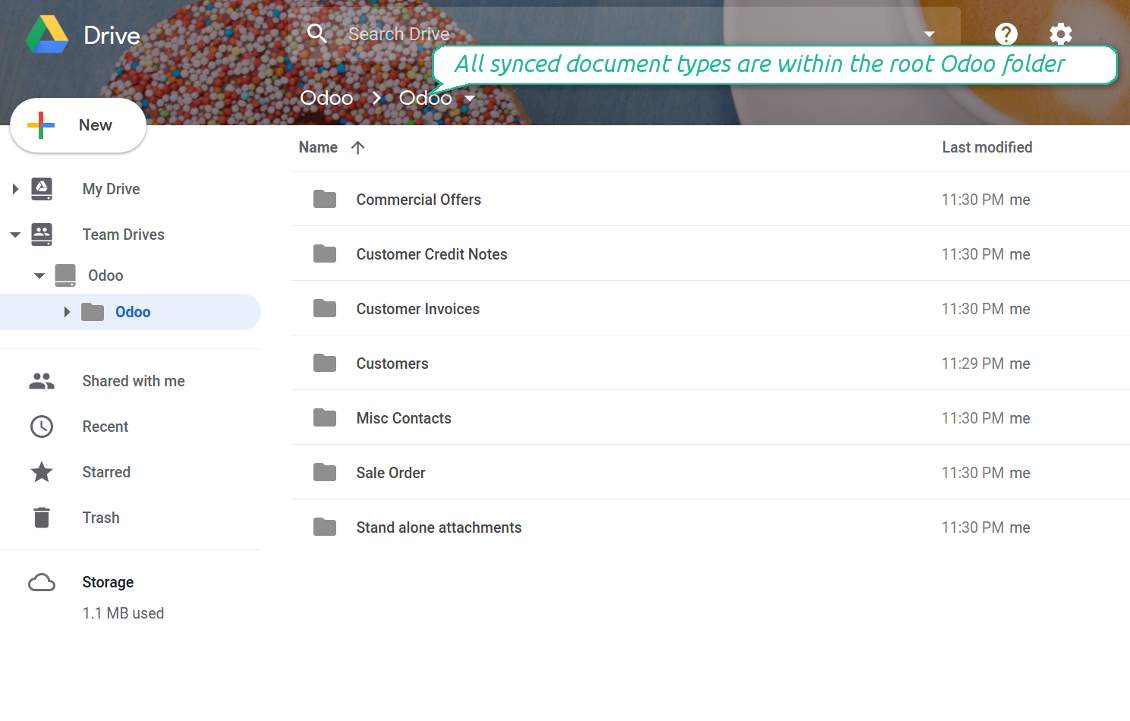
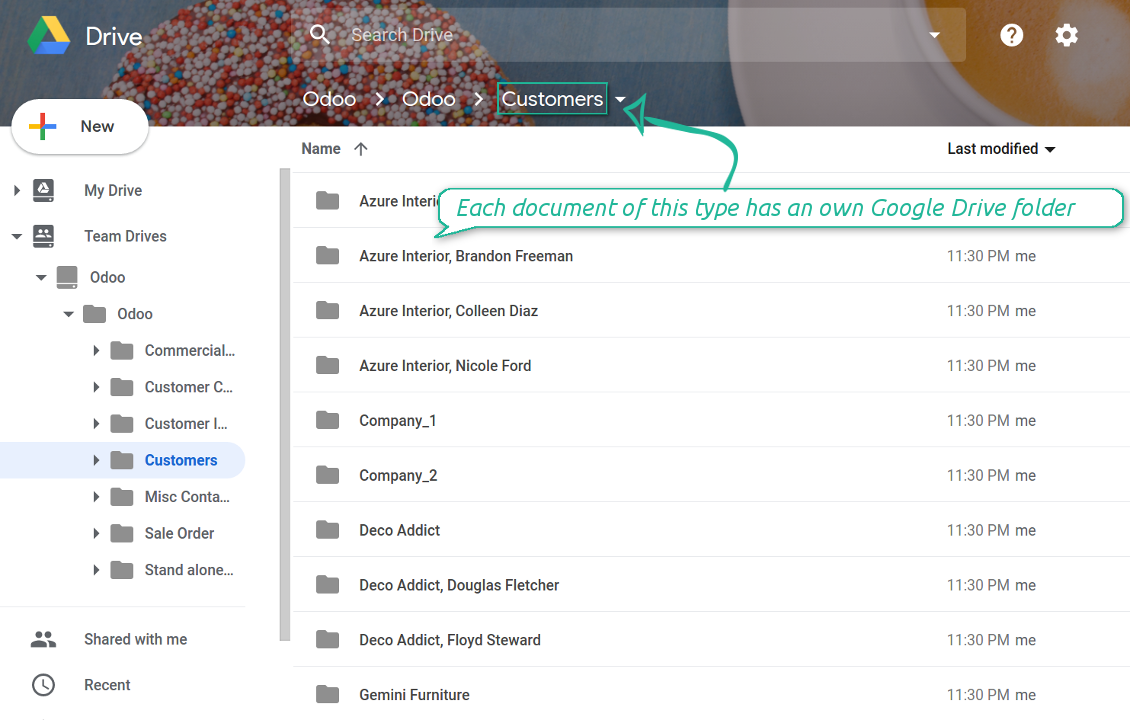
Odoo creates a convenient directory structure in Google Drive: Odoo / Document type name / Document name / Files, where:
- Odoo is a central directory for Odoo Sync in your Drive.
- Document type is a synced Odoo model, for example, 'Sale orders', 'Opportunities', 'Customers'
- You select document types by yourself. It might be any document type
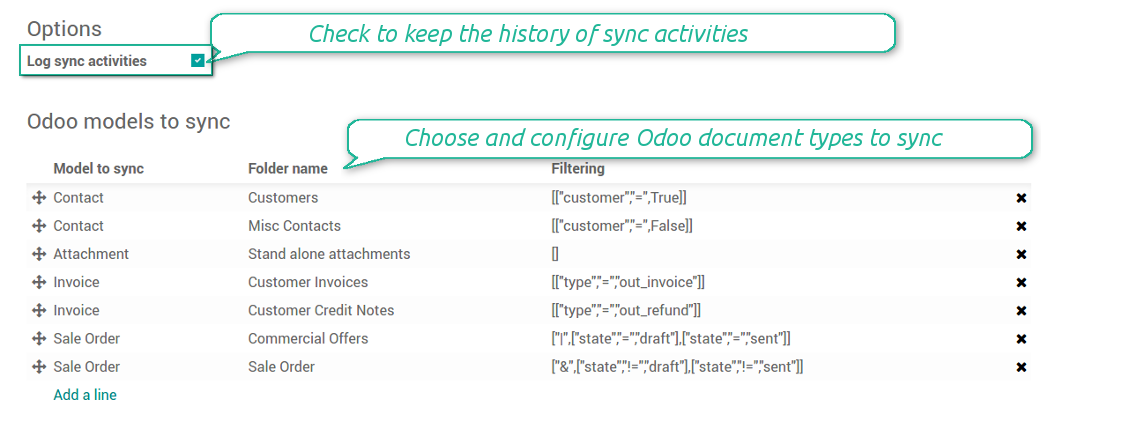
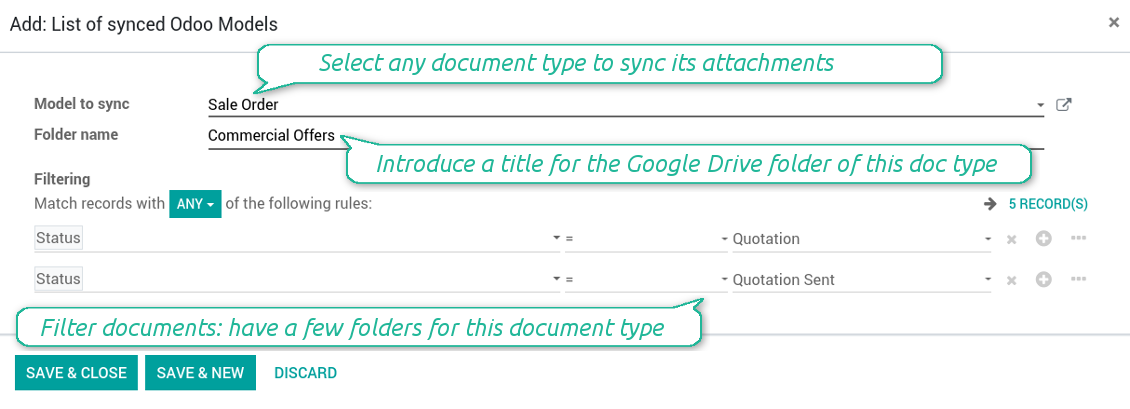
- Moreover, you might have a few folders for a single document type. Use Odoo domains to have not global 'Partners, but 'Customers' and 'Suppliers', not just 'Sale orders' but 'Commercial offers', 'To deliver', and 'Done orders'
- With each sync Odoo would try to update document types' folders. Add a new document type at any moment. It will appear in Google Drive with a next sync
- You are welcome to introduce or change document types folder names at any moment in Odoo. Take into account: renaming in Google Drive will be recovered to Odoo names
- If you remove a model from integration, it will not be deleted from Google Drive to keep already synced files safe. However, new documents of this type would not be synced
- In case you removed a directory in Google Drive, but it is still configured in Odoo, with a next sync a folder structure is going to be recovered (not files, surely).
- Document is an exact object to sync. For instance, 'Agrolait' or 'SO019'
- Documents are synced in case they relate to a synced document type and satisfy its filters. For example, you are not obliged to sync all partners, you may integrate only 'Customers' and 'Vendors' or only 'Companies', not 'Contacts'
- Odoo would generate a folder in Google Drive for each suitable document even for documents without attachments. It is needed for a backward sync to easily add new files
- Google Drive folder name equals a real document name. It relies upon Odoo name_get method. Thus, Odoo 'Michael Fletcher' (a contact of 'Agrolait') would be Google Drive 'Agrolait, Michael Fletcher'
- If an exact document changes its document type (e.g. a quotation is now confirmed), Odoo will automatically relocate its related folder to a proper parent directory (in the example: from 'Commercial offers' to 'To deliver')
- In case a document relates to a few types (for instance, you have 'Vendors' and 'Customers', while Agrolait is both), this document folder would be put into the most prioritized document type. A document type priority is higher as closer to the top in Odoo interfaces it is
- If an Odoo document is removed, the next sync will remove a corresponding Google Drive directory
- In case you remove a directory in Google Drive, but it still exists in Odoo, Google Drive folder structure would be recovered (while files would be unlinked in both Odoo and Google Drive)
- Folders renaming in Google Drive will be replaced with Odoo names, Odoo document names are more important
- Files are real files taken from Odoo attachments
The resulted path would be, for example, 'Odoo / Quotations / SO019 / commercial offer.png'.
The only exclusion of the rule are stand alone attachments which do not relate to any Odoo documents (their document type is 'ir.attachment'). Such attachments' path is 'Odoo / Stand Alone Attachments / image.png'.
The very first sync might take quite a long, since a lot of folders should be created. Afterwards, it would be much faster. However, it is not recommended to make sync too frequent: once an hour seems quite good for large files.
FilesWith each direct sync, Odoo tries to find not yet synced attachments. If such attachments suit any document type to sync, a file will be uploaded to Google Drive to a proper folder. In Odoo such attachments will become of 'url' type. It means that a file is not any more kept in Odoo server space, but now it is in Google Drive. Until sync is done, Odoo attachment remains binary and stores an actual file. Such approach helps Odoo to work faster.
Clicking on such attachment leads you to a file previewer / editor in Google Drive. Depending on your Google Drive configurations it might be Google Documents, Google Spreadsheets, PDF previewer, etc. Anyway changes to file contents in Google Drive are available in Odoo at the same moment.
If you unlinked an attachment from Odoo, it would be deleted in Google Drive as well.
Take into account that file names should be managed in Google Drive: each backward sync would recover Google Drive names, Odoo is here less important.
How items are retrieved from Google Drive to Odoo
- If a new file is added to a proper document folder (e.g. to 'Odoo / Customers / Agrolait'), the same attachment will be added to Odoo document (in the example - to 'Agrolait')
- In document folders you can put not only files but also child folders. In that case a link for this folder (not its content) is kept in attachments
- In case you rename a file in Google Drive, it will be renamed in Odoo as well
- Files' removal from Google Drive leads to related Odoo attachments' removal
- If you move a file to another document folder, in Odoo a related attachment would be re-attached to this new document. Take into account: if you move a file for a not document folder, in Odoo attachment will be deleted as it has been removed from Google Drive
- If you deleted a document type or a document folder, their child files are deleted as well. Thus, Odoo would remove related attachments. The folders, however, will be recovered with a next direct sync. Folders' move to another directory is also considered as a removal. Avoid such situations by following the simple rule: folders are managed mostly by Odoo, files - mostly by Google Drive.
Backward Google Drive sync might take quite much time, since each folder should be checked (the more folders, the more time the backward sync requires). It is recommended to make frequency oftener than once an hour or two hours.
Zdjęcia ekranu
All document types are in the root directory 'Odoo'
Document types' folders
All document of this type has an own folder
Sync any documents you like
The tool let you split any business model into a few directories. Have a separate folder for individuals and companies, for European and American opportunities, for each project, etc.
Moreover, it is possible to guarantee that only topical documents are synced by using relative periods: leads registered in the last 3 months, invoices updated the last week, and so on.
Typical use cases
- Projects: automatically forward all project-related documents to Google Drive to share those with a customer as a cloud link.
- Customers: add all partner files in a single directory available both from Odoo and from Google Drive. Modify those using default cloud editors and access them when working in Odoo.
- Employees: gather all files by this employee in a single cloud folder: photos, document scans, contracts. Access and upload those from Odoo and Google Drive alternatively.
- Opportunities: carefully store all specifications, requirements and any file which would let you make a good offer.
- Orders: keep all printings and contracts in Google Drive with simple availability from Odoo.
Typical use cases
- Projects: automatically forward all project-related documents to Google Drive to share those with a customer as a cloud link.
- Customers: add all partner files in a single directory available both from Odoo and from Google Drive. Modify those using default cloud editors and access them when working in Odoo.
- Employees: gather all files by this employee in a single cloud folder: photos, document scans, contracts. Access and upload those from Odoo and Google Drive alternatively.
- Opportunities: carefully store all specifications, requirements and any file which would let you make a good offer.
- Orders: keep all printings and contracts in Google Drive with simple availability from Odoo.
Zdjęcia ekranu
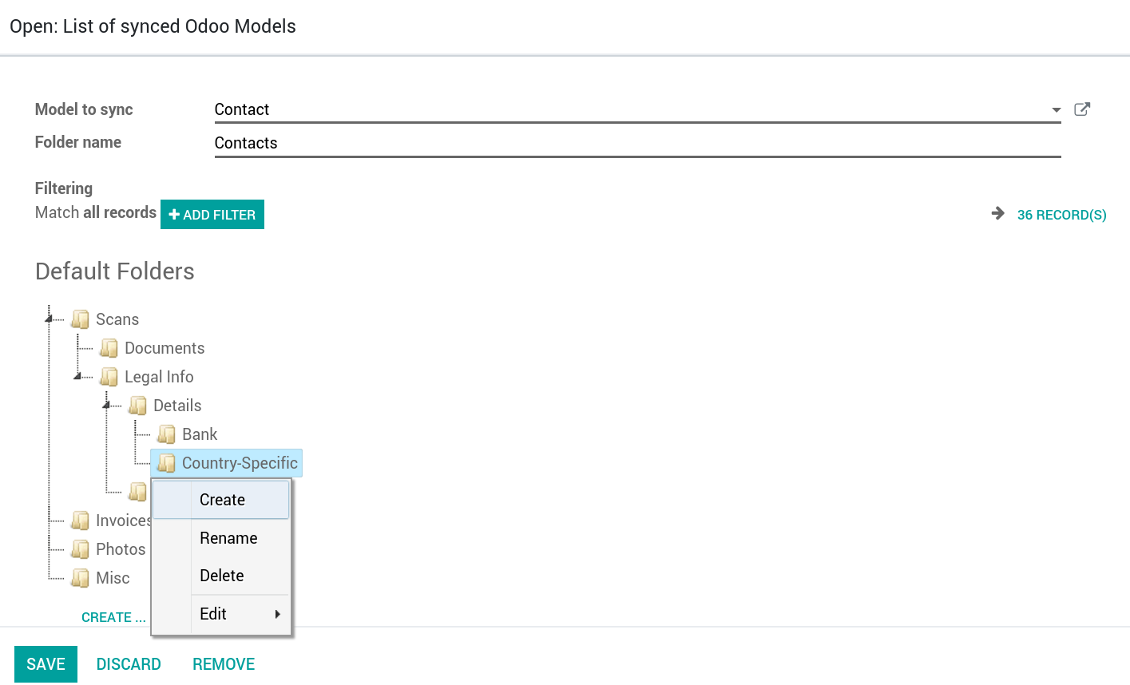
Choose document types to be synced
Document type might have a few folders based on filters
Easy accessible files
Zdjęcia ekranu
Fast access to Google Drive files and folders
Synced files are simply found in Google Drive. Add unlimited number of files or folders here
Individual and team drives
Sync logs in Odoo
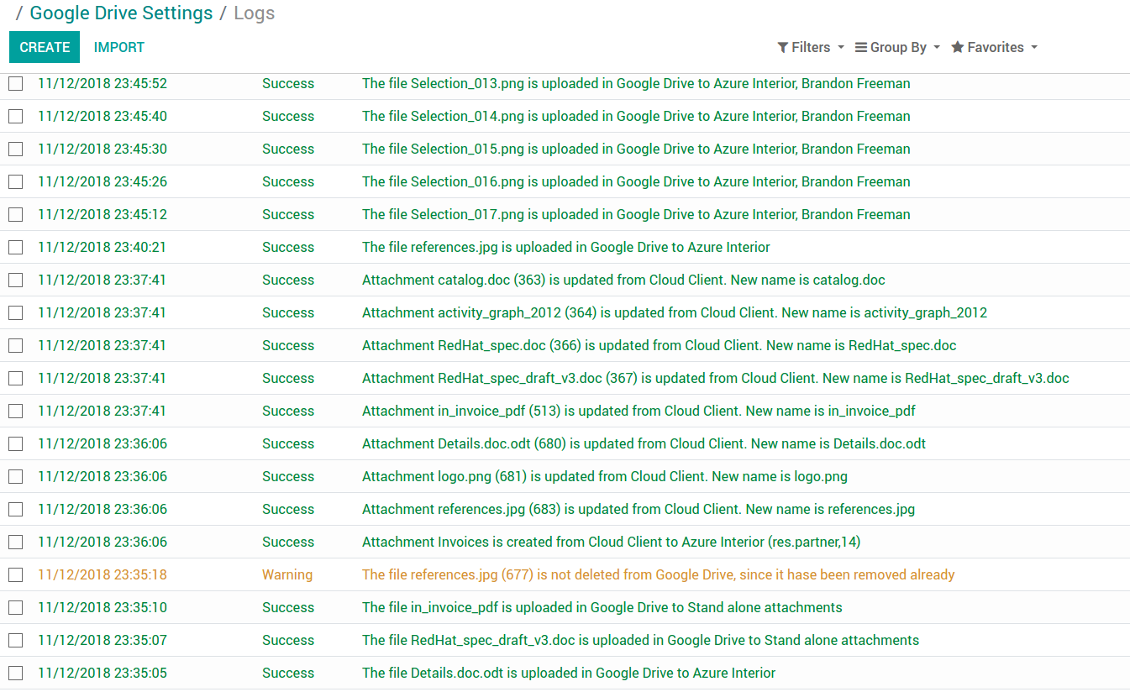
Zdjęcia ekranu
Logged synchronisation activities
Default folders for documents
Zdjęcia ekranu
Default folders for this document types to be created while firstly synced
Applicable to all Odoo apps
A few important peculiarities to take into account
- Take into account that files or folders deleted in Google Drive are really deleted only when you clean trash. Otherwise, such files still exist and would be reflected in Odoo
- Try to avoid the following symbols in folders' and files' names: *, ?, ", ', :, <, >, |, +, %, !, @, \, /,. Direct sync will replace such symbols with '-'. It is done to avoid conflicts with file systems.
Tricky setup, but works perfectly now
Really solid module. We managed to get a very flexible folder structure (sorted by clients) and synced all our sales orders, invoices and tasks by projects to Google Drive.
Initial setup was a bit of a pain and kinda tricky to configure everything at first, but now it's running smoothly and works perfectly. The faotools team helped a lot. Def worth it if u need to keep your docs organized in Odoo and Google Drive.
Recommended!
Excellent !!!
Great App and great Service from faOtools.
Best module for integration with google drive
The module performs its function correctly and faOtools responds quickly to any problem and, in case of detecting any bug, quickly apply the changes. Its support is 10 stars.
Wskazówki konfiguracji i instalacji dla Google Drive Odoo Integration Odoo v.11
Login and Google Drive Credentials
- Go to the Google Cloud Console via the URL https://console.cloud.google.com
- Select or create a project
- After the project is selected, the console opens the Google Auth Platform. Press 'Get Started'
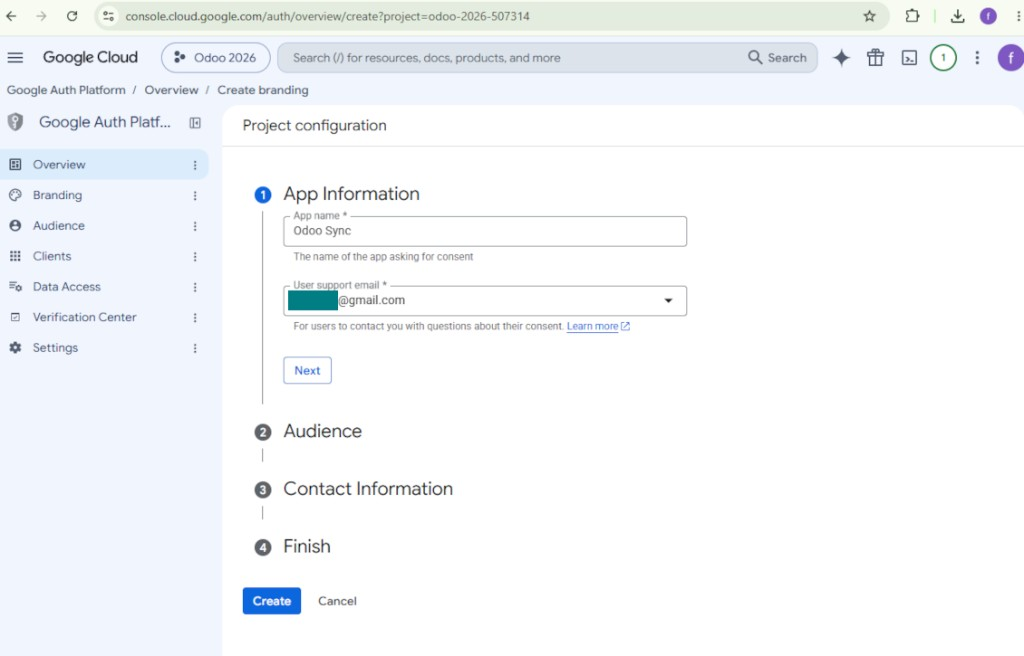
- Add app information
- As an app name select any suitable
- As a user support email select your email address
- Press 'Next'
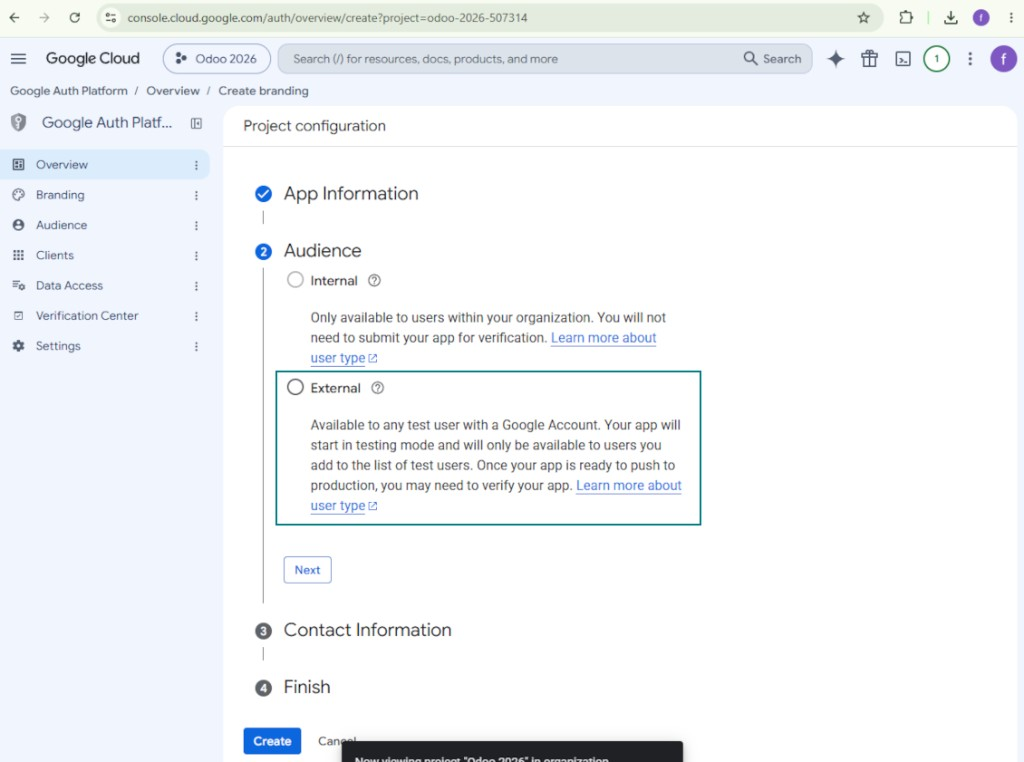
- As the audience select 'External' and press 'Next'. Note: you are anyway going to use this app only for your own Odoo connection
- As the contact information enter your Google or Google Workspace email address and press 'Next'
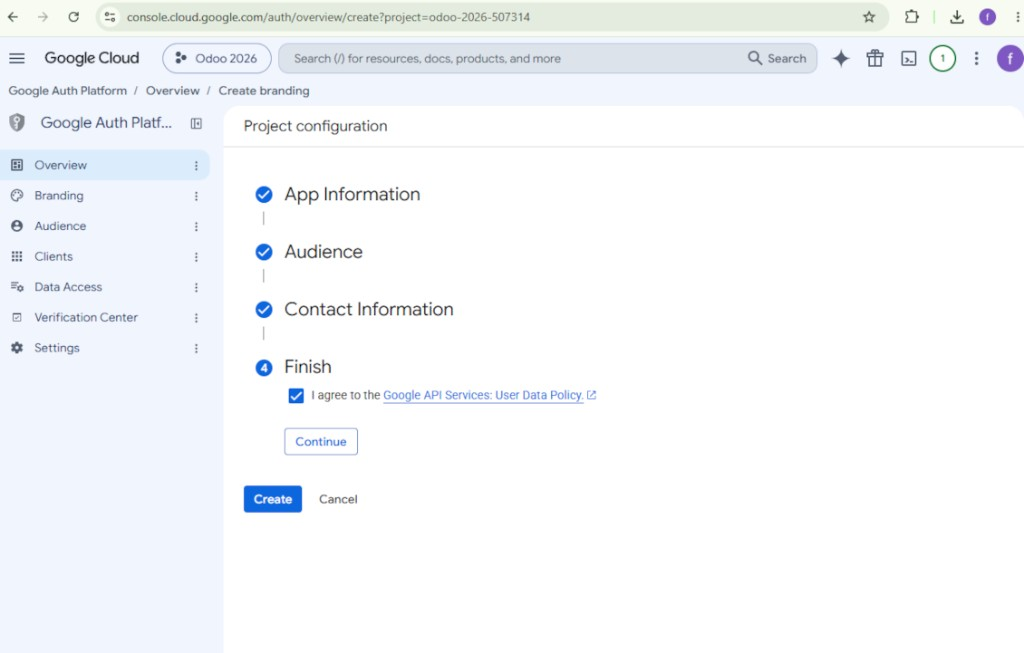
- Agree with the Google API Services User Data Policy, press 'Continue', and then press 'Create'
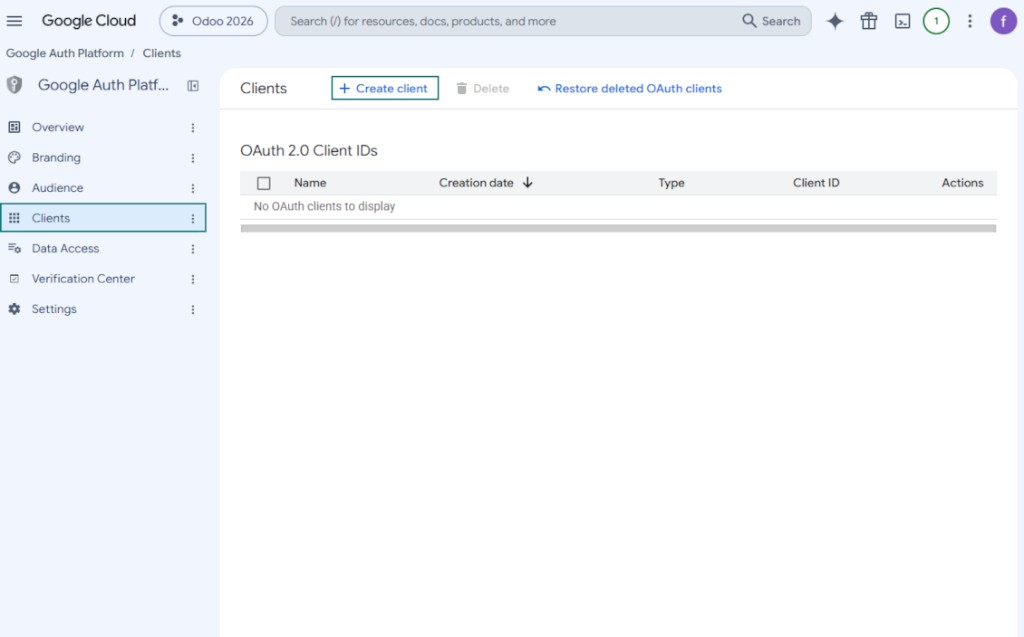
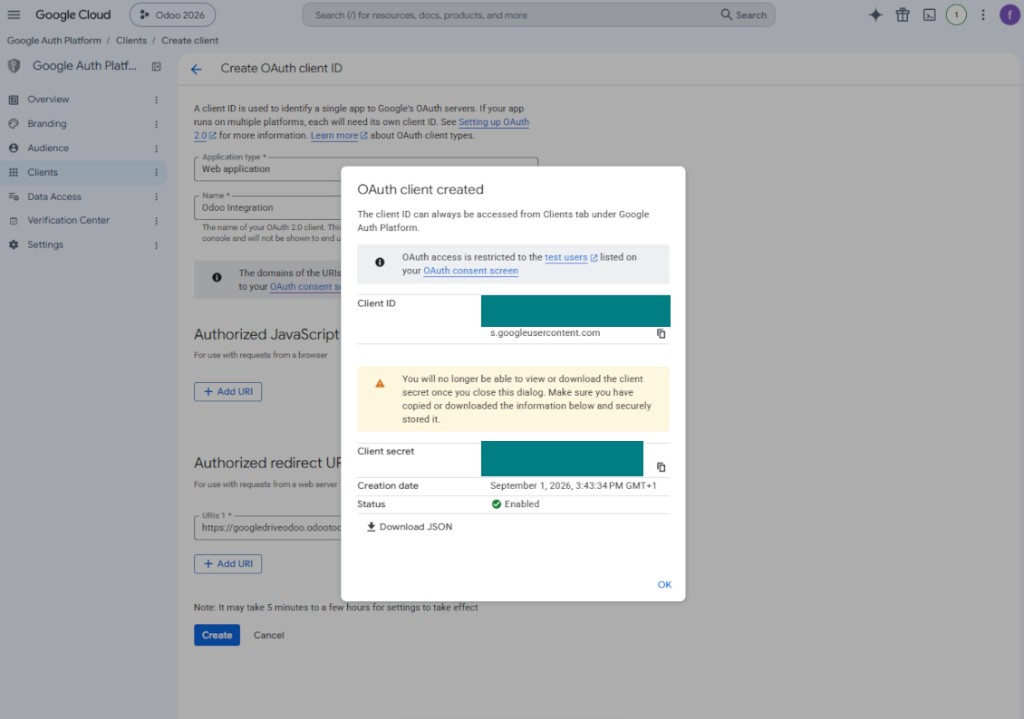
- Go to 'Clients' and press 'Create client'
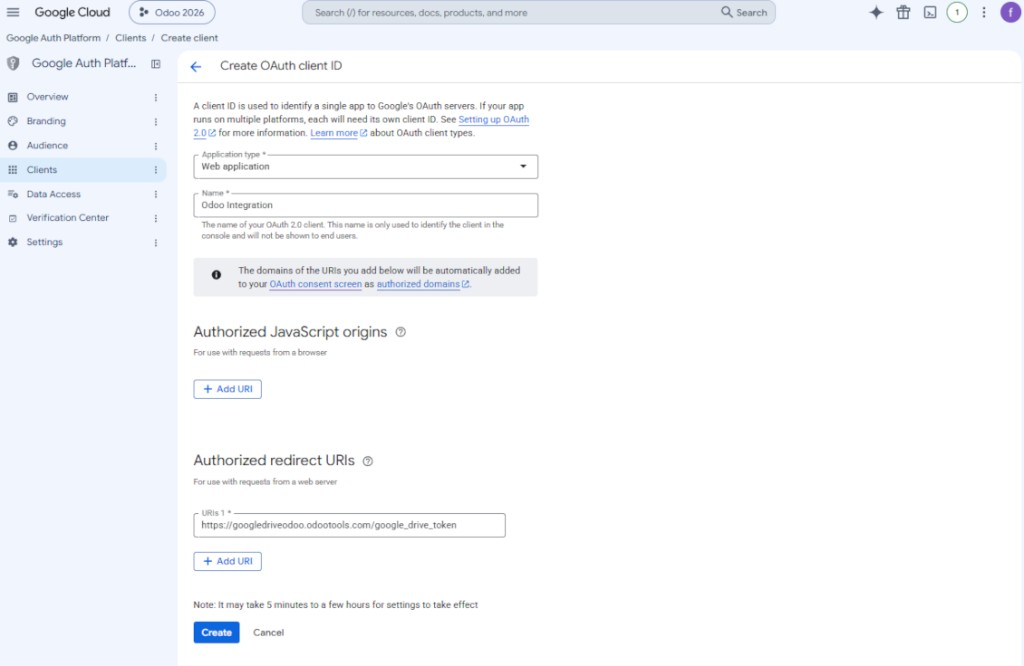
- As the application type select 'Web application'
- As a name select any suitable
- As the authorized redirect URI, add the link in a format [YOURODOOSITENAME]/google_drive_token (e.g. https://odootools.com/google_drive_token).
- Press 'Create'
- Copy and safely store 'Client ID' and 'Client secret'. The client secret is shown only once
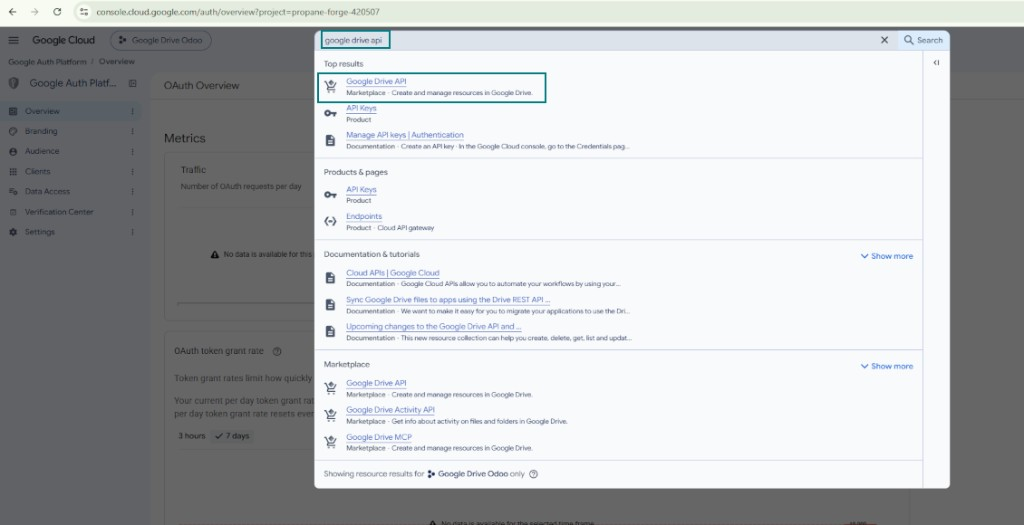
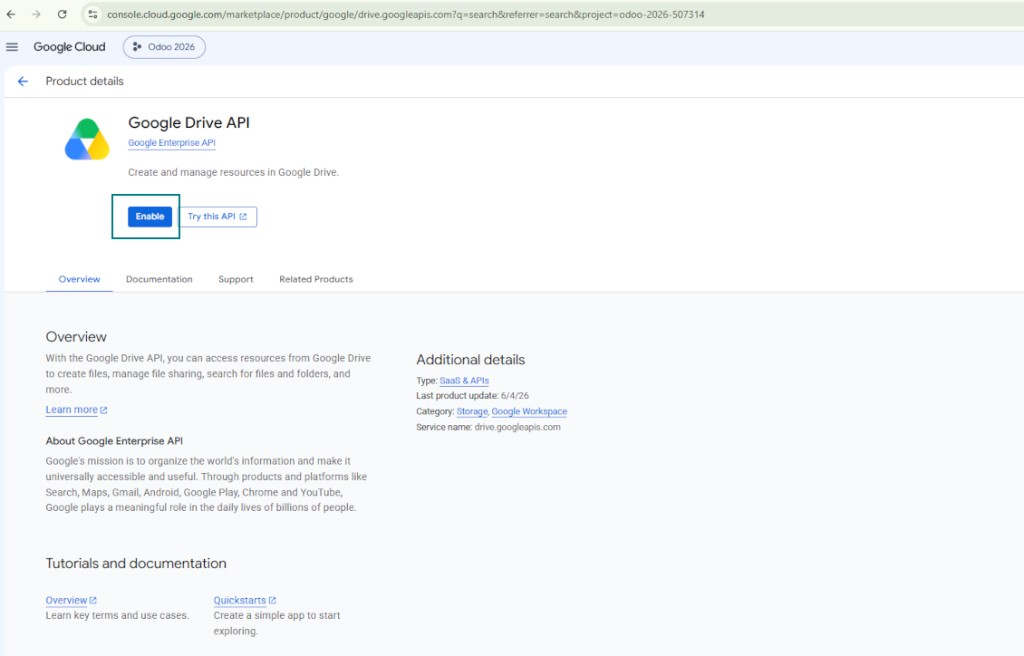
- Enable the Google Drive API for this project: type 'Google Drive API' in the top search box, open the found product, and press 'Enable'
- Go to 'Audience' and add your email address as a test user
- Publish the app. Otherwise, the app stays in the testing state and its token expires every 7 days
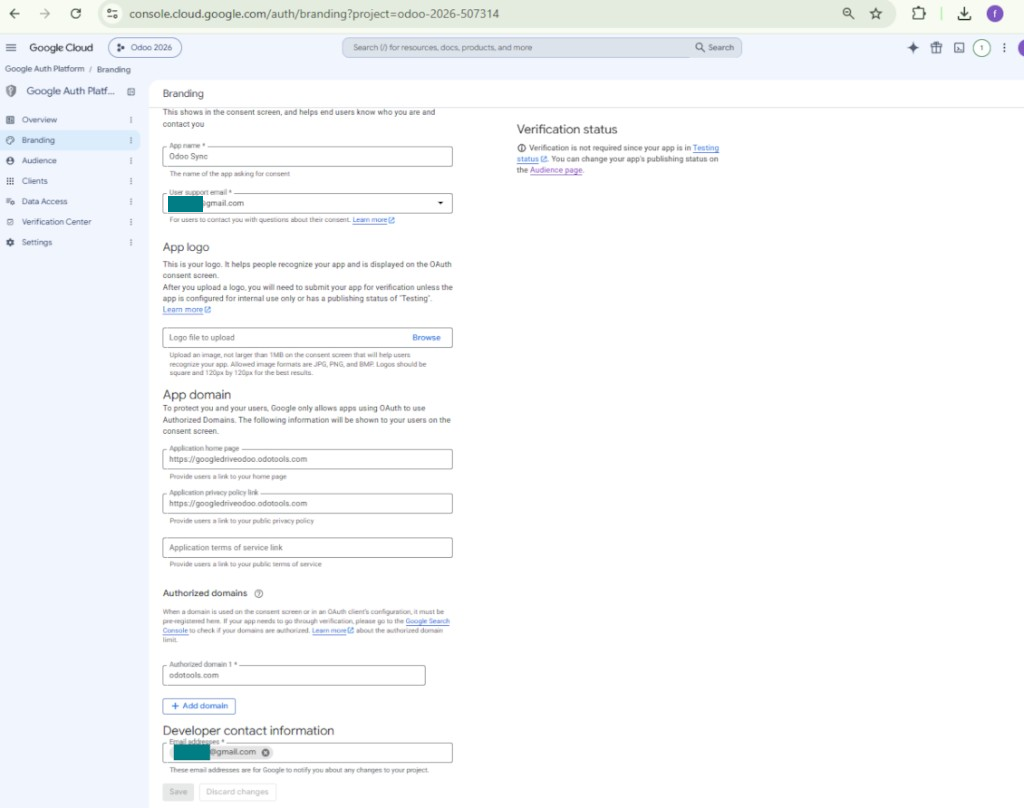
- Open 'Branding' and fill in the application home page and the application privacy policy link (for example, the links to your Odoo website). Add the domains of those links as the authorized domains
- Open 'Audience' and press 'Publish app'
- Do not upload an app logo. This would invoke a long and complex Google verification process that is of no actual need to you
- Go to the Odoo Google Drive Settings
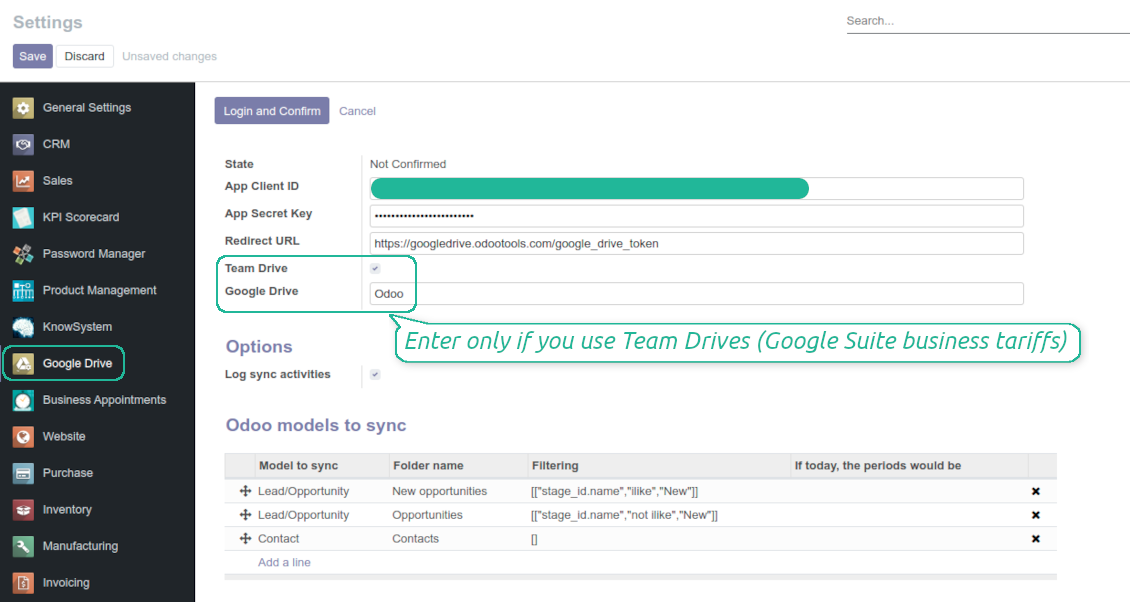
- Copy 'Client ID' from step 8 into the field 'App Client ID'
- Copy 'Client secret' from step 8 into the field 'App Secret Key'
- Insert the redirect URL you entered in step 8
- If you use team drives, check the related box. Make sure you really use team drives. In you Google Drive you should find the item 'Team Drives' in the left sidebar. This feature is available only for business and enterprise tariffs
- If the option 'Team Drive' is enabled, introduce its name. It should be absolutely the same as you see it in your Google Drive. Make sure that your user has full rights for this team drive
- Press 'Save'
- Press 'Login and Confirm'. Odoo redirects you to Google login page. Check in, agree with all conditions, and grant permissions asked
- After login, Google redirects you back to Odoo. Google Drive - Odoo synchronization is ready to be done.
Otwórz Google Auth Platform
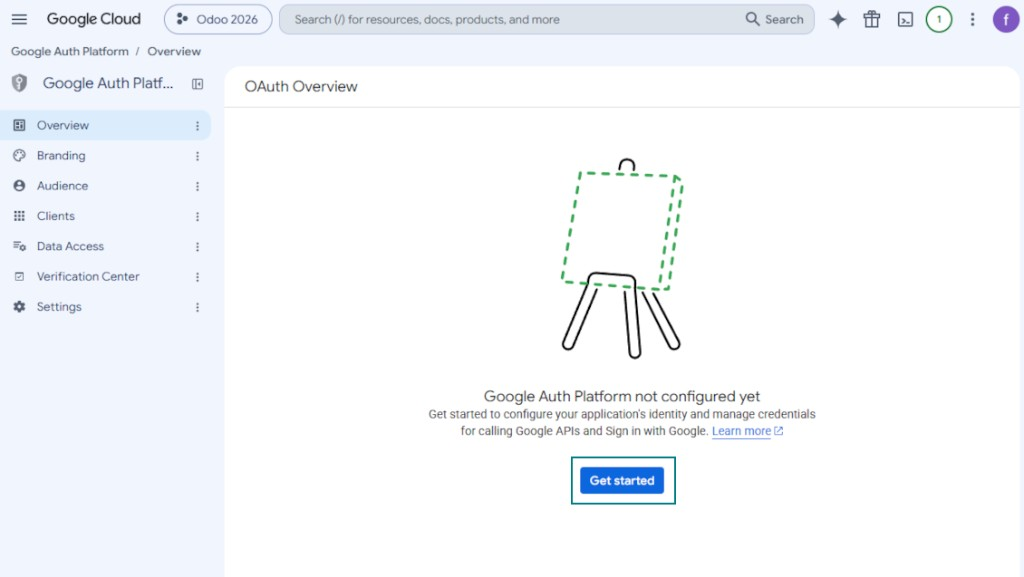
Dodaj informacje o aplikacji
Wybierz odbiorców External
Dodaj dane kontaktowe
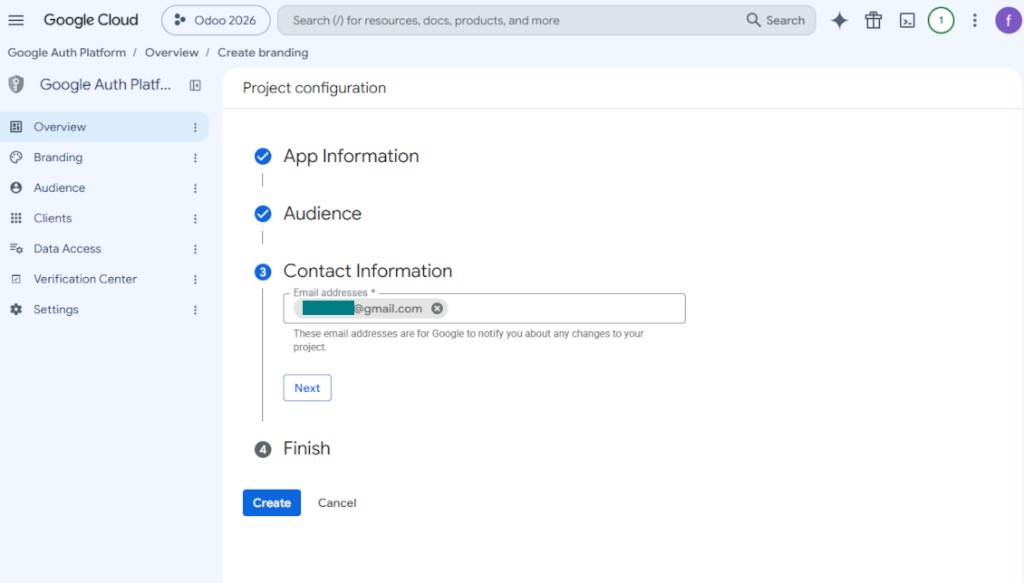
Zaakceptuj zasady i utwórz aplikację
Utwórz klienta OAuth
Skonfiguruj klienta aplikacji internetowej
Skopiuj Client ID i Client secret
Znajdź Google Drive API
Włącz Google Drive API
Wypełnij Branding, aby opublikować aplikację
Dodaj użytkowników testowych i opublikuj aplikację
Enter Google app credentials to Odoo
Odoo server configuration and cron job configuration
To make sure the synchronization works correctly apply proper timeouts to the Odoo configuration file: LIMIT_TIME_CPU, LIMIT_TIME_REAL should be more than 900 seconds.
For Odoo.sh this should not be done, since timeouts are predefined and are not configurable.
Then, timeout should be entered to your Odoo. To that goal find the section 'Settings' on the app configuration page and copy the number there.
Afterwards, it is needed to make the cron jobs suit the applied timeouts. In the debug mode go to the Settings > Technical > Automation > Scheduled Jobs:
- Set up the job 'Synchronize attachments with cloud' as (a) frequency - 2*timeout; (b) the next execution as the next hour +timeout. For example, for 900seconds timeout: frequency - as 30minutes; the next execution - at 08:15
- Set up the job 'Synchronize attachments from cloud' as (a) frequency - 2*timeout; (b) the next execution as the next hour + timeout*2. For example, for 900seconds timeout: frequency - as 30minutes; the next execution- at 08:30.
Często zadawane pytania o Google Drive Odoo Integration Odoo v.11
Czy wygenerowane foldery Google Drive są automatycznie udostępniane użytkownikom Odoo?
Sama aplikacja nie reguluje praw dostępu po stronie Google Drive. Trzeba to zrobić tam ręcznie. Odoo tworzy docelowe foldery w Google Drive; domyślnie nie są udostępniane, ale możesz zmienić uprawnienia dowolnego folderu. Na przykład pełne prawa do katalogu «Odoo» albo do «Odoo > Sale Orders» lub «Odoo > Sale Orders > SO-001».
Aplikacja działa na zasadzie jednego punktu końcowego użytkownika. Wszystkie operacje synchronizacji idą pod tym samym użytkownikiem Google Drive (zgodnie ze skonfigurowaną aplikacją Google API).
Usunąłem plik w Google Drive, ale nadal jest w Odoo
Aby usunąć plik całkowicie, opróżnij też kosz w Google Drive.
Pamiętaj, że plik może nadal być w Odoo, bo synchronizacja wsteczna nie przetworzyła jeszcze załącznika. To proces zaplanowany i wymaga czasu.
Czy Google obciąży mnie na podstawie żądań API?
Moduł używa tylko darmowego API, więc Google nic nie naliczy.
Czy mogę zmienić częstotliwość zadań synchronizacji?
Tak, możesz. W tym celu:
Włącz tryb debugowania
Przejdź do ustawień technicznych > Automatyzacja > Zaplanowane działania
Znajdź zadania «Synchronize attachments with cloud» i «Update attachments from cloud».
Nie ustawiaj ich zbyt często. Zadanie powinno skończyć się, zanim zacznie się kolejne. Konfiguracja zależy od liczby elementów do synchronizacji. Zazwyczaj częstotliwość to od 15 minut do 4 godzin.
Ustaw też wystarczające limity czasu w pliku konfiguracyjnym Odoo. LIMIT_TIME_CPU i LIMIT_TIME_REAL powinny być równe lub większe niż planowany czas crona. Od wersji 13 uwzględnij także LIMIT_TIME_REAL_CRON.
Ważna uwaga dla klientów Odoo.sh: maksymalny czas zadania cron może wynosić tylko 15 minut.
Czy mogę skonfigurować inną strukturę synchronizowanych katalogów niż przyjmowana przez synchronizację?
Nie, ta funkcja jest dopiero od wersji 15. Wcześniej moduł działa ze zdefiniowaną strukturą folderów:
Odoo - folder główny synchronizacji
Modele - foldery dla każdego typu dokumentu Odoo. Na przykład «Projects», «Partners». Według domeny mogą być węższe foldery: «Customer 1 Projects», «Projects of the Customer 2», «Internal Projects» itd.
Obiekty - foldery dla każdego dokumentu, np. «Project 1» lub «Customer 1»
Pliki i foldery powiązane z tym dokumentem Odoo do synchronizacji.
W efekcie możesz mieć na przykład:
Odoo / Projects / Project 1 / pliki i foldery projektu 1
Odoo / Customer 1 Projects / Project 1; Odoo / Customer 2 Projects / Project 3, ...
Odoo / Customers / Customer 1 / pliki i foldery klienta 1
Struktura jest zawsze płaska: tylko te poziomy. Różnych typów dokumentów nie trzyma się w tej samej gałęzi. W folderze «Customer 1» nie można trzymać jednocześnie zamówień, faktur i projektów. Każdy typ ma własny folder (lub kilka). Inaczej synchronizacja wsteczna nie miałaby kryterium.
Czy powinienem skonfigurować konkretne dostępy użytkowników w Odoo?
Nie, narzędzie opiera się na jednym punkcie końcowym użytkownika. Wszystkie procesy synchronizacji idą pod jednym administratorem chmury (aplikacją). Prawa do utworzonych folderów / plików nie są automatyzowane. Zarządzaj nimi w swoim magazynie w chmurze.
Gdzie przechowywane są zsynchronizowane pliki? Czy są duplikowane w Odoo i w chmurach?
Aplikacja zakłada, że treść binarna załączników jest przechowywana w Cloud Client, a nie na serwerze Odoo. Dlatego takie załączniki w Odoo stają się typu URL i można do nich w każdej chwili wejść z pola załączników albo z Cloud Client.
Po konfiguracji nie są potrzebne działania ręczne, bo synchronizacja jest w pełni automatyczna. Zdecyduj, które typy dokumentów Odoo synchronizować, i ustaw powiązany model do synchronizacji dla każdego z nich (klienci, zamówienia sprzedaży lub zakupu, zadania, projekty itd.).
Czy mogę mieć kilka folderów dla tego samego typu dokumentu? Na przykład projekty wewnętrzne i projekty klientów?
Tak, możesz. Przygotuj regułę dla każdej i zastosuj filtry: na przykład według typu projektu.
Uczyń filtry wzajemnie wykluczającymi, aby dokument był jednoznacznie przypisany. Na przykład: «klient, ale nie dostawca», «dostawca, ale nie klient». W przeciwnym razie folder dokumentu przeskakiwałby z jednego modelu na inny.
Czy wystarczy sama aplikacja Cloud Storage Solution?
Nie, narzędzie to tylko rdzeń techniczny. Potrzebujesz też konektora swojego klienta chmury.
Czy to w porządku, jeśli mam dużo obiektów do synchronizacji, na przykład 10000?
Tak, choć przy wielu folderach/załącznikach proces może być wolny. Klienci zgłaszali jednak środowiska z >10k partnerów i ~5k wariantów produktu, a procesy były akceptowalne.
Kilka punktów:
- Synchronizacja jest tak zbudowana, że każdy element zostanie zsynchronizowany i nie zginie, choć może to nie być szybkie. Gwarantują to kolejki FIFO i commit każdego zadania.
- Liczbę obiektów można ograniczyć logicznie. Konfiguracja modeli pozwala wykluczyć przestarzałe pozycje (np. zarchiwizowani partnerzy lub zamówienia sprzed 2 lat).
Czy można włączyć synchronizację w czasie rzeczywistym?
Nie. Mamy mocne powody, by unikać synchronizacji w czasie rzeczywistym:
Wydajność. Przy synchronicznym czasie rzeczywistym każde wysłanie pliku pokazuje ekran ładowania.
Konflikty. Jeśli 2 użytkowników jednocześnie zmieni element, sytuacja może być nierozwiązywalna. Przy zwykłych zadaniach poprawimy to później; w czasie rzeczywistym potrzebna byłaby kolejka, jeszcze bardziej myląca.
Funkcjonalność. Zwłaszcza zmiana nazwy i przebudowa. Synchronizacja wsteczna ściśle opiera się na logice katalogów i przy każdym uruchomieniu sprawdza 100 % elementów. Po każdej aktualizacji byłyby to tysiące żądań na sekundę. W przeciwnym razie zmiany zostałyby utracone.
Czy mogę synchronizować załączniki z kilkoma klientami chmury
Nie, ta funkcja jest dostępna dopiero od wersji 15.
Używamy specjalnego edytora w naszych chmurach (np. OnlyOffice, Office 365 itd.). Czy pliki otworzą się w tym edytorze?
Tak, w zależności od konfiguracji klienta chmury.
Jakie sa zasady aktualizacji Waszych narzędzi?
Zgodnie z biezacymi zasadami Odoo Apps Store:
- Modul kupiony dla wersji 12.0 lub starszej daje dostęp do wszystkich wersji do 12.0.
- Od wersji 13.0 każda wersja modulu musi byc kupiona osobno.
- Niezależnie od wersji zakup daje prawo do wszystkich aktualizacji i poprawek w ramach wersji glownej.
Zespol faOtools nie kontroluje tych zasad. Pytania kierujcie bezpośrednio do przedstawicieli Odoo Apps Store.
Jak zainstalowac aplikacje na Odoo.sh?
Najbardziej bezpośrednie podejscie to wbudowany przeplyw sklepu Odoo:
1. Otwórz stronę modulu i kliknij Deploy on odoo.sh
2. Zostaniesz przekierowany do GitHub. Zaloguj sie i kliknij Create a new repo lub użyj istniejącego. Repozytorium musi byc prywatne. Publikowanie aplikacji na licencji OPL-1 jest zabronione. W razie potrzeby utwórz nowe repo dla projektu Odoo.sh
3. Następnie w odoo.sh kliknij Deploy, potwierdź i kliknij Continue. Instalacja sie rozpoczyna.
Te kroki instaluja aplikacje na galezi production. Dla innych galezi lub aktualizacji:
1. Pobierz kod zrodlowy ze sklepu Odoo
2. Zrób commit modulu do repozytorium GitHub. Żaden folder/plik aplikacji nie może byc w .gitignore. Repo tworzone przez odoo.sh mogą ignorowac ważne ścieżki (np. /lib). Prześlij wszystkie katalogi i pliki modulu
3. Wdroz docelowa galaz projektu odoo.sh lub poczekaj na automatyczny build, jeśli tak ustawiono.
Jak zainstalowac aplikacje na wlasnym serwerze?
2. Uruchom ponownie serwer Odoo;
3. Wlacz tryb programisty (ustawienia techniczne);
4. Zaktualizuj liste aplikacji (menu Aplikacje);
5. Znajdź aplikacje i kliknij Activate/Install;
6. Postępuj zgodnie ze wskazowkami na stronie aplikacji, jeśli istnieją.
Aplikacja ma dodatkowe dodatki. Czy moge kupic je później?
Tak. Odoo automatycznie dodaje zależności do koszyka: wylacz juz zakupione narzędzia, aby nie zaplacic dwa razy.
Wdrozyłem aplikacje na Odoo.sh i widze ostrzeżenie/blad w testach
Czerwone/pomaranczowe ostrzeżenie nie wplywa na funkcje aplikacji. Czasem nasze moduly nie przechodzą standardowych testów automatycznych, bo te zakladaja zachowanie sprzeczne z celami aplikacji. Na przyklad zmieniamy obliczanie ceny, a testy Odoo porownuja cenę koncowa ze standardowym algorytmem.
Najpierw sprawdź funkcje wdroznej bazy. Czy wszystko dziala?
Jeśli nadal uwazasz, ze ostrzeżenie wplywa na rzeczywiste funkcje, skontaktuj sie z nami i prześlij pelne logi instalacji oraz pelna liste wdroznych modulow (rdzeń i firmy trzecie).
Czy moge kupic aplikacje bezpośrednio u Was?
Nie, dystrybuujemy narzędzia tylko przez oficjalny sklep aplikacji Odoo.
Chcialbym uzyskać znizke
Niestety nie mamy srodkow technicznych, by oferowac ceny indywidualne.
Czy moge zainstalowac aplikacje na bazie Odoo Online (SaaS)?
Nie, aplikacji innych firm nie można używać na Odoo Online. Odoo SaaS blokuje te mozliwosc.
Narzędzie zależy od innych aplikacji. Czy musze je kupic?
Tak, narzędzie wymaga wszystkich modulow oznaczonych jako zależności. Cena na stronie aplikacji juz je obejmuje.
Jaka jest cena modulu w dolarach amerykanskich? Dlaczego sie zmienila?
Ceny naszych modulow sa w euro. Sklep Odoo przelicza je na inne waluty wedlug wewnetrznego kursu. Dlatego cena w dolarach amerykanskich może sie zmienić po aktualizacji kursu.
Sformułowania aplikacji i witryny w językach innych niż angielski są wspomagane przez AI i zgodne z oficjalnymi tłumaczeniami Odoo. Jeśli zauważysz błąd, wyślij zgłoszenie o poprawność tłumaczeń a naprawimy to.
Zgłaszanie błędów
Jeśli zauważysz błędy lub niespójne działanie, napisz do nas. Gwarantujemy poprawki w 60 dni od zakupu i dalej ulepszamy narzędzia.
Nie potrzebujesz telefonu ani karty, by się z nami skontaktować. Wystarczy krótka rejestracja e-mail, która nie zajmuje więcej niż 30 sekund.
Dołącz jak najwięcej szczegółów: zrzuty ekranu, logi serwera Odoo i pełny opis odtworzenia problemu. Zwykle kilka dni roboczych zajmuje plan (gdy błąd potwierdzono) albo wskazówki (w przeciwnym razie).
Publiczne zgłoszenia funkcji i pomysły na moduły (bezpłatny rozwój)
Jesteśmy mocno zmotywowani do ulepszania narzędzi i wdzięczni za każdą opinię. Jeśli wymagania są użyteczne publicznie i da się je sprawnie wdrożyć, zespół wpisze je na listę zadań.
Taka lista zadań jest przetwarzana regularnie i nie zakłada dodatkowych opłat. Choć nie możemy obiecać terminów i ostatecznego projektu, to dobry sposób na pożądane funkcje bez inwestycji i ryzyka.
Nie potrzebujesz telefonu ani karty, by się z nami skontaktować. Wystarczy krótka rejestracja e-mail, która nie zajmuje więcej niż 30 sekund.

Narzędzie do bezpiecznego przechowywania haseł w Odoo do użytku wspólnego. Współdzielone sejfy

Narzędzie do budowy głębokiej i uporządkowanej bazy wiedzy do użytku wewnętrznego i zewnętrznego. Knowledge System. KMS. Rewizje w stylu wiki.
398€
Narzędzie do ustawiania celów KPI i kontroli ich realizacji według okresów. Pulpity KPI. Projektant pulpitów. Wykresy KPI

Narzędzie do zarządzania usługami czasowymi od rezerwacji po sprzedaż i opinie
398€
Narzędzie do zarządzania Odoo z ulubionych czatów AI przez MCP. Claude. Każde AI z MCP.

Narzędzie do elastycznego układania załączników Odoo w folderach i synchronizacji katalogów z klientami chmury: Google Drive, OneDrive/SharePoint, Nextcloud/ownCloud, Dropbox, Amazon S3, Box i NAS. DMS. Menedżer plików. System zarządzania dokumentami
398€
Narzędzie do: automatycznie synchronizuj Odoo załączniki z OneDrive pliki w oba ways
487€
Narzędzie do: automatycznie synchronizuj Odoo załączniki z ownCloud/Nextcloud pliki w oba ways
487€
Narzędzie do: automatycznie synchronizuj Odoo załączniki z NAS Solutions w oba ways. Synology, QNAP, TrueNAS i dowolny inne WebDav-supporting NAS solutions
487€