Google Drive Odoo Integration v.11
The tool to automatically synchronize Odoo attachments with Google Drive files in both ways
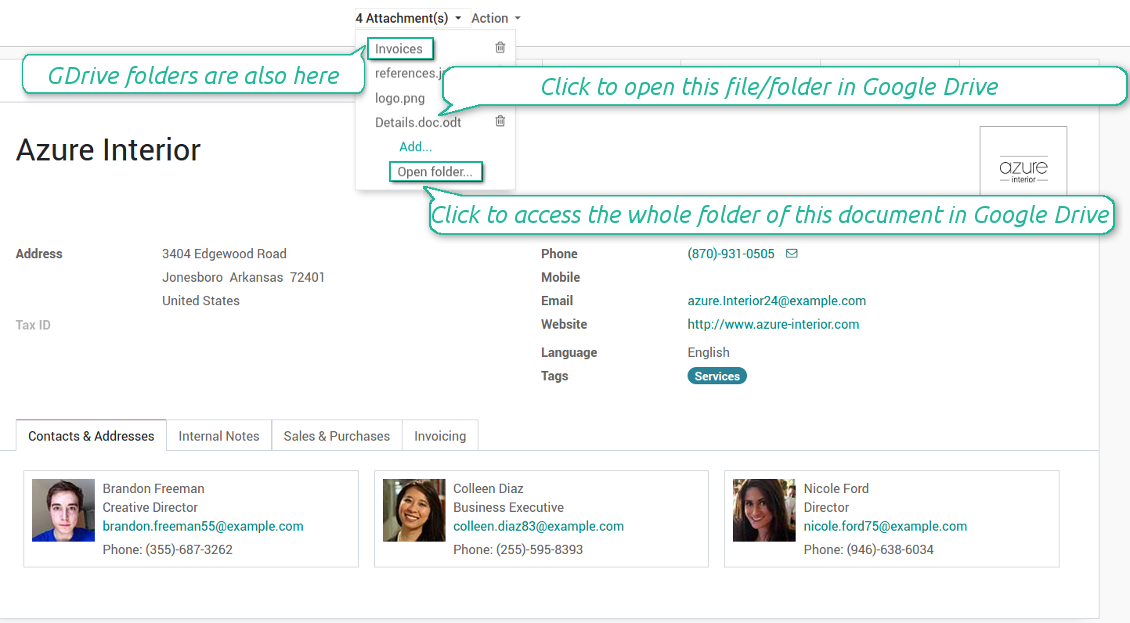

Google Drive doesn't have such disadvantages. This is the tool to integrate their features into your Odoo business work flow. The app automatically stores all Odoo attachments in Google Drive, and it provides an instant access to them via web links. In such a way users work with files comfortably in the cloud storage, while the results are fully available in Odoo.
Automatic integration
Bilateral sync
How files and folders are synced from Odoo to Google Drive
- Prepare and keep updated folders' structure in Google Drive
- Upload new attachments to a correct folder
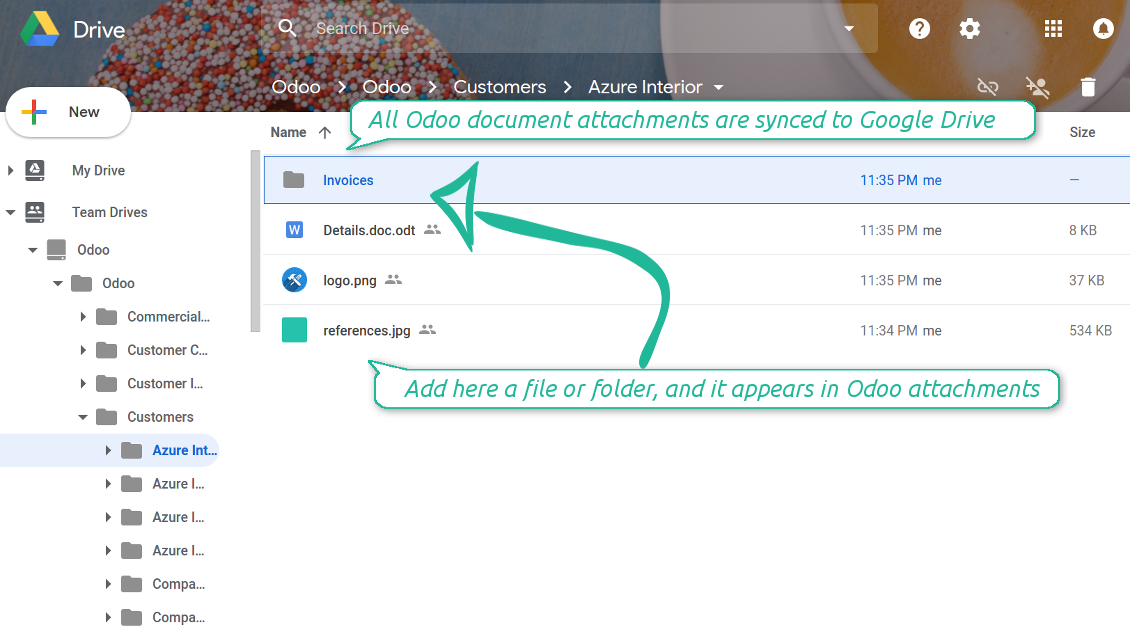
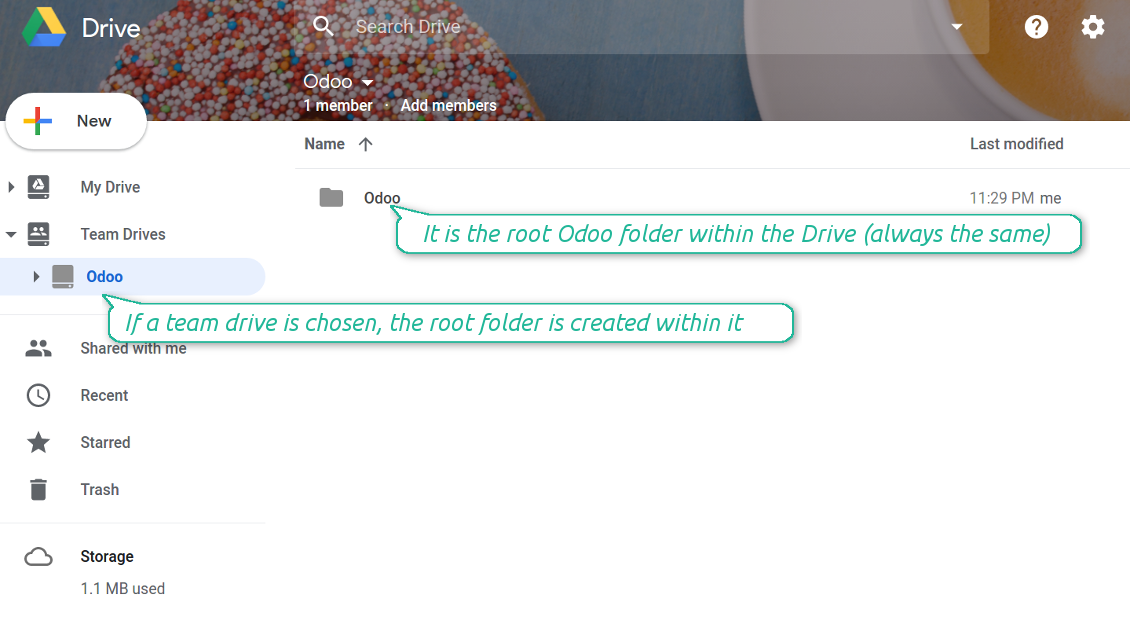
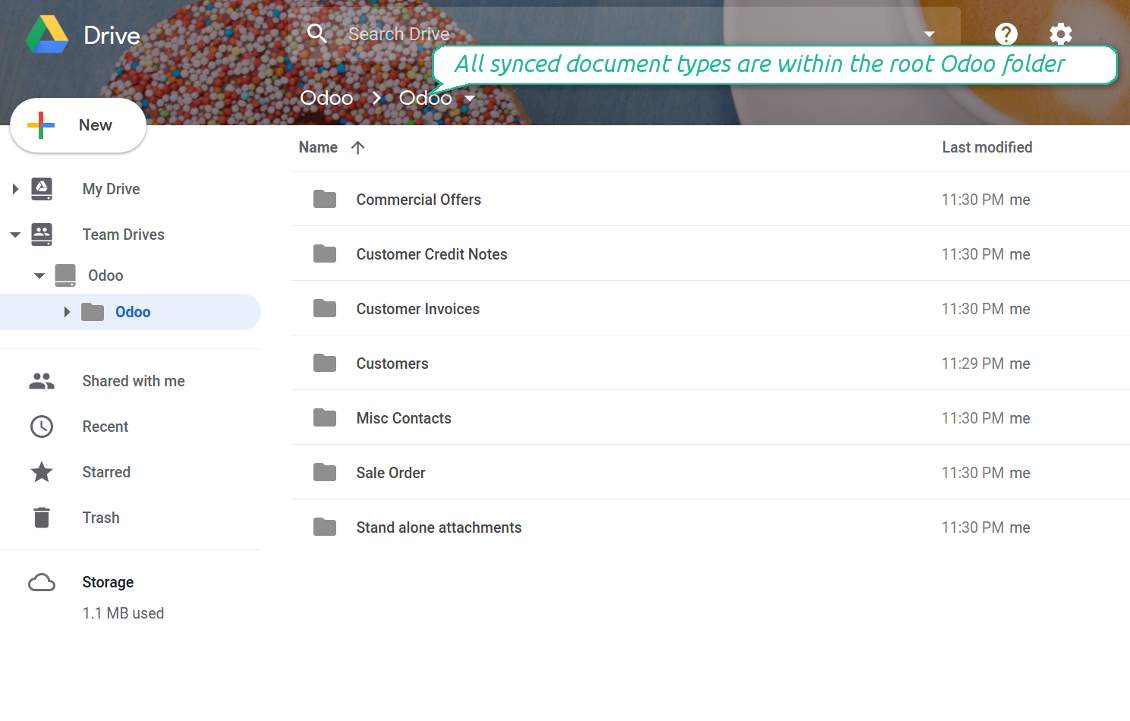
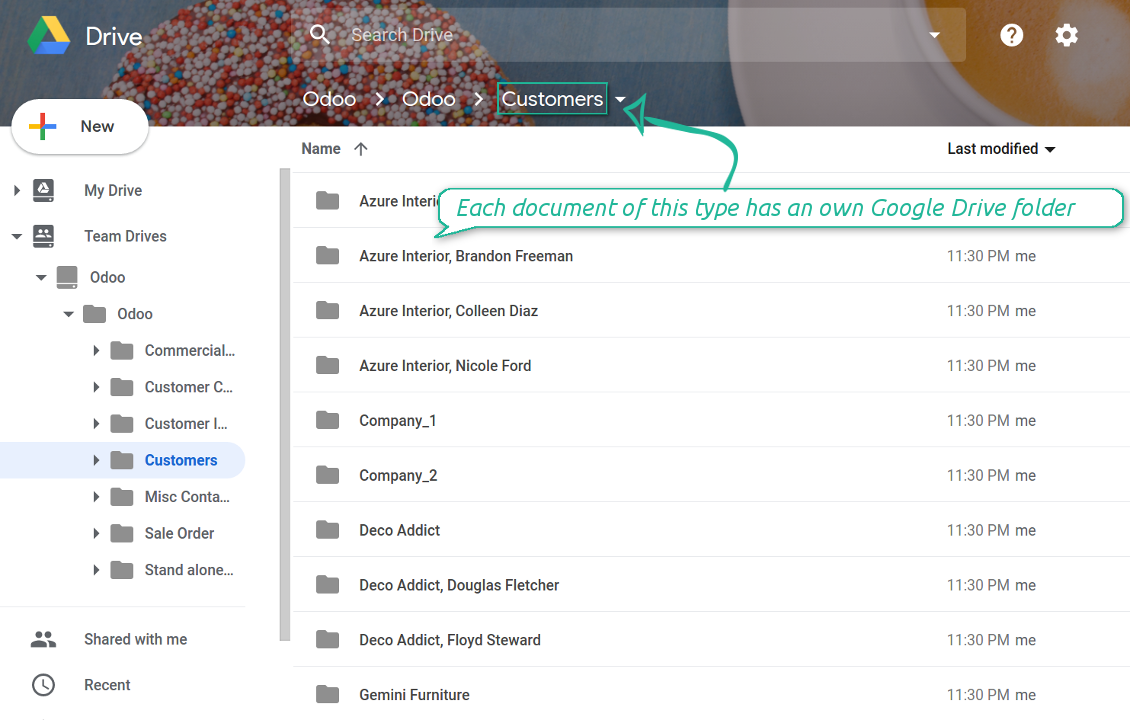
Odoo creates a convenient directory structure in Google Drive: Odoo / Document type name / Document name / Files, where:
- Odoo is a central directory for Odoo Sync in your Drive.
- Document type is a synced Odoo model, for example, 'Sale orders', 'Opportunities', 'Customers'
- You select document types by yourself. It might be any document type
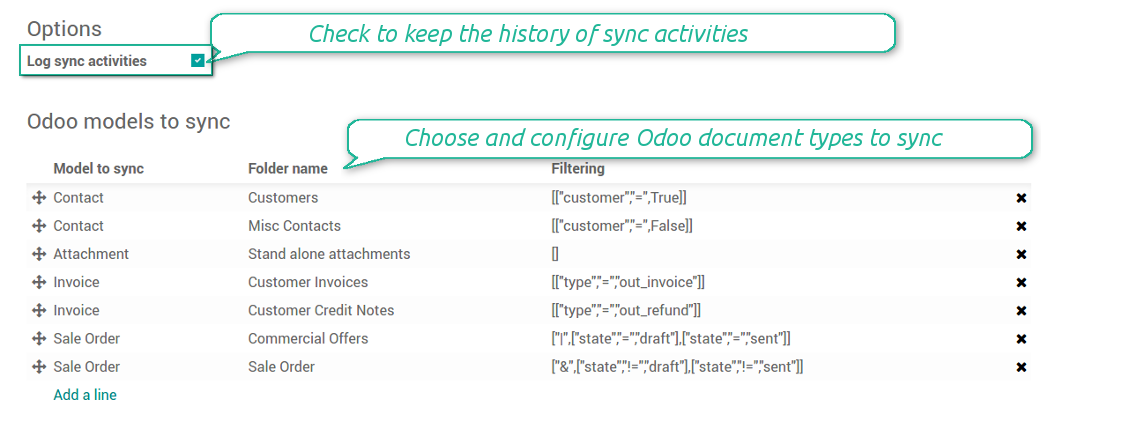
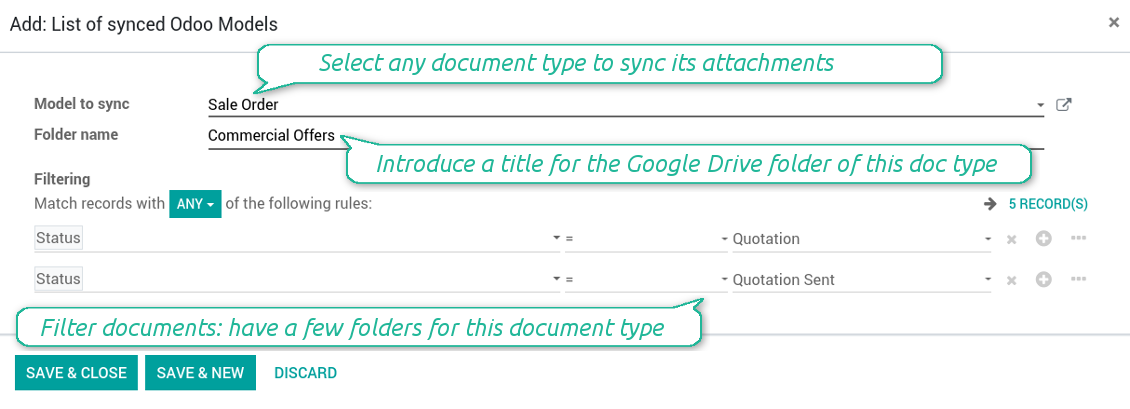
- Moreover, you might have a few folders for a single document type. Use Odoo domains to have not global 'Partners, but 'Customers' and 'Suppliers', not just 'Sale orders' but 'Commercial offers', 'To deliver', and 'Done orders'
- With each sync Odoo would try to update document types' folders. Add a new document type at any moment. It will appear in Google Drive with a next sync
- You are welcome to introduce or change document types folder names at any moment in Odoo. Take into account: renaming in Google Drive will be recovered to Odoo names
- If you remove a model from integration, it will not be deleted from Google Drive to keep already synced files safe. However, new documents of this type would not be synced
- In case you removed a directory in Google Drive, but it is still configured in Odoo, with a next sync a folder structure is going to be recovered (not files, surely).
- Document is an exact object to sync. For instance, 'Agrolait' or 'SO019'
- Documents are synced in case they relate to a synced document type and satisfy its filters. For example, you are not obliged to sync all partners, you may integrate only 'Customers' and 'Vendors' or only 'Companies', not 'Contacts'
- Odoo would generate a folder in Google Drive for each suitable document even for documents without attachments. It is needed for a backward sync to easily add new files
- Google Drive folder name equals a real document name. It relies upon Odoo name_get method. Thus, Odoo 'Michael Fletcher' (a contact of 'Agrolait') would be Google Drive 'Agrolait, Michael Fletcher'
- If an exact document changes its document type (e.g. a quotation is now confirmed), Odoo will automatically relocate its related folder to a proper parent directory (in the example: from 'Commercial offers' to 'To deliver')
- In case a document relates to a few types (for instance, you have 'Vendors' and 'Customers', while Agrolait is both), this document folder would be put into the most prioritized document type. A document type priority is higher as closer to the top in Odoo interfaces it is
- If an Odoo document is removed, the next sync will remove a corresponding Google Drive directory
- In case you remove a directory in Google Drive, but it still exists in Odoo, Google Drive folder structure would be recovered (while files would be unlinked in both Odoo and Google Drive)
- Folders renaming in Google Drive will be replaced with Odoo names, Odoo document names are more important
- Files are real files taken from Odoo attachments
The resulted path would be, for example, 'Odoo / Quotations / SO019 / commercial offer.png'.
The only exclusion of the rule are stand alone attachments which do not relate to any Odoo documents (their document type is 'ir.attachment'). Such attachments' path is 'Odoo / Stand Alone Attachments / image.png'.
The very first sync might take quite a long, since a lot of folders should be created. Afterwards, it would be much faster. However, it is not recommended to make sync too frequent: once an hour seems quite good for large files.
FilesWith each direct sync, Odoo tries to find not yet synced attachments. If such attachments suit any document type to sync, a file will be uploaded to Google Drive to a proper folder. In Odoo such attachments will become of 'url' type. It means that a file is not any more kept in Odoo server space, but now it is in Google Drive. Until sync is done, Odoo attachment remains binary and stores an actual file. Such approach helps Odoo to work faster.
Clicking on such attachment leads you to a file previewer / editor in Google Drive. Depending on your Google Drive configurations it might be Google Documents, Google Spreadsheets, PDF previewer, etc. Anyway changes to file contents in Google Drive are available in Odoo at the same moment.
If you unlinked an attachment from Odoo, it would be deleted in Google Drive as well.
Take into account that file names should be managed in Google Drive: each backward sync would recover Google Drive names, Odoo is here less important.
How items are retrieved from Google Drive to Odoo
- If a new file is added to a proper document folder (e.g. to 'Odoo / Customers / Agrolait'), the same attachment will be added to Odoo document (in the example - to 'Agrolait')
- In document folders you can put not only files but also child folders. In that case a link for this folder (not its content) is kept in attachments
- In case you rename a file in Google Drive, it will be renamed in Odoo as well
- Files' removal from Google Drive leads to related Odoo attachments' removal
- If you move a file to another document folder, in Odoo a related attachment would be re-attached to this new document. Take into account: if you move a file for a not document folder, in Odoo attachment will be deleted as it has been removed from Google Drive
- If you deleted a document type or a document folder, their child files are deleted as well. Thus, Odoo would remove related attachments. The folders, however, will be recovered with a next direct sync. Folders' move to another directory is also considered as a removal. Avoid such situations by following the simple rule: folders are managed mostly by Odoo, files - mostly by Google Drive.
Backward Google Drive sync might take quite much time, since each folder should be checked (the more folders, the more time the backward sync requires). It is recommended to make frequency oftener than once an hour or two hours.
Posnetek zaslona
All document types are in the root directory 'Odoo'
Document types' folders
All document of this type has an own folder
Sync any documents you like
The tool let you split any business model into a few directories. Have a separate folder for individuals and companies, for European and American opportunities, for each project, etc.
Moreover, it is possible to guarantee that only topical documents are synced by using relative periods: leads registered in the last 3 months, invoices updated the last week, and so on.
Typical use cases
- Projects: automatically forward all project-related documents to Google Drive to share those with a customer as a cloud link.
- Customers: add all partner files in a single directory available both from Odoo and from Google Drive. Modify those using default cloud editors and access them when working in Odoo.
- Employees: gather all files by this employee in a single cloud folder: photos, document scans, contracts. Access and upload those from Odoo and Google Drive alternatively.
- Opportunities: carefully store all specifications, requirements and any file which would let you make a good offer.
- Orders: keep all printings and contracts in Google Drive with simple availability from Odoo.
Typical use cases
- Projects: automatically forward all project-related documents to Google Drive to share those with a customer as a cloud link.
- Customers: add all partner files in a single directory available both from Odoo and from Google Drive. Modify those using default cloud editors and access them when working in Odoo.
- Employees: gather all files by this employee in a single cloud folder: photos, document scans, contracts. Access and upload those from Odoo and Google Drive alternatively.
- Opportunities: carefully store all specifications, requirements and any file which would let you make a good offer.
- Orders: keep all printings and contracts in Google Drive with simple availability from Odoo.
Posnetek zaslona
Choose document types to be synced
Document type might have a few folders based on filters
Easy accessible files
Posnetek zaslona
Fast access to Google Drive files and folders
Synced files are simply found in Google Drive. Add unlimited number of files or folders here
Individual and team drives
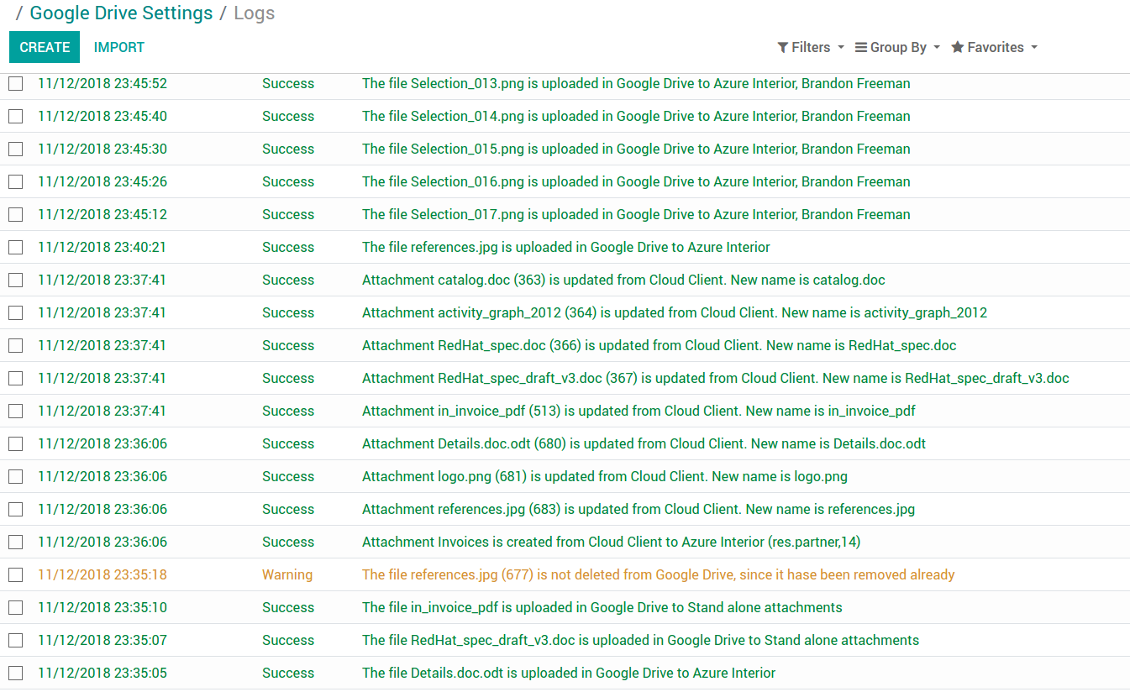
Sync logs in Odoo
Posnetek zaslona
Logged synchronisation activities
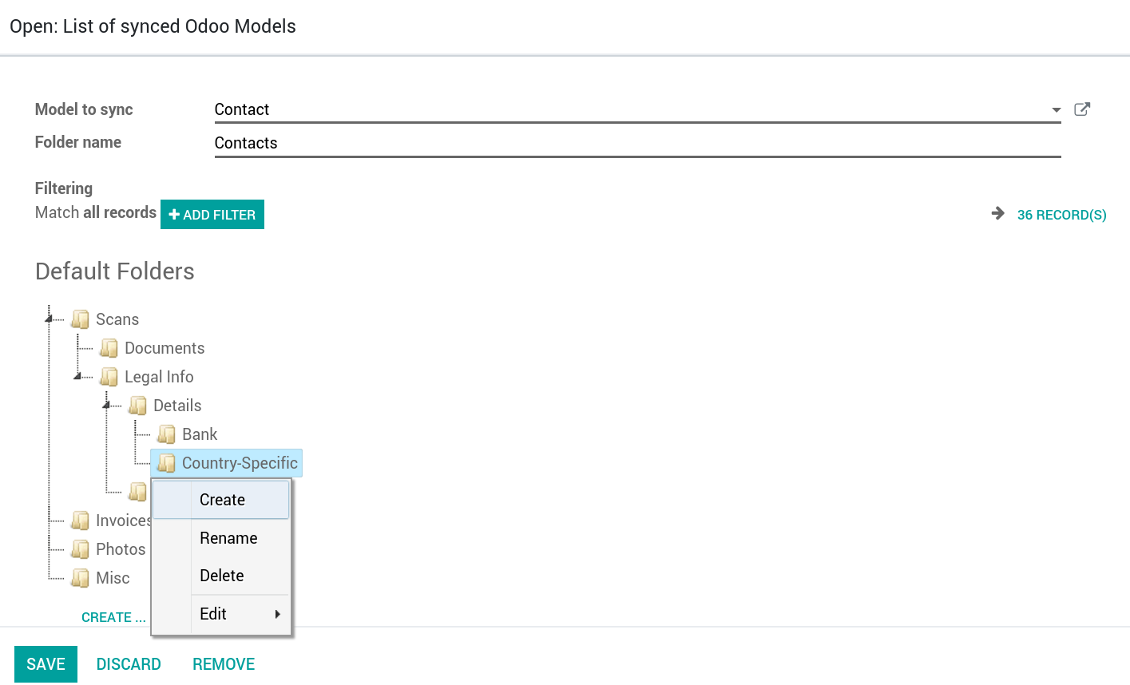
Default folders for documents
Posnetek zaslona
Default folders for this document types to be created while firstly synced
Applicable to all Odoo apps
A few important peculiarities to take into account
- Take into account that files or folders deleted in Google Drive are really deleted only when you clean trash. Otherwise, such files still exist and would be reflected in Odoo
- Try to avoid the following symbols in folders' and files' names: *, ?, ", ', :, <, >, |, +, %, !, @, \, /,. Direct sync will replace such symbols with '-'. It is done to avoid conflicts with file systems.
Tricky setup, but works perfectly now
Really solid module. We managed to get a very flexible folder structure (sorted by clients) and synced all our sales orders, invoices and tasks by projects to Google Drive.
Initial setup was a bit of a pain and kinda tricky to configure everything at first, but now it's running smoothly and works perfectly. The faotools team helped a lot. Def worth it if u need to keep your docs organized in Odoo and Google Drive.
Recommended!
Excellent !!!
Great App and great Service from faOtools.
Best module for integration with google drive
The module performs its function correctly and faOtools responds quickly to any problem and, in case of detecting any bug, quickly apply the changes. Its support is 10 stars.
Nasveti za konfiguracijo in namestitev za Google Drive Odoo Integration Odoo v.11
Login and Google Drive Credentials
- Go to the Google Cloud Console via the URL https://console.cloud.google.com
- Select or create a project
- After the project is selected, the console opens the Google Auth Platform. Press 'Get Started'
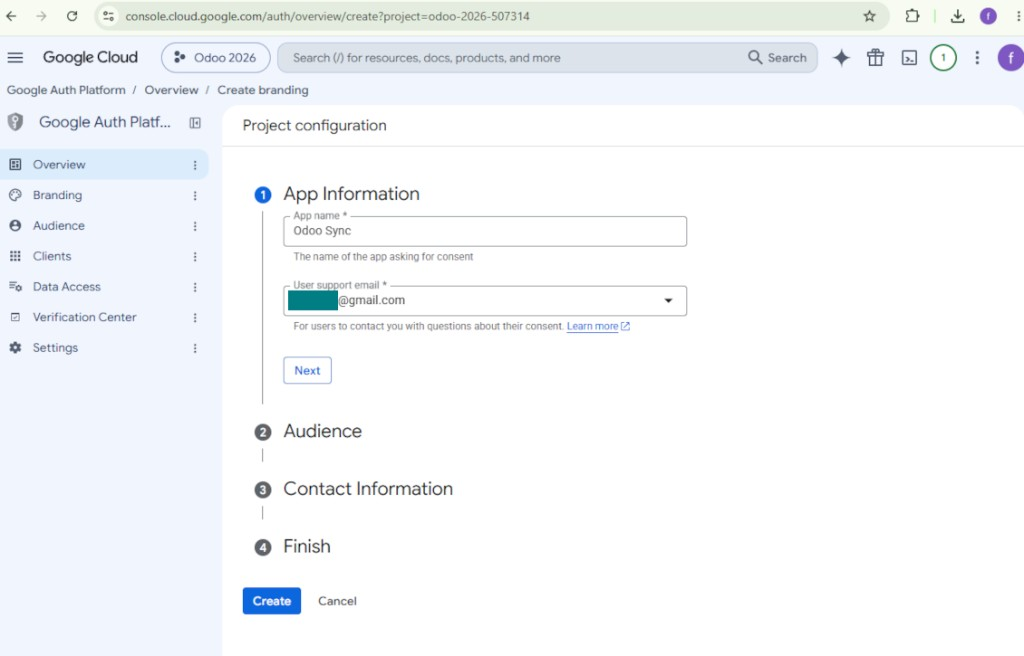
- Add app information
- As an app name select any suitable
- As a user support email select your email address
- Press 'Next'
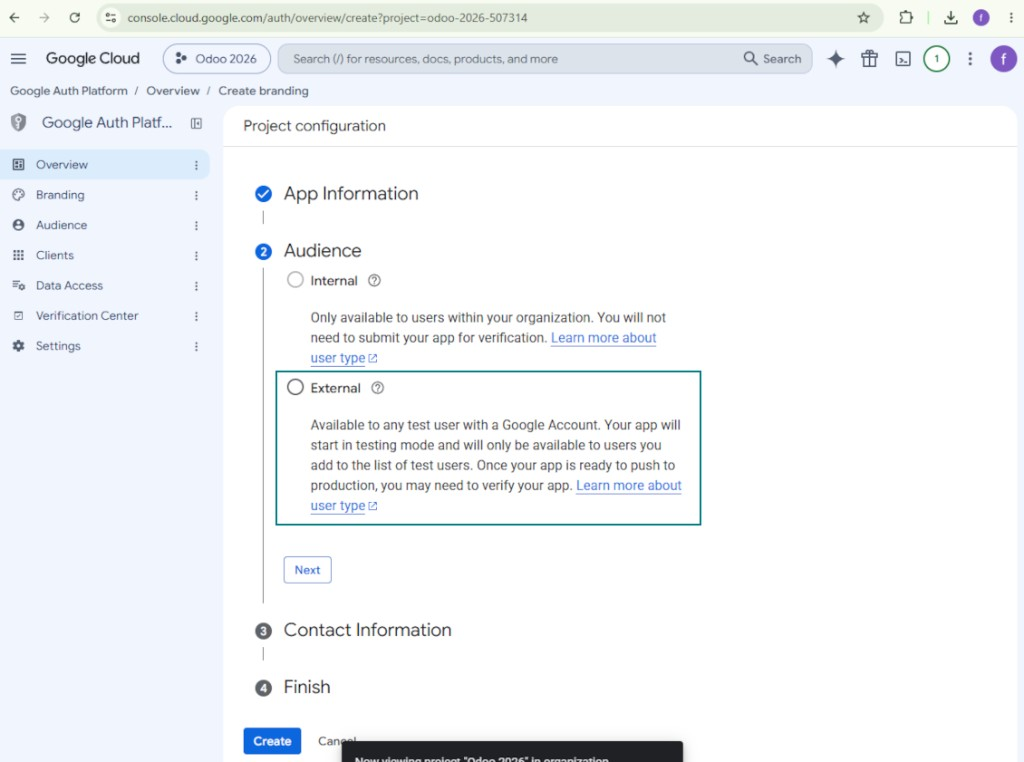
- As the audience select 'External' and press 'Next'. Note: you are anyway going to use this app only for your own Odoo connection
- As the contact information enter your Google or Google Workspace email address and press 'Next'
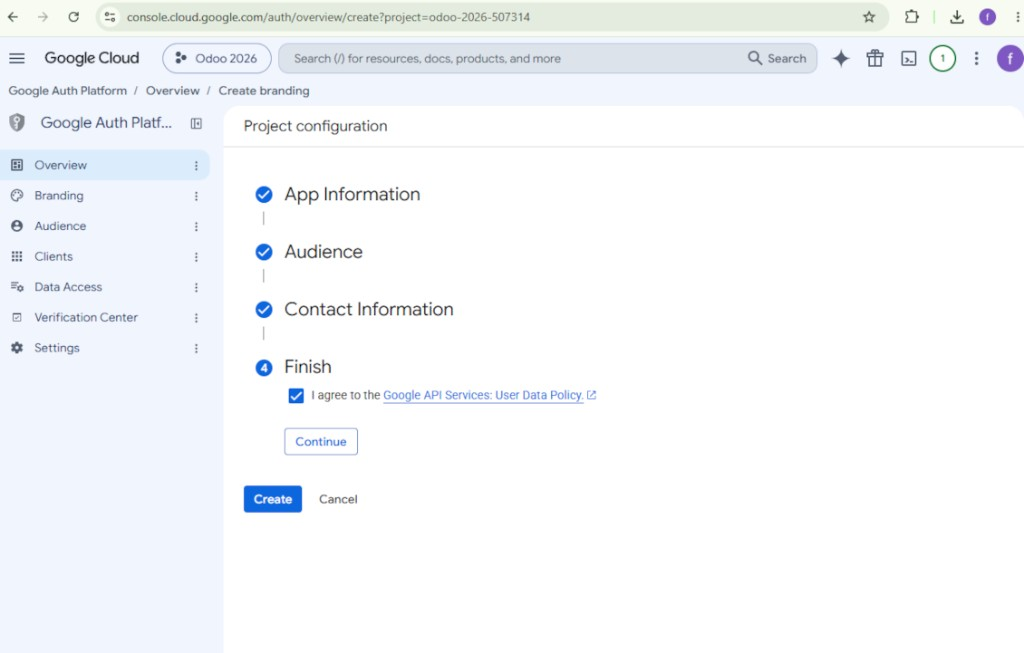
- Agree with the Google API Services User Data Policy, press 'Continue', and then press 'Create'
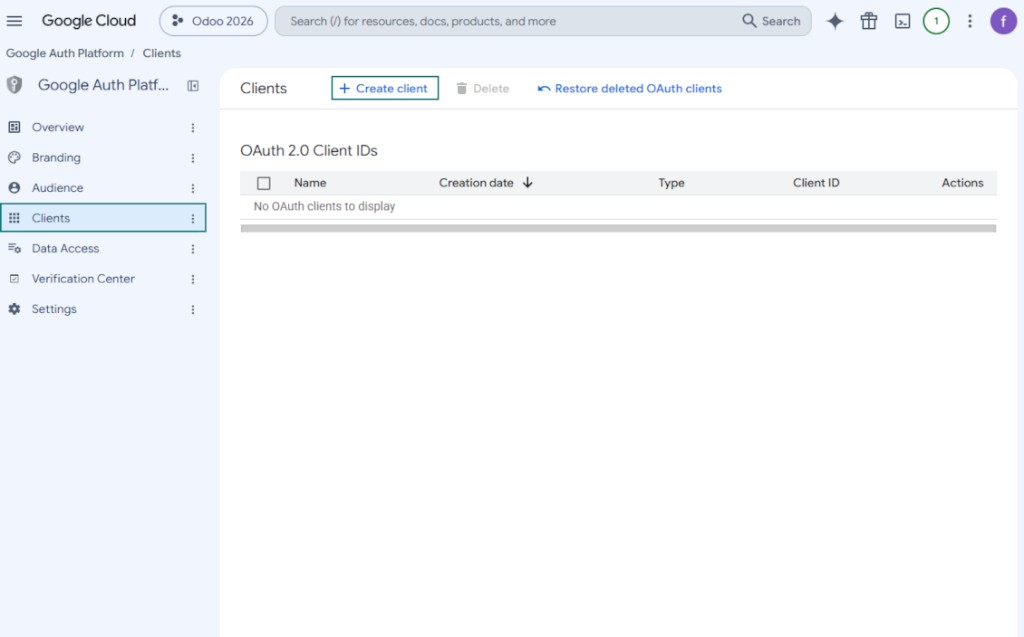
- Go to 'Clients' and press 'Create client'
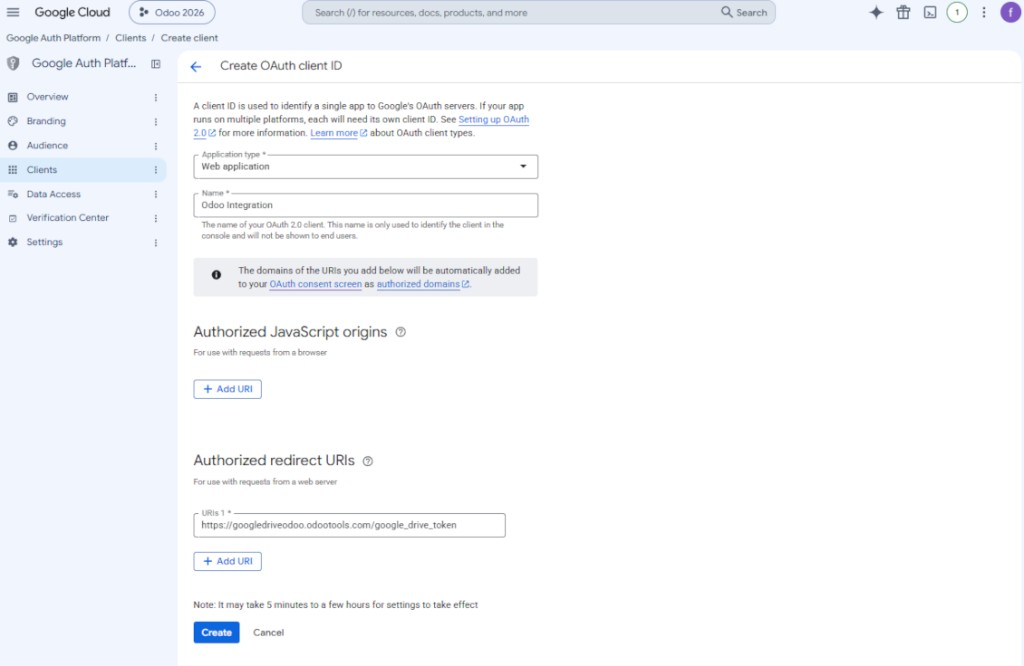
- As the application type select 'Web application'
- As a name select any suitable
- As the authorized redirect URI, add the link in a format [YOURODOOSITENAME]/google_drive_token (e.g. https://odootools.com/google_drive_token).
- Press 'Create'
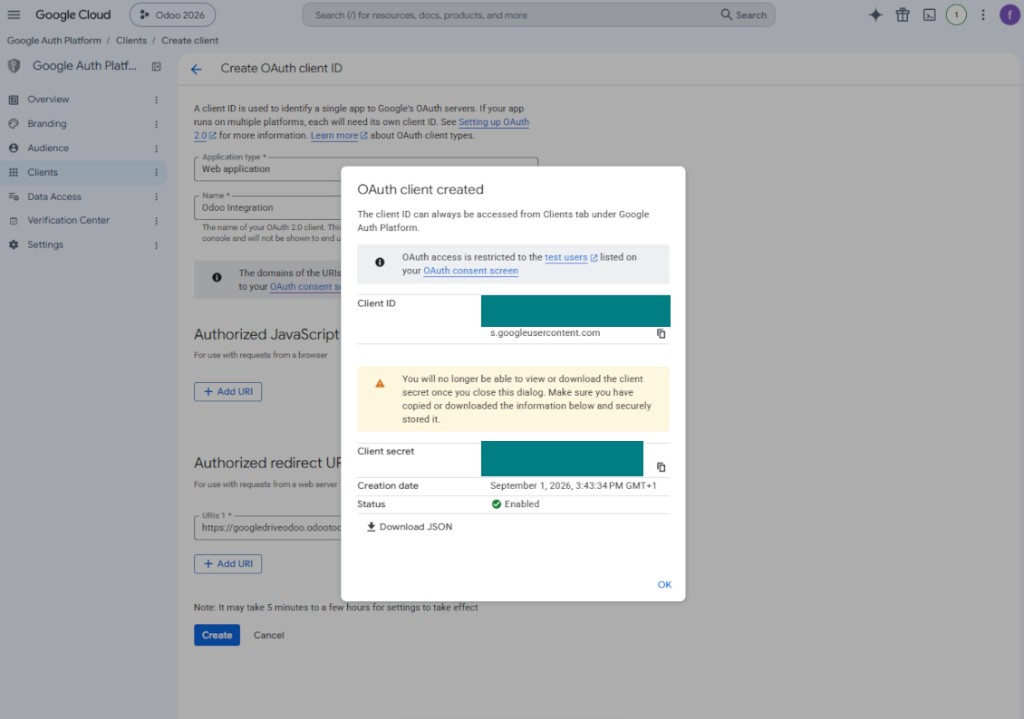
- Copy and safely store 'Client ID' and 'Client secret'. The client secret is shown only once
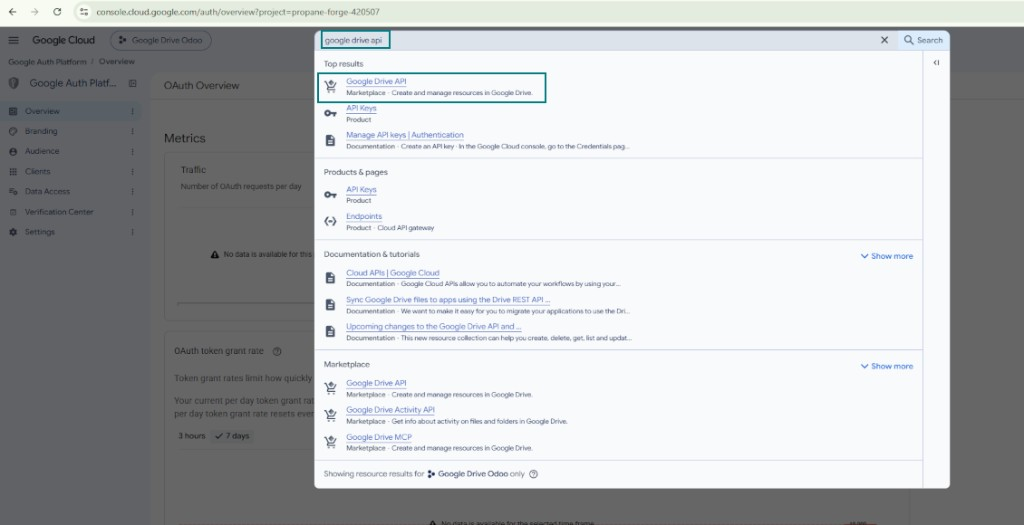
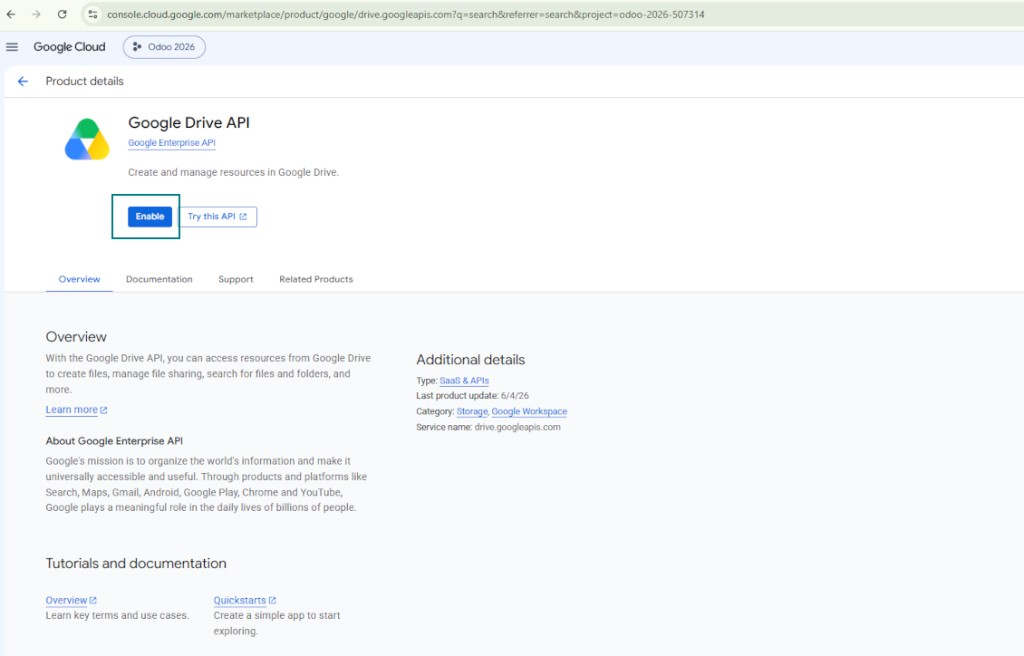
- Enable the Google Drive API for this project: type 'Google Drive API' in the top search box, open the found product, and press 'Enable'
- Go to 'Audience' and add your email address as a test user
- Publish the app. Otherwise, the app stays in the testing state and its token expires every 7 days
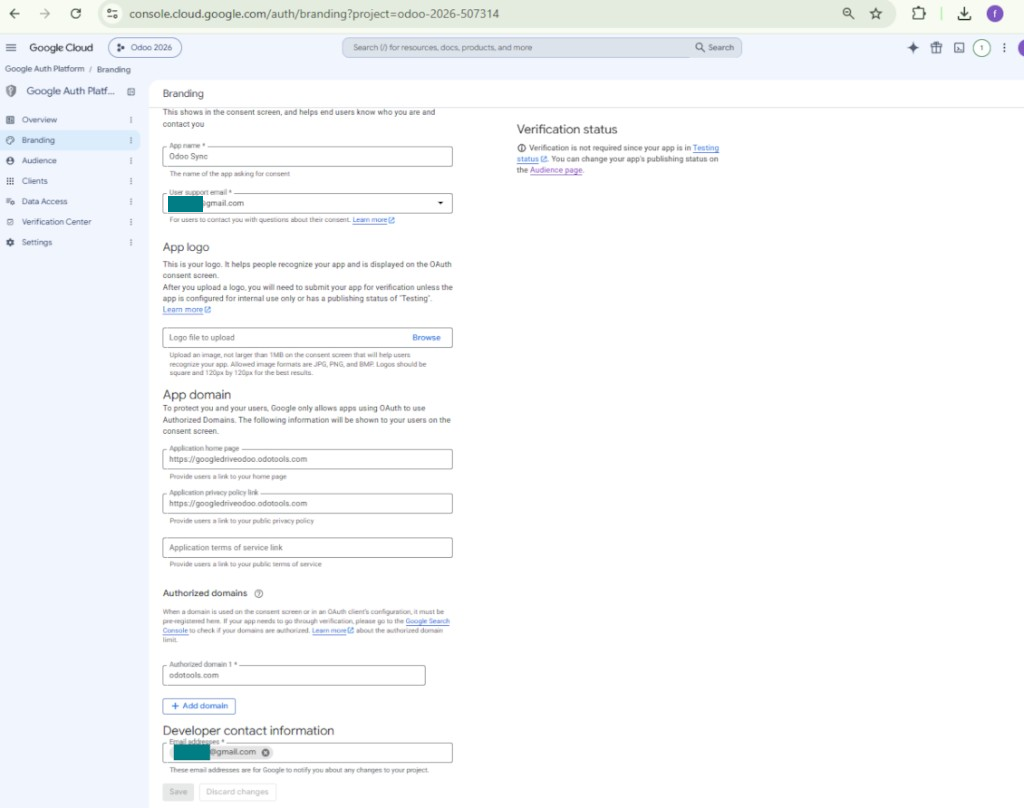
- Open 'Branding' and fill in the application home page and the application privacy policy link (for example, the links to your Odoo website). Add the domains of those links as the authorized domains
- Open 'Audience' and press 'Publish app'
- Do not upload an app logo. This would invoke a long and complex Google verification process that is of no actual need to you
- Go to the Odoo Google Drive Settings
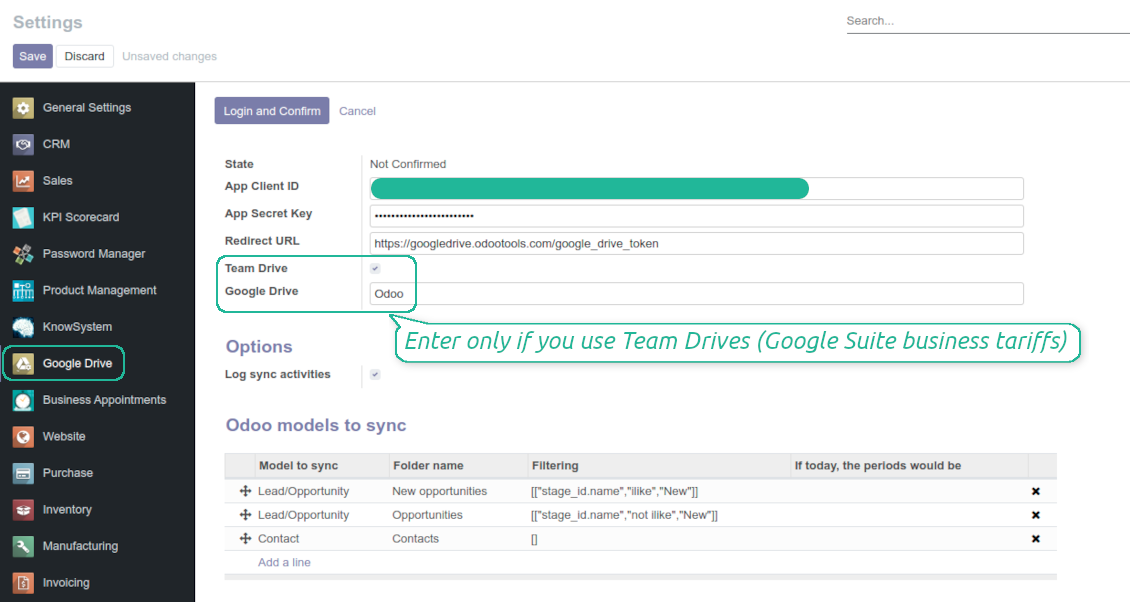
- Copy 'Client ID' from step 8 into the field 'App Client ID'
- Copy 'Client secret' from step 8 into the field 'App Secret Key'
- Insert the redirect URL you entered in step 8
- If you use team drives, check the related box. Make sure you really use team drives. In you Google Drive you should find the item 'Team Drives' in the left sidebar. This feature is available only for business and enterprise tariffs
- If the option 'Team Drive' is enabled, introduce its name. It should be absolutely the same as you see it in your Google Drive. Make sure that your user has full rights for this team drive
- Press 'Save'
- Press 'Login and Confirm'. Odoo redirects you to Google login page. Check in, agree with all conditions, and grant permissions asked
- After login, Google redirects you back to Odoo. Google Drive - Odoo synchronization is ready to be done.
Open the Google Auth Platform
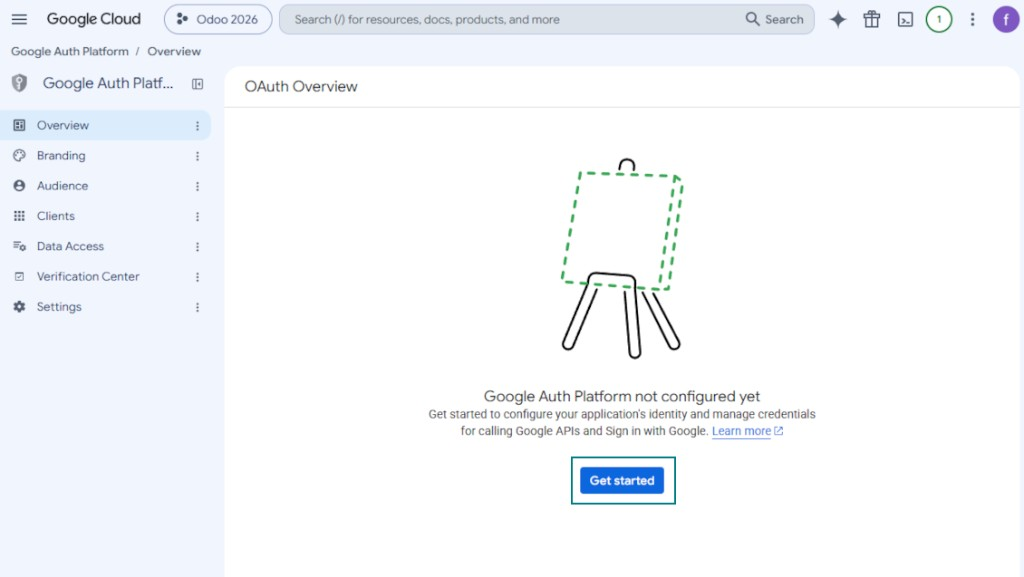
Add app information
Select the external audience
Add contact information
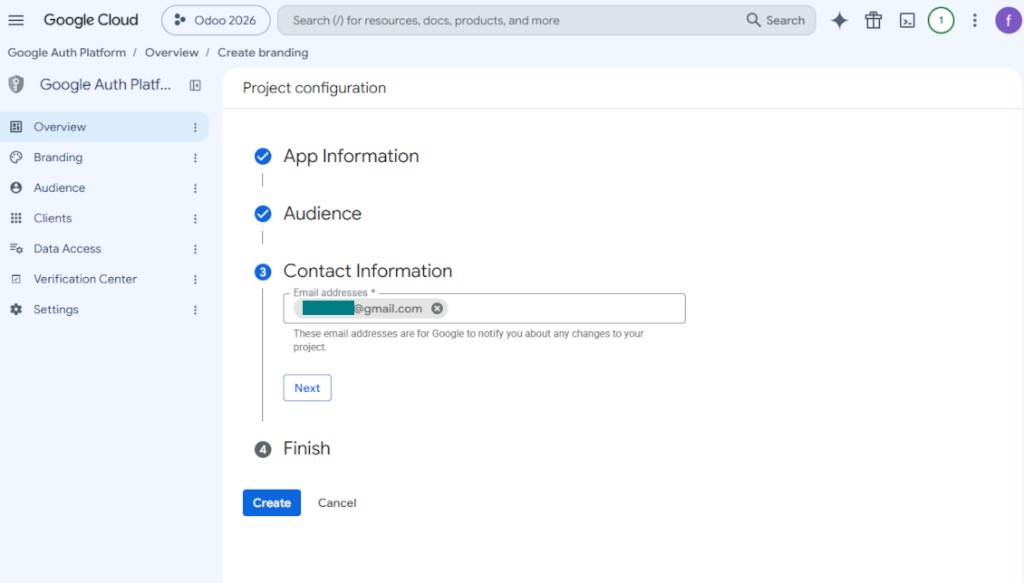
Agree with the policies and create the app
Create an OAuth client
Configure the web application client
Copy the client ID and client secret
Find the Google Drive API
Enable the Google Drive API
Fill in branding to publish the app
Add test users and publish the app
Enter Google app credentials to Odoo
Odoo server configuration and cron job configuration
To make sure the synchronization works correctly apply proper timeouts to the Odoo configuration file: LIMIT_TIME_CPU, LIMIT_TIME_REAL should be more than 900 seconds.
For Odoo.sh this should not be done, since timeouts are predefined and are not configurable.
Then, timeout should be entered to your Odoo. To that goal find the section 'Settings' on the app configuration page and copy the number there.
Afterwards, it is needed to make the cron jobs suit the applied timeouts. In the debug mode go to the Settings > Technical > Automation > Scheduled Jobs:
- Set up the job 'Synchronize attachments with cloud' as (a) frequency - 2*timeout; (b) the next execution as the next hour +timeout. For example, for 900seconds timeout: frequency - as 30minutes; the next execution - at 08:15
- Set up the job 'Synchronize attachments from cloud' as (a) frequency - 2*timeout; (b) the next execution as the next hour + timeout*2. For example, for 900seconds timeout: frequency - as 30minutes; the next execution- at 08:30.
Pogosta vprašanja o Google Drive Odoo Integration Odoo v.11
Ali se ustvarjene mape Google Drive samodejno delijo med uporabniki Odoo?
Aplikacija sama ne ureja pravic dostopa na strani Google Drive. To je treba storiti tam ročno. Odoo ustvari ciljne mape v Google Drive, ki privzeto niso v skupni rabi, dovoljenja pa lahko spremenite za katero koli mapo. Na primer polne pravice za imenik 'Odoo' ali za določen 'Odoo > Sale Orders' ali 'Odoo > Sale Orders > SO-001'.
Aplikacija deluje po načelu ene uporabniške končne točke. Vse sinhronizacije potekajo pod istim uporabnikom Google Drive (glede na konfigurirano aplikacijo Google API).
Izbrisal sem datoteko v Google Drive, vendar je še v Odoo
Če želite datoteko popolnoma izbrisati, izpraznite tudi koš v Google Drive.
Datoteka je lahko še v Odoo, ker povratna sinhronizacija priloge še ni obdelala. To je načrtovan proces, potreben je čas.
Ali me bo Google zaračunal glede na zahtevo API?
Modul uporablja samo brezplačni API, zato vas Google ne bo zaračunal.
Ali lahko spremenim pogostost sinhronizacijskih opravil?
Da, lahko. V ta namen:
Vklopite način za odpravljanje napak
Pojdite v tehnične nastavitve > Avtomatizacija > Načrtovana opravila
Poiščite opravila 'Synchronize attachments with cloud' in 'Update attachments from cloud'.
Ne nastavljajte jih preveč pogosto. Zaželeno je, da se opravilo konča, preden se začne naslednje. Nastavitev je odvisna od tega, koliko elementov morate sinhronizirati. Pogostost je običajno med 15 minutami in 4 urami.
Prepričajte se tudi, da ste v konfiguracijski datoteki Odoo nastavili dovolj dolge časovne omejitve. Parametra LIMIT_TIME_CPU in LIMIT_TIME_REAL morata biti enaka ali večja od načrtovanega časa cron opravila. Od različice 13 upoštevajte tudi parameter LIMIT_TIME_REAL_CRON.
Pomembno obvestilo za stranke Odoo.sh: najdaljši čas cron opravila je lahko le 15 minut.
Ali lahko nastavim drugačno strukturo sinhroniziranih imenikov, kot jo predvideva sinhronizacija?
Ne, ta funkcija je na voljo šele od različice 15. Pred to različico modul deluje z vnaprej določeno strukturo map:
Odoo - osrednja mapa za sinhronizacijo
Models - mape za vsak tip dokumenta Odoo. Na primer 'Projects', 'Partners'. Po domeni so lahko bolj specifične mape: npr. 'Customer 1 Projects', 'Projects of the Customer 2', 'Internal Projects' itd.
Objects - mape za vsak dokument, npr. 'Project 1' ali 'Customer 1'
Datoteke in mape, povezane s tem dokumentom Odoo, ki se sinhronizirajo.
Kot rezultat lahko imate na primer:
Odoo / Projects / Project 1 / datoteke in mape, povezane s project 1
Odoo / Customer 1 Projects / Project 1; Odoo / Customer 2 Projects / Project 3, ...
Odoo / Customers / Customer 1 / datoteke in mape, povezane s customer 1
Ta struktura je vedno ploščata, kar pomeni, da obstajajo samo te ravni hierarhije. Zato drži, da različnih tipov dokumentov ni mogoče imeti v isti strukturi. V mapi 'Customer 1' ne moremo hraniti datotek, povezanih hkrati s prodajnimi naročili, računi in projekti. Vsak od teh tipov dokumentov ima lastno mapo (ali nekaj lastnih). Sicer povratne sinhronizacije ne bi mogli narediti, ker ne bi bilo merila, na katero bi se oprli.
Ali naj v Odoo nastavim dostope določenih uporabnikov?
Ne, orodje temelji na eni uporabniški končni točki. Vsi sinhronizacijski procesi potekajo pod enim skrbnikom oblaka (aplikacijo). Pravice dostopa za ustvarjene mape / datoteke niso avtomatizirane. Te pravice morate upravljati v svoji rešitvi za shranjevanje v oblaku.
Kje so shranjena sinhronizirana polja? Ali so podvojena v Odoo in clouds?
Aplikacija predvideva, da je binarna vsebina priponk shranjena v Cloud Client namesto na strežniku Odoo. Take priponke v Odoo postanejo vrste URL in do njih lahko kadar koli dostopate iz polja priponk ali iz Cloud Client.
Po nastavitvi ročna dejanja niso potrebna, saj je sinhronizacija povsem samodejna. Odločite se, kateri tipi dokumentov Odoo naj se sinhronizirajo, in za vsakega nastavite povezan model (stranke, prodajni ali nabavni nalogi, opravila, projekti itd.).
Ali lahko imam več map za isti tip dokumenta? Na primer notranji projekti in projekti strank?
Da, lahko. V ta namen pripravite pravilo za vsakega in nato uporabite filtre: na primer po tipu projekta.
Filtre naredite medsebojno izključujoče, da se dokument lahko nedvoumno dodeli. Na primer „stranka, vendar ne dobavitelj“, „dobavitelj, vendar ne stranka“. Sicer mapa določenega dokumenta skače z enega modela na drugega.
Ali potrebujem samo aplikacijo Cloud Storage Solution?
Ne, orodje je le tehnično jedro. Potrebujete tudi konektor za svoj cloud client.
Je v redu, če imam veliko objektov za sinhronizacijo, na primer 10000?
Da, čeprav je pri mnogih mapah/priponkah za sinhronizacijo postopek lahko počasen. Hkrati so stranke poročale o okoljih z >10k partnerji in ~5k različicami izdelkov za sinhronizacijo, postopki pa so bili sprejemljivi.
Nekaj poudarkov:
- Sinhronizacija je zasnovana tako, da se vsak element sinhronizira in ne izgubi, čeprav morda ni hitra. To zagotavljajo vrste FIFO in vsako potrjeno opravilo.
- Število objektov je mogoče logično omejiti. Konfiguracija modelov omogoča omejitev sinhronizacije zastarelih elementov (npr. ni smiselno sinhronizirati arhiviranih partnerjev ali nalogov, starih 2 leti).
Ali je mogoča sinhronizacija v realnem času?
Ne. Imamo tehtne razloge, da se izognemo sinhronizaciji v realnem času:
Težave z zmogljivostjo. Če je sinhronizacija v realnem času, vsak prenos datoteke prikaže zaslon nalaganja.
Težave s konflikti. Če 2 uporabnika hkrati spremenita element, lahko nastanejo nerešene situacije. Pri rednih opravilih to lahko popravimo pozneje; v realnem času bi to morali shraniti kot vrsto, kar bi uporabnike še bolj zmedlo.
Težave s funkcionalnostjo. Zlasti preimenovanje in prestrukturiranje elementov. Pri povratni sinhronizaciji se orodje strogo opira na logiko imenikov in pri vsaki sinhronizaciji preveri 100 % elementov. Če bi to potekalo po vsaki posodobitvi, bi bilo tisoče zahtev na sekundo. Če ne: spremembe bi se izgubile.
Ali lahko sinhroniziram priloge z nekaj oblačnimi odjemalci
Ne, ta funkcija je na voljo šele od različice 15.
V naših oblakih uporabljamo poseben urejevalnik (npr. OnlyOffice, Office 365 itd.). Bi se datoteke odprle v tem urejevalniku?
Da, odvisno od konfiguracije cloud client.
Kakšne so politike posodobitev vaših orodij?
Glede na veljavna pravila Odoo Apps Store:
- Vsak modul, kupljen za različico 12.0 in starejše, omogoča dostop do vseh različic do 12.0.
- Od različice 13.0 je treba vsako različico modula kupiti posebej.
- Ne glede na različico nakup daje pravico do vseh posodobitev in popravkov znotraj glavne različice.
Upoštevajte, da ekipa faOtools teh pravil ne nadzoruje. Za vprašanja se obrnite neposredno na predstavnike Odoo Apps Store.
Kako namestim vašo aplikacijo na Odoo.sh?
Najbolj neposreden pristop je uporaba vgrajenega poteka dela trgovine Odoo:
1. Odprite stran modula in kliknite gumb Deploy on odoo.sh
2. Nato boste preusmerjeni na stran GitHub. Prijavite se v račun, nato kliknite 'Create a new repo' ali uporabite obstoječega. Poskrbite, da je skladišče zasebno. Objavljanje aplikacij pod licenco OPL-1 ni dovoljeno. Po potrebi ustvarite nov repo za projekt Odoo.sh
3. Nato pojdite na odoo.sh in kliknite gumb Deploy. V pojavnem oknu potrdite odločitev in kliknite 'Continue.' To sproži namestitev.
Ti koraki namestijo aplikacijo na produkcijsko vejo projekta. Če želite aplikacije namestiti na druge veje ali posodobiti modul, opravite naslednje:
1. Naložite izvorno kodo aplikacije iz trgovine Odoo
2. Naredite commit modula v zahtevano skladišče GitHub. Poskrbite, da ni nobena mapa/datoteka aplikacije prezrta (tj. ni v .gitignore skladišča). Skladišča samodejno ustvari odoo.sh in lahko privzeto vsebujejo ključne elemente (npr. /lib). Naložite vse imenike, podimenike in datoteke modula brez izjem
3. Namestite ciljno vejo projekta odoo.sh ali, če to predvidevajo nastavitve, počakajte, da se samodejno izgradi.
Kako namestim vašo aplikacijo na lastnem strežniku?
2. Znova zaženite strežnik Odoo;
3. Vklopite način za razvijalce (tehnične nastavitve);
4. Posodobite seznam aplikacij (meni aplikacij);
5. Poiščite aplikacijo in pritisnite „Activate“/„Install“;
6. Sledite smernicam na strani aplikacije, če obstajajo.
Opazil sem, da ima vaša aplikacija dodatne dodatke. Jih smem kupiti pozneje?
Da, seveda. Hkrati Odoo samodejno doda vse odvisnosti v košarico, zato morate predhodno kupljena orodja izključiti, da se izognete dvojnemu plačilu.
Namestil sem vašo aplikacijo na Odoo.sh in v testih vidim opozorilo/napako
Rdeče/oranžno opozorilo ne vpliva na funkcije aplikacije. Žal naši moduli včasih ne opravijo standardnih samodejnih testov, ker ti predvidevajo vedenje, ki je v nasprotju s cilji aplikacije. Na primer spreminjamo izračun cene, medtem ko testi standardnega modula Odoo primerjajo končno ceno s standardnim algoritmom.
Najprej preverite funkcije nameščene zbirke. Ali vse deluje pravilno?
Če še vedno menite, da opozorilo vpliva na resnične funkcije, nas kontaktirajte in pošljite popolne dnevnike namestitve ter popoln seznam nameščenih modulov (vključno z jedrom in tretjimi).
Ali lahko kupim aplikacijo neposredno pri vašem podjetju?
Ne, orodja razširjamo samo prek uradne trgovine aplikacij Odoo.
Rad bi dobil popust
Žal nimamo tehničnih sredstev za individualne cene.
Ali lahko namestim aplikacijo v svojo zbirko Odoo Online (SaaS)?
Ne, aplikacij tretjih oseb ni mogoče uporabljati na Odoo Online. Žal Odoo SaaS to preprečuje.
Vaše orodje je odvisno od drugih aplikacij. Ali jih moram kupiti?
Da, orodje potrebuje vse module, označene v odvisnostih, da deluje pravilno. Cena na strani aplikacije že vključuje vse potrebne odvisnosti.
Kakšna je cena modula v ameriških dolarjih? Zakaj se je spremenila?
Cena naših modulov je v evrih. Trgovina Odoo pretvarja cene v druge valute po notranjem tečaju. Zato se lahko cena v ameriških dolarjih spremeni, ko se tečaj posodobi.
Besedila aplikacije in spletnega mesta v jezikih, ki niso angleščina, so pripravljena z UI in usklajena z uradnimi prevodi Odoo. Če opazite napako, pošljite zahtevek o pravilnosti prevodov in jo bomo popravili.
Prijavljanje napak
Če naletite na napake ali nedosledno vedenje, nas ne oklevajte kontaktirati. Zagotavljamo popravke v 60 dneh od nakupa in tudi po tem obdobju želimo izboljševati orodja.
Za stik ne potrebujete telefonske številke niti kreditne kartice. Potrebna je le kratka prijava z e-pošto, ki ne traja več kot 30 sekund.
V zahtevo vključite čim več podrobnosti: posnetke zaslona, dnevnike strežnika Odoo, celoten opis ponovitve težave in podobno. Običajno traja nekaj delovnih dni, da pripravimo delovni načrt (če je napaka potrjena) ali smernice, kaj storiti (sicer).
Javne zahteve za funkcije in ideje modulov (brezplačen razvoj)
Močno nas žene izboljševanje orodij in hvaležni smo za vsako povratno informacijo. Če so vaše zahteve v splošno korist in jih je mogoče učinkovito uresničiti, jih bo ekipa vključila na naš seznam opravil.
Tak seznam opravil obdelujemo redno in ne predvideva dodatnih stroškov. Čeprav ne moremo obljubiti rokov in končne zasnove, je to lahko dober način, da dobite želene funkcije brez naložb in tveganj.
Za stik ne potrebujete telefonske številke niti kreditne kartice. Potrebna je le kratka prijava z e-pošto, ki ne traja več kot 30 sekund.

Orodje za varno shranjevanje gesel v Odoo za skupno rabo. Deljeni trezorji

Orodje za izgradnjo globoke in strukturirane baze znanja za notranjo in zunanjo rabo. Knowledge System. KMS. Revizije v slogu wikija.
398€
Orodje za nastavitev ciljev KPI in nadzor izpolnitve po obdobjih. Nadzorne plošče KPI. Oblikovalec plošč. Grafikoni KPI

Orodje za časovno upravljanje storitev od rezervacije terminov do prodaje in ocen
398€
Orodje za upravljanje Odoo iz priljubljenih AI klepetov prek MCP. Claude. Kateri koli AI s podporo MCP.

Orodje za prilagodljivo razvrščanje prilog Odoo v mape in sinhronizacijo imenikov z oblačnimi odjemalci: Google Drive, OneDrive/SharePoint, Nextcloud/ownCloud, Dropbox, Amazon S3, Box in NAS. DMS. Upravitelj datotek. Sistem za upravljanje dokumentov
398€
Orodje za samodejno dvosmerno sinhronizacijo prilog Odoo z datotekami OneDrive
487€
Orodje za samodejno dvosmerno sinhronizacijo prilog Odoo z datotekami ownCloud/Nextcloud
487€
Orodje za samodejno dvosmerno sinhronizacijo prilog Odoo z rešitvami NAS. Synology, QNAP, TrueNAS in vsak drug NAS, ki podpira WebDav
487€