KPI Balanced Scorecard v.13
The tool to set up KPI targets and control their fulfillment by periods
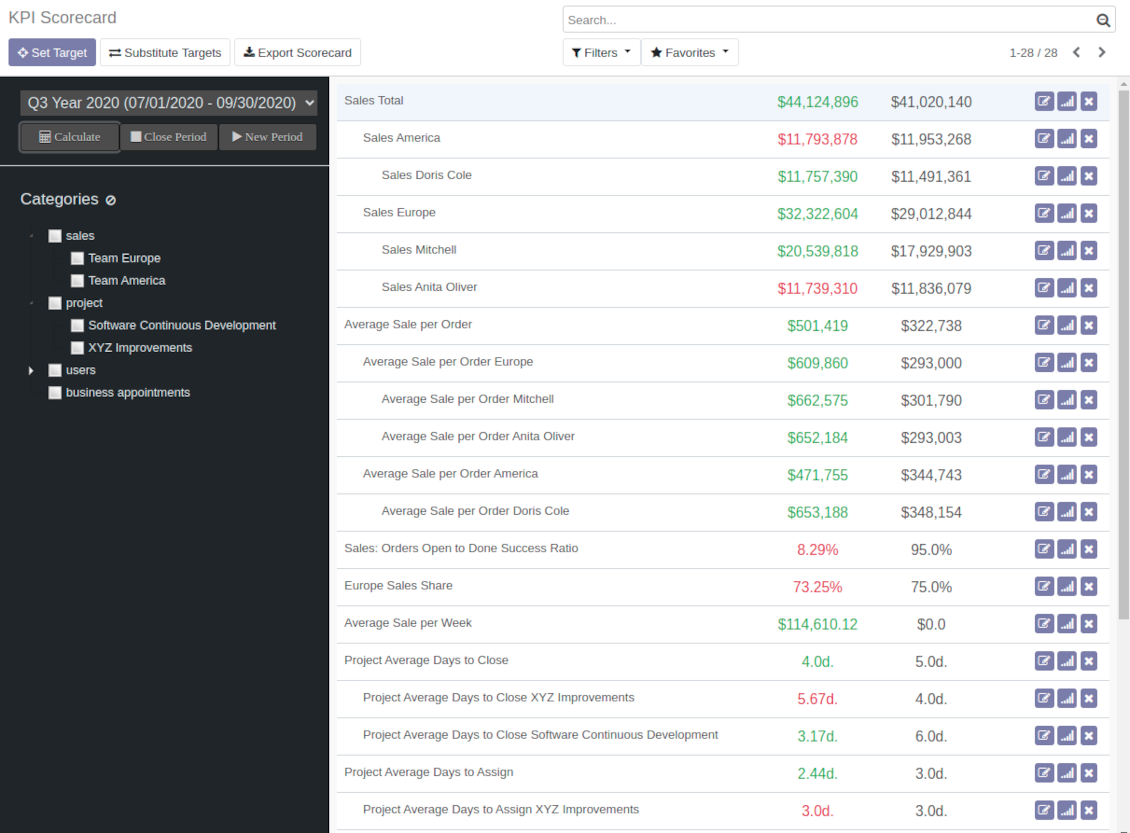
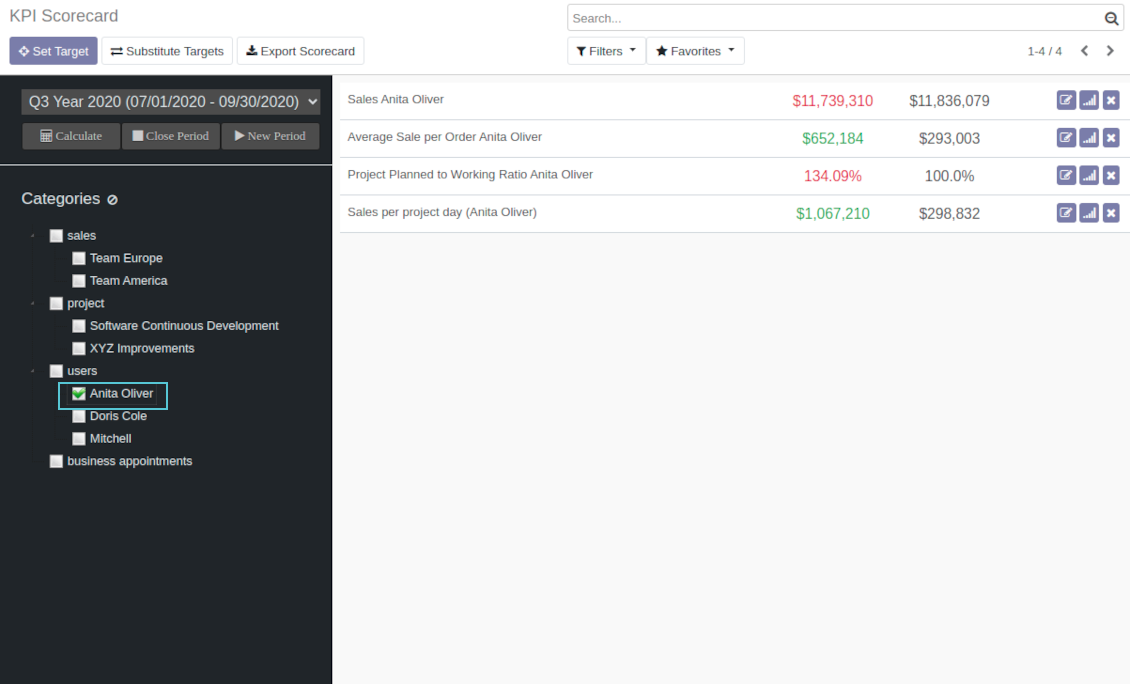
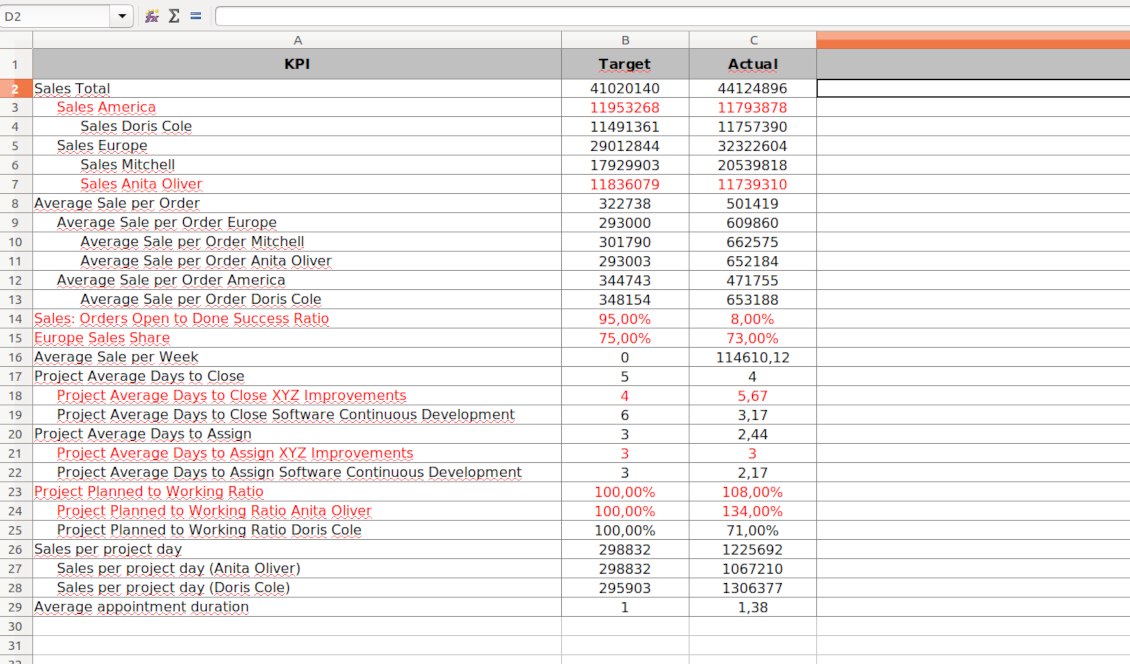

Balanced Scorecard Interface
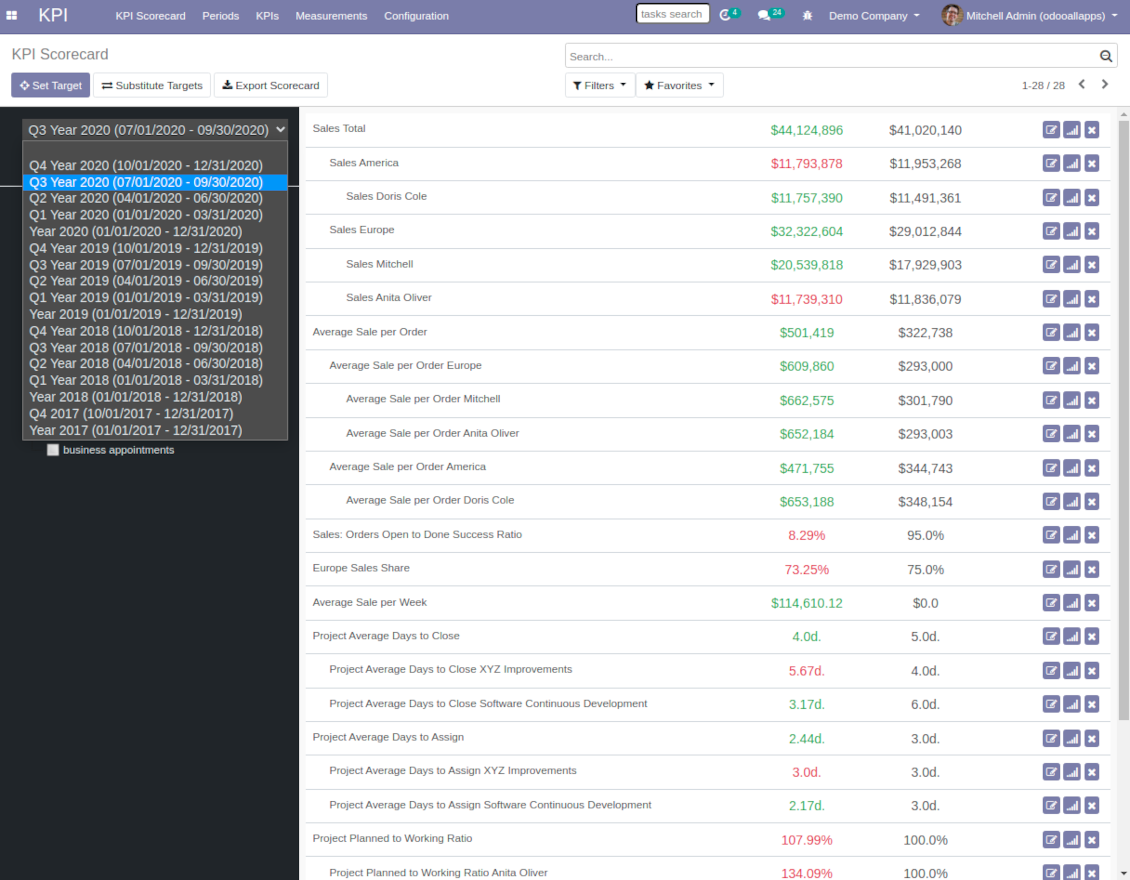
The whole list of KPI targets for a period is available from a single interface. Right from here you can set up new targets and edit existing ones, observe actual and target values, evaluate success by indicative red / green color, observe historical trends, open and close periods. It is also possible to export a whole scorecard to an Excel table.
To make navigation over targets comfortable, KPIs are structured by categories. It let quickly consider only those KPIs which are of interest at the moment. For example, to observe only sales targets or targets of a specific Odoo user. Another important peculiarity is that KPIs might have parent-children relations. For instance, 'Total company sales' > 'Sales America' > 'John Brown Sales'. Such hierarchy allows to highlight targets with indicative padding for instant overview of sub-KPIs.
It is only up to you which KPIs to add and which approach to apply for KPIs' sectioning and hierarchy.
스크린샷
KPI Balanced Scorecard
KPI targets by categories
Export Odoo KPI scorecard to Excel
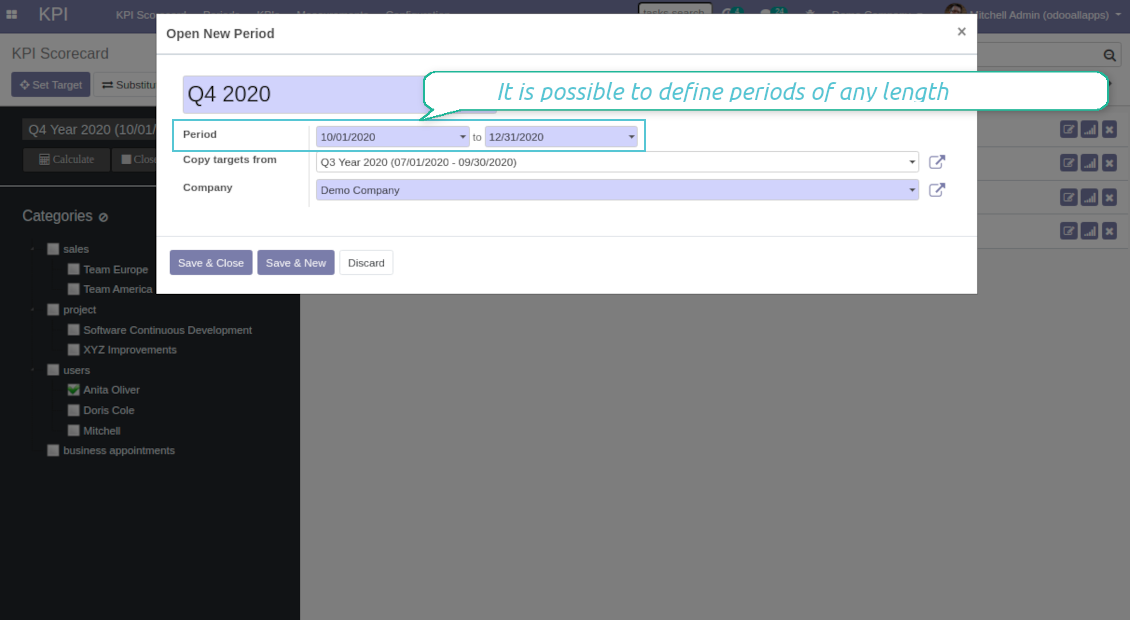
Open new KPI period to set KPI targets up
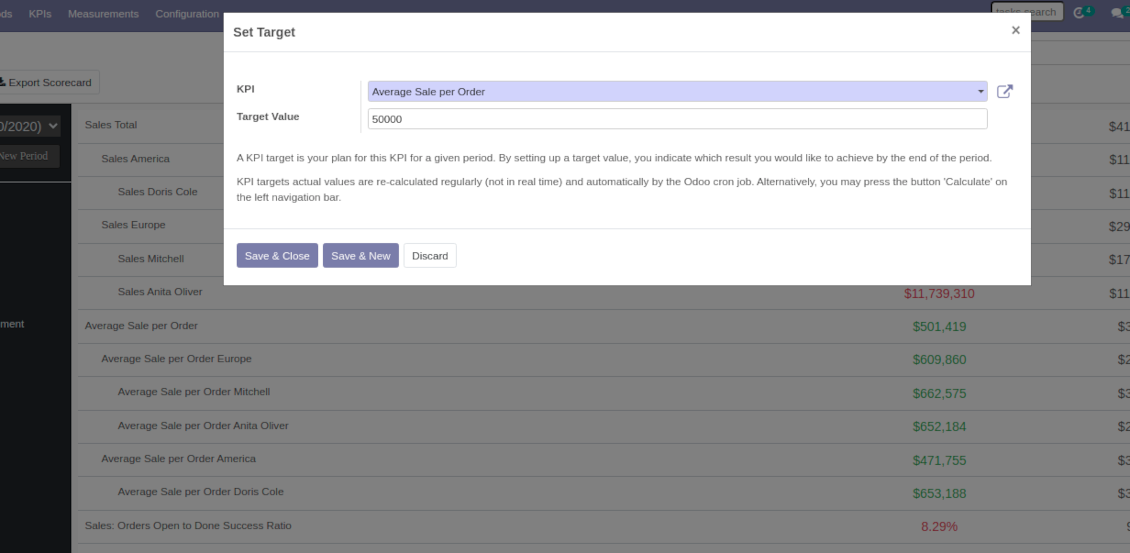
Set a new Odoo KPI target
KPIs targets by periods
KPI scorecard is not just a dashboard, but it is a full-featured tool to set and control company and individual targets. Targets should be measurable and time-constrained. 'Sell as much as possible' is not a goal, while 'Generate 100,000 Euro Revenue in the year 2021' is a good target for a sales person, for example.
That is why, each goal should have a target value and should be defined for a period. In such a way, the app let you have a full picture of results to undertake corrective actions in advance.
Real-time control and historical trends
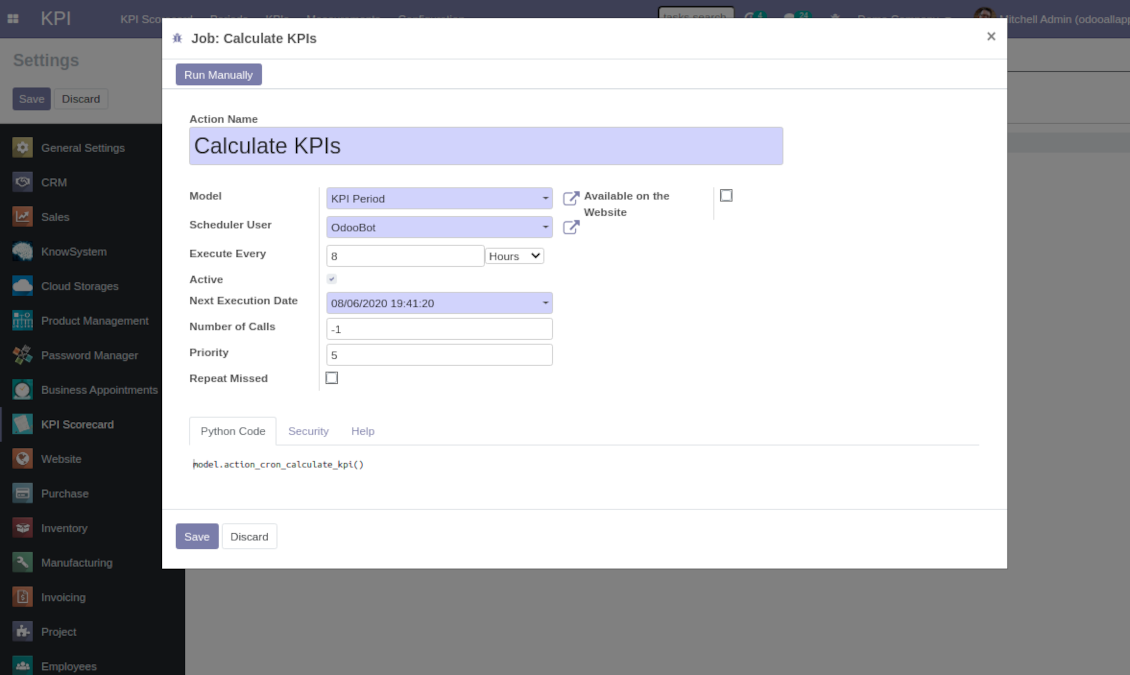
When a user opens scorecard interface, he/she is shown targets of a current period (if it exists). Actual values are re-calculated regularly and automatically by the special Odoo cron job. In such a way, it is possible to understand which KPIs require more attention in real time at a first glance.
Simultaneously, it is always possible to switch to another period to have broader picture (e.g. from monthly to yearly KPIs) or to observe the Past / the Future targets (e.g. to plan efforts efficiently).
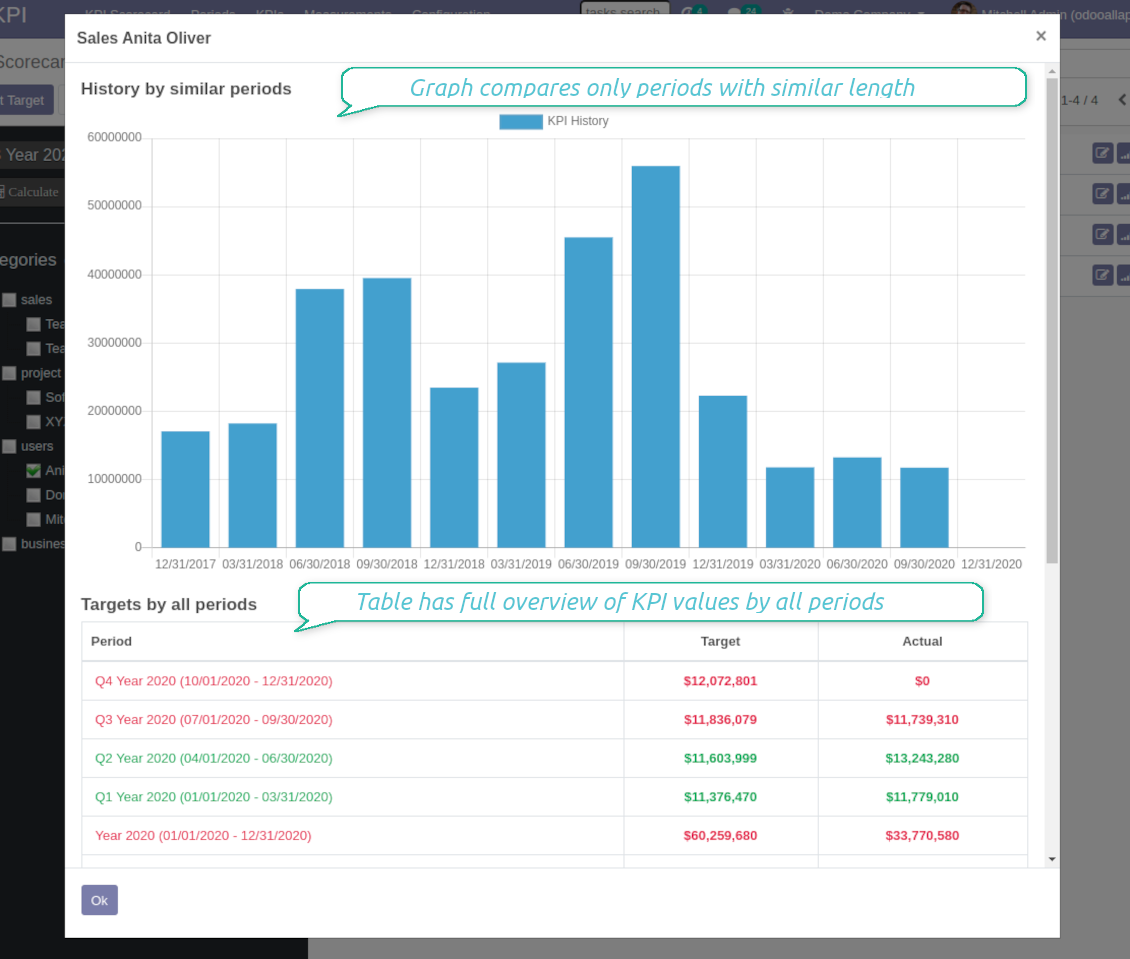
Besides, each KPI target has a special button to observe history by all periods. The latter might be useful to understand overall trends.
Copying targets from a period
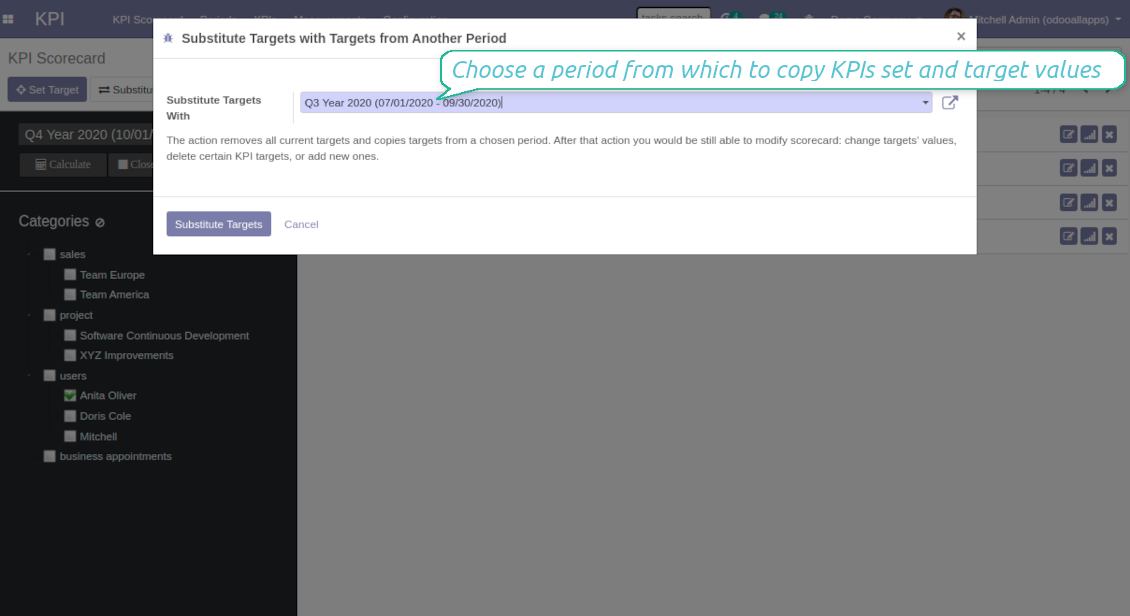
In case you have similar KPIs from a period to period, the tool let you copy targets. To that end use the field 'Copy target from' when you open a new period or the button 'Substitute' for existing ones.
Periods trends, length and tolerance
The app allows to set periods of any length including intervals which cross each other (and even the Past periods!). To open a new KPI period you should just set start and end dates. Those dates will be used to calculate KPI actual value. For example, KPI formula might include a basic KPI measurement for total amount of sale orders, while date field of this measurement is defined as 'Order date'. Then, only sale orders which order date is within the period would be taken into account. Thus, KPI scorecard would show total revenue for a given period.
It is recommended to have more or less strict logic of periods for comparability purposes. Usually, KPI targets are set for a whole year and quarterly/monthly intervals. It let not only have KPI overview, but also check historical trends. The app automatically considers various periods in order to define which might be compared to this one, and will show users a chart of actual values by a specific KPI. It is possible to define tolerance on the configuration page. For example, 2-days tolerance is needed to compare quarterly periods (since quarter might take from 90 to 92 days), and 3-days tolerance for months (unluckily, February may last 28 days).
Why to close periods
KPI periods work in a similar way as accounting / fiscal periods. The idea behind is to make sure that at a certain point KPI actual values are frozen and might be used for a final analysis of a period. It is hardly good to update December KPIs in the next August even though a sale total needs to be corrected, for example.
That is why when a period end date is already in the Past, it is preferable to close that period to avoid further updates of KPI targets actual values. Besides, it would speed up actual values' recalculations.
스크린샷
KPI targets by periods
KPI trends by similar periods and overall history
Substitute targets with KPI targets of another period
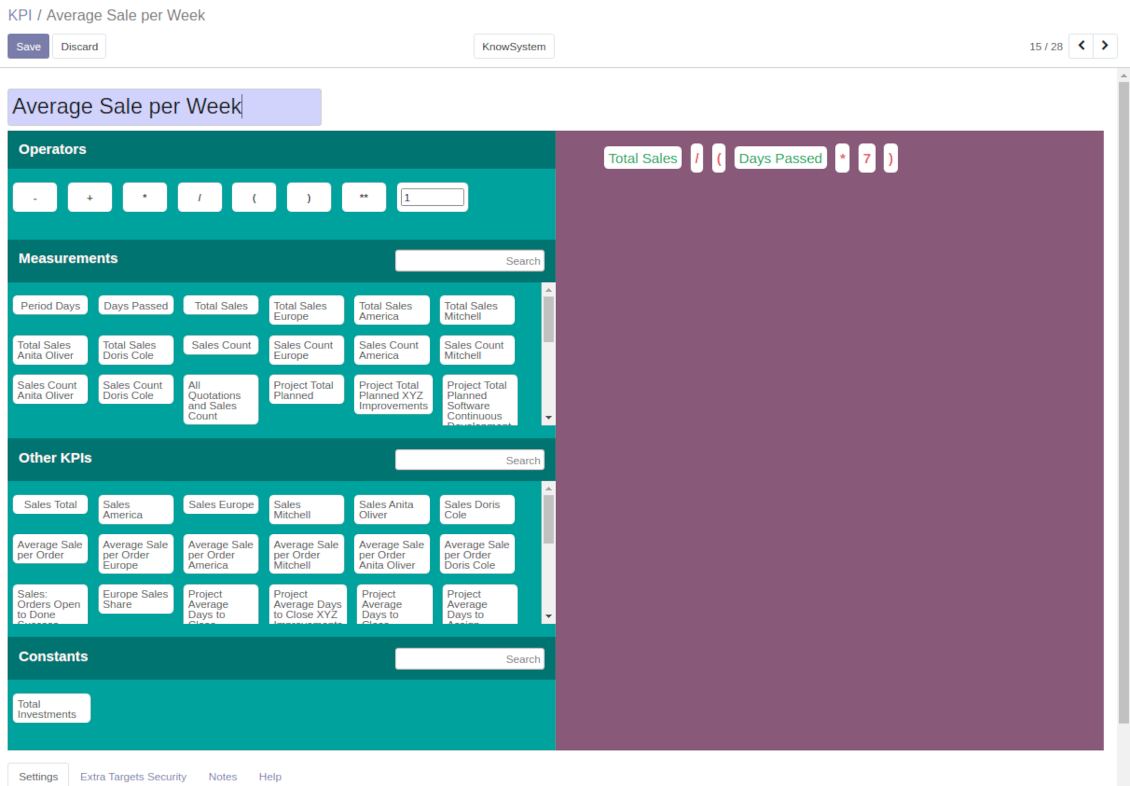
Drag-and-drop formulas for KPI calculations
A KPI (a key performance indicator) is a measurement which aims to evaluate a certain aspect of organizational or personal activities. This tool let you prepare an unlimited number of such measurements and calculations of almost any complexity.
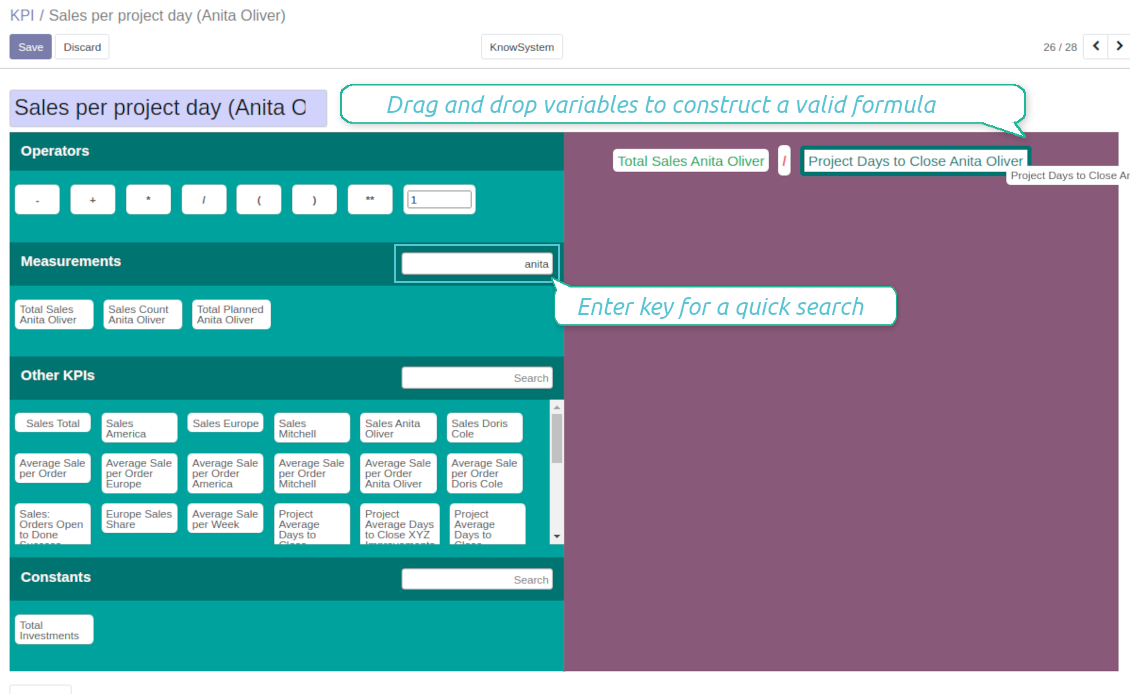
Formula construction is as simple as it is to write down a mathematical expression: just drag and drop formula parts in a right order with correct operators. When Odoo computed actual values for a specific period, it would automatically retrieve data from a database according to parts' logic. As formula parts you can apply:
- KPI variables - rules how to calculate data from Odoo database. For example, 'total number of sales orders' or 'number of quotations of sales team Europe'.
- Other KPIs - to make derivative calculations. For example, you may have KPIs 'Sales count' and 'Opportunities count', and a derivative KPI 'Opportunity to sales success ratio'.
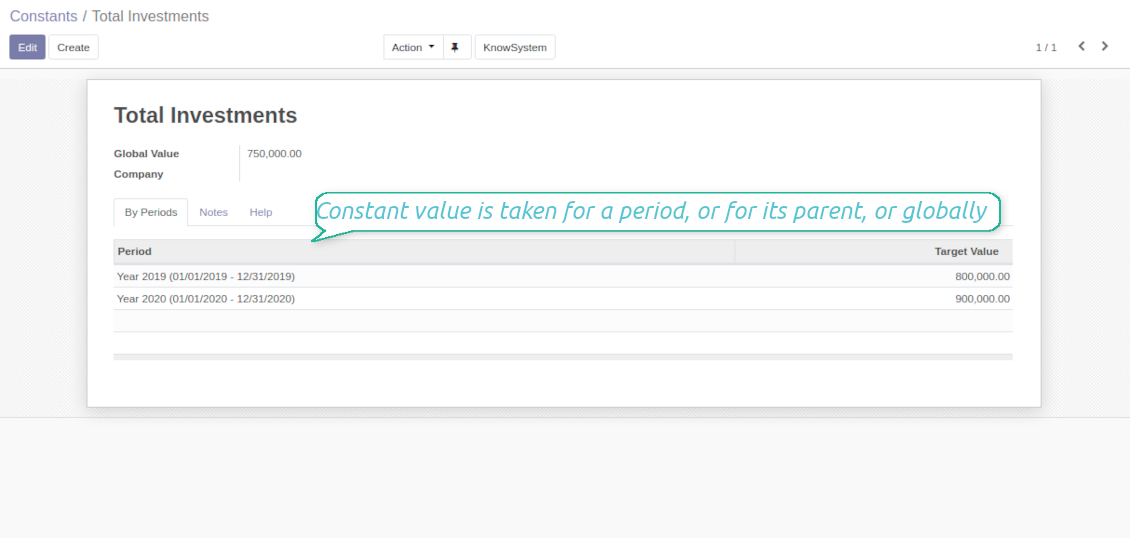
- KPI constants - figures which do not depend on actual Odoo data, but which are frozen globally or for a specific time frame. Constants allow to introduce parts which can not be retrieved from modules and/or which should remain the same during the whole period.
- 2 special variables - 'Period Days' and 'Days Passed'. Those figures are calculated not from Odoo data, but from the KPI period settings under consideration. 'Period Days' is an interval length in days. 'Days Passed' is a length between period start and today (if today is before period end; otherwise period end). Those parameters let calculate per-time KPIs, such as, for example, 'Average sales per week'.
- Mathematical operators - including subtraction, addition, multiplication, division, exponentiation, any float number.
How to configure KPI appearance
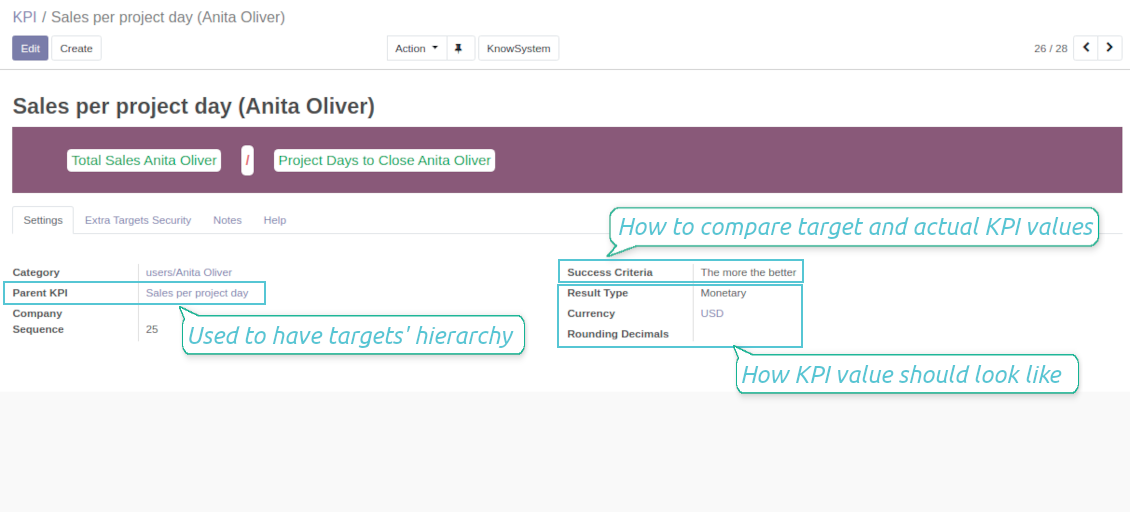
Depending of business logic of KPI formula, the final calculation result might have different form:
- Simple number: for example, 'Average sales count per week'.
- Percentage: for example, 'Sales to opportunities success ratio'.
- Monetary: for example, 'Total Sales per period'. Make sure the measurement field you used is in the same currency (usually company default currency)!
For simple numbers and percentage you may also define result suffix and prefix to make a figure nice looking (e.g. add "%" as suffix to have "88%"). For monetary result type it is recommended to define a currency, which symbol would be added to result.
Finally, you may decide how calculation result should be rounded. Available options are from 0 to 4 decimal points (1 > 1.2 > 1.23 > 1.235 > 1.2346).
스크린샷
KPI formula: overview
Drag and Drop to define KPI calculation formula
KPI formula: settings and apperance
Constants for KPI calculations
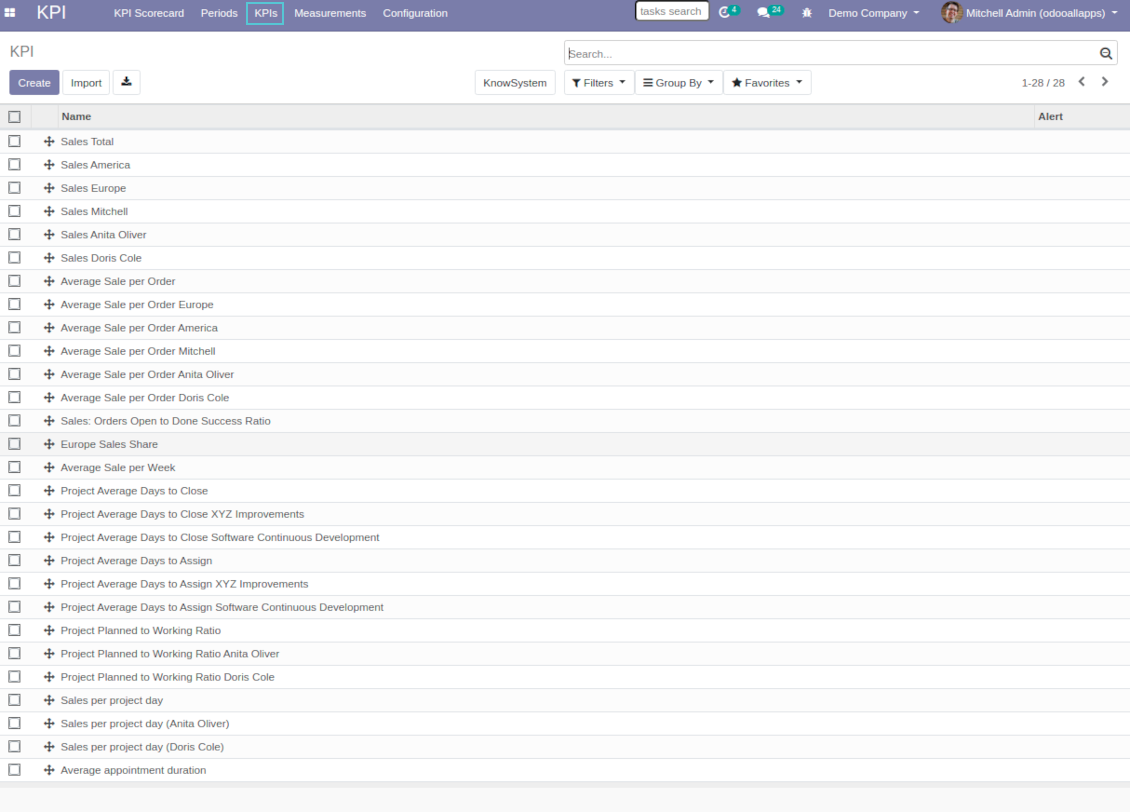
Odoo List of KPIs to set targets
KPI variables and basic measurements to retrieve Odoo data
Preparing basis for KPI calculations is not a simple task. The good news is that such job should be done only once, while results are used forever.
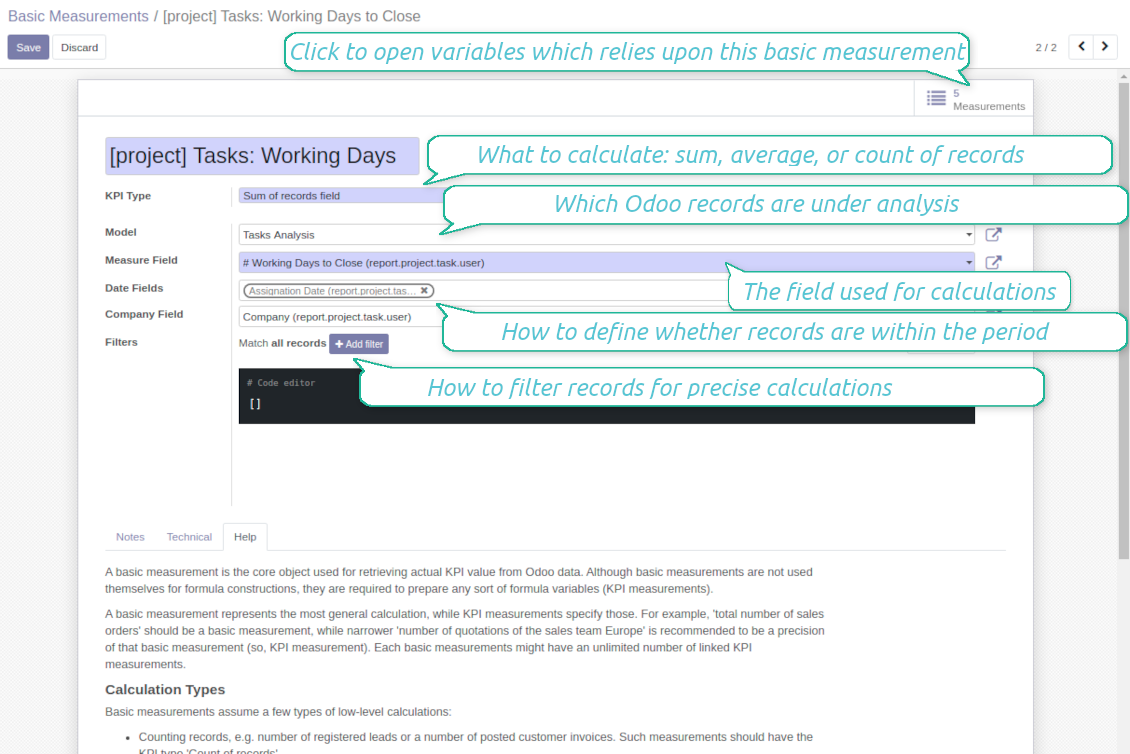
A basic measurement is the core object used for retrieving actual KPI value from Odoo database. Basic measurements represent the most general calculation, while KPI measurements specify those. For example, 'total number of sales orders' should be a basic measurement, while narrower 'number of quotations of the sales team Europe' is recommended to be a precision of that basic measurement (so, a KPI measurement or a KPI variable). Each basic measurement might have an unlimited number of linked KPI variables. In such a way, KPI variable let you prepare a formula part which might calculate:
- A total number of specified records within a given period. For example, a number of registered leads or a number of posted customer invoices.
- A sum of specified records' numeric fields. For example, sum of all orders amount total or sum of paid taxes by invoices.
- An average of specified records' numeric fields. For example, average planned hours per task or average days to assign a lead
If those 3 types of calculations are not enough, basic measurements let you prepare the Python code to compute any sort of figures based on any Odoo data.
How to set up basic measurement
Basic measurements are not used themselves for formula constructions, they are required to prepare any sort of formula variables (KPI measurements). In order to create a basic measurement you should define:
- Model - is an Odoo document type from Odoo database, so with which data set you work. For, examples, 'Sales Order' or 'Task'. Here you can rely not only upon standard or custom objects (including ones created through the interface or the Odoo studio.), but also on Odoo reports. The latter is quite useful if indicators are already calculated for existing dashboard (for example, total sales amount in default currency from the 'Sales Analysis Report').
- Date fields - are required to understand whether a specific document type relates to a considered period, so, how to distribute objects by time intervals. For example, for tasks you might use 'create date' to analyze jobs registered within this KPI period. It is possible to apply a few date fields (e.g. 'Opportunities opened and won in January 2021'). If date fields are not specified, KPI period would not influence this basic measurement.
- Filters - allow you to restrict records set by any stored field. For example, you may calculate count of only won opportunities based on stage settings or only posted customer invoices based on journal entry type and state.
- Measure field - is available and required only for calculation types 'Average' and 'Sum'. It defines which figure you use for calculations. For example, total amount of Sales Analysis Report to get accumulated sales revenue or work hours of tasks to get average spent time per each task.
- Company field - would be needed for multi companies environment. According to that field, KPIs are considered only withing a KPI period target company. Take into account that records without company stated would be used for all companies' KPI calculations.
Python code measurements
'Python code' is the special type of basic measurement. This type requires technical knowledge but let you compute any sort of figures based on any Odoo data without restrictions.
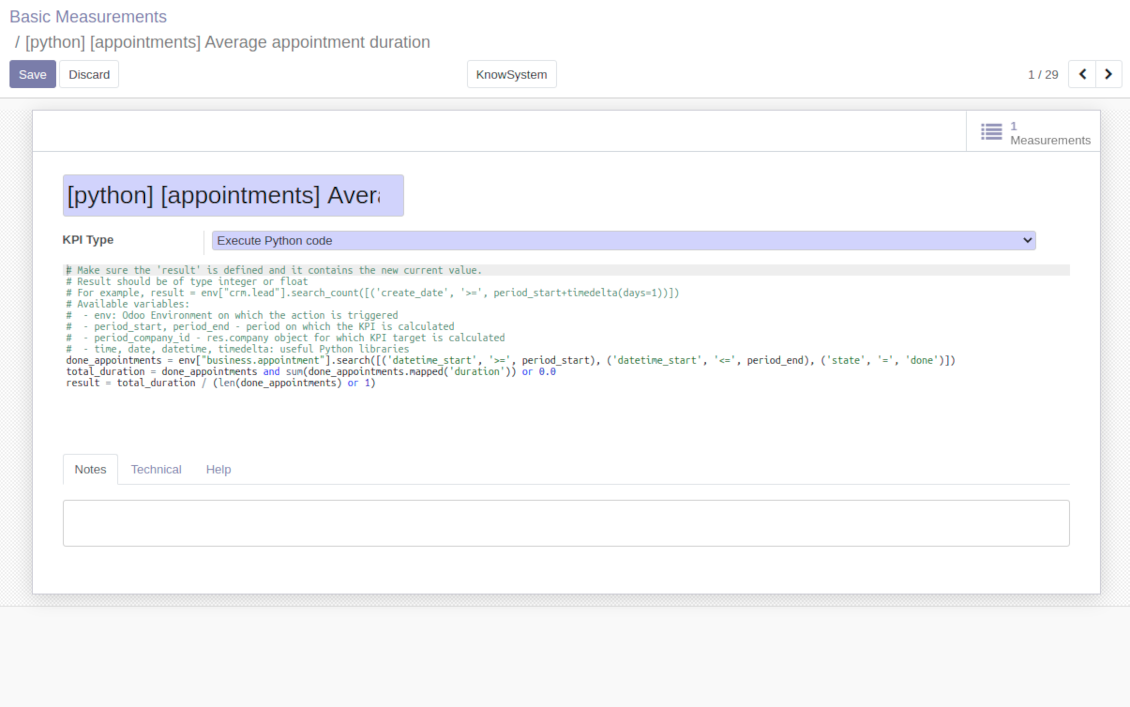
Correct Python code assumes saving the value into the special variable 'result'. From other perspectives, it might be any Python basic script with possibility of SQL queries (using 'env.cr').
In your calculations you may also rely upon the special variables: 'period_start' (the first date of the period), 'period_end' (the last date of the period), 'period_company_id' - res.company object for which Odoo makes calculations at the moment (according to a KPI period under consideration).
How to configure KPI variables from basic measurements
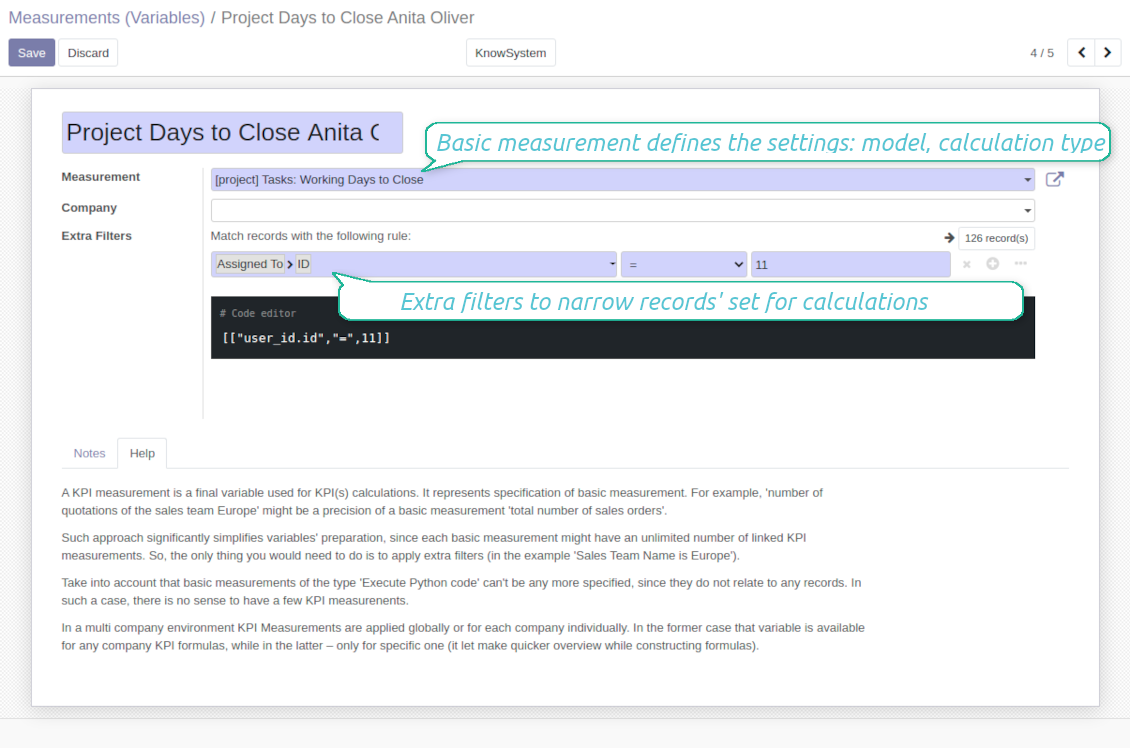
A KPI measurement is a final variable used for KPI calculations. It represents specification of basic measurement. For example, 'number of quotations of the sales team Europe' might be a precision of a basic measurement 'total number of sales orders'.
The key idea to distinct KPI variables from basic measurements is to simplify data preparation. Each basic measurement might have an unlimited number of linked KPI measurements. So, the only thing you would need to do is to apply extra filters (in the example 'Sales Team Name is Europe').
Take into account that basic measurements of the type 'Execute Python code' can't be any more specified, since they do not relate to any records. In such a case, there is no sense to have a few KPI measurements.
In a multi company environment KPI Measurements are applied globally or for each company individually. In the former case that variable is available for any company KPI formulas, while in the latter - only for specific one (it let make quicker overview while constructing formulas).
스크린샷
KPI basic measurements: Odoo data
KPI variable / KPI measurement: specify basic measurement
Execute Python code to calculate KPI actual value
Shared KPIs and self-control
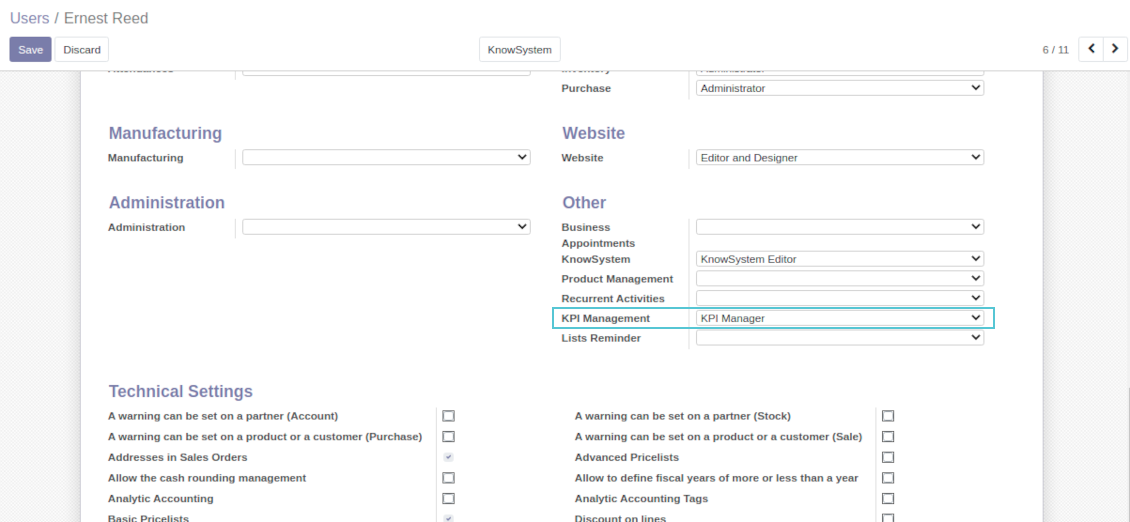
Full rights for all KPIs, targets, and settings belong to users with the right 'KPI Management - KPI manager'. Simultaneously, the tool let you share KPIs with other users as well.
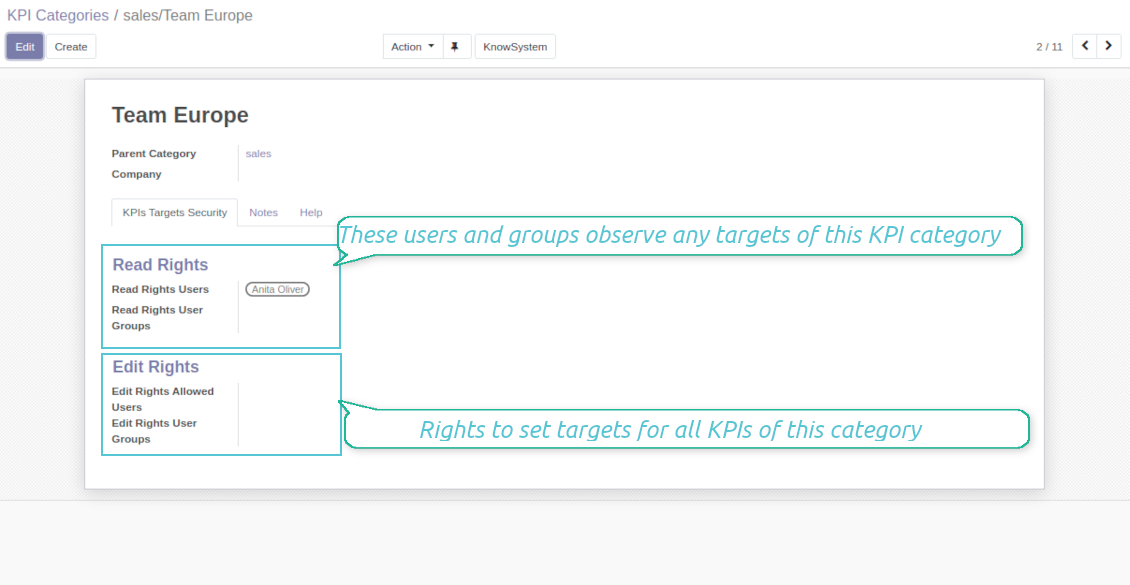
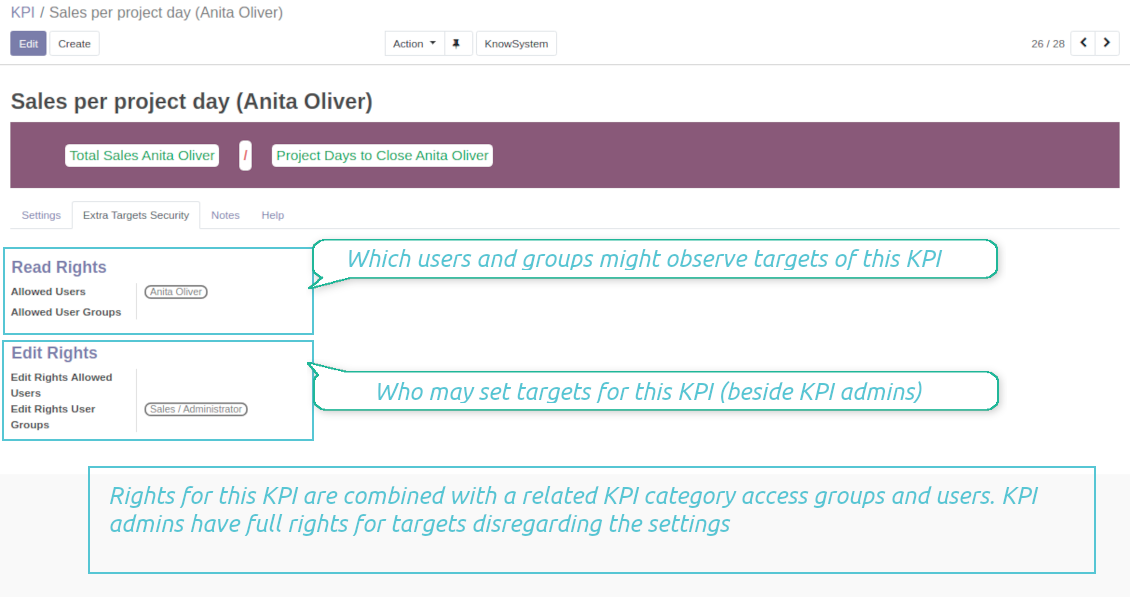
In particular, you can grant an access to observe KPIs using the 'Read rights' section on a KPI or a KPI category form. The section 'Edit rights' would not only allow to see scorecard by related KPIs, but also to set targets for those. The latter might be useful in case you ask your manager to manage goals within a department, for example.
Take into account: all security settings are additive and they are not restrictive. KPI managers would have full rights for all KPIs disregarding the settings, while other users would have rights only to KPIs which settings (or category settings) allow them so.
스크린샷
KPI manager rights
Share all KPIs of this category
Own KPI security settings
Multi companies
The tool is compatible with multi companies' environment. In particular, KPI periods and KPI targets are set up for each company individually (global targets are not possible).
KPI basic measurements assume that a company field is selected for a chosen model. It let distinguish which records are under consideration. If a company field is empty, all records would be analyzed.
Constants, KPI variables, and KPI formulas might be also assigned to a specific company. That might be used to simplify selection of formula parts when companies operate in different business areas.
구성 및 설치 팁: KPI Balanced Scorecard Odoo v.13
Scheduled jobs
- Turn on the debug mode.
- Go to KPI > Configuration > Settings.
- Find the button 'Configure cron job'.
- You are welcome to update the settings 'Execute Every' and 'Next Execution Date'. Please do not make it too frequent (e.g. once in 5 minutes), since operation is resource demanding, and might be not fully finished within a pair of minutes.
Change frequency of KPIs re-calculatinon
관련 자주 묻는 질문 KPI Balanced Scorecard Odoo v.13
Basic Measurement를 만들었는데 수식 마법사에서 찾을 수 없습니다.
Basic Measurements만으로는 수식을 만들지 않습니다. Basic Measurement에 필터를 더 넣지 않더라도, 연결된 Variable을 만들어야 합니다. 그러면 그 Variable이 수식 작성용 목록에 나타납니다.
KPI 작성에 어떤 데이터를 쓸 수 있습니까. 모듈에 자체 데이터가 있습니까?
앱 자체는 자체 데이터(빠진 데이터를 적용하기 위한 KPI 상수는 예외)나 연동을 넣지 않습니다. 앱은 기존 Odoo 데이터를 바탕으로 계산하고 인터페이스를 준비합니다. 예를 들어 특정 기간의 판매 주문 수는 Sales 앱에서 가져올 수 있습니다.
모듈은 범용이며 계정 잔액을 포함해 어떤 Odoo 모듈에서든 데이터를 가져올 수 있습니다. 예를 들어 송장(분개)을 기준으로 한 달의 총이익을 계산할 수 있습니다.
Odoo 모듈과 연결하면 Odoo 바깥 출처의 데이터도 가져올 수 있습니다. 예를 들어 Odoo PostgreSQL에 Google Analytics 데이터가 있으면 KPI 준비에 쓸 수 있습니다.
Basic Measurements와 Measurements (Variables)의 차이는 무엇입니까?
Measurement (Variable)는 기본 측정의 세부 지정입니다. 핵심은 데이터 준비를 단순화하는 것입니다. 'Total Sales'를 한 번 정의한 뒤 추가 필터로 'Sales Europe', 'Sales John Brown', 'Website Sales' 등에 제한 없이 사용합니다.
도구의 업데이트 정책은 무엇입니까?
현재 Odoo Apps Store 정책에 따르면:
- 버전 12.0 이하용으로 구매한 모듈은 12.0까지의 모든 버전에 접근할 수 있습니다.
- 버전 13.0부터는 모듈 버전마다 따로 구매해야 합니다.
- 버전과 관계없이 구매하면 해당 메이저 버전 내의 모든 업데이트와 버그 수정 권한이 있습니다.
faOtools 팀은 해당 정책을 통제하지 않습니다. 문의는 Odoo Apps Store 담당자에게 직접 하세요.
앱을 Odoo.sh에 어떻게 설치하나요?
가장 단순한 방법은 Odoo 스토어의 기본 제공 워크플로를 사용하는 것입니다:
1. 모듈 페이지를 열고 Deploy on odoo.sh 버튼을 클릭합니다.
2. 그러면 GitHub 페이지로 이동합니다. 계정에 로그인한 뒤 'Create a new repo'를 클릭하거나 기존 저장소를 사용하세요. 저장소는 비공개여야 합니다. OPL-1 라이선스 앱을 공개하는 것은 허용되지 않습니다. 필요하면 Odoo.sh 프로젝트용 새 repo를 만드세요.
3. 그런 다음 odoo.sh로 가서 Deploy 버튼을 클릭합니다. 팝업에서 결정을 제출하고 'Continue.'를 클릭합니다. 그러면 설치가 시작됩니다.
이 단계로 프로젝트의 프로덕션 브랜치에 앱이 설치됩니다. 다른 브랜치에 앱을 배포하거나 모듈을 업데이트하려면 다음을 수행하세요:
1. Odoo 스토어에서 앱 소스 코드를 업로드합니다.
2. 모듈을 필요한 GitHub 저장소에 커밋합니다. 앱 폴더/파일이 무시되지 않는지 확인하세요(즉 repo의 .gitignore에 넣지 마세요). 저장소는 odoo.sh가 자동 생성하며 기본적으로 중요한 항목(예: /lib)이 포함될 수 있습니다. 모듈의 모든 디렉터리, 하위 디렉터리, 파일을 예외 없이 업로드하세요.
3. odoo.sh 프로젝트의 대상 브랜치를 Deploy하거나, 설정이 그렇게 되어 있으면 자동 빌드될 때까지 기다립니다.
자체 서버에 앱은 어떻게 설치하나요?
2. Odoo 서버를 다시 시작합니다;
3. 개발자 모드를 켭니다(기술 설정);
4. 앱 목록을 업데이트합니다(앱 메뉴);
5. 앱을 찾아 'Activate'/'Install'을 누릅니다;
6. 앱 페이지에 안내가 있으면 따릅니다.
앱에 추가 기능이 있는 것을 봤습니다. 나중에 구매해도 되나요?
네, 물론입니다. 동시에 Odoo가 모든 의존성을 장바구니에 자동 추가하므로, 이중 결제를 피하려면 이미 구매한 도구를 제외하십시오.
앱을 Odoo.sh에 배포했는데 테스트에서 경고/오류가 보입니다
빨강/주황 경고는 앱 기능에 영향을 주지 않습니다. 안타깝게도 표준 자동 테스트가 앱 목표와 충돌하는 동작을 가정해 모듈이 통과하지 못할 때가 있습니다. 예를 들어 우리는 가격 계산을 바꾸는데, 표준 Odoo 모듈 테스트는 최종 가격을 표준 알고리즘과 비교합니다.
먼저 배포된 데이터베이스 기능이 정상인지 확인하십시오. 모두 올바르게 동작합니까?
그래도 경고가 실제 기능에 영향을 준다고 생각되면 연락해 주시고 전체 설치 로그와 배포된 모듈 전체 목록(코어 및 서드파티 포함)을 보내 주십시오.
앱을 귀사에서 직접 구매할 수 있나요?
아니요, 도구는 오직 공식 Odoo 앱 스토어.
할인을 받고 싶습니다
유감스럽게도 개별 가격을 제공할 기술적 수단이 없습니다.
Odoo Online (SaaS) 데이터베이스에 앱을 설치할 수 있나요?
아니요, 서드파티 앱은 Odoo Online에서 사용할 수 없습니다. 유감스럽게도 Odoo SaaS가 이를 차단합니다.
도구가 다른 앱에 의존합니다. 그것도 구매해야 합니까?
예, 도구가 올바르게 동작하려면 의존성에 표시된 모든 모듈이 필요합니다. 앱 페이지의 가격에는 필요한 의존성이 이미 포함되어 있습니다.
모듈의 미국 달러 가격은 얼마입니까? 왜 바뀌었습니까?
모듈 가격은 유로로 책정됩니다. Odoo 스토어는 내부 환율에 따라 다른 통화로 변환합니다. 따라서 환율이 갱신되면 미국 달러 가격이 바뀔 수 있습니다.
영어 이외 언어의 앱·웹사이트 문구는 AI 지원으로 작성되며 공식 Odoo 번역과 맞춥니다. 오류를 발견하시면 번역 정확성 티켓을 보내 주세요 그러면 수정하겠습니다.
버그 신고
버그나 일관되지 않은 동작을 발견하면 주저 말고 문의하세요. 구매 후 60일 이내 수정을 보장하며, 그 이후에도 도구를 개선하는 데 관심이 큽니다.
문의에 전화번호나 신용카드가 필요 없습니다. 30초가 넘지 않는 짧은 이메일 가입만 하면 됩니다.
요청에 가능한 한 많은 세부정보를 포함하세요: 스크린샷, Odoo 서버 로그, 문제 재현 방법의 전체 설명 등. 일반적으로 이슈에 대한 작업 계획 준비(버그가 확인된 경우) 또는 수행 지침 제공(그 외의 경우)에는 영업일 기준 며칠이 걸립니다.
공개 기능 요청 및 모듈 아이디어(무료 개발)
도구를 개선하려는 동기가 강하며 어떤 피드백이든 감사드립니다. 요구 사항이 공익에 맞고 효율적으로 구현될 수 있다면 팀이 할 일 목록에 넣습니다.
이런 할 일 목록은 정기적으로 처리되며 추가 요금이 없습니다. 기한과 최종 디자인을 약속할 수는 없지만, 투자와 위험 없이 원하는 기능을 얻는 좋은 방법이 될 수 있습니다.
문의에 전화번호나 신용카드가 필요 없습니다. 30초가 넘지 않는 짧은 이메일 가입만 하면 됩니다.

Odoo 첨부 파일을 폴더로 유연하게 구성하고 Google Drive, OneDrive/SharePoint, Nextcloud/ownCloud, Dropbox, Amazon S3, Box, NAS와 디렉터리를 동기화하는 도구. DMS. 파일 관리자. 문서 관리 시스템
398€


내부와 외부 모두를 위한 깊고 구조화된 지식 베이스를 구축하는 도구. Knowledge System. KMS. 위키형 개정.
398€

즐겨 쓰는 AI 채팅에서 MCP로 Odoo를 관리하는 도구. Claude. MCP를 지원하는 모든 AI.

