KPI Balanced Scorecard v.13
The tool to set up KPI targets and control their fulfillment by periods
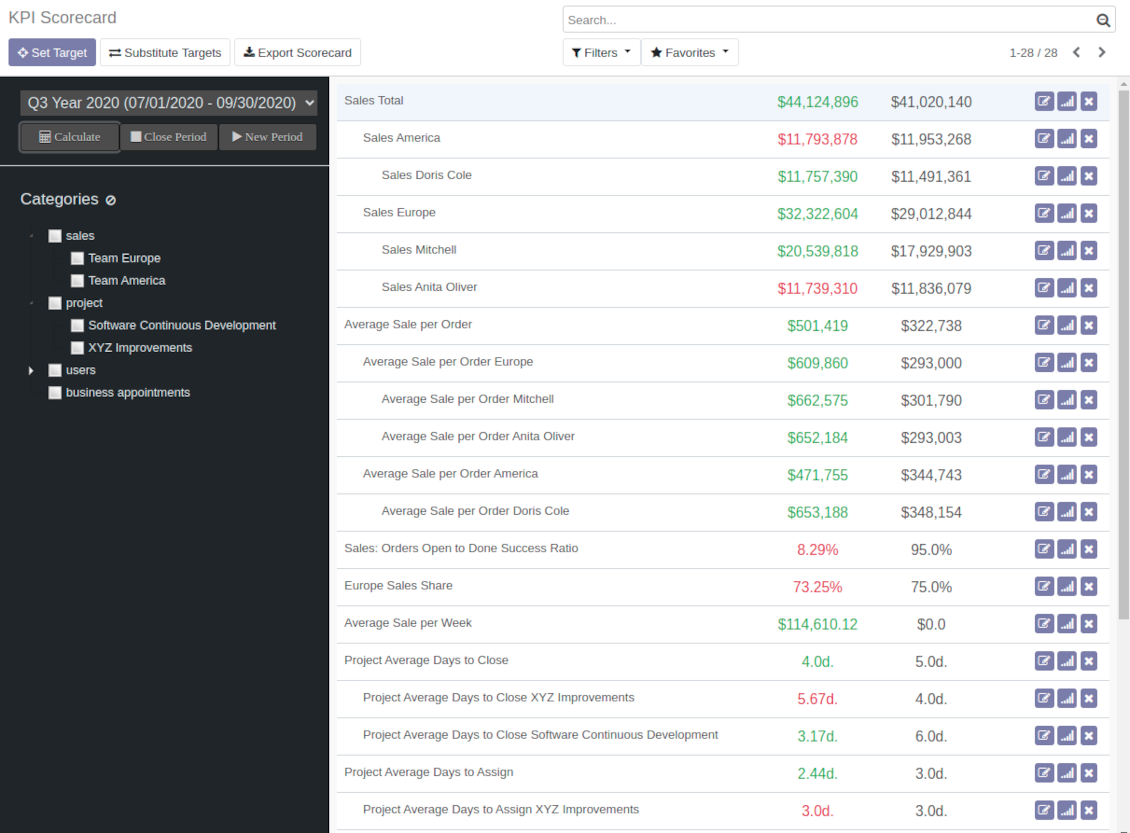
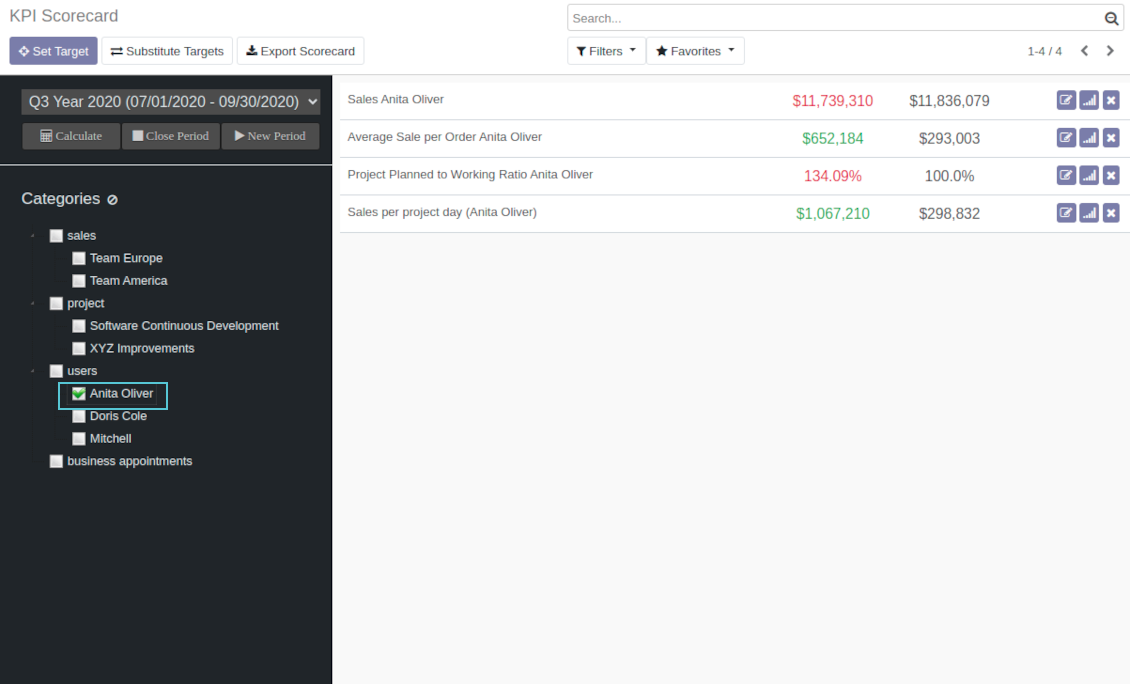
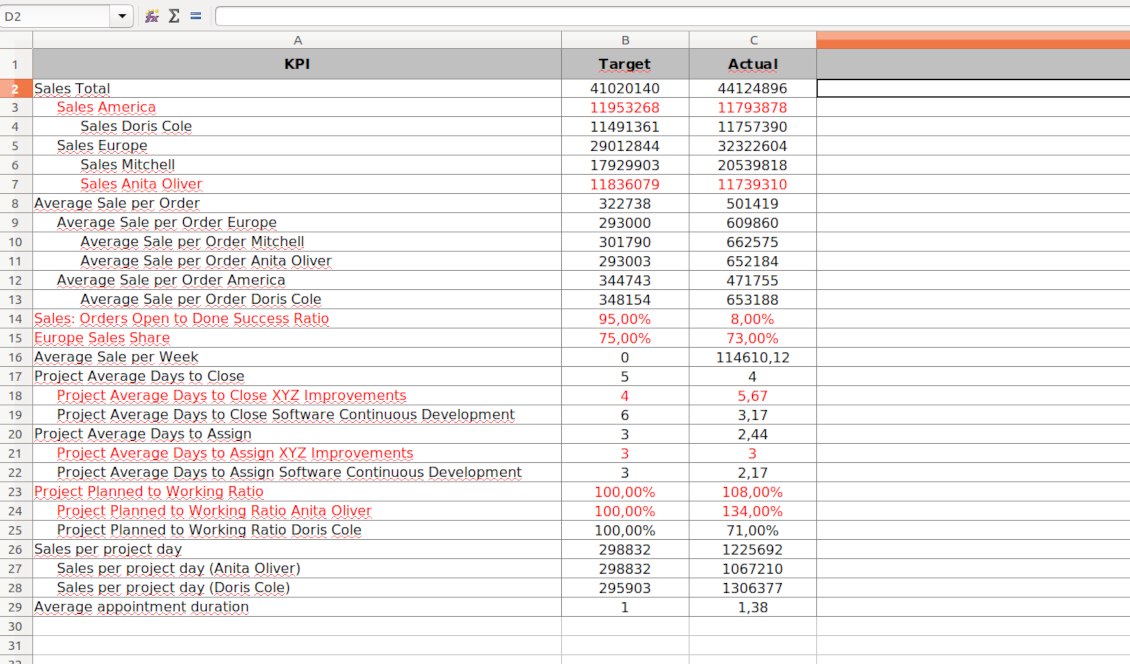

Balanced Scorecard Interface
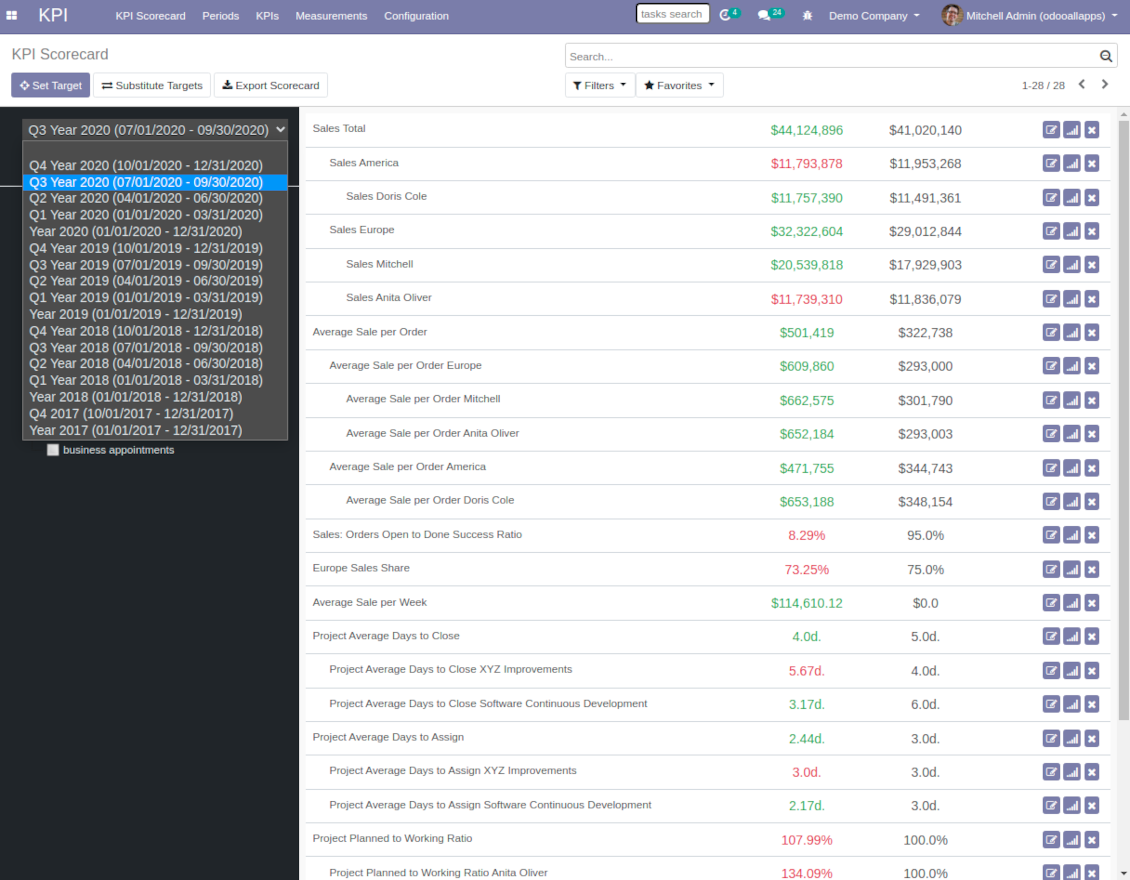
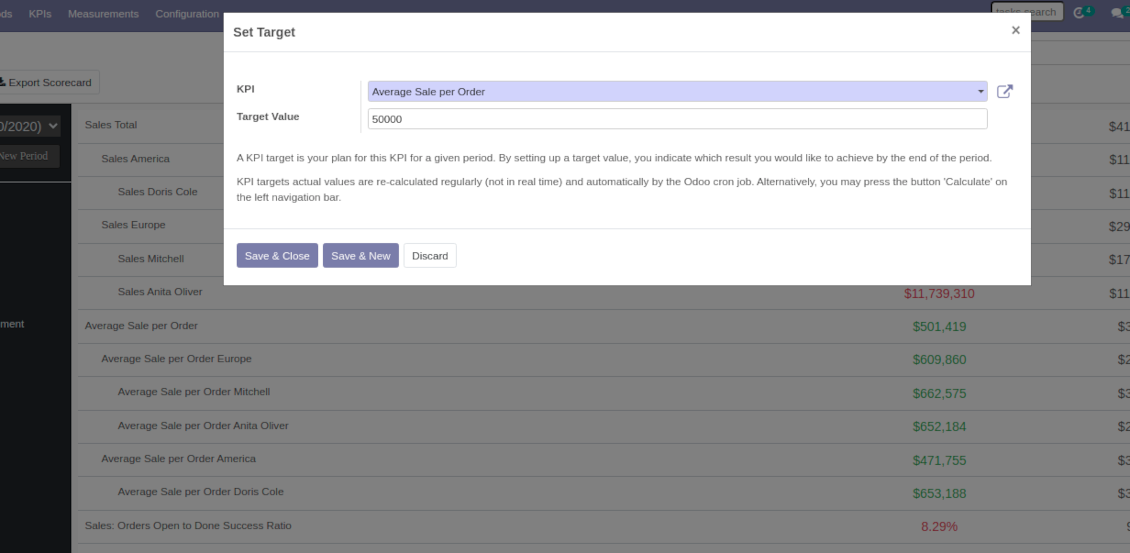
The whole list of KPI targets for a period is available from a single interface. Right from here you can set up new targets and edit existing ones, observe actual and target values, evaluate success by indicative red / green color, observe historical trends, open and close periods. It is also possible to export a whole scorecard to an Excel table.
To make navigation over targets comfortable, KPIs are structured by categories. It let quickly consider only those KPIs which are of interest at the moment. For example, to observe only sales targets or targets of a specific Odoo user. Another important peculiarity is that KPIs might have parent-children relations. For instance, 'Total company sales' > 'Sales America' > 'John Brown Sales'. Such hierarchy allows to highlight targets with indicative padding for instant overview of sub-KPIs.
It is only up to you which KPIs to add and which approach to apply for KPIs' sectioning and hierarchy.
Screenshots
KPI Balanced Scorecard
KPI targets by categories
Export Odoo KPI scorecard to Excel
Open new KPI period to set KPI targets up
Set a new Odoo KPI target
KPIs targets by periods
KPI scorecard is not just a dashboard, but it is a full-featured tool to set and control company and individual targets. Targets should be measurable and time-constrained. 'Sell as much as possible' is not a goal, while 'Generate 100,000 Euro Revenue in the year 2021' is a good target for a sales person, for example.
That is why, each goal should have a target value and should be defined for a period. In such a way, the app let you have a full picture of results to undertake corrective actions in advance.
Real-time control and historical trends
When a user opens scorecard interface, he/she is shown targets of a current period (if it exists). Actual values are re-calculated regularly and automatically by the special Odoo cron job. In such a way, it is possible to understand which KPIs require more attention in real time at a first glance.
Simultaneously, it is always possible to switch to another period to have broader picture (e.g. from monthly to yearly KPIs) or to observe the Past / the Future targets (e.g. to plan efforts efficiently).
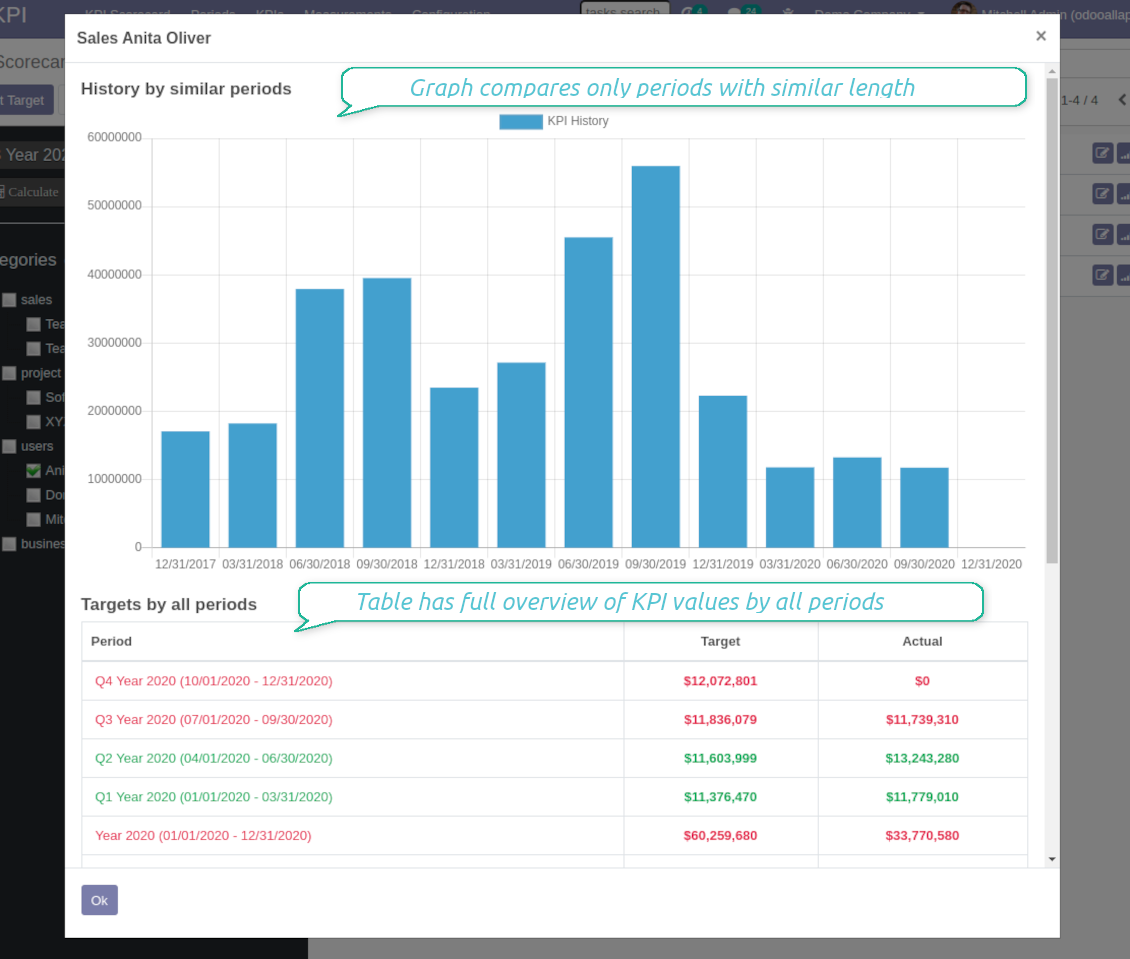
Besides, each KPI target has a special button to observe history by all periods. The latter might be useful to understand overall trends.
Copying targets from a period
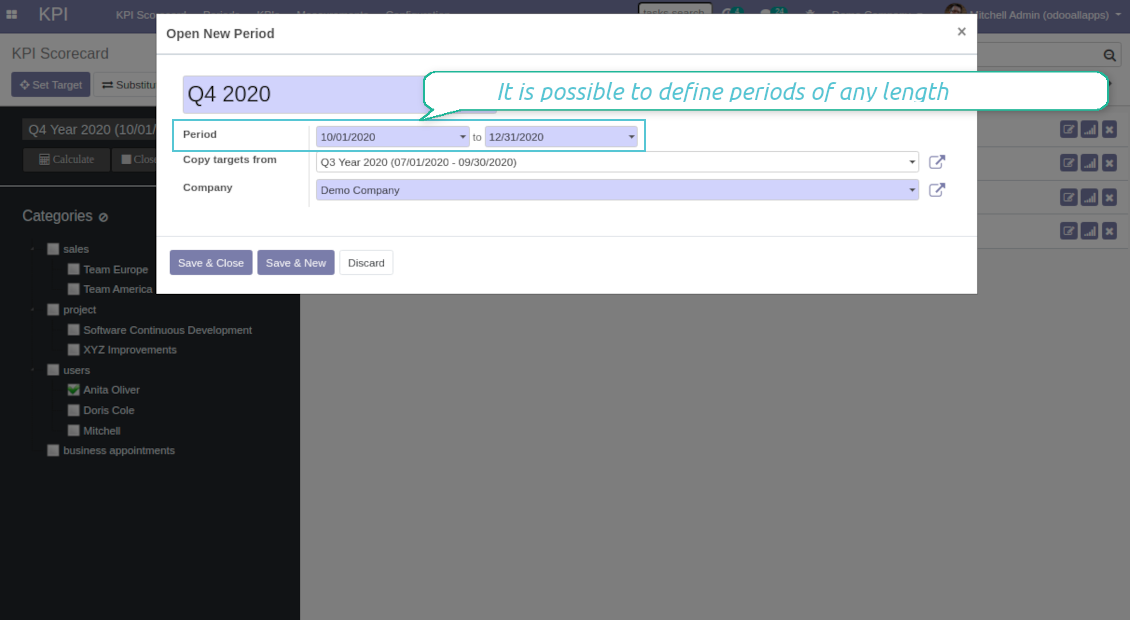
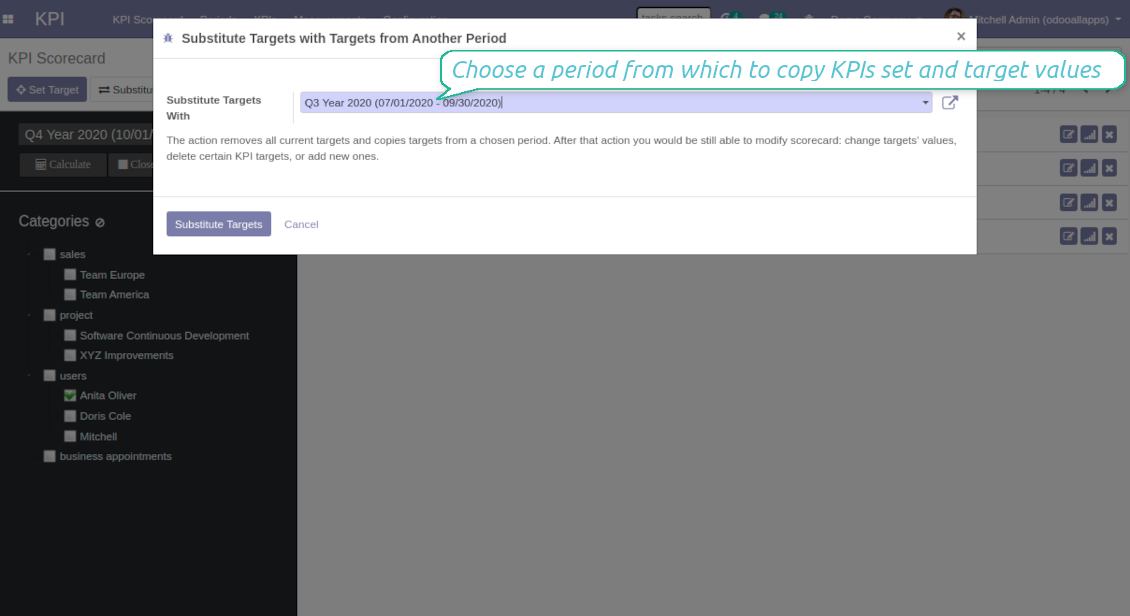
In case you have similar KPIs from a period to period, the tool let you copy targets. To that end use the field 'Copy target from' when you open a new period or the button 'Substitute' for existing ones.
Periods trends, length and tolerance
The app allows to set periods of any length including intervals which cross each other (and even the Past periods!). To open a new KPI period you should just set start and end dates. Those dates will be used to calculate KPI actual value. For example, KPI formula might include a basic KPI measurement for total amount of sale orders, while date field of this measurement is defined as 'Order date'. Then, only sale orders which order date is within the period would be taken into account. Thus, KPI scorecard would show total revenue for a given period.
It is recommended to have more or less strict logic of periods for comparability purposes. Usually, KPI targets are set for a whole year and quarterly/monthly intervals. It let not only have KPI overview, but also check historical trends. The app automatically considers various periods in order to define which might be compared to this one, and will show users a chart of actual values by a specific KPI. It is possible to define tolerance on the configuration page. For example, 2-days tolerance is needed to compare quarterly periods (since quarter might take from 90 to 92 days), and 3-days tolerance for months (unluckily, February may last 28 days).
Why to close periods
KPI periods work in a similar way as accounting / fiscal periods. The idea behind is to make sure that at a certain point KPI actual values are frozen and might be used for a final analysis of a period. It is hardly good to update December KPIs in the next August even though a sale total needs to be corrected, for example.
That is why when a period end date is already in the Past, it is preferable to close that period to avoid further updates of KPI targets actual values. Besides, it would speed up actual values' recalculations.
Screenshots
KPI targets by periods
KPI trends by similar periods and overall history
Substitute targets with KPI targets of another period
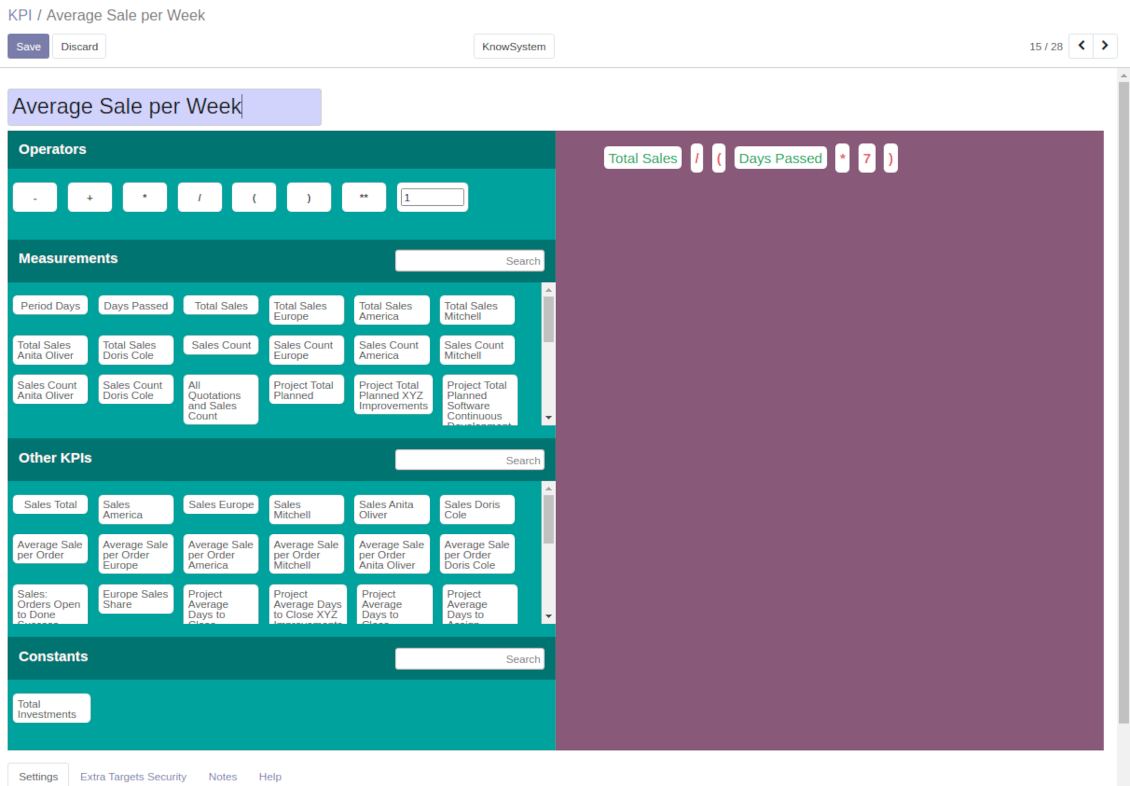
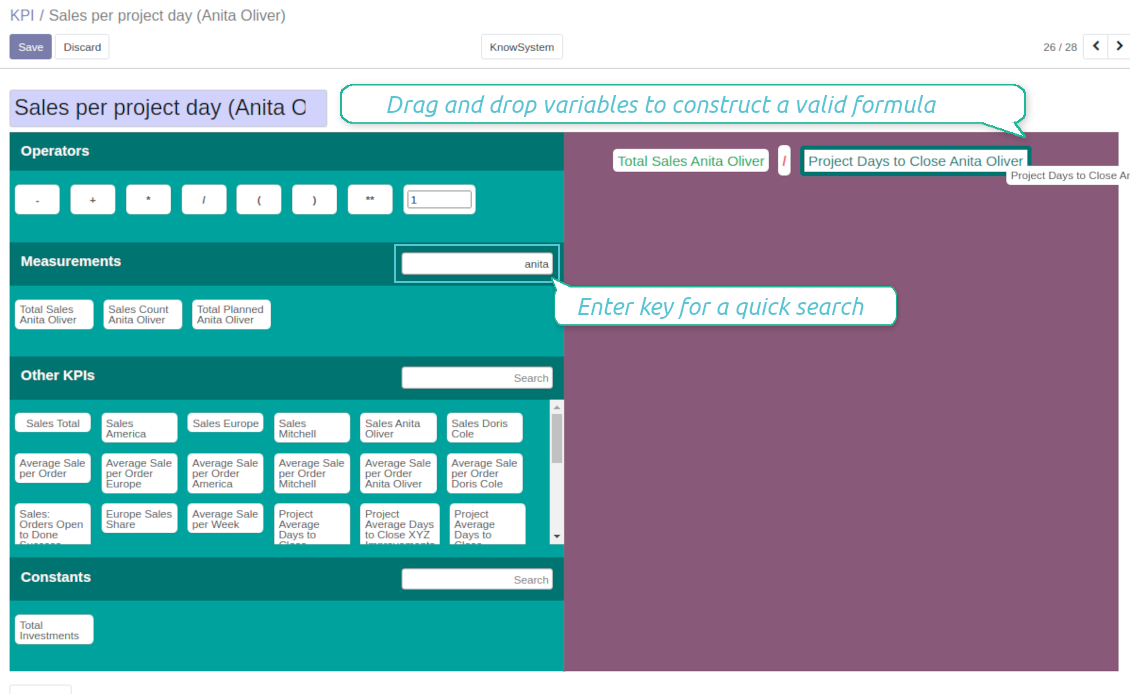
Drag-and-drop formulas for KPI calculations
A KPI (a key performance indicator) is a measurement which aims to evaluate a certain aspect of organizational or personal activities. This tool let you prepare an unlimited number of such measurements and calculations of almost any complexity.
Formula construction is as simple as it is to write down a mathematical expression: just drag and drop formula parts in a right order with correct operators. When Odoo computed actual values for a specific period, it would automatically retrieve data from a database according to parts' logic. As formula parts you can apply:
- KPI variables - rules how to calculate data from Odoo database. For example, 'total number of sales orders' or 'number of quotations of sales team Europe'.
- Other KPIs - to make derivative calculations. For example, you may have KPIs 'Sales count' and 'Opportunities count', and a derivative KPI 'Opportunity to sales success ratio'.
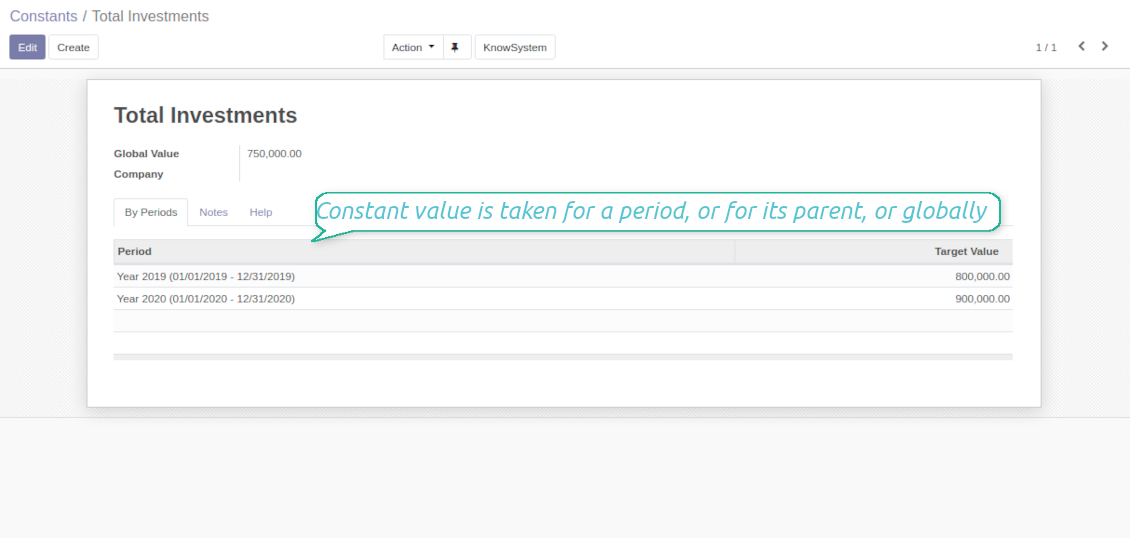
- KPI constants - figures which do not depend on actual Odoo data, but which are frozen globally or for a specific time frame. Constants allow to introduce parts which can not be retrieved from modules and/or which should remain the same during the whole period.
- 2 special variables - 'Period Days' and 'Days Passed'. Those figures are calculated not from Odoo data, but from the KPI period settings under consideration. 'Period Days' is an interval length in days. 'Days Passed' is a length between period start and today (if today is before period end; otherwise period end). Those parameters let calculate per-time KPIs, such as, for example, 'Average sales per week'.
- Mathematical operators - including subtraction, addition, multiplication, division, exponentiation, any float number.
How to configure KPI appearance
Depending of business logic of KPI formula, the final calculation result might have different form:
- Simple number: for example, 'Average sales count per week'.
- Percentage: for example, 'Sales to opportunities success ratio'.
- Monetary: for example, 'Total Sales per period'. Make sure the measurement field you used is in the same currency (usually company default currency)!
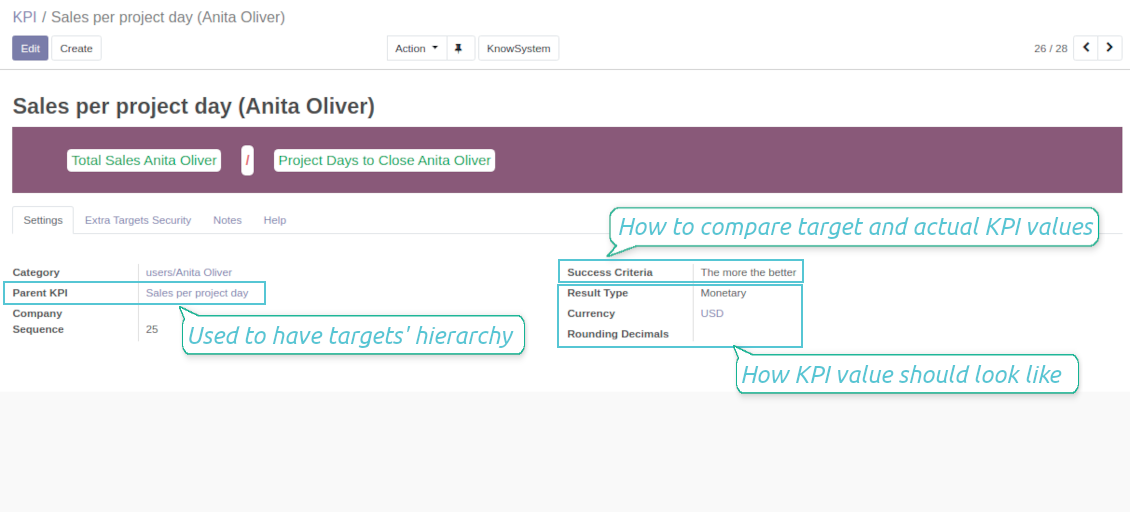
For simple numbers and percentage you may also define result suffix and prefix to make a figure nice looking (e.g. add "%" as suffix to have "88%"). For monetary result type it is recommended to define a currency, which symbol would be added to result.
Finally, you may decide how calculation result should be rounded. Available options are from 0 to 4 decimal points (1 > 1.2 > 1.23 > 1.235 > 1.2346).
Screenshots
KPI formula: overview
Drag and Drop to define KPI calculation formula
KPI formula: settings and apperance
Constants for KPI calculations
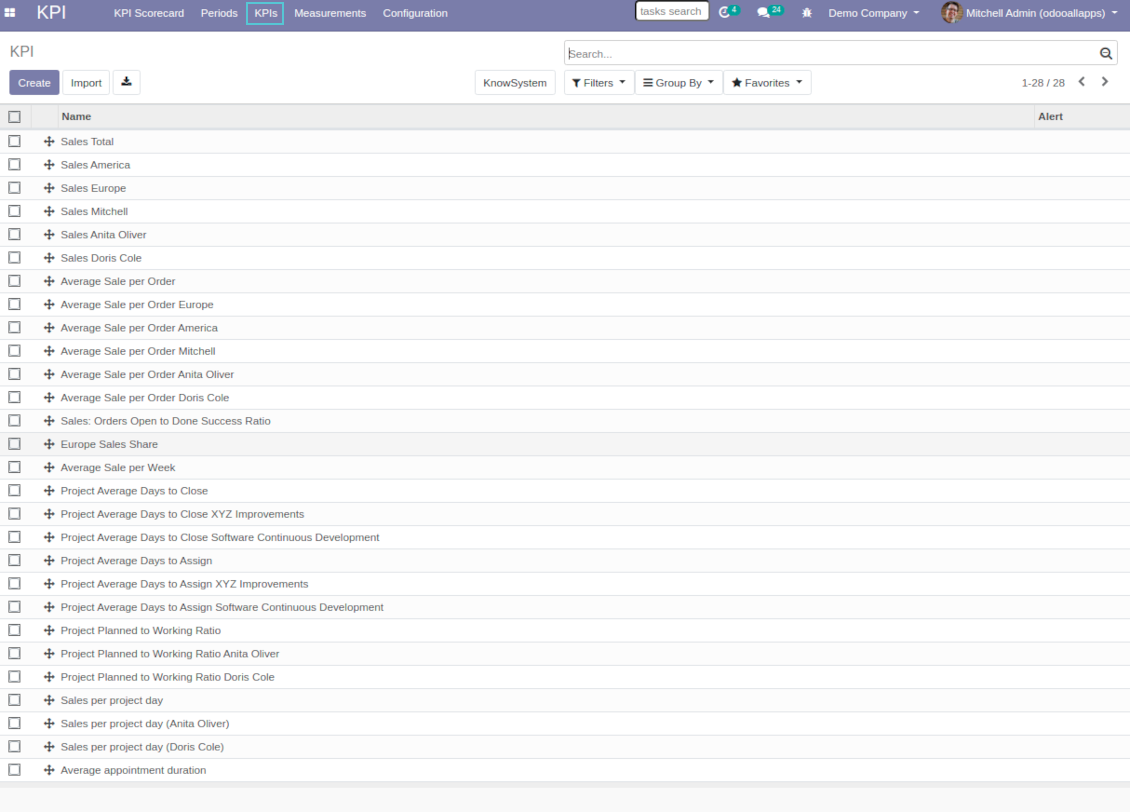
Odoo List of KPIs to set targets
KPI variables and basic measurements to retrieve Odoo data
Preparing basis for KPI calculations is not a simple task. The good news is that such job should be done only once, while results are used forever.
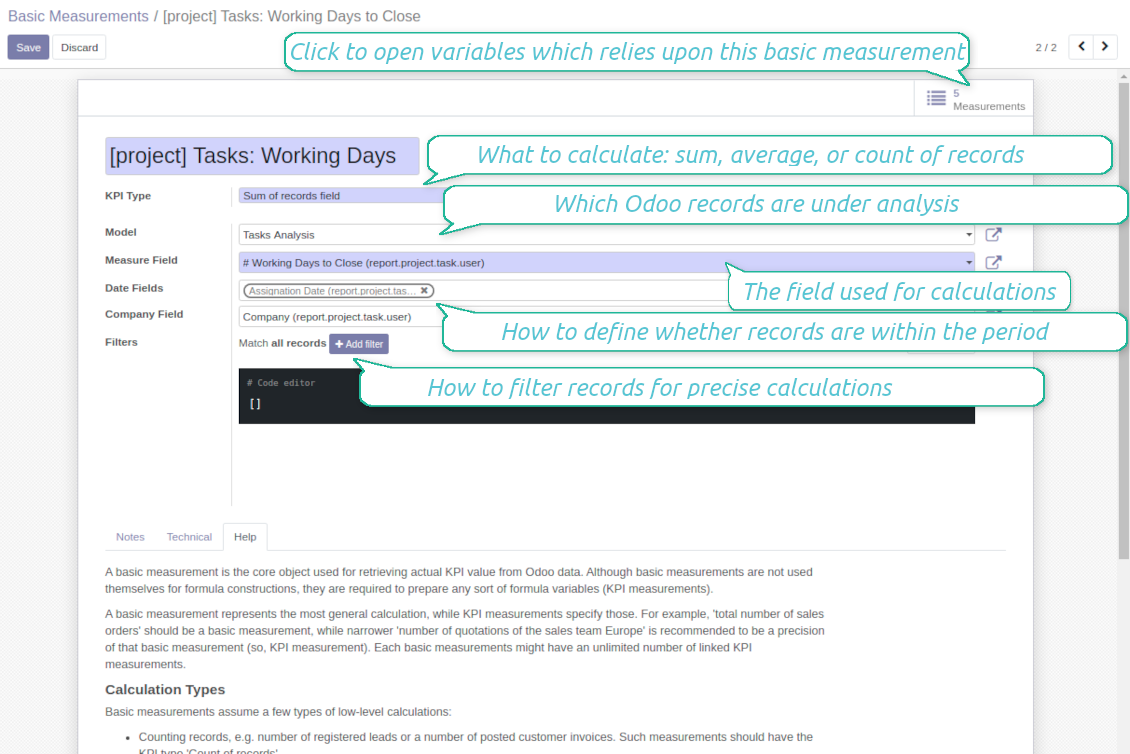
A basic measurement is the core object used for retrieving actual KPI value from Odoo database. Basic measurements represent the most general calculation, while KPI measurements specify those. For example, 'total number of sales orders' should be a basic measurement, while narrower 'number of quotations of the sales team Europe' is recommended to be a precision of that basic measurement (so, a KPI measurement or a KPI variable). Each basic measurement might have an unlimited number of linked KPI variables. In such a way, KPI variable let you prepare a formula part which might calculate:
- A total number of specified records within a given period. For example, a number of registered leads or a number of posted customer invoices.
- A sum of specified records' numeric fields. For example, sum of all orders amount total or sum of paid taxes by invoices.
- An average of specified records' numeric fields. For example, average planned hours per task or average days to assign a lead
If those 3 types of calculations are not enough, basic measurements let you prepare the Python code to compute any sort of figures based on any Odoo data.
How to set up basic measurement
Basic measurements are not used themselves for formula constructions, they are required to prepare any sort of formula variables (KPI measurements). In order to create a basic measurement you should define:
- Model - is an Odoo document type from Odoo database, so with which data set you work. For, examples, 'Sales Order' or 'Task'. Here you can rely not only upon standard or custom objects (including ones created through the interface or the Odoo studio.), but also on Odoo reports. The latter is quite useful if indicators are already calculated for existing dashboard (for example, total sales amount in default currency from the 'Sales Analysis Report').
- Date fields - are required to understand whether a specific document type relates to a considered period, so, how to distribute objects by time intervals. For example, for tasks you might use 'create date' to analyze jobs registered within this KPI period. It is possible to apply a few date fields (e.g. 'Opportunities opened and won in January 2021'). If date fields are not specified, KPI period would not influence this basic measurement.
- Filters - allow you to restrict records set by any stored field. For example, you may calculate count of only won opportunities based on stage settings or only posted customer invoices based on journal entry type and state.
- Measure field - is available and required only for calculation types 'Average' and 'Sum'. It defines which figure you use for calculations. For example, total amount of Sales Analysis Report to get accumulated sales revenue or work hours of tasks to get average spent time per each task.
- Company field - would be needed for multi companies environment. According to that field, KPIs are considered only withing a KPI period target company. Take into account that records without company stated would be used for all companies' KPI calculations.
Python code measurements
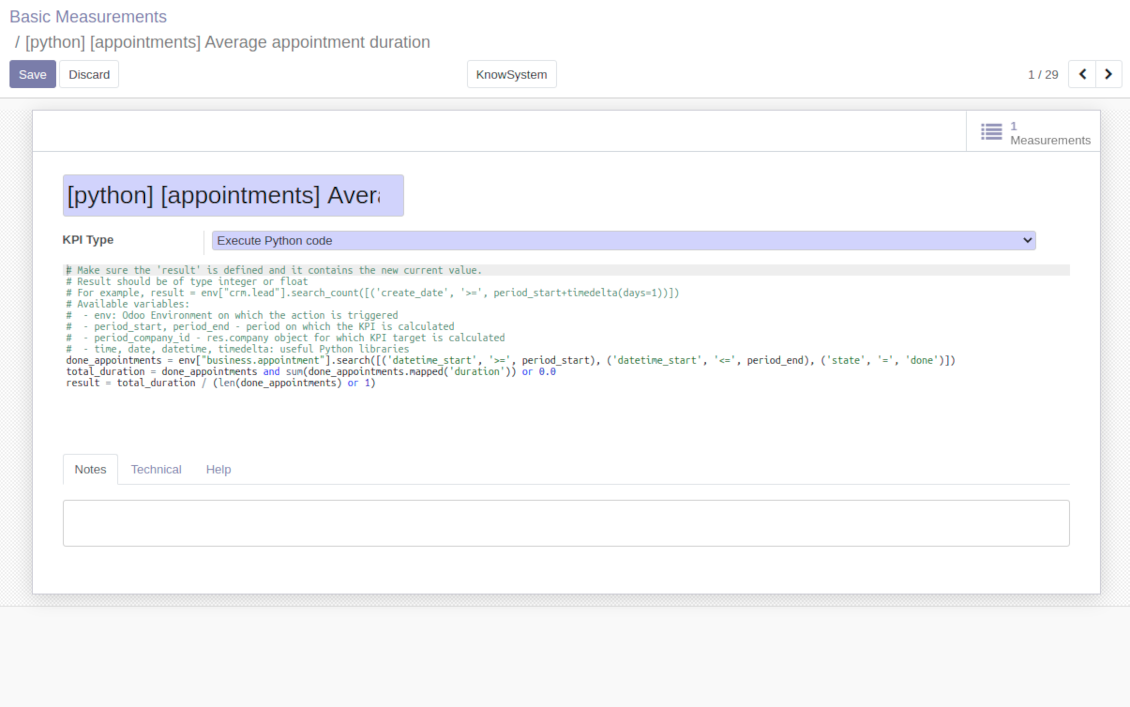
'Python code' is the special type of basic measurement. This type requires technical knowledge but let you compute any sort of figures based on any Odoo data without restrictions.
Correct Python code assumes saving the value into the special variable 'result'. From other perspectives, it might be any Python basic script with possibility of SQL queries (using 'env.cr').
In your calculations you may also rely upon the special variables: 'period_start' (the first date of the period), 'period_end' (the last date of the period), 'period_company_id' - res.company object for which Odoo makes calculations at the moment (according to a KPI period under consideration).
How to configure KPI variables from basic measurements
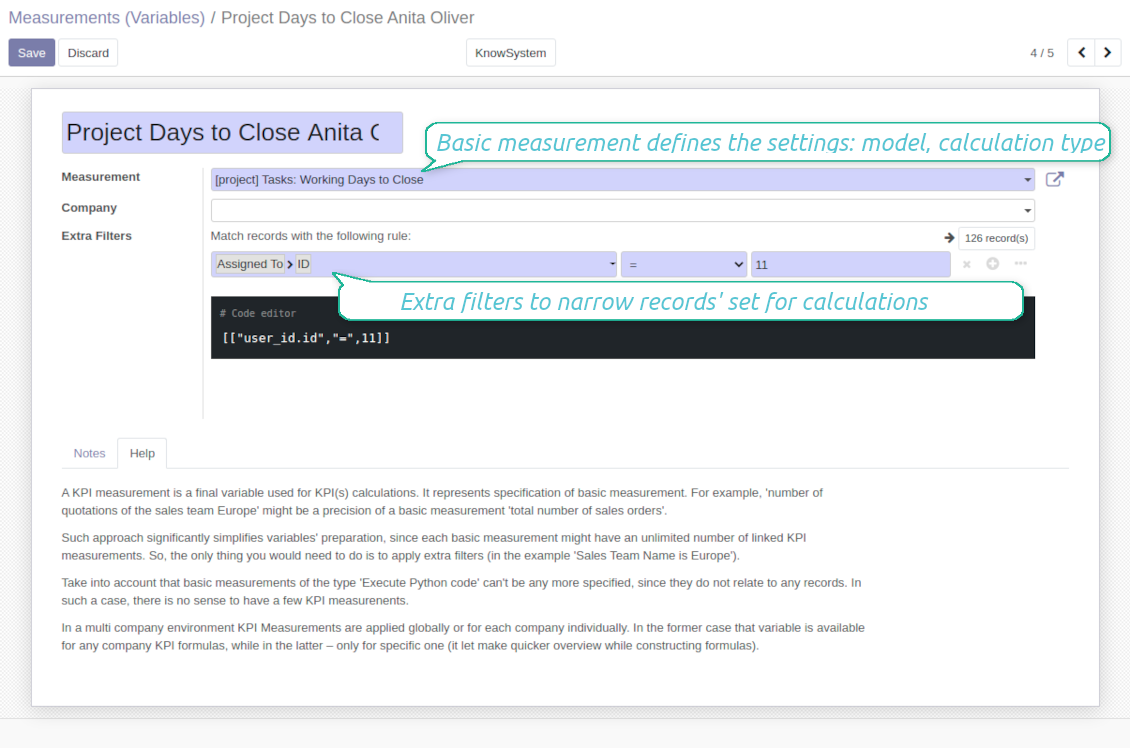
A KPI measurement is a final variable used for KPI calculations. It represents specification of basic measurement. For example, 'number of quotations of the sales team Europe' might be a precision of a basic measurement 'total number of sales orders'.
The key idea to distinct KPI variables from basic measurements is to simplify data preparation. Each basic measurement might have an unlimited number of linked KPI measurements. So, the only thing you would need to do is to apply extra filters (in the example 'Sales Team Name is Europe').
Take into account that basic measurements of the type 'Execute Python code' can't be any more specified, since they do not relate to any records. In such a case, there is no sense to have a few KPI measurements.
In a multi company environment KPI Measurements are applied globally or for each company individually. In the former case that variable is available for any company KPI formulas, while in the latter - only for specific one (it let make quicker overview while constructing formulas).
Screenshots
KPI basic measurements: Odoo data
KPI variable / KPI measurement: specify basic measurement
Execute Python code to calculate KPI actual value
Shared KPIs and self-control
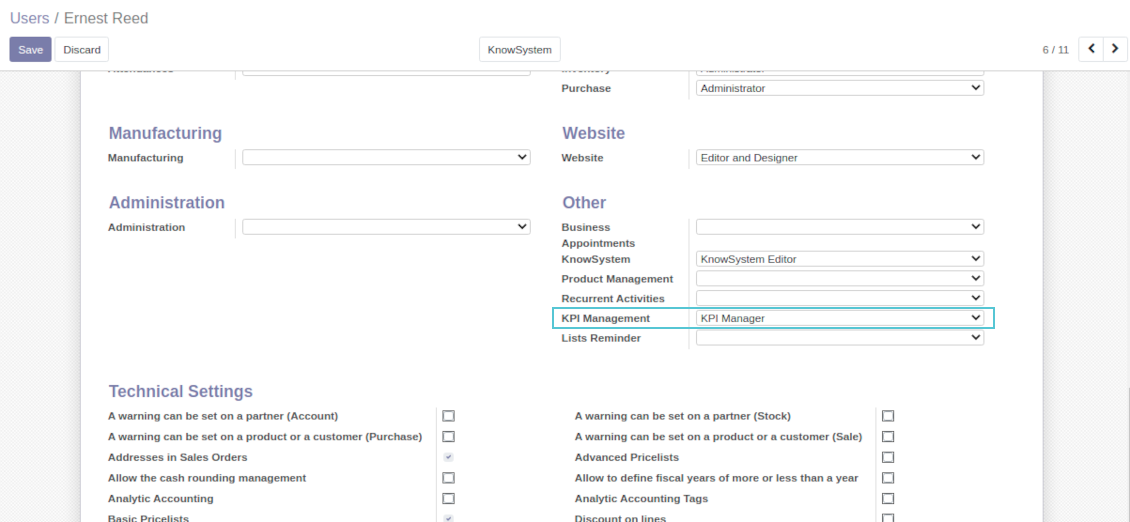
Full rights for all KPIs, targets, and settings belong to users with the right 'KPI Management - KPI manager'. Simultaneously, the tool let you share KPIs with other users as well.
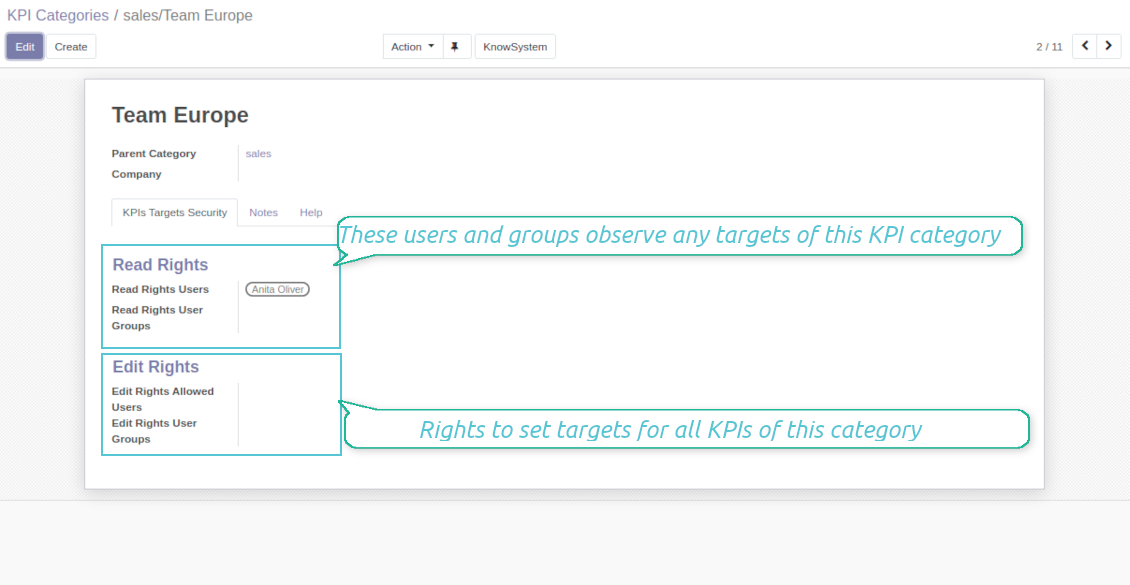
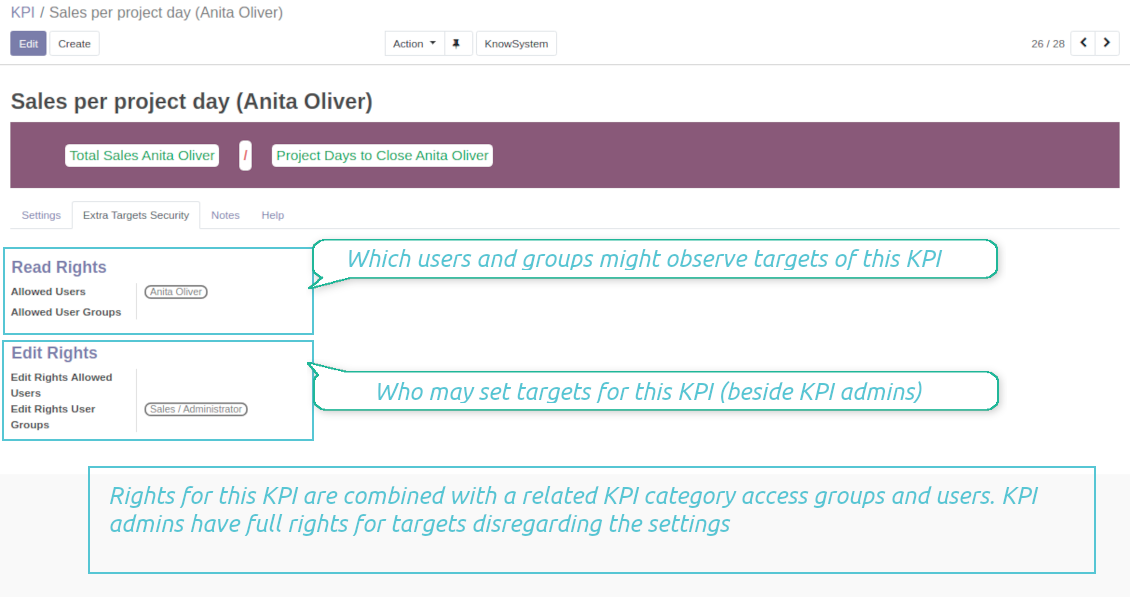
In particular, you can grant an access to observe KPIs using the 'Read rights' section on a KPI or a KPI category form. The section 'Edit rights' would not only allow to see scorecard by related KPIs, but also to set targets for those. The latter might be useful in case you ask your manager to manage goals within a department, for example.
Take into account: all security settings are additive and they are not restrictive. KPI managers would have full rights for all KPIs disregarding the settings, while other users would have rights only to KPIs which settings (or category settings) allow them so.
Screenshots
KPI manager rights
Share all KPIs of this category
Own KPI security settings
Multi companies
The tool is compatible with multi companies' environment. In particular, KPI periods and KPI targets are set up for each company individually (global targets are not possible).
KPI basic measurements assume that a company field is selected for a chosen model. It let distinguish which records are under consideration. If a company field is empty, all records would be analyzed.
Constants, KPI variables, and KPI formulas might be also assigned to a specific company. That might be used to simplify selection of formula parts when companies operate in different business areas.
Configuratie- en installatietips voor KPI Balanced Scorecard Odoo v.13
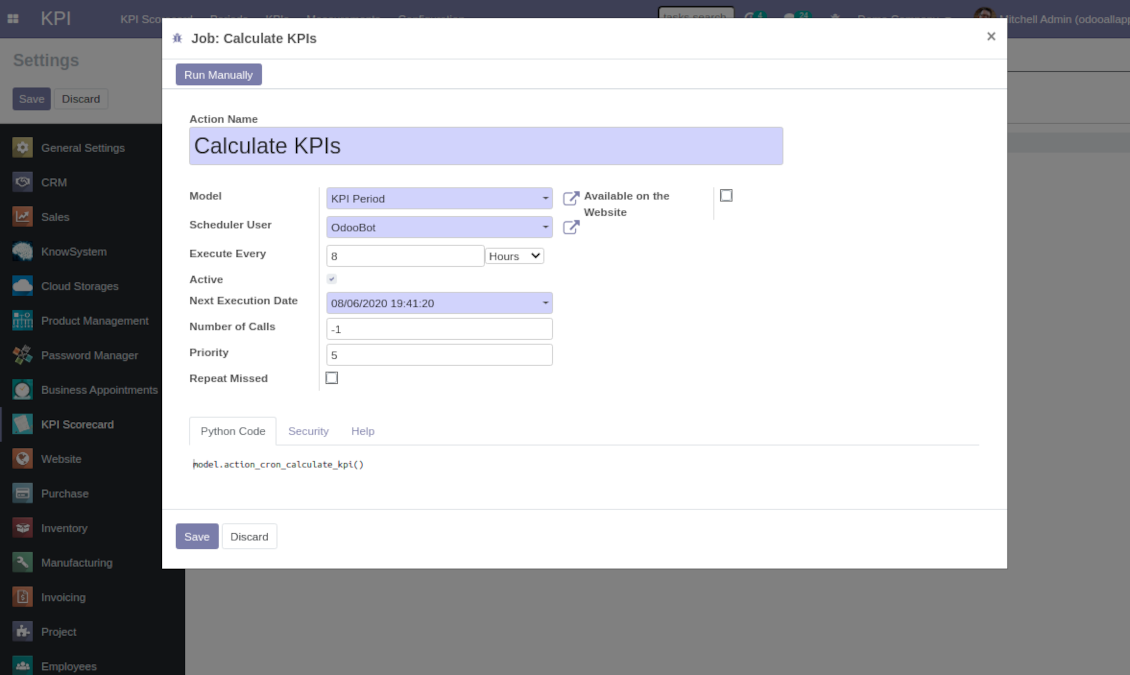
Scheduled jobs
- Turn on the debug mode.
- Go to KPI > Configuration > Settings.
- Find the button 'Configure cron job'.
- You are welcome to update the settings 'Execute Every' and 'Next Execution Date'. Please do not make it too frequent (e.g. once in 5 minutes), since operation is resource demanding, and might be not fully finished within a pair of minutes.
Change frequency of KPIs re-calculatinon
Veelgestelde vragen over KPI Balanced Scorecard Odoo v.13
Ik heb een Basic Measurement gemaakt, maar zie die niet in de formulewizard.
Basic Measurements worden niet alleen in een formule gebruikt. Ook zonder extra filters maakt u een gekoppelde Variable; die verschijnt in de lijst van de wizard.
Welke gegevens kan ik voor KPI gebruiken? Heeft de module eigen data?
De app brengt nauwelijks eigen data mee (behalve KPI-constanten voor ontbrekende waarden) of integraties. Ze rekent en bouwt schermen op bestaande Odoo-gegevens. Voorbeeld: aantal verkooporders in een periode uit Verkoop.
De module is universeel en leest elk Odoo-module, inclusief rekeningsaldi. Voorbeeld: maandwinst op basis van facturen (boeking).
Data buiten Odoo kan als die via een Odoo-module is gekoppeld. Voorbeeld: Google Analytics-data in Odoo's PostgreSQL voor KPI's.
Wat is het verschil tussen Basic Measurements en Measurements (Variables)?
Measurement (Variable) is een precisering van een basismeting. U definieert 'Total Sales' eenmaal en hergebruikt het onbeperkt voor 'Sales Europe', 'Sales John Brown', 'Website Sales' enz. met extra filters.
Wat is het updatebeleid van uw tools?
Volgens het huidige beleid van de Odoo Apps Store:
- Elke module gekocht voor versie 12.0 of eerder geeft toegang tot alle versies tot 12.0.
- Vanaf versie 13.0 moet elke moduleversie apart worden gekocht.
- Ongeacht de versie geeft aankoop recht op alle updates en bugfixes binnen een hoofdversie.
Het faOtools-team bepaalt dit beleid niet. Neem voor vragen rechtstreeks contact op met vertegenwoordigers van de Odoo Apps Store.
Hoe installeer ik uw app op Odoo.sh?
De meest directe aanpak is de ingebouwde workflow van de Odoo-store:
1. Open de modulepagina en klik op Deploy on odoo.sh
2. U gaat naar GitHub. Log in en klik op Create a new repo of gebruik een bestaande. De repository moet privé zijn. Apps onder OPL-1 mogen niet openbaar. Maak zo nodig een nieuwe repo voor het Odoo.sh-project
3. Ga daarna naar odoo.sh, klik op Deploy, bevestig en klik op Continue. De installatie start.
Zo installeert u de app op de productiebranch. Voor andere branches of een update:
1. Download de broncode uit de Odoo-store
2. Commit de module naar de GitHub-repository. Geen app-mappen/bestanden in .gitignore. Repo's van odoo.sh negeren soms belangrijke paden (bijv. /lib). Upload alle modulemappen en -bestanden
3. Deploy de doelbranch van het odoo.sh-project of wacht op de automatische build.
Hoe installeer ik uw app op mijn eigen server?
2. Herstart de Odoo-server;
3. Zet de ontwikkelaarsmodus aan (technische instellingen);
4. Werk de applijst bij (Apps-menu);
5. Zoek de app en klik op Activate/Install;
6. Volg de richtlijnen op de app-pagina als die er zijn.
Uw app heeft extra add-ons. Kan ik die later kopen?
Ja. Odoo zet automatisch alle afhankelijkheden in de winkelwagen: sluit eerder gekochte tools uit om dubbel betalen te voorkomen.
Ik heb uw app op Odoo.sh gezet en zie een waarschuwing/fout in de tests
Een rode/oranje waarschuwing beinvloedt de functies van de app niet. Soms halen onze modules de standaard automatische tests niet, omdat die gedrag verwachten dat indruist tegen het doel van de app. We wijzigen bijvoorbeeld de prijscalculatie, terwijl de Odoo-tests de eindprijs met het standaardalgoritme vergelijken.
Controleer eerst de functies van de gedeployde database. Werkt alles?
Als u toch denkt dat de waarschuwing echte functies raakt, neem contact op en stuur de volledige installatielogs en de volledige lijst gedeployde modules (kern en derden).
Kan ik uw app rechtstreeks bij u kopen?
Nee, we verspreiden de tools alleen via de officiele Odoo-appwinkel.
Ik wil graag korting
Helaas hebben we geen technische mogelijkheid voor individuele prijzen.
Kan ik de app installeren op mijn Odoo Online (SaaS)-database?
Nee, apps van derden kunnen niet op Odoo Online. Odoo SaaS blokkeert die mogelijkheid.
Uw tool hangt van andere apps af. Moet ik die kopen?
Ja, de tool heeft alle modules in de afhankelijkheden nodig. De prijs op de app-pagina is inclusief die afhankelijkheden.
Wat is de prijs van de module in Amerikaanse dollars? Waarom is die veranderd?
De prijs van onze modules staat in euro. De Odoo-store rekent om volgens de interne wisselkoers. De prijs in Amerikaanse dollars kan dus wijzigen als die koers wordt bijgewerkt.
De teksten van de app en website in andere talen dan het Engels zijn met AI ondersteund en afgestemd op de officiële Odoo-vertalingen. Als u een fout ziet, een vertaalticket sturen en we corrigeren het.
Fouten melden
Als u bugs of inconsistent gedrag tegenkomt, aarzel dan niet om contact met ons op te nemen. We garanderen dat we binnen 60 dagen na aankoop oplossingen bieden en zijn zeer geïnteresseerd in het verbeteren van onze tools, zelfs na deze periode.
U heeft geen telefoonnummer of creditcard nodig om contact met ons op te nemen. U hoeft slechts een korte e-mailaanmelding door te geven, die niet langer dan 30 seconden duurt.
Vermeld zo veel mogelijk details in uw verzoek: schermafbeeldingen, Odoo-serverlogboeken, een volledige beschrijving om uw probleem te reproduceren enzovoort. Gewoonlijk kost het enkele werkdagen om een werkplan voor een probleem op te stellen (als een bug is bevestigd) of u richtlijnen te geven over wat er moet gebeuren (anders).
Aanvragen voor openbare functies en module-ideeën (gratis ontwikkeling)
We zijn sterk gemotiveerd om onze tools te verbeteren en zijn dankbaar voor alle feedback. Als uw vereisten van openbaar nut zijn en efficiënt kunnen worden geïmplementeerd, zal het team deze opnemen in onze takenlijst.
Zo'n to-dolijst wordt regelmatig verwerkt en er zijn geen extra kosten aan verbonden. Hoewel we geen deadlines en definitief ontwerp kunnen beloven, kan het een goede manier zijn om de gewenste functies te verkrijgen zonder investeringen en risico's.
U heeft geen telefoonnummer of creditcard nodig om contact met ons op te nemen. U hoeft slechts een korte e-mailaanmelding door te geven, die niet langer dan 30 seconden duurt.

De tool om Odoo-bijlagen in mappen te structureren en te synchroniseren met Google Drive, OneDrive/SharePoint, Nextcloud/ownCloud, Dropbox, Amazon S3, Box en NAS. Bestandsbeheer. DMS
398€
De tool om Odoo-bijlagen bidirectioneel met OneDrive te synchroniseren
487€
De tool om Odoo-bijlagen bidirectioneel met Google Drive te synchroniseren
487€
De tool om wachtwoorden veilig in Odoo te bewaren voor gedeeld gebruik. Kluizen

De tool om een diepe kennisbank te bouwen, intern en extern. KMS. Wiki-achtige revisies
398€
De tool voor tijdgebonden diensten van boeking tot verkoop en reviews
398€
De tool om Odoo vanuit AI-chats via MCP te beheren. Claude. Elke MCP-AI.

De tool om verschillende Odoo-events in een paar configureerbare superkalenders te combineren
