KPI Balanced Scorecard v.13
The tool to set up KPI targets and control their fulfillment by periods
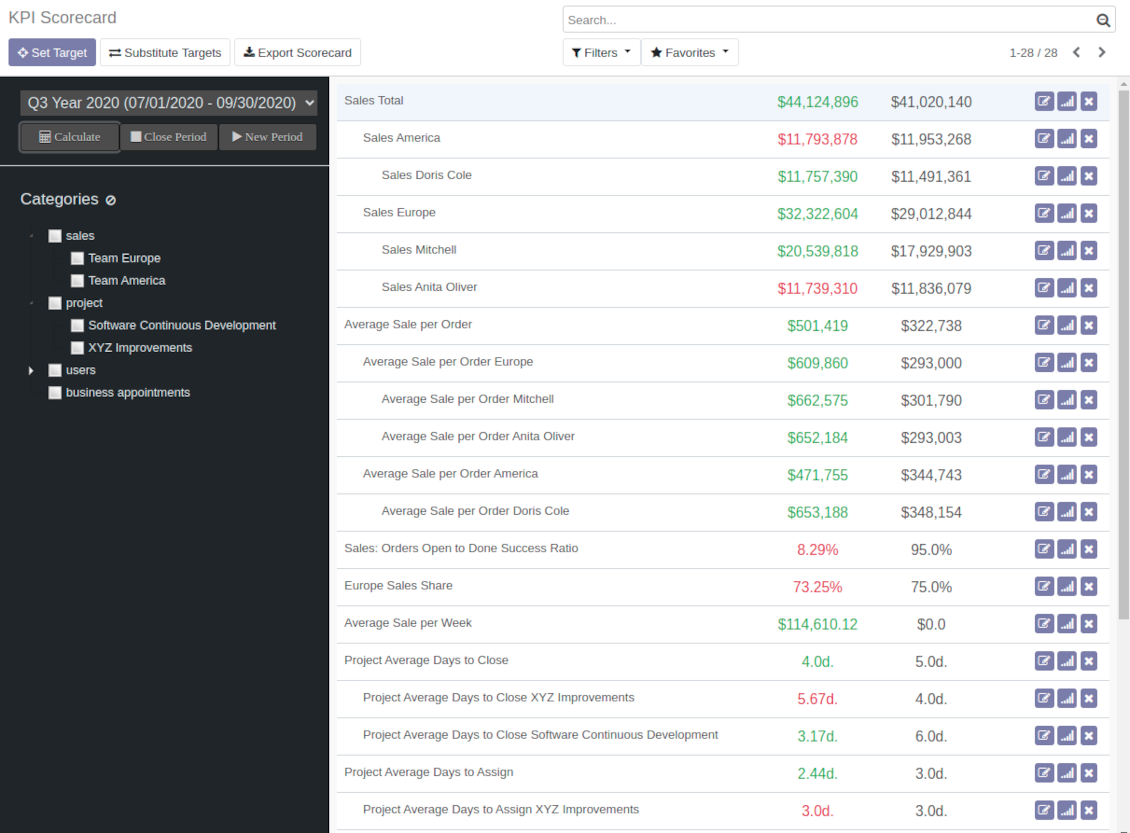
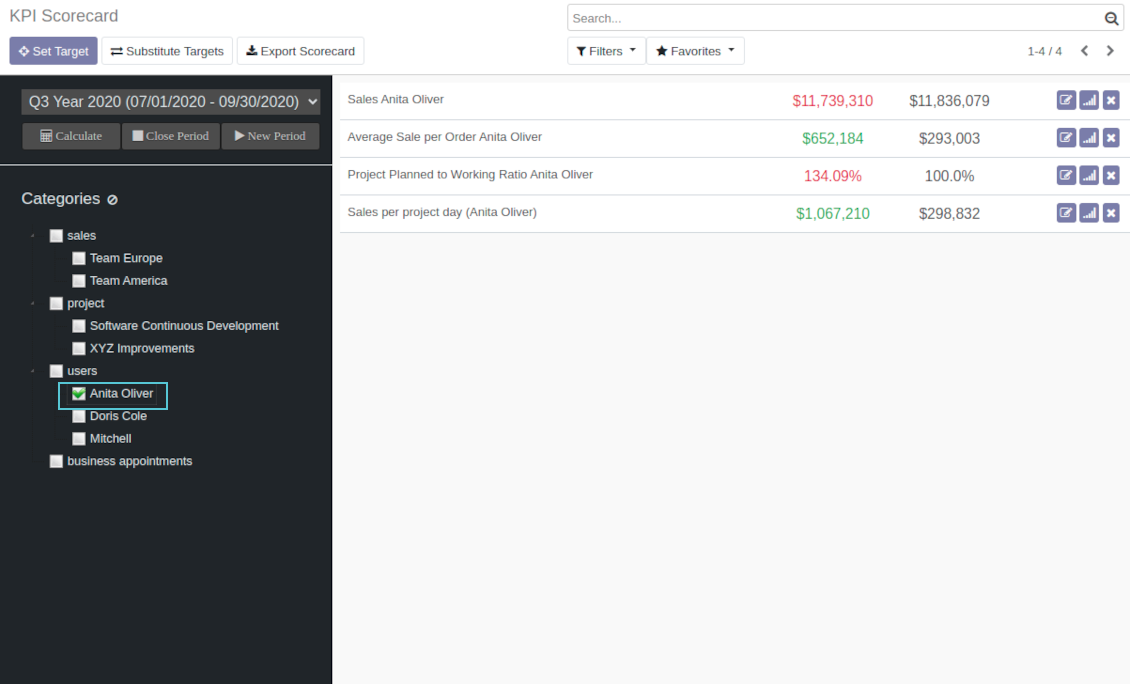
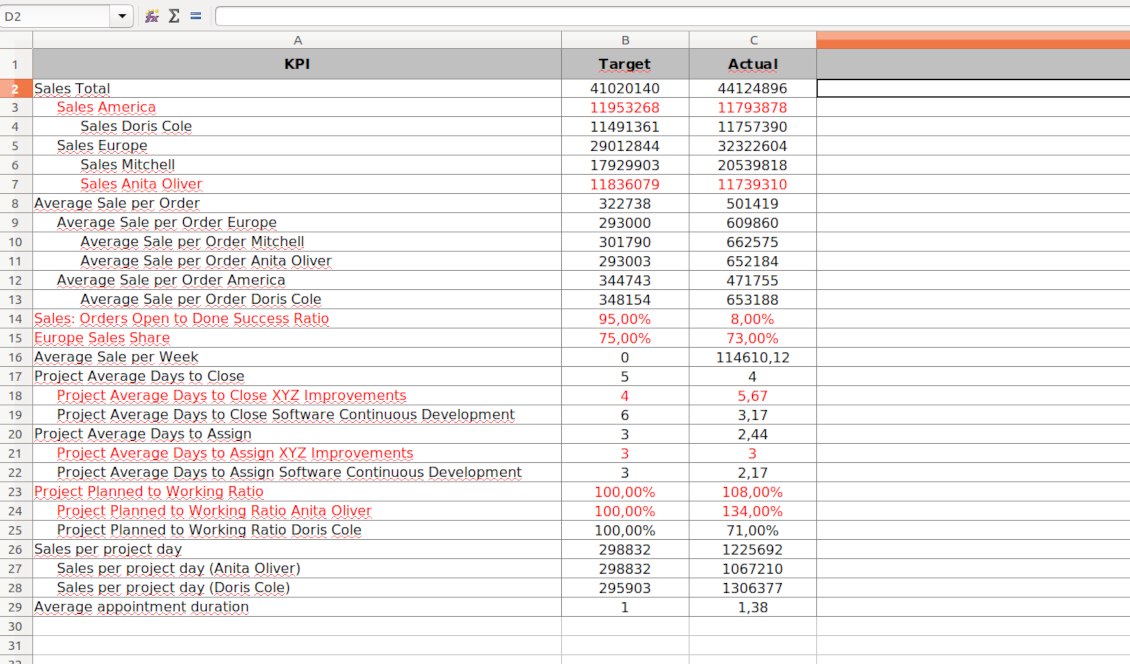
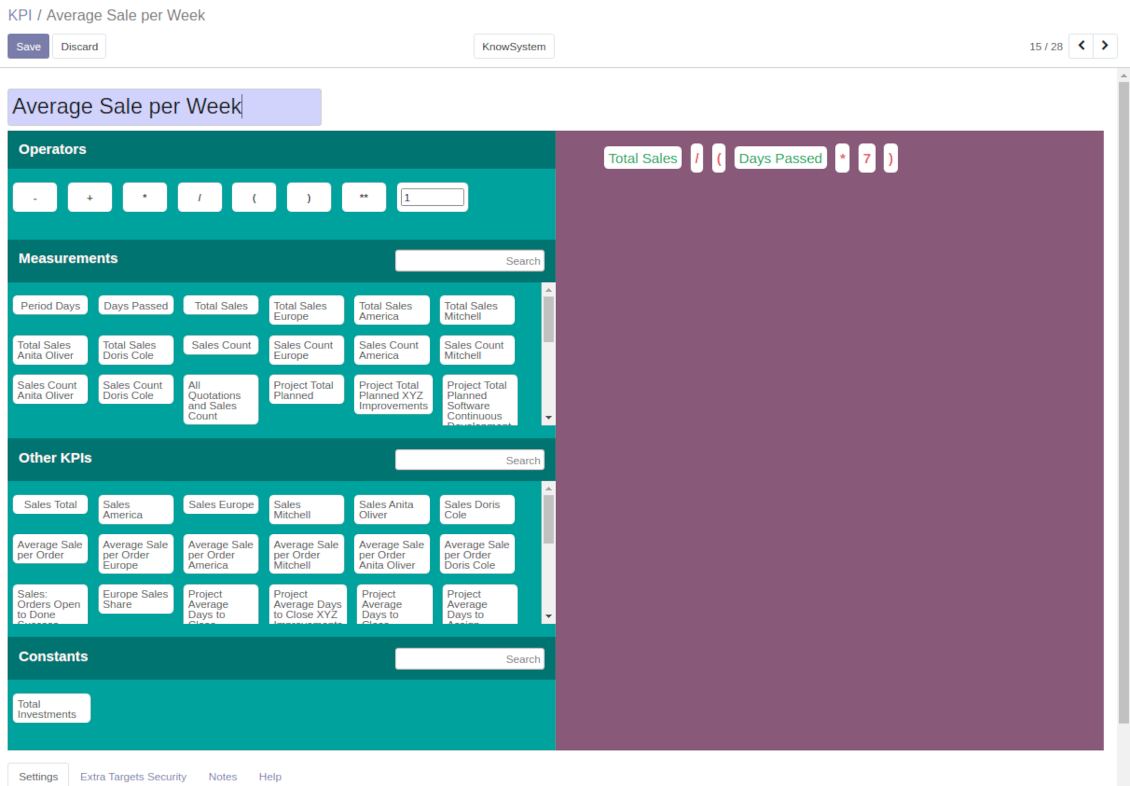

Balanced Scorecard Interface
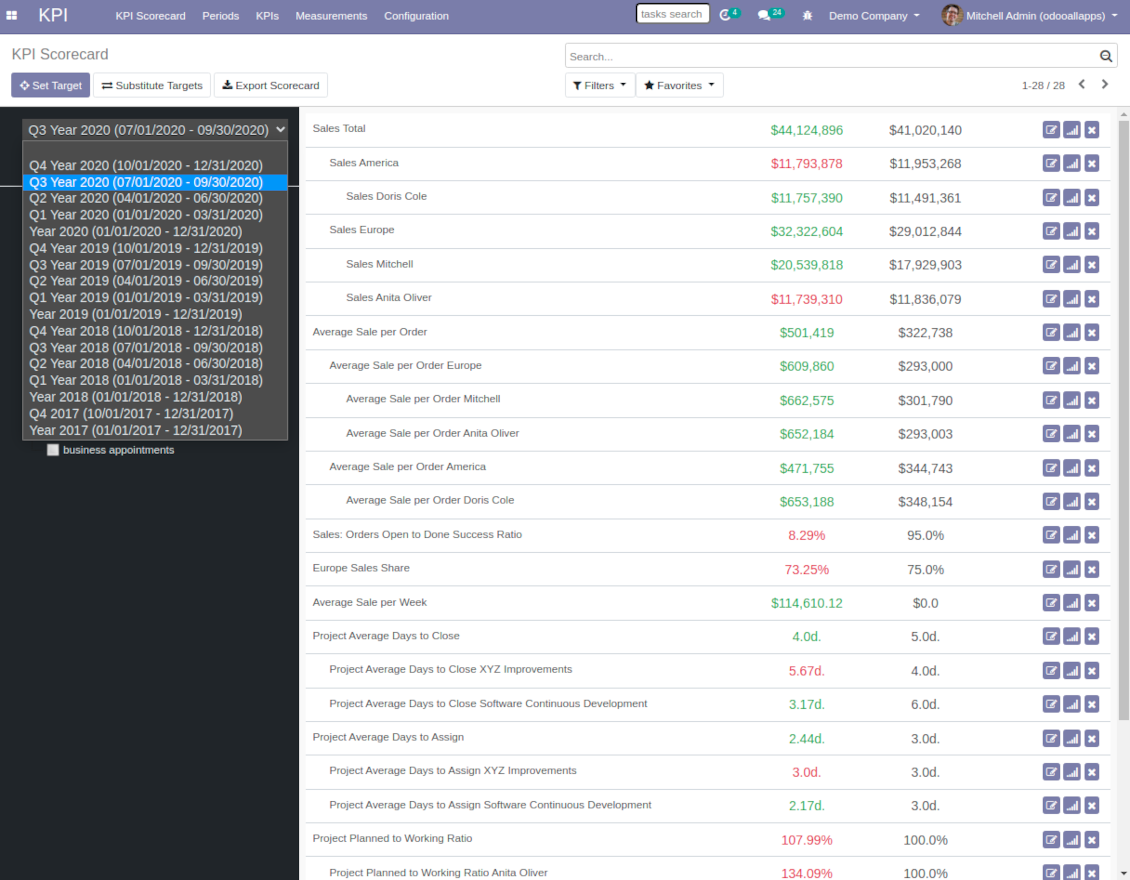
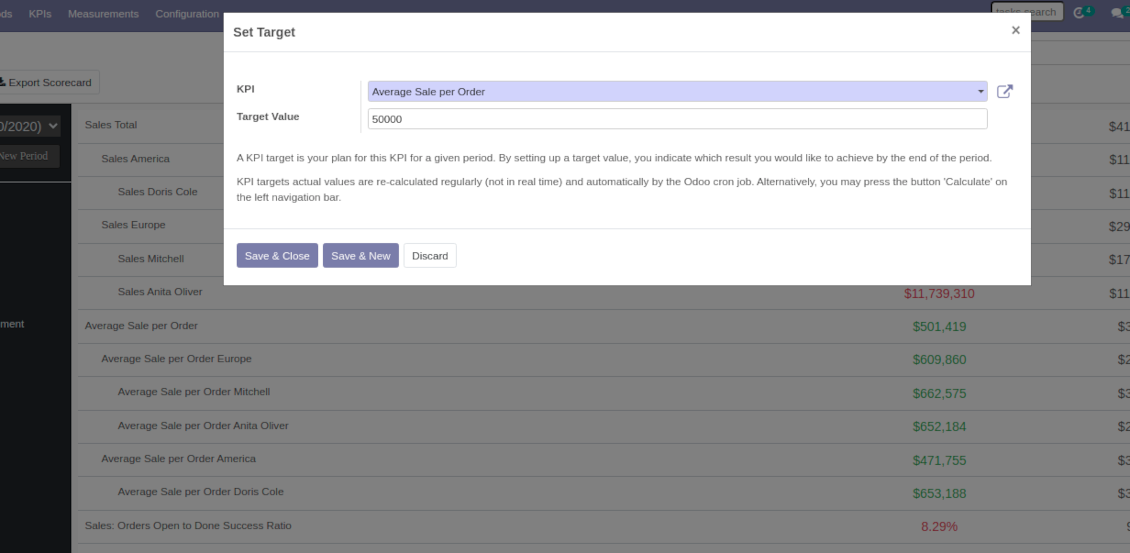
The whole list of KPI targets for a period is available from a single interface. Right from here you can set up new targets and edit existing ones, observe actual and target values, evaluate success by indicative red / green color, observe historical trends, open and close periods. It is also possible to export a whole scorecard to an Excel table.
To make navigation over targets comfortable, KPIs are structured by categories. It let quickly consider only those KPIs which are of interest at the moment. For example, to observe only sales targets or targets of a specific Odoo user. Another important peculiarity is that KPIs might have parent-children relations. For instance, 'Total company sales' > 'Sales America' > 'John Brown Sales'. Such hierarchy allows to highlight targets with indicative padding for instant overview of sub-KPIs.
It is only up to you which KPIs to add and which approach to apply for KPIs' sectioning and hierarchy.
Captures d'écran
KPI Balanced Scorecard
KPI targets by categories
Export Odoo KPI scorecard to Excel
Open new KPI period to set KPI targets up
Set a new Odoo KPI target
KPIs targets by periods
KPI scorecard is not just a dashboard, but it is a full-featured tool to set and control company and individual targets. Targets should be measurable and time-constrained. 'Sell as much as possible' is not a goal, while 'Generate 100,000 Euro Revenue in the year 2021' is a good target for a sales person, for example.
That is why, each goal should have a target value and should be defined for a period. In such a way, the app let you have a full picture of results to undertake corrective actions in advance.
Real-time control and historical trends
When a user opens scorecard interface, he/she is shown targets of a current period (if it exists). Actual values are re-calculated regularly and automatically by the special Odoo cron job. In such a way, it is possible to understand which KPIs require more attention in real time at a first glance.
Simultaneously, it is always possible to switch to another period to have broader picture (e.g. from monthly to yearly KPIs) or to observe the Past / the Future targets (e.g. to plan efforts efficiently).
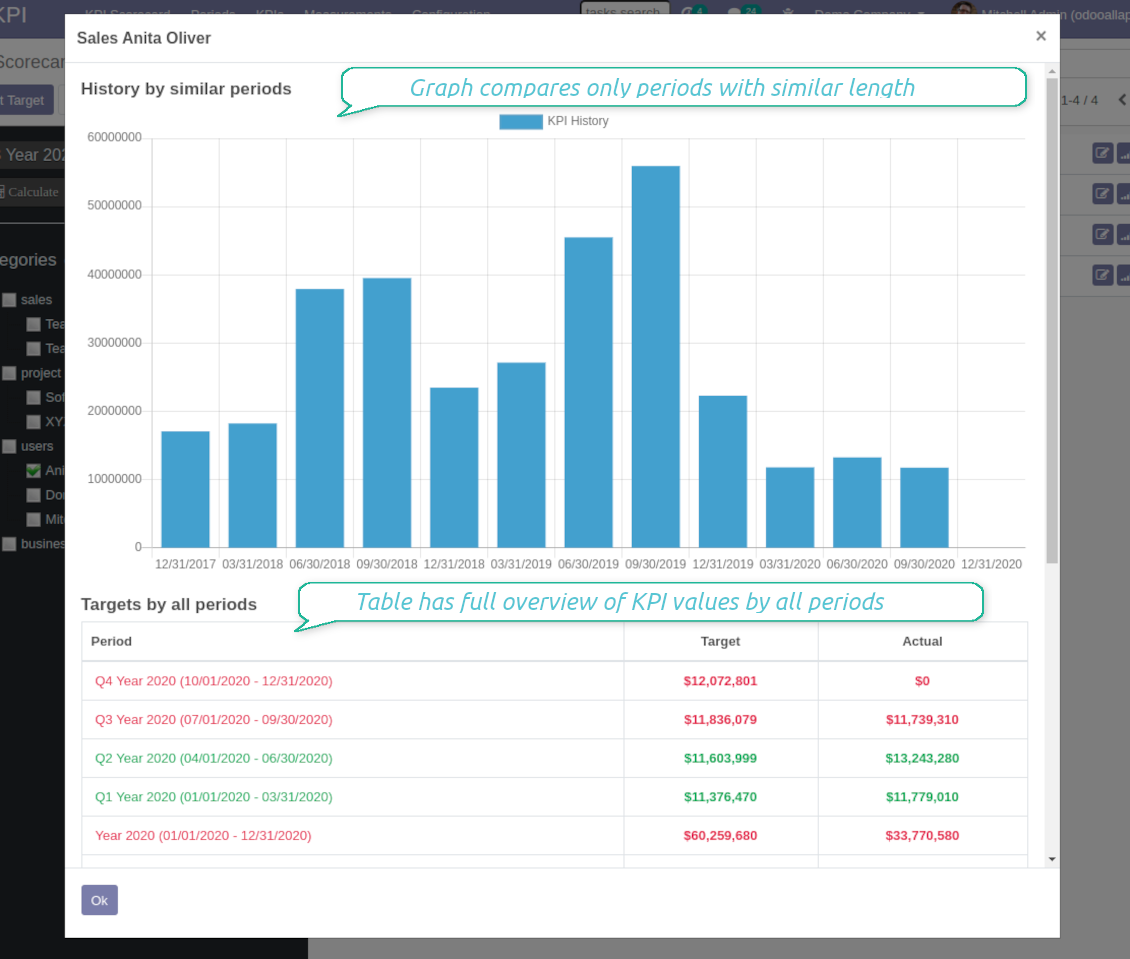
Besides, each KPI target has a special button to observe history by all periods. The latter might be useful to understand overall trends.
Copying targets from a period
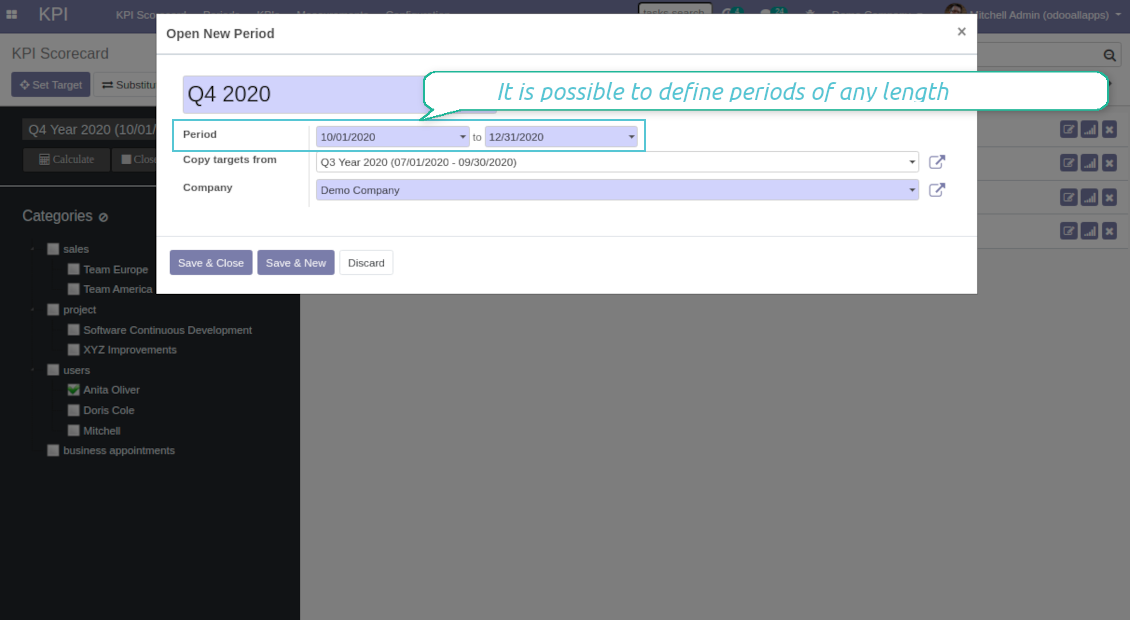
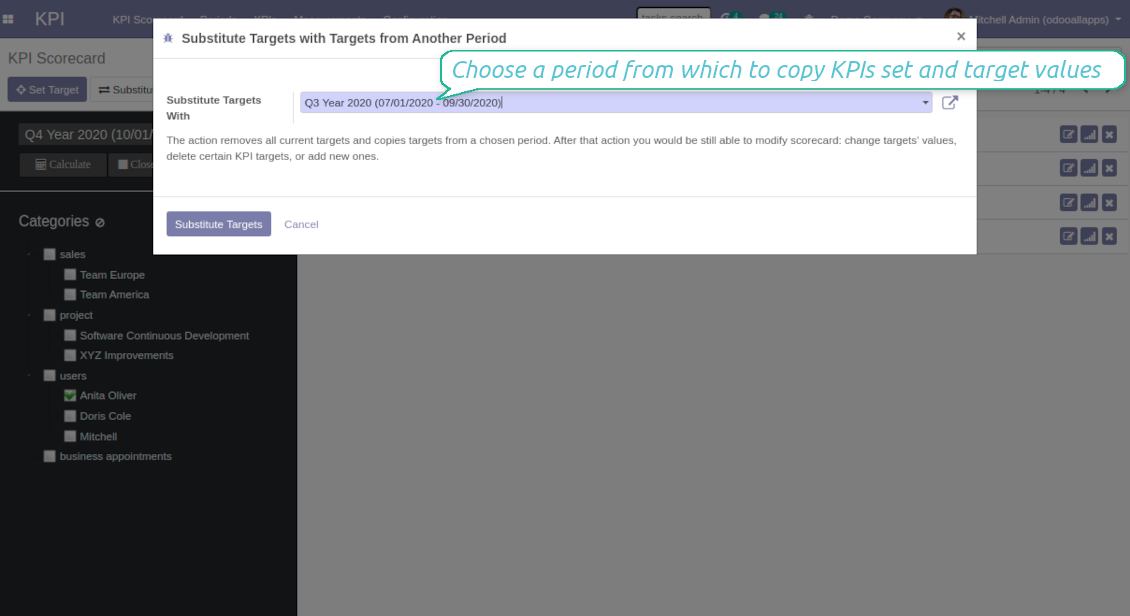
In case you have similar KPIs from a period to period, the tool let you copy targets. To that end use the field 'Copy target from' when you open a new period or the button 'Substitute' for existing ones.
Periods trends, length and tolerance
The app allows to set periods of any length including intervals which cross each other (and even the Past periods!). To open a new KPI period you should just set start and end dates. Those dates will be used to calculate KPI actual value. For example, KPI formula might include a basic KPI measurement for total amount of sale orders, while date field of this measurement is defined as 'Order date'. Then, only sale orders which order date is within the period would be taken into account. Thus, KPI scorecard would show total revenue for a given period.
It is recommended to have more or less strict logic of periods for comparability purposes. Usually, KPI targets are set for a whole year and quarterly/monthly intervals. It let not only have KPI overview, but also check historical trends. The app automatically considers various periods in order to define which might be compared to this one, and will show users a chart of actual values by a specific KPI. It is possible to define tolerance on the configuration page. For example, 2-days tolerance is needed to compare quarterly periods (since quarter might take from 90 to 92 days), and 3-days tolerance for months (unluckily, February may last 28 days).
Why to close periods
KPI periods work in a similar way as accounting / fiscal periods. The idea behind is to make sure that at a certain point KPI actual values are frozen and might be used for a final analysis of a period. It is hardly good to update December KPIs in the next August even though a sale total needs to be corrected, for example.
That is why when a period end date is already in the Past, it is preferable to close that period to avoid further updates of KPI targets actual values. Besides, it would speed up actual values' recalculations.
Captures d'écran
KPI targets by periods
KPI trends by similar periods and overall history
Substitute targets with KPI targets of another period
Drag-and-drop formulas for KPI calculations
A KPI (a key performance indicator) is a measurement which aims to evaluate a certain aspect of organizational or personal activities. This tool let you prepare an unlimited number of such measurements and calculations of almost any complexity.
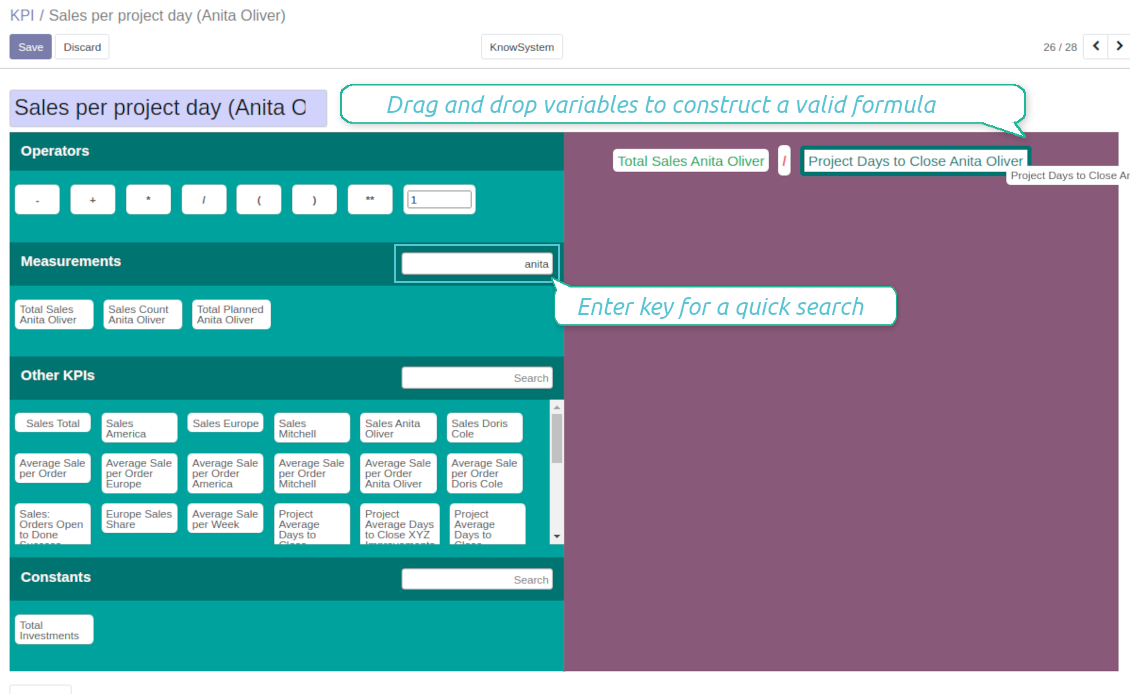
Formula construction is as simple as it is to write down a mathematical expression: just drag and drop formula parts in a right order with correct operators. When Odoo computed actual values for a specific period, it would automatically retrieve data from a database according to parts' logic. As formula parts you can apply:
- KPI variables - rules how to calculate data from Odoo database. For example, 'total number of sales orders' or 'number of quotations of sales team Europe'.
- Other KPIs - to make derivative calculations. For example, you may have KPIs 'Sales count' and 'Opportunities count', and a derivative KPI 'Opportunity to sales success ratio'.
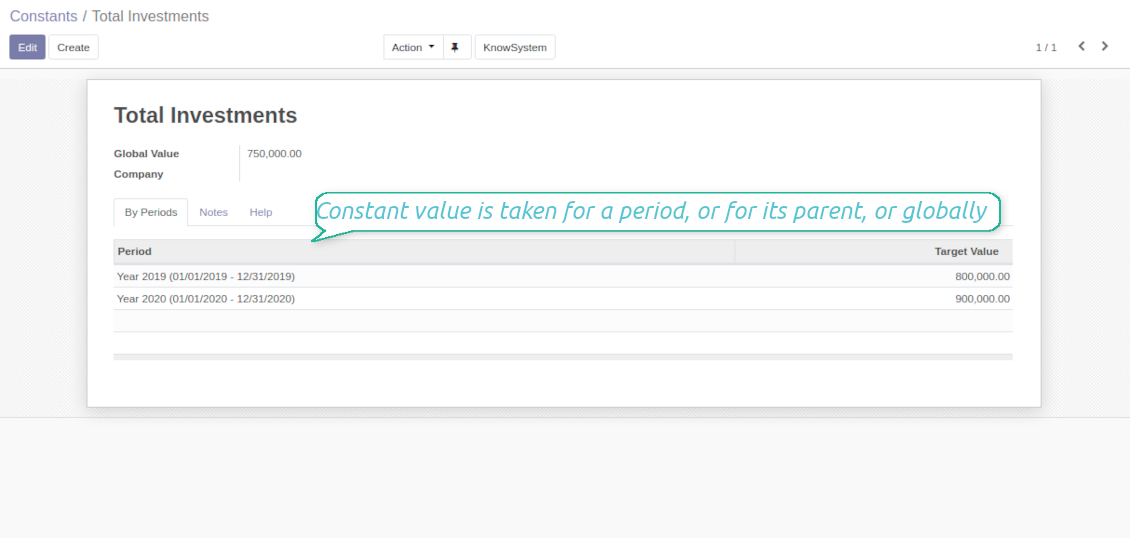
- KPI constants - figures which do not depend on actual Odoo data, but which are frozen globally or for a specific time frame. Constants allow to introduce parts which can not be retrieved from modules and/or which should remain the same during the whole period.
- 2 special variables - 'Period Days' and 'Days Passed'. Those figures are calculated not from Odoo data, but from the KPI period settings under consideration. 'Period Days' is an interval length in days. 'Days Passed' is a length between period start and today (if today is before period end; otherwise period end). Those parameters let calculate per-time KPIs, such as, for example, 'Average sales per week'.
- Mathematical operators - including subtraction, addition, multiplication, division, exponentiation, any float number.
How to configure KPI appearance
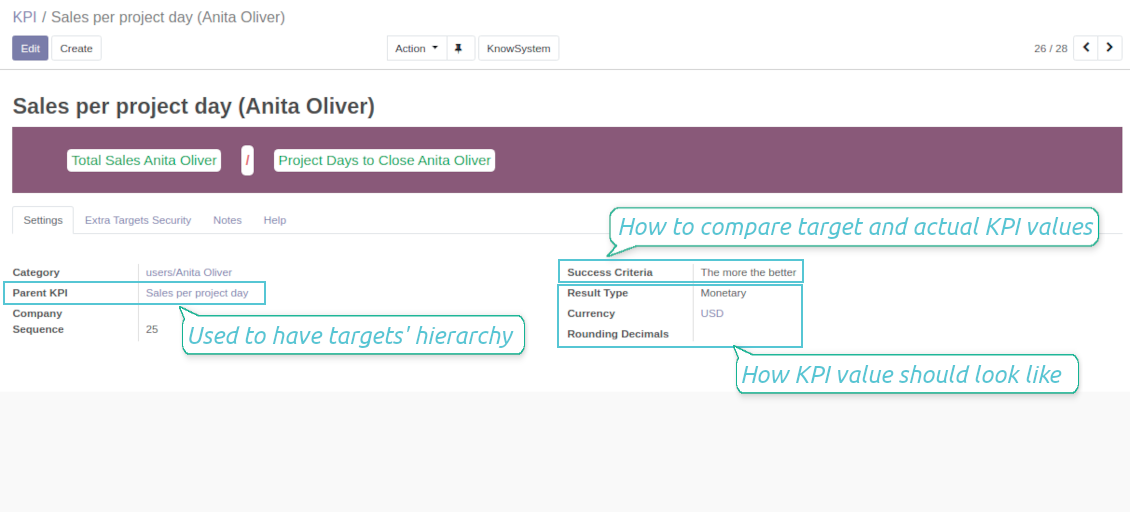
Depending of business logic of KPI formula, the final calculation result might have different form:
- Simple number: for example, 'Average sales count per week'.
- Percentage: for example, 'Sales to opportunities success ratio'.
- Monetary: for example, 'Total Sales per period'. Make sure the measurement field you used is in the same currency (usually company default currency)!
For simple numbers and percentage you may also define result suffix and prefix to make a figure nice looking (e.g. add "%" as suffix to have "88%"). For monetary result type it is recommended to define a currency, which symbol would be added to result.
Finally, you may decide how calculation result should be rounded. Available options are from 0 to 4 decimal points (1 > 1.2 > 1.23 > 1.235 > 1.2346).
Captures d'écran
KPI formula: overview
Drag and Drop to define KPI calculation formula
KPI formula: settings and apperance
Constants for KPI calculations
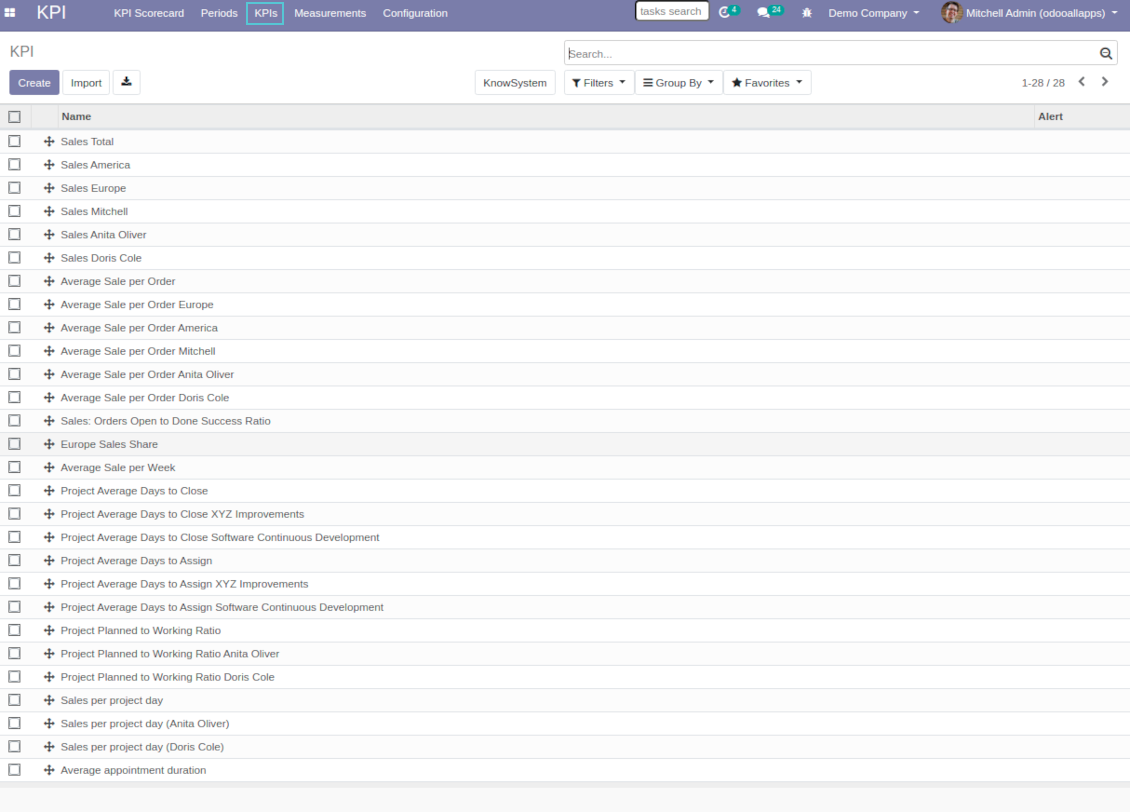
Odoo List of KPIs to set targets
KPI variables and basic measurements to retrieve Odoo data
Preparing basis for KPI calculations is not a simple task. The good news is that such job should be done only once, while results are used forever.
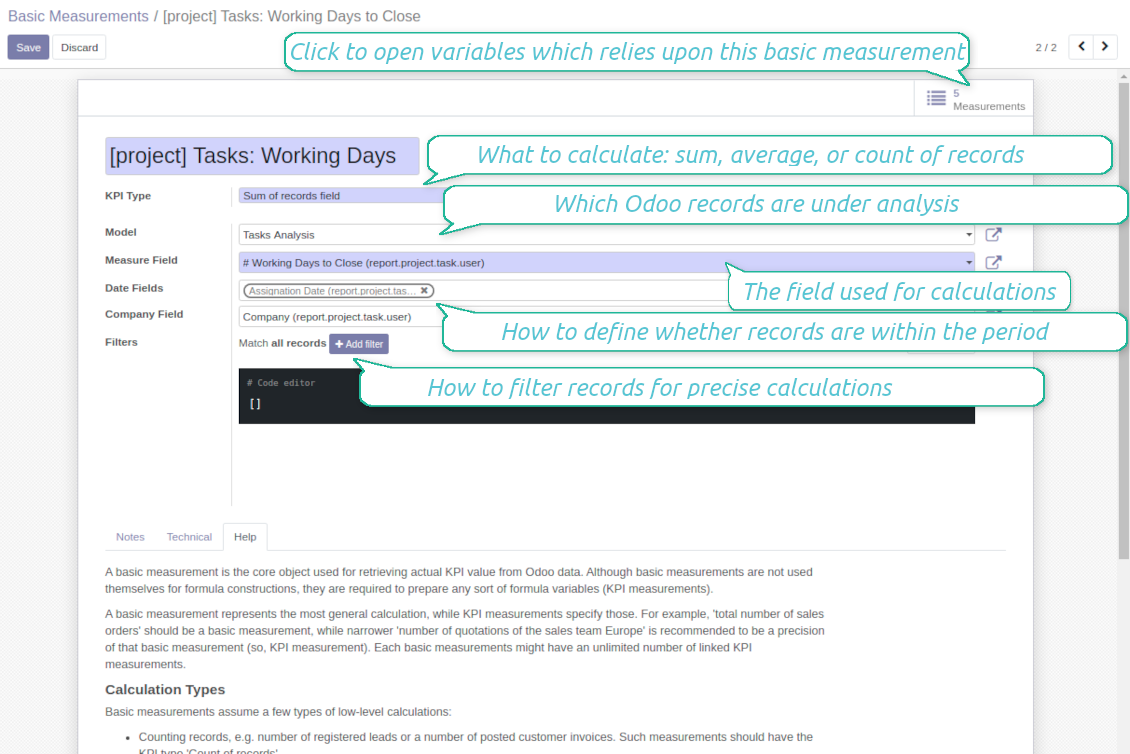
A basic measurement is the core object used for retrieving actual KPI value from Odoo database. Basic measurements represent the most general calculation, while KPI measurements specify those. For example, 'total number of sales orders' should be a basic measurement, while narrower 'number of quotations of the sales team Europe' is recommended to be a precision of that basic measurement (so, a KPI measurement or a KPI variable). Each basic measurement might have an unlimited number of linked KPI variables. In such a way, KPI variable let you prepare a formula part which might calculate:
- A total number of specified records within a given period. For example, a number of registered leads or a number of posted customer invoices.
- A sum of specified records' numeric fields. For example, sum of all orders amount total or sum of paid taxes by invoices.
- An average of specified records' numeric fields. For example, average planned hours per task or average days to assign a lead
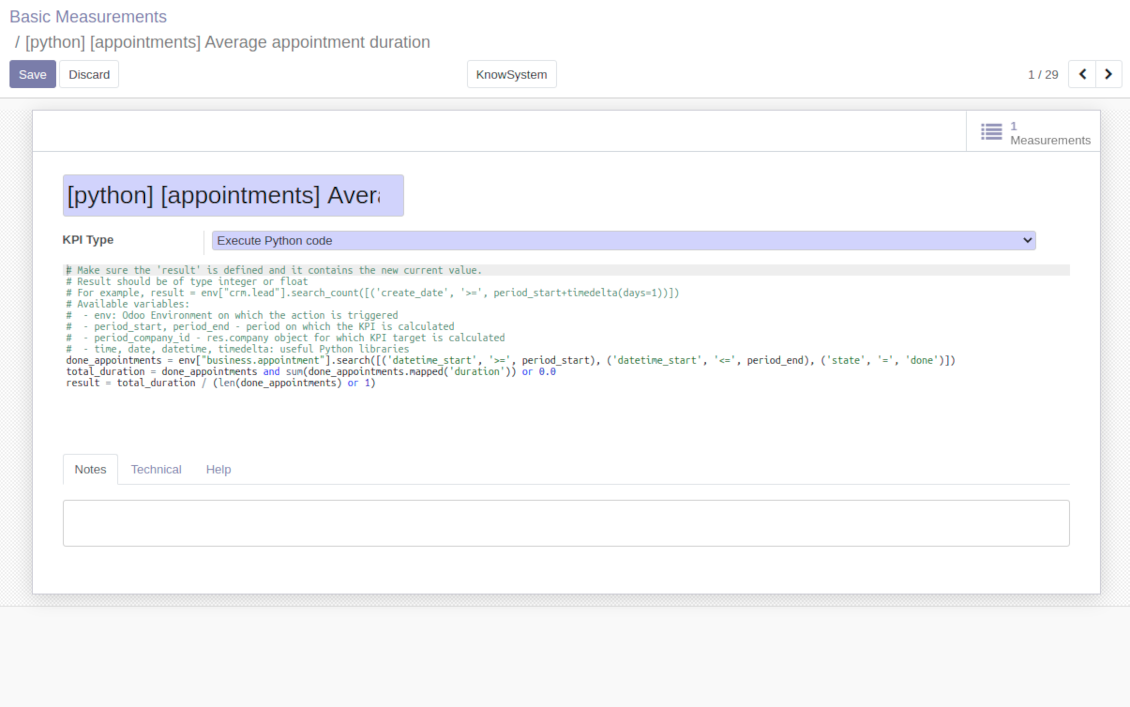
If those 3 types of calculations are not enough, basic measurements let you prepare the Python code to compute any sort of figures based on any Odoo data.
How to set up basic measurement
Basic measurements are not used themselves for formula constructions, they are required to prepare any sort of formula variables (KPI measurements). In order to create a basic measurement you should define:
- Model - is an Odoo document type from Odoo database, so with which data set you work. For, examples, 'Sales Order' or 'Task'. Here you can rely not only upon standard or custom objects (including ones created through the interface or the Odoo studio.), but also on Odoo reports. The latter is quite useful if indicators are already calculated for existing dashboard (for example, total sales amount in default currency from the 'Sales Analysis Report').
- Date fields - are required to understand whether a specific document type relates to a considered period, so, how to distribute objects by time intervals. For example, for tasks you might use 'create date' to analyze jobs registered within this KPI period. It is possible to apply a few date fields (e.g. 'Opportunities opened and won in January 2021'). If date fields are not specified, KPI period would not influence this basic measurement.
- Filters - allow you to restrict records set by any stored field. For example, you may calculate count of only won opportunities based on stage settings or only posted customer invoices based on journal entry type and state.
- Measure field - is available and required only for calculation types 'Average' and 'Sum'. It defines which figure you use for calculations. For example, total amount of Sales Analysis Report to get accumulated sales revenue or work hours of tasks to get average spent time per each task.
- Company field - would be needed for multi companies environment. According to that field, KPIs are considered only withing a KPI period target company. Take into account that records without company stated would be used for all companies' KPI calculations.
Python code measurements
'Python code' is the special type of basic measurement. This type requires technical knowledge but let you compute any sort of figures based on any Odoo data without restrictions.
Correct Python code assumes saving the value into the special variable 'result'. From other perspectives, it might be any Python basic script with possibility of SQL queries (using 'env.cr').
In your calculations you may also rely upon the special variables: 'period_start' (the first date of the period), 'period_end' (the last date of the period), 'period_company_id' - res.company object for which Odoo makes calculations at the moment (according to a KPI period under consideration).
How to configure KPI variables from basic measurements
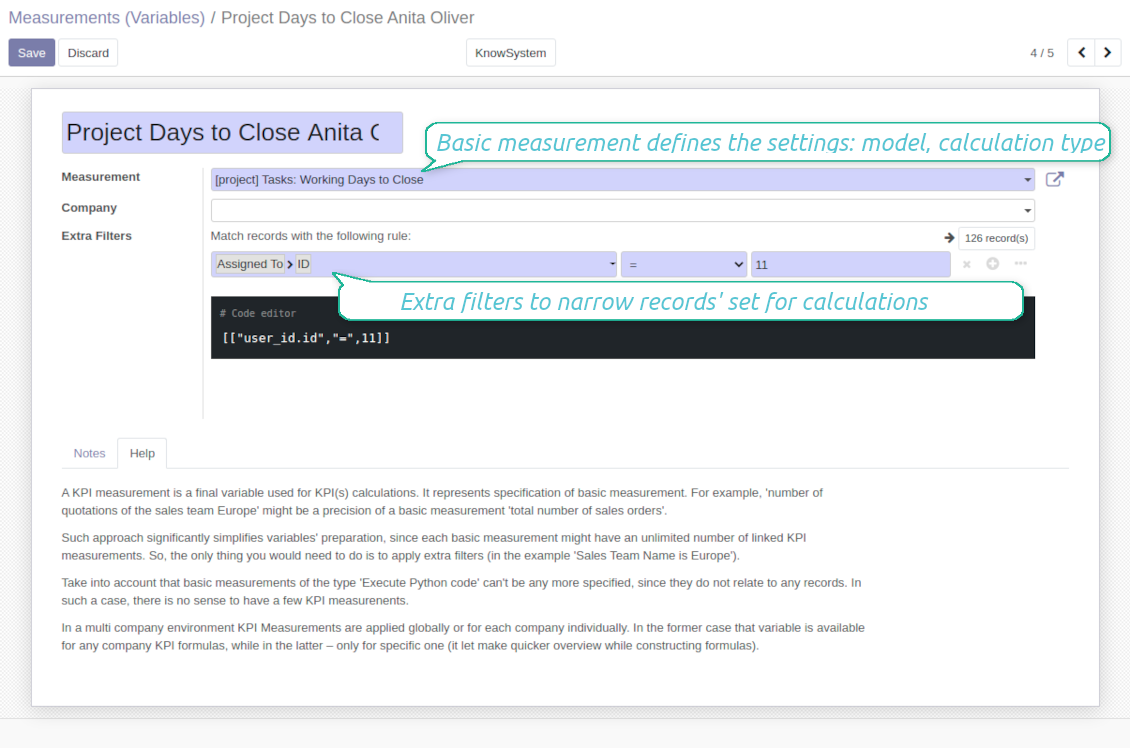
A KPI measurement is a final variable used for KPI calculations. It represents specification of basic measurement. For example, 'number of quotations of the sales team Europe' might be a precision of a basic measurement 'total number of sales orders'.
The key idea to distinct KPI variables from basic measurements is to simplify data preparation. Each basic measurement might have an unlimited number of linked KPI measurements. So, the only thing you would need to do is to apply extra filters (in the example 'Sales Team Name is Europe').
Take into account that basic measurements of the type 'Execute Python code' can't be any more specified, since they do not relate to any records. In such a case, there is no sense to have a few KPI measurements.
In a multi company environment KPI Measurements are applied globally or for each company individually. In the former case that variable is available for any company KPI formulas, while in the latter - only for specific one (it let make quicker overview while constructing formulas).
Captures d'écran
KPI basic measurements: Odoo data
KPI variable / KPI measurement: specify basic measurement
Execute Python code to calculate KPI actual value
Shared KPIs and self-control
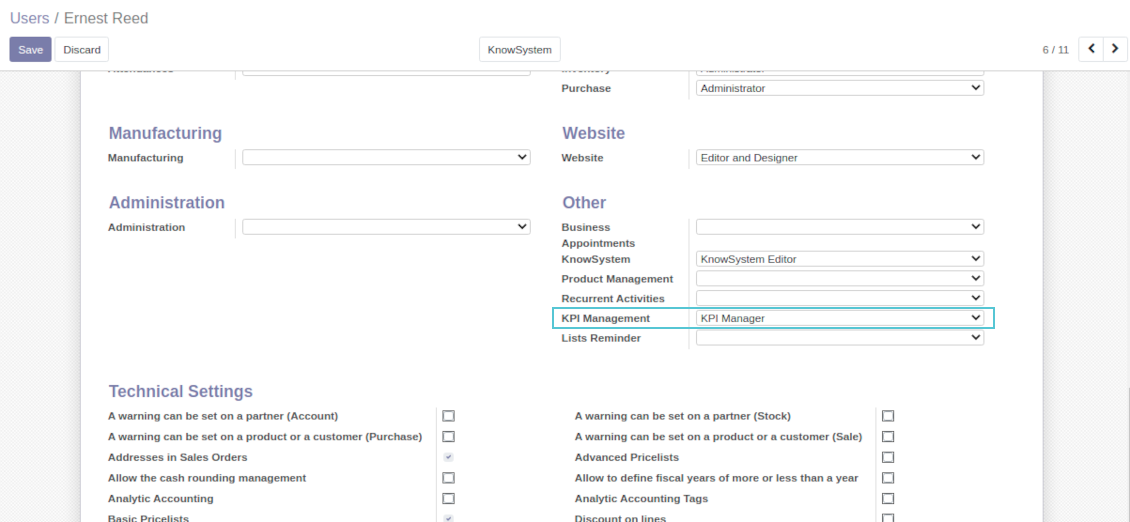
Full rights for all KPIs, targets, and settings belong to users with the right 'KPI Management - KPI manager'. Simultaneously, the tool let you share KPIs with other users as well.
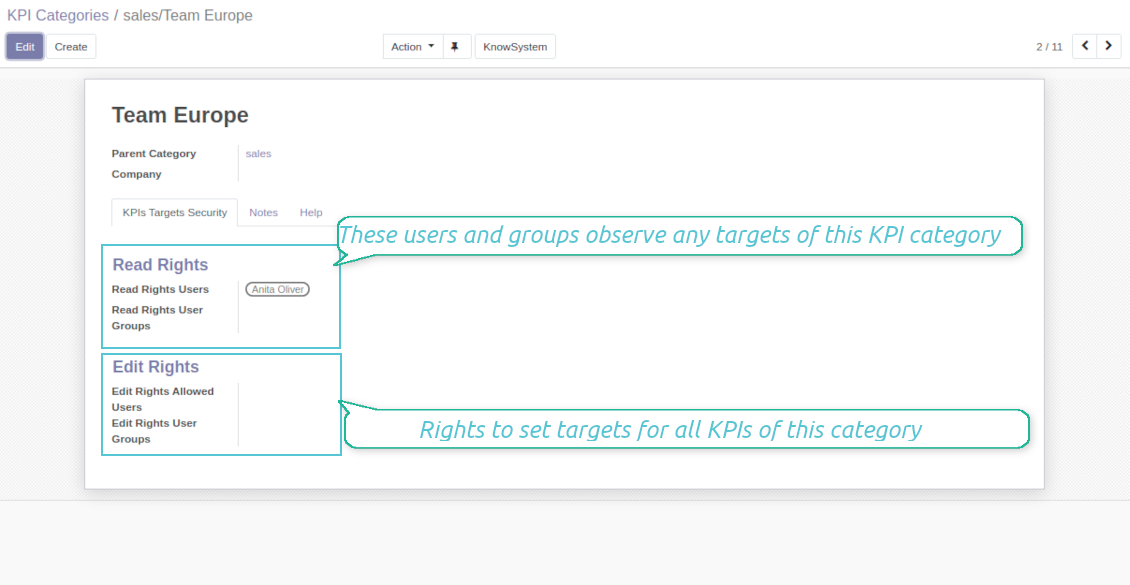
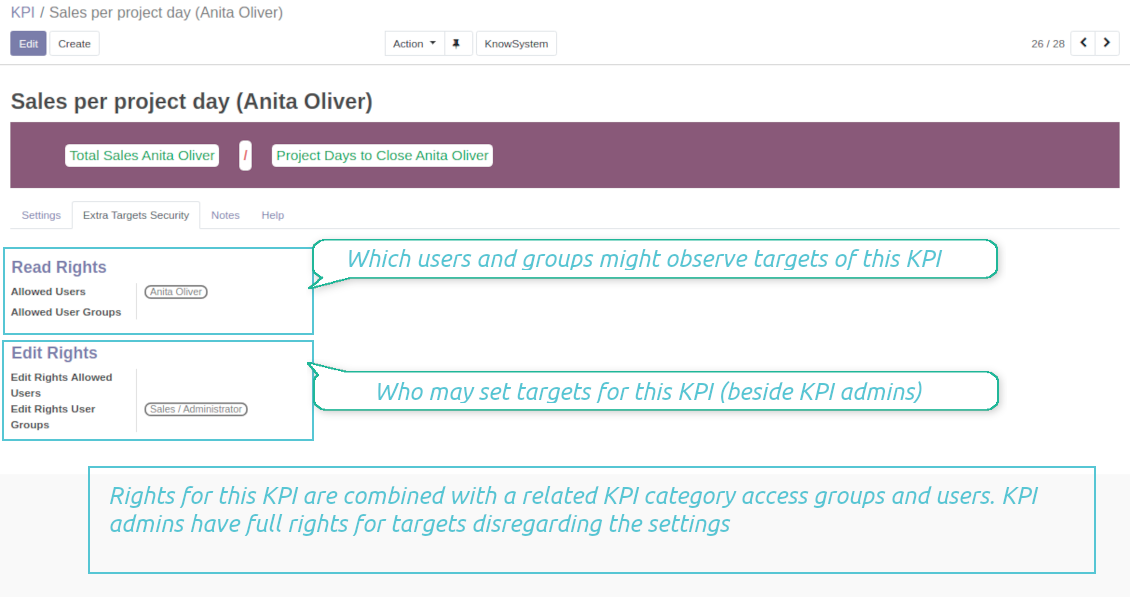
In particular, you can grant an access to observe KPIs using the 'Read rights' section on a KPI or a KPI category form. The section 'Edit rights' would not only allow to see scorecard by related KPIs, but also to set targets for those. The latter might be useful in case you ask your manager to manage goals within a department, for example.
Take into account: all security settings are additive and they are not restrictive. KPI managers would have full rights for all KPIs disregarding the settings, while other users would have rights only to KPIs which settings (or category settings) allow them so.
Captures d'écran
KPI manager rights
Share all KPIs of this category
Own KPI security settings
Multi companies
The tool is compatible with multi companies' environment. In particular, KPI periods and KPI targets are set up for each company individually (global targets are not possible).
KPI basic measurements assume that a company field is selected for a chosen model. It let distinguish which records are under consideration. If a company field is empty, all records would be analyzed.
Constants, KPI variables, and KPI formulas might be also assigned to a specific company. That might be used to simplify selection of formula parts when companies operate in different business areas.
Conseils de configuration et d'installation pour KPI Balanced Scorecard Odoo v.13
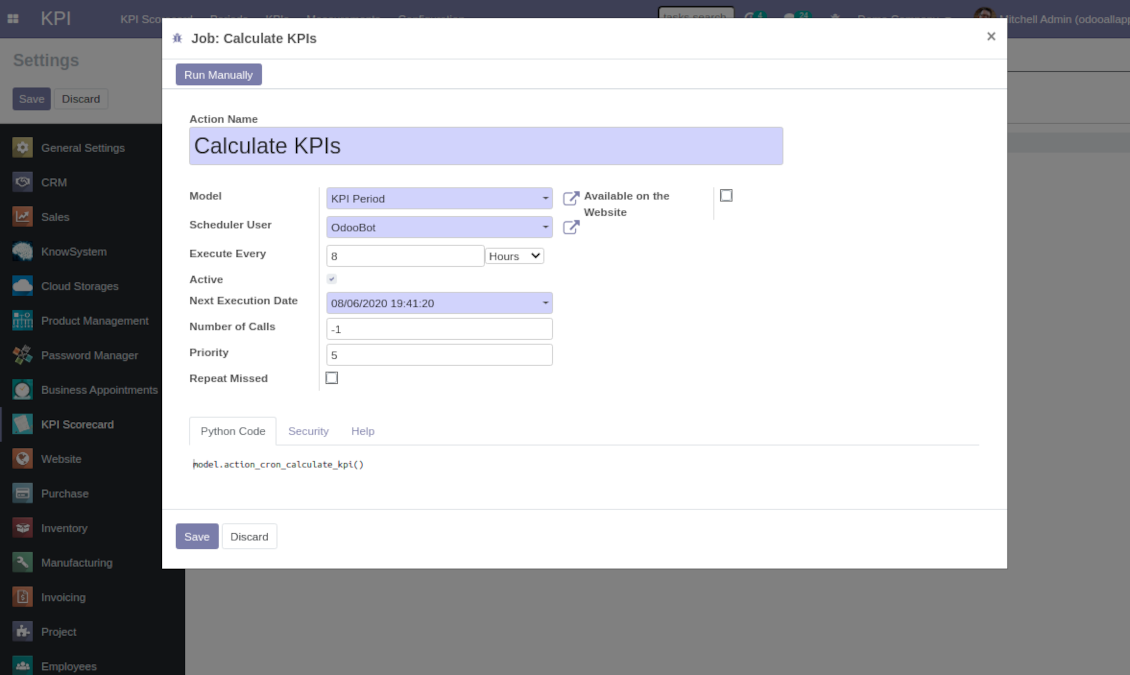
Scheduled jobs
- Turn on the debug mode.
- Go to KPI > Configuration > Settings.
- Find the button 'Configure cron job'.
- You are welcome to update the settings 'Execute Every' and 'Next Execution Date'. Please do not make it too frequent (e.g. once in 5 minutes), since operation is resource demanding, and might be not fully finished within a pair of minutes.
Change frequency of KPIs re-calculatinon
Questions fréquentes sur KPI Balanced Scorecard Odoo v.13
J'ai créé une Basic Measurement, mais je ne la trouve pas dans l'assistant de formule.
Les Basic Measurements ne servent pas seules a une formule. Même sans filtre supplémentaire, créez une Variable liée : elle apparaîtra dans la liste de l'assistant.
Quelles données peut-on utiliser pour un KPI ? Le module a-t-il ses propres données ?
L'application n'introduit presque pas ses propres données (sauf les constantes KPI prévues pour combler les trous) ni d'intégrations. Elle calcule et prepare des interfaces a partir des données Odoo existantes. Exemple : le nombre de commandes clients sur une période depuis l'app Ventes.
Le module est universel et lit n'importe quel module Odoo, y compris les soldes comptables. Exemple : le profit mensuel d'après les factures (écriture comptable).
Des données hors Odoo sont possibles si elles sont reliees via un module Odoo. Exemple : des données Google Analytics dans le PostgreSQL d'Odoo peuvent servir aux KPI.
Quelle est la difference entre Basic Measurements et Measurements (Variables) ?
Measurement (Variable) précise une mesure de base. L'idée est de définir 'Total Sales' une fois, puis de le reutiliser sans limite pour 'Sales Europe', 'Sales John Brown', 'Website Sales', etc. en ajoutant des filtres.
Quelles sont les politiques de mise a jour de vos outils ?
Selon les politiques actuelles de l'Odoo Apps Store :
- Chaque module achète pour la version 12.0 et anterieure donne accès a toutes les versions jusqu'a 12.0.
- A partir de la version 13.0, chaque version du module doit être achetee séparément.
- Quel que soit le numéro, l'achat donne droit a toutes les mises a jour et corrections au sein d'une version majeure.
L'équipe faOtools ne contrôle pas ces politiques. Pour toute question, contactez directement les representants de l'Odoo Apps Store.
Comment installer votre application sur Odoo.sh ?
L'approche la plus directe est le flux integre de la boutique Odoo :
1. Ouvrez la page du module et cliquez sur Deploy on odoo.sh
2. Vous êtes redirige vers GitHub. Connectez-vous, puis cliquez sur Create a new repo ou utilisez un depot existant. Le depot doit être privé. Il est interdit de publier les applications sous licence OPL-1. Créez un nouveau depot pour le projet Odoo.sh si besoin
3. Ensuite, dans odoo.sh, cliquez sur Deploy, confirmez et cliquez sur Continue. L'installation demarre.
Ces étapes installent l'application sur la branche de production. Pour d'autres branches ou une mise a jour :
1. Téléchargez le code source depuis la boutique Odoo
2. Commitez le module dans le depot GitHub requis. Aucun dossier/fichier de l'app ne doit être ignore (.gitignore). Les depots créés par odoo.sh ignorent parfois des chemins importants (par ex. /lib). Envoyez tous les répertoires et fichiers du module
3. Deployez la branche cible du projet odoo.sh, ou attendez la construction automatique si vos paramètres le prévoient.
Comment installer votre application sur mon propre serveur ?
2. Redémarrez le serveur Odoo;
3. Activez le mode developpeur (paramètres techniques);
4. Mettez a jour la liste des applications (menu Applications);
5. Trouvez l'application et cliquez sur Activate/Install;
6. Suivez les consignes de la page de l'application s'il y en a.
Votre application a des modules complémentaires. Puis-je les acheter plus tard ?
Oui. Odoo ajoute automatiquement toutes les dépendances au panier : excluez les outils déjà achetes pour éviter un double paiement.
J'ai deploye votre application sur Odoo.sh et je vois un avertissement/erreur dans les tests
Un avertissement rouge/orange n'affecte pas les fonctions de l'application. Parfois nos modules échouent aux tests automatiques standard, car ceux-ci attendent un comportement contraire aux objectifs de l'app. Par exemple, nous changeons le calcul du prix alors que les tests Odoo comparent le prix final a l'algorithme standard.
Vérifiez d'abord les fonctions de la base deployee. Tout fonctionne-t-il ?
Si vous pensez encore que l'avertissement affecte les fonctions réelles, contactez-nous avec les journaux d'installation complets et la liste complète des modules deployes (coeur et tiers).
Puis-je acheter votre application directement auprès de vous ?
Non, nous distribuons les outils uniquement via le magasin officiel d'applications Odoo.
Je souhaiterais une reduction
Malheureusement, nous n'avons pas les moyens techniques de proposer des prix individuels.
Puis-je installer l'application sur ma base Odoo Online (SaaS) ?
Non, les applications tierces ne peuvent pas être utilisées sur Odoo Online. Odoo SaaS bloque cette possibilite.
Votre outil dépend d'autres applications. Dois-je les acheter ?
Oui, l'outil a besoin de tous les modules indiques en dépendances. Le prix affiche sur la page inclut déjà ces dépendances.
Quel est le prix du module en dollars US ? Pourquoi a-t-il change ?
Le prix de nos modules est fixe en euros. La boutique Odoo convertit les prix selon son taux de change interne. Le prix en dollars US peut donc changer lorsque ce taux est mis a jour.
Les textes de l'application et du site web dans des langues autres que l'anglais sont assistés par l'IA et alignés sur les traductions officielles d'Odoo. Si vous remarquez une erreur, envoyer un ticket de traduction et nous le corrigerons.
Signalement de bogues
Si vous rencontrez des bugs ou des comportements incohérents, n'hésitez pas à nous contacter. Nous garantissons de fournir des correctifs dans les 60 jours suivant l'achat et sommes extrêmement intéressés par l'amélioration de nos outils même après cette période.
Vous n'avez pas besoin d'un numéro de téléphone ou d'une carte de crédit pour nous contacter. Vous ne devez passer qu'une courte inscription par e-mail, qui ne prend pas plus de 30 secondes.
Veuillez inclure autant de détails que possible dans votre demande : captures d'écran, journaux du serveur Odoo, description complète de la procedure de reproduction du probleme, etc. Il faut generalement quelques jours ouvrables pour preparer un plan d'action concernant un probleme (si un bogue est confirmé) ou vous fournir des recommandations sur la marche a suivre (dans le cas contraire).
Demandes de fonctionnalités publiques et idées de modules (développement gratuit)
Nous sommes fortement motivés pour améliorer nos outils et serions reconnaissants pour tout retour. Si vos exigences sont d'utilité publique et peuvent être mises en œuvre efficacement, l'équipe les inclura dans notre liste de tâches.
Une telle liste de tâches est traitée régulièrement et n'implique pas de frais supplémentaires. Bien que nous ne puissions pas promettre de délais ni de conception finale, cela pourrait être un bon moyen d'obtenir les fonctionnalités souhaitées sans investissements ni risques.
Vous n'avez pas besoin d'un numéro de téléphone ou d'une carte de crédit pour nous contacter. Vous ne devez passer qu'une courte inscription par e-mail, qui ne prend pas plus de 30 secondes.

L'outil pour classer les pièces jointes Odoo en dossiers et synchroniser avec Google Drive, OneDrive/SharePoint, Nextcloud/ownCloud, Dropbox, Amazon S3, Box et NAS. Gestionnaire de fichiers. DMS
398€
L'outil pour synchroniser les pièces jointes Odoo avec OneDrive dans les deux sens
487€
L'outil pour synchroniser les pièces jointes Odoo avec Google Drive dans les deux sens
487€
L'outil pour garder les mots de passe dans Odoo en usage partage. Coffres partages

L'outil pour construire une base de connaissances structurée, interne et externe. KMS. Révisions type wiki
398€
L'outil pour gérer des services sur créneaux, de la réservation aux ventes et avis
398€
L'outil pour piloter Odoo depuis vos chats IA via MCP. Claude. Toute IA compatible MCP.

L'outil pour regrouper divers événements Odoo dans quelques super-calendriers configurables
