Periodic Reporting and Reminders v.12
The tool to generate and periodically send reports and reminders
Any Odoo documents' reporting
Look at popular use cases
- To send periodical statistics for managers
- To forward to-do lists for certain actions
- To plan forthcoming events and actions
- To notify customers or suppliers of done jobs.
Pipeline results --> to get leads closed the previous month for a team manager
- Choose Lead/Opportunity as a model
- Define a period as Closed Date in the last month
- Make a filter Sales Channel > Sales Channel contains 'Europe', where 'Europe' is your sales team
- As columns define Display Name, Salesperson > name, Salesperson > phone, Tags, Expected Revenue
- Subscribe a sales team manager for this reminder
- Send a list each month, on the first Monday.
Similar lists might be configured for sale orders, deliveries, purchase orders, manufacturing operations, etc.
Daily to-do list --> to get activities which should be done today or previously
- Choose Activity as a document type
- Define a period as Due Date in the last 10000 days including this (to get even the eldest activities)
- Make a filter Assigned to > Name contains 'John Brown', where 'John Brown' is a user to notify
- As columns apply Display name, Category, Due Date, Note
- Subscribe a John Brown for this reminder
- Send a list everyday.
Similar reminders are usually prepared for project tasks, opportunities, planned deliveries or incoming shipments, etc.
Planned events --> to get events which will happen in forthcoming periods
- Choose Event as an object for this reminder
- Define a period as Start Date the last week, including this (it would be 'this week'), or the next 3 weeks
- Make no filters
- As columns apply Event name, Location, Start Date, End Date
- Subscribe a John Brown for this reminder, where John Brown is an event department head
- Send a list on Mondays.
Similar reminders are Okay for activities, tasks, leads, deliveries, incoming shipments, etc.
Customer project statistics --> to notify customers about their tasks
- Choose Task as a target model
- Define a period as Create Date in the last year
- Make 2 filters: Customer > Parent name is 'Agrolait' or Customer name is 'Agrolait', where 'Agrolait' is project customer
- As columns apply Display name, Deadline, Description, Last Stage Update, Stage > display name
- Subscribe a John Brown for this reminder, where John Brown is a managing partner of Agrolait
- Send a list on the 10th of January each year.
Similar statistics is frequently forwarded by support tickets, paid invoices, done sale orders, etc.
Configurable statistic and appearance
Send a table right in an email or/and as Excel (xlsx) table.
Reminder view features
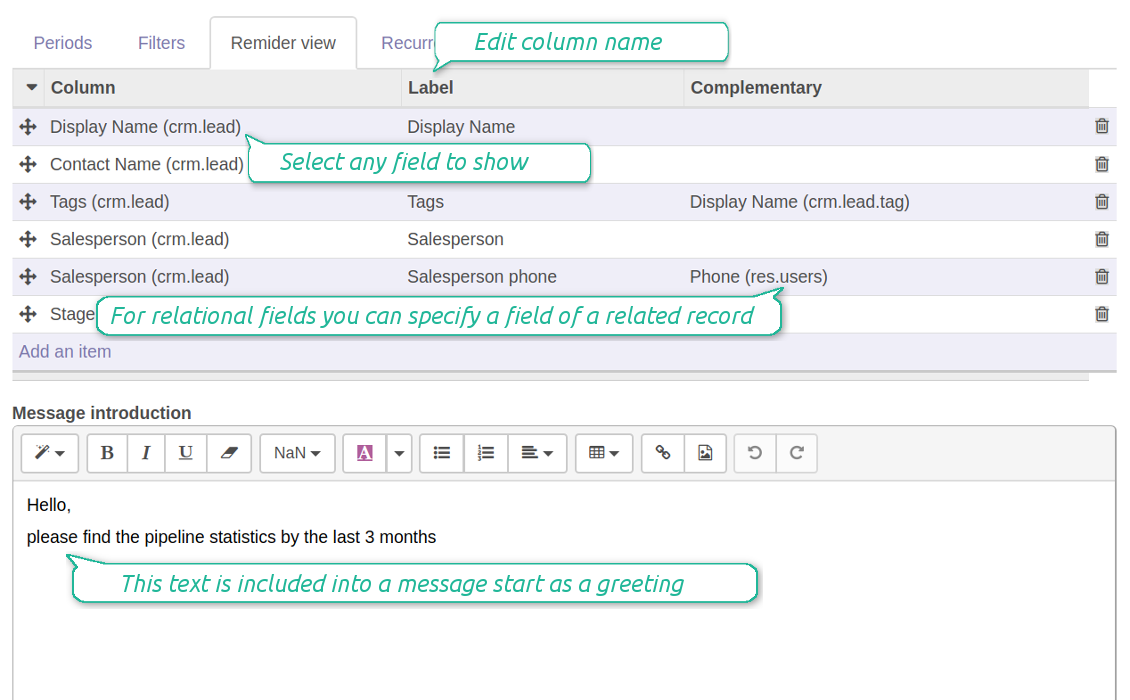
- The tool allows choosing an unlimited number of columns for this document. It might be any field of a target model of the following types: char, text, html, integer, float, selection, boolean, date, datetime and relations to other documents (many2one, one2many, many2many). The set includes even computed fields
- For relational fields you might choose the second level precision. For example, you might show a phone of a customer for a sales orders' reminder or tags' colors for tasks
- It is possible to adapt column names. By default a field description is stated (on the language of this reminder), but users are allowed to change them
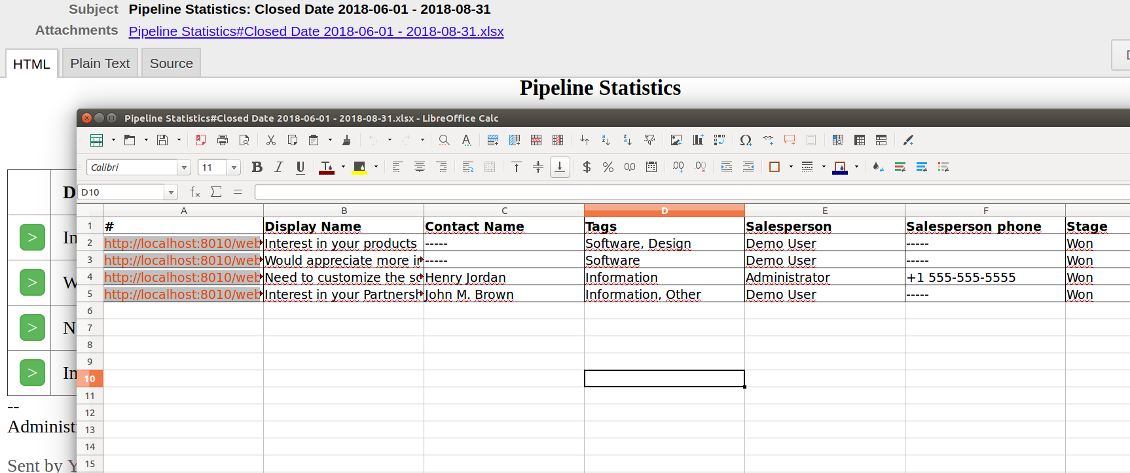
- Optionally attach an xlsx table for reminders. It would have the same columns as a reminder itself. It is also possible to exclude a list from email and leave only an xlsx table
- Include or exclude links to Odoo objects. References are great in case of internal reminders, but they are harmful in case of external ones
- Introduce any greeting text for a notification
- Choose reminders' language
- Do not change email template manually. It will break all styles. Look at the Configuration tab
Screenshot
Configure list columns and reminder appearance
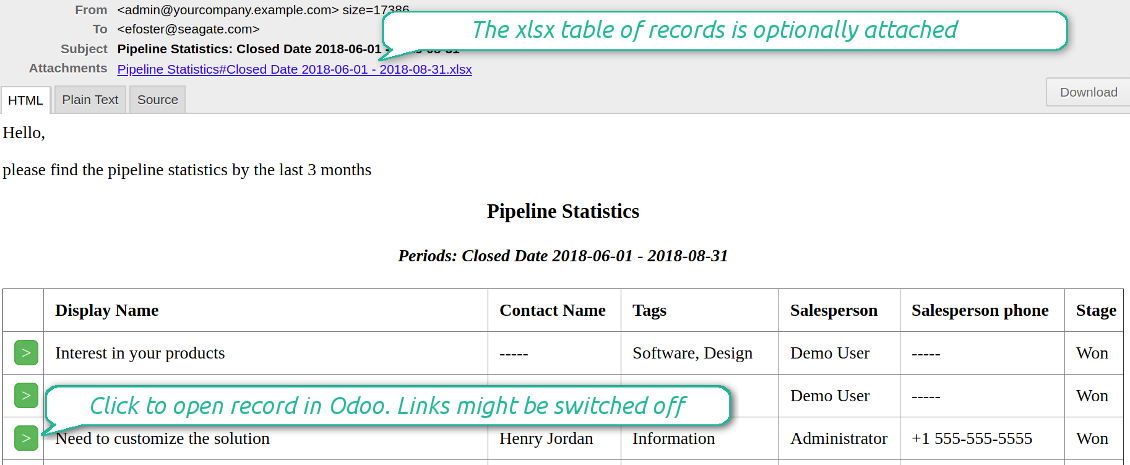
Followers regularly receive lists on their email
The Excel (xlsx) table is optionally attached
Filtering and periods for analysis
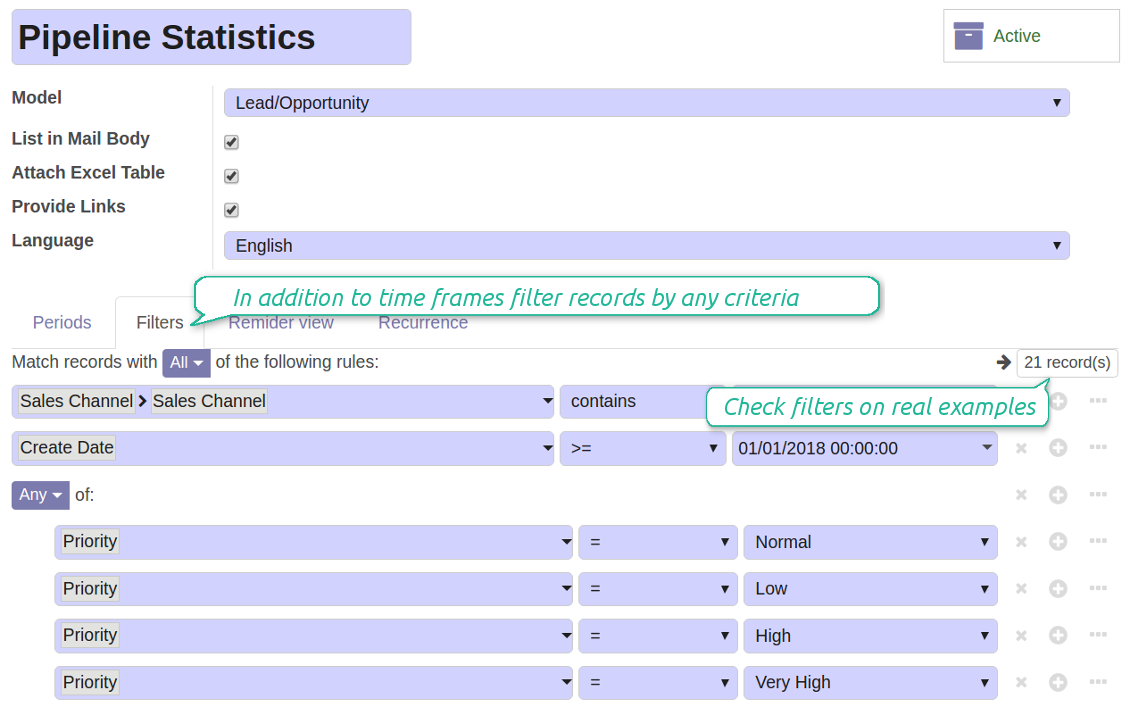
Apply any sort of filters to include only required documents
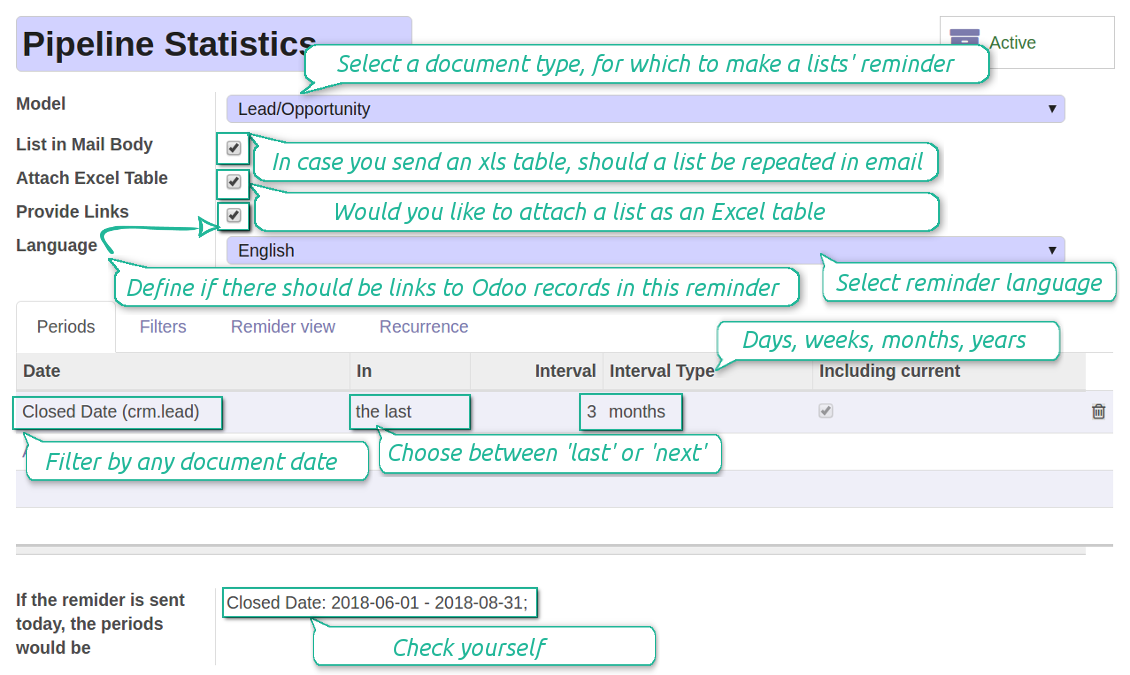
How to limit documents by relative periods
- Restrict time frames by any date or datetime of a target document type. It might be deadline, create or close date, next activity day, etc.
- If you wish, apply a few periods based on different dates. For instance, select this month closed leads which have been opened the last year. Records should satisfy all of the criteria, however if you selected the same date twice, records should be within any of those periods. For example, a deadline should be within the last 2 months OR the next month AND a close date should be within the last year
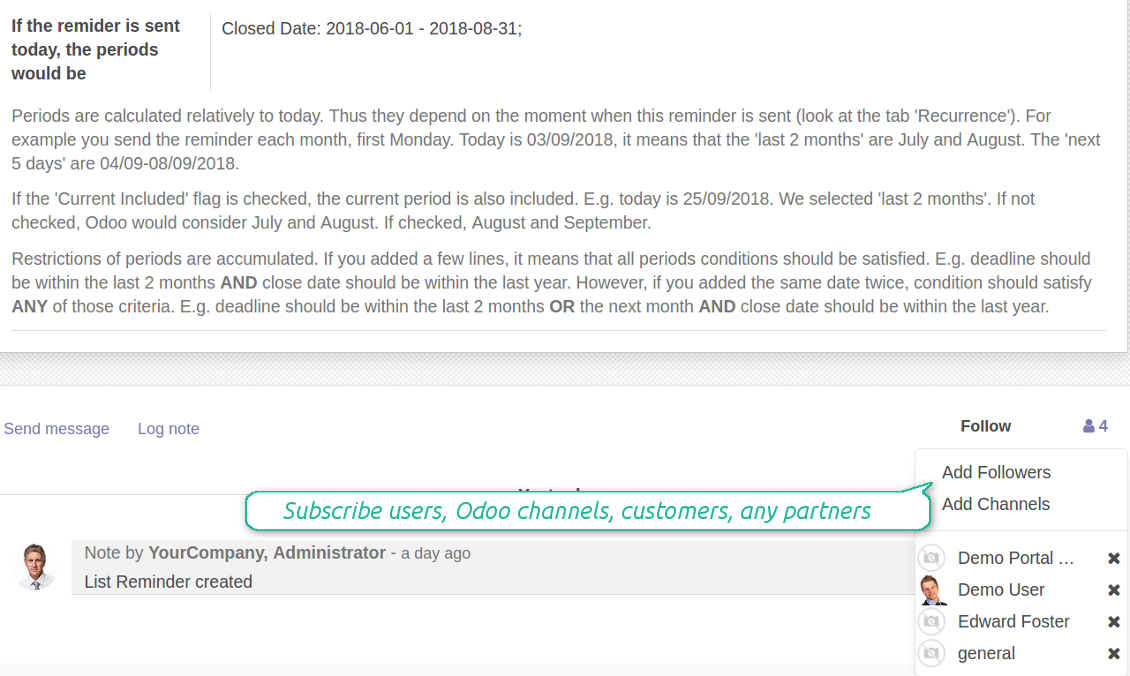
- Periods are relative, so they are periods in comparison to today. E.g., 'this month', 'the last year', 'the next 5 weeks'
- Intervals may both define previous time frames ('the last') and forthcoming periods ('the next')
- As intervals select days, weeks, months, or years
- Exclude or include a current period. For example, you might send a reminder on the first day of a month for a previous one. Vice versa, forward a list on the last day of this month for a current one
- Test your settings according to a real-time-shown result below the table
How to filter documents under analysis
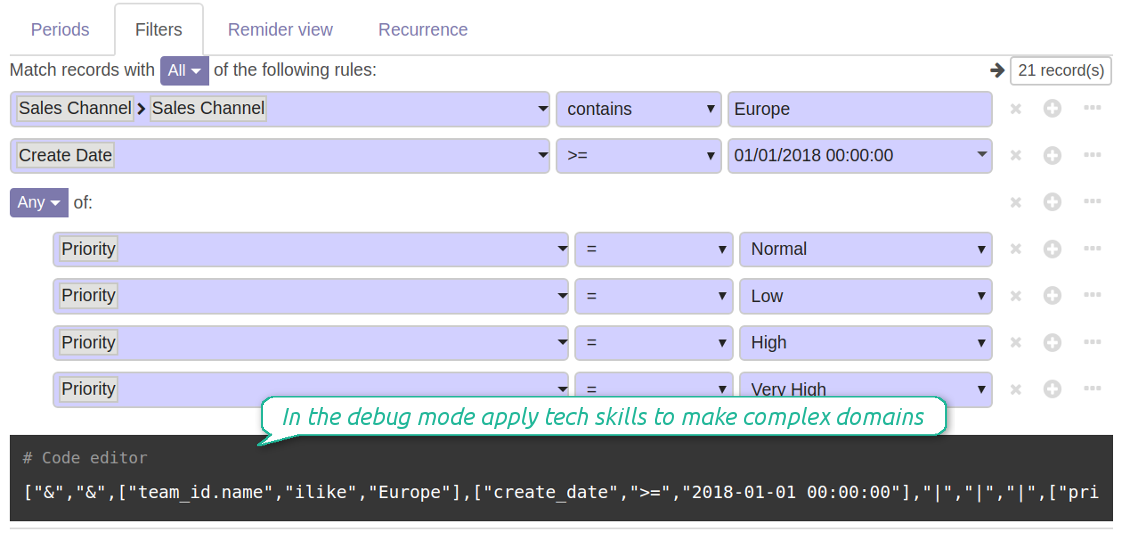
- Filters are organized as a domain constructor: you may use the most of storable fields with any level of precision. The latter means, for example, you can filter sales orders by a related partner country or even by a state of a company of a related partner
- Use both 'AND' ('all') and 'OR' ('any') operators to achieve a desired result
- Check yourself by pressing the button 'Records': it would show all documents which at the moment satisfy your search criteria (and you have an access to)
- If you feel confident to prepare Reverse Polish Notation domains, turn on the debug mode, and apply more complex expressions such as, for instance, ' category is child_of all'
Screenshot
Configure lists of records to be sent according to chosen periods
Filter Odoo records to be included into a list
Good at Odoo domains? Turn on the debug mode
Flexible recurrence
Which periodicity I may apply
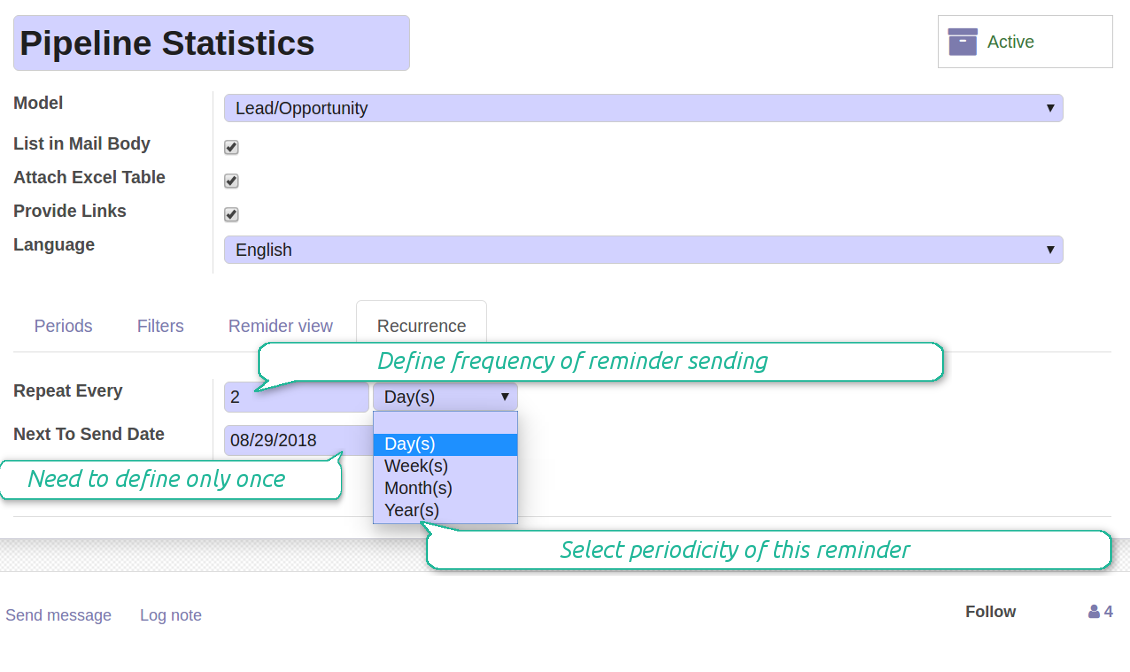
- Send a reminder every day, each 5 days, each 181 days
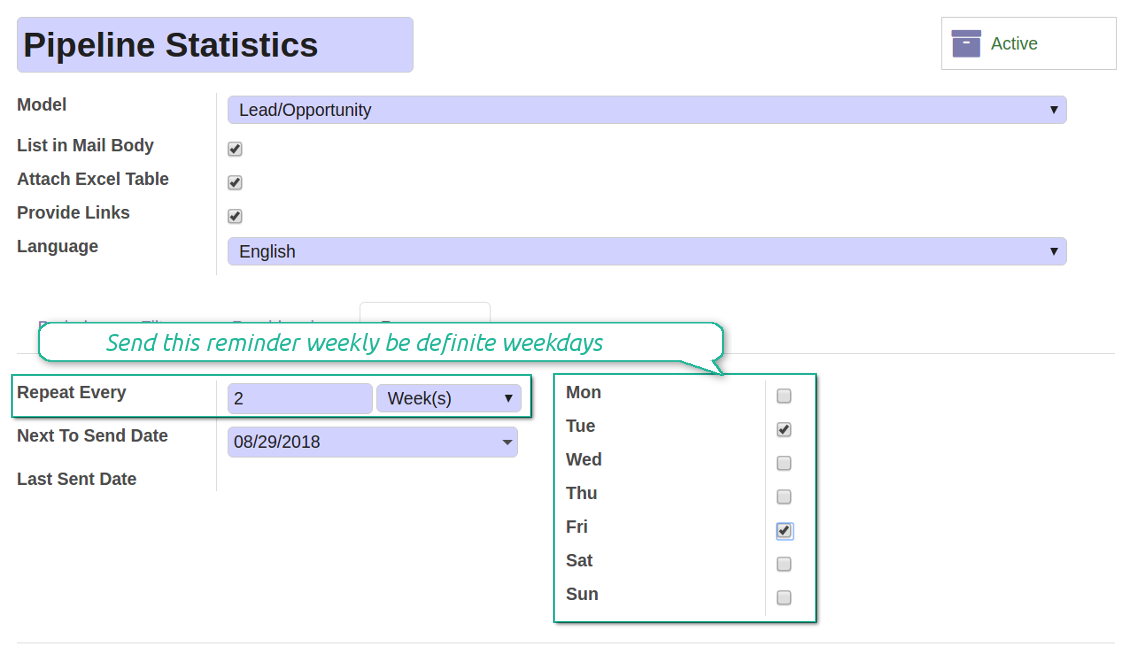
- Notify by exact weekdays, e.g. on Mondays and Thursdays
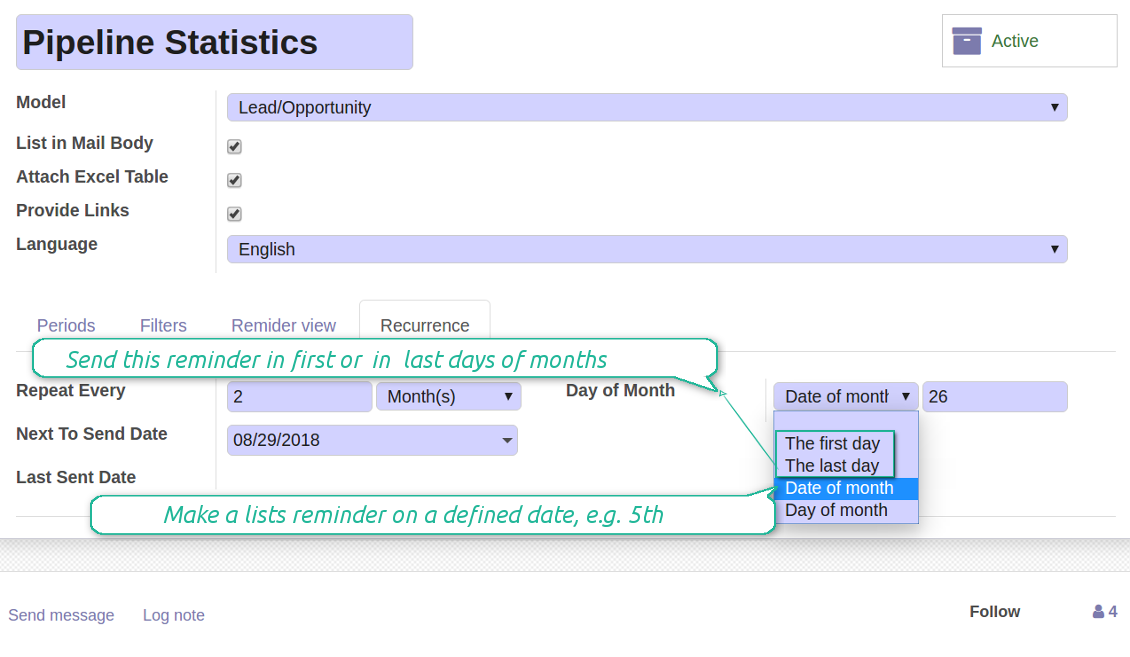
- For monthly reminders use:
- The first month day
- The last month day
- The exact date, e.g. the 16th
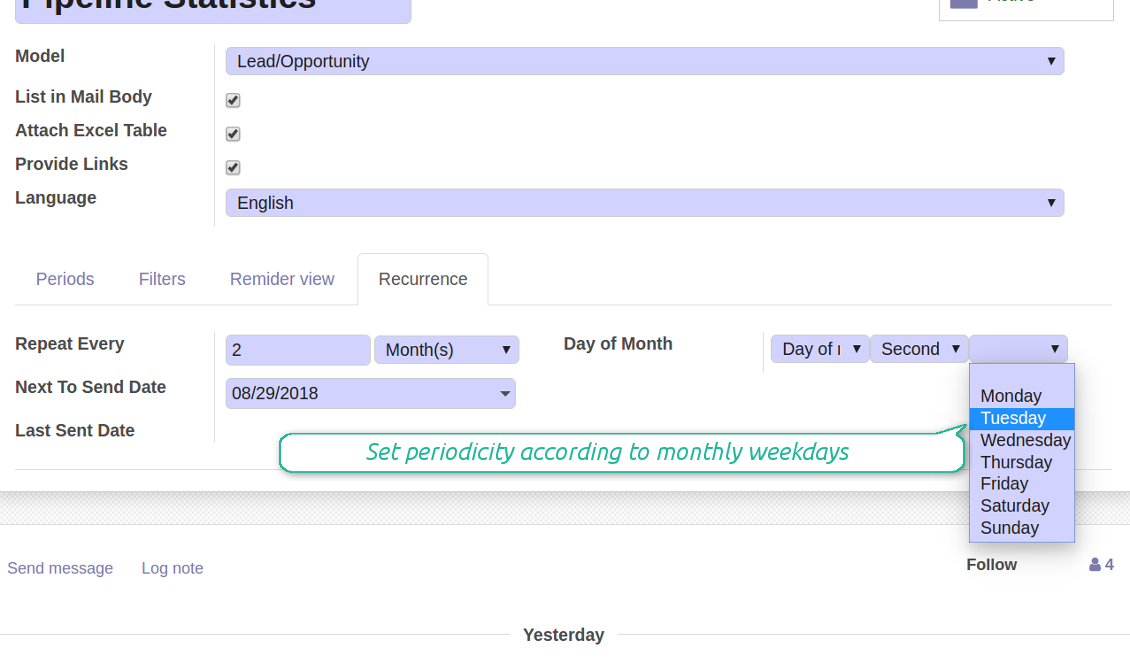
- A weekday, for instance, the first Monday, the last Friday, or the third Tuesday
- Prepare a yearly statistics on an exact year day, e.g. on the first of September
Screenshot
Flexibly configure reminders frequency
Send reminders weekly on predefined weekdays
Define a month day for lists notifications
Make reminder monthly on predefined weekdays
Reminder for any Odoo partner
Screenshot
Remind to any user, customer, supplier or send lists to Odoo channels
Periodic reporting manager
User rights peculiarities
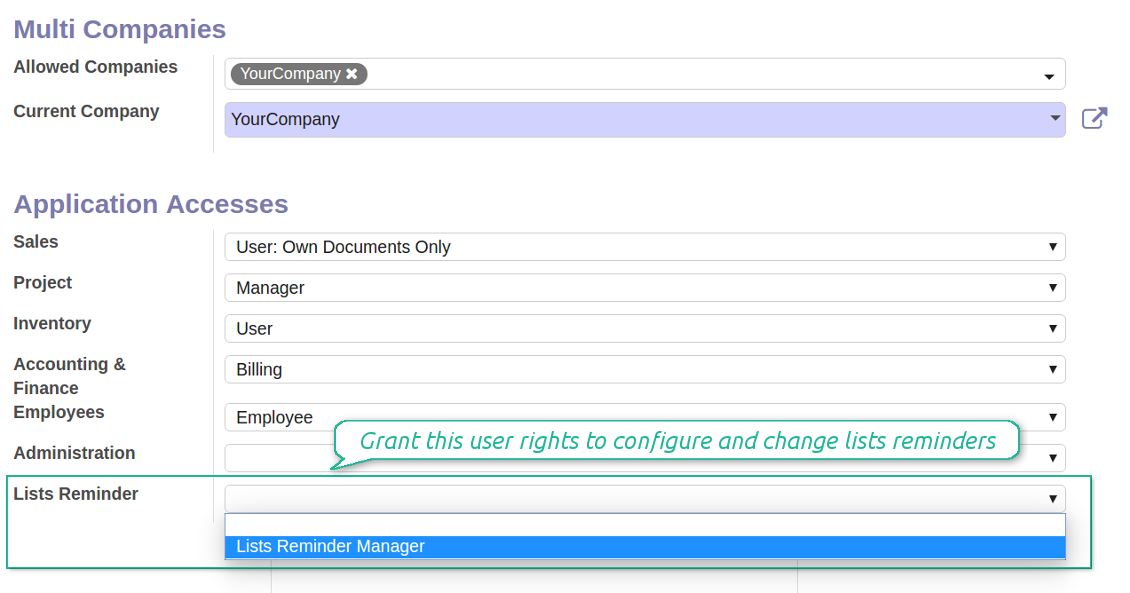
- To observe the reminders' menu and configure new notifications, select the right 'Lists Reminder Manager' in this user settings
- Make sure you trust such a person. This user would be able to send any data by a document type to which he/she has a read access. It means, that if a user might read leads in general, but do not have rights to read the exact lead 'XXX', he/she would be able to send the data by the lead 'XXX' using the reminder
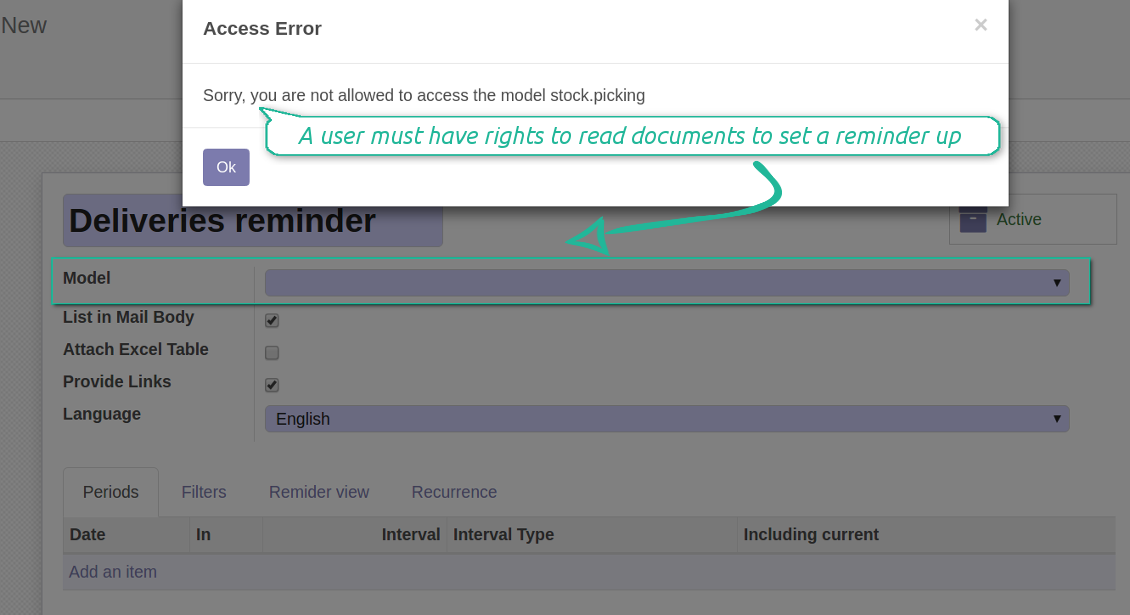
- To configure a reminder by this document type, a user should have a read access to such a model. For example, an employee without the right 'Warehouse user' might not prepare a reminder by deliveries
Screenshot
Make any user prepare lists reminders
Reminder managers may configure lists only for documents they can read
Great and very useful app
First of all, the team behind this app is great, support is immediate, and response is fast. The application is very useful in managing any type of notification to keep you updated with all what's happening within your company.
Tips konfigurasi dan instalasi untuk Periodic Reporting and Reminders Odoo v.12
Python dependency
To provide the feature of dynamic Excel table generation, install the Python library xlsxwriter:
pip install xlsxwriter
Email template
The basic reminder appearance should not be configured through Odoo email templates. In the debug mode go to:
- Settings > Technical > Email > Templates > Reminder
Do not change this template! Otherwise, its styles would be broken, and you would receive blank emails.
Have you broken everything? Not a problem, remove this template and update the module. The email appearance will be recovered.
Scheduled job (cron)
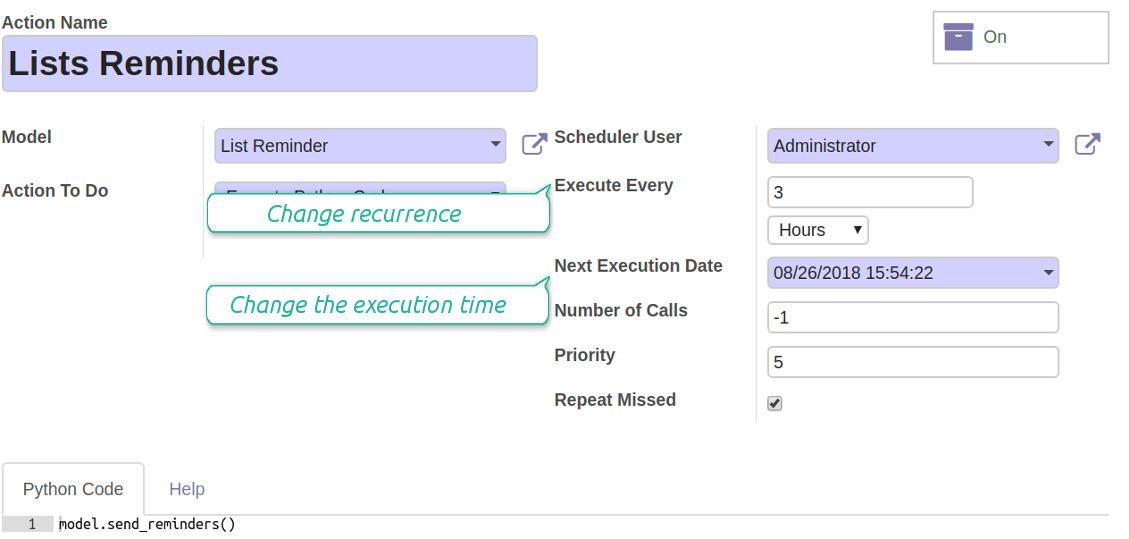
By default Odoo checks whether any reminder should be sent on a daily basis. You can change a frequency or time of check. In the debug mode go to:
- Settings > Technical > Automation > Scheduled Actions > Lists Reminders
The situation for a higher frequency is when you have many reminders with a lot records to search. In that case the cron job might be not ready with all actions in time, and it is better to repeat the check. However, be cautious: do not make it too frequent. Otherwise, one job would not be fulfilled until another one, and Odoo would collapse until a reminder is sent.
The cron job interval should be bigger than your Odoo configured timeout. Sometimes it is required to increase a timeout, if a number of documents in a list accounts for a few thousands records.
The module is not aimed to export data from Odoo. Do not try to send everyday your whole database.
Configure the planned job for reminders
Pertanyaan umum tentang Periodic Reporting and Reminders Odoo v.12
Apa kebijakan pembaruan alat Anda?
Menurut kebijakan Odoo Apps Store saat ini:
- Setiap modul yang dibeli untuk versi 12.0 dan sebelumnya memberi akses ke semua versi hingga 12.0.
- Mulai versi 13.0, setiap versi modul harus dibeli terpisah.
- Terlepas dari versi, pembelian memberi hak atas semua pembaruan dan perbaikan bug dalam versi mayor.
Perhatikan bahwa tim faOtools tidak mengontrol kebijakan tersebut. Untuk pertanyaan, hubungi langsung perwakilan Odoo Apps Store.
Bagaimana memasang aplikasi Anda di Odoo.sh?
Pendekatan paling langsung adalah memakai alur bawaan toko Odoo:
1. Buka halaman modul dan klik tombol Deploy on odoo.sh
2. Setelah itu Anda akan diarahkan ke halaman GitHub. Masuk ke akun, lalu klik 'Create a new repo' atau pakai yang sudah ada. Pastikan repositori bersifat privat. Tidak diizinkan memublikasikan aplikasi di bawah lisensi OPL-1. Jika perlu, buat repo baru untuk proyek Odoo.sh
3. Lalu buka odoo.sh dan klik tombol Deploy. Di jendela pop-up, kirim keputusan dan klik 'Continue.' Tindakan ini memicu proses pemasangan.
Langkah ini akan memasang aplikasi di cabang produksi proyek. Jika ingin men-deploy aplikasi ke cabang lain atau memperbarui modul, lakukan tindakan berikut:
1. Unggah kode sumber aplikasi dari toko Odoo
2. Commit modul ke repositori GitHub yang diperlukan. Pastikan tidak ada folder/file aplikasi yang diabaikan (yaitu tidak ada di .gitignore repo). Repositori dibuat otomatis oleh odoo.sh dan secara default dapat berisi item penting (mis., /lib). Unggah semua direktori, subdirektori, dan file modul tanpa kecuali
3. Deploy cabang target proyek odoo.sh atau, jika pengaturan Anda mengasumsikan itu, tunggu hingga dibangun otomatis.
Bagaimana memasang aplikasi Anda di server saya sendiri?
2. Mulai ulang server Odoo;
3. Aktifkan mode pengembang (pengaturan teknis);
4. Perbarui daftar aplikasi (menu aplikasi);
5. Temukan aplikasi dan tekan 'Activate'/'Install';
6. Ikuti panduan di halaman aplikasi jika ada.
Saya melihat aplikasi Anda punya add-on tambahan. Boleh beli belakangan?
Ya, tentu. Pada saat yang sama Odoo otomatis menambahkan semua dependensi ke keranjang, jadi Anda harus mengecualikan alat yang sudah dibeli agar tidak membayar dua kali.
Saya men-deploy aplikasi Anda di Odoo.sh dan melihat peringatan/kesalahan di tes
Peringatan merah/oranye tidak memengaruhi fitur aplikasi. Sayangnya, modul kami kadang tidak lulus uji otomatis standar karena uji itu mengasumsikan perilaku yang bertentangan dengan tujuan aplikasi. Misalnya kami mengubah penghitungan harga, sementara uji modul Odoo standar membandingkan harga akhir dengan algoritma standar.
Pertama-tama, periksa fitur basis data yang diterapkan. Apakah semuanya berjalan benar?
Jika Anda masih menganggap peringatan memengaruhi fitur nyata, hubungi kami dan kirim log instalasi lengkap serta daftar lengkap modul yang diterapkan (termasuk inti dan pihak ketiga).
Bolehkah saya membeli aplikasi langsung dari perusahaan Anda?
Tidak, kami hanya mendistribusikan alat melalui toko aplikasi Odoo resmi.
Saya ingin mendapat diskon
Sayangnya, kami tidak punya sarana teknis untuk memberi harga individual.
Bolehkah saya memasang aplikasi di database Odoo Online (SaaS) saya?
Tidak, aplikasi pihak ketiga tidak dapat dipakai di Odoo Online. Sayangnya Odoo SaaS memblokir kemungkinan itu.
Alat Anda bergantung pada aplikasi lain. Haruskah saya membelinya?
Ya, alat memerlukan semua modul yang ditandai di dependensi agar bekerja dengan benar. Harga di halaman aplikasi sudah mencakup semua dependensi yang diperlukan.
Berapa harga modul dalam dolar AS? Mengapa berubah?
Harga modul kami ditetapkan dalam euro. Toko Odoo mengonversi harga ke mata uang lain menurut kurs internalnya. Jadi harga dalam dolar AS dapat berubah saat kurs diperbarui.
Teks aplikasi dan situs dalam bahasa selain Inggris dibantu AI dan diselaraskan dengan terjemahan resmi Odoo. Jika Anda melihat kesalahan, kirim tiket kebenaran terjemahan dan kami akan memperbaikinya.
Pelaporan bug
Jika Anda menemukan bug atau perilaku tidak konsisten, jangan ragu menghubungi kami. Kami jamin perbaikan dalam 60 hari setelah pembelian dan tetap ingin meningkatkan alat setelah periode itu.
Anda tidak perlu nomor telepon atau kartu kredit untuk menghubungi kami. Cukup pendaftaran email singkat yang tidak lebih dari 30 detik.
Sertakan sebanyak mungkin detail dalam permintaan: tangkapan layar, log server Odoo, deskripsi lengkap cara mereproduksi masalah, dan sebagainya. Biasanya butuh beberapa hari kerja untuk menyiapkan rencana kerja (jika bug dikonfirmasi) atau memberi panduan apa yang harus dilakukan (jika tidak).
Permintaan fitur publik dan ide modul (pengembangan gratis)
Kami sangat termotivasi untuk meningkatkan alat kami dan berterima kasih atas masukan apa pun. Jika kebutuhan Anda bermanfaat bagi publik dan dapat diimplementasikan secara efisien, tim akan memasukkannya ke daftar tugas kami.
Daftar tugas semacam ini diproses secara berkala dan tidak dikenai biaya tambahan. Meski kami tidak dapat menjanjikan tenggat dan desain akhir, ini bisa jadi cara baik untuk mendapatkan fitur yang diinginkan tanpa investasi dan risiko.
Anda tidak perlu nomor telepon atau kartu kredit untuk menghubungi kami. Cukup pendaftaran email singkat yang tidak lebih dari 30 detik.

Alat untuk menata lampiran Odoo secara fleksibel dalam folder dan menyinkronkan direktori dengan klien cloud: Google Drive, OneDrive/SharePoint, Nextcloud/ownCloud, Dropbox, Amazon S3, Box, dan NAS. DMS. Manajer Berkas. Sistem manajemen dokumen
398€
Alat untuk menyimpan kata sandi dengan aman di Odoo untuk penggunaan bersama. Brankas bersama

Alat untuk membangun basis pengetahuan yang dalam dan terstruktur untuk penggunaan internal dan eksternal. Knowledge System. KMS. Revisi seperti wiki.
398€
Alat untuk menyinkronkan lampiran Odoo secara otomatis dengan file OneDrive secara dua arah
487€
Alat untuk menetapkan target KPI dan mengontrol pemenuhannya per periode. Dasbor KPI. Perancang dasbor. Grafik KPI

Alat untuk menyinkronkan lampiran Odoo secara otomatis dengan file Google Drive secara dua arah
487€
Alat manajemen layanan berbasis waktu dari pemesanan janji hingga penjualan dan ulasan
398€