OwnCloud / NextCloud Odoo Integration v.11
The tool to automatically synchronize Odoo attachments with OwnCloud / NextCloud files in both ways
Both OwnCloud and NextCloud don't have such disadvantages. This is the tool to integrate their features into your Odoo business work flow. The app automatically stores all Odoo attachments in OwnCloud or NextCloud, and it provides an instant access to them via web links. In such a way users work with files comfortably in the cloud storage, while the results are fully available in Odoo.
Automatic integration
Bilateral sync
How files and folders are synced from Odoo to OwnCloud / NextCloud
- Prepare and keep updated folders' structure in OwnCloud / NextCloud
- Upload new attachments to a correct folder
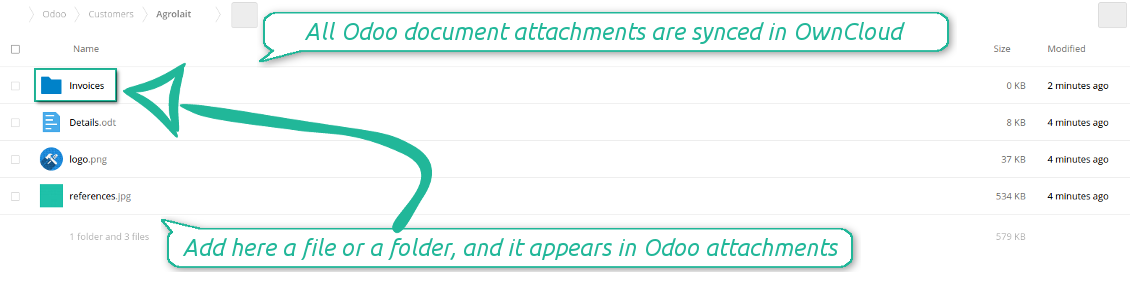
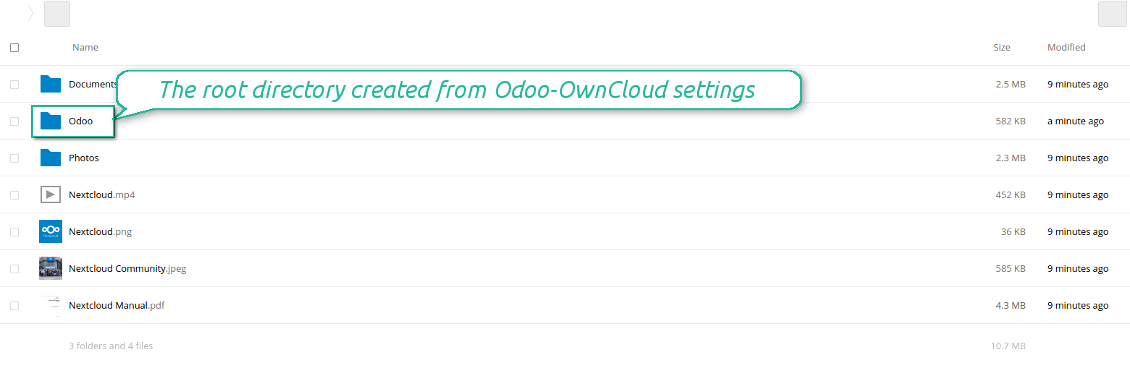
Odoo creates a convenient directory structure in OwnCloud / NextCloud: Odoo / Document type name / Document name / Files, where:
- Odoo is a central directory for Odoo Sync in your cloud storage.
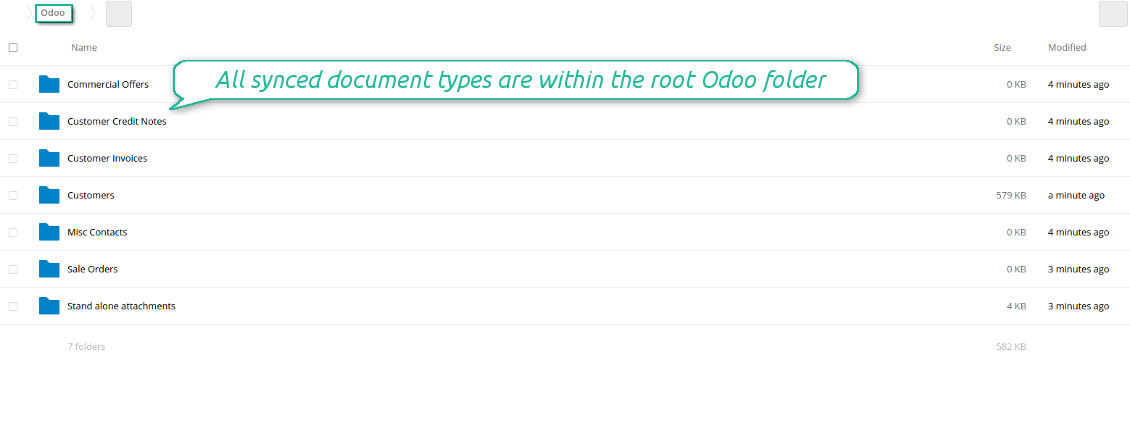
- Document type is a synced Odoo model, for example, 'Sale orders', 'Opportunities', 'Customers'
- You select document types by yourself. It might be any document type
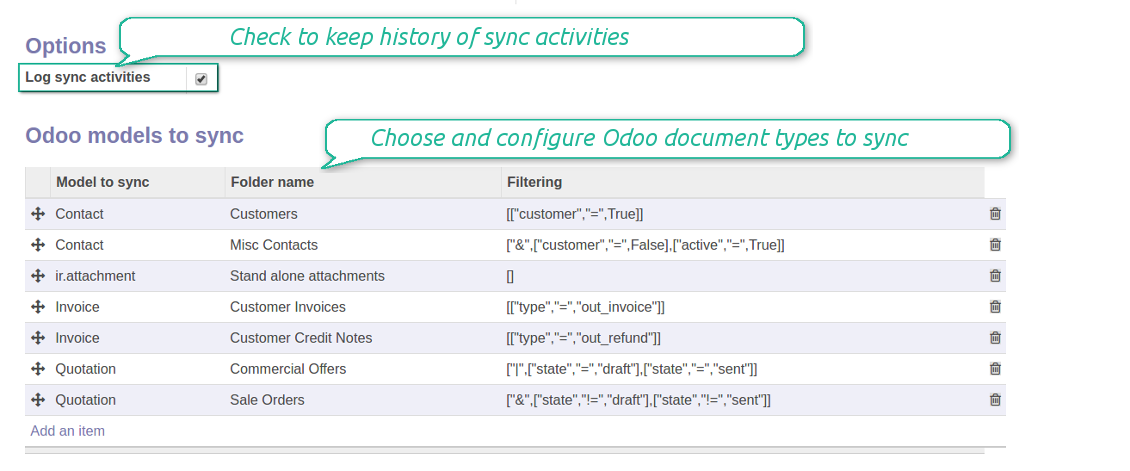
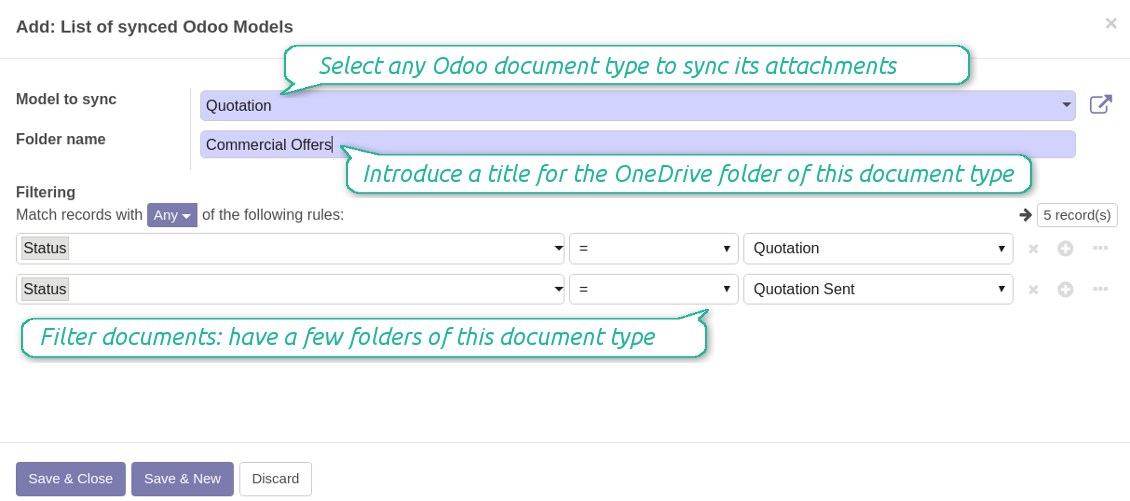
- Moreover, you might have a few folders for a single document type. Use Odoo domains to have not global 'Partners, but 'Customers' and 'Suppliers', not just 'Sale orders' but 'Commercial offers', 'To deliver', and 'Done orders'
- With each sync Odoo would try to update document types' folders. Add a new document type at any moment. It will appear in OwnCloud / NextCloud with a next sync
- You are welcome to introduce or change document types folder names at any moment in Odoo. Take into account: renaming in OwnCloud / NextCloud will be recovered to Odoo names
- If you remove a model from integration, it will not be deleted from OwnCloud / NextCloud to keep already synced files safe. However, new documents of this type would not be synced
- In case you removed a directory in OwnCloud / NextCloud, but it is still configured in Odoo, with a next sync a folder structure is going to be recovered (not files, surely).
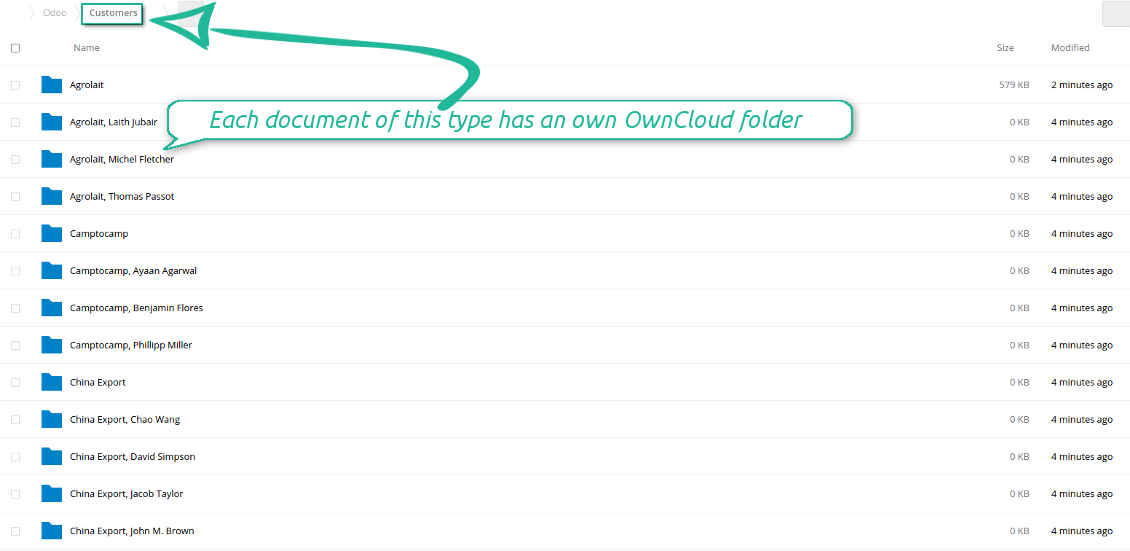
- Document is an exact object to sync. For instance, 'Agrolait' or 'SO019'
- Documents are synced in case they relate to a synced document type and satisfy its filters. For example, you are not obliged to sync all partners, you may integrate only 'Customers' and 'Vendors' or only 'Companies', not 'Contacts'
- Odoo would generate a folder in OwnCloud / NextCloud for each suitable document even for documents without attachments. It is needed for a backward sync to easily add new files
- OwnCloud / NextCloud folder name equals a real document name. It relies upon Odoo name_get method. Thus, Odoo 'Michael Fletcher' (a contact of 'Agrolait') would be OwnCloud / NextCloud 'Agrolait, Michael Fletcher'
- If an exact document changes its document type (e.g. a quotation is now confirmed), Odoo will automatically relocate its related folder to a proper parent directory (in the example: from 'Commercial offers' to 'To deliver')
- In case a document relates to a few types (for instance, you have 'Vendors' and 'Customers', while Agrolait is both), this document folder would be put into the most prioritized document type. A document type priority is higher as closer to the top in Odoo interfaces it is
- If an Odoo document is removed, the next sync will remove a corresponding OwnCloud / NextCloud directory
- In case you remove a directory in OwnCloud / NextCloud, but it still exists in Odoo, OwnCloud / NextCloud folder structure would be recovered (while files would be unlinked in both Odoo and OwnCloud / NextCloud)
- Folders renaming in OwnCloud / NextCloud will be replaced with Odoo names, Odoo document names are more important
- Files are real files taken from Odoo attachments
The resulted path would be, for example, 'Odoo / Quotations / SO019 / commercial offer.png'.
The only exclusion of the rule are stand alone attachments which do not relate to any Odoo documents (their document type is 'ir.attachment'). Such attachments' path is 'Odoo / Stand Alone Attachments / image.png'.
The direct sync might take quite a long, since a lot of folders should be created. It is not recommended to make sync too frequent: once an hour or two hours is fine.
FilesWith each direct sync, Odoo tries to find not yet synced attachments. If such attachments suit any document type to sync, a file will be uploaded to OwnCloud / NextCloud to a proper folder. In Odoo such attachments will become of 'url' type. It means that a file is not any more kept in Odoo server space, but now it is in OwnCloud / NextCloud. Until sync is done, Odoo attachment remains binary and stores an actual file. Such approach helps Odoo to work faster.
If you unlinked an attachment from Odoo, it would be deleted in OwnCloud / NextCloud as well.
Take into account that file names should be managed in OwnCloud / NextCloud: each backward sync would recover OwnCloud / NextCloud names, Odoo is here less important.
How items are retrieved from OwnCloud / NextCloud to Odoo
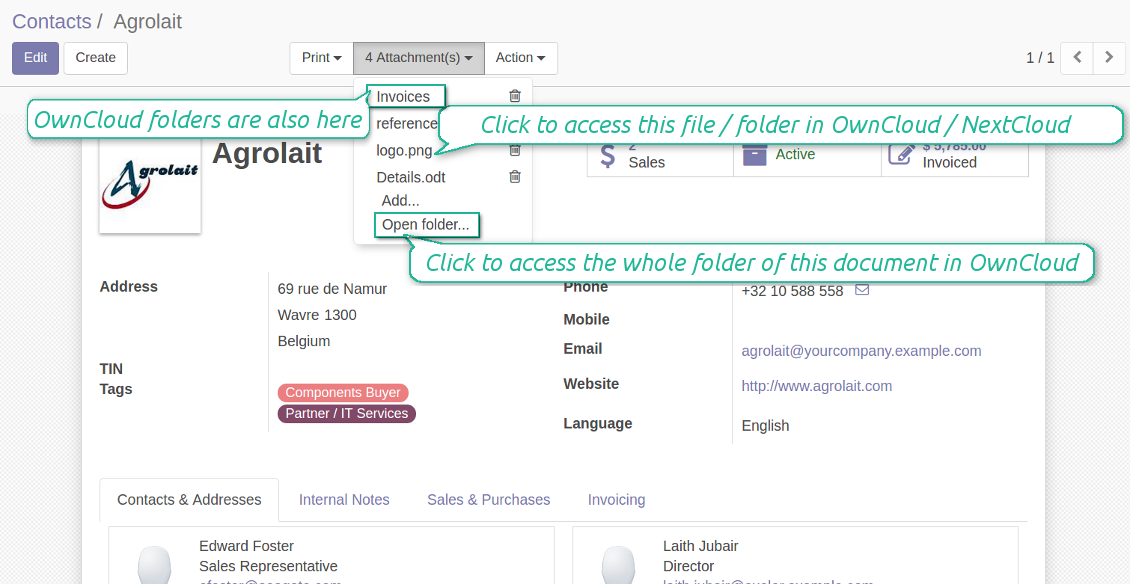
- If a new file is added to a proper document folder (e.g. to 'Odoo / Customers / Agrolait'), the same attachment will be added to Odoo document (in the example - to 'Agrolait')
- In document folders you can put not only files but also child folders. In that case a link for this folder (not its content) is kept in attachments
- In case you rename a file in OwnCloud / NextCloud, it will be renamed in Odoo as well
- Files' removal from OwnCloud / NextCloud leads to related Odoo attachments' removal
- If you move a file to another document folder, in Odoo a related attachment would be re-attached to this new document. Take into account: if you move a file for a not document folder, in Odoo attachment will be deleted as it has been removed from OwnCloud / NextCloud
- If you deleted a document type or document folder, their child files are deleted as well. Thus, Odoo would remove related attachments. The folders, however, will be recovered with a next direct sync. Folders' move to another directory is also considered as a removal. Avoid such situations by following the simple rule: folders are managed mostly by Odoo, files - mostly by OwnCloud / NextCloud.
Backward OwnCloud / NextCloud might take quite much time, since each folder should be checked (the more folders, the more time the backward sync requires). It is recommended to make frequency oftener than once an hour or two hours.
截图
All document types are in the root directory 'Odoo'
Document types' folders
All document of this type has an own folder
Sync any documents you like
The tool let you split any business model into a few directories. Have a separate folder for individuals and companies, for European and American opportunities, for each project, etc.
Moreover, it is possible to guarantee that only topical documents are synced by using relative periods: leads registered in the last 3 months, invoices updated the last week, and so on.
Typical use cases
- Projects: automatically forward all project-related documents to OwnCloud / NextCloud to share those with a customer as a cloud link.
- Customers: add all partner files in a single directory available both from Odoo and from OwnCloud / NextCloud. Modify those using default cloud editors and access them when working in Odoo.
- Employees: gather all files by this employee in a single cloud folder: photos, document scans, contracts. Access and upload those from Odoo and OwnCloud / NextCloud alternatively.
- Opportunities: carefully store all specifications, requirements and any file which would let you make a good offer.
- Orders: keep all printings and contracts in OwnCloud / NextCloud with simple availability from Odoo.
截图
Choose document types to be synced
Document type might have a few folders based on filters
Easy accessible files
Internal and public URLs
By default all links from Odoo to OwnCloud / NextCloud are internal. It means that only authorized users may access them and, after that, generate shared URLs for others.
It is possible to make them public using the option 'Use Public URLs'. In that case links will become 'shared', meaning that everybody may access those files by links. Although the links would be hardly known by external users, there is a slight chance that they become available as a result of some user actions. Besides, sharing links generation is not fast and might make the synchronization slower. Thus, be cautious if you decide to use shared links.
截图
Fast access to OwnCloud / NextCloud files and folders
Synced files are simply found in OwnCloud / NextCloud. Add unlimited number of files or folders here
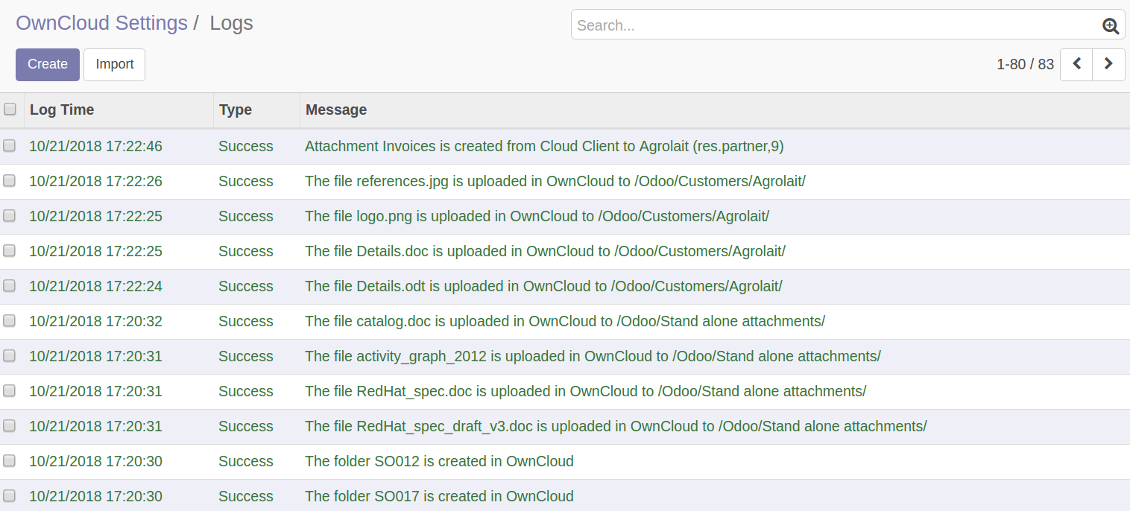
Sync logs in Odoo
截图
Logged synchronisation activities
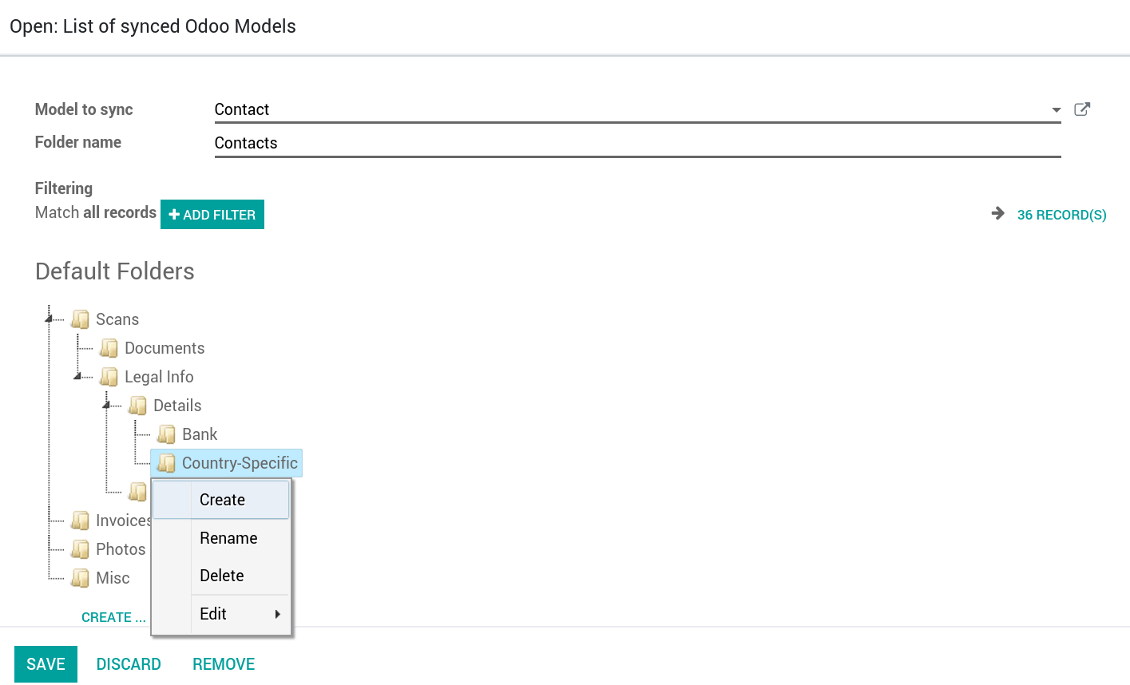
Default folders for documents
截图
Default folders for this document types to be created while firstly synced
Applicable to all Odoo apps
A few important peculiarities to take into account
- Do not add folders inside root or document types' folders. If they have the same name as newly synced folders, the latter would not be uploaded
- Make sure your database has a proper SSL certificate required to use OwnCloud API
- Try to avoid the following symbols in folders' and files' names: *, ?, ", ', :, <, >, |, +, %, !, @, \, /,. Direct sync will replace such symbols with '-'. It is done to avoid conflicts with file systems.
Very good product
A perfect solution to integrate Owncloud with Odoo. We sync a high volume of objects across multiple Odoo models, which works seamless and stable. For us it is the perfect solution to have an external DMS instead of the Odoo native attachment handling, which also enables us to interchange files between systems in our best-of-breed setup.
The team behind this module is extremely professional and responsive. They helped us on a few occasions and provided clear answers and prompt support when required, and they even went out of their way to assist us with another requirement we had. Cannot recommend the product and team highly enough, try this if you're in the market to connect Odoo with an external document solution.
Works according to specs
I have used this app with Odoo 12 and Nextcloud 16 and it works as specified. Odoo Tools offers very responsive support which is really helpful. Of course 5 stars...!
This is Awesome
I have used Cloud Sync on Next/Own Cloud and works really great.
配置与安装提示: OwnCloud / NextCloud Odoo Integration Odoo v.11
Python dependency
pip install pyocclientConfiguration and log in
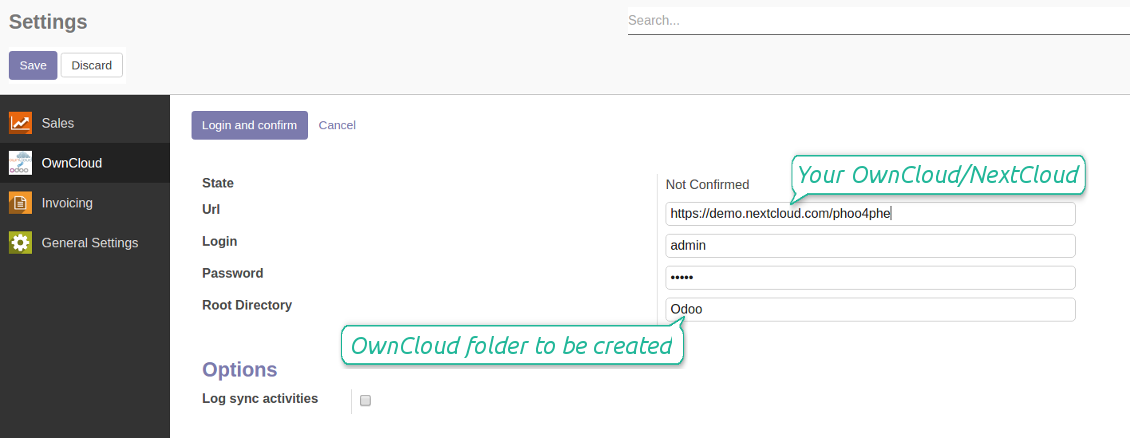
- Enter your cloud storage full url
- Select an OwnCloud / NextCloud, which has full rights to read, create, write and delete files and folders within a root directory
- Enter login and password of this user
- Introduce the title for OwnCloud / NextCloud folder, e.g. Odoo
- Push the button 'Save', and then - the button 'Login and Confirm'
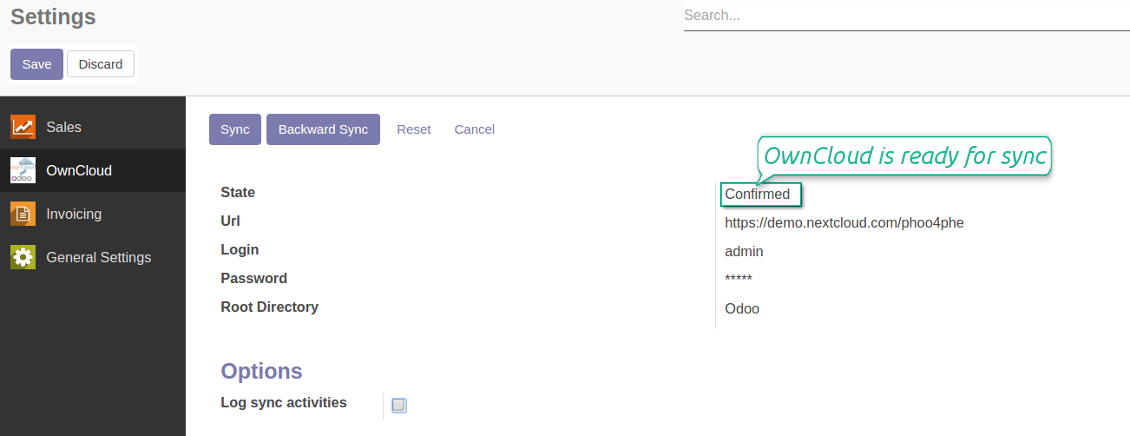
- If everything is fine, push the button 'Sync'
- Make sure that the root directory or its children are shared with your colleagues
Enter OwnCloud / NextCloud credentials
Confirmed credentials to start sync
Odoo server configuration and cron job configuration
To make sure the synchronization works correctly apply proper timeouts to the Odoo configuration file: LIMIT_TIME_CPU, LIMIT_TIME_REAL should be more than 900 seconds.
For Odoo.sh this should not be done, since timeouts are predefined and are not configurable.
Then, timeout should be entered to your Odoo. To that goal find the section 'Settings' on the app configuration page and copy the number there.
Afterwards, it is needed to make the cron jobs suit the applied timeouts. In the debug mode go to the Settings > Technical > Automation > Scheduled Jobs:
- Set up the job 'Synchronize attachments with cloud' as (a) frequency - 2*timeout; (b) the next execution as the next hour +timeout. For example, for 900seconds timeout: frequency - as 30minutes; the next execution - at 08:15
- Set up the job 'Synchronize attachments from cloud' as (a) frequency - 2*timeout; (b) the next execution as the next hour + timeout*2. For example, for 900seconds timeout: frequency - as 30minutes; the next execution- at 08:30.
相关常见问题 OwnCloud / NextCloud Odoo Integration Odoo v.11
我可以更改同步作业的频率吗?
可以。请按以下步骤操作:
打开调试模式
转到技术设置 > 自动化 > 计划的作业
找到作业 'Synchronize attachments with cloud' 和 'Update attachments from cloud'。
不要把它们设得过于频繁。最好等当前作业完成后再启动下一个。配置应取决于需要同步的项目数量。通常频率设为 15 分钟到 4 小时。
还要确保在 Odoo 配置文件中设置了足够的时间限制。LIMIT_TIME_CPU 和 LIMIT_TIME_REAL 参数应大于或等于计划的 cron 作业时间。从版本 13 起还要考虑参数 LIMIT_TIME_REAL_CRON。
给 Odoo.sh 客户的重要说明:cron 作业的最长时间可能只有 15 分钟。
我能否配置与同步所假定不同的已同步目录结构?
不可以。此功能仅从版本 15 起提供。在此之前,模块使用预定义的文件夹结构:
Odoo - 同步的核心文件夹
Models - 每种 Odoo 单据类型的文件夹。例如 'Projects'、'Partners'。按 domain 区分还可能有更具体的文件夹:如 'Customer 1 Projects'、'Projects of the Customer 2'、'Internal Projects' 等。
Objects - 每个单据的文件夹,例如 'Project 1' 或 'Customer 1'
与此 Odoo 单据相关、将被同步的文件和文件夹。
因此您可能会得到例如:
Odoo / Projects / Project 1 / 与 project 1 相关的文件和文件夹
Odoo / Customer 1 Projects / Project 1; Odoo / Customer 2 Projects / Project 3, ...
Odoo / Customers / Customer 1 / 与 customer 1 相关的文件和文件夹
该结构始终是扁平的,即只有这些层级。因此,不同单据类型不能放在同一结构中是正确的。在文件夹 'Customer 1' 内,不能同时保存与销售订单、发票和项目相关的文件。每种单据类型都有自己的(或几个自己的)文件夹。否则将无法做反向同步,因为没有可依据的标准。
我应该在 Odoo 中设置特定用户的访问权限吗?
不可以。本工具依赖单一用户端点。所有同步都在一个云管理员(应用)下完成。已创建文件夹/文件的访问权限不会自动设置。您应在云存储方案中管理这些权限。
同步字段存储在哪里?会复制到 Odoo 和云端吗?
本应用假定附件的二进制内容保存在 Cloud Client 中,而不是 Odoo 服务器上。因此,Odoo 中的此类附件变为 URL 类型,您可随时从附件框或 Cloud Client 访问它们。
设置完成后无需手动操作,同步完全自动。只需决定要同步哪些 Odoo 单据类型,并为每一种设置关联模型(客户、销售或采购订单、任务、项目等)。
同一单据类型可以有多个文件夹吗?例如内部项目和客户项目?
可以。请为每一种准备规则,然后应用筛选:例如按项目类型。
尽量让筛选互斥,以便单据能被明确归类。例如“是客户但不是供应商”、“是供应商但不是客户”。否则某个单据文件夹会在模型之间跳动。
我是否只需要Cloud Storage Solution应用?
不可以。本工具只是技术核心。您还需要适用于所用 cloud client 的连接器。
如果要同步的对象很多,例如 10000 个,可以吗?
可以,不过当需要同步的文件夹/附件很多时,过程可能较慢。同时,客户曾报告同步 >1 万合作伙伴和约 5 千产品变体的环境,过程仍可接受。
需要强调的几点:
- 同步的设计保证任何项目都会被同步且不会丢失,尽管可能不快。先进先出队列以及每个作业的提交可保证这一点。
- 对象数量可以按逻辑限制。模型配置可限制过时项目的同步(例如同步已归档合作伙伴或两年前的订单没有意义)。
可以将同步做成实时的吗?
不可以。我们有充分理由避免实时同步:
性能问题。若同步是实时的,每次上传文件都会出现加载屏幕。
冲突问题。若 2 位用户同时更改一项,可能出现无法解决的情况。定期作业可以事后修复;实时同步则必须存成队列,对用户更加费解。
功能问题。尤其是重命名和调整结构。反向同步严格依赖目录逻辑,每次同步都会检查 100% 的项目。若每次更新都做,将是每秒数千次请求。若不做:更改会丢失。
我可以将附件同步到几个云客户端吗
不能,该功能仅从版本 15 起可用。
我们在云中使用专用编辑器(例如 OnlyOffice、Office 365 等)。文件会在该编辑器中打开吗?
可以,取决于您的 cloud client 配置。
我可以用连接器更新 OwnCloud 标签吗?
不可以。标签不同步。我们曾考虑过此功能,但因若干原因决定不引入:
连接器库不支持获取或更新 ownCloud 标签
Odoo 附件没有“tags”属性,也不清楚这些标签何时会分配给用户。
由于应用提供双向同步,同步时可能出现难以解决的严重冲突。
您的工具的更新政策是什么?
根据当前 Odoo Apps Store 政策:
- 为 12.0 及更早版本购买的每个模块,均可使用直至 12.0 的所有版本。
- 从 13.0 起,每个模块版本需单独购买。
- 无论版本如何,购买工具即获得该主版本内的 全部更新和缺陷修复权利。
请注意,faOtools 团队不控制这些政策。如有疑问,请直接联系 Odoo Apps Store 代表。
如何在 Odoo.sh 上安装您的应用?
最直接的做法是使用 Odoo 商店的内置流程:
1. 打开模块页面并点击 Deploy on odoo.sh 按钮
2. 之后会跳转到 GitHub 页面。登录帐户,然后点击 'Create a new repo' 或使用现有仓库。请确保仓库为私有。不得以 OPL-1 许可公开发布应用。如有需要,为 Odoo.sh 项目新建 repo
3. 然后转到 odoo.sh 并点击 Deploy 按钮。在弹出窗口中提交决定并点击 'Continue.' 这将触发安装过程。
这些步骤会将应用安装到项目的生产分支。若要部署到其他分支或更新模块,请执行以下操作:
1. 从 Odoo 商店上传应用的源代码
2. 将模块提交到所需的 GitHub 仓库。确保没有任何应用文件夹/文件被忽略(即未列入 repo 的 .gitignore)。仓库由 odoo.sh 自动创建,默认可能包含关键项(例如 /lib)。应上传模块的全部目录、子目录和文件,不得遗漏
3. 部署 odoo.sh 项目的目标分支,或在设置如此假定时 等待其自动构建。
应如何在自己的服务器上安装您的应用?
2. 重新启动 Odoo 服务器;
3. 打开开发者模式(技术设置);
4. 更新应用列表(应用菜单);
5. 找到应用并点击“Activate”/“Install”;
6. 如应用页面有指南,请按指南操作。
我注意到您的应用有额外附加模块。可以之后再购买吗?
可以。同时 Odoo 会自动把所有依赖加入购物车,因此应排除已购买的工具以免重复付款。
我在 Odoo.sh 上部署了您的应用,测试中出现警告/错误
红/橙色警告不影响应用功能。遗憾的是,标准自动测试有时假定与本应用目标冲突的行为,因此我们的模块会未通过。例如我们改了价格计算,而标准 Odoo 模块测试把最终价格与标准算法比较。
请先检查已部署数据库的功能。是否都正常?
若仍认为该警告影响真实功能,请联系我们并转发完整安装日志以及已部署模块的完整清单(含核心与第三方)。
我可以直接向贵公司购买应用吗?
不,我们只通过 官方 Odoo 应用商店.
希望获得折扣
很遗憾,我们没有技术手段 提供单独报价。
我可以在 Odoo Online (SaaS) 数据库上安装该应用吗?
不能,第三方应用无法在 Odoo Online 上使用。遗憾的是 Odoo SaaS 会阻止这种可能。
您的工具依赖其他应用。我需要购买那些应用吗?
是的,工具需要依赖中列出的全部模块才能正常工作。应用页上的价格已包含所有必要依赖。
该模块的美元价格是多少?为什么变了?
我们的模块价格以欧元标价。Odoo 商店按内部汇率换成其他货币。因此美元价格可能随汇率更新而变化。
非英语的应用和网站措辞由 AI 辅助 并与官方 Odoo 翻译对齐。若发现错误, 发送翻译正确性工单 我们会修好。
缺陷反馈
如遇缺陷或不一致行为,请随时联系我们。我们保证在购买后 60 天内提供修复,并在此期限后仍积极改进工具。
联系我们无需电话号码或信用卡。只需完成不超过 30 秒的简短电子邮件注册。
请在请求中尽可能提供详细信息:截图、Odoo 服务器日志、完整的问题复现说明等。通常需要几个工作日来准备问题的工作计划(若确认是缺陷)或提供应采取的指引(否则)。
公开功能请求与模块构想(免费开发)
我们非常希望改进工具,并感谢任何反馈。若您的需求具有普遍价值且能高效实现,团队会将其列入待办清单。
此类待办清单会定期处理,不产生额外费用。虽然我们无法承诺截止日期和最终设计,但这可能是在无投入、无风险的情况下获得所需功能的好办法。
联系我们无需电话号码或信用卡。只需完成不超过 30 秒的简短电子邮件注册。





通过 MCP 从常用 AI 聊天管理 Odoo 的工具。Claude。任何支持 MCP 的 AI。

用于将 Odoo 附件灵活归入文件夹并将目录与云客户端同步的工具:Google Drive、OneDrive/SharePoint、Nextcloud/ownCloud、Dropbox、Amazon S3、Box 和 NAS。DMS。文件管理器。文档管理系统
398€


用于将 Odoo 附件与 NAS 方案自动双向同步的工具。Synology、QNAP、TrueNAS 以及任何支持 WebDav 的 NAS
487€