Dropbox Odoo Integration v.17
The tool to automatically synchronize Odoo attachments with DropBox files in both ways
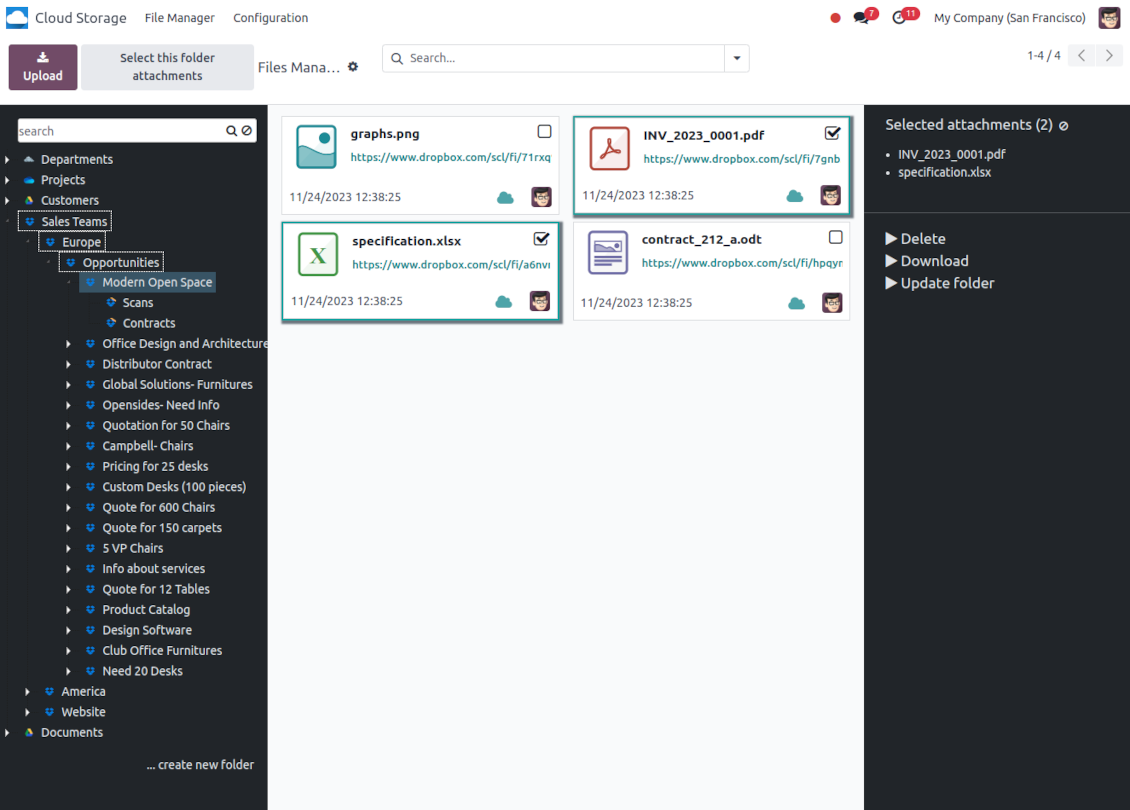
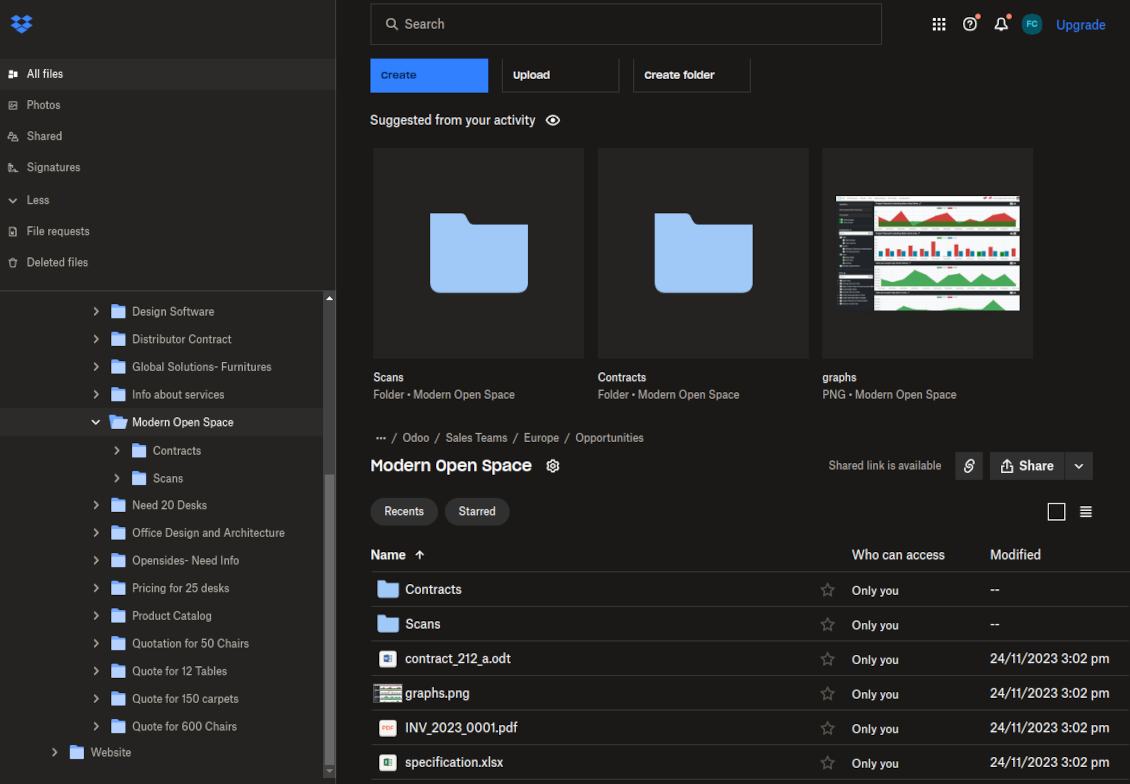
This is the tool to integrate Dropbox features with Odoo folders and files. The app automatically stores Odoo attachments and directories in Dropbox and provides instant access to them via web links.
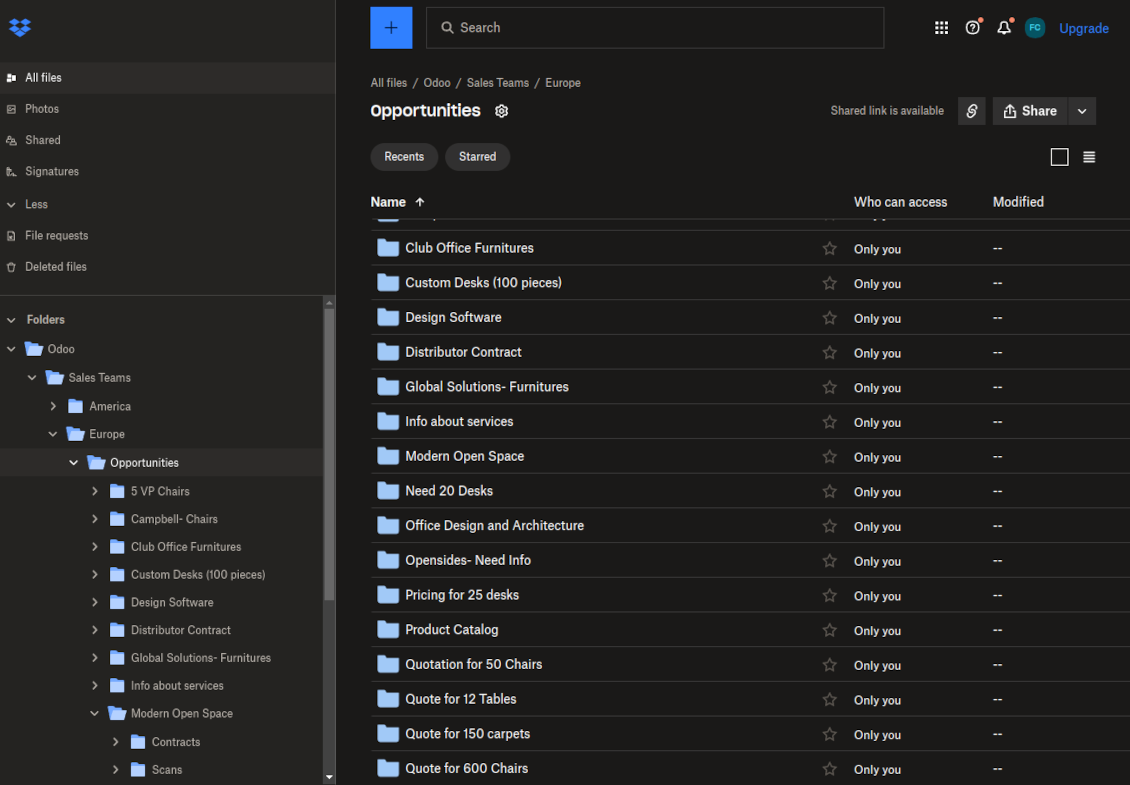
Automatic folders' structure
Decide which Odoo document types should have their own folders trees and synchronize those to Dropbox
Automatic regular sync
Rely on auto-synchronization between Odoo and Dropbox based on scheduled jobs. No manual interaction is required
Bilateral sync
Odoo sends attachments to Dropbox and retrieves files from there. Binary content is kept in clouds, while Odoo provides direct access to synced items
Cloud synchronization history
Control Dropbox sync logs right in Odoo. Export and share those in case of any issues. Be notified of any client disconnections
File manager interface
Manage synced folders and attachments from a single Odoo view. Comfortably navigate by directories. Search and download files one by one or in batch. Upload and move attachments to folders
Attachment box
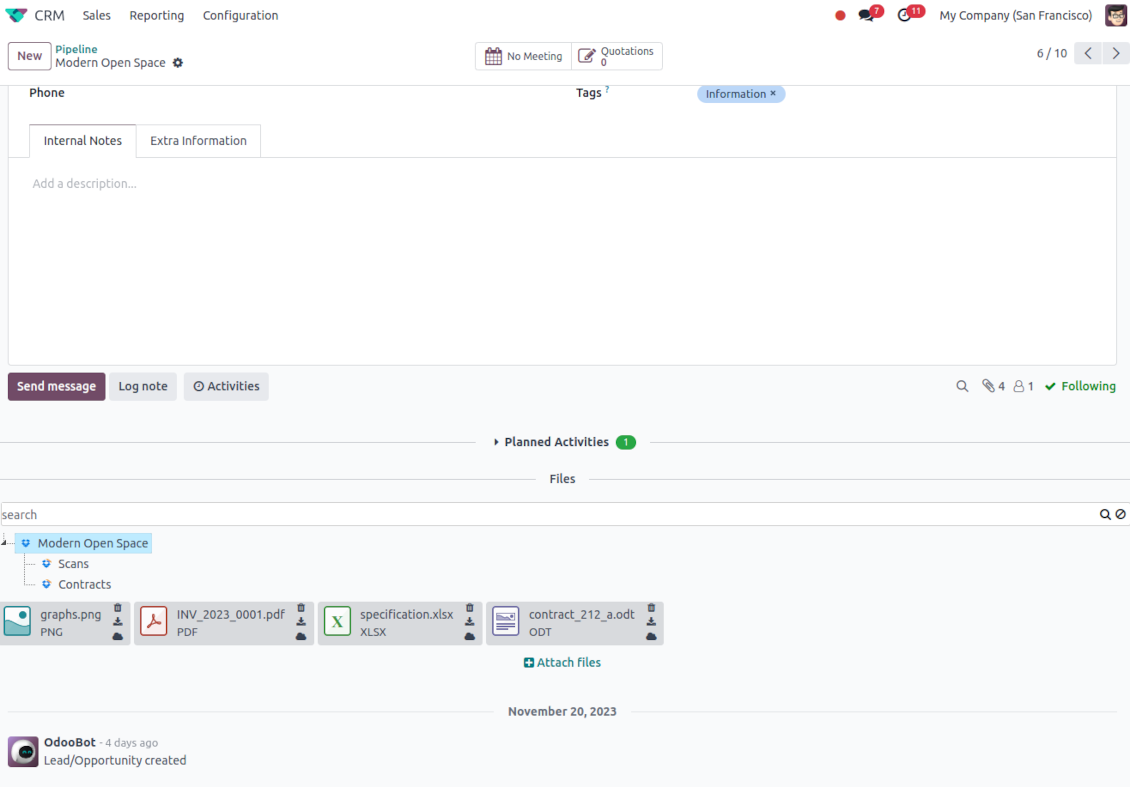
Organize files of any Odoo object in a set of subfolders. Instantly access folders and files in the attachment box and in Dropbox.
Automatic backups
The app allows you to automatically sync and manage your current database backups to Dropbox.
How synchronization works
Automatic two-sided sync
-
Configure sync for one or multiple Dropbox instances
-
Integration is based on scheduled jobs and is fully automatized. The app regularly checks changes in systems and runs sync operations
-
Synchronization is bilateral. Updates in Odoo are reflected in Dropbox (direct sync); changes in Dropbox modify Odoo folders and attachments (backward sync)
-
Cloud connection with Dropbox might be reset. In this way, the app assumes getting back all items back to Odoo (reverse sync)
-
Odoo folders and attachments might be re-attached to a new cloud client from Dropbox. Hence, items will be first taken back to Odoo (reverse sync) and then put will be put into the new cloud storage (direct sync)
Queue-based synchronization
-
Once in 15 minutes, the app examines updates in Odoo and Dropbox to prepare a synchronization queue
-
Folders' checks follow the First-In-First-Out (FIFO) principle. So, directories that have not been examined for the longest will be processed first
-
Once in 15 minutes, the sync queue is run by the special scheduled job. Firstly, the most important (blocking) tasks would be done
-
Control planned jobs and their fulfillment in the special Odoo logs interface (Cloud Storage > Configuration > Sync Logs). Subscribe for particular cloud clients notifications
-
If the app faces sync failures, it will re-try operations afterward. Sync queue processing would not be stopped if there are items not blocked by such failures
Odoo attachments for Dropbox: direct sync
-
Direct sync prepares the folders' hierarchy and uploads Odoo attachments for Dropbox
-
Direct sync checks whether attachments are added or deleted for synced directories. If so, they would be created or removed in Dropbox. In particular, it means that any file added to a folder-related Odoo object (e.g. Quotation), would be automatically moved to a linked cloud client
-
Direct sync makes all synced Odoo attachments change their type to a link (URL), while binary content is removed with one of the next Odoo cleaners. So, no actual files would be stored on your Odoo server
-
Direct sync checks whether a new folder is added. Disregarding whether it is done manually or automatically, the app would generate a peer directory in Dropbox
-
Direct sync checks whether there are any updates in folders. If so, such changes are reflected in Dropbox
Dropbox files and folders for Odoo: backward sync
-
Backward sync checks whether any files or subfolders are added to Dropbox folders. If so, the app would create URL attachments/subdirectories inside linked Odoo directories (and hence Odoo objects if any)
-
Backward sync checks whether there are any updates in folders or attachments. Such updates would be then reflected in Odoo
-
Backward sync checks whether any files are deleted/moved in a Dropbox document folder. If so, a linked Odoo attachment would be also unlinked or moved
-
If you deleted a Dropbox folder related to a folder rule / Odoo object, their child files would be deleted as well. Thus, Odoo would remove related attachments. The folders, however, will be recovered with a direct sync
-
In case of conflicts, direct sync changes are in general considered more important than backward updates.
Resetting or changing Dropbox: reverse sync
-
In case you decided to reset the connection with Dropbox, files would be moved back to Odoo
-
In case you decided to change the cloud client of a folder rule or a folder, files would be first taken back to Odoo, and then direct sync for a new client would be done
-
Reverse sync operations are prioritized to direct and backward sync operations
-
Not all items can be correctly reversed to Odoo due to cloud client peculiarities. For example, there are documents that may exist only in cloud storage environments. The app would try to convert such documents, but in some cases, it would require manual interactions.
Dropbox URLs
Dropbox has a specific way to generate links for existing files and folders. In particular, there are no concepts of internal or private URLs. Instead, each Dropbox item might get so-called shared URLs. Such shared links are either public or team-only. Moreover, the latter feature is available only for the Dropbox business account.
This tool relies upon shared links' mechanics. It means, that each attachment link is either public (all personal Dropbox accounts) or team-only (all business Dropbox accounts).
Sometimes it is considered to be not fully safe. Although website URLs will be hardly known by external users, there is a slight chance that they become available as a result of some user actions. Besides, sharing link generation is not super fast and might make the sync process slower. That is why the feature to switch off sharing URLs is introduced.
If checked, all Dropbox URLs in Odoo will be of the type https://www.dropbox.com/home/Odoo/[PATH]. Such links will not work in many cases. Thus, if you need to open Dropbox files/folders from Odoo, be careful with the setting 'No links to Dropbox from Odoo'.
Konfigurācijas un instalācijas padomi Dropbox Odoo Integration Odoo v.17
Python dependency
The tool depends on the external library 'dropbox'. Install this library for your Odoo server through the command:
pip3 install dropboxConfiguration and log in
- Turn on the option 'Dropbox Sync' (cloud Storage > Configuration > Configuration). The optional add-on Dropbox Odoo Integration is required
- Follow the URL https://www.dropbox.com/developers/apps/create
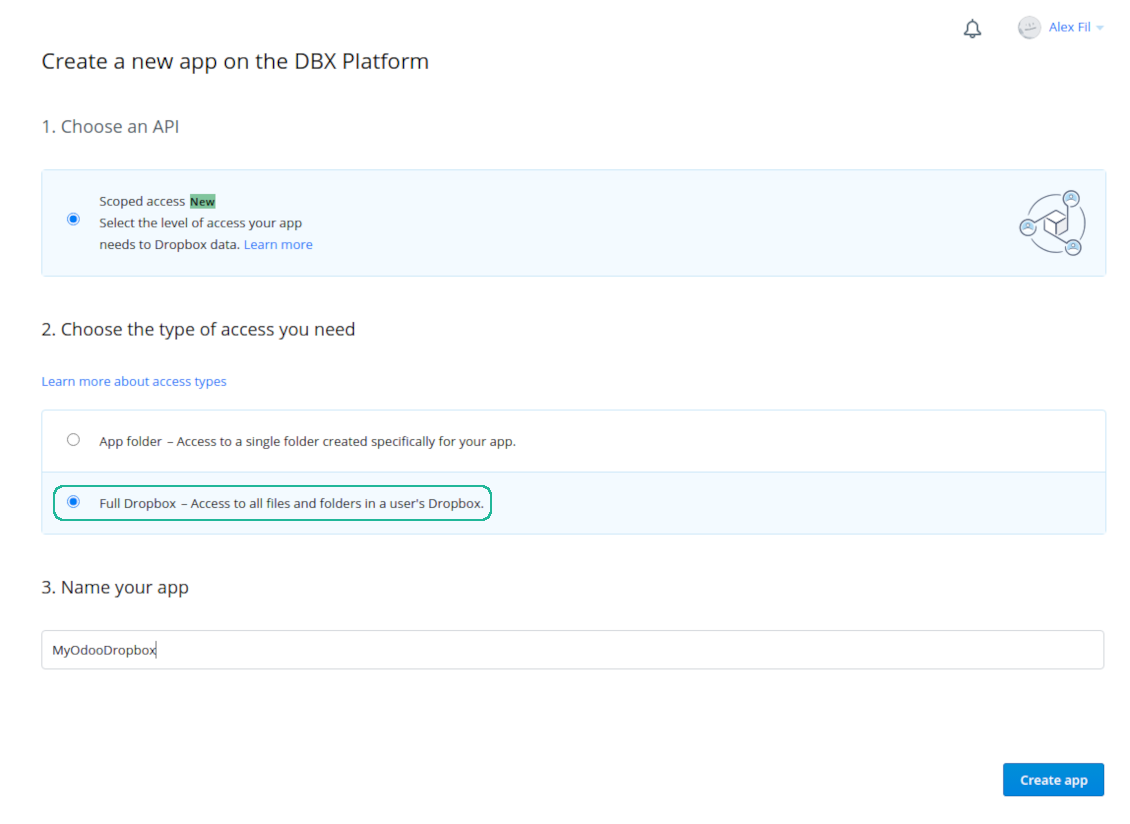
- Choose an API as 'Scoped access'
- Choose the type of access as 'Full Dropbox'
- Select any suitable name for the app and push the button 'Create app'
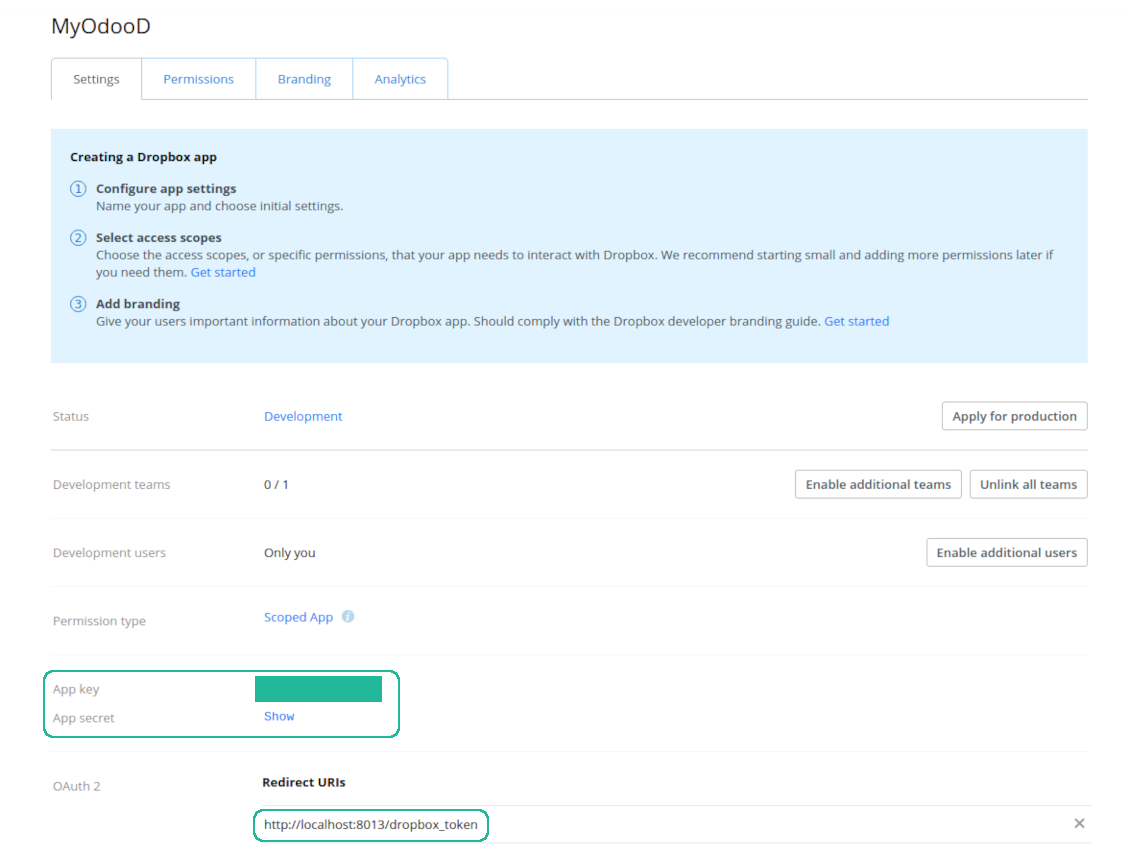
- Add the redirect URI as [YOURODOOSITENAME]/dropbox_token (e.g. https://faotools.com/dropbox_token). A valid SSL certificate (https) is required
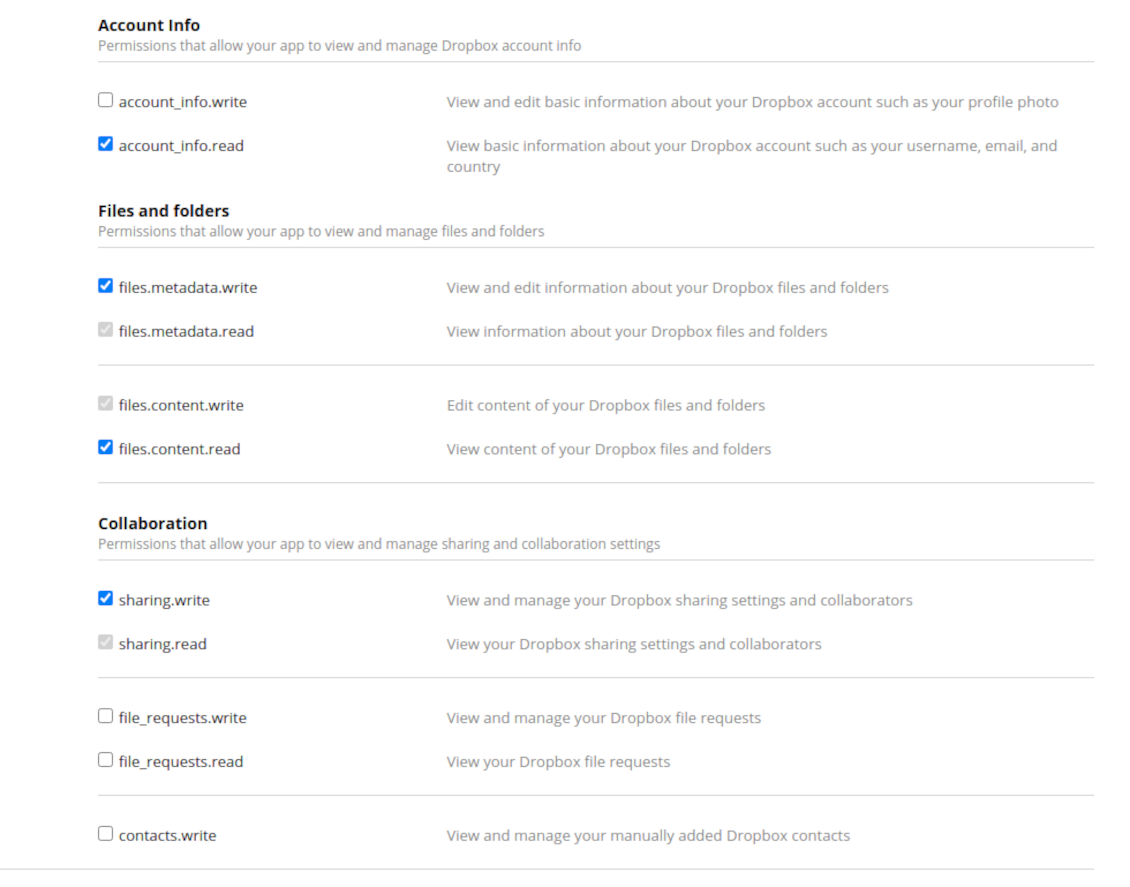
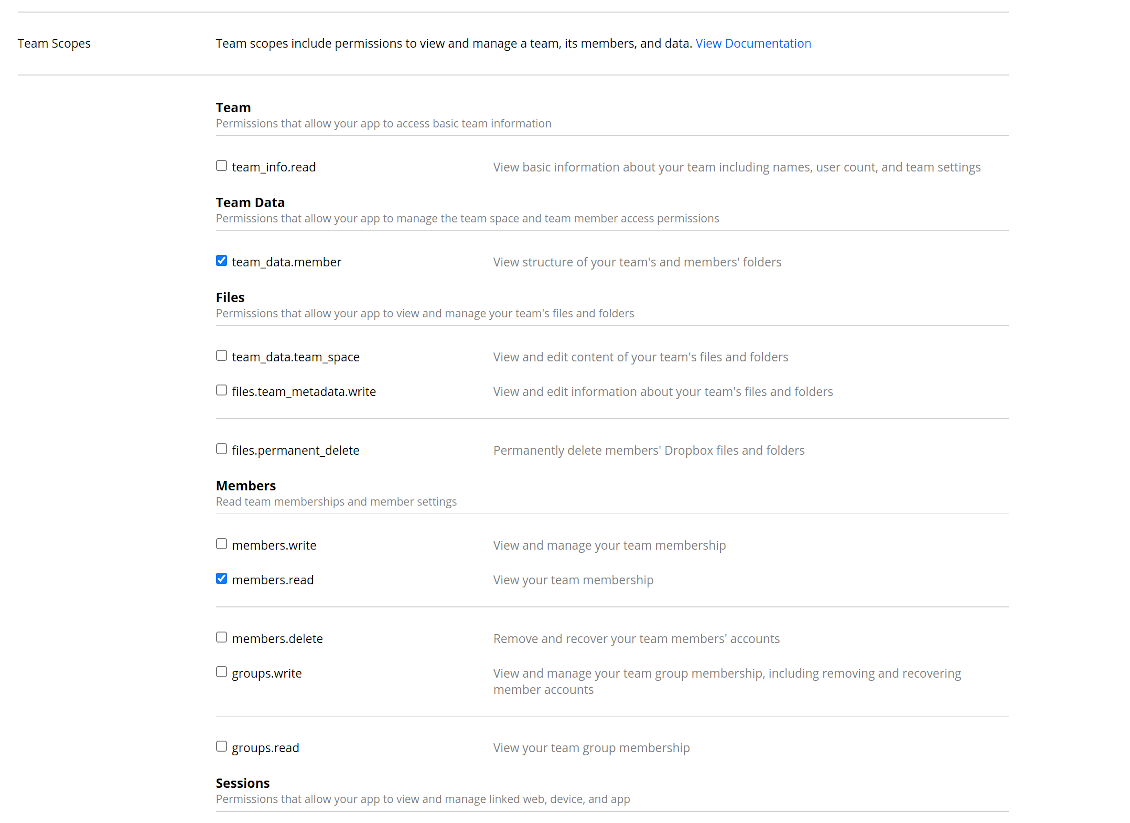
- Grant permissions to the app: 'Account Info (Read)', 'Files and folders Metadata (Write)', 'Files Content (Write)', 'Collaboration (Write)'. For team DropBox assign also 'Team Data Members', 'Members (Read)'. Make sure no other permissions are assigned.
- Submit App
- Go to Odoo Cloud Storage > Configuration > Cloud Clients press 'Create'
- As a reference, introduce any name which would be clear to all users
- As a Cloud client, choose 'Dropbox'
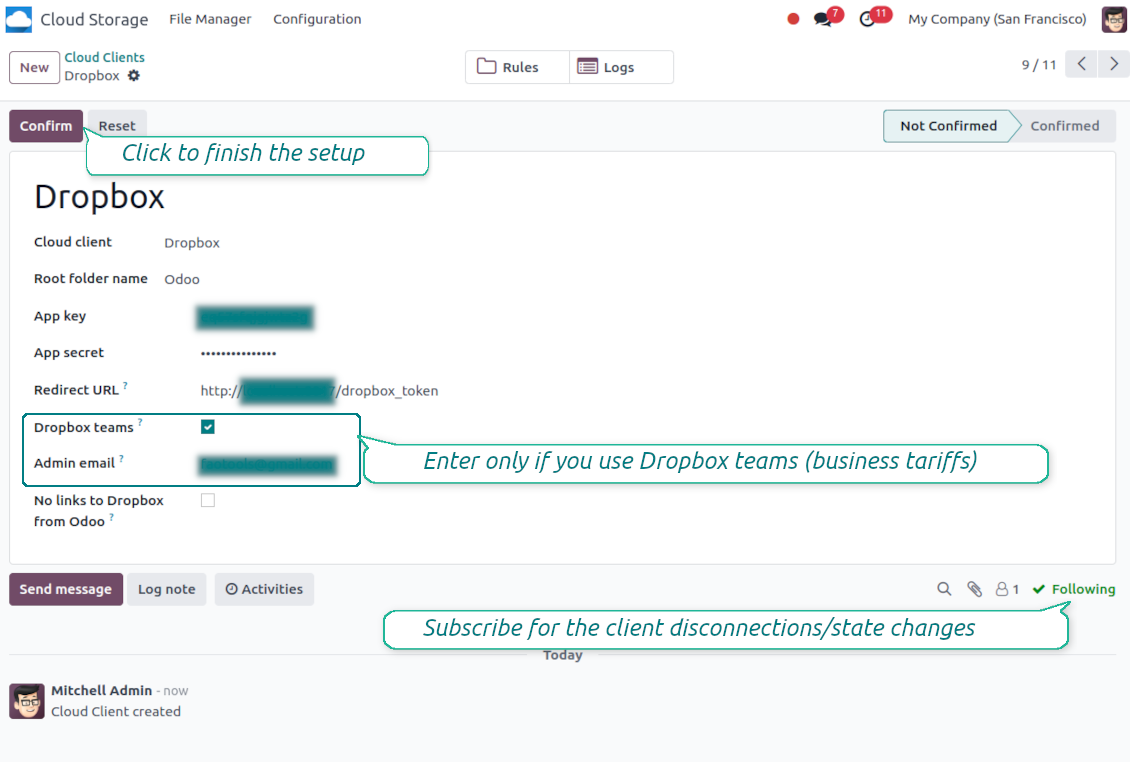
- As a Root folder name, enter a title that will be used as the parent Dropbox directory for all synced folders. For example, 'Odoo' or 'OdooERP'
- Copy 'App key' to the 'App key'
- Copy 'App Secret' into the field 'App secret'
- Insert previously generated redirect URL
- If you use Dropbox team drives
- Check the related box
- Set an Dropbox user email. Inside this user folder, all Odoo-related items will be created, and only after that, they will be shared with all other users. Under this user, all files and folders are created, changed, moved, and deleted
- Press 'Confirm'. Odoo redirects you to the Dropbox login page. Check in the system, agree with all conditions, and grant all permissions asked
- After login, Dropbox redirects you back to Odoo. Dropbox - Odoo synchronization is ready to be done
- Apply the newly created cloud client to folder rules and/or manual folders which should be synced to that Dropbox instance
- Await the sync scheduled job to be started. For testing purposes only: trigger integration manually from Cloud Storage > Configuration > Configuration > the button 'Launch sync'.
Watch also the configuration video
Register a new Dropbox app
Set up Dropbox App: the redirection URLs
Dropbox permissions for personal accounts
Dropbox permissions for business accounts
Set up Odoo for the Dropbox integration
Bieži uzdotie jautājumi par Dropbox Odoo Integration Odoo v.17
Kur tiek glabāti sinhronizētie lauki? Vai tie tiek dublēti Odoo un clouds?
Lietotne pieņem, ka pielikumu binārais saturs tiek glabāts Cloud Client, nevis Odoo serverī. Tādi pielikumi Odoo kļūst par URL tipa pielikumiem, un tiem varat jebkurā laikā piekļūt no pielikumu lauka vai no Cloud Client.
Pēc iestatīšanas manuālas darbības nav vajadzīgas, jo sinhronizācija ir pilnīgi automātiska. Izlemiet, kurus Odoo dokumentu tipus sinhronizēt, un katram iestatiet saistīto modeli (klienti, pārdošanas vai iepirkuma pasūtījumi, uzdevumi, projekti u. c.).
Vai varu būt dažas mapes vienam un tam pašam dokumenta veidam? Piemēram, iekšējie projekti un klientu projekti?
Jā, varat. Šim nolūkam sagatavojiet noteikumu katram un pēc tam lietojiet filtrus: piemēram pēc projekta tipa.
Mēģiniet padarīt filtrus savstarpēji izslēdzošus, lai dokumentu varētu viennozīmīgi piešķirt. Piemēram, „klients, bet ne piegādātājs“, „piegādātājs, bet ne klients“. Citādi konkrēta dokumenta mape lēkātu no viena modeļa uz citu.
Vai sinhronizāciju var padarīt reāllaikā?
Nē. Mums ir pamatoti iemesli izvairīties no reāllaika sinhronizācijas:
Veiktspējas problēmas. Ja sinhronizācija ir reāllaikā, katra faila augšupielāde rādīs ielādes ekrānu.
Konfliktu problēmas. Ja 2 lietotāji vienlaikus maina vienumu, var rasties neatrisinātas situācijas. Regulāru darbu gadījumā to varam izlabot pēc tam; reāllaikā tas būtu jāsaglabā kā rinda, kas lietotājiem būtu vēl maldinošāk.
Funkcionalitātes problēmas. Īpaši vienumu pārdēvēšana un pārstrukturēšana. Atpakaļsinhronizācijā rīks stingri balstās uz katalogu loģiku, un katrā sinhronizācijā tiek pārbaudīti 100% vienumu. Ja to darītu pēc katra atjauninājuma, būtu tūkstošiem pieprasījumu sekundē. Ja nē: izmaiņas pazustu.
Vai es varu mainīt mapju noklusējuma nosaukumus mākoņos?
Modeļu katalogiem (pārdošanas pasūtījumi, iespējas, piegādātāji utt.) varat piešķirt savu nosaukumu jebkuram dokumenta veidam.
Objektu mapēm (SO-001, John Smith utt.) rīks paļaujas uz Odoo metodi šī dokumenta veida parādāmā nosaukuma veidošanai. To var mainīt, definējot nosaukuma izteiksmi. Tiek izmantota precīza Odoo e-pasta veidņu sintakse.
Vai es varu mainīt sinhronizācijas darbu biežumu?
Nē, sākot ar 15. versiju, ieplānotos darbus nevajadzētu mainīt. Tie ir optimizēti darboties ik pēc 15 minūtēm, lai savienojums būtu visstabilākais un ātrākais.
Pārliecinieties, ka Odoo servera taimauti ir vismaz 15 minūtes (900 sekundes).
Ja uz brīdi jāaptur sinhronizācija, dariet to konkrētā cloud client formā.
Vai es varu sinhronizēt pielikumus ar dažiem mākoņa klientiem
Jā, no 15. versijas var iestatīt vairākus savienojumus. Tādējādi dažas mapes sinhronizē ar vienu cloud client, citas — ar citu.
Ņemiet vērā, ka vienu un to pašu mapi nevar vienlaikus sinhronizēt ar vairākiem cloud storages.
Mūsu mākoņos izmantojam īpašu redaktoru (piem., OnlyOffice, Office 365 u. c.). Vai faili tiktu atvērti tajā redaktorā?
Jā, atkarībā no jūsu cloud client konfigurācijas.
Vai man vajag tikai lietotni Cloud Storage Solution?
Sākot ar 15. versiju, lietotni var izmantot atsevišķi, lai kārtotu pielikumus mapēs un nodrošinātu failu pārvaldnieka saskarni.
Ja mērķis ir savienojums ar kādu no mākoņa klientiem, jāinstalē vismaz viena izvēles klienta lietotne.
Kas notiek, kad es maiņu mapes noteikumu?
Kad mapes noteikums mainās, mainās arī mapju saraksts. Ja mape vairs neatbilst noteikumu nosacījumiem, to noņem. Ja faili bija sinhronizēti, pretējā sinhronizācija tos atgriež Odoo un dzēš no Cloud Client.
Ja dokumenta objekts neatbilst mapes noteikuma nosacījumiem, tā mape netiks izveidota. Ja vēlāk atbildīs, saistītā mape tiks ģenerēta.
Kādas ir jūsu rīku atjaunināšanas politikas?
Saskaņā ar spēkā esošajiem Odoo Apps Store noteikumiem:
- Katrs 12.0 un vecākai versijai pirktais modulis dod piekļuvi visām versijām līdz 12.0.
- Sākot ar 13.0. versiju, katra moduļa versija jāpērk atsevišķi.
- Neatkarīgi no versijas pirkums dod tiesības uz visiem atjauninājumiem un labojumiem galvenās versijas ietvaros.
Ņemiet vērā, ka faOtools komanda šos noteikumus nekontrolē. Jautājumus adresējiet tieši Odoo Apps Store pārstāvjiem.
Kā instalēt jūsu lietotni Odoo.sh?
Visiešākā pieeja ir izmantot Odoo veikala iebūvēto darbplūsmu:
1. Atveriet moduļa lapu un noklikšķiniet pogu Deploy on odoo.sh
2. Pēc tam jūs novirzīs uz GitHub lapu. Pierakstieties kontā, pēc tam noklikšķiniet 'Create a new repo' vai izmantojiet esošu. Pārliecinieties, ka krātuve ir privāta. Lietotnes nedrīkst publicēt ar OPL-1 licenci. Ja vajag, izveidojiet jaunu repo Odoo.sh projektam
3. Pēc tam dodieties uz odoo.sh un noklikšķiniet pogu Deploy. Uznirstošajā logā iesniedziet lēmumu un noklikšķiniet 'Continue.' Šī darbība sāk instalēšanu.
Šīs darbības instalēs lietotni projekta produkcijas zarā. Ja vēlaties izvietot lietotnes citos zaros vai atjaunināt moduli, veiciet šīs darbības:
1. Augšupielādējiet lietotnes pirmkodu no Odoo veikala
2. Veiciet moduļa commit vajadzīgajā GitHub krātuvē. Pārliecinieties, ka neviens lietotnes mape/fails netiek ignorēts (t.i., nav repo .gitignore). Krātuves automātiski izveido odoo.sh, un pēc noklusējuma tajās var būt svarīgi elementi (piem., /lib). Augšupielādējiet visus moduļa katalogus, apakškatalogus un failus bez izņēmumiem
3. Izvietojiet odoo.sh projekta mērķa zaru vai, ja iestatījumi to paredz, gaidiet, līdz tas tiek automātiski būvēts.
Kā instalēt jūsu lietotni savā serverī?
2. Restartējiet Odoo serveri;
3. Ieslēdziet izstrādātāja režīmu (tehniskie iestatījumi);
4. Atjauniniet lietotņu sarakstu (lietotņu izvēlne);
5. Atrodiet lietotni un nospiediet „Activate“/„Install“;
6. Sekojiet lietotnes lapas vadlīnijām, ja tādas ir.
Pamanīju, ka jūsu lietotnei ir papildu papildinājumi. Vai varu tos iegādāties vēlāk?
Jā, protams. Vienlaikus Odoo automātiski pievieno visas atkarības grozam, tāpēc iepriekš iegādātie rīki jāizslēdz, lai izvairītos no dubultas samaksas.
Izvietoju jūsu lietotni Odoo.sh un testos redzu brīdinājumu/kļūdu
Sarkans/oranžs brīdinājums neietekmē lietotnes funkcijas. Diemžēl mūsu moduļi dažkārt neiztur standarta automātiskos testus, jo tie pieņem uzvedību, kas ir pretrunā ar lietotnes mērķiem. Piemēram, mēs mainām cenas aprēķinu, bet standarta Odoo moduļa testi salīdzina galīgo cenu ar standarta algoritmu.
Vispirms pārbaudiet izvietotās datubāzes funkcijas. Vai viss darbojas pareizi?
Ja joprojām uzskatāt, ka brīdinājums ietekmē īstas funkcijas, sazinieties ar mums un nosūtiet pilnus instalācijas žurnālus un pilnu izvietoto moduļu sarakstu (ieskaitot kodolu un trešo pušu).
Vai es varu iegādāties lietotni tieši no jūsu uzņēmuma?
Nē, rīkus izplatām tikai caur oficiālo Odoo lietotņu veikalu.
Es vēlētos saņemt atlaidi
Diemžēl mums nav tehnisku līdzekļu individuālu cenu piedāvāšanai.
Vai es varu instalēt lietotni savā Odoo Online (SaaS) datubāzē?
Nē, trešo pušu lietotnes nevar izmantot Odoo Online. Diemžēl Odoo SaaS to bloķē.
Jūsu rīkam ir atkarības no citām lietotnēm. Vai tās jāiegādājas?
Jā, rīkam ir nepieciešami visi atkarībās atzīmētie moduļi, lai darbotos pareizi. Lietotnes lapā norādītā cena jau ietver visas nepieciešamās atkarības.
Kāda ir moduļa cena ASV dolāros? Kāpēc tā mainījās?
Mūsu moduļu cena ir eiro. Odoo veikals konvertē cenas citās valūtās pēc iekšējā kursa. Tāpēc cena ASV dolāros var mainīties, kad kurss tiek atjaunināts.
Lietotnes un vietnes teksti valodās, kas nav angļu, ir sagatavoti ar MI palīdzību un saskaņoti ar oficiālajiem Odoo tulkojumiem. Ja pamanāt kļūdu, nosūtiet biļeti par tulkojumu pareizību un mēs to labosim.
Odoo demonstrācijas datubāzes (tiešie priekšskatījumi)
Šai lietotnei varam nodrošināt bezmaksas personalizētu demo datubāzi.
Lai sazinātos, nav vajadzīgs tālruņa numurs vai kredītkarte. Pietiek ar īsu e-pasta reģistrāciju, kas neaizņem vairāk par 30 sekundēm.
Pēc jūsu pieprasījuma sagatavosim individuālu tiešā priekšskatījuma datubāzi, kurā apmēram divas nedēļas varēsiet veikt testus un pārbaudīt pieņēmumus.
Kļūdu ziņošana
Ja sastopaties ar kļūdām vai nekonsekventu uzvedību, sazinieties ar mums. Garantējam labojumus 60 dienu laikā pēc pirkuma un esam ieinteresēti rīkus uzlabot arī pēc šī perioda.
Lai sazinātos, nav vajadzīgs tālruņa numurs vai kredītkarte. Pietiek ar īsu e-pasta reģistrāciju, kas neaizņem vairāk par 30 sekundēm.
Iekļaujiet pieprasījumā pēc iespējas vairāk informācijas: ekrānuzņēmumus, Odoo servera žurnālus, pilnu problēmas atkārtošanas aprakstu u. tml. Parasti darba plāna sagatavošana (ja kļūda ir apstiprināta) vai norādījumu sniegšana (citādi) prasa dažas darba dienas.
Publiski funkciju pieprasījumi un moduļu idejas (bezmaksas izstrāde)
Mēs esam stipri motivēti uzlabot savus rīkus un būsim pateicīgi par jebkuru atsauksmi. Ja jūsu prasības ir vispārīgi noderīgas un tās var efektīvi īstenot, komanda tās iekļaus mūsu uzdevumu sarakstā.
Šāds uzdevumu saraksts tiek apstrādāts regulāri un neparedz papildu maksas. Lai gan mēs nevaram solīt termiņus un galīgo dizainu, tas var būt labs veids, kā iegūt vēlamās funkcijas bez ieguldījumiem un riskiem.
Lai sazinātos, nav vajadzīgs tālruņa numurs vai kredītkarte. Pietiek ar īsu e-pasta reģistrāciju, kas neaizņem vairāk par 30 sekundēm.


The tool to build a deep and structured knowledge base for internal and external use. Knowledge System. KMS. Wiki-like revisions.
398€
The tool to set up KPI targets and control their fulfillment by periods. KPI dashboards. Dashboard designer. KPI charts

The tool for time-based service management from booking appointments to sales and reviews
398€
The tool to manage your Odoo from your favorite AI chats through MCP. Claude. Any MCP-supporting AI.

The tool to flexibly structure Odoo attachments in folders and synchronize directories with cloud clients: Google Drive, OneDrive/SharePoint, Nextcloud/ownCloud, Dropbox, Amazon S3, Box, and NAS. DMS. File Manager. Document management system
398€
The tool to automatically synchronize Odoo attachments with OneDrive files in both ways
487€
The tool to automatically synchronize Odoo attachments with Google Drive files in both ways
487€
The tool to automatically synchronize Odoo attachments with ownCloud/Nextcloud files in both ways
487€