Partner information when it is needed
You decide by your own which data codes boxes' should contain.
Where do I find color codes
You observe color codes practically everywhere where you see a partner.
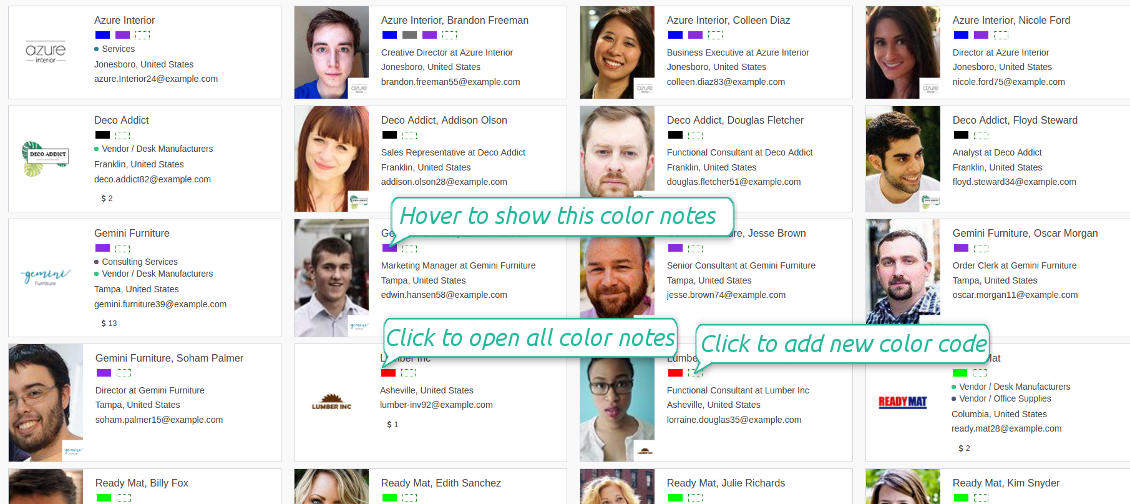
- You see color boxes on all partner views: form, kanban, tree. On default, simplified or address cards
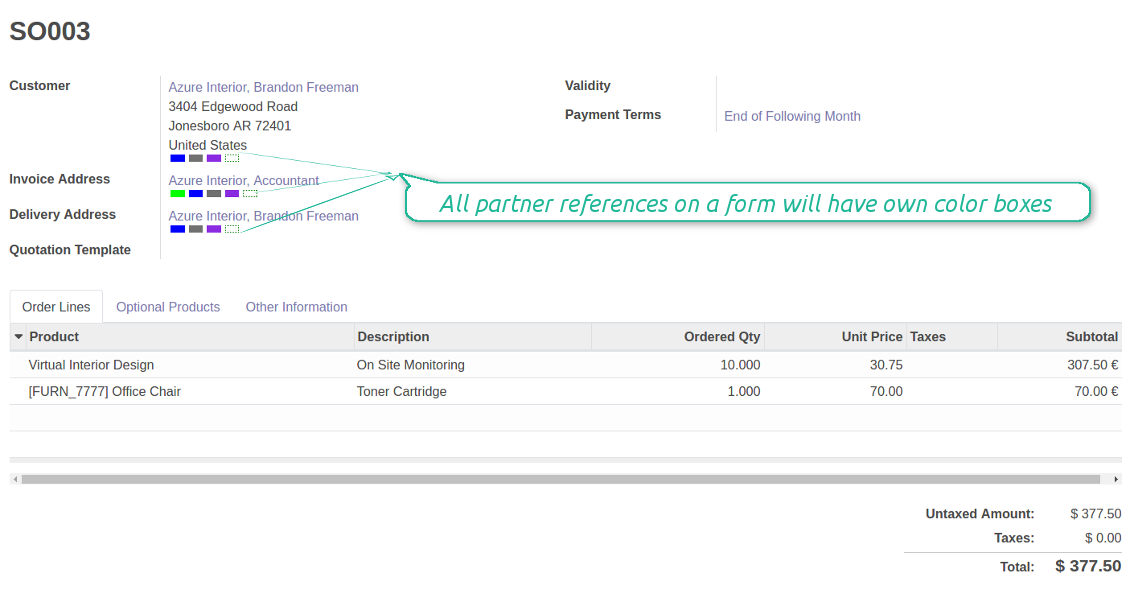
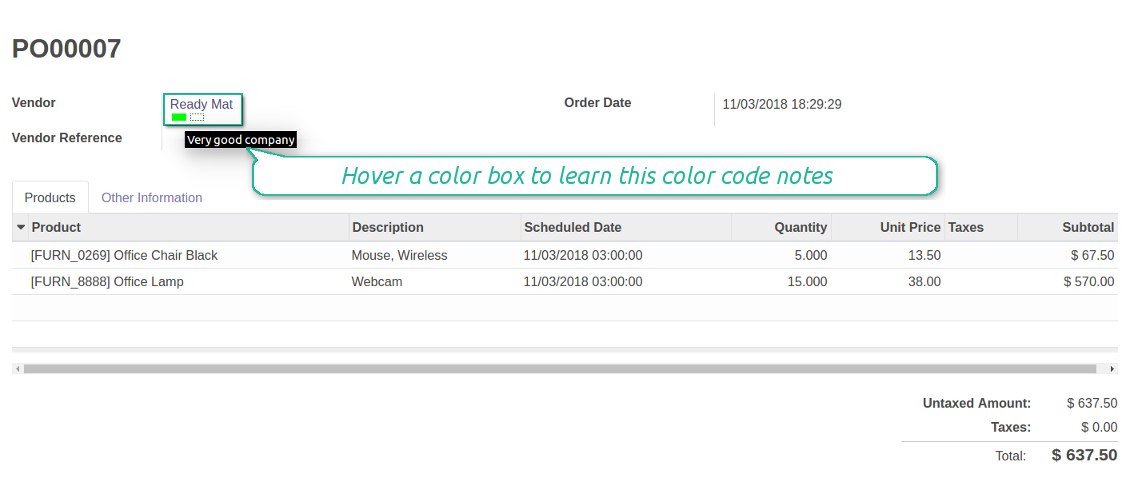
- You access linked supplier or customer color codes on all forms, where there is a reference for a contact. Depending on the modules installed, it might be sale orders, opportunities, projects and issues, purchase or delivery orders, tickets and claims. Thus any, including your custom forms or forms from community-built modules
- Color codes appear as soon as you select or open a contact. In real time. At first sight
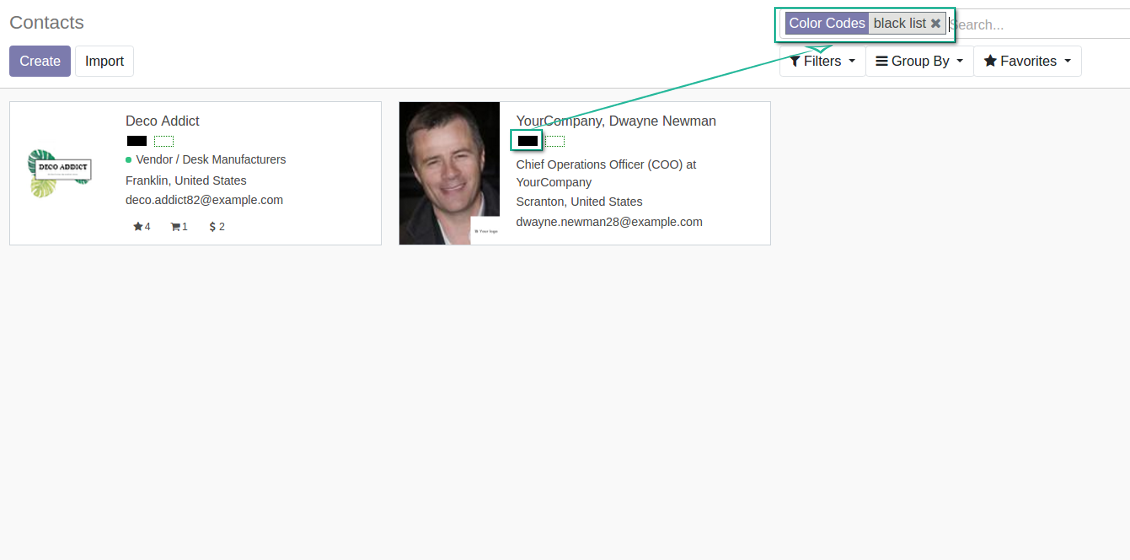
- The tool let you search contacts by a color code reference.
How the widget of color boxes works
Color codes are shown as a set of colourized boxes with user friendly behaviour to retrieve data:
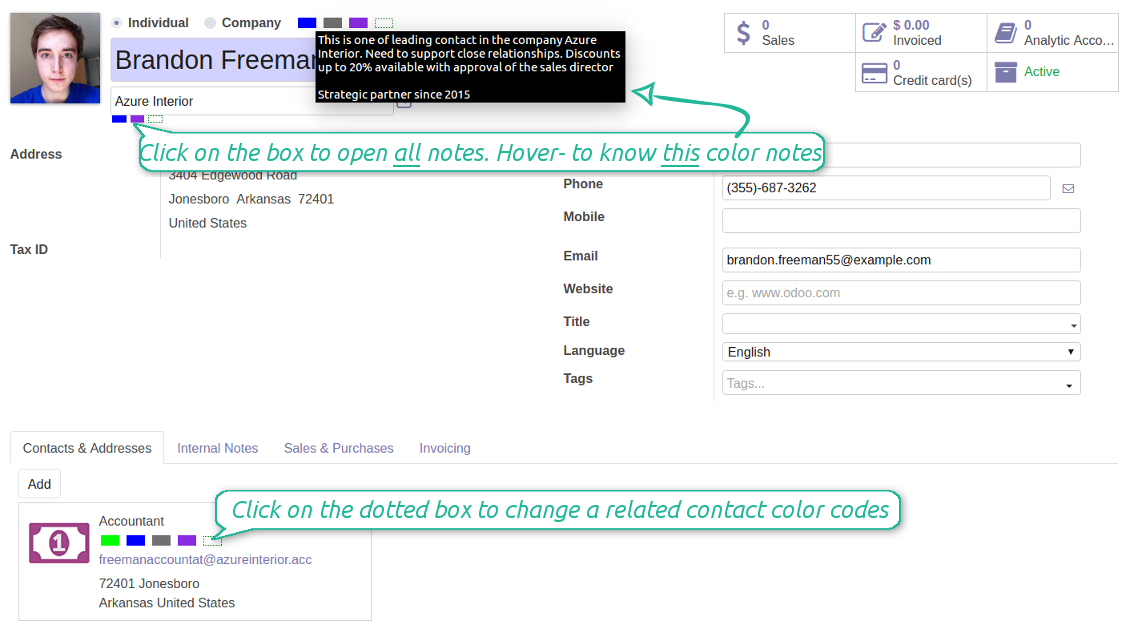
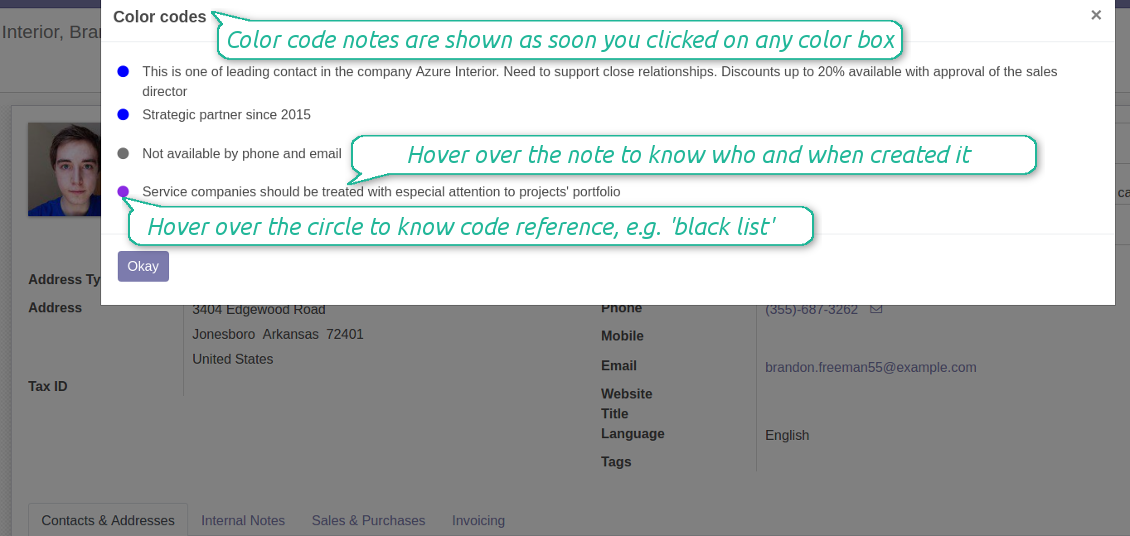
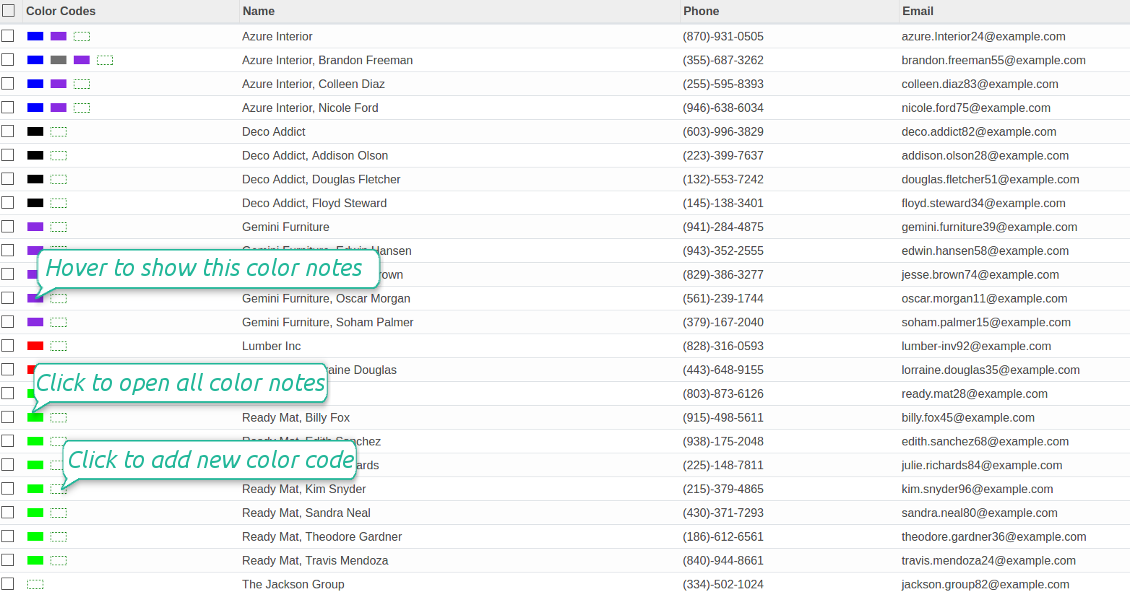
- Click on any color box to open the pop-up with all color notes
- Notes are sorted by color codes. Sequence of colors is defined as a sequence in the configured classifier
- The list aggregates notes by manual and automatic color codes
- Notes gathers hints from parent hierarchy
- Hover over a note to learn its initial author and date (for manual notes) and to which contact, this or any parent, it relates to
- Hover over a circle to know what this color means (color code reference is used)
- Hover over a color box to observe related color notes
- Click on a dotted box to manage manual color codes of this contact.
スクリーンショット
Color codes on a contact form
Customer color coding on a sale order form
Supplier color codes on a purchase order form
Color codes for partners' kanban
Scoring details and notes
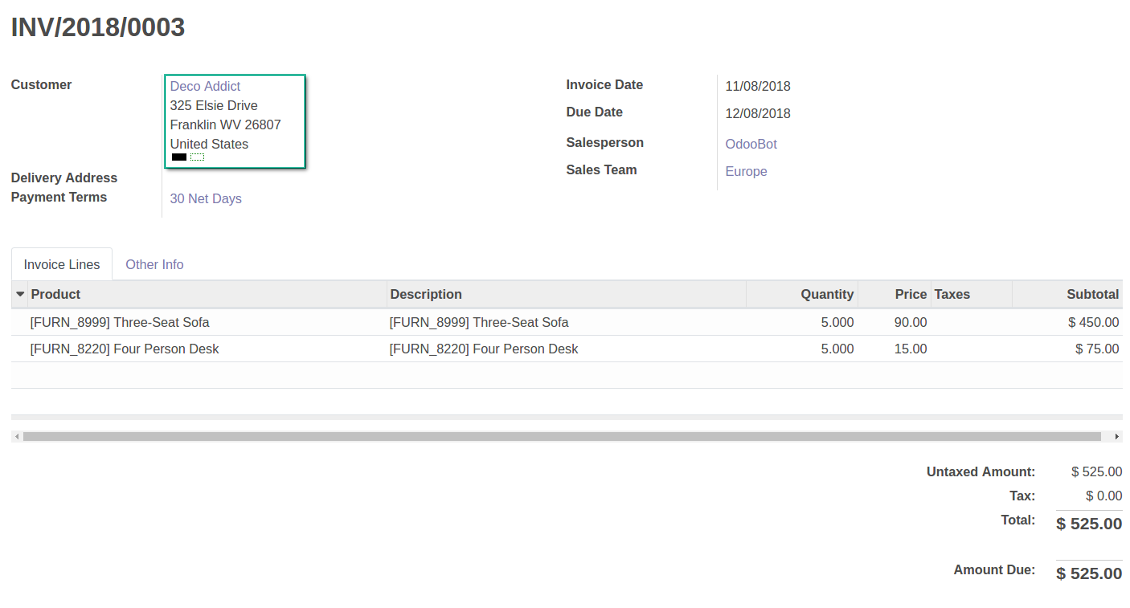
Color codes for invoices
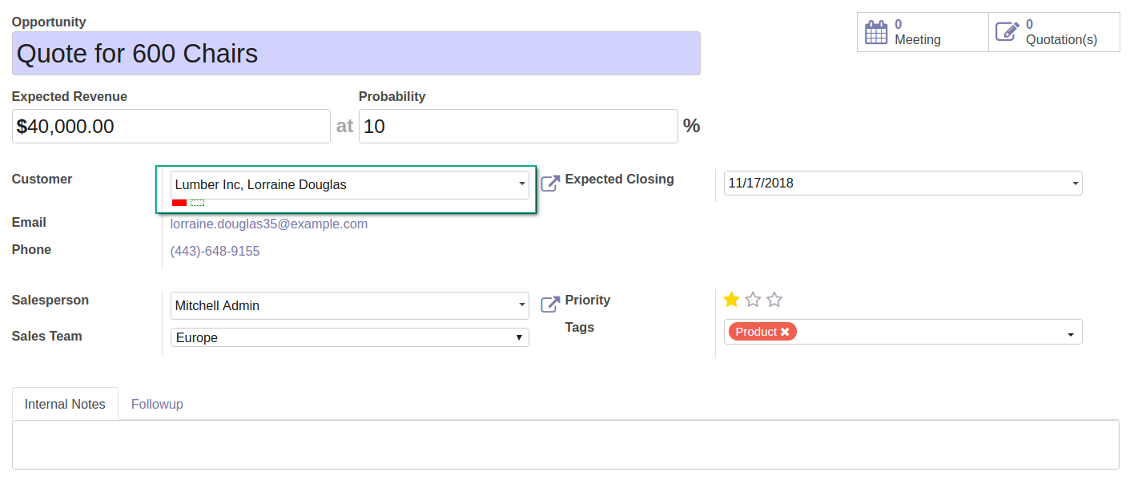
Colour codes for opportunities
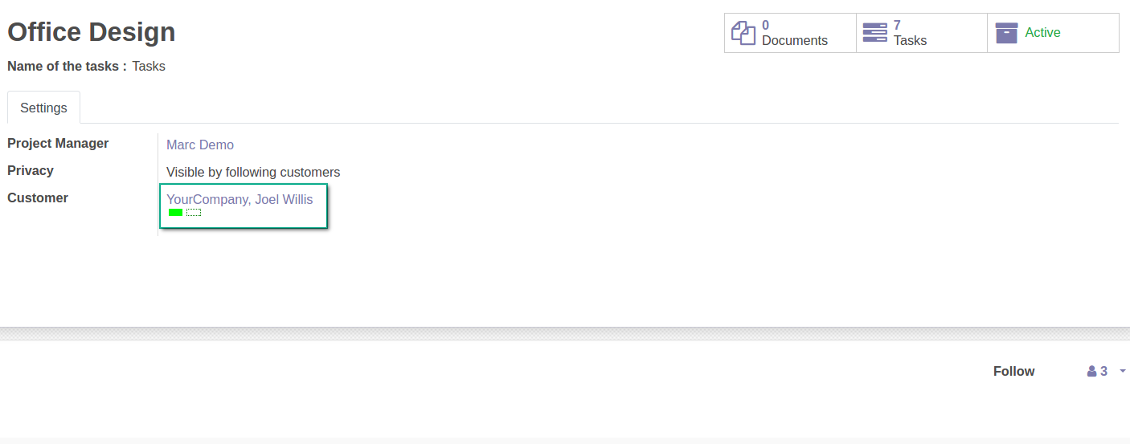
Color codes for projects
Manual and automatic color codes
Automatic color codes do not assume any user involvement. Configure rules once, and all matched contacts will receive configured color codes.
Manual color codes can be updated from any location where you see the widget. Click on the dotted-border rectangle to open the list of a related contact own color codes. Add a new to the table, edit an existing line or fully remove a color code note.
How automatic color code rules work
Use automatic color codes in case you can strictly describe which partners receive those color codes. Thus, you should know exact field values of target customers / suppliers. Look at the use cases below.
- Define a rule as a set of criteria a contact should satisfy. You may use any partner field in the same way you define a search filter in Odoo
- There might be as many criteria combined by 'any' or 'all' operators as you like
- For a single color code you may have an unlimited number of automatic rules. Matching any of that rule will lead to this color code assignment
- Automatic rules are applied in real time. As soon as you configured a new one, open/reload any form and check contact color codes.
- A contact already has some sort of manual tag. For example, the 'Danger!' tag should lead to the red color code
- All contacts with set 'Blacklist' field should be assigned the black color code
- Customers with low credit limit (e.g. with less than $1000) receive the orange color code
- Mark grey contacts without mobile and phone entered
- Define color codes based on a country or a region, based on 'Degree of trust you have in this debtor', or based on your own custom field
- ....
スクリーンショット
Automatic rule for color coding
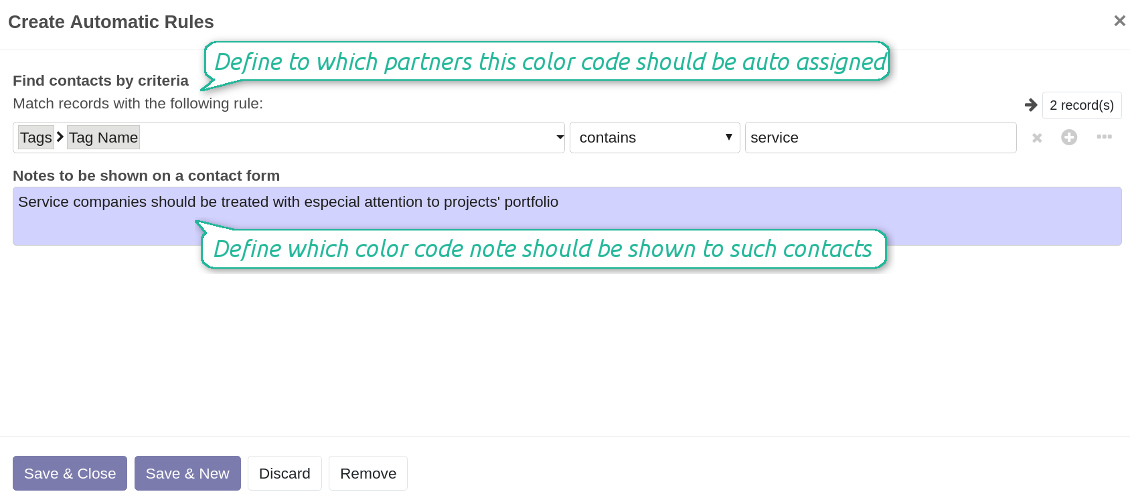
As many criteria as you need for auto rules
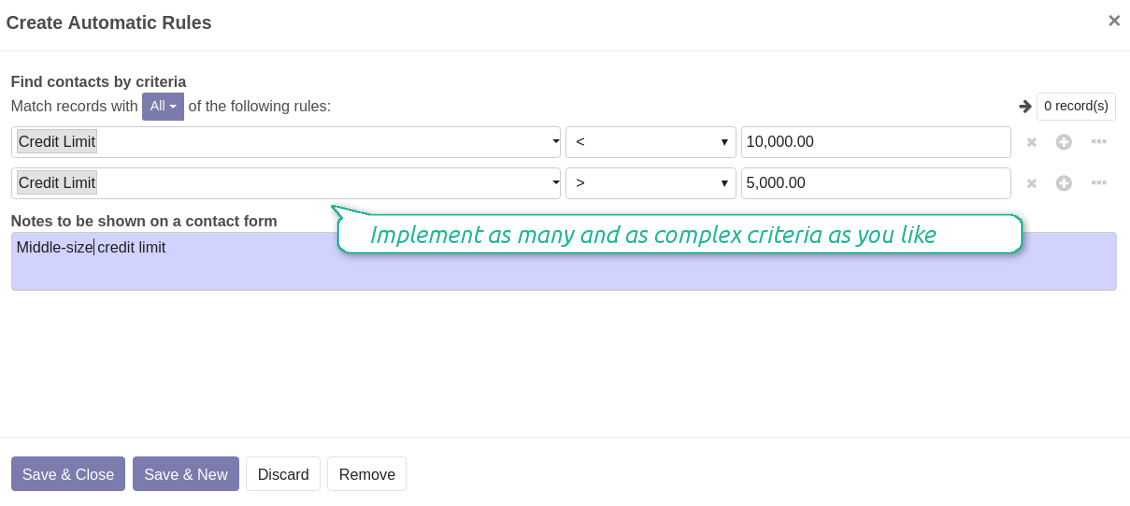
Edit manual color codes
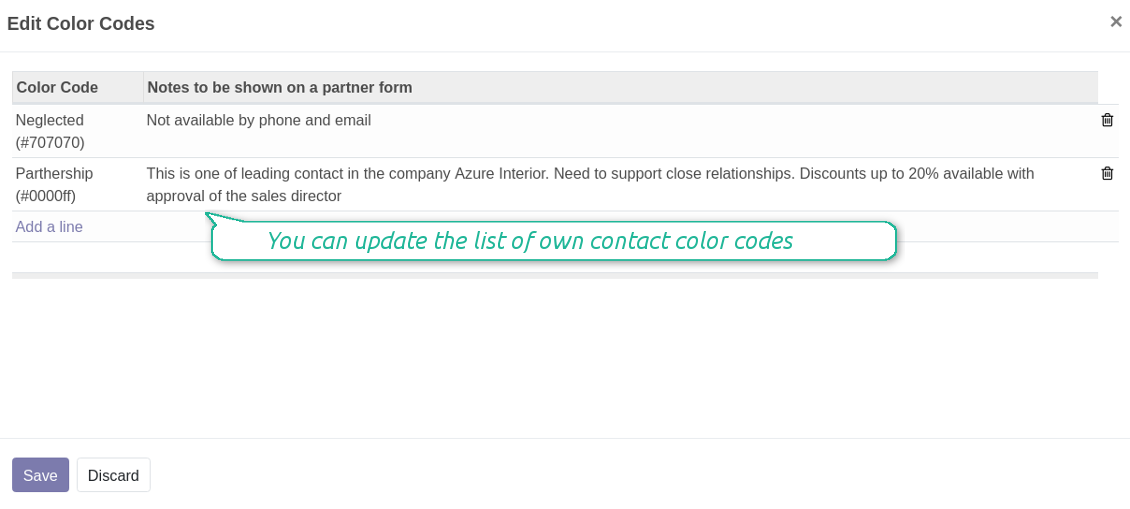
Edit manual color code notes
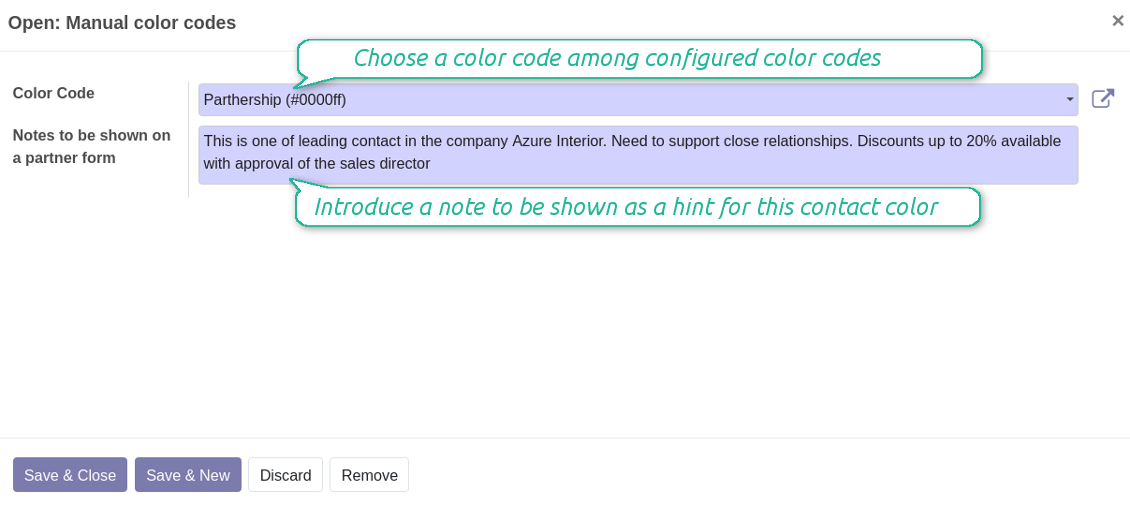
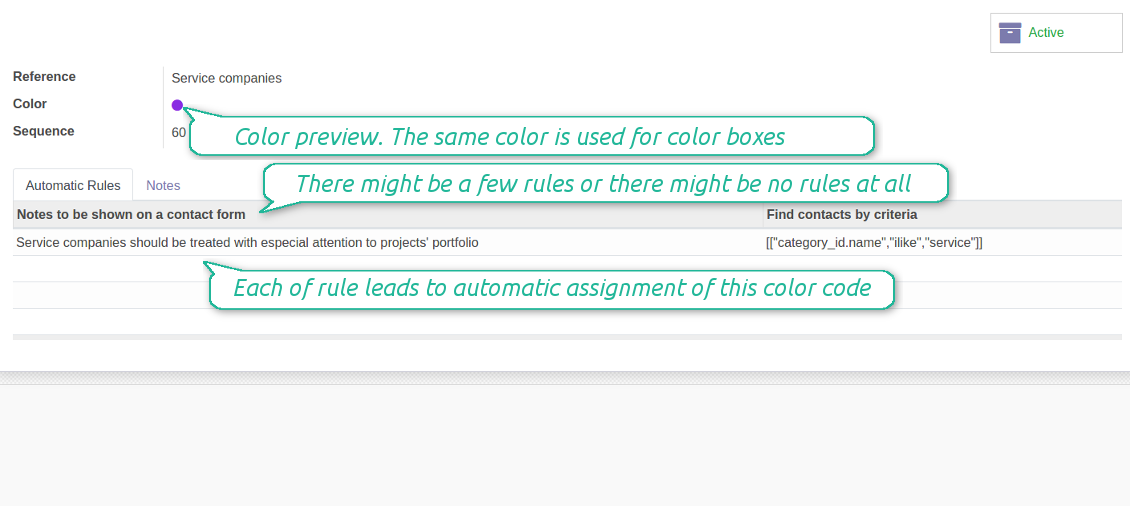
Color codes configuration: form (readonly)
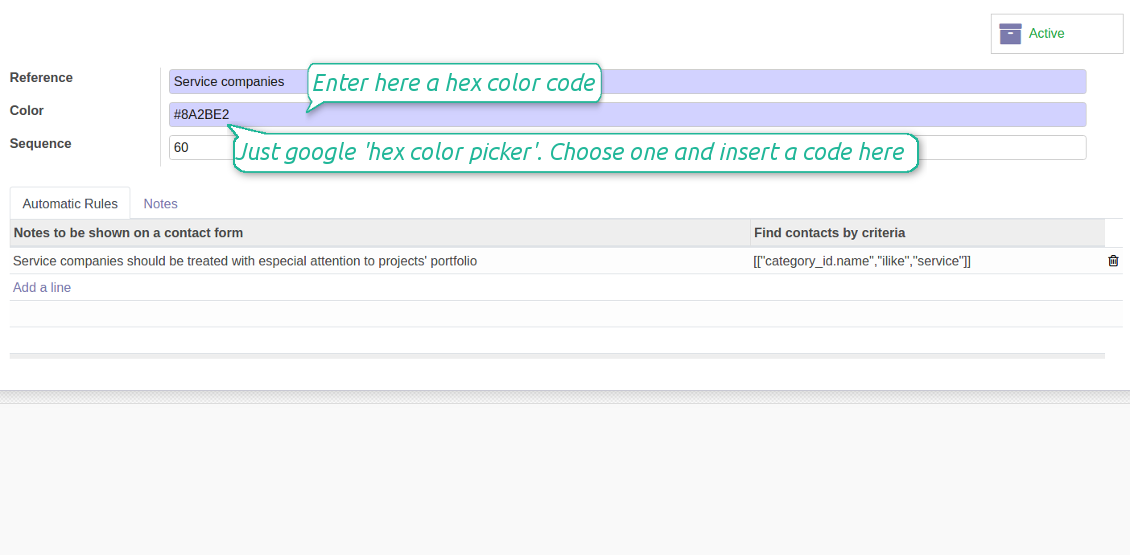
Color codes configuration: form (edit)
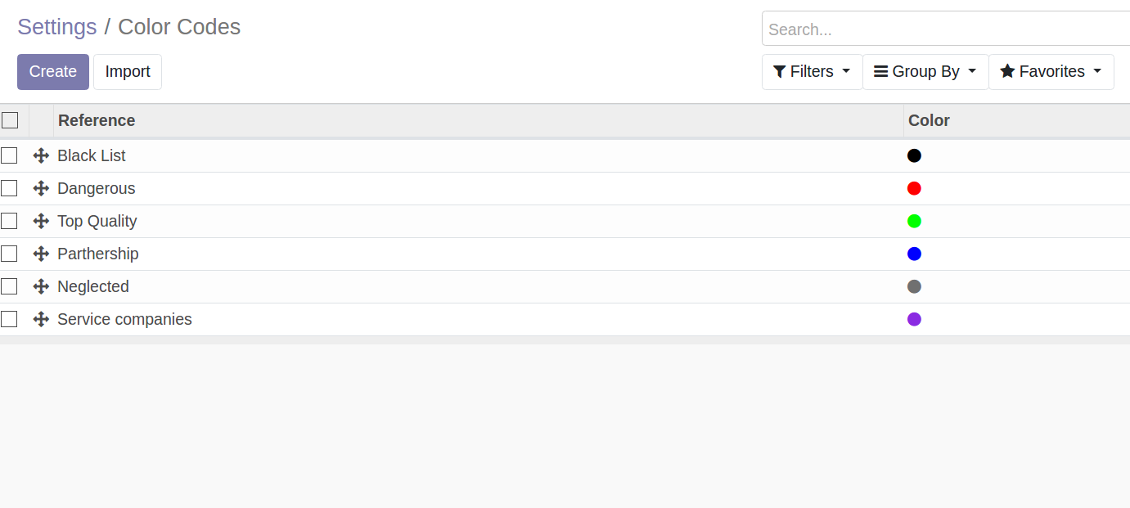
As many color codes as you need
The same color code may have a few notes. For example, 'John Brown' is black-listed since (a) his parent company has a huge debt; (b) he is not available by phone and mobile; (c) he has a tag 'potential fraud' assigned by a financial security officer.
Color codes classifier settings
It is possible to have as many color codes as you like. They may relate to any business facet. For example, introduce 'Black List', 'Not trusted', 'Strategic partners', 'Low credit limit', etc. and etc.
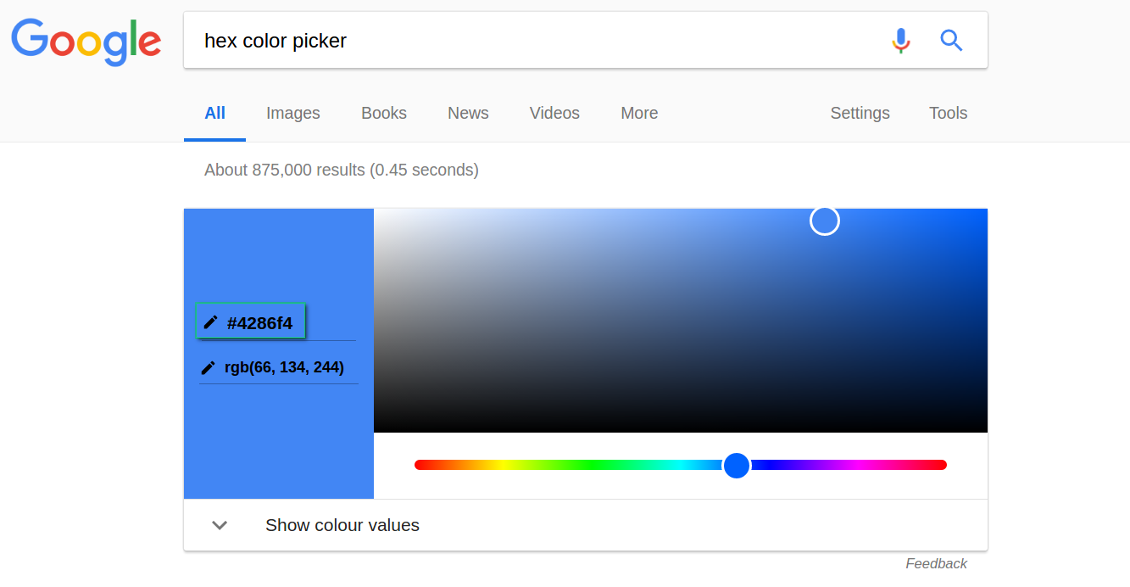
For such codes, you may use almost any color shade. Google 'hex color picker'. The search engine will let you pick a desired color. Copy the 'hex' value to the color field of a code. Click save and make sure it is a color you would like to use.
As soon as you installed the tool, Odoo would prepare a few default color codes. You may simply update or delete those codes to reflect your own color codes' logic.
スクリーンショット
Color codes classifier
HEX color picker
Color codes configuration menu
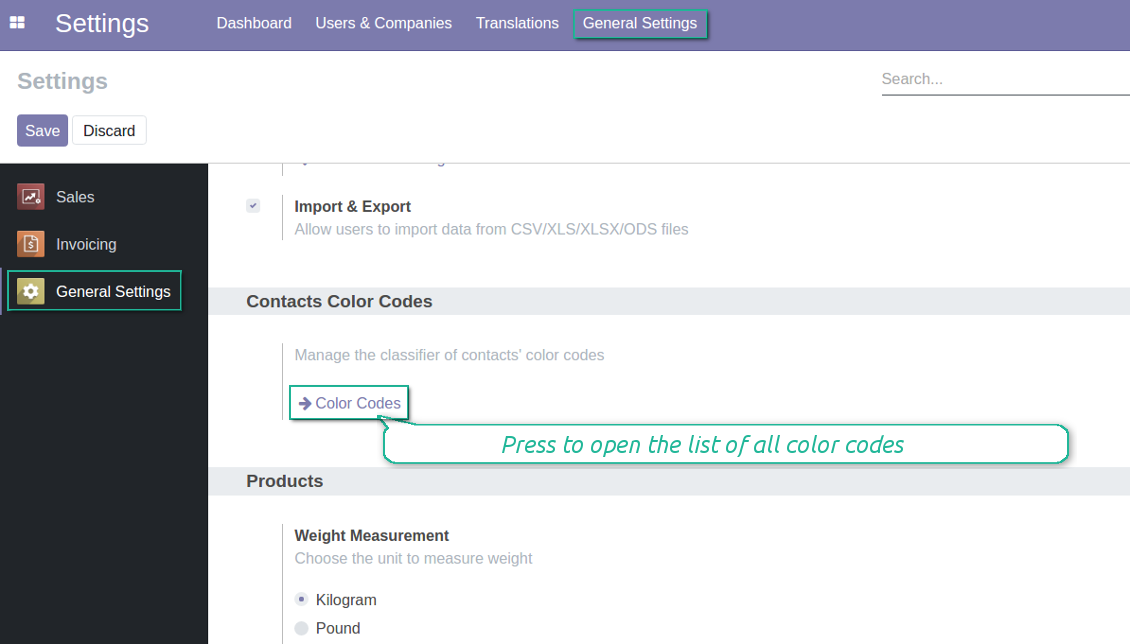
Color code for any contact
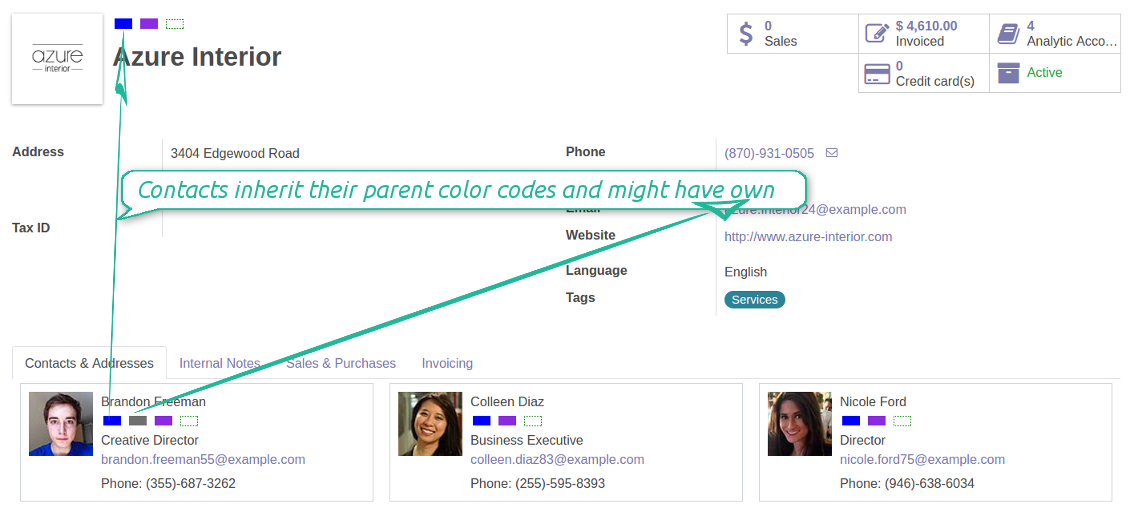
Color codes also take into account relations between partners. A contact always inherits color codes from a parent company and may have own color notes.
スクリーンショット
Contacts inherit their parent color codes
Partner list view
Search contacts by a color code reference
に関するよくある質問 Contacts Color Coding Odoo v.12
ツールの更新ポリシーは何ですか?
現行の Odoo Apps Store ポリシーによると:
- バージョン 12.0 以前向けに購入したモジュールは、12.0 までの全バージョンにアクセスできます。
- バージョン 13.0 以降、各モジュールバージョンは個別に購入します。
- バージョンに関係なく、購入するとメジャーバージョン内の すべての更新と不具合修正の権利が得られます。
faOtools チームはこれらのポリシーを管理していません。ご質問は Odoo Apps Store の担当者へ直接お問い合わせください。
アプリを Odoo.sh にインストールする方法は?
最も単純な方法は、Odooストア組み込みのワークフローを使うことです:
1. モジュールのページを開き、Deploy on odoo.sh ボタンをクリックします。
2. その後 GitHub ページにリダイレクトされます。アカウントにログインし、'Create a new repo' をクリックするか既存のものを使います。リポジトリはプライベートにしてください。OPL-1 ライセンスのアプリを公開することは許可されていません。必要なら Odoo.sh プロジェクト用に新しい repo を作成します。
3. 次に odoo.sh に行き、Deploy ボタンをクリックします。ポップアップで決定を送信し、'Continue.' をクリックします。これでインストールが始まります。
これらの手順でプロジェクトの本番ブランチにアプリがインストールされます。他のブランチにデプロイする、またはモジュールを更新する場合は、次の操作を行います:
1. Odooストアからアプリのソースコードをアップロードします。
2. モジュールを必要な GitHub リポジトリにコミットします。アプリのフォルダ/ファイルが無視されていないこと(repo の .gitignore に含まれていないこと)を確認してください。リポジトリは odoo.sh が自動作成し、既定で重要な項目(例: /lib)が含まれることがあります。モジュールのディレクトリ、サブディレクトリ、ファイルを例外なくすべてアップロードしてください。
3. odoo.sh プロジェクトの対象ブランチを Deploy するか、 設定がそうなっている場合は自動ビルドされるまで待ちます。
自分のサーバーにアプリをインストールするには?
2. Odoo サーバーを再起動します;
3. 開発者モードをオンにします(技術設定);
4. アプリ一覧を更新します(アプリメニュー);
5. アプリを見つけて「Activate」/「Install」を押します;
6. アプリページにガイドラインがあれば従ってください。
アプリに追加アドオンがあるのに気づきました。後から購入できますか?
はい、もちろんです。同時に Odoo は依存関係をすべてカートに自動追加するので、二重払いを避けるには既に購入したツールを除外してください。
アプリを Odoo.sh にデプロイしたらテストで警告/エラーが出ます
赤/オレンジの警告はアプリの機能に影響しません。残念ながら、標準の自動テストがアプリの目的と衝突する動作を想定するため、モジュールが通らないことがあります。たとえば価格計算を変える一方、標準 Odoo モジュールのテストは最終価格を標準アルゴリズムと比較します。
まず、デプロイ済みデータベースの機能を確認してください。すべて正しく動いていますか?
それでも警告が実機能に影響すると考える場合はご連絡のうえ、インストールログ一式とデプロイ済みモジュールの全一覧(コアおよびサードパーティ含む)を送ってください。
アプリを御社から直接購入できますか?
いいえ、ツールは 公式の Odoo アプリストア.
割引をいただきたいです
残念ながら、個別価格を提示する技術的手段が ありません。
Odoo Online (SaaS)データベースにアプリをインストールできますか?
いいえ、サードパーティアプリは Odoo Online では使えません。残念ながら Odoo SaaS がその可能性をブロックします。
ツールは他のアプリに依存しています。それらも購入すべきですか?
はい、ツールが正しく動くには依存関係に記されたすべてのモジュールが必要です。アプリページの価格には必要な依存関係がすでに含まれています。
モジュールの米ドル価格はいくらですか?なぜ変わりましたか?
モジュールの価格はユーロ建てです。Odoo ストアは内部為替レートで他通貨に換算します。そのため為替が更新されると米ドル価格が変わることがあります。
英語以外のアプリ・サイト文言は AI 支援で作成され、 公式の Odoo 翻訳に揃えています。誤りを見つけたら、 翻訳の正確さについてチケットを送る 修正します。
不具合報告
不具合や一貫しない動作があれば、遠慮なくご連絡ください。購入から60日以内の修正を保証し、その後もツール改善に力を入れています。
ご連絡に電話番号やクレジットカードは不要です。30 秒以内の短いメール登録だけです。
リクエストにはできるだけ多くの詳細を含めてください:スクリーンショット、Odoo サーバーログ、問題の再現手順の完全な説明など。通常、問題の作業計画の作成(不具合が確認された場合)または実施すべき内容の案内(それ以外)には数営業日かかります。
公開の機能リクエストとモジュールのアイデア(無償開発)
ツール改善への意欲は強く、フィードバックには感謝します。要件が広く役立ち、効率よく実装できる場合、チームは To-do リストに加えます。
このような To-do リストは定期的に処理され、追加料金は発生しません。期限や最終デザインは約束できませんが、投資とリスクなしで望む機能を得る良い方法になることがあります。
ご連絡に電話番号やクレジットカードは不要です。30 秒以内の短いメール登録だけです。

Odoo の添付ファイルをフォルダに柔軟に整理し、Google Drive、OneDrive/SharePoint、Nextcloud/ownCloud、Dropbox、Amazon S3、Box、NAS とディレクトリを同期するツール。DMS。ファイルマネージャー。文書管理システム
398€

社内・社外向けに深く構造化されたナレッジベースを構築するツール。Knowledge System。KMS。Wiki のような改訂。
398€




